How to manually send Fireflies meeting notes to your CRM
Last updated: March 24, 2026
Conversations often contain details your team wants in the CRM. With Fireflies, review your meeting notes in the Notepad and manually send them to the right CRM contacts — across all meeting types, including calendar meetings, in-person recordings, and uploaded meetings. No extra setup needed.
✨ Why Manually Send Meeting Notes to Your CRM?
Manually sending meeting notes gives your team full control over what gets logged — so your CRM stays clean, relevant, and useful.
Choose which meetings get added to your CRM — not everything needs to be logged
Keep CRM records clean and organized — no noise, just the conversations that matter
Edit notes or create soundbites directly in the Fireflies Notepad before sending
Send only relevant notes to the right contacts
No configuration required — just connect your CRM integration and start sending
🚀 Steps to Follow
Step 1: Open your Meeting Notepad
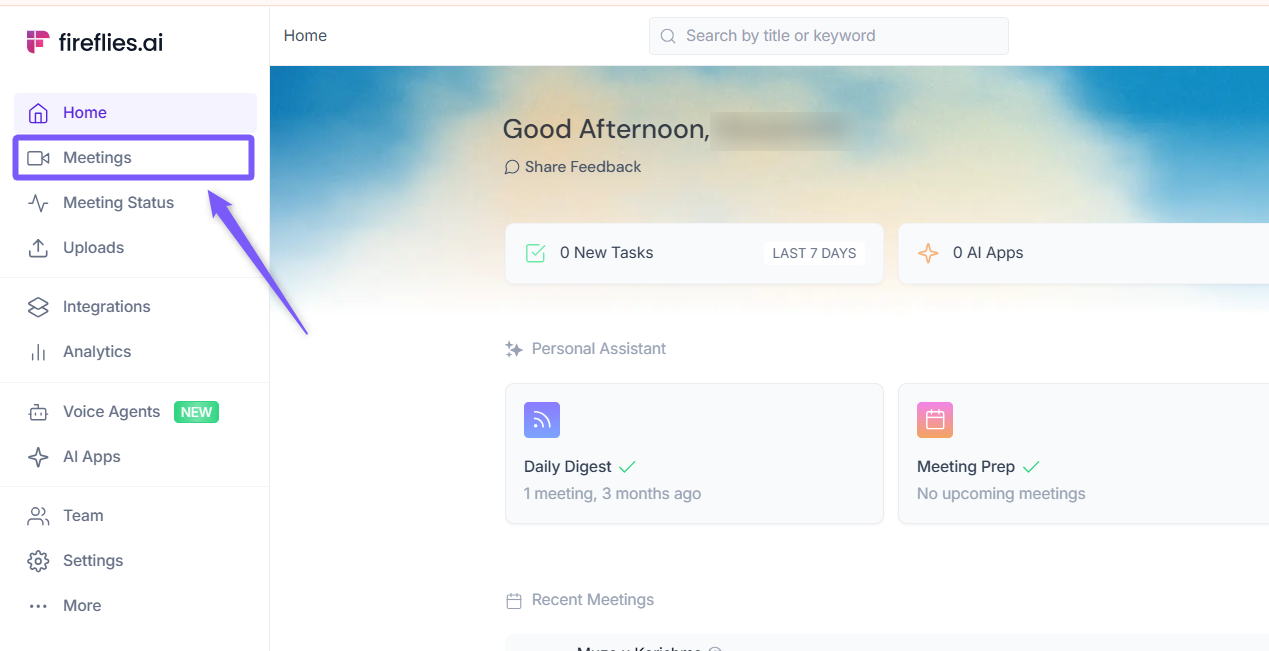
Log in to your Fireflies account and click on the Meetings tab from the left-hand menu to open your meeting notebook.
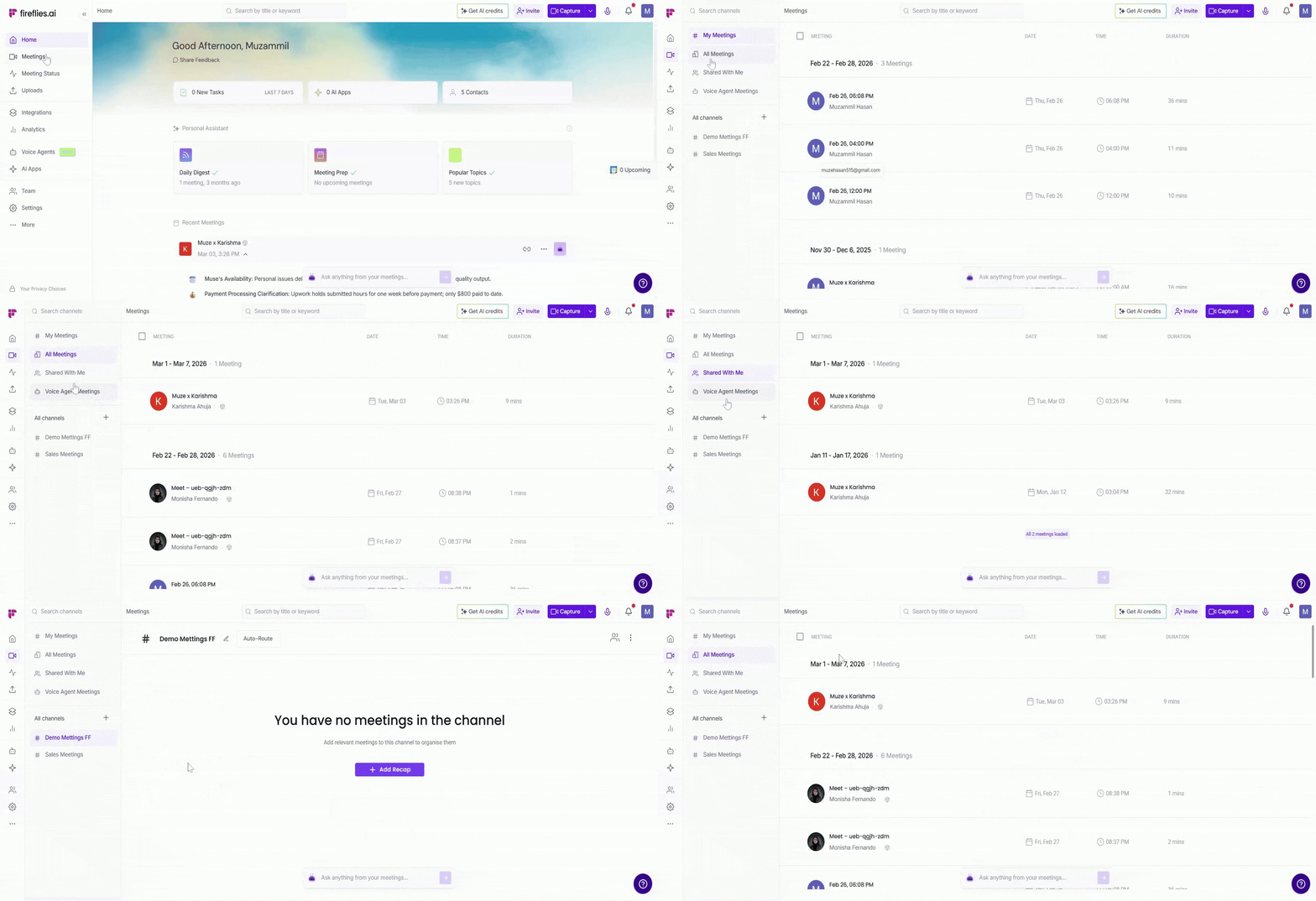
Search for the meeting you want by typing keywords in the search bar or using filters such as My Meetings, All Meetings, or Channels.
Open the meeting from which you want to manually send meeting notes to your CRM
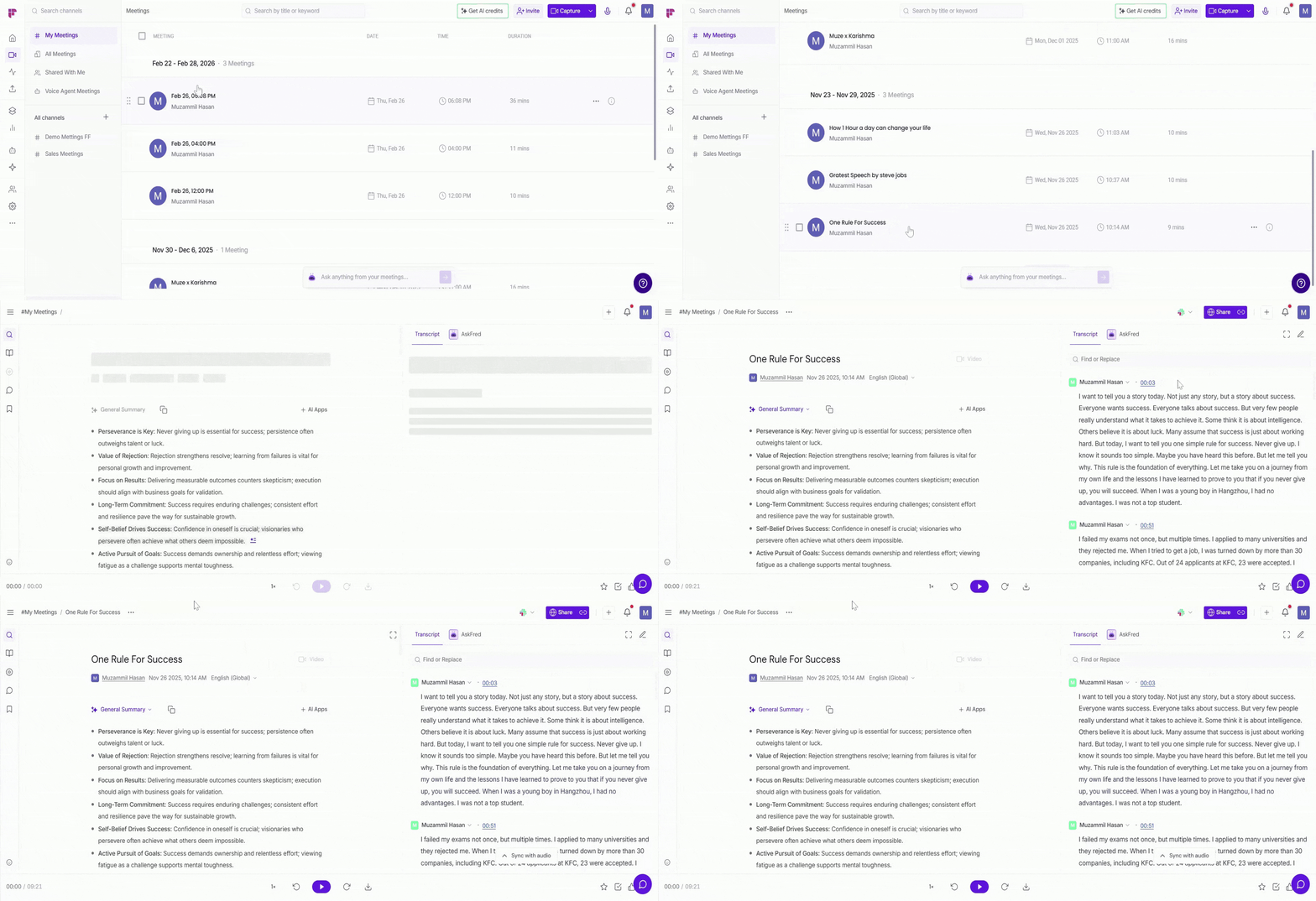
Make sure the meeting has already been recorded or uploaded to Fireflies and that the meeting recap and notes have been generated.
Step 2. Spot the Integration Icon
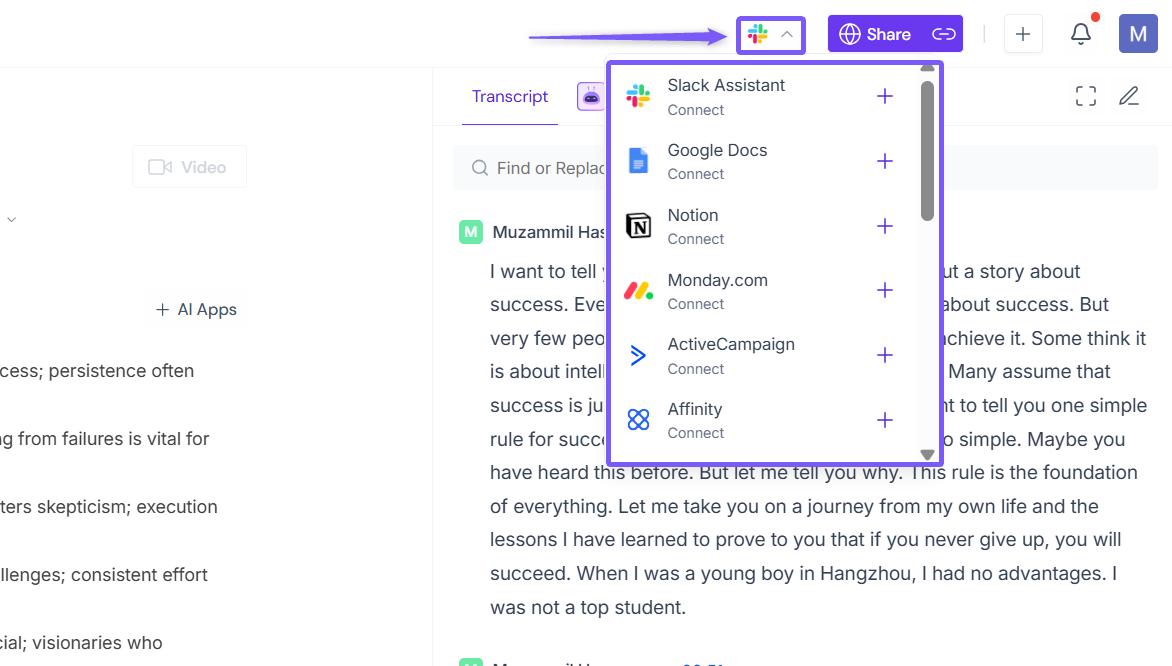
Click the dropdown menu icon in the top-right corner of the Notepad to view the list of available crm integration platforms.
Step 3: Connect your CRM integration
Next, connect the CRM where you want to send your meeting notes.
Fireflies supports several CRM integrations, including HubSpot, Salesforce, Monday CRM, ActiveCampaign, Attio, GoHighLevel, Intercom, Microsoft Dynamics 365, Zendesk Sell, Redtail, and Wealthbox.
No configuration or setup rules are required. Simply connect the CRM integration and start sending notes from the Notepad.
💡 Tip: Choose the CRM where you want to send your notes (e.g, Notion) and click the + icon next to the integration to authenticate and connect your account.
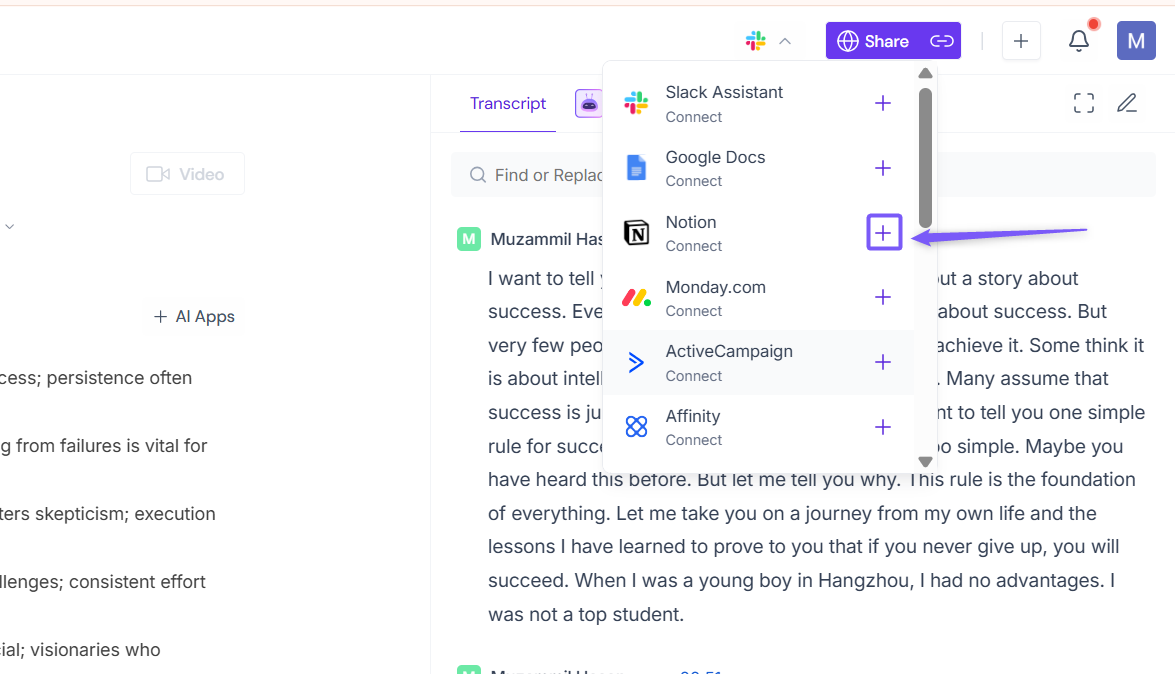
Step 4. Choose your CRM from the list.
🟢 Green checkmark: Already connected and ready to go!
➕ Plus sign: Not linked yet, but don’t worry! Just click it, and you’ll be taken to the setup page where you can easily connect.
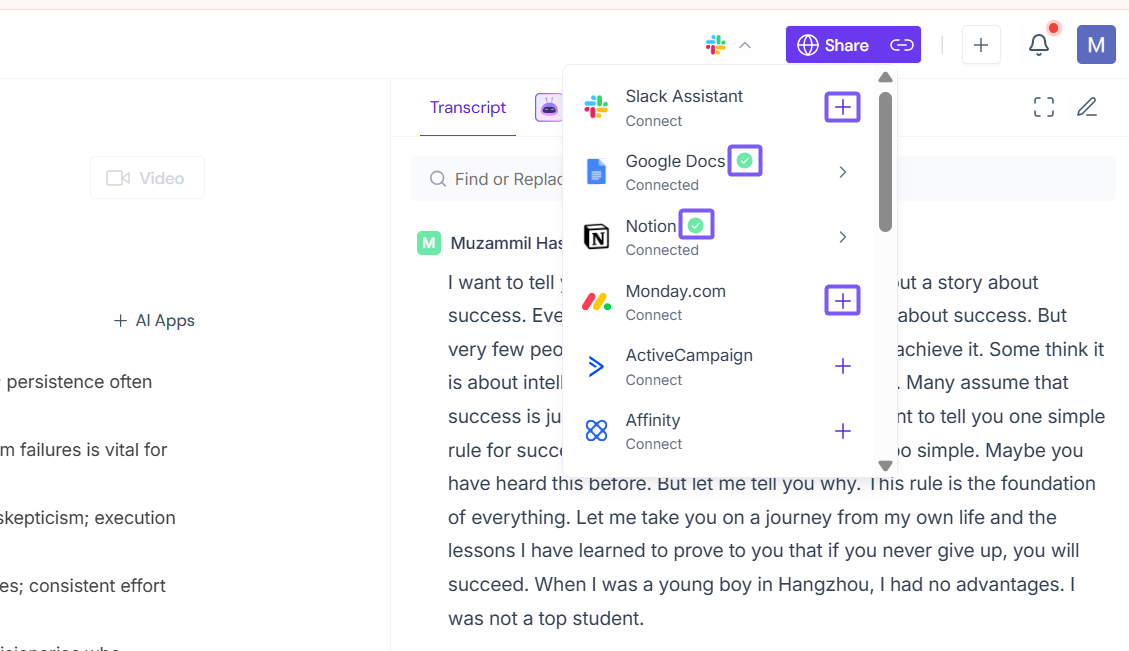
Simply click on your preferred tool (like Notion) to get started!
Step 5: Send meeting notes to your CRM
Hover over the CRM you selected to and you will see two options:
Send Notes – Sends the meeting notes to the selected CRM directly.
Configure – Opens the integration settings if you want to set up additional rules.
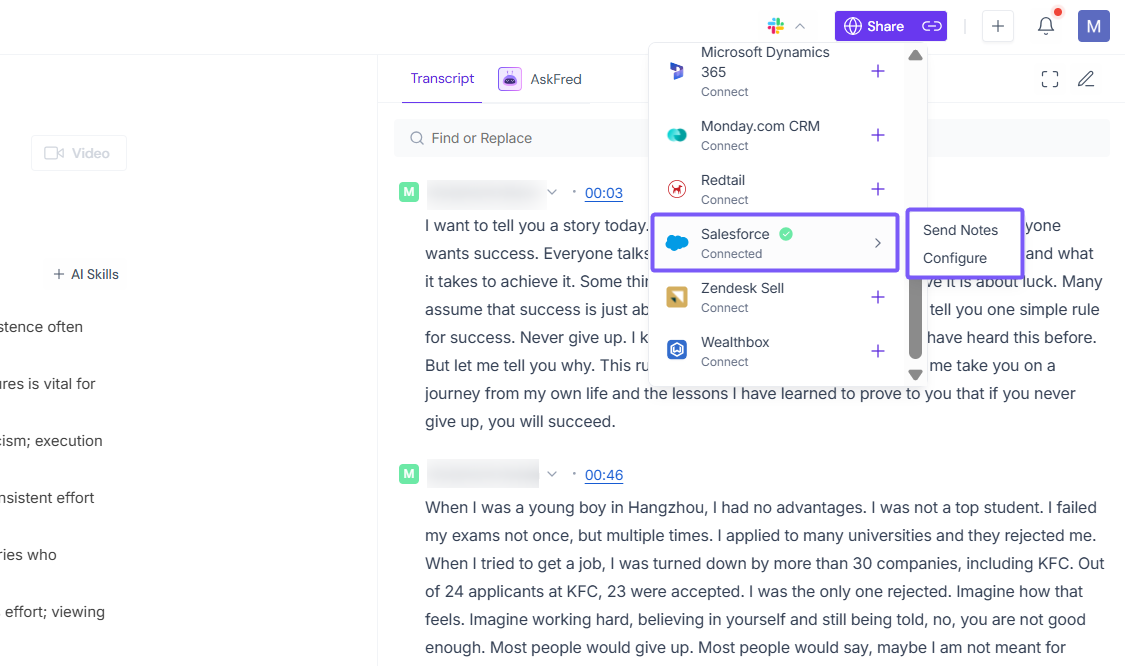
Configuration is optional and not required to send notes. If you prefer to set rules or manage integration settings, click Configure to open the Integrations page.
To continue, click Send Notes.
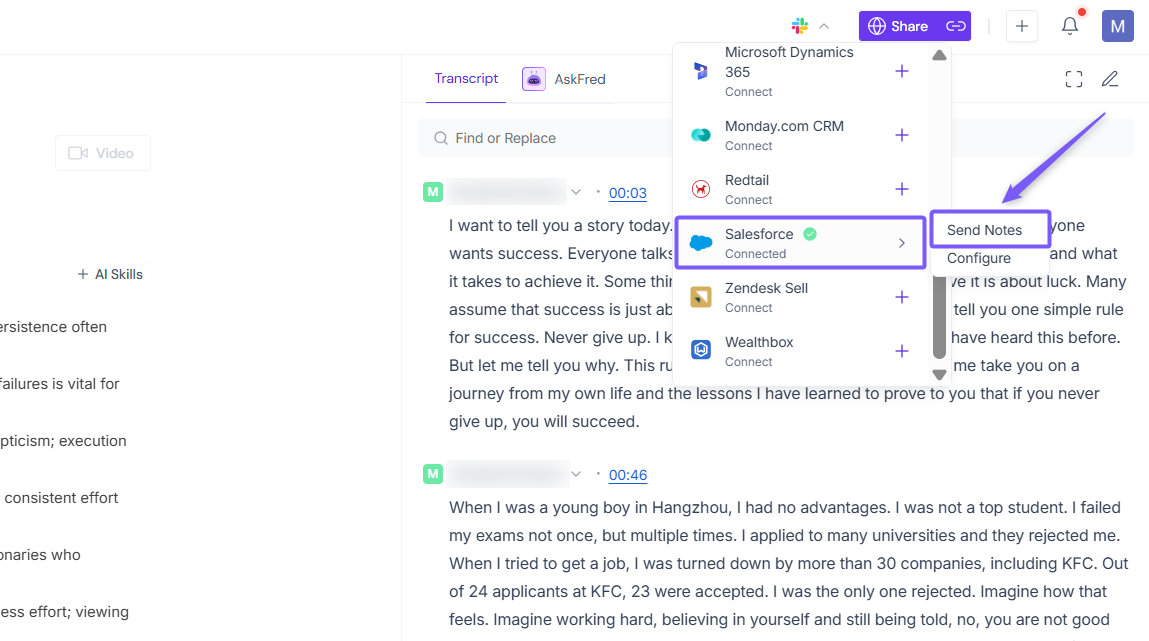
Depending on the CRM you choose, the next step may look slightly different, as each CRM stores meeting notes in its own way.
For examples
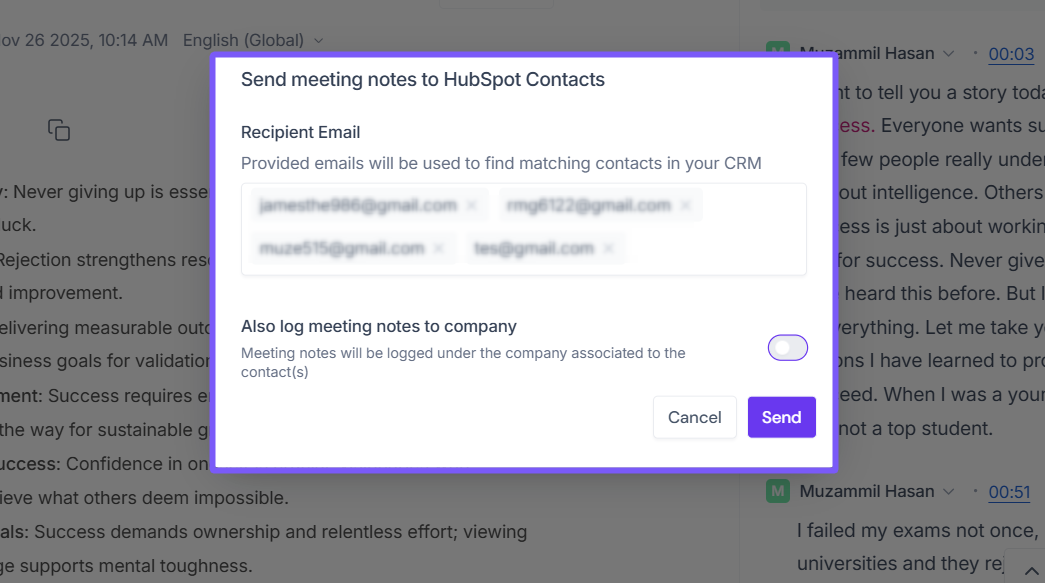
HubSpot: Enter the recipient email addresses. Fireflies will match the emails with existing contacts in your CRM. If the contact does not exist, Fireflies will create the contact and attach the meeting notes. You can also enable the toggle to log the notes to associated company records.
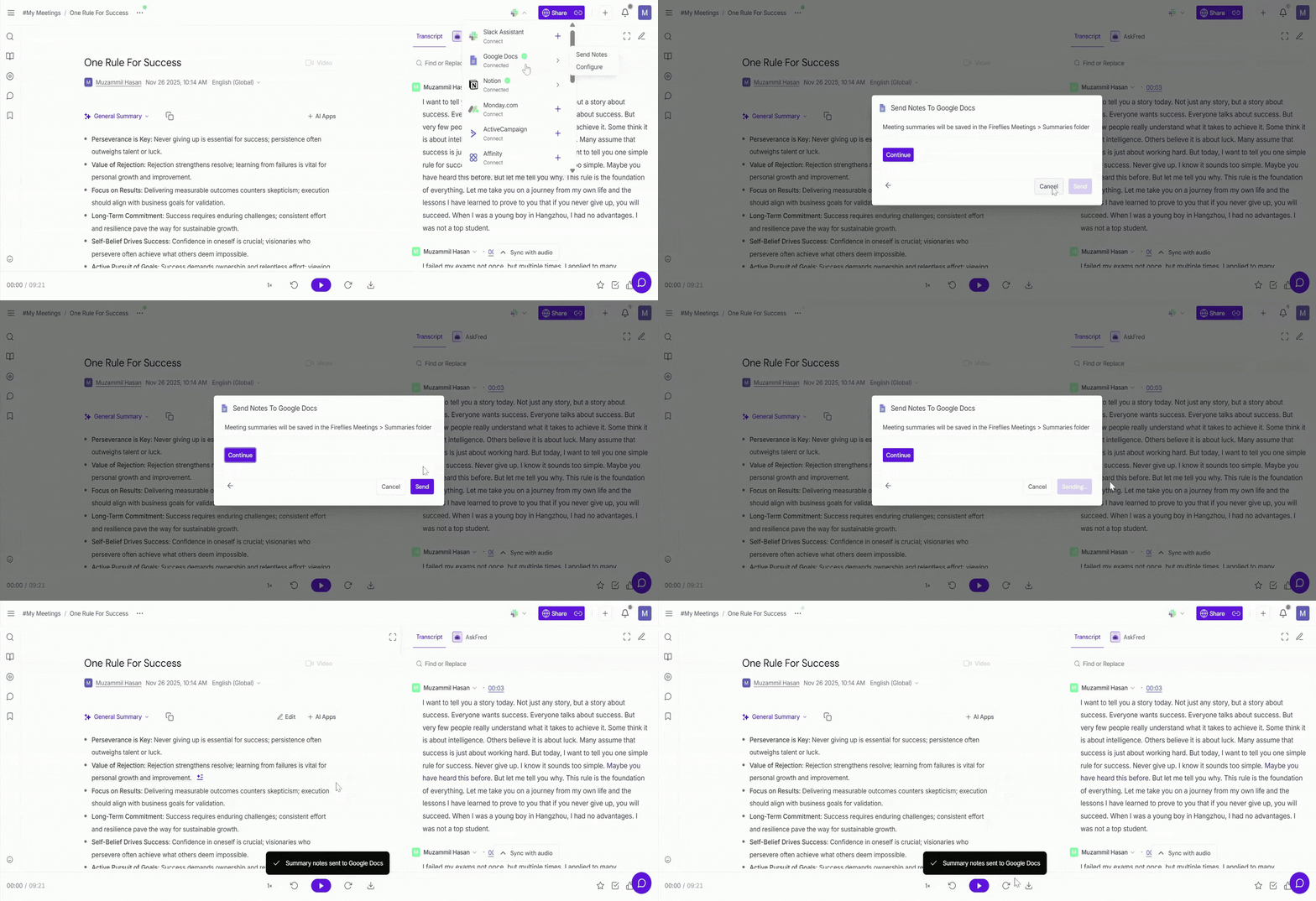
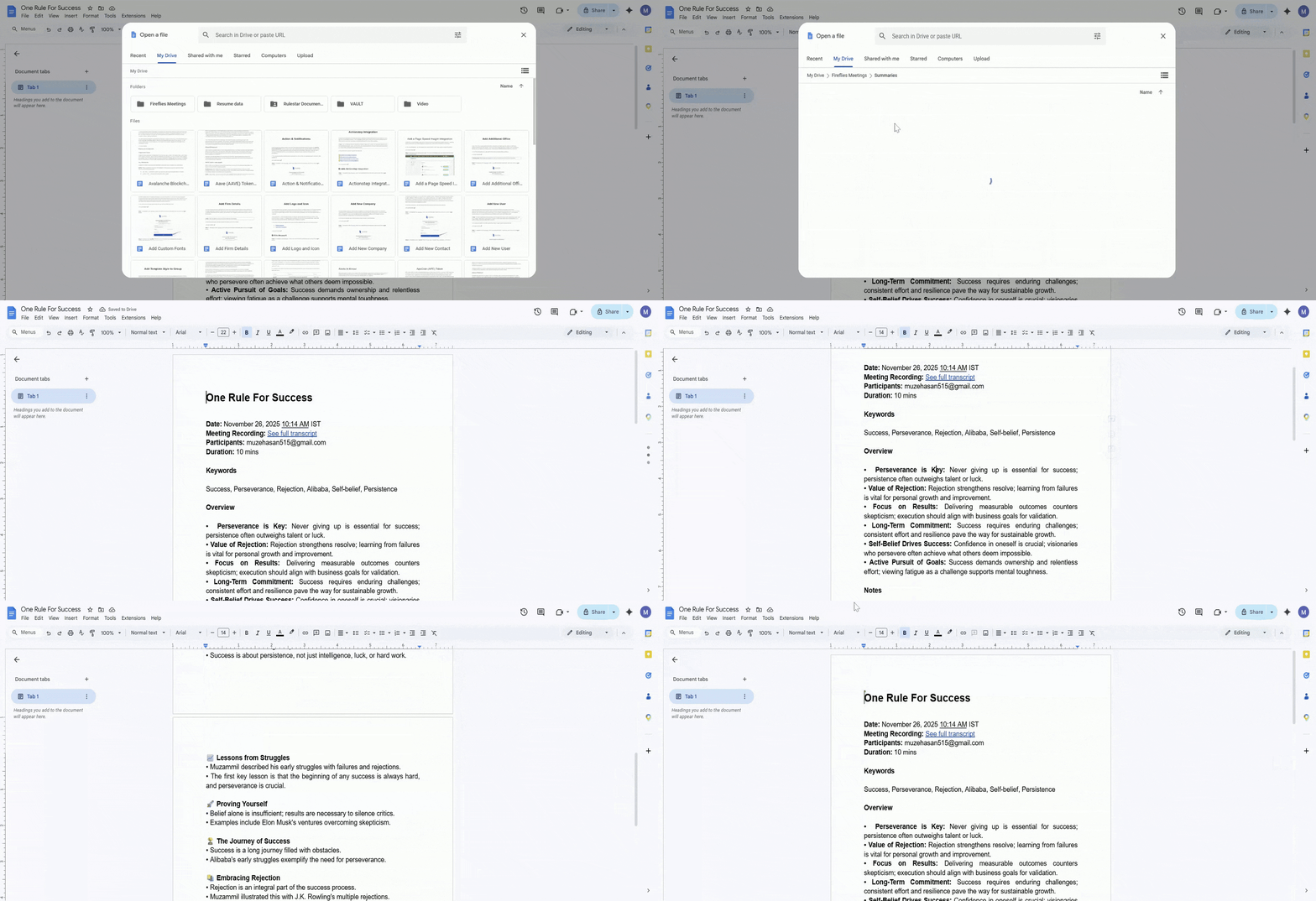
Google Docs: The meeting summary will be saved automatically in the Fireflies Meetings → Summaries folder. Simply confirm and click Send.
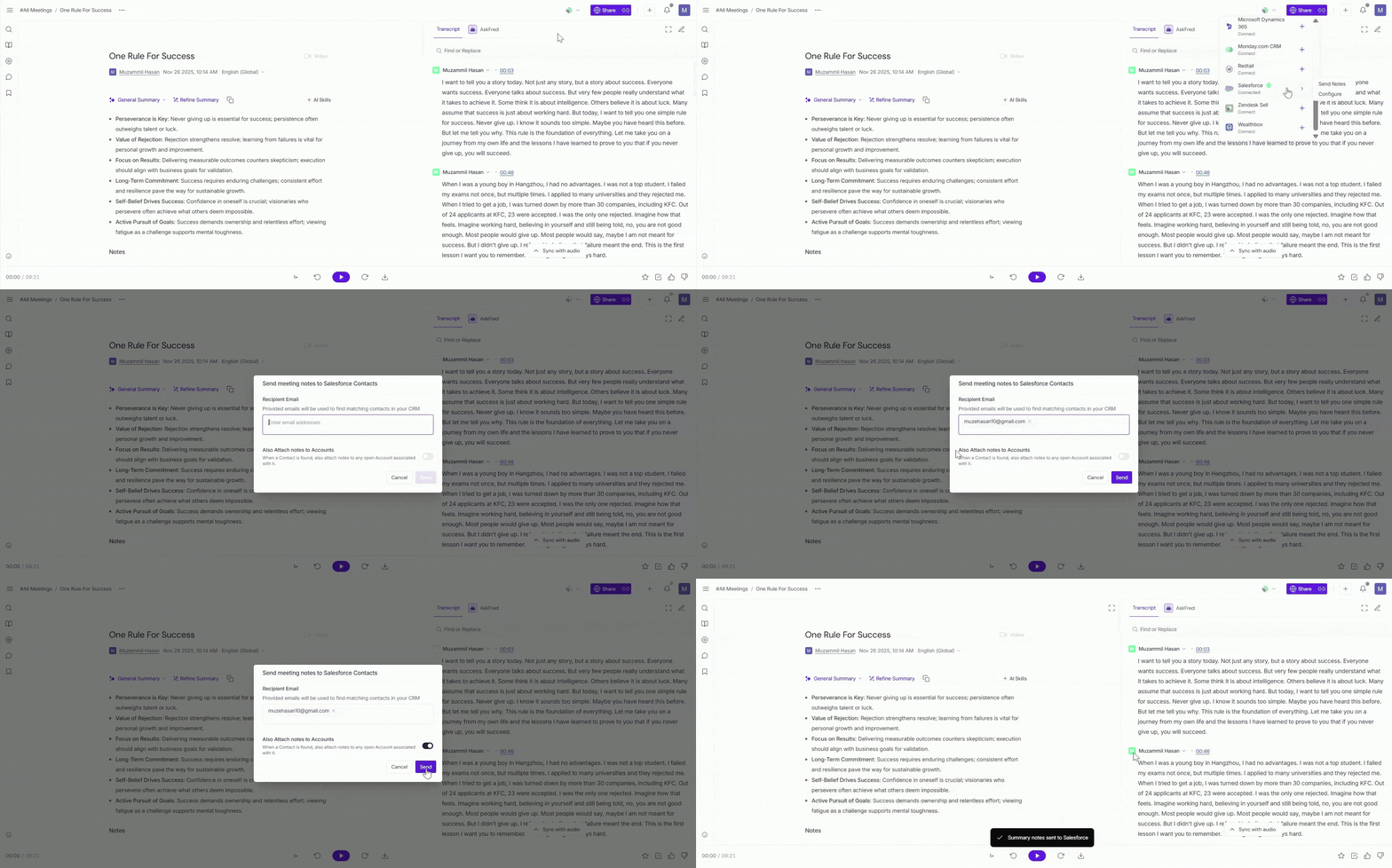
Salesforce: Enter the recipient email addresses. Fireflies will use the emails to find matching contacts in your CRM and attach the meeting notes to those contacts. You can also enable the option to attach notes to associated accounts.
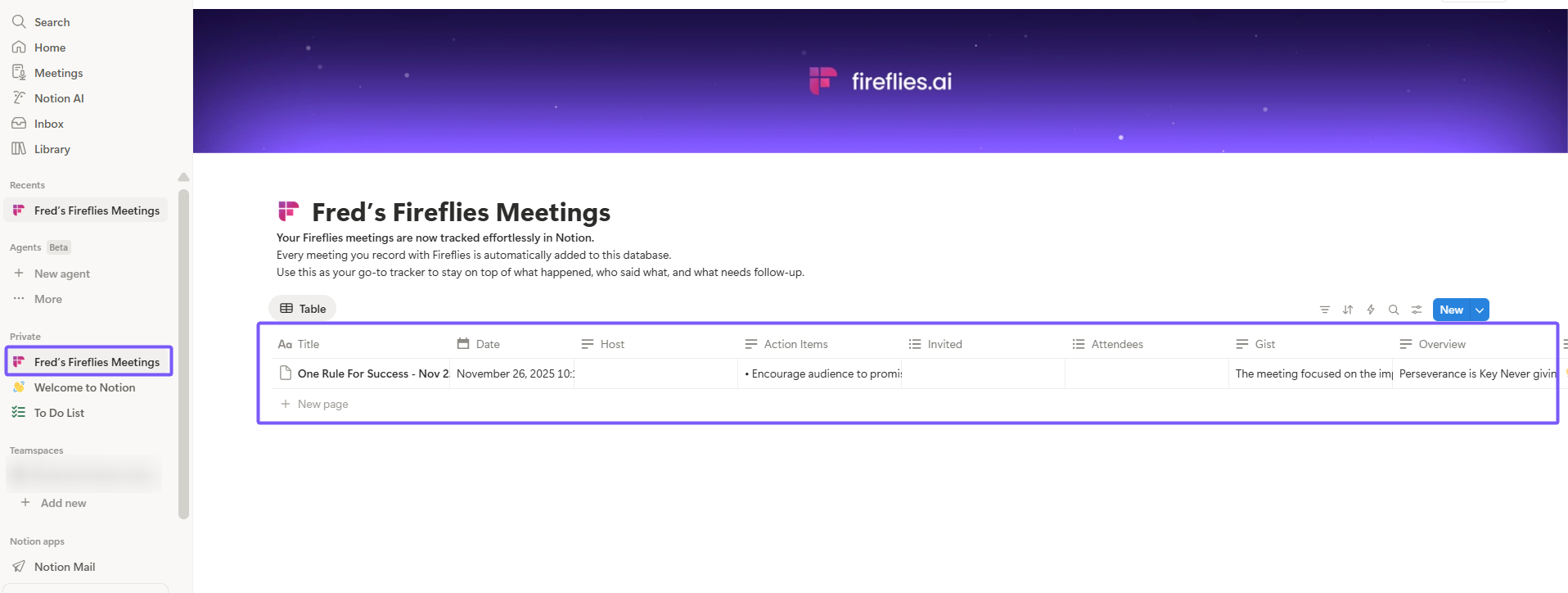
Notion: The meeting notes will be sent to the selected Notion workspace or page after confirming the action.
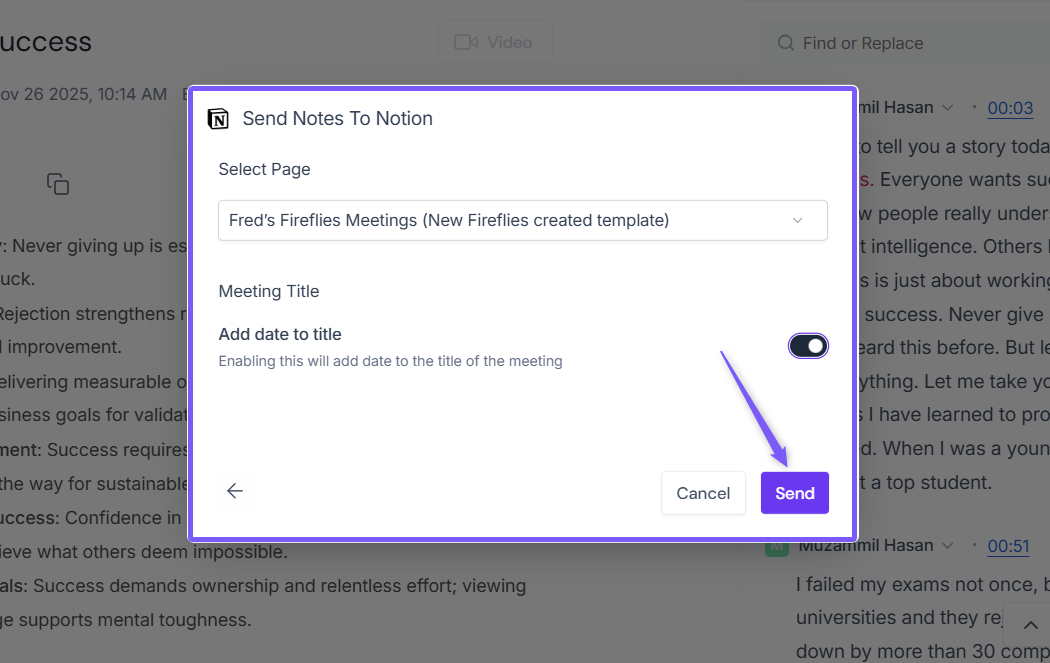
Once everything looks correct, click Send.
Your meeting notes will then be added to the selected CRM or integration destination.
📤 How notes appear in your CRM
Once the notes are sent, Fireflies adds the meeting summary to the selected CRM or destination. The way notes appear may vary depending on how each platform stores meeting information.
Typically, the notes include:
Meeting Summary — a quick overview of the conversation
Key Discussion Points — organized highlights from the meeting
Action Items — tasks or follow-ups identified during the meeting
Link to Full Recap — a direct link to the Fireflies meeting transcript and full summary
For example
Google Docs: The meeting summary is created as a document in the Fireflies Meetings → Summaries folder in your Google Drive. The document includes the meeting overview, key notes, action items, and a link to the full Fireflies recap.
Notion: The meeting notes are added to the selected Notion workspace or page connected to the integration.
🔍 Recap
You can manually send meeting notes to your CRM directly from the Fireflies Notepad in a few simple steps.
Open the meeting from the Meetings tab
Click the CRM icon in the top-right corner
Select or connect your CRM integration
Hover over the CRM and click Send Notes
Review the required details and confirm to send the notes
📌 Related Guides
Learn about the Fireflies Notepad – Understand how to organize your meeting notes and easily access key moments.
Fireflies AI Meeting Summaries: View, Customize, Expand, Regenerate – Learn how to view, customize, and regenerate AI meeting summaries to highlight key points.
How to Download Transcripts, Summaries, and Meeting Recordings - Download meeting content for offline access or sharing.