Fireflies Welcome Screen: A Guide to Your New Home Dashboard
Last updated: September 1, 2026
Whether you're new to Fireflies or already using it for your meetings, the Fireflies Home dashboard is designed to give you instant clarity, direction, and control the moment you log in. It brings everything you need into one place, helping you stay organized, prepare for meetings, track follow-ups, and access AI-powered insights with ease.
In this guide, we'll walk you through the key sections of the Fireflies Home screen, from the Getting Started experience for new users to the tools that help you stay organized and productive.
Let's dive in! 🚀
👋🏻 For New Users: The Getting Started View
If you're new to Fireflies, you'll be greeted with a Welcome Aboard! screen and a simple, guided interface designed to help you get started quickly. The Getting Started view introduces you to Fireflies' core features, helps you complete your initial setup, and shows you everything you need to start using the platform with confidence.
Key Features You'll See
Walkthrough Video: A quick overview to get you familiar with the Fireflies platform. This is the perfect first step to understand what Fireflies can do for you.
Quick Start Section:
Schedule Meeting: Connect your calendar and schedule meetings.
Upload File: Upload an audio or video recording for transcription.
Capture Meeting: Instantly invite Fireflies to join an ongoing meeting. 👉 How to invite Fireflies to meetings
Recent, Upcoming & AI Feed: Quickly switch between your recent meetings, upcoming meetings, and recently generated AI Skills.
Try More: Discover additional ways to use Fireflies:
Desktop App: Capture conversations directly from your desktop without a bot. 👉 Learn about the Fireflies Desktop App
Mobile App: Record in-person conversations and review meetings on the go. 👉 Learn about the Fireflies Mobile App
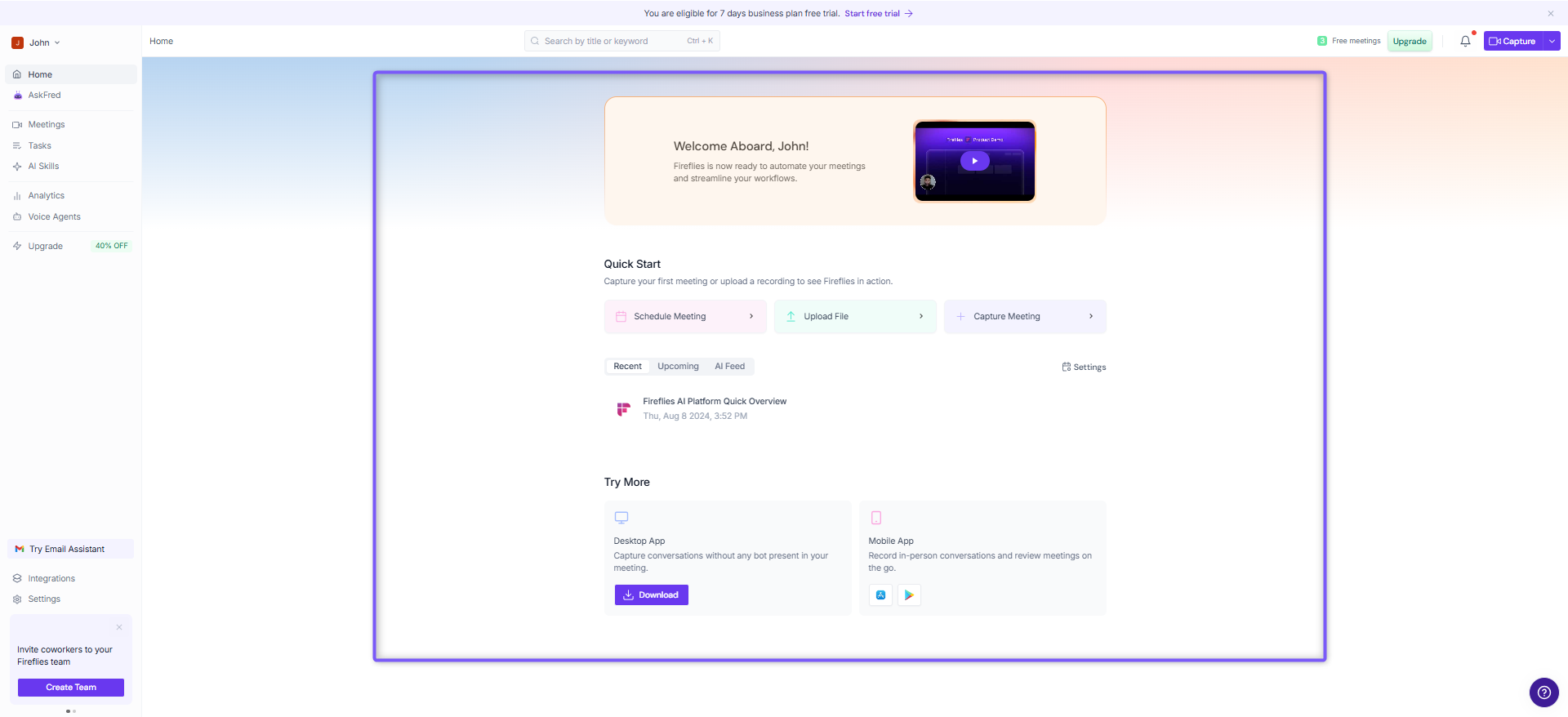
This view is designed to get you up and running in no time, with everything you need to start recording meetings and exploring Fireflies in one place.
✅ After Your First Meeting
Once you've completed your first meeting, your Home screen begins to surface helpful information and AI-powered recommendations based on your meeting activity.
What's New:
Personal Assistant: View your Daily Digest, Meeting Prep, and Tasks to stay on top of follow-ups and upcoming meetings.
Recent Meetings: Quickly access your latest meeting from the Recent tab and continue reviewing your meeting history as it grows.
AI Feed: Browse recently generated AI Skills and insights from your meetings in one place.
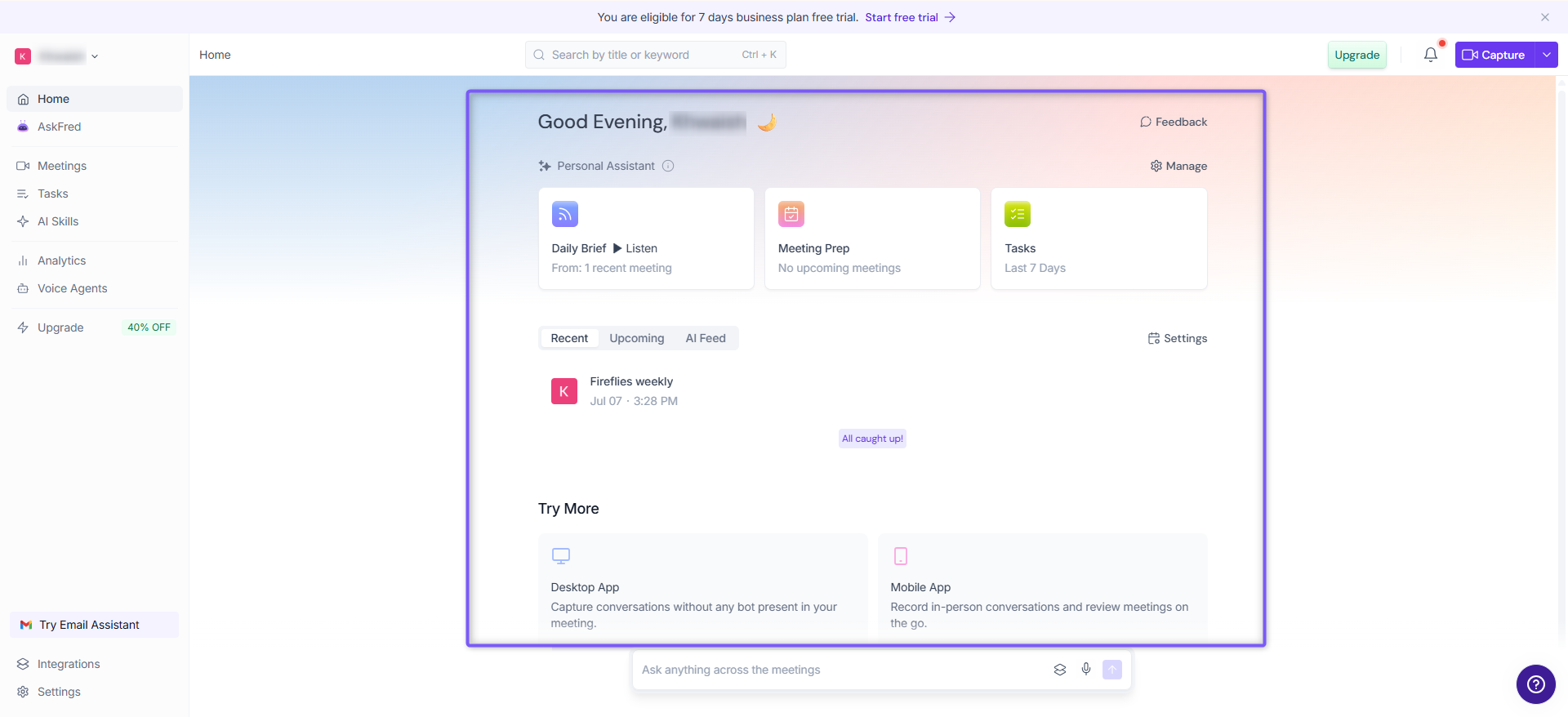
This updated view helps you quickly catch up on recent activity, prepare for what's next, and make the most of your meetings without leaving the Home screen.
🚀 For Power Users (3+ Meetings)
As you continue using Fireflies and complete more meetings, your Home screen automatically adapts to help you stay organized and work more efficiently. With quick access to AI-powered insights, meeting activity, follow-ups, and productivity tools, everything you need is available right from your workspace.
Here are the key features available to help you get the most out of your meetings.
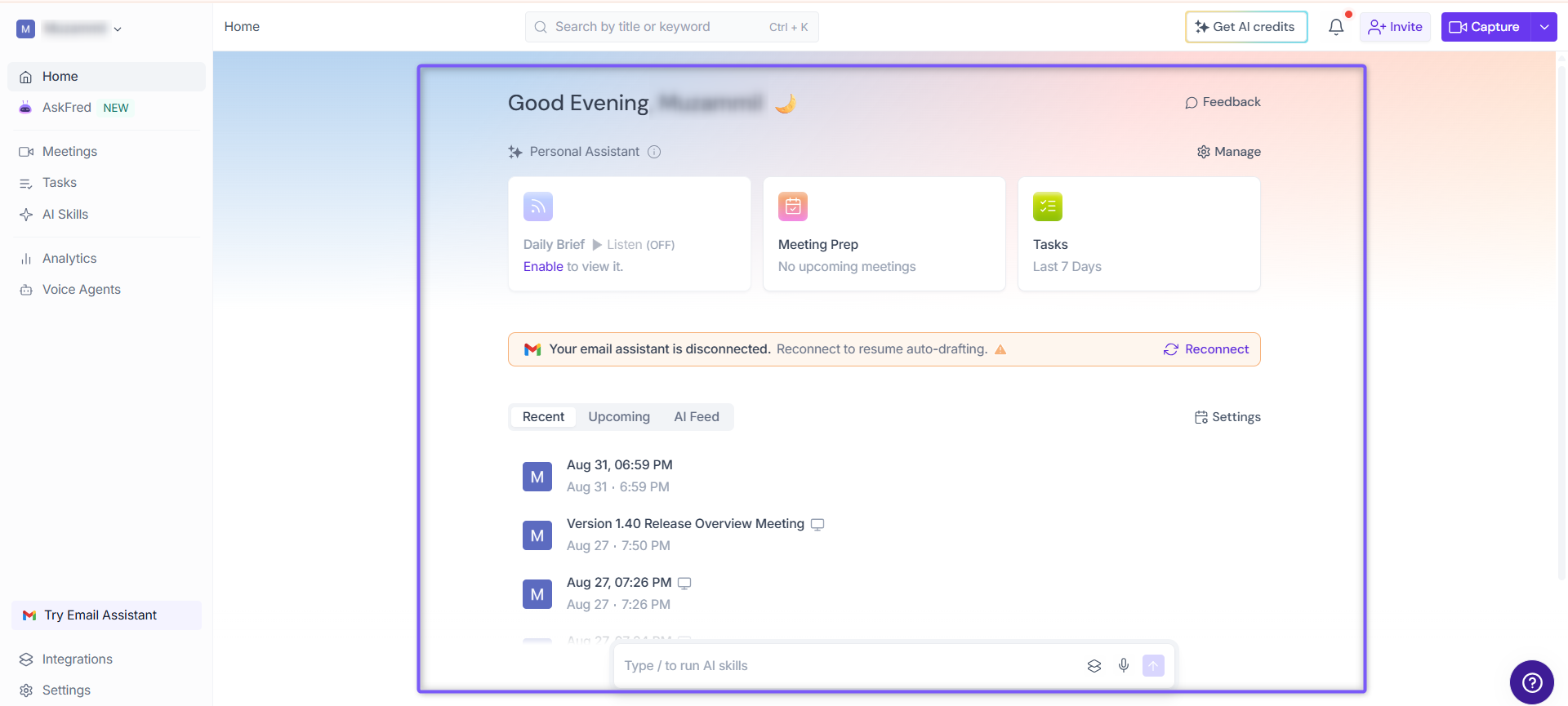
🤖 AI Personal Assistant
After every meeting, there are follow-ups, key decisions, and action items to keep track of. The AI Personal Assistant helps you stay organized by automatically surfacing important insights, preparing you for upcoming meetings, and keeping track of your tasks - all from your Home screen.
It includes three AI-powered features:
Daily Digest: Highlights the most important insights and topics from your recent meetings so you can quickly catch up.
Meeting Prep: Brings together relevant context and key information to help you prepare for your upcoming meetings.
Tasks: Automatically collects action items from your meetings, helping you stay on top of follow-ups and next steps.
➡ Learn more about the AI Personal Assistant
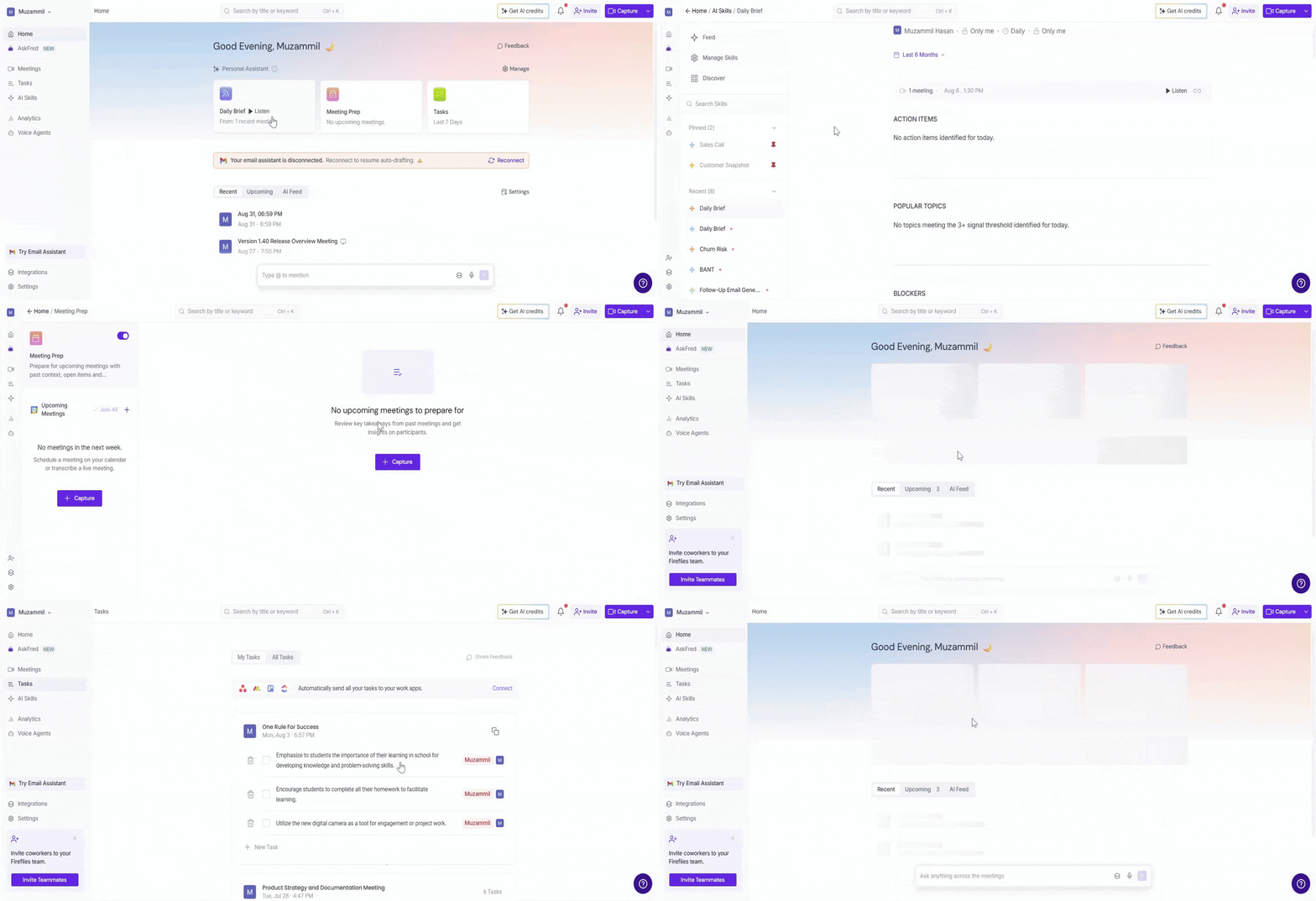
📥 Meeting Activity
The Home screen makes it easy to keep track of your meeting activity and AI-generated insights in one place. Use the tabs to quickly switch between your recent meetings, upcoming meetings, and the latest AI outputs without leaving your workspace.
🗒Recent Meetings: Quickly access your recently recorded meetings, including meeting notes, transcripts, summaries, recordings, and other meeting details.
Related: Learn more about AI Skill Feed
📆 Upcoming Meetings: Stay on top of your schedule by viewing upcoming meetings synced from your connected calendar, making it easy to prepare before each meeting starts.
Related: Upcoming meetings module
🤖 Review AI Feed: Review recently generated AI Skills and outputs across your meetings, making it easy to revisit important insights and recommendations.
Related: Learn more about AI Skill Feed
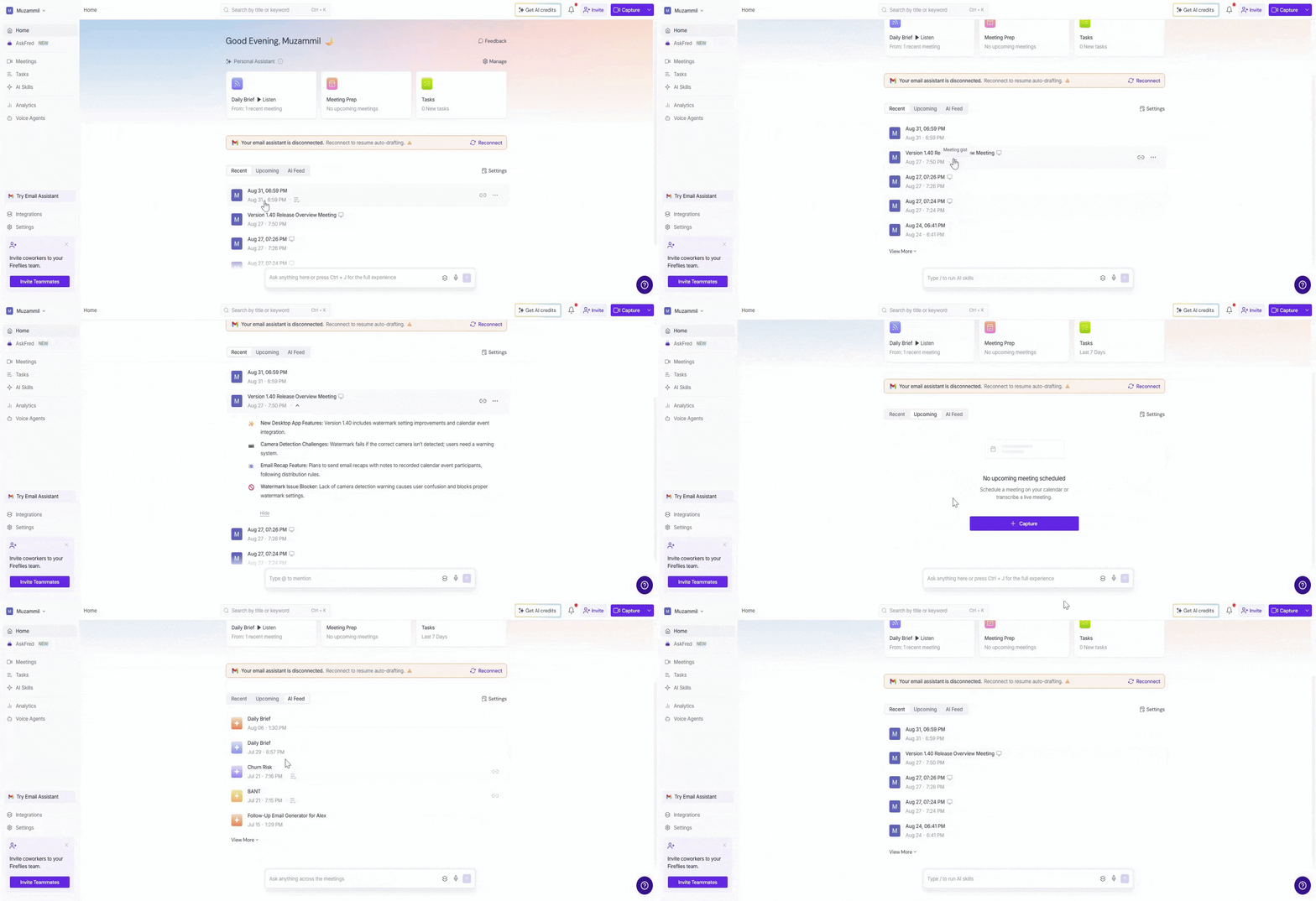
🤖 Global AskFred: Get Insights from Your Meetings
Global AskFred is your AI assistant for searching across all your meetings. Whether you want to review action items, meeting highlights, decisions, or topics discussed, AskFred can quickly find the information you need - saving you time from searching through individual meeting notes.
💡 Press Ctrl + J to quickly open or close the Global AskFred panel.
Key Features
Ask Questions Across Meetings: Ask anything about your past meetings and get AI-powered answers with supporting meeting context.
Summarize Key Information: Quickly surface important highlights, decisions, blockers, and follow-ups from your conversations.
Find Meeting Details: Search for discussions, participants, topics, or action items across your entire meeting history.
💡 Tip: Global AskFred may appear as a collapsible panel at the bottom of the Home screen or docked on the right side. You can switch between both layouts using the expand/collapse control.
📌 Related: Learn more about Global AskFred
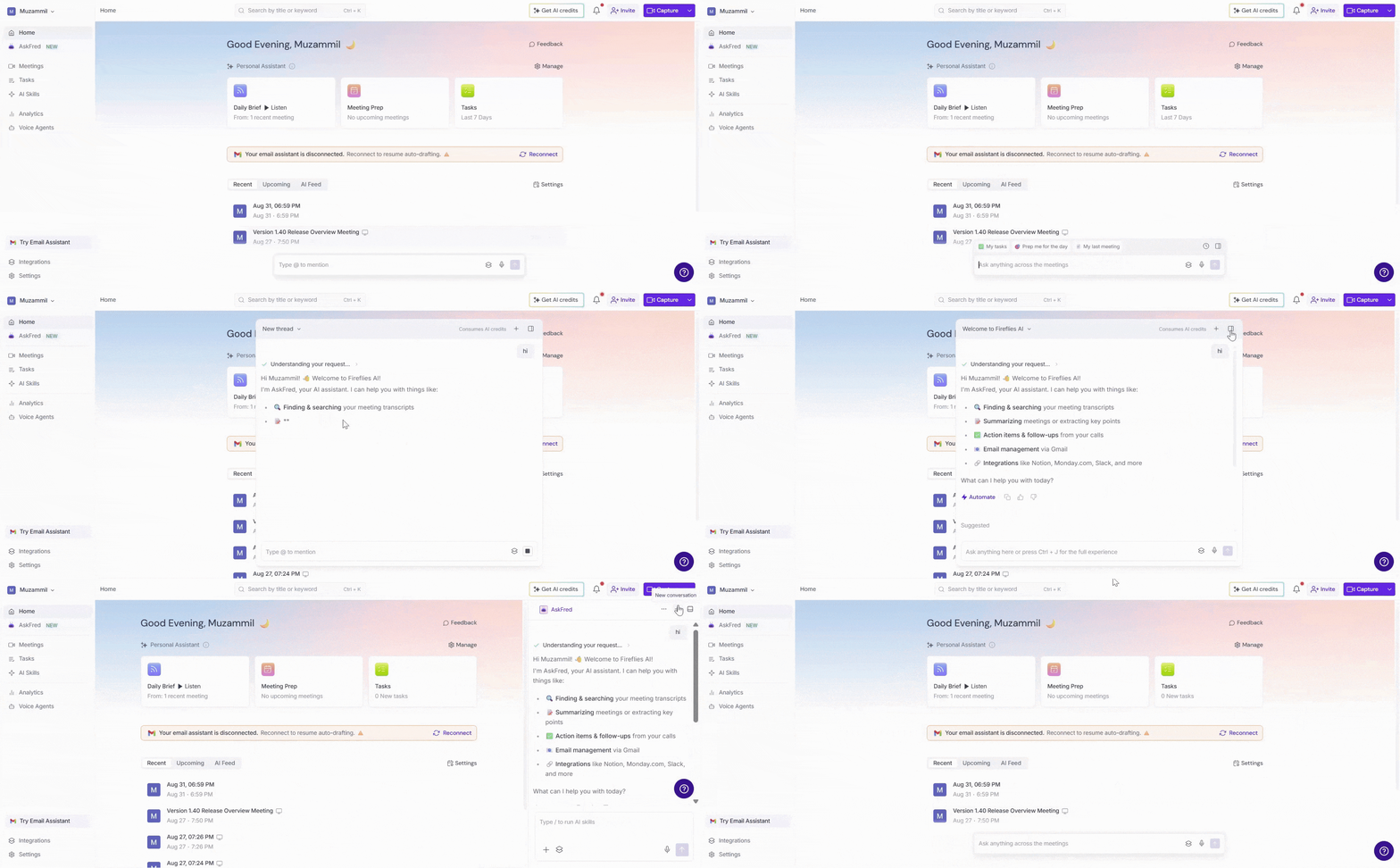
⚙ Meeting Settings
Meeting Settings gives you quick access to your meeting preferences without leaving the Home screen. Click Settings to customize how Fireflies joins meetings, sends recap emails, manages meeting privacy, and transcribes future conversations.
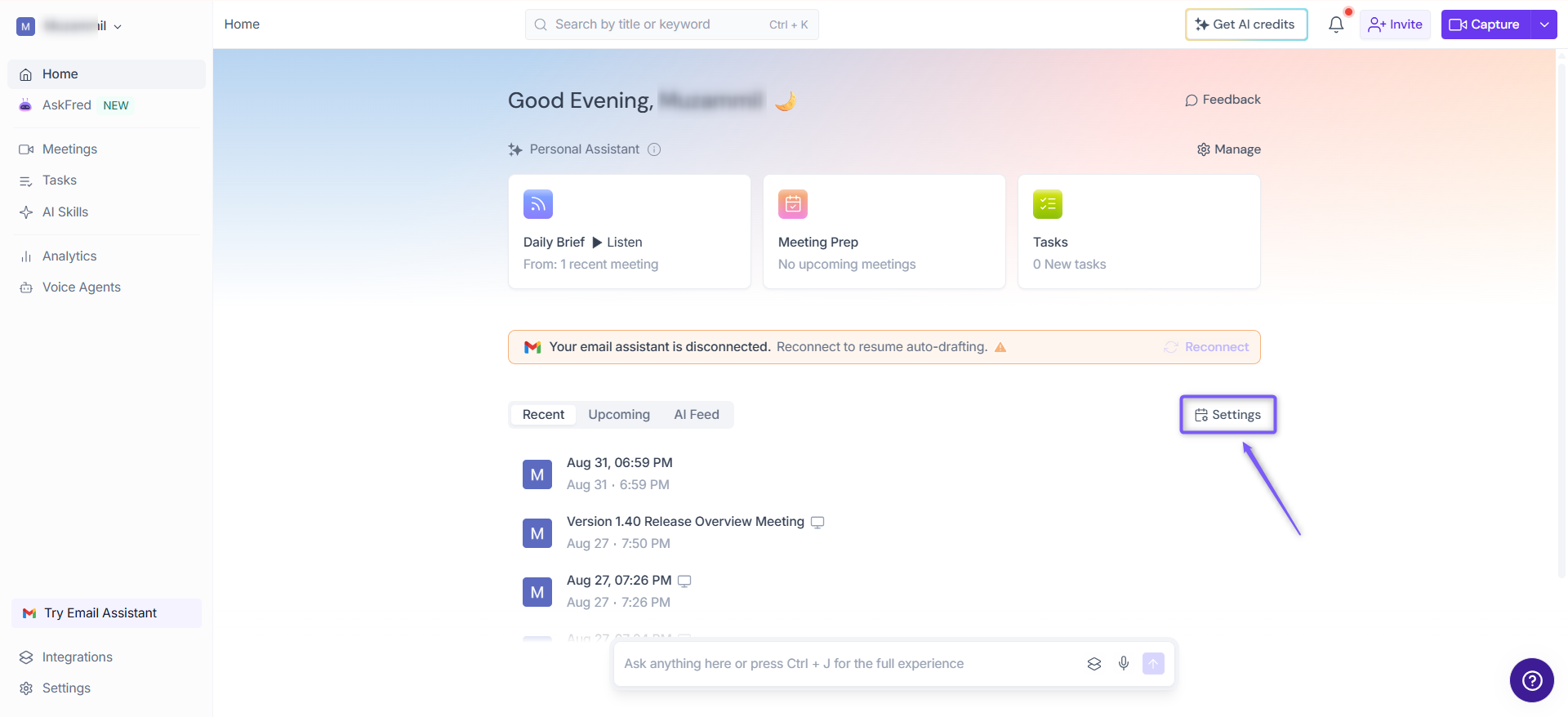
You can configure:
Auto-Join Calendar Meetings: Choose which calendar meetings Fireflies should automatically join.
Send Email Recaps: Select who should receive meeting recap emails after each meeting.
Meeting Privacy: Set the default sharing permissions for your meeting notes and recordings.
Meeting Language: Choose your preferred transcription language for future meetings.
Click Save to apply your changes.
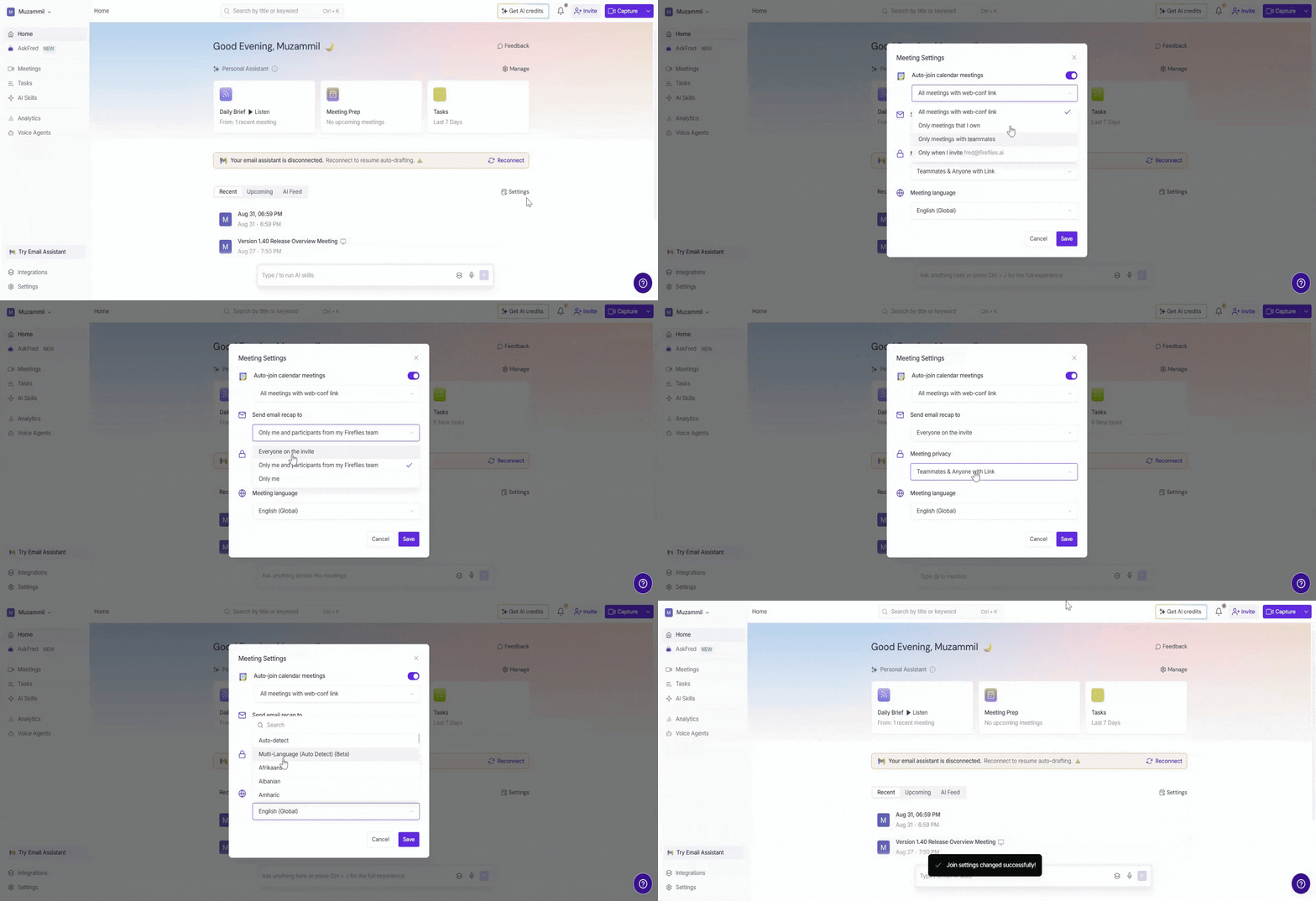
🔝 Top Navigation Bar
The top navigation bar gives you quick access to search, account settings, notifications, invitations, and meeting capture options.
👤 Account Menu
Click your profile name in the top-left corner to open your account menu. From here, you can:
View your account and plan details.
Check your AI credits.
Access Playlist, Settings, My Team, Manage Devices, and Platform Rules.
Log out of your Fireflies account.
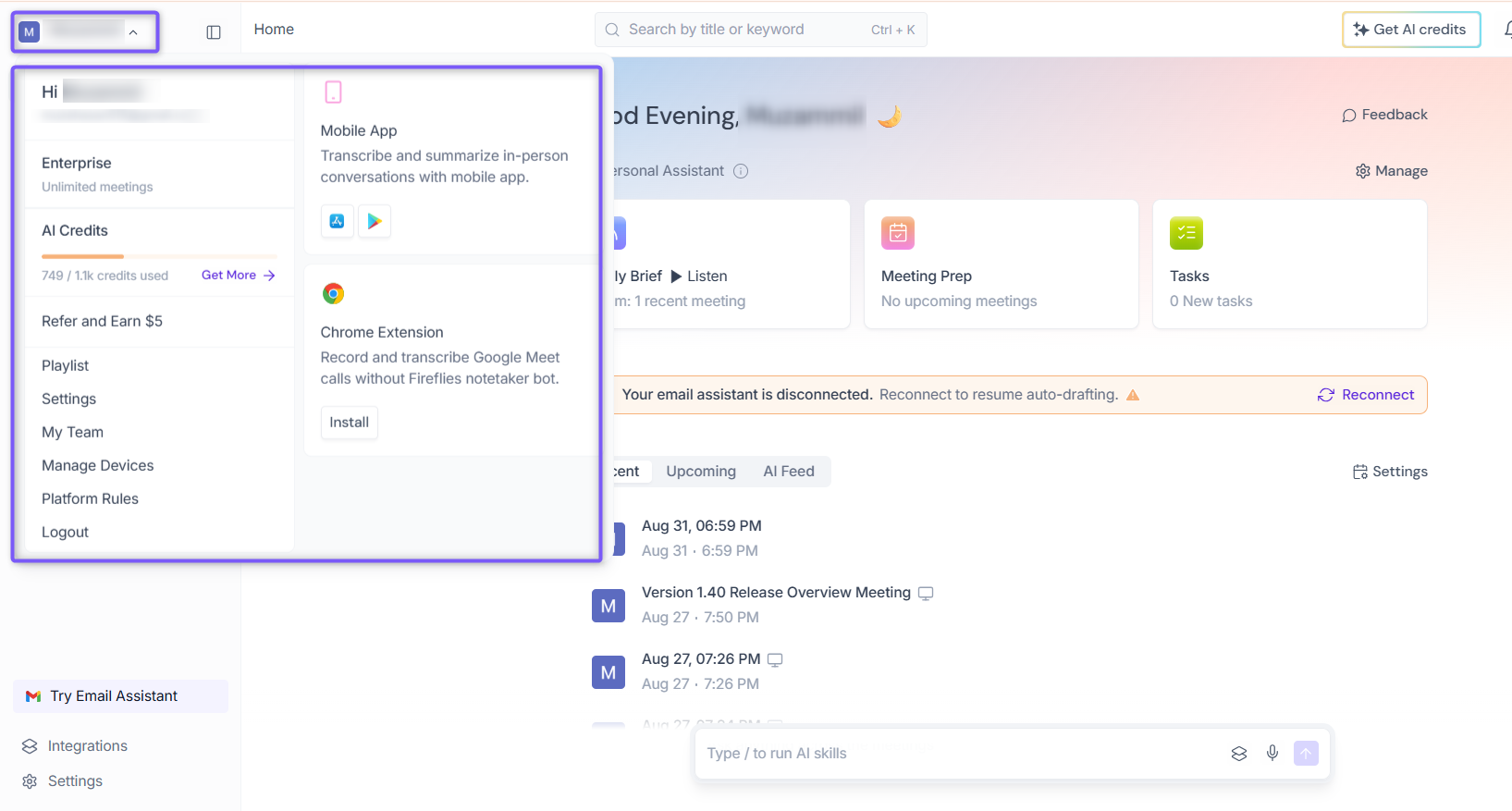
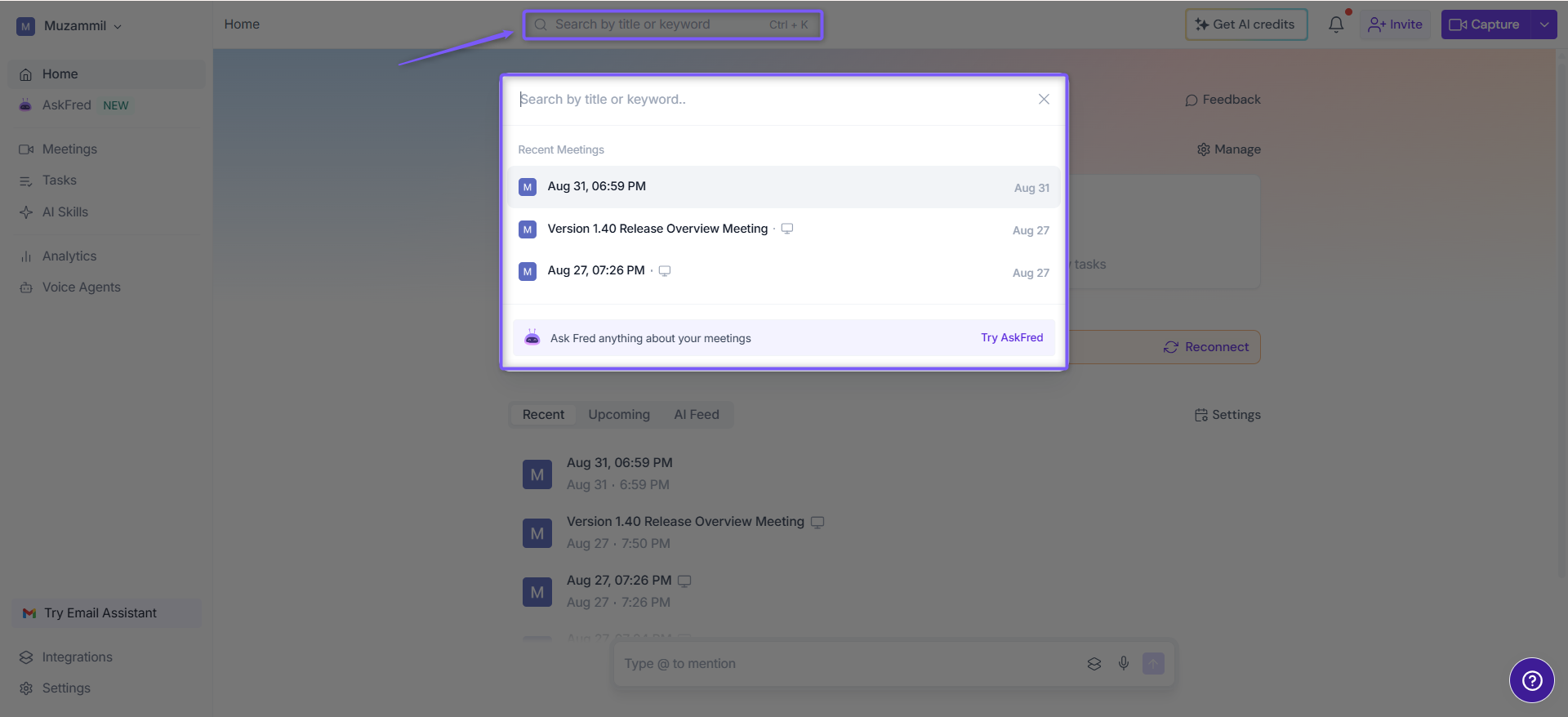
🔎 Global Search
The Global Search feature helps you quickly find meetings and information across Fireflies without manually browsing through your meeting history.
You can:
View recent meetings: Quickly access your recently completed meetings from the search bar.
Try AskFred: Ask questions across your meetings and get AI-powered answers based on your meeting history.
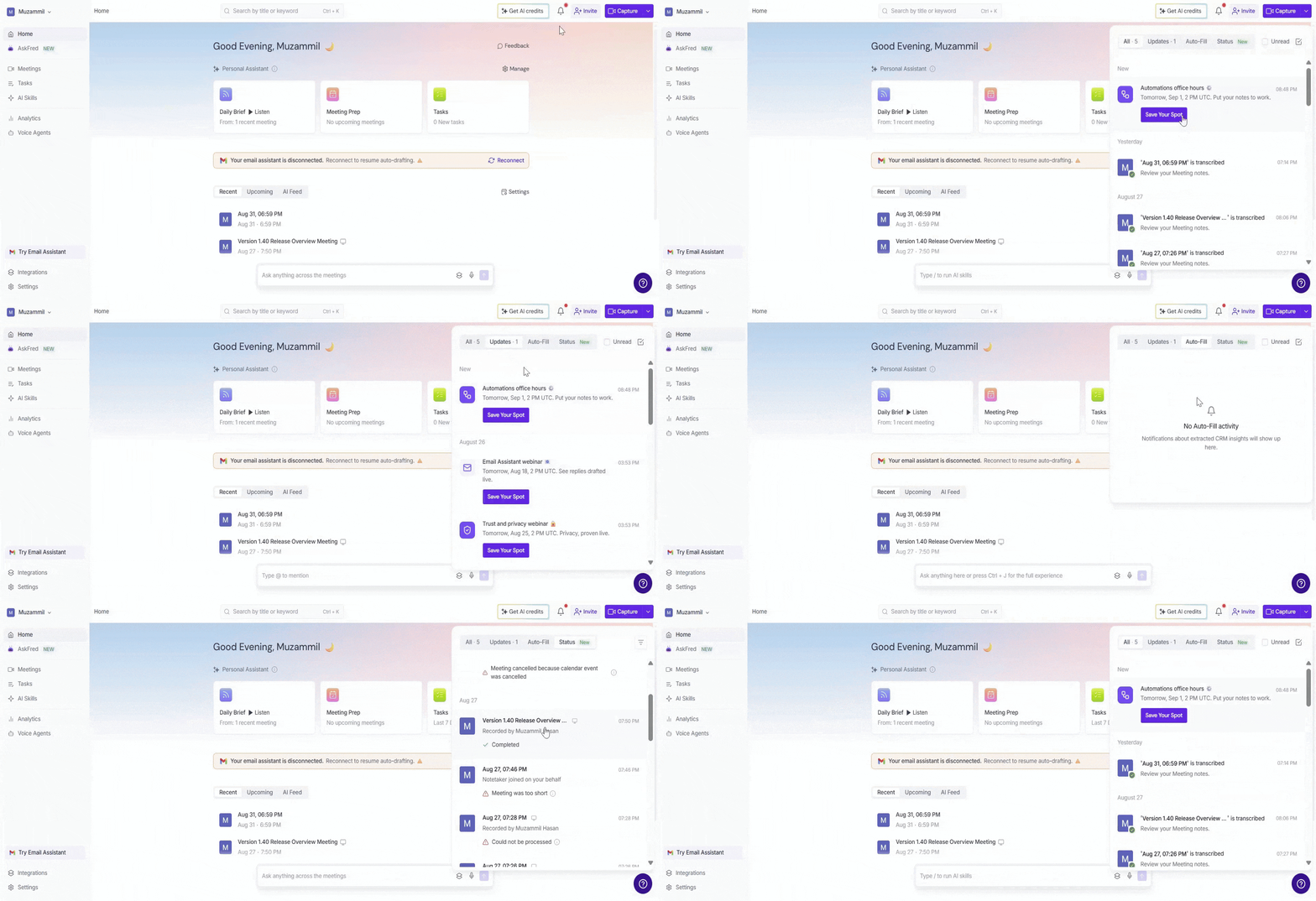
🔔 Notifications
Click the bell icon in the top-right corner to view your Fireflies notifications. You can:
View recent notifications and updates.
Check meeting status: See updates such as when a meeting has been transcribed and is ready to review.
Filter notifications by All, Updates, or Auto-Fill CRM (HubSpot & Salesforce).
Mark notifications as read or filter for unread notifications.
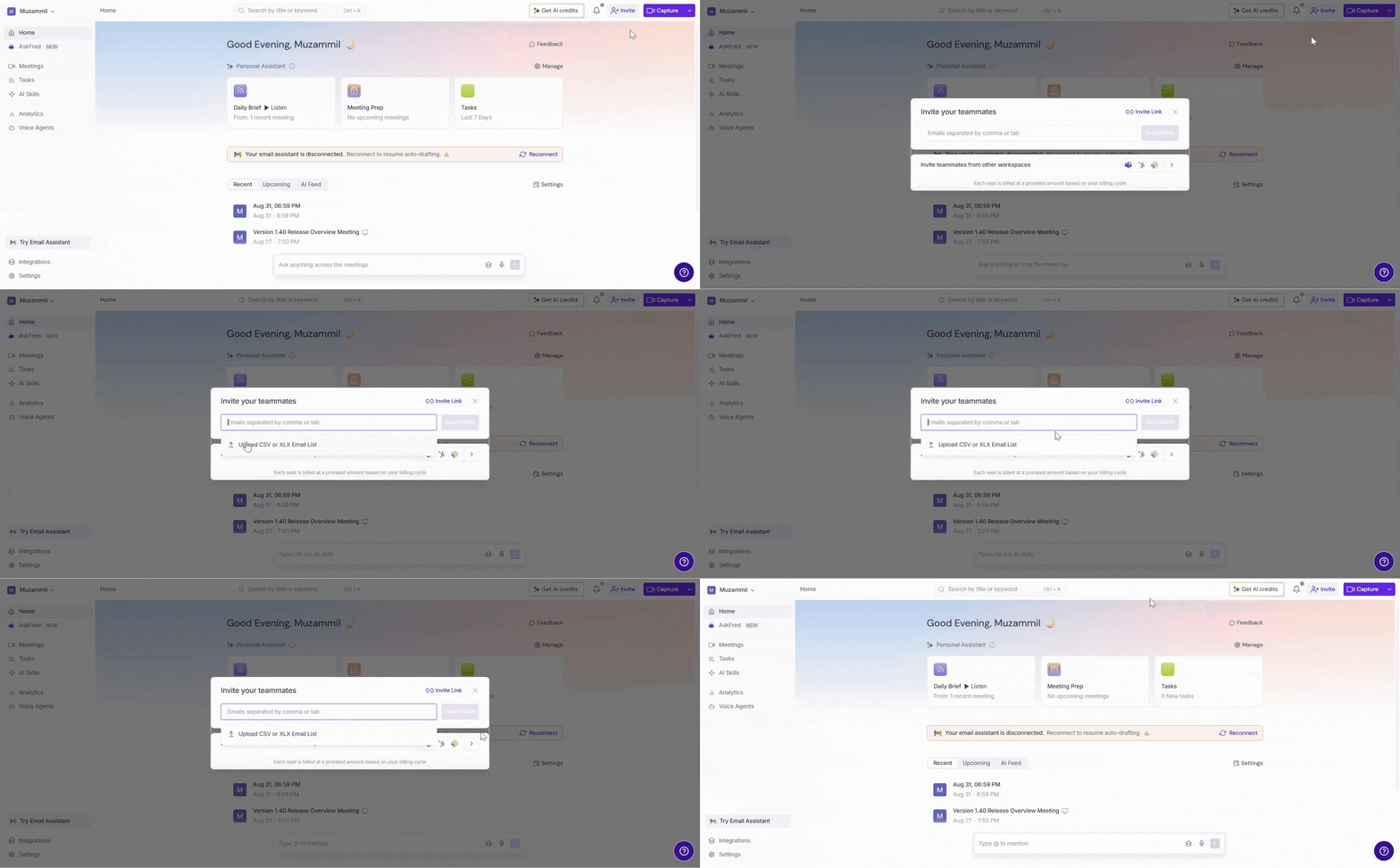
👥 Invite Teammates
Click Invite to invite teammates to your Fireflies workspace. You can:
Enter teammates' email addresses and send invitations.
Copy and share an Invite Link.
Invite teammates from other workspaces.
📌 Related: Learn more about how to invite teammates to fireflies?
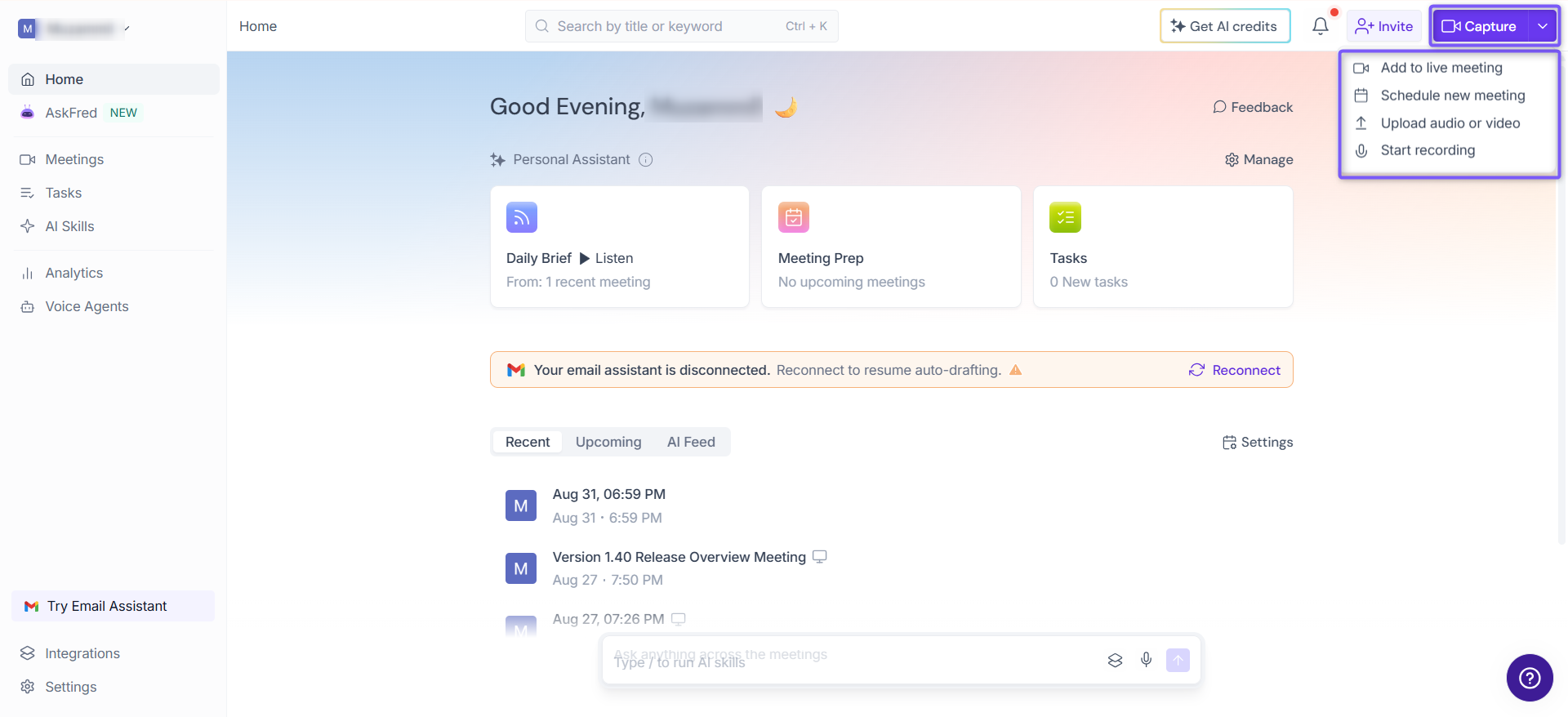
🎥 Capture
Click Capture to choose how you want to capture a meeting or recording.You can:
Add to live meeting — Add Fireflies to an ongoing meeting.
Schedule new meeting — Schedule a meeting for Fireflies to capture.
Upload audio or video — Upload an existing recording.
Start recording — Start recording directly from Fireflies.
⬅ Left Navigation Menu (Your Command Center)
Use the left navigation menu to quickly access Fireflies' core features and move between different parts of your workspace.
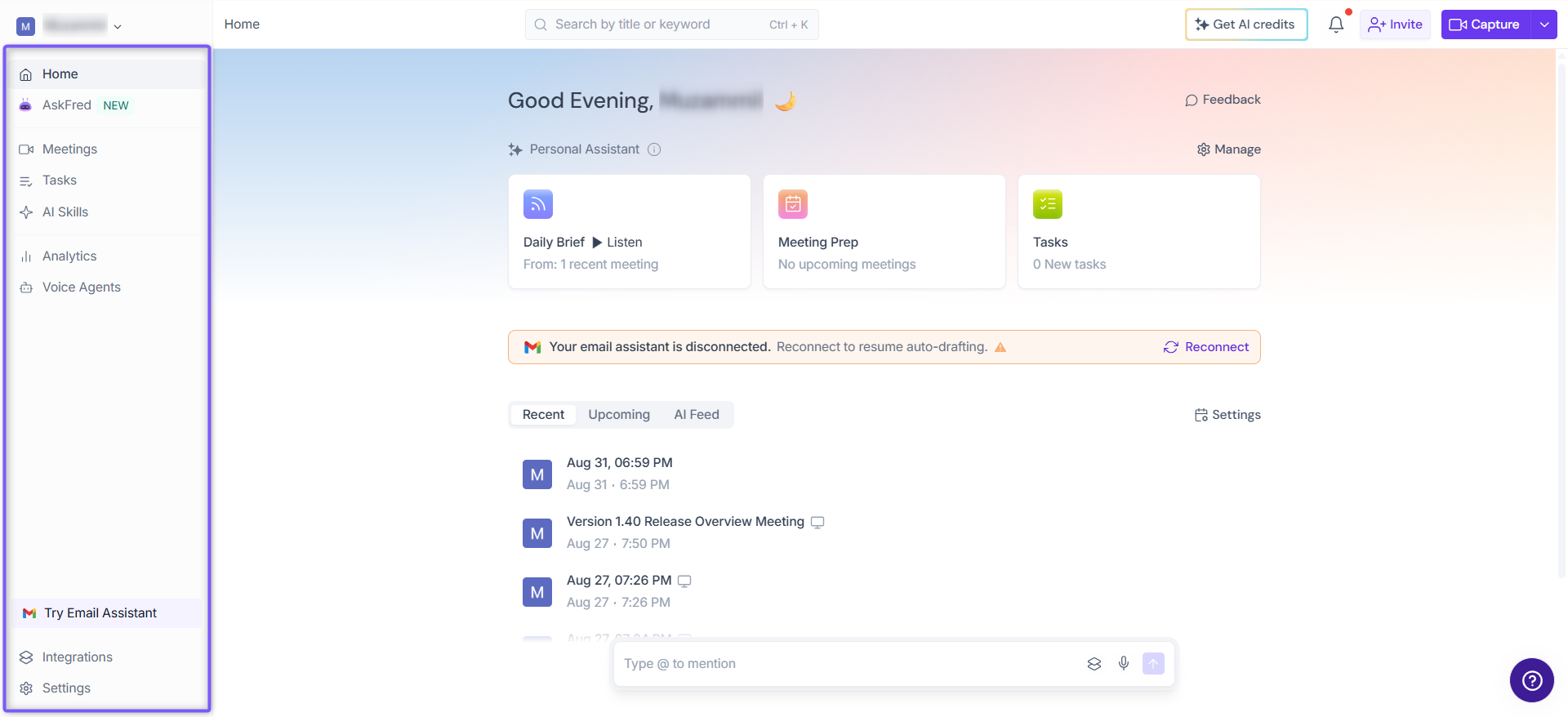
The table below provides a quick overview of each navigation option and its purpose.
Menu | Description |
Home | Return to your Home dashboard at any time. |
Open Global AskFred to ask questions across all your meetings. (Shortcut: Ctrl + J) | |
View, search, and manage all your meetings. | |
View and manage tasks identified from your meetings. | |
Access AI Skills to automate meeting summaries, follow-ups, and other workflows. | |
View meeting insights and analytics. | |
Create and manage AI Voice Agents. | |
Connect Fireflies with your favorite apps and workflows. | |
Manage your account, meeting preferences, and workspace settings. |
🎉And that's a wrap! The new Welcome experience is not only more visually appealing but also smarter, helping you stay organized and work more efficiently.
With the Home screen, you can:
Review recent and upcoming meetings.
Stay on top of tasks and AI-powered insights.
Ask questions across all your meetings with Global AskFred.
Access Fireflies' core features from a single workspace.