How to Change Your Fireflies Display Language and Theme
Last updated: November 12, 2026
Want to make Fireflies feel more comfortable to use? You can personalize your experience by choosing your preferred display language and theme. Whether you prefer using Fireflies in your native language or switching between light and dark modes, you can customize both to suit your preferences.
Good to know: Your display language only changes the Fireflies interface. It doesn't change the language used to transcribe your meetings or generate summaries. Your meeting language is managed separately through Meeting Language settings.
🌍 Change Your Fireflies Display Language
Fireflies supports 16 interface languages, including English and 15 additional languages. Changing your display language updates the text and labels across the Fireflies interface, making it easier to navigate the app in a language you're comfortable with.
You can choose from the following languages:
You can choose from the following languages:
# | Language |
|---|---|
1 | English |
2 | Japanese |
3 | Spanish |
4 | German |
5 | Portuguese (Brazil) |
6 | Polish |
7 | French |
8 | Italian |
9 | Dutch |
10 | Russian |
11 | Turkish |
12 | Korean |
13 | Chinese (Simplified) |
14 | Chinese (Traditional) |
15 | Hindi |
16 | Indonesian |
Follow these steps to select your preferred interface language:
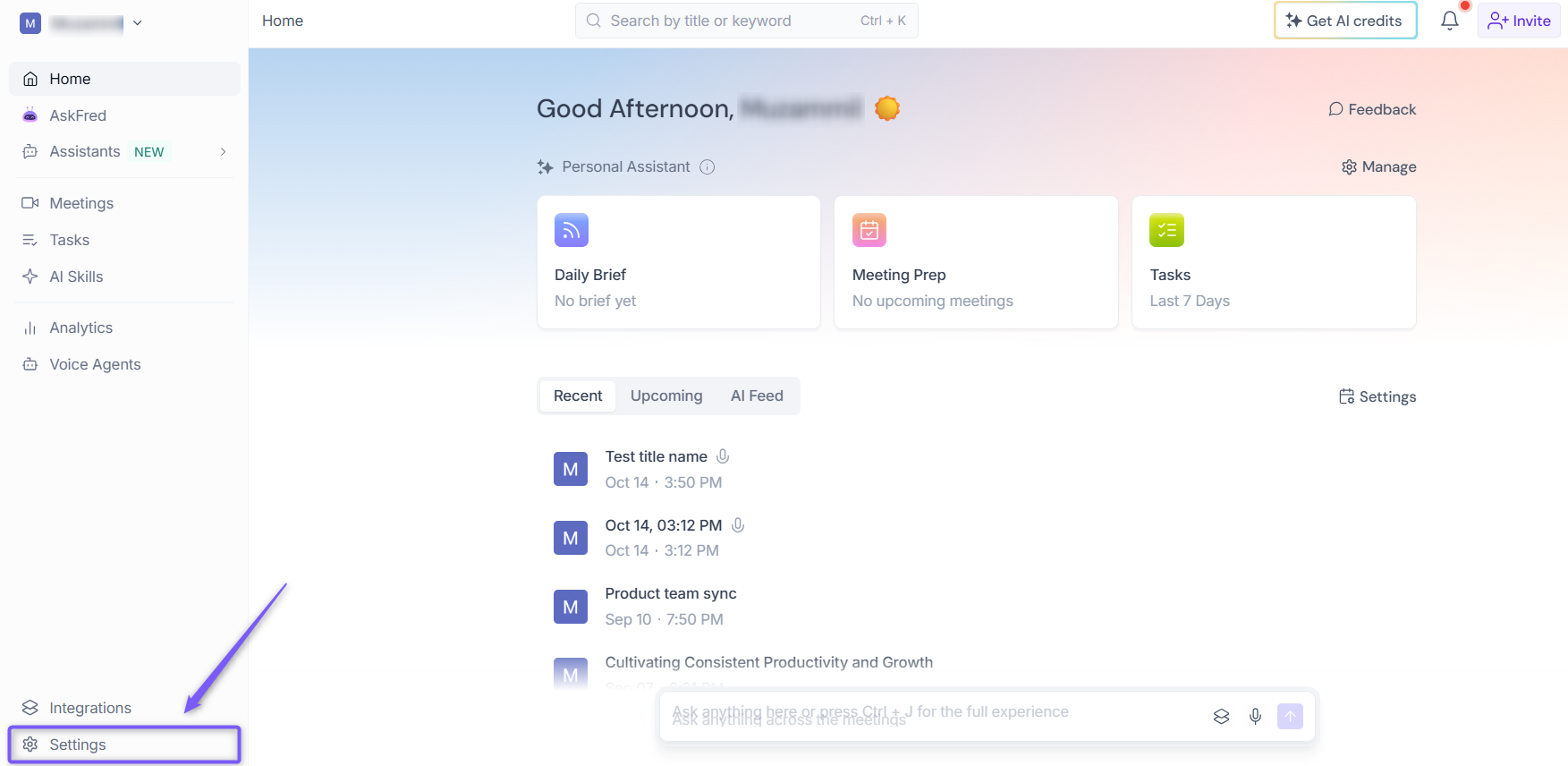
Step 1: Log in to your Fireflies account and open Settings from the main navigation.
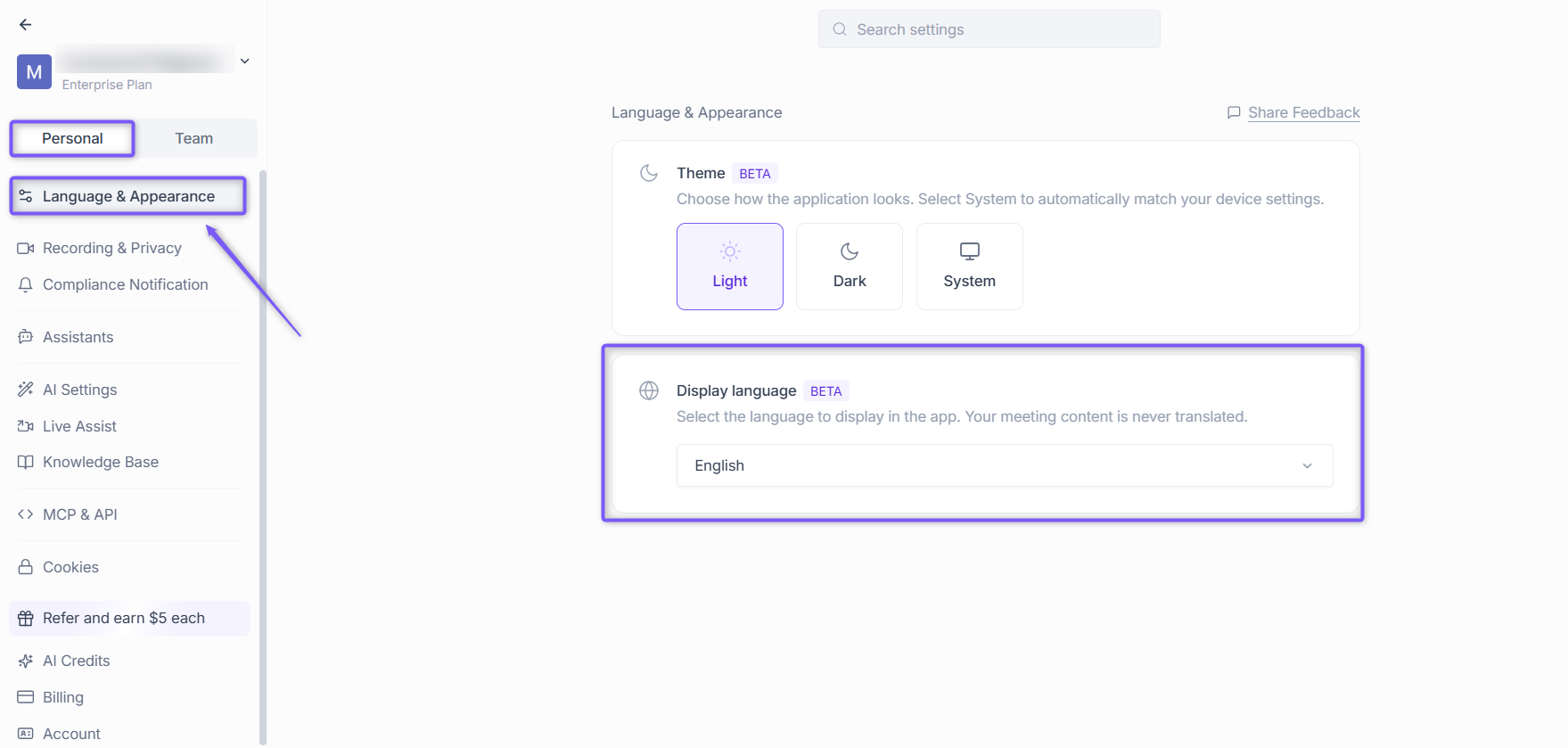
Step 2: Under the Personal tab in Settings, open Language & Appearance. On the left panel, you'll find Display language.
Step 3: Click the Display language dropdown and select your preferred language from the available options.
You can choose from the following languages 👇🏻
# | Language |
|---|---|
1 | English |
2 | Japanese |
3 | Spanish |
4 | German |
5 | Portuguese (Brazil) |
6 | Polish |
7 | French |
8 | Italian |
9 | Dutch |
10 | Russian |
11 | Turkish |
12 | Korean |
13 | Chinese (Simplified) |
14 | Chinese (Traditional) |
15 | Hindi |
16 | Indonesian |
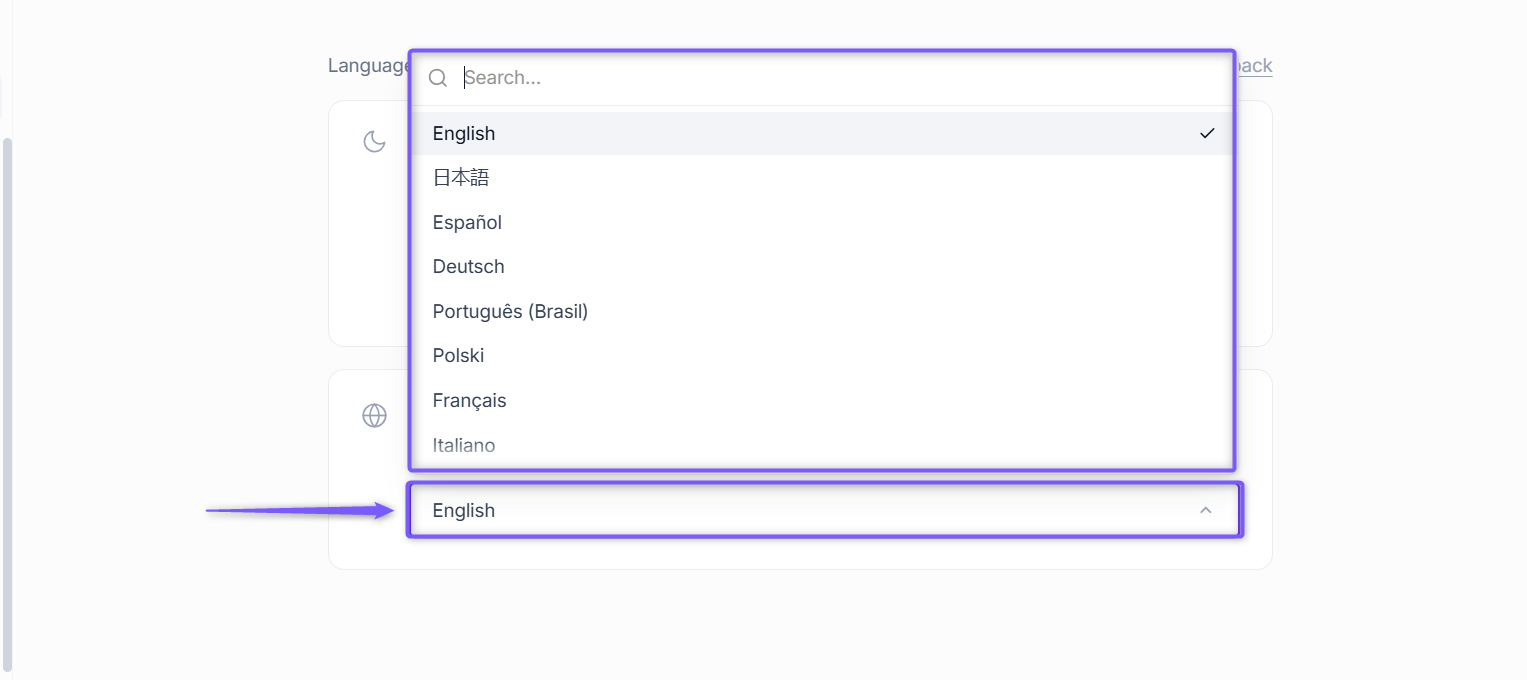
Step 4: Select your preferred language. Your changes will be applied automatically.
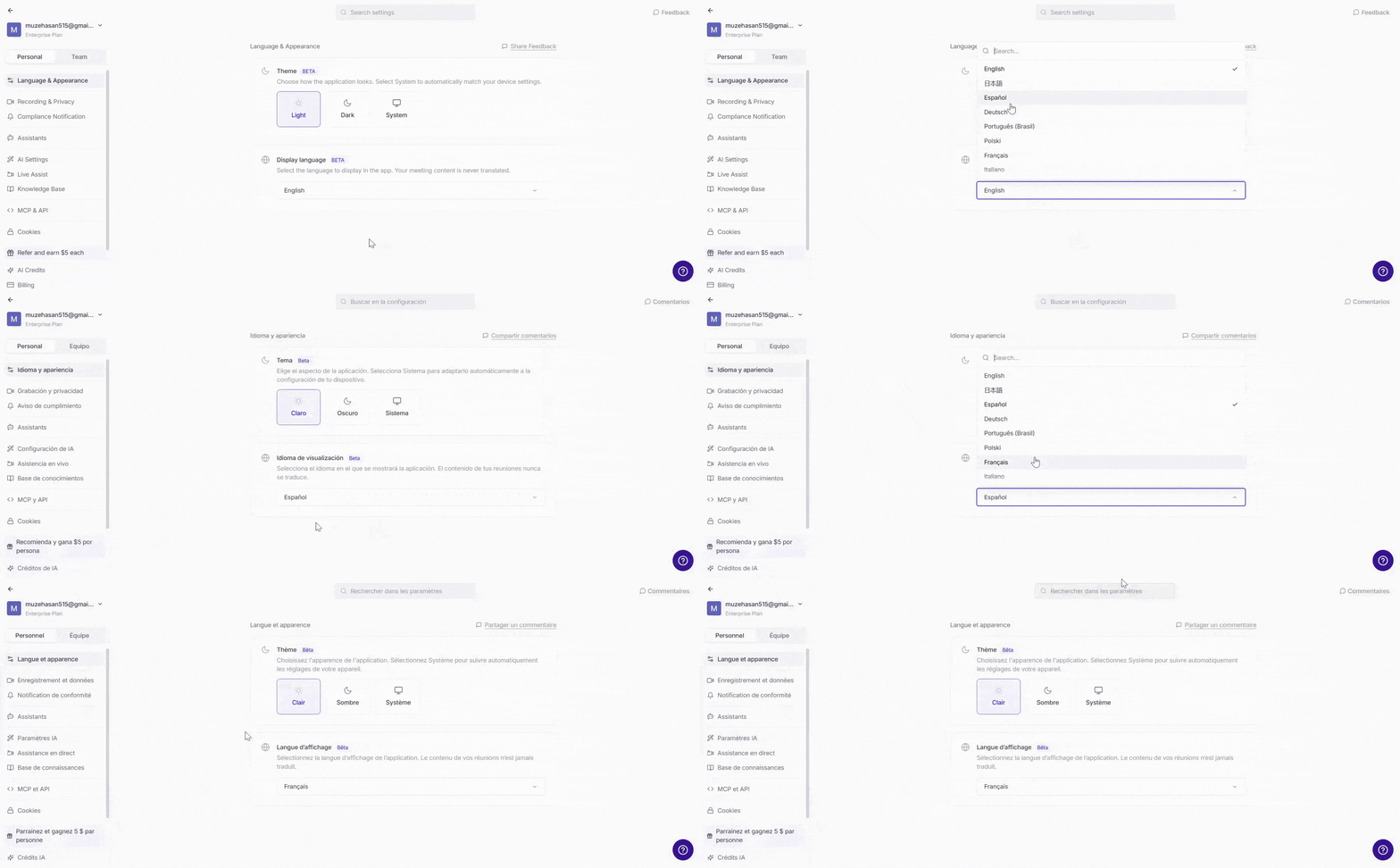
You can now see the Fireflies interface in your selected display language. To switch to another language, simply repeat the steps and choose a different option from the Display language dropdown.
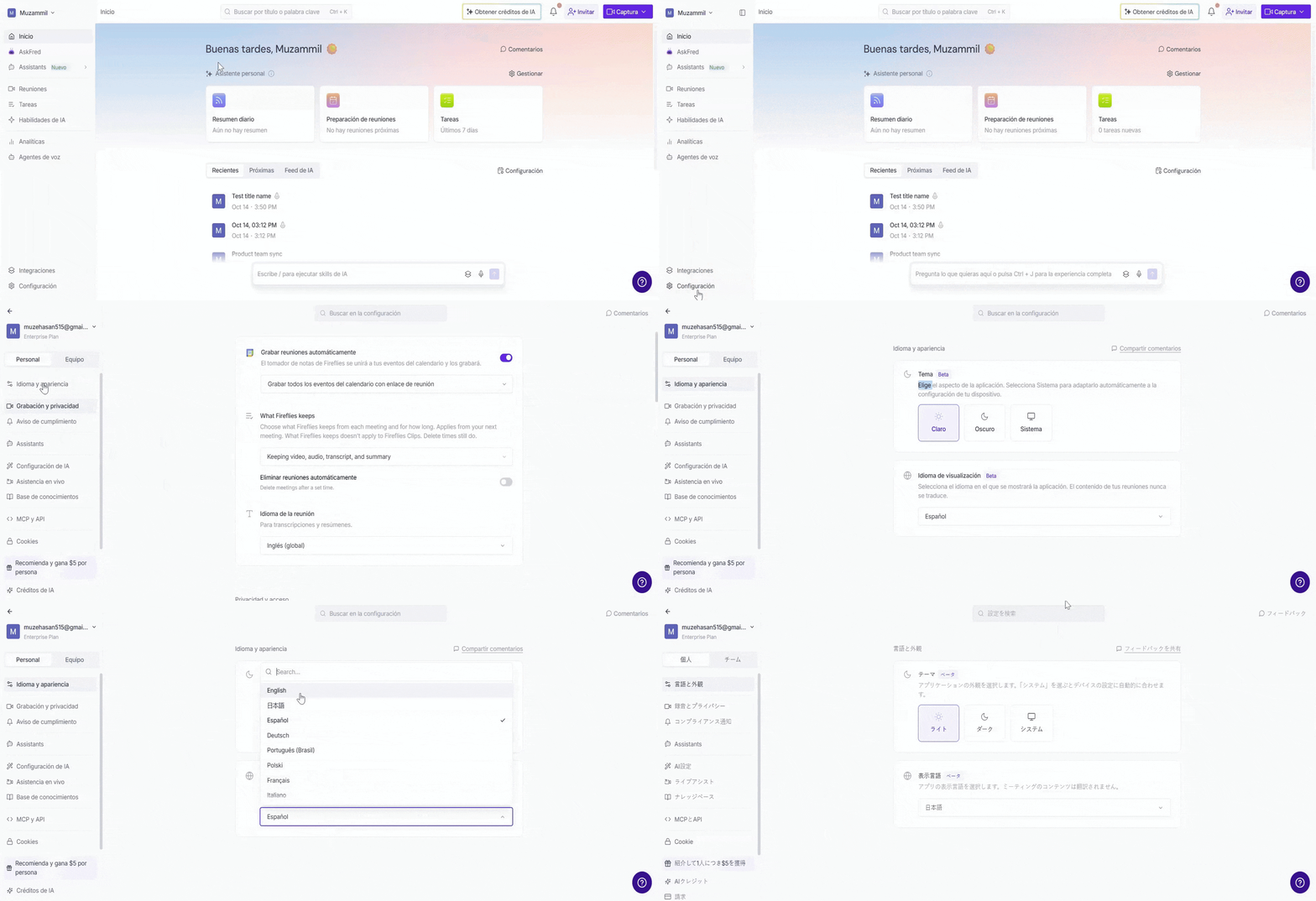
Note: Your selected display language applies to the Fireflies interface. User-generated content, such as meeting names and custom channel names, remains in the language in which it was originally written.
🎨 Change Your Fireflies Theme
Prefer a brighter interface during the day or a darker one when working in low-light environments? You can customize the appearance of Fireflies by choosing between light and dark themes.
Follow these steps to change your theme:
Step 1: Log in to your Fireflies account and open Settings from the main navigation.
Step 2: Under the Personal tab in Settings, open Language & Appearance. On the left panel, you'll find Theme.
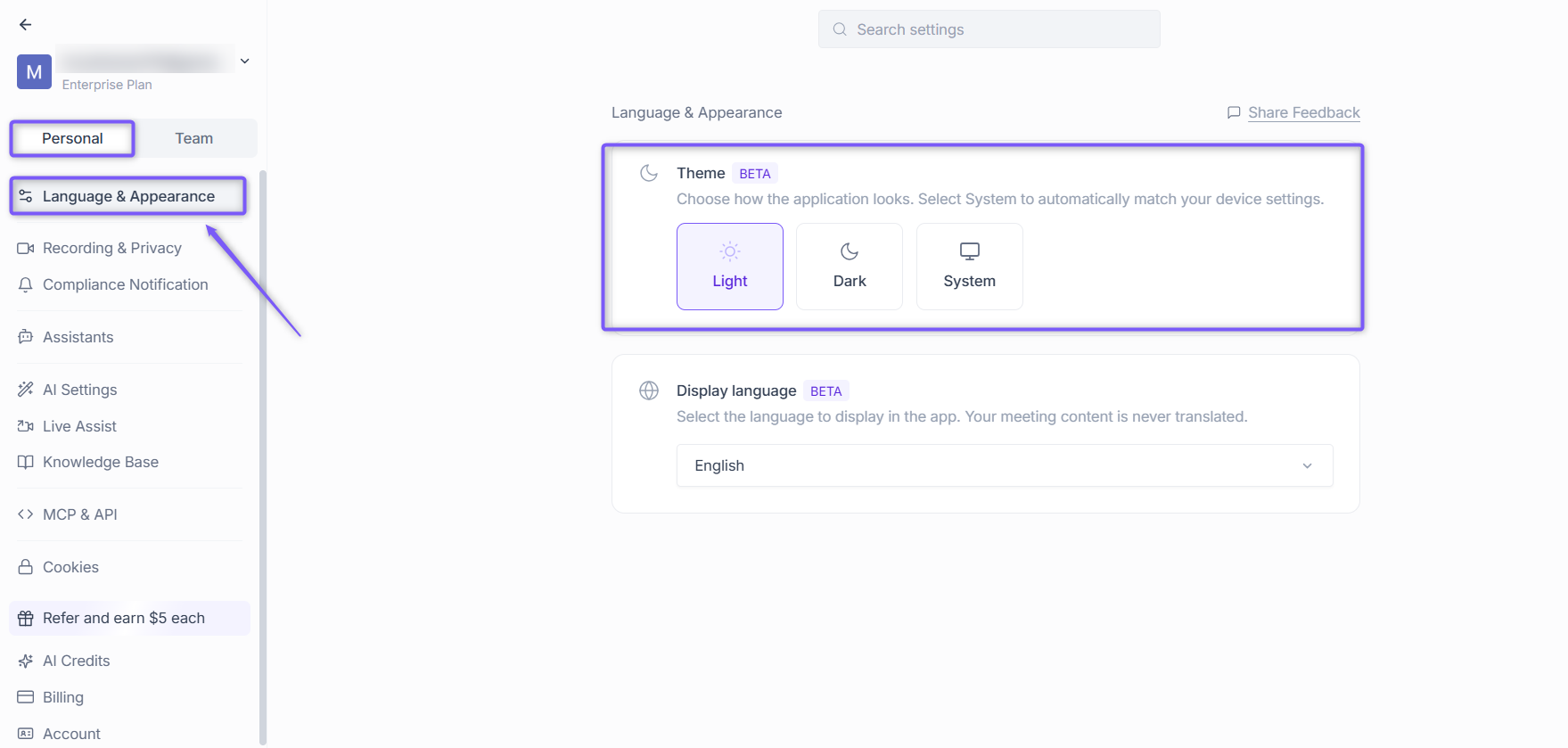
Step 3: Under Theme, choose your preferred appearance from the three available options:
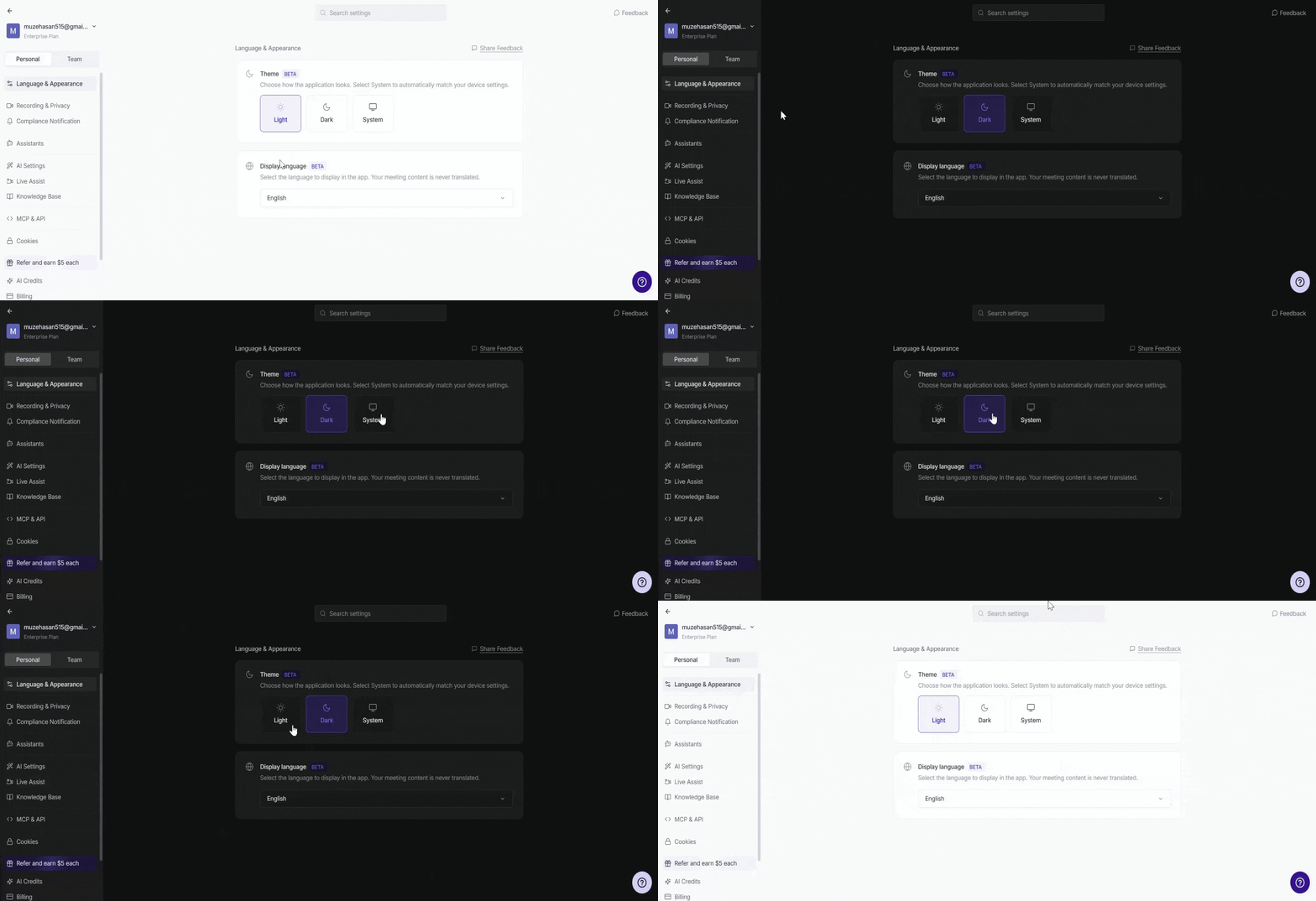
Light: Displays Fireflies with a bright background.
Dark: Displays Fireflies with a darker background, ideal for low-light environments.
System: Automatically matches the appearance to your device's system theme.
Your selected theme is applied automatically when you click an option.
📌 Important Things to Know
Display language and meeting language are different: Display language changes the app interface, while Meeting Language controls the language used for meeting transcription and summaries.
User-generated content stays unchanged: Meeting names, custom channel names, and other content created by users aren't automatically translated.
Help Center articles remain in English: If you prefer reading documentation in another language, you can use your browser's built-in translation feature.
Language availability: Fireflies supports English and 15 additional display languages.
❓ Frequently Asked Questions
Q1. Does changing my display language change my meeting transcription language?
No. Display language only changes the language of the Fireflies interface. Your meeting transcription and summary language are controlled separately through Meeting Language settings.
👉🏻 Learn more about setting your meeting transcription language.
Q2. Will Fireflies translate my existing meeting names and custom channels?
No. User-generated content, such as meeting names and custom channel names, remains in its original language.
Q3. Can I read Fireflies Help Center articles in my selected display language?
Fireflies Help Center articles are currently available in English. You can use your browser's built-in translation feature to translate articles into your preferred language.
Q4. Which languages can I use for the Fireflies interface?
You can choose from 16 languages: English, Japanese, Spanish, German, Portuguese (Brazil), Polish, French, Italian, Dutch, Russian, Turkish, Korean, Chinese (Simplified), Chinese (Traditional), Hindi, and Indonesian.
Still have questions or need help? Contact our support team, and we'll be happy to assist you.