How to Edit Speaker Labels in Uploaded Files
Last updated: June 15, 2026
When you upload an audio or video file to Fireflies, it automatically detects different speakers and labels them as Speaker 1, Speaker 2, Speaker 3, and so on. While this helps identify different voices, it can be hard to follow who’s actually speaking.
Fireflies allows you to edit these speaker labels and replace them with real names. This guide shows you how to update speaker labels in uploaded files so your transcripts and summaries are easier to read and understand.
Let's get started 🚀
🔑 Prerequisites
Before you edit speaker labels in an uploaded file, make sure the following are in place:
You have access to your Fireflies account
An audio or video file has already been uploaded and transcribed in Fireflies
The uploaded file appears in your Meetings tab and has a transcript available.
📌 Learn more about uploads →
If you haven’t uploaded a file yet or want to understand how uploads work, see Learn about the Uploads feature in Fireflies for detailed steps and supported file types.
✏ How to Edit Speaker Labels
Log in to your Fireflies account and click the Meetings tab in the left sidebar.
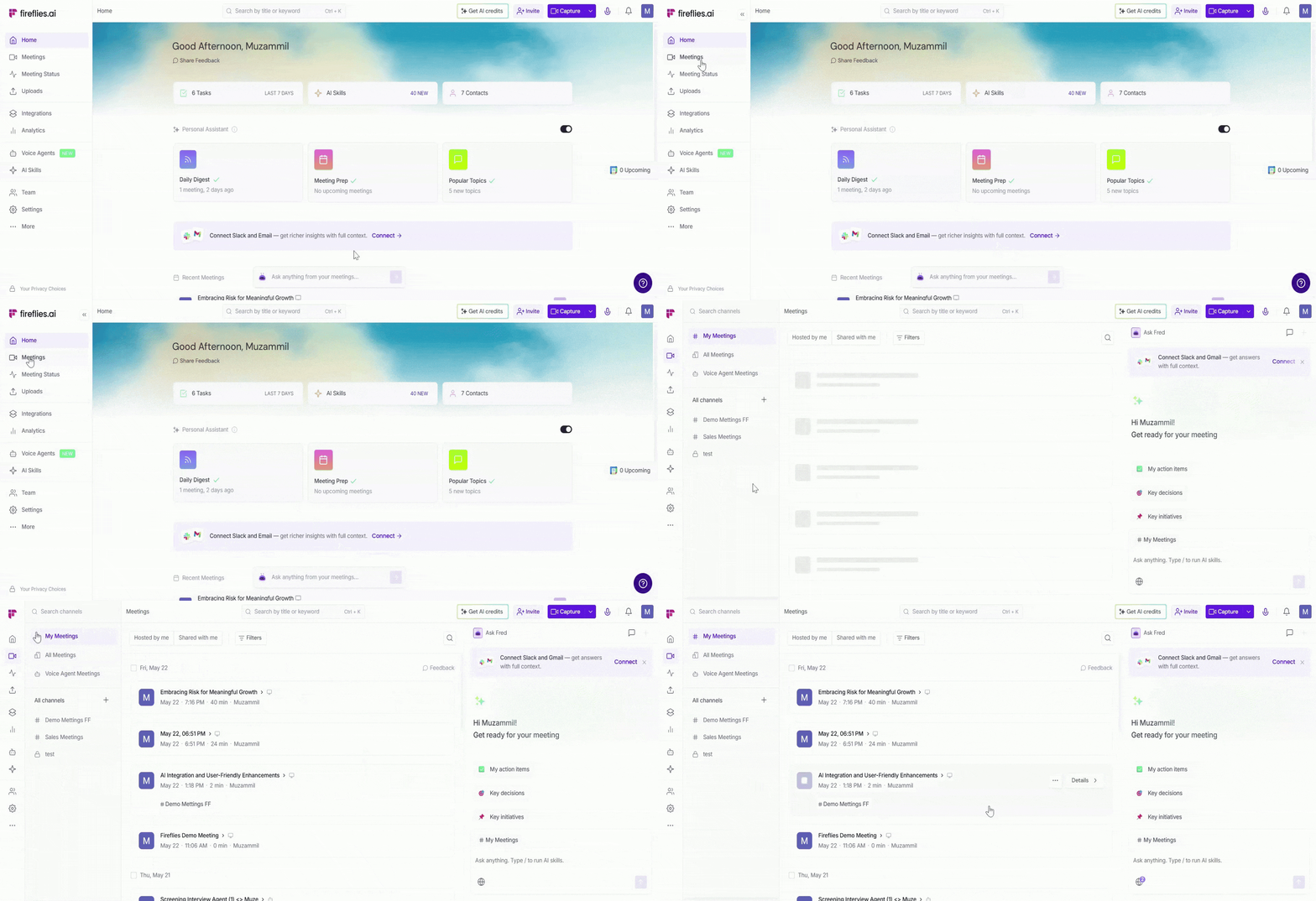
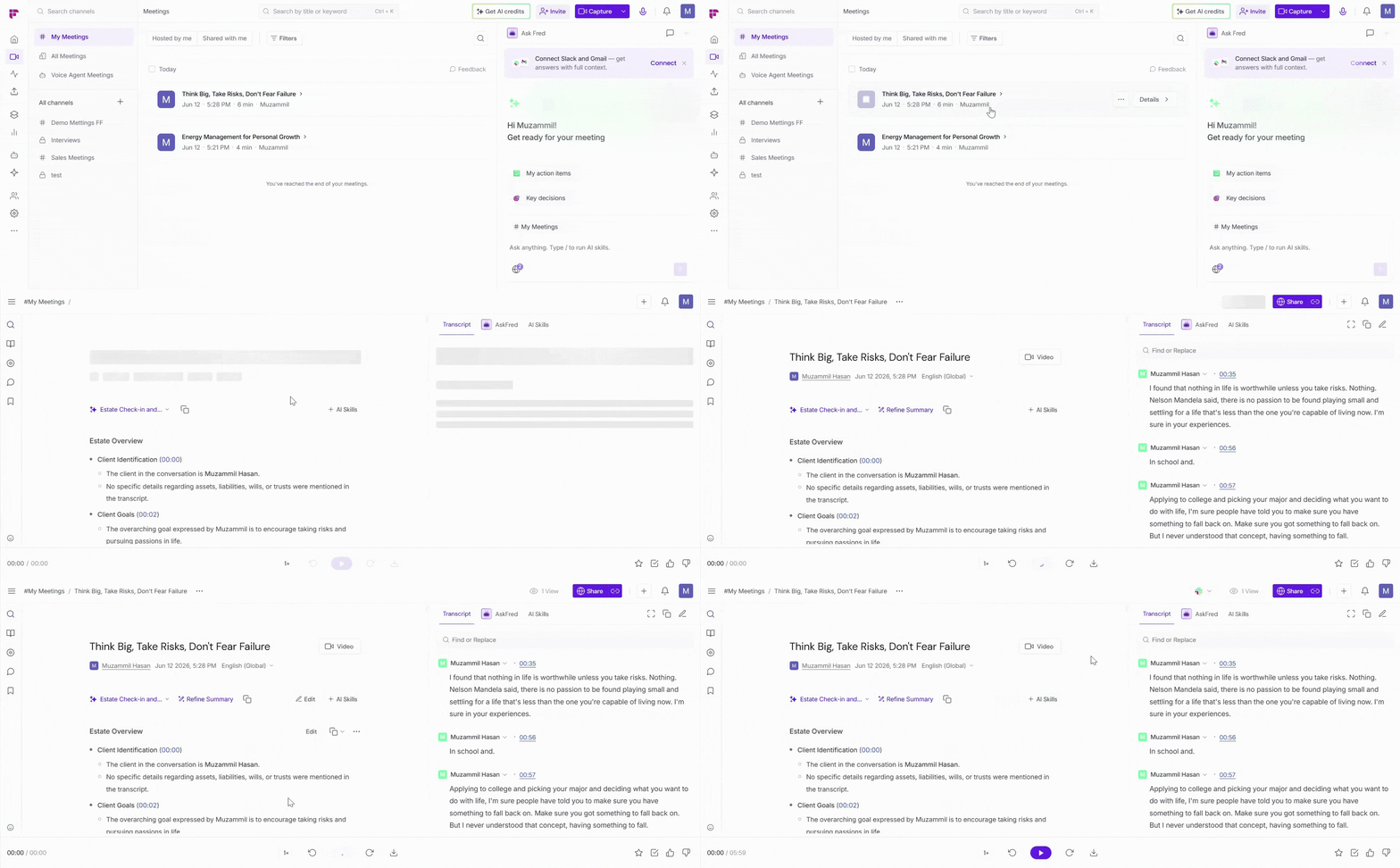
Click and open the recording you want to update. The transcript appears on the right side of your screen.
Click the speaker label you want to edit (for example, Speaker 1), then type the correct name (for example, Alex or Jamie).
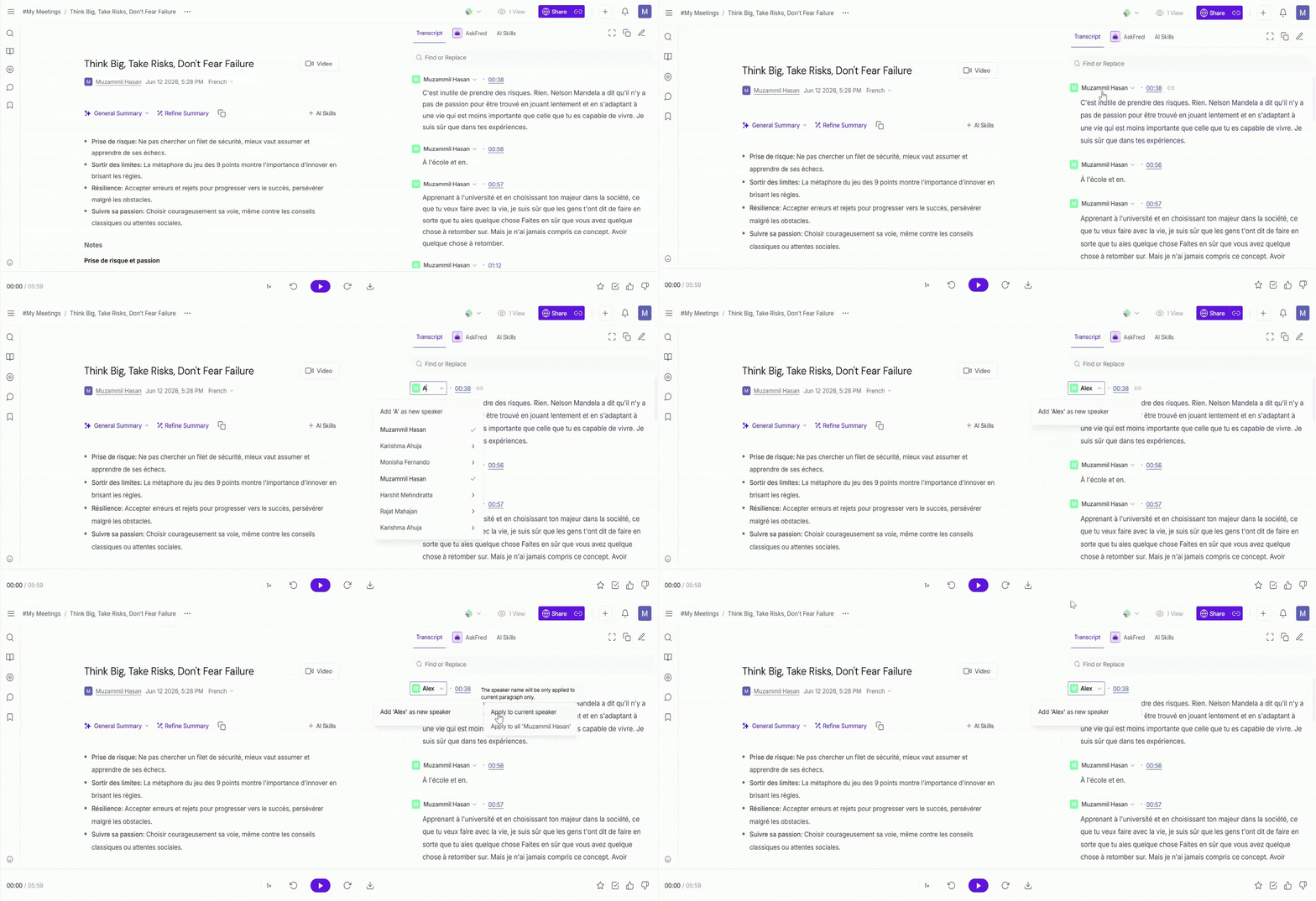
After entering the speaker name, choose how you want the change to be applied:
Apply to current speaker: Updates the name only for the selected speaker instance.
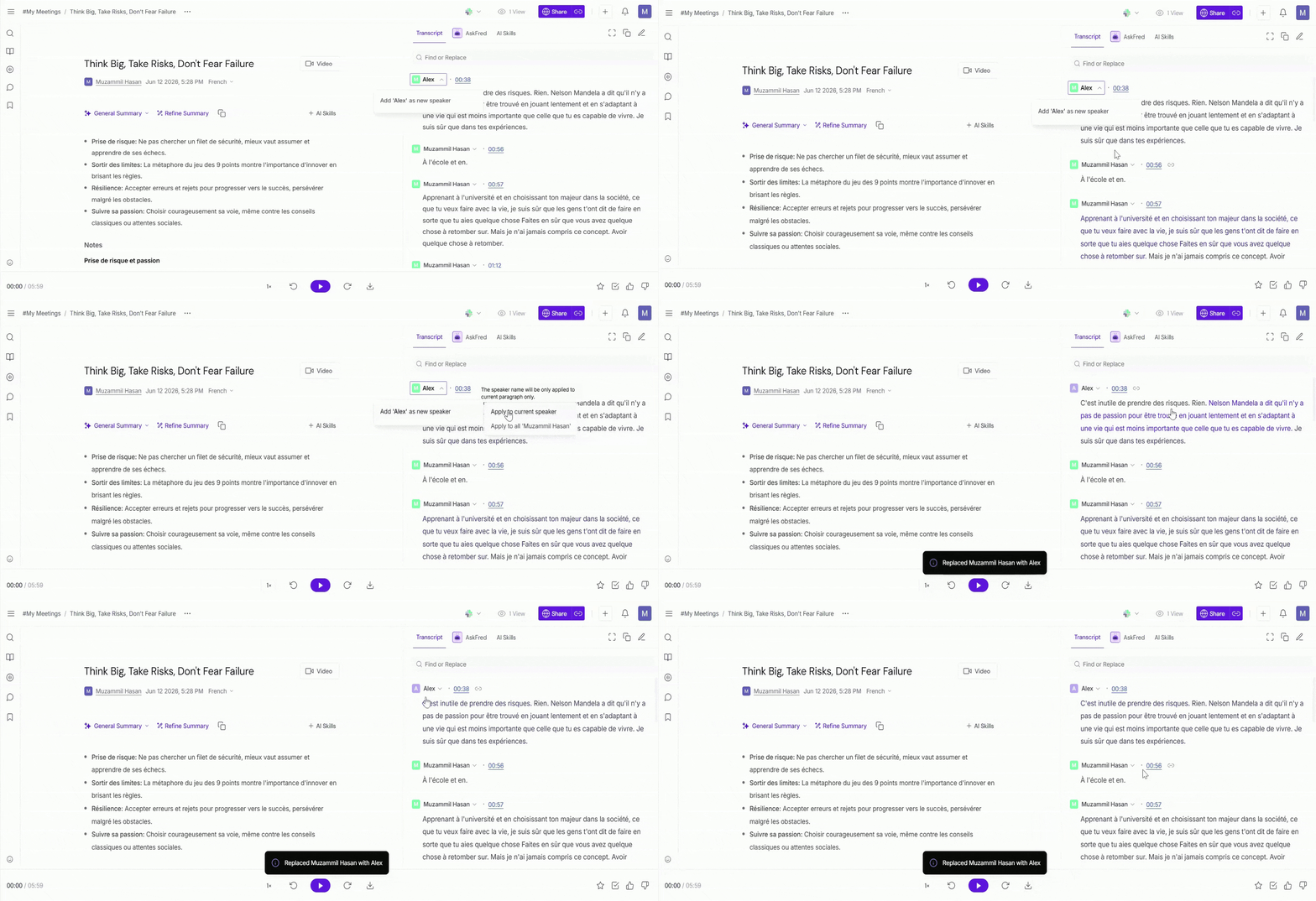
Apply to all “Speaker X”: Updates the name everywhere that speaker x appears across the entire transcript.
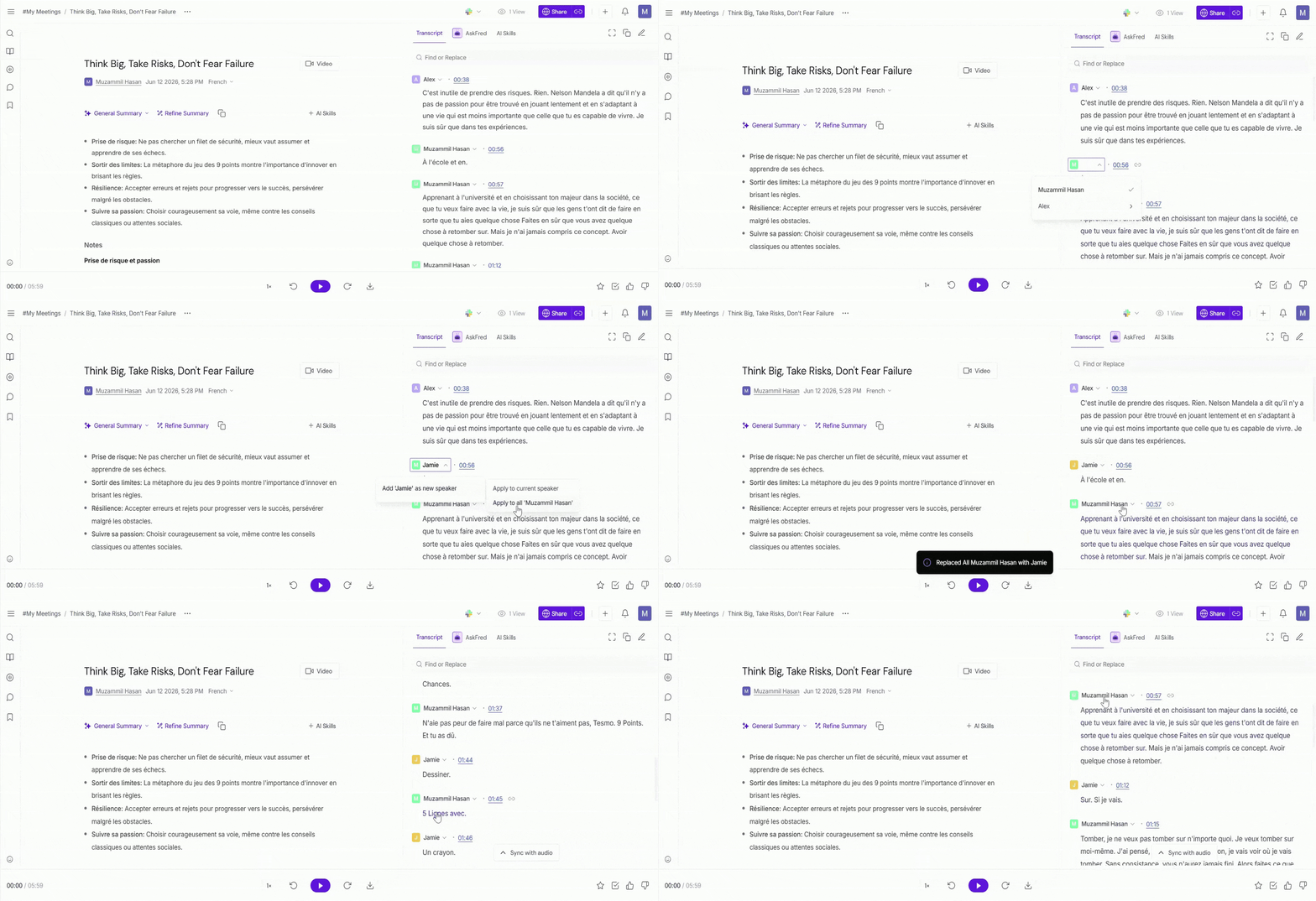
Select the option that fits your use case to save the change.
🔁 Regenerate Notes After Editing Speaker Labels
Why this matters: If your meeting includes summaries or action items, Fireflies uses speaker labels to assign them correctly. After updating speaker names, regenerating notes ensures everything reflects the latest changes.
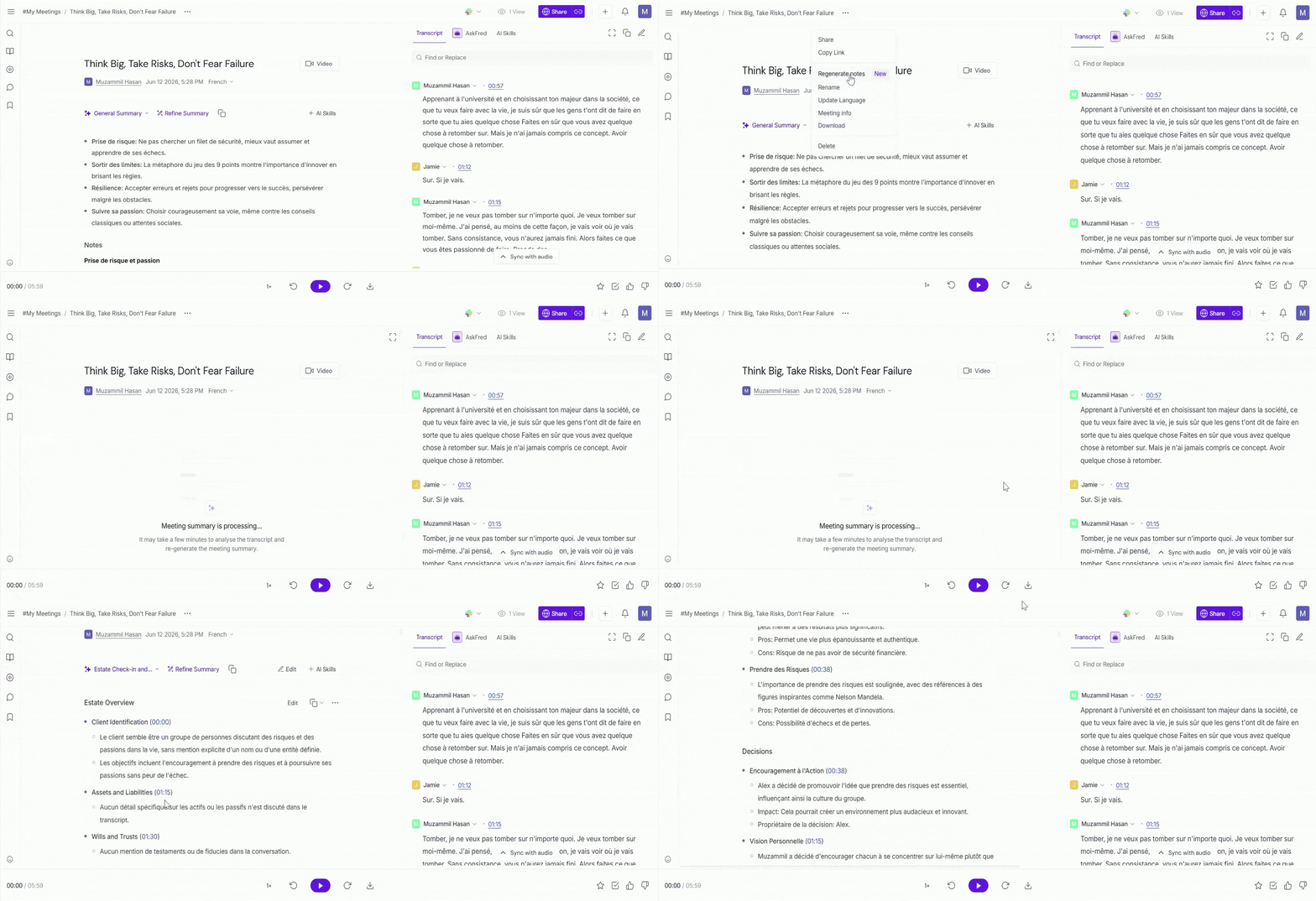
How to regenerate notes
Make the required edits in the transcript, including updating speaker labels.
Click the three-dot menu near the meeting title.
Select Regenerate notes.
Fireflies will reprocess the meeting summary within a few minutes.
✅Important to Know
You must be the meeting owner to edit speaker labels
Editing speaker labels does not change the original audio, it only updates how speakers appear in the transcript
After updating speaker names, regenerate the notes so the summary and action items reflect the changes
Updating speaker names helps make transcripts and summaries clearer when sharing meeting notes externally
🔗 Related Guides
How to Change the Name of the Fireflies Notetaker Bot → Update how the Fireflies bot appears in meetings.
How to Edit Speaker Labels or Names in a Transcript → Learn how to update speaker names directly in meeting transcripts.
Learn About the Fireflies AI Meeting Summaries → Understand how AI-generated summaries work and how to customize them.