How to Edit the Title of a Meeting Recording in Fireflies
Last updated: June 19, 2026
Ever looked at your Fireflies Notebook and wondered which meeting is which?
Editing your meeting titles makes it easier to recognize recordings at a glance and keeps your Notebook neat and organized. This guide shows you how to edit the title of a meeting recording you own in Fireflies.
You can only edit the titles of meeting recordings that you own. Titles of meetings hosted by others can’t be edited.
You can rename a meeting recording directly from your meeting Notebook or from within the meeting Notepad.
🚀 Follow the steps below based on where you want to edit the meeting title.
Method 1: Edit the Meeting Title from the Notebook
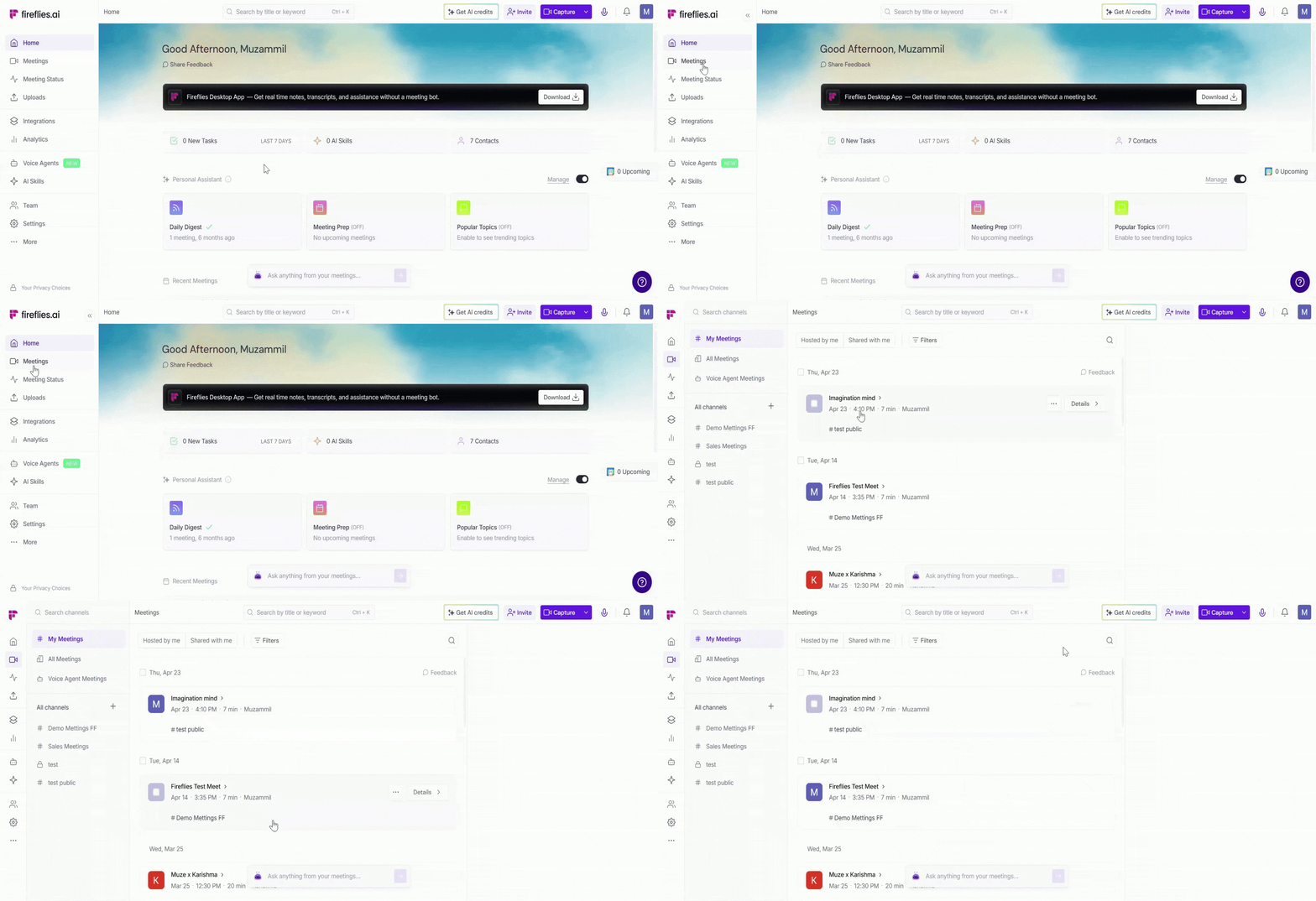
1. Log in to your Fireflies account and click on the Meetings tab in the left sidebar.
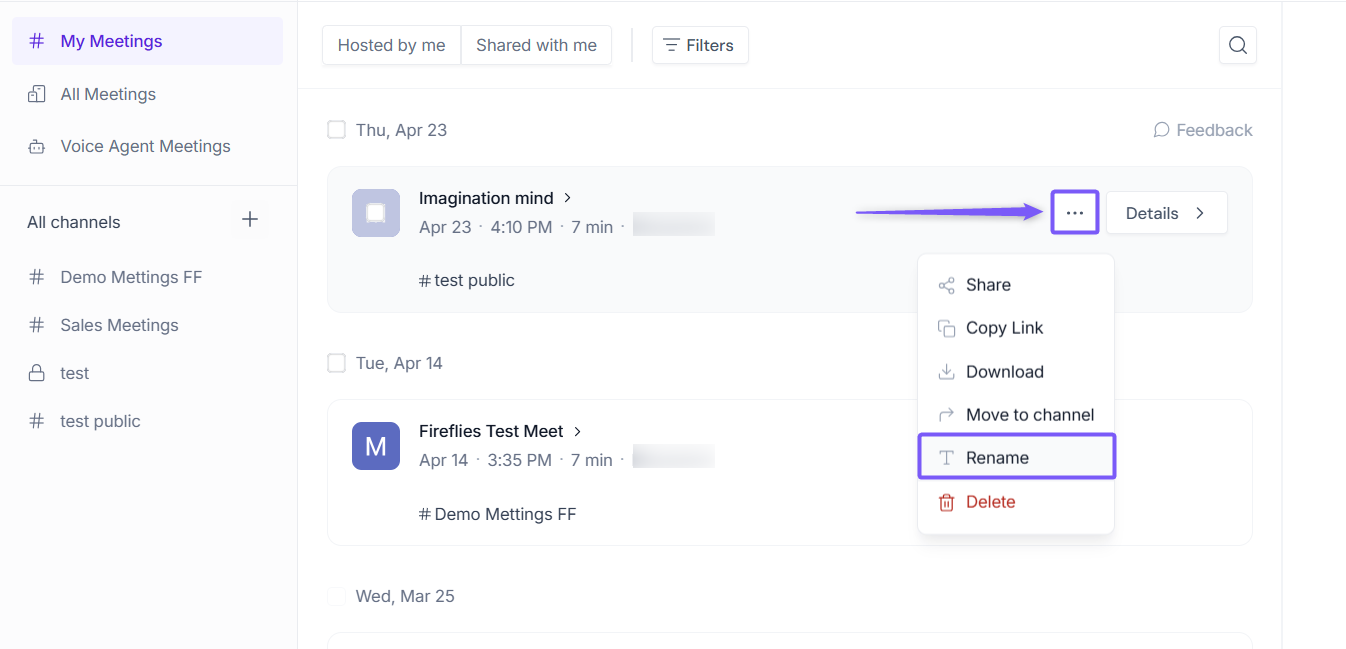
2. Hover over the meeting you want to edit, click the ellipsis icon (...), then select Rename from the dropdown menu.
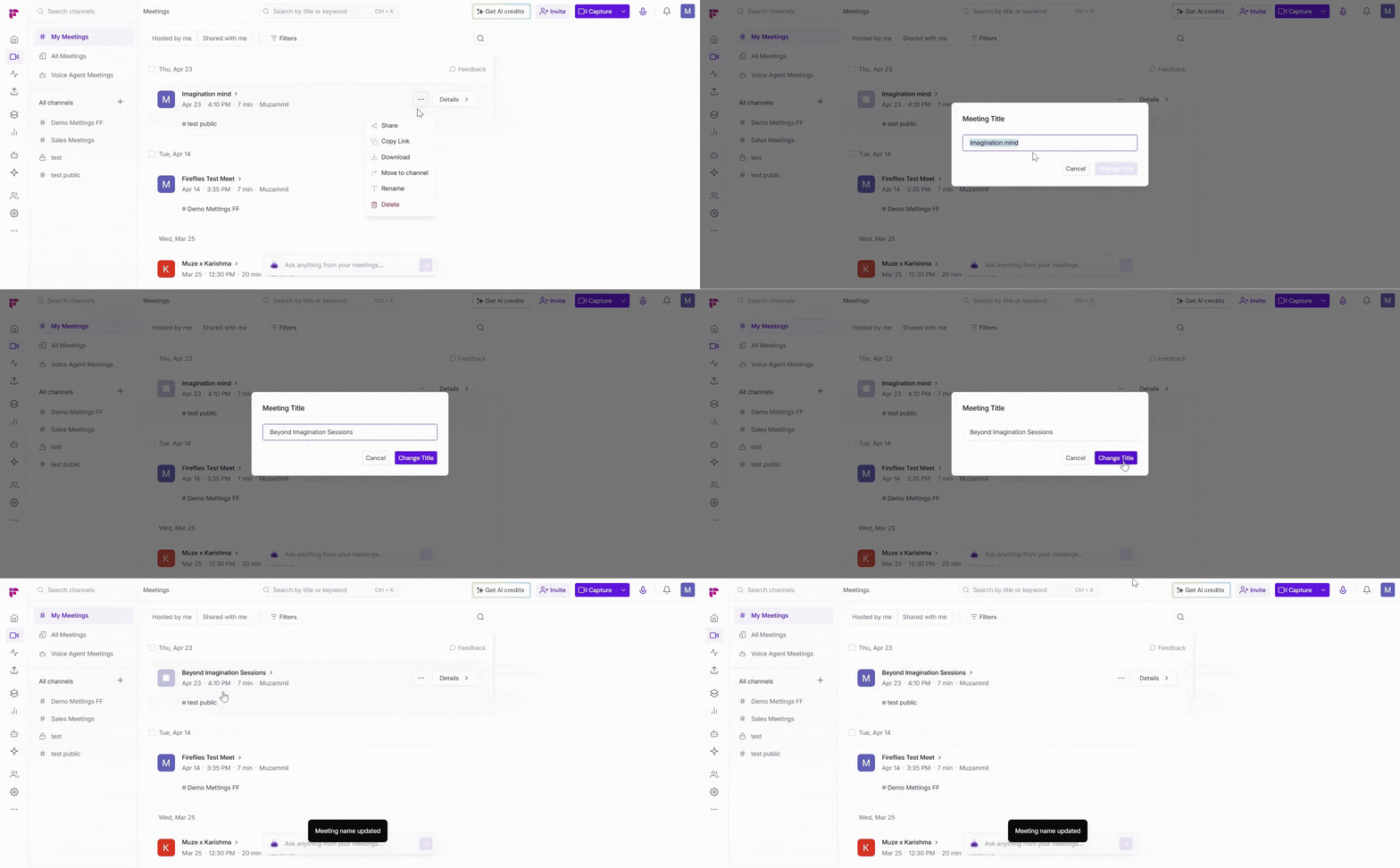
3. Enter the new meeting title and click Change Title to update it.
Method 2: Edit the Meeting Title from the Meeting Notepad
1. From the left-hand menu, click on the Meetings tab to open your meeting notebook.
2. Open the meeting you want to edit the title for in your meeting Notepad.
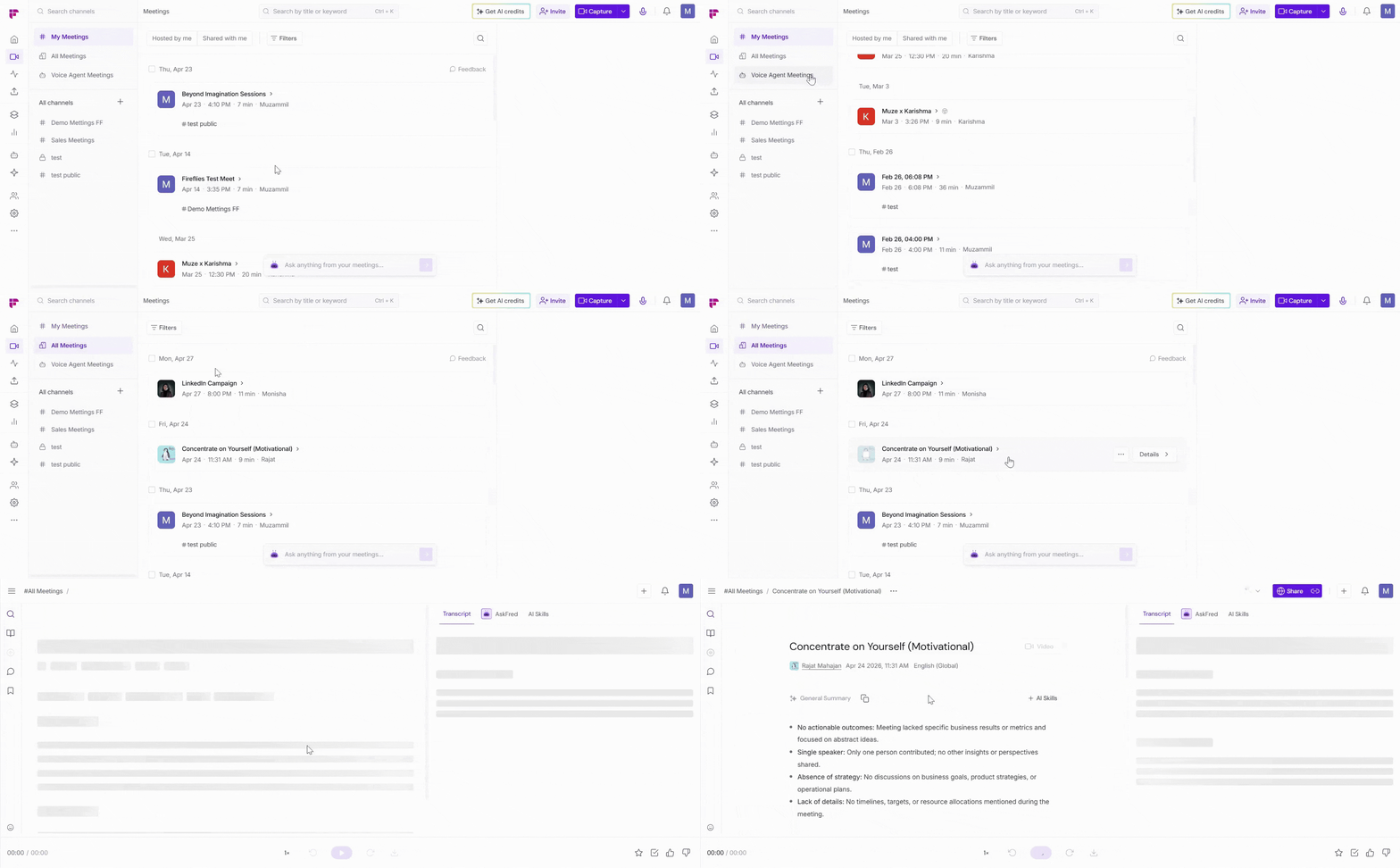
3. Click on the ellipsis icon (...) next to the meeting title in the top-left corner of the Notepad, then select Rename.
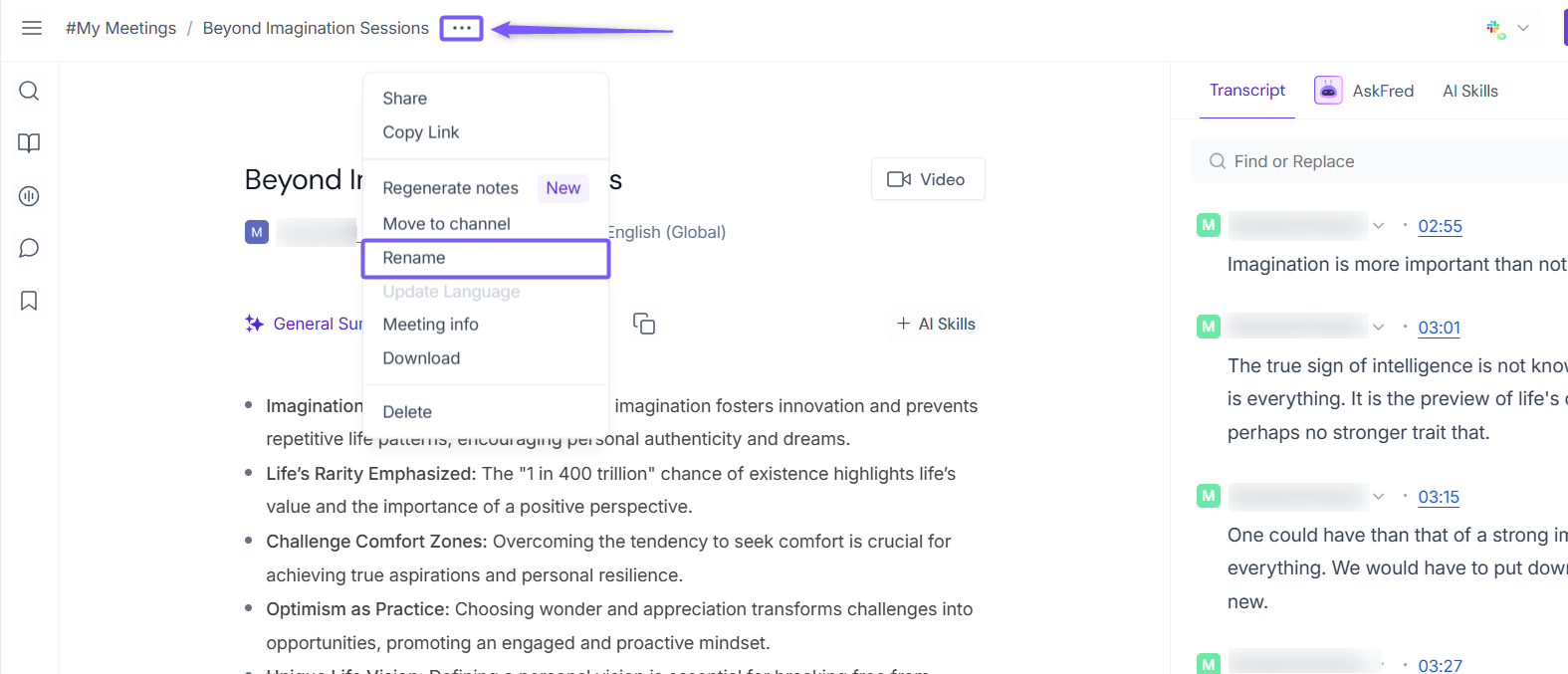
You can also edit the meeting title by clicking it directly in the top-left corner of the screen.
Enter the new meeting title, then press Enter or click anywhere outside the title field to save your changes.
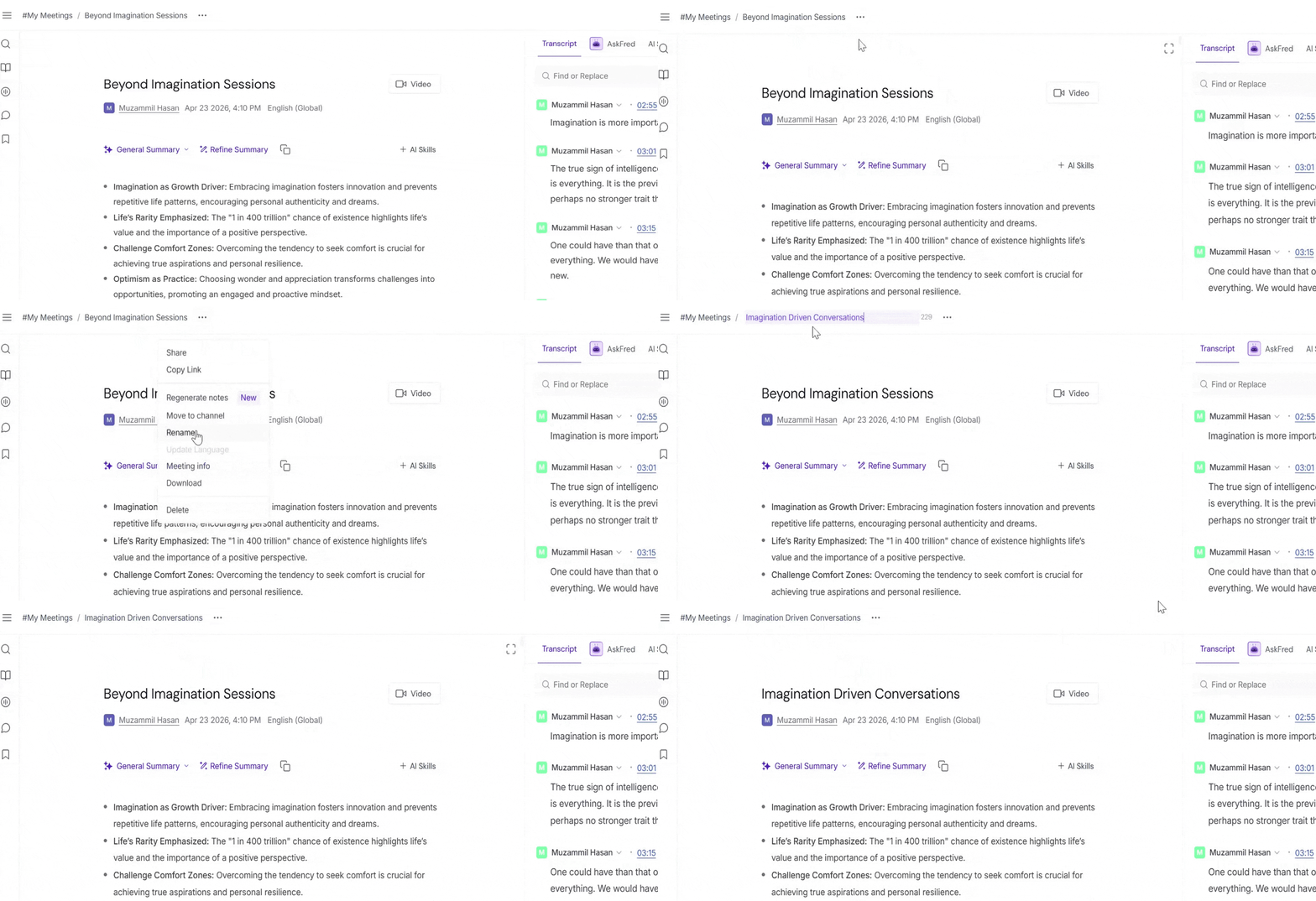
Your updated meeting title is saved immediately and reflected across your Fireflies Notebook and meeting view, no matter which method you use.