How to Delete Meetings in Fireflies
Last updated: June 17, 2026
Need to clean up your meetings in Fireflies? Over time, your meeting library can fill up with test calls, duplicate recordings, or outdated discussions that are no longer needed.
This guide explains the different ways to delete meetings in Fireflies so you can keep your Meetings tab organized and easy to navigate.
Let's get started 🚀
⚠ What to Know Before Deleting a Meeting
Before deleting a meeting, keep the following in mind:
Only the meeting owner can delete a meeting
Once deleted, meetings are permanently removed and can’t be recovered
🗑 Ways to delete a meeting in Fireflies
You can delete meetings in Fireflies in the following ways:
Delete a single meeting (Individual)
Delete multiple meetings (Bulk)
Delete a meeting directly from the Notepad
1. Delete a Single Meeting (Individual)
Use this option if you want to delete one meeting at a time.
1. Log in to your Fireflies account and click the Meetings tab in the left sidebar.
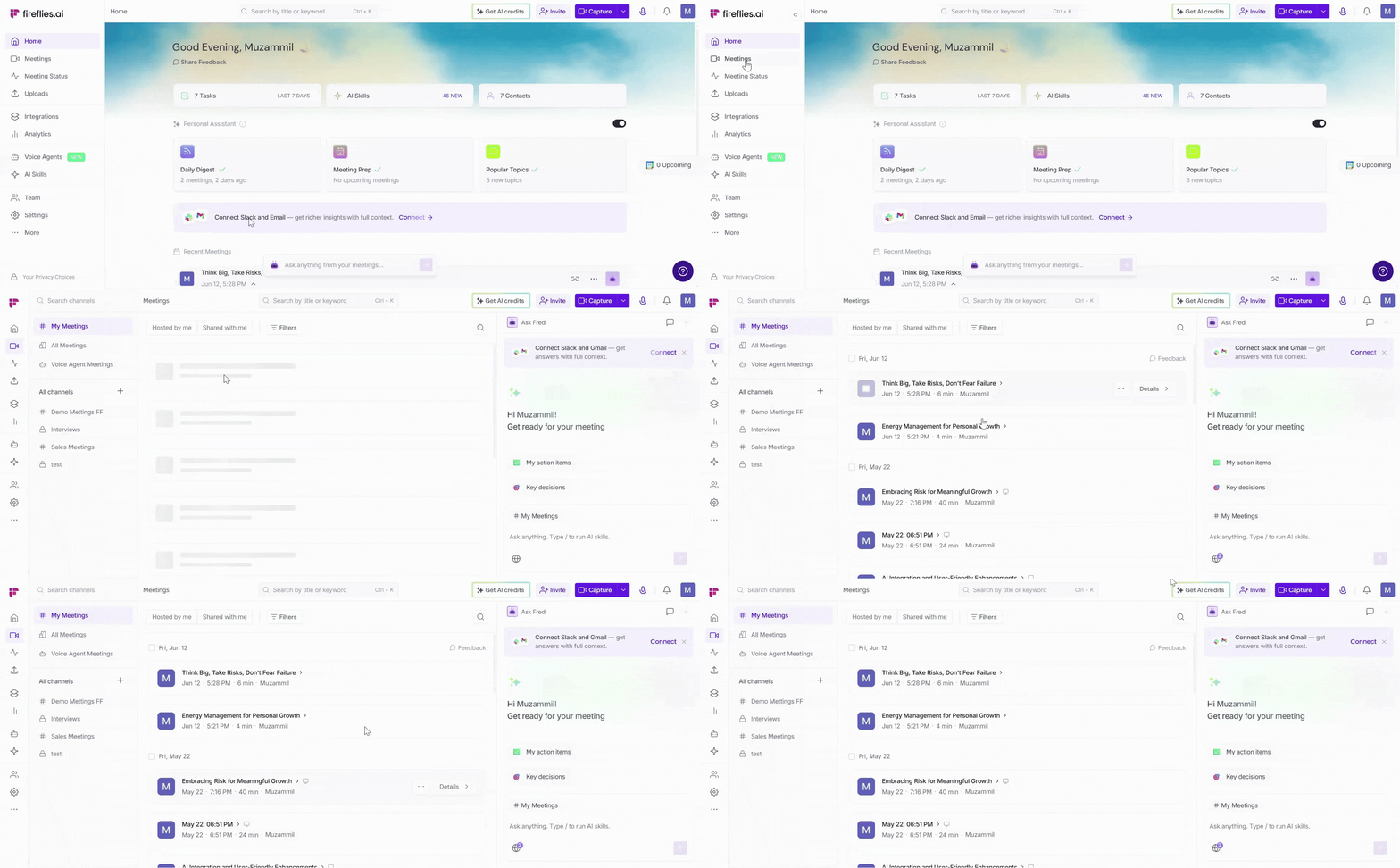
2. This opens the My Meetings channel by default, which displays all the meetings you own.
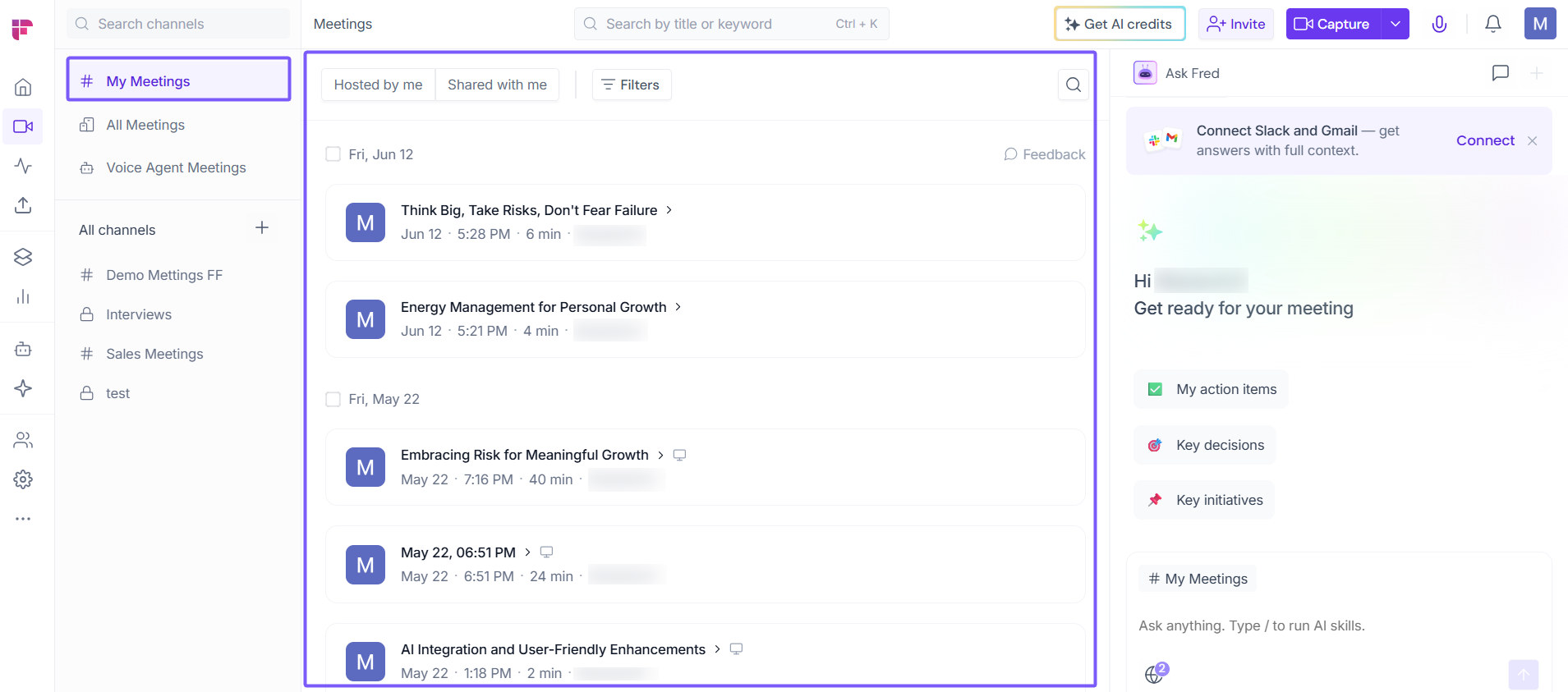
📌 You can only delete meetings that you own. Meetings owned by other users can’t be deleted.
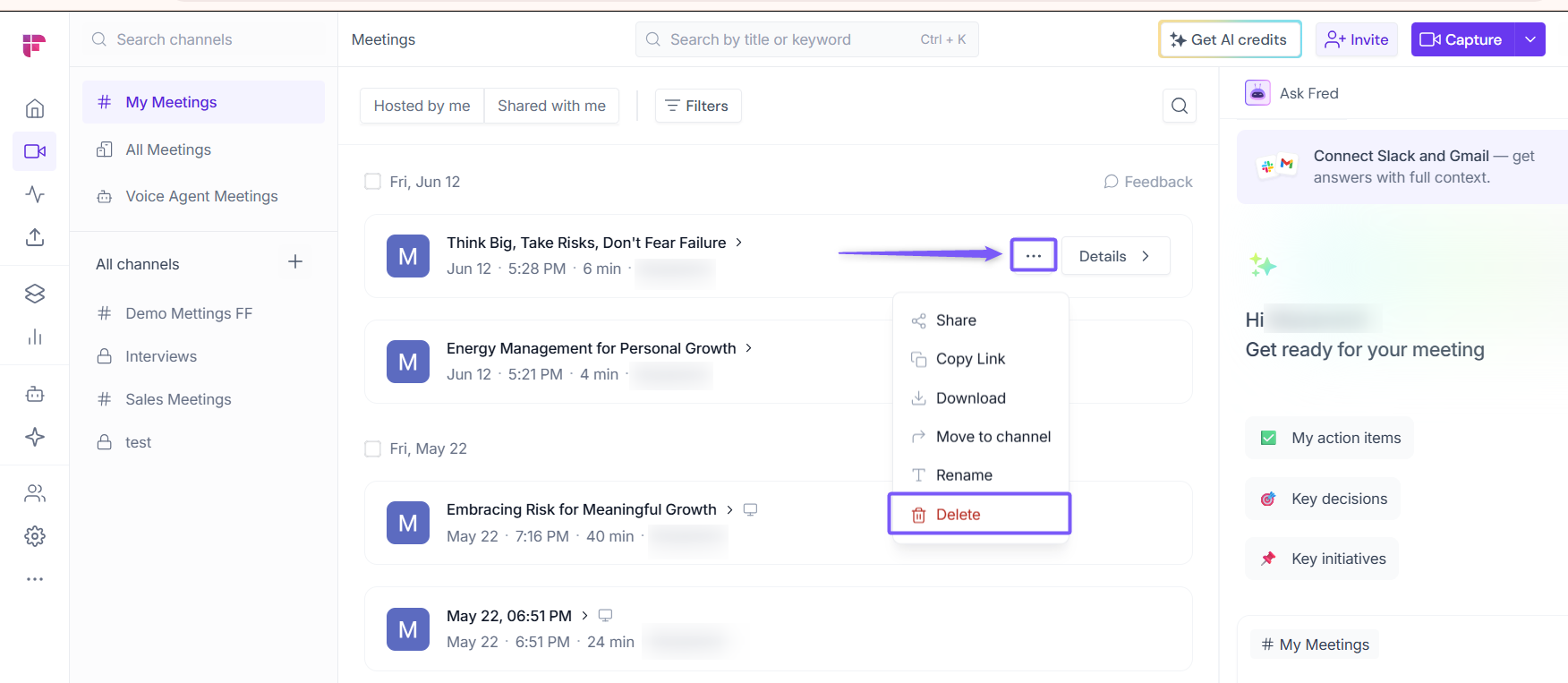
3. Hover over the meeting you want to delete, click the ellipsis icon (...), then select Delete from the dropdown menu.
4. Click Confirm to delete the meeting.
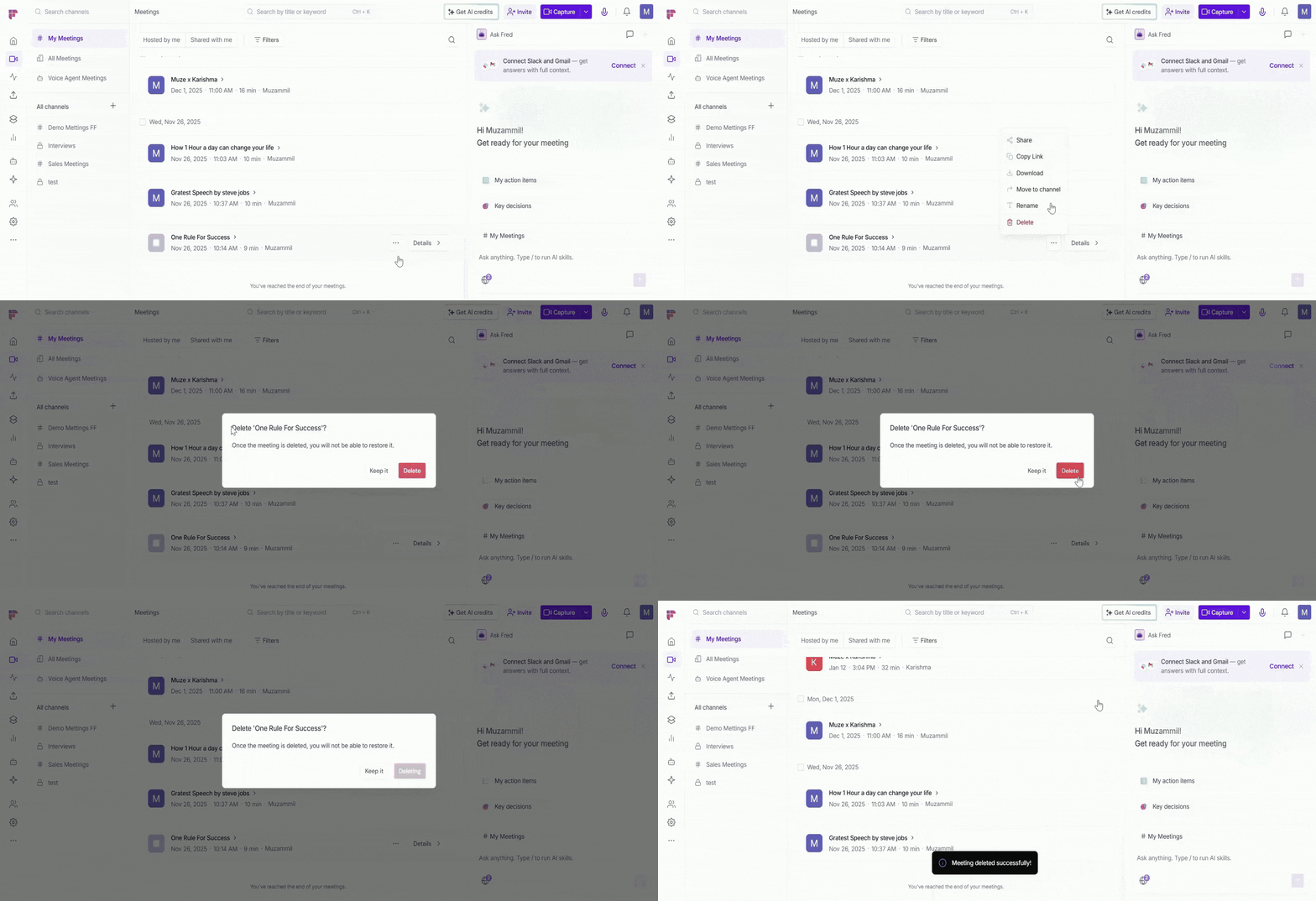
Once confirmed, the meeting is permanently deleted from your Fireflies account.
2. Delete Multiple Meetings (Bulk)
Use this option if you want to delete multiple meetings at once.
To delete multiple meetings at once (bulk deletion), you need to upgrade to the Pro plan or above, as this option is not available on lower plans.
1. Use the checkboxes to select the meetings you want to delete:
Select the checkbox next to an individual meeting to select a specific meeting.
If multiple meetings are grouped under the same date, select the checkbox next to that date to select all meetings listed for that day.
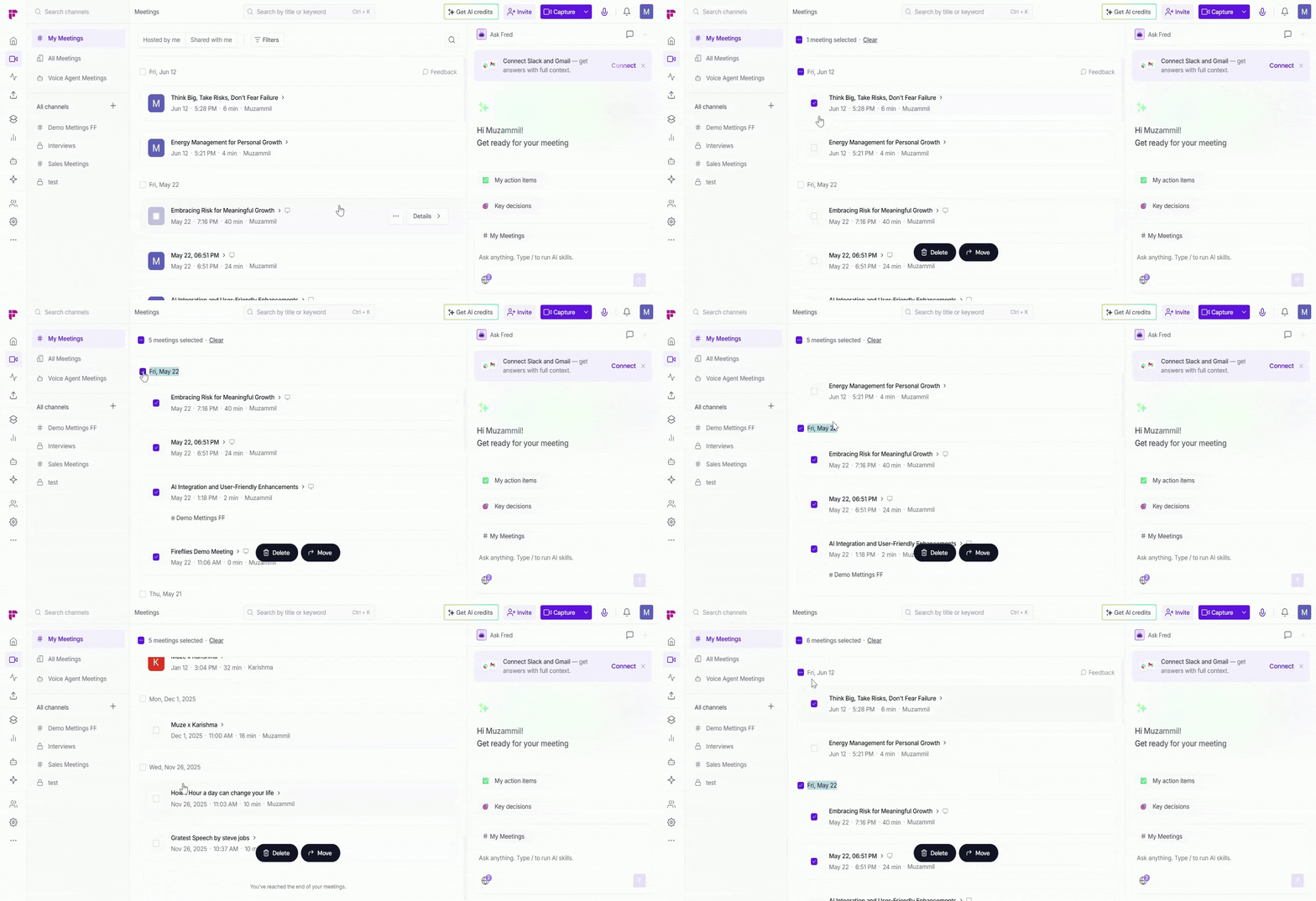
2. Click Delete from the action bar at the bottom of the screen, then click Confirm in the pop-up to permanently delete the selected meetings.
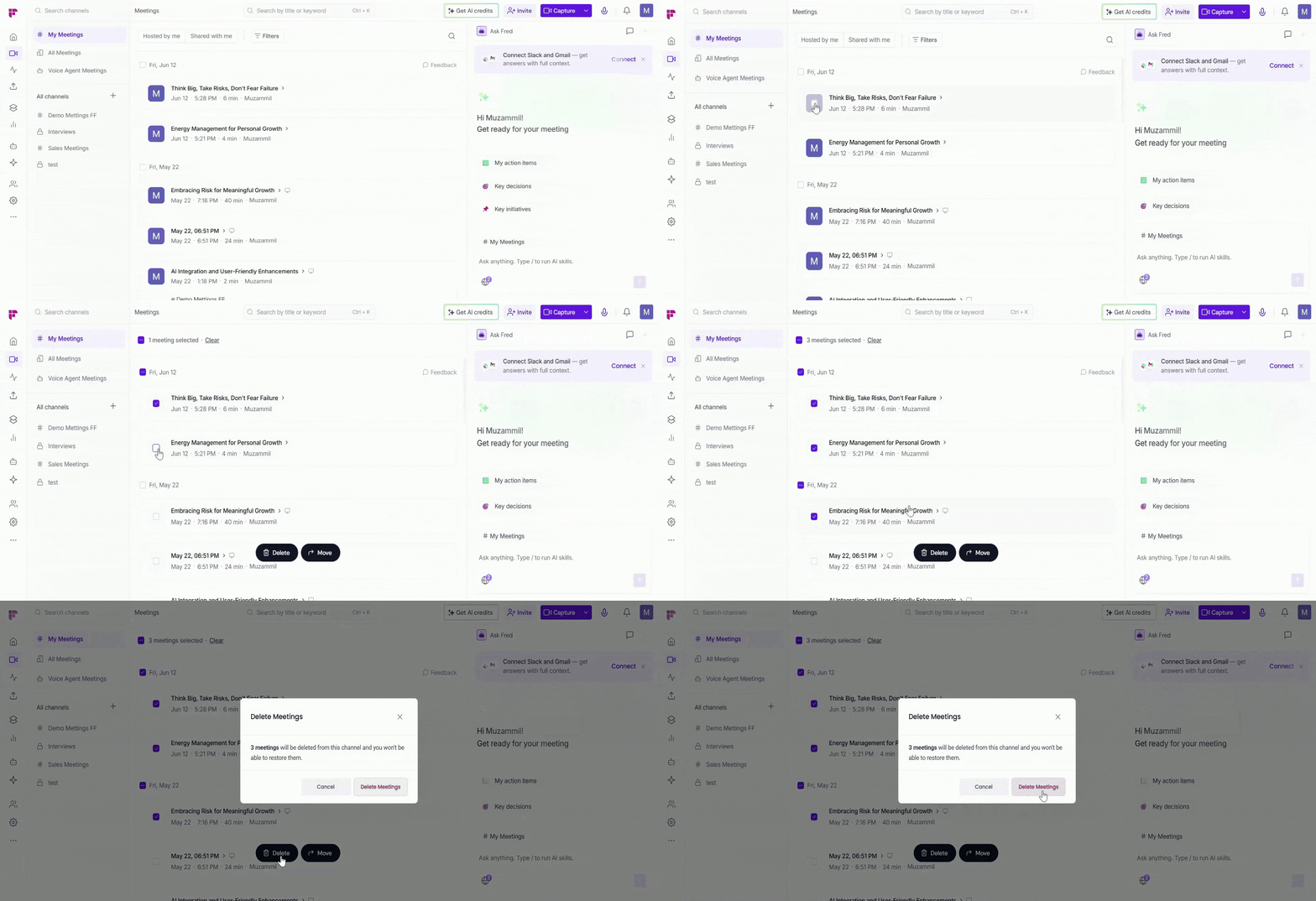
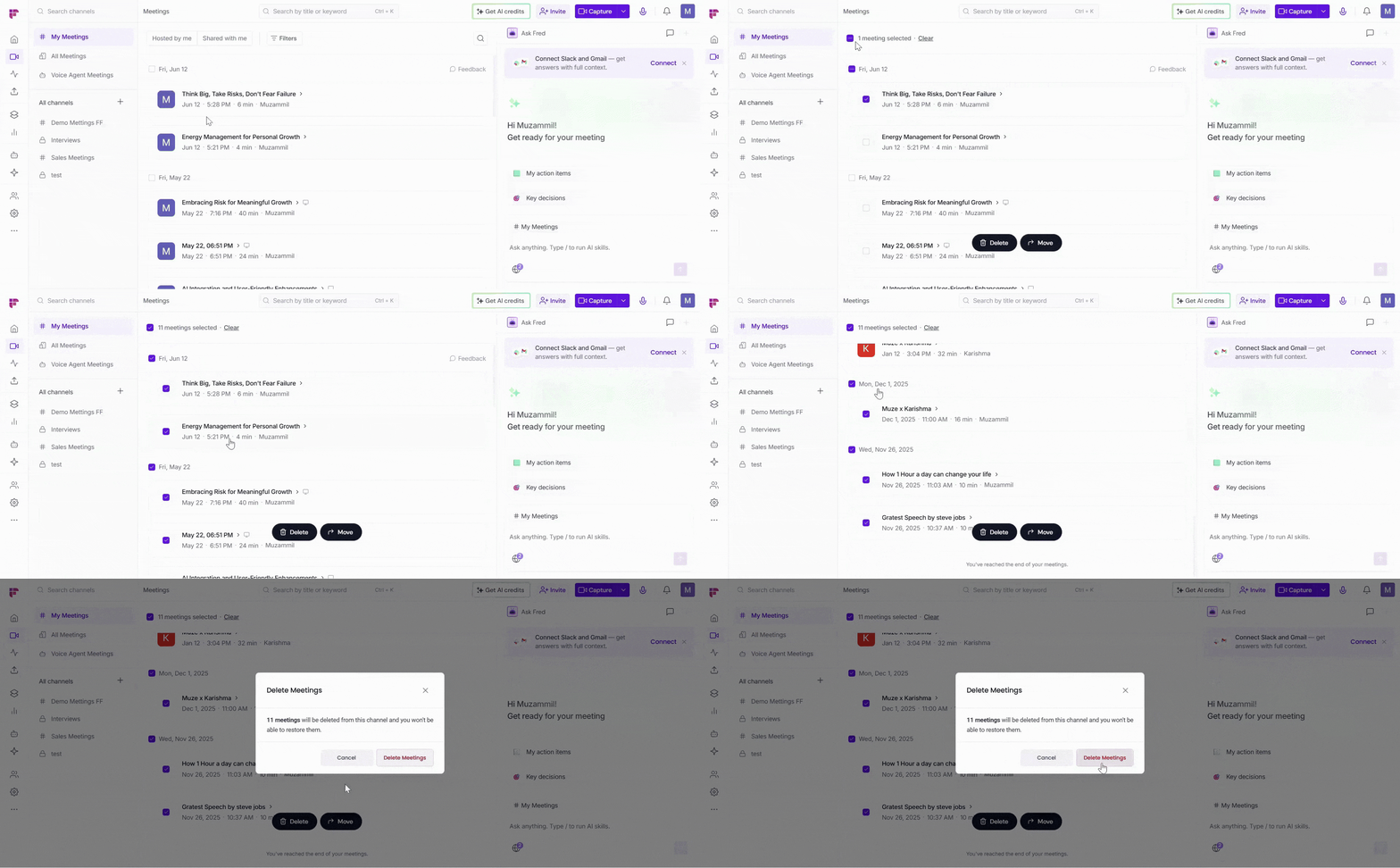
Want to Delete All Meetings at Once?
Select any meeting to make the select-all checkbox appear at the top of the meetings list, then check the box to select meetings across all dates.
Click Delete from the bottom action bar, then click Confirm to permanently delete all selected meetings.
Once confirmed, all selected meetings are permanently deleted from your Fireflies account.
3. Delete a Meeting from the Notepad
Use this option if you’re already inside a meeting and want to review its content first before deciding to delete it.
You can delete a meeting from the Notepad in two ways — choose the one that works best for you.
Method 1: Delete directly from the menu
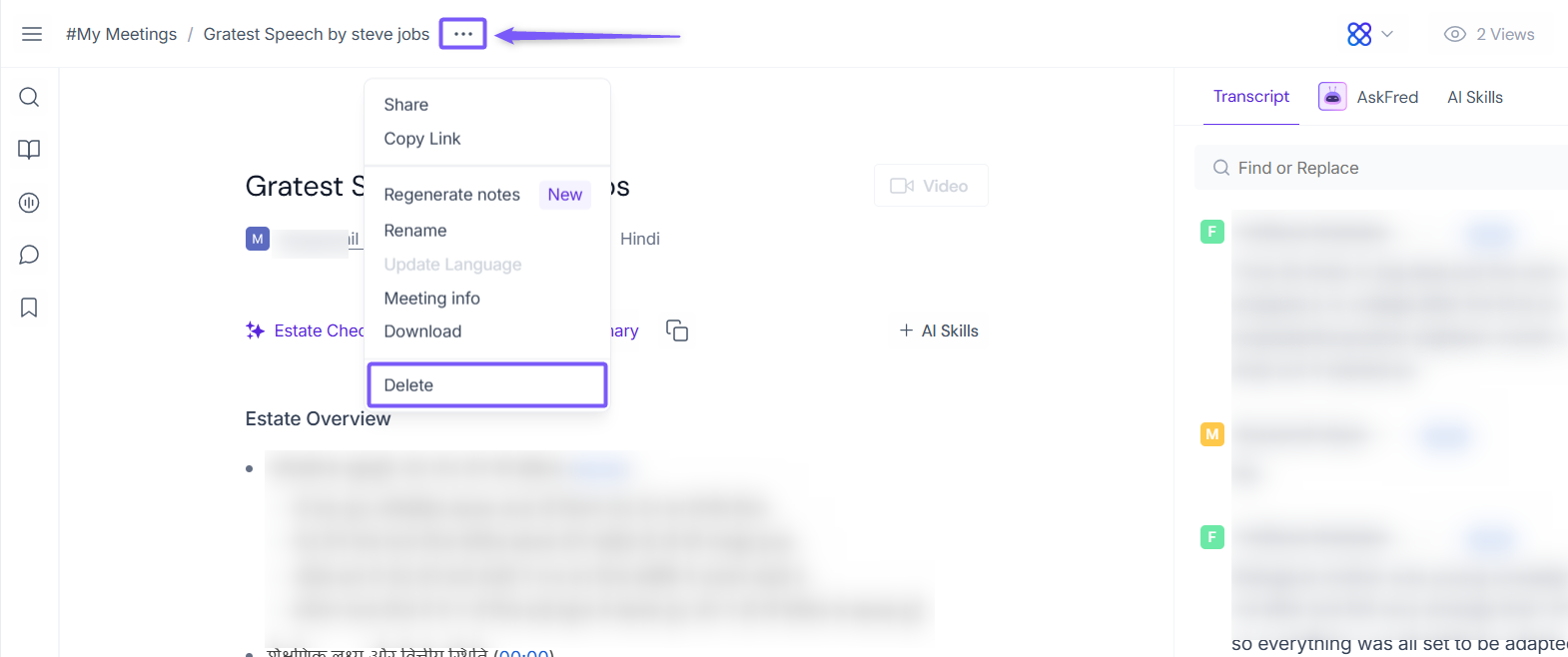
1. Open the meeting you want to delete in your meeting Notepad.
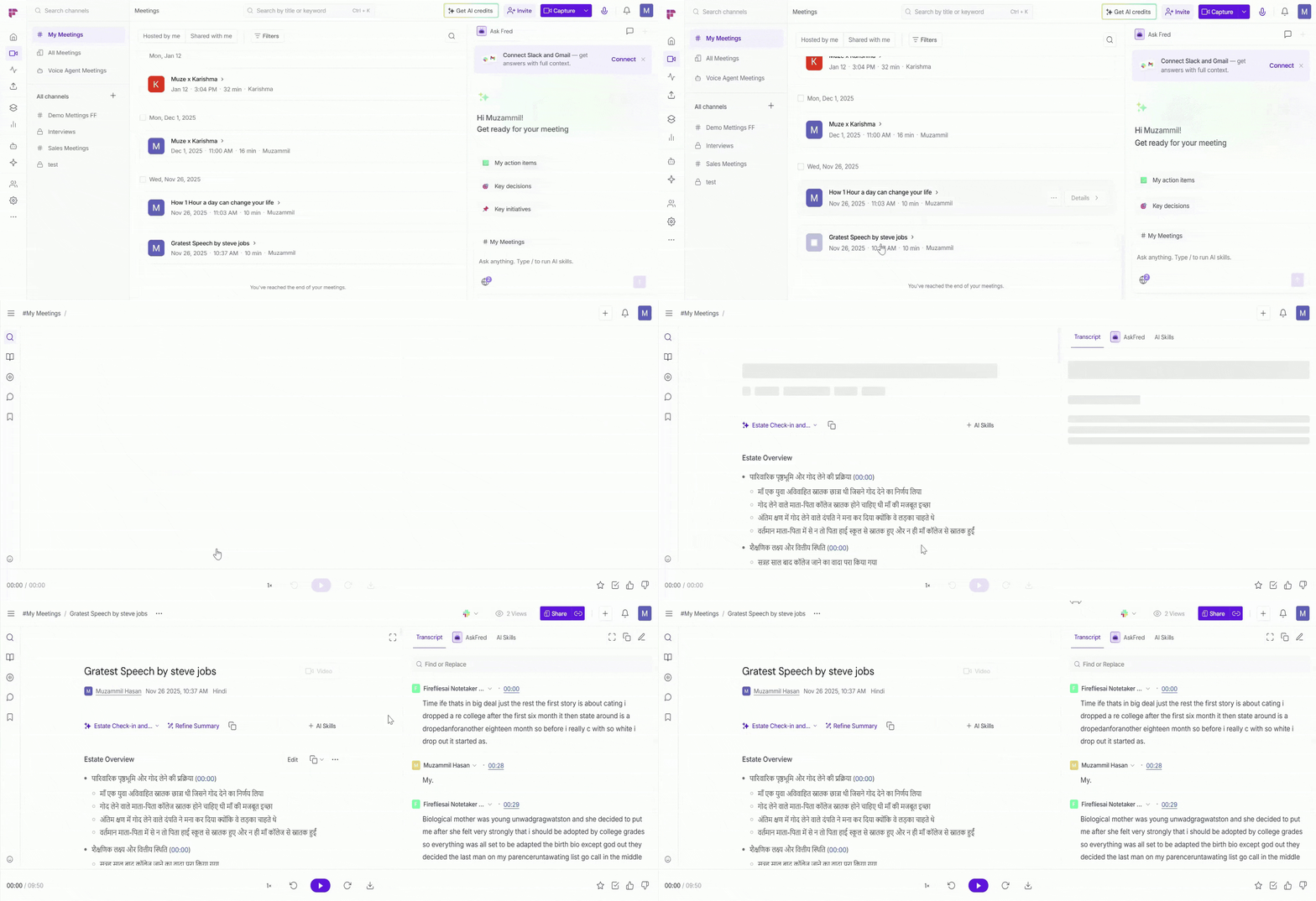
2. Click the three-dot menu (···) next to the meeting title and select Delete.
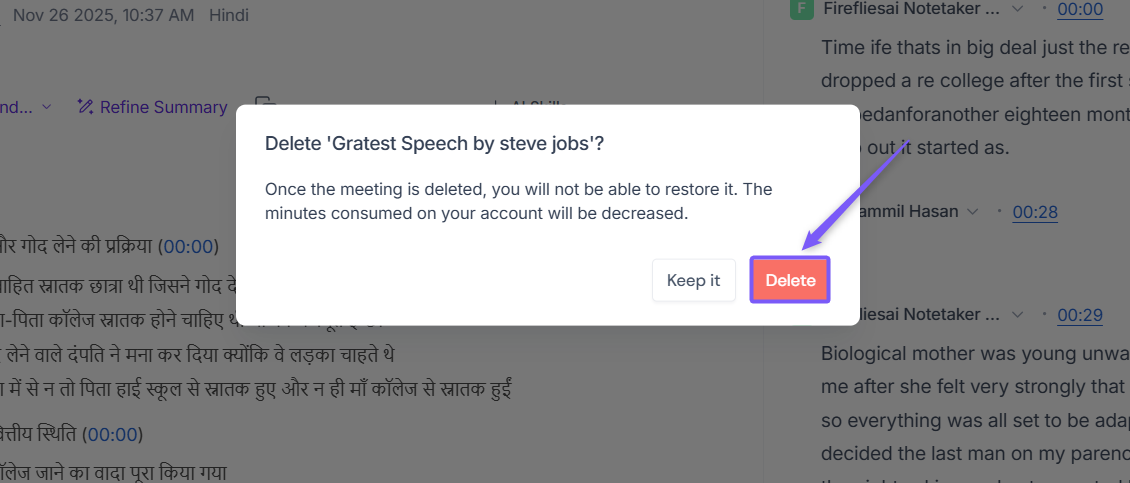
3. Click Delete to confirm and permanently remove the meeting.
⚠ Once a meeting is deleted, it cannot be restored. The minutes consumed by the meeting will also be deducted from your account.
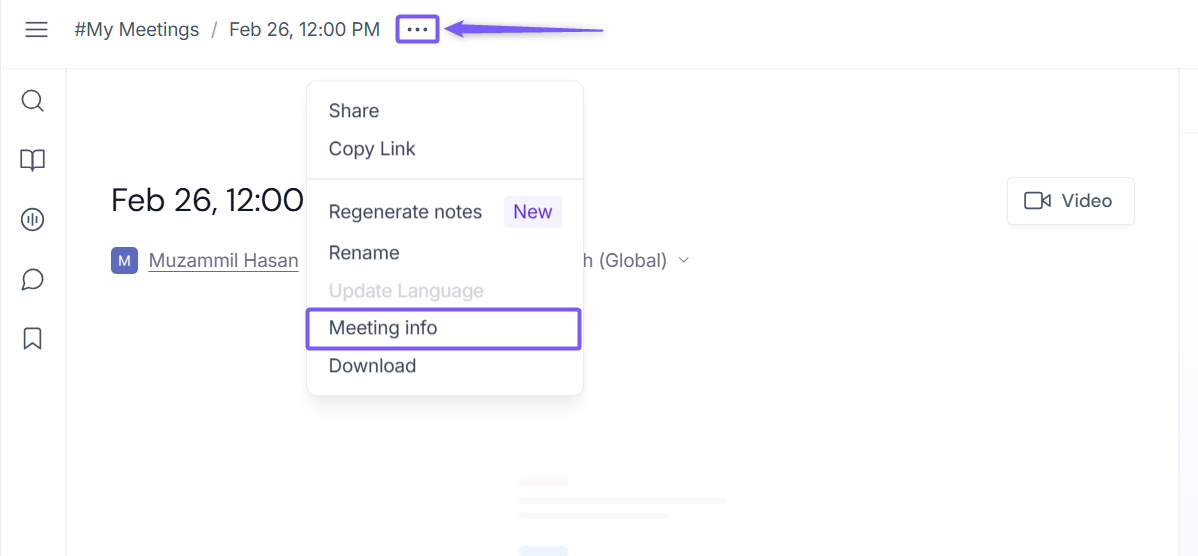
Method 2: Delete via Meeting Info
1. Click the three-dot menu (···) next to the meeting title and select Meeting info.
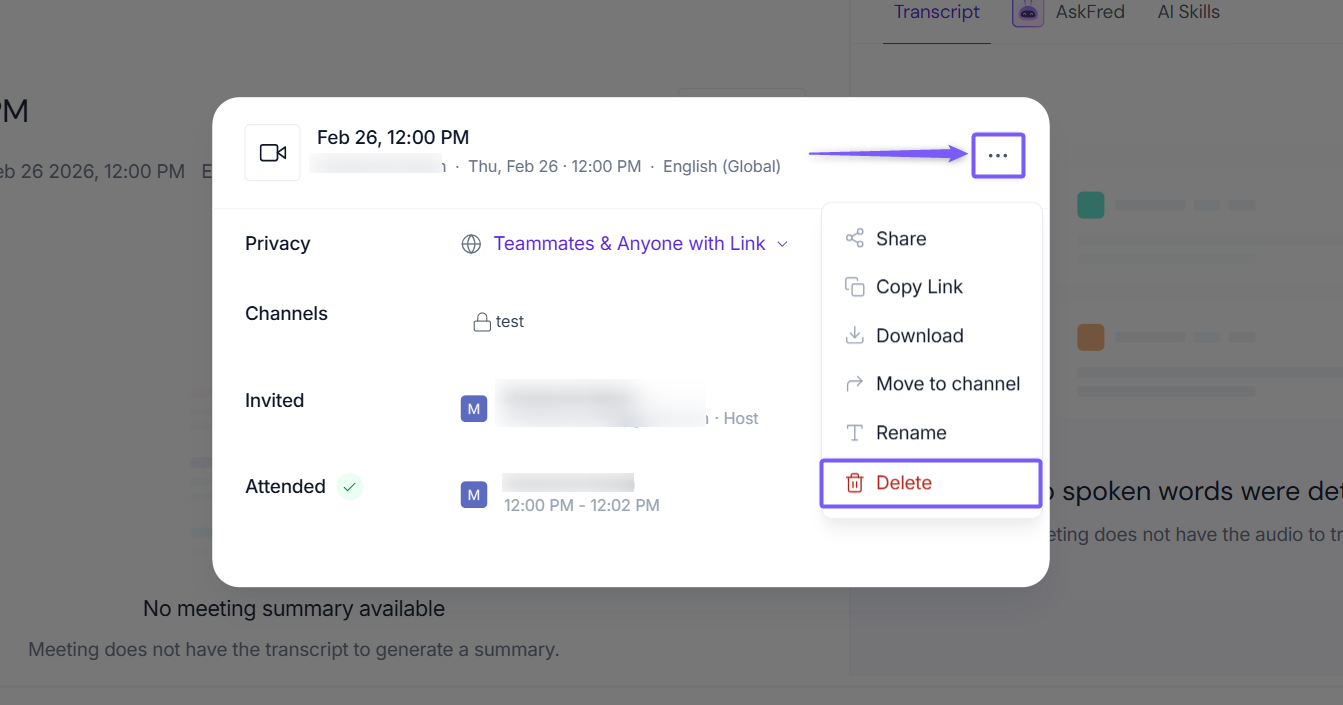
2. In the Meeting info modal window, click the ellipsis icon (...) in top-right corner and select Delete from the dropdown menu.
3. Click Delete to confirm and permanently remove the meeting.
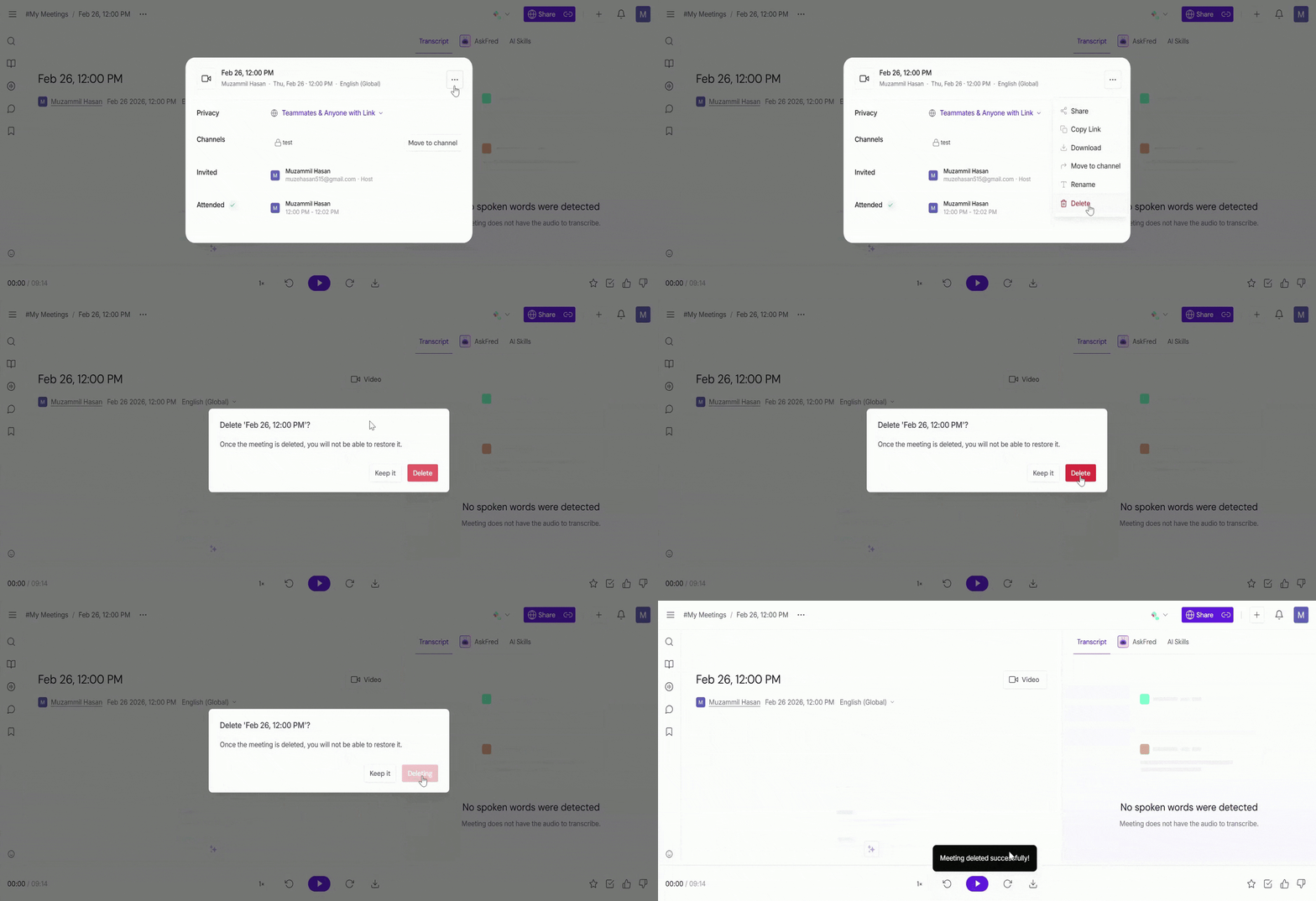
Once a meeting is deleted, it can’t be restored. The meeting transcript, summary, recording, and all related data are permanently deleted.
🧽 Want Fireflies to clean up old meetings automatically?
On the Enterprise plan, you can use the auto-delete meetings feature to remove old meetings automatically.
🔄️Recap
Deleting meetings helps keep your meetings organized and easier to manage.
Only meetings you own can be deleted
Deleted meetings can’t be restored and are permanently removed along with their data
📌 Related Guides
Learn About Channels → Understand how channels work in Fireflies.
Learn About Fireflies Channels to Organize Your Meetings → Learn how to set up channels to organize your meetings.
How to Add Meetings to a Channel → Move meetings into channels for better organization.
How to Edit the Title of a Meeting Recording in Fireflies → Rename meeting recordings for clarity.