Learn about the Fireflies Notepad
Last updated: March 17, 2026
The Fireflies Notepad is your meeting workspace—the place where everything comes together after your meeting ends. It holds your AI-generated summary, full transcript, video recording, analytics, and any action items—all in one place. From here, you can review, edit, share, and send your notes to other tools.
How to land into your notepad?
From the left navigation menu, click Meetings tab to view all recent meetings. Select a meeting to open its notebook. From here, you can review, edit, share, and take action.
👉 Want help navigating your Notepad and finding the right meeting?
Check out: 📄 How to search and find your meetings
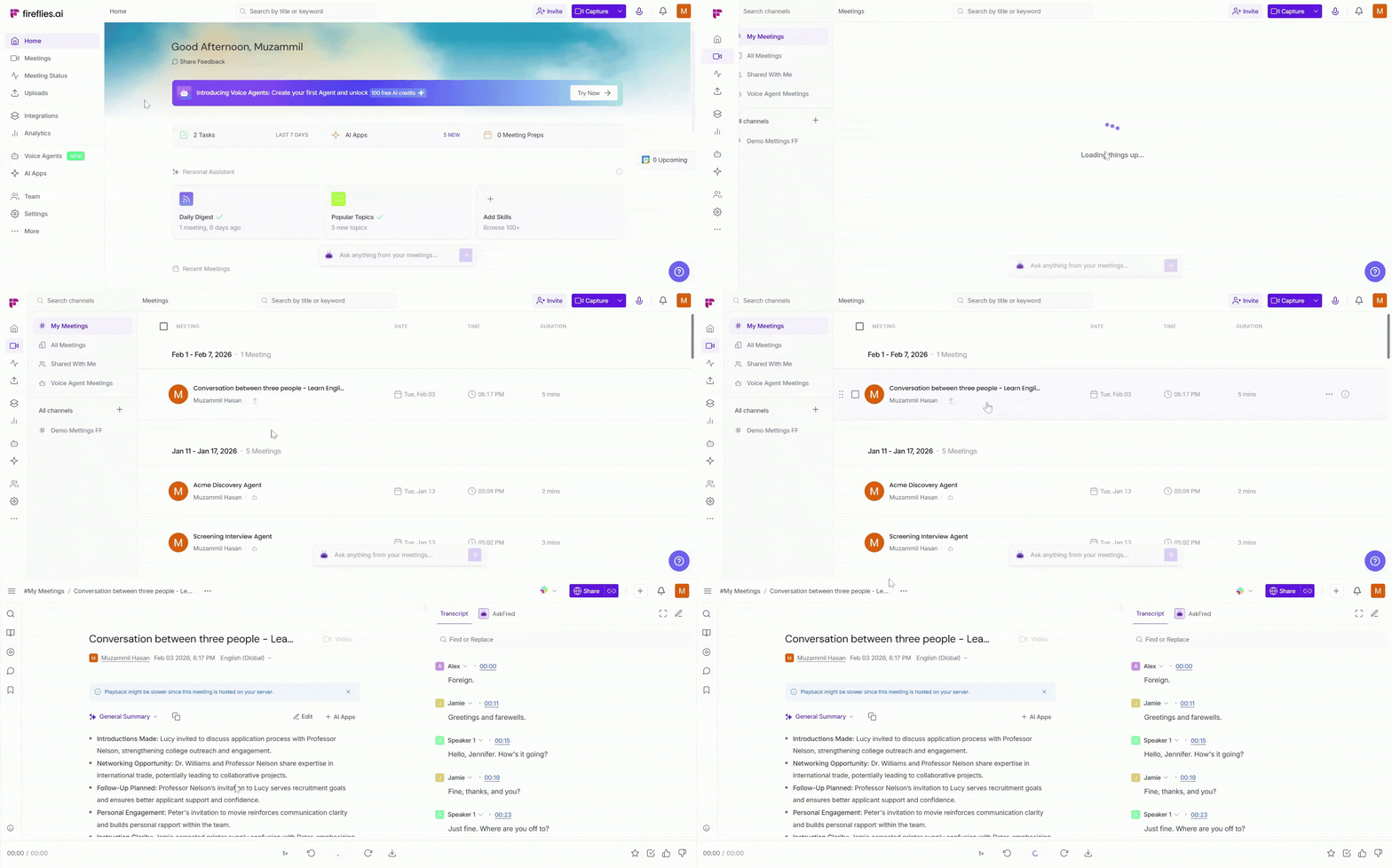
Here’s a quick tour of everything you’ll find in the Notepad—and how to get the most out of it.
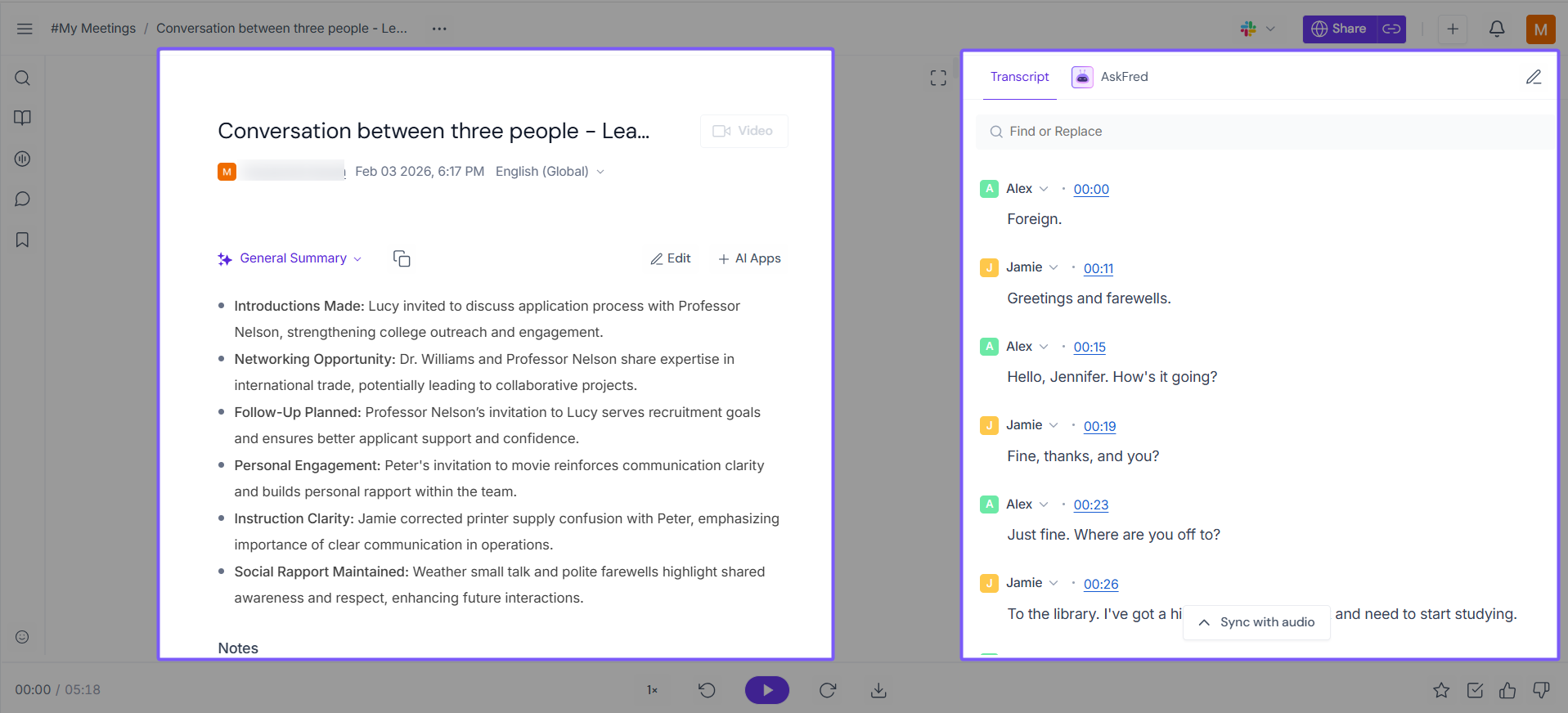
1. The two-panel layout
When you open a meeting, you’ll see two panels:
Left: AI summary and notes
Right: Transcript
You can expand either side or go full screen depending on what you want to focus on.
2. AskFred: Your smart meeting assistant
AskFred is your built-in AI assistant. Think of it like ChatGPT, but trained on your actual meeting.
You can ask suggested questions or type in your own questions, like "What were the main objections?" or "Summarize the action items". You can also extract insights instantly from your conversation, skip reading the full transcript and get to answers faster.
Especially helpful for high-performing teams that need quick takeaways.
Learn more about Ask Fred here: 📄AskFred: Ask Fred questions form your meetings in Fireflies and get answers
To use AskFred to ask questions or generate content, you must purchase an AI Credits package. Learn more here: 📄Learn about AI Credits
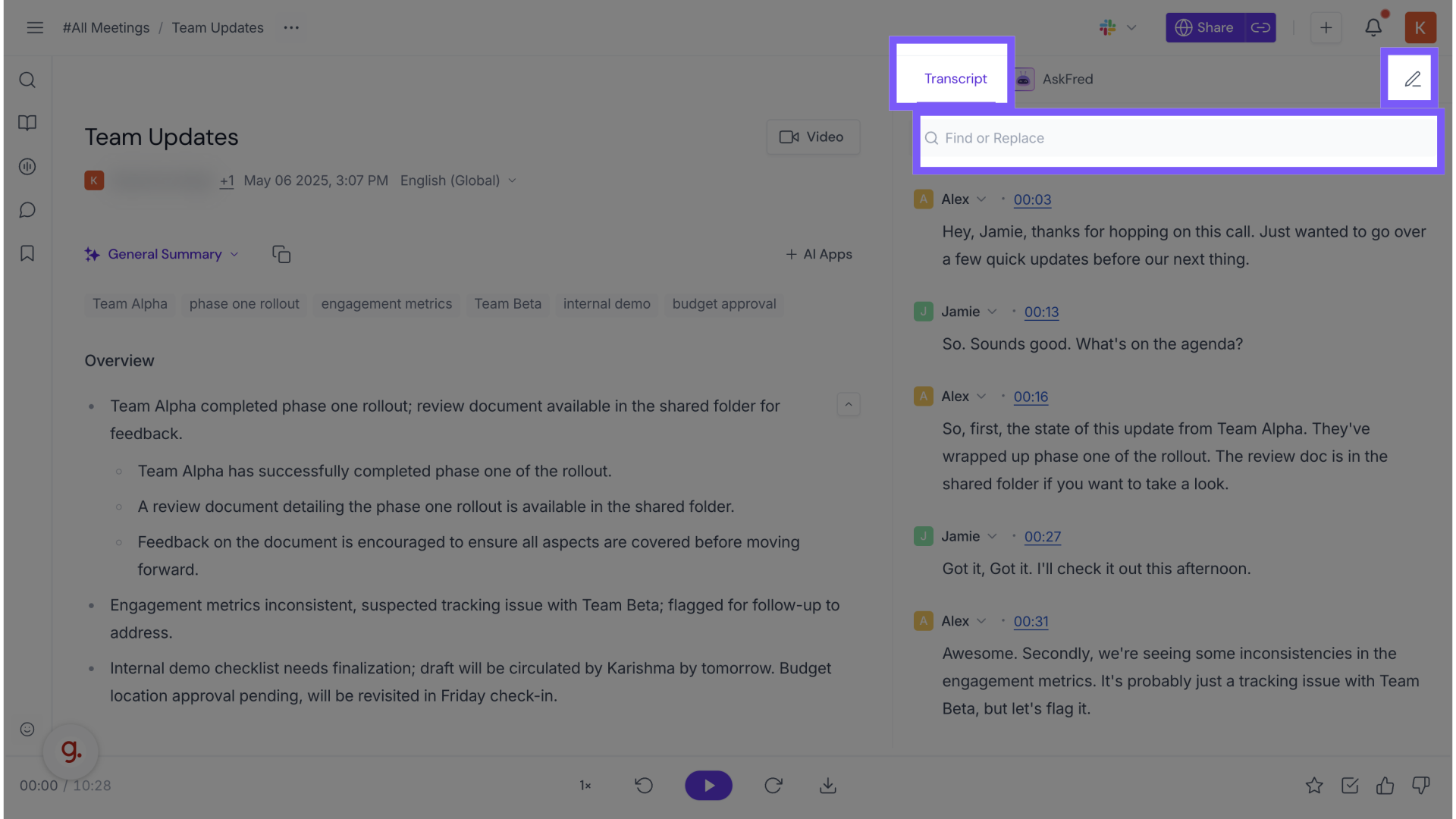
Search or edit the transcript
Need to fix a typo or jump to a keyword?
Use the Find or Replace bar to search within the transcript
Click the ✏ Edit icon to switch to edit mode
Undo or redo edits anytime—your changes are autosaved
Great for fixing names, clarifying phrasing, or cleaning up before sharing externally.
Read more on: How to edit your meeting transcript
3. Watch the meeting video and create Soundbites
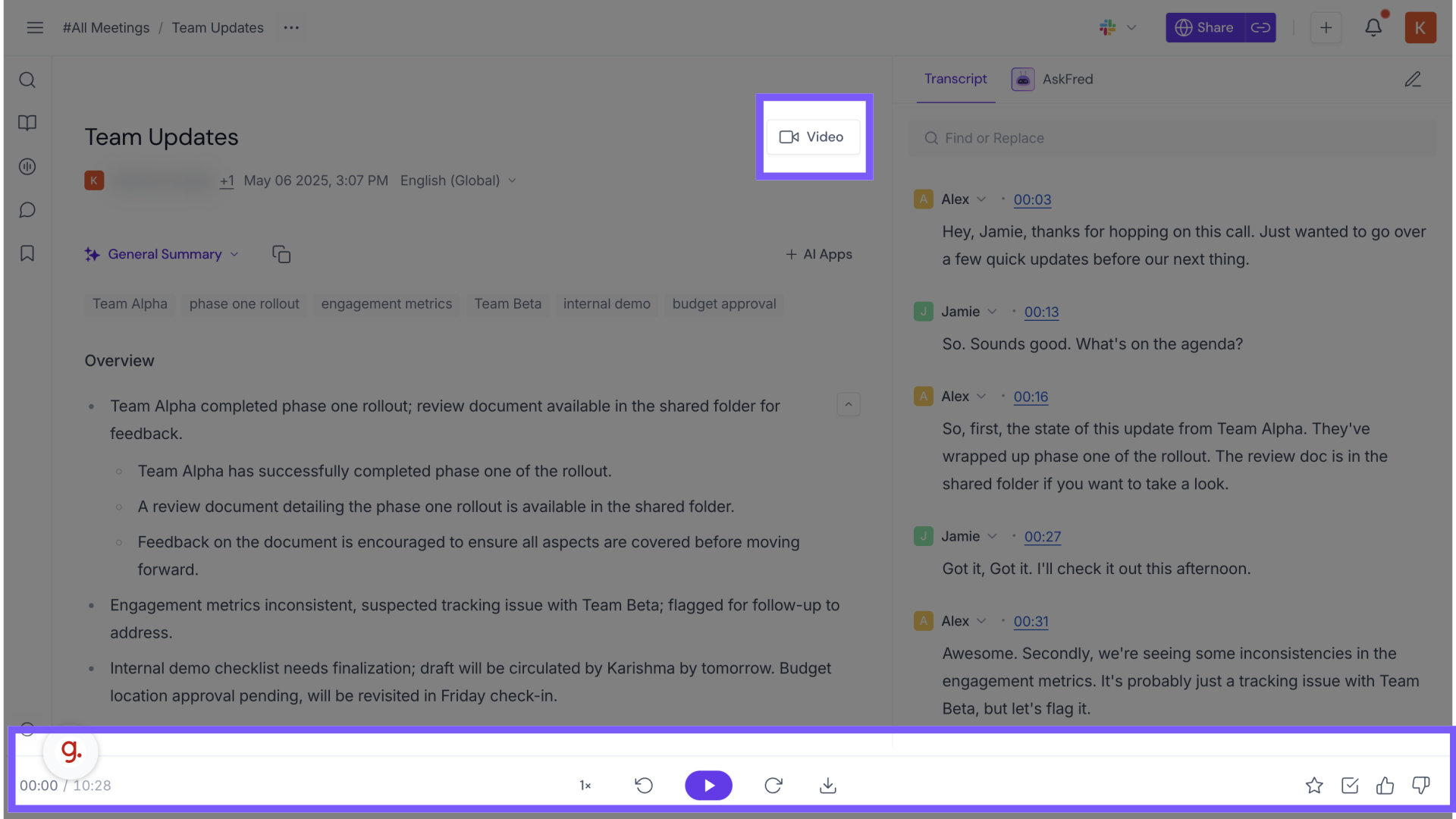
If your meeting was recorded, click the 🎥 Video icon to watch it with word-by-word captions synced to the transcript. You can adjust playback speed or skip to key moments.
You can alternatively just listen to the call synchronized with the transcript through the play
⚠ Video playback is available only on Fireflies Business or Enterprise plans.
4. Use the collapsible sidebar for extra tools
The left-hand icons give you:
🔍 Smart Search: Filter the meeting transcript with AI Filters for questions, tasks, topic tracker, metrics, and more, based on the meeting transcript.
📑 Index: Jump to action items or AI summary sections
🎙 Soundbites: View and manage clips (Details below)
💬 Comments: Add or reply to timestamped notes (📄Learn about the comments features in your Notepad)
🔖 Bookmarks: Save important moments (📄Learn about the Bookmarks features in Fireflies)
5. Want to highlight key moments? Create Soundbites.
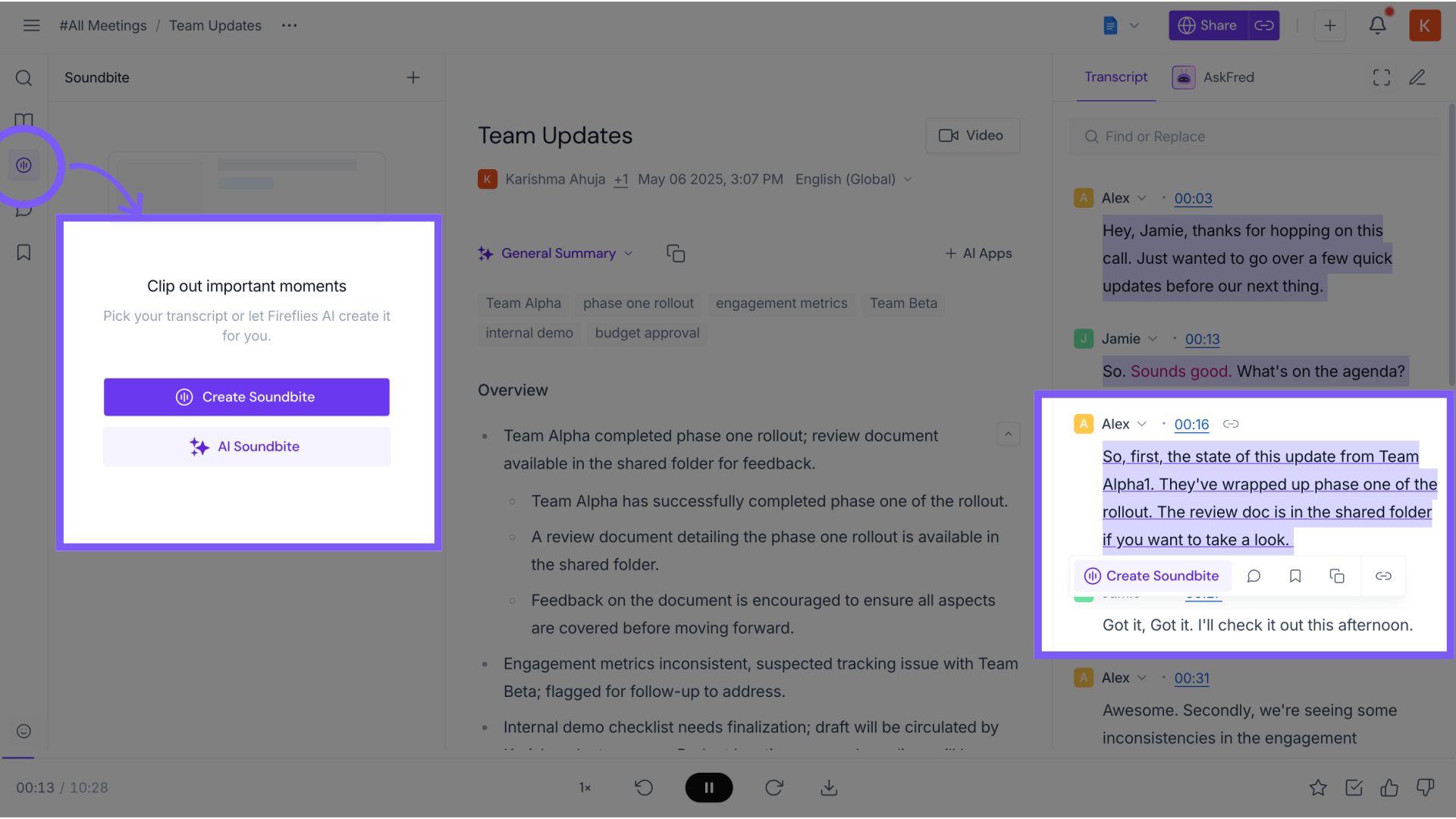
Create a Soundbite—a short, shareable snippet pulled from your call. Perfect if you want to highlight an important clip or customer quote, creating async updates or sharing key insights with others
You can:
Use the soundbite icon on the left
Or highlight transcript text and click Create Soundbite (More here: 📄How to create Soundbites form your meeting transcripts)
6. Run AI Skills to automate follow-ups, summaries, and insights
Just click AI Skills on the top bar and choose the app that fits your workflow.
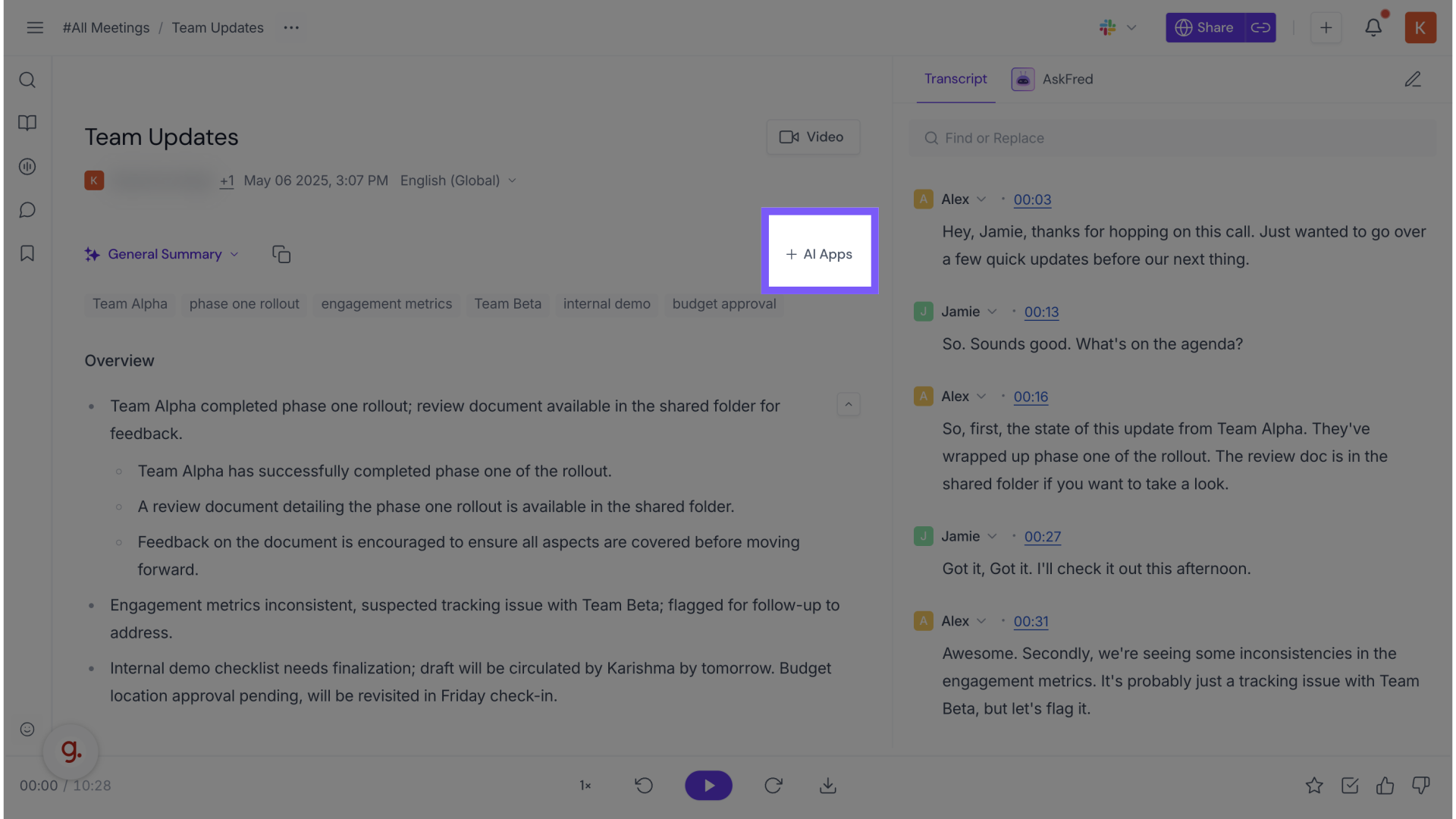
AI Skills let you go from “meeting happened” to “next step done” without lifting a finger.
You can:
Score candidates after interviews automatically
Summarize a sales call into CRM-ready bullets
Flag blockers or risks mentioned in a project sync
Draft follow-up emails or client summaries
Ace AI Skills by learning more through the following guides:
7. Customize your Meeting Summary
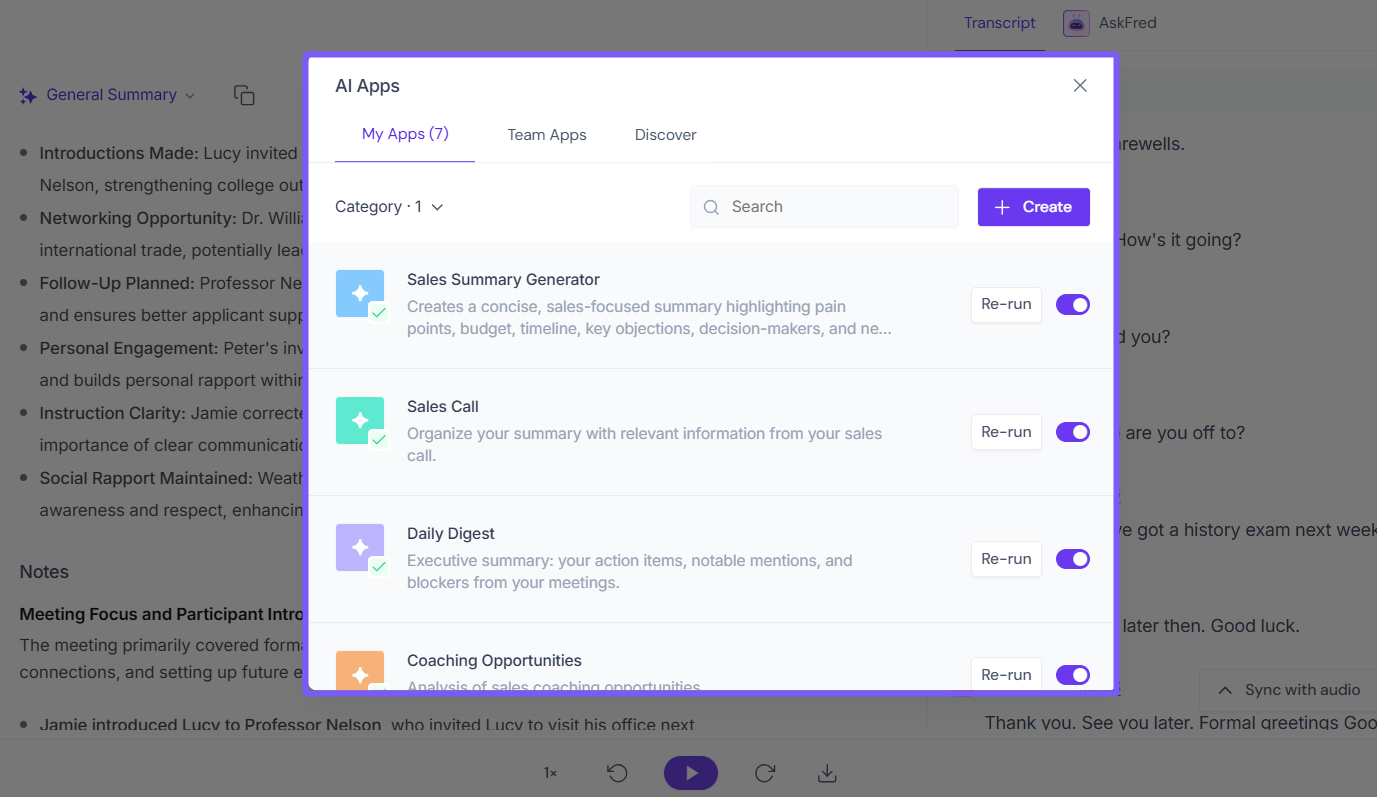
Want a different style of notes? You can choose from several preset formats—like a sales template, 1:1 meeting notes, or a BANT-style summary.
Click the dropdown next to General Summary to:
Switch to a different summary format
OR Click Customize to select additional sections
You can also hit the 📋 Copy button to send it wherever it’s needed
Here is everything you need to learn about the meeting summaries
📄 Fireflies AI Meeting Summaries: View, Customize, Exapand, Regenerate
8. Share your notes or send them to your favourite tools
Click Share to send meeting recap
📌 Related: Read more about sharing meeting notes, summaries, and transcripts.
Click the 🔗 icon to copy the link directly.
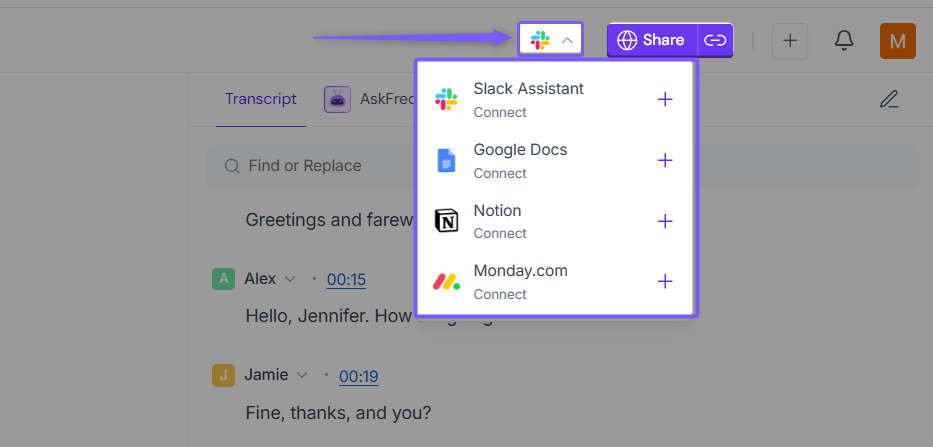
Use the integrations menu: Want to send action items straight to Slack after every meeting? Or save your summaries in Notion or Google Drive?
Use the 📤 button right next to the Share button to:
Push notes to CRMs like Salesforce, HubSpot, or Zoho
Create tasks in Trello, ClickUp, or Asana
Sync to tools like Notion, Dropbox, or Google Docs
9. Organize or update your meeting from the 3-dot menu
Need to tweak the title, download the notes, or update your transcript language?
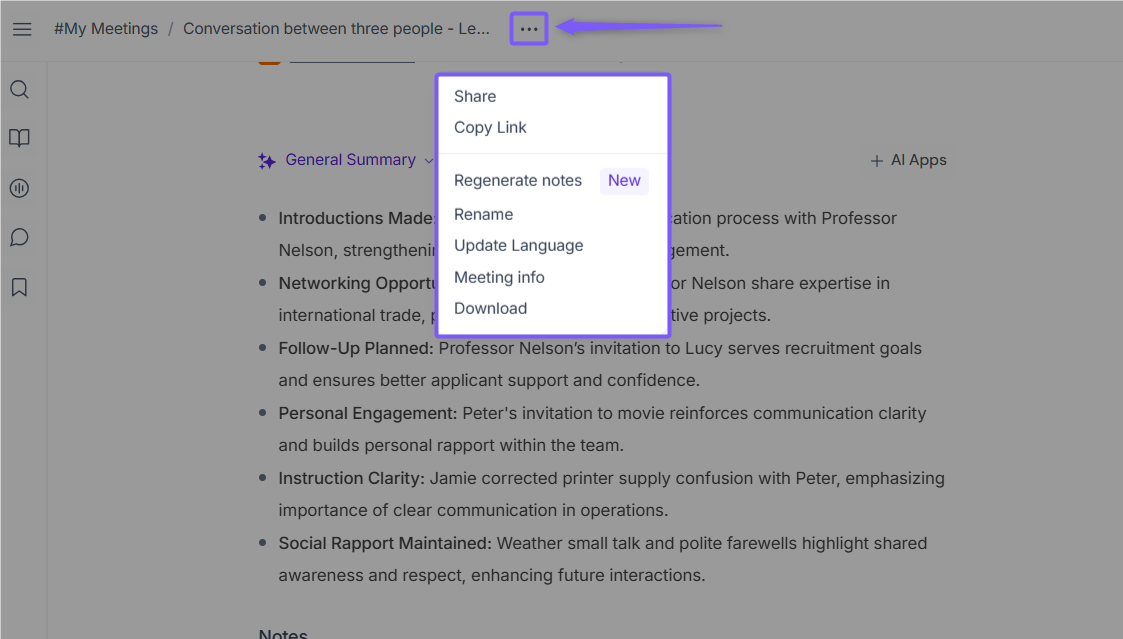
Click the (⋯) menu next to the meeting title to:
Share or copy link to allow others to access the meeting.
Regenerate notes to recreate the meeting notes using AI.
Rename the meeting to update the meeting title.
Update language if the meeting was conducted in a different language.
View meeting info to see meeting details.
Download notes to save the meeting recap or notes.
Your Notepad is your control center after every meeting. Whether you need to follow up, delegate, or analyze—it’s all in one place.