Manage Your Playlist (Edit, Delete & Share)
Last updated: September 7, 2026
Once your playlists are set up, you may need to make changes—like renaming a playlist, adding or removing soundbites, updating access, or cleaning up playlists that are no longer needed. Managing playlists helps keep your content organized and ensures the right people have access to the right moments.
In this guide, you’ll learn how to rename playlists, add or remove soundbites, share playlists with others, and delete playlists you no longer need—all with clear, step-by-step instructions.
💡Don’t have a playlist yet?
You can still create one anytime and start adding soundbites as you go. Check out Getting Started with Playlists (How to Create & View Them) to create your first playlist before managing it.
Let’s get started. 🚀
🚀Navigation
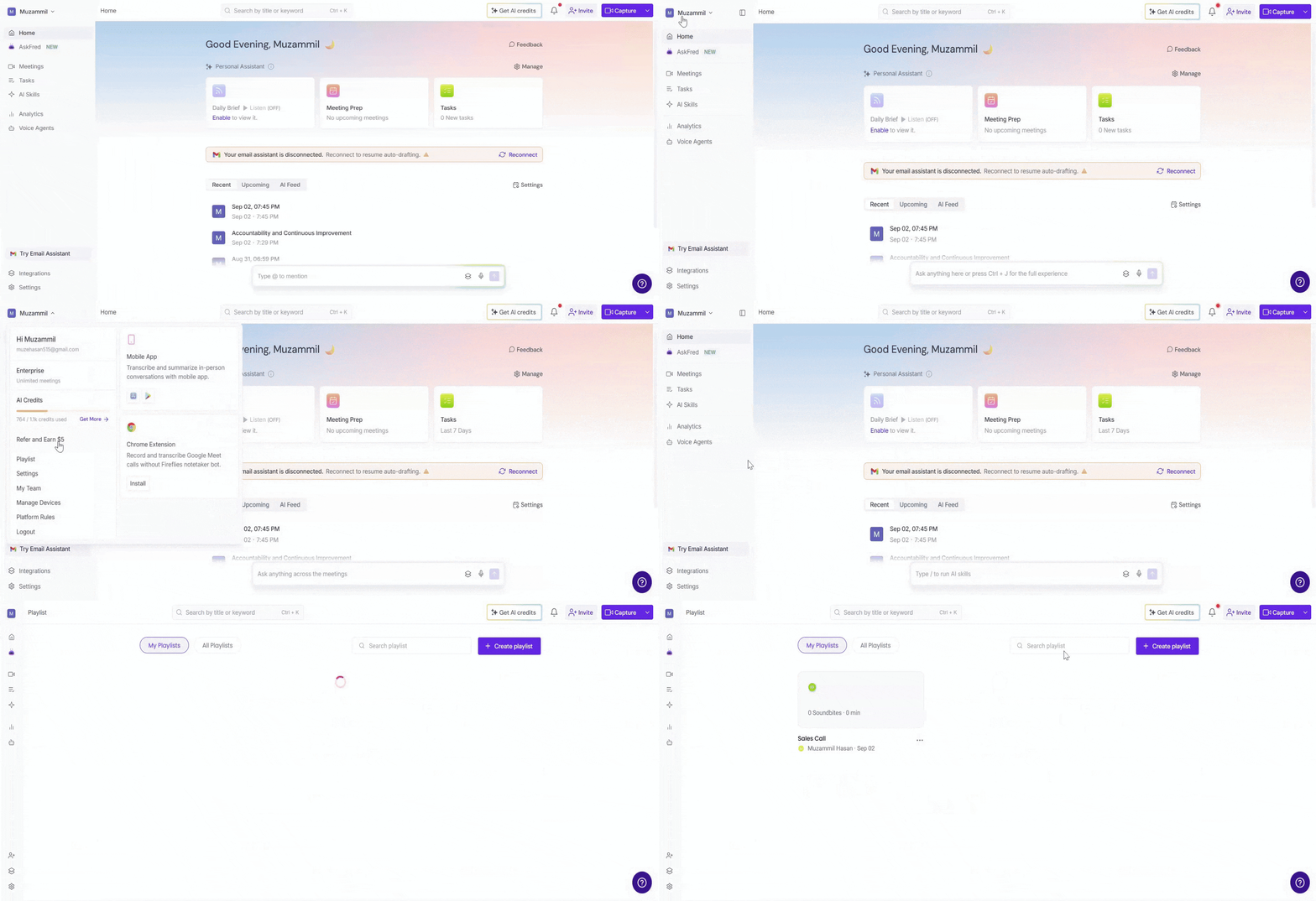
Log in to your Fireflies account. Click your profile icon in the top-left corner, then select Playlist from the menu.
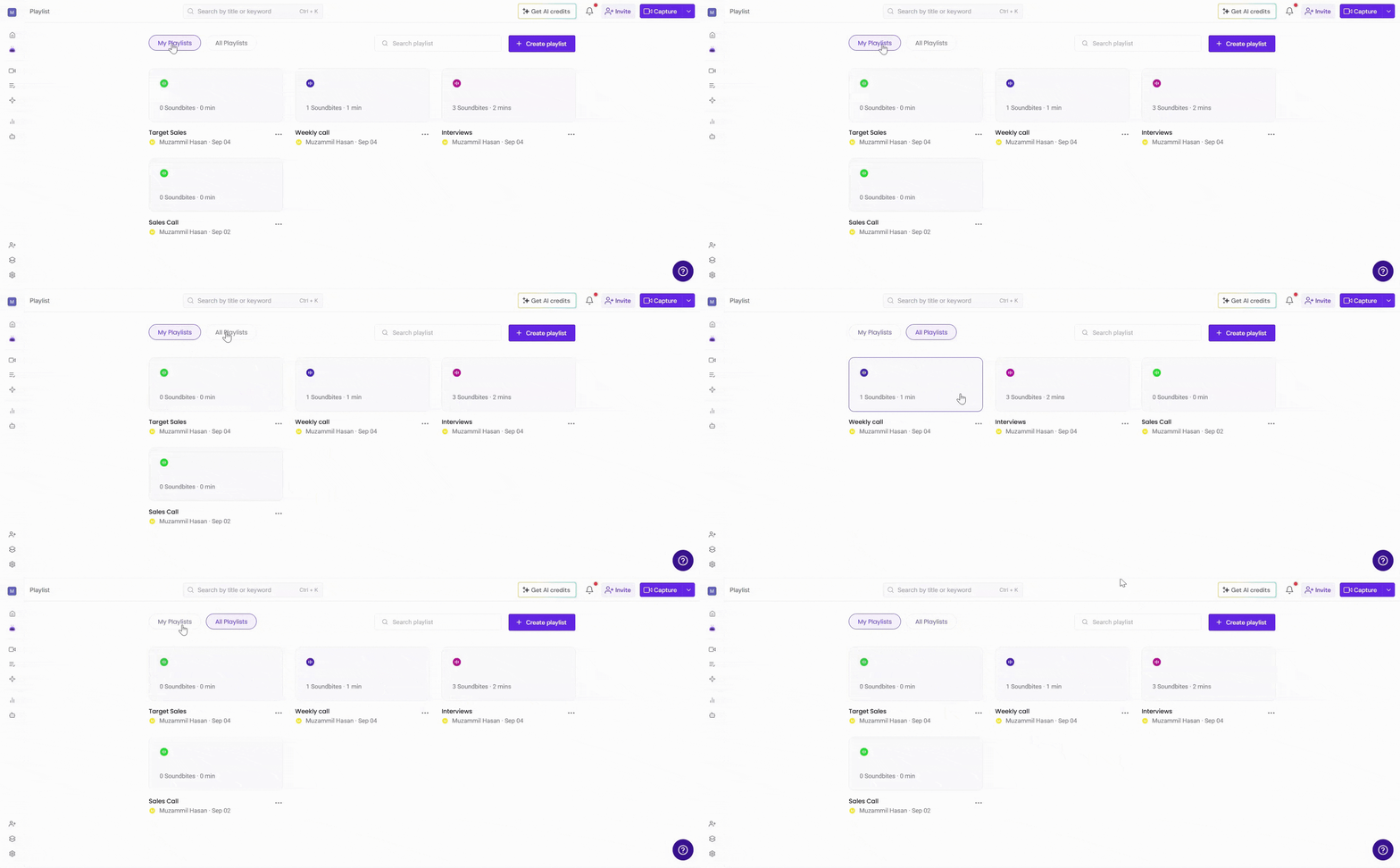
Choose the playlist you want to manage from My Playlists (playlists you created) or All Playlists (playlists shared with you or accessible based on permissions).
✏ Edit a Playlist
Editing a playlist helps keep it up to date as your needs change. You can rename the playlist, add soundbites to it, including adding the same soundbite to multiple playlists, or remove ones that are no longer relevant—without affecting the original meetings.
🔤 Rename a Playlist
Renaming a playlist helps keep things clear when the playlist’s purpose or content changes. Fireflies lets you rename a playlist in two simple ways.
Method 1: Rename from the Playlist Card
Locate the playlist you want to rename in the Playlist section, then click the ellipsis (⋯) next to it and select Rename.

Enter the new playlist name and click the Rename button to save your changes.

Method 2: Rename from Inside the Playlist
Open the playlist you want to rename from the Playlist section.

Click on the ellipsis (⋯) at the top of the playlist view and select Rename.

Enter the new playlist name and click the Rename button to save your changes.

➕ Add Soundbites to a Playlist
Adding soundbites to a playlist helps you build a focused collection of key moments. You can add soundbites at any time, even after the playlist is created.
Click the + Add Soundbite button at the top of the playlist. This opens a list of all available soundbites.

Search for soundbites or use filters to find the ones you want, then click Add soundbite next to each one to instantly add it to the playlist.

✏ Edit Soundbites Inside a Playlist
You can manage individual soundbites directly from within a playlist. This lets you reorganize clips without leaving the playlist view.
Open the playlist and locate the soundbite you want to manage. Click the ellipsis (⋯) next to the soundbite to open the options menu.

From here, you can:
Add to playlist: Add the same soundbite to another playlist without removing it from the current one.

Remove from playlist: Remove the soundbite from this playlist only. The soundbite itself will remain available elsewhere.

Rename: Update the soundbite title so it more accurately reflects the content of the clip.

Renaming a soundbite here updates the soundbite name everywhere it’s used, including in other playlists and the soundbites section. This change does not affect the original meeting or recording.
🔗 Share a Playlist
Sharing a playlist lets you give others access to a collection of soundbites—without sharing individual clips one by one. You can share a playlist in two simple ways.\
Method 1: Share from the Playlist Card
Locate the playlist you want to share, click the ellipsis (⋯) on the playlist card, and select Share.

A modal window will open where you can enter Emails or User Groups to share the playlist directly and choose who can access it.

When sharing a playlist, you can control visibility using these options:
Teammates & Anyone with Link – Anyone with the link can access the playlist
Teammates – Only members of your workspace can view it
Only me – Keeps the playlist private

You can also click Copy link to share the playlist URL with anyone based on the selected access level.

Method 2: Share from Inside the Playlist
Open the playlist you want to share, click the Share button at the top right, choose the access level, and either invite specific people or copy the shareable link.

🗑 Delete a Playlist
Deleting a playlist helps you clean up playlists that are no longer needed. You can delete a playlist in two ways.
Method 1: Delete from the Playlist Card
Locate the playlist you want to delete, click on the ellipsis (⋯) on the playlist card, and select Delete.

Confirm the action by clicking the Delete button to permanently remove the playlist.

Method 2: Delete from Inside the Playlist
Open the playlist you want to delete, click the ellipsis (⋯) at the top of the playlist view, select Delete, and confirm the action when prompted.

Deleting a playlist is permanent. Once deleted, the playlist cannot be recovered, though the original soundbites and meetings remain unchanged.
🛠 Troubleshooting & FAs
Q1. I can’t see the Edit, Share, or Delete options for a playlist.
A: Make sure you’re the playlist owner or have the required permissions. These options are only available to users who created the playlist or have edit access.
Q2. Why can’t someone access a playlist I shared?
A: Check the playlist’s access level and the soundbite permissions inside it. If a soundbite has more restrictive access, it may not appear for all viewers.
Q3. I removed a soundbite from a playlist—did it delete the soundbite?
A: No. Removing a soundbite only removes it from that playlist. The soundbite itself remains available elsewhere.
Q4. What happens if I delete a playlist?
A: Deleting a playlist removes the playlist permanently, but the original soundbites and meetings are not deleted.
Q5. Can the same soundbite be added to multiple playlists?
A: Yes. A single soundbite can be added to multiple playlists without duplication.
Q6. If I rename a soundbite inside a playlist, does it change everywhere?
A: Yes. Renaming a soundbite updates its name across Fireflies, including in other playlists. This does not affect the original meeting or recording.
🔄️Recap
Managing playlists helps you keep your soundbites organized and easy to share. In this guide, you learned how to:
Rename playlists and keep their titles up to date
Add or remove soundbites without affecting the original meetings
Share playlists with teammates, user groups, or external stakeholders
Delete playlists that are no longer needed
With these options, you can keep your playlists clean, relevant, and accessible to the right people at all times.