How to Create and Manage User Groups
Last updated: September 10, 2026
Working with multiple teams in Fireflies? User Groups make it simple to stay organized, manage access, and share meetings securely - all in one place. They help you control who can view, share, or manage content, so every department stays aligned without sacrificing privacy.
This guide walks you through how to create, edit, delete, and manage User Groups step by step - helping you understand their key purpose and how they make managing teams in Fireflies simpler and more organized.
Let’s get started 🚀
🔑 Prerequisites
Before you start, make sure the right access and plan are in place:
Admin access required: Only Admins can create, edit, or delete User Groups.
Plan availability: User Groups are available on Business and Enterprise plans.
Workspace members only: You can add only users who are already in your Fireflies workspace to a group.
🚀 Navigation
1. Log in to your Fireflies account. You can access your Team settings in either of the following ways:
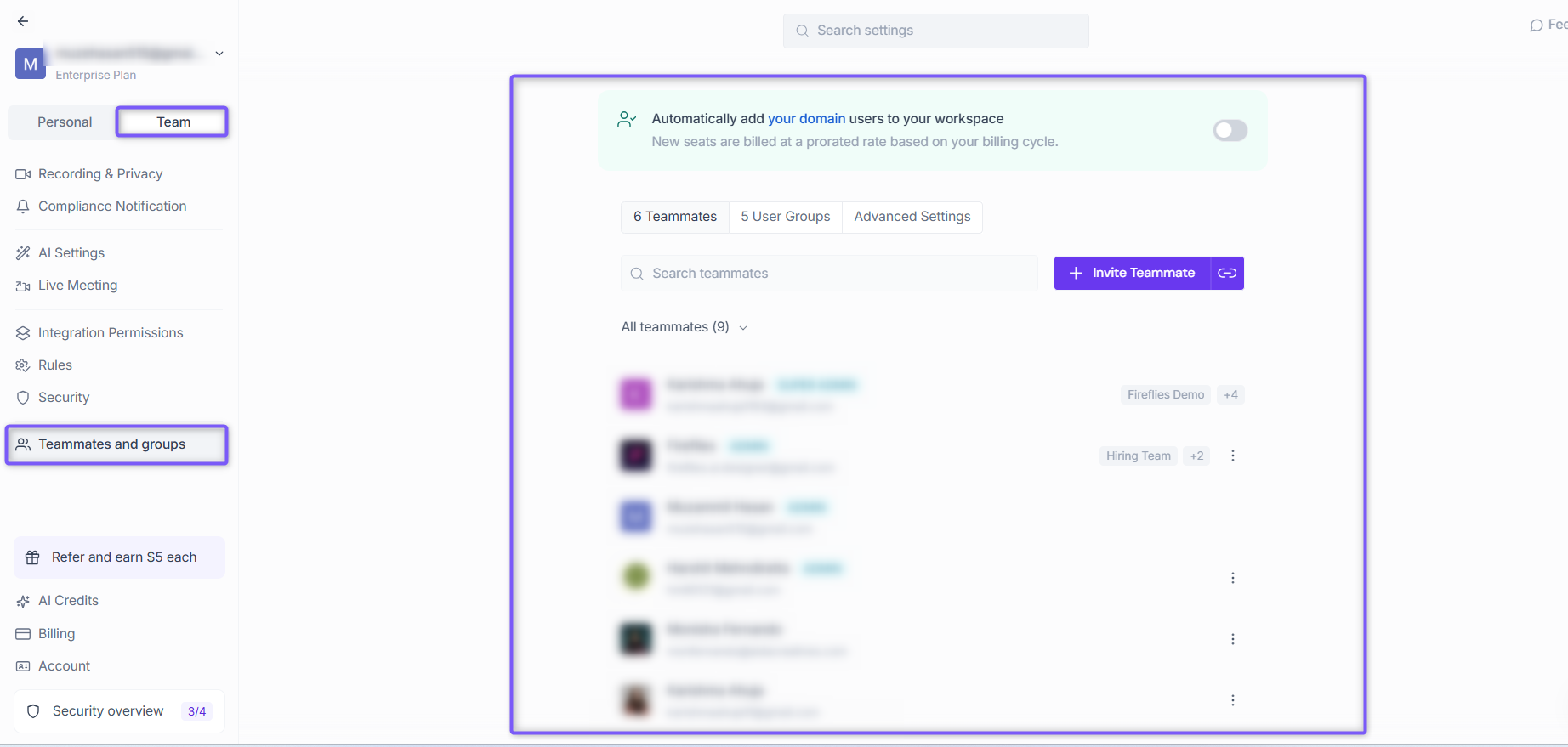
From Settings: Click Settings from the left navigation, select the Team tab, and click Teammates and groups.
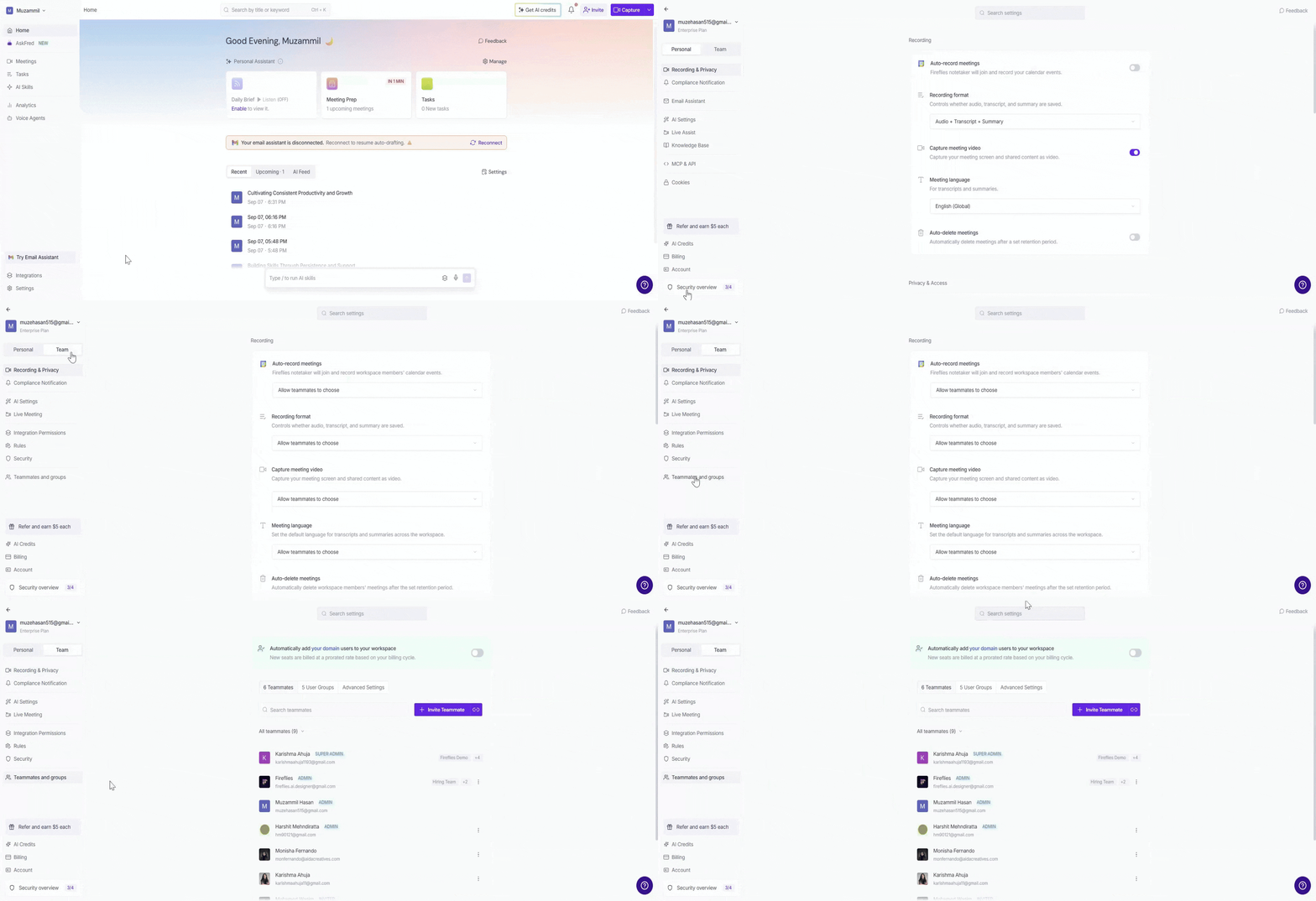
From your profile menu: Click your profile menu in the top-left corner and select My Team.
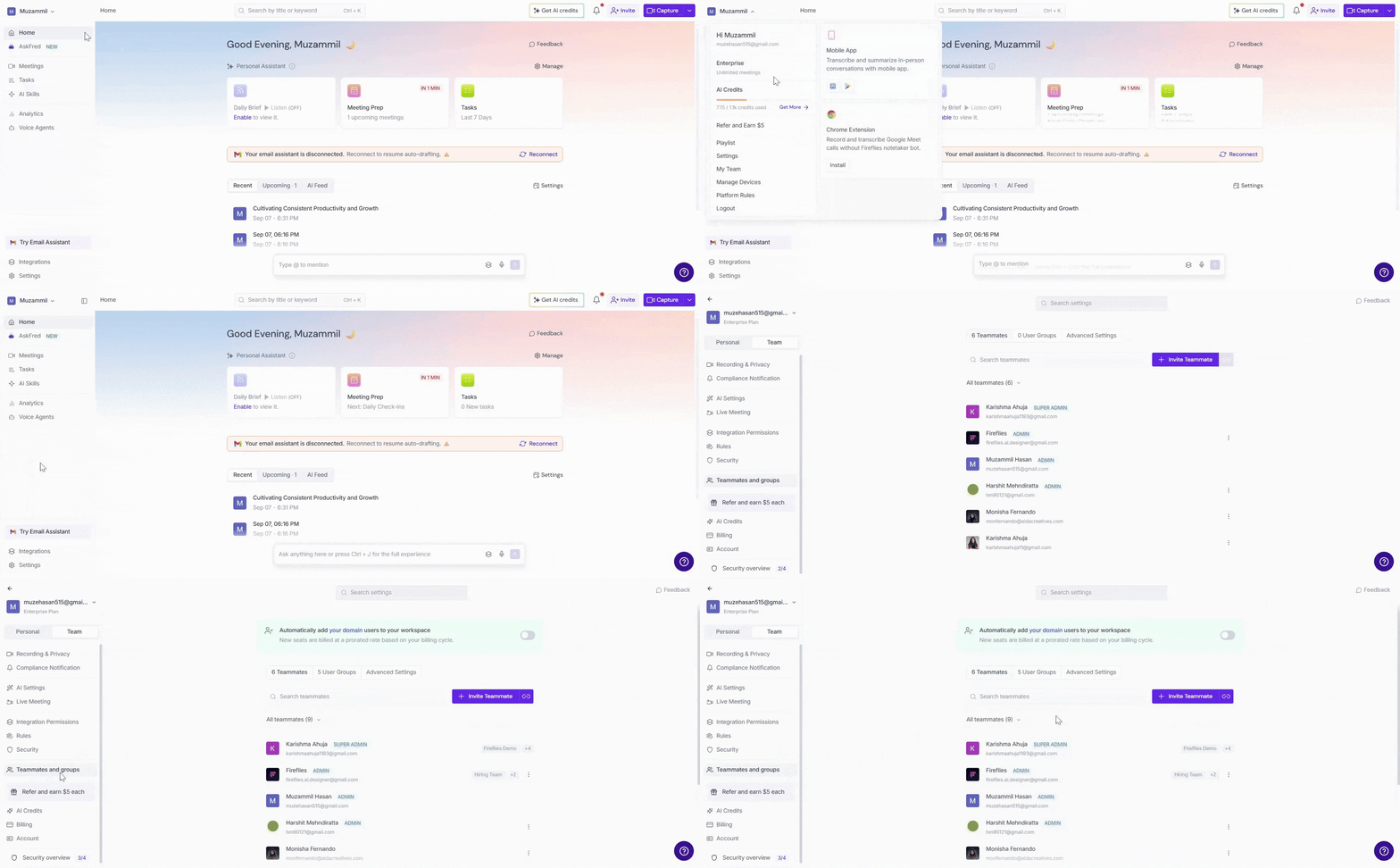
2. Both options take you to the Members and Groups settings, with the Teammates tab selected by default.
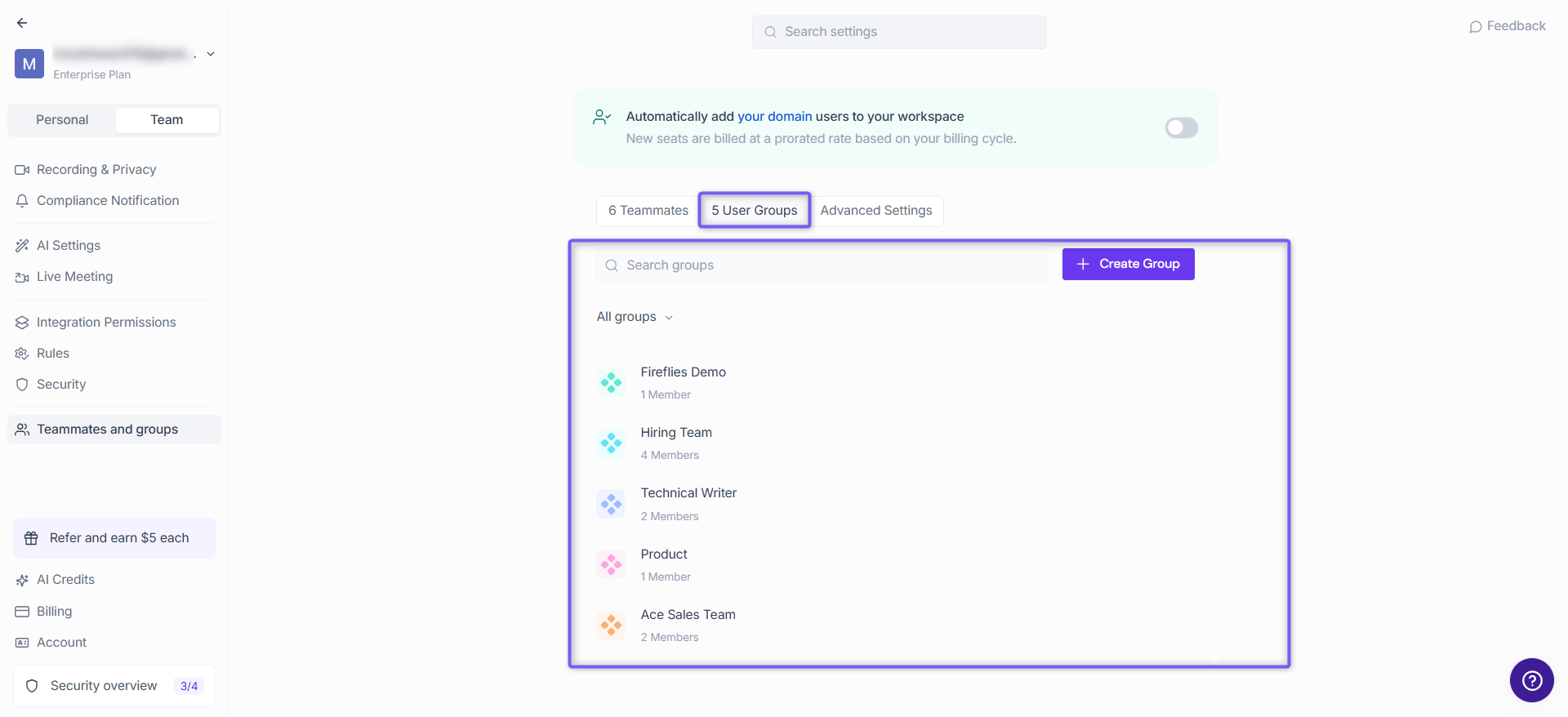
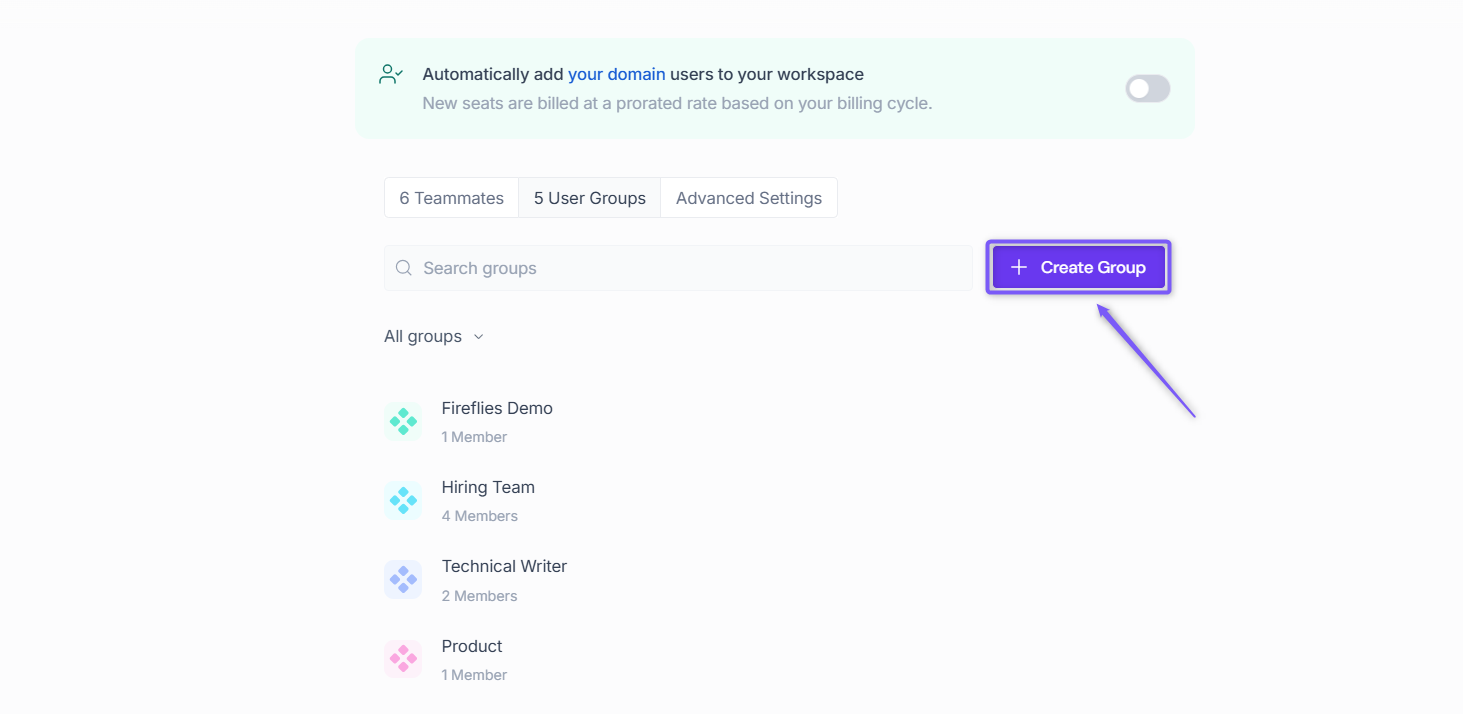
3. Click the User Groups tab. This shows all existing groups in your workspace, where you can view, create, or manage them easily.
✳ Create a User Group
Step 1: Click on the Create Group in the top-right corner of the User Groups page.
A modal window appears, where you can add the group’s details, such as name, description, handle, and add members.
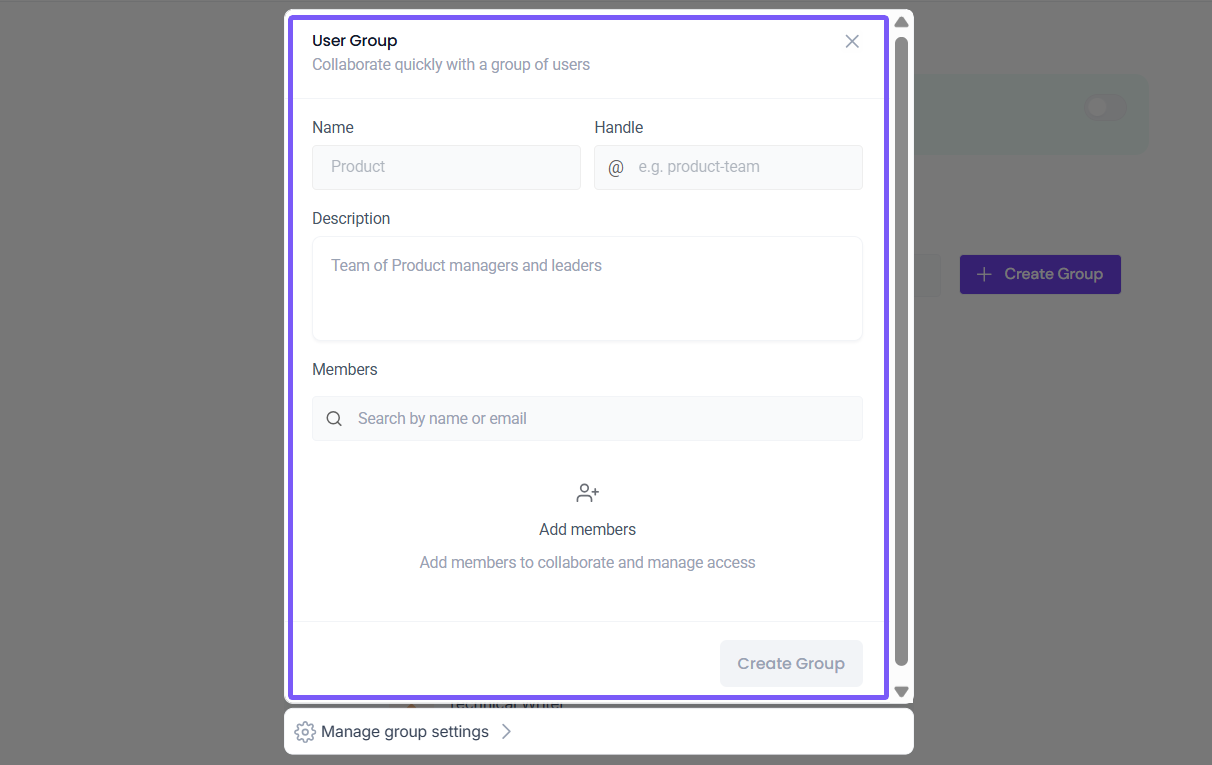
Step 2: Add your group details in the modal window – add a few quick details to set up your group and make it easy for everyone to recognize.
Name → Pick a clear, easy-to-spot name like Sales Team or Product Team so everyone instantly knows which group to use when sharing meetings or notes.
Handle → Fireflies automatically creates one based on the group name (for example,
@sales-team), but you can edit it anytime if you want something shorter or more specific.Description (optional) → Add a short line about what the group is for — it helps other admins understand its purpose later.
Add Members → Start typing a teammate’s name or email to include them.
You can only add users who are already part of your workspace.
💡 Being the creator doesn’t automatically make you a member, so don’t forget to add yourself if you want to be included.

Step 3: Click the Create button to save your group - a flash message will appear, “Group created successfully”, and your new group will be added under the User Groups tab.
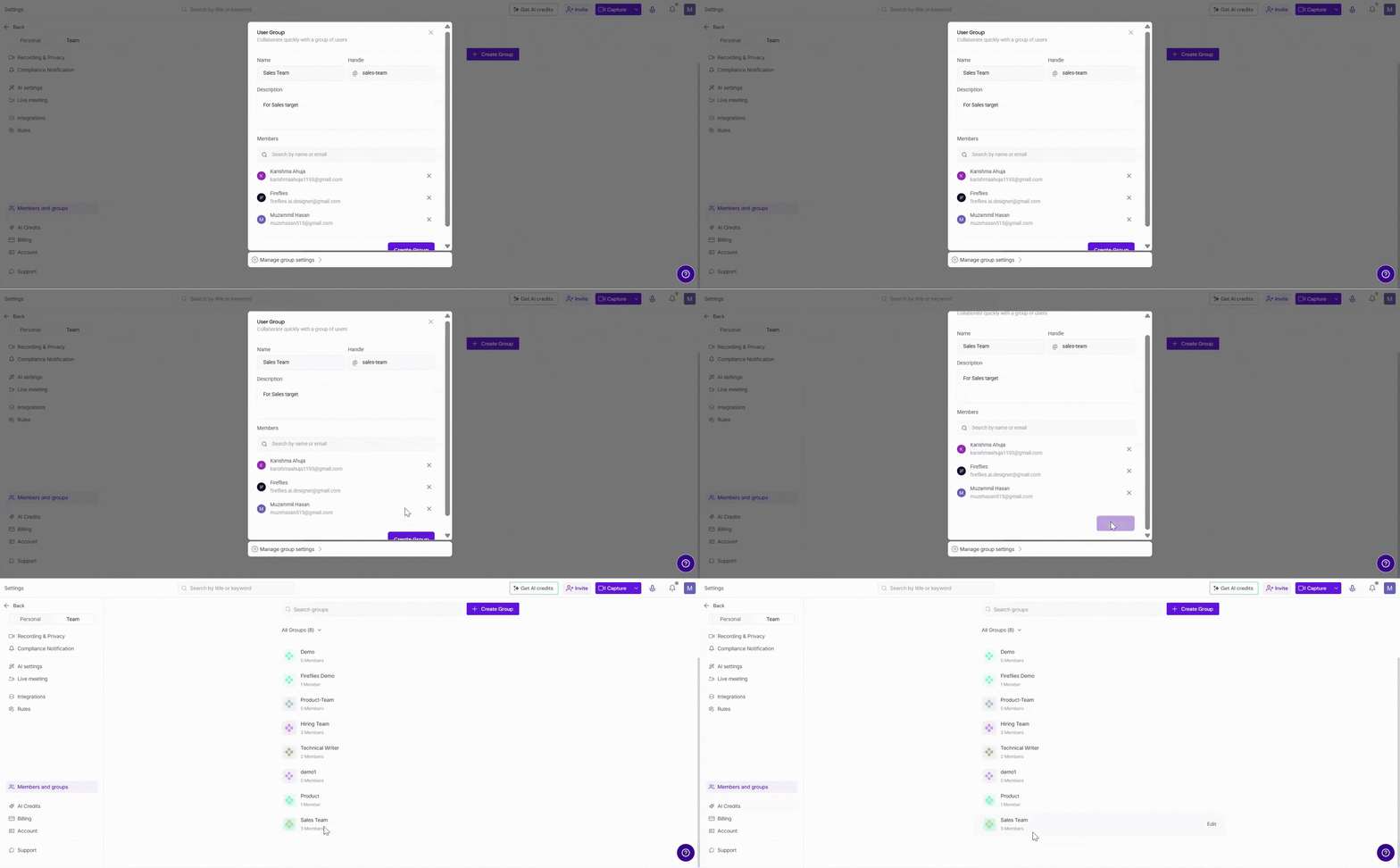
🛠 Manage User Groups
As your team evolves, you can quickly update your groups - rename them, add or remove members, or delete ones you no longer need - all from the same window without extra steps.
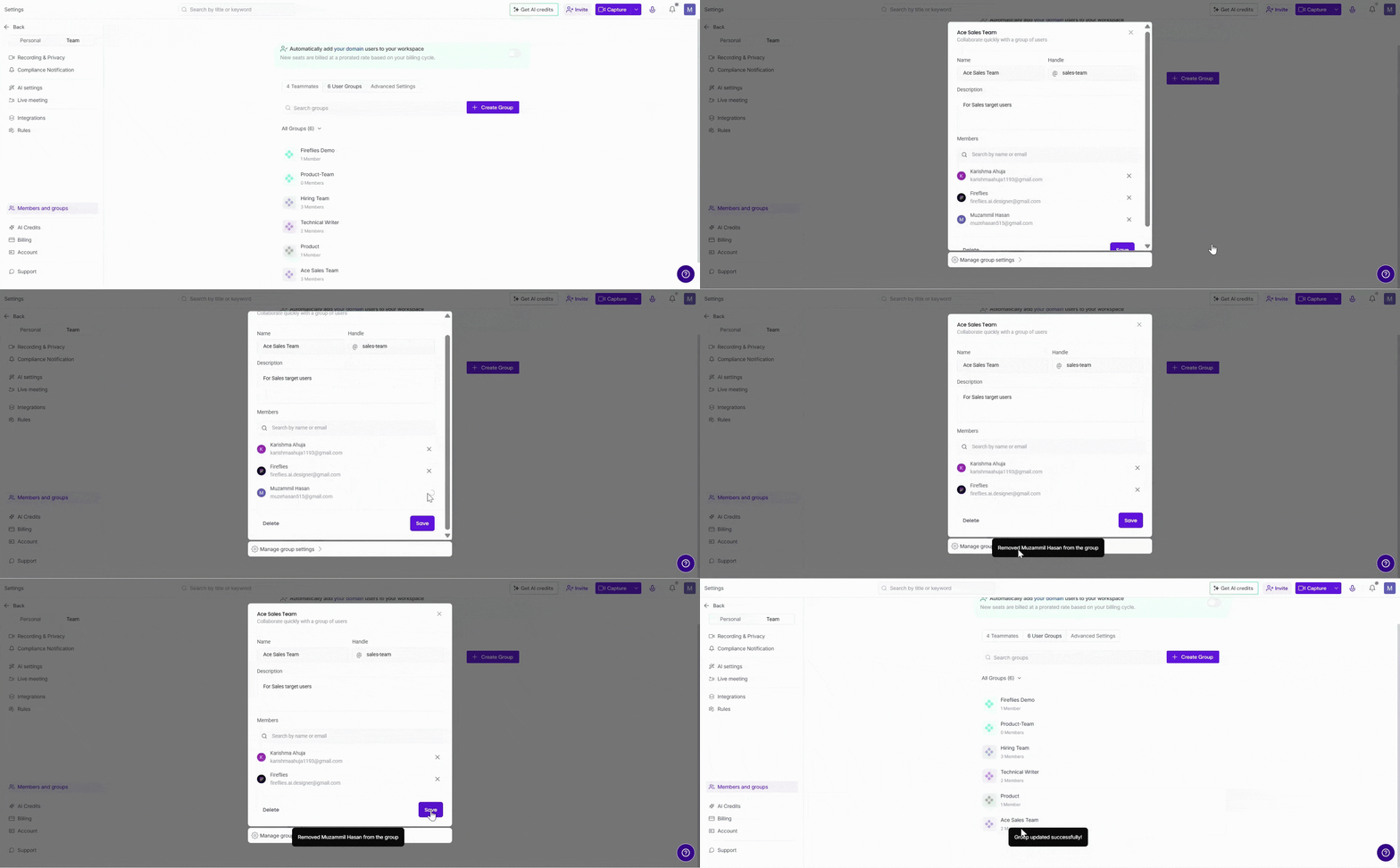
✏ Edit Group Details → Need to make a quick change? Just click the Edit next to the group you want to edit - a modal window will open with all its details. From here, you can update the name, description, or handle, then click Save to keep everything up to date.
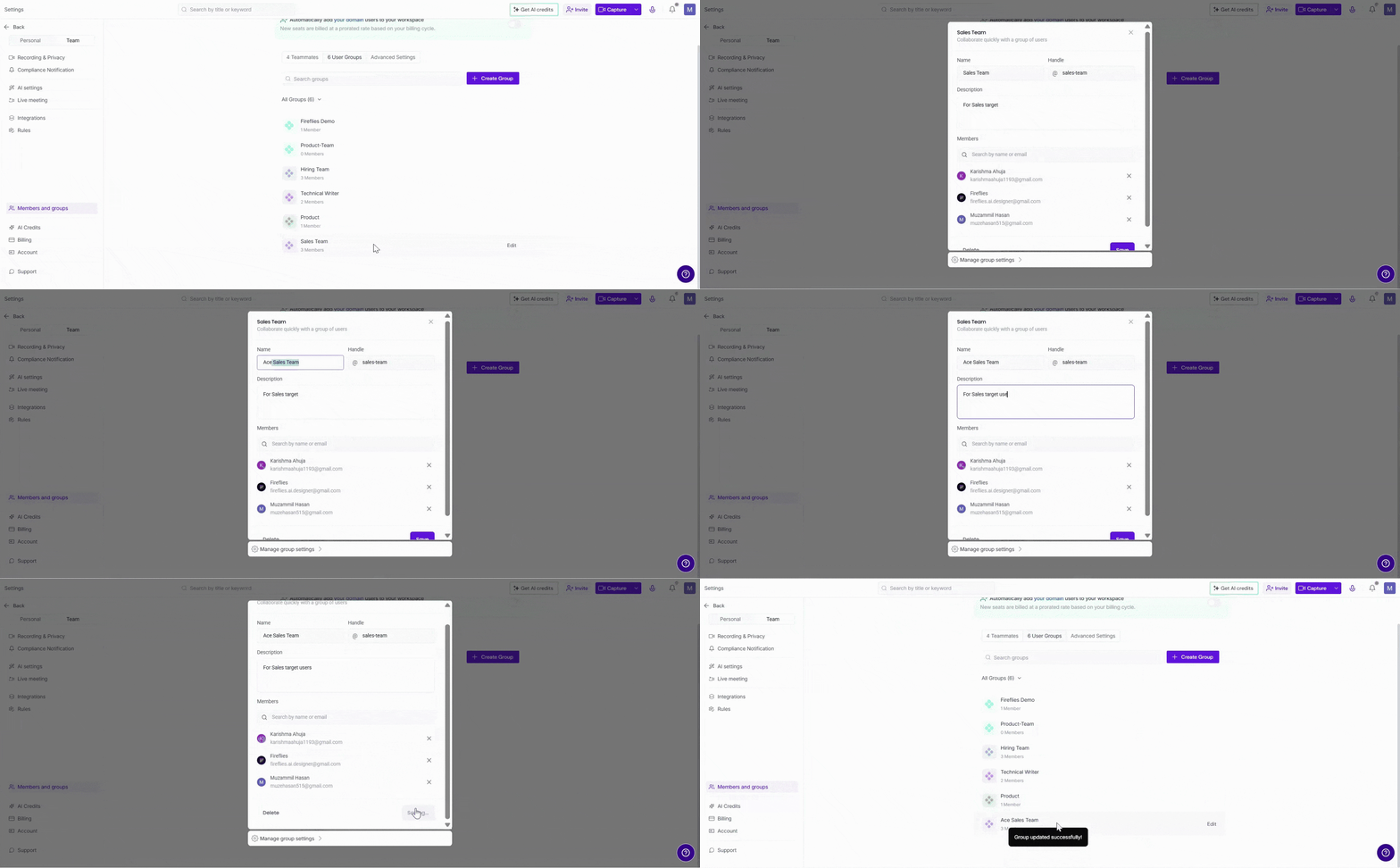
👥 Add or Remove Members → Keeping your group list accurate helps the right people stay in the loop. Click the Edit next to the User Group you want to manage — a modal window will appear with its details. From there, you can add new members by typing their name or email, or remove someone by clicking the (×) icon next to their name.
You can only add teammates who are already part of your workspace.
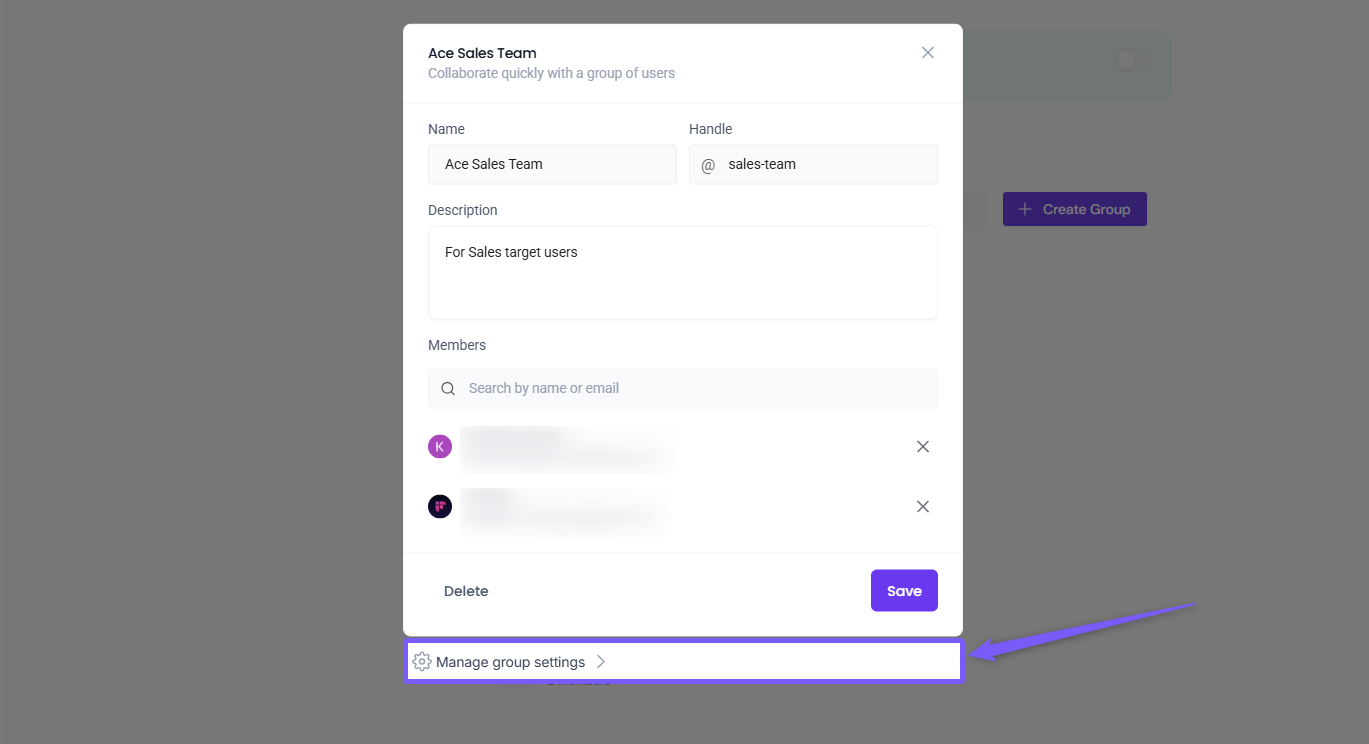
⚙ Manage Group Settings → Each User Group comes with its own settings panel where admins can fine-tune how Fireflies behaves - like when it joins meetings, who gets recaps, or who can access AI Skills. Just click the Edit Button, open the settings, and adjust them as needed to match your team’s workflow.
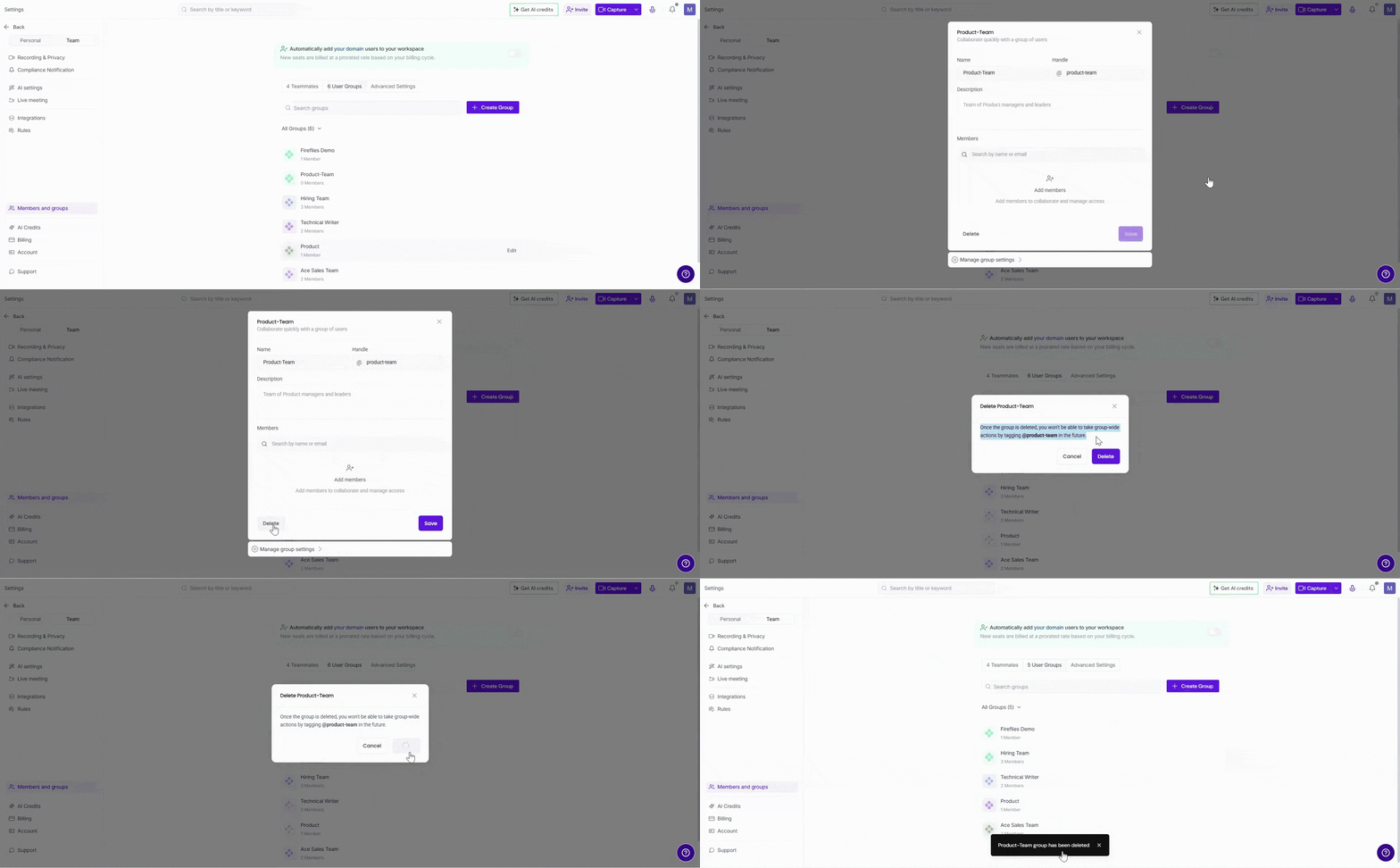
🗑 Delete a User Group → Removing groups you no longer use helps keep your workspace clean and easy to manage. Click the Edit next to the User Group you want to delete — a modal window will appear with its details. Then click Delete at the bottom-left of the modal and confirm your choice to remove it permanently.
Once deleted, a User Group can’t be recovered, so double-check before deleting it.
❓Frequently Asked Questions (FAQs)
Q1. Who can create or edit User Groups?
Only Admins on Business or Enterprise plans can create, edit, or delete User Groups.
Q2. Can I add someone who isn’t part of my workspace?
No, only existing workspace members can be added to a User Group.
Q3. What happens if I delete a User Group?
The group and its access settings are permanently removed. You’ll need to recreate it if needed later.
Q4. Do Group Settings affect workspace defaults?
Yes, any setting configured at the group level overrides the default workspace settings.
Q5. Can I edit members or settings anytime?
Absolutely. You can open a group anytime to add/remove members or adjust settings without disrupting other groups.
⏪ Recap
User Groups make it easy to manage access and keep your workspace organized - all from one simple place.
Create groups for different teams to streamline collaboration.
Update members or settings anytime as your team changes.
Remove old groups to keep your workspace clean, private, and up to date.
📌 Related Guides
How to Share Meeting Transcripts and Summaries Privately with User Groups – See how to securely share notes and recaps only with selected groups.
How to Share a Fireflies Meeting with a Password-Protected Link — Securely share meetings with external users using password-protected links and optional link expiration controls.
Learn About the User Deactivation Feature – Understand how to manage or deactivate user access without losing data.
Learn About the Rules Engine Feature – Discover how admins can automate meeting routing, manage access, and control visibility using smart rules.