Team Settings: A complete guide for workspace admins
Last updated: October 5, 2026
A larger Fireflies workspace means more teammates, more meetings, and more settings to track. Fireflies brings it all together in Team Settings — one central place to manage teammates, integrations, and security controls.
💡 Why this matters
These settings apply to every teammate in your workspace
A well-configured workspace means faster onboarding and fewer questions
Only admins can access these options
Team Settings is only available to workspace admins. Any changes made here will apply across the entire workspace and affect all teammates.
🚀 Access Team Settings
1. Click Settings from the left navigation menu.
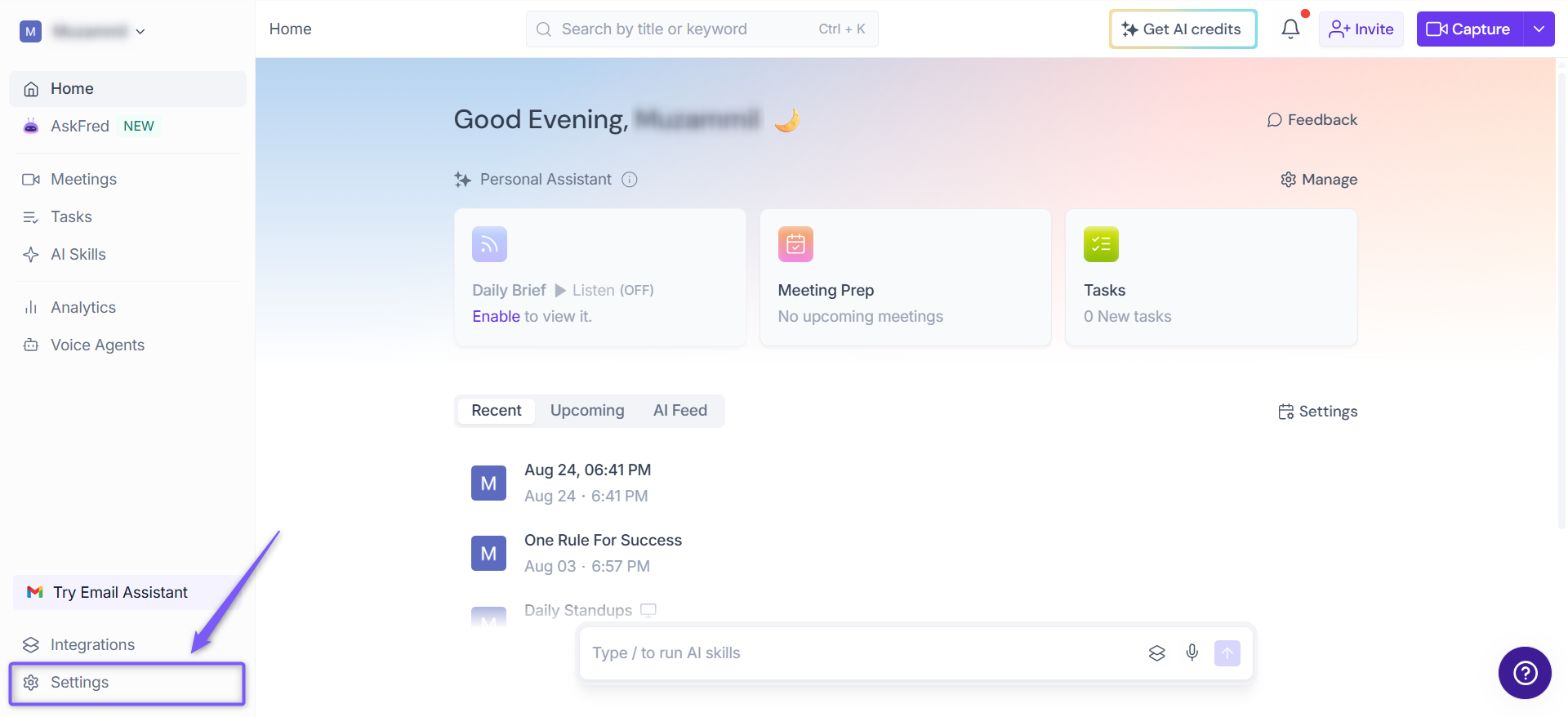
2. Switch to the Team tab.
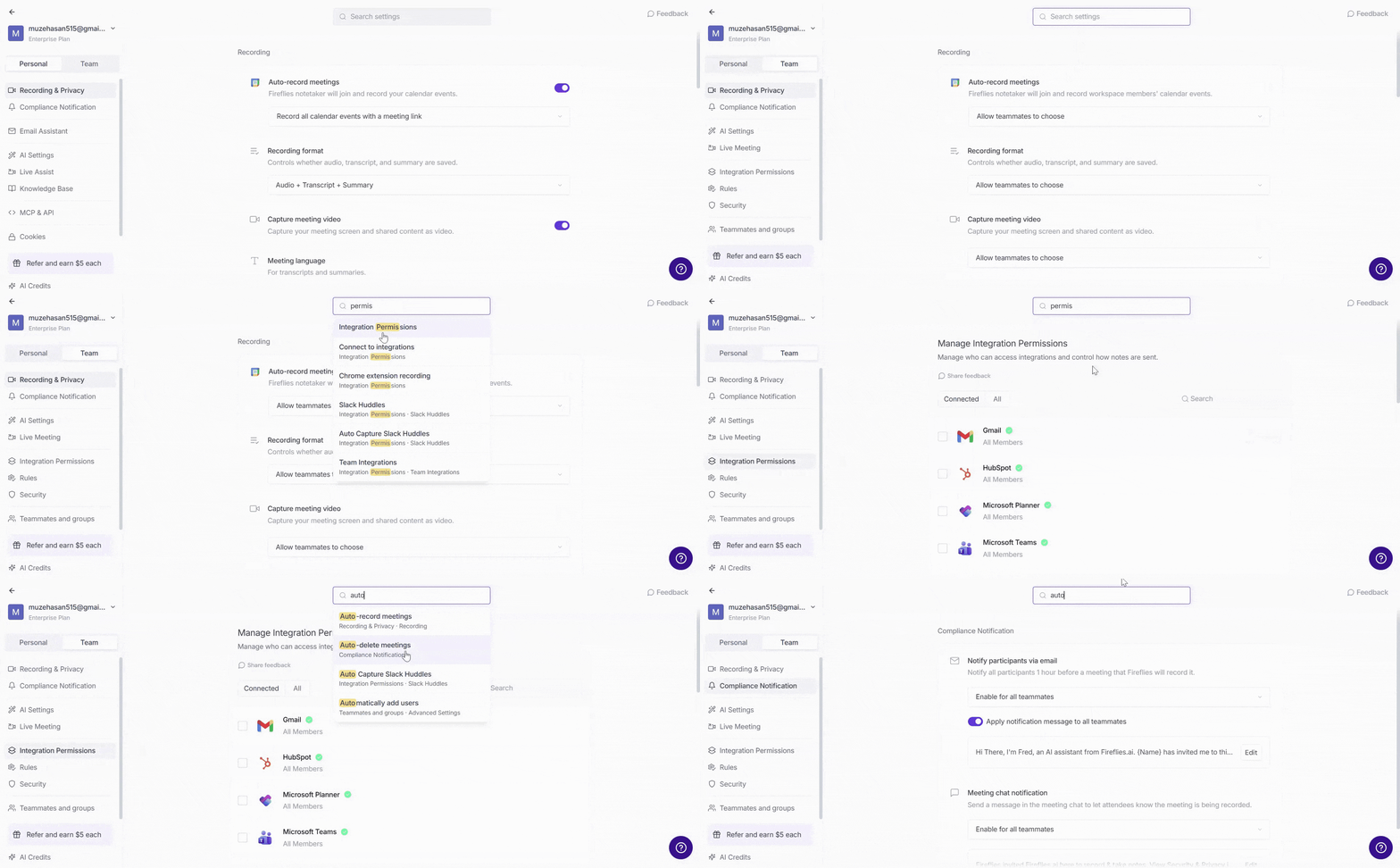
🔍 Tip: Looking for a specific setting? Use the Search bar at the top of the Team Settings page to quickly find it. Select a search result to jump directly to that setting.
🤝 How Fireflies joins team meetings
When multiple teammates invite Fireflies to the same meeting, Fireflies joins on behalf of the first person who invited it. The meeting access and share settings will follow that person's configurations.
📌 Make sure the first person to invite Fireflies has the correct privacy and share settings configured — these will apply to the entire meeting.
👥 Teammates & Groups
🙋 Manage teammates
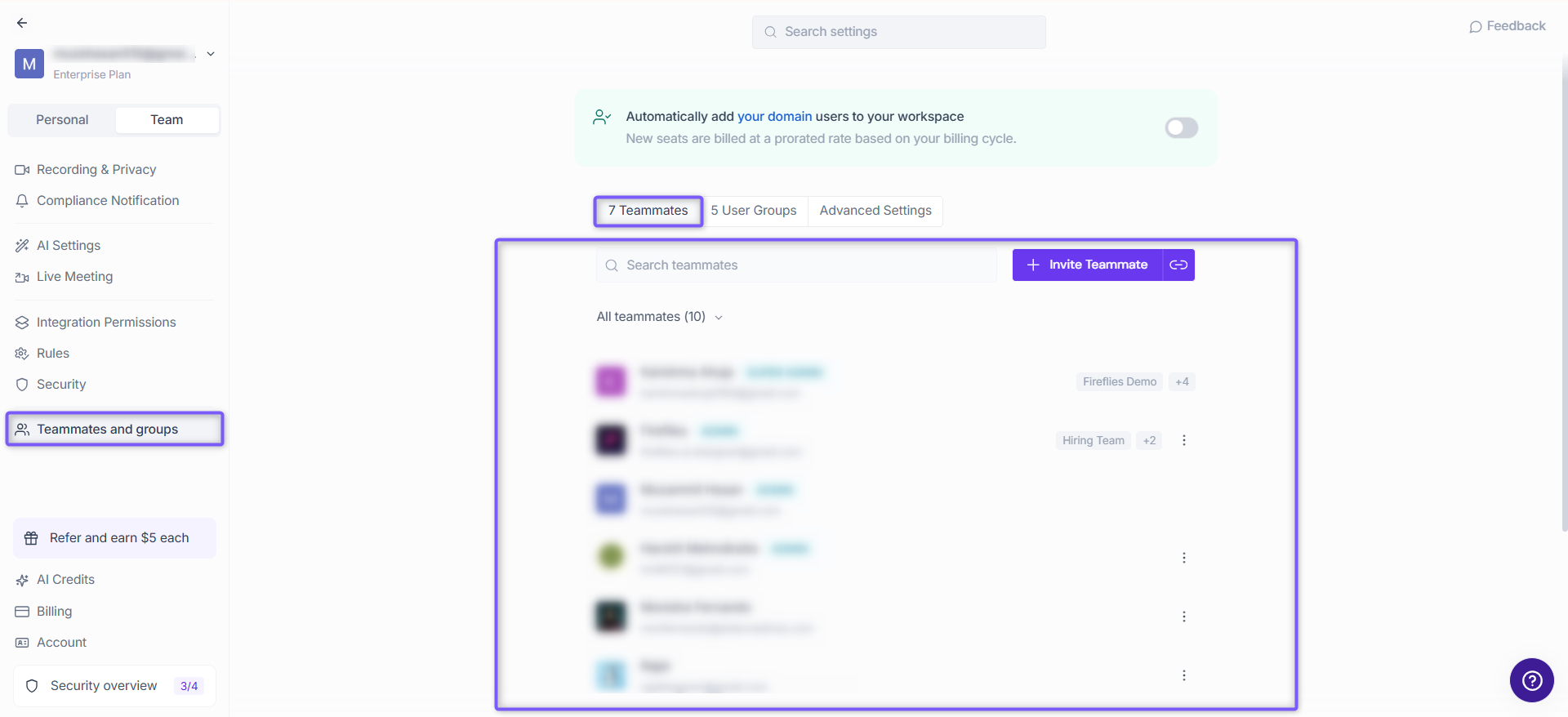
Teammates are the users in your Fireflies workspace. As an admin, you can invite new members, manage roles, and organize your team into groups — all from one place.
💡Things to know before you start:
Each teammate added is billed as an additional seat
Teammates join at the same subscription tier as the admin
For teammates added mid-billing cycle, a prorated charge applies
What you can do:
Invite teammates to your workspace — Add new members and start collaborating right away.
Re-invite or cancel a pending invite — Manage invites that haven't been accepted yet.
Deactivate, Reactivate, and Remove a teammate — Control who has active access to your workspace.
Make a teammate an admin or non-admin — Grant or revoke admin permissions for any teammate.
Allow teammates to invite others — Let non-admins bring in new members without contacting you.
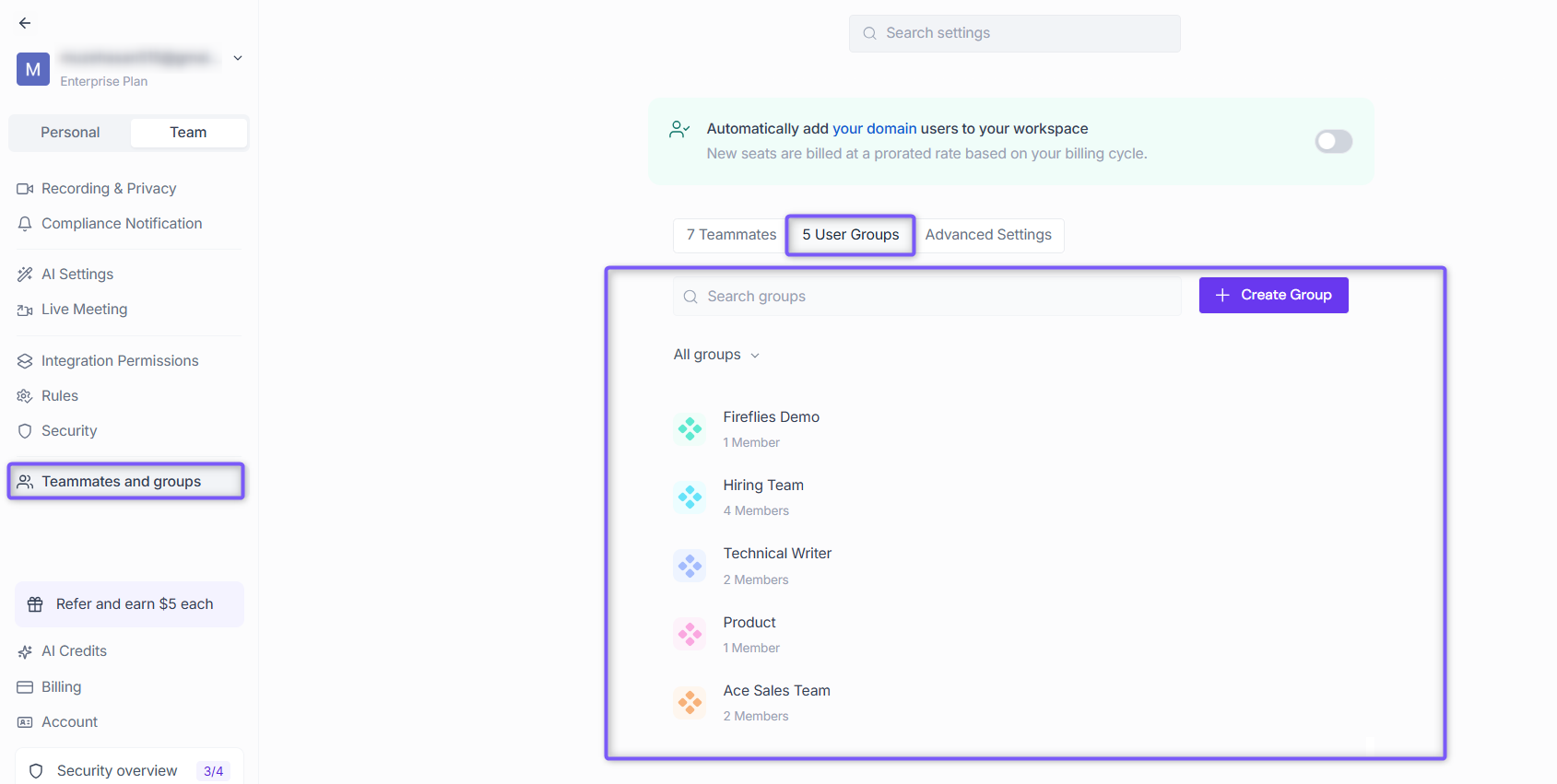
👥 User Groups
User Groups help you organize teammates into groups to manage meeting access and sharing more efficiently across your workspace.
This feature is available on Business and Enterprise plans only.
📌 Want to create user groups or manage existing ones? Create and manage user groups
⚙ Advanced Settings
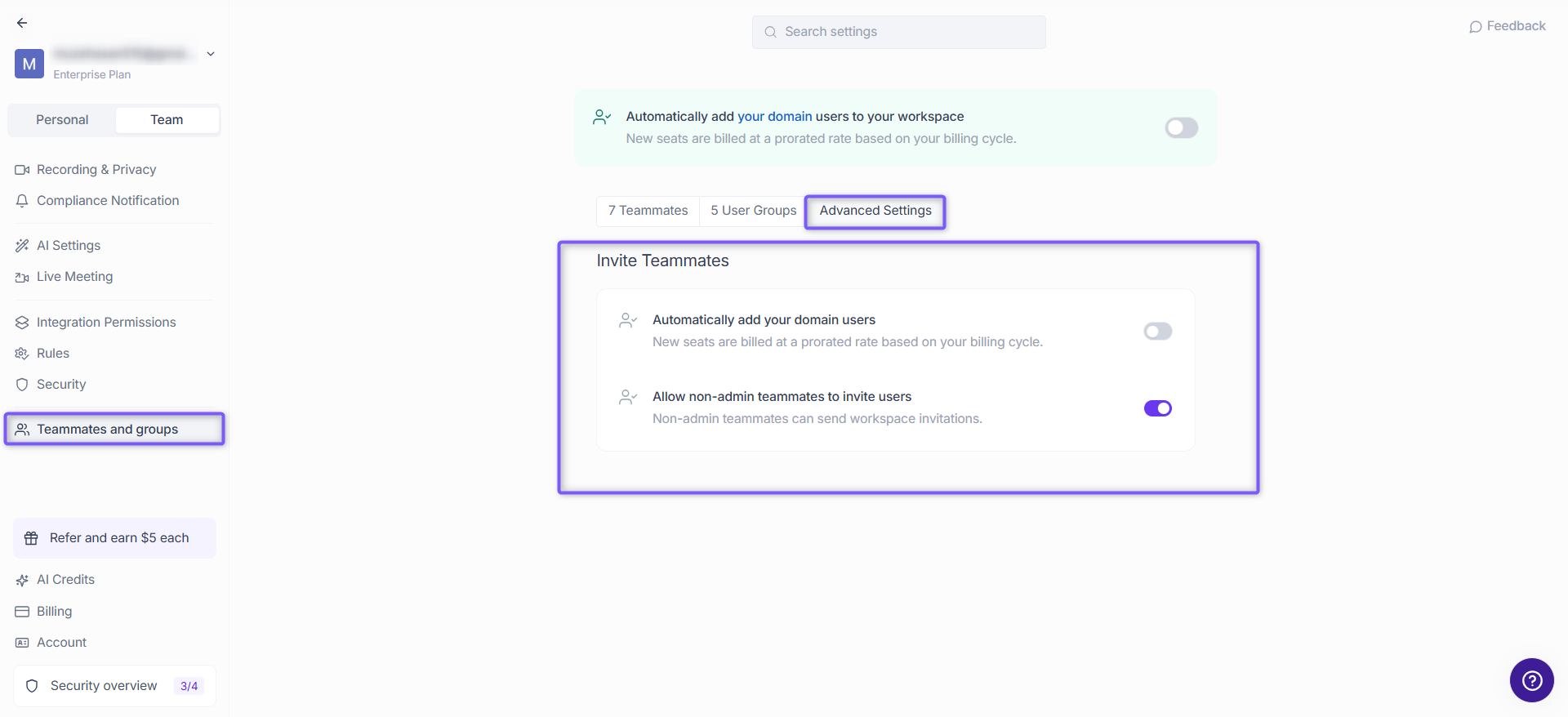
Use Advanced Settings to control how users are added to your workspace and who can invite new teammates.
📍 Settings → Team → Teammates and groups → Advanced Settings
Setting | What it does |
Automatically adds users from your domain to the workspace. New seats are billed at a prorated rate. Off by default. | |
When enabled, non-admin members can also send workspace invitations. |
🎙 Recording & Privacy settings
Recording
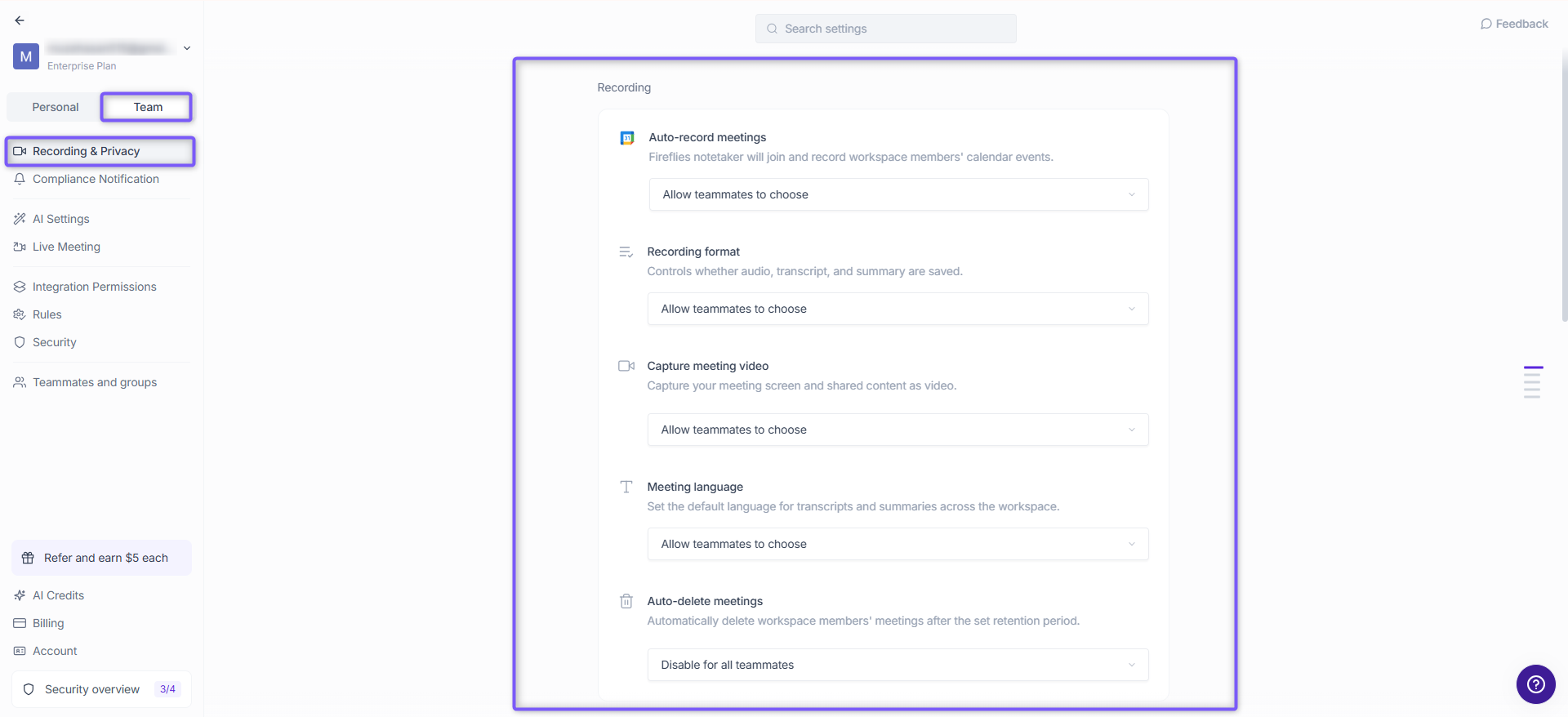
Control how Fireflies records meetings and who can access them across your workspace.
📍 Settings → Team → Recording & Privacy
Recording
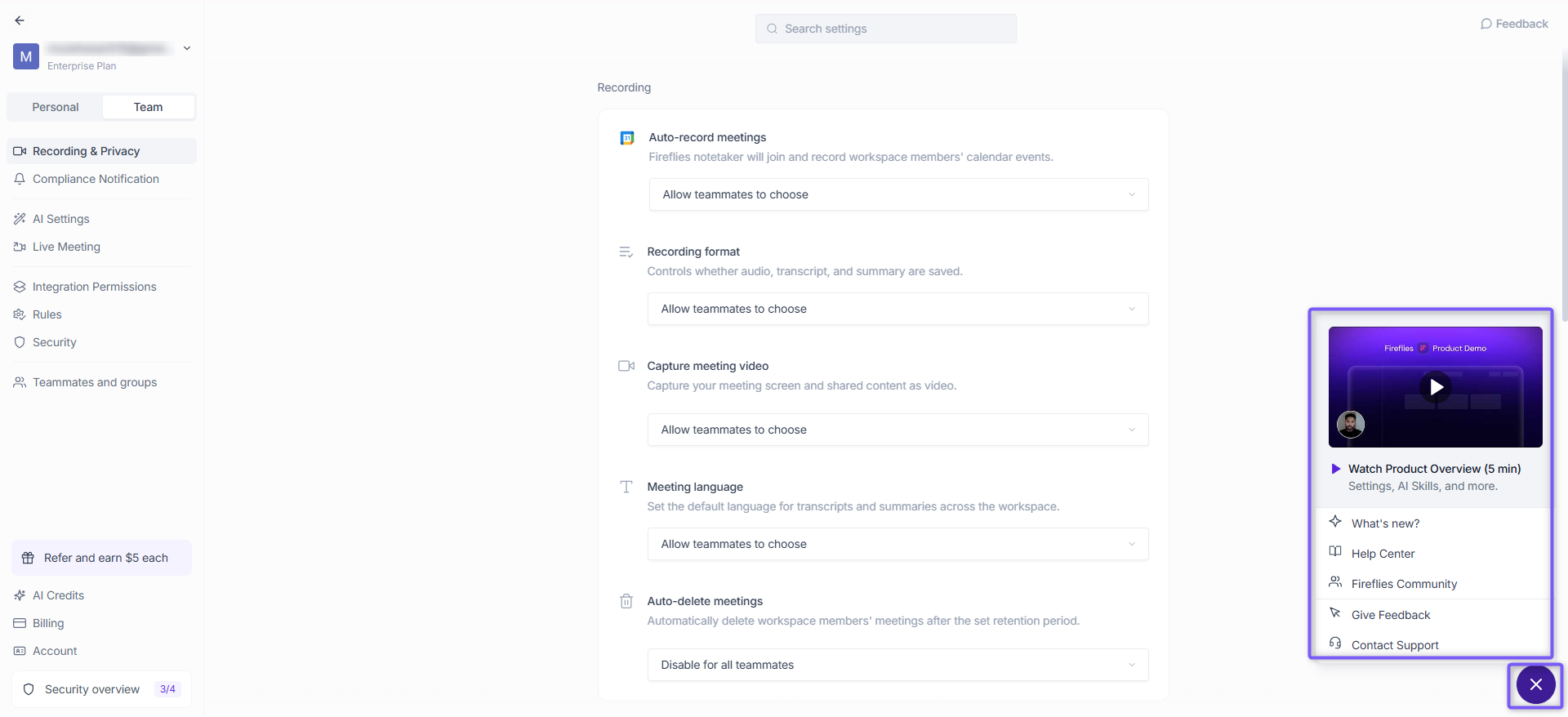
Auto-record meetings — Fireflies notetaker will automatically join and record workspace members' calendar events
Recording format — Control whether audio, transcript, and summary are saved for each meeting
Capture meeting video — Capture meeting screen and shared content as video
Auto-delete meetings — Automatically delete workspace members' meetings after a set retention period
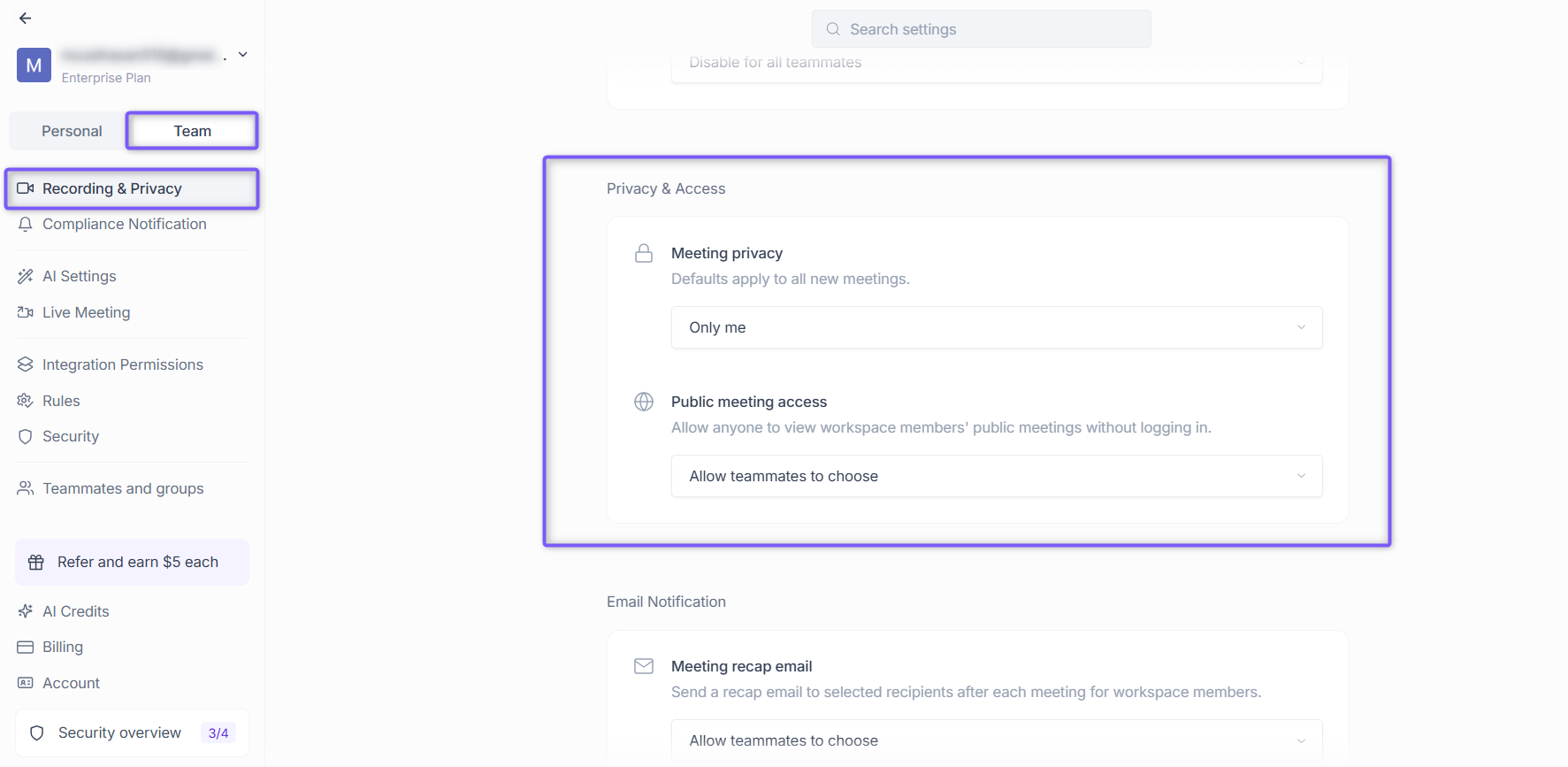
Privacy & Access
Meeting privacy — Set default privacy for all new meetings across the workspace
Public meeting access — Allow anyone to view workspace members' public meetings without logging in
Email notification
Meeting recap email — Send a recap email to selected recipients after each meeting for workspace members
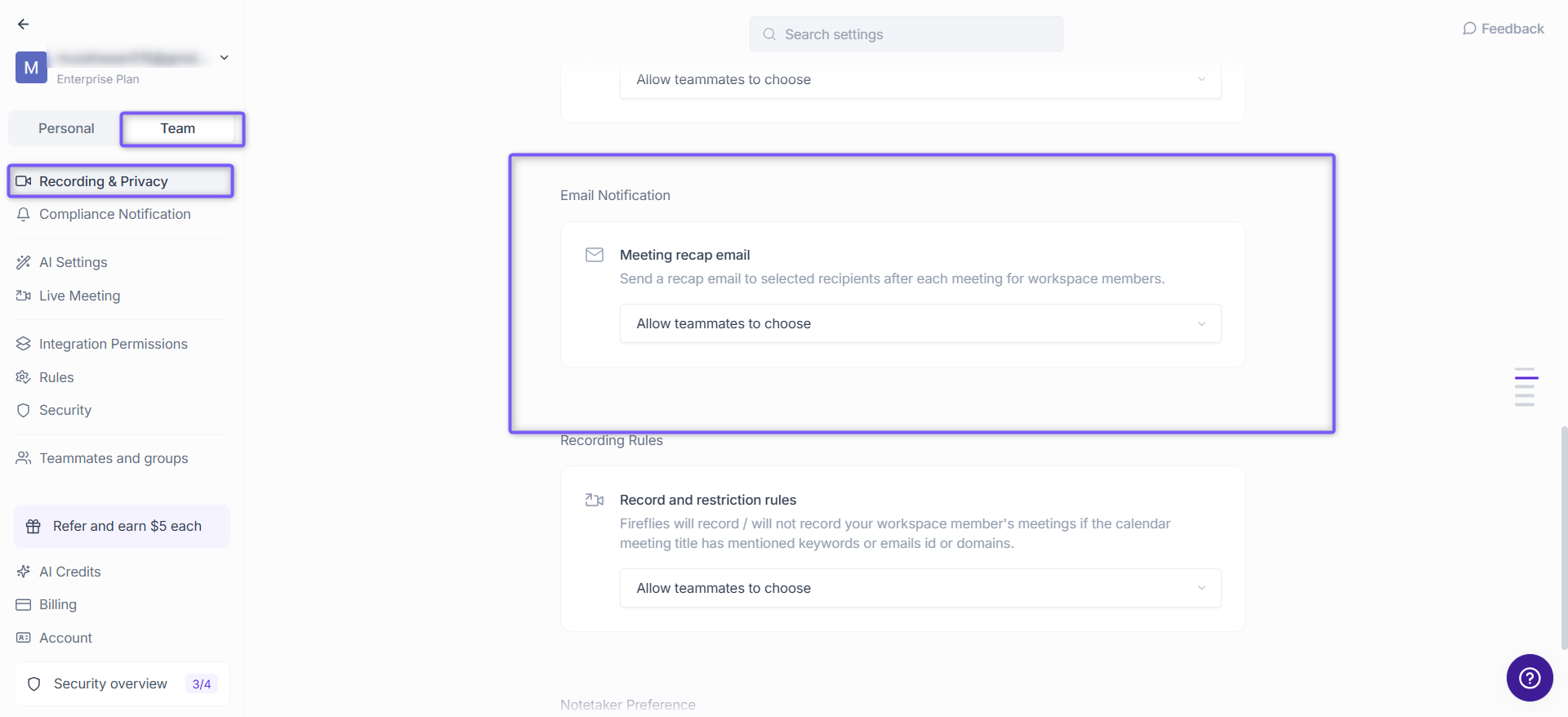
Recording rules
Record and restriction rules — Fireflies will record or skip meetings based on keywords, email IDs, or domains in the calendar meeting title. Click Edit to add your rules
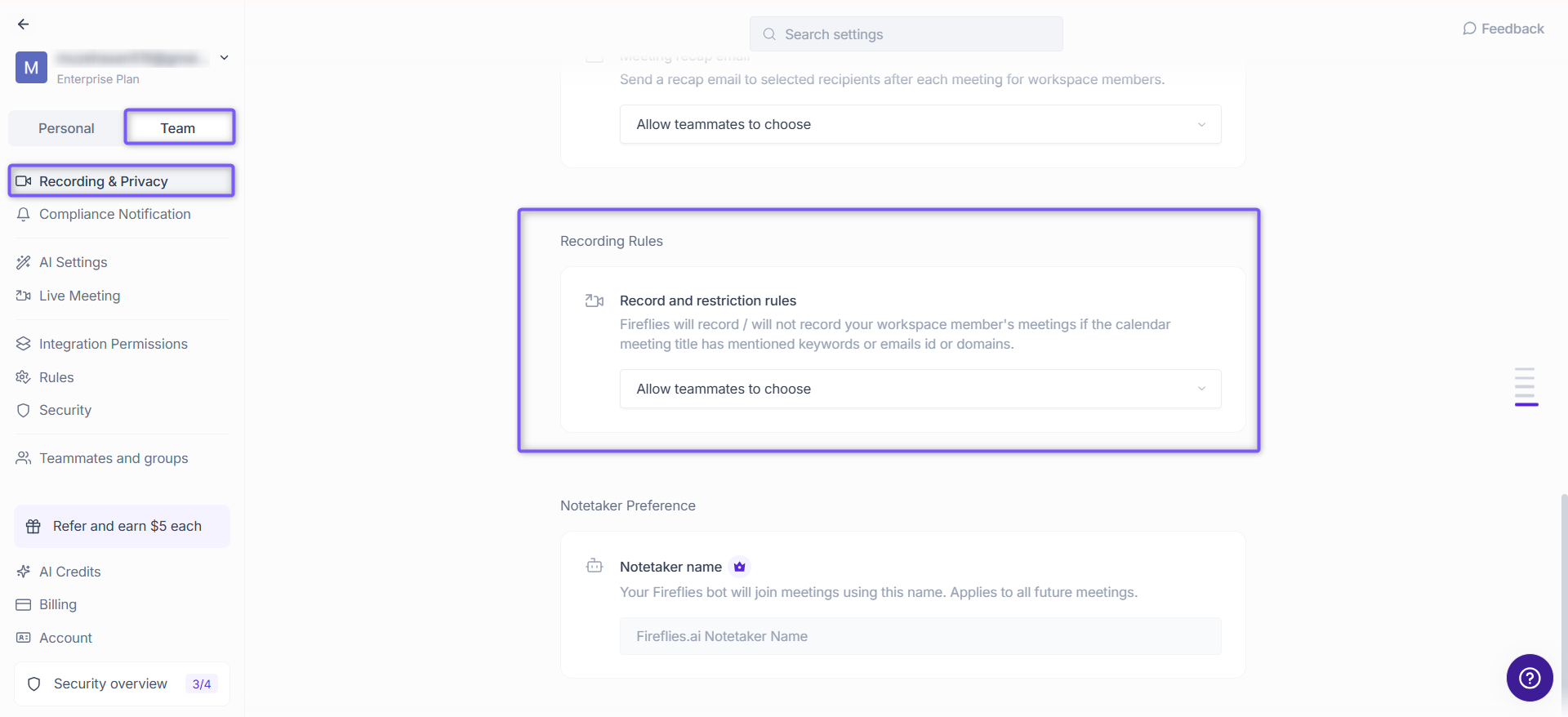
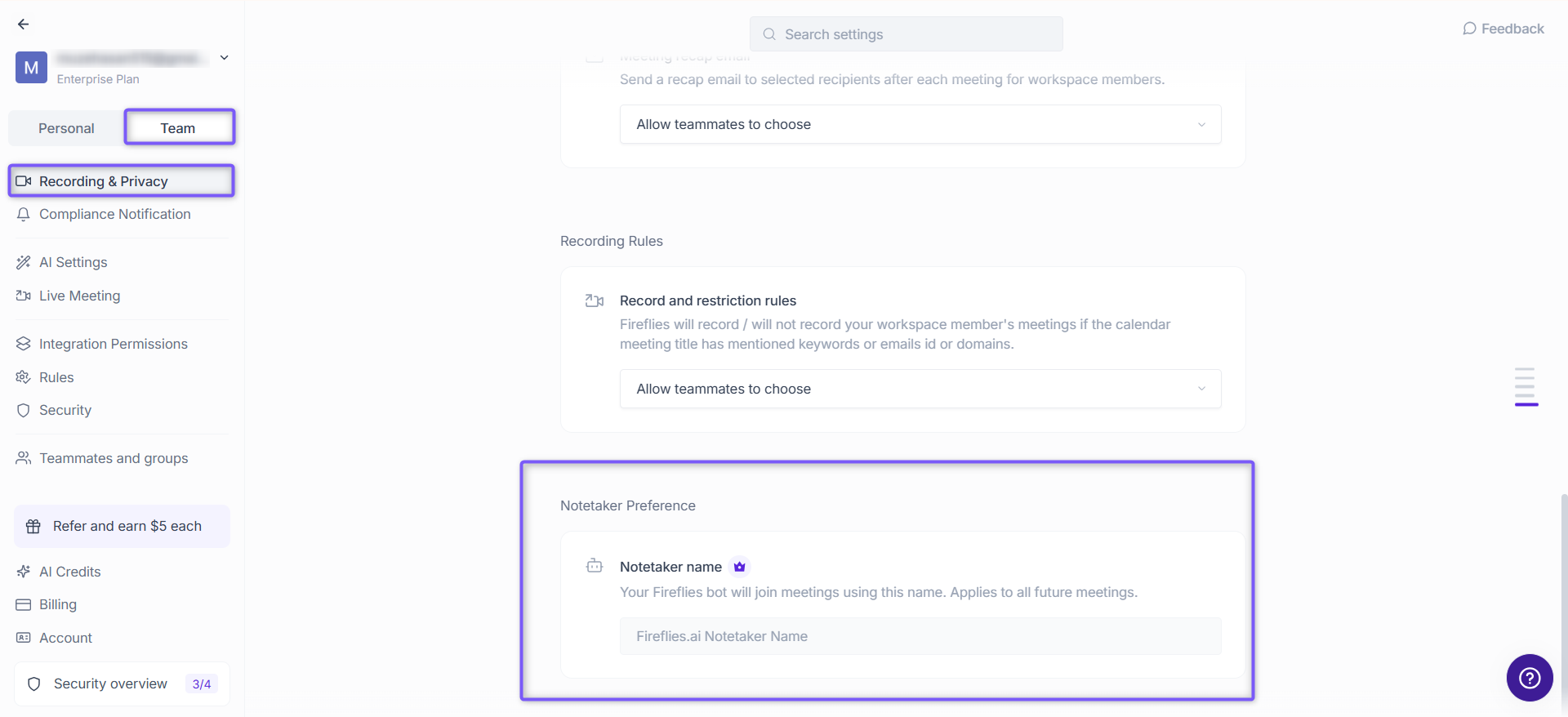
Notetaker Preference
Change the display name your Fireflies.ai Notetaker uses when joining meetings across your workspace. This helps teams use a custom bot name that matches their organization or branding. Any changes you make apply to all future meetings.
👉 Learn more: How to Change the Name of the Fireflies Notetaker Bot
🔔 Compliance Notification
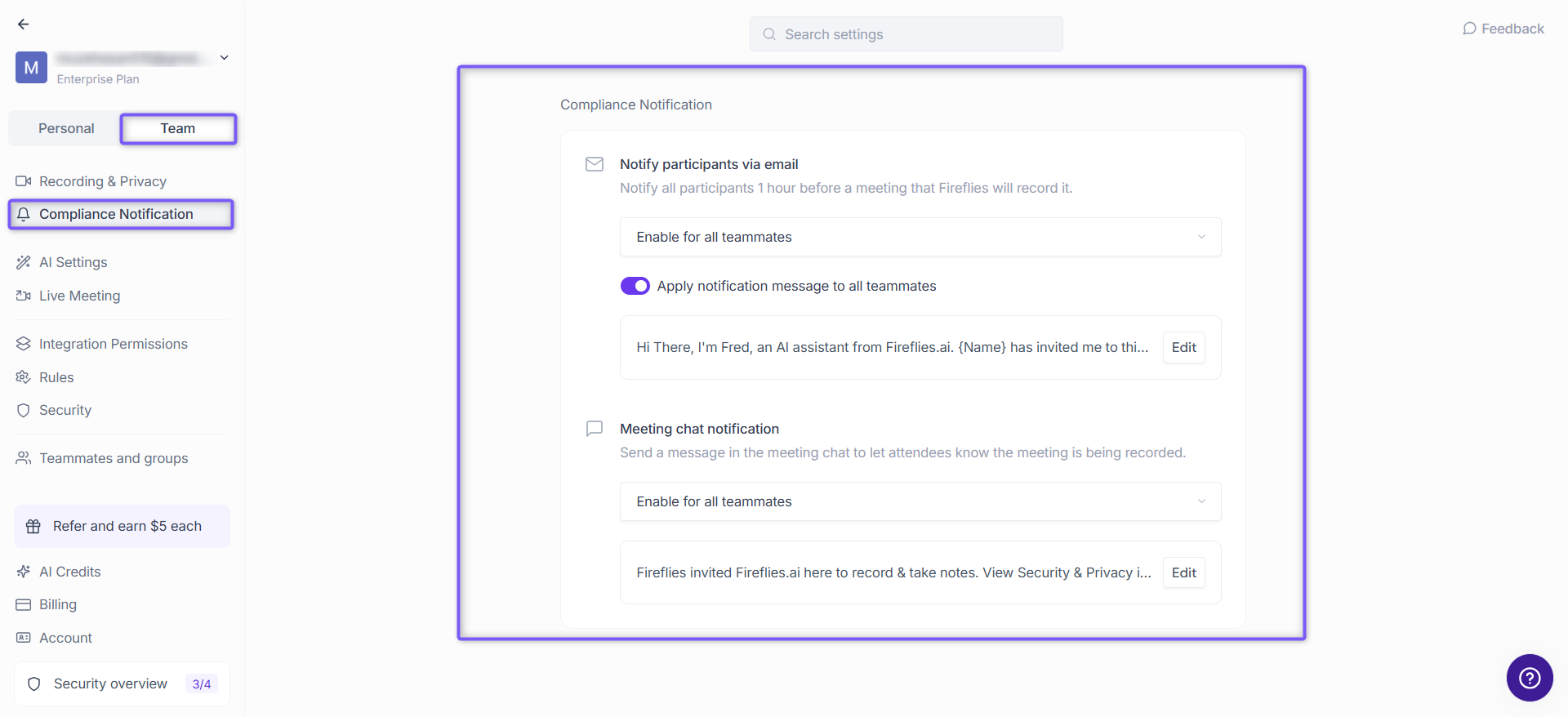
Keep meeting participants informed before and during a recording. Admins can control how and when notifications are sent across the workspace.
📍 Settings → Team → Compliance Notification
Notify participants via email — Send all participants an email 1 hour before a meeting that Fireflies will record it
Meeting chat notification — Send a message in the meeting chat to let attendees know the meeting is being recorded
For each option, admins can choose to:
Enable or Disable for all teammates
Allow teammates to choose their own preference
💡 The meeting chat message can be customized. Click Edit to update the default notification text.
🤖 AI settings
Control how your team creates and uses AI features across the workspace.
📍 Settings → Team → AI settings
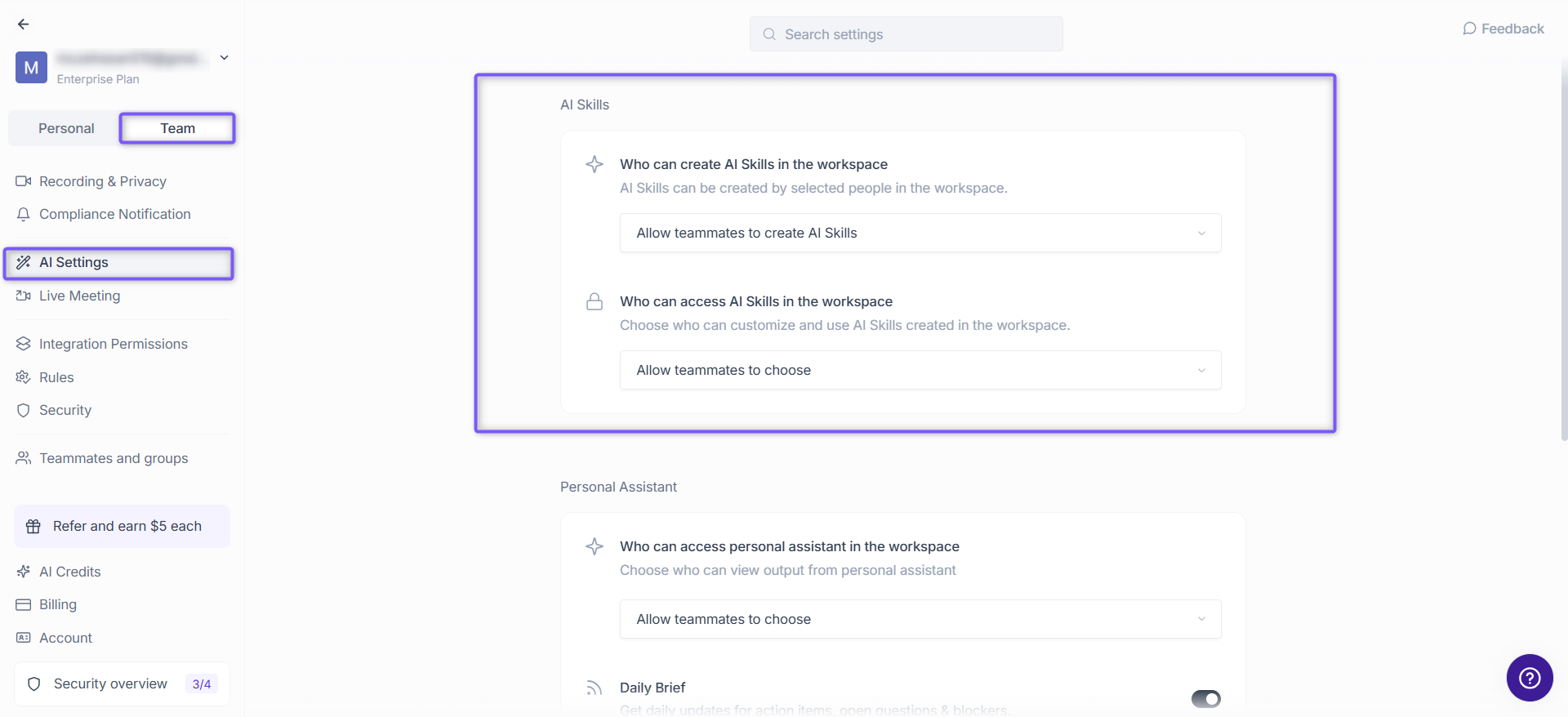
AI Skills
Who can create AI Skills — Choose whether all teammates or only admin can build custom AI Skills in the workspace
Who can access AI Skills — Control who can customize and use AI Skills created in the workspace
💡 Curious about AI Skills? Learn how to create automated workflows from your meetings.
Personal Assistant
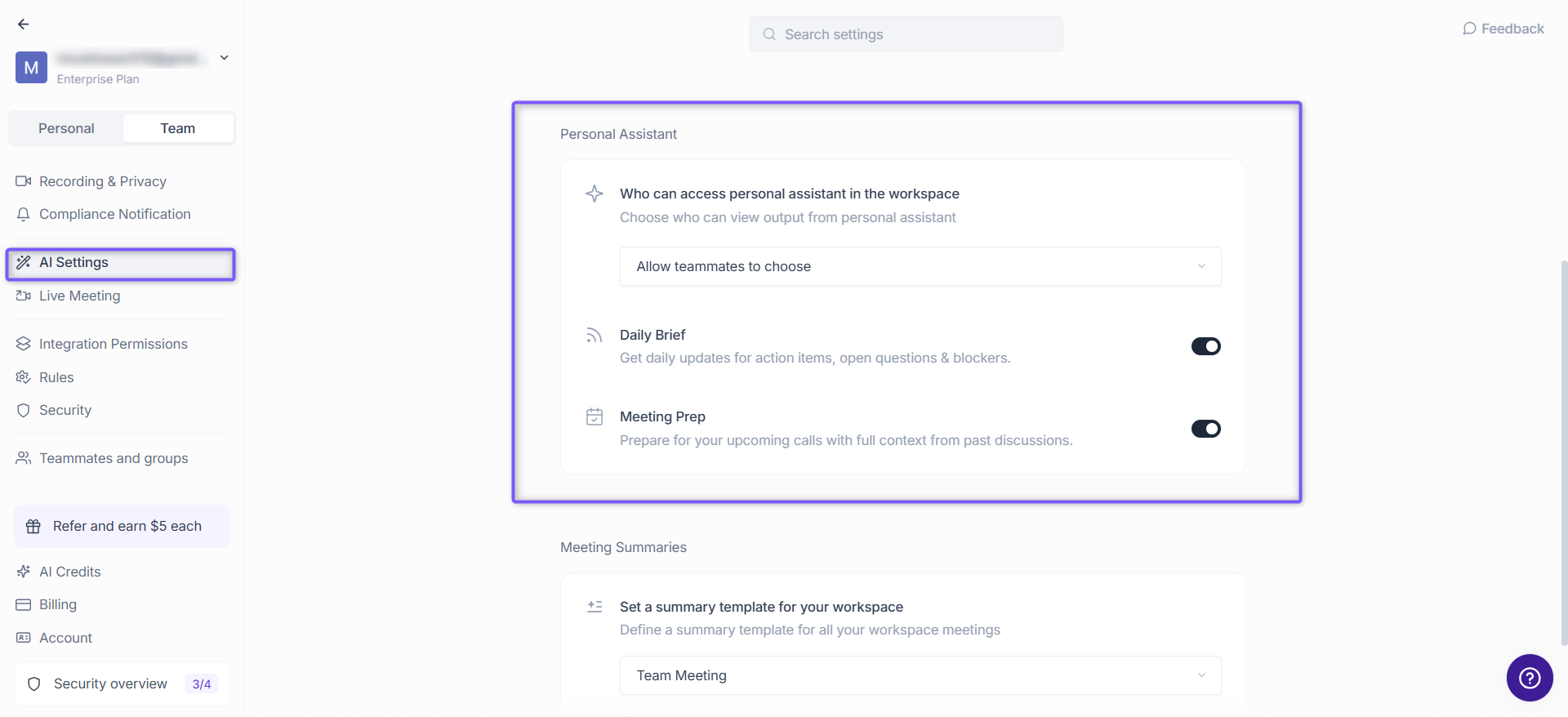
Control how the AI Personal Assistant works across your workspace. Admins can choose who can access it and manage the default Personal Assistant skills available to teammates.
Personal Assistant access — Choose whether to enable, disable, or allow teammates to manage the AI Personal Assistant for themselves.
Default Personal Assistant skills — Enable or disable Daily Digest and Meeting Prep across your workspace. Tasks is always enabled, cannot be disabled, and does not consume AI credits.
📌 Learn how to manage the AI Personal Assistant, Daily Digest, Meeting Prep, and Tasks.
Meeting Summaries
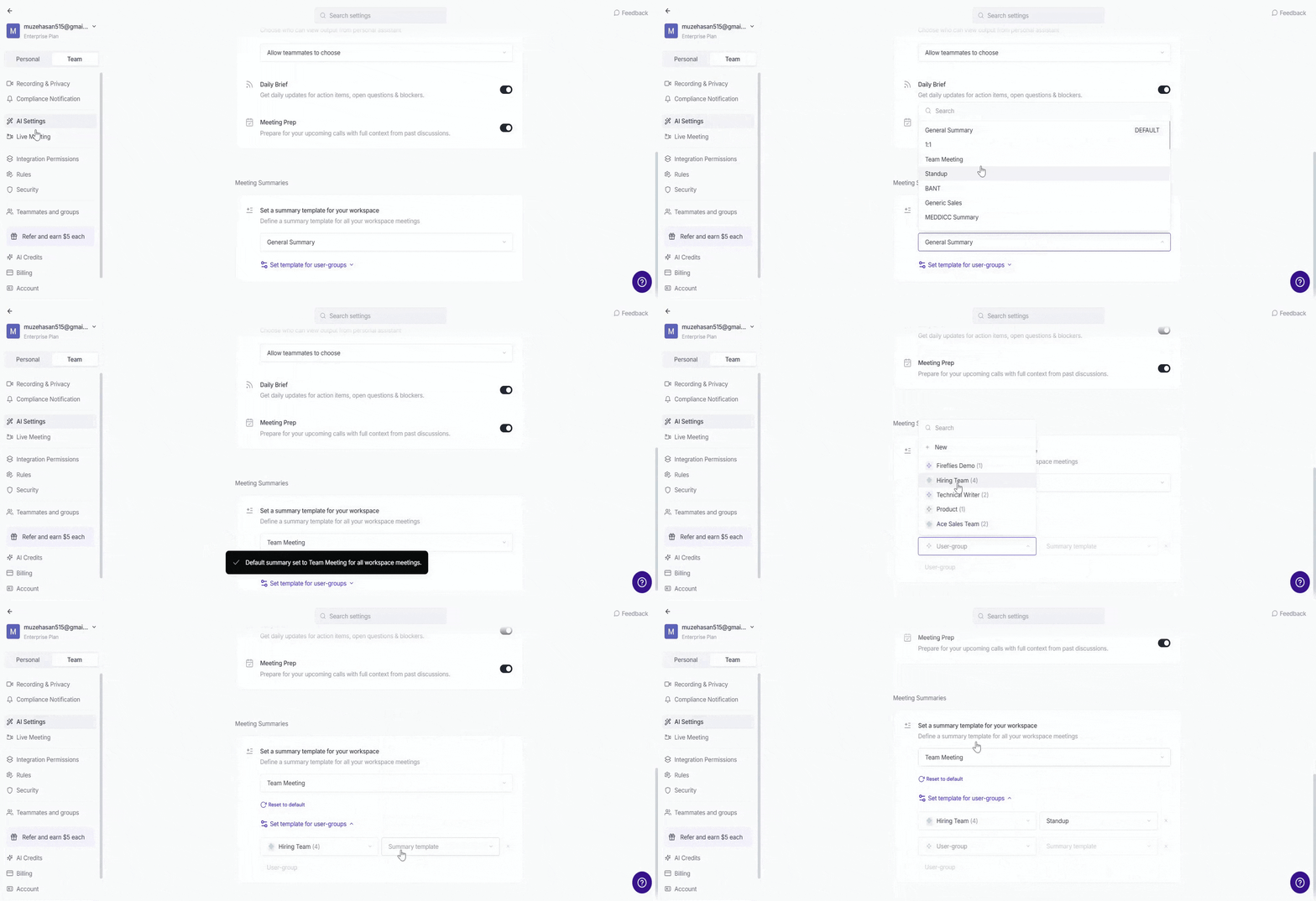
Keep meeting notes consistent across your workspace. If everyone should follow the same summary format, admins can enforce a default AI Summary Template for all teammates. If different teams—such as Sales, HR, or Customer Success—need different summary formats, create User Groups and assign a separate AI Summary Template to each group.
Workspace summary template — Select the AI Summary Template you want to enforce across your entire workspace.
User Group summary templates — Select a User Group, then choose the AI Summary Template you want to apply to its members.
📌 Learn more about AI Meeting Summaries and how to create and manage AI Summary Templates →
🎙Live meeting
Control how Fireflies interacts with teammates during a live meeting across the workspace.
📍 Settings → Team → Live meeting
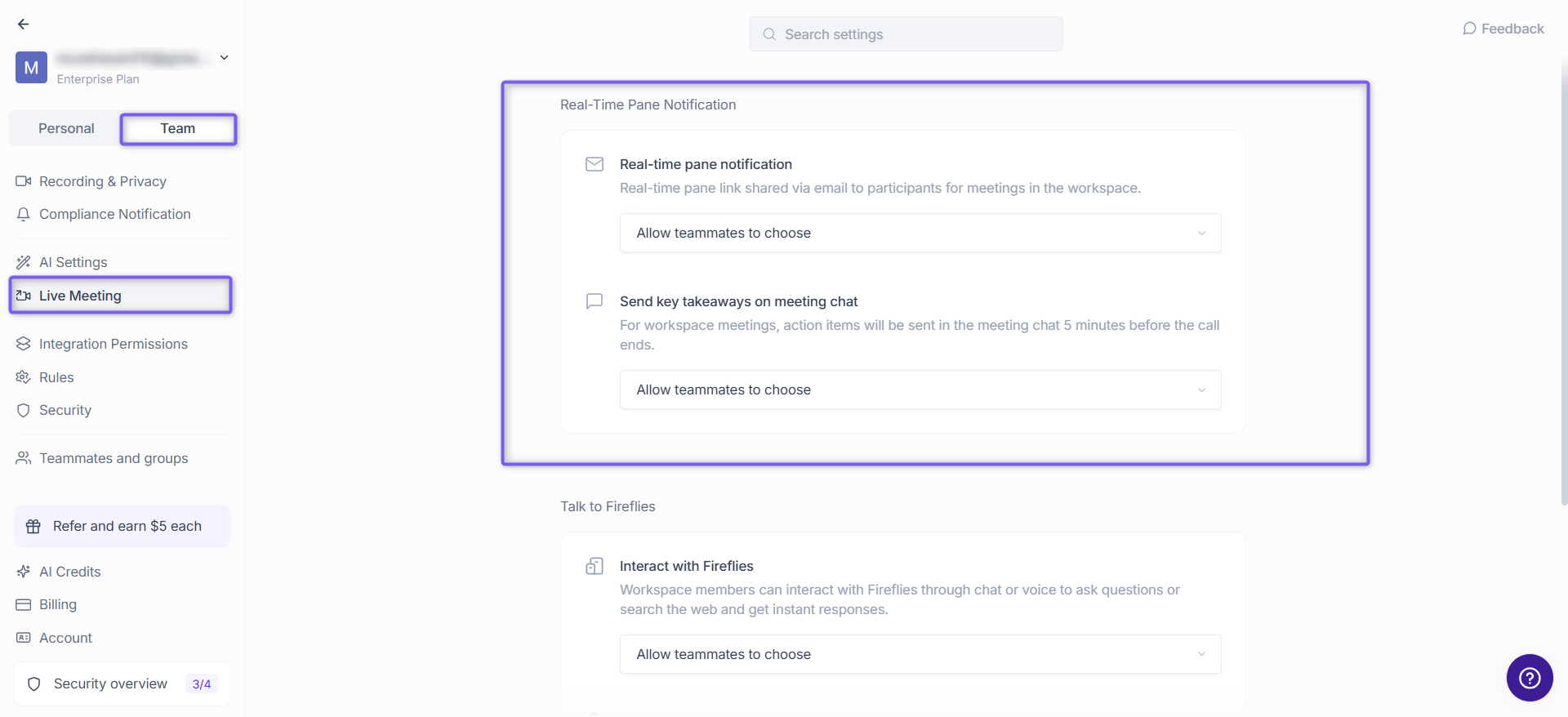
Real-time pane notification
Real-time pane notification — Share a real-time pane link via email to participants for meetings in the workspace
Send key takeaways on meeting chat — Action items are sent in the meeting chat 5 minutes before the call ends
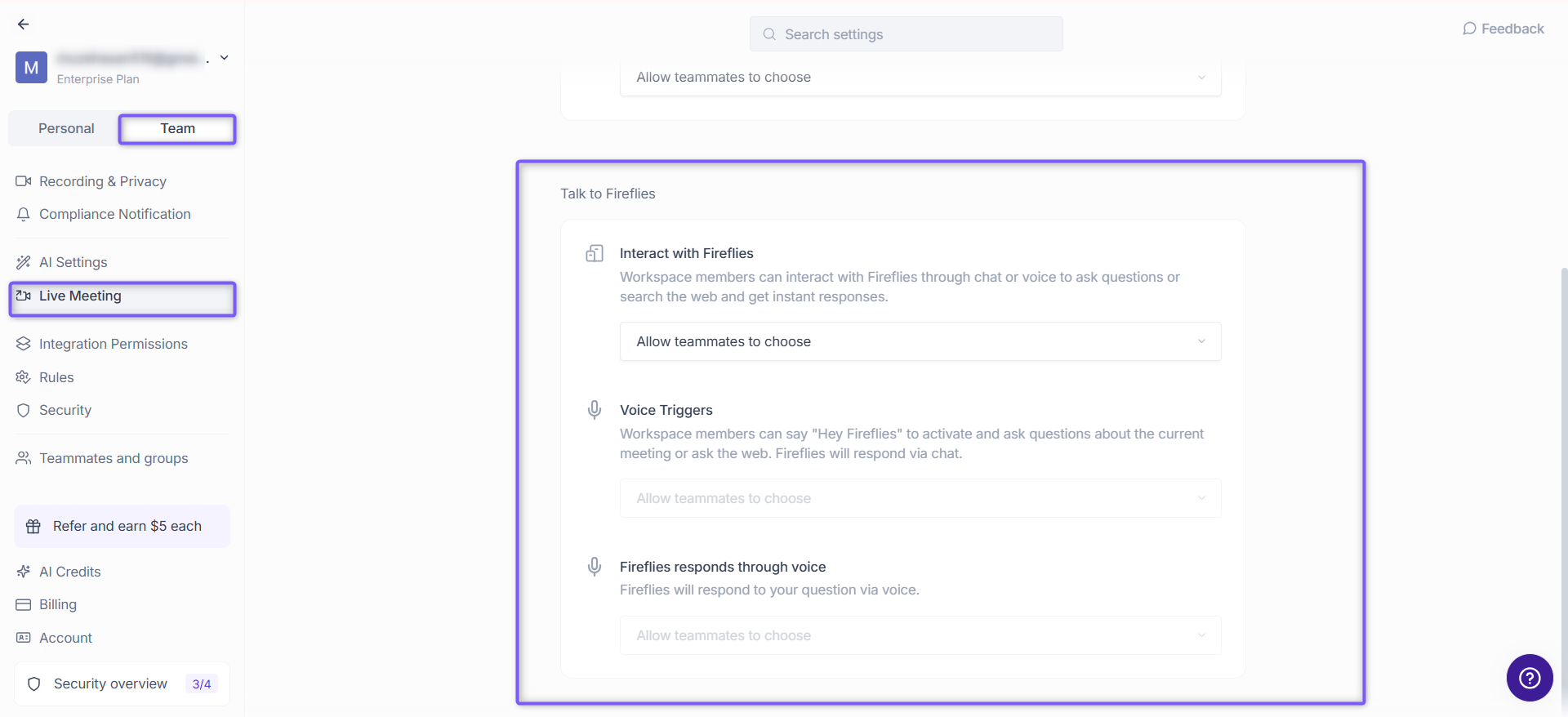
Talk to Fireflies
Interact with Fireflies — Teammates can interact with Fireflies through chat or voice to ask questions or search the web and get instant responses
Voice triggers — Teammates can say "Hey Fireflies" to activate and ask questions about the current meeting or search the web. Fireflies responds via chat
Fireflies responds through voice — Fireflies replies to questions via voice instead of chat
💡 Each setting can be enabled for all teammates or set to allow teammates to choose their own preference.
🔌 Integrations Permissions
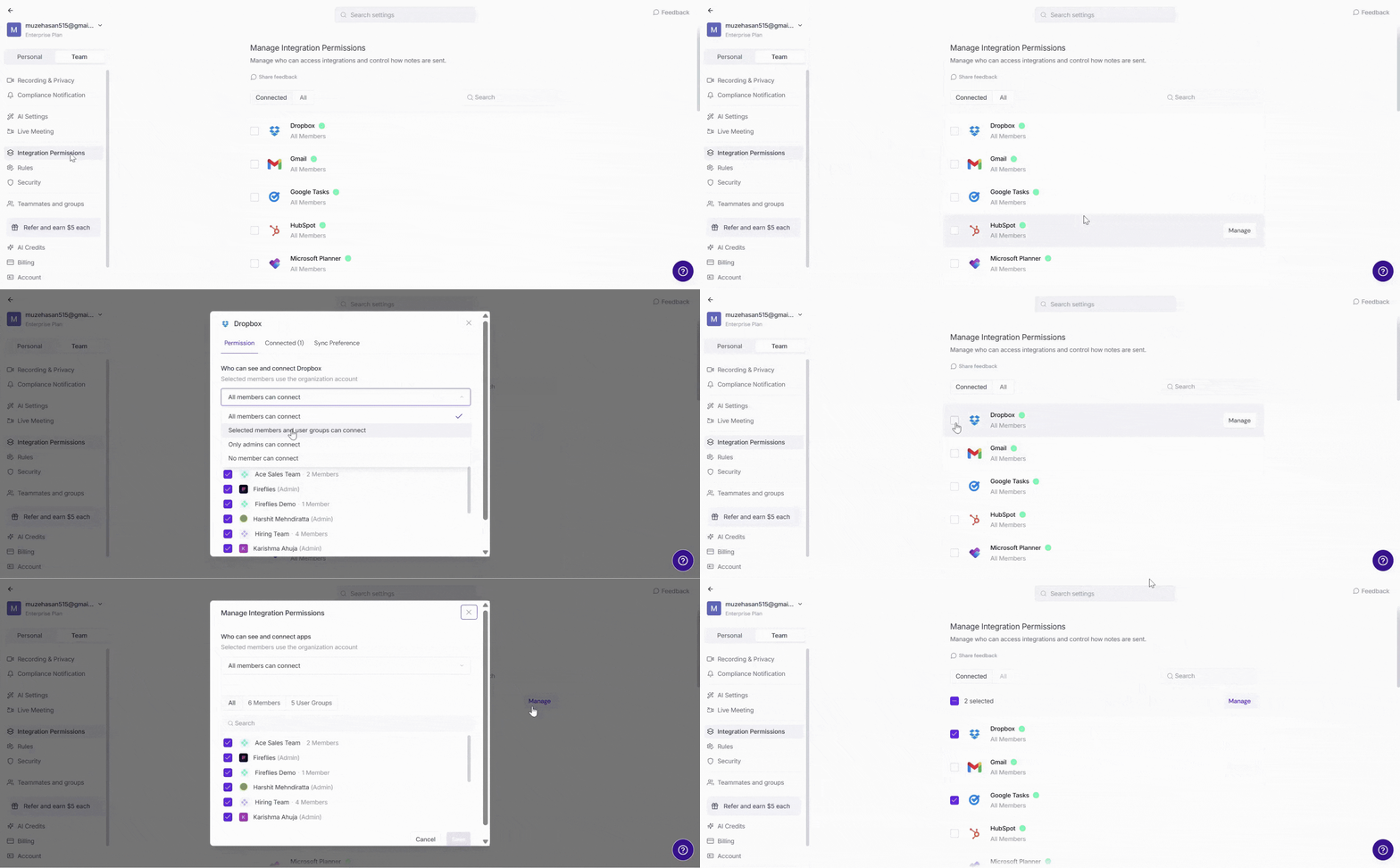
Fireflies connects with the tools your team already uses to automate workflows across your workspace. Use Integration Permissions to centrally manage integration access and settings across your workspace.
📍 Settings → Team → Integrations Permissions
With Integration Permissions, you can:
Manage permissions for individual and multiple integrations.
View which team members are connected to each integration.
Remotely disconnect or remove integration access when needed.
Apply shared integration configurations across supported push integrations.
🧩 Rules Engine (Enterprise only)
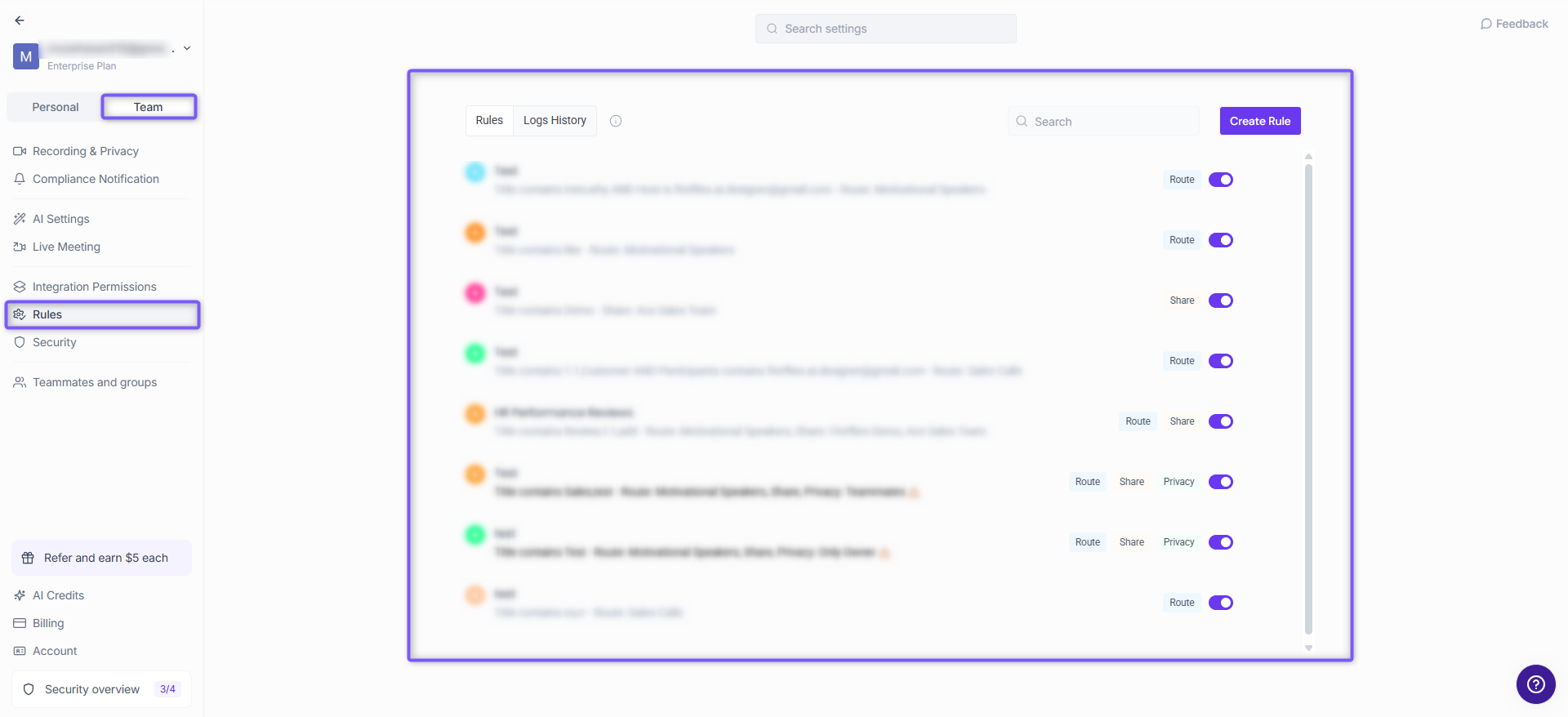
Automate how Fireflies handles meetings across your workspace. Set custom rules to route, share, and control privacy for meetings — without manual effort every time.
📍 Settings → Team → IntegrationsRules
Each rule can be configured to control:
Route — Send meetings to specific channels or user groups
Share — Automatically share meetings with the right teammates
Privacy — Set visibility for meetings based on your preferences
Use Logs History to track all rules activity across your workspace.
📌 Learn how to set up and manage rules. Rules Engine
🔒 Security
Use Security to manage workspace-level data storage and authentication settings.
📍 Settings → Team → Security
Setting | What it does |
|---|---|
Stores your meeting transcripts, video, and audio recordings in your own private storage instead of Fireflies servers. | |
Sets up SAML-based single sign-on for your workspace. Click Configure to get started. |
🏢 Workspace or Account Settings
Workspace Settings are shared across your entire organization. These are not inside the Personal or Team tab - you'll find them at the bottom of the left sidebar in Settings. Click any section to jump directly to it.
⚡AI Credits
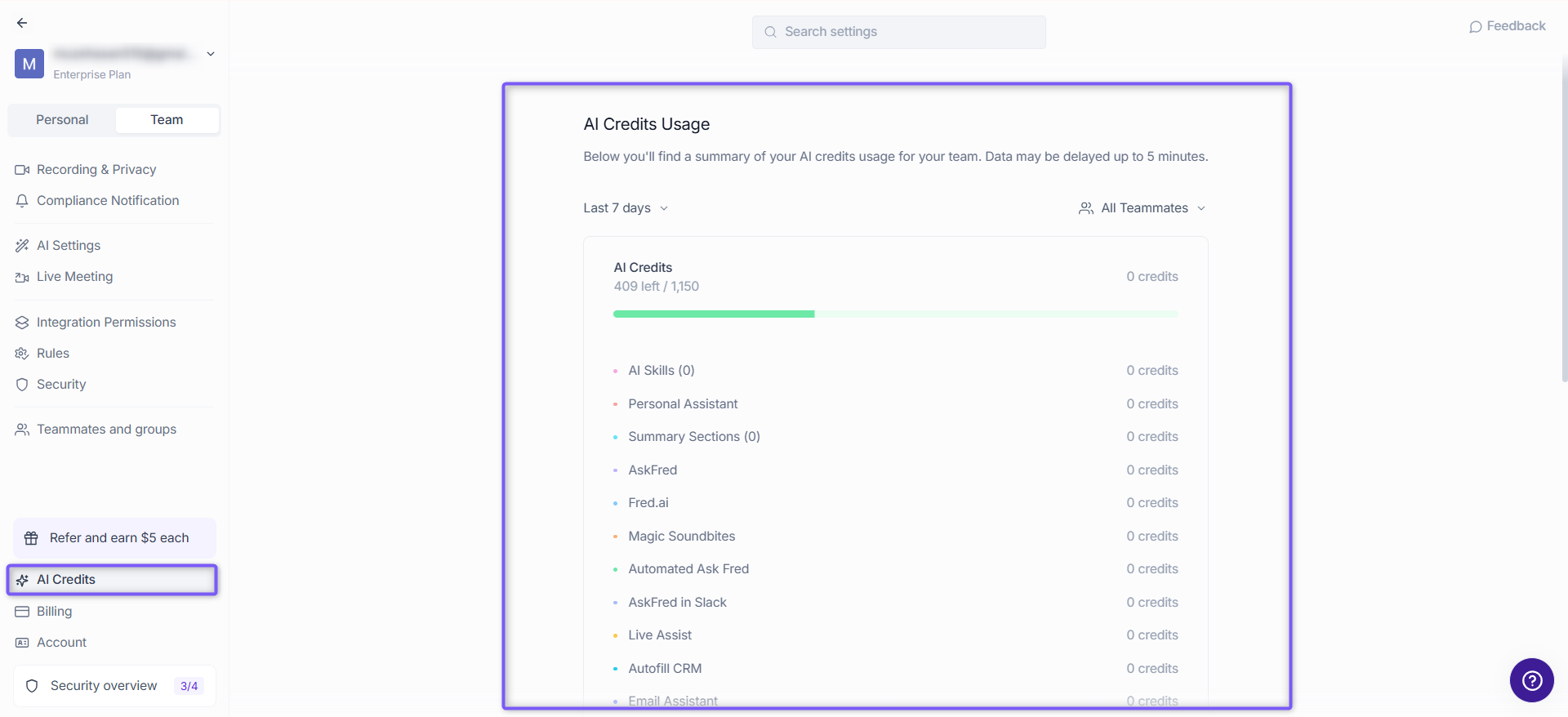
Track your workspace's AI credit usage across all features. Credits are consumed by AI Skills, meeting summaries, AskFred, Live Assist, Voice Agents, and more. You can filter usage by date and by teammate, and purchase additional credits from this page.
📌 Learn more: AI Credits Overview
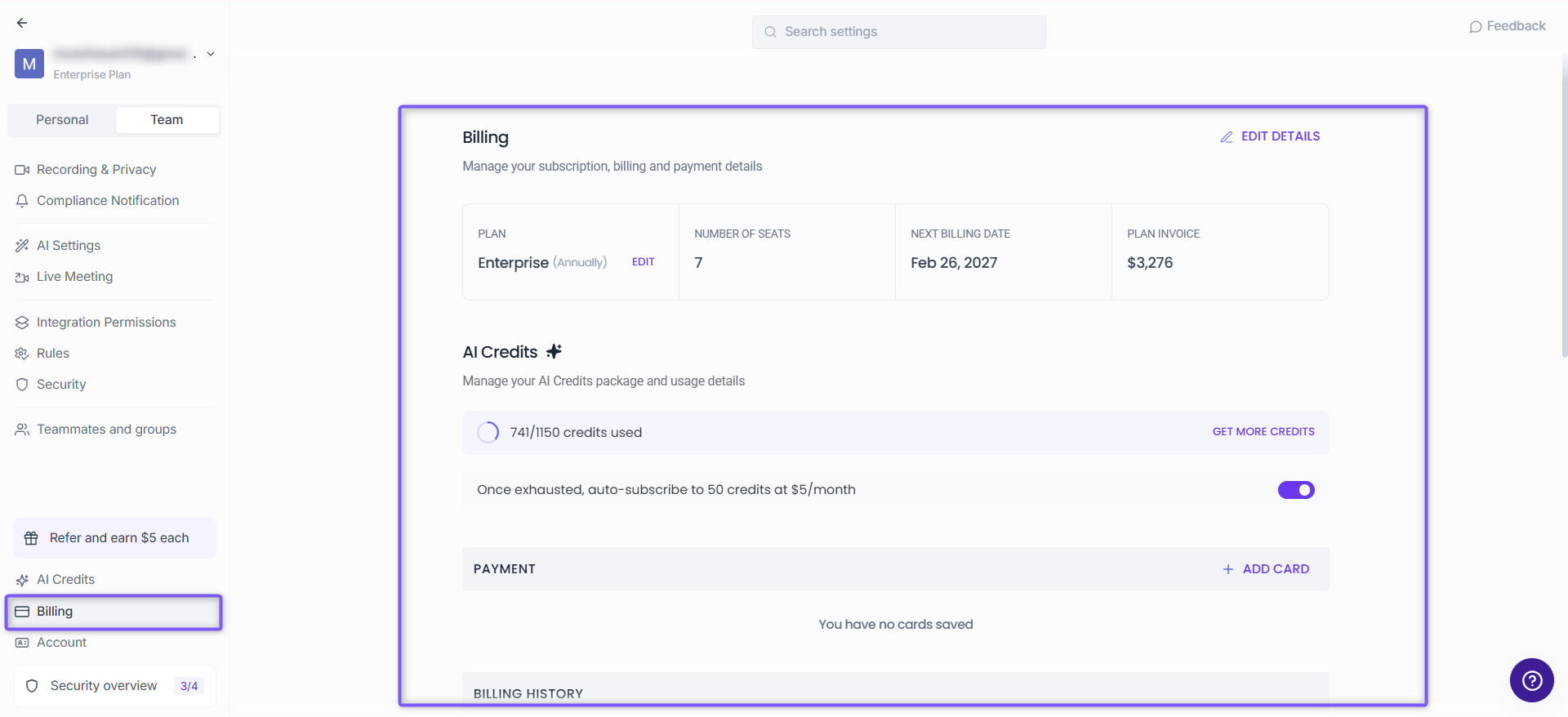
🧾 Billing
Manage your subscription, seats, payment method, and invoice history. You can view your current plan, next billing date, and download past invoices directly from this page.
→ Learn more: Billing & Subscription Guide
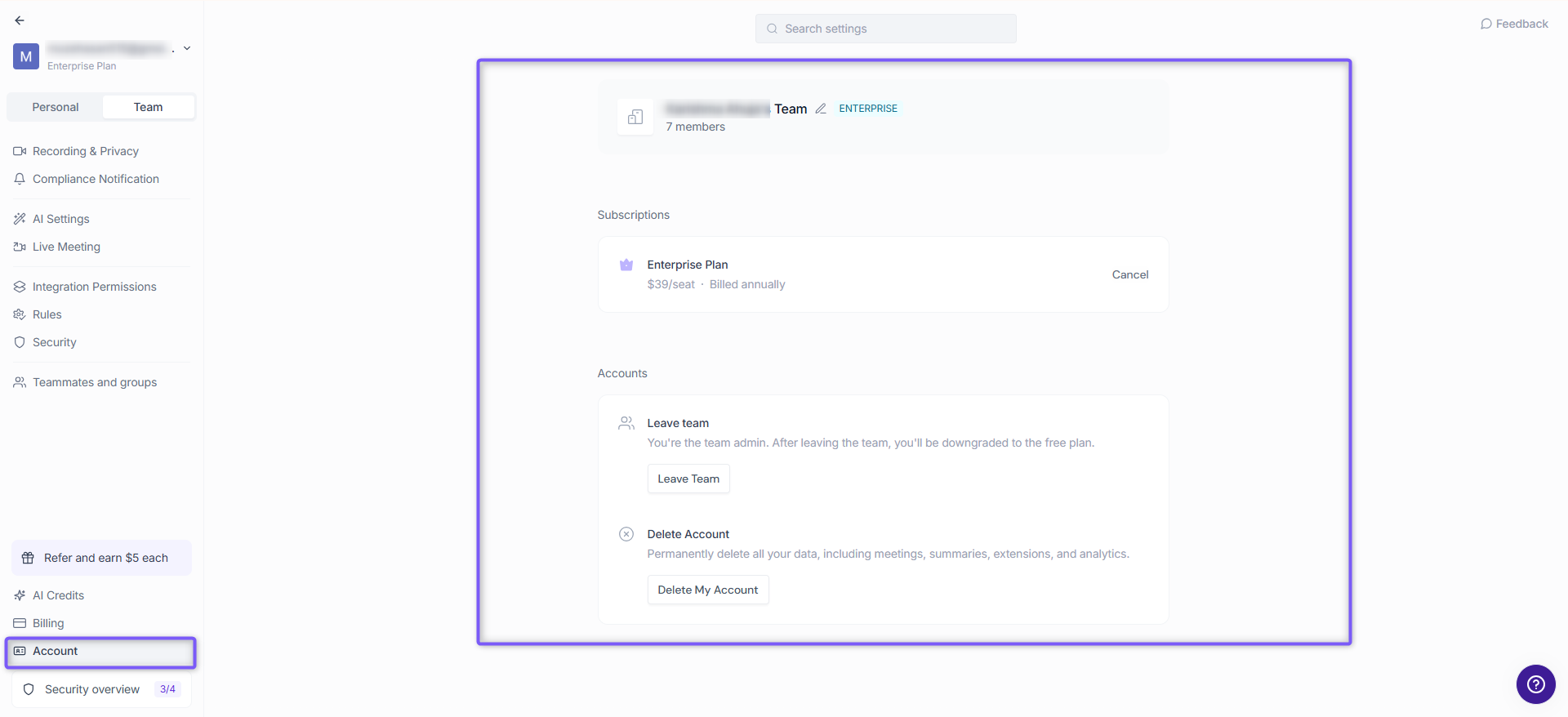
⚙ Account Settings
Manage workspace-level preferences, security settings, and account actions.
Setting | What it does |
Edit team name | Click the ✏ icon next to your workspace name, update the name, and click Save to apply the changes |
Store your meeting transcripts, video, and audio recordings in your own private storage instead of Fireflies servers. | |
Set up SAML-based single sign-on for your workspace. Click Configure to get started.
| |
View and manage your current plan. Cancel your subscription from here. | |
Leave team | Leave the workspace. If you're the admin, leaving will downgrade your account to the free plan. |
Permanently delete all your data including meetings, summaries, and extensions. |
🆘 Support
Access help and get assistance when needed.
When you open this section, a support chat widget appears in the bottom-right corner, where you can quickly ask questions or contact the support team.