How to Control Autojoin and Email Settings for Teammates
Last updated: September 10, 2026
This article explains how Fireflies workspace Admins can control their teammates' Autojoin and Email Settings.
🔑 Prerequisites
You must have a Fireflies Admin account
Your teammates must be added to your Fireflies workspace
How to control the Autojoin Settings
The Autojoin feature allows admins to control which meetings Fireflies can join and record for the entire team.
By default, Autojoin is set to Allow teammates to choose, giving team members the flexibility to configure this setting for their accounts.
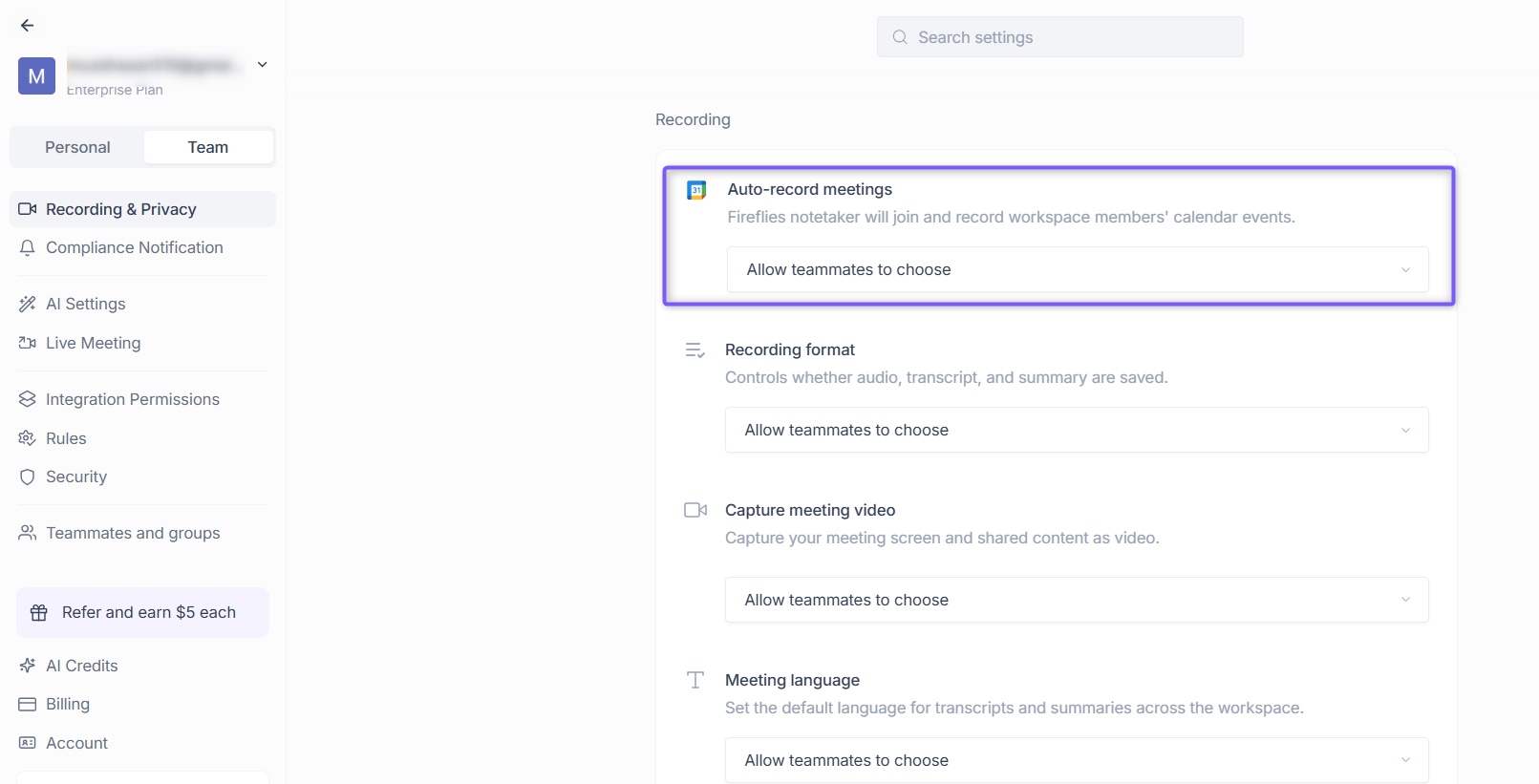
If you want more control, you can adjust the default setting to prevent team members from making individual changes. Here’s how to do it:
Configure Auto-join Settings for teams
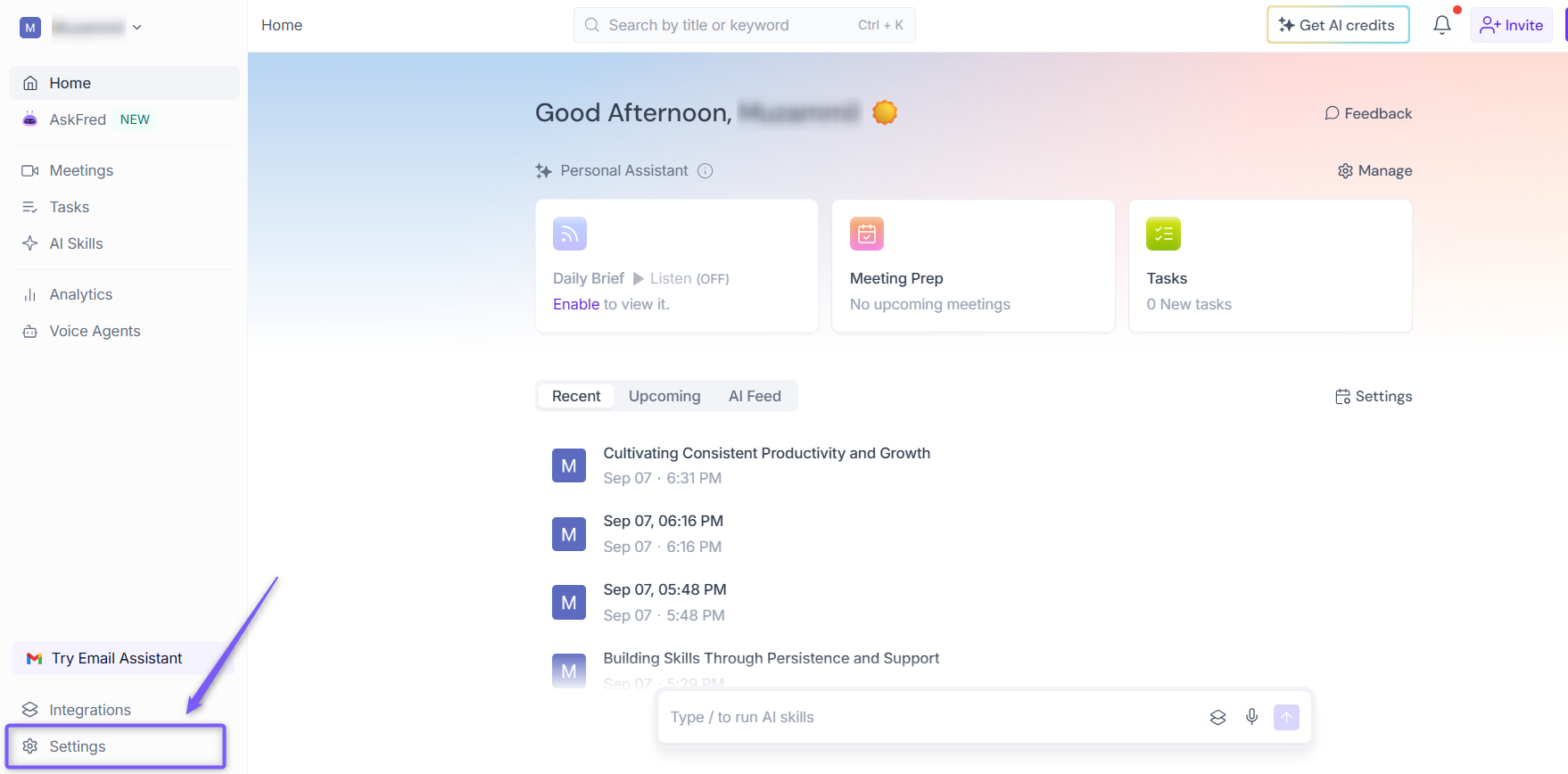
1. Open your Fireflies web app and click on Settings in the main navigation menu.
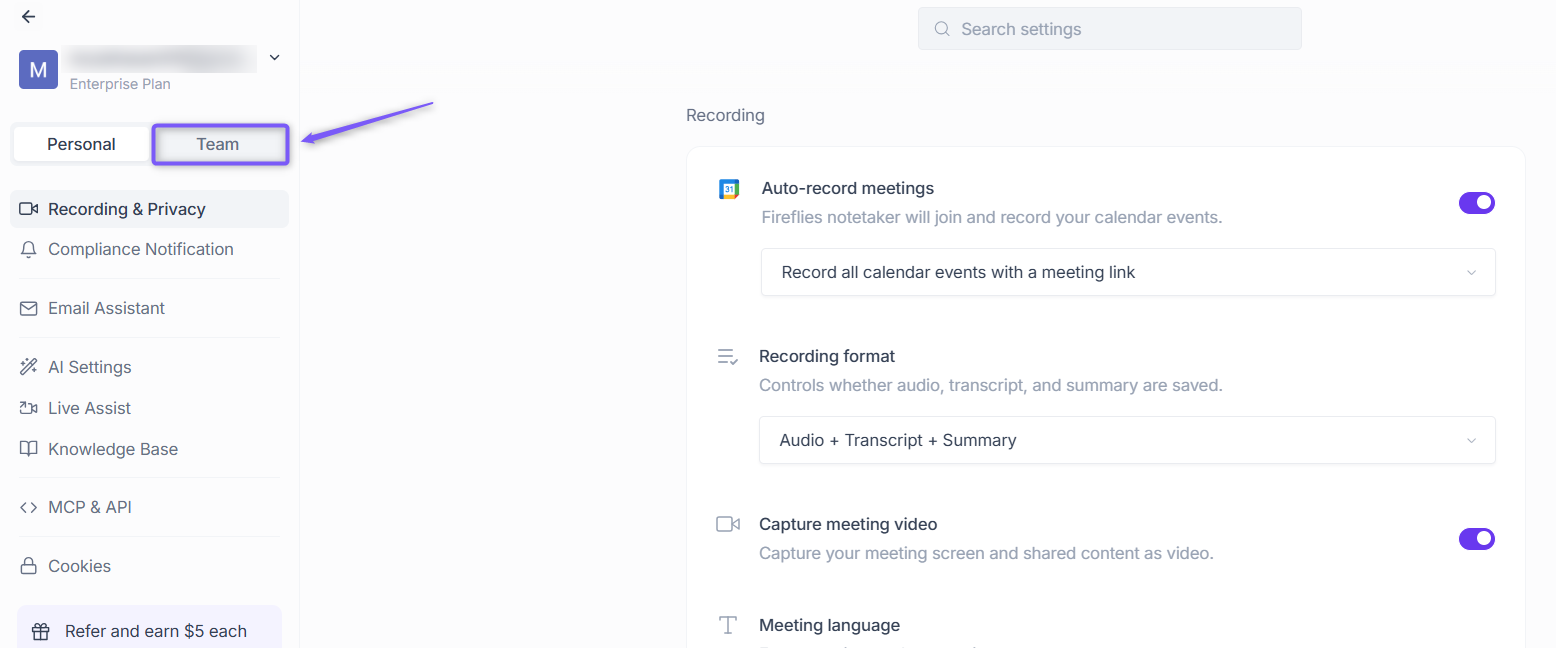
2. Switch to the Team tab.
3. From the left panel, click Recording & Privacy. Under Recording, locate Auto-record meetings.
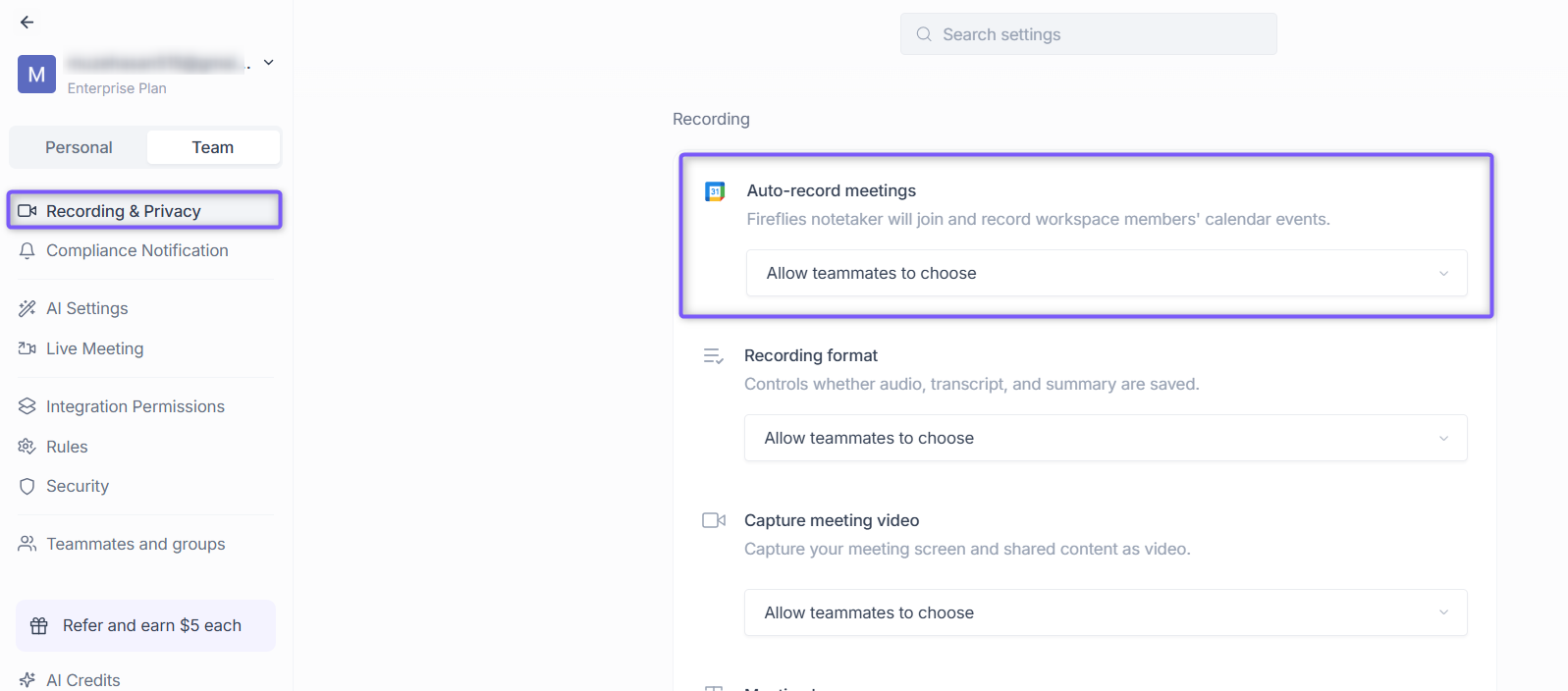
4. Click the dropdown under Auto-record meetings to view the available options.
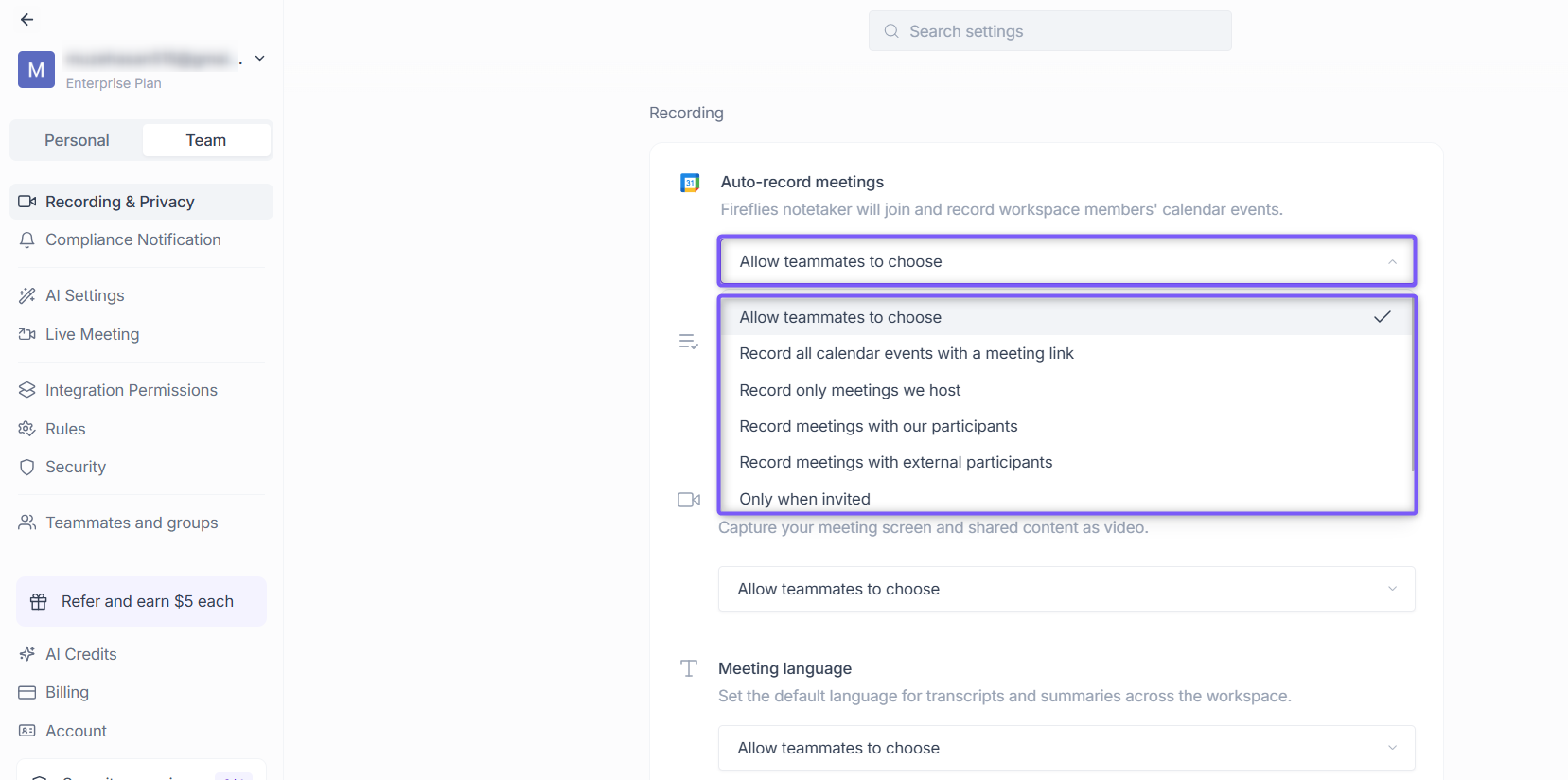
Option | What does it mean? |
Allow teammates to choose | Teammates can configure auto-recording for their own meetings |
Record all calendar events with a meeting link | Fireflies records all meetings that have a meeting link |
Record only meetings we host | Fireflies records only meetings hosted by you or your team |
Record meetings with our participants | Fireflies records meetings that include your teammates |
Record meetings with external participants | Fireflies records meetings with participants outside your organization |
Only when invited | Fireflies records meetings only when manually invited |
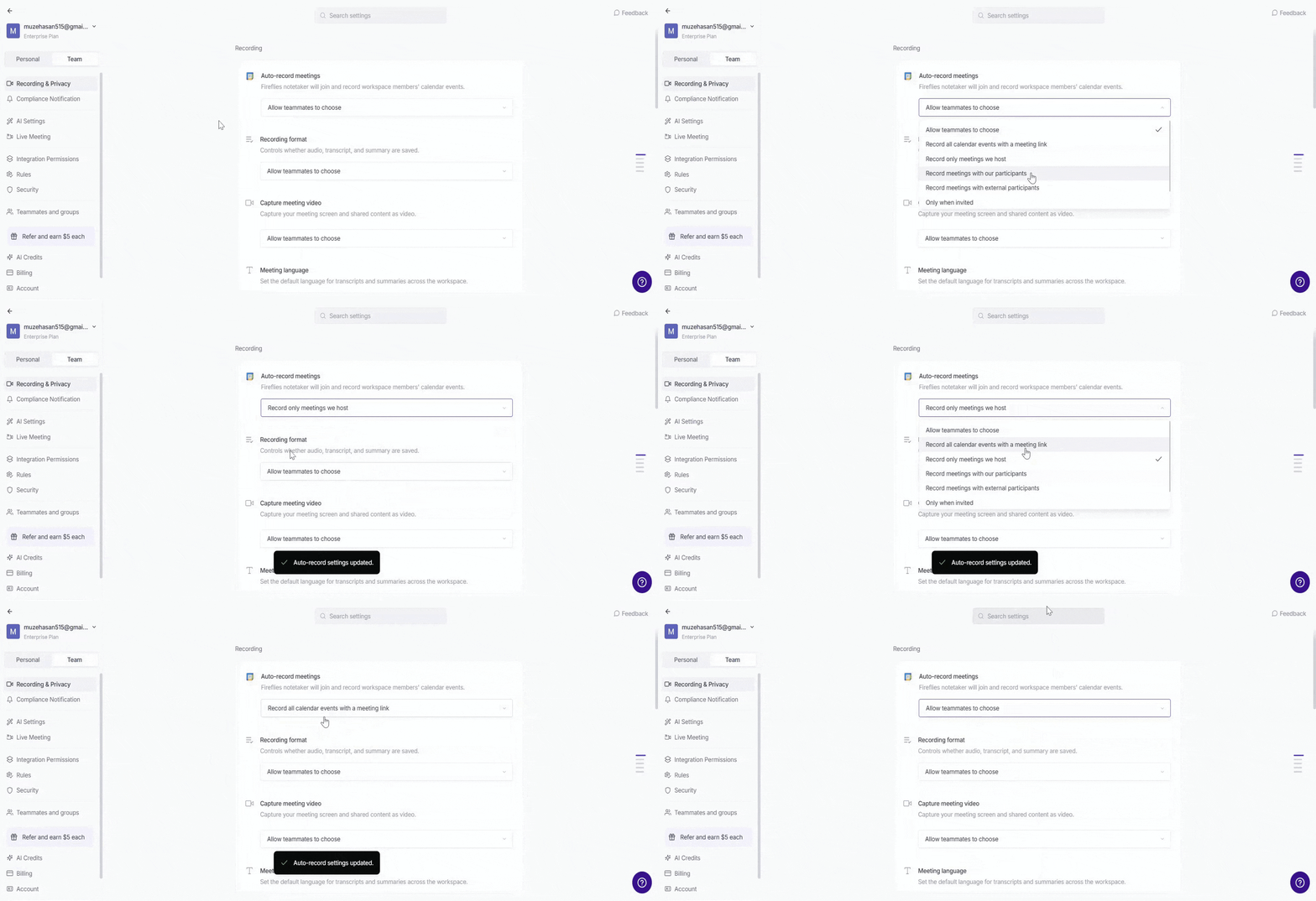
5. Select the desired option, your changes are saved automatically.
How to control the Email Settings
Email Settings allow admins to decide how meeting recap emails are shared after a meeting concludes.
By default, Email Settings are set to Allow teammates to choose, enabling team members to configure this feature individually.
To limit this flexibility, you can adjust the default setting to prevent team members from making changes. Here’s how to do it:
Configure Email Settings for teams
1. In the Team tab → Recording & Privacy, scroll to Email Notification section.
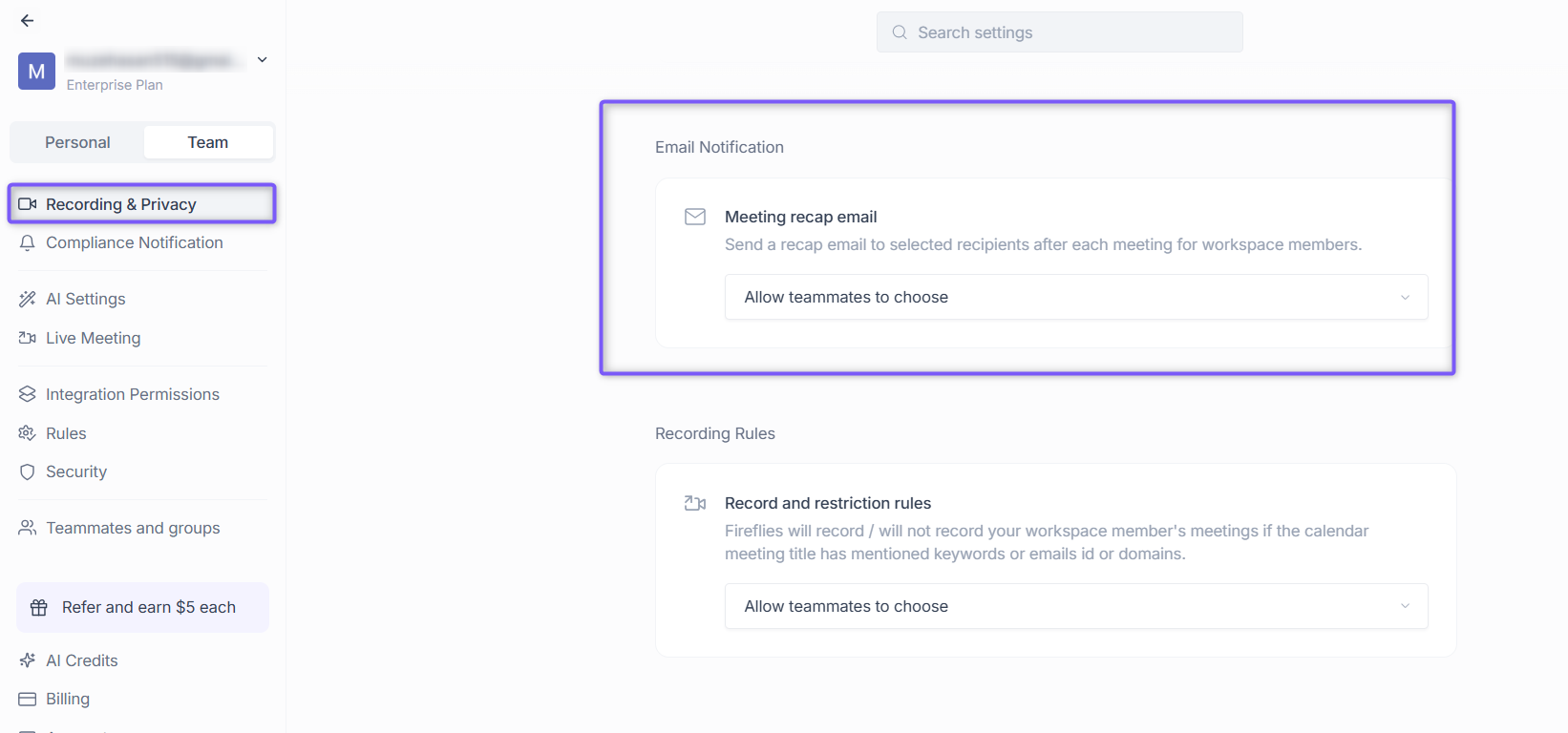
2. Click the dropdown under Meeting recap email. You will see several options:
Option | What does it mean? |
Allow teammates to choose | Teammates can configure who gets the meeting recaps |
Everyone on the invite | Sends recaps to all meeting participants |
Only participants from my Fireflies team | Sends recaps only to you and your Fireflies teammates |
Only me | Sends meeting recaps only to you |
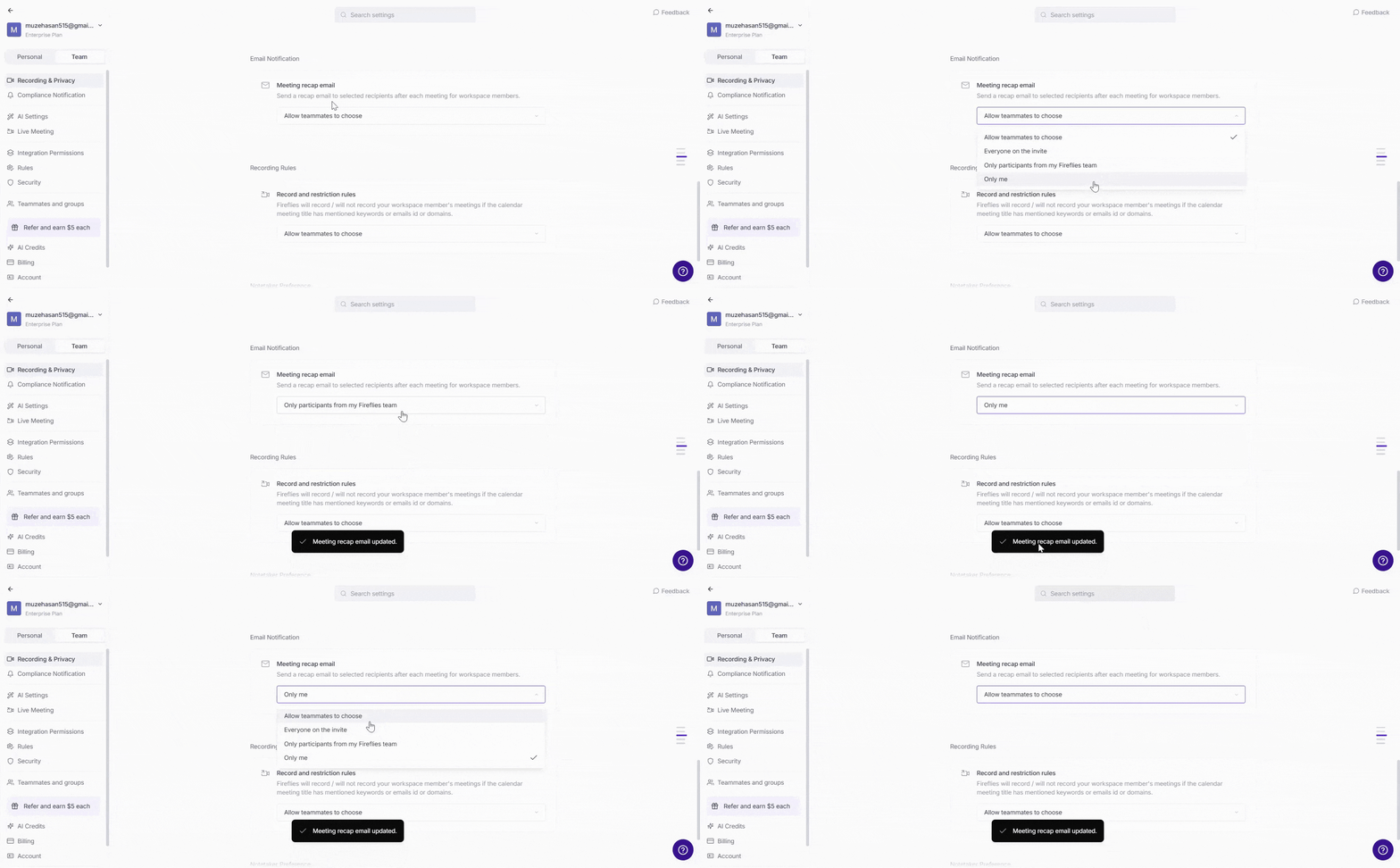
3. Select the desired option, your changes are saved automatically.
📌 To know more, read the detailed guide about Team Settings.