How to Allow Teammates to Invite Users to Your Fireflies Workspace
Last updated: September 10, 2026
As a Fireflies admin, you can control who can invite new users to your workspace — and even set up automatic domain-based access. This guide covers both options.
🚀 Navigation
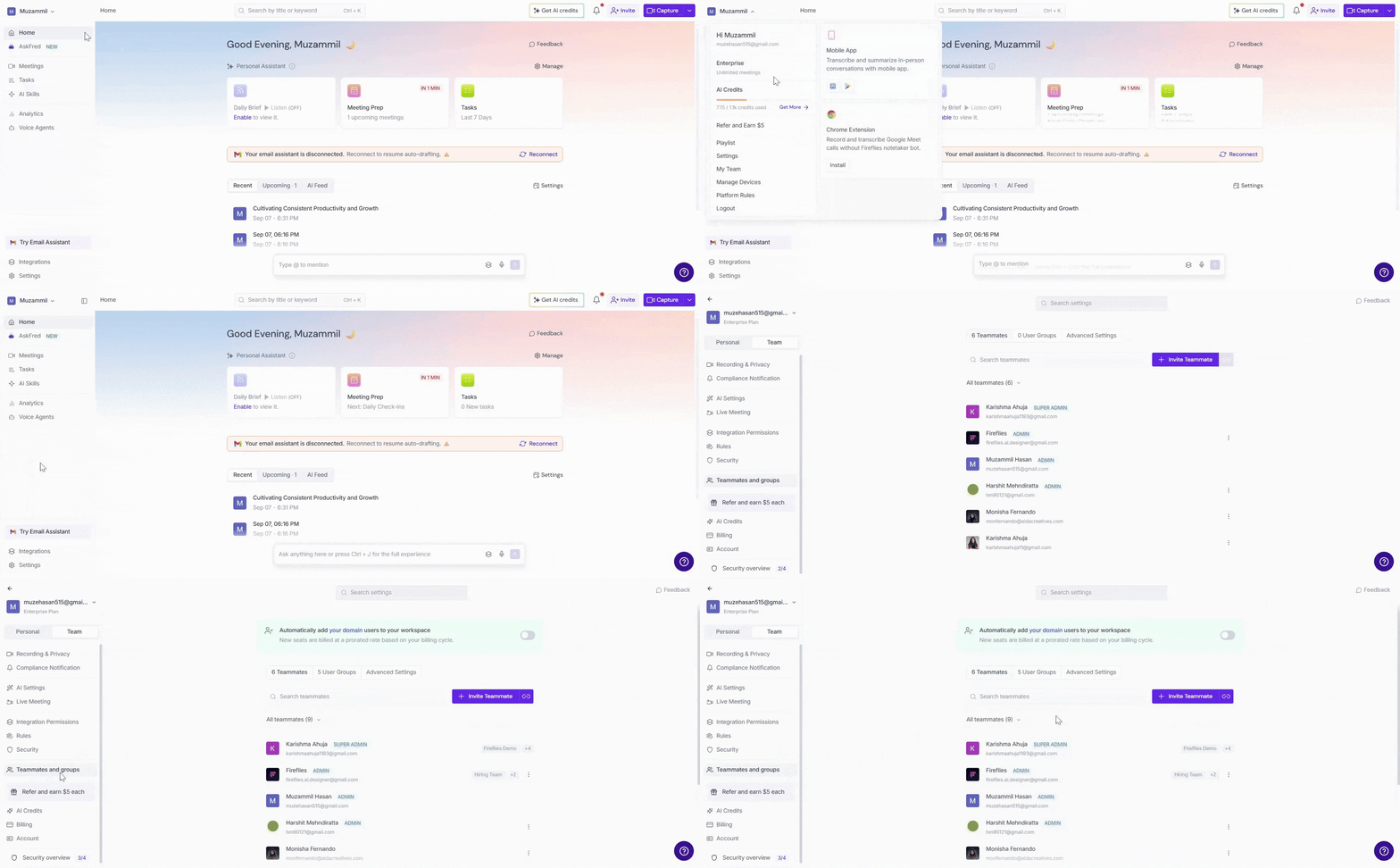
1. Log in to your Fireflies account. You can access your Team settings in either of the following ways:
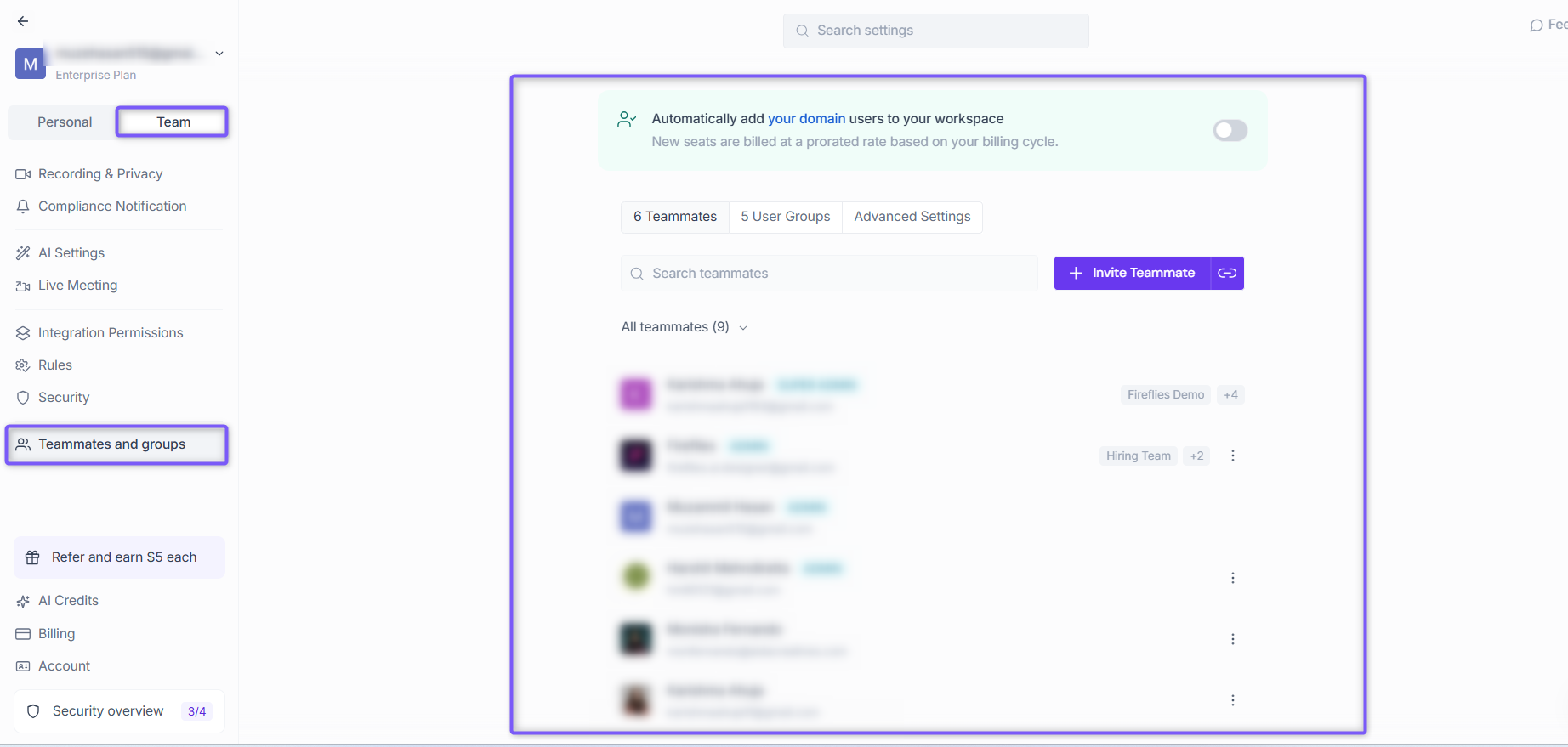
From Settings: Click Settings from the left navigation, select the Team tab, and click Teammates and groups.
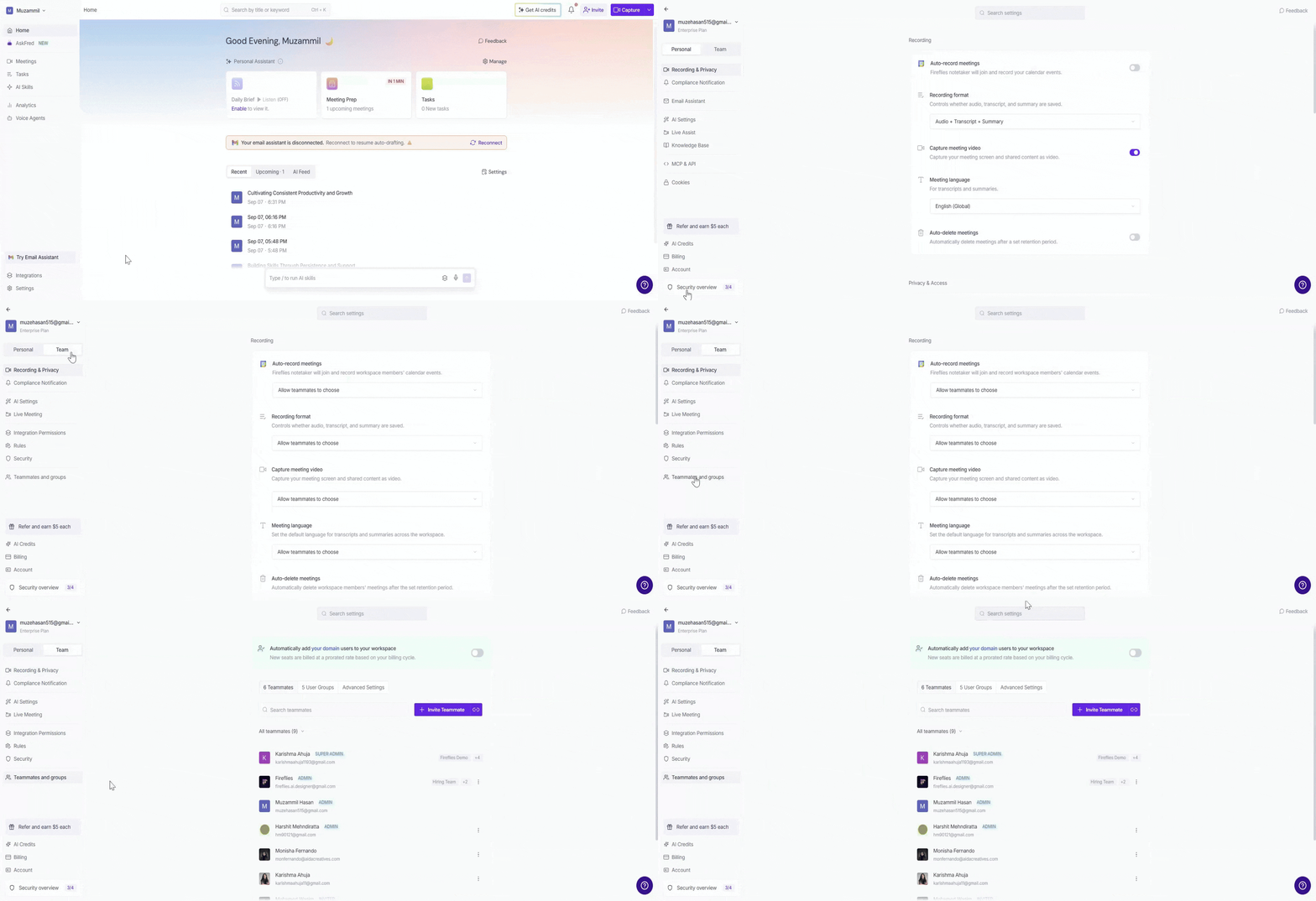
From your profile menu: Click your profile menu in the top-left corner and select My Team.
2. Both options take you to the Members and Groups settings, with the Teammates tab selected by default.
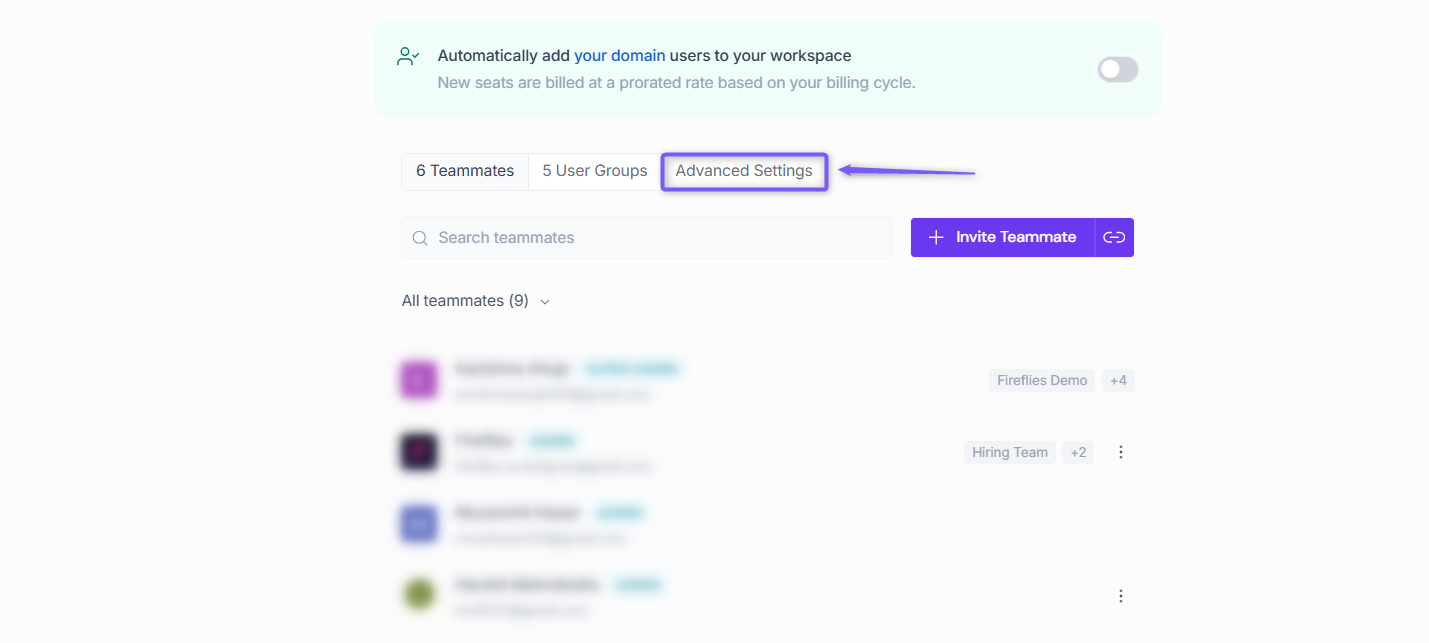
3. Once there, click the Advanced Settings tab at the top.
1. Allow Non-Admin Teammates to Invite Users
By default, only admins can invite new users to the workspace. You can allow non-admin teammates to send workspace invitations too.
1. Under Advanced Settings, locate Allow non-admin teammates to invite users.
2. Toggle it on to allow all teammates to send workspace invitations, or off to restrict invitations to admins only.
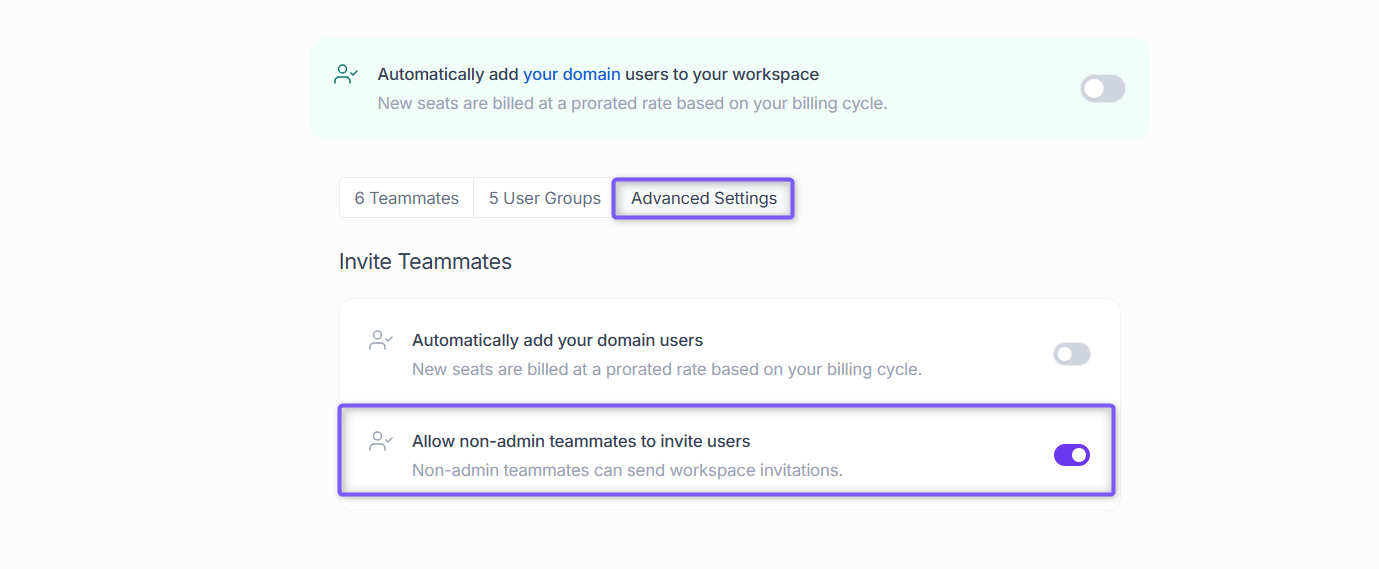
When enabled, all teammates regardless of their admin status can invite new people to your workspace.
📌 Related: how to invite teammates to Fireflies.
2. Automatically Add Domain Users to Your Workspace
Want everyone from your company domain to be added to your workspace automatically? You can enable this with one toggle.
1. Under Advanced Settings, locate Automatically add your domain users.
2. Toggle it on to automatically add new users from your domain to your workspace.
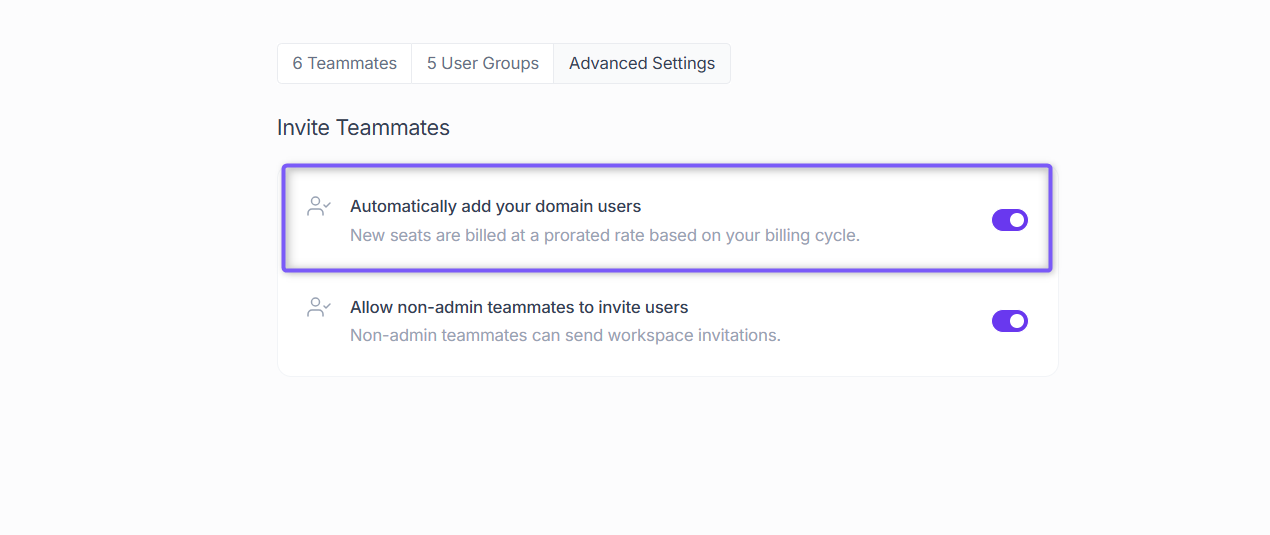
Alternatively, you'll also find this option as a banner at the top of the Members and Groups page — toggle it on from there.
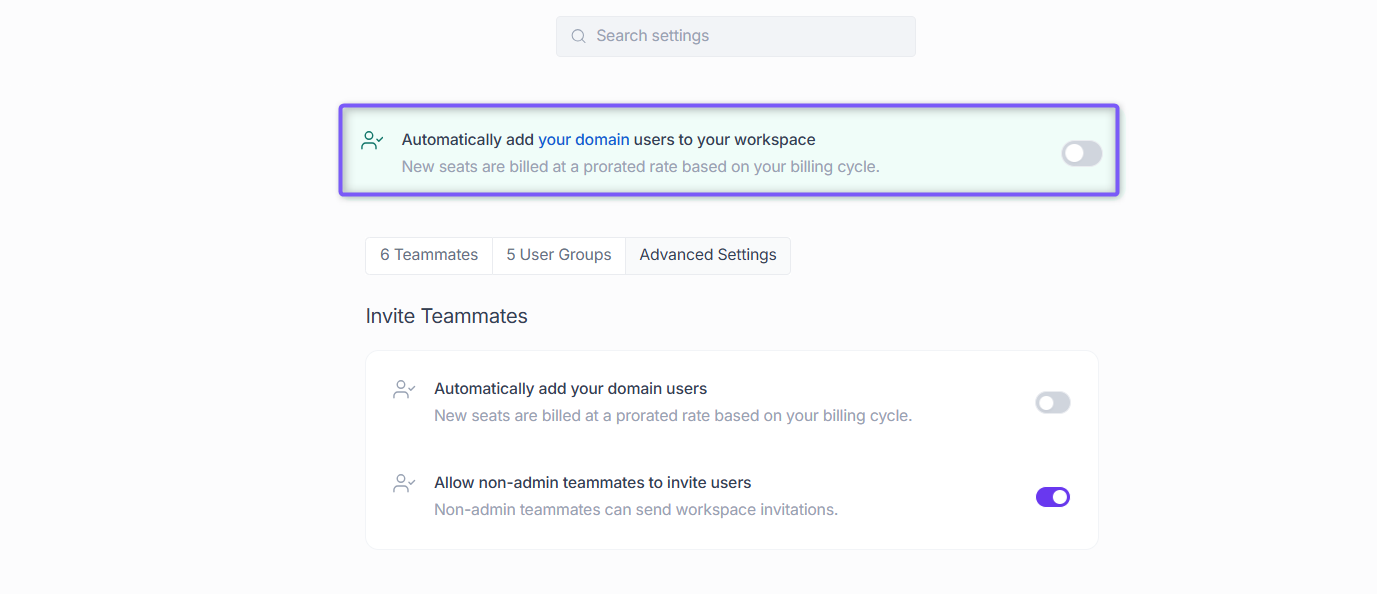
Note: Each new user added automatically will take up a paid seat in your workspace. The cost is calculated based on the remaining days in your current billing cycle.