Recording Modes for Compliance in Fireflies: Summary-Only, Transcript-Only, and More
Last updated: June 5, 2026
Keep what you need—nothing you don’t. Fireflies lets you choose how much meeting data to retain based on your compliance policy:
Audio + Transcript + Summary (default)
Transcript + Summary (No Recording) — audio/video are deleted after processing
Summary Only (No Recording) — only the AI summary is kept (transcript is deleted once the summary is generated and cannot be recovered)
Summary + Audio (No Transcript) — stores audio and summary without saving the transcript
This guide explains when to use each mode, what’s stored vs. deleted, and how admins can enforce org-wide settings for regulated teams.
This feature is currently only available for the Enterprise Plan
🚀 Navigation
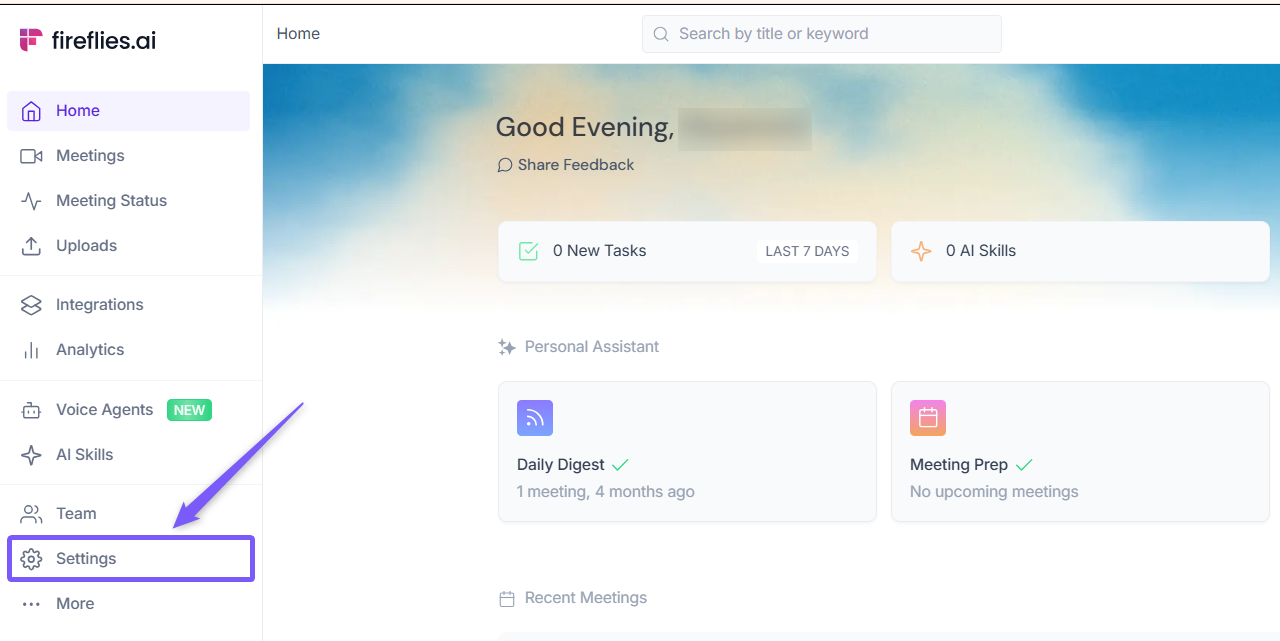
Step 1. Log in to your Fireflies account and open the Settings page from the left sidebar.
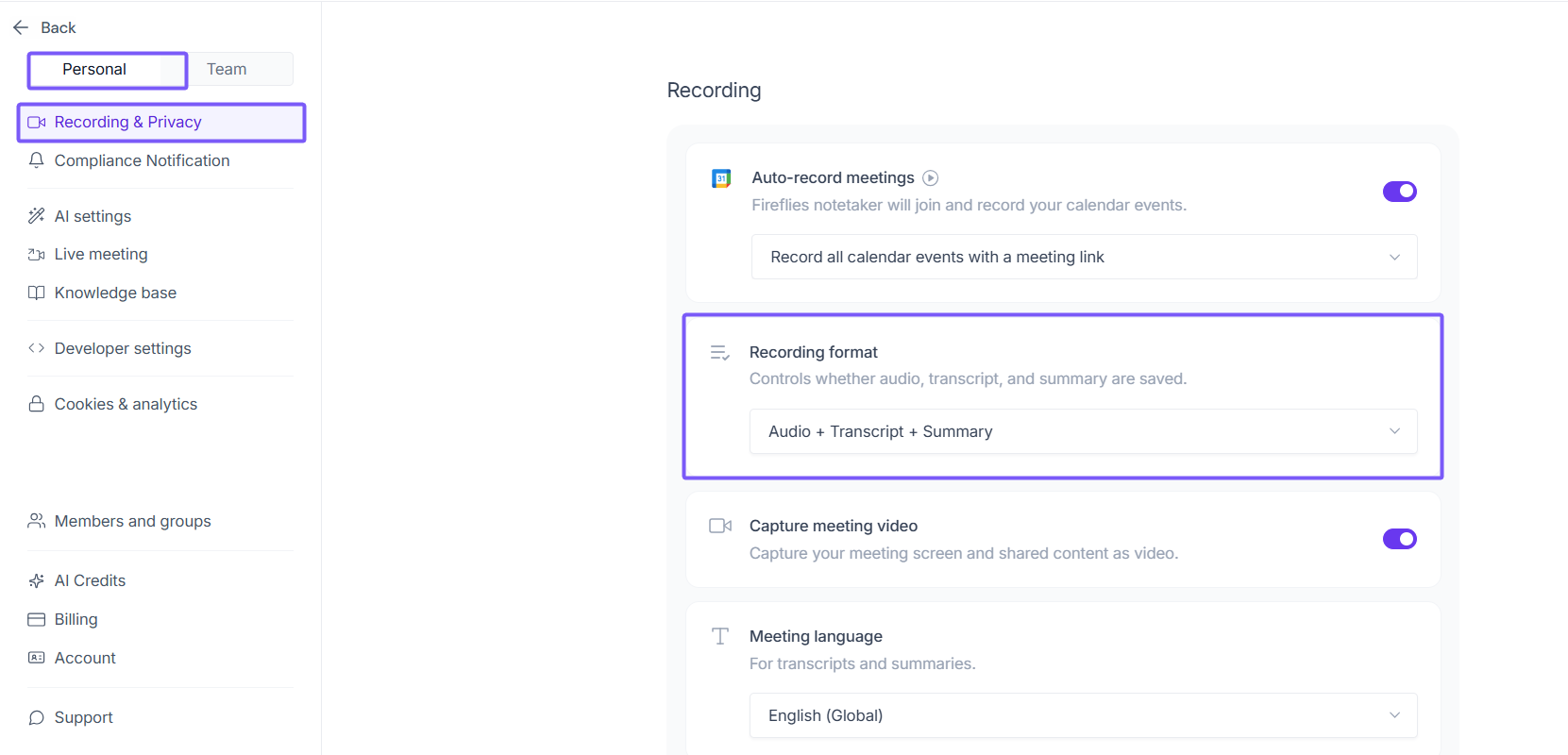
Step 2: Under the Record & Privacy (Personal tab), navigate to Recording format section.
Step 3: Click the Recording format dropdown. You’ll see a list of all available recording modes you can choose from.
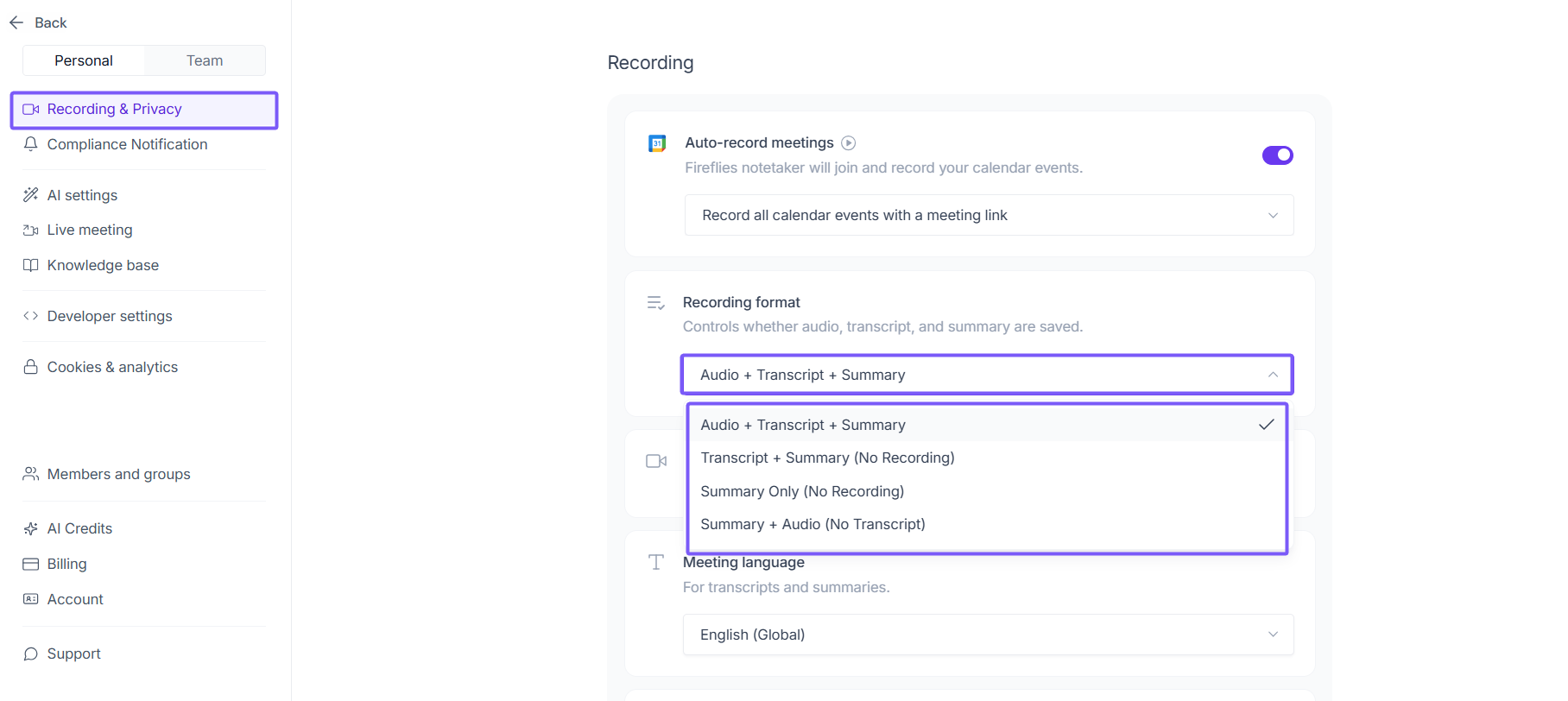
You can choose the recording mode that best fits your team’s compliance or data-retention needs.
🎥 Recording Modes in Fireflies
Fireflies offers three recording modes to help you control what meeting data is kept or deleted based on your team’s compliance requirements. You can choose from the following options inside Recording format:
1. Audio + Transcript + Summary (Default)
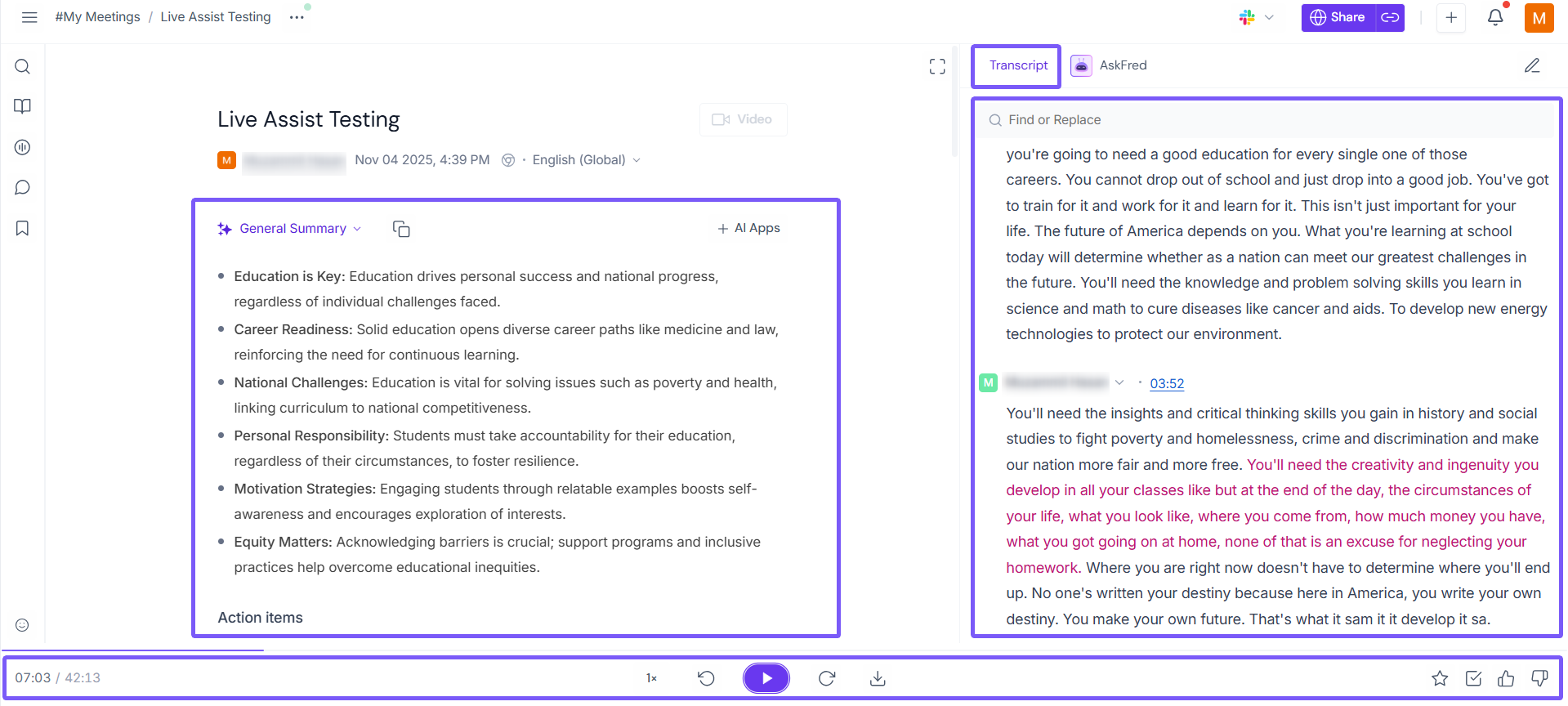
This is the standard recording mode in Fireflies. It keeps everything from your meeting so you have full context for review and collaboration later.
What Fireflies saves in this mode:
Full audio recording — lets you replay the meeting and hear exact discussions
Full transcript — searchable text version of everything said
AI summary — key points, action items, and topics automatically extracted
✅ Best for:
Teams that need detailed meeting records — including playback, soundbites, coaching, QA review, and complete visibility into the meeting.
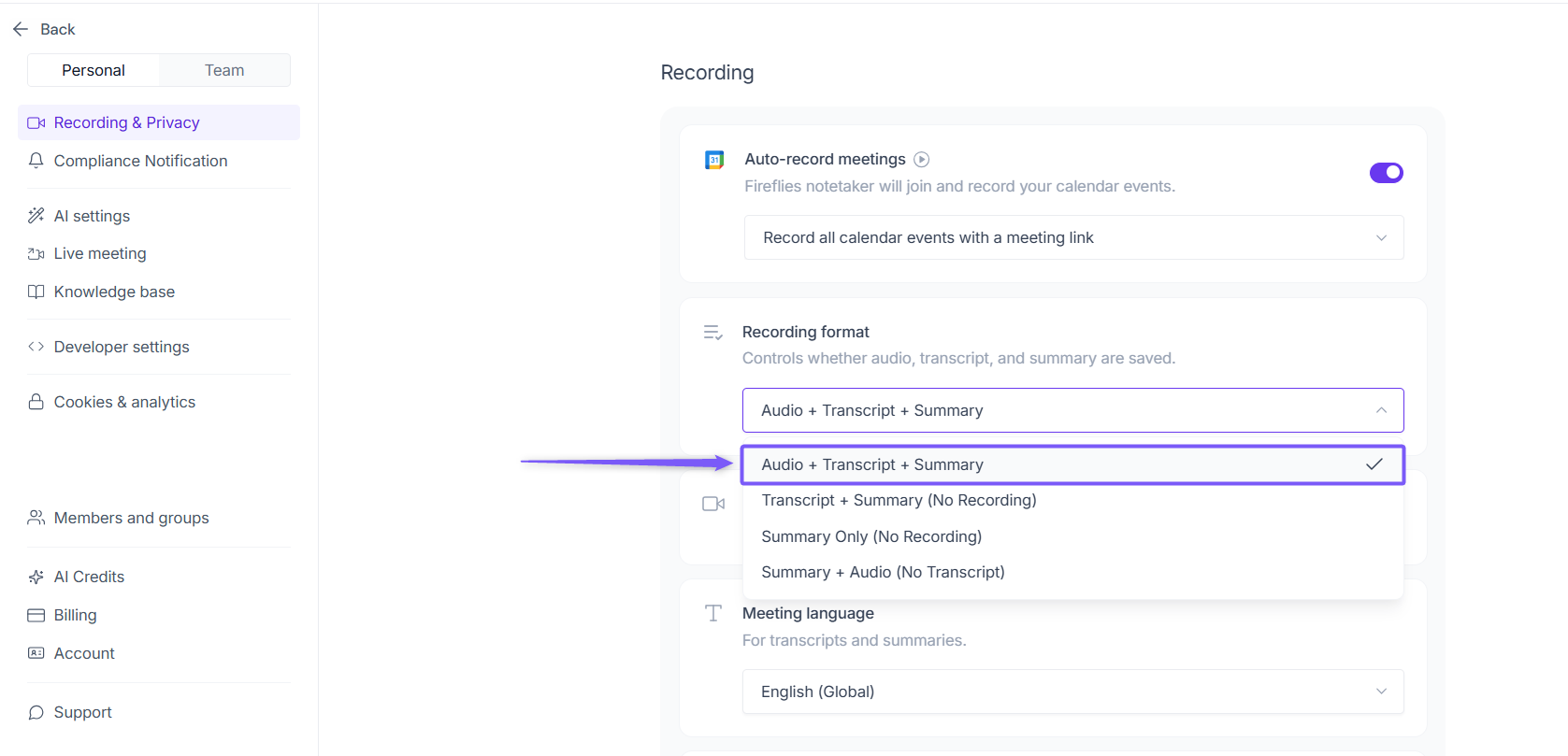
When you select this mode, Fireflies will keep everything — full audio, full transcript, and the AI summary — so you can review the entire meeting in detail.
2. Transcript + Summary (No Recording)
This mode gives you full meeting transcripts and AI summaries without storing any audio or video. Fireflies temporarily captures audio during the meeting to generate the transcript, then automatically deletes it once processing is complete.
What Fireflies keeps in this mode:
Transcript — full text of everything discussed
AI summary — key points, action items, topics, and insights
What Fireflies deletes:
Audio recording — removed automatically after transcription
Video recordings (if any)
✅ Best for:
Teams in regulated industries that allow transcription but cannot retain audio recordings, such as financial services, healthcare, legal, and compliance-driven teams.
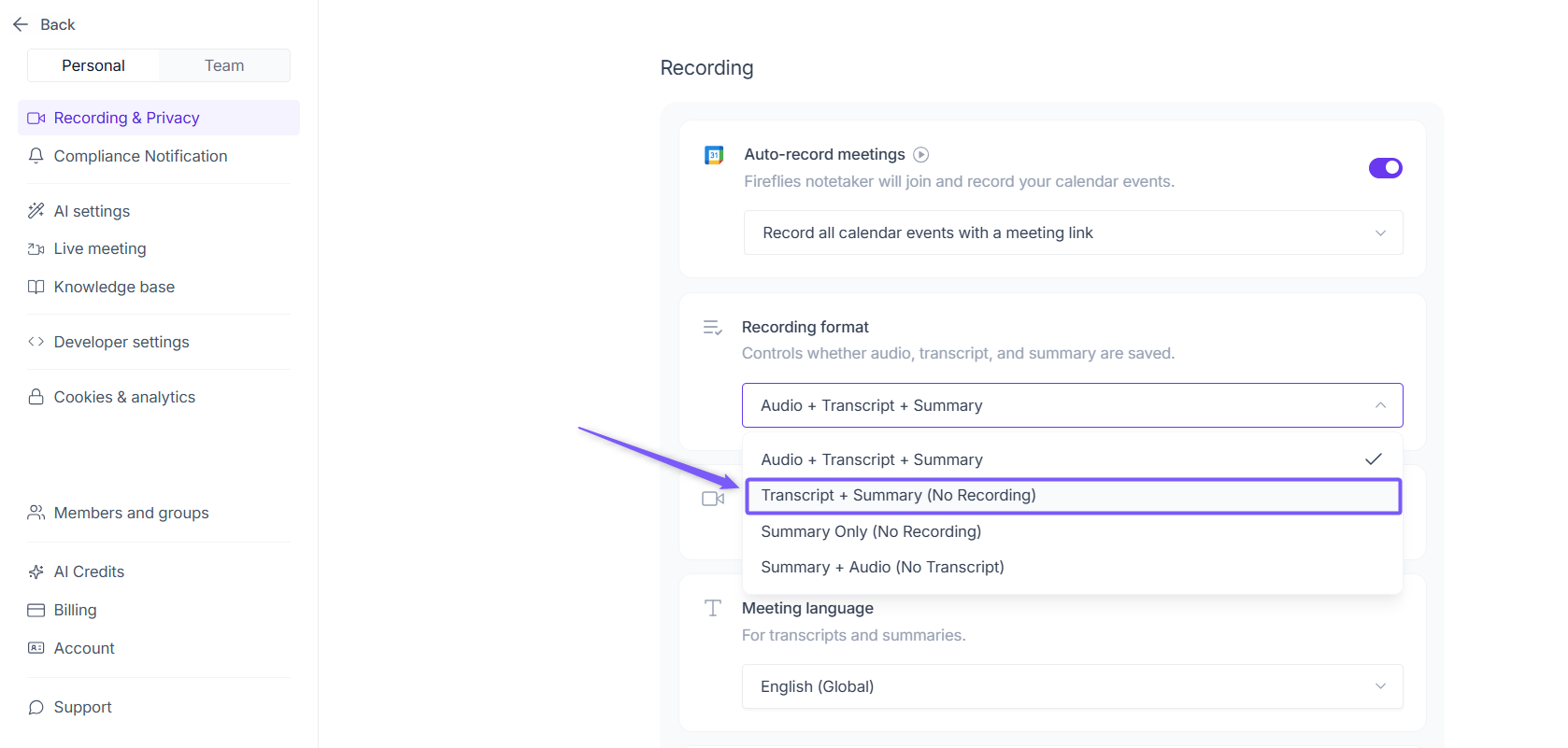
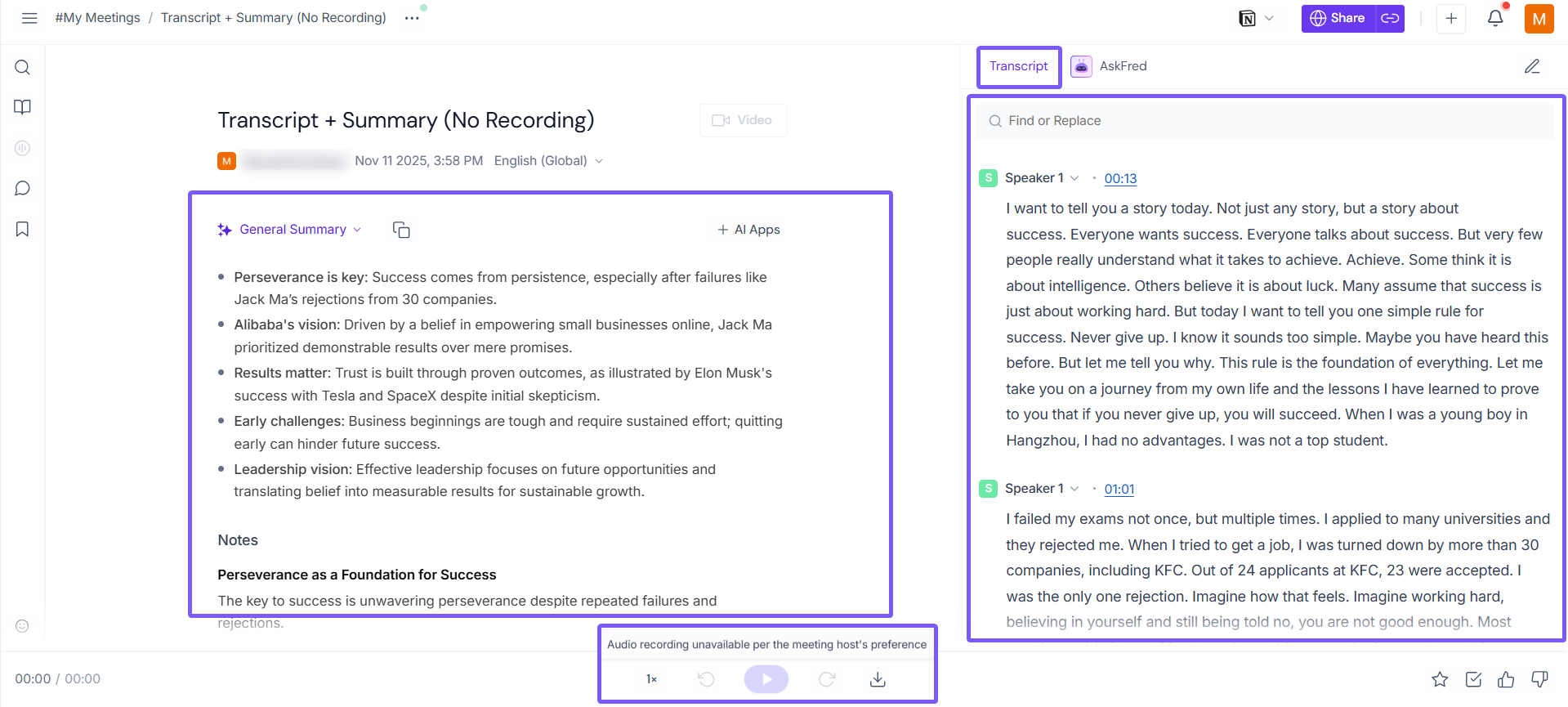
When you select this mode, your meeting will keep the transcript and the AI summary. The audio will be deleted automatically after transcription.
3. Summary Only (No Recording)
This mode keeps only the AI-generated meeting summary. Fireflies records and transcribes the meeting internally, but once the summary is created, both the audio and the transcript are permanently deleted.
What Fireflies keeps in this mode:
AI summary only — key points, action items, topics, sentiment, and insights
What Fireflies deletes:
Audio recording — deleted automatically
Transcript — deleted automatically after the summary is generated and cannot be recovered
✅ Best for:
Teams with strict compliance rules where no transcripts or audio can be retained — such as finance, security, and legal departments that only need high-level meeting insights.
Once the summary is generated, the transcript is deleted permanently and cannot be restored.
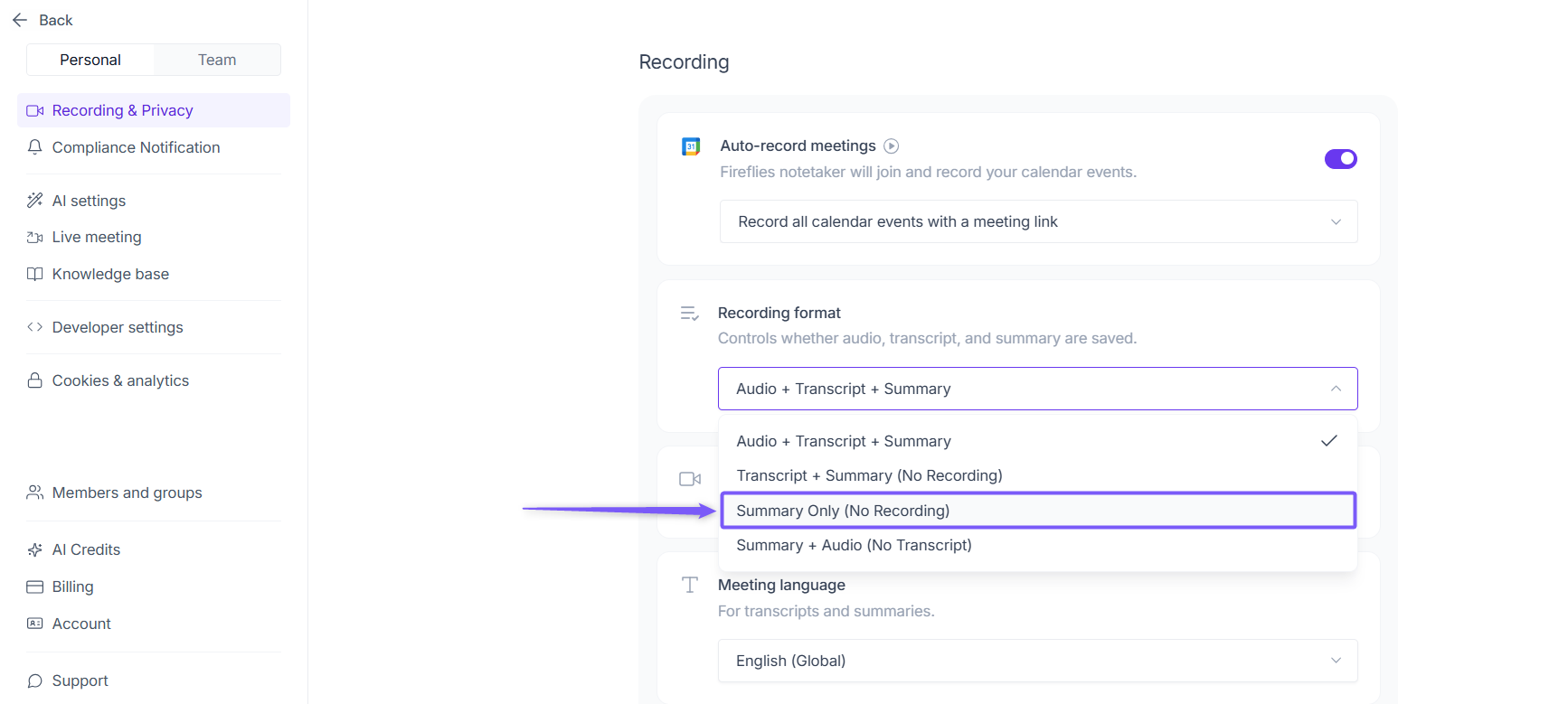
When you select Summary Only, your meeting will keep only the AI summary. The audio and transcript will be deleted automatically after processing.
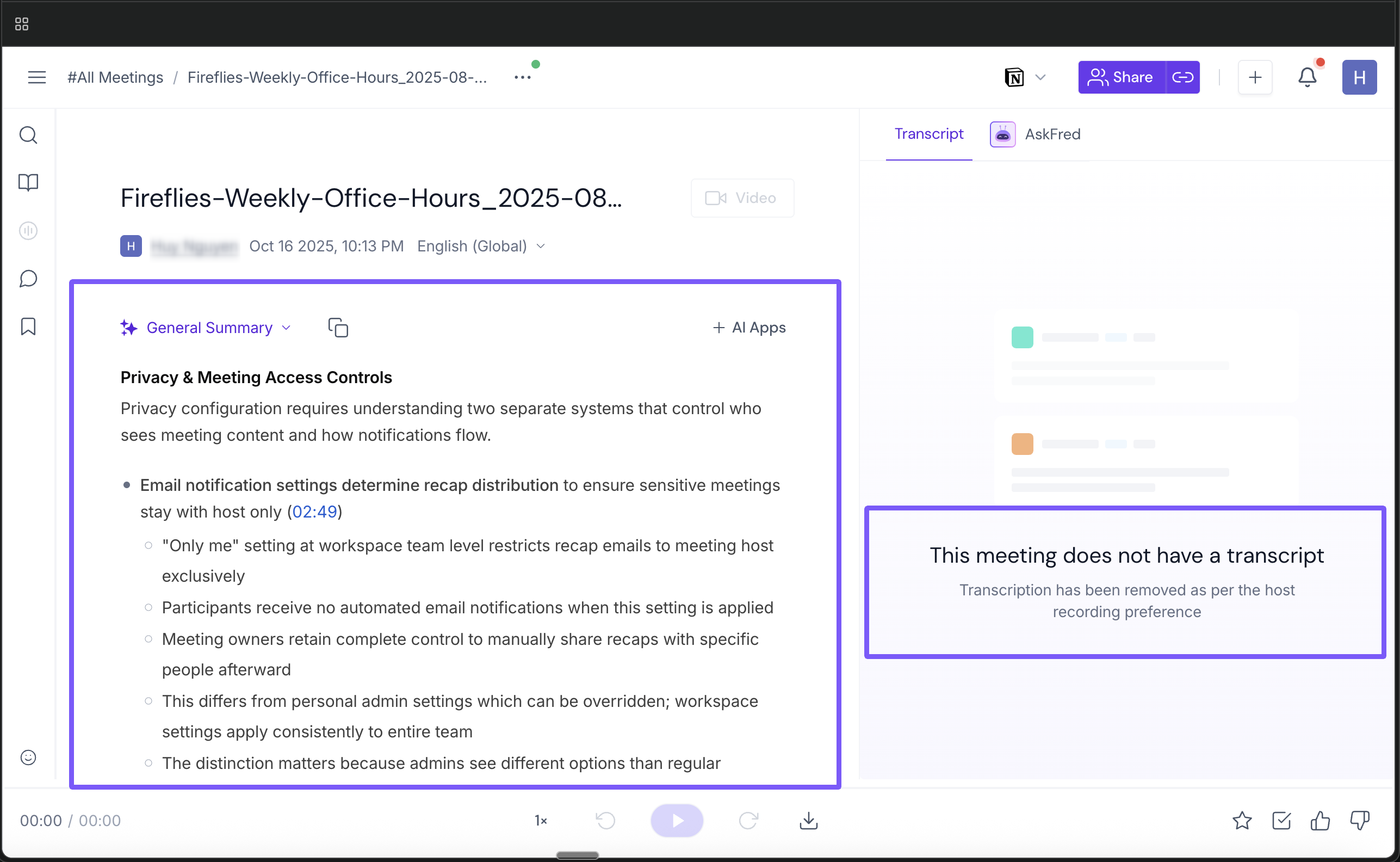
4. Summary + Audio (No Transcript)
This mode keeps the audio recording and AI summary without storing the transcript.
What Fireflies keeps in this mode:
Audio recording
AI summary — key points, action items, topics, and insights
What Fireflies deletes:
Transcript — not stored
✅ Best for:
Teams that prefer listening to recordings but do not require searchable transcripts.
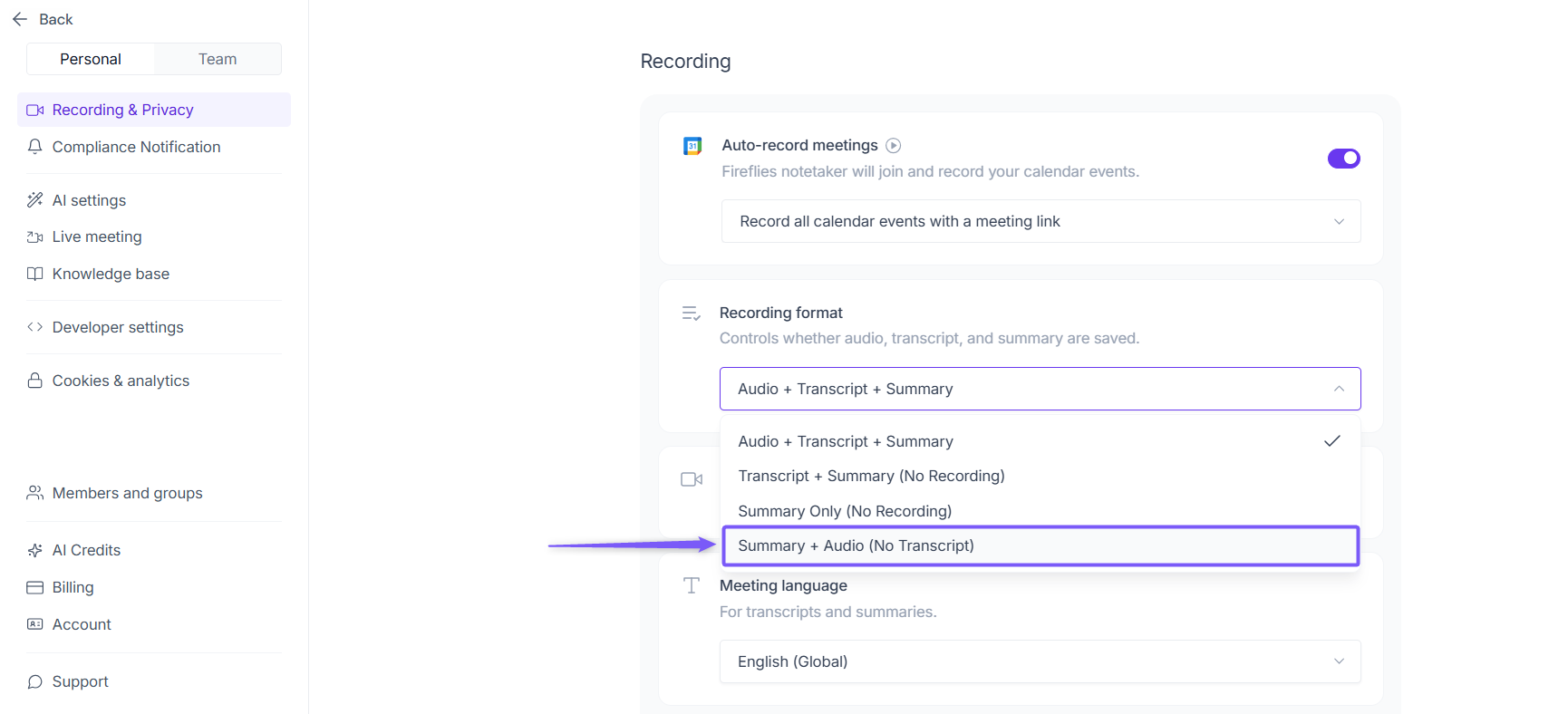
When you select Summary + Audio, your meeting will keep the audio recording and AI summary. The transcript will not be saved.
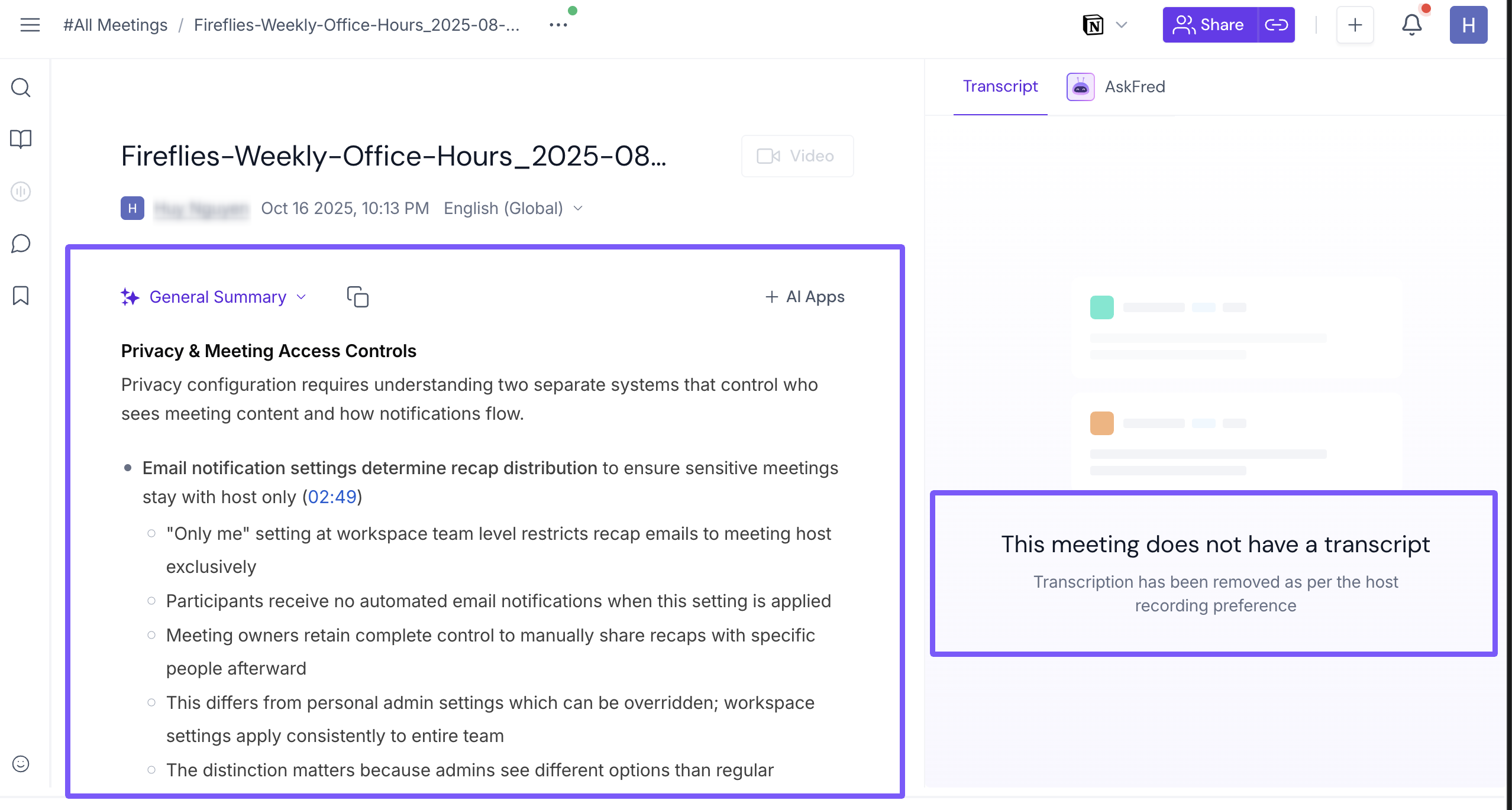
📊 Recording Modes Comparison Table
Recording Mode | What Fireflies Keep | What Fireflies Delete | Best For | Compliance Level |
Audio + Transcript + Summary (Default) | ✅ Full audio ✅ Full transcript ✅ AI summary | ❌ Nothing | Teams that need full context, playback, and detailed review | Lowest restrictions (standard business use) |
Transcript + Summary (No Recording) | ✅ Transcript ✅ AI summary | ❌ Audio (deleted after transcription)❌ Video | Regulated teams that allow transcripts but require audio deletion | Medium (audio restricted) |
Summary Only (No Recording) | ✅ AI summary only | ❌ Audio (deleted automatically) ❌ Transcript (deleted after summary is generated) | Highly regulated teams needing insights without storing text or audio | Highest compliance (no recordings kept) |
Summary + Audio (No Transcript) | ✅ Audio | ❌ Transcript | Teams that prefer recordings but don’t need transcripts | Medium (transcript restricted) |
🛡 Team Compliance Management (Enterprise Only)
Enterprise admins can enforce recording modes for the entire organization to keep every meeting compliant.
1. Open your Fireflies web app and click on Settings in the main navigation menu.
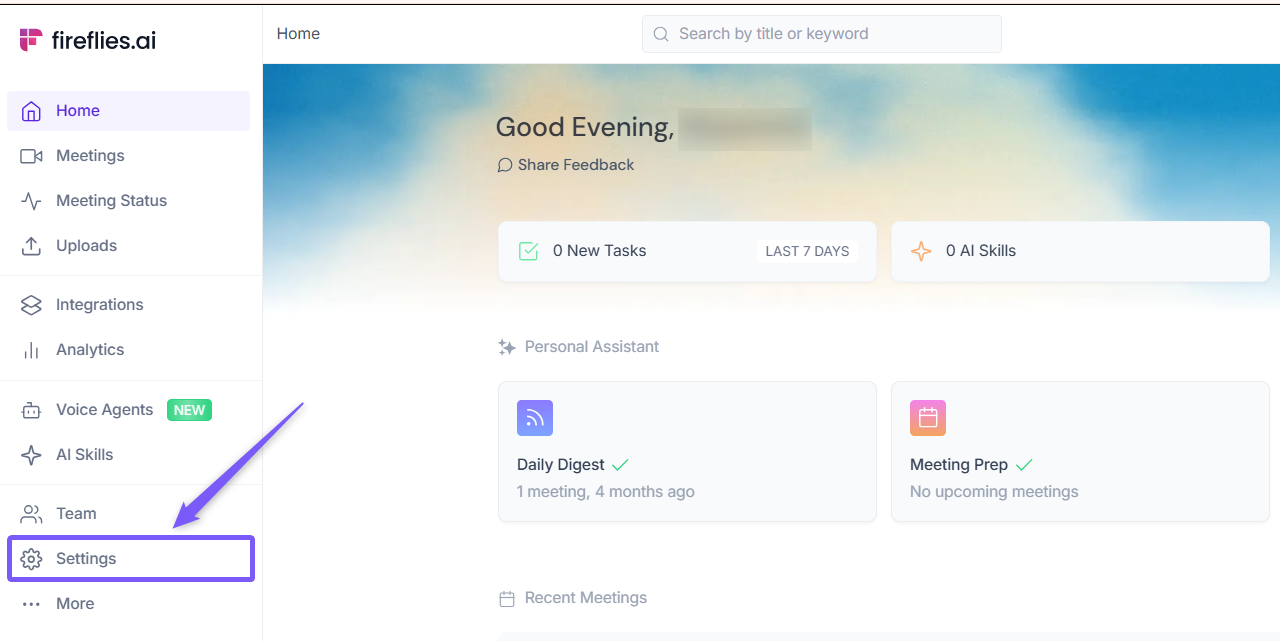
2. Switch to the Team tab.
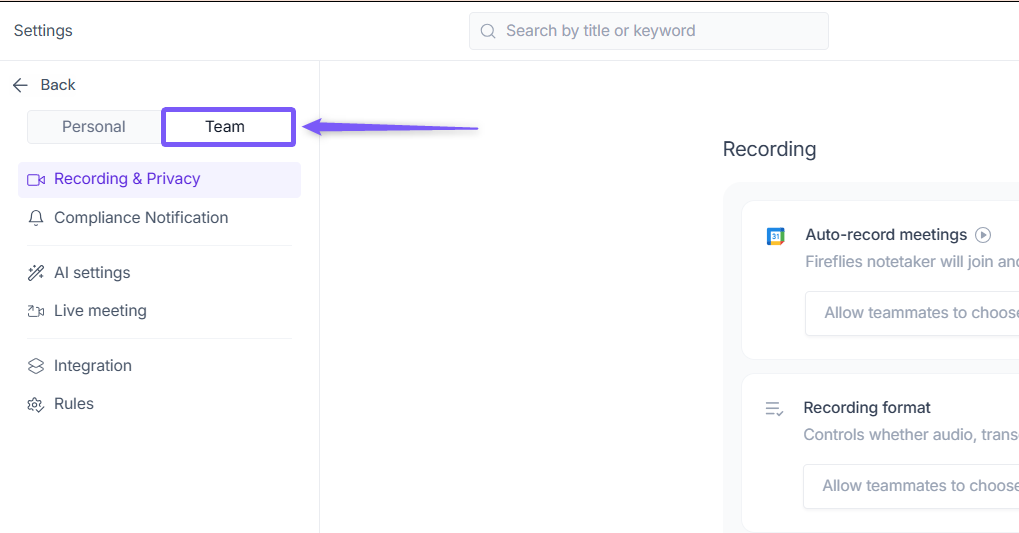
3. From the left panel, click Recording & Privacy (Team tab). navigate to Recording format section.
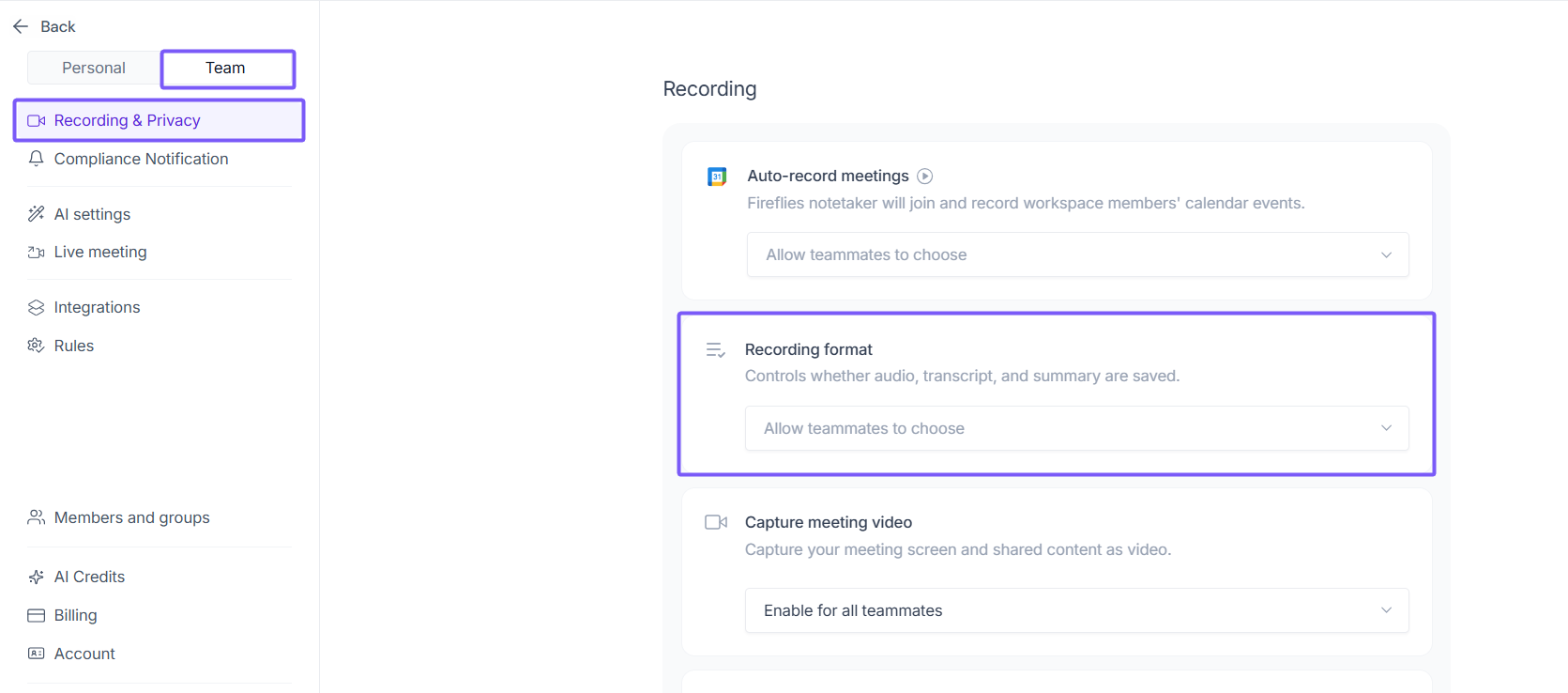
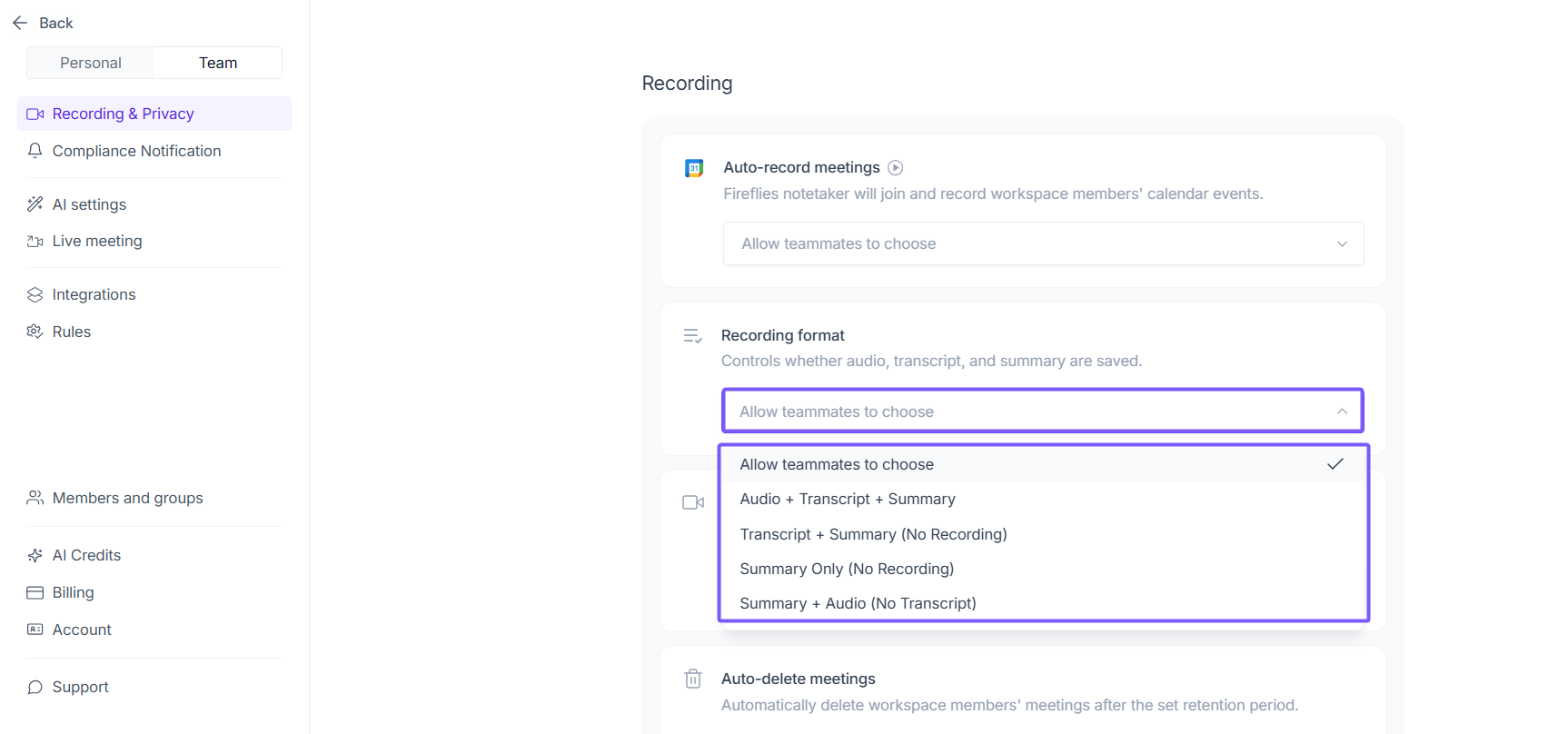
4. Click the Recording format dropdown. You’ll see a list of all available recording modes you can choose from.
✅ Admin controls include:
Setting org-wide retention and recording policies
Enforcing any recording mode
Overriding individual user settings when required
Ensuring consistent compliance across all teams
Individual users can choose their own recording mode unless it has been locked by an admin at the organization level. Admins can allow this by selecting the Allow teammates to choose option in the Recording format setting.
🛠 Troubleshooting & FAQs
Why is my audio missing?
You’re likely using Transcript + Summary or Summary Only mode.
These modes delete audio automatically for compliance.
Can I recover a deleted transcript or audio file?
No — Once audio or transcript is deleted (based on the mode you selected), it cannot be restored.
Does changing the recording mode affect past meetings?
No — New settings apply only to future meetings. Past meetings stay unchanged.
Why do I see only the summary for my meeting?
You selected Summary Only (No Recording), which keeps only the AI summary and deletes everything else.
Who can change recording modes?
Individual users can choose their own mode
Enterprise admins can enforce a mode for the entire org. If admin controls are applied, users cannot override them.
Do Fireflies still join meetings normally in Summary-Only mode?
Yes. The workflow stays the same — only the storage changes after the meeting ends.
🔁 Recap
Audio + Transcript + Summary: Keeps everything. Best for full review and playback.
Transcript + Summary: Keeps text only. Audio is deleted after transcription.
Summary Only: Keeps only the summary. Both audio and transcript are deleted.
Summary + Audio (No Transcript) — stores audio and summary without saving the transcript
Admins can lock these settings for the whole organization.
These modes help you stay compliant while choosing how much meeting data you want to keep.
📚 Related Guides
Policy on Keeping Information Safe — How Fireflies protects your data and handles third-party access.
Responsible and Secure Meeting Notetaking with Fireflies — Best practices for recording, transcribing, and summarising meetings safely.
How to Share a Fireflies Meeting with a Password-Protected Link — Securely share meetings with external users using password-protected links and optional link expiration controls.
How We Encrypt Your Data — Technical details on encryption, data-at-rest, data-in-transit, and storage infrastructure.
Set up FERPA compliance for your workspace — Steps and requirements for enabling FERPA support in Fireflies
Set up HIPAA compliance for your workspace — Steps and requirements for enabling HIPAA compliance