How to capture video for your Fireflies meetings?
Last updated: October 8, 2026
Sometimes the most important part of a meeting isn’t what was said - it’s what was shown. Screenshares, demos, and slides often hold key context that transcripts alone can miss.
With Fireflies video capture, you can replay meetings with video, audio, and transcripts together, making it easy to revisit details and share full context with your team.
Plan requirement
Video capture is available on the Pro, Business, and Enterprise plans and applies to future meetings.
Pro and Business: 720p video quality
Enterprise: 1080p video quality
🚀 Enable video recording for your meetings
Step 1: Log in to your Fireflies account and go to Settings from the main dashboard.
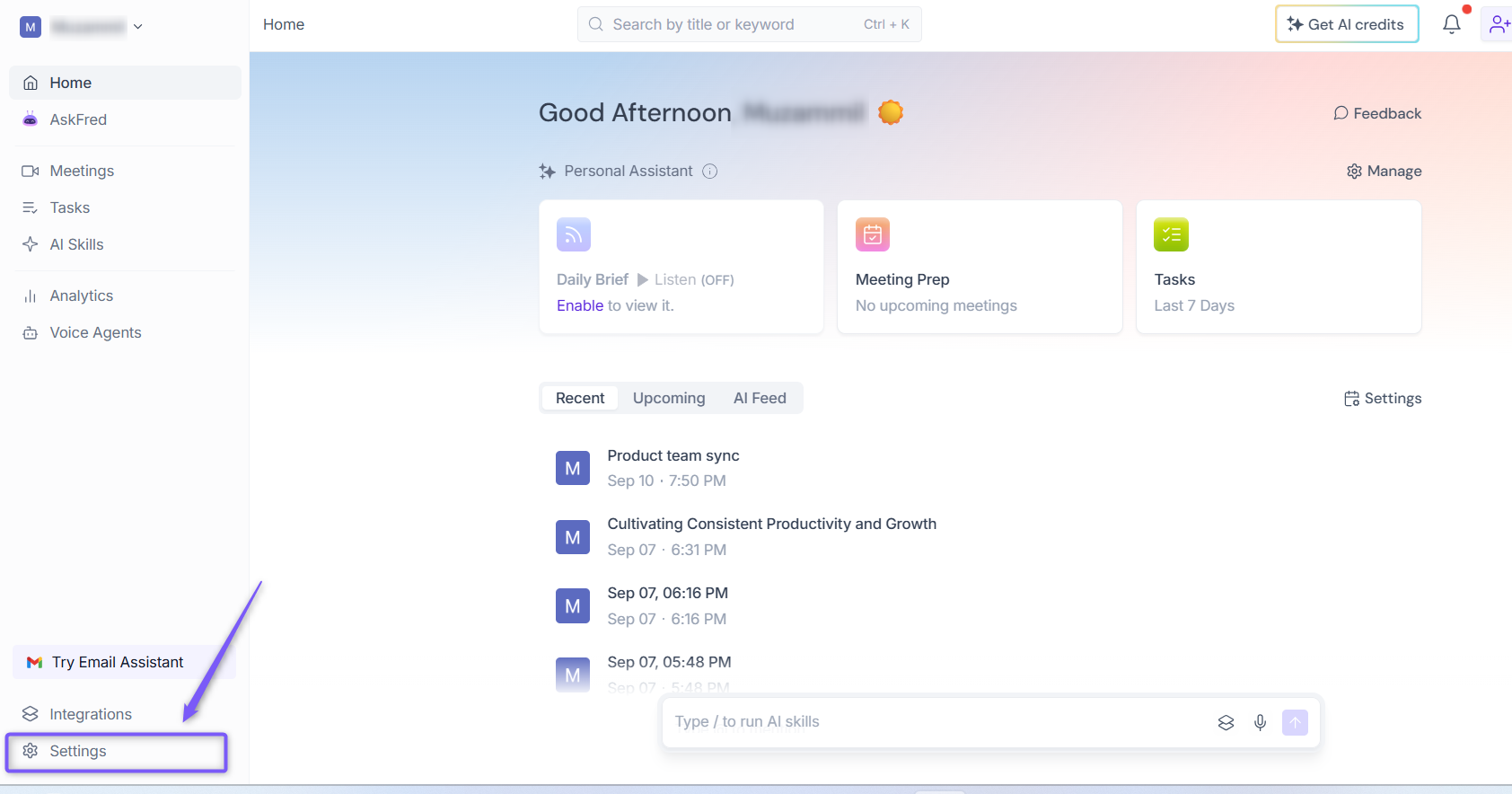
Step 2: From the left panel, click Recording & Privacy (Personal) and under Recording, locate Capture meeting video.
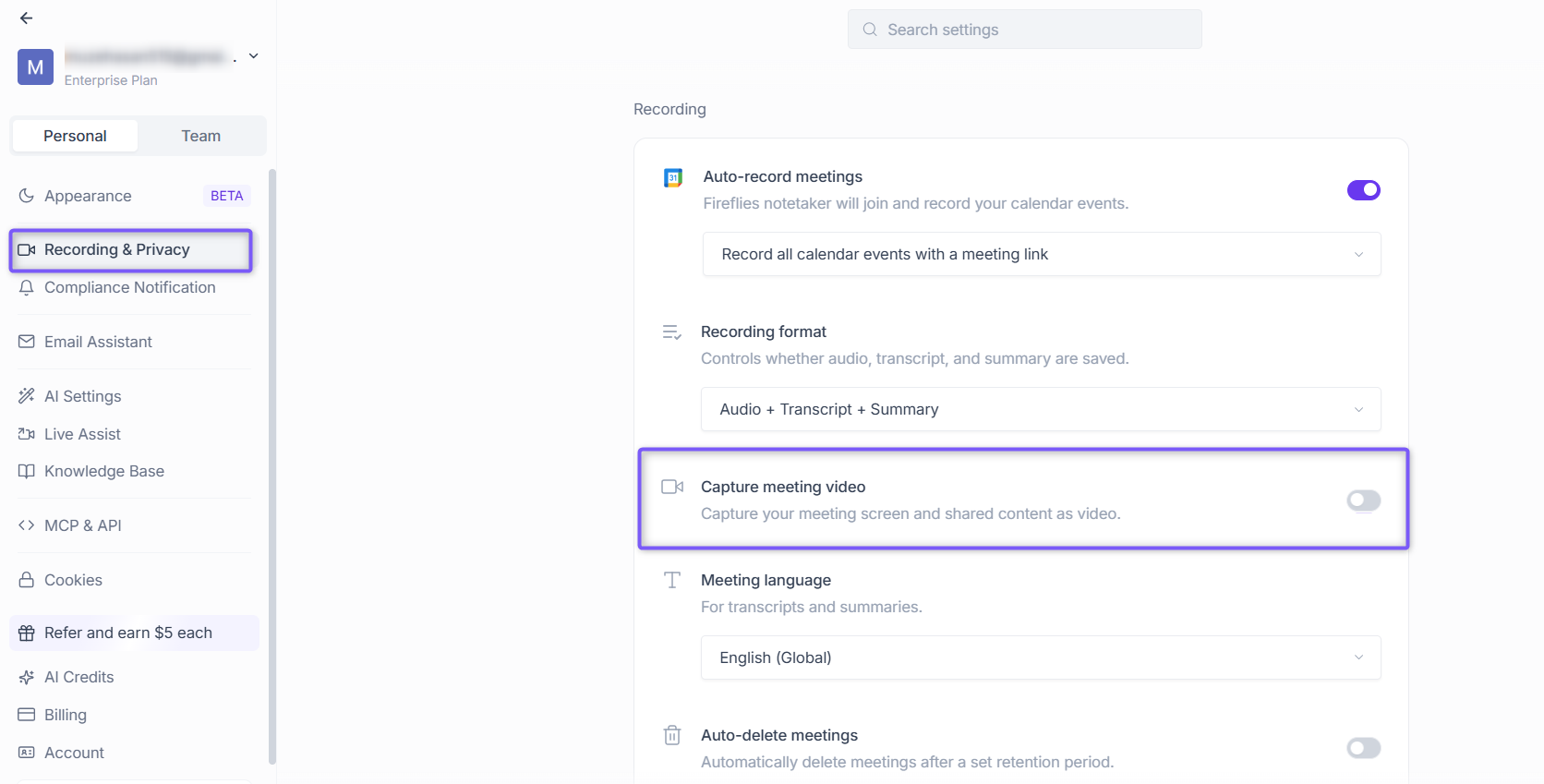
Step 3: Toggle on Capture meeting video to start capturing videos for your meetings.
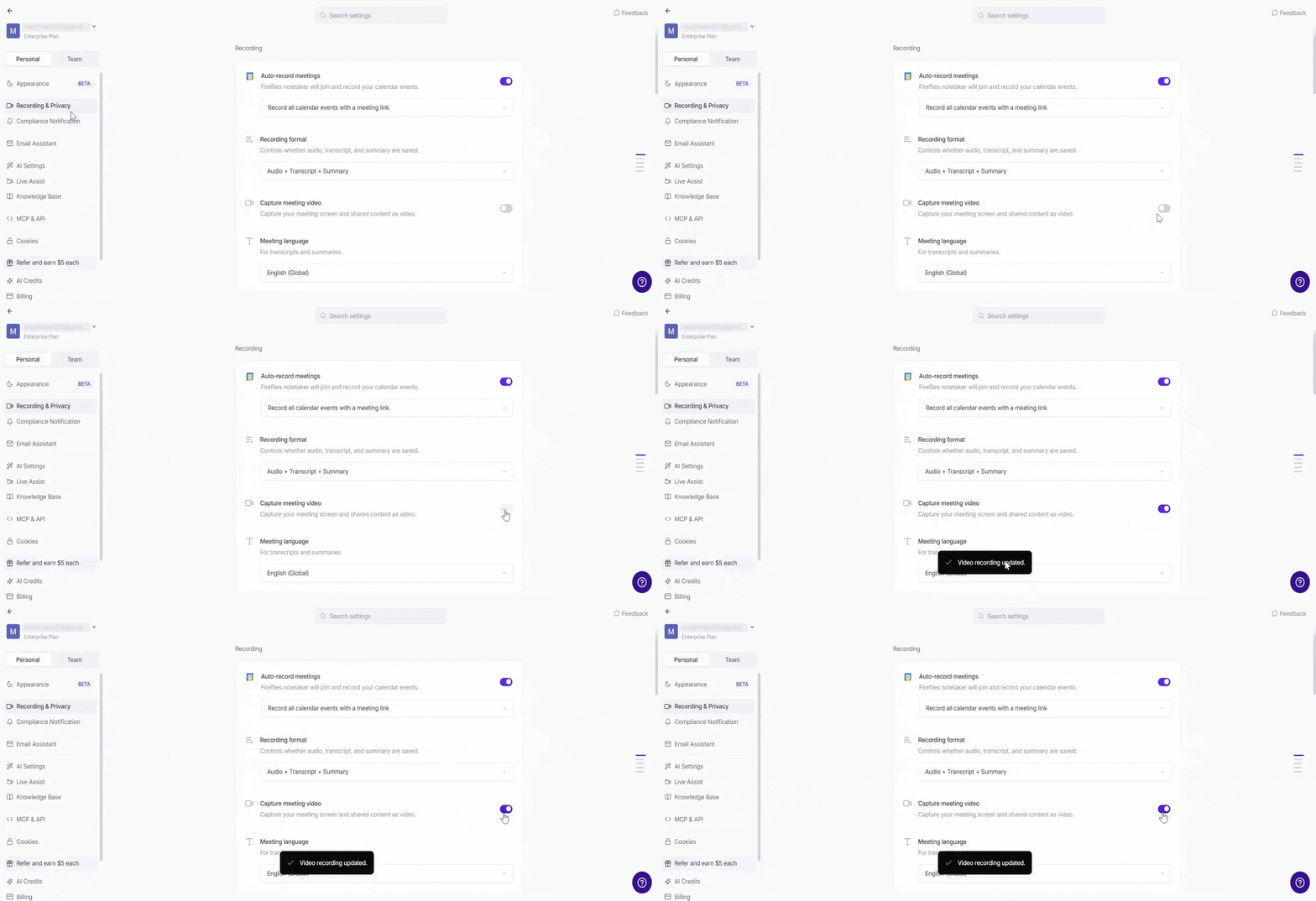
Once this setting is enabled, Fireflies automatically records the meeting video along with the audio and transcript, allowing you to watch the meeting again whenever needed.
⚙ Team-level video settings (Admins only)
If you’re a team admin, you can control video recording for everyone on your team from Team Settings. This helps you decide whether teammates can choose their own video settings or if video recording should be enforced (or disabled) for all meetings.
How to access team video settings
Navigate to Settings and switch to the Team tab.
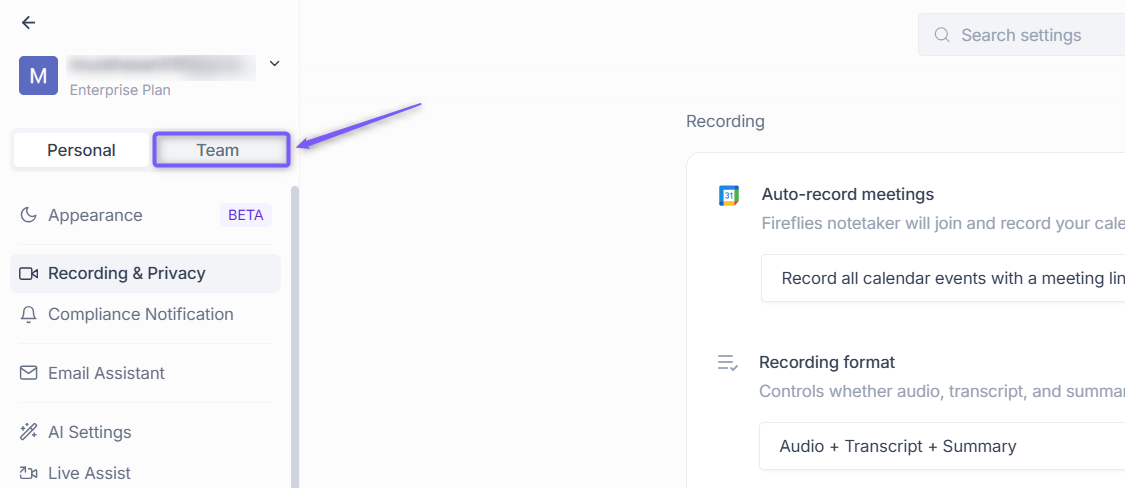
From the left panel, click Recording & Privacy and under Recording, locate Capture meeting video.
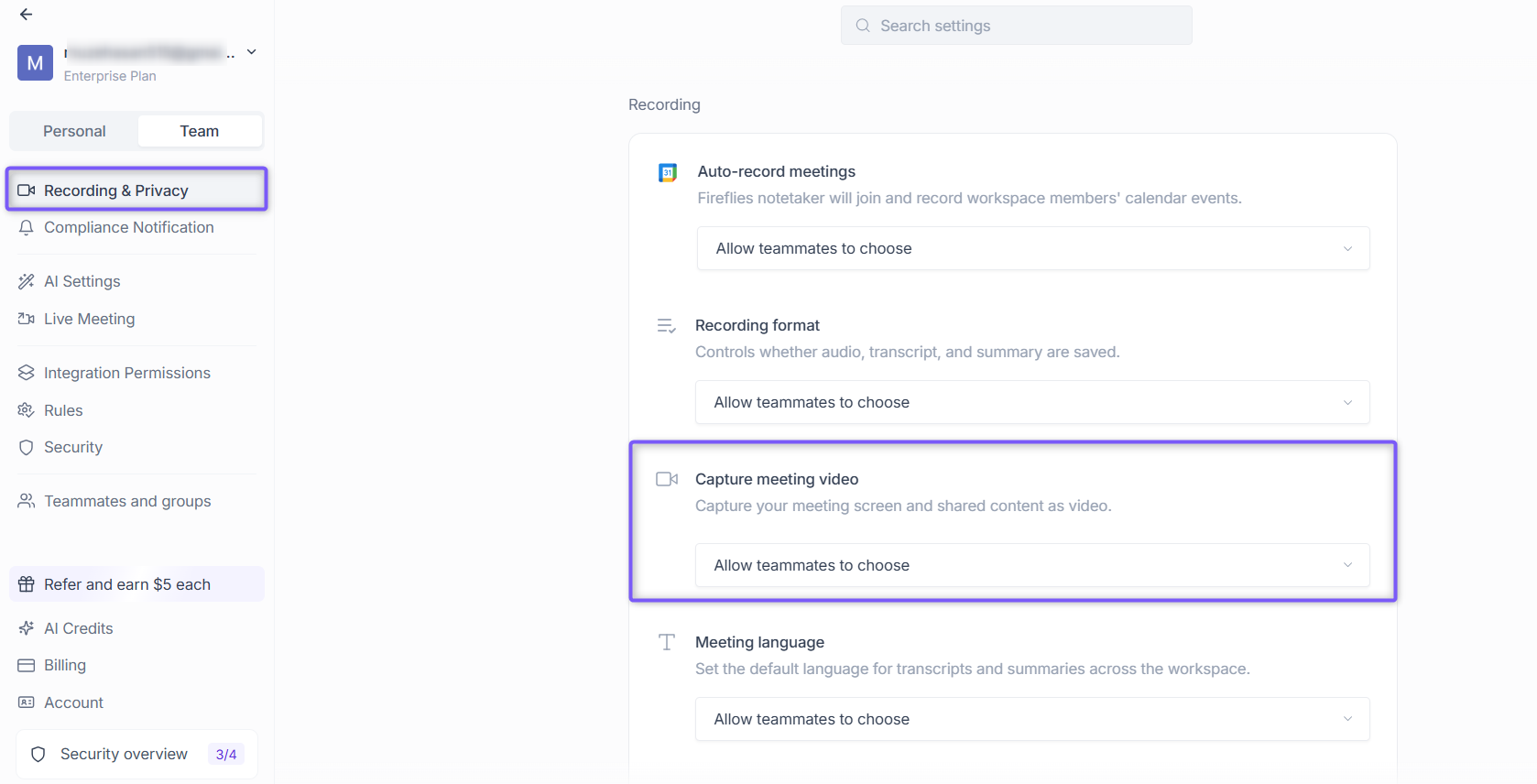
From the dropdown menu, choose how meeting videos should be recorded for your team using the options below.
Allow teammates to choose: Each teammate can decide whether to record meeting videos from their own settings.
Enable for all teammates: Meeting videos are recorded for everyone on the team, and teammates can’t change this setting.
Disable for all teammates: Meeting videos are not recorded for any teammate meetings.
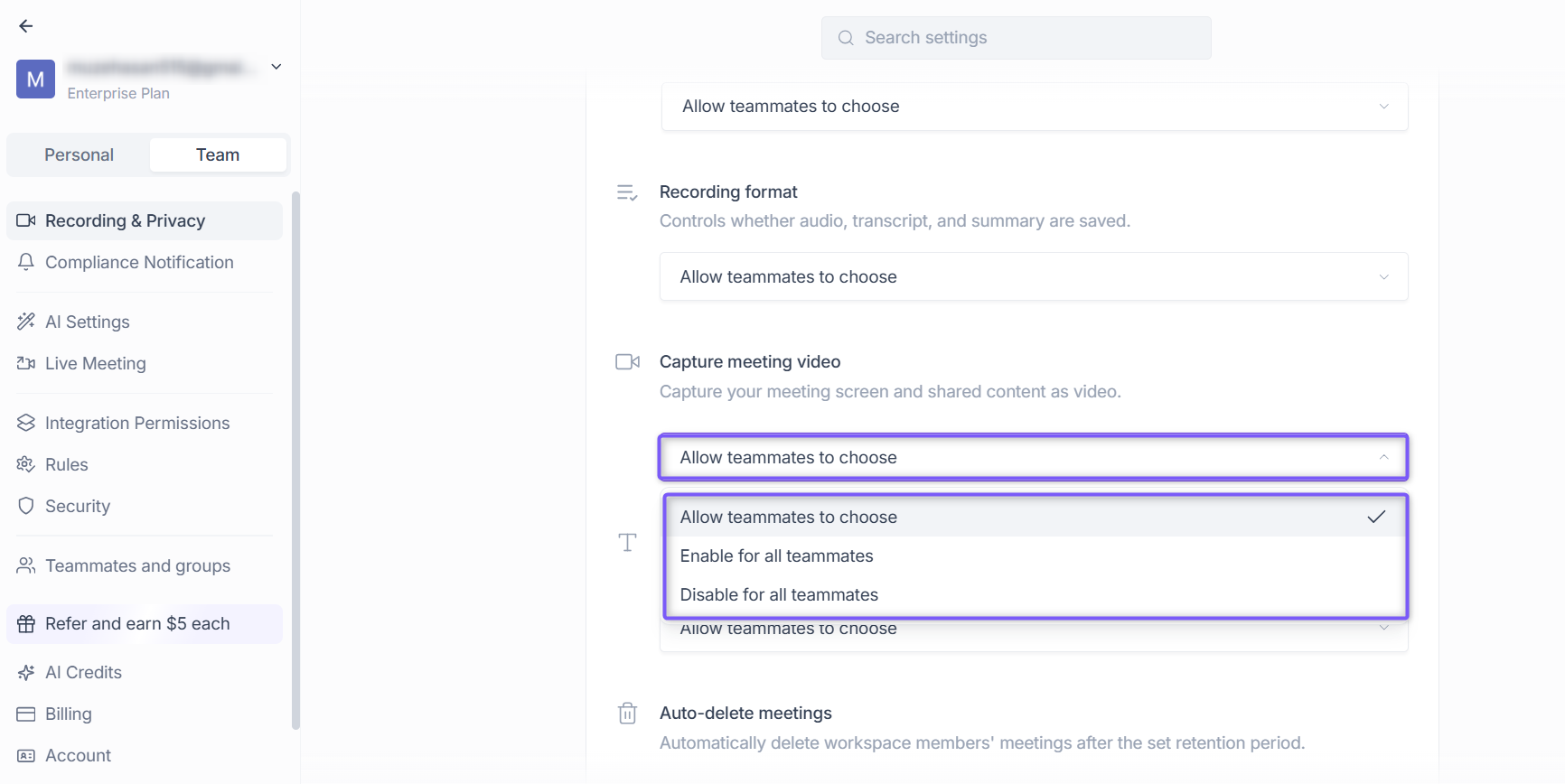
Select the option you want for your team and your changes are saved automatically.
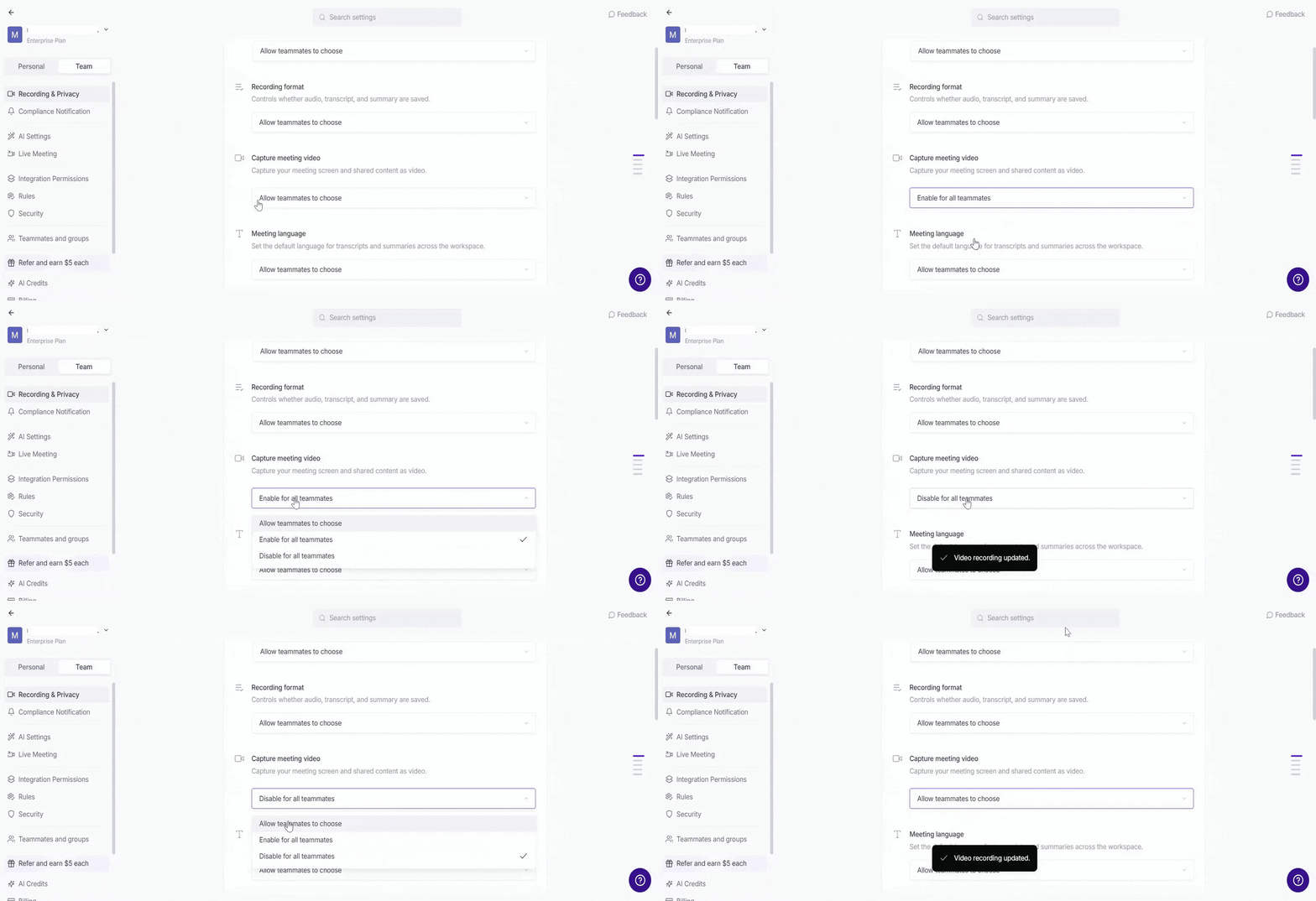
Teammates can’t override this setting. It applies to all teammates (except admins) and only affects meetings recorded after the setting is saved.
▶ Watch your meeting video
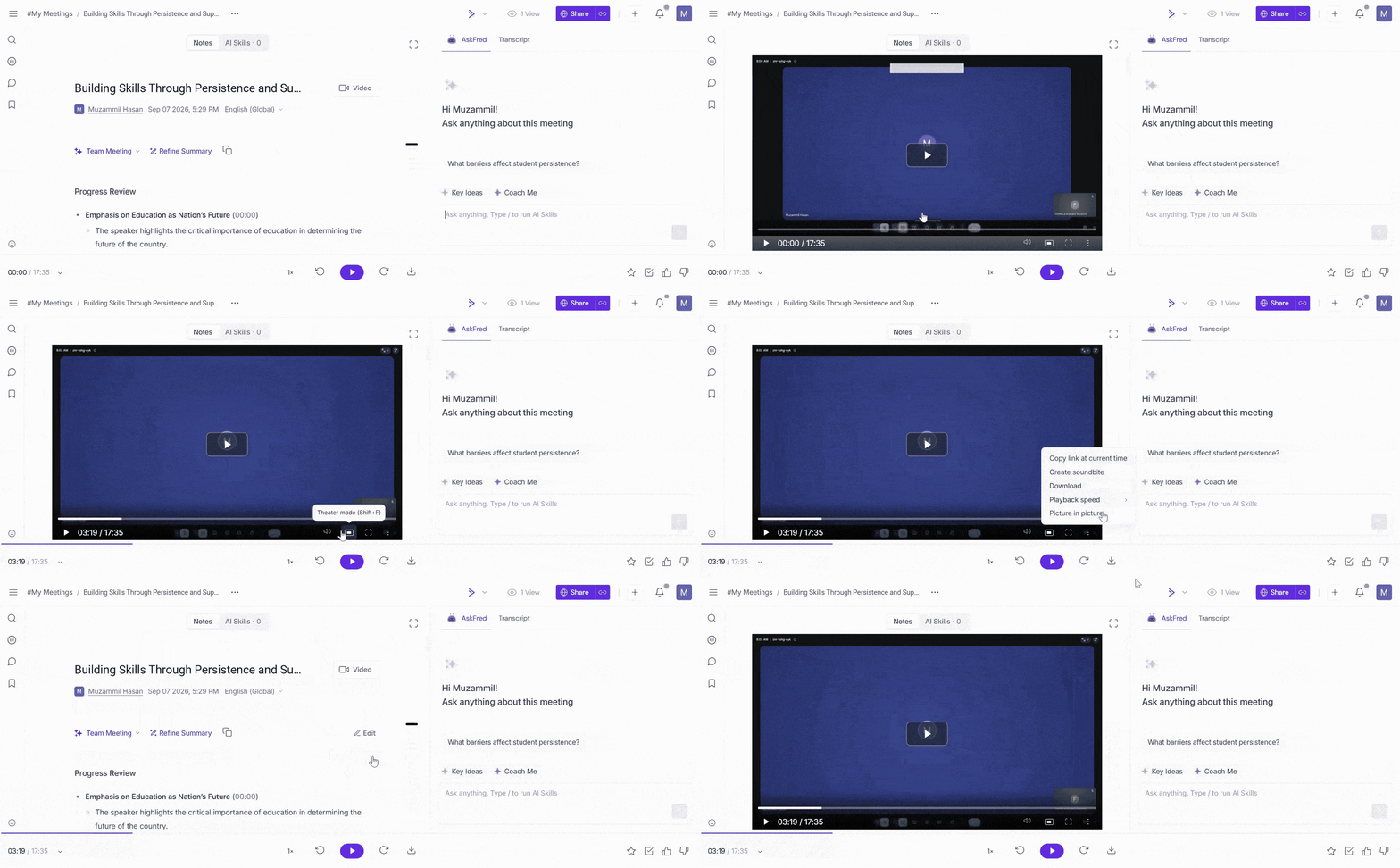
After your meeting ends and Fireflies finishes processing it, the video is added to the notepad.
To watch the meeting recording video:
Click on the Meetings tab from the left-hand menu.
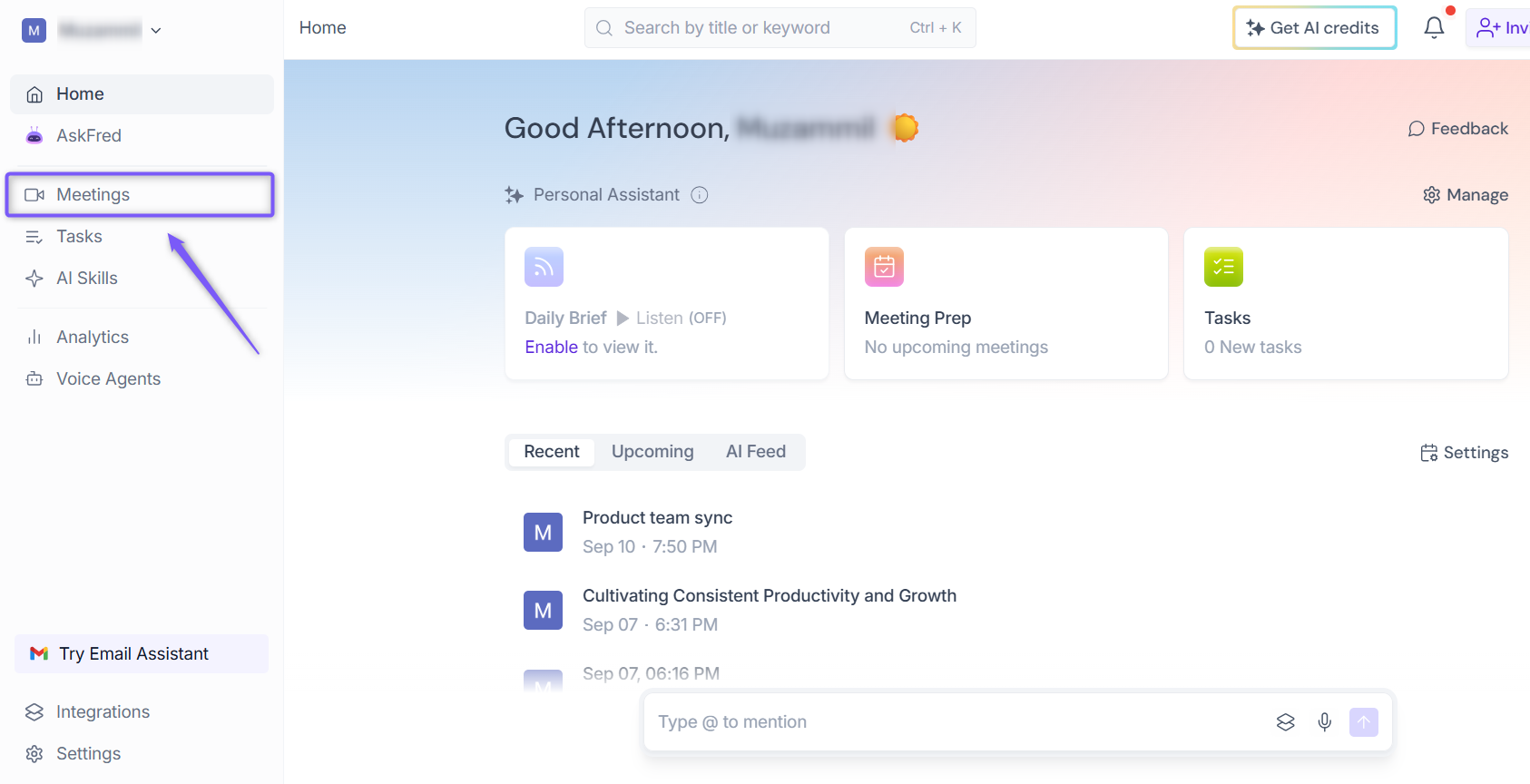
Find the meeting you want to watch by using the search bar or selecting a category such as My Meetings, All Meetings, or Channels.
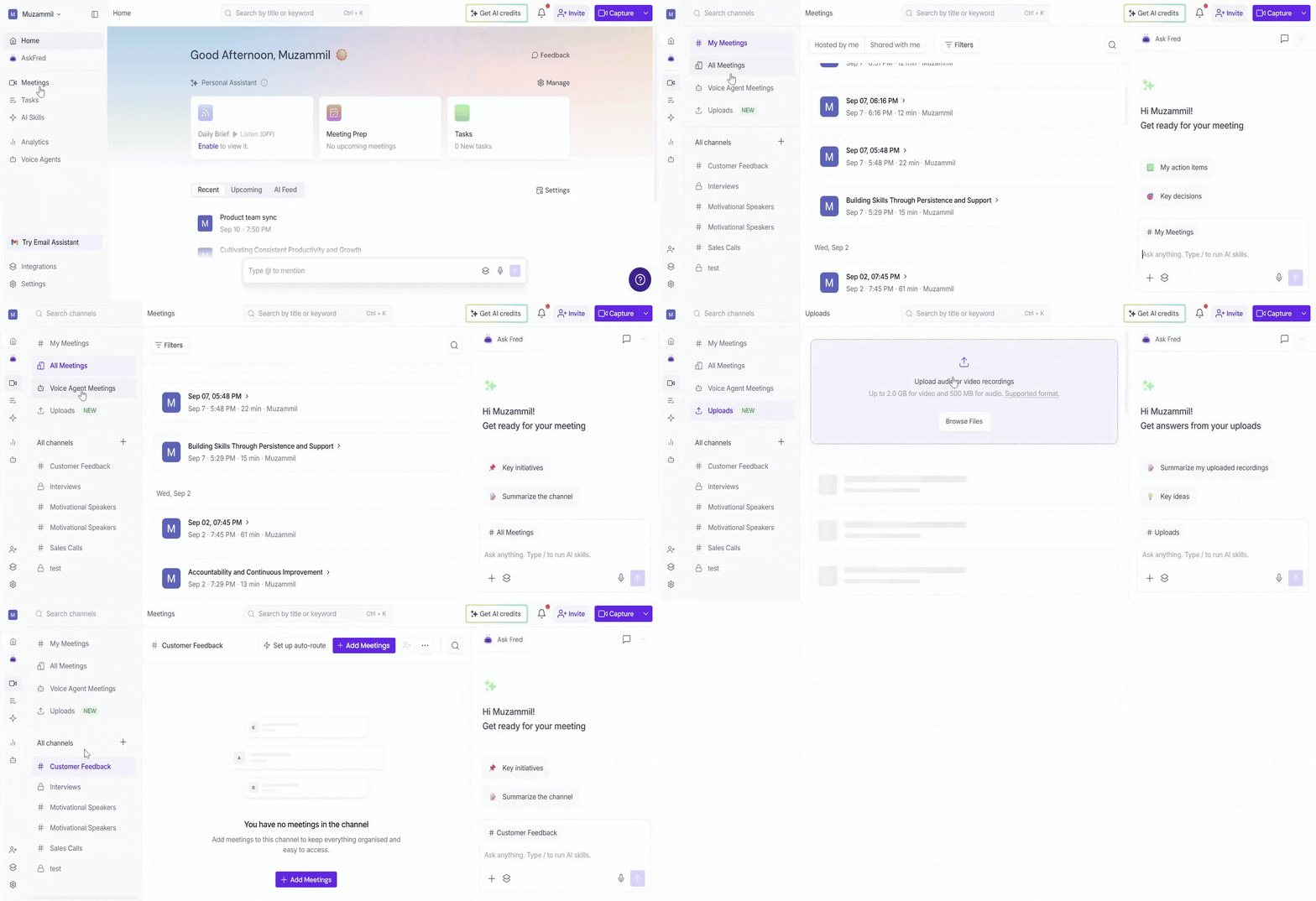
Open the meeting you want to watch the video captured by Fireflies by clicking on it.
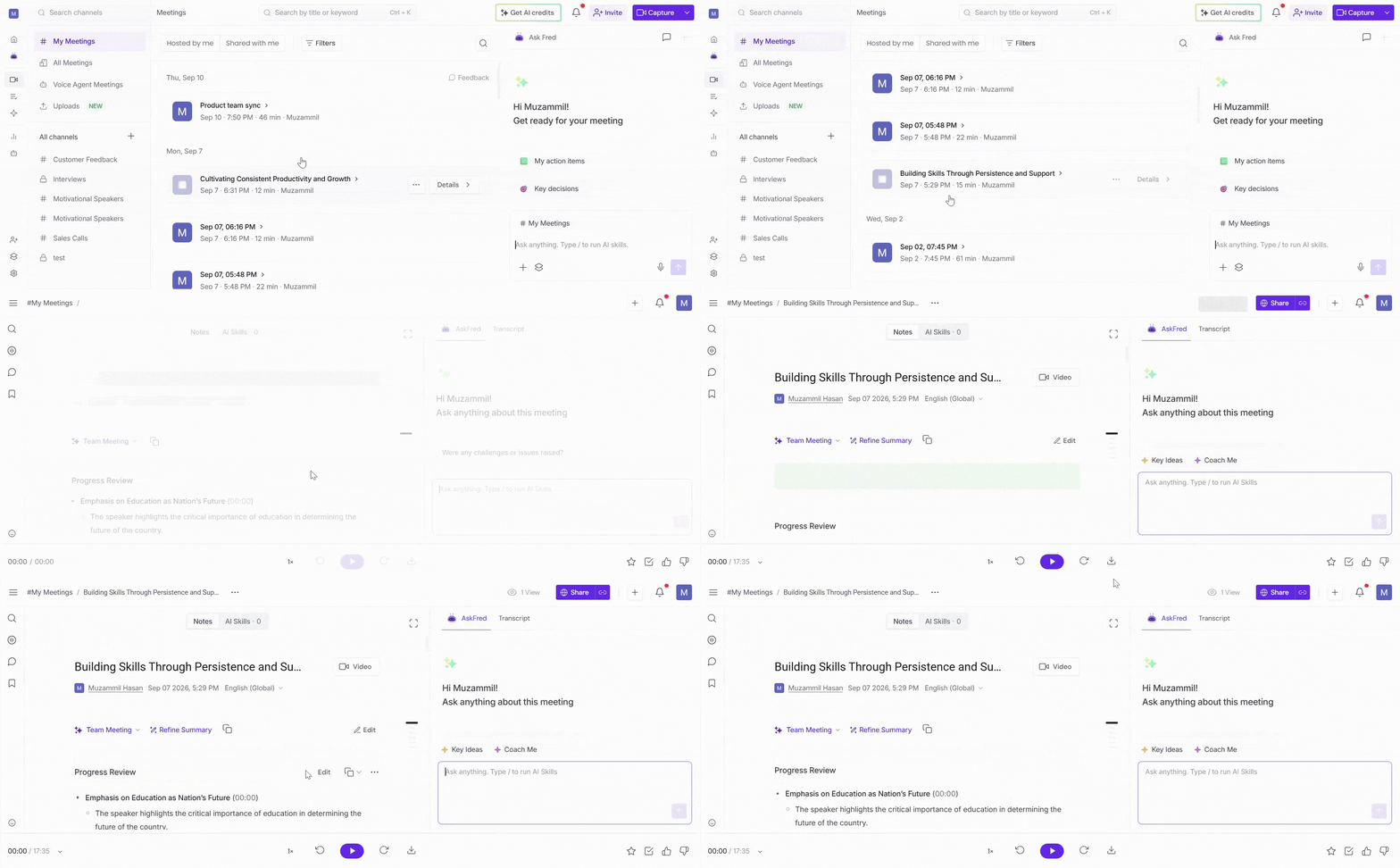
Click on the Video button at the top of the meeting page to show or hide the meeting video while reviewing the transcript.
🔄️ Recap
Fireflies records meeting video along with audio and transcripts on Pro, Business and Enterprise plans.
Pro and Business plans record in 720p quality. Enterprise records in 1080p quality.
You can enable video recording from Meeting Settings in the Fireflies web app.
Meeting videos are available in the Meeting Notepad.
Admins can control video recording for the entire team using Team Settings.
Team-level changes apply only to meetings recorded after the setting is saved.
Video recording is available only in the Fireflies web app and isn’t supported when meetings are captured using the Chrome extension.
📌 Related Guides
If you’d like to explore more ways to organize and work with your meeting insights, check out these guides: