Find and Manage Your Meetings in Fireflies
Last updated: July 29, 2026
Ever needed to go back to a call but couldn't remember where to find it? The Meetings section brings together all your meetings in one place, making it easy to find meetings, no matter how they were captured - by the Fireflies Notetaker, Desktop App, Chrome Extension, Voice Agent, or uploaded from your device.
This guide walks you through the Meetings section and shows you how to find meetings, organize them into Channels, and manage multiple meetings from one place.
👀 Explore the Meetings Section
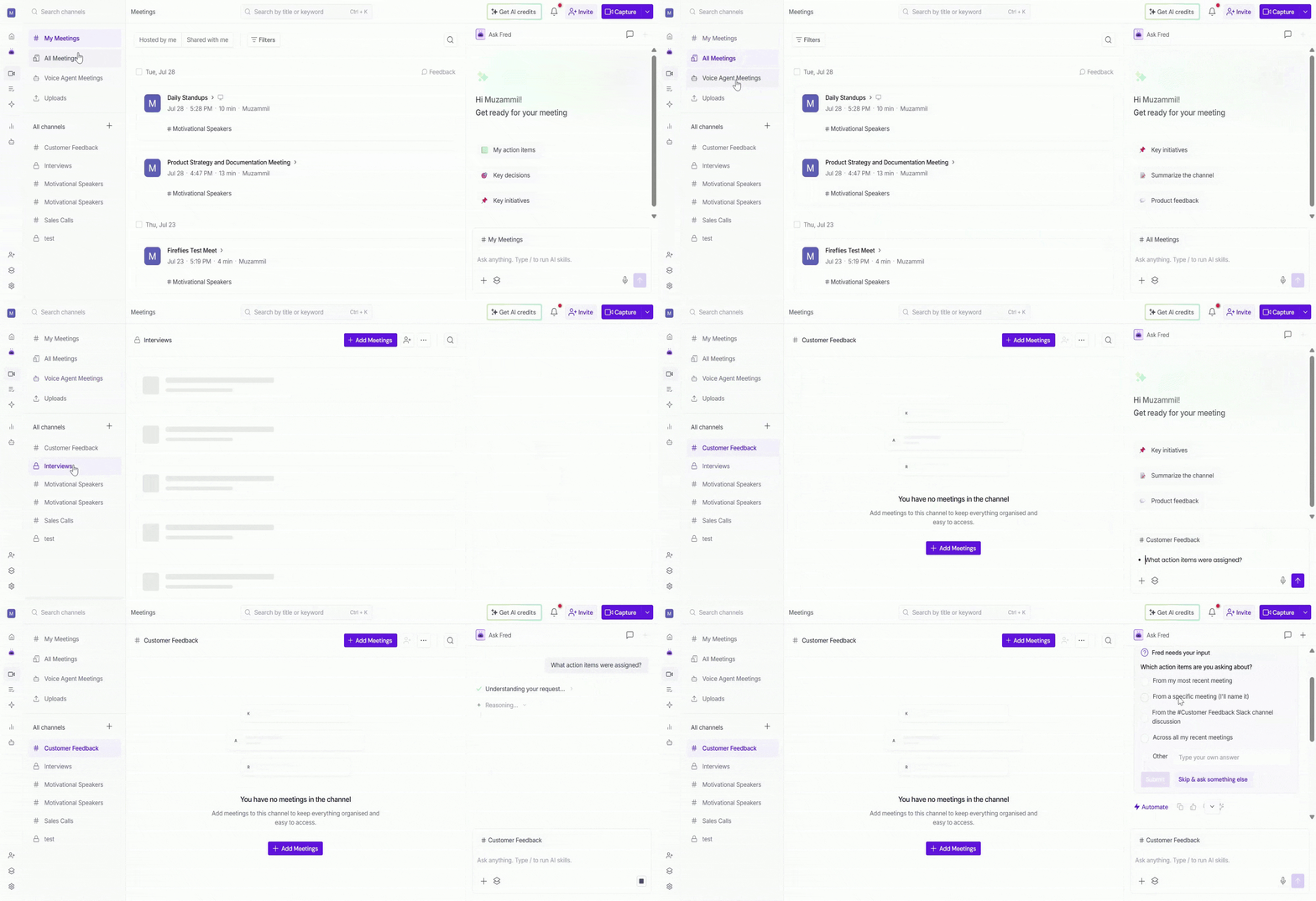
Log in to your Fireflies account and click the Meetings tab from the left sidebar.
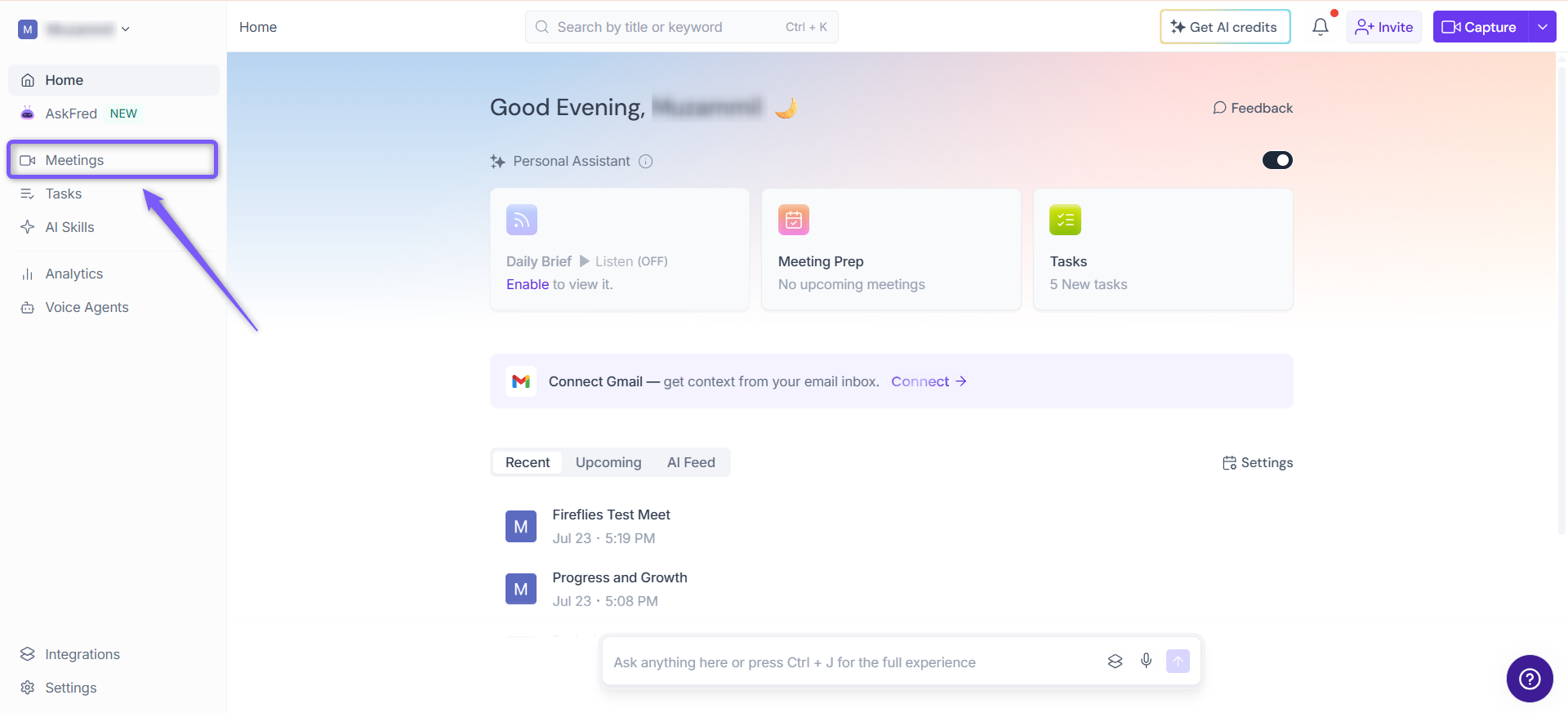
The Meetings section helps you quickly find meetings, organize them into Channels, and manage your meetings from one place.
🗂 Channels
Need a better way to organize your meetings? Use Channels to group related conversations and quickly find the meetings you need.
Default Channels
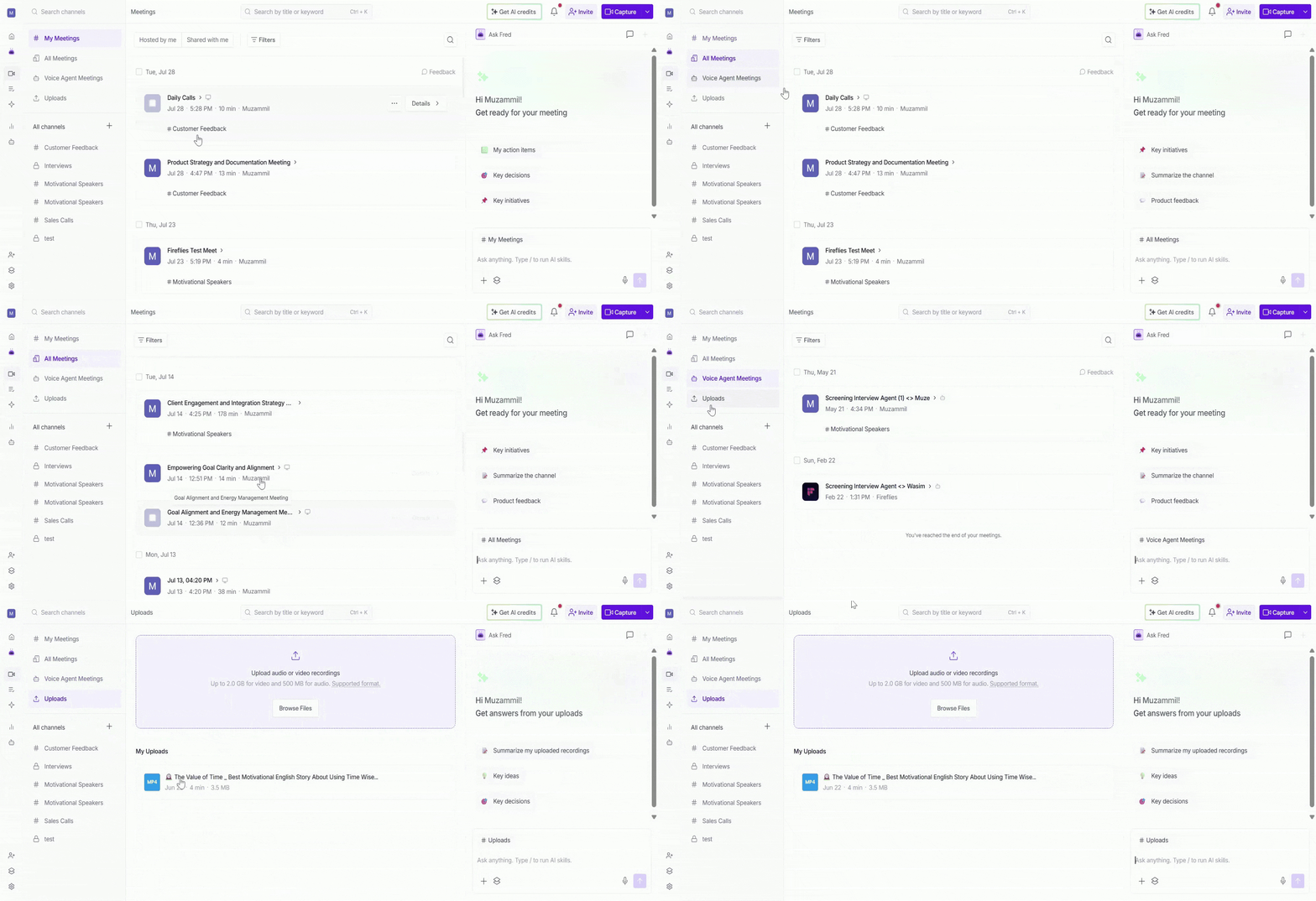
Fireflies automatically creates the following Default Channels to help you quickly find and manage your meetings:
My Meetings: Contains meetings you hosted or created. Use this Channel to quickly access and manage your own meetings.
All Meetings: Contains every meeting available to you, including meetings you hosted, meetings shared with you, Voice Agent calls, desktop app recordings, Chrome Extension recordings, and uploaded recordings. Use this Channel when you want to browse all your accessible meetings in one place.
Voice Agent Meetings: Contains calls handled by your Fireflies Voice Agents. Use this Channel to review and manage conversations captured by your Voice Agents.
Uploads: Upload audio and video recordings to Fireflies for transcription and AI analysis. Access your uploaded recordings, transcripts, AI summaries, action items, and other meeting insights.
Custom Channels
Below the Default Channels, you'll find your Custom Channels. Create them to organize meetings by team, project, client, department, or any workflow that fits your needs.
Private Channels: Marked with a 🔒 icon in the left sidebar and visible only to invited members.
Public Channels: Marked with a
#icon in the left sidebar and visible to everyone in your workspace.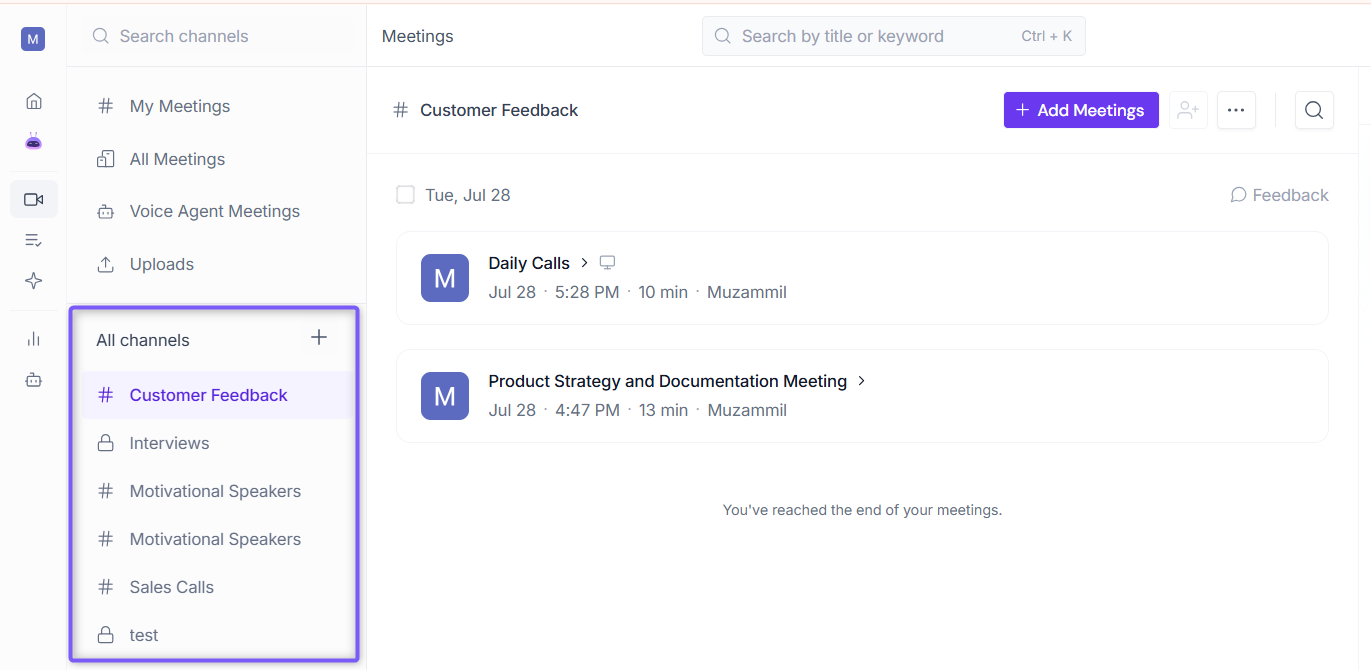
📌 Want to learn more? Check out Learn About Fireflies Channels to Organize Your Meetings.
🎥 Identify How a Meeting Was Captured
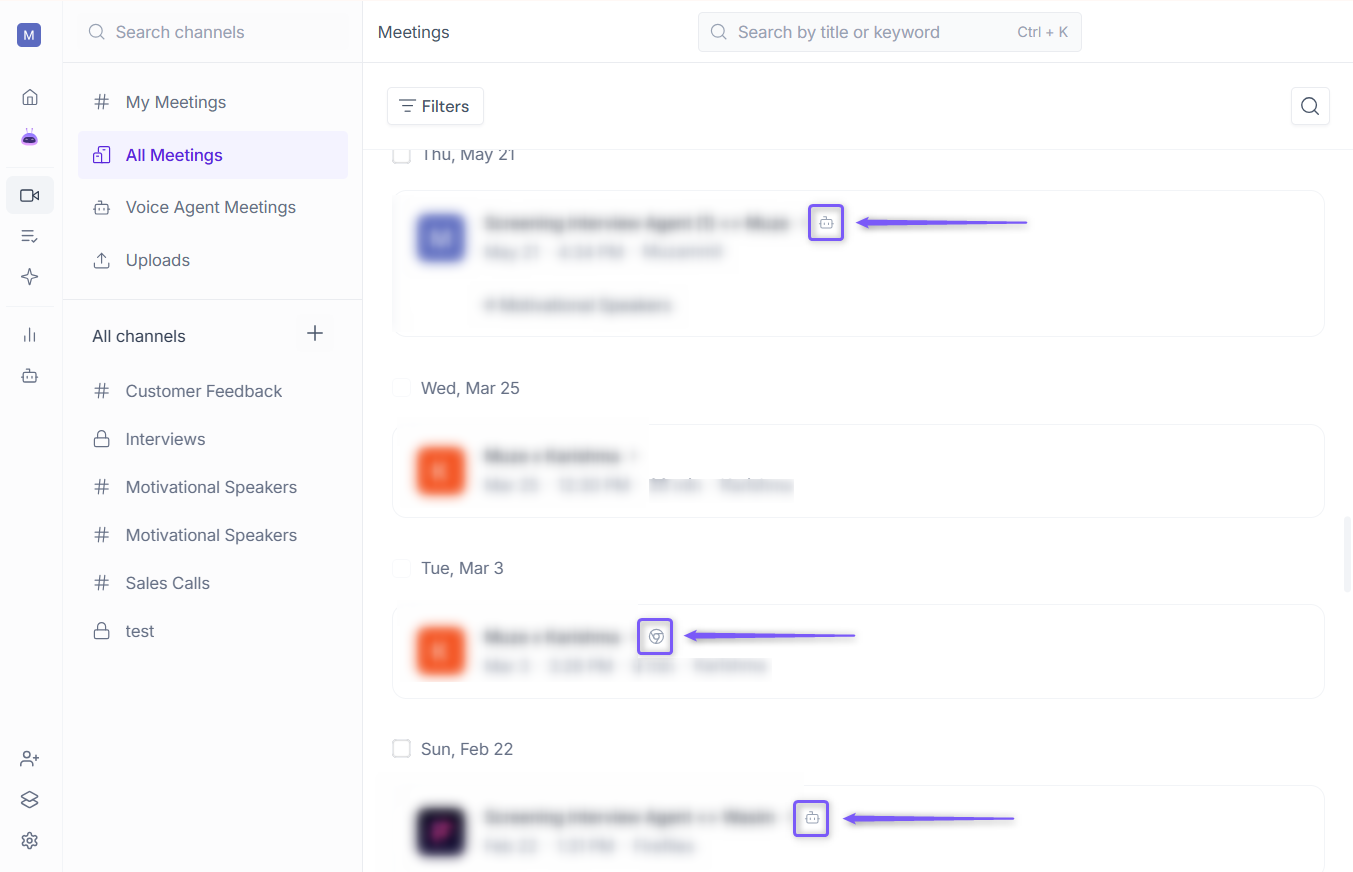
Need to know how a meeting was captured? Fireflies displays an icon next to the meeting title to help you identify the capture method at a glance.
💡 No capture icon? If a meeting doesn't display a capture icon, it was captured by inviting the Fireflies Notetaker from the Fireflies Web App.
Icon | Captured by |
|---|---|
🤖 Robot icon | Captured by a Fireflies Voice Agent. |
🌐 Chrome icon | Captured using the Fireflies Chrome Extension. |
💻 Computer icon | Captured using the Fireflies Desktop App. |
🎙 Microphone icon | Meeting captured using audio recording. |
⬆ Upload arrow icon | Meeting uploaded to Fireflies using the Upload feature. |
🔎 Search and Filter meetings
Need to quickly find a past meeting? Fireflies gives you two ways to search — Local Search for quick filtering within your current channel, and Global Search for more specific searches across your workspace.
1. Local search
Use Local Search to find meetings within the channel you're currently viewing.
💡 Search results depend on the channel you're currently viewing. In My Meetings, results show only your meetings. In All Meetings, results show meetings across your entire workspace.
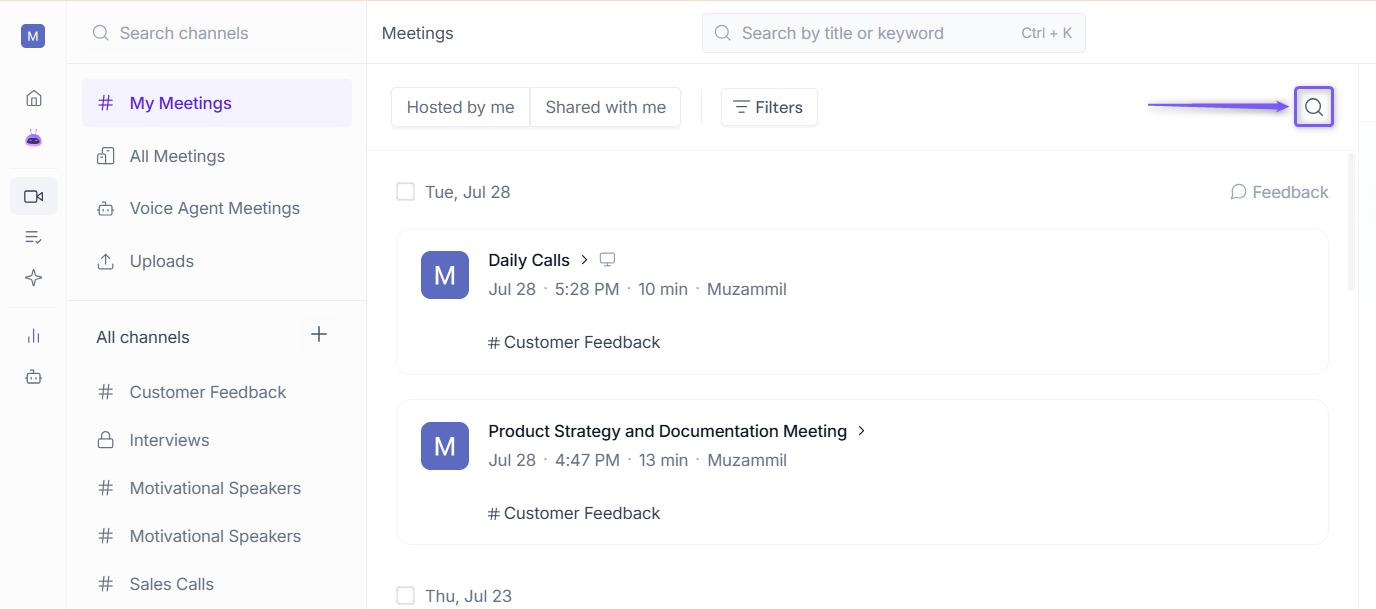
Click the search icon at the top-right of the page.
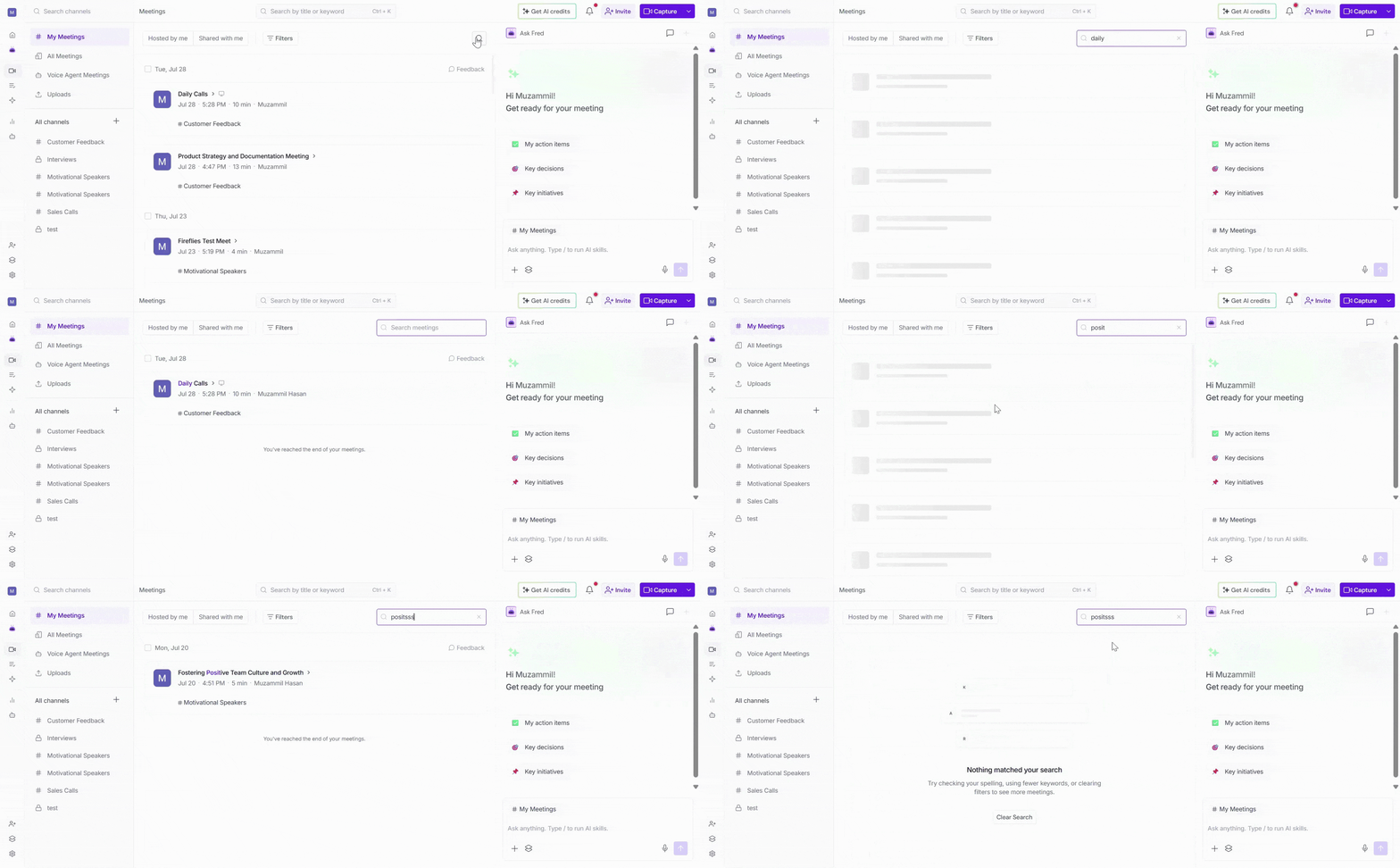
Start typing a meeting title — Fireflies will instantly fetch and display matching meetings as you type. You don't need to type the full name or press Enter.
2. Global search
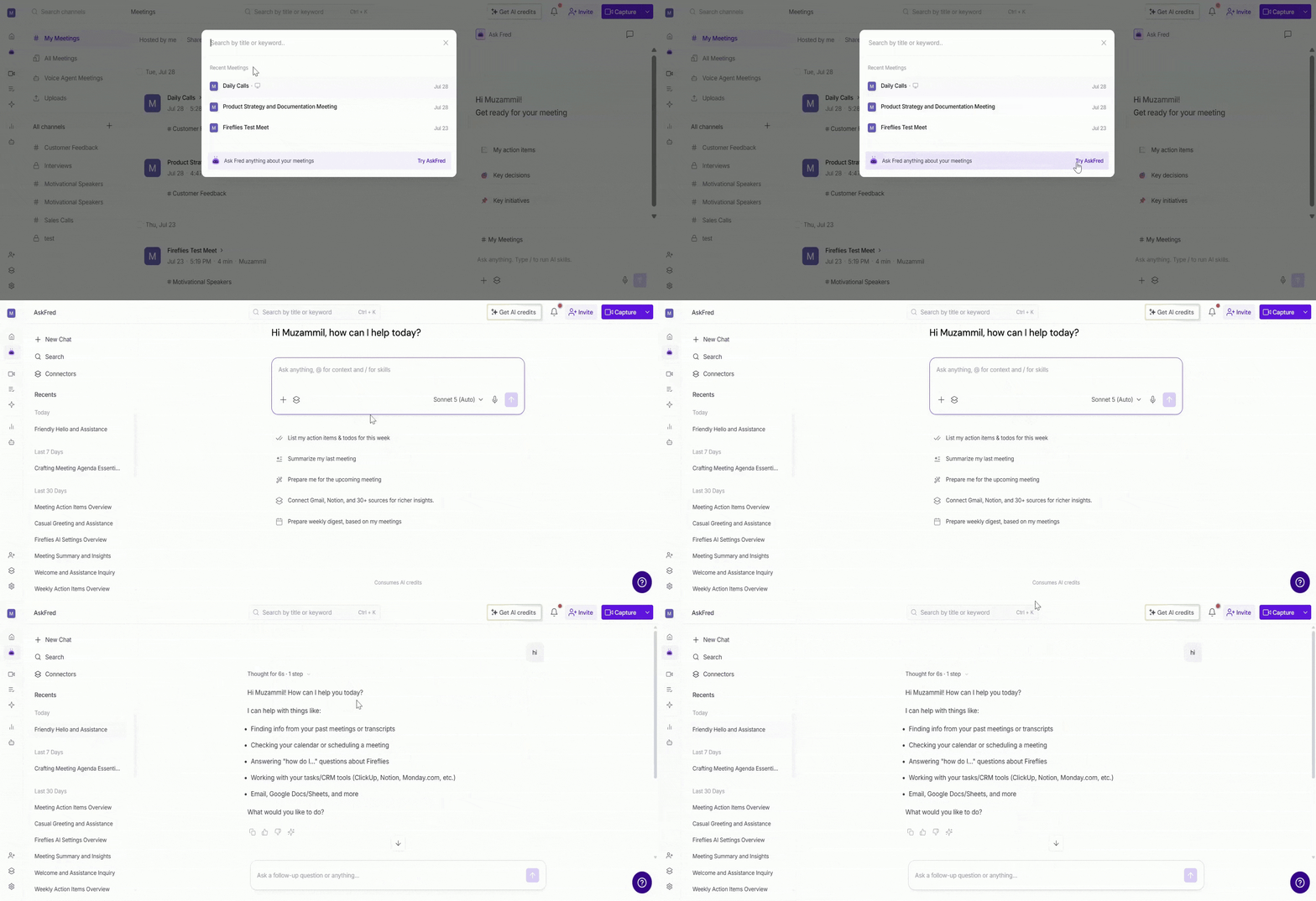
Need to search across your meetings? Global Search helps you quickly find meetings by their title or keywords from anywhere in the Meetings section.
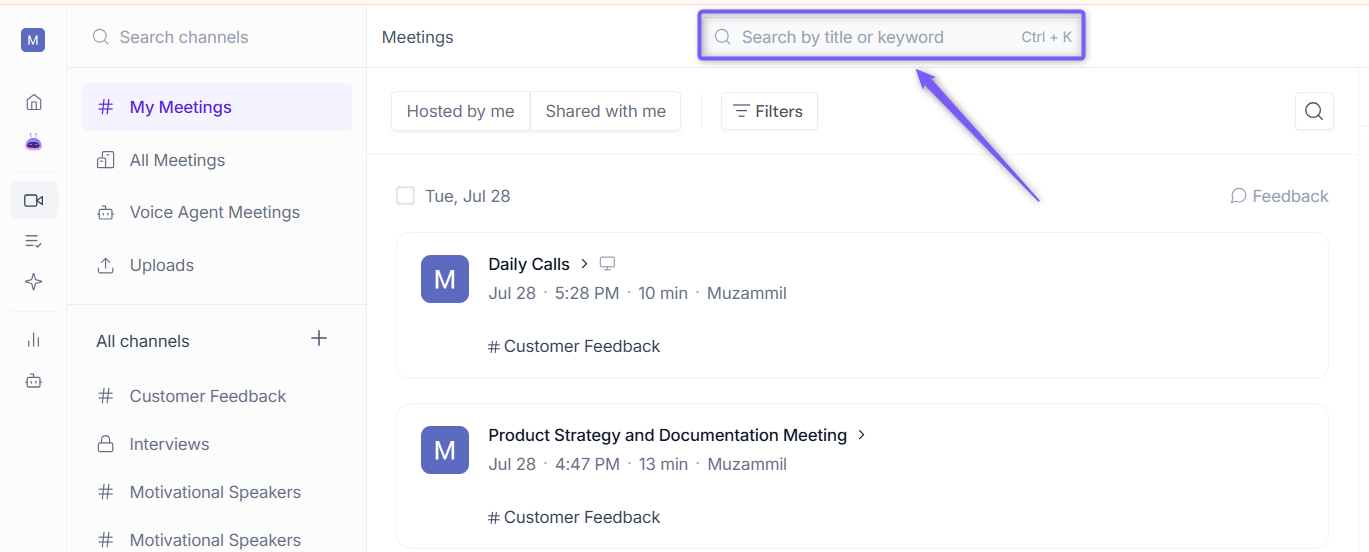
Click the Search bar at the top of the Meetings section, or press Ctrl + K.
Type a meeting title or keyword. Fireflies instantly displays matching meetings as you type.
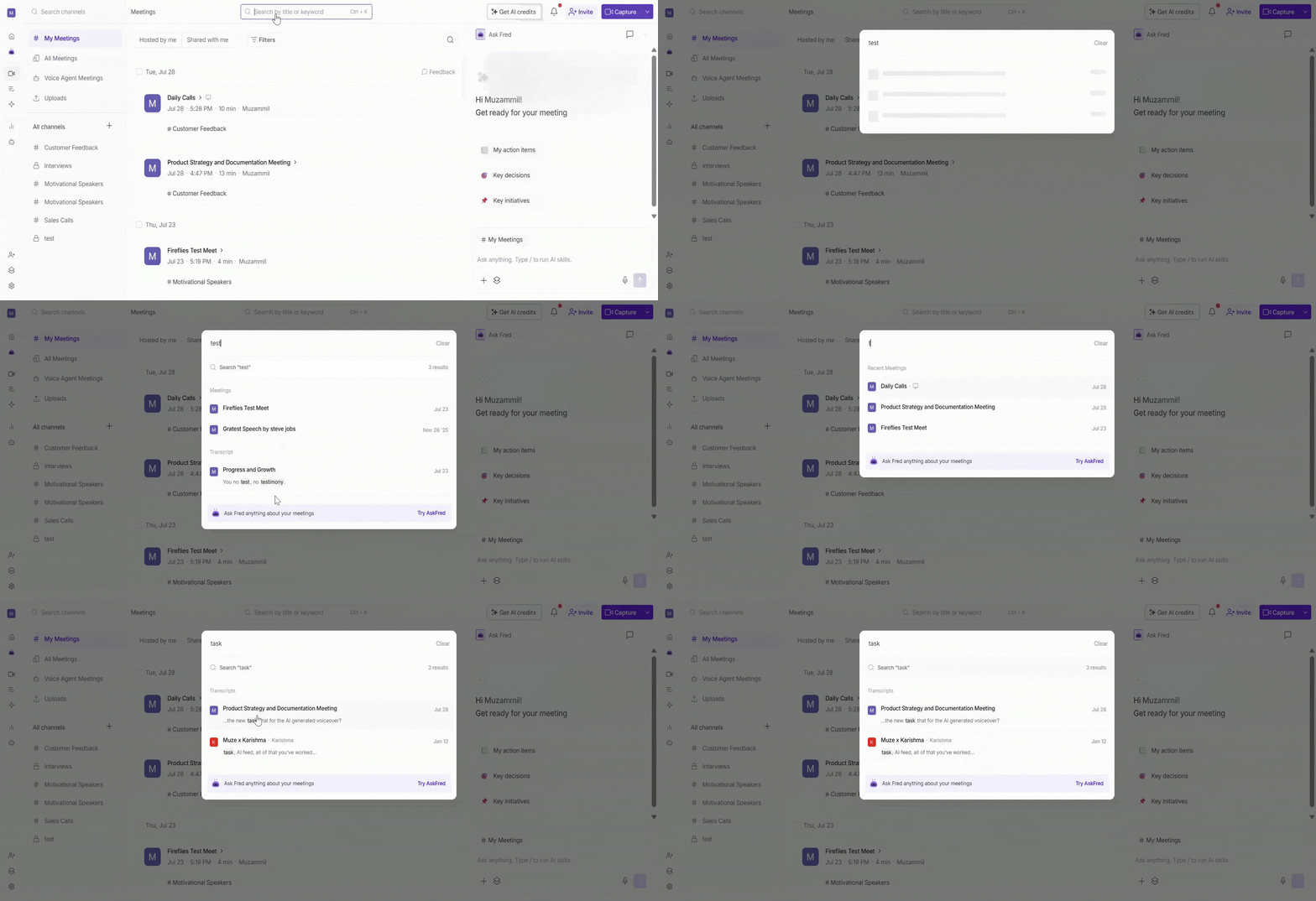
💡 Need answers instead of search results? Click Try AskFred at the bottom of the search window to ask questions about your meetings in natural language.
Want to learn more? Check out Global AskFred: Get Answers from Past Meetings, Connected Apps, and Web Search.
3. Filters
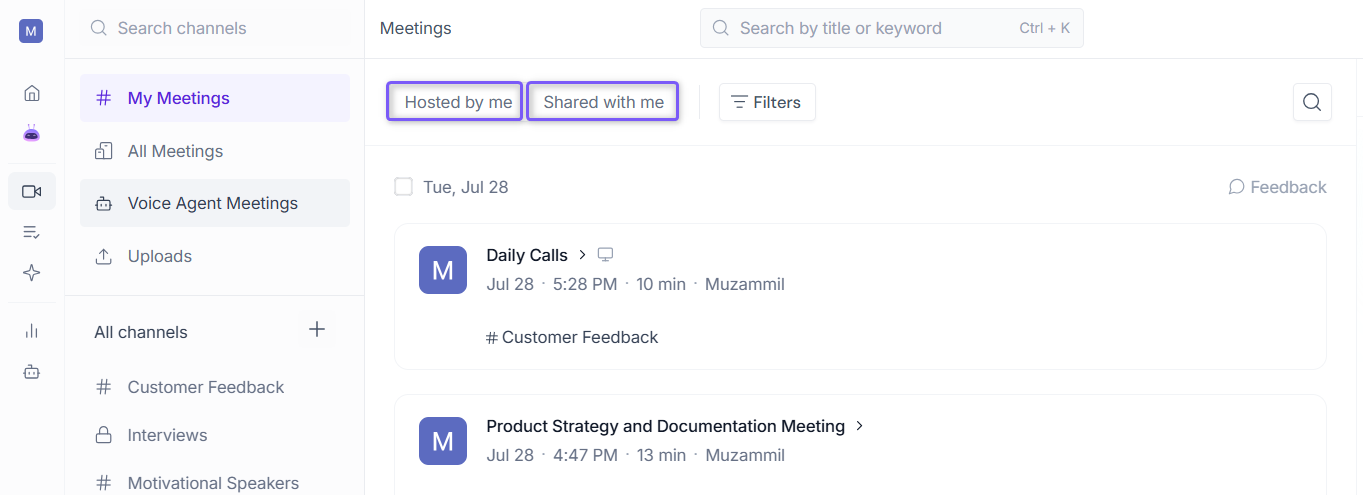
Want to narrow down your meetings? Use the quick filters at the top of the page or click Filters for more advanced options.
A. Quick filters:
Hosted by me: show only meetings you hosted
Shared with me: show only meetings shared with you
B. Advanced filters: Click Filters to access more specific options:
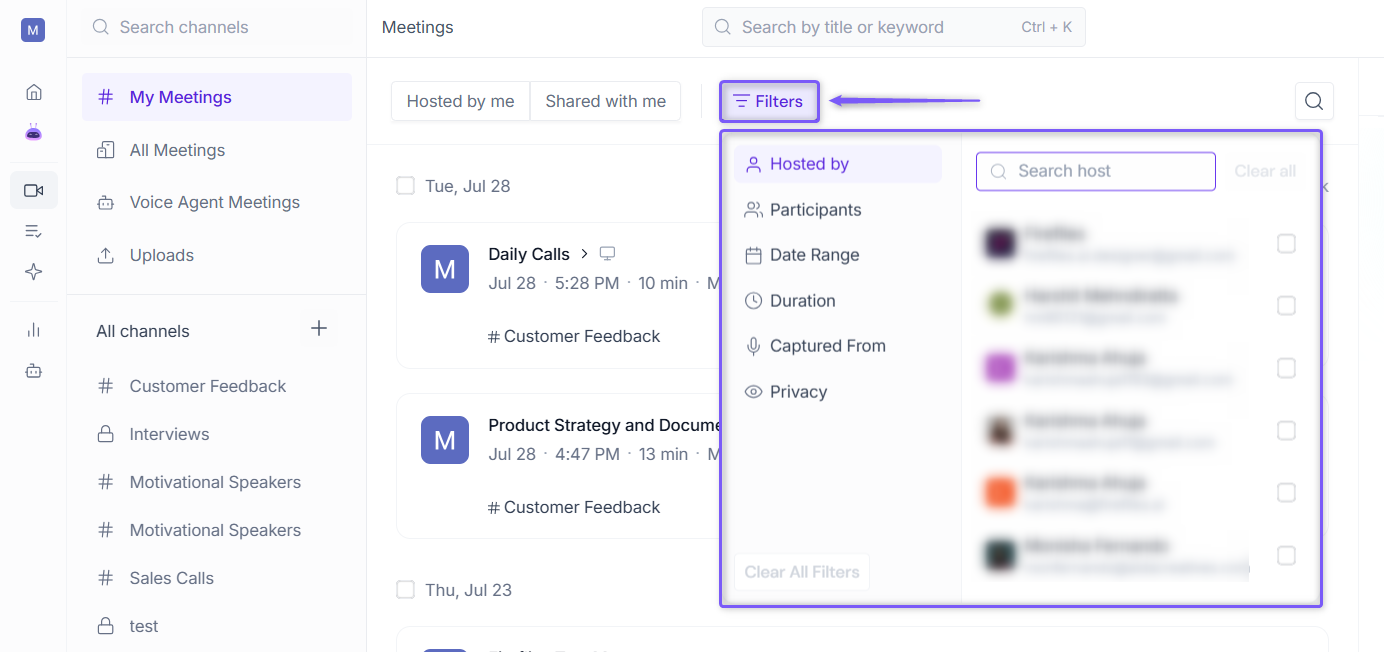
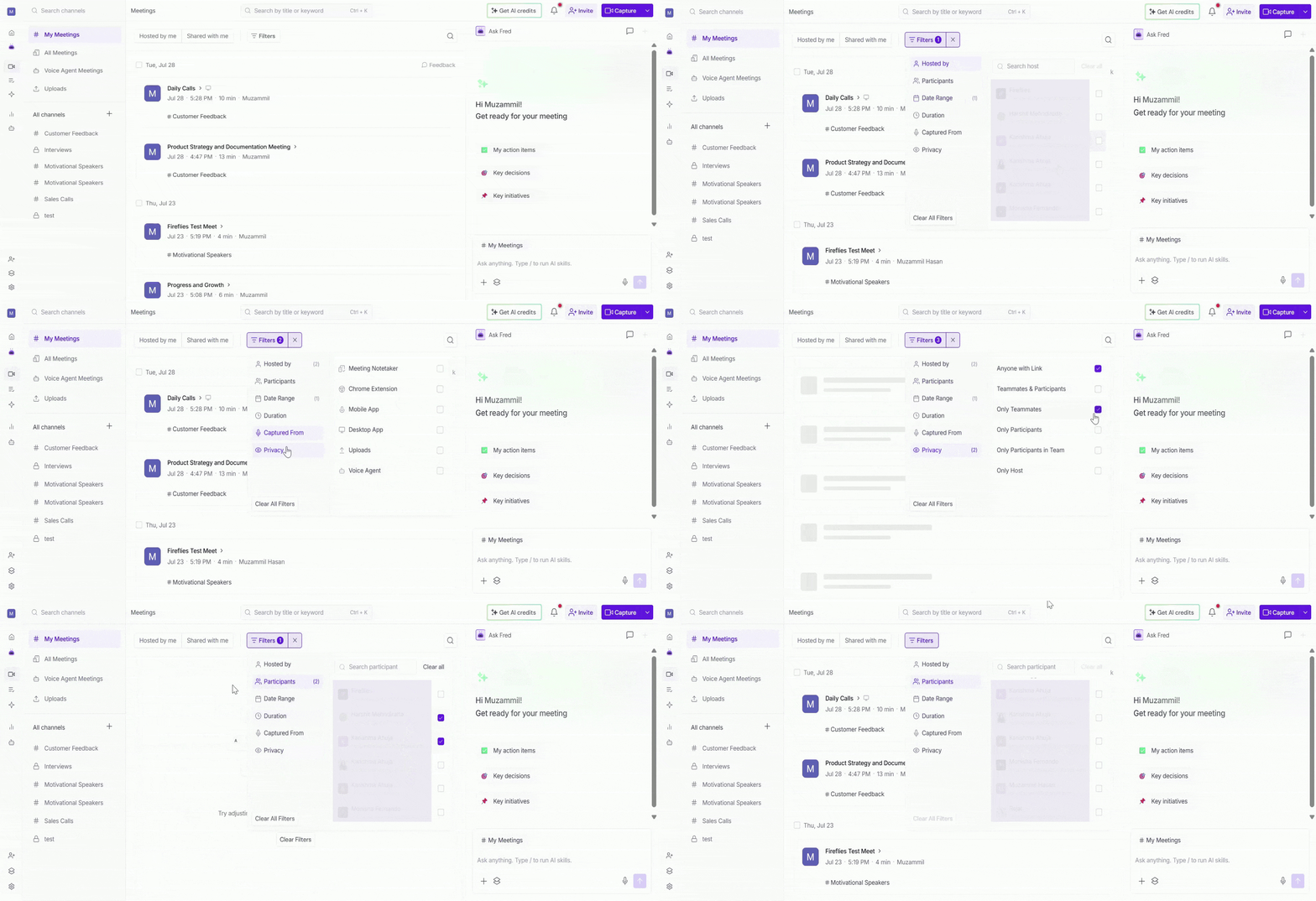
Hosted by — search and select a specific host from your workspace to filter their meetings
Participants — filter meetings by a specific participant's name or email
Date Range — filter by a preset range or pick a custom date:
Any Time, Today, Last 7 Days, Last 14 Days, Last 30 Days, or Custom Date Range
Duration — filter meetings by how long they ran:
Less than 15 mins, 15–30 mins, 30–60 mins, 60–90 mins, or 90+ mins
Captured From — filter by how the meeting was captured:
💡 To quickly reset your filters, click Clear All Filters or the × icon next to an applied filter.
🤖 AskFred
Need answers without opening every meeting? Use AskFred in the right panel to ask questions about the meetings in your currently selected Channel.
Simply type your question in the AskFred panel, and Fireflies analyzes the meetings in the selected Channel to generate AI-powered answers.
💡 Switch to a different Channel to change AskFred's context. For example, select Sales Calls to ask questions about sales meetings, or Customer Feedback to analyze customer conversations from that Channel.
You can ask questions like:
Summarize this week's meetings.
What action items were assigned?
What decisions were made?
What customer feedback came up?
📌 Want to learn more? Check out Global AskFred: Get Answers from Past Meetings, Connected Apps, and Web Search.
⚙ Manage Meetings
Need to update a meeting or perform quick actions? Use the available meeting actions to manage, organize, share, or delete meetings without opening them.
1. View meeting details
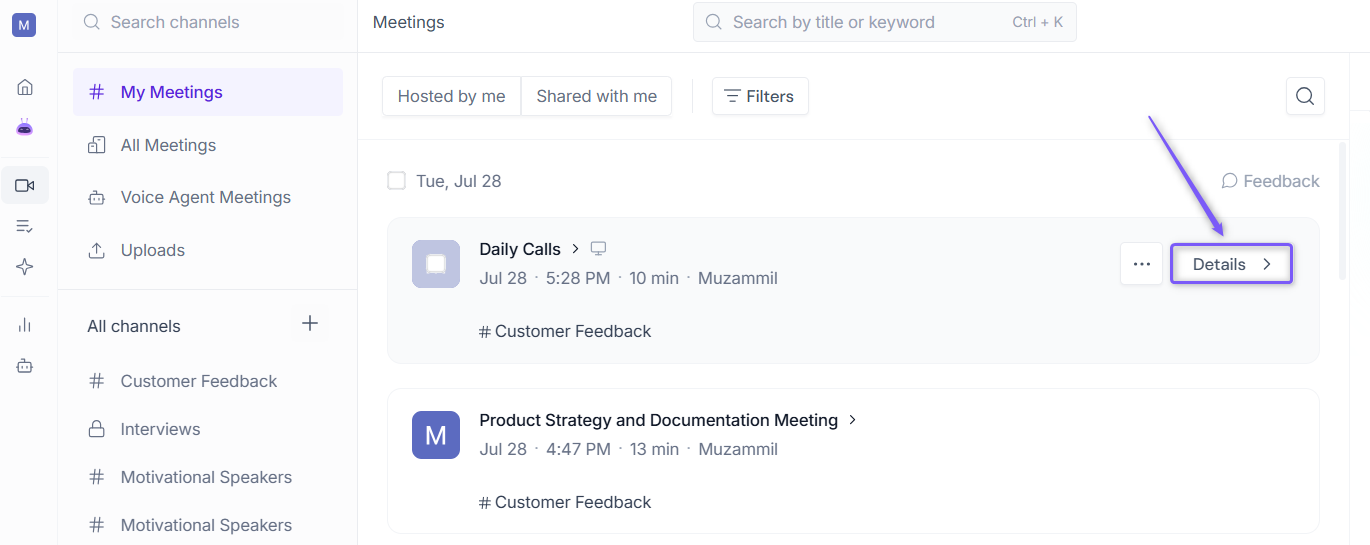
Hover over any meeting and click Details to open a summary panel for that meeting.
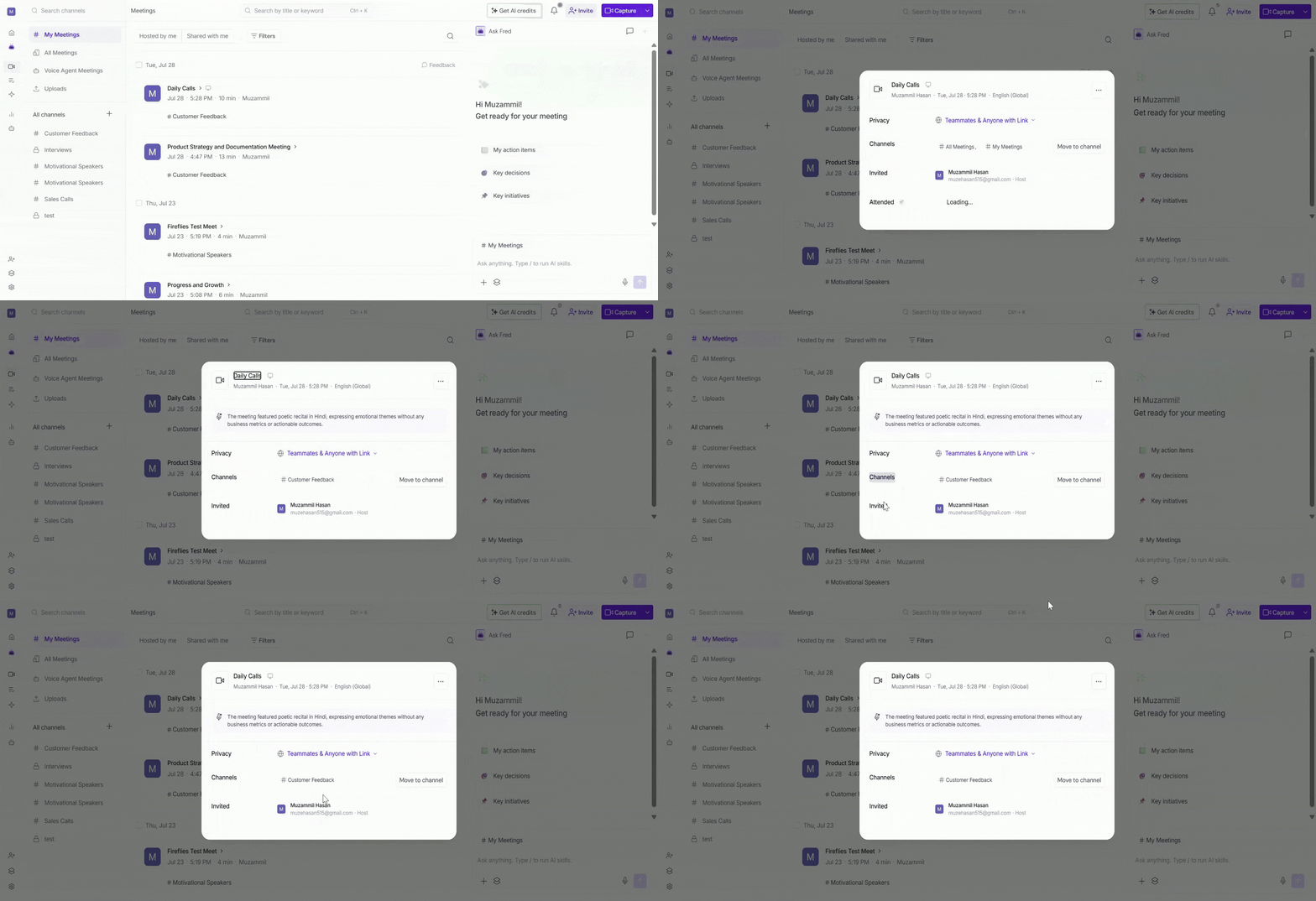
Here you can see:
Meeting title, host, date, time, and language — shown at the top
Meeting summary — a brief AI-generated overview of the meeting
Privacy — view or change who can access the meeting
Channels — see which channels the meeting belongs to, or click Move to channel to move it
Invited — see who was invited to the meeting and their role (e.g. Host)
Attended — see who actually joined the meeting and their attendance time
2. Meeting actions
Hover over any meeting and click the ellipsis menu (…) to access quick actions for that meeting:
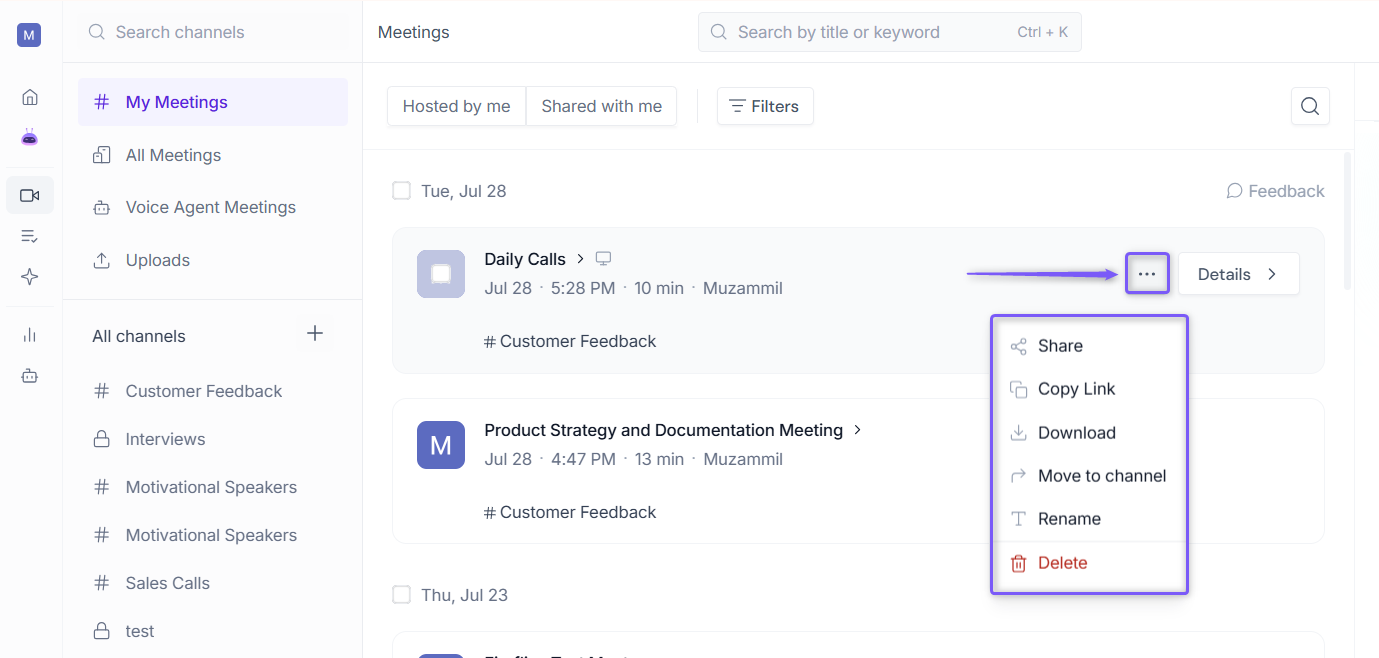
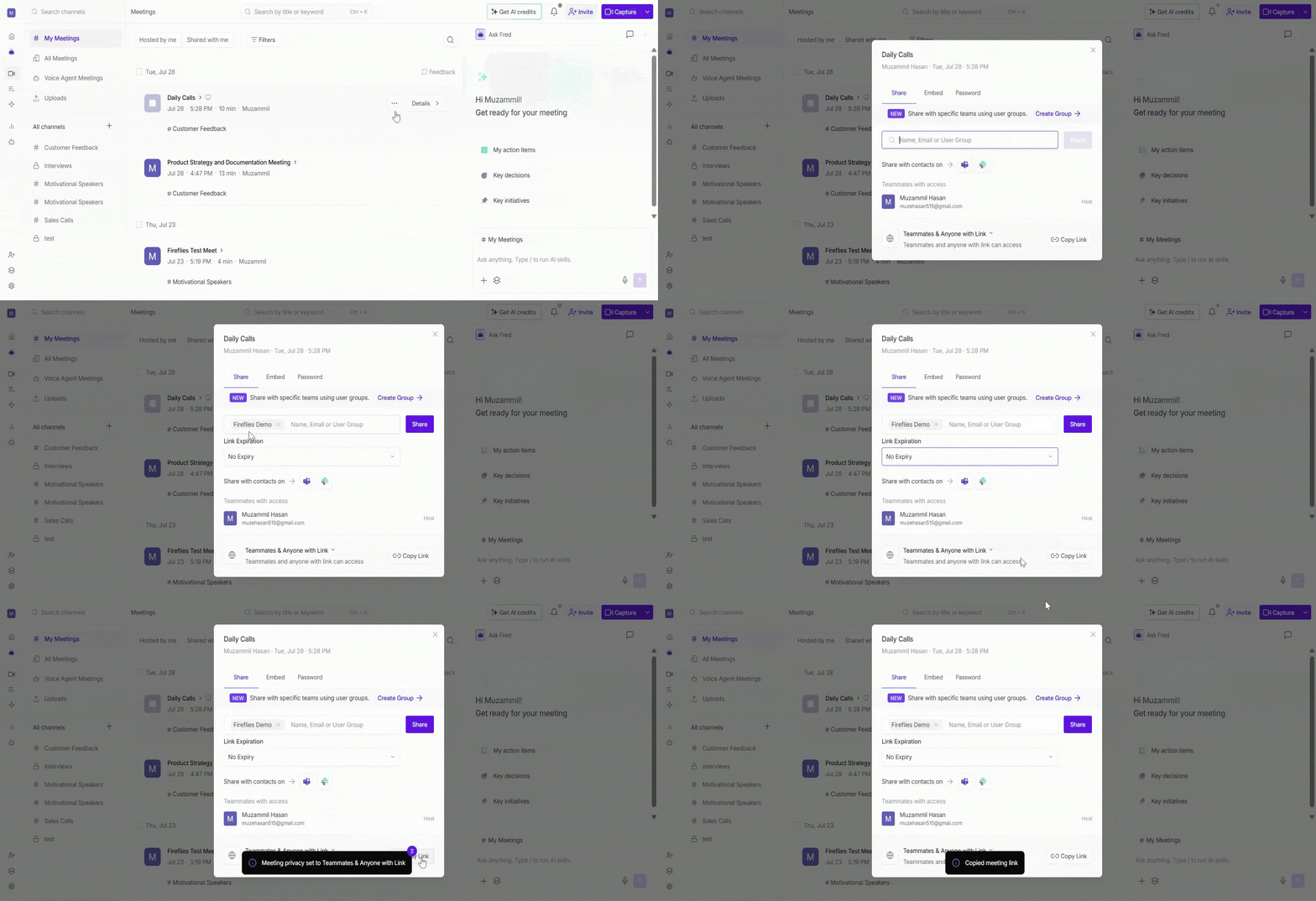
Share — Share the meeting with teammates so they can view the recording, transcript, notes, and summary, or copy a shareable link to send it anywhere.
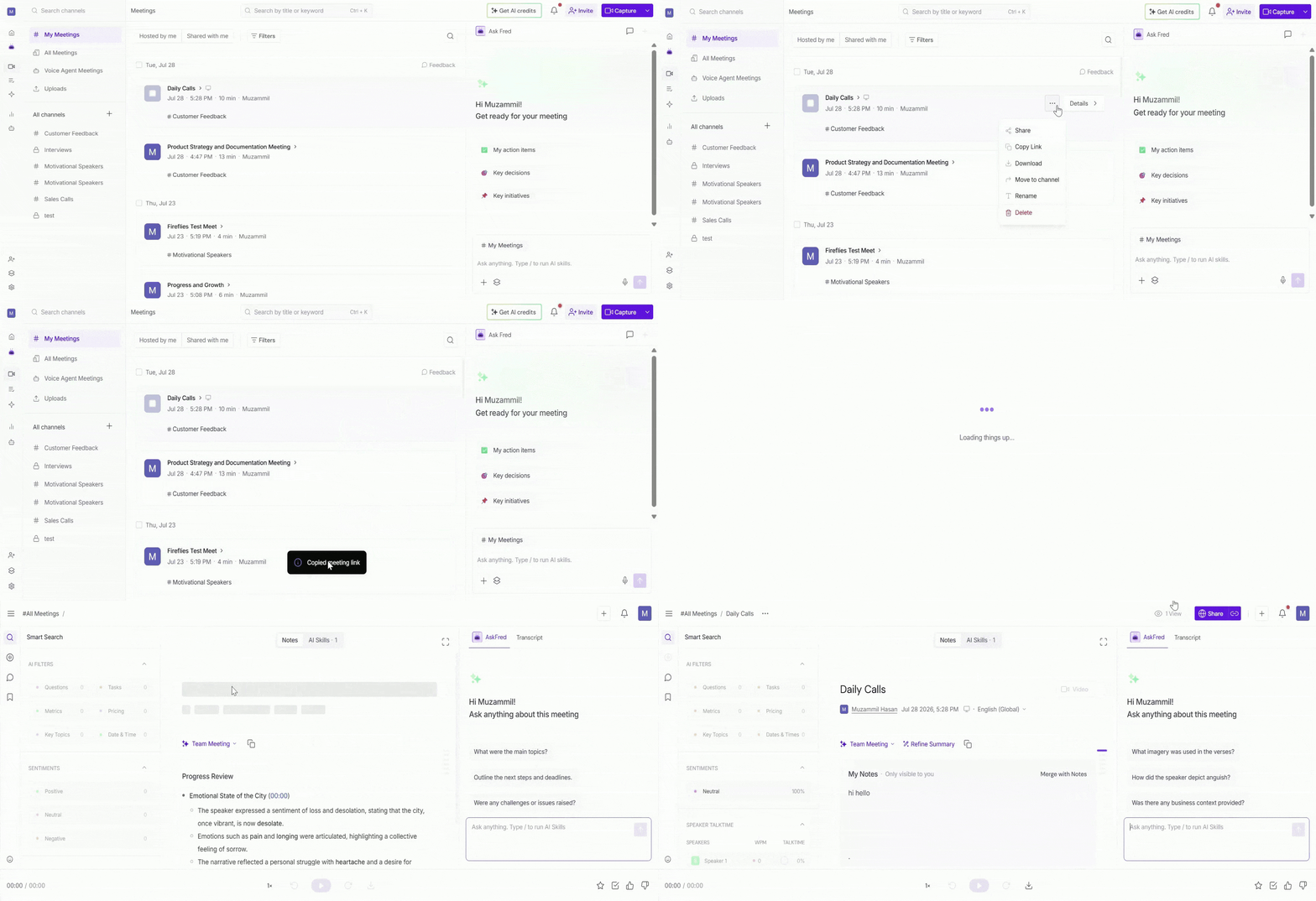
Copy Link — Copy the direct meeting link to your clipboard so you can quickly paste and share it in email, chat, or documents.
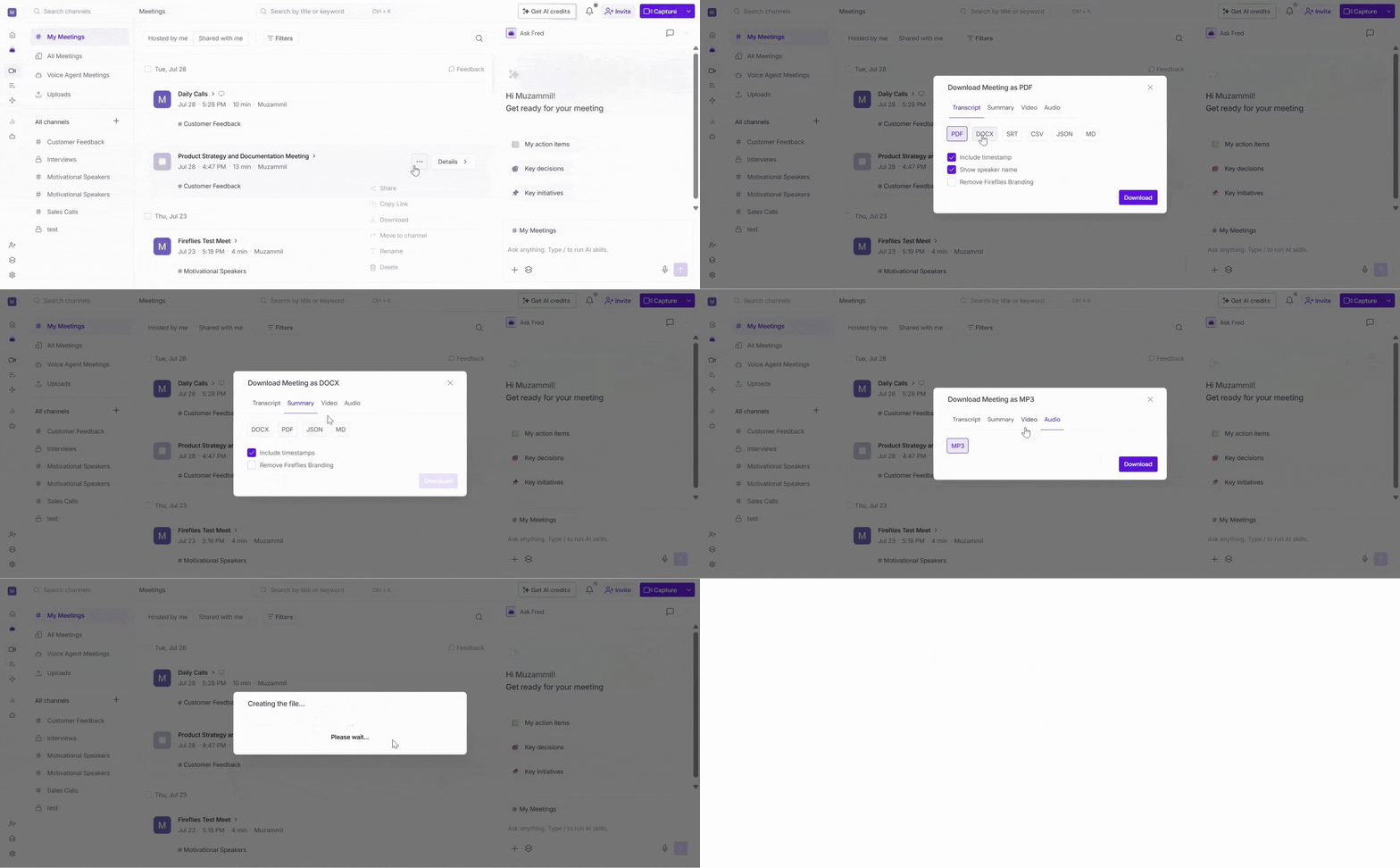
Download — Download the meeting transcript, AI summary, or recording to keep a copy for offline access or external sharing.
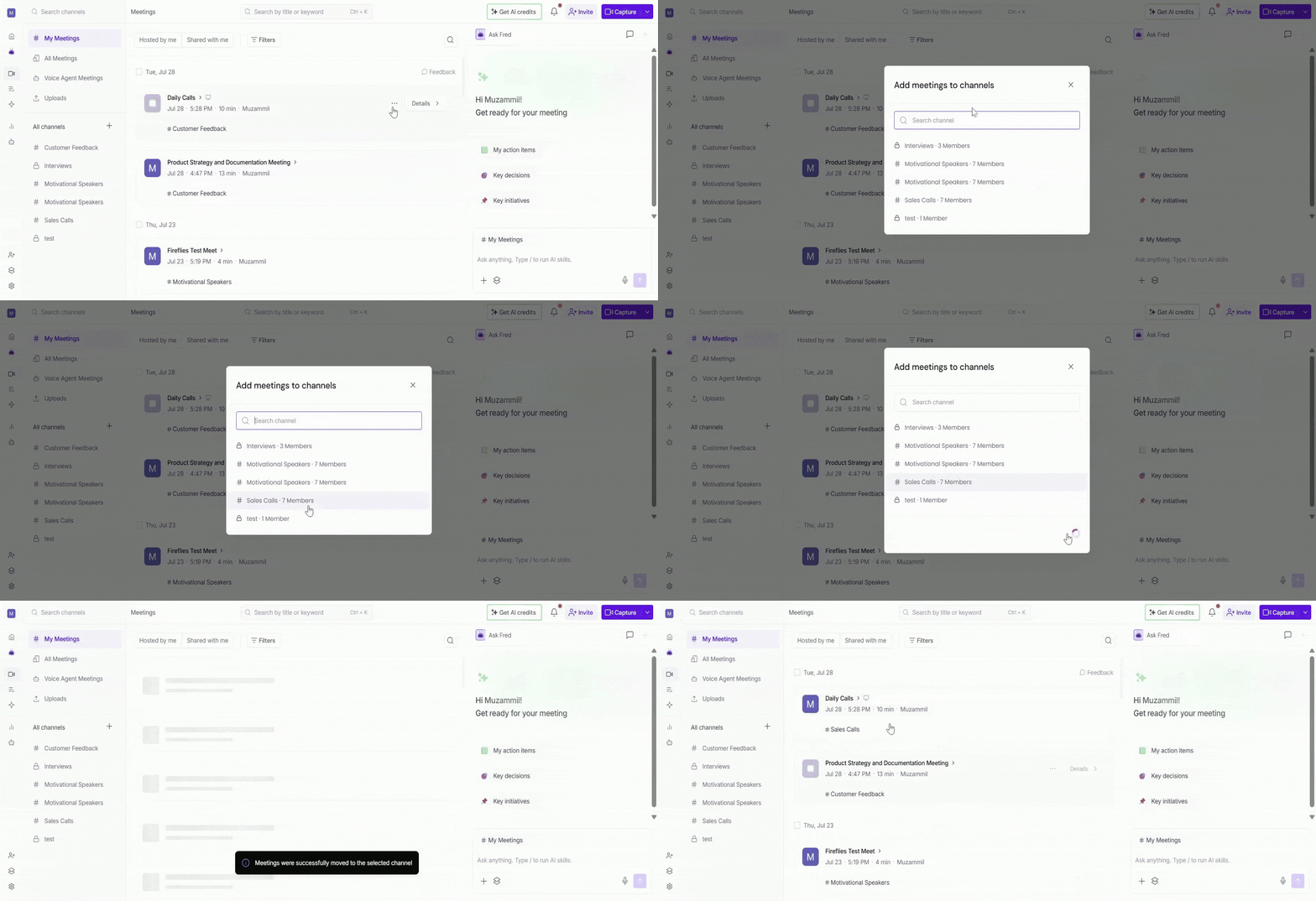
Move to Channel — Move the meeting to another public or private channel to organize it by team, project, or topic.
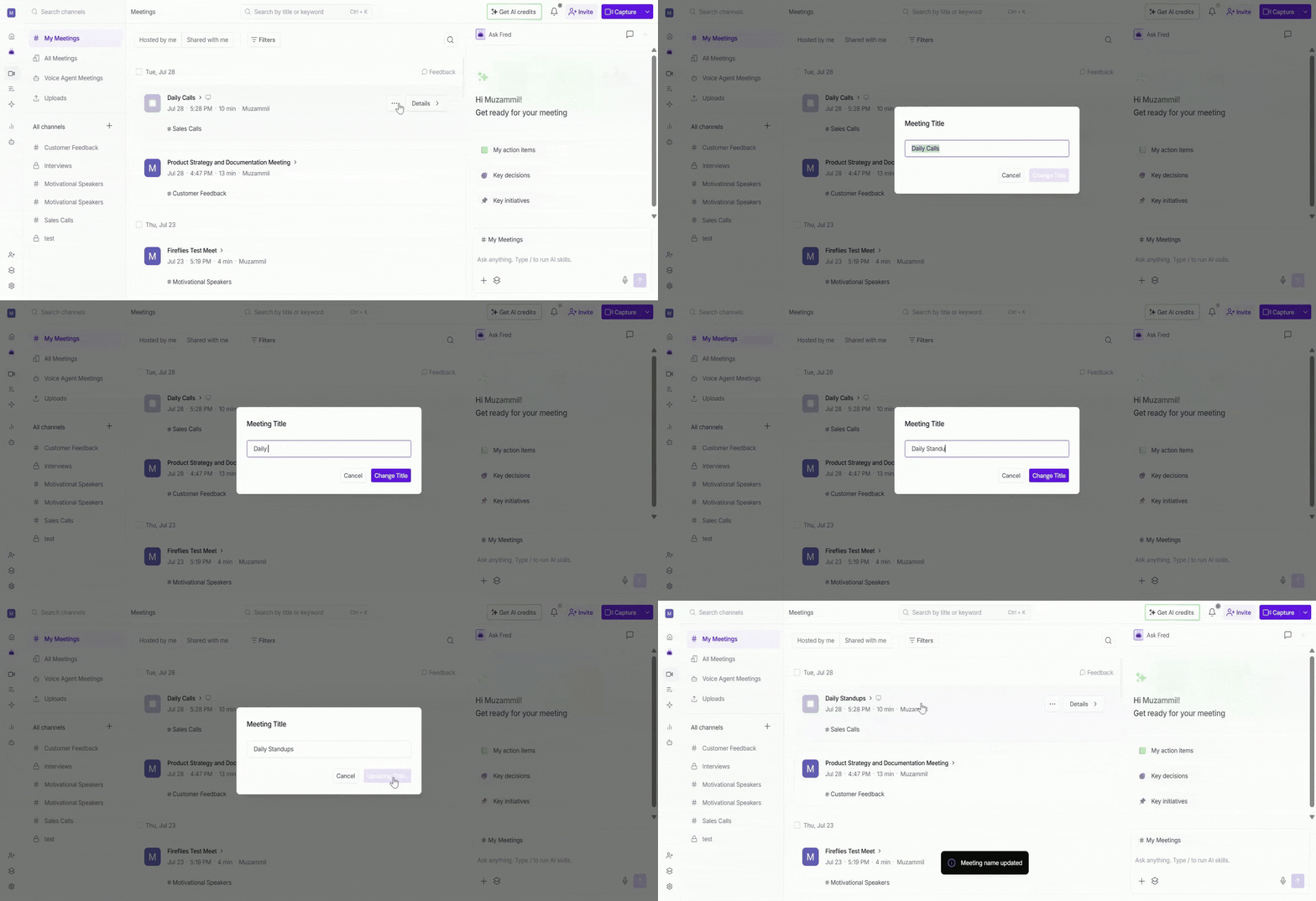
Rename — Change the meeting title to make it easier to identify later.
Delete — Permanently remove the meeting from your workspace if you no longer need it.
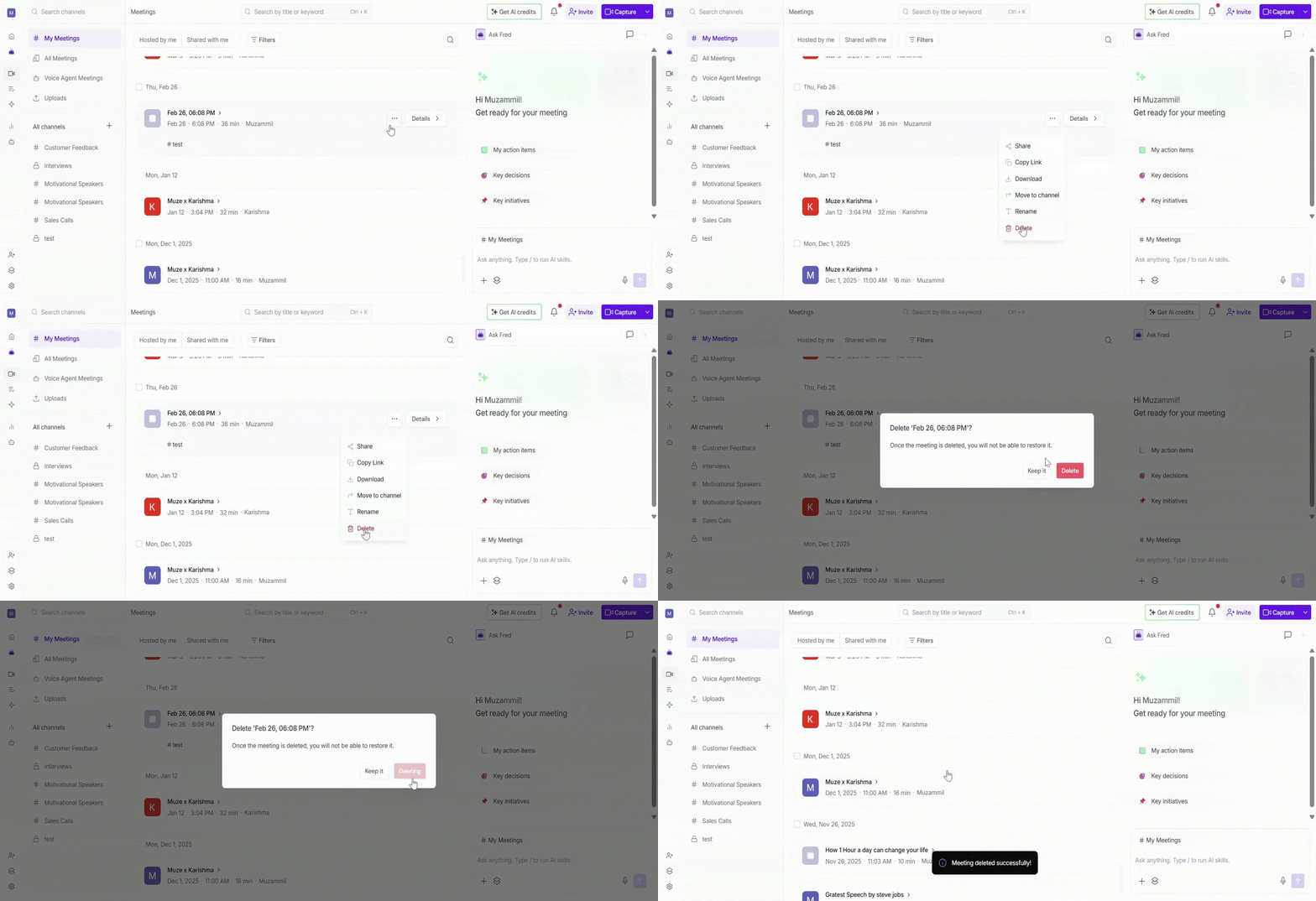
Deleting a meeting permanently deletes the meeting, including its recording, transcript, AI summary, and related content. This action cannot be undone.
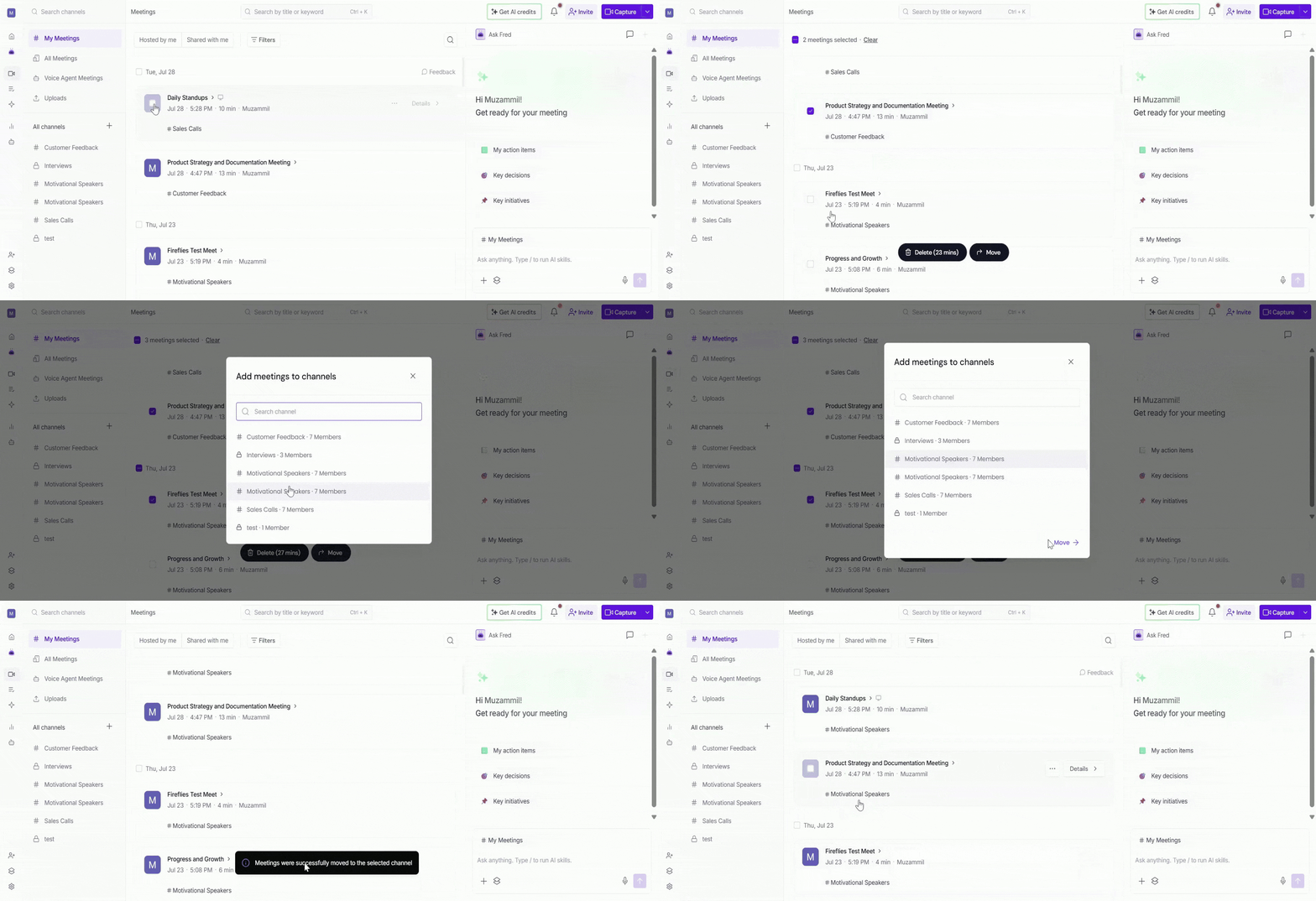
3. Bulk actions
Need to move or delete multiple meetings at once? You can select more than one meeting and take action on all of them together.
1. Hover over any meeting and click the checkbox that appears to select it.
2. Repeat for any other meetings you want to include - or click the date checkbox to select all meetings from that day.
3. To select all meetings, click Select All checkbox at the top-left, or click Clear to deselect them.
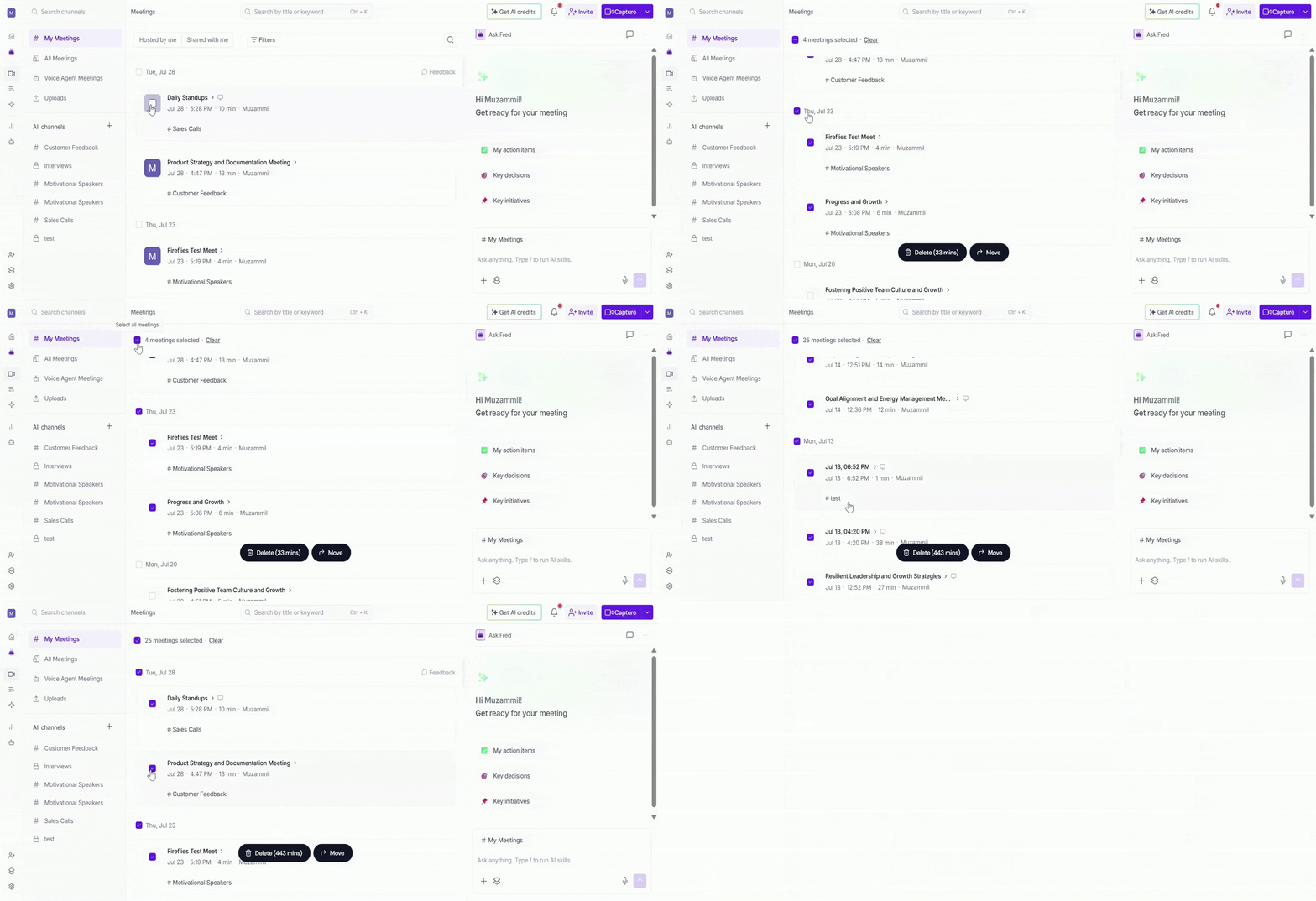
Two action buttons will appear at the bottom of the page:
Delete: Permanently remove all selected meetings. A confirmation popup will appear, click Delete to confirm.
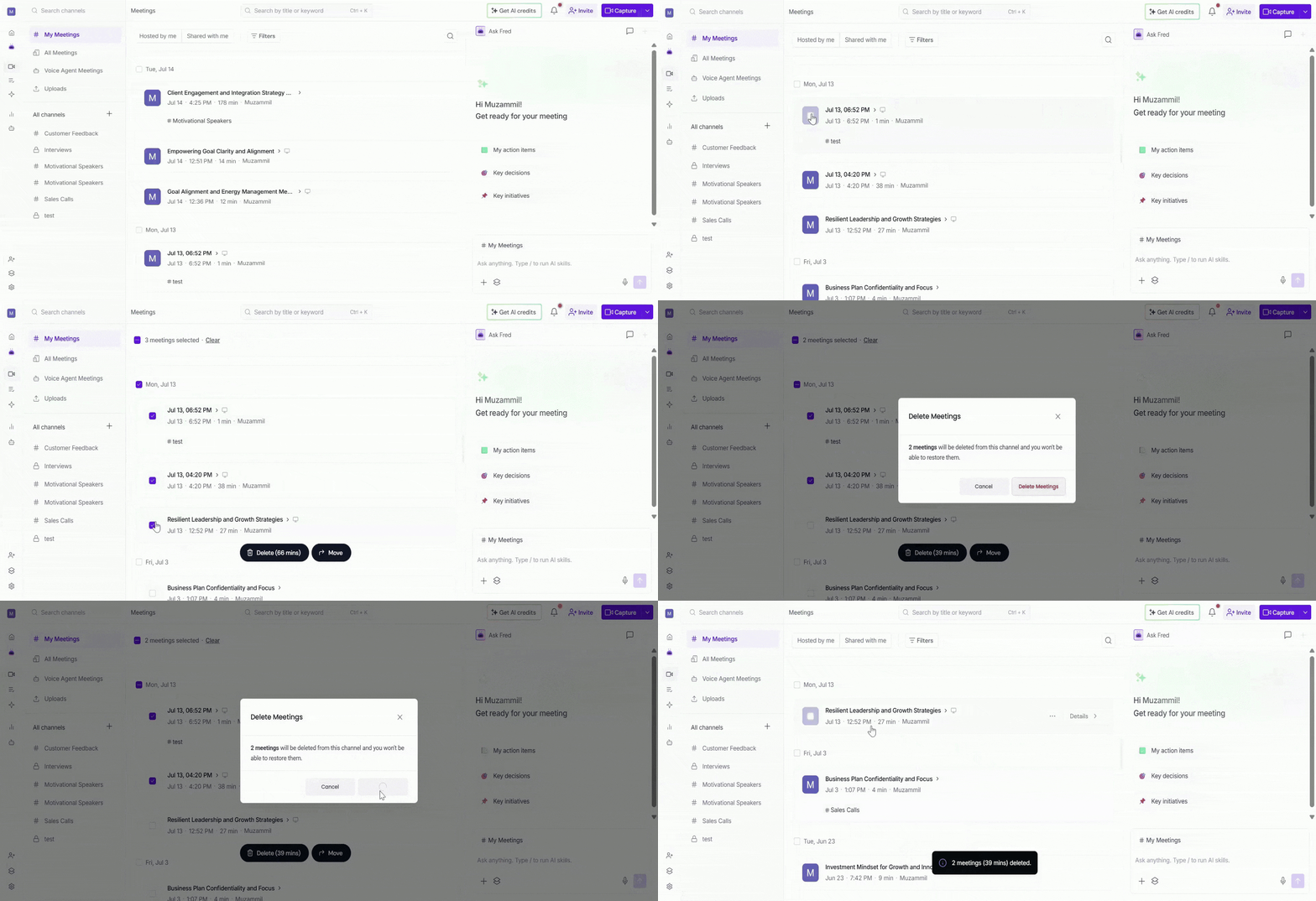
Move: Move all selected meetings to a channel of your choice. A popup will appear showing your available channels. Search or select the channel you want, then click Move to confirm.
💬 Share Feedback
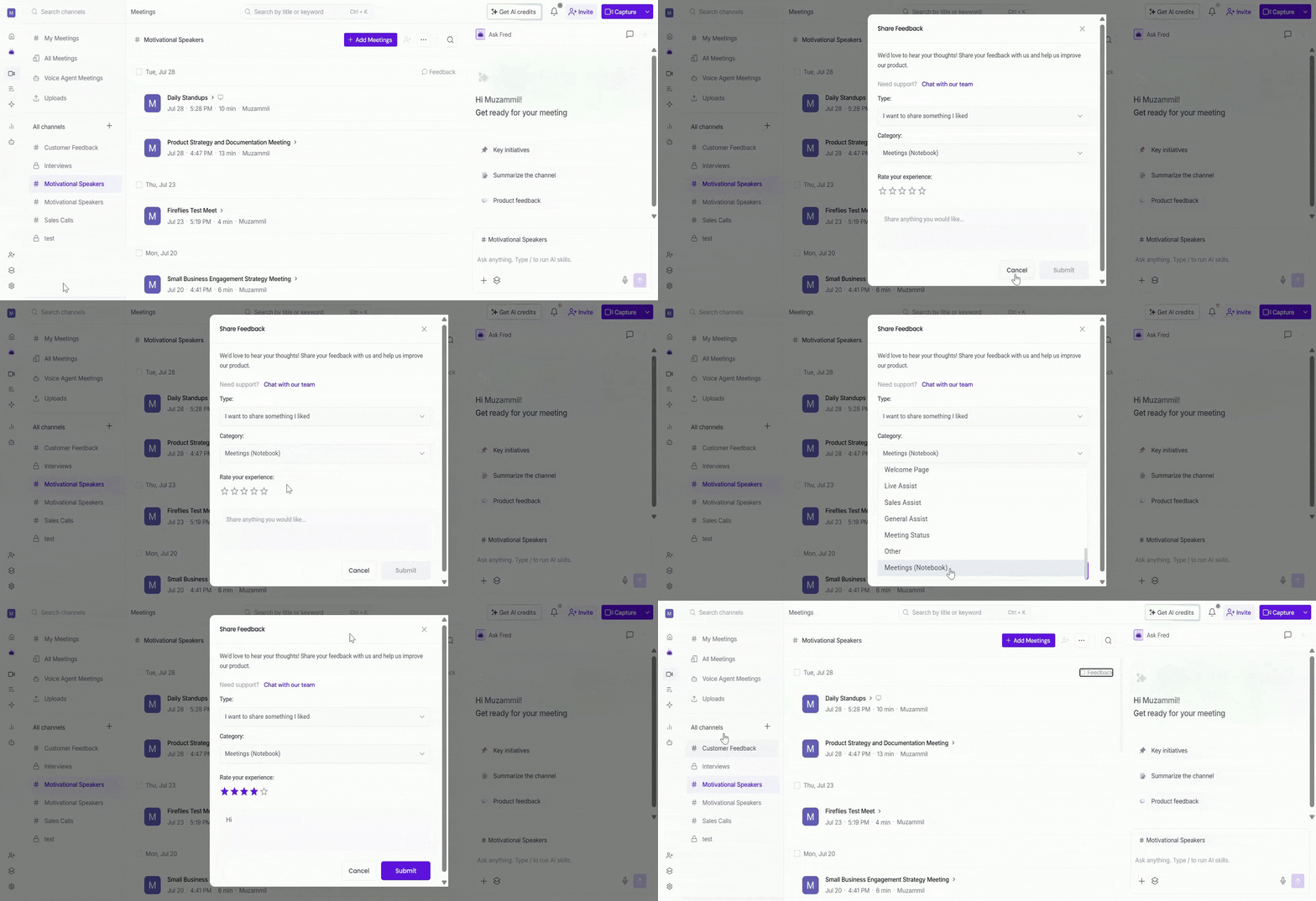
Have suggestions or found an issue? You can share feedback directly from the Meetings section.
Click Feedback in the top-right of the Meetings list.
Select the Type of feedback.
Choose a Category.
Rate your experience.
Enter your feedback, then click Submit.
💡 Need help instead? Click Chat with our team in the feedback window to contact Fireflies Support.
📌 Related guides
How to invite Fireflies to meetings — learn how to get Fireflies into your meetings so they're automatically recorded and transcribed
Learn about the Fireflies Notepad — once you open a meeting, explore the full transcript, summary, and notes in the Notepad
Learn About Fireflies Channels to Organize Your Meetings — Learn how to create, organize, and manage Custom Channels to keep your meetings organized.