What are Voice Agents, and how to set them up to automate your calls
Last updated: May 20, 2026
If you find yourself having the same conversations again and again, like screening candidates, qualifying leads, checking in with users, or gathering feedback, Voice Agents can help automate and streamline the process.
With Voice Agents, Fireflies can run calls on your behalf, so you don’t need to attend every conversation live. These calls feel natural and conversational, and everything is captured automatically so you can review outcomes later.
Voice Agents are available on all paid plans, with built-in security and compliance features designed for teams running calls at scale.
🤖 What are Voice Agents?
Voice Agents are AI-powered agents that run live, two-way voice calls for you.
When a Voice Agent runs a call:
Fred is Fireflies’ built-in voice agent that runs these calls for you.
The agent asks questions you’ve defined and responds in real time
The conversation adapts based on what the participant says
After every call, Fireflies automatically saves the recording, transcript, summary, scorecards, and next steps, so you can review what happened without replaying the entire conversation.
🚀 How to create a Voice Agent
You can set up Voice Agents in two ways, depending on how quickly you want to get started and how much customization you need.
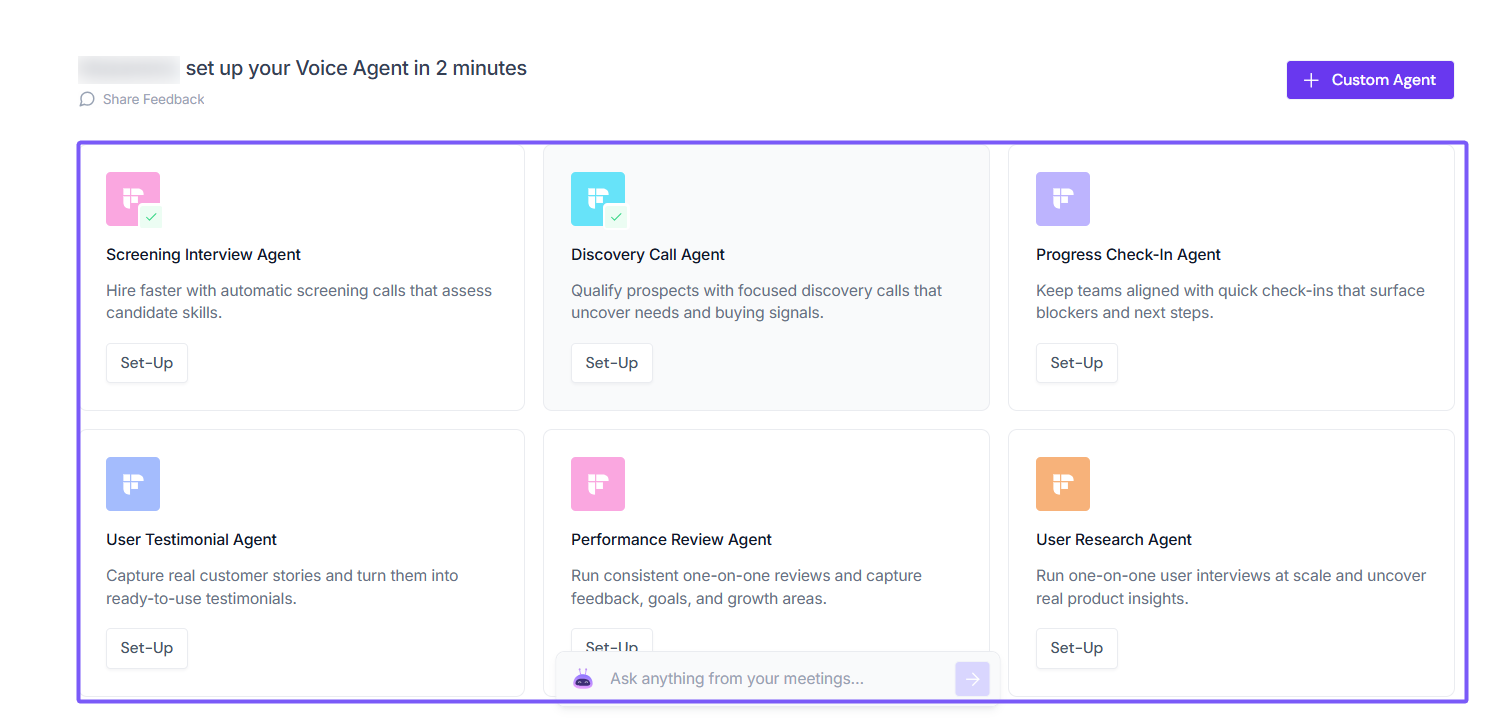
1. Start with a template
Templates are pre-built Voice Agents designed for common use cases, such as screening interviews or discovery calls.
Come with ready-made questions and structure
Fully editable before publishing
Best if you want to get started quickly
2. Create a Voice Agent from scratch
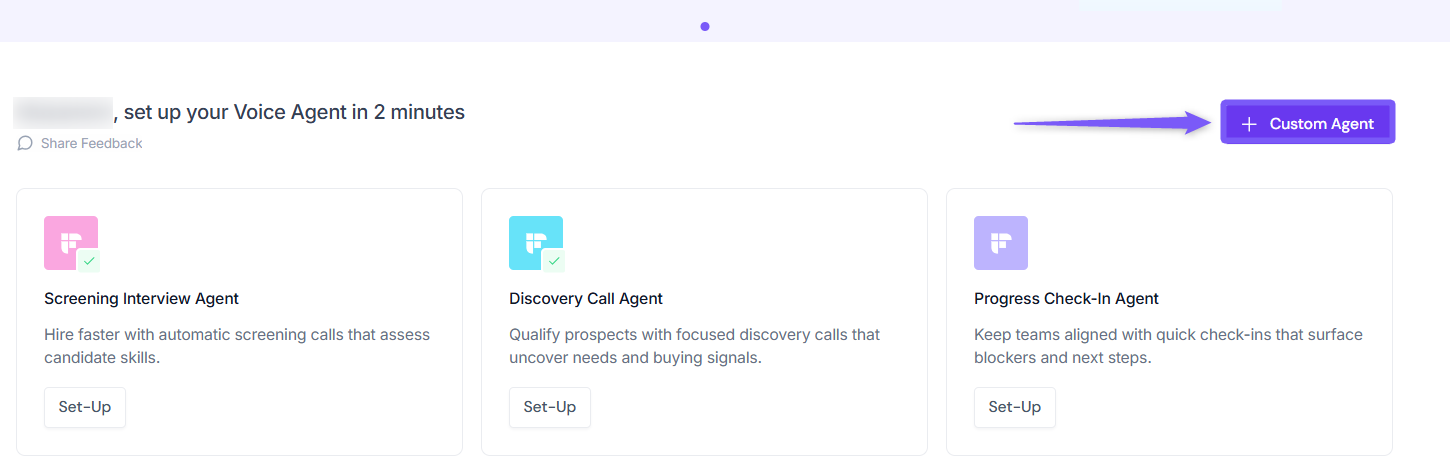
Creating from scratch gives you full control over the conversation from the beginning.
Define your own questions, instructions, and flow
Customize every part of the experience
Best for unique or advanced workflows
📄 What happens after a Voice Agent call
After each call, Fireflies automatically saves and organizes everything so you can take action quickly.
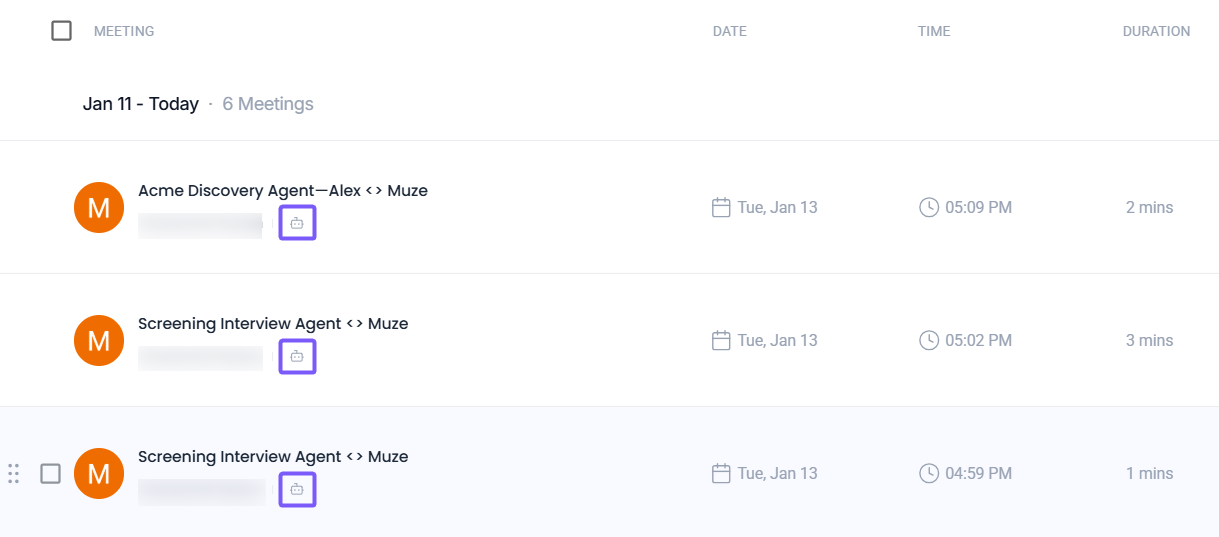
How to identify Voice Agent meetings?
Voice Agent calls are marked with a robot icon (🤖) next to the meeting name. This icon helps you quickly identify which meetings were run by a Voice Agent.
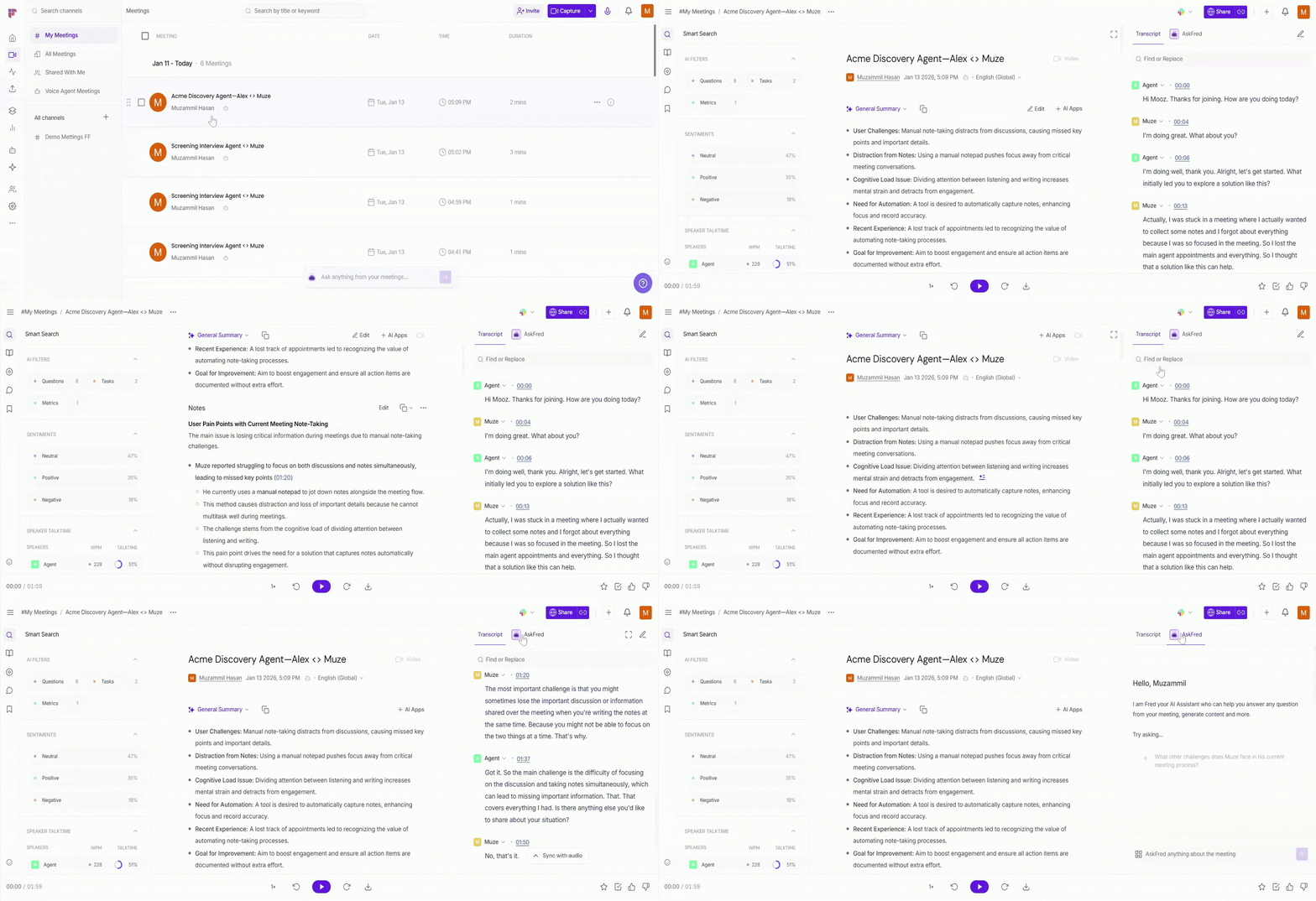
From here, you can:
View the recording, transcript, and AI summary
Use AskFred to get instant answers
Run AI Skills to automate follow-ups and workflows
🛠 Manage your Voice Agents
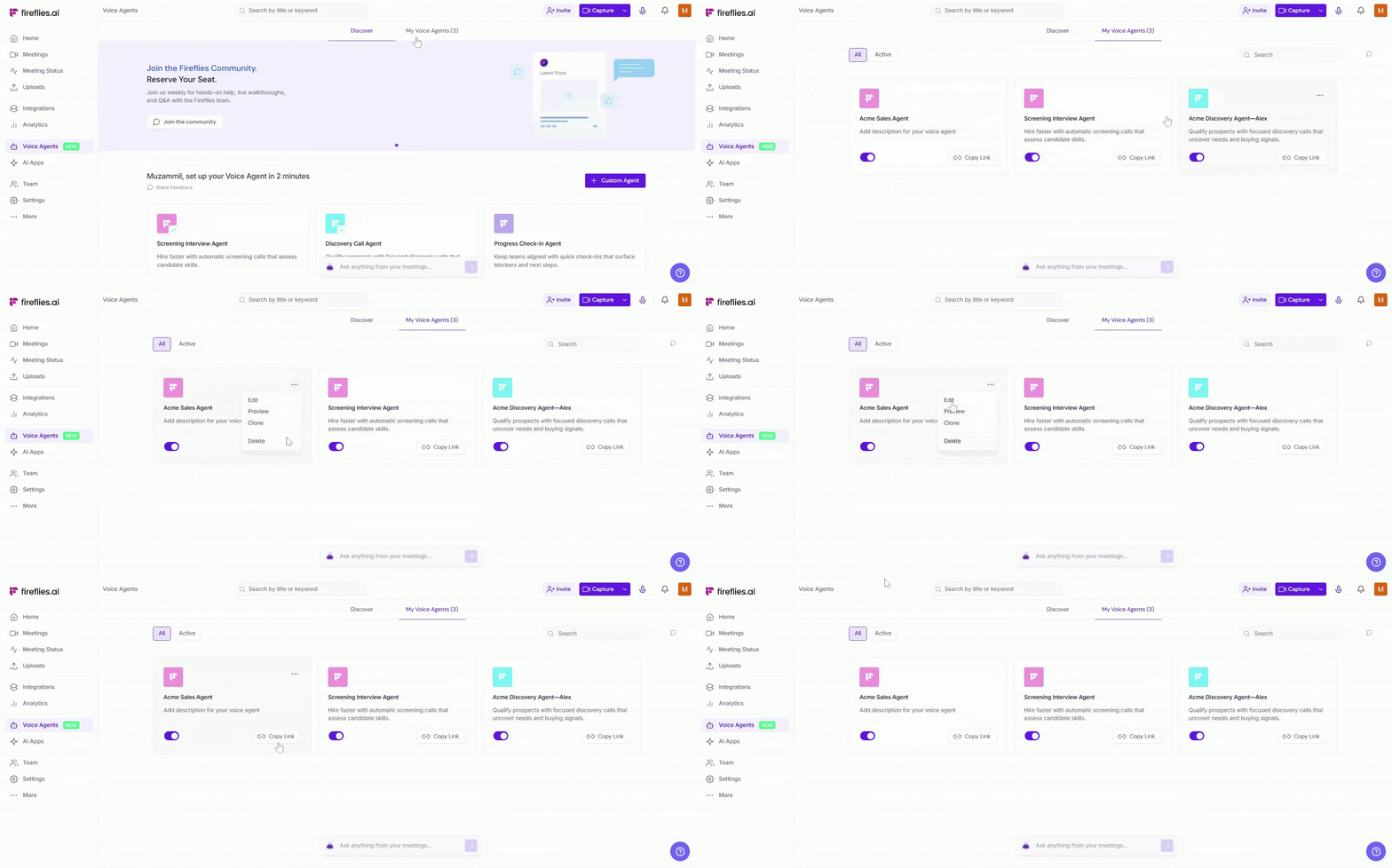
Once a Voice Agent is live, you can manage it anytime from My Voice Agents.
From here, you can:
Unpublish, or republish the agent
Clone the agent for another use case
Delete the agent when it’s no longer needed
🔐 Who can see Voice Agent meetings
Access to Voice Agent meetings is controlled by the settings chosen when the agent is created.
To check or update access:
Go to Voice Agents → My Voice Agents
Open the Voice Agent and click Settings
From here, you can:
Control visibility — Allow or restrict whether workspace members can discover and edit the Voice Agent
Choose who can view meetings — Limit access to the agent owner, teammates, call participants, or anyone with the meeting link
Manage recap emails — Decide who receives post-call summaries
▶ Explore common Voice Agent use cases
Voice Agents support several repeatable workflows. Explore these guides to see how teams use them in practice:
Screening interviews — Automate first-round candidate screens
→ How to Create a Screening Interview Voice AgentSales discovery calls — Qualify prospects and capture buying signals
→ How to Create a Discovery Call Voice Agent
Once set up, Voice Agents can run these calls for you 24/7—so you can focus on decisions instead of joining every conversation.