Connecting Your Voice Agents with AI Skills
Last updated: July 13, 2026
Voice Agents become even more powerful when used with AI Skills. They handle the conversation for you.
Fireflies Voice Agents and AI Skills work together to create automated workflows. Voice Agents run live conversations on your behalf, while AI Skills analyze those conversations after the call—generating structured insights and taking action on the results.
Together, Fireflies Voice Agents and AI Skills enable end-to-end workflows.
Let's get started 🚀
🚀 How to use AI Skills with Voice Agent calls
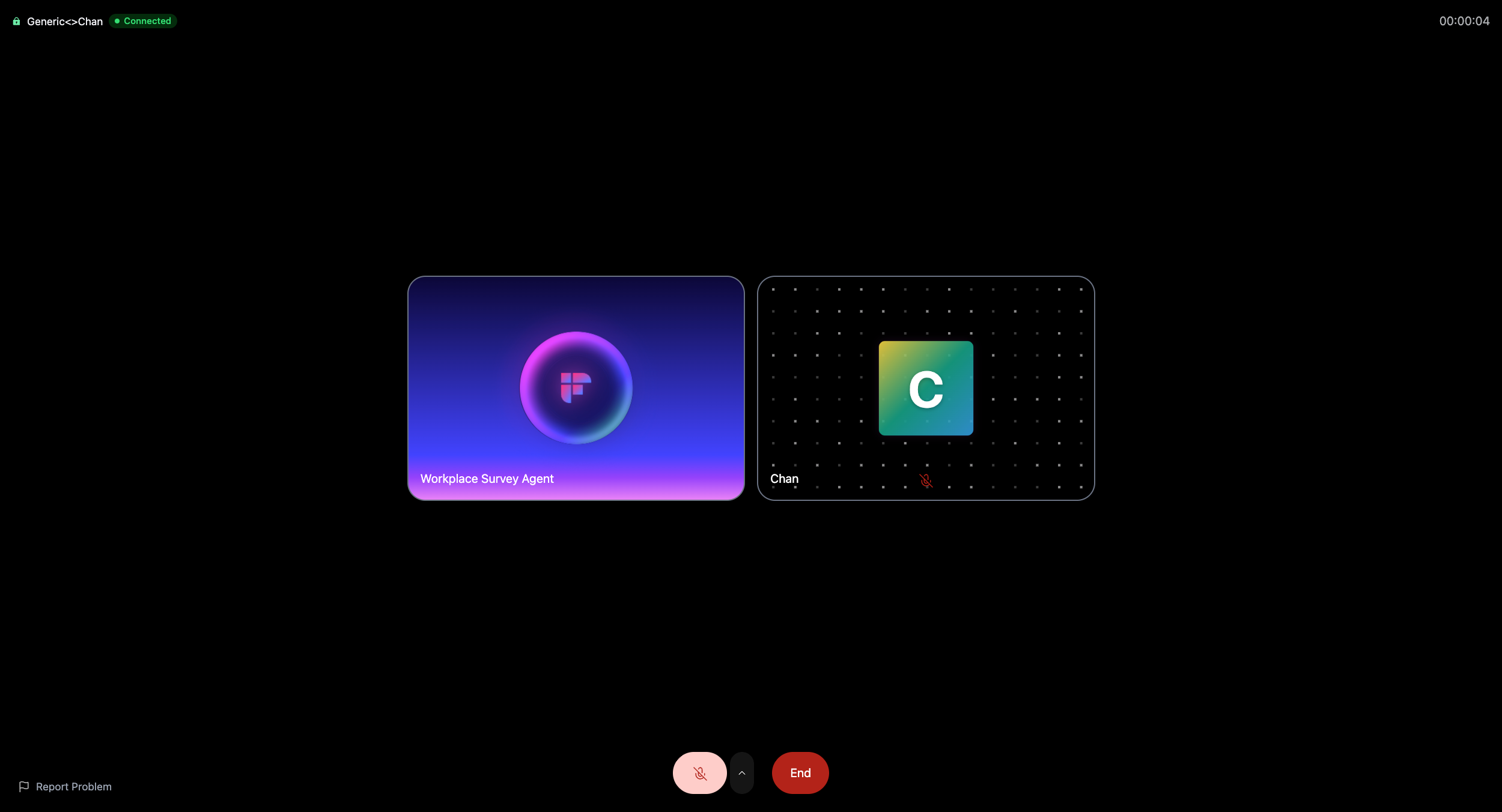
Step 1: Run a call using a Voice Agent
Start by setting up a Voice Agent to handle a live voice call on your behalf. The Voice Agent conducts the conversation, asks the questions you’ve defined, listens to responses, and records everything automatically.
Once the call is complete, Fireflies saves the full recording, transcript, summary, and other call details as a meeting in your workspace.
Step 2: Find and create AI Skills
AI Skills help you turn Voice Agent calls into structured outputs and workflows after the call ends. AI Skills are reusable workflows that run on meeting data (including Voice Agent meetings). They read the transcript and summary, then produce structured results.
Go to AI Skills from the Fireflies home dashboard to create AI Skills.
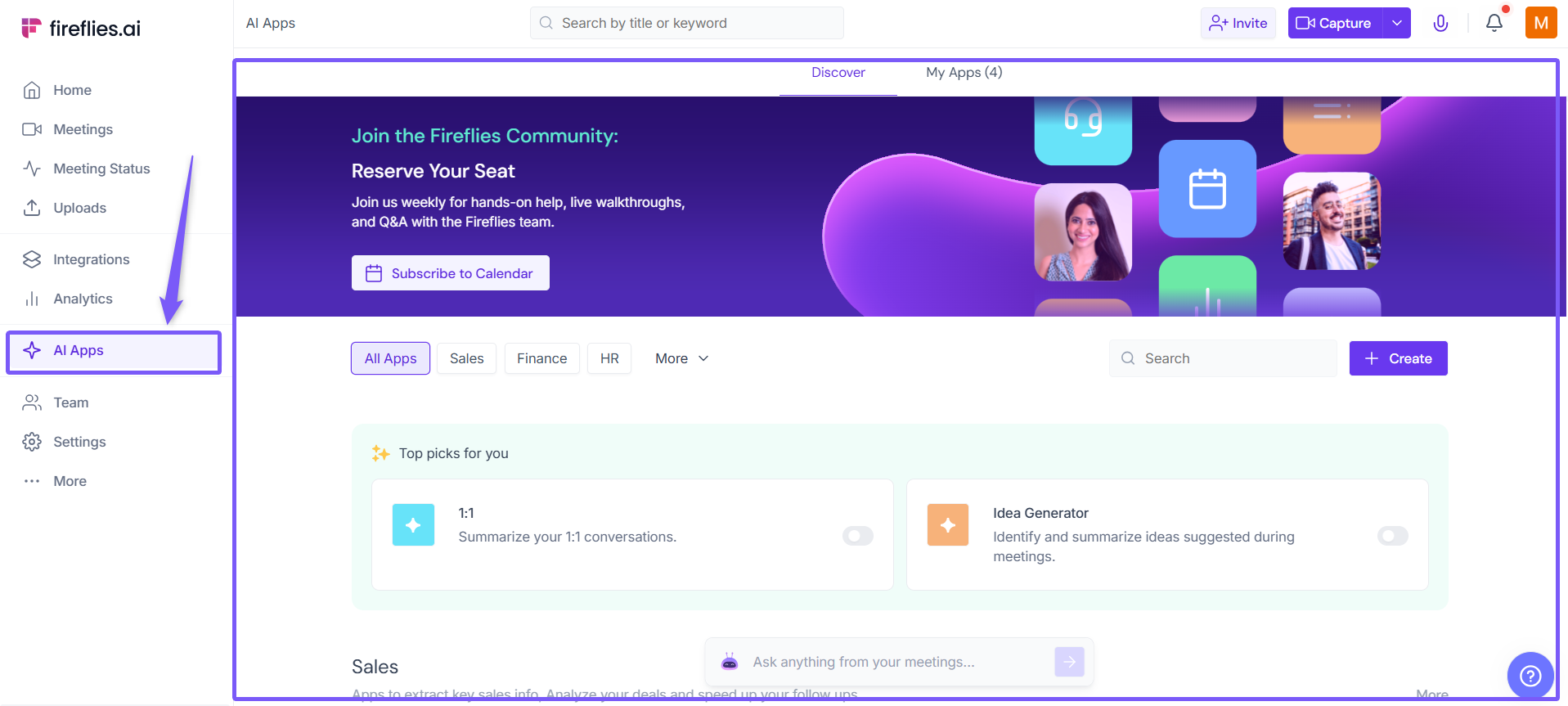
You can use AI Skills to:
Qualify leads using frameworks like BANT
Generate interview evaluations and scorecards
Create follow-up summaries and action items
You don’t need to build everything from scratch—many AI Skills are ready to run, and you can also create your own if needed.
Want to go deeper? Learn how AI Skills work and how to create them →
📘 Prefer a ready-made template first? Read the Voice Agent Best Practices Playbook for ideas on structuring your Voice Agent workflows, then continue with the steps below to connect and use AI Skills.
Step 3: Find and view your Voice Agent meeting
After a Voice Agent call finishes, it’s automatically saved as a meeting in your Fireflies workspace.
To find it:
Go to the Meetings tab and open Voice Agent Meetings.
Look for the robot icon (🤖) next to the meeting name to quickly identify Voice Agent calls.
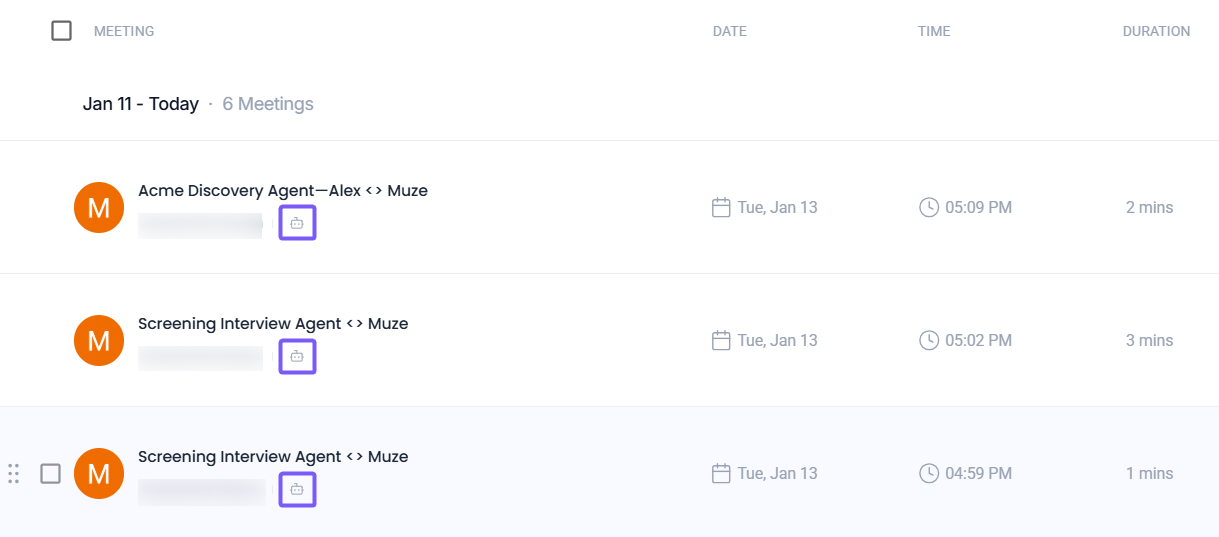
Open the meeting to view the recording, transcript, summary, and run AI skills, as well as use AskFred, etc.
Step 4: Run AI Skills on the Voice Agent meeting
Once you’re inside a Voice Agent meeting, you can run AI Skills directly on that conversation.
Open the AI Skills panel
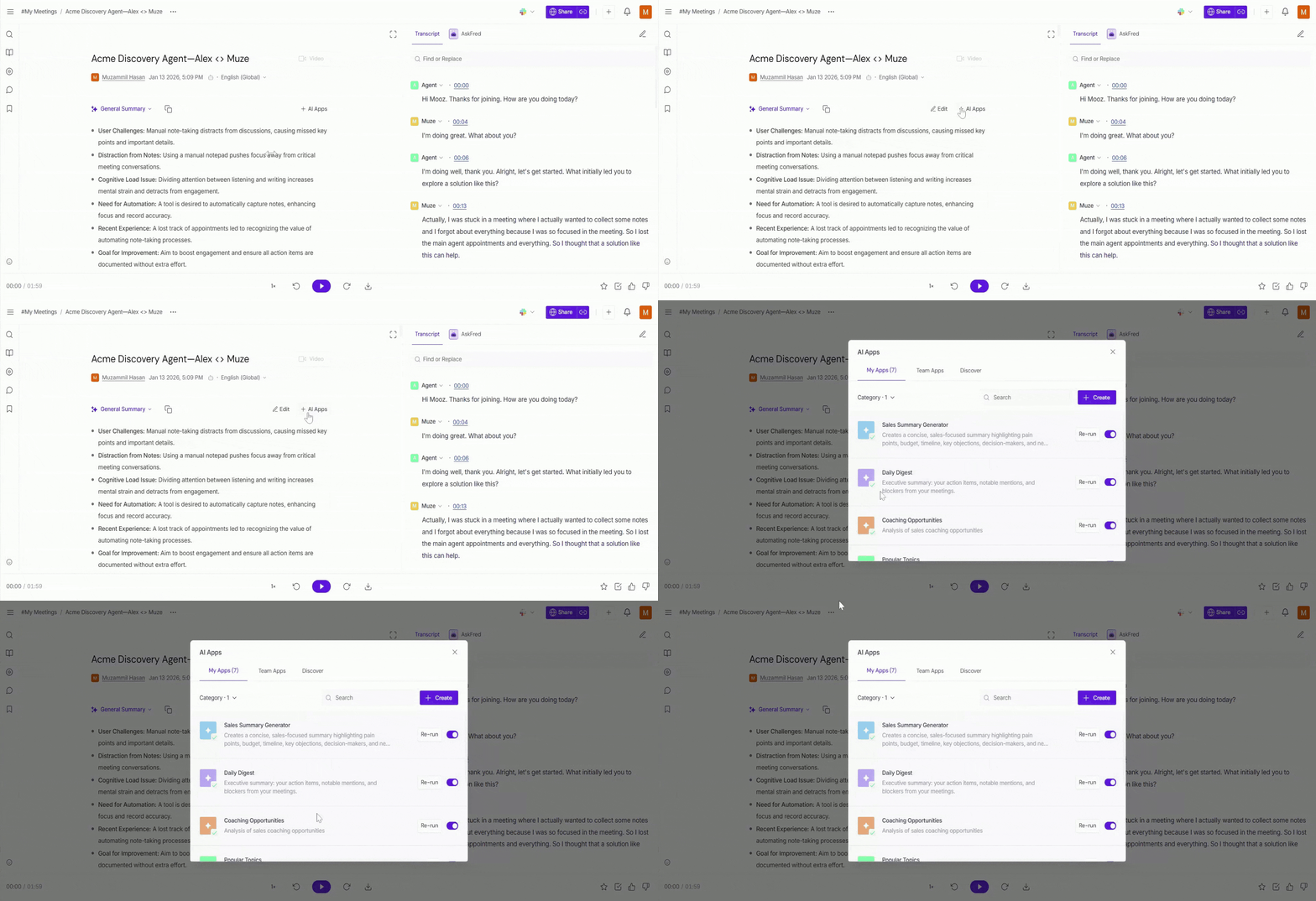
At the top of the meeting page, click on AI Skills. This opens a panel showing AI Skills available to you.
Create or discover new AI Skills (optional)
Click Create to build a custom AI Skill directly from here.
Switch to the Discover tab to explore additional AI Skills templates.
Use the Team Skills tab to run AI Skills created by your teammates
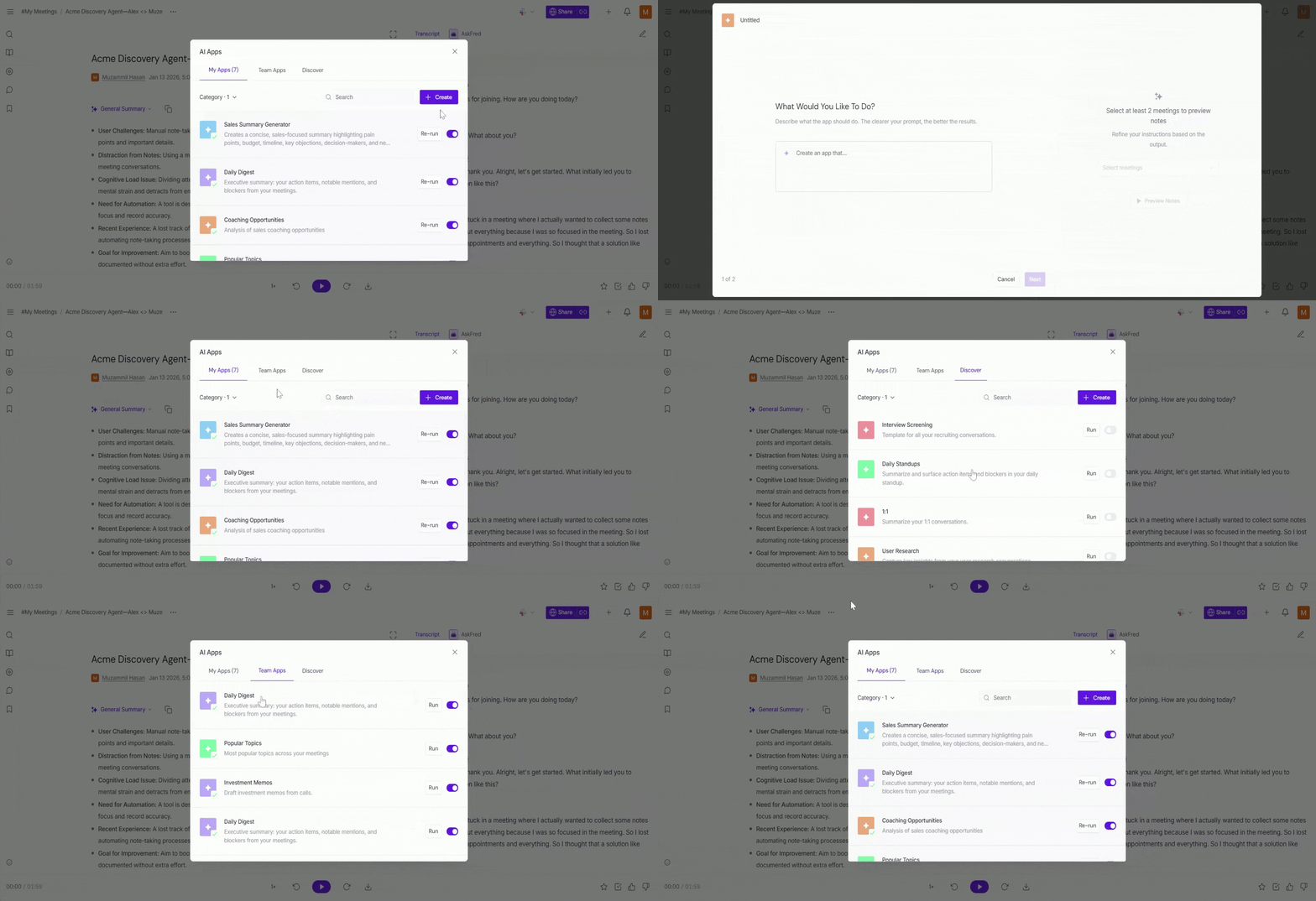
Choose an AI Skill to run
Click on the Run button to run an AI Skill that’s already available in your workspace or My Skills.
Click on the Re-run button to generate the output again.
Toggle an AI Skill on to automatically run it for similar meetings
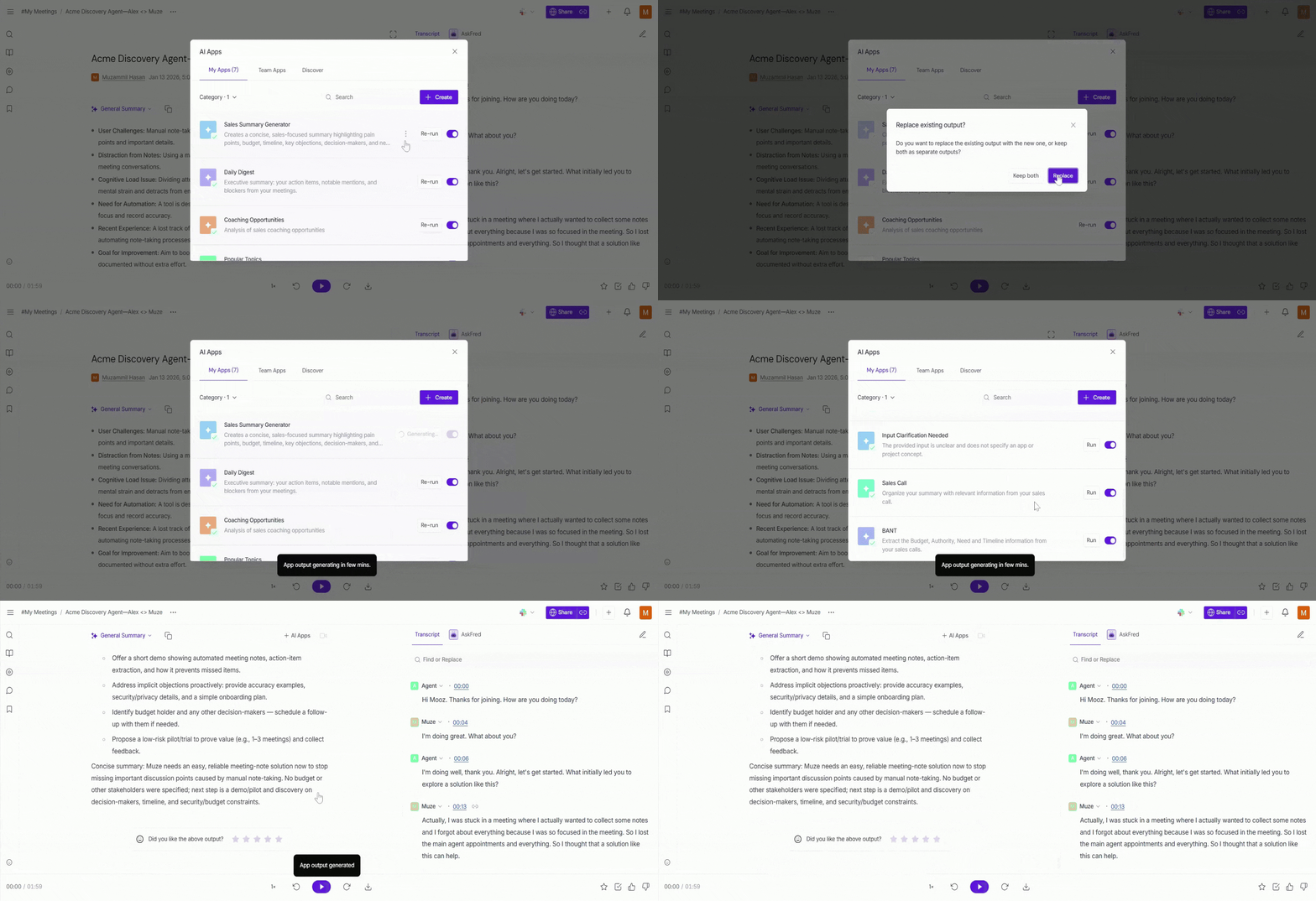
AI Skills use the Voice Agent meeting’s transcript and summary to generate structured outputs like summaries, evaluations, scorecards, or insights—without manual review.
Learn ad Explore more about AI Skills Feed →
📊 View your AI Skill outputs
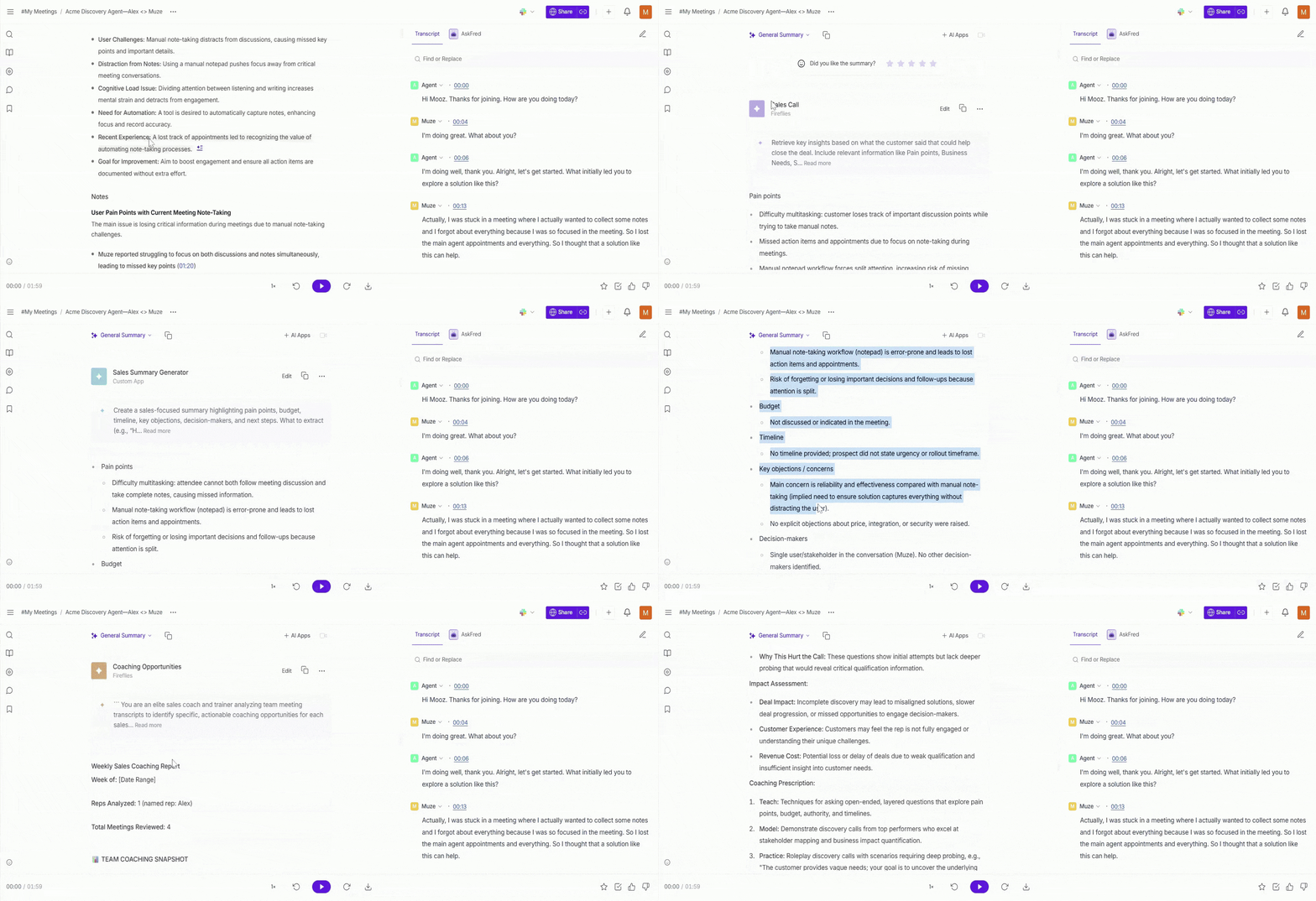
After an AI Skill runs on a Voice Agent meeting, the output appears below the meeting summary.
From here, you can:
Scroll down to see all the AI Skill outputs that were run on the meeting
Review summaries, evaluations, scorecards, and insights in one place
If you re-run an AI Skill, the previous output is replaced with the latest version, so you’re always looking at the most up-to-date results.
Want more control over your meeting summary?
You can customize, expand, or regenerate your meeting summaries to get the exact insights you need.
🔗 Send AI Skill outputs to integrated tools
After reviewing AI Skill outputs, you can send the results to your connected tools to keep your workflows moving.
Depending on your use case, you can:
Send screening interview evaluations or scorecards to ATS tools like Lever or Ashby.
Push discovery call qualification data to CRM tools like HubSpot or Salesforce.
Use AI Skill outputs to update records, trigger follow-ups, or support downstream workflows.
Here’s an example of how it appears in HubSpot:
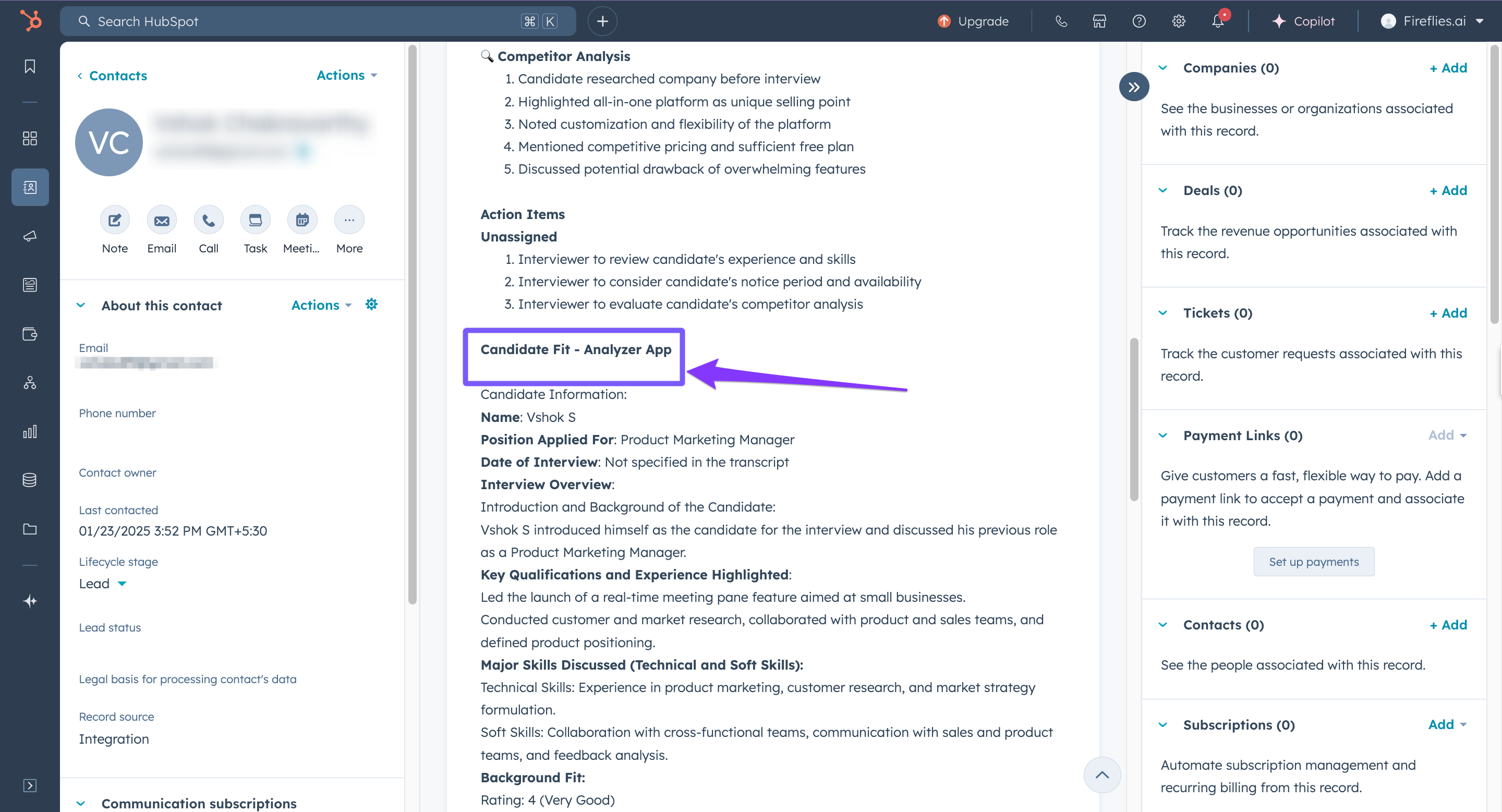
This helps ensure insights from Voice Agent calls don’t stay siloed inside meetings—and flow directly into the tools your team already uses.
❓ Troubleshooting & FAQs
1. I don’t see the AI Skills option on my Voice Agent meeting
Make sure the Voice Agent call has finished. AI Skills only appear on completed meetings.
2. Can I run AI Skills while the Voice Agent call is still in progress?
No. AI Skills can only be run after the call ends, and the meeting is saved.
3. Why don’t I see all AI Skills in my meeting?
You’ll only see AI Skills that are available in your workspace. Some AI Skills may be created by teammates or limited by permissions.
4. I re-ran an AI Skill and the output changed—why?
When you re-run an AI Skill, the previous output is replaced with the latest result based on the meeting data.
5. Do I need to connect AI Skills inside the Voice Agent setup?
No. AI Skills are run from the meeting after the Voice Agent call completes.
6. Can I use the same AI Skill across multiple Voice Agent calls?
Yes. AI Skills are reusable and can be run on any compatible meeting, including Voice Agent meetings.
🔁 Recap
In this guide, you learned how Voice Agents and AI Skills work together to turn calls into action:
Voice Agents run live conversations on your behalf
AI Skills analyze completed Voice Agent meetings
You can run AI Skills directly from the meeting to generate insights
Outputs like evaluations, scorecards, and summaries are saved with the meeting
AI Skill results can be sent to integrated tools for follow-up workflows
This makes it easy to go from conversation → insight → action, without manual work.