How to View Your Voice Agent Meetings
Last updated: March 17, 2026
With Voice Agents, Fireflies can run meetings on your behalf, including screening interviews, sales discovery calls, check-ins, and user interviews. This works especially well for repetitive conversations you don’t need to attend live, while still capturing structured notes, summaries, and insights from every call.
Every call completed by a Voice Agent is automatically saved in Fireflies, just like a regular meeting. This makes it easy to review conversations, access transcripts and notes, and pull key insights whenever you need them.
Let's get started 🚀
🚀 Navigation
Step 1: Log in to your Fireflies account and click on the Meetings tab from the left-hand menu to open your meeting notebook.
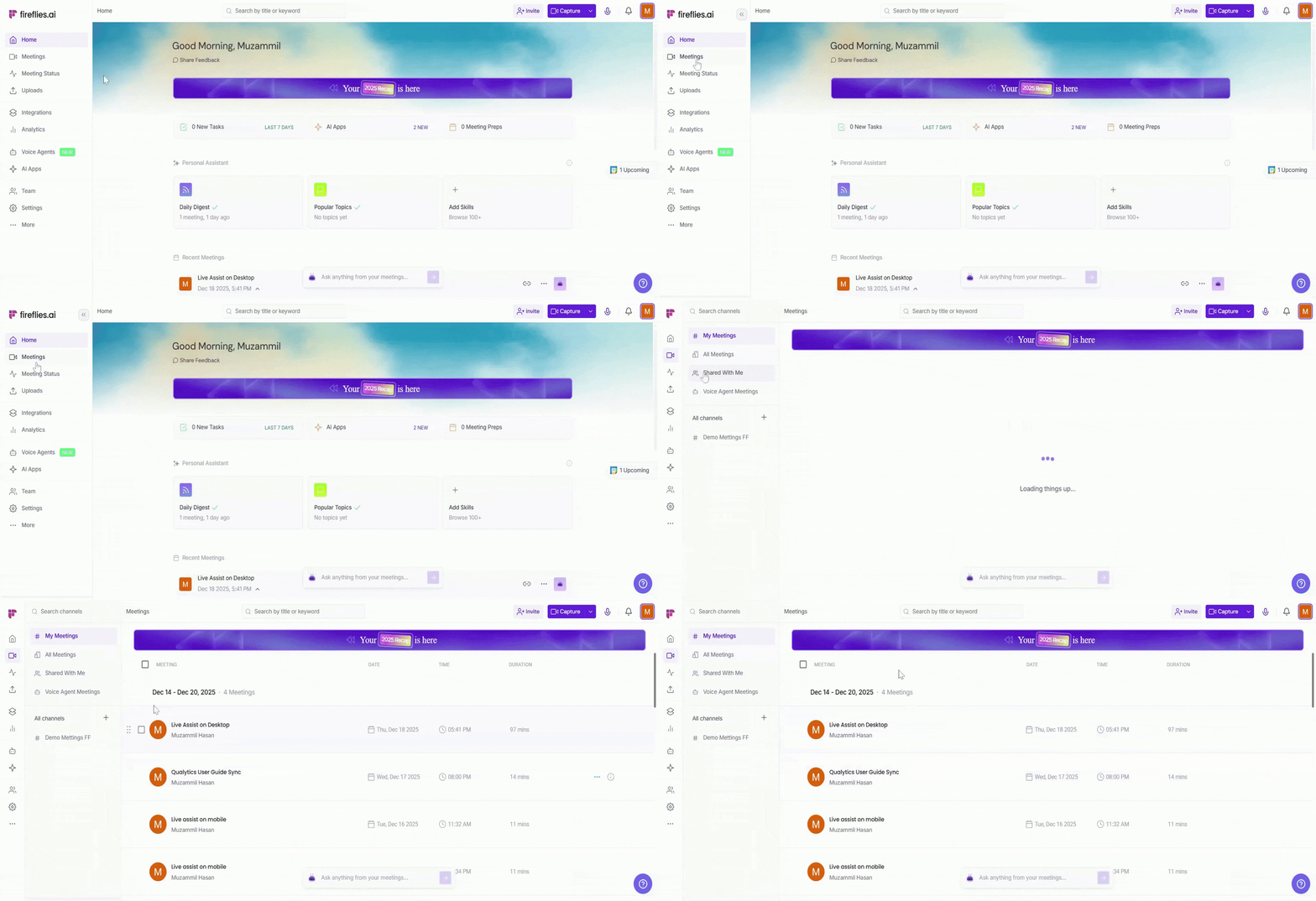
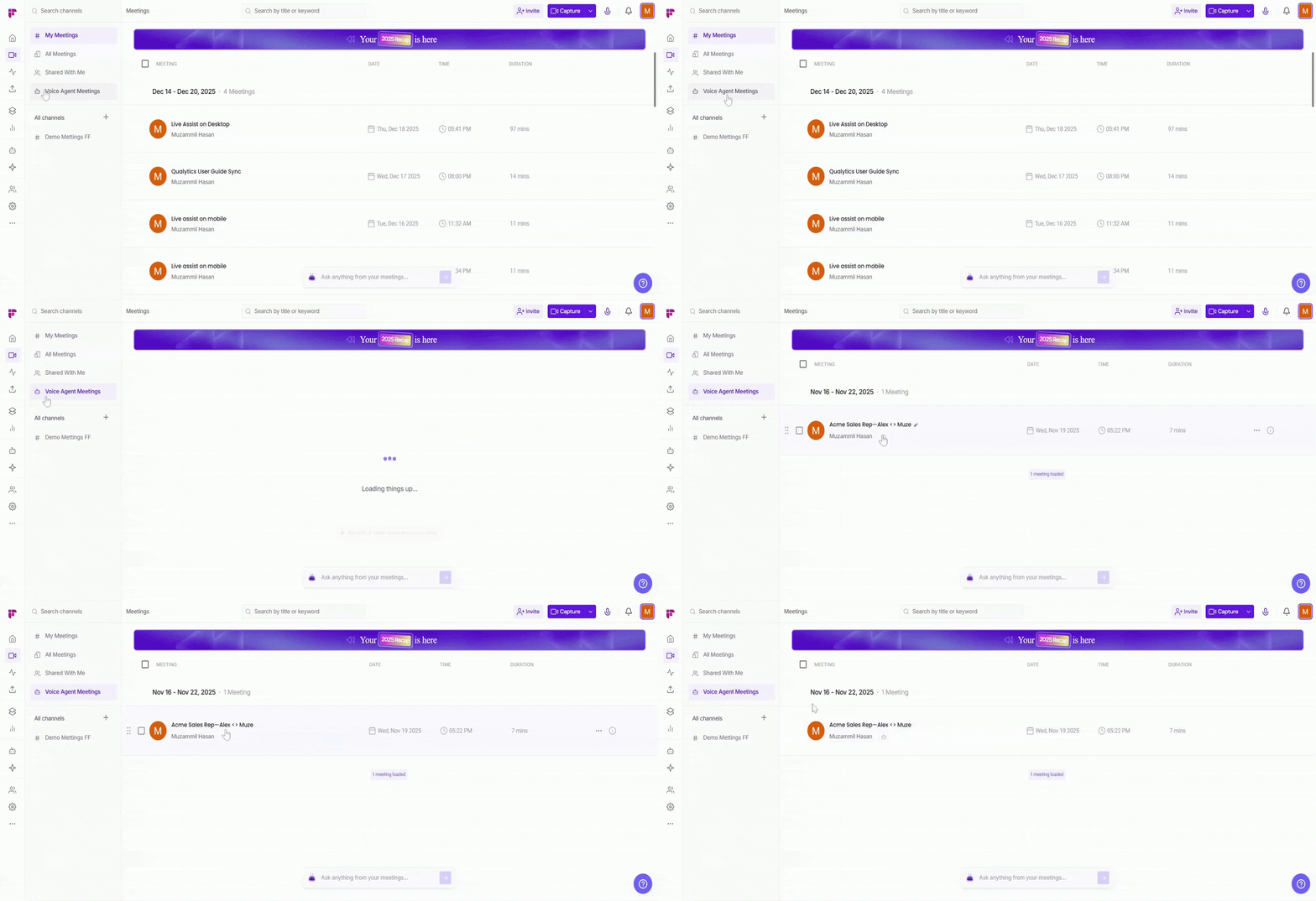
Step 2: You can open Voice Agent meetings in two ways:
Method 1: From the Voice Agent Meetings tab
Click on the Voice Agent Meetings tab in the left sidebar to see only Voice Agent meetings. This view is helpful when you want to focus just on Voice Agent calls.
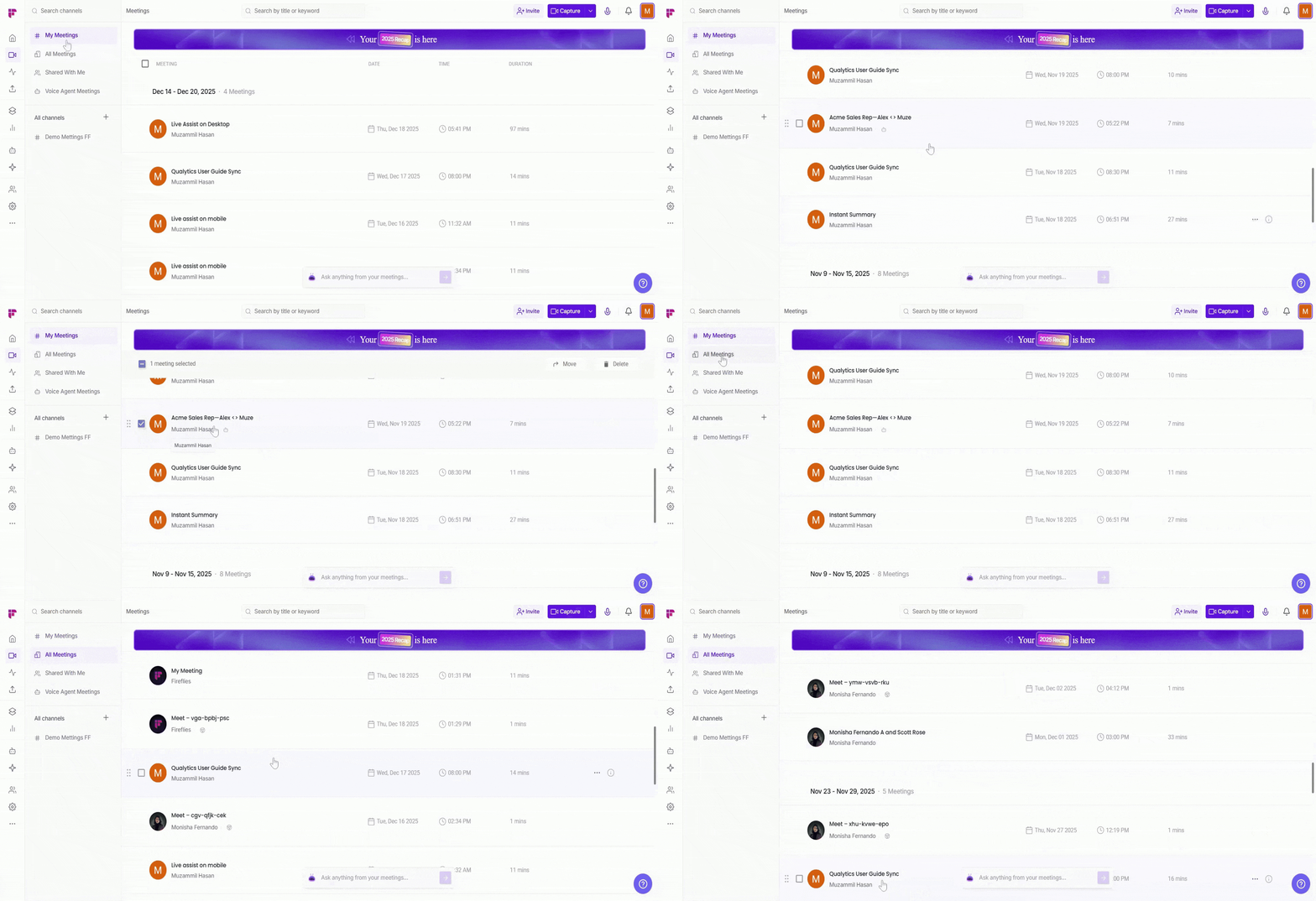
Method 2: From the My/All Meetings tab
My Meetings to see the meetings you’ve attended, including Voice Agent meetings
All Meetings to see all meetings in your workspace, including Voice Agent meetings
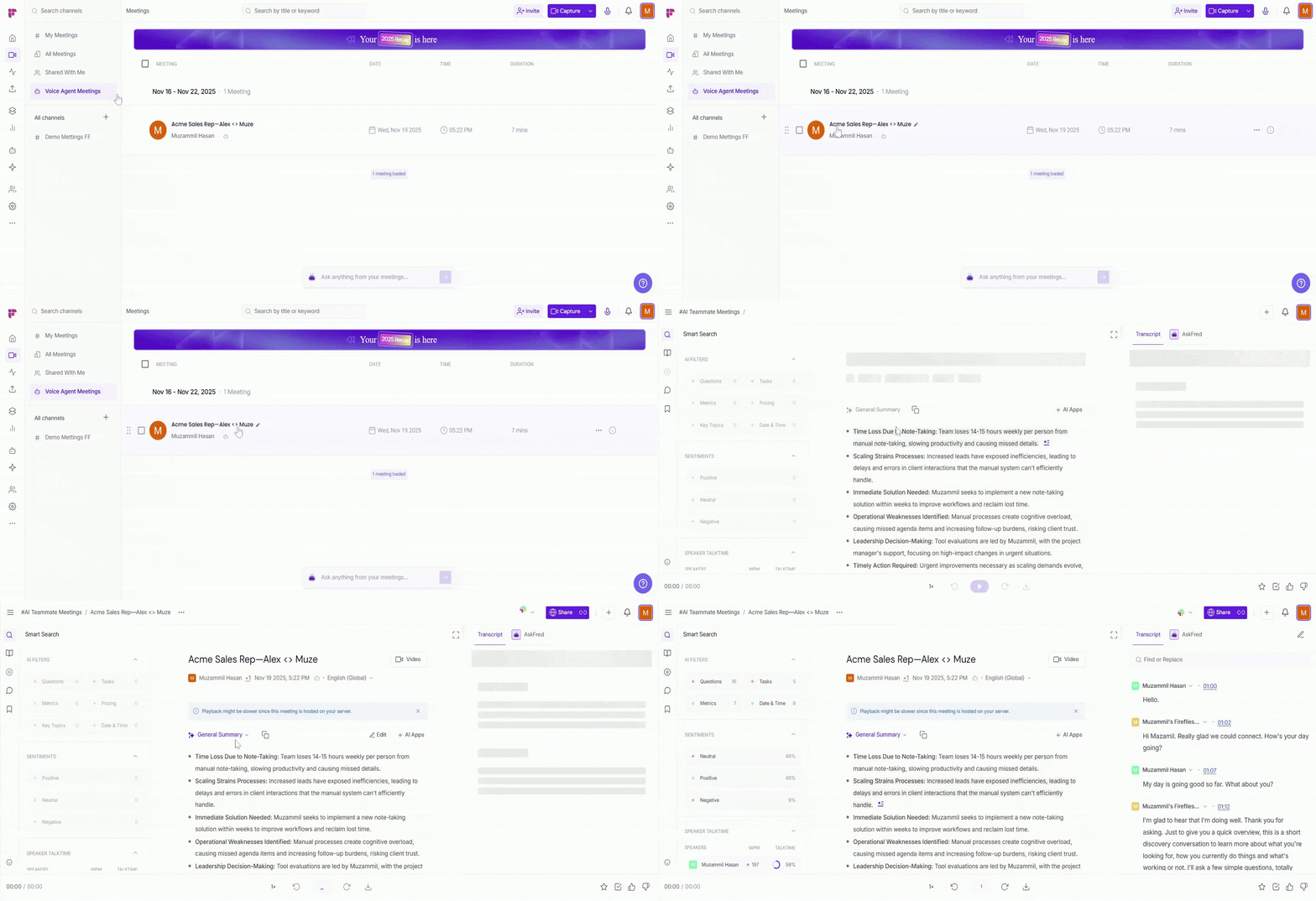
Step 3: Open the Voice Agent meeting to view the transcript, summary, notes, and AskFred insights (For demonstration purposes, we’re using an AI Sales Rep meeting).
How to identify Voice Agent meetings?
Voice Agent calls are marked with a robot icon (🤖) next to the meeting name. This icon helps you quickly identify which meetings were run by a Voice Agent.
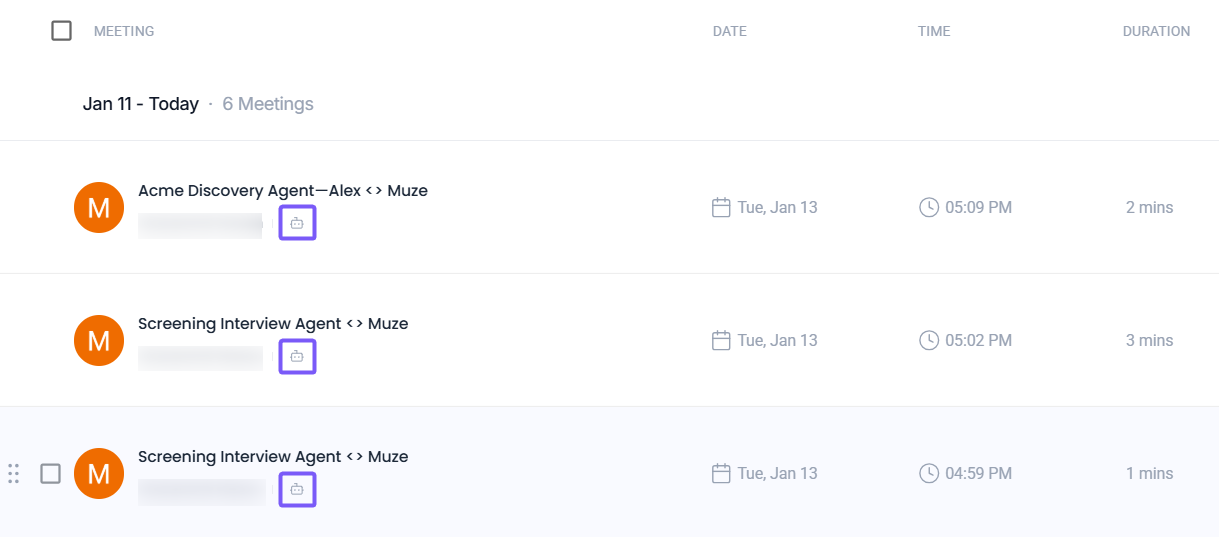
✅ What you can do inside a Voice Agent meeting
Once you open a Voice Agent meeting, you can review and interact with it just like any other Fireflies meeting.
Want to learn how to review, edit, and use meeting notes? See the Fireflies Notepad guide.
📄 View the transcript
Use the transcript to read everything that was said during the Voice Agent meeting without replaying the call.
See the full conversation with speaker names and timestamps
Click a timestamp to jump to that moment in the recording
Search for specific keywords, questions, or topics
Review the conversation quickly and accurately at your own pace
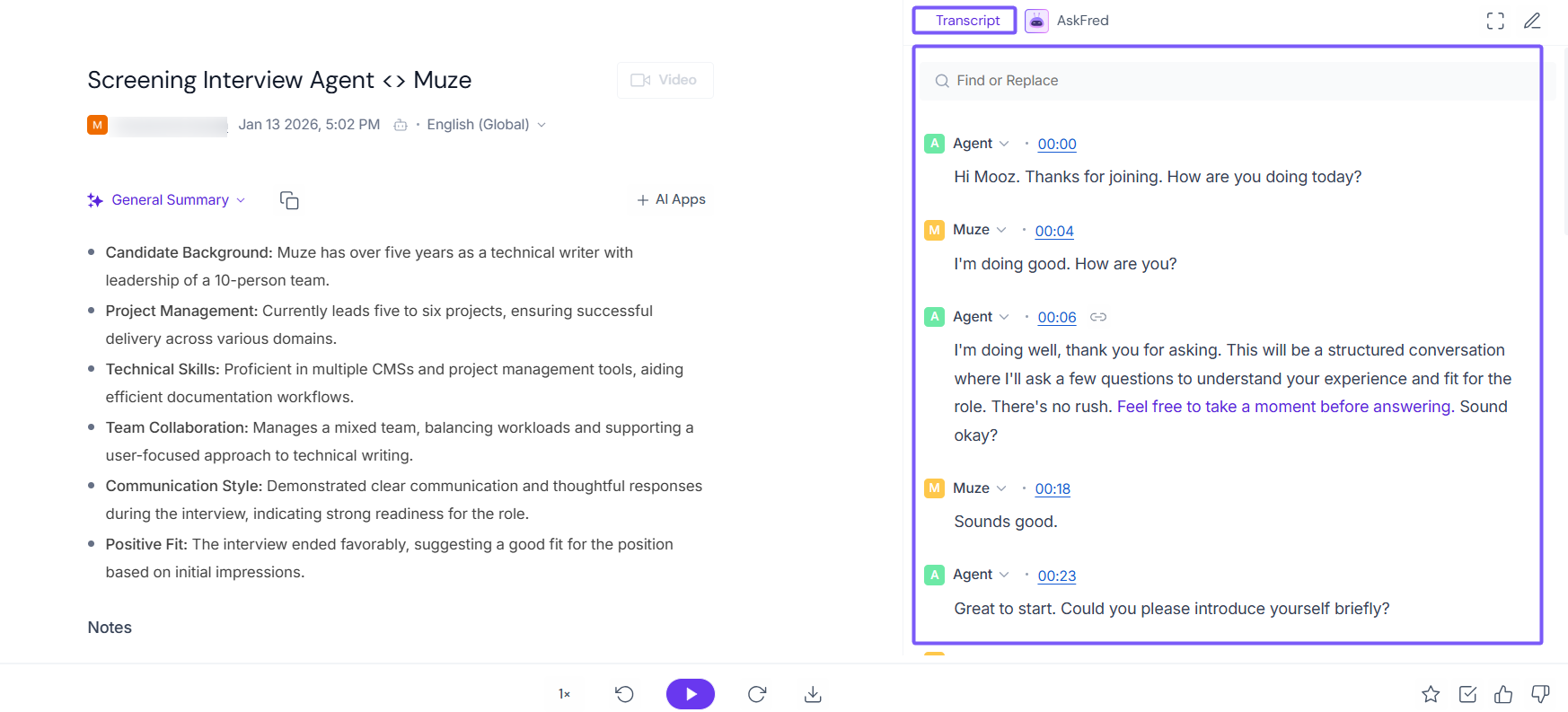
To learn how to edit meeting transcripts in Notepad, see How to edit meeting transcripts on the Fireflies Notepad.
📝 View the meeting summary
Use the summary to understand what was discussed in the Voice Agent meeting without reading the full transcript.
See an AI-generated overview of the conversation
Review the main points and outcomes
Understand what was said and agreed on
Save time by reading the summary instead of replaying the call
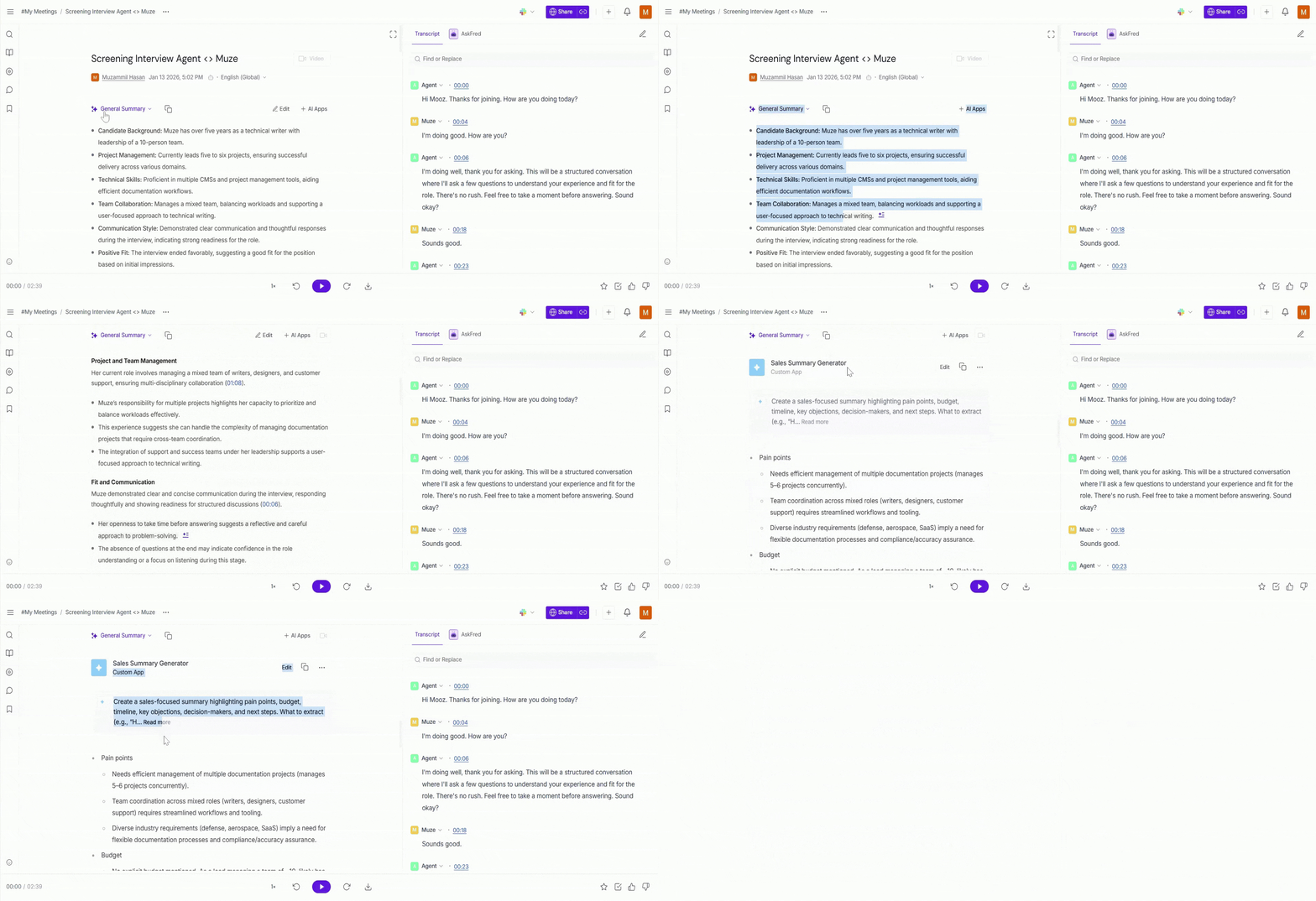
Want to learn more? Meeting summaries are automatically generated after each Voice Agent call and can be customized, shared, or downloaded.
🤖 Use AskFred
AskFred helps you get answers from the Voice Agent meeting without reading the full transcript.
Type a question about the meeting in the AskFred tab
Ask things like:
What questions were asked during the call?
What problems were mentioned?
Summarize the main points of the meeting
What follow-up actions were discussed?
AskFred helps you find the information you need and get clear answers instantly from the meeting.
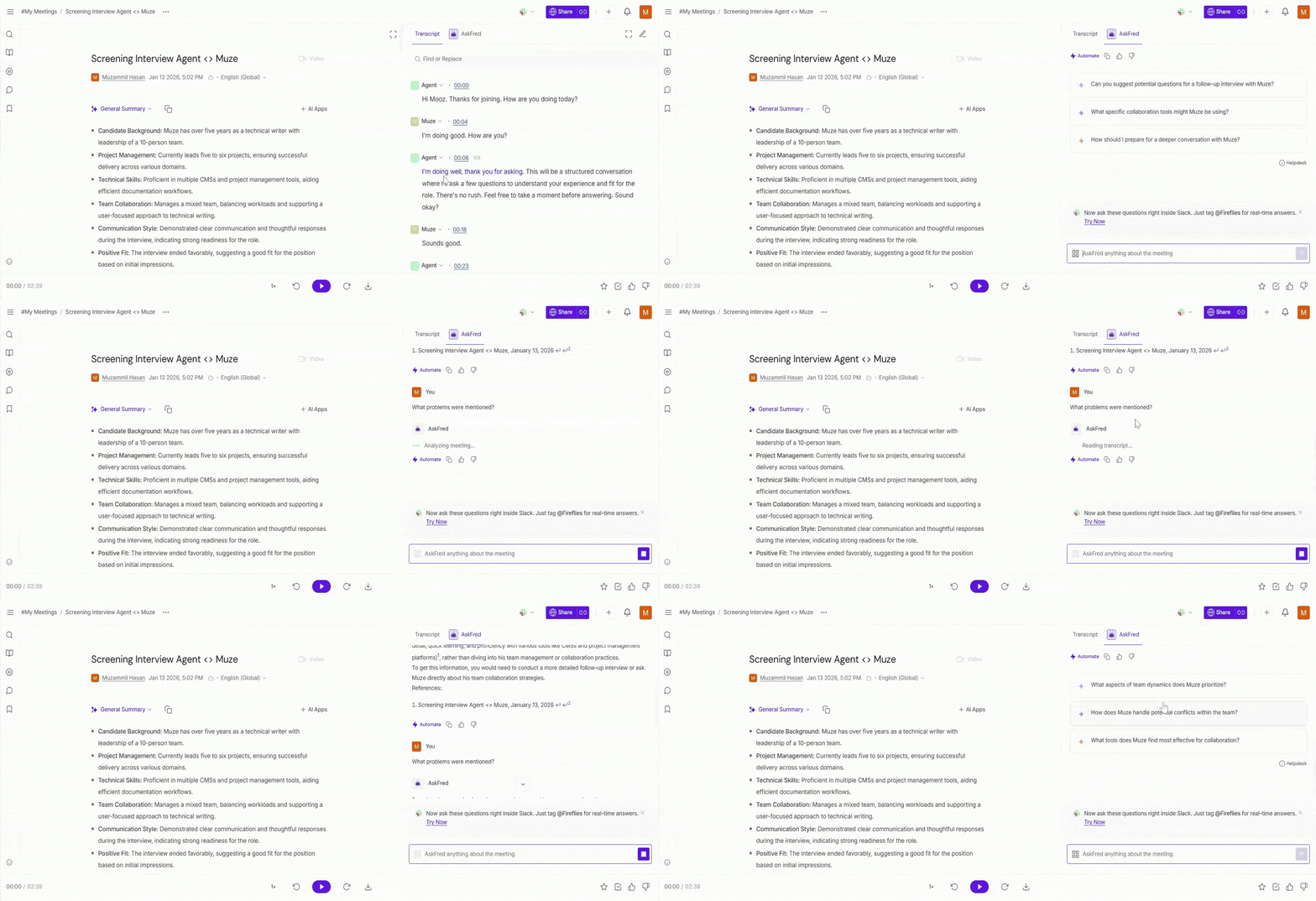
Learn more about AskFred → Discover how to ask questions, get instant insights, and find key moments from your meetings.
🧠 Run AI Skills
Run AI Skills on voice agent conversations to automatically analyze calls and generate actionable insights.
Run built-in AI Skills to analyze the meeting
Get key details like action items or decisions
Review insights without reading the full transcript
Create your own AI Skill for custom information

Want to learn more about AI Skills? Learn how to create and use AI Skills for your workflows.
🔐 Who Can See Voice Agent Meetings
Who can see Voice Agent meetings depends on the settings chosen when the Voice Agent was created. These settings control who can view the meeting details and who receives recap emails after the call.
How to check or edit access settings
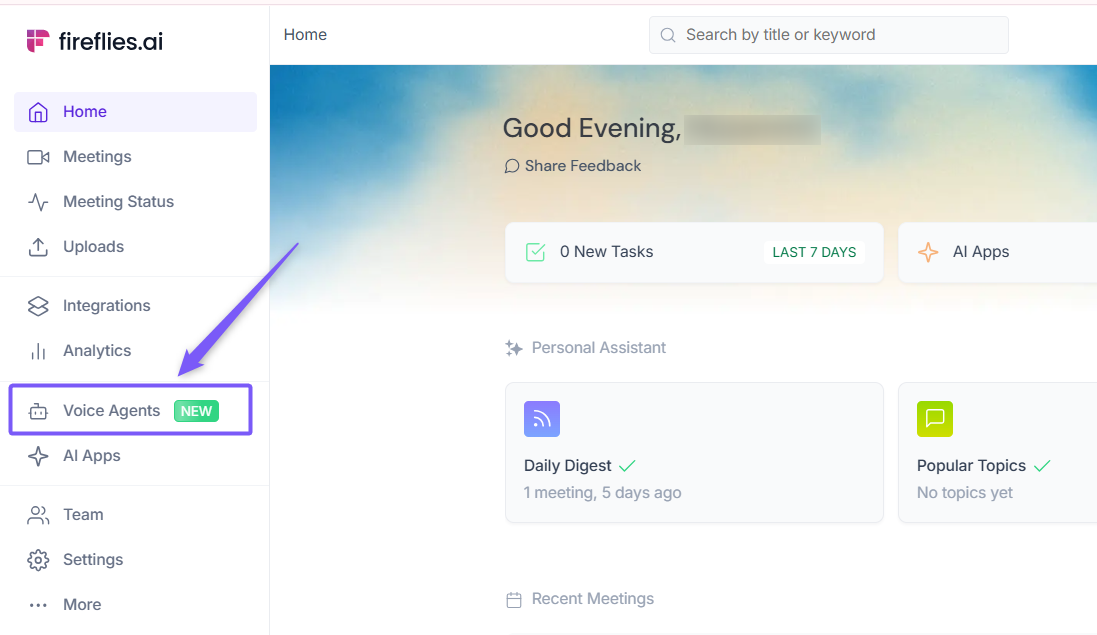
From your Home dashboard, click on the Voice Agents tab.
Select the My Voice Agents tab and open the Voice Agent you want to view or edit the access setting.
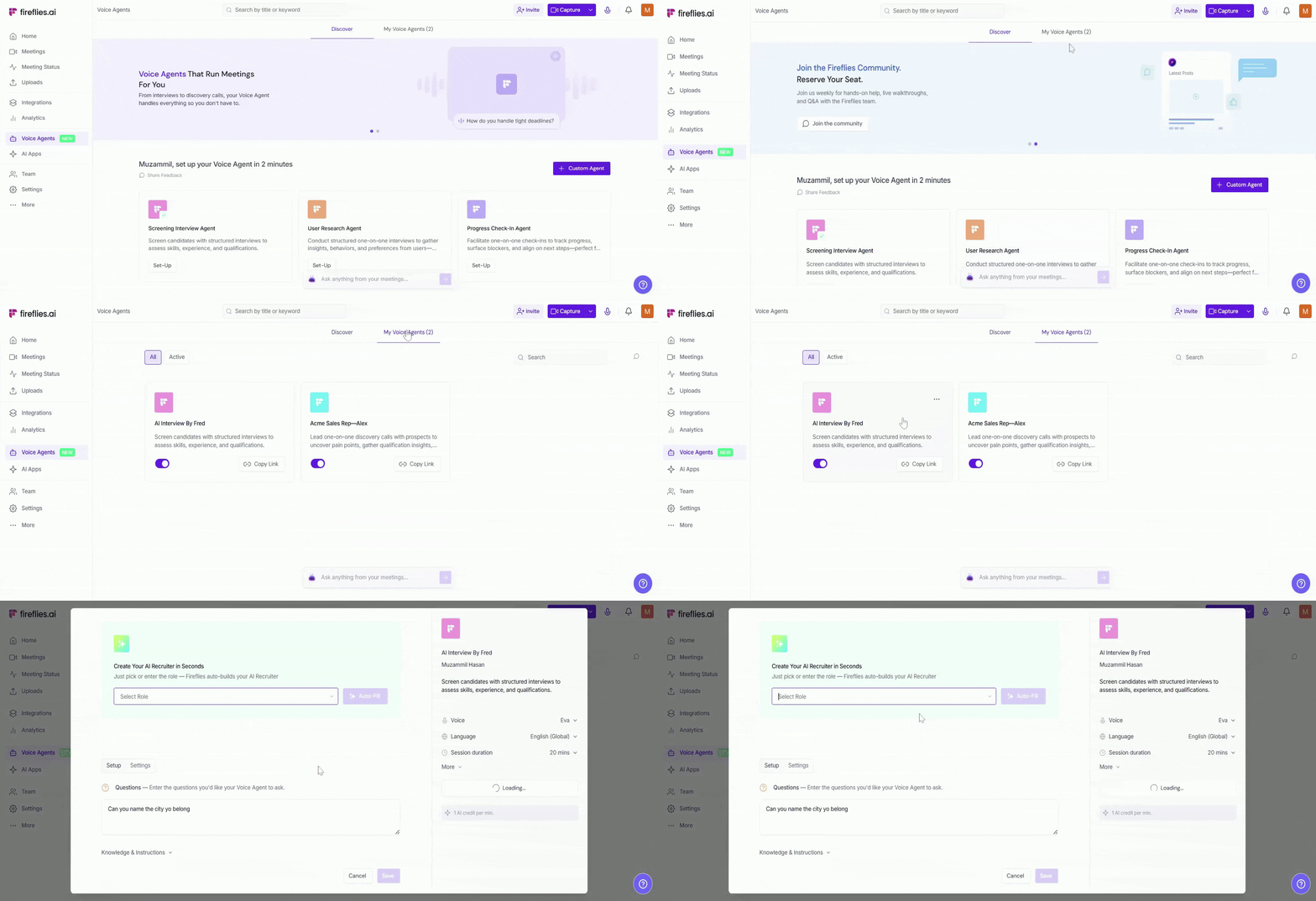
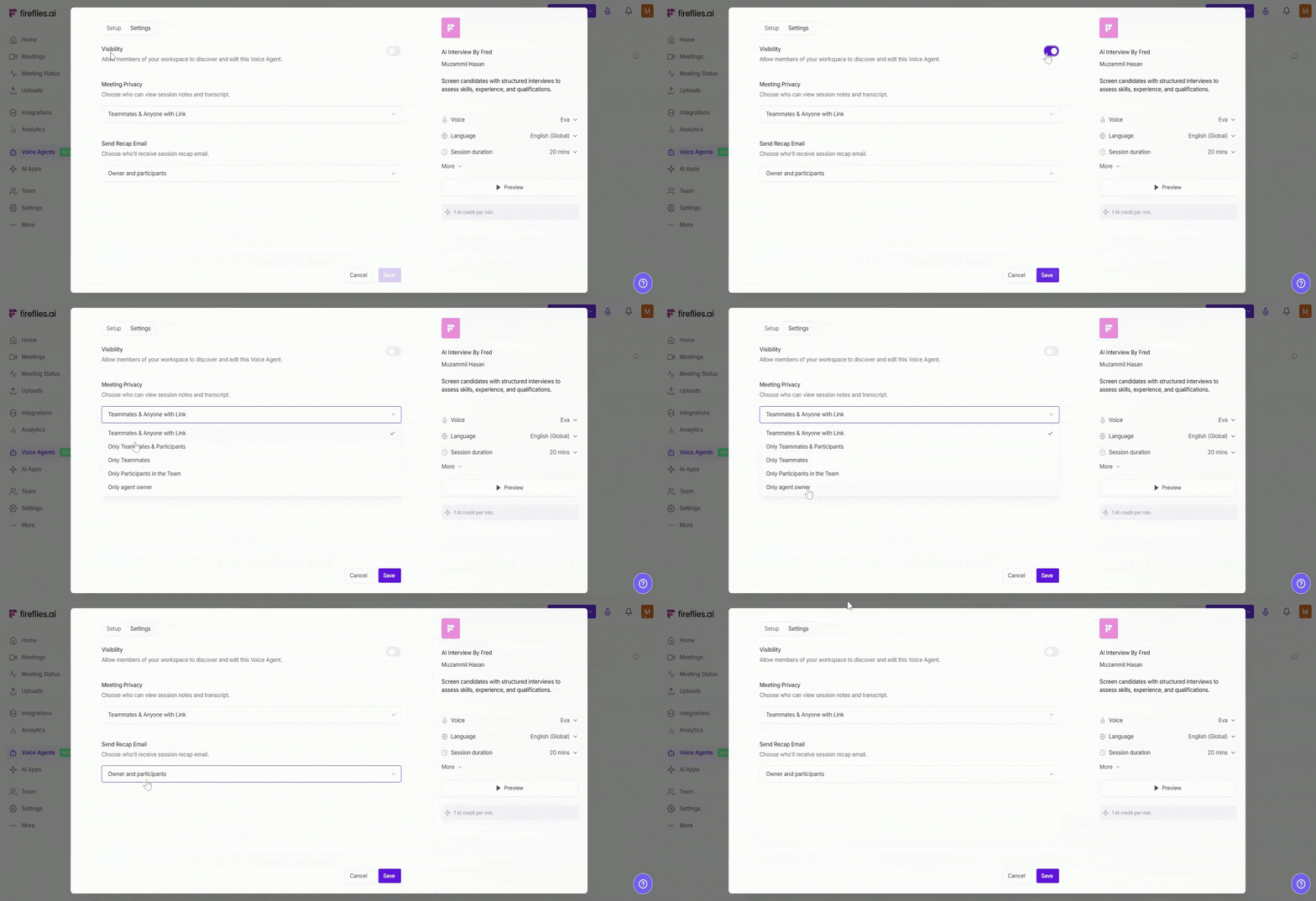
Click Settings. From here, you can:
Control Voice Agent visibility
Use the Visibility toggle to allow or restrict whether members of your workspace can discover and edit this Voice Agent.
Choose who can view meetings, transcripts, and summaries
Decide whether access is limited to the Voice Agent owner, shared with teammates, available to call participants, or accessible to anyone with the meeting link.Control who receives recap emails after each call
Select which people get post-call recap emails, such as the agent owner, participants, or teammates.
Based on these settings, Voice Agent meetings may be visible to the agent owner, teammates, call participants, or anyone with the meeting link.
If you can’t see a Voice Agent meeting, review the agent’s settings or contact your workspace admin for access.
❓Troubleshooting & FAQs
1. I don’t see my Voice Agent meeting
Make sure the Voice Agent has completed the call.
Go to Meetings and check both the Voice Agent Meetings and My Meetings tabs.
Check the Access permission or ask your workspace admin for access permission.
2. I only see regular meetings, not Voice Agent meetings
Click the Voice Agent Meetings filter in the left sidebar.
If you’re in My Meetings, switch to All Meetings to see all meetings in your workspace, including Voice Agent meetings.
3. The meeting summary is missing
The summary may take a short time to generate after the call ends.
Refresh the meeting page and check again.
4. AskFred is not responding
Refresh the meeting page and try again.
Ensure you have sufficient AI Credits available, since AskFred relies on the transcript to generate answers.
5. Can I download the transcript or summary?
Yes. You can download transcripts, summaries, and recordings directly from the meeting page.
6. Who can view Voice Agent meetings?
Access depends on the Voice Agent’s privacy and visibility settings chosen during setup. If you don’t see a meeting you expect, review the agent’s settings or contact your workspace admin.
7. I received a recap email, but can’t view the meeting
Receiving a recap email does not always mean you have access to the full meeting.
Meeting access is controlled by the Voice Agent’s Meeting Privacy settings.
🔁 Recap
In this guide, you learned how to find and review your Voice Agent meetings in Fireflies.
Find Voice Agent meetings using the separate Voice Agent Meetings tab or the My Meetings / All Meetings tabs
Open a meeting to view the transcript, summary, and notes
Use AskFred to get quick answers from the meeting
Run AI Skills to automatically pull out important details
Understand how access and privacy settings control who can view meetings and receive recap emails
This makes it easy to review Voice Agent conversations and take action without replaying the entire call.
🔗 Related guides
How to download transcripts, summaries, and meeting recordings — Download your meeting files for offline review or sharing.
How to create soundbites from meetings — Extract key moments as short sound clips.