How to Download Transcripts, Summaries, and Meeting Recordings
Last updated: July 15, 2026
After a meeting, you may want to save or share the transcript, summary, or recording. Fireflies allows you to download meeting content directly from the meeting view, so you can review it offline, share it with others, or keep it for your records.
Downloads are available in multiple formats, making it easy to use your meeting data outside Fireflies.
Downloading meeting transcripts, summaries, and audio or video recordings is available on Fireflies Pro plans and higher.
Let’s get started 🚀
Step 1: Log in to your Fireflies account and click on the Meetings tab from the left-hand menu.
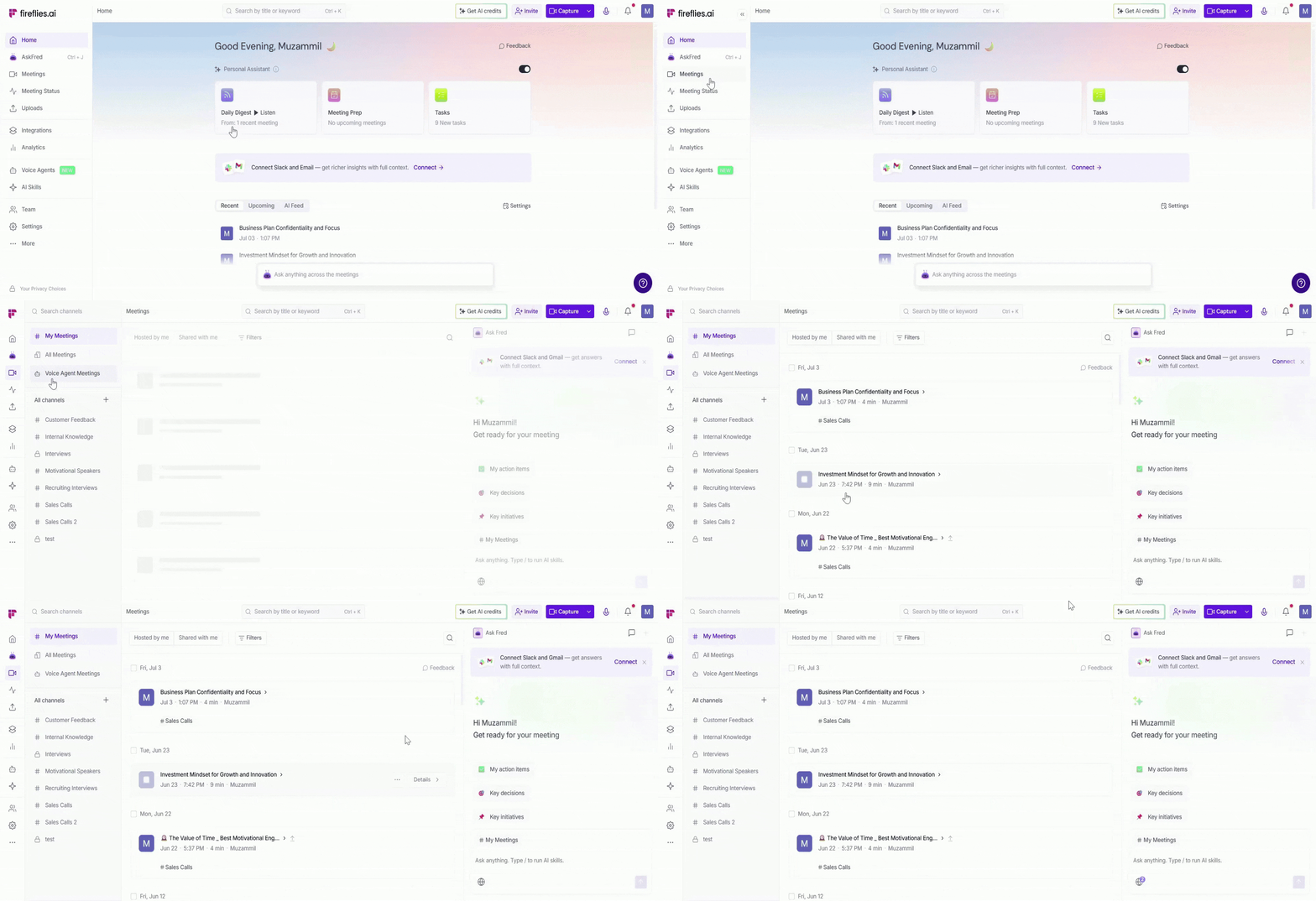
Step 2: Locate the meeting you want to download by entering keywords in the search bar or using the available filters, such as My Meetings, All Meetings, or Channels.
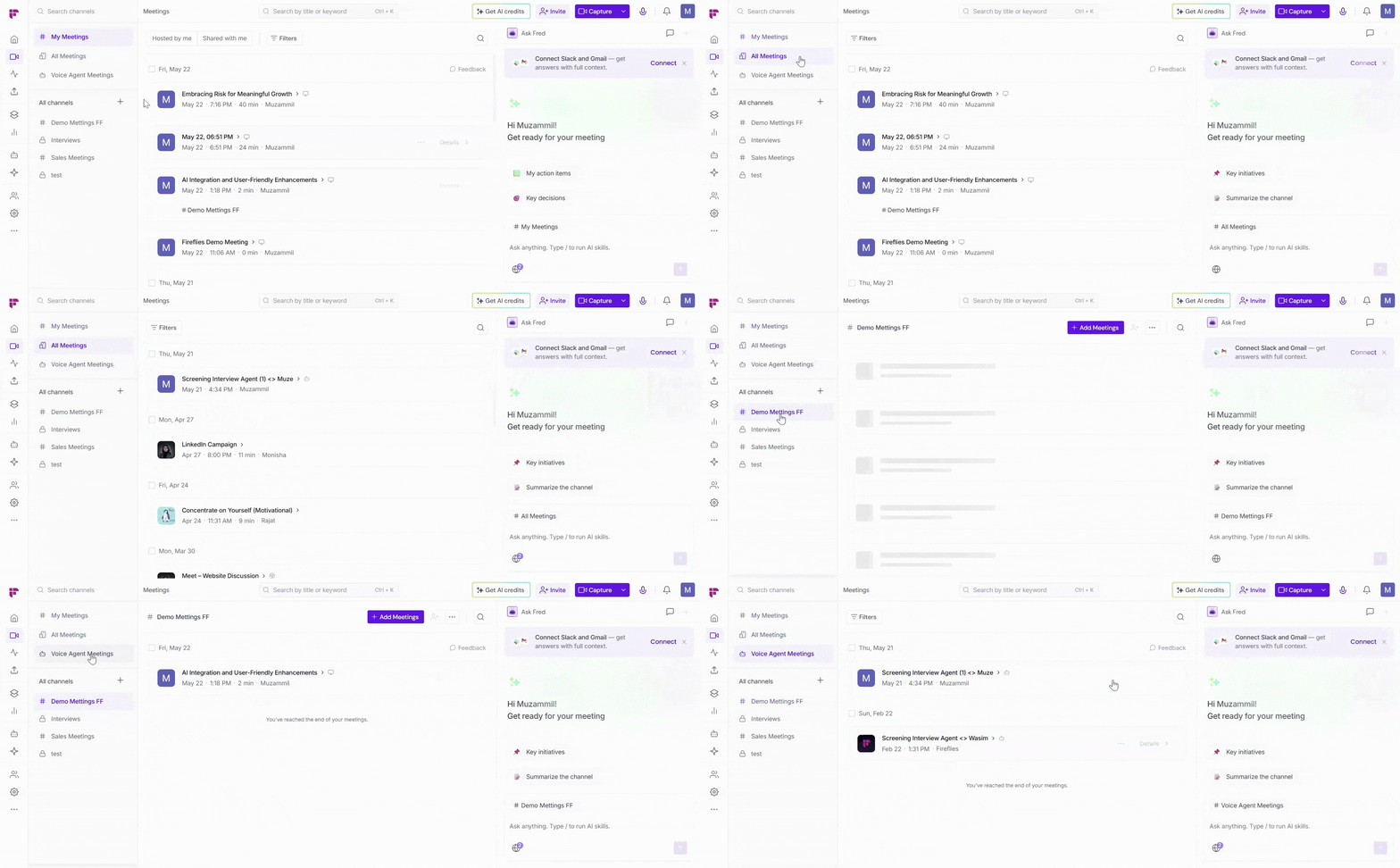
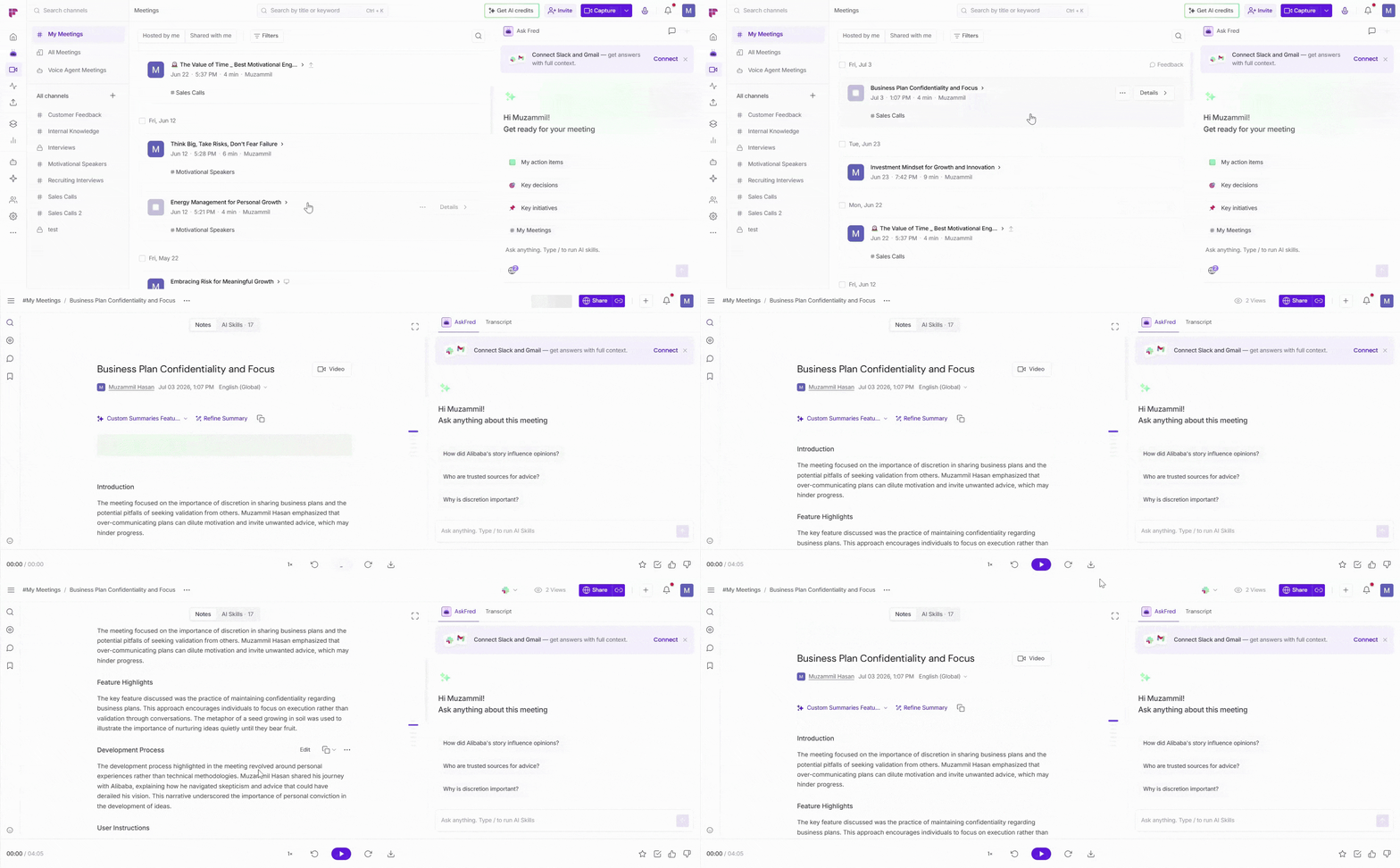
Step 3: Open the meeting for which you want to download the transcript, summary and meeting video.
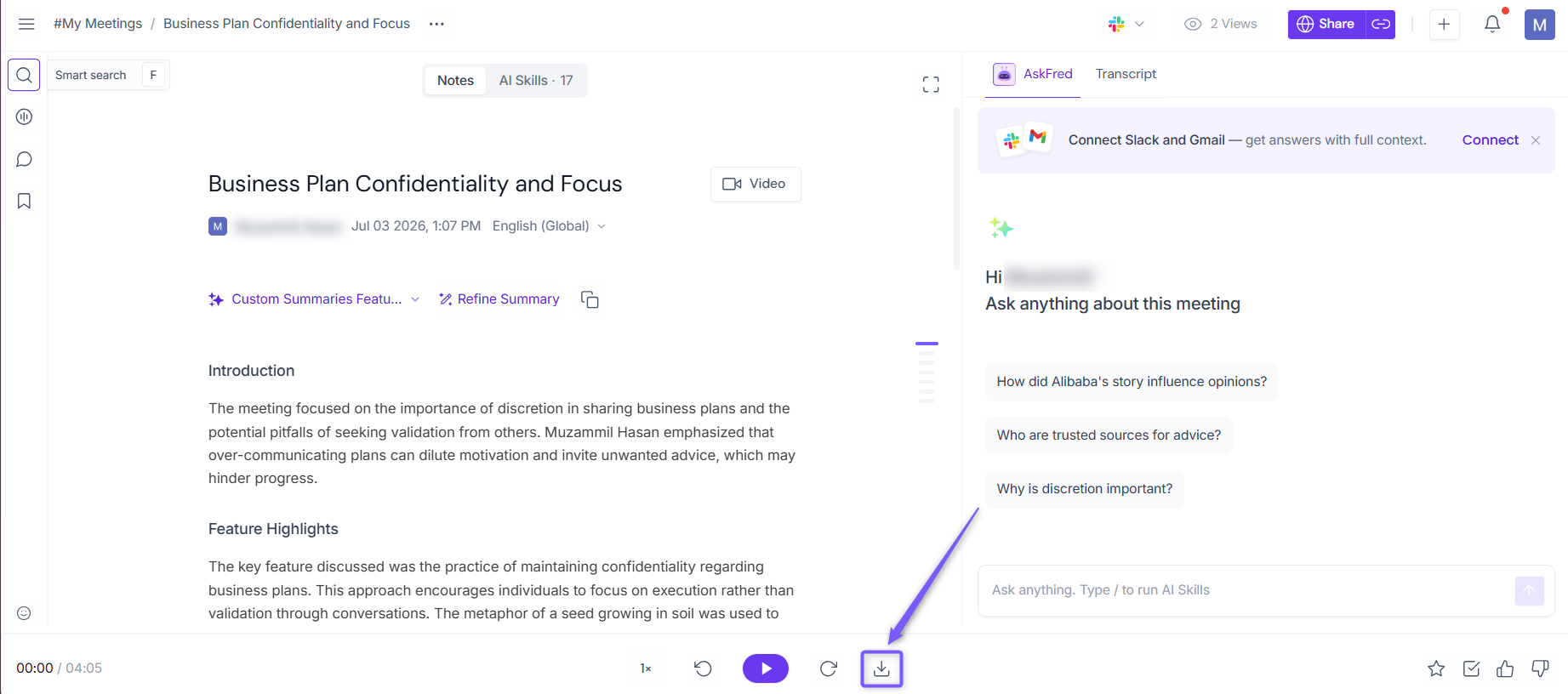
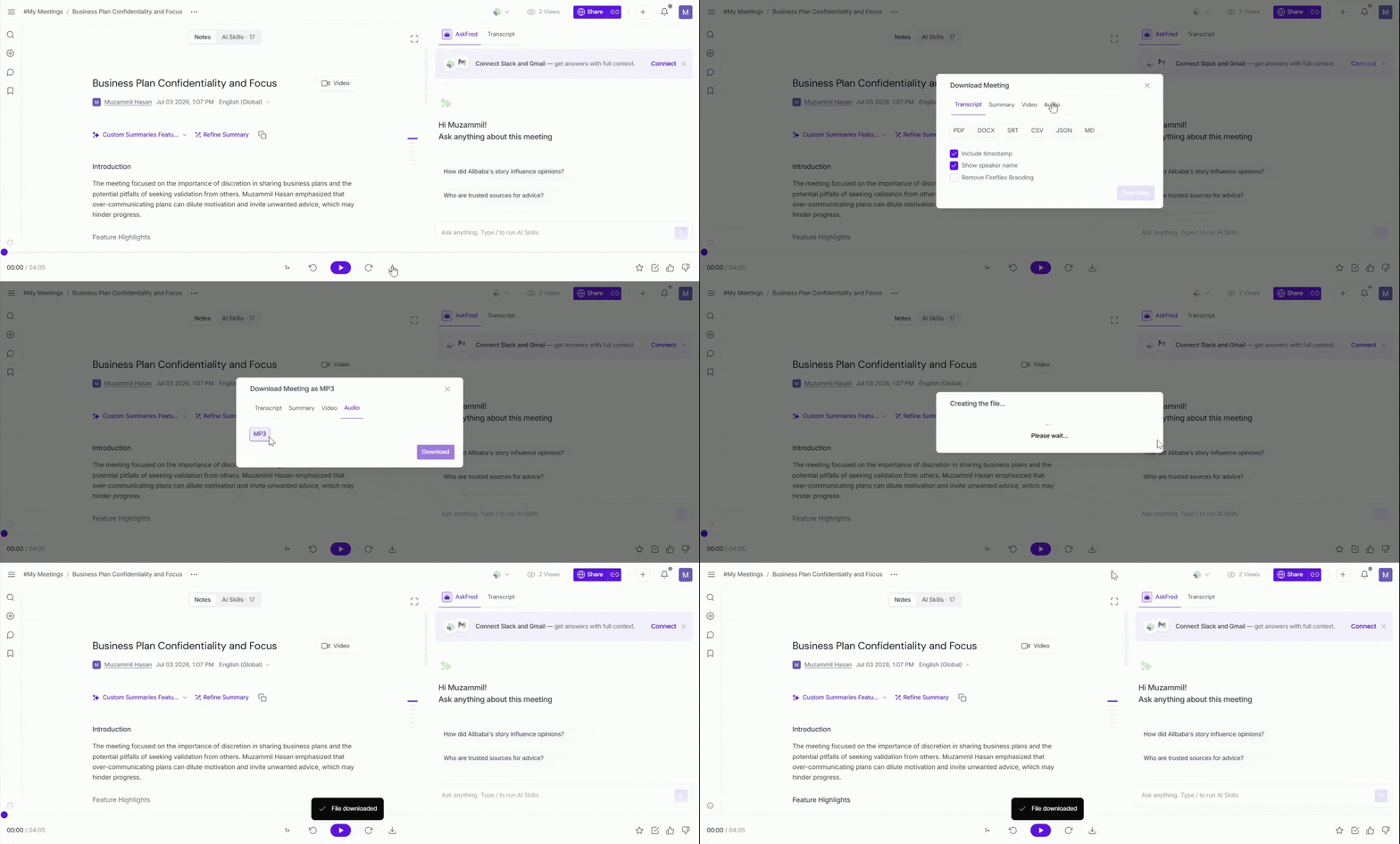
Step 4: Click on the Download icon at the bottom center to view download options.
📥 Download Options Available
Fireflies offers multiple download options so meeting content can be saved and shared based on what’s needed.
Download option | Description |
Transcript | Download the complete meeting transcript to review the full conversation in text form. |
Summary | Download the AI-generated meeting summary with key points and takeaways. |
Video | Download the full meeting video recording (MP4). |
Audio | Download the meeting audio recording only (MP3). |
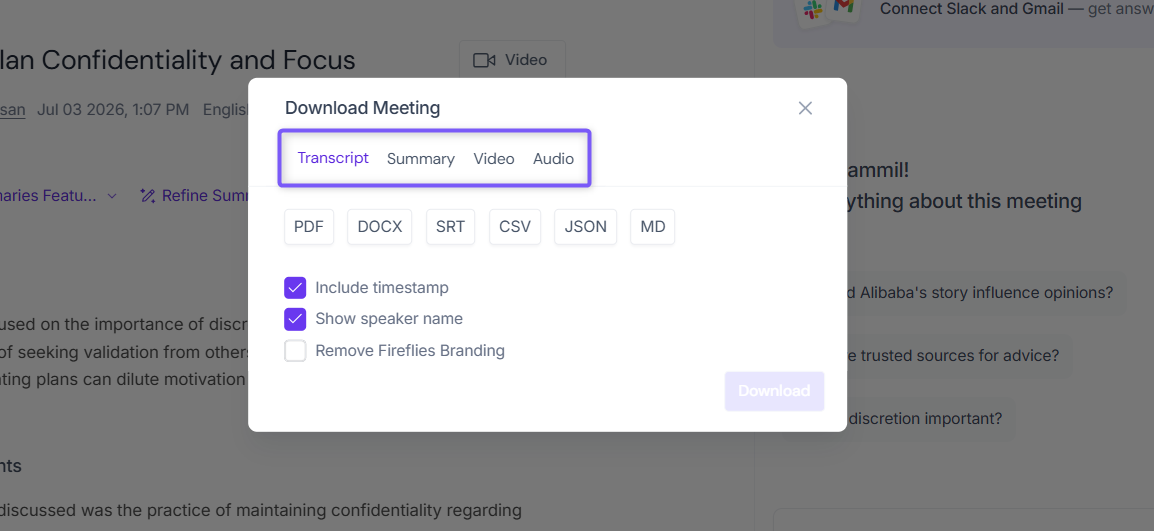
📄 Download Transcript
Meeting transcripts can be downloaded for offline review, sharing, or record-keeping. Before downloading, Fireflies allows you to choose how the transcript should be formatted.
Setting | Description |
File format | Download the transcript in PDF, DOCX, SRT, CSV, JSON, or MD format. |
Include timestamps | Adds timestamps to each line so it’s easy to reference when something was said. |
Include speaker labels | Shows who said what throughout the transcript. |
Remove Fireflies Branding | By default, downloaded transcripts include Fireflies branding. Select this option to download the transcript without the Fireflies logo or branding. |
After selecting your preferred options, click Download to save the transcript to your device.
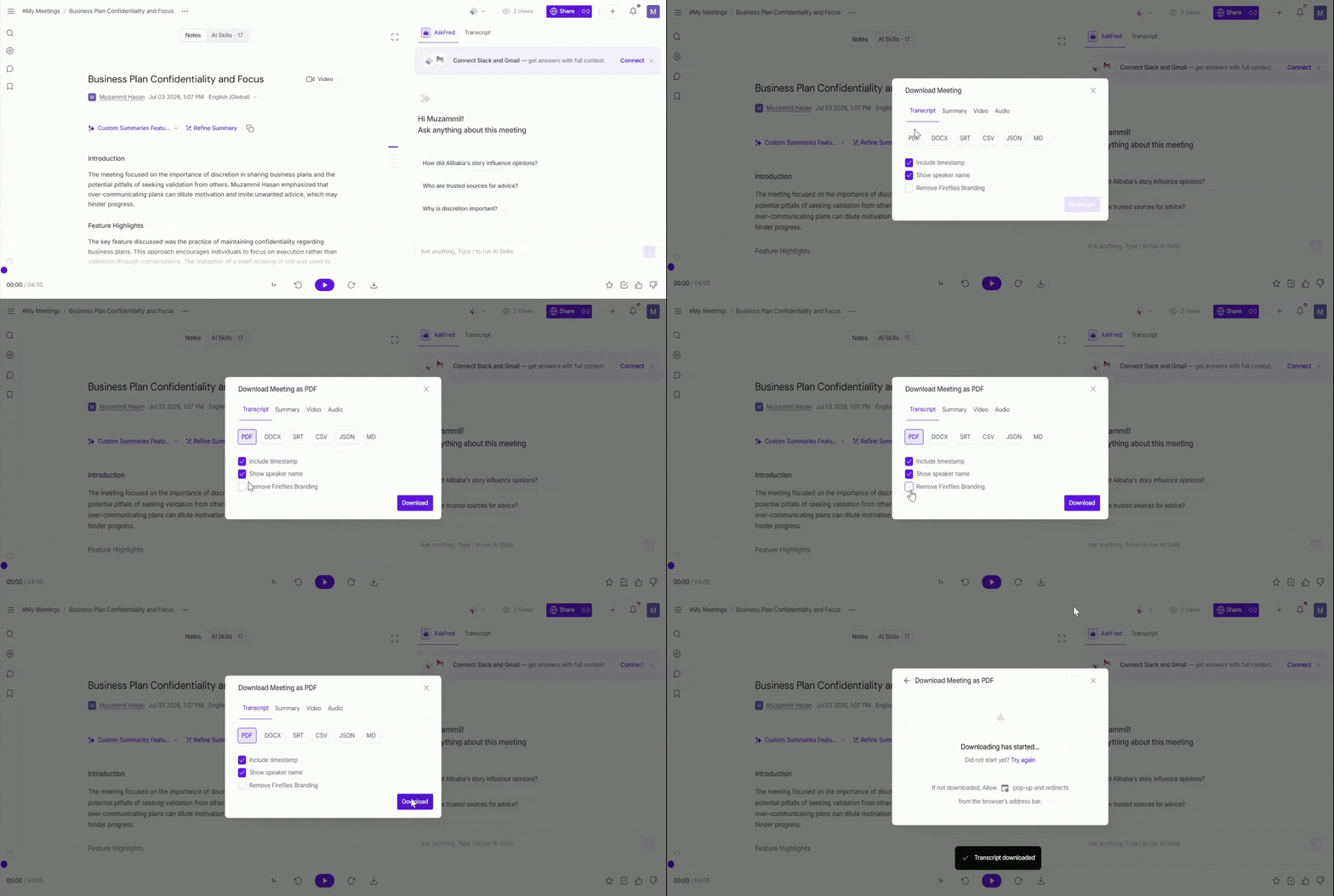
📝 Download Summary
Meeting summaries can be downloaded for review of key points, decisions, and action items quickly. You can also choose to include timestamps and AI-generated sections.
Setting | Description |
File formats | Download summaries in DOCX, PDF, JSON, or MD format. |
Include AI Skills | Includes outputs generated by AI Skills (for example, custom AI models used for sales calls, 1:1s, interviews, or other meeting types). |
Include timestamps | Adds timestamps to the summary, making it easy to jump back to the relevant part of the meeting. |
Remove Fireflies Branding | By default, downloaded summary include Fireflies branding. Select this option to download the summary without the Fireflies logo or branding. |
After selecting your preferred options, click Download to save the summary to your device.
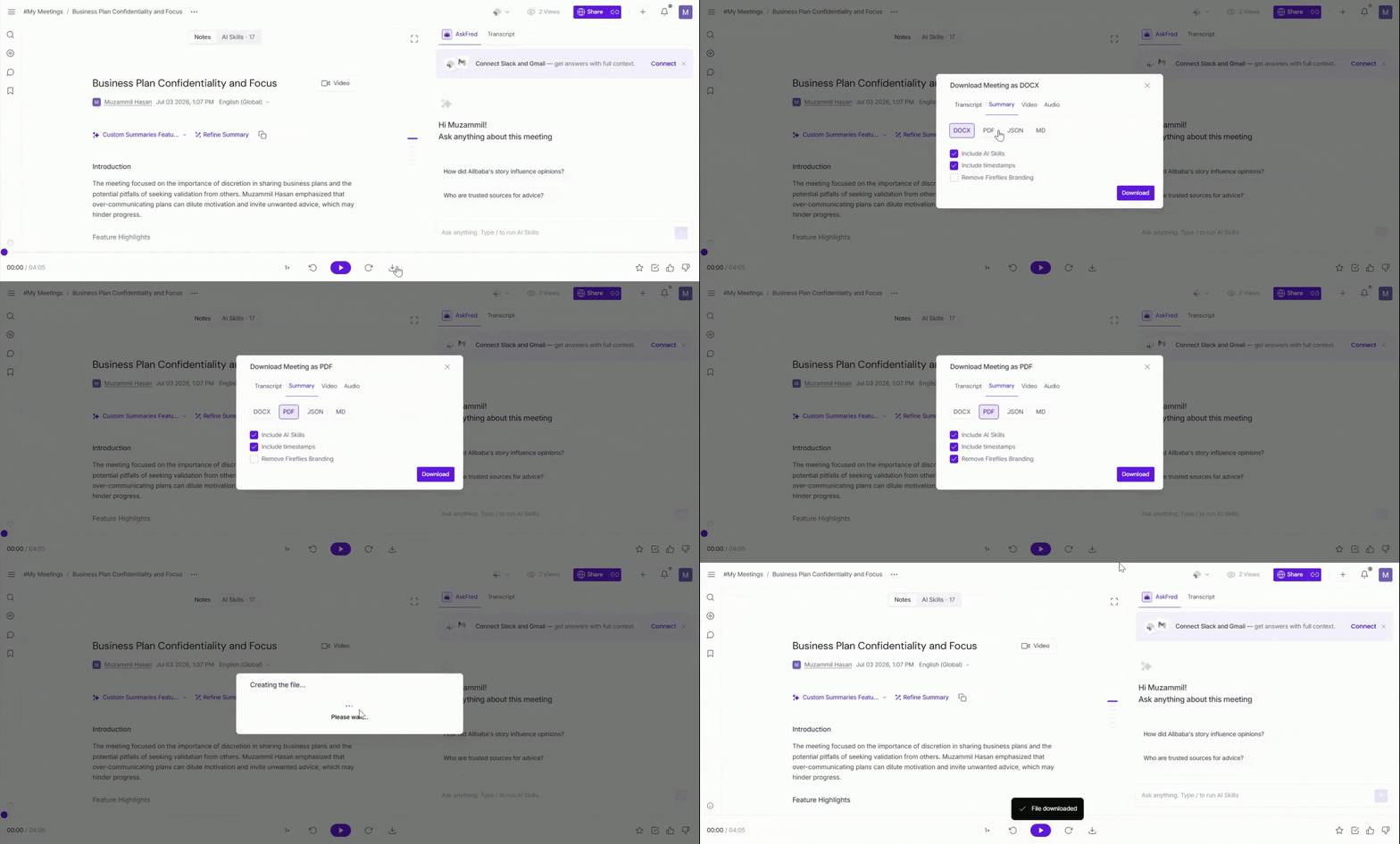
💡Need a different summary format before downloading?
If the default meeting summary doesn't match your preferred structure, create a Custom Summary Template using custom instructions or sample meeting notes. Then generate a summary tailored to your format before downloading it.
→ Learn more in Create and Manage Custom Summary Templates.
Can't change the summary template?
If you're part of a workspace, your Workspace Admin may have set or enforced the AI Summary Template used for your meetings. In that case, you may not be able to change the summary format before downloading it. If you need a different summary format, contact your Workspace Admin.
🎥 Download Video
If the meeting included video, the recording can be downloaded for offline viewing or sharing.
Video recordings are currently available for download only in MP4 format.
Click Download to save the video to the device.
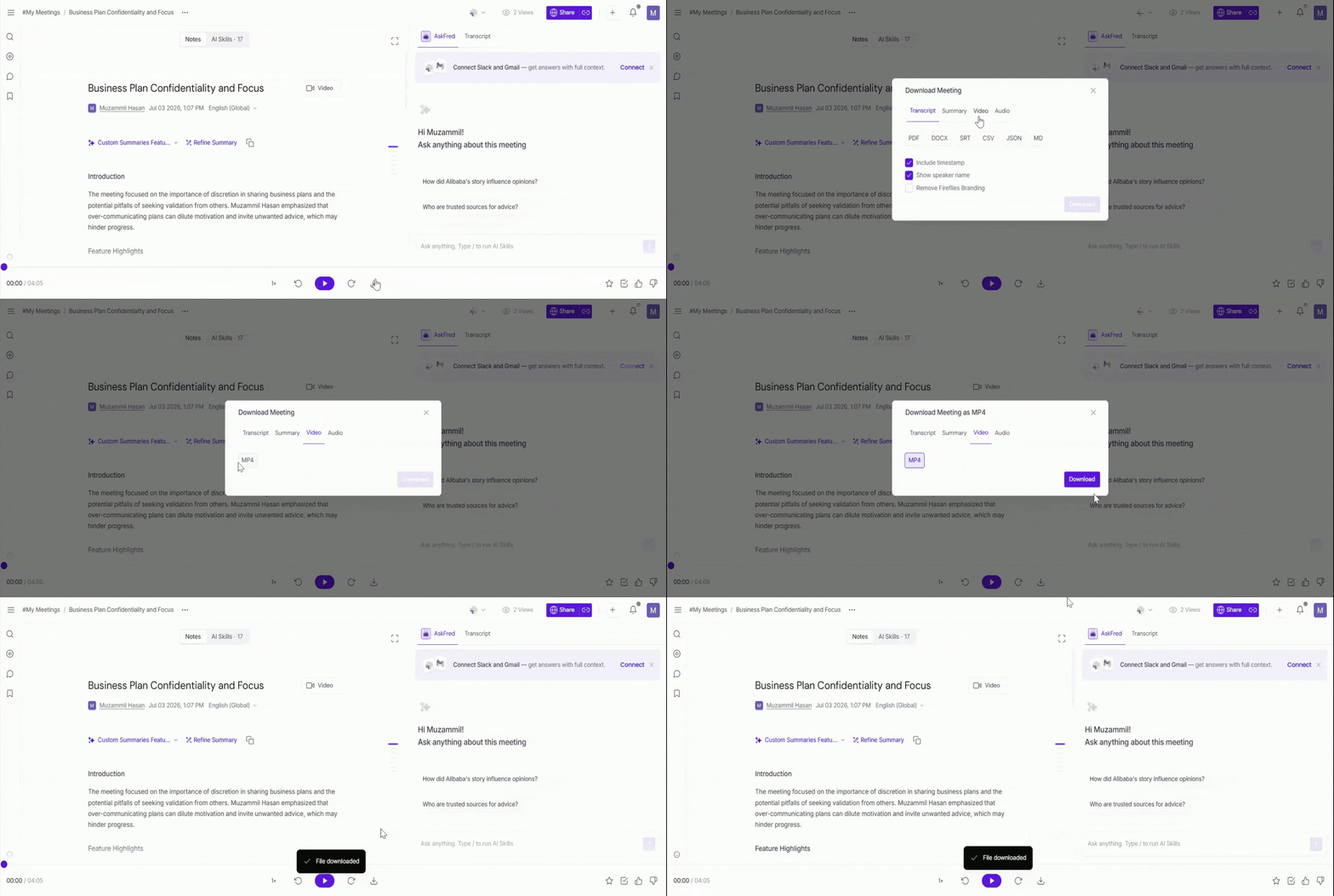
Video downloads are available only for meetings where video was recorded. Video recording is available on Pro, Business, and Enterprise plans. For audio-only meetings, the video option will not appear.
🔊 Download Audio
Audio downloads are useful when only the spoken conversation is needed.
Audio recordings are currently available for download only in MP3 format.
Click Download to save the audio file.
🔍 Troubleshooting & FAQs
1. I don’t see the Download button.
Make sure the meeting is fully processed, and you have access to the recording.
2. Why can’t I download the video?
The meeting may have been audio-only, or video recording was not enabled for the meeting.
To enable video recording, go to Settings → Recording & Privacy → Capture meeting video.
📌For detailed instructions, see How to capture video for your Fireflies meetings.
3. I don’t see transcript or summary options.
These appear only if a transcript or summary exists for the meeting.
4. Why is the Download button disabled?
Check your plan - downloads require a Pro plan or higher.
5. Are AI Skills included in downloaded summaries?
Yes, if an AI Skill is run after the meeting is processed, its output will appear in the downloaded summary.
If no AI Skill is run, the downloaded summary will not include an AI Skills section.
6. Can I download meeting transcripts without Fireflies branding?
Yes. Fireflies includes branding in downloaded transcripts by default. If you're on a paid plan, you can select Remove Fireflies Branding before downloading to export the transcript without the Fireflies logo or branding.
7. Can I download my meeting summary in a different format or template?
Yes. If the default meeting summary doesn't match the format you're looking for, you can create a Custom Summary Template using your own instructions or sample meeting notes. Once Fireflies generates the summary in your preferred format, you can download it just like any other meeting summary.
→ Learn more in Create and Manage Custom Summary Templates.
8. Why can't I change the summary template before downloading?
If you're part of a workspace, your Workspace Admin may have configured or enforced the AI Summary Template used for your workspace or user group. If you don't see the option to use a different template, contact your Workspace Admin to confirm your workspace settings.
🔄 Quick Recap
Meeting content can be downloaded directly from the meeting view.
Transcripts and summaries can be downloaded in multiple file formats.
Optional settings allow including timestamps, speaker names, or AI-generated outputs and Remove Fireflies Branding.
Video downloads are available only for meetings where video recording was enabled and captured.
Download options depend on the meeting type and plan eligibility.
📌 Related Guides
Learn about the Fireflies Notepad – Understand how to organize your meeting notes and easily access key moments.
Fireflies AI Meeting Summaries: View, Customize, Expand, Regenerate – Learn how to view, customize, and regenerate AI meeting summaries to highlight key points.
Transcribe meetings in multiple languages with Multi-Language Mode (Beta) – Learn how to enable and use multi-language transcription.