Multi-Language Mode (Beta): Transcribe Fireflies meetings in multiple languages in a single meeting
Last updated: October 13, 2026
Meetings often include more than one language - especially when working with global teams or international clients. Fireflies Multi-Language Mode automatically detects and transcribes all spoken languages in the same meeting, even when speakers switch languages mid-sentence. You don't need to choose languages in advance or worry about missing parts of the conversation.
Multi-Language Mode detects and transcribes all supported spoken languages — Fireflies supports 60+ languages.
View all supported languages ✅
Ref.
Language
Code
1
Afrikaans
af
2
Albanian
sq
3
Arabic
ar
4
Azerbaijani
az
5
Basque
eu
6
Belarusian
be
7
Bengali
bn
8
Bosnian
bs
9
Bulgarian
bg
10
Catalan
ca
11
Chinese
zh
12
Croatian
hr
13
Czech
cs
14
Danish
da
15
Dutch
nl
16
English
en
17
Estonian
et
18
Finnish
fi
19
French
fr
20
Galician
gl
21
German
de
22
Greek
el
23
Gujarati
gu
24
Hebrew
he
25
Hindi
hi
26
Hungarian
hu
27
Indonesian
id
28
Italian
it
29
Japanese
ja
30
Kannada
kn
31
Kazakh
kk
32
Korean
ko
33
Latvian
lv
34
Lithuanian
lt
35
Macedonian
mk
36
Malay
ms
37
Malayalam
ml
38
Marathi
mr
39
Norwegian
no
40
Persian
fa
41
Polish
pl
42
Portuguese
pt
43
Punjabi
pa
44
Romanian
ro
45
Russian
ru
46
Serbian
sr
47
Slovak
sk
48
Slovenian
sl
49
Spanish
es
50
Swahili
sw
51
Swedish
sv
52
Tagalog
tl
53
Tamil
ta
54
Telugu
te
55
Thai
th
56
Turkish
tr
57
Ukrainian
uk
58
Urdu
ur
59
Vietnamese
vi
60
Welsh
cy
The meeting summary is generated in the dominant language spoken during the meeting.
This feature is available for Business and Enterprise plans only.
🚀 Enable Multi-Language Mode
You can enable Multi-Language Mode from either Meeting Settings or Upcoming Meetings, whichever is easier for you.
Option 1: Enable from Meeting Settings
Use this option if your meetings often include multiple languages and you want Fireflies to automatically detect and transcribe them by default.
On your Fireflies dashboard, click on the Settings tab from the left menu bar.

Under Recording & Privacy, navigate to the Recording section and select Meeting Language.
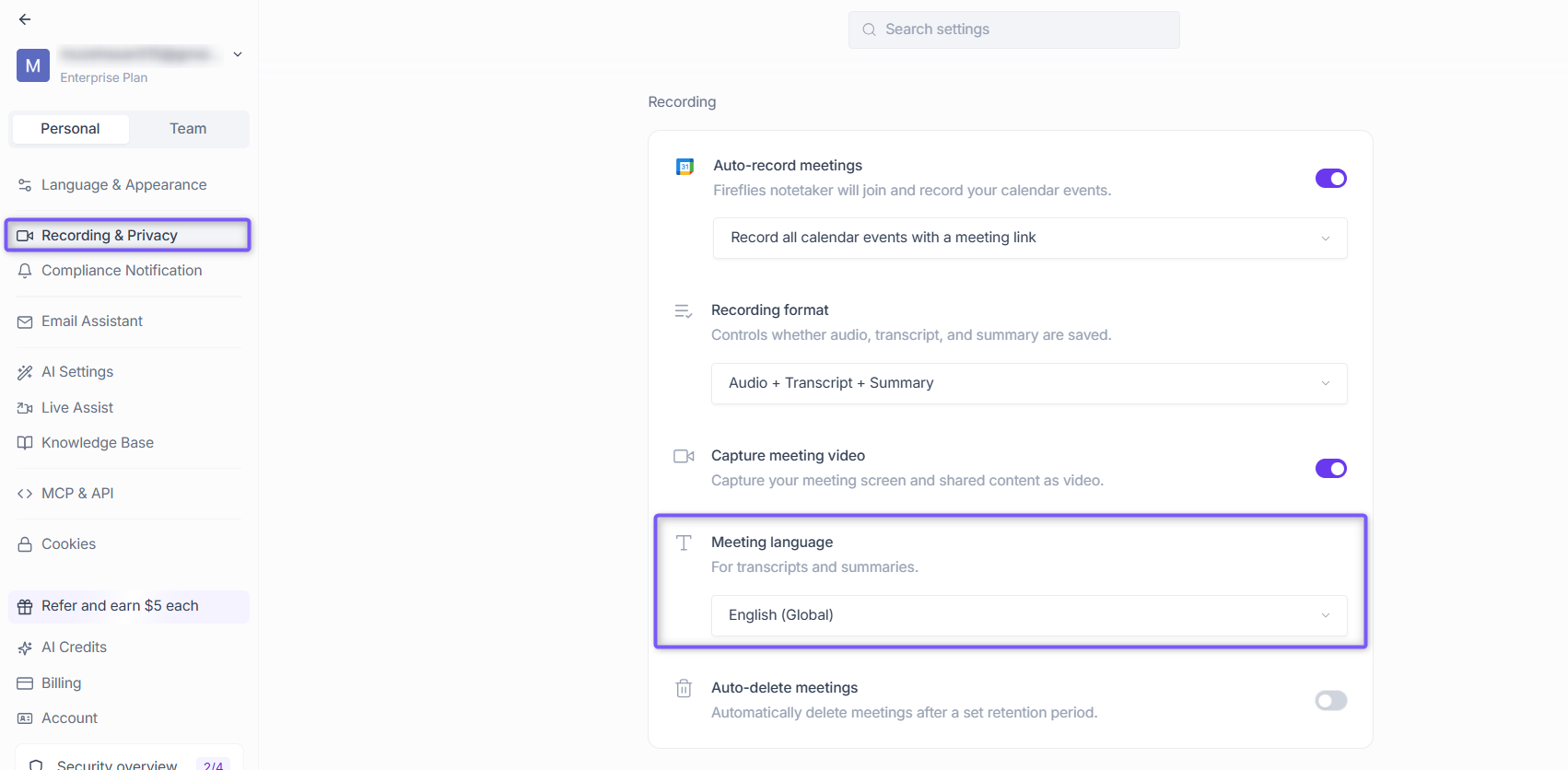
Open the language dropdown and select Multi-Language (Auto-Detect).
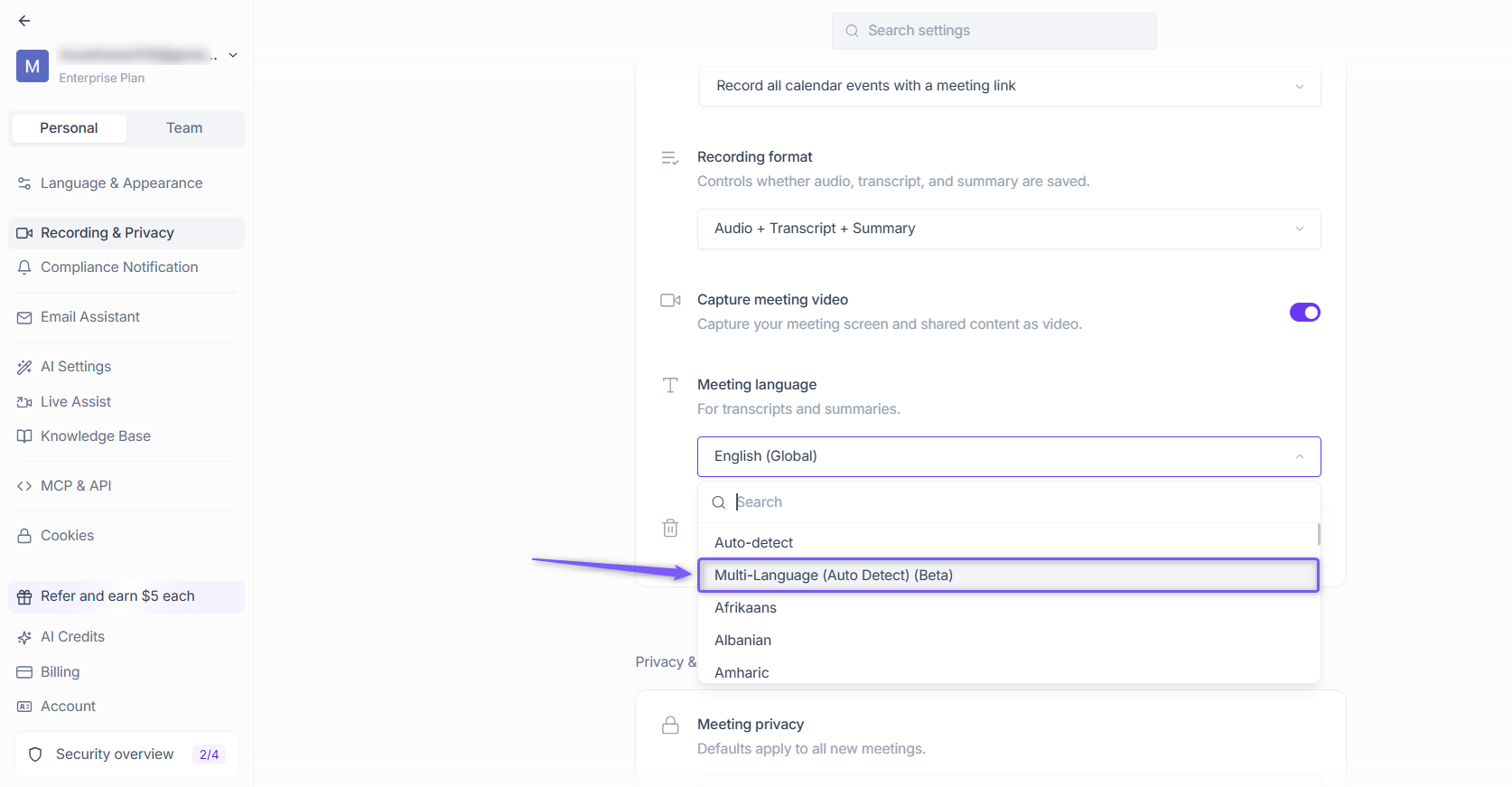
Once selected, Multi-Language (Auto-Detect) is applied automatically and becomes your preferred transcription language for future meetings.
Option 2: Enable from Upcoming Dashboard
Use this option for the quickest way to enable Multi-Language Mode and choose which meetings it applies to.
From the Fireflies Home page, click Settings on the right side of the page.

In the Meeting Settings modal, click the dropdown under Meeting language. By default, this is set to English (Global).
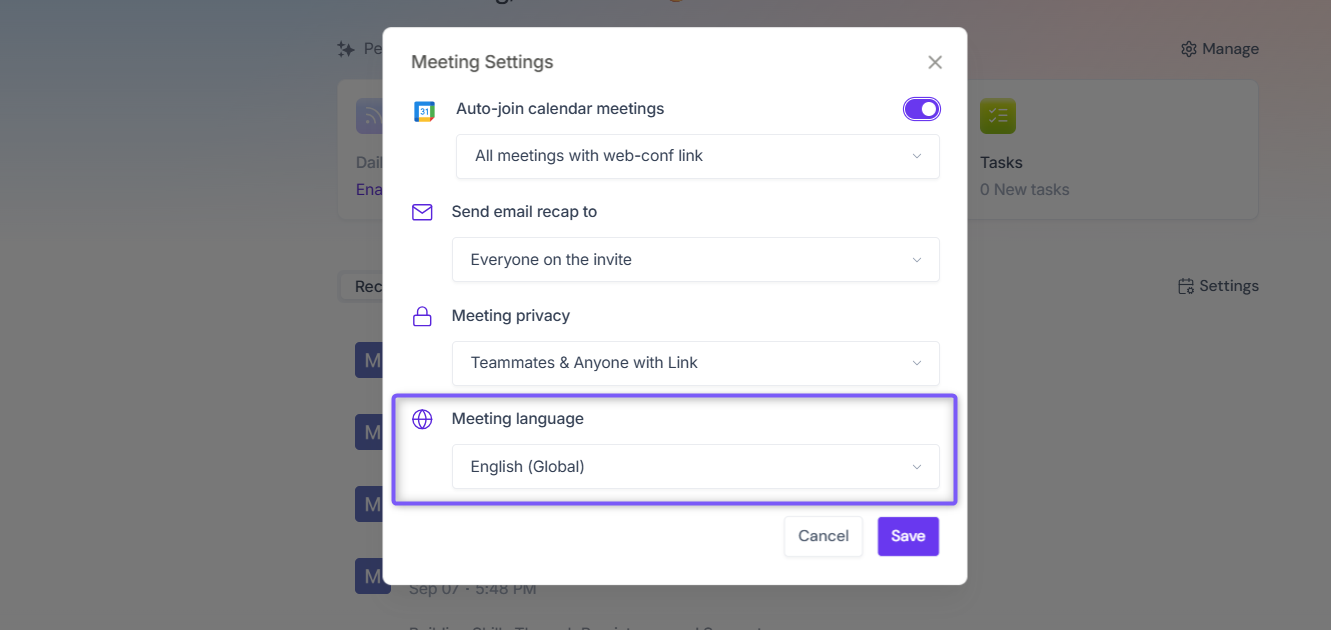
Find or search for Multi-Language (Auto-Detect) in the meeting language list, and select it.
Click Save to apply your changes.
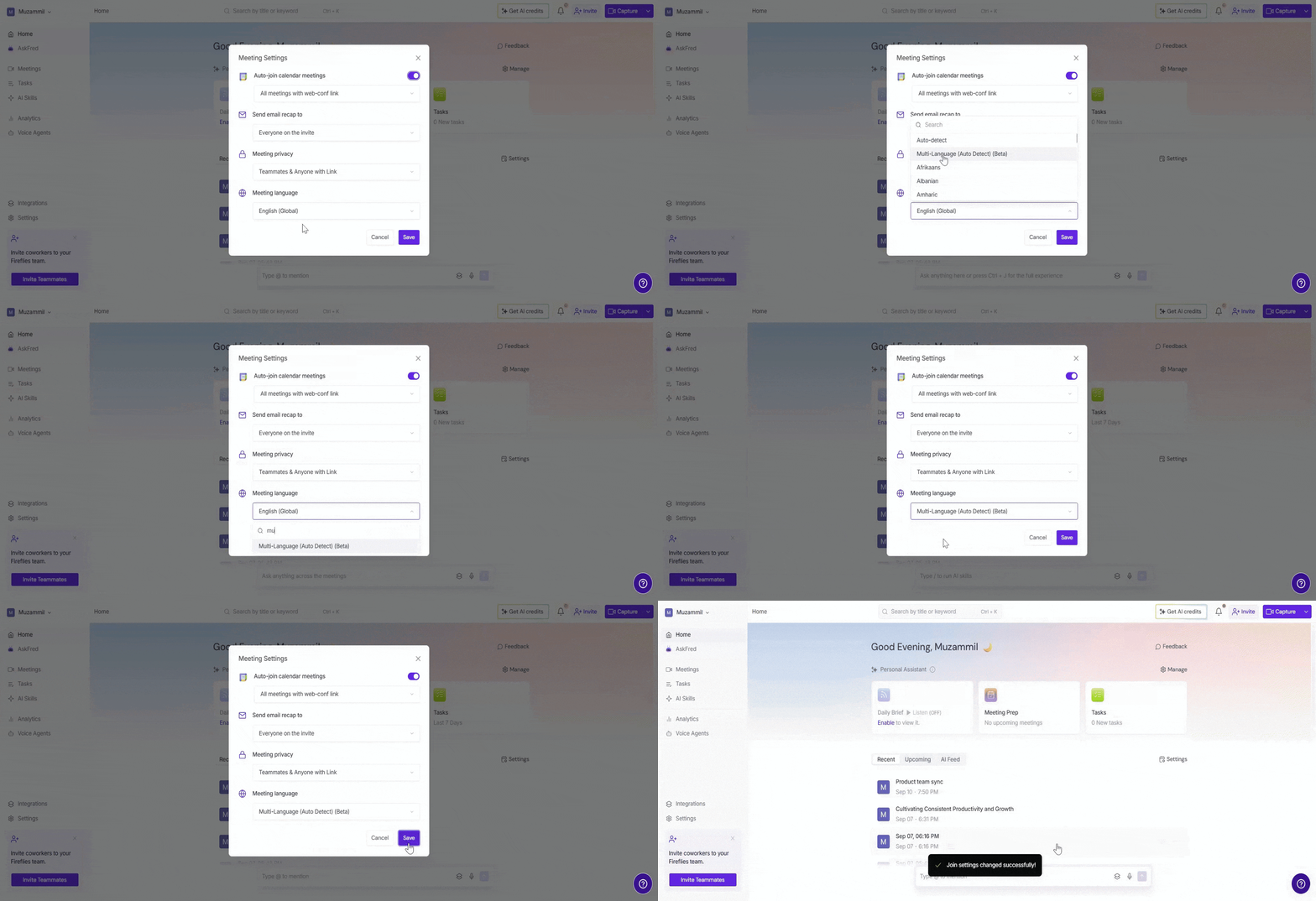
You should not select Auto-Detect for multilingual meetings, as it transcribes only the dominant language. Use Multi-Language (Auto-Detect) to capture all spoken languages accurately.
🌐 Using Multi-Language (Auto-Detect) Mode
Once Multi-Language (Auto-Detect) is enabled, Fireflies automatically detects and transcribes all spoken languages after your meetings or uploaded recordings.
📱 Enable Multi-Language (Auto-Detect) before the meeting starts
Fireflies joins the meeting as usual (Learn 👉🏻 How to Invite Fireflies to Your Meetings)
All spoken languages are detected automatically
Speakers can switch languages naturally during the meeting
The transcript includes the languages spoken during the conversation
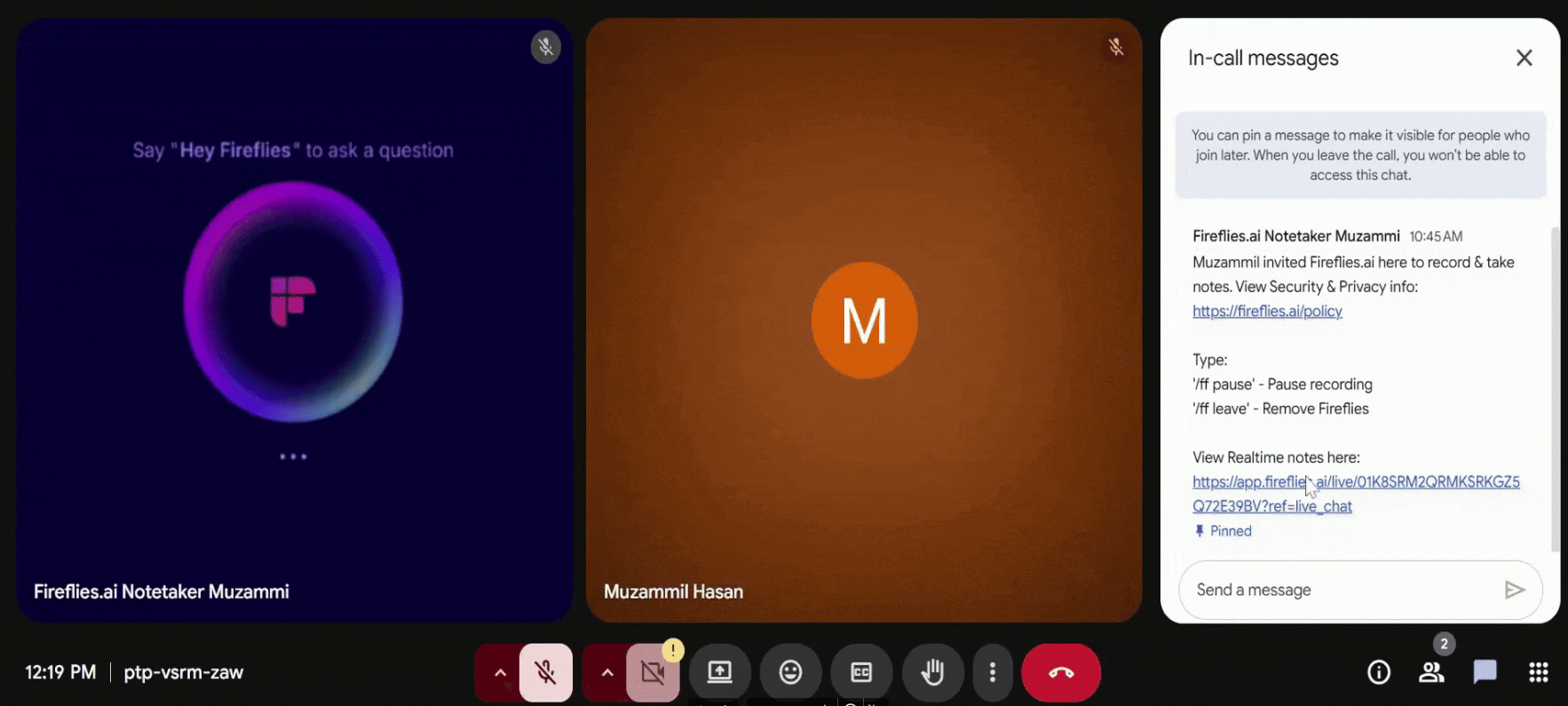
After the meeting ends, you can review the transcript in the languages used during the meeting.
📤 Upload Audio or Video Files
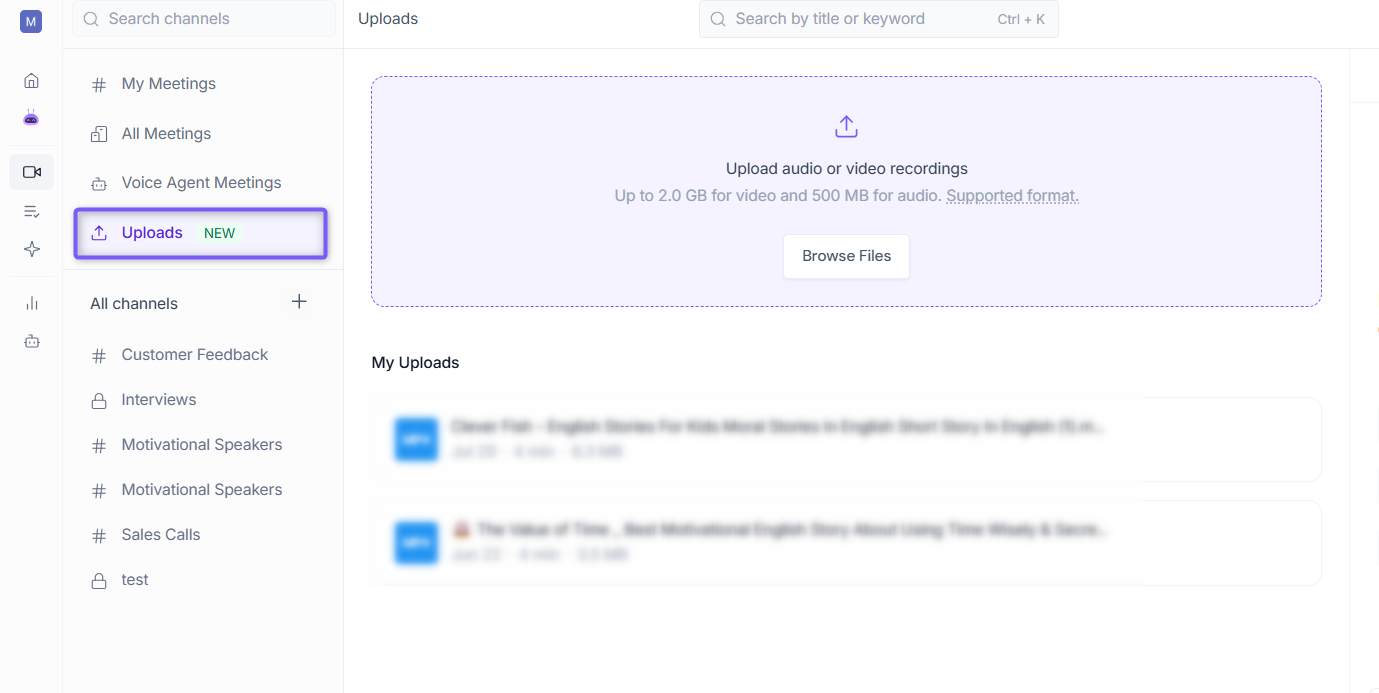
Upload your audio or video file to Fireflies
Select Multi-Language (Auto-Detect) as the meeting language before starting transcription
Fireflies will automatically detect and transcribe all spoken languages in the file.
📌 For detailed upload steps, see:
How to upload and transcribe a meeting recording file to Fireflies
📝 View the Meeting Transcript
After your meeting or uploaded recording is processed, Fireflies generates a transcript that reflects all languages spoken during the conversation.
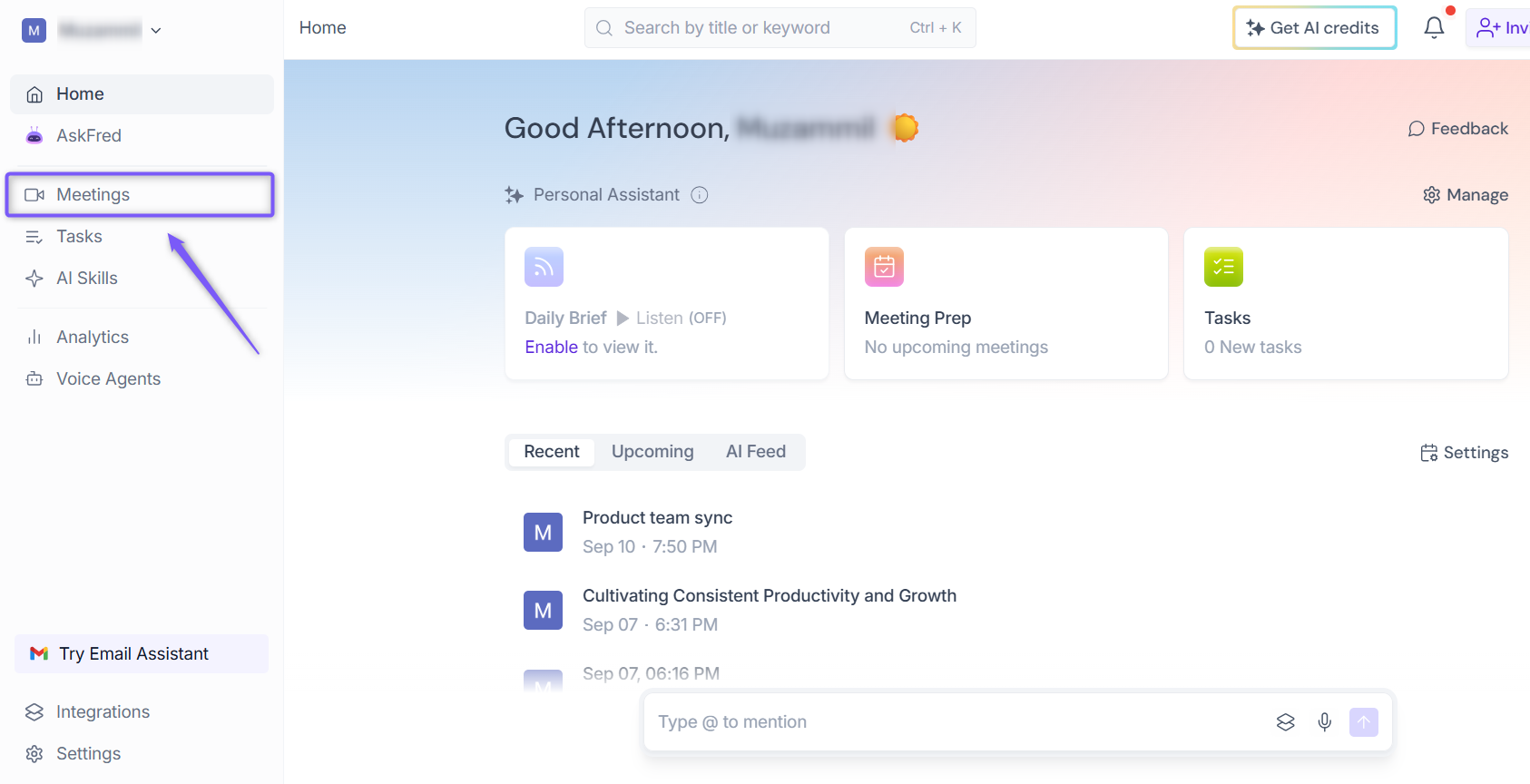
Click on the Meetings tab from the left-hand menu.
Open the meeting you want to review the multi-language transcript for.
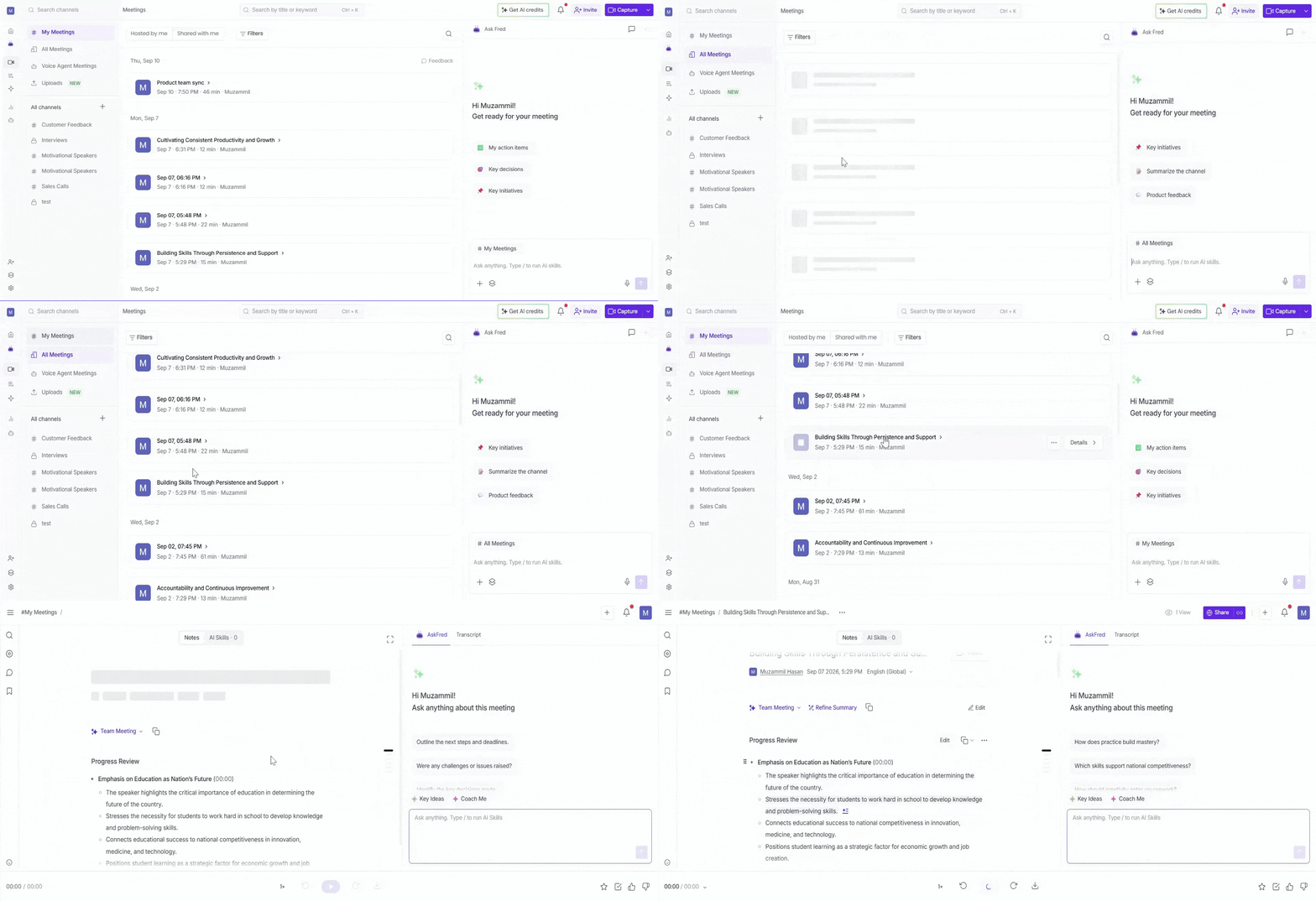
On the left-hand side (Transcript tab), view the meeting transcript, where multiple languages appear inline.
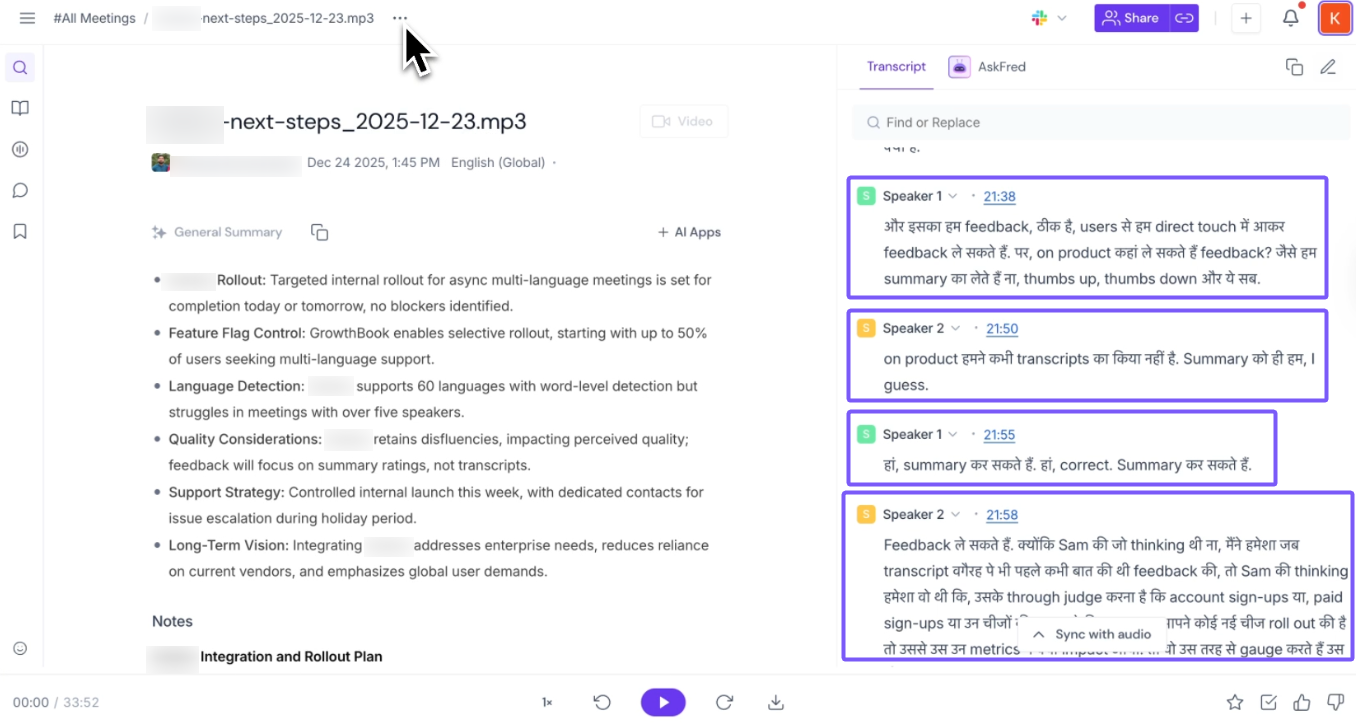
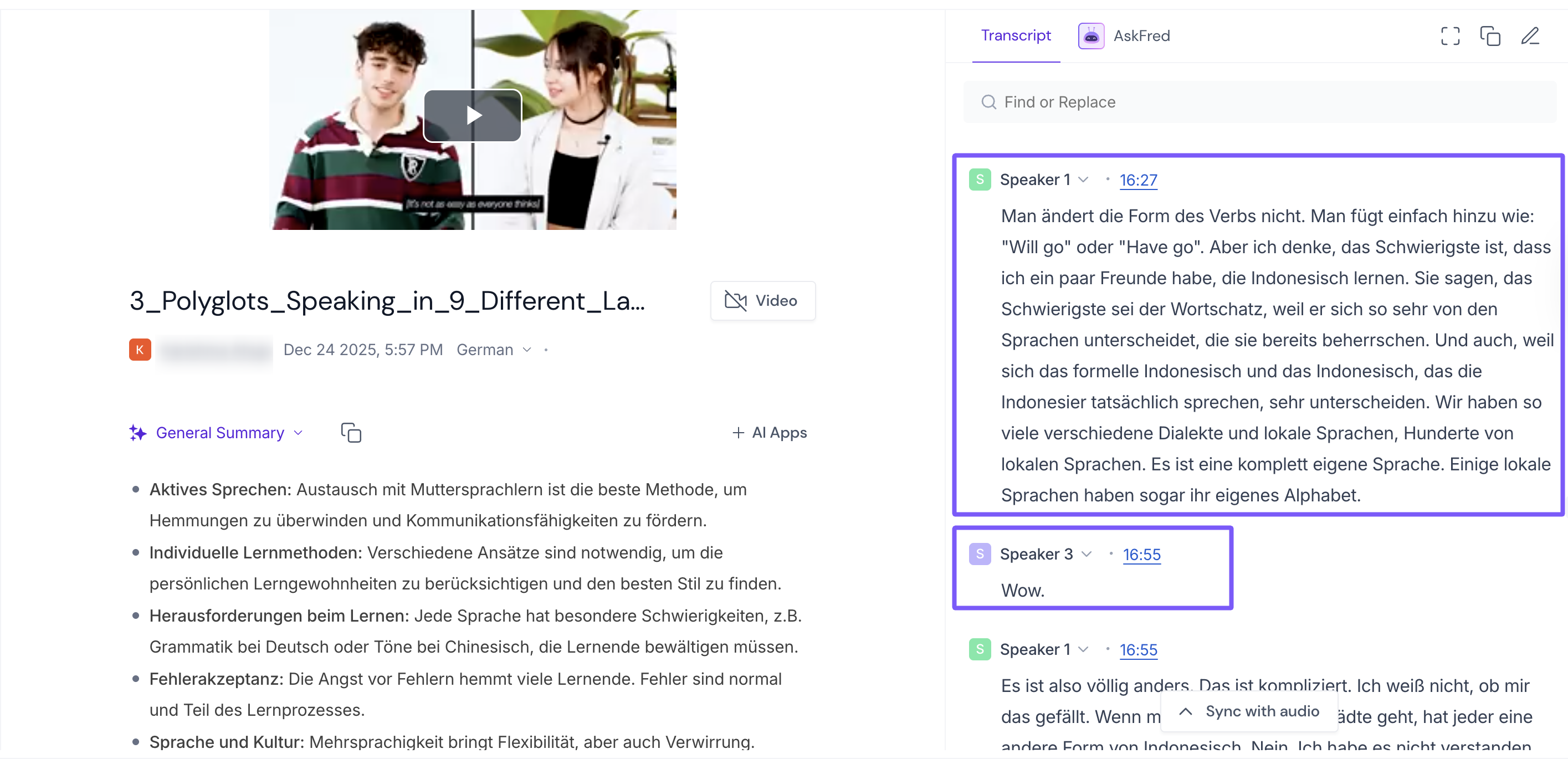
Fireflies detects speech at a word level, ensuring accurate transcription even when languages switch.
Example 1 The meeting includes both English and Hindi. Fireflies transcribes each word accurately, even when speakers switch between languages.
Example 2 The meeting includes both English and German. Fireflies transcribes each word accurately, even when speakers switch between languages.
⚠ Important Note
After a meeting is processed, do not change the meeting language. Doing so can reprocess the transcript and summary, potentially affecting accuracy for multi-language meetings.
✅ We’re actively working on adding the capability to manage this more flexibly, and improvements will be available soon.
❓ Frequently Asked Questions
1. How many languages does Multi-Language Mode support?
Multi-Language Mode supports 60+ languages. Language detection happens automatically — you don't need to choose languages in advance.
View all supported languages ✅
Ref. | Language | Code |
1 | Afrikaans | af |
2 | Albanian | sq |
3 | Arabic | ar |
4 | Azerbaijani | az |
5 | Basque | eu |
6 | Belarusian | be |
7 | Bengali | bn |
8 | Bosnian | bs |
9 | Bulgarian | bg |
10 | Catalan | ca |
11 | Chinese | zh |
12 | Croatian | hr |
13 | Czech | cs |
14 | Danish | da |
15 | Dutch | nl |
16 | English | en |
17 | Estonian | et |
18 | Finnish | fi |
19 | French | fr |
20 | Galician | gl |
21 | German | de |
22 | Greek | el |
23 | Gujarati | gu |
24 | Hebrew | he |
25 | Hindi | hi |
26 | Hungarian | hu |
27 | Indonesian | id |
28 | Italian | it |
29 | Japanese | ja |
30 | Kannada | kn |
31 | Kazakh | kk |
32 | Korean | ko |
33 | Latvian | lv |
34 | Lithuanian | lt |
35 | Macedonian | mk |
36 | Malay | ms |
37 | Malayalam | ml |
38 | Marathi | mr |
39 | Norwegian | no |
40 | Persian | fa |
41 | Polish | pl |
42 | Portuguese | pt |
43 | Punjabi | pa |
44 | Romanian | ro |
45 | Russian | ru |
46 | Serbian | sr |
47 | Slovak | sk |
48 | Slovenian | sl |
49 | Spanish | es |
50 | Swahili | sw |
51 | Swedish | sv |
52 | Tagalog | tl |
53 | Tamil | ta |
54 | Telugu | te |
55 | Thai | th |
56 | Turkish | tr |
57 | Ukrainian | uk |
58 | Urdu | ur |
59 | Vietnamese | vi |
60 | Welsh | cy |
2. How many languages can Fireflies detect in a single meeting?
Fireflies can detect and transcribe up to 60+ languages simultaneously within a single meeting. Speakers can switch languages at any time during the conversation.
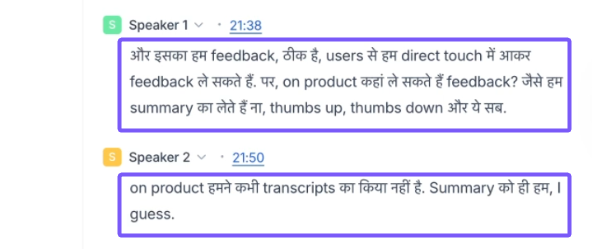
3. Can Fireflies detect multiple languages within the same sentence?
Yes. Fireflies performs word-level language detection, allowing it to accurately transcribe language switches within the same sentence.
4. What language is the meeting summary generated in?
The meeting summary is generated in the dominant language spoken during the meeting.
For example, if English is spoken most during the meeting, the summary will be generated in English — regardless of what other languages were used.
5. Can I change only the summary language without affecting the transcript?
Not yet. The summary language is automatically determined based on the dominant language spoken in the meeting.
Changing the summary language independently isn't supported yet, but we're actively working on adding this capability soon.
6. How is Multi-Language Mode different from Auto-Detect?
Auto-Detect: Identifies and transcribes only the dominant language spoken in the meeting.
Multi-Language (Auto-Detect): Identifies and transcribes all spoken languages, including language switches during the conversation.
7. When should I use Multi-Language Mode?
Use Multi-Language Mode for meetings where more than one language is spoken.
8. Fireflies supports 100+ languages — why does Multi-Language Mode only support 60+?
Fireflies records and transcribes meetings in 100+ languages — you can check the full list in Learn about Fireflies Supported Languages.
The 60+ languages in Multi-Language Mode are specifically for meetings where speakers switch between more than one language in a single meeting. This mode requires a more advanced detection process, which is currently supported for 60+ languages.
🔁 Recap
Multi-Language Mode automatically identifies and transcribes all spoken languages in a single meeting (supporting 60+ languages) — even when speakers switch mid-sentence.
Meeting summaries are generated in the dominant language spoken during the meeting.
Changing only the summary language without affecting the transcript is not supported yet, but this feature is in progress.
Use Multi-Language Mode for meetings where more than one language is spoken, and Auto-Detect for single-language meetings.