How to Upload and Transcribe Audio or Video Files in Fireflies
Last updated: September 1, 2026
Not every important conversation happens in a scheduled meeting. Have an existing recording, interview, webinar, podcast episode, or a call you captured separately? You can upload it to Fireflies and get a full transcript, summary, action items, and AI-powered insights - without needing Fireflies to have been in the original conversation.
This guide covers the supported file formats, upload limits, and the process for uploading, transcribing, and analyzing audio or video files in Fireflies.
📋 Supported Formats and Upload Limits
Before uploading a file, review the supported formats and upload limits for your plan.
Feature | Free | Pro, Business, and Enterprise |
Supported 🎵 Audio Formats | MP3, M4A, WAV | MP3, M4A, WAV |
Supported🎬Video Formats | MP4, WEBM | MP4, WEBM |
Maximum Video File Size | 100 MB | 2 GB |
Maximum Audio File Size | 500 MB | 500 MB |
Maximum File Duration | 150 minutes | 150 minutes |
📌 Note: File size and duration limits apply to each uploaded file individually, not to the total number of files you upload.
⏱ Processing Limits and Costs
For users on paid plans, uploaded files count toward a monthly processing allowance.
Limit type | Allowance | Overage cost |
Per user | 3,000 minutes/month | $0.01/minute after 3,000 |
Team cap | 3,000 minutes/seat/month | $0.01/minute after 150,000 total |
📌 Important notes about processing:
⏰ Monthly Reset: Processing allowances reset at the beginning of each month.
📊 Usage Calculation: Processing minutes are calculated based on the actual duration of the uploaded file.
🚫 No Rollover: Unused processing minutes do not carry over to the next month.
💻 Upload a File from the Fireflies Web App
Once you've confirmed that your file meets the supported format and upload requirements, you can upload it to Fireflies for transcription and analysis.
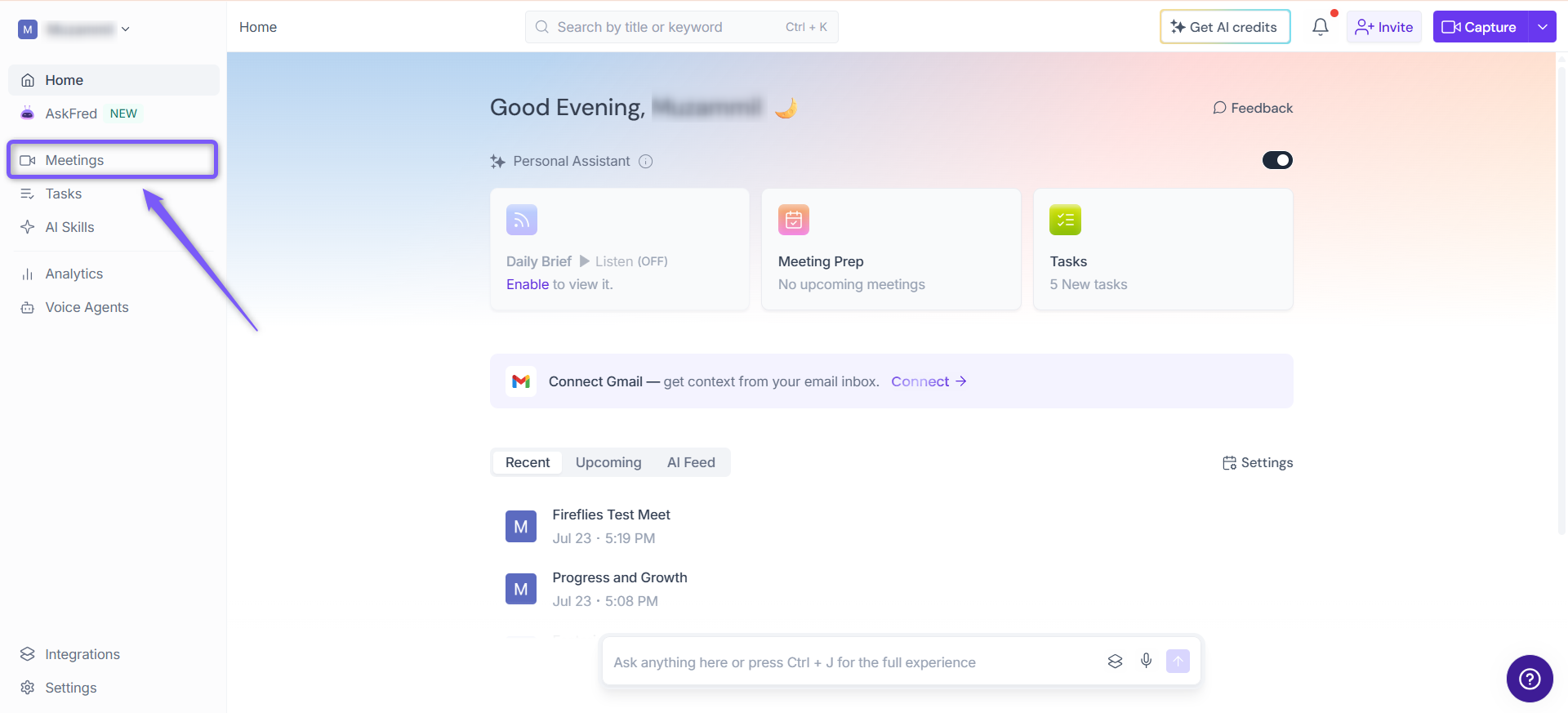
Step 1: Log in to your Fireflies account and click the Meetings tab from the left sidebar.
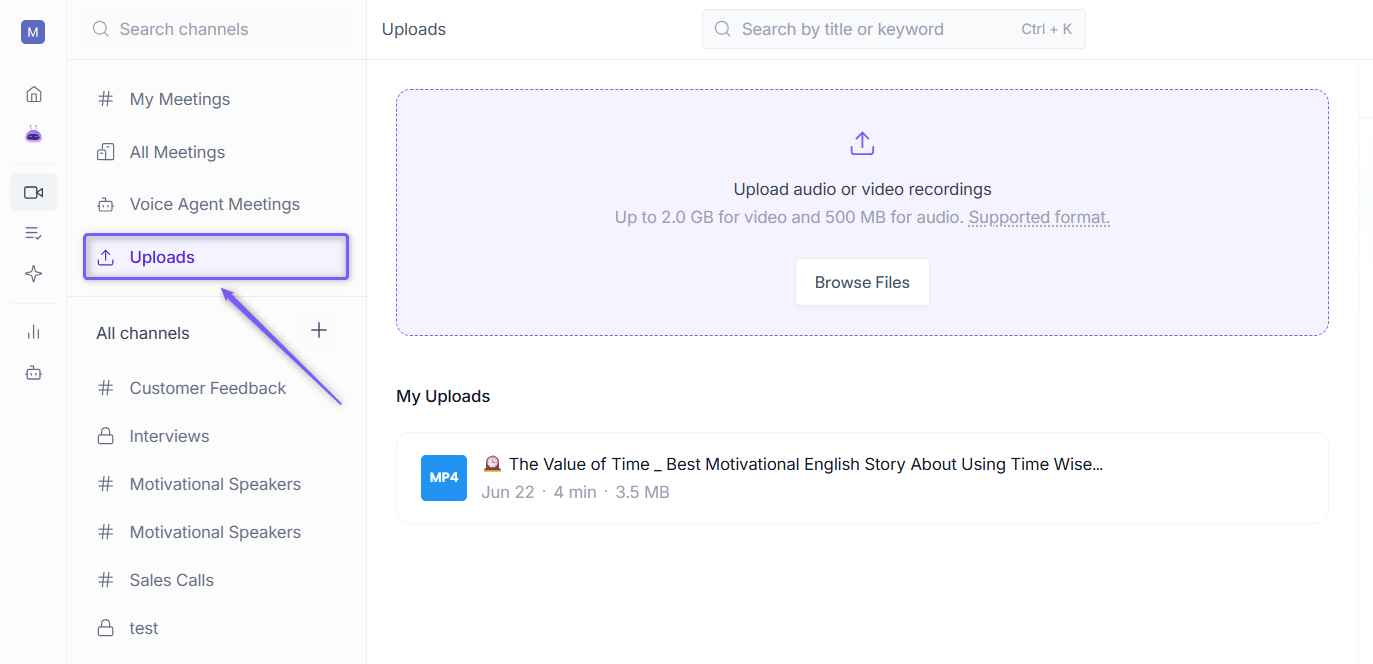
Step 2: Click Uploads tab.
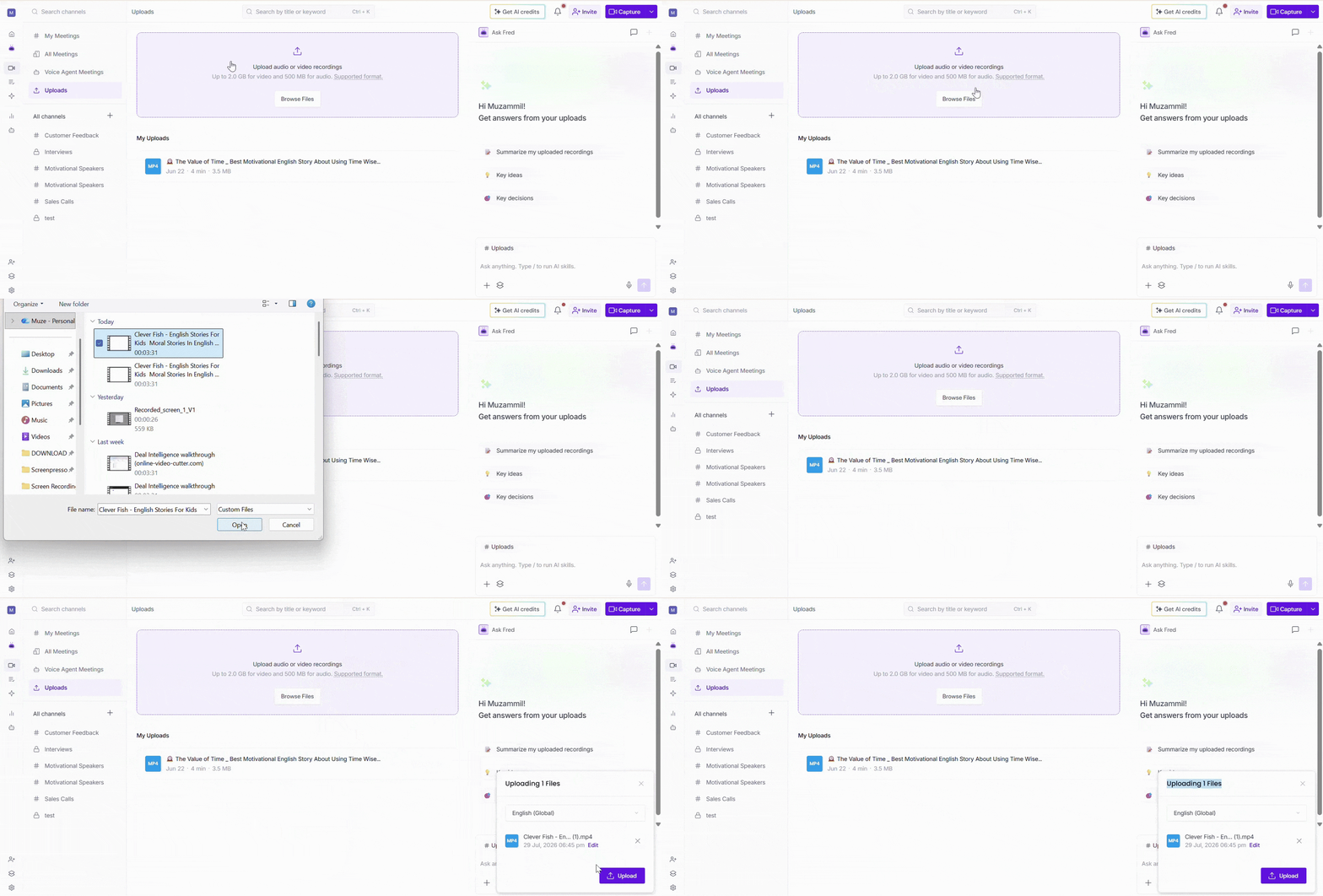
Step 3: Click Browse Files to select your file, or drag and drop it directly into the upload area.
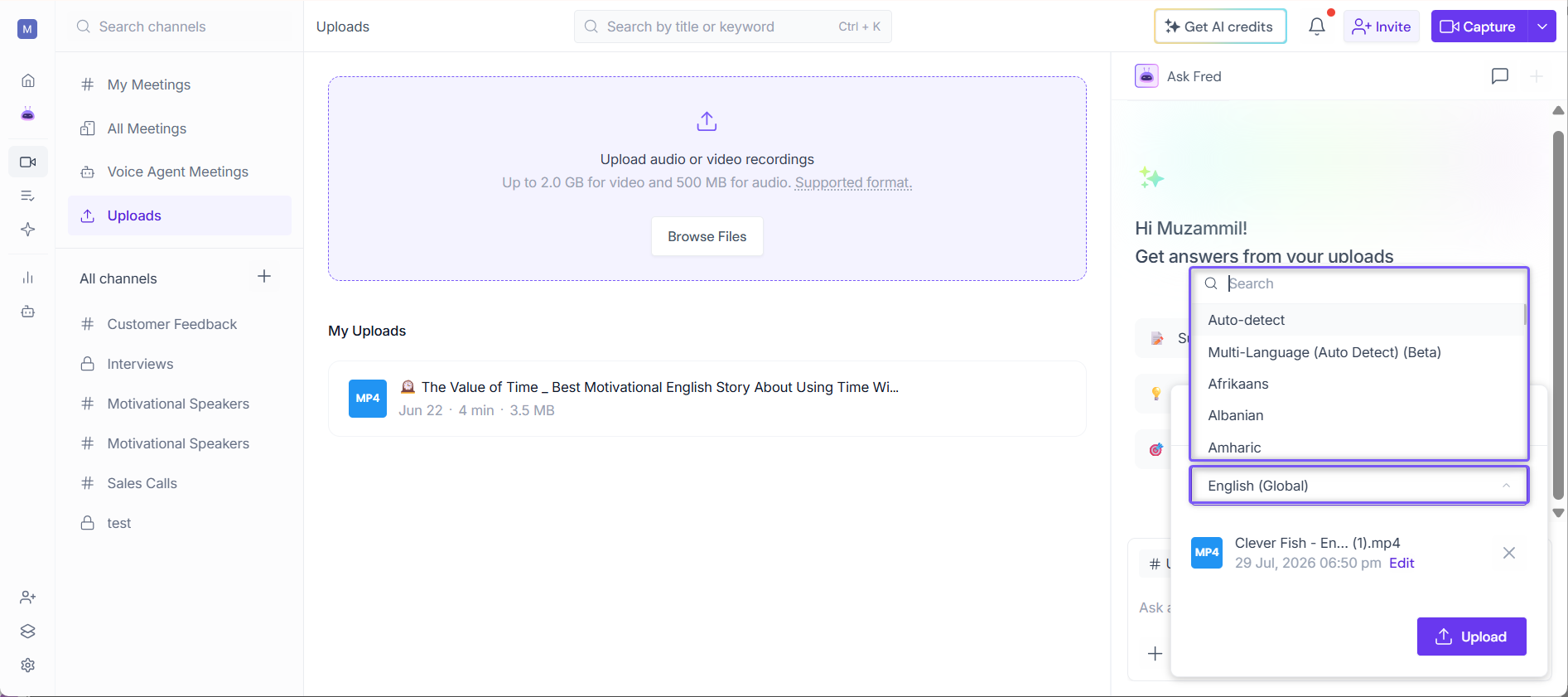
Step 3: In the Uploading Files dialog, select the language spoken in the audio or video file you're uploading.
Step 4 (Optional): Click Edit to update the meeting date and time, then click Apply.
💡 Why select a meeting date and time? The date you choose determines where the uploaded recording appears in your My Meetings or All Meetings timeline. For example, if you're uploading a recording from last week, selecting last week's date ensures the meeting is organized with your other meetings from that day instead of today's uploads.
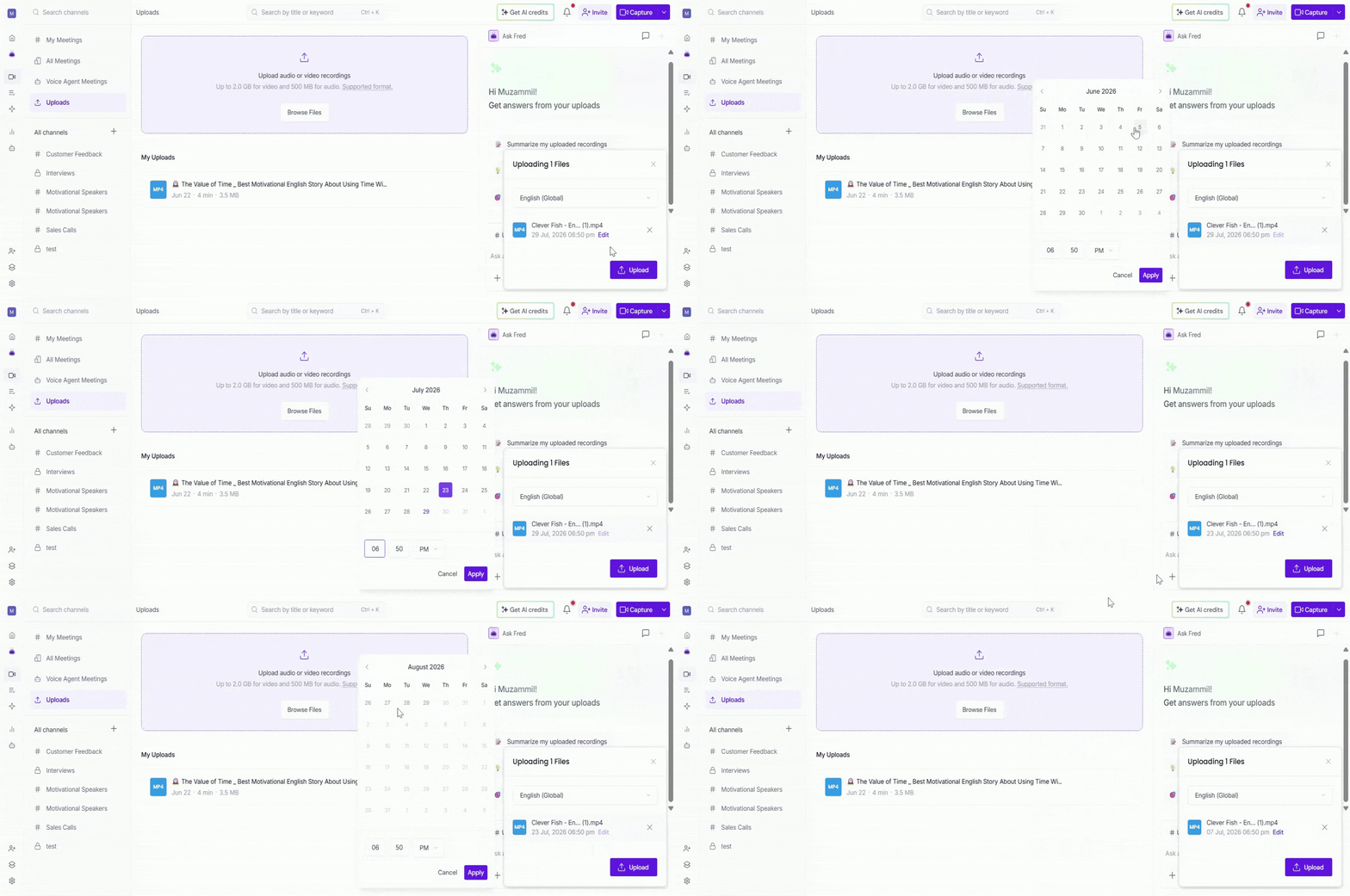
Step 5: Click Upload. Fireflies will begin processing your file, you'll see a loading indicator while it's being uploaded and analyzed.
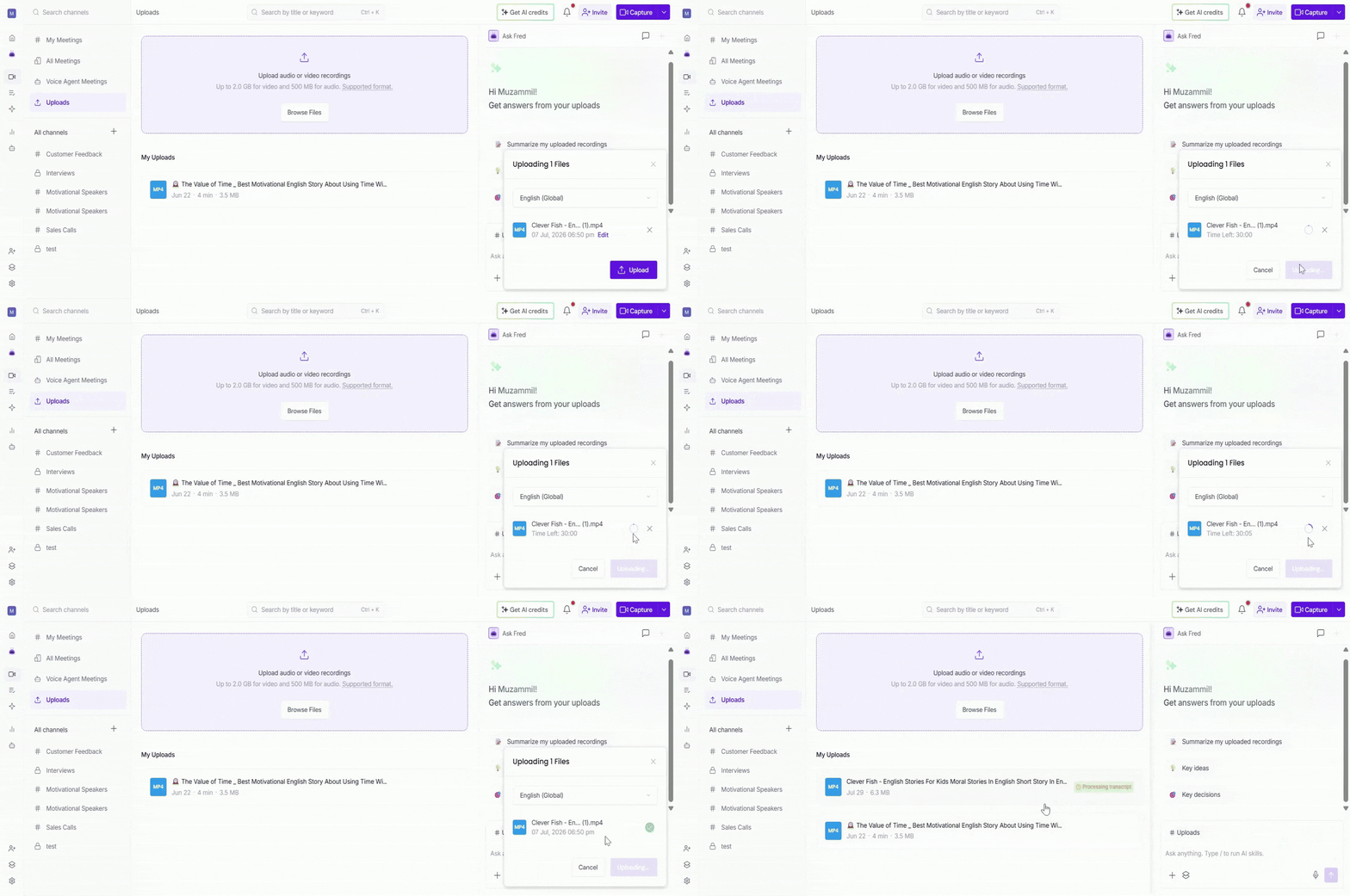
Step 6: Fireflies begins processing the file. The upload status is displayed next to the file name.
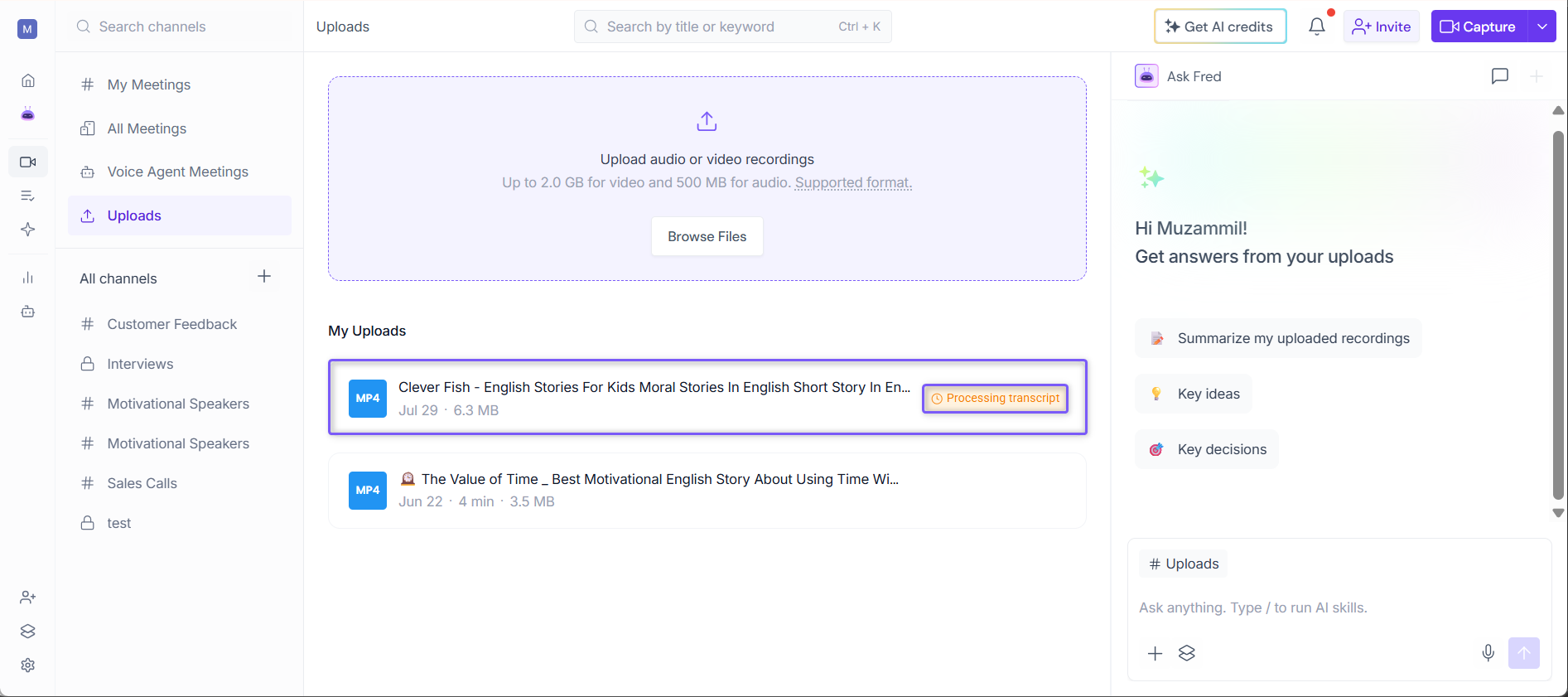
Step 7.: Once processing is complete:
The uploaded recording appears in the Uploads Channel.
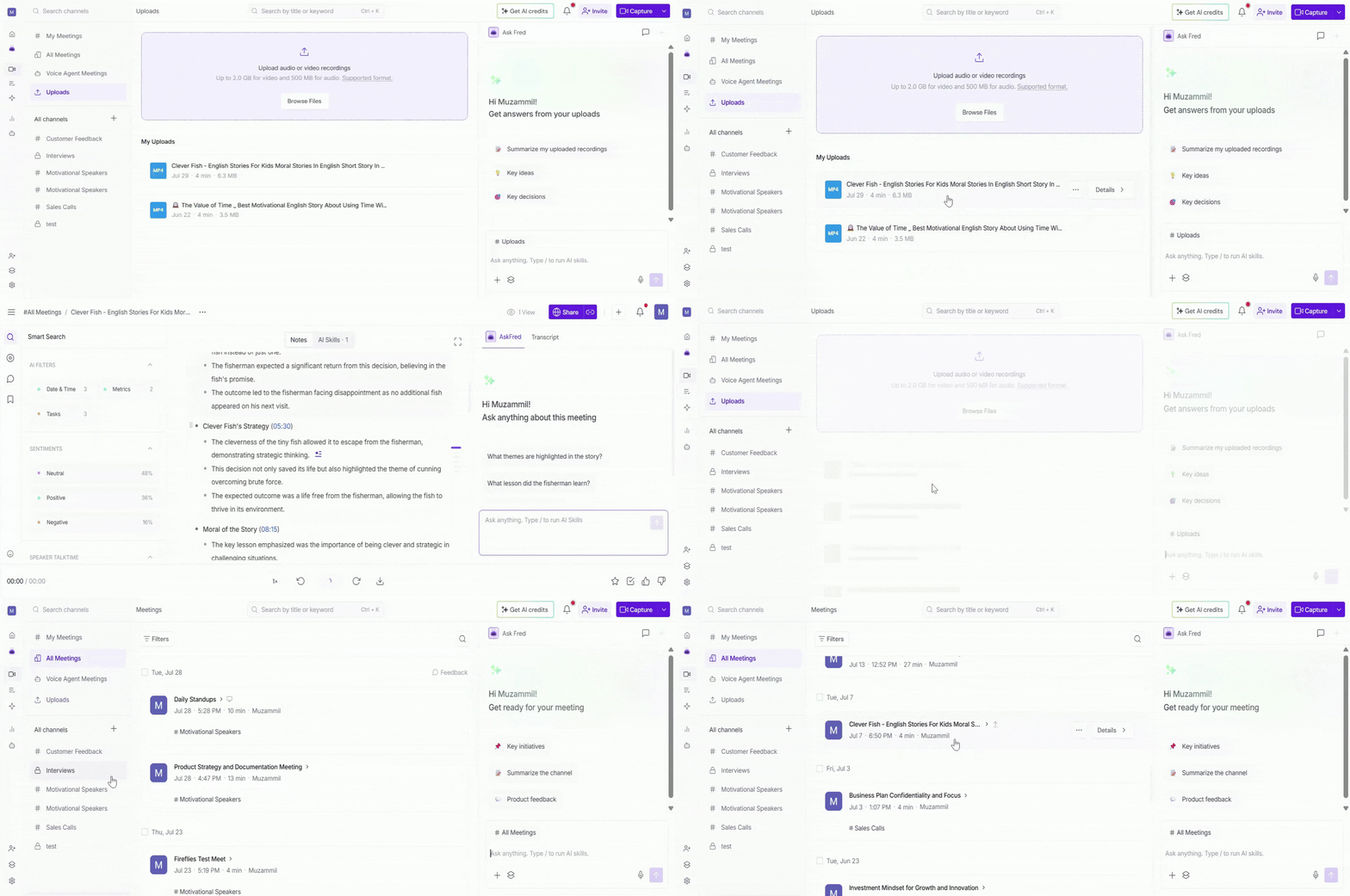
It also appears in your My Meetings or All Meetings timeline under the meeting date you selected in Step 4.
Open the meeting to view the transcript, AI summary, action items, recording, and other AI-generated insights.
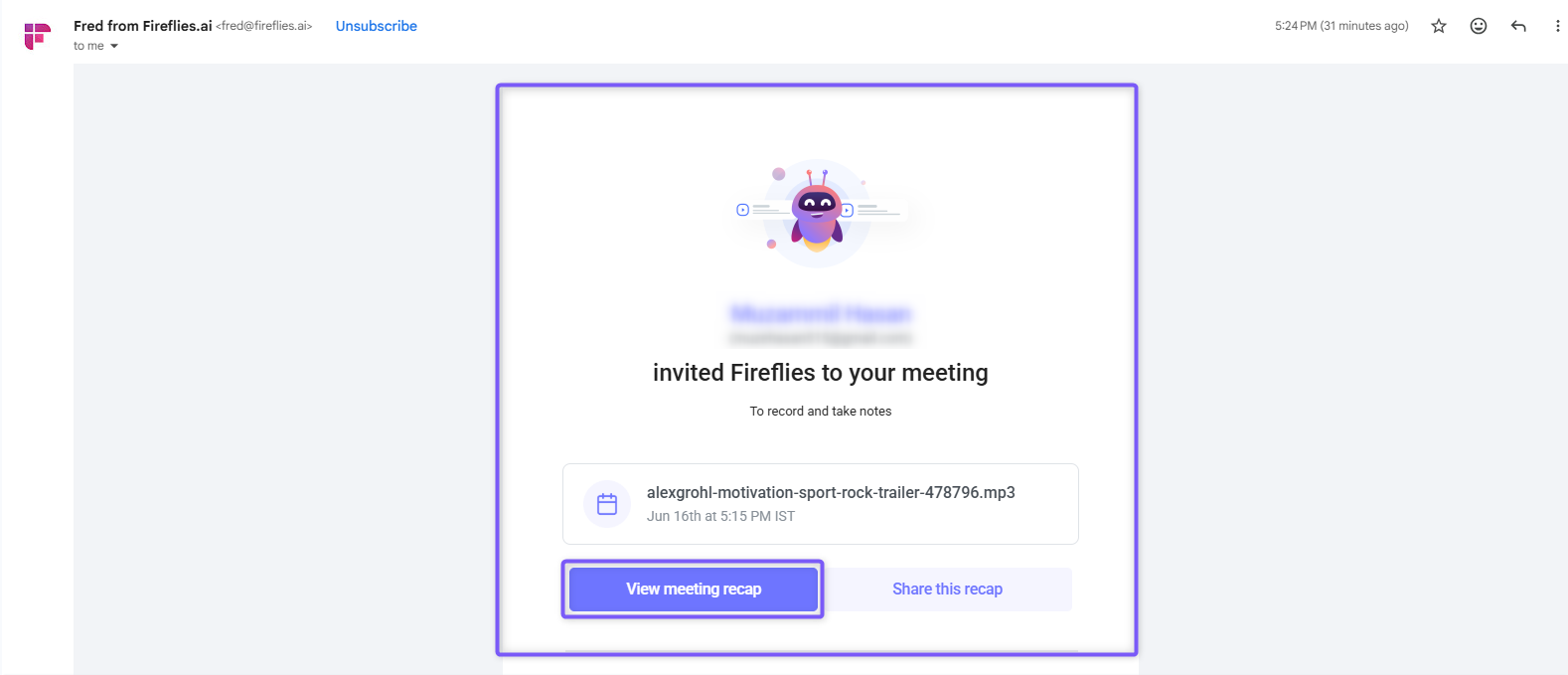
You'll also receive an email containing a link to the processed recording file.
📌 Note:
Fireflies generates recaps only for recordings that are longer than 3 minutes. Recordings shorter than 3 minutes will not have a recap.
If no speech is detected in the recording, Fireflies will not be able to generate a transcript, summary, action items, or other AI-generated insights.
To track the status of an uploaded recording and monitor its processing progress, see Related: What is the Meeting Status?
Related: Want to upload a file from your mobile instead? See How to upload audio or video files from the Fireflies Mobile App.
⚙ Manage Uploaded Recordings
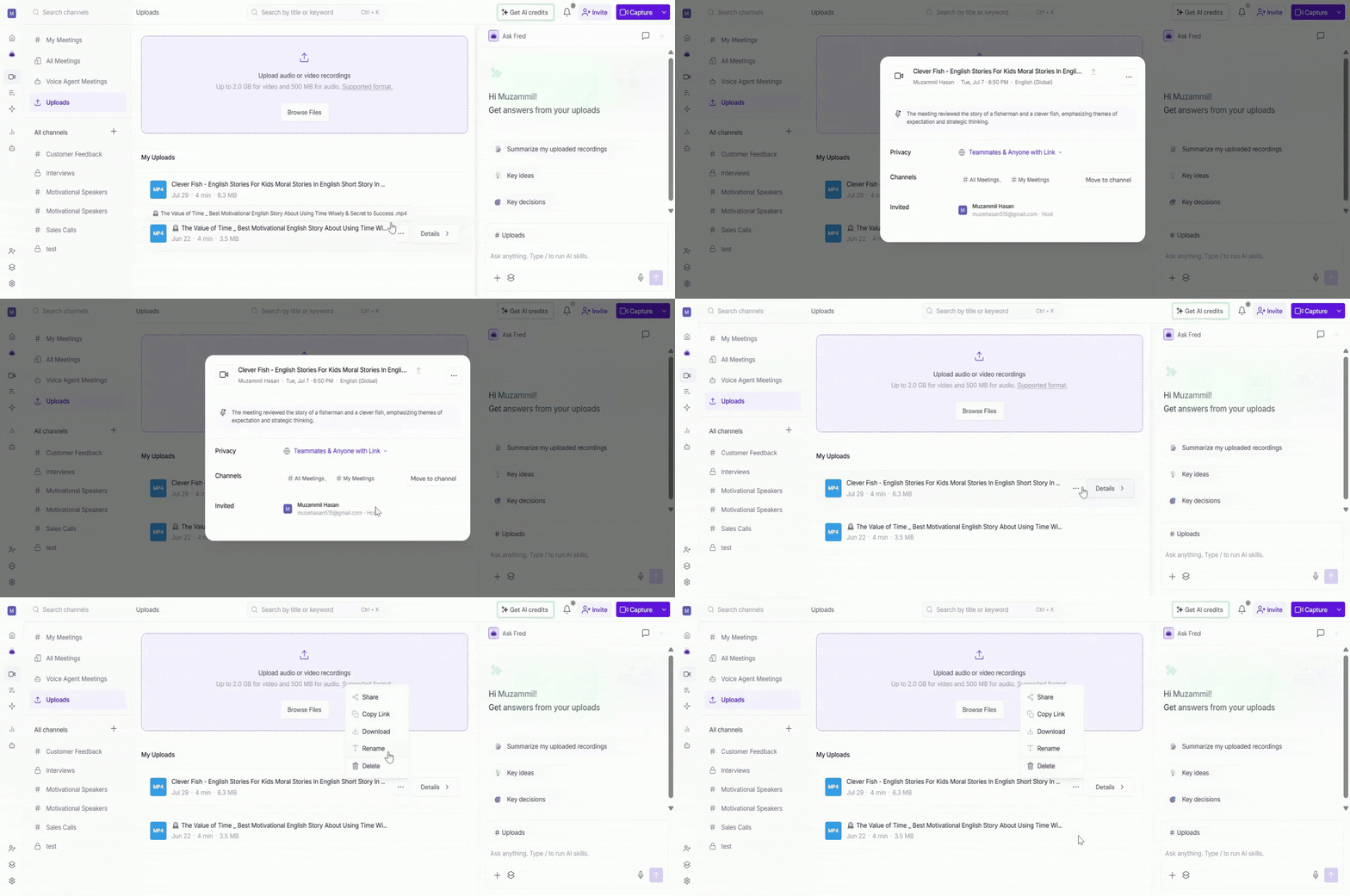
Once your recording has been processed, you can manage it directly from the Uploads Channel. Hover over a recording and use the available options to:
Details: View the meeting summary, participants, privacy settings, Channels, and other meeting details.
Share: Share the meeting with teammates so they can access the recording, transcript, AI summary, and other meeting insights.
Copy Link: Copy the direct meeting link to your clipboard for quick sharing.
Download: Download the recording, transcript, or AI summary for offline access or sharing.
Related: How to Download Transcripts, Summaries, and Meeting Recordings
Rename: Change the meeting title to make it easier to identify later.
Delete: Permanently remove the uploaded recording from Fireflies.
❓ Frequently Asked Questions
1. What file formats can I upload to Fireflies?
Fireflies supports MP3, M4A, WAV, MP4, and WEBM files.
2. Does the file size limit apply to each file or all uploads combined?
The file size limit applies to each uploaded file individually.
3. Can I upload a recording longer than 150 minutes?
No. Uploaded audio and video files can be up to 150 minutes long.
4. Where can I find an uploaded recording after it has been processed?
Processed recordings are available from the Uploads page and your Meetings list. Open the meeting to view the transcript, summary, action items, and other insights in the Notepad.
5. Why didn't my uploaded recording generate a recap?
Recaps are generated only for recordings longer than 3 minutes. If no speech is detected in the recording, Fireflies cannot generate a transcript, summary, or recap.
6. Do uploaded recordings count toward my meeting credits or usage limits?
Uploaded recordings may count toward your available transcription and processing allowances, depending on your plan. To learn more about how credits, limits, and usage are calculated, see Related: Monthly Credits & Rate Limits For Meetings.
Need More Help?
If you have questions or need assistance uploading files, click the chat button (purple) in the bottom-right corner of your Fireflies dashboard to start a conversation with Support, or contact the team through the Support link.