How to Invite Fireflies to Meetings
Last updated: September 11, 2026
Getting Fireflies into your meetings is easy—whether you want it to join automatically or prefer to invite it manually. This guide covers all the ways to bring Fred (that's Fireflies' friendly bot) into your calls, based on how you work and which platforms you use.
✅Before you start
A couple of things to make sure before inviting Fireflies manually:
You’re using a Google or Outlook calendar that’s already connected to Fireflies. That’s how Fireflies knows what to look out for.
📄 Related: What calendars are supported?
The video conferencing link (Zoom, Meet, Teams, etc.) is included in the invite—Fireflies needs that to join.
📄 Related: Web-conference platforms supported
🚀 Ways to Invite Fireflies to your meeting
1. Add Fireflies Manually Through Your Calendar
The simplest approach, just treat Fireflies like any other meeting guest.
Open your Google or Outlook Calendar (the one connected to Fireflies) and create or edit a meeting.
Add a video conferencing link. Fireflies needs the meeting link to know where to join.
For Google Calendar: Add a Google Meet link and add
fred@fireflies.aito the meeting invitees.
For Outlook Calendar: Add a Microsoft Teams link (or another supported conferencing link) and add
fred@fireflies.aito the invitees.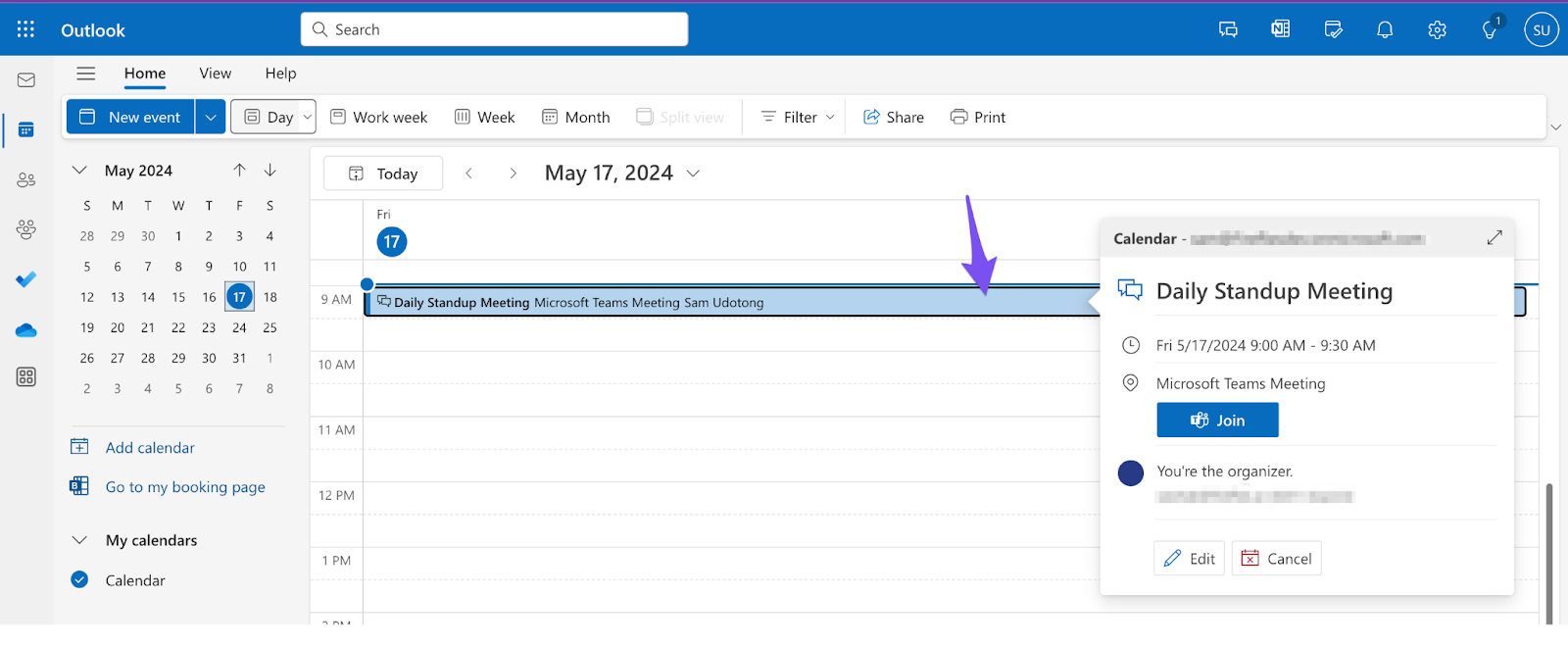
Save the event.
Fireflies will check your auto-join settings and join based on your preferences.
If you add fred@fireflies.ai while the meeting is ongoing or has already started, Fireflies will not join. To invite Fireflies to a live or ongoing call, see Method 4: Add to Live Meeting.
2. Enable Auto-Join for Hands-Free Recording
Want Fireflies to join your meetings automatically without inviting it each time? Set up auto-join to capture all or specific types of meetings from your connected calendar.
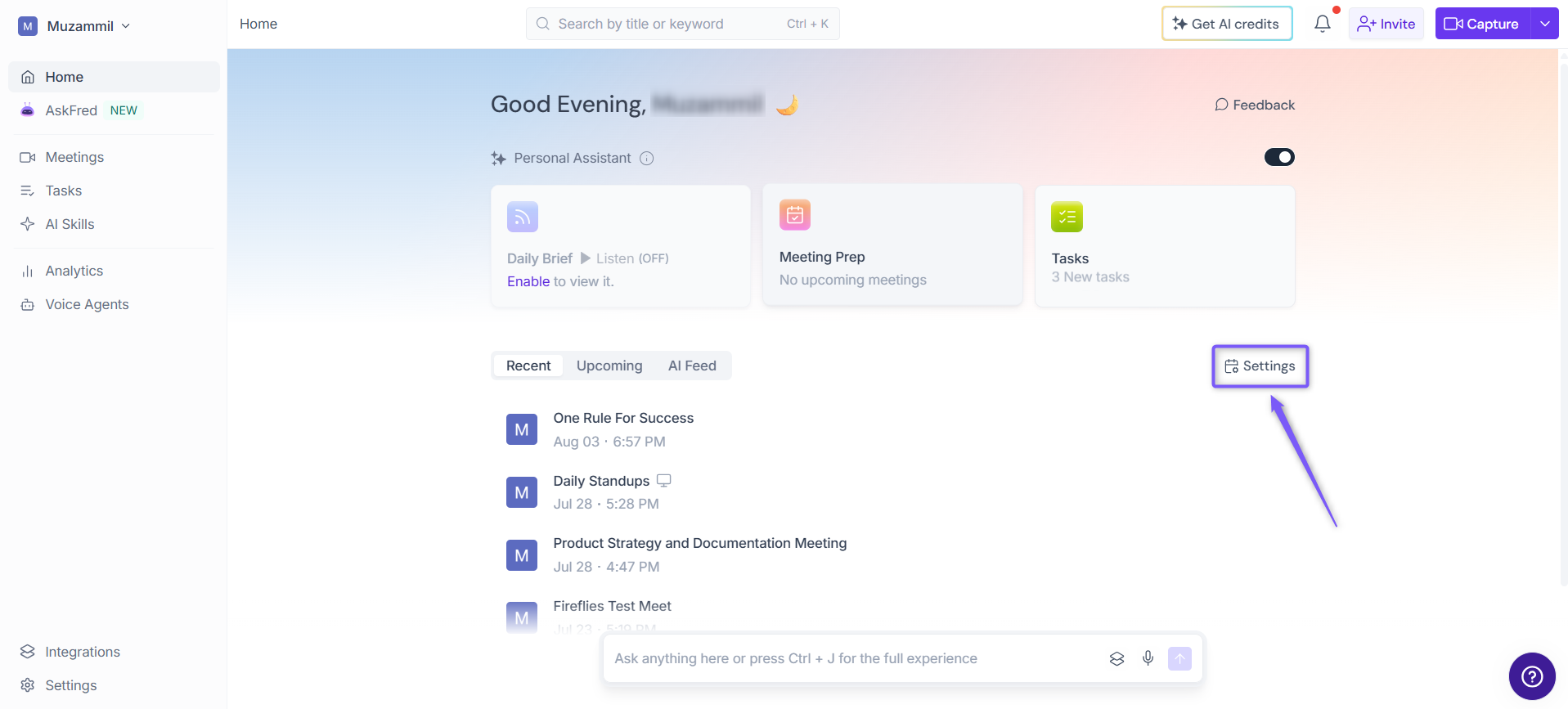
1. From the Fireflies Home page, click Settings on the right side of the page.
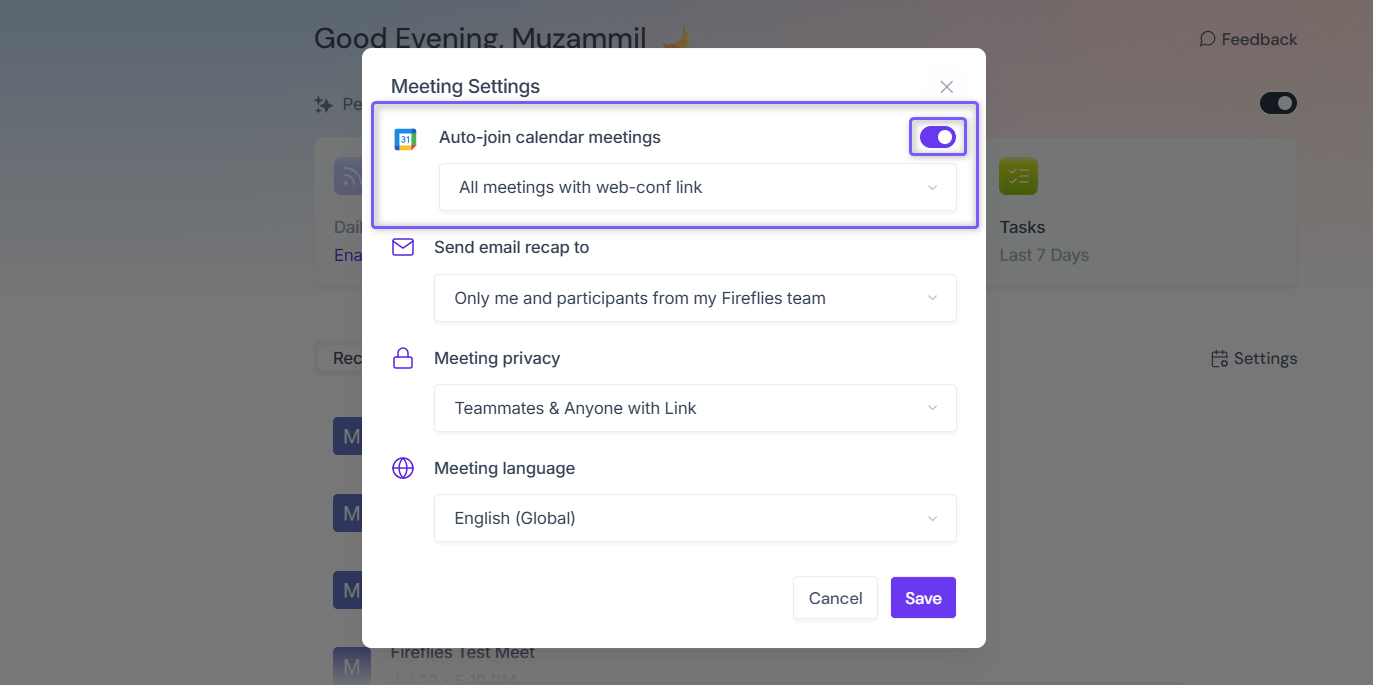
2. In the Meeting Settings window, use the Auto-join calendar meetings toggle to turn automatic meeting joining on or off.
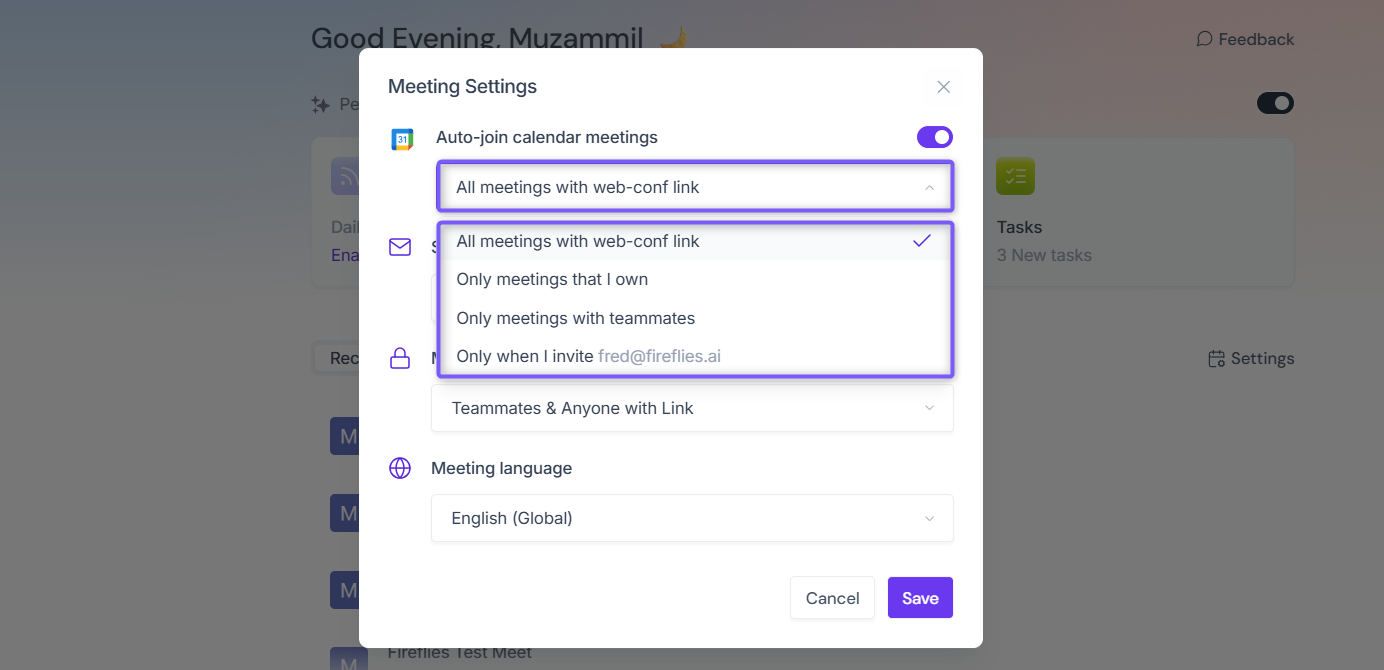
3. Under Auto-join calendar meetings, click the dropdown and select when you want Fireflies to automatically join your meetings.
Option | What it means |
All meetings with web-conf link | Fireflies joins all calendar meetings that have a web conferencing link. |
Only meetings that I own | Fireflies joins meetings where you're the host. |
Only meetings with teammates | Fireflies joins meetings with your teammates. |
Only when I invite | Fireflies joins only when you manually invite it to the meeting. |
💡Alternatively
You can configure your auto-record settings from Settings.
Go to Settings.
Click Recording & Privacy (Personal tab).
Under Auto-record meetings, choose when Fireflies should join and record meetings.

3. Manually invite Fireflies to meetings
You can manually invite Fireflies to an upcoming meeting directly from the dashboard—no need to open your calendar.
📌 Note: This only works for future meetings. To invite Fireflies to a live or ongoing call, see Method 4 (Add to Live Meeting) below.
1. Go to the Fireflies Home dashboard.
2. Click the Upcoming tab to view your scheduled upcoming meetings.
It integrates with your Connected calendar (Google or Outlook) to display a list of scheduled meetings, allowing you to easily configure which meetings you want Fireflies to join and record.
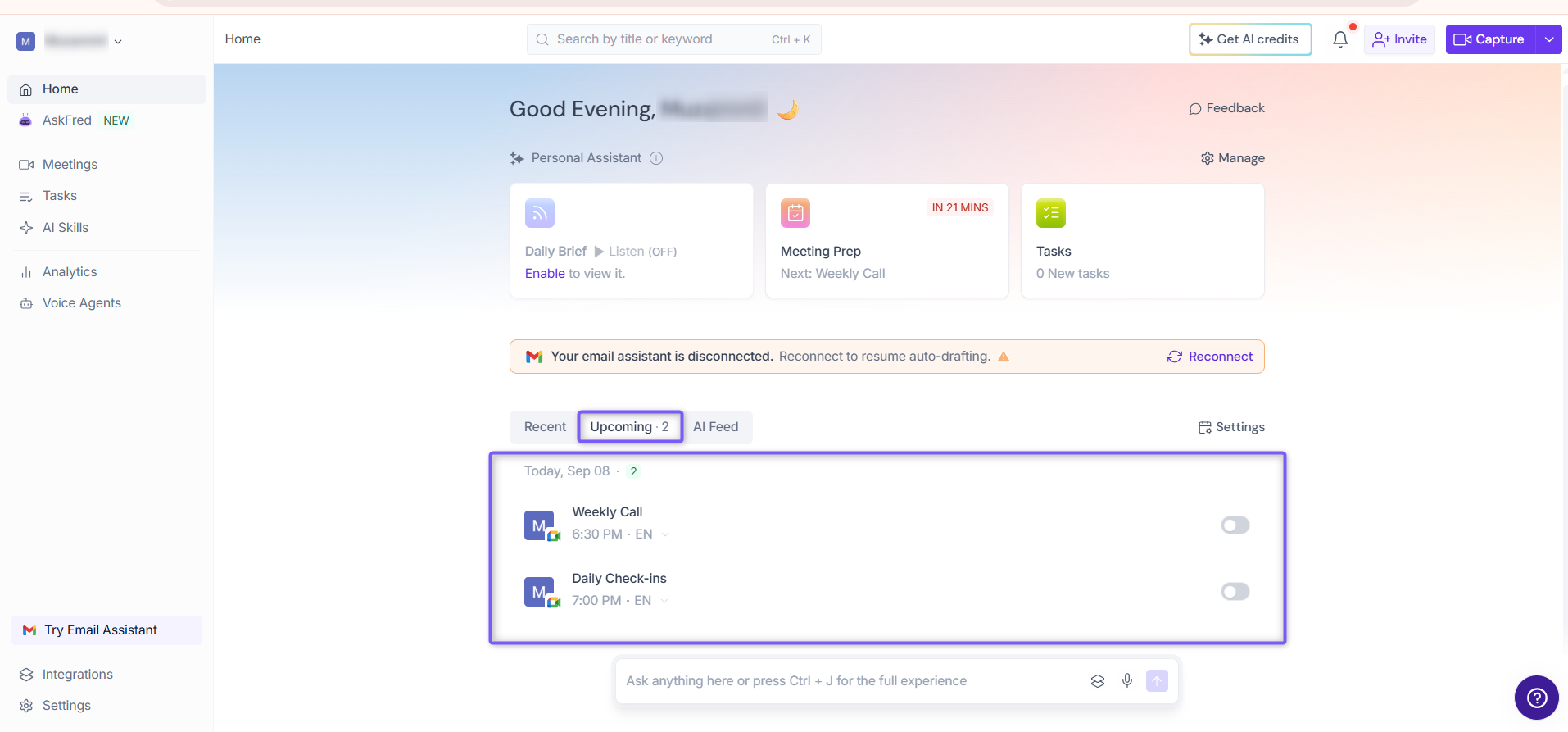
3. If Auto-join is turned off or set to Only when I invite fred@fireflies.ai, use the toggle next to the meeting you want Fireflies to join.
4. Turn the toggle on next to the meeting you want Fireflies (fred) to join.
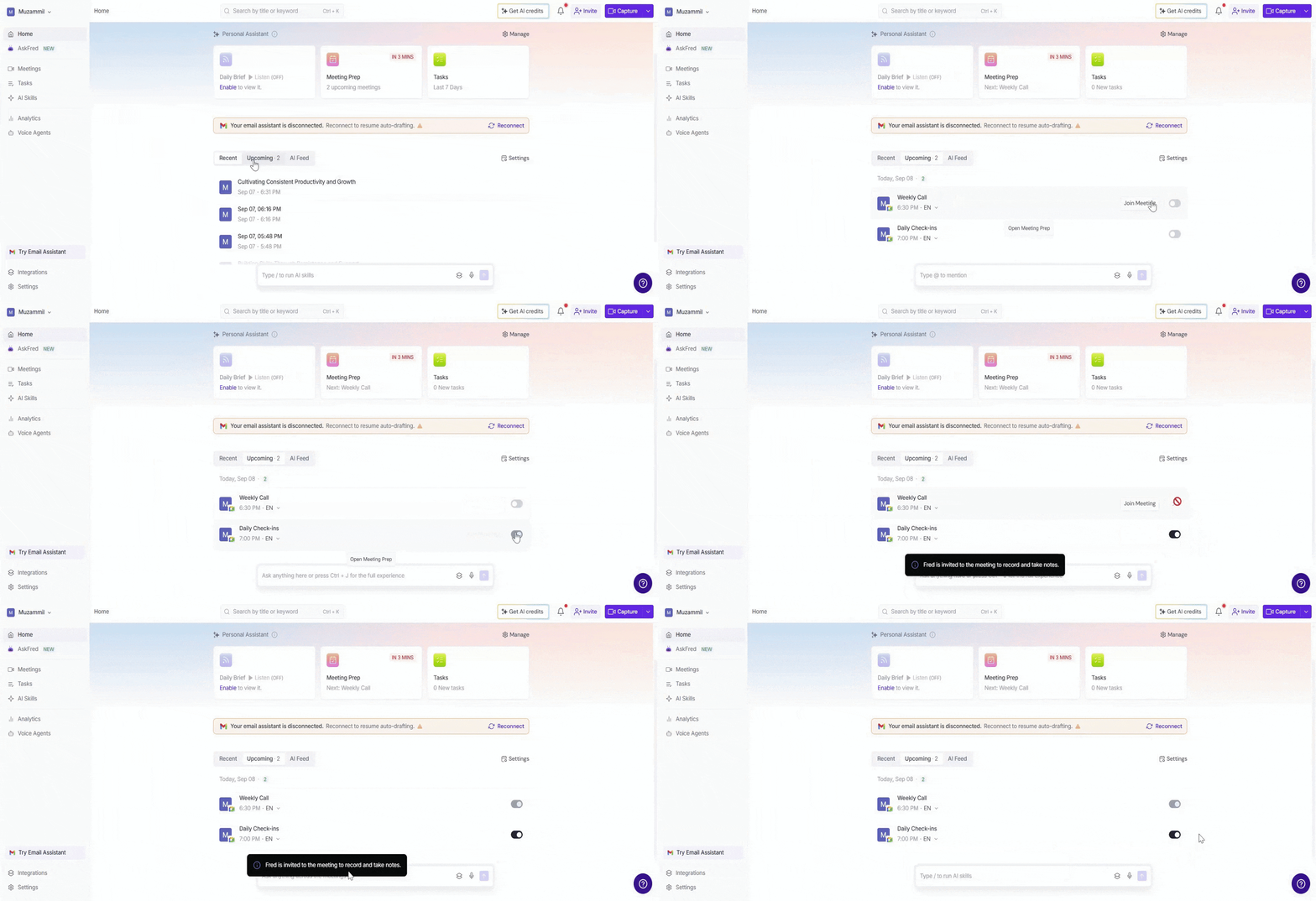
Note: Fireflies attempts to join the meeting at the scheduled start time. It waits for up to 10 minutes for someone else to join and automatically leaves if no one joins.
4. Add Fireflies to a Live or Ongoing Meeting
Forgot to invite Fireflies? No problem—you can add it to meetings already in progress.
Log in to your Fireflies account and click the Capture button at the top right (or open the dropdown next to it).

From the dropdown menu, select Add to live meeting.

In the Add to live meeting window, fill in the meeting details:
Meeting title: Enter a name for the meeting.
Meeting link: Paste the conference link (Google Meet, Zoom, Microsoft Teams, or any other supported platform).
Meeting language: Select the meeting language (optional).

Click on the Start Capturing button and wait 2–3 minutes while Fireflies.ai Notetaker joins the meeting.

Mobile user? Invite Fireflies to a live meeting via mobile
5. Recording Rules
Recording Rules override your join settings. These rules tell Fireflies to join or skip specific meetings regardless of your general join settings.
A. Set Recording Rules
Recording Rules define conditions under which Fireflies will automatically record your meetings, even overriding general auto-join settings. You can configure Recording rules based on the following criteria:
Meeting titles: Fred will join meetings if the meeting title contains specific keywords or phrases. For example, adding "project update" or "team sync" to your Recording rules will ensure that Fireflies joins any meeting with these phrases in the title.
Email addresses or domains: Fireflies will also join meetings if participants' email addresses or domains match those specified in the Recording Rules. For example, you can add specific email addresses like "manager@company.com" or domains like "@client.com" to apply broadly to all meetings involving contacts from a specific organization.
How to access Recording Rules:
1. Go to the Fireflies web app and click the Settings from left side menu.

2. Navigate to Recording & Privacy and scroll down to the Recording Rules section.

3. Click + Record Rules.
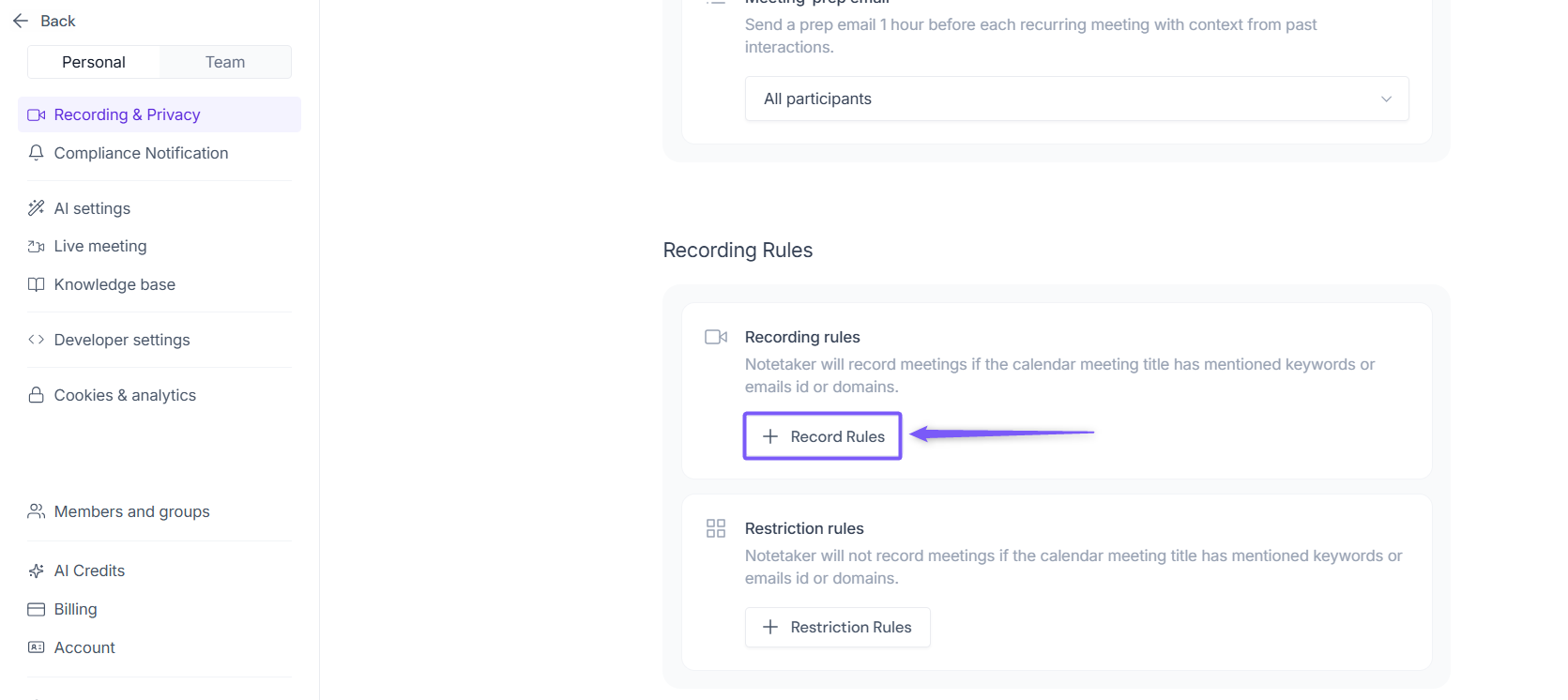
4. Enter the Title keywords and Email id or domains in their respective fields and click Save.

B. Set Restriction Rules
Restriction Rules specify conditions under which Fireflies will not record your meetings. You can configure Bar Rules to skip meetings based on the following criteria:
Meeting titles: Fireflies will not record meetings if the title contains specific keywords or phrases. For example, if you input "personal" or "confidential" as keywords, any meeting with these words in the title will be excluded from recording.
Email addresses or domains: Fireflies will also skip meetings if participants' email addresses or domains match those specified in the Restriction Rules. For instance, you can add specific email addresses like
executive@company.comor domains like@partner.comto ensure Fireflies does not record meetings involving these contacts.
How to access Restriction Rules:
1. Go to the Fireflies web app and click the Settings from left side menu.
2. Navigate to Recording & Privacy and scroll down to the Recording Rules > Restriction Rules section.

3. Click + Restriction Rules.

4. Enter the Title keywords and Email id or domains in their respective fields and click Save.

6. Record Google Meet Without the Bot (Chrome Extension)
If you prefer not to have the Fireflies bot join your Google Meet as a participant, you can use the Fireflies Chrome Extension to record and capture meetings.
The Chrome Extension allows you to record, transcribe, and summarize Google Meet sessions without inviting the Fireflies bot.
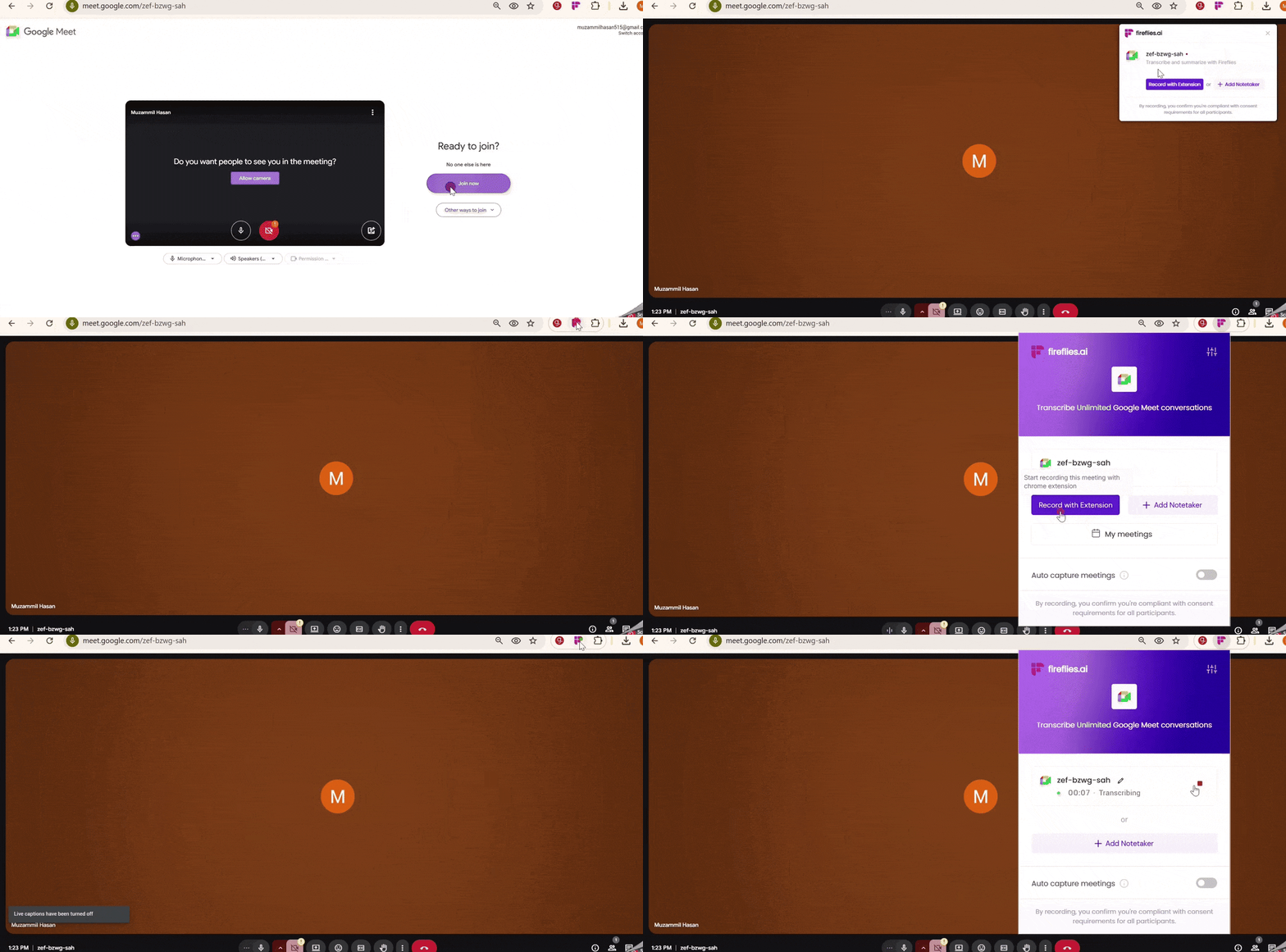
👉Read more: Learn about the Fireflies Chrome Extension.
7. Record meetings using the Fireflies Desktop App
If you want to capture conversations without relying on the Fireflies bot, you can use the Fireflies Desktop App.
The Desktop App helps you stay focused during meetings while capturing everything in real time. It shows live notes, transcripts, AI insights, and summaries in a floating pane on your screen.
It works across meetings, calls, and supported apps, and can capture conversations with or without the Fireflies Notetaker.
👉 Learn more: Fireflies Desktop App Guide
8. Record meetings using the Fireflies Mobile App
Use the Fireflies Mobile App to record meetings on your phone. Simply download the app from the App Store or Google Play to capture conversations and generate transcripts and summaries.
👉 Learn more: Add Fireflies to a live meeting via mobile app
Need help with a specific meeting platform?
You're All Set!
With these methods, Fireflies can capture every important conversation—whether you're planning ahead, jumping into a last-minute call, or coordinating with your team. Choose the approach that fits your workflow best, and let Fireflies handle the rest.