How to Invite Fireflies to Microsoft Teams Meetings (and Configure Teams Settings First)
Last updated: July 6, 2026
Want Fireflies to automatically join, transcribe, and summarize your Microsoft Teams meetings? Before inviting Fireflies, you'll need to configure a few Microsoft Teams settings to ensure Fred can join your meetings without getting stuck in the lobby or blocked by Microsoft's security checks.
This guide walks you through the required Microsoft Teams settings, including Microsoft's latest bot detection changes, so your meetings are captured smoothly from start to finish.
Most of the settings in this guide require Microsoft Teams Administrator permissions. If you're not an admin, please share this guide with your IT team.
🚀 Configure Microsoft Teams Before Inviting Fireflies
Before Fireflies can join your Microsoft Teams meetings, you'll need to configure a few one-time Teams settings.
1. Enable guest access for Microsoft Teams
Fireflies joins Microsoft Teams meetings as a guest. Before inviting Fireflies, make sure guest access is enabled for your organization.
Go to the Microsoft Teams Admin Center and login with your credentials
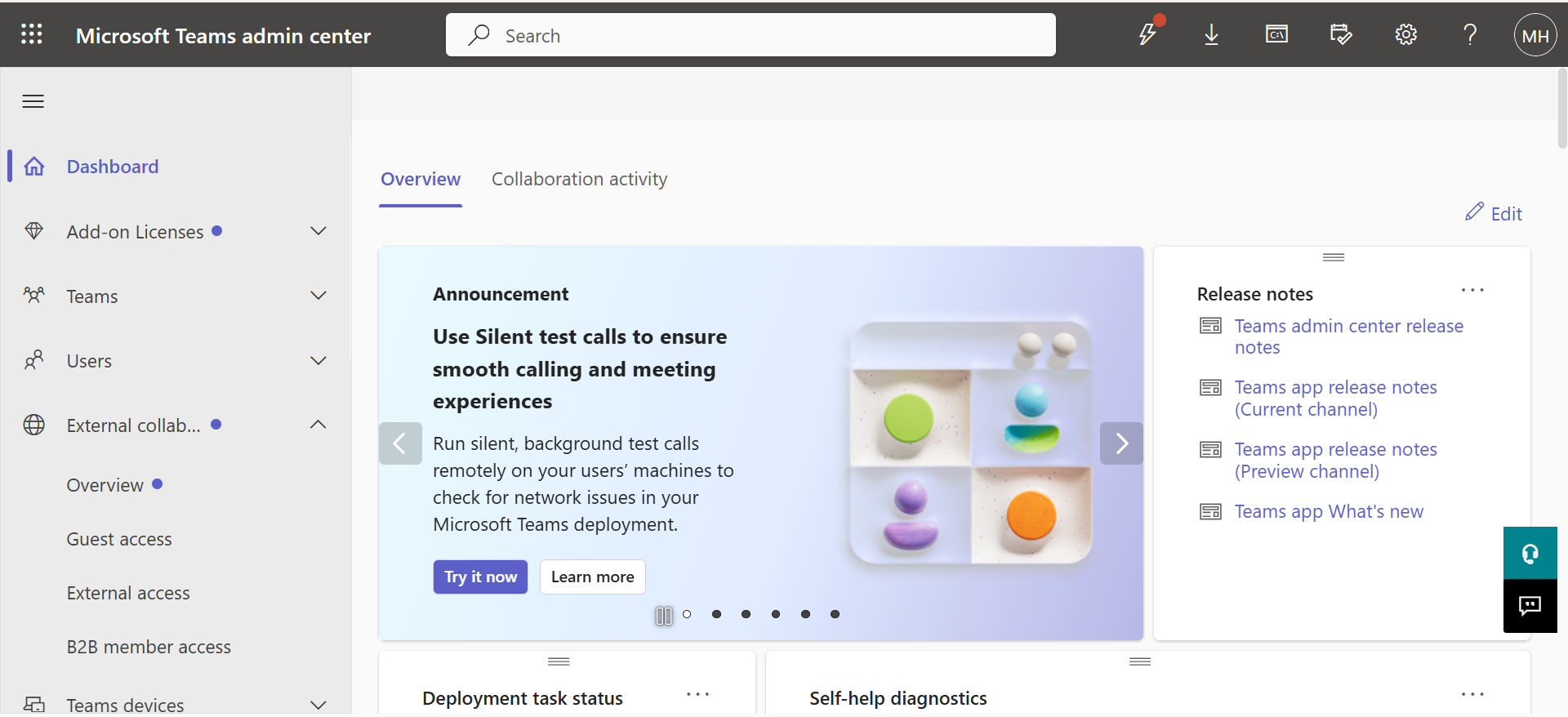
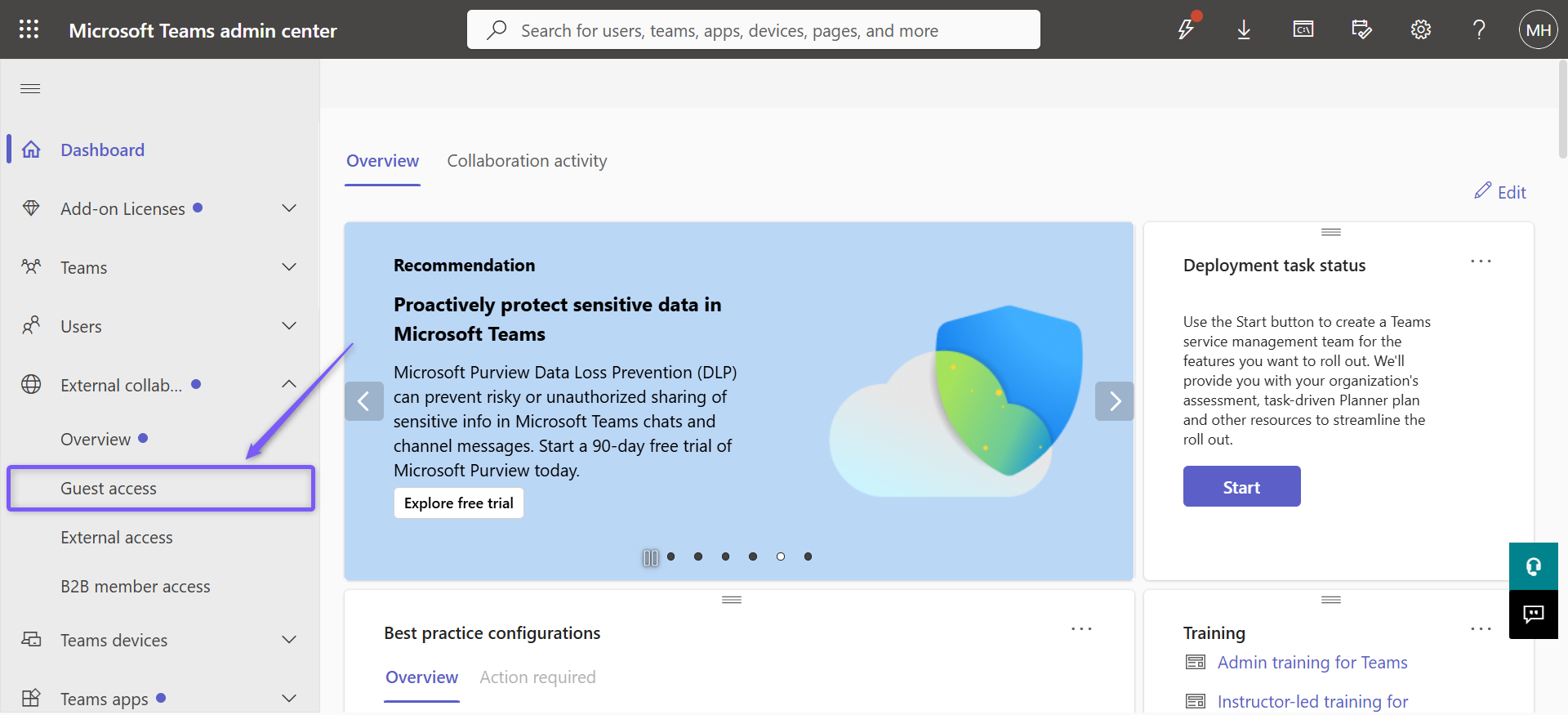
From the left menu, click External collaboration > Guest access
Turn on Allow guest access, then click Save. This allows Fireflies to join your Microsoft Teams meetings as a guest.
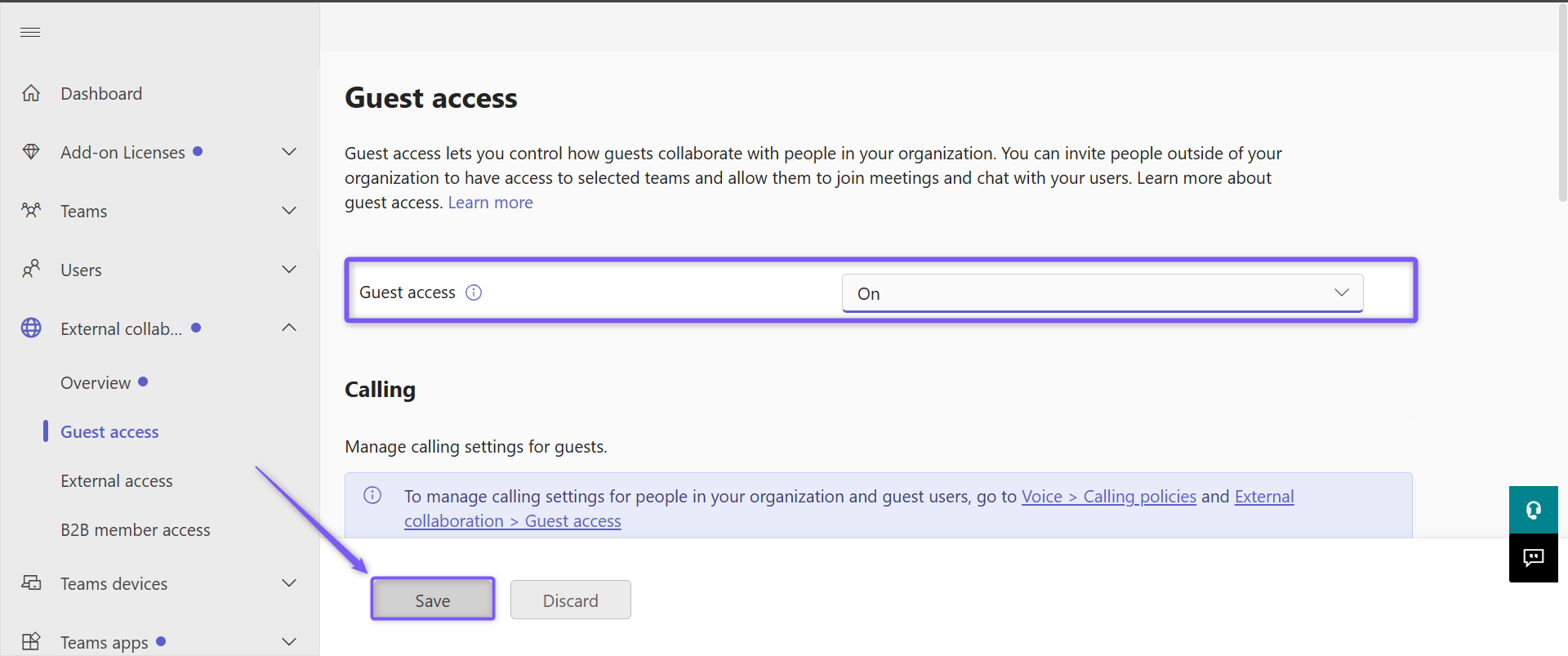
If this is disabled, Fred won’t be allowed into any of your Teams meetings. (This setting is disabled by default on Microsoft Teams).
For detailed instructions, refer to Microsoft's official guides:
2. Allow Guests to Bypass the Teams Lobby and Verification Checks
Even with guest access enabled, Microsoft Teams may place Fireflies in the lobby or require a verification check before joining. Configure the following settings to help Fireflies join your meetings without delays.
To make sure Fred joins on time:
In the Microsoft Teams Admin Center, go to Meetings → Meeting policies.
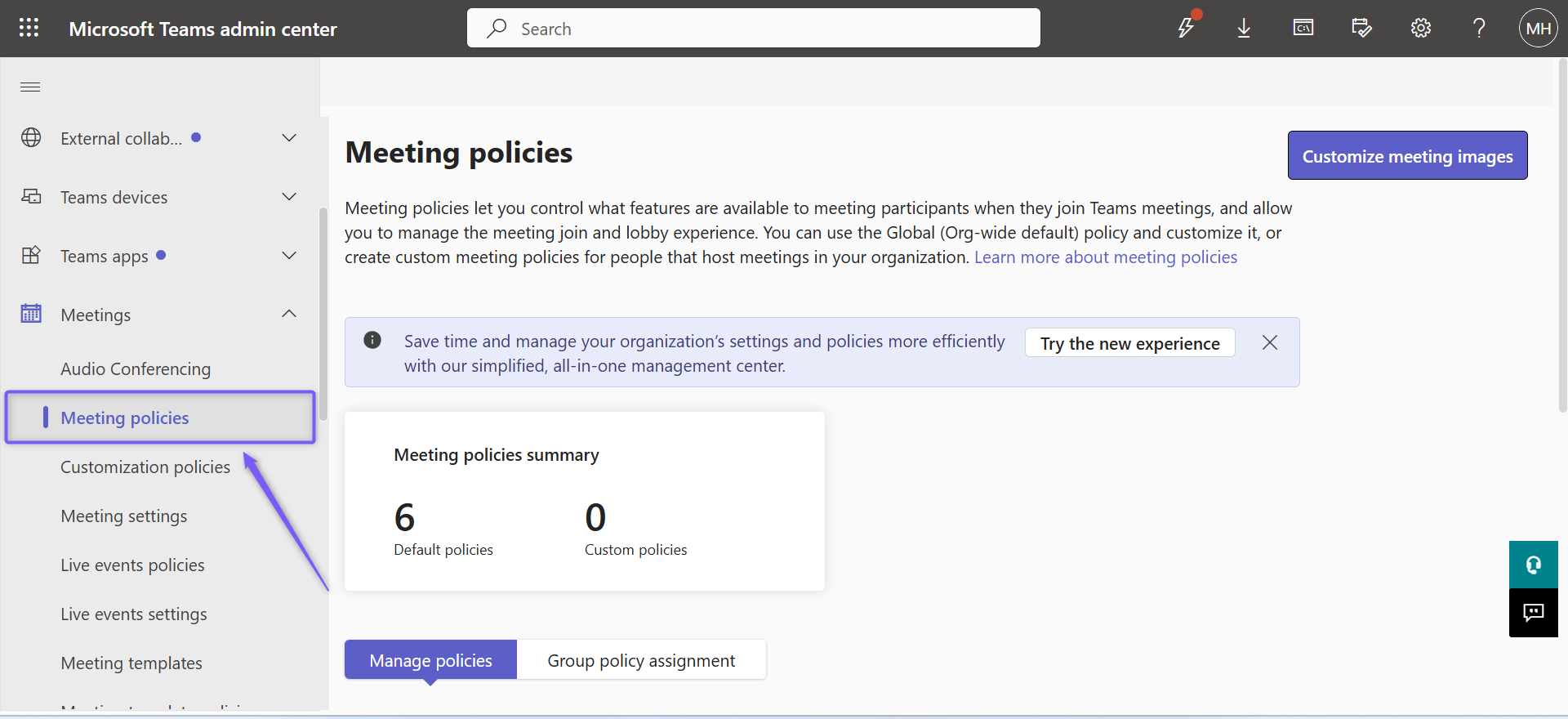
Open the meeting policy you want to update (typically Global).
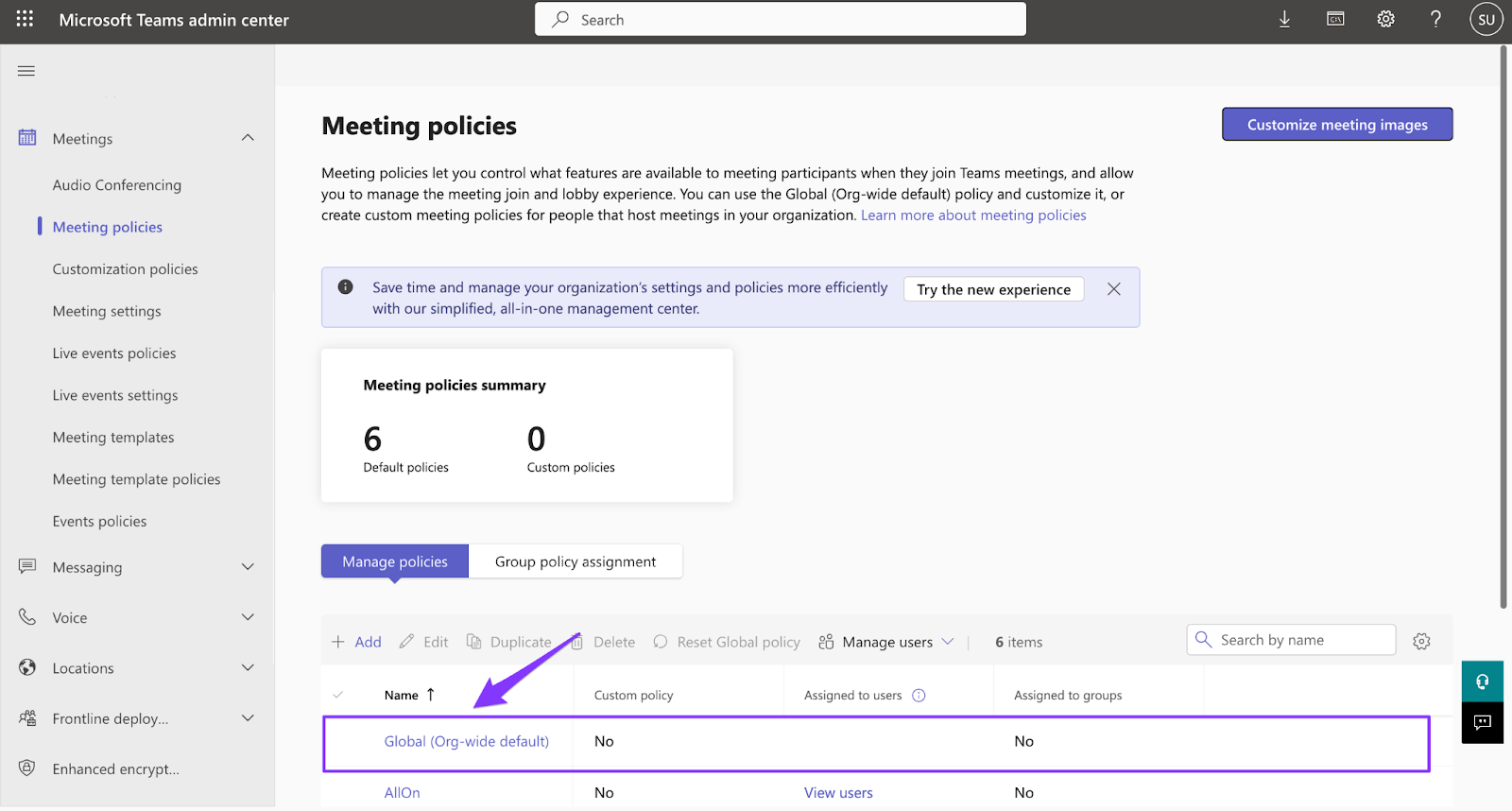
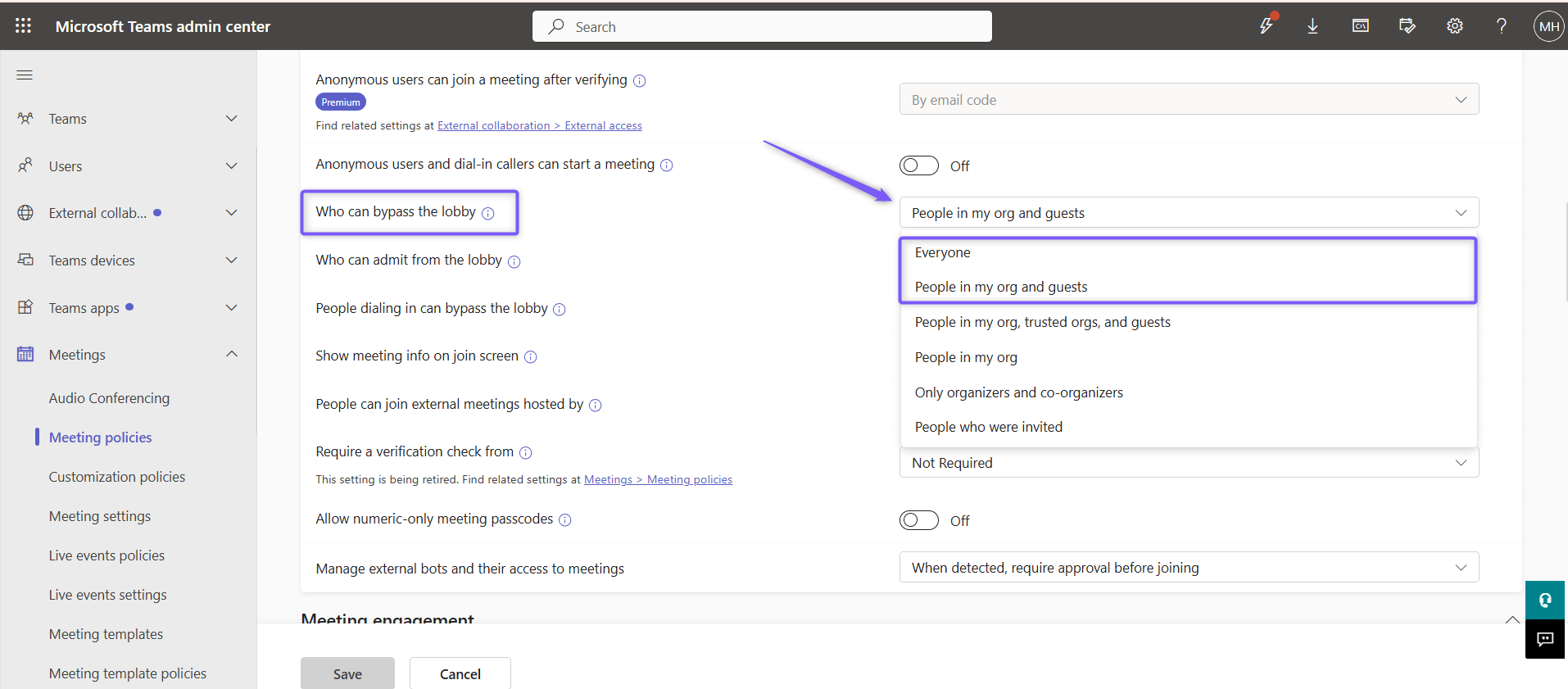
Under Meeting join & lobby settings:
Set Who can bypass the lobby to People in my org and guests (recommended) or Everyone.
Set Require a verification check from to Not required (which is a default setting). This prevents Fireflies from being blocked by verification checks such as CAPTCHA.
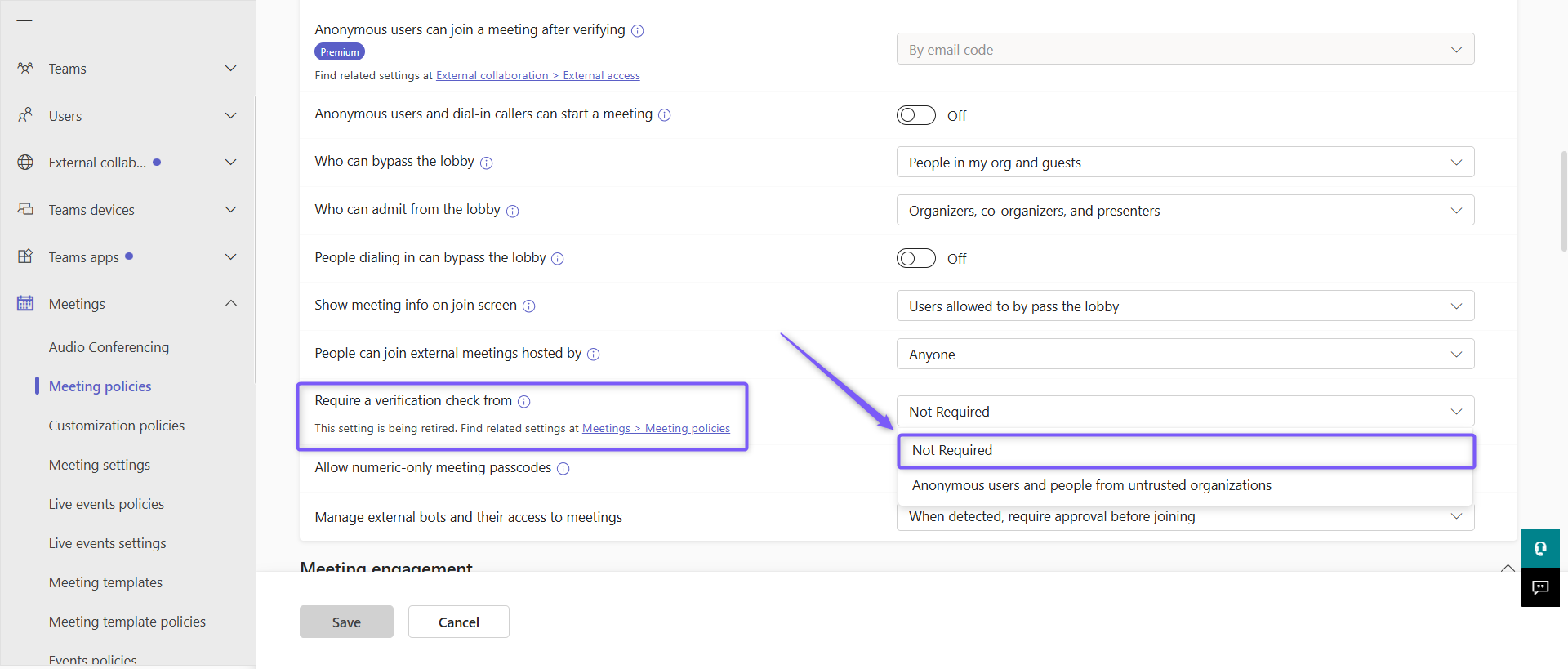
If Fred/Fireflies is stuck in the lobby or required to complete a verification check, it won't be able to join and record the meeting. See Microsoft’s official policy guide
3. Disable Microsoft Teams Bot Detection
Microsoft has introduced a security feature that helps meeting hosts identify external bots joining Microsoft Teams meetings. As a result, you may notice a slightly different experience when Fireflies joins your meetings.
🛡 Good to know: nothing has changed with your Fireflies notetaker. Microsoft recently introduced a feature that helps meeting hosts distinguish between guests and external bots joining Microsoft Teams meetings. Fireflies remains completely safe and will continue to securely join, record, and transcribe your Microsoft Teams meetings.
What you'll see
In some Microsoft Teams meetings, Fireflies may appear under Suspected threats with the label Unverified while waiting to join.
This is simply Microsoft's way of identifying external meeting assistants and does not indicate a problem with Fireflies. The meeting organizer can click ✓ Admit to allow Fireflies to join, just like any other guest participant.
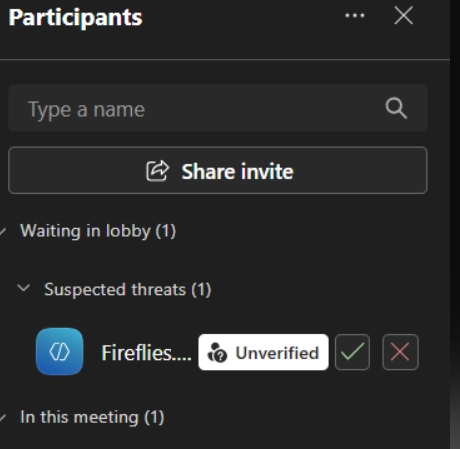
💡 Want Fireflies to join without appearing under Suspected threats? A Microsoft Teams administrator can disable bot detection with a one-time configuration.
How an admin can turn off bot detection
This is a one-time configuration that must be completed by a Microsoft Teams administrator in the Microsoft Teams Admin Center. The changes apply to your organization's meeting policy.
In the Microsoft Teams Admin Center, go to Meetings → Meeting policies.
Open the meeting policy you want to update (typically Global).
Scroll down to the Meeting join & lobby section.
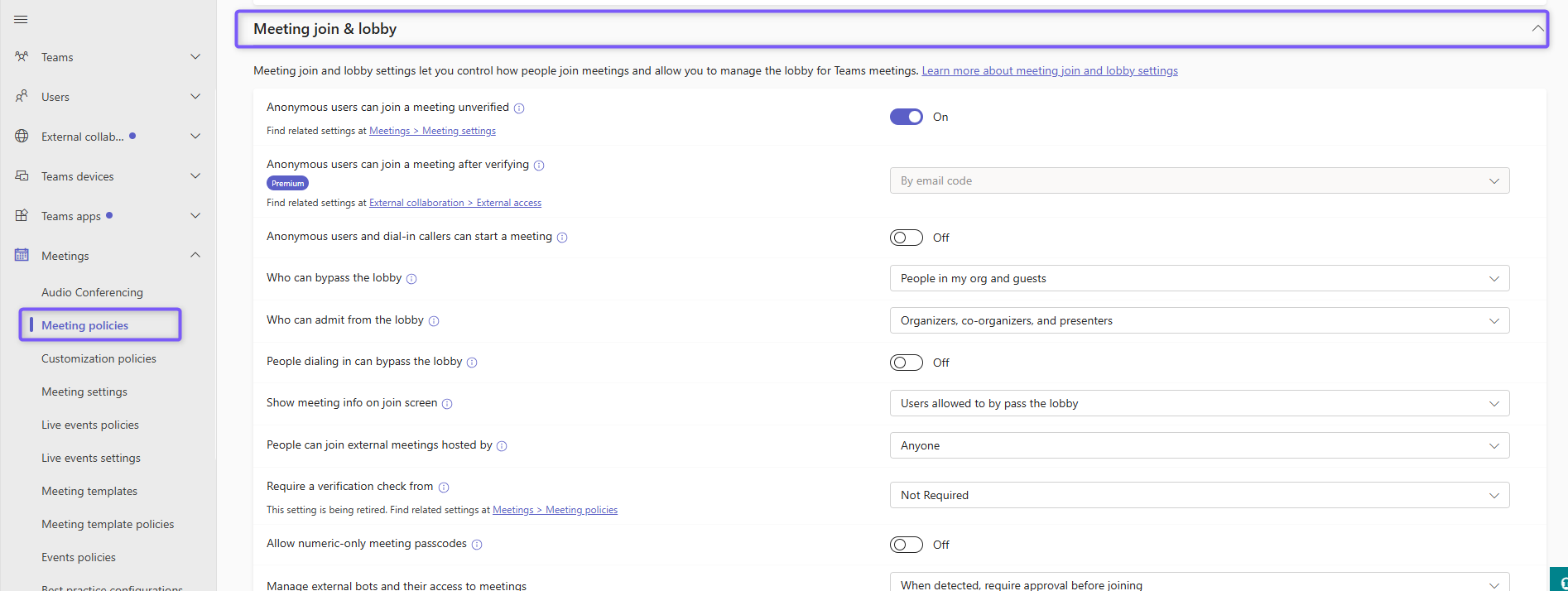
Set Manage external bots and their access to meetings to Do not detect bots.
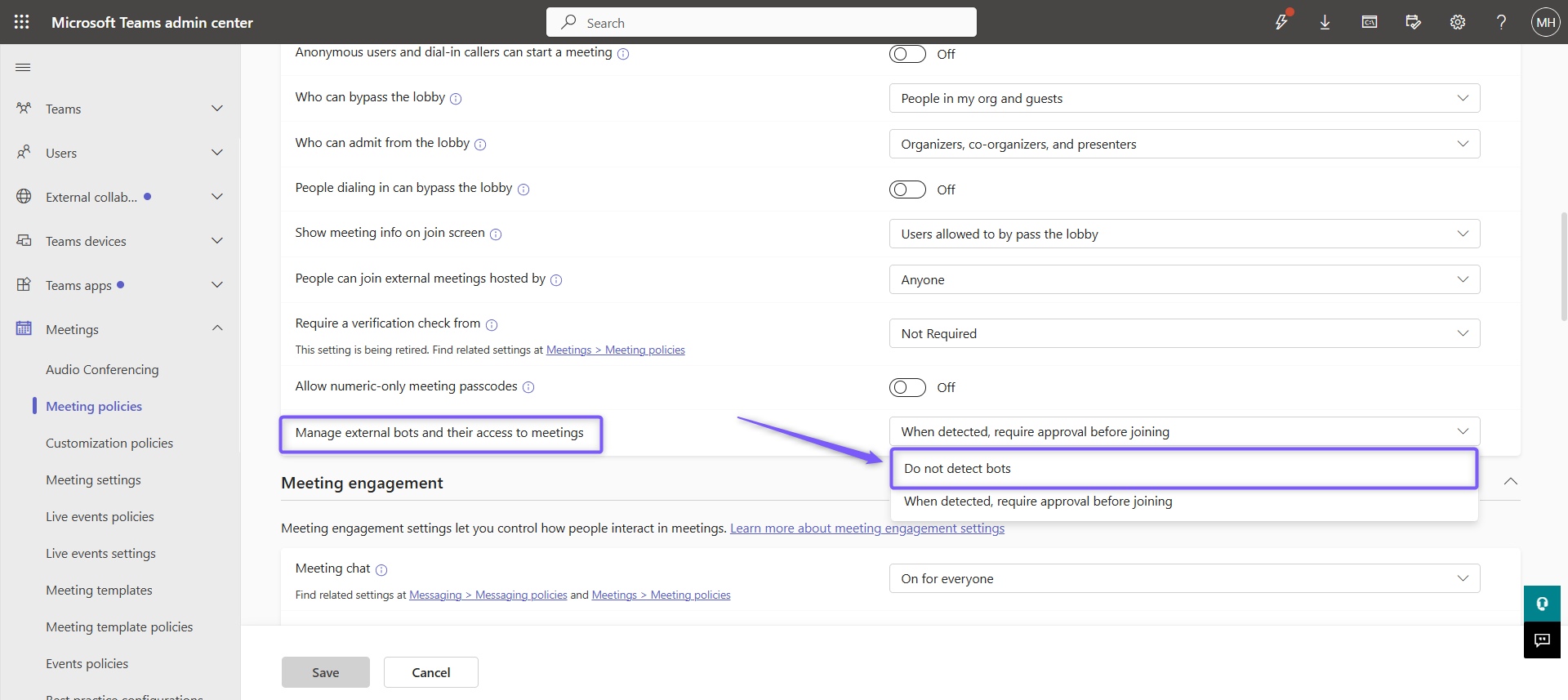
Turn on anonymous access. Make sure Anonymous users can join a meeting unverified is turned On, then click Save.
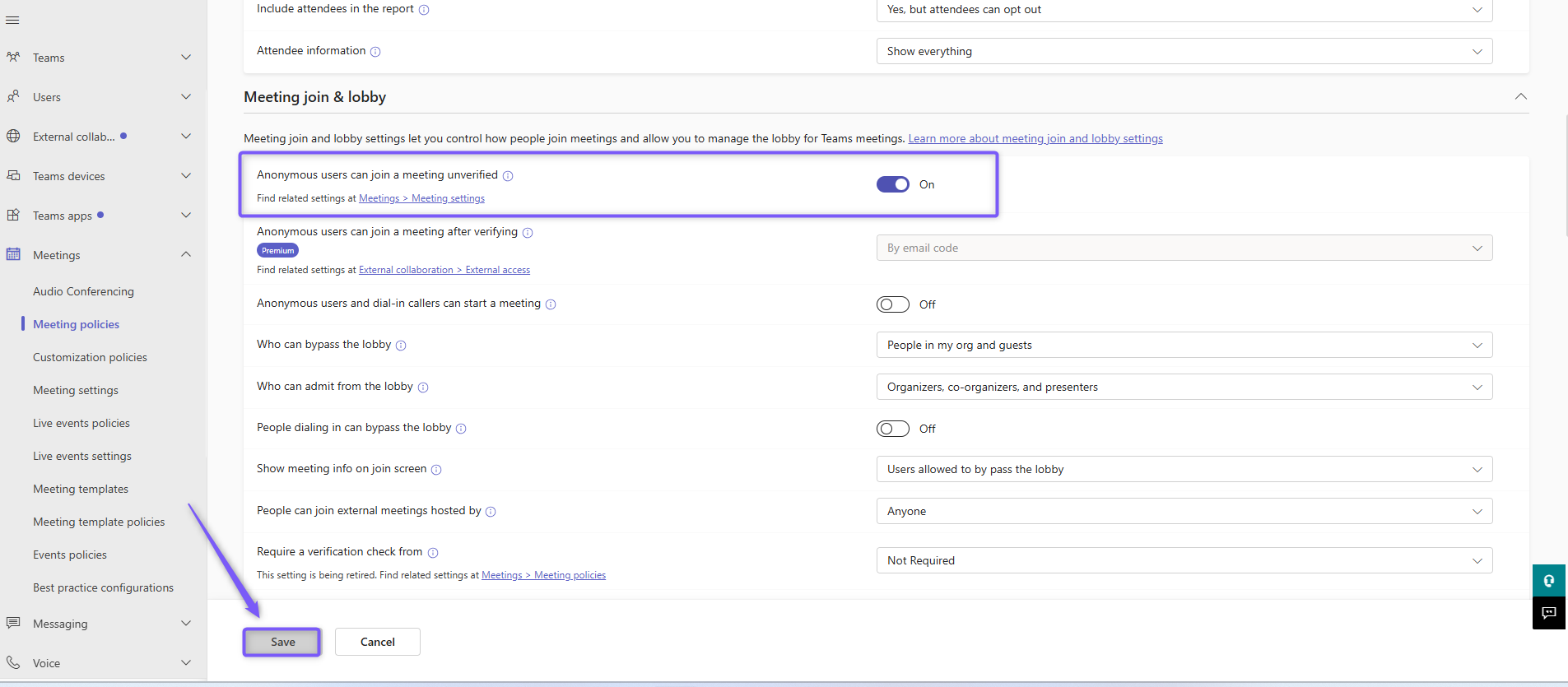
Microsoft Teams may take up to 24 hours to apply this change across your organization. Until then, Fireflies may continue to appear under Suspected threats in some meetings.
📘 Learn more: Manage external bots and their access to meetings.
💡Note: If you're using Microsoft 365, ensure that Anonymous users can join a meeting: Must be ON in both Meeting Settings and Meeting Policies (recent Microsoft 365 update)
4. Invite Fireflies to Your Meeting
Once you've completed the Microsoft Teams configuration, you're ready to invite Fireflies to your meetings. Make sure your calendar event includes a valid Microsoft Teams meeting link, then choose the invite method that works best for you.
All invite options are covered in detail here: All the ways you can invite fireflies to your meetings
🎥 What happens during the meeting?
Once it’s time for the meeting, here’s what to expect:
Fred will attempt to join your meeting at the scheduled time.
If lobby and guest access are properly configured, Fred will enter automatically or you or another participant may need to admit Fred from the waiting room - this depends on your microsoft teams settings
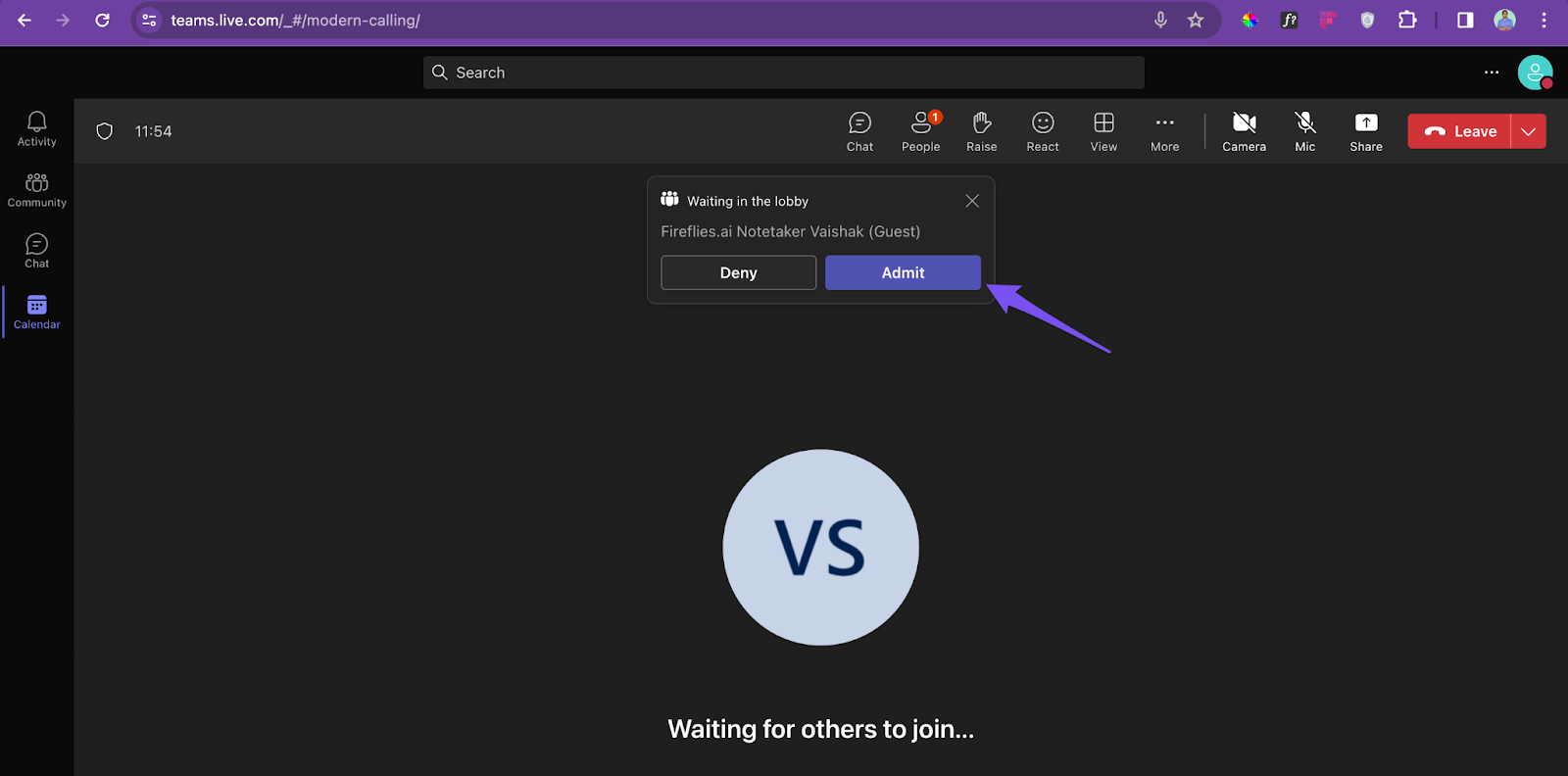
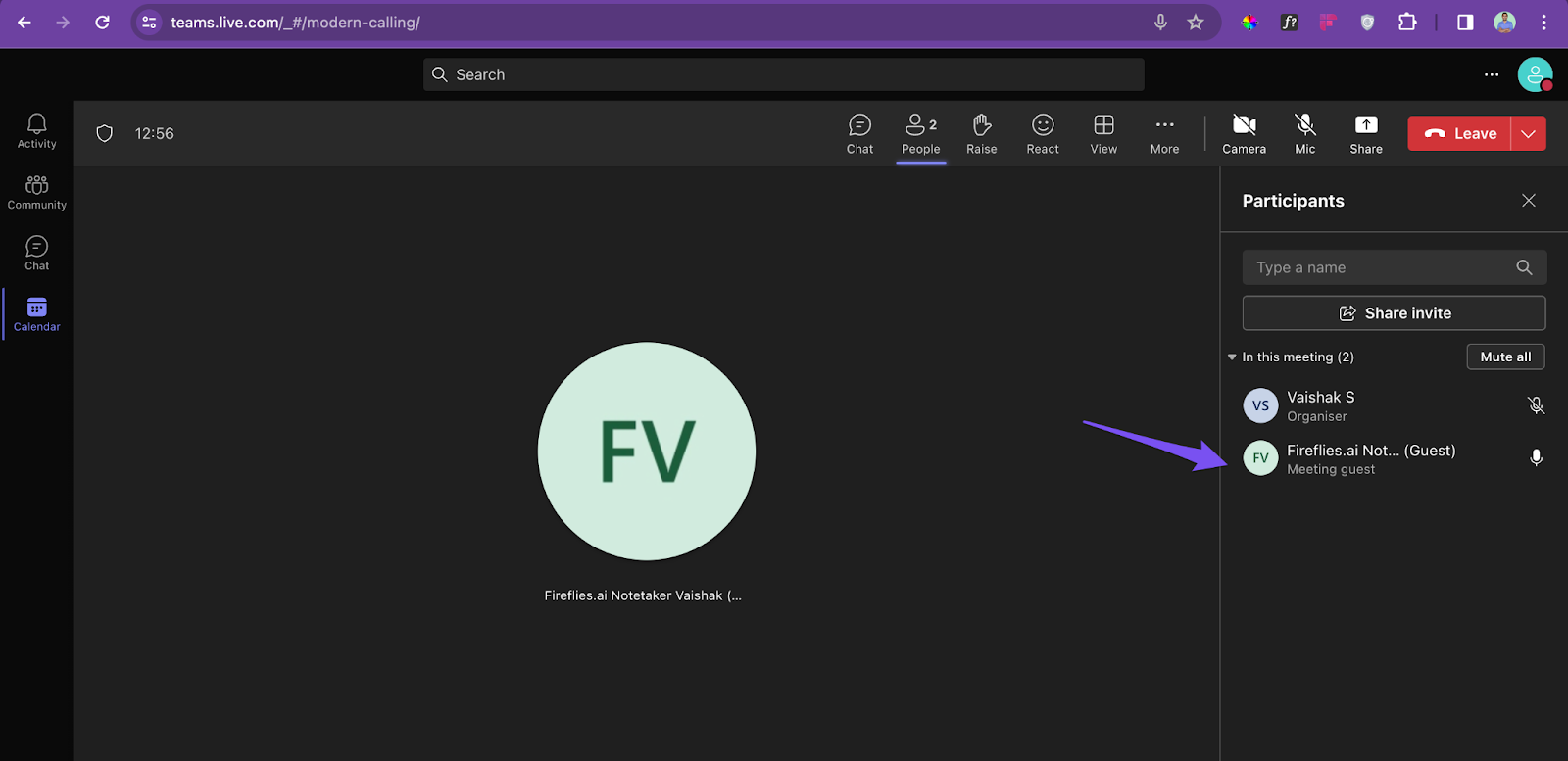
After joining, Fred will appear as a participant.
Once the meeting ends, Fireflies will send the meeting recap to the destination you’ve configured—this could be your email, Fireflies Notebook, or a Microsoft Teams channel (if you’ve set up the Teams integration)
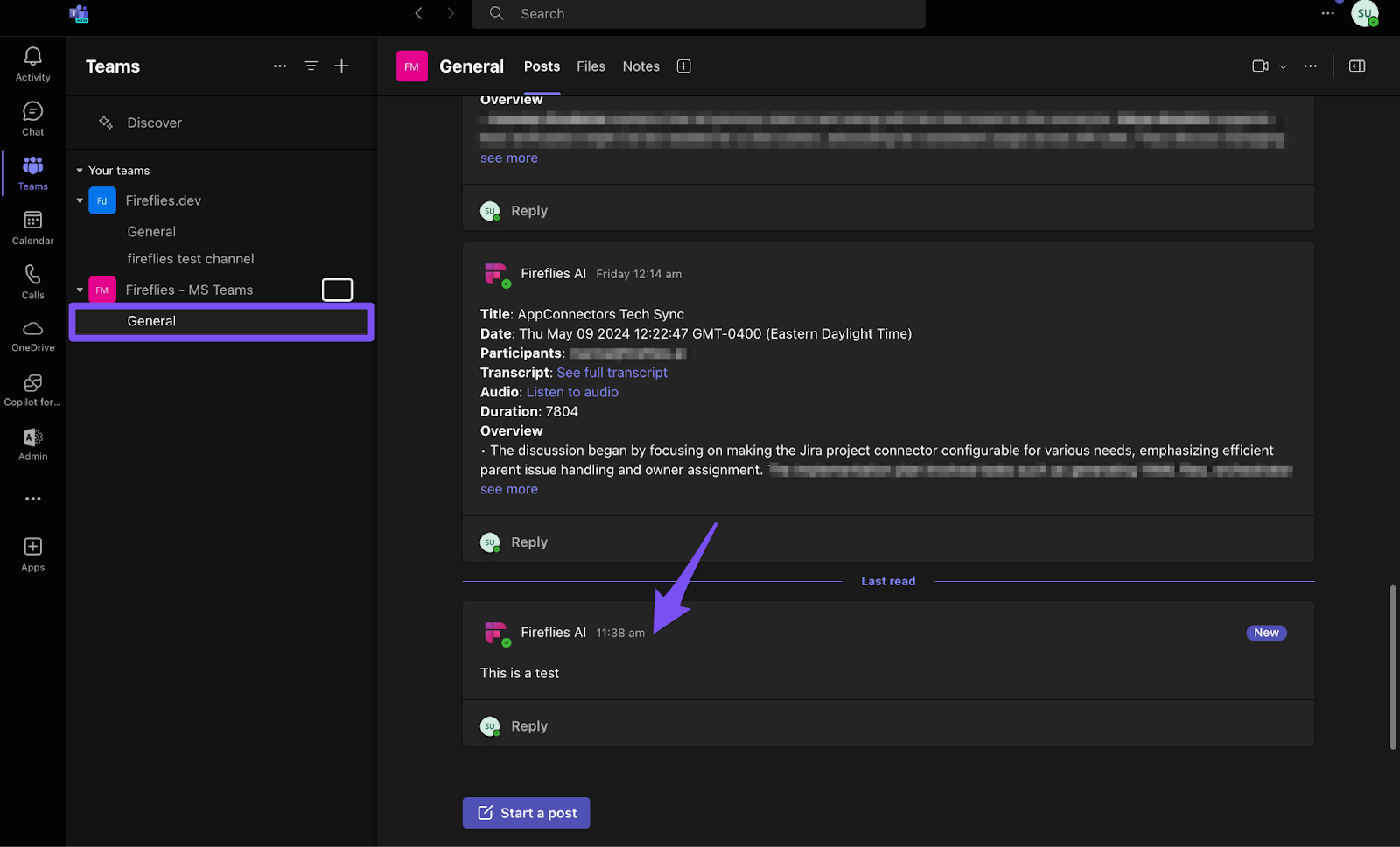
Set up the Microsoft Teams + Fireflies integration to automatically send notes to your preferred channel.
❗ Troubleshooting: Fireflies didn’t join your meeting?
Here’s what to double-check:
✅ Guest access in Microsoft Teams is ON
✅ Lobby setting allows guests to bypass
✅ Anonymous users can join a meeting unverified is turned On.
✅ Microsoft Teams Bot Detection settings have been reviewed and configured.
✅ Your meeting invitation includes a valid Microsoft Teams meeting link.
✅ Calendar invite has a Teams meeting link
✅ You invited
fred@fireflies.aior used the correct Auto-Join setting✅ You didn’t remove Fred before 3 minutes — it needs at least 3 minutes to process the meeting
🛠 Need help diagnosing the issue? See: Why Fred didn’t join your meeting