Manage Your Fireflies Free Trial (Start, Upgrade, Downgrade, Cancel & Billing)
Last updated: April 20, 2026
Fireflies.ai is an AI meeting assistant that automatically joins your calls, records them, and turns them into transcripts, summaries, and action items — so you never miss what was discussed. Not sure if it's the right fit for your team? The 7-day free trial gives you full access to Business plan features, so you can explore everything before making any commitment.
This guide covers everything you need — from starting your trial and managing your plan, to understanding your charges and cancelling if needed.
The free trial starts on the Business plan by default. A valid credit/debit card is required to activate it — you won't be charged during the trial.
🚀 Start your 7-day free trial
You can start the Fireflies free trial either during sign-up or later from your dashboard. Follow the steps below based on where you see the option.
Option 1: Start the free trial during sign-up
If you’re new to Fireflies, you may see the option to start a free trial while creating your account.
1. During sign-up, select Start free trial when prompted.
2. Continue with the on-screen steps to activate the trial.
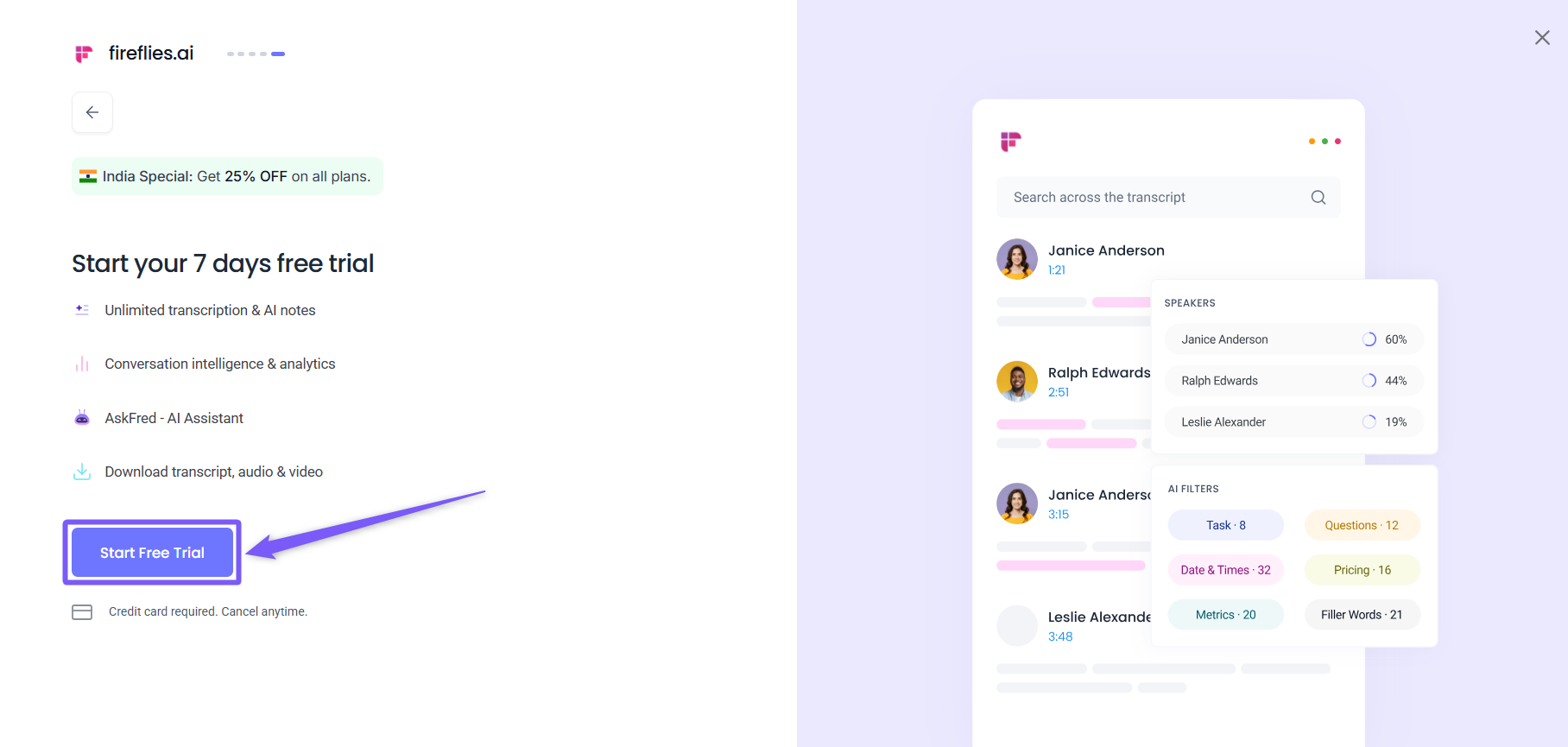
If you skip this step, you can still start the free trial later from the dashboard.
Option 2: Start the free trial from the dashboard
If you already have a Fireflies account and haven’t used the free trial yet:
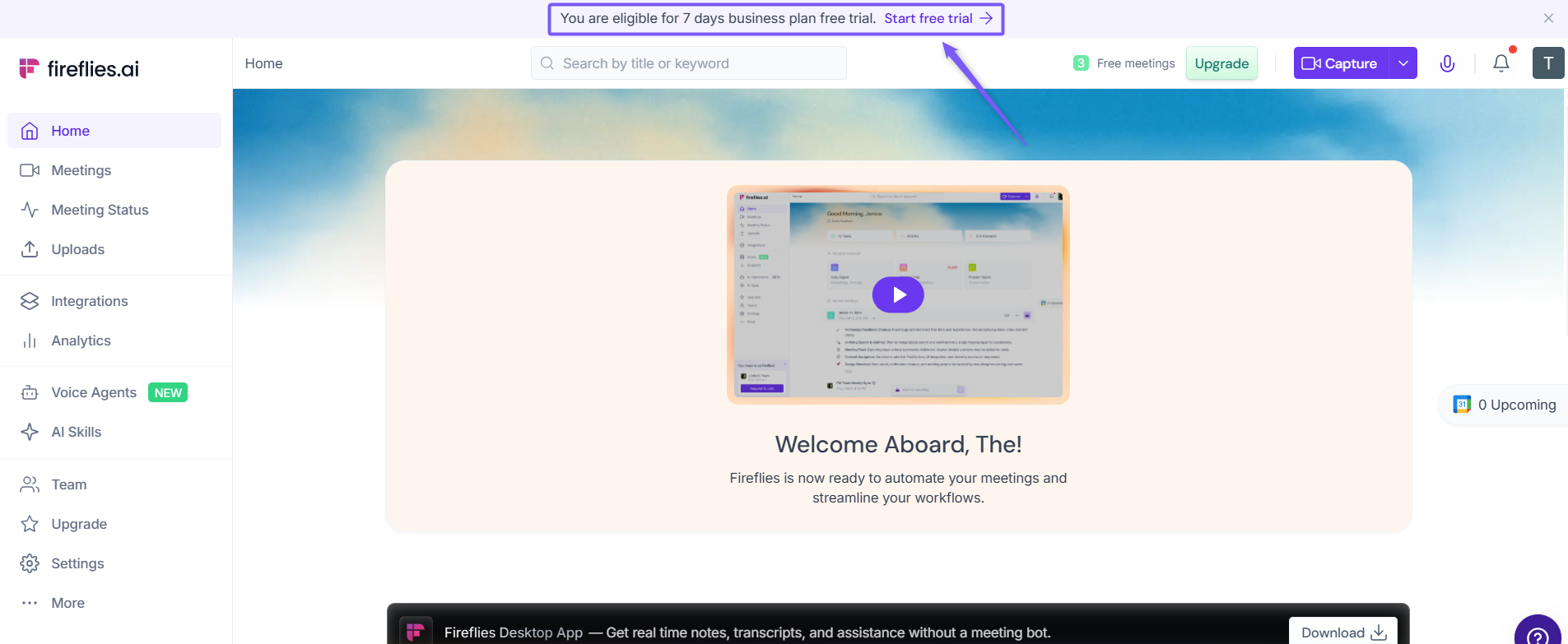
1. Log in to your Fireflies account. If you’re eligible for the 7-day free trial, a banner appears at the top of the dashboard.
2. Click Start free trial to continue.
✅Activate your free trial
Once you click Start free trial from the dashboard, you’ll see a confirmation screen showing your trial eligibility.
1. Review the message confirming that you’re eligible for a 7-day free trial.
2. Click Start your 7-day free trial to continue.
3. If you don’t want to start the trial at this time, click No thanks to return to the dashboard.
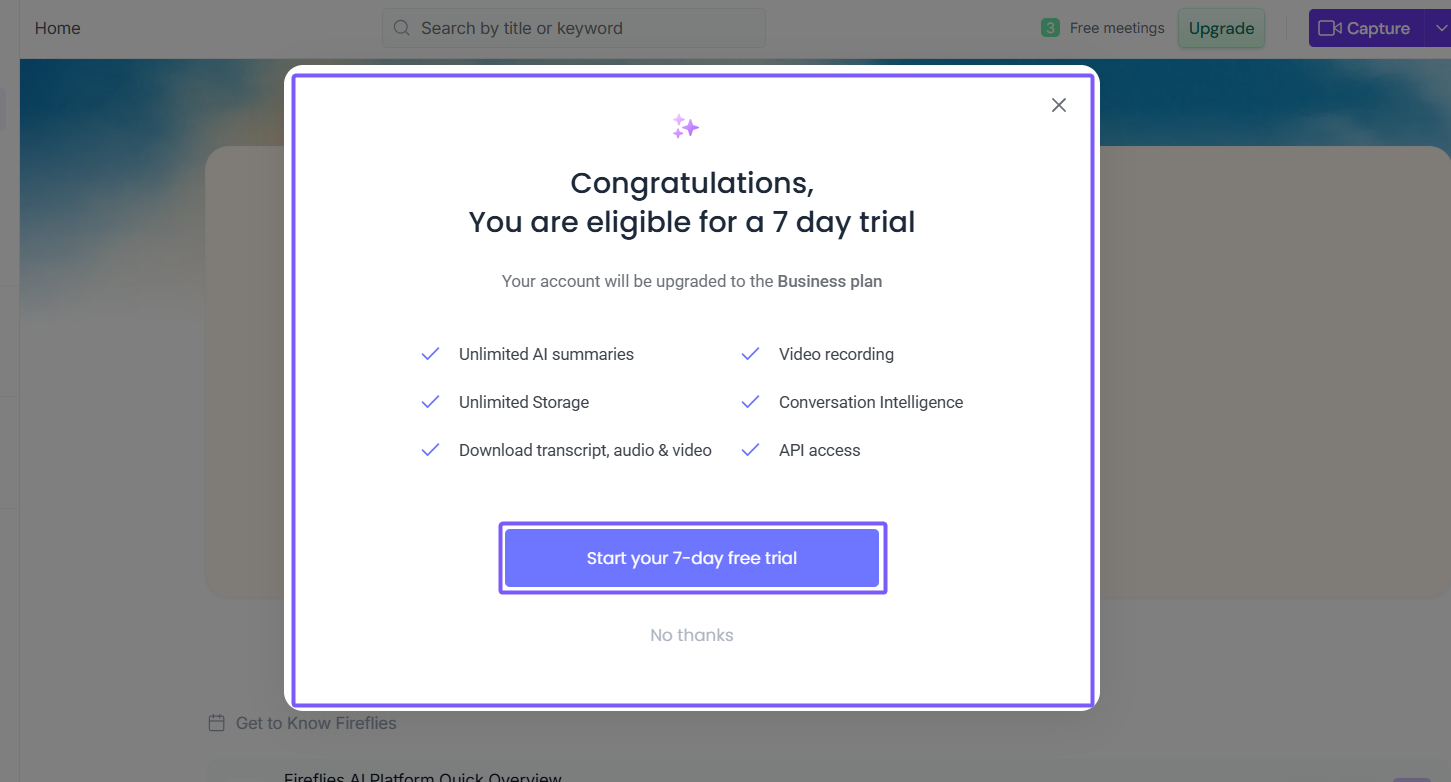
Starting the free trial upgrades your account to the Business plan for the duration of the trial. You won’t be charged unless you continue after the 7 days.
Enter payment details to start the trial
To activate your free trial, Fireflies requires payment details. This helps ensure uninterrupted access if you choose to continue after the trial ends.
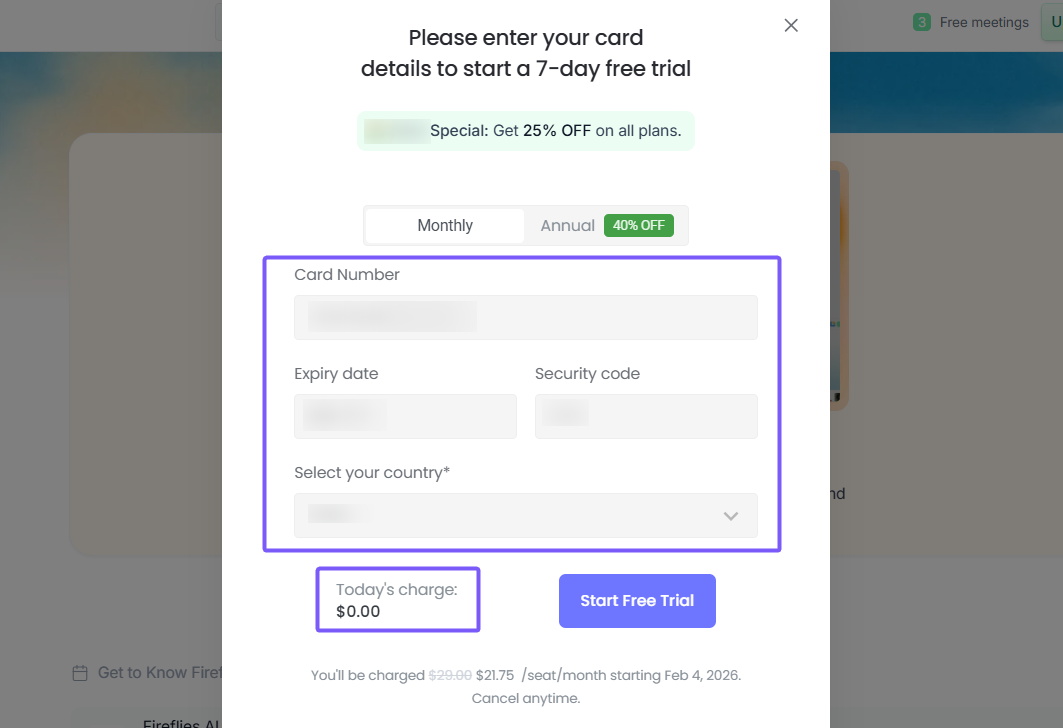
1. Select a billing option → Monthly or Annual (Monthly is selected by default).
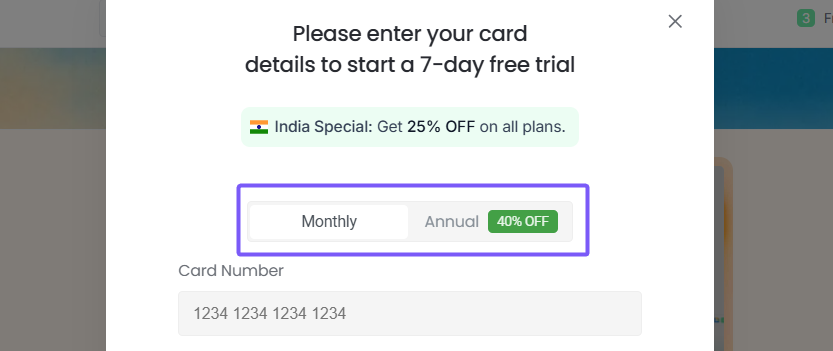
2. Enter your card details, including card number, expiry date, security code, and country.
3. Review the confirmation at the bottom of the screen and make sure Today’s charge shows $0.00.
Note
Any eligible discounts (such as regional or promotional offers) are automatically applied.
You won’t be charged when the trial starts.
You’ll be charged for the Business plan only if you don’t cancel before the 7-day trial ends.
You can cancel the trial at any time before the end date to avoid being billed.
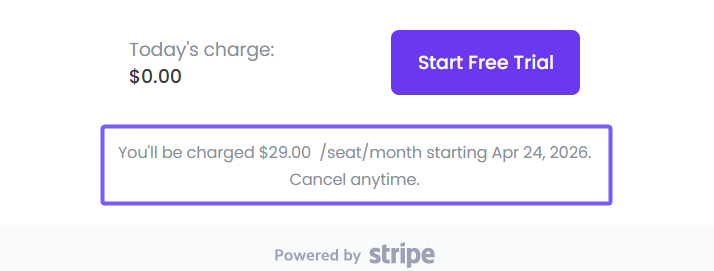
4. Click Start Free Trial to activate the trial.
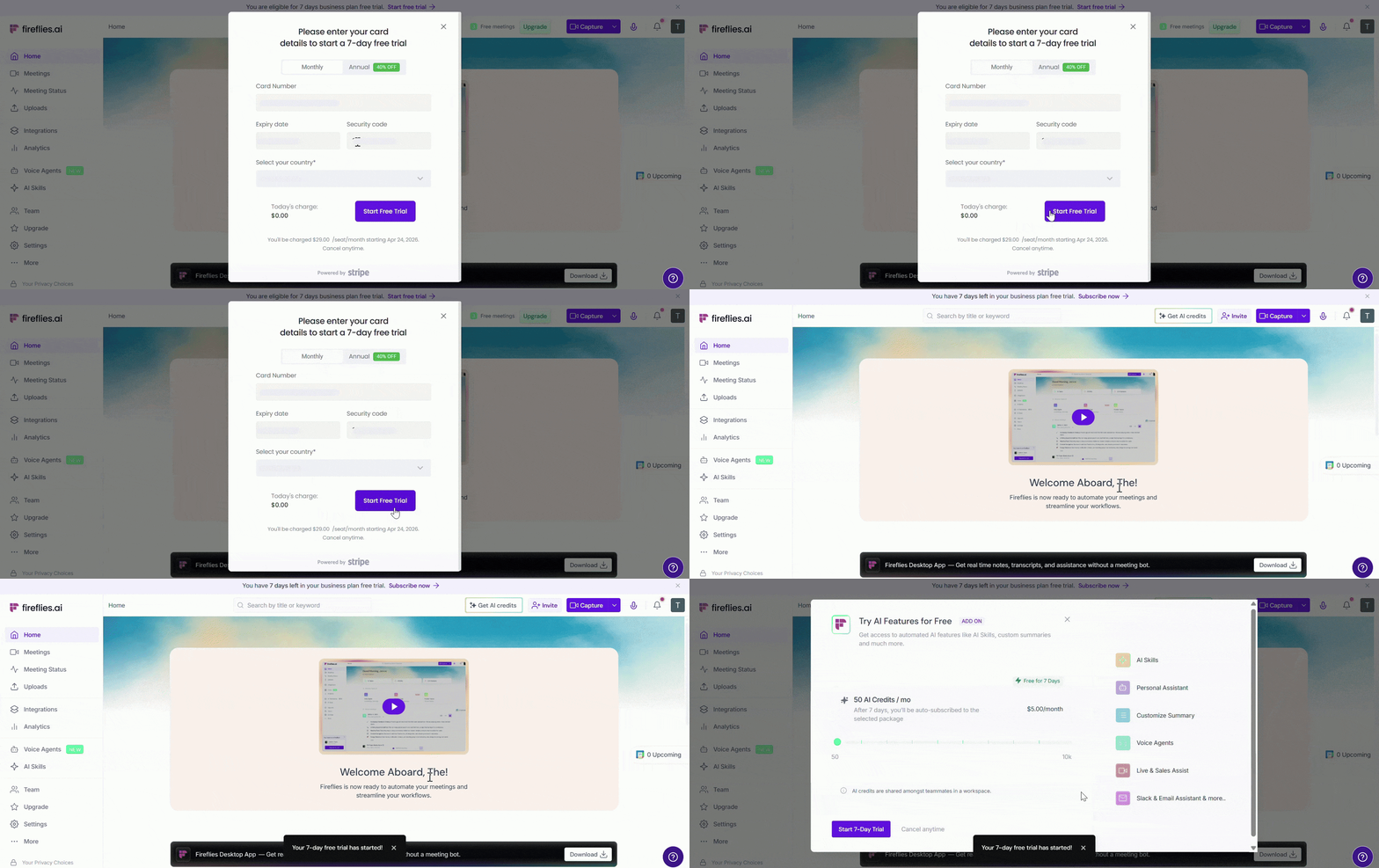
🎉 Your 7-day free trial has been successfully activated. You can now explore Business plan features and start using Fireflies for your meetings.
🤖 Try AI Features (Optional)
After activating your free trial, you may see a prompt to try Fireflies' AI features — including AI Skills, Personal Assistant, Voice Agents, Live & Sales Assist, and more. These features require AI Credits to run.
💡 This step is completely optional. Not sure what AI Credits are? Learn about AI Credits
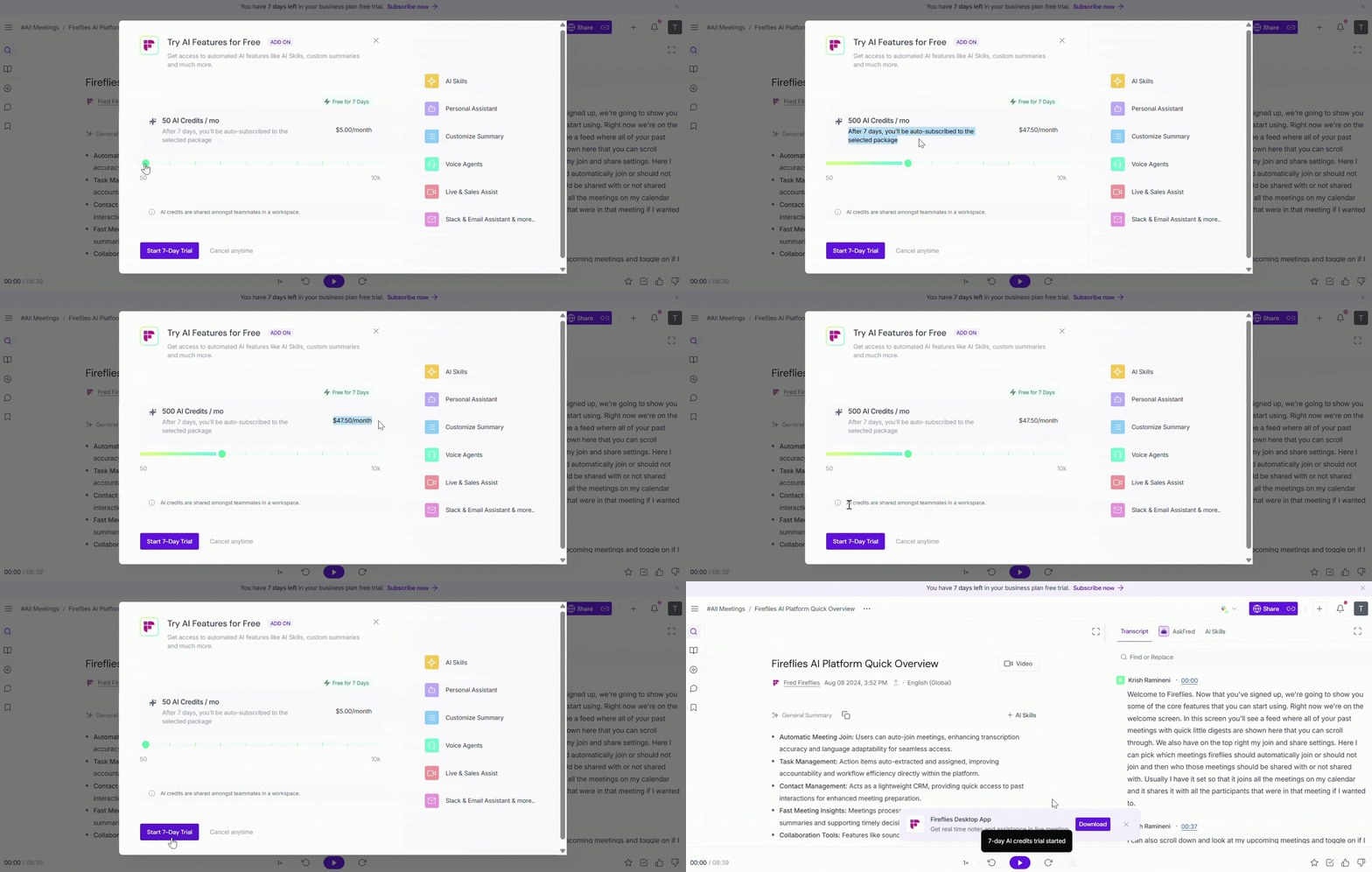
If you'd like to try AI features, follow the steps below. Otherwise, click the ✕ icon at the top right of the popup to skip this step.
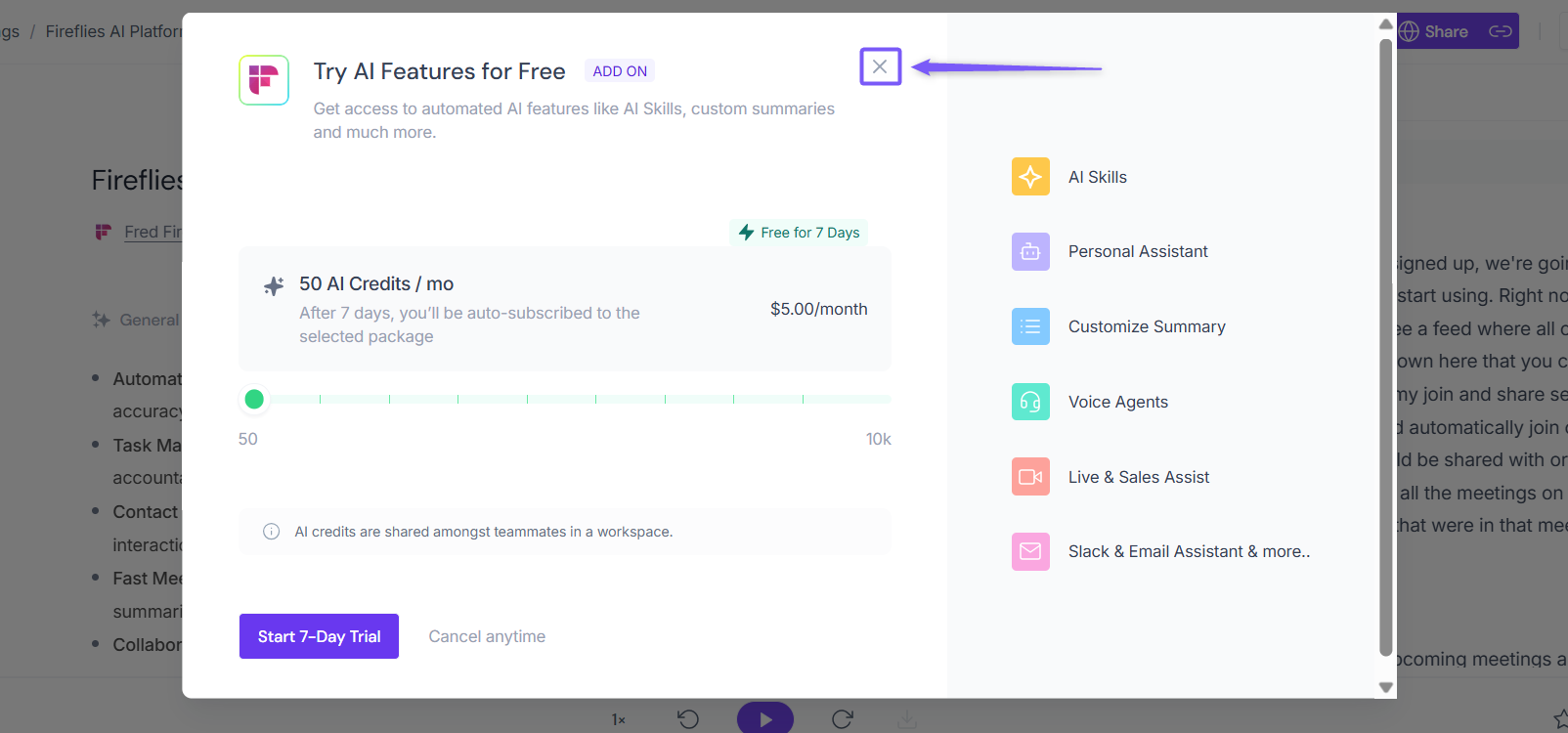
1. Review the available AI Credits plan and the features included.
2. Adjust the slider to select the number of AI Credits based on your needs (50 to 10,000/month).
3. Click Start 7-Day Trial to begin the AI features trial.
📌Note:
This is an optional add-on. You can skip it and continue using your Business plan free trial.
After 7 days, you’ll be automatically subscribed to the selected AI Credits plan unless you cancel.
AI Credits are shared among teammates in the same workspace.
👥 Invite teammates (Optional)
After activating your free trial, you may also see a prompt to invite teammates to your Fireflies workspace.
💡 This step is completely optional. Click the ✕ icon at the top right of the popup to skip this step.
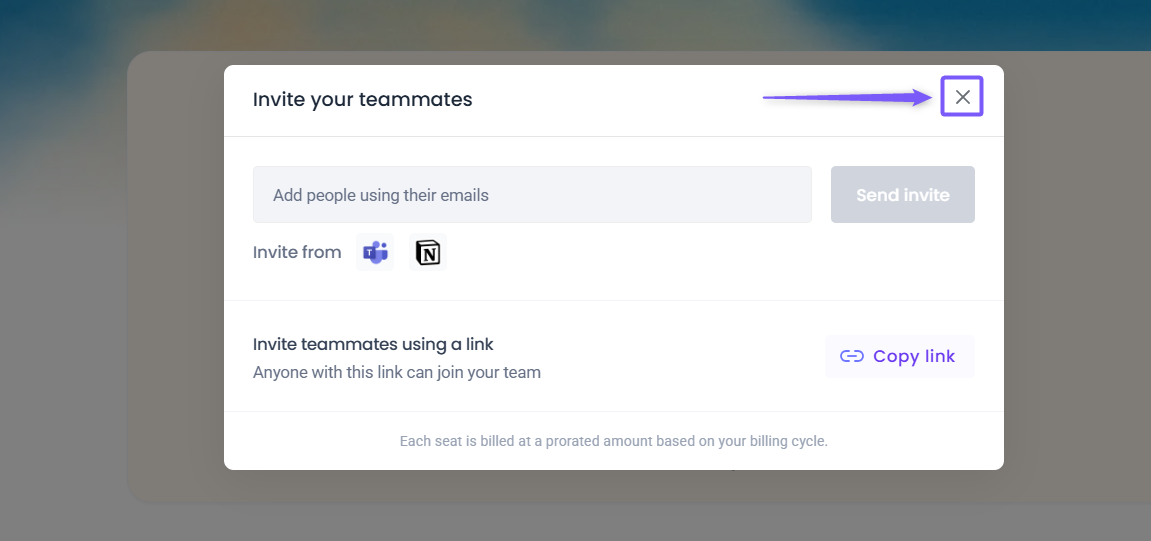
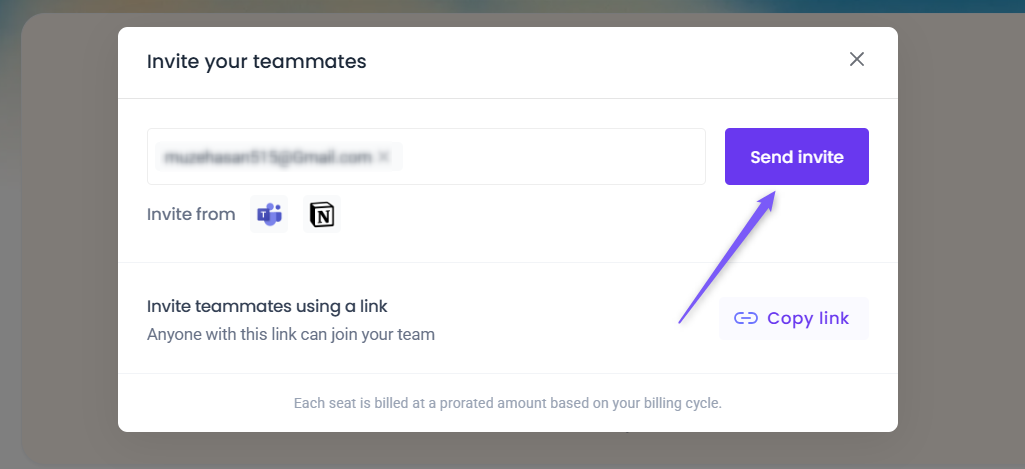
If you'd like to invite teammates, follow the steps below:
Enter your teammates' email addresses and click Send invite.
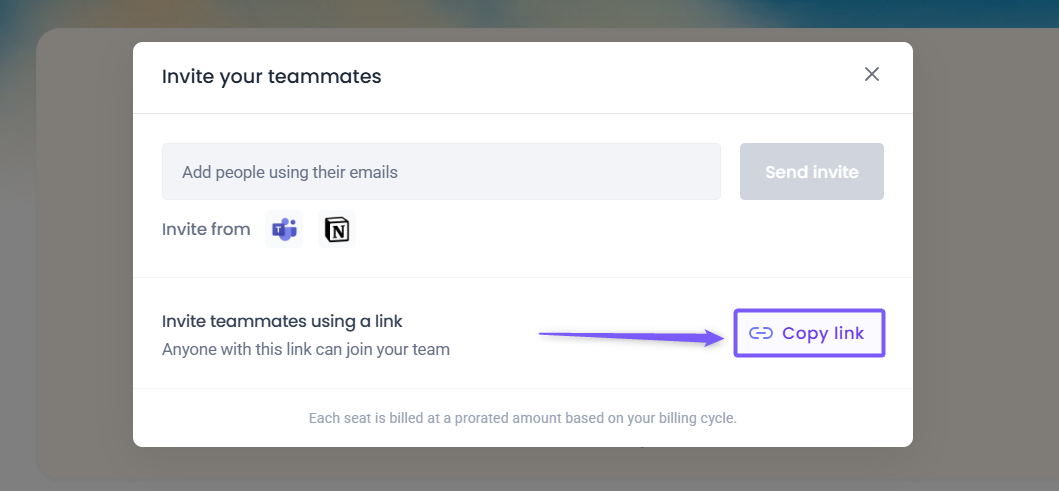
Alternatively, click the Copy link button to copy the invitation link and share it with your colleagues personally via DM or email.
📌Note:
Only teammates who accept the invite will be added to your workspace.
Invited teammates count as additional seats.
After the trial ends, all added teammates will be billed under your selected plan.
Related: How to invite teammates to your Fireflies workspace
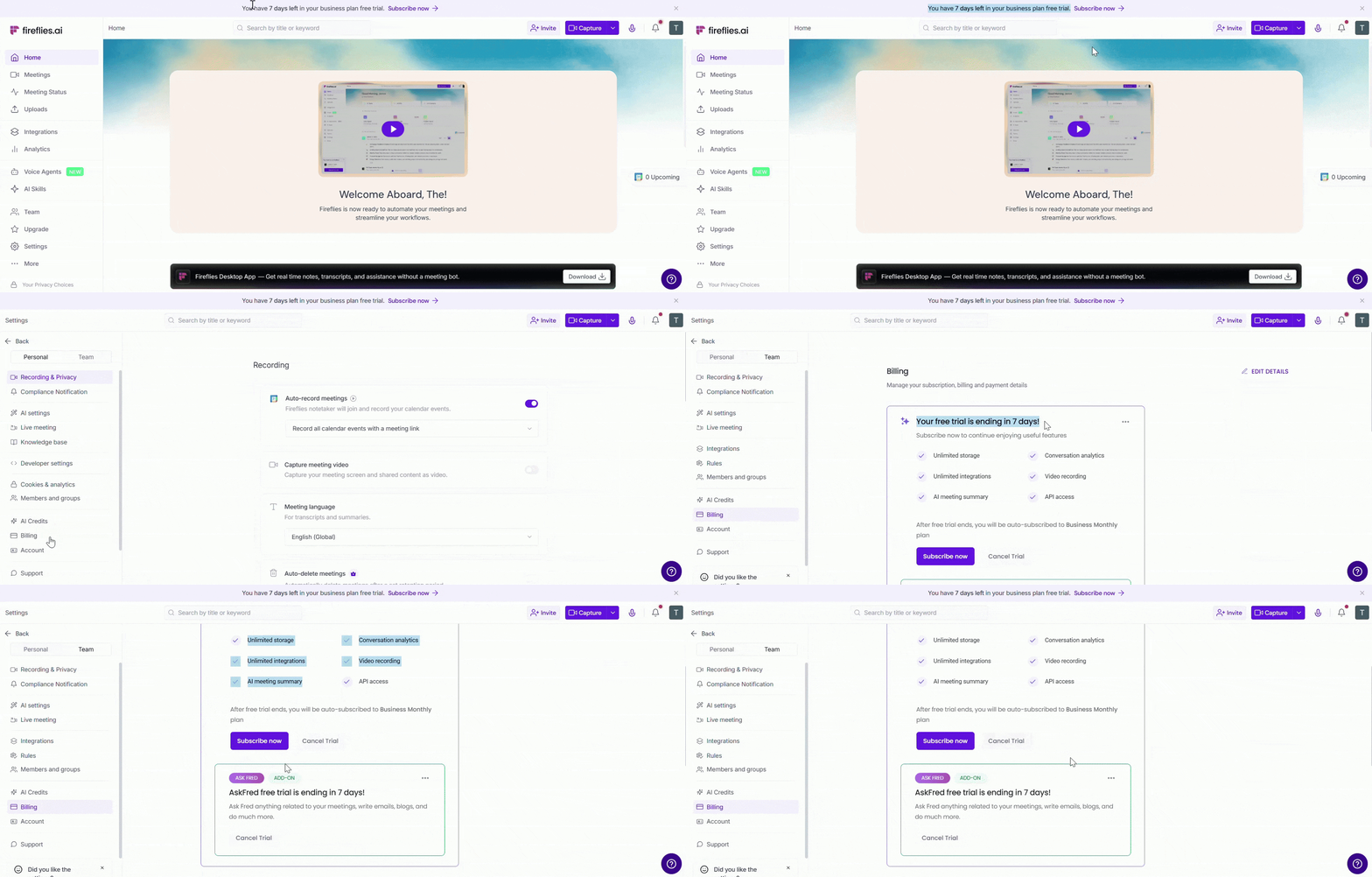
📊 Check Your Trial Status
After starting your free trial, you can track your remaining days from two places:
Homepage — A banner at the top shows how many days are left in your trial.
Settings → Billing — View your trial status, remaining days, and manage your subscription.
⬆ Upgrade to a Paid Plan During Your Trial
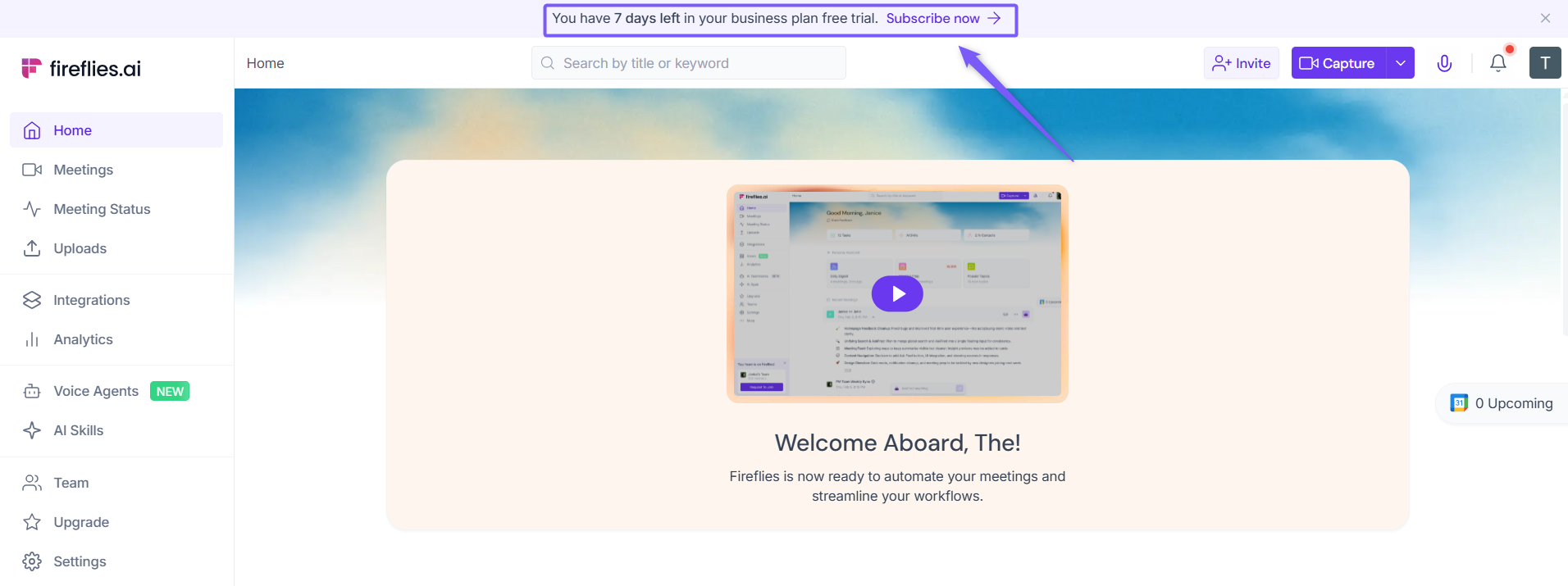
Loving what you see during the trial? You can subscribe or Upgrade to a paid plan anytime without waiting for the trial to end — and keep everything you've set up so far.
1. On your Fireflies dashboard, locate the Subscribe now banner at the top and click it.
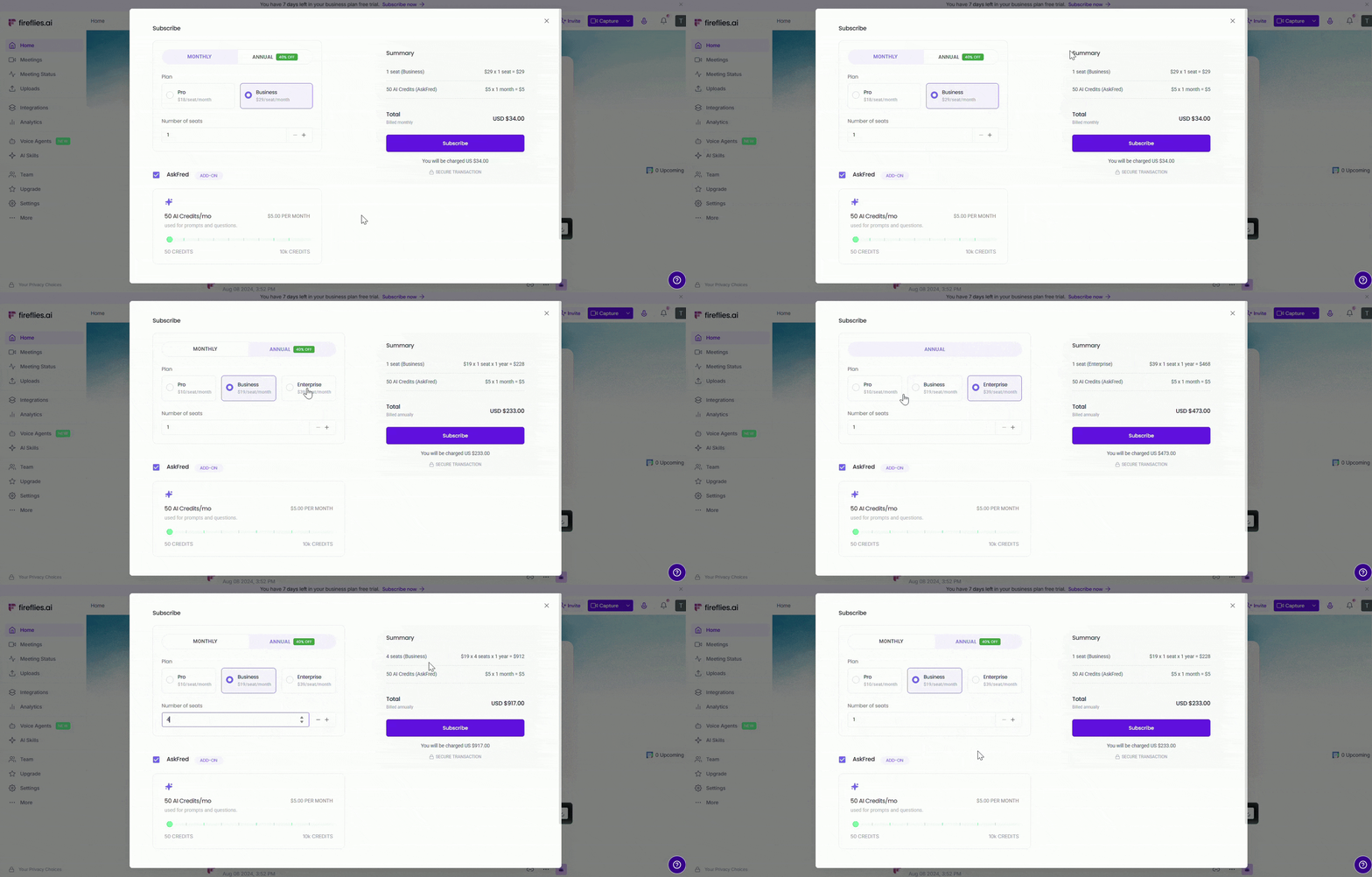
2. In the subscription popup:
Select your billing cycle (Monthly or Annual)
Choose a plan (Pro or Business)
Adjust the number of seats if needed
💡Learn more about our different pricing plans and how to get started.
3. (Optional) Check the AskFred box if you'd like to add AI Credits and adjust the slider to select the number of credits you need (50 to 10,000/month).
4. Select your card or click + New to add a new payment method.
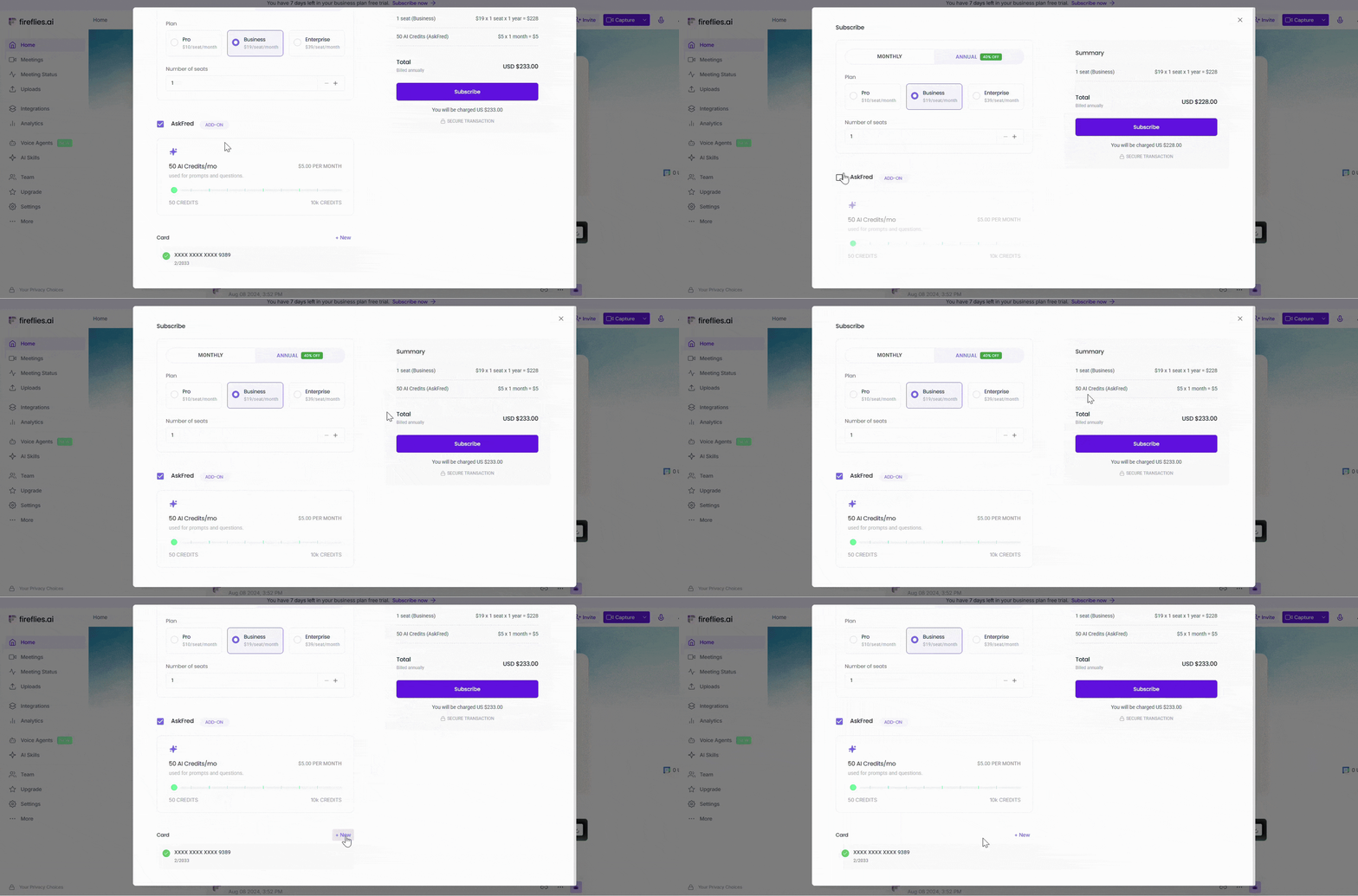
5. Review the billing summary on the right side, then click Subscribe to confirm.
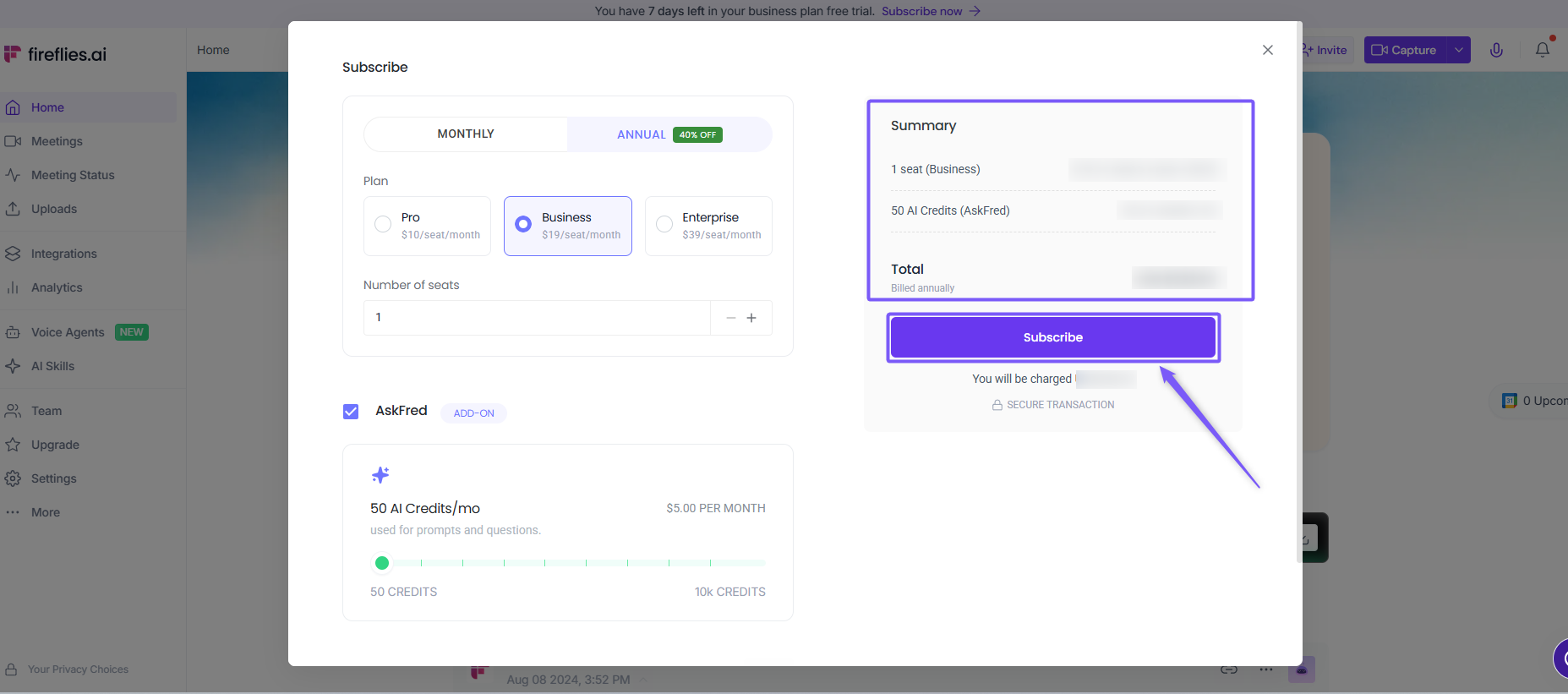
Once you confirm your subscription, your trial will end and your card will be charged immediately for the selected plan.
⬇ Downgrade your plan during the free trial
By default, the Fireflies free trial starts on the Business plan. If you don't need all its advanced features, or prefer a lower plan that better fits your needs, you can downgrade to the Pro plan at any time during your trial — and you'll only be billed for the new plan once the trial is over.
1. On your Fireflies dashboard, navigate to the Settings → Billing.
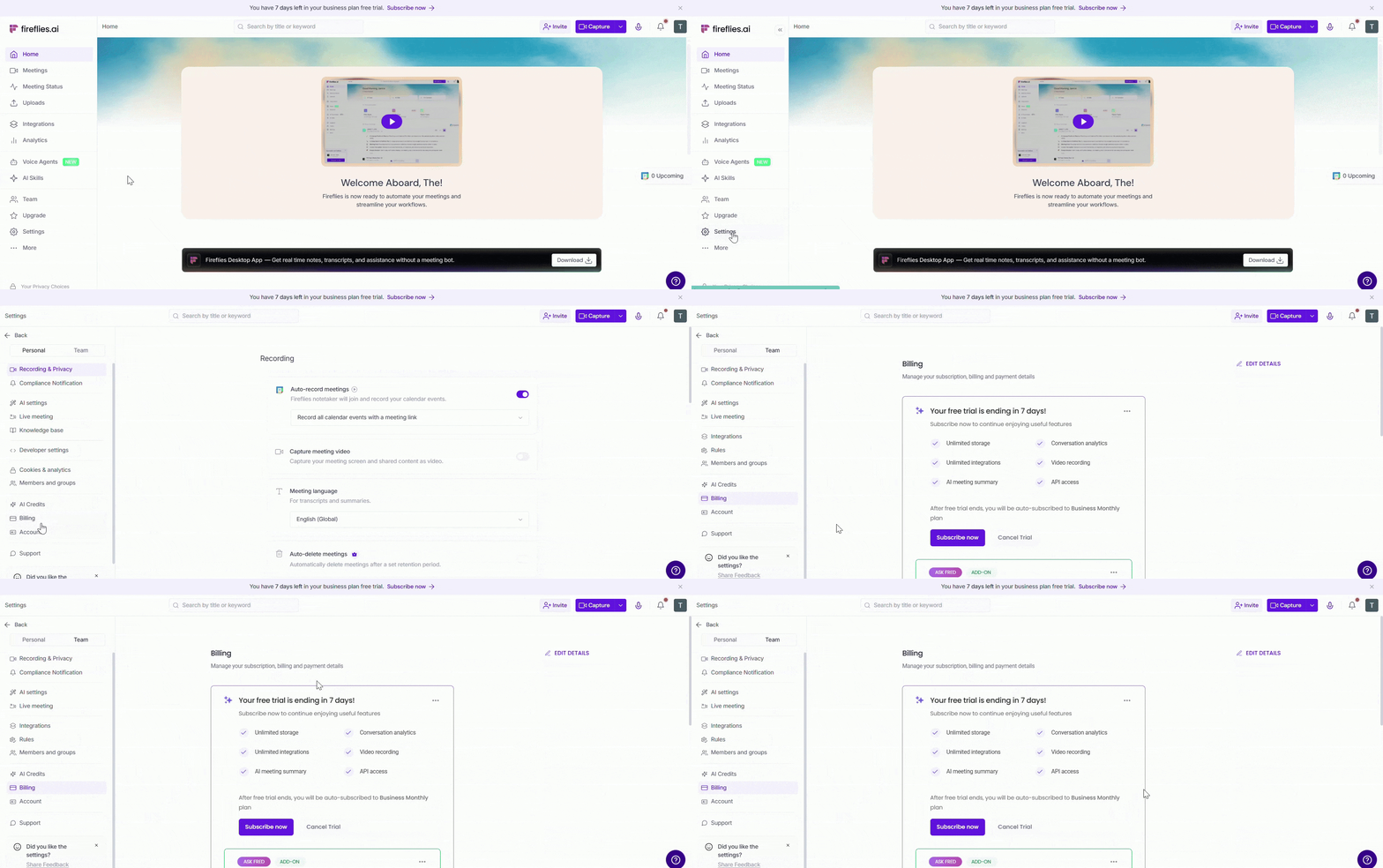
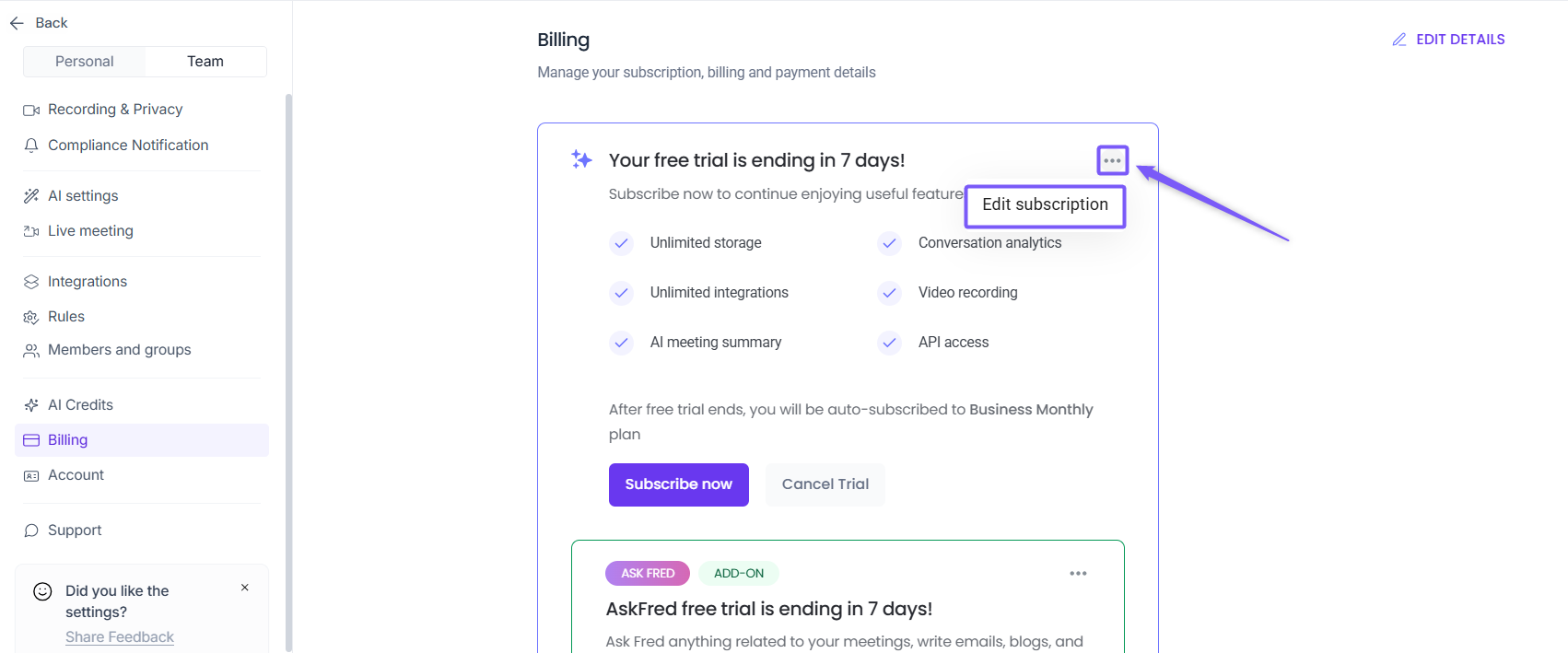
2. Click the three dots (⋯) and select Edit subscription.
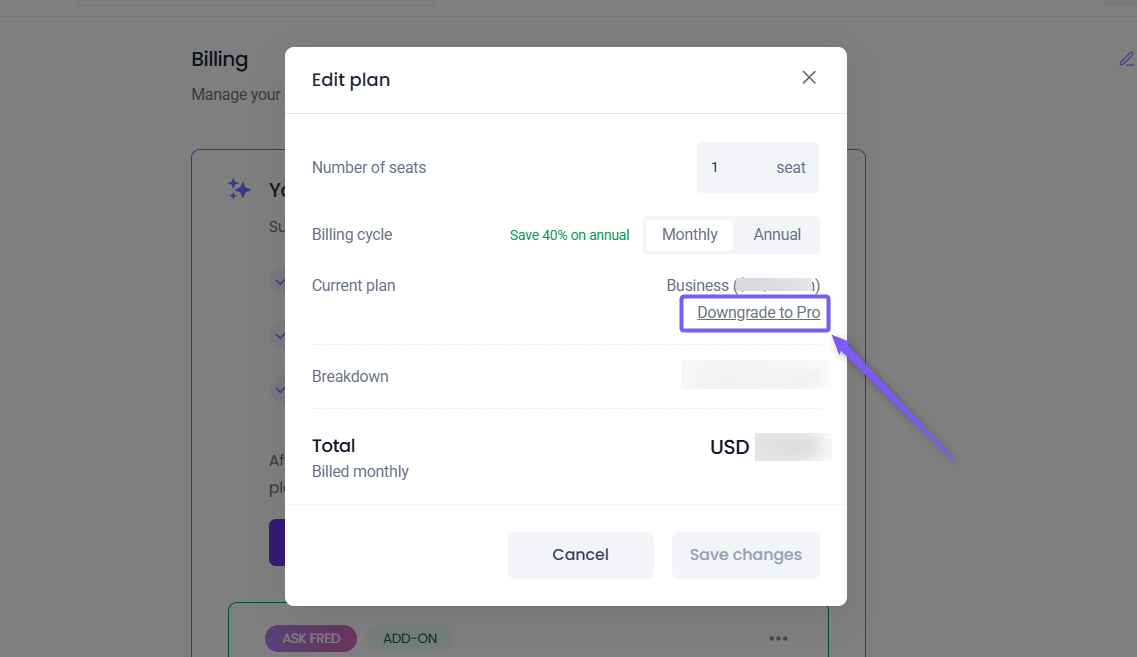
3. Click Downgrade to Pro.
4. A confirmation modal appears — click Downgrade to confirm
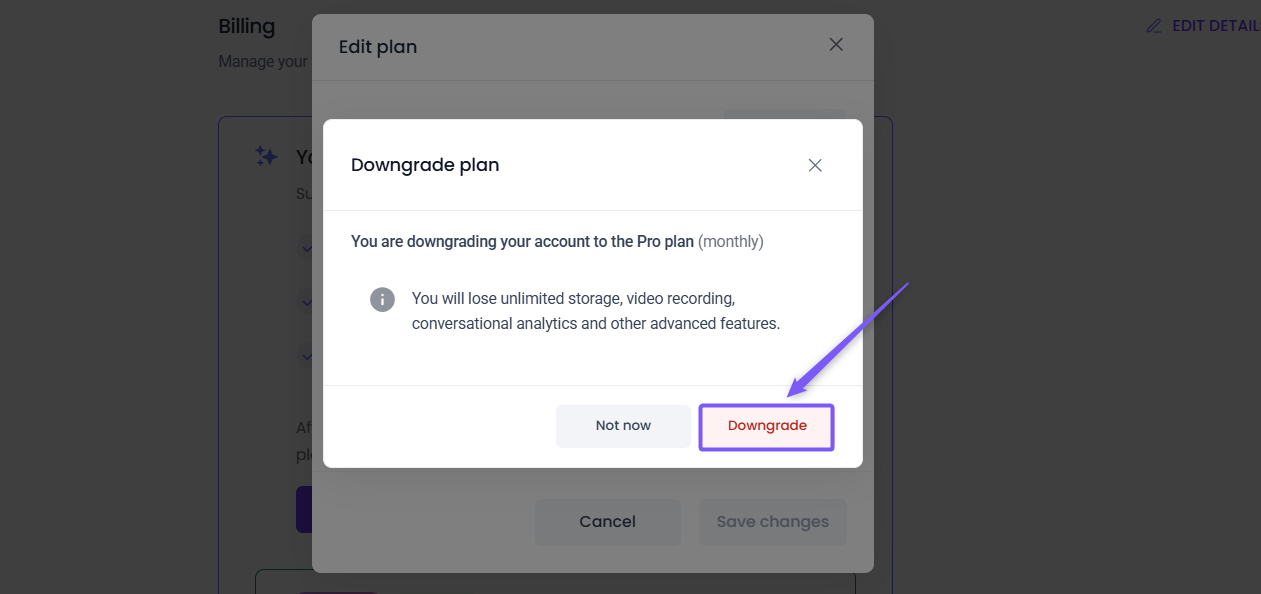
Once confirmed, you'll lose access to unlimited storage, video recording, conversational analytics, and other Business plan features.
✅ To confirm your downgrade, click Edit subscription again — your current plan will now show as Pro, confirming the downgrade was successful .
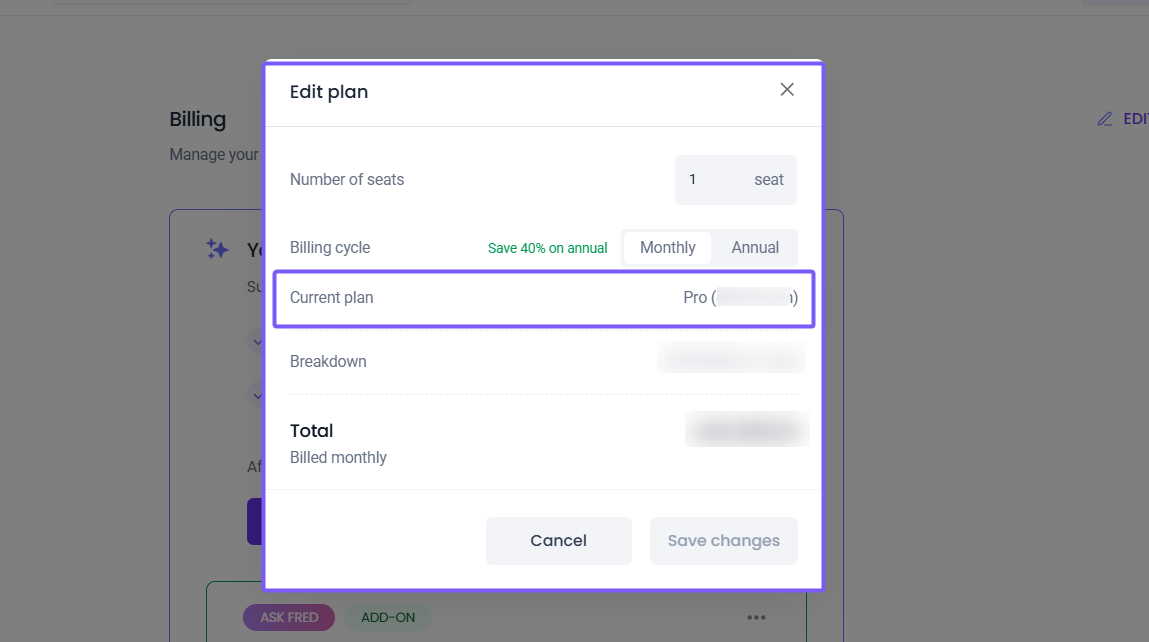
Once downgraded, you will be billed for the new plan (Pro) after the trial ends.
❌ Cancel your free trial
Changed your mind? You can cancel your free trial at any time and switch back to the Free plan.
1. On your Fireflies dashboard, navigate to the Settings → Billing.
Cancel your AskFred trial
If you activated the AskFred trial, cancel it separately:
Under the AskFred Add-on section, click Cancel Trial
Select your reason for cancelling from the dropdown and add any additional feedback, then click Continue
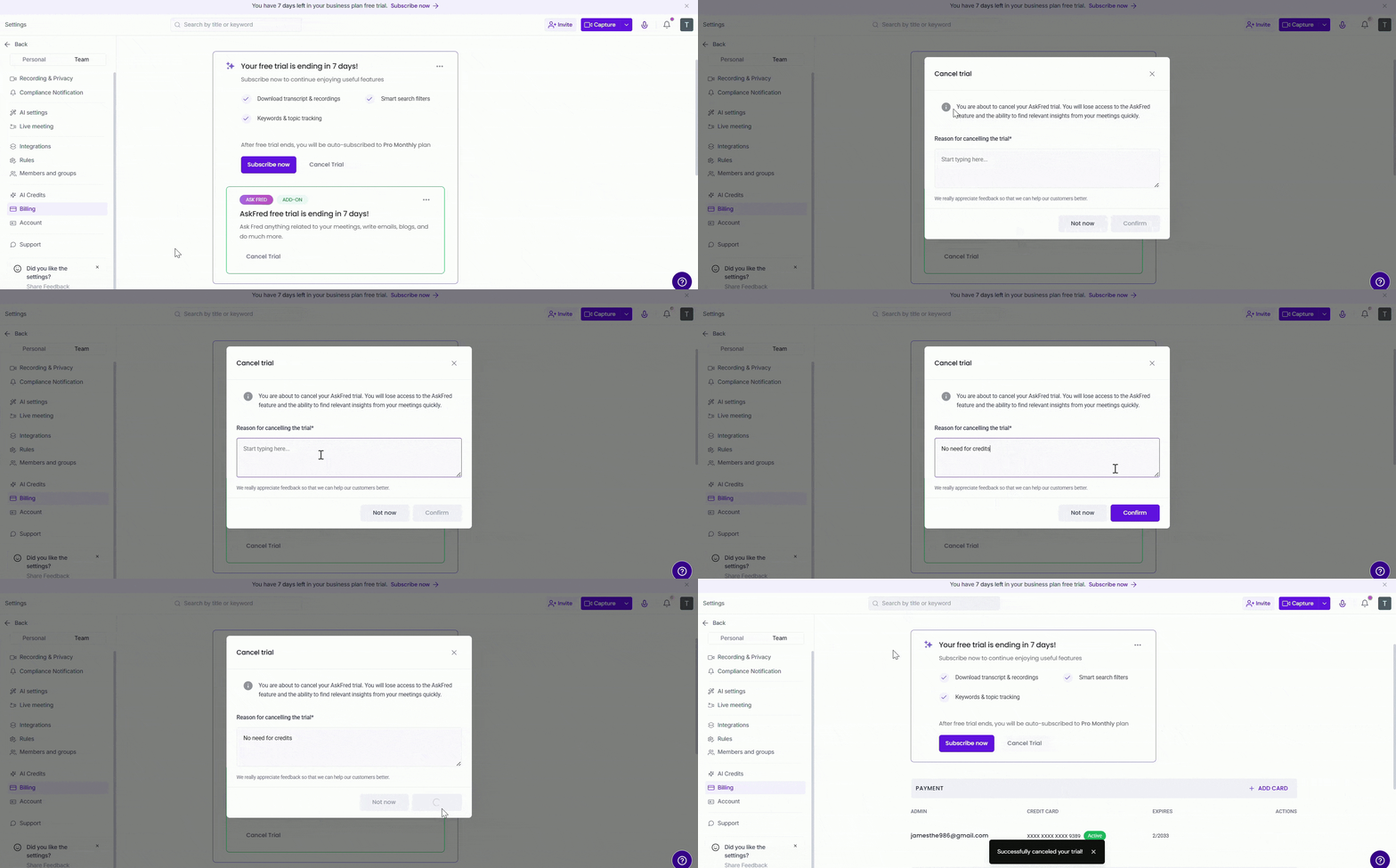
⚠ If you don't cancel the AskFred trial before it ends, you'll be automatically charged for the AI Credits plan you selected.
Cancel your 7 day free trial
1. On your Fireflies dashboard, navigate to the Settings → Billing.
2. Click on Cancel Trial button.
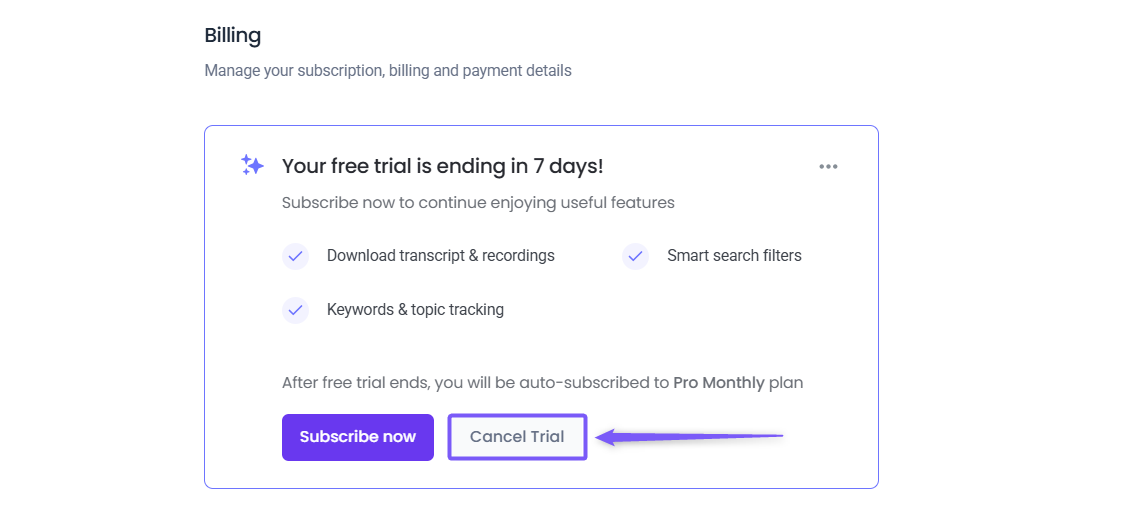
3. Select your reason for cancelling from the dropdown and add any additional feedback, then click Continue.
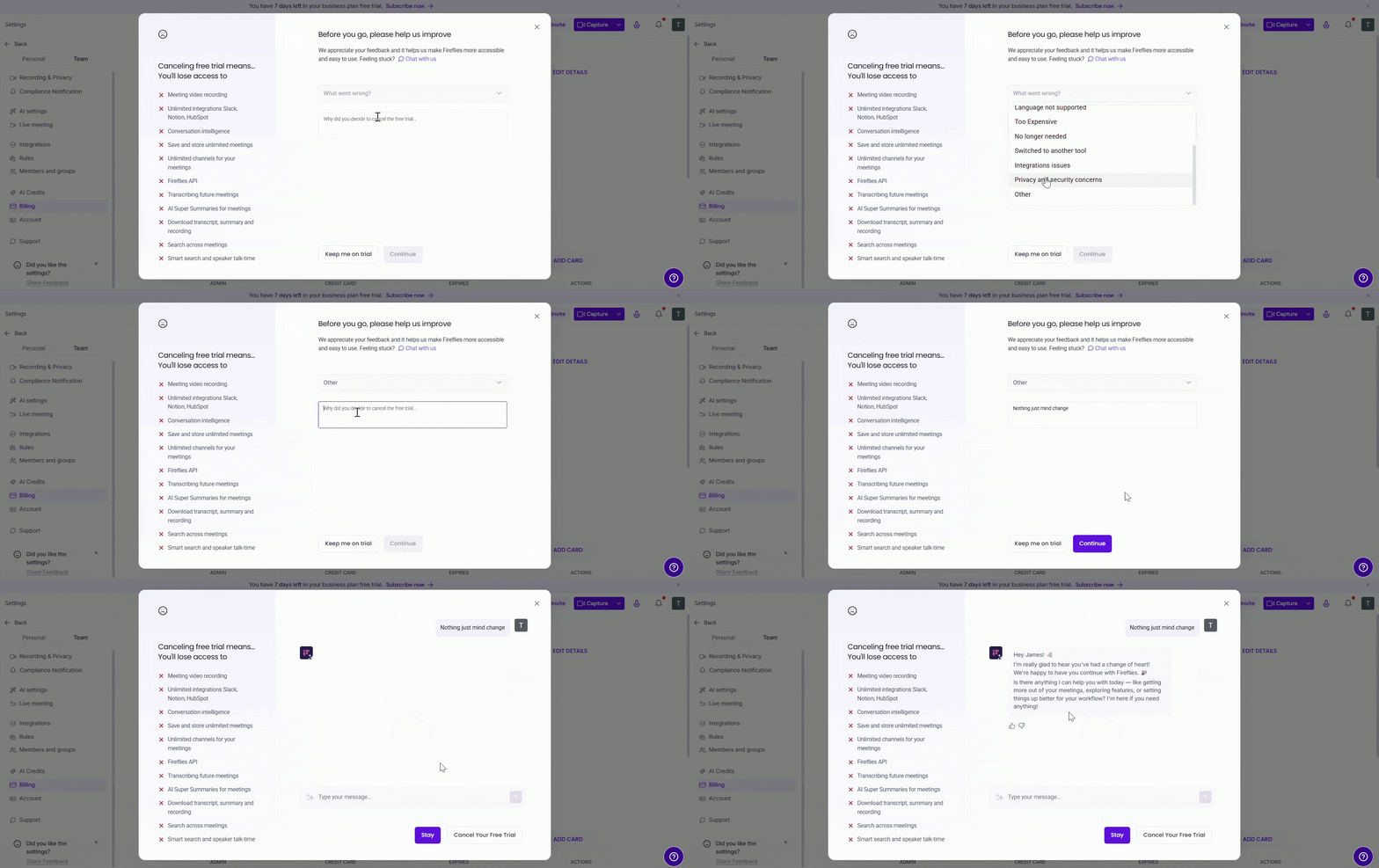
4. You're almost there - you can choose to share some more thoughts (totally optional but will help us immensely) and finally click on Cancel your Free trial button to confirm.
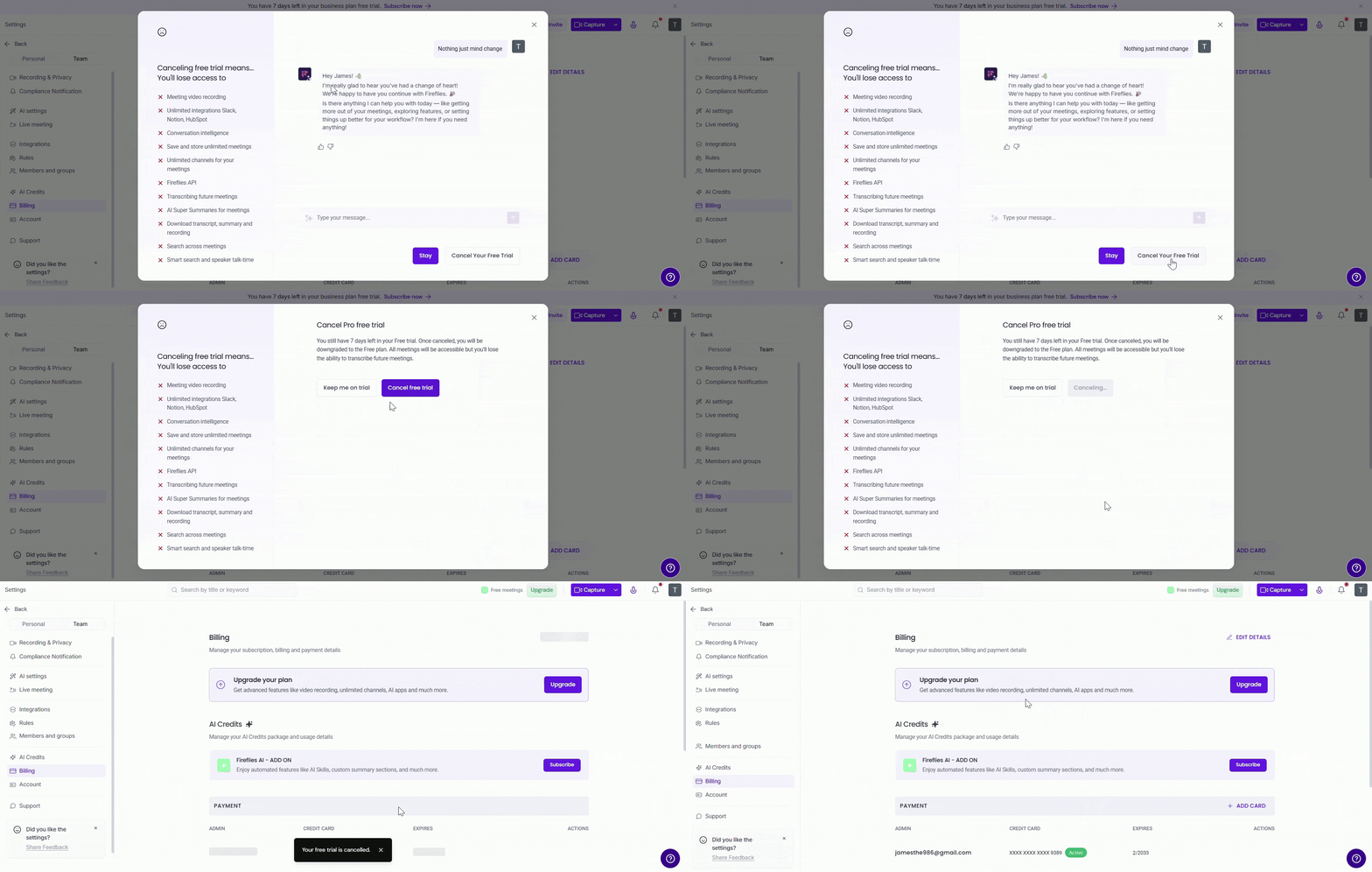
Your trial ends immediately and your account switches to the Free plan. You can still use core features like automatic meeting transcription and summaries.
💳 Check your charges after the trial
After your 7-day free trial ends, the card you used to start the trial will be charged automatically based on the plan you selected.
1. Navigate to the Settings → Billing and scroll down to the Billing History section.
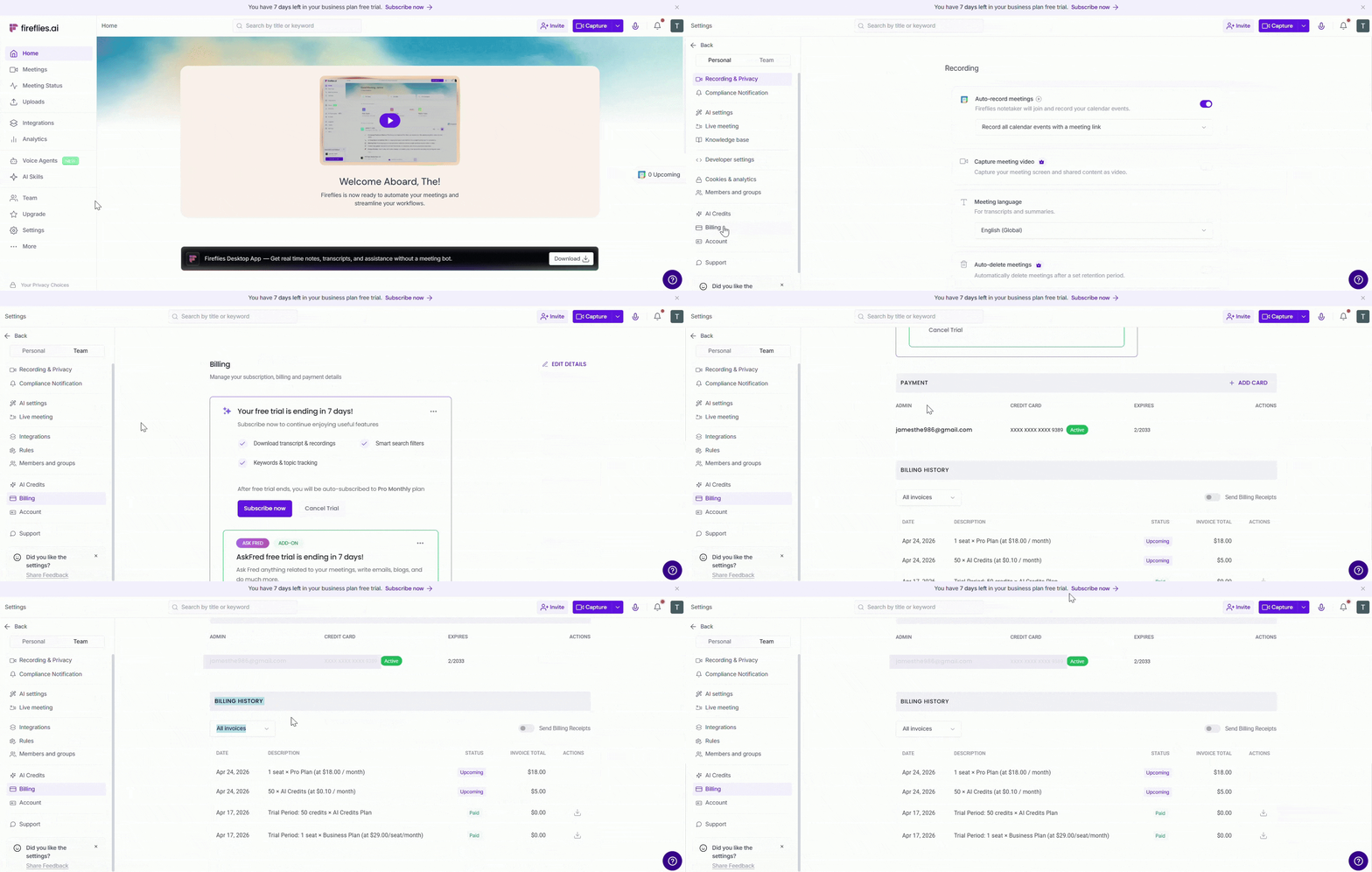
2. You can see all your invoices. Each entry shows the date, description, status, and invoice total.
Upcoming — charges scheduled to be billed when the trial ends
Paid — payments already processed (trial period charges show $0.00)
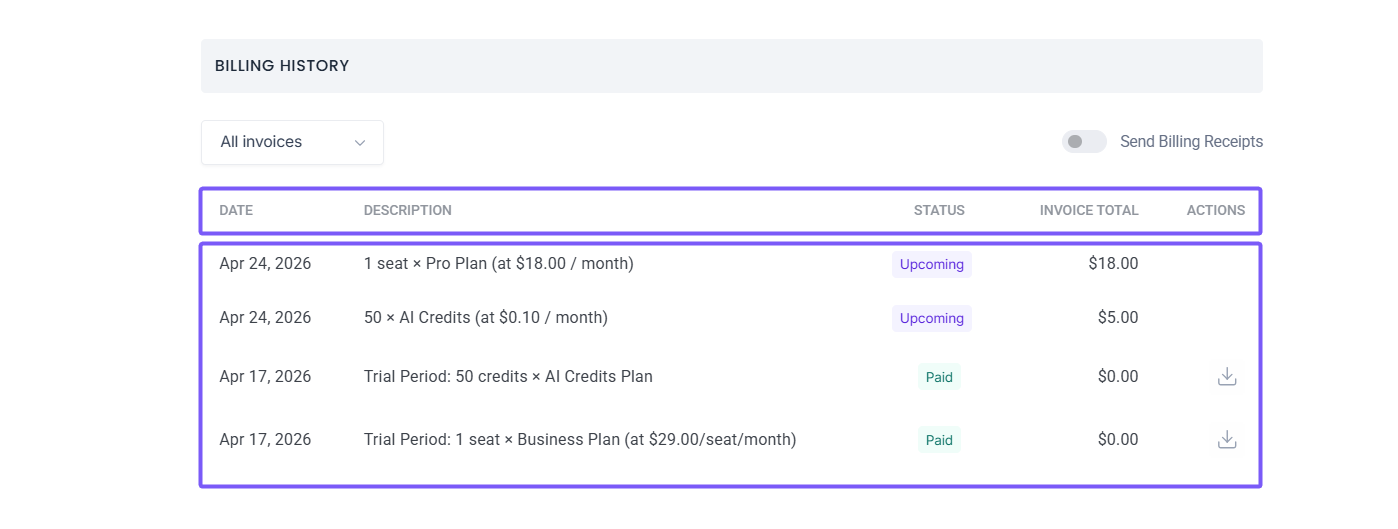
Your charges depend on two things — the Fireflies plan you're on and any AI Credits you added during the trial.
✅ Example: If you downgraded to the Pro plan and added 50 AI Credits, your upcoming invoices will show $18.00/month for the Pro plan and $5.00 for AI Credits.
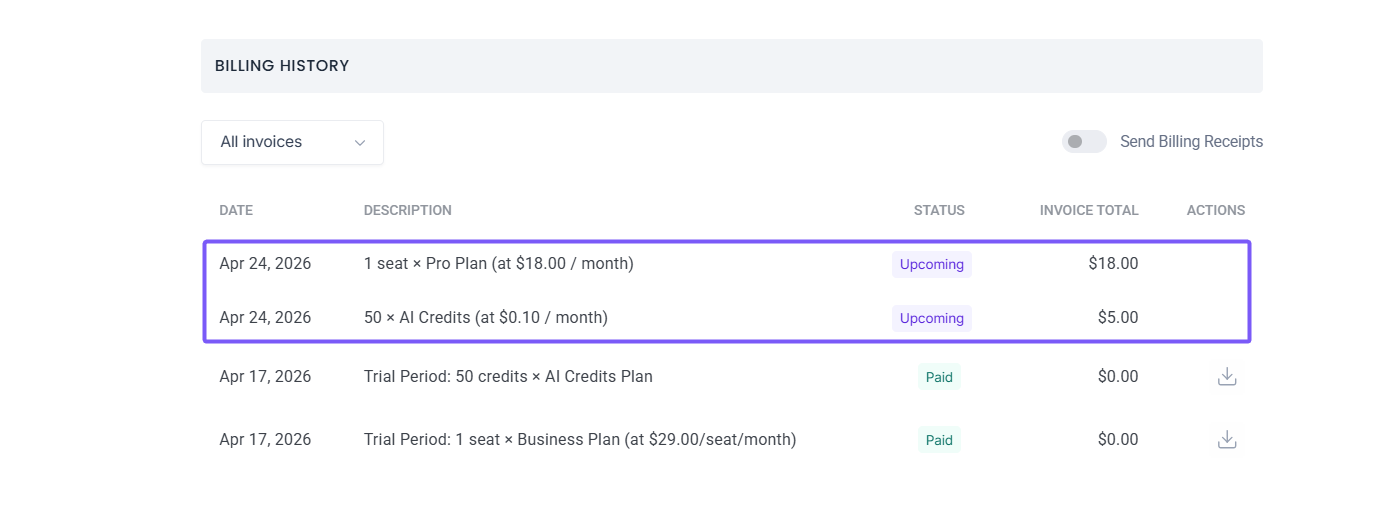
📌 Want to change your plan or billing cycle before the trial ends? Click Subscribe now from the Billing section to switch plans or adjust AI Credits. Keep in mind that subscribing to a paid plan will end your trial and you'll be charged immediately.
💳 Remove your credit card
Fireflies requires card details during signup for trial or paid plans. If you’ve canceled your plan and want to remove your saved card:
1. Navigate to the Settings → Billing and scroll down to the Payment section.
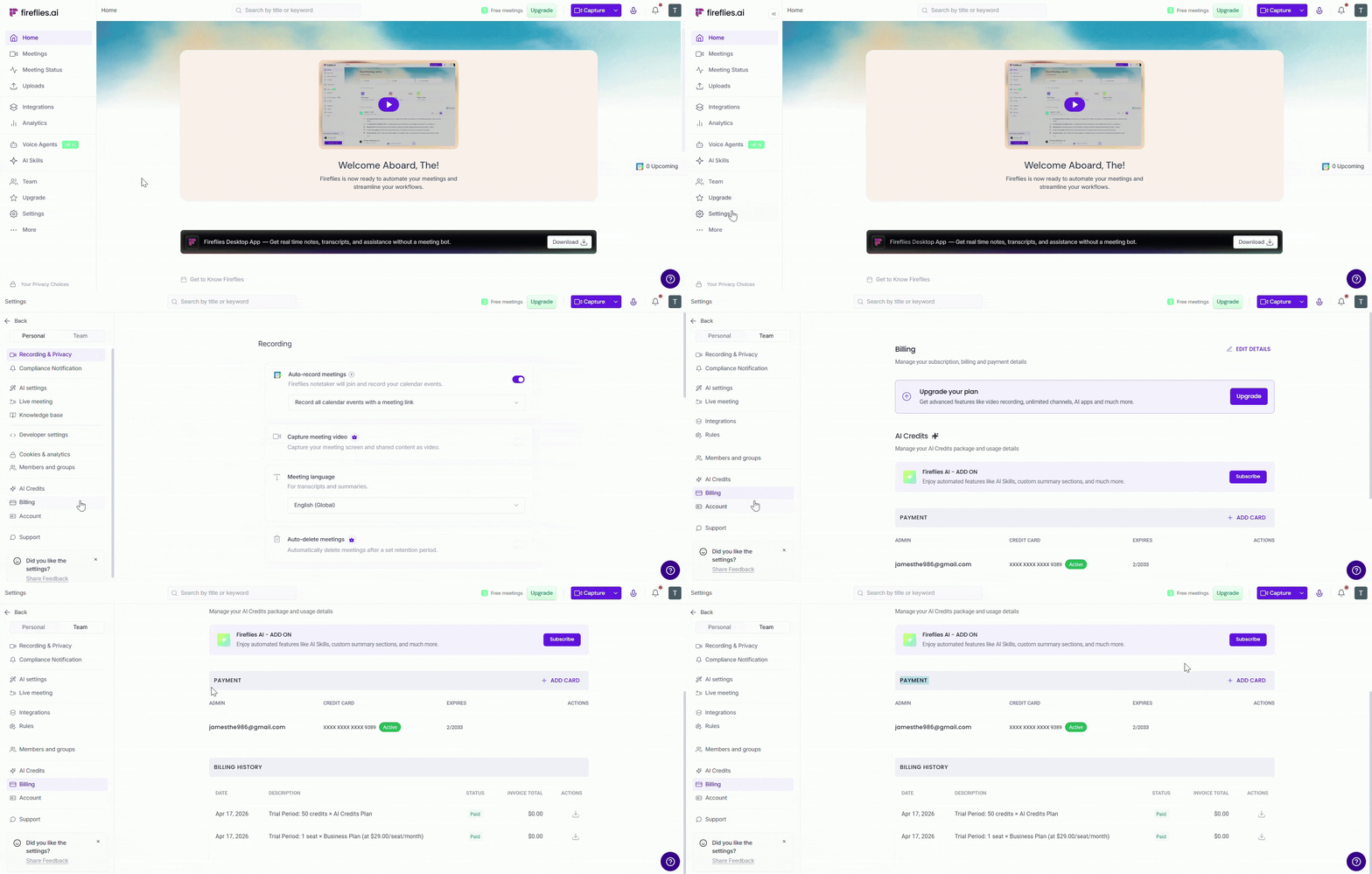
2. All your saved payment methods are listed here. Hover over the Credit/debit card you want to remove and click Remove.
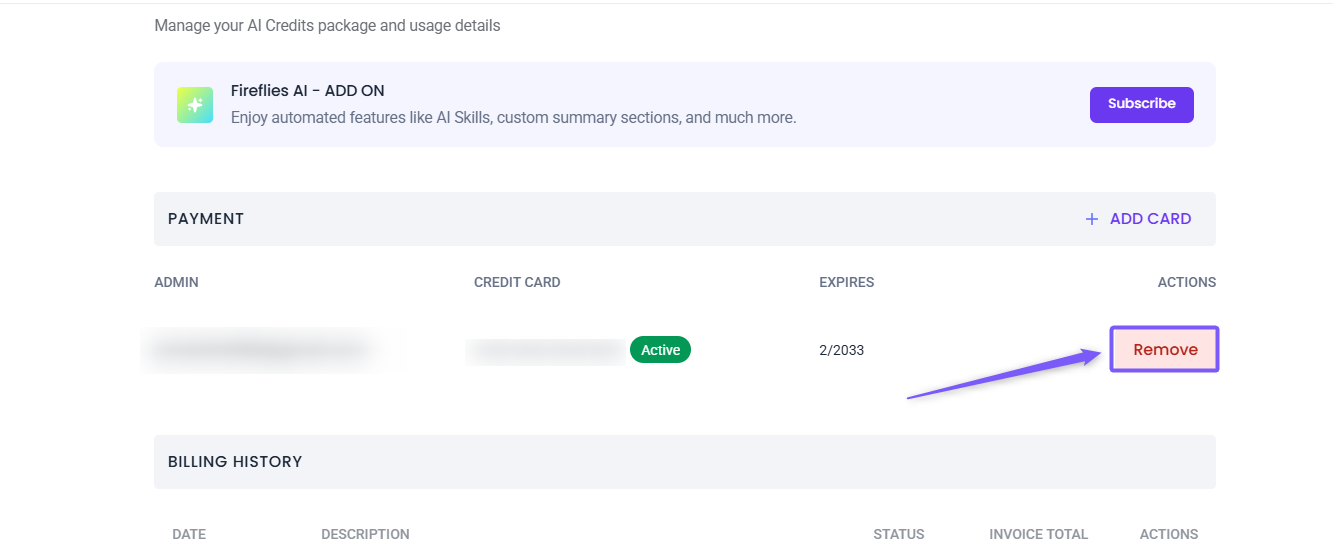
That’s it—you’re now fully downgraded to the Free plan with no payment info stored.
🔁 Quick recap
The free trial gives you 7 days of full access to the Business plan
A valid credit card is required to activate — you won't be charged during the trial
You can optionally add AI Credits and invite teammates after activating
Upgrade to a paid plan anytime during the trial — your card will be charged immediately
Downgrade to the Pro plan anytime — takes effect after the trial ends
Cancel anytime before the trial ends to avoid being charged
Check your upcoming charges under Settings → Billing → Billing History
Remove your saved card from the Payment section in Billing after cancelling
❓ Frequently Asked Questions
1. Where can I find the end date of my free trial?
The trial countdown is shown at the top of your Fireflies dashboard. You can also find the end date under Settings → Billing.
2. When will my card be charged?
Your card will be charged automatically after the 7-day trial ends — unless you cancel before the trial ends.
3. Are there any charges during the trial?
No. You won't be charged anything during the trial period. Today's charge will always show $0.00 when you activate.
4. Can I cancel the trial anytime?
Yes. You can cancel at any time before the trial ends to avoid being charged. Once cancelled, your account switches to the Free plan immediately.
5. Will I lose my data if I cancel?
No. Your existing meetings, transcripts, and summaries remain accessible. You'll just lose access to Business plan features.
6. What happens to unused AI Credits after the trial?
Any unused AI Credits remain available until the start of your next billing cycle after the trial ends.
7. Can I adjust my plan during the trial?
Yes. You can upgrade, downgrade, or cancel at any time from Settings → Billing.
8. What if I added teammates during the trial?
Teammates who accepted the invite will be billed as additional seats once the trial ends under your selected plan.
9. Is my data safe with Fireflies?
Yes. Fireflies follows strict data security and privacy policies to keep your information safe — regardless of the plan you're on. 📌 Learn about Fireflies' policy on keeping your information safe
10. Can I restart my free trial after cancelling?
No. Each account is eligible for the free trial only once. Once cancelled, the trial cannot be restarted.