Getting Started with the Fireflies Desktop App
Last updated: September 28, 2026
Don’t want to miss important details during your meetings? The Fireflies Desktop App helps you stay focused while capturing everything in real time.
With the Desktop App, you can:
Join upcoming meetings and receive meeting reminders
Invite the Fireflies.ai Notetaker (bot) to capture meetings
Use Take Notes to capture conversations with device audio (without a bot)
Use Fireflies Talk to dictate text directly into the apps you use.
Access Live Assist in the real-time Floating Pane with AI Notes, transcripts, AskFred, AI Skills, and Manual Notes during meetings.
Capture conversations across meetings, calls, and supported apps
Browse meetings in the Desktop App to review recordings, notes, summaries, transcripts, and tasks.
View Personal Assistant features such as Daily Digest, Meeting Prep, and Tasks
Manage recording preferences, notifications, and permissions from one place
In this guide, we'll walk through the Desktop App interface and show you how to get started.
🚀 Home Screen
The Home Screen is the first thing you see when you open the Fireflies Desktop App. It gives you quick access to your meetings, conversation capture options, and upcoming schedule - all in one place.
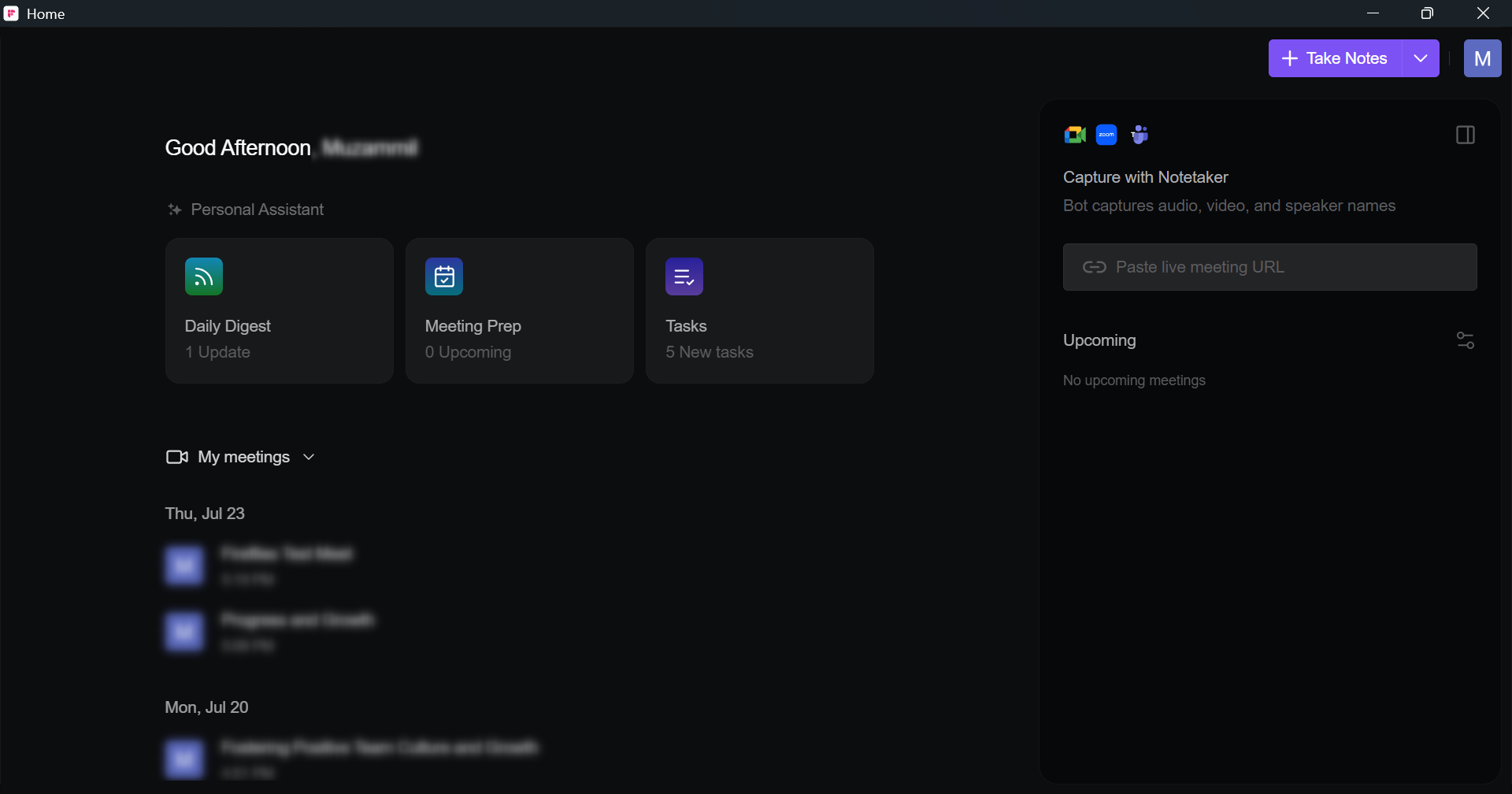
From here, you can review recent meetings, use Take Notes to capture conversations, invite the Fireflies.ai Notetaker to meetings, access Fireflies Talk and view upcoming meetings.
🗣Talk instead of type
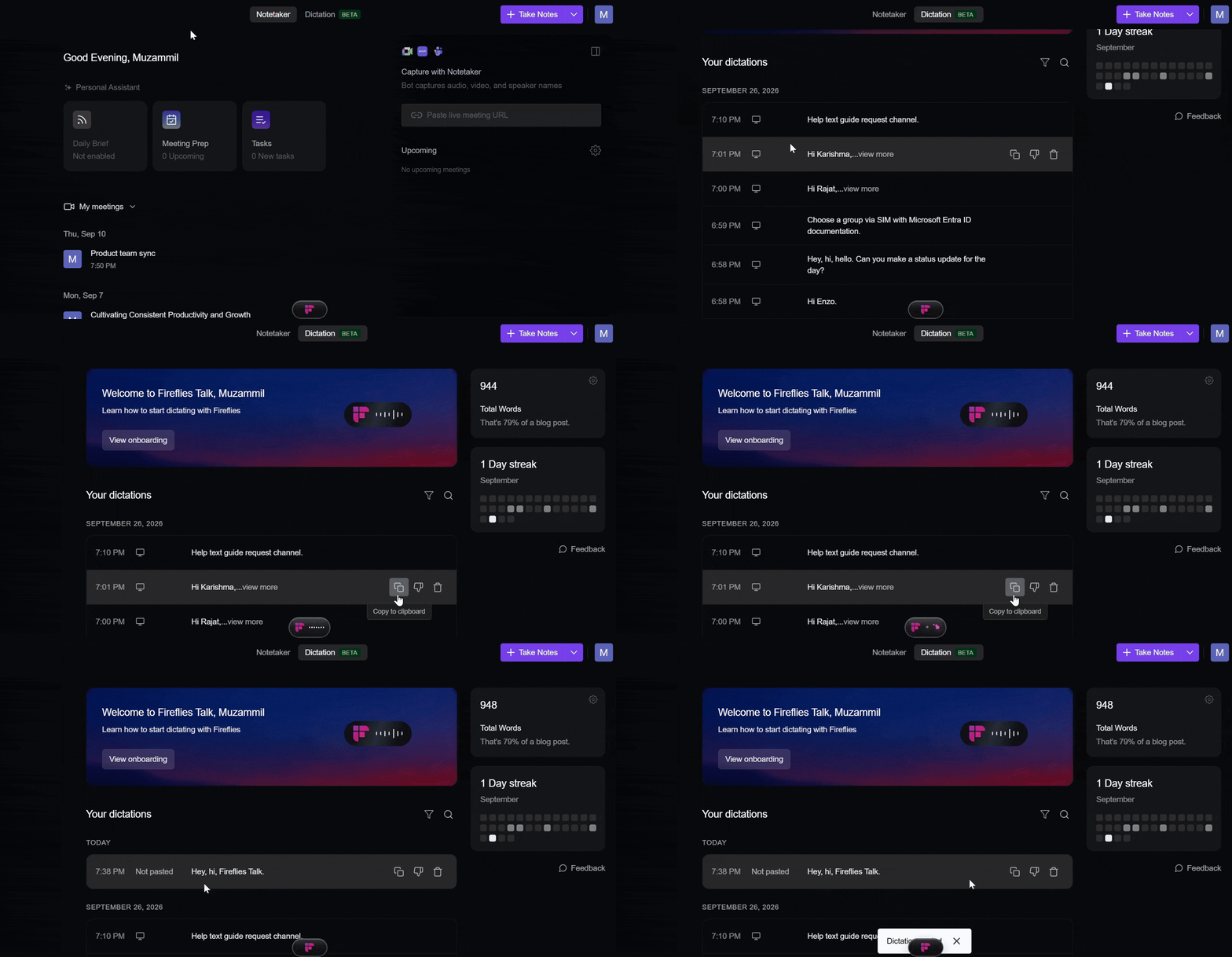
Fireflies Talk helps you write without typing. Speak naturally and Talk turns your speech into text directly in the app you're using.
From the Dictation tab, you can use the default Talk shortcut to start dictating:
Mac: Press and hold
Fnto dictate. Double-tap Fn to switch to hands-free mode.Windows: Press and hold
Ctrl + Windowsto dictate. Double-tap Ctrl + Windows to switch to hands-free mode.
👉 Learn more about Fireflies Talk → Use Talk to dictate text directly into the apps you use.
🗂 View Your Meetings
Need to revisit a past conversation, review meeting notes, or continue working on a meeting? The Meetings section helps you quickly find and open any meeting directly from the Desktop App.
Find and open meetings
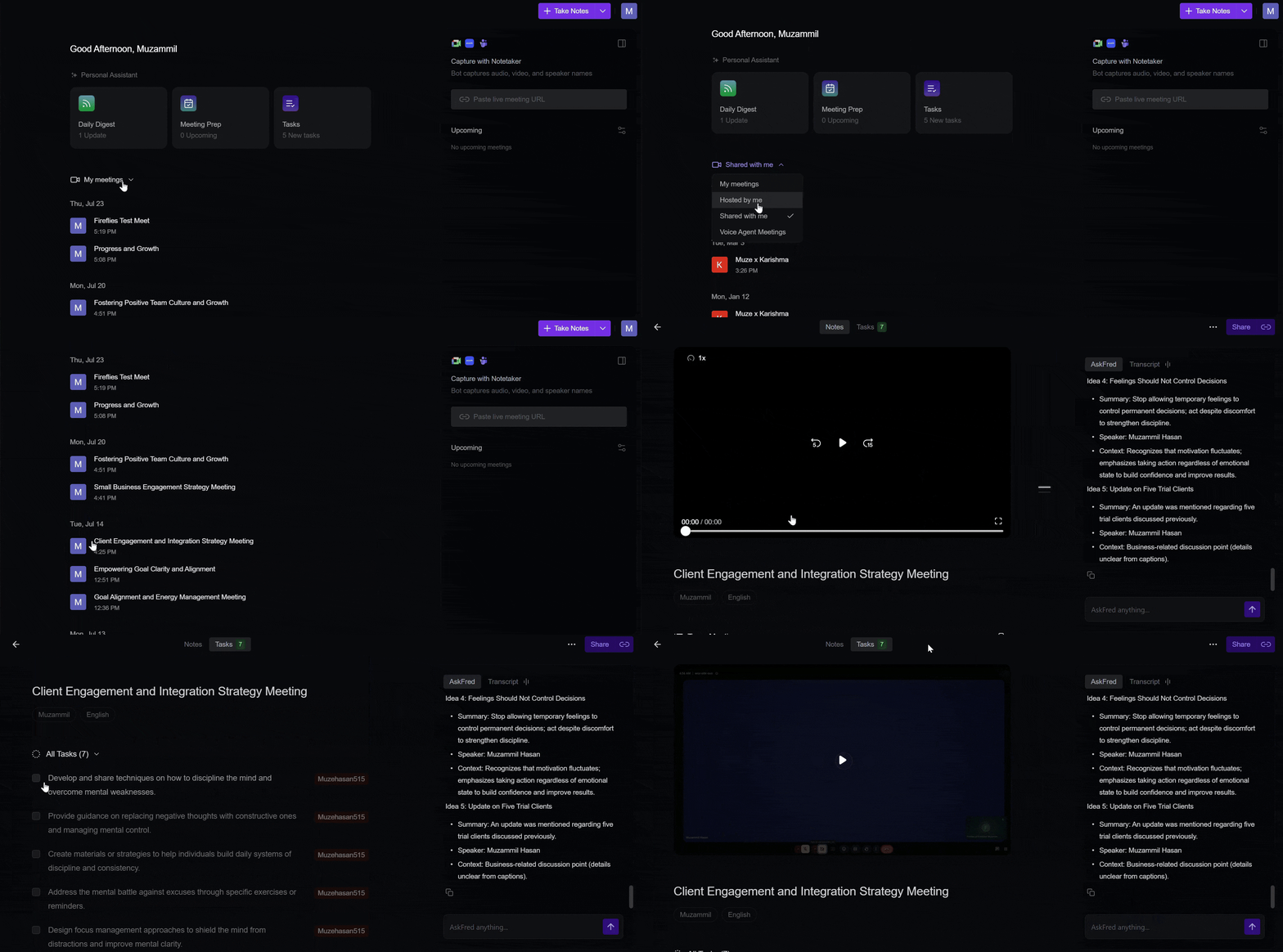
Browse your meetings, organized by date.
Use the meeting filter to switch between My meetings, Hosted by me, Shared with me, and Voice Agent Meetings.
Click any meeting to open it in the Desktop App's Notepad, where you can review recordings, notes, summaries, transcripts, AskFred conversations, and tasks.
Share meetings
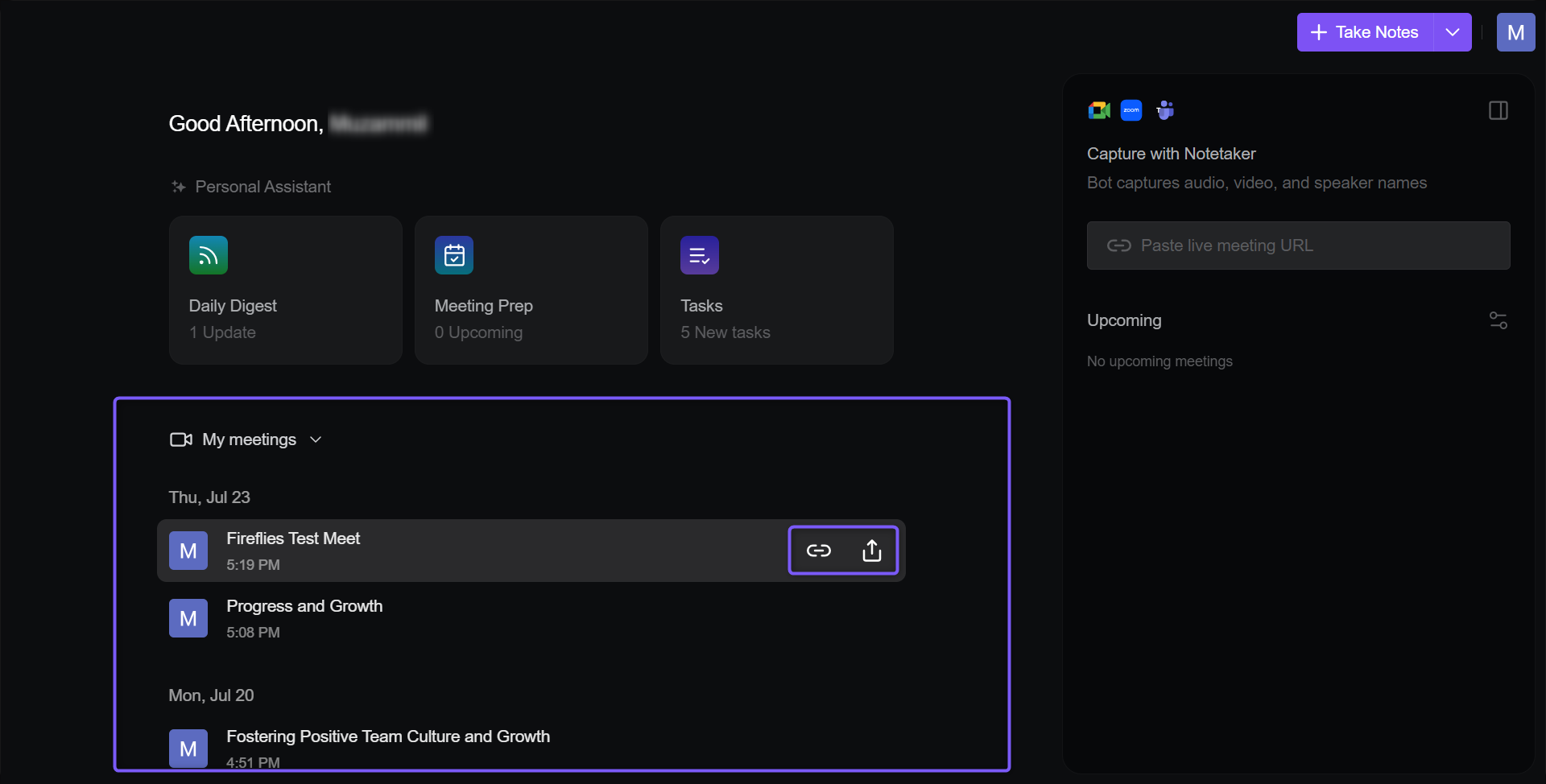
Share the meeting with others or copy the meeting link using the available actions.
👉 Learn more about the Fireflies Notepad → Review transcripts, summaries, and highlights in the Notebook.
🤖 Personal Assistant
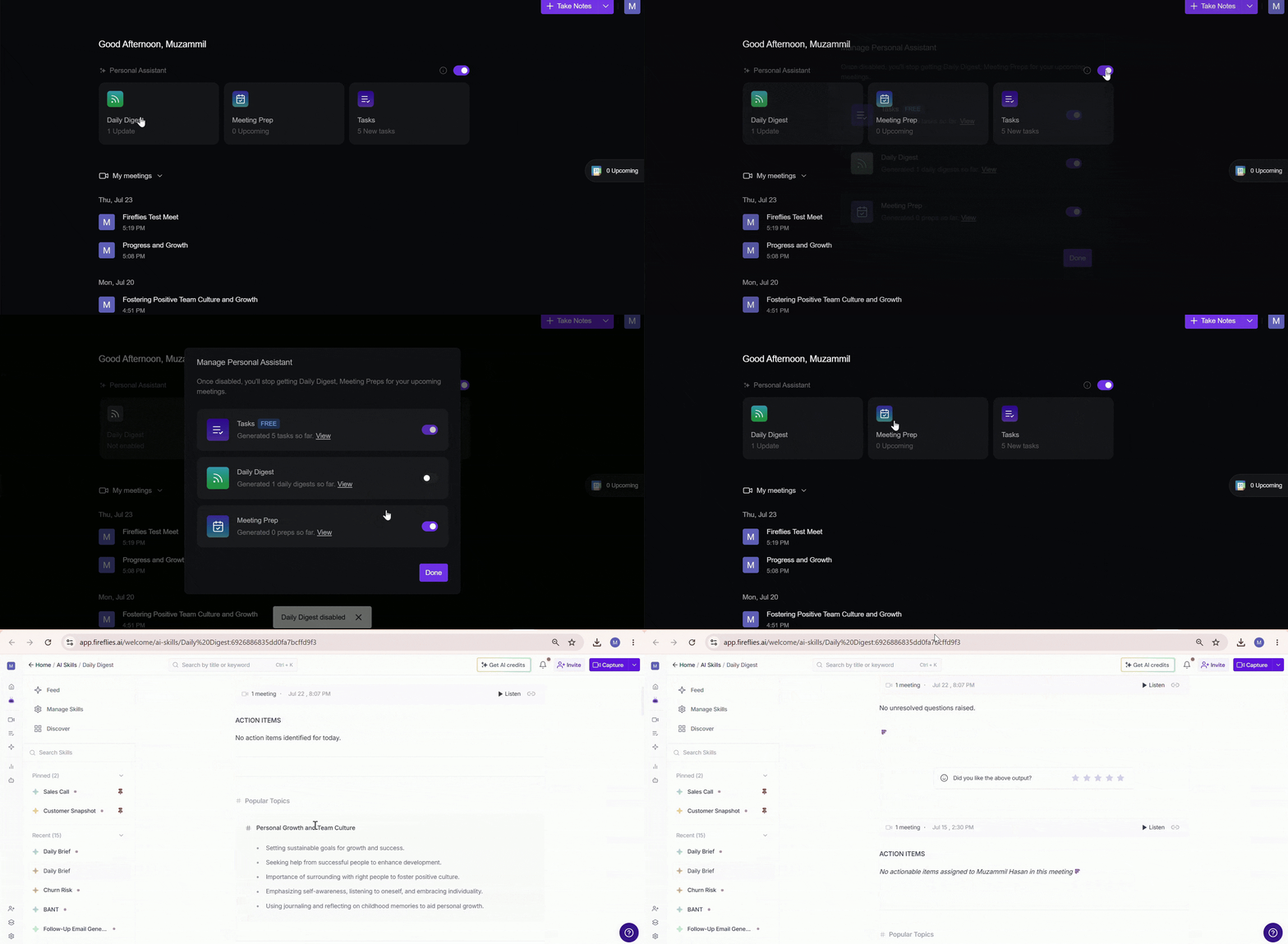
The Personal Assistant section provides quick access to AI-powered insights and follow-up information from your Fireflies account directly within the Desktop App.
You may see the following cards:
Tasks (Free) – Displays action items and follow-ups identified from your meetings. Tasks do not consume AI credits and are always enabled, so they cannot be disabled.
Daily Digest – A summary of important updates, action items, and meeting insights from the past 24 hours.
Meeting Prep – Briefs and context to help you prepare for upcoming meetings.
Click any AI Skill card to open it in the Fireflies web app, where you can view in details about the particular skill.
To manage these cards, click the toggle in the top-right corner of the Personal Assistant section.
📅 Upcoming Meetings & Sidebar
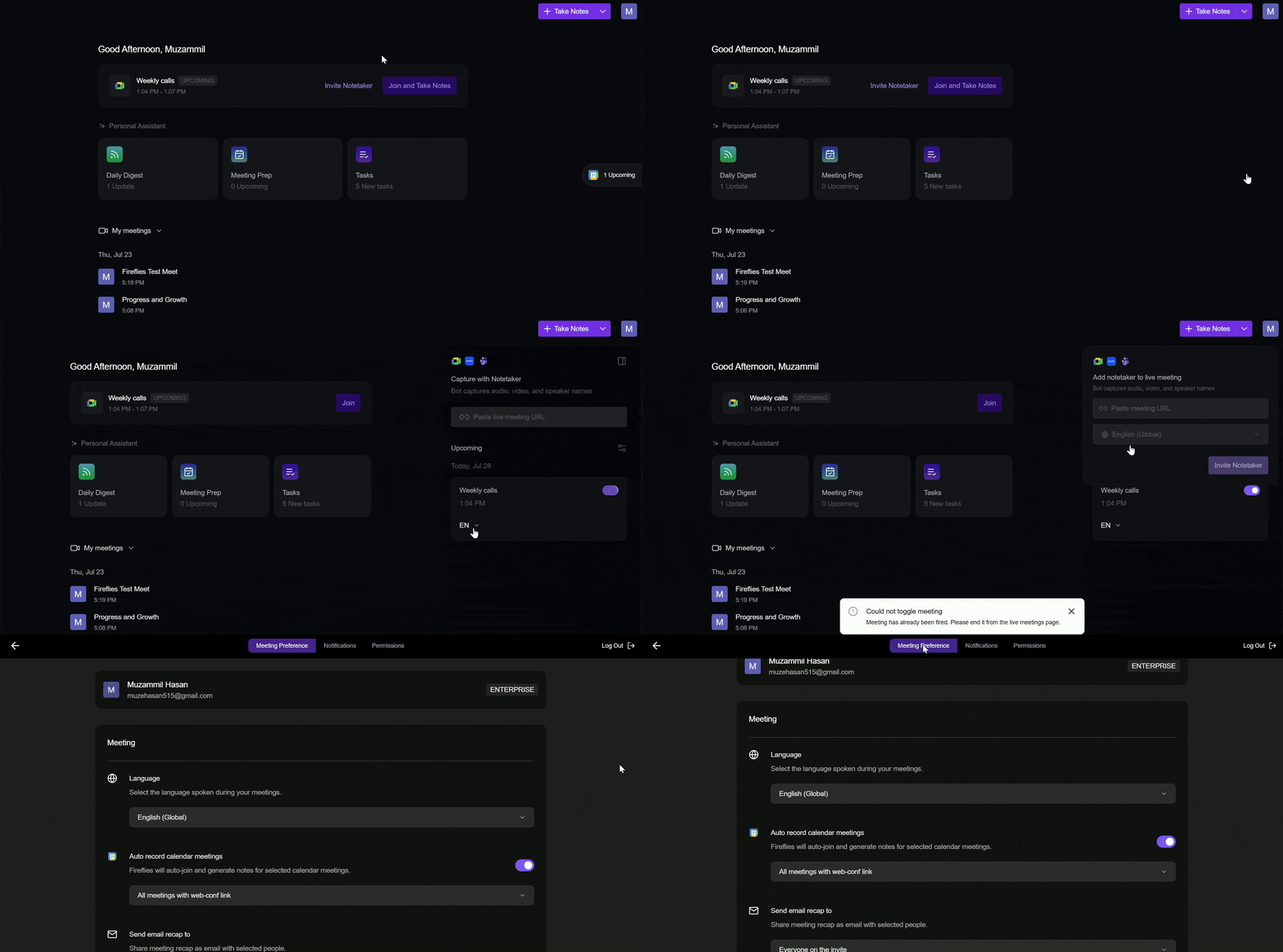
A collapsible panel on the right sidebar helps you quickly manage upcoming meetings and meeting capture settings without leaving the Desktop App.
From here, you can:
Invite Fireflies.ai Notetaker to a live meeting by pasting a meeting URL
View your upcoming scheduled meetings
Enable or disable automatic meeting capture for individual upcoming meetings
Select the meeting language for upcoming meetings
Expand or collapse the sidebar to create more screen space
Access meeting preferences using the Settings icon.
📌 Related: Learn more about Auto Join and Email Recap settings →
This sidebar helps you stay organized and ready for upcoming meetings while keeping meeting capture controls easily accessible.
Learn more about the Upcoming Meetings module → Upcoming Meetings Module FAQs
🔔 Before Your Meeting: The Fireflies Notification
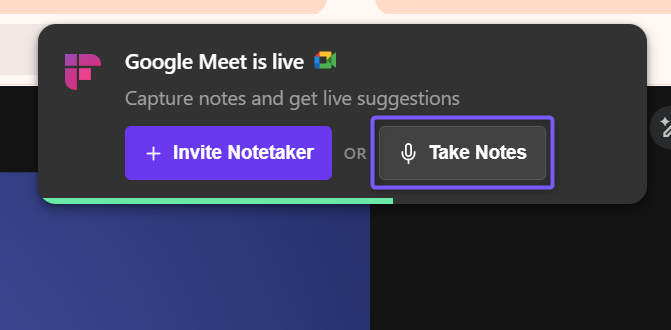
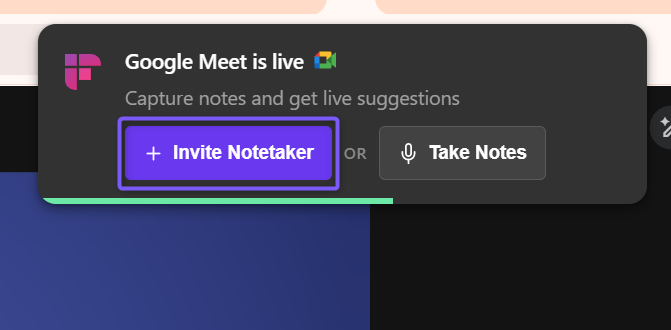
Before your meeting starts, Fireflies sends a desktop notification when it detects an upcoming or active meeting. The notification gives you two ways to capture the conversation, depending on whether you want to use the Fireflies Notetaker or capture audio directly from your device.
From the notification, you can:
Take Notes: Capture the conversation using your device audio without adding a Fireflies bot to the meeting.
Invite Notetaker: Invite Fireflies.ai Notetaker to join the meeting as a participant.
Does this mean a bot is joining my call?
No. Seeing the Fireflies notification does not mean a bot has joined your meeting.
Take Notes captures the conversation on your device without adding a Fireflies bot to the meeting.
A Fireflies bot joins the meeting only when you select Invite Notetaker.
🎙 Capture & Record Meetings
The Fireflies Desktop App let you capture conversations in two ways:
With Fireflies.ai Notetaker (bot): Fireflies joins the meeting as a participant and captures audio, video, speaker labels, transcripts, and AI-generated notes.
With system audio (no bot): Fireflies captures audio directly from your device and generates transcripts and notes without joining the meeting.
Which should you use?
When to Use Each Option | Use Fireflies.ai Notetaker (Bot) | Use system audio (no bot) |
You need speaker labels | ✅ Yes | ❌ No |
You need Live Assist | ✅ Yes | ✅ Yes |
You need Sales Assist | ✅ Yes | ❌ No |
You want audio/video saved | ✅ Yes | ❌ No |
You're on a call the bot can't join (phone, in-person) | ❌ No | ✅ Yes |
You want a quick, lightweight capture | ❌ No | ✅ Yes |
👉 Want a detailed breakdown of bot vs. no-bot capture? See Bot vs. No Bot: Which Capture Am I Using?
You can start capturing meetings manually from the Desktop app or let Fireflies detect upcoming meetings and prompt you automatically.
1. Fireflies.ai Notetaker (Bot Recording)
Use Fireflies.ai Notetaker when you want Fireflies to join a meeting as a participant and capture the full conversation.
When Fireflies.ai Notetaker (Bot) joins:
Live Assist opens automatically
Speaker labels are available
Sales Assist works
Meeting audio and video recordings are saved
AI-generated transcripts, summaries, and notes are created
Automatic Meeting Detection
When Fireflies detects an upcoming meeting from your supported apps or browser, you'll receive a notification with options to capture the meeting either with a bot (visible to all participants) or without a bot (not visible in the participant list).
From the notification, you can choose to:
Take Notes: Join the meeting and capture it using system audio (no bot).
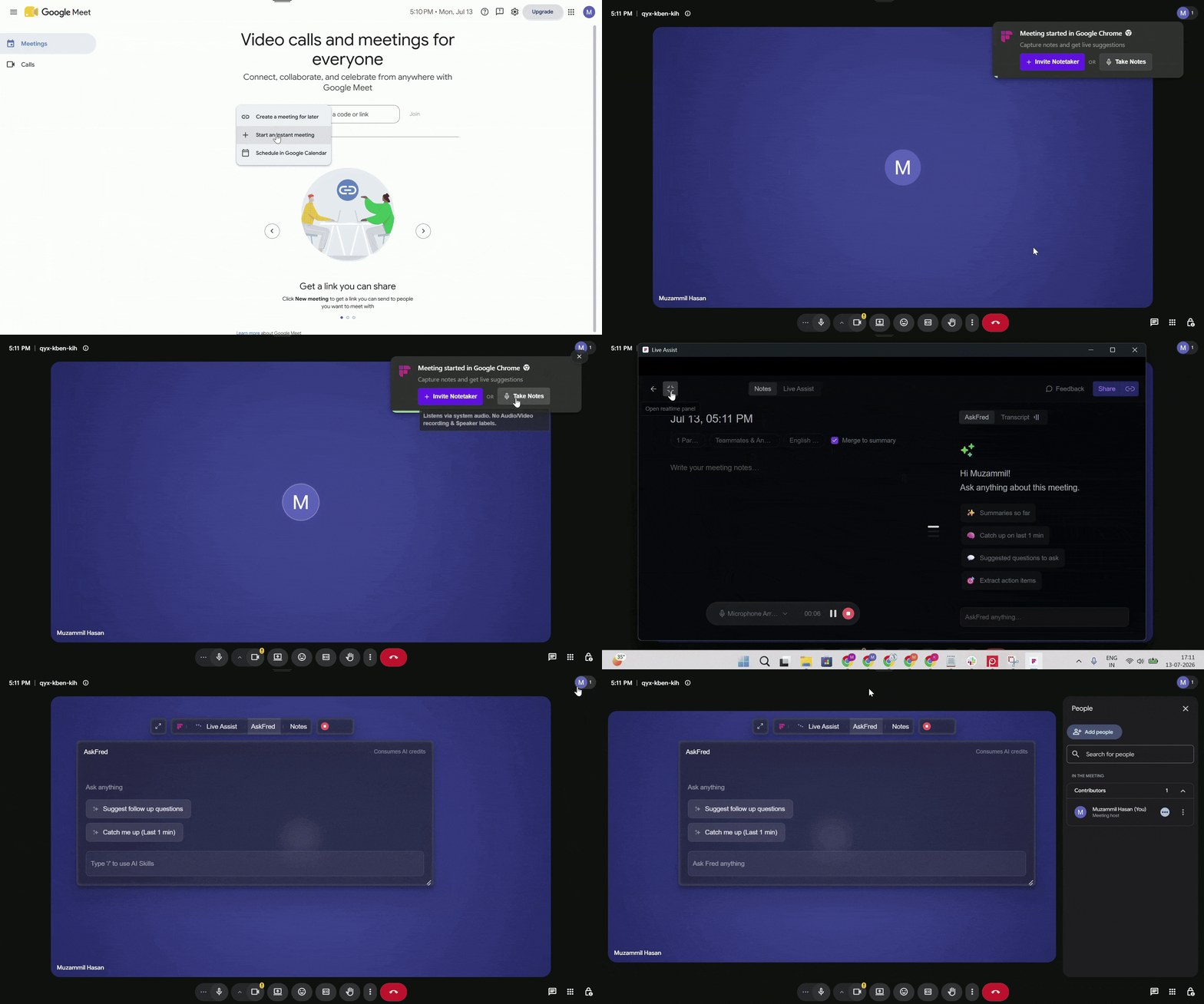
Invite Notetaker: Join the meeting and automatically invite Fireflies.ai Notetaker.
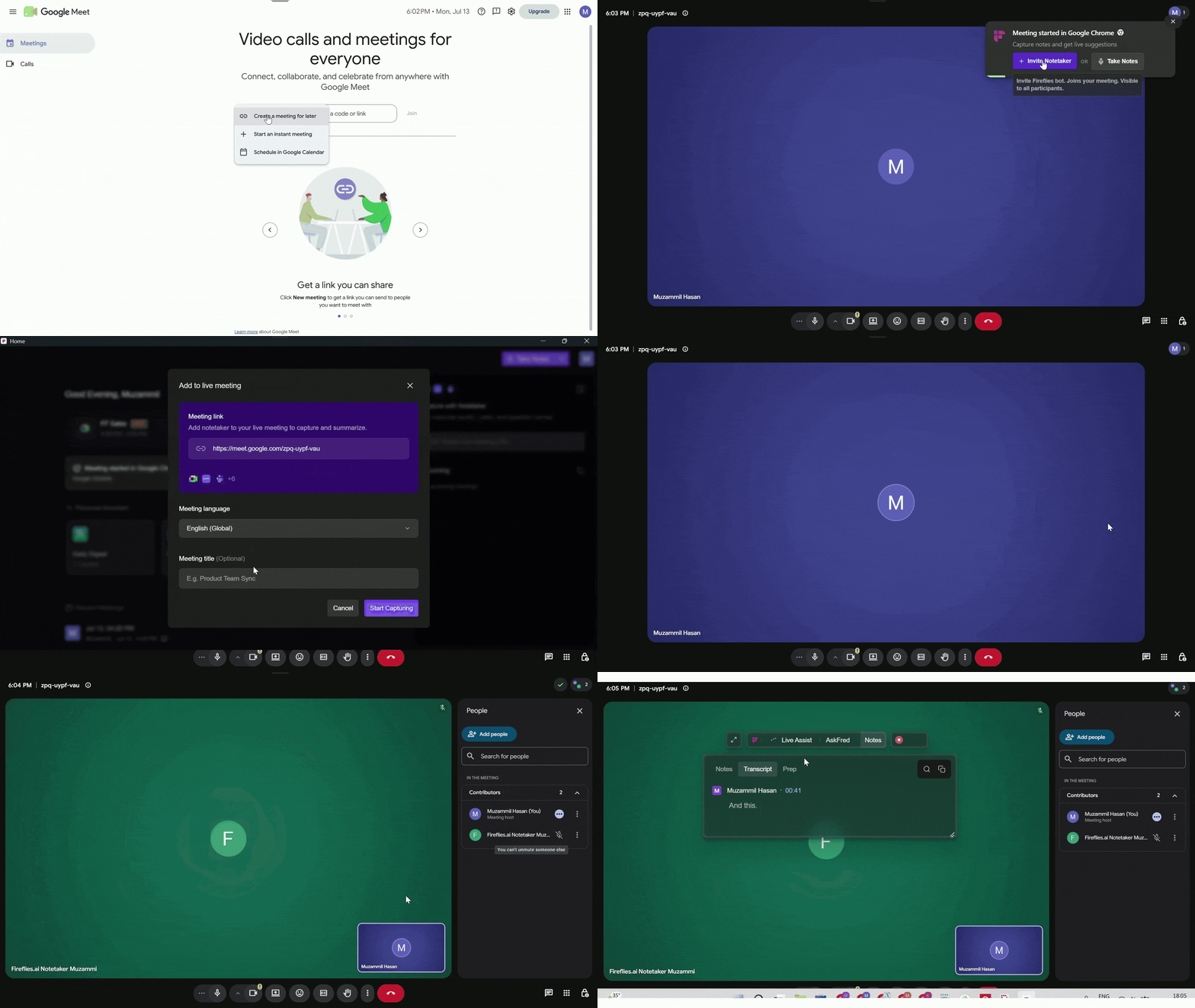
Why am I asked to enter a meeting URL?
When you select Invite Notetaker, Fireflies automatically uses the meeting link if it can detect it from your calendar event or a supported browser.
If it can't identify the meeting link - for example, during an instant meeting without a calendar event, you'll be prompted to enter the meeting URL before the Fireflies.ai Notetaker can join.
Add Fireflies.ai Notetaker to a Live Meeting (Manaully)
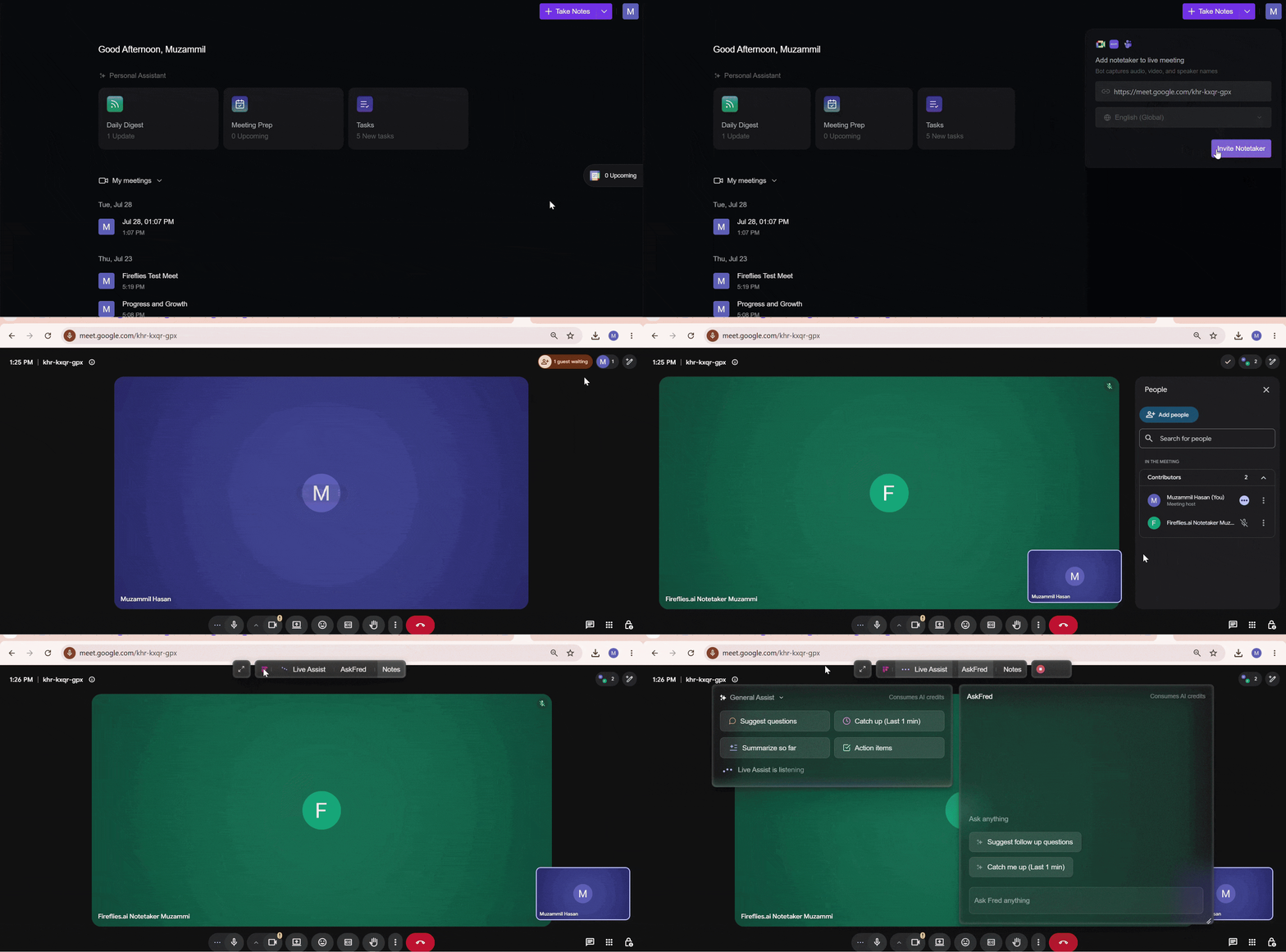
If you're already in a meeting, you can invite Fireflies.ai Notetaker directly from the collapsible panel on the right side of the Desktop App.
Open the right sidebar collapsible panel.
Under Add Notetaker to Live Meeting, paste the meeting URL.
Select the meeting language. By default, Fireflies uses English (Global), but you can choose the language spoken in the meeting to improve transcription accuracy.
Click Invite Notetaker.
Admit Fireflies.ai Notetaker to the meeting, just like any other participant.
Once added, Fireflies captures the conversation and creates a transcript, summary, and key points that you can review later.
Heads up: Some users may see a "Potential Risk" warning in Google Meet
You may see Fireflies.ai Notetaker labeled as a "potential risk" when it appears in the Google Meet waiting room. This is part of a Google Meet update that gives hosts more visibility over participants joining a meeting. This is expected behavior and does not indicate any risk.
If you see this warning:
Look for the With potential risks section in the participants panel.
Click the three dots (⋮) next to Fireflies.ai Notetaker and select Admit entry.
2. System Audio Recording (No Bot Required)
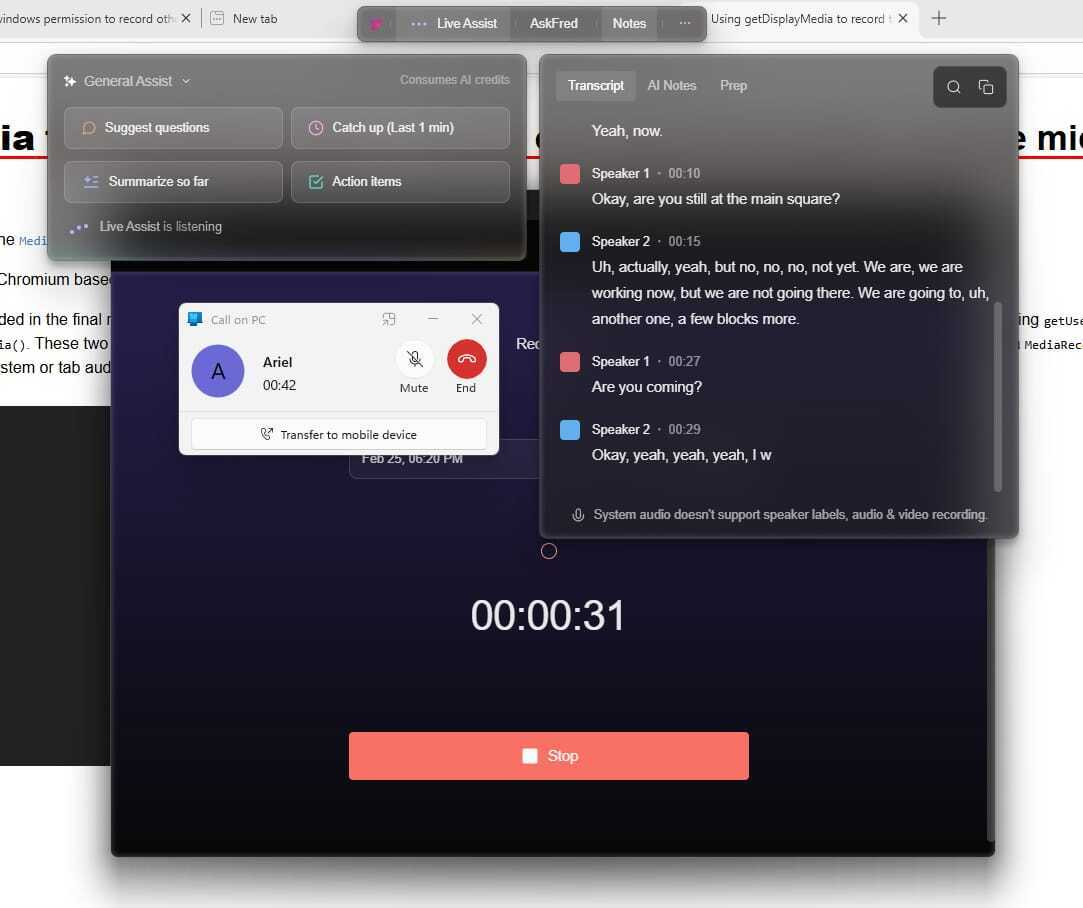
Use system audio recording when you want to capture conversations without inviting the Fireflies.ai Notetaker to the meeting. It records audio directly from your computer, allowing you to capture meetings, audio notes, in-person conversations, and phone calls across a wide range of apps.
When you use Take Notes:
Fireflies captures system audio from your device
Live Assist Floating pane opens automatically
Real-time transcripts and notes are generated
No bot joins the meeting
Audio and video files are not saved
Speaker labels are not available (you’ll see Speaker 1 / Speaker 2)
Multilingual detection is supported
You can do this in two ways:
Manually - Click Take Notes to immediately start capturing system audio from your computer. This works across a wide range of supported apps and browsers - no bot required.
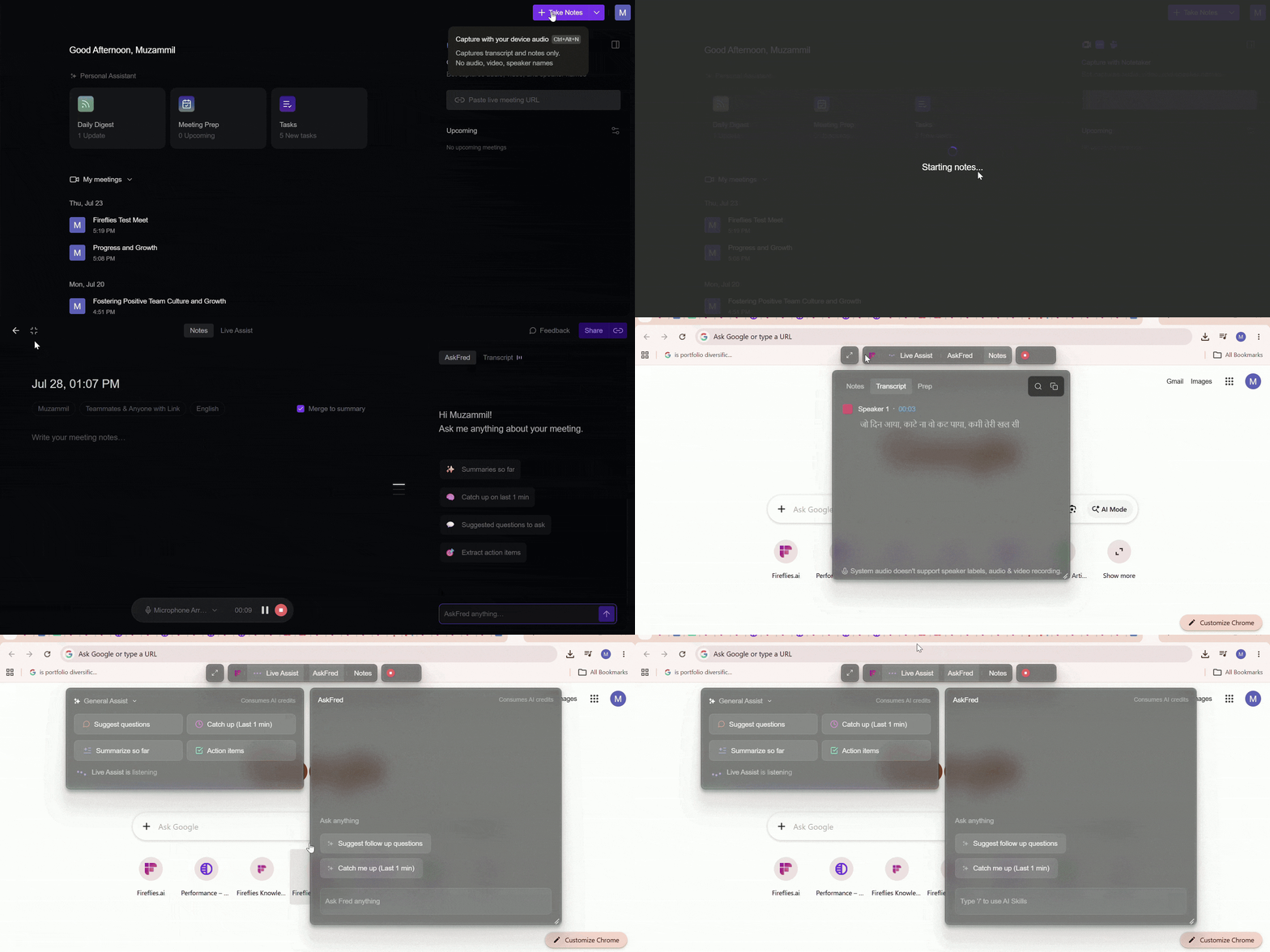
Automatically - Fireflies auto-captures supported apps and notifies you to start recording (without bot) or invite Fireflies.ai Notetaker ( with bot).
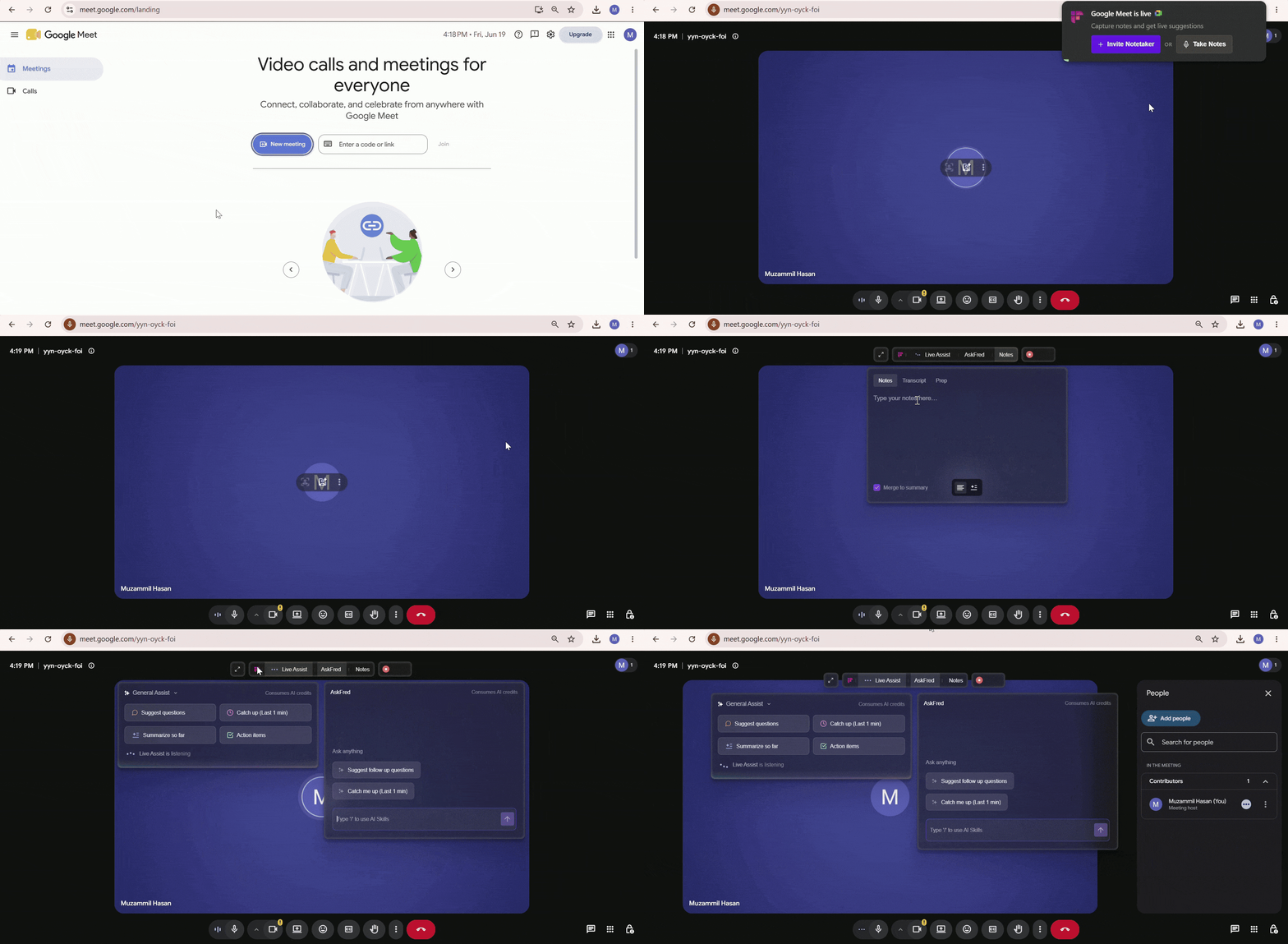
👉 Want to learn more about this feature? Check out: How to Record Meetings Without a Bot on the Fireflies Desktop App
Wondering what gets saved? See Does the Desktop App Save an Audio Recording? to learn what you get with Take Notes and the Notetaker.
3. Manual Notes
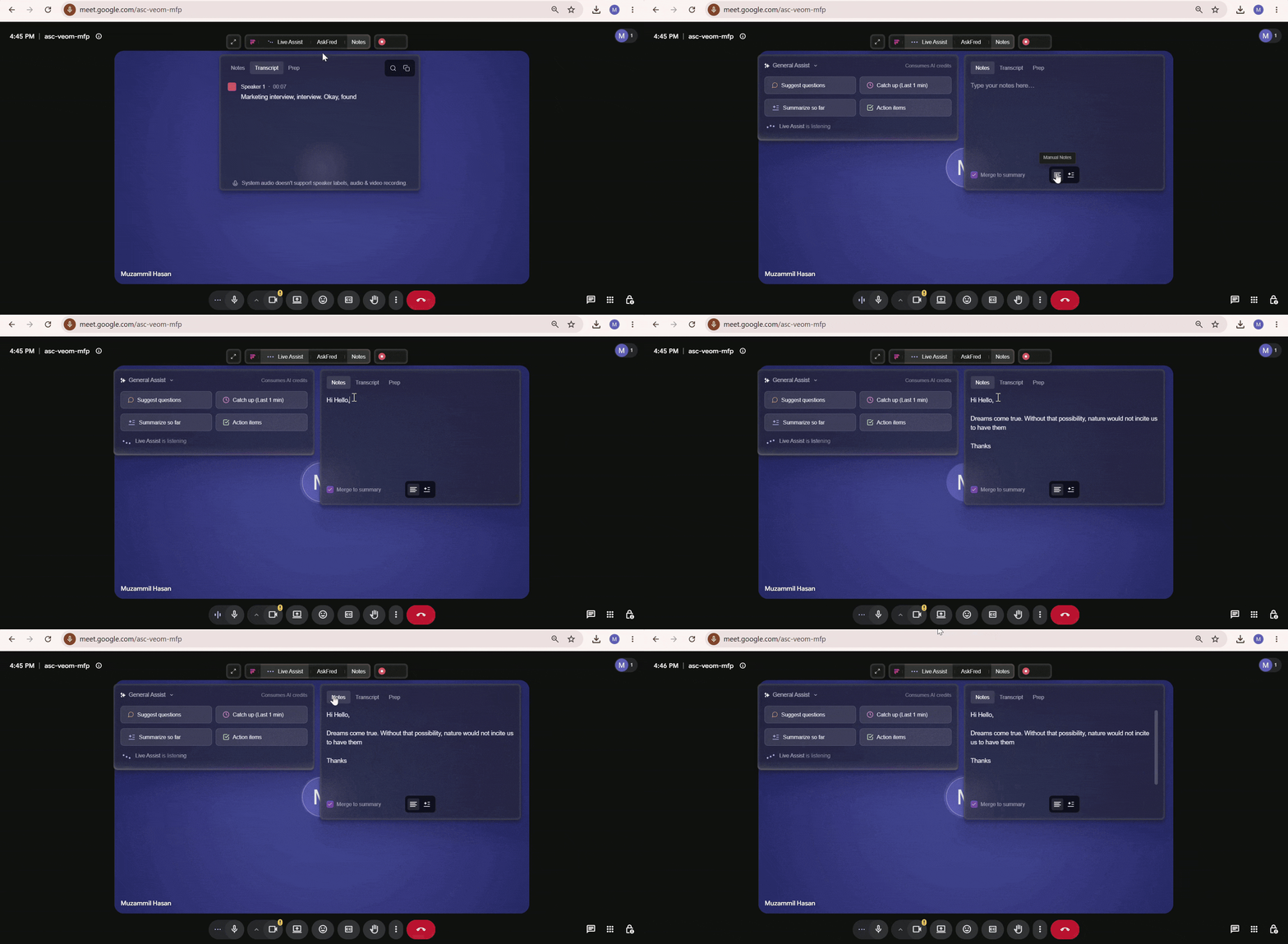
Manual Notes helps you take your own notes during a conversation while Live Assist is running. This is useful when you want to capture personal observations, reminders, or additional context alongside the AI-generated transcript.
To use Manual Notes:
Start a meeting using either Fireflies.ai Notetaker or Take Notes (system audio).
When the Live Assist panel opens, click the Notes tab.
Type your notes as the conversation happens.
You can choose to keep these notes private or merge them into the meeting summary later.
4. Supported Apps
Fireflies can capture conversations across a wide range of supported browsers, meeting platforms, calling applications, and phone calls.
🌐Supported Browsers
Google Chrome
Firefox
Safari
Microsoft Edge
Brave
Vivaldi
Zen Browser
Perplexity Comet (browser with URL support)
ChatGPT Atlas (browser with URL support)
💬Meeting & Calling Apps
Google Meet
Zoom
Microsoft Teams
Webex
Skype
Dialpad
Lifesize
GoToMeeting
Slack Huddle
WhatsApp
Aircall
FaceTime
Discord
Phone calls
📱Phone Call Recording
macOS — Supports iPhone calls. Enable Calls from iPhone on both your Mac FaceTime app and your iPhone FaceTime settings, and Fireflies will capture those calls via system audio.
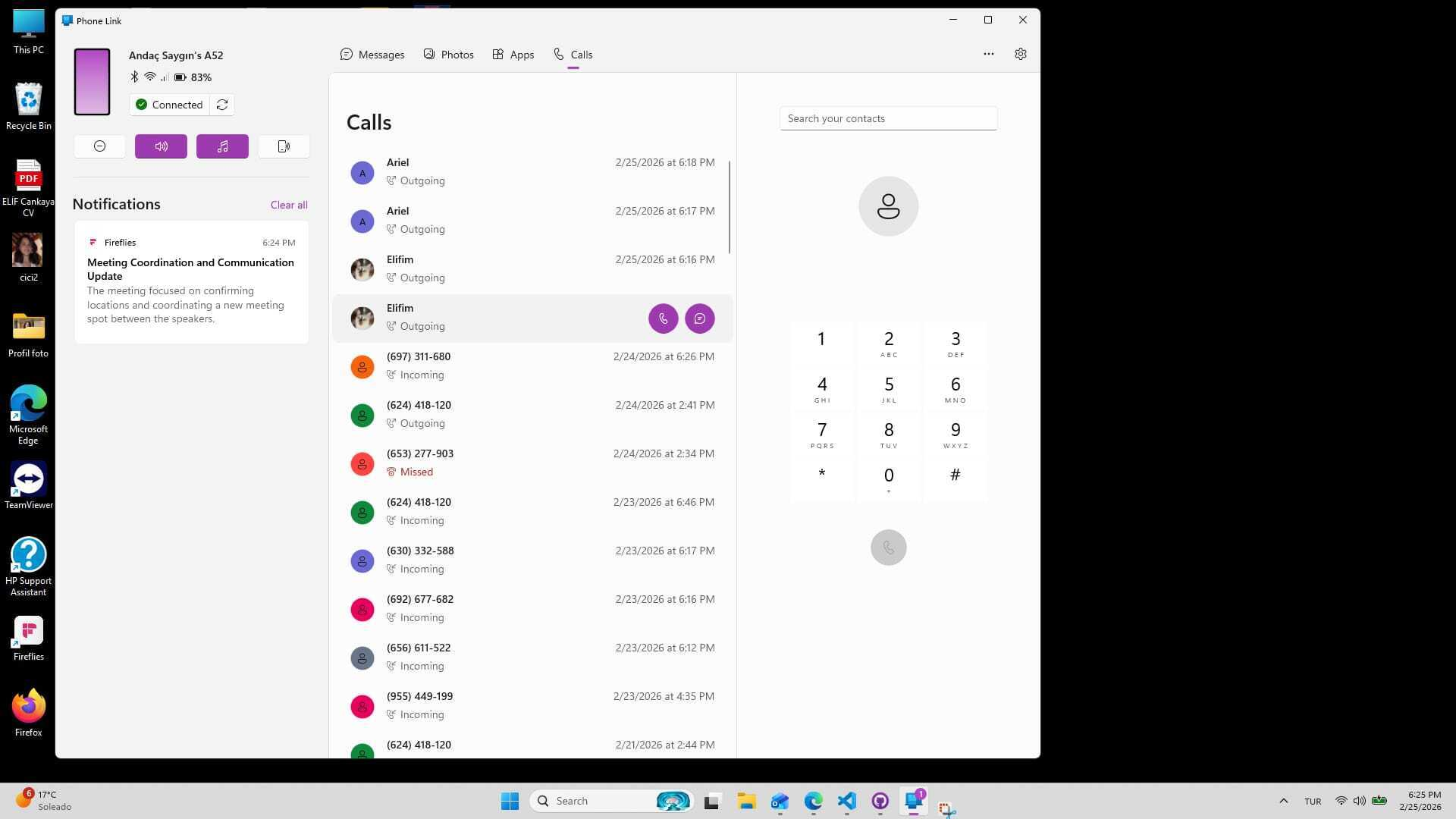
Windows — Supports both Android and iPhone calls. Pair your phone with the Windows Phone Link app and Fireflies will record calls from your computer.
🔔 Send Meeting Consent Message
Send Meeting Consent Message helps notify meeting participants when a conversation is being recorded using system audio. When enabled, Fireflies automatically posts a consent message in the meeting chat when recording starts.
Requirements and Limitations:
Currently available only for Microsoft Teams Business accounts
Works only with system audio recordings (without a bot)
The consent message must be enabled in Meeting Preferences before recording starts
The message is posted automatically when recording begins
To enable it:
Open the Fireflies Desktop app.
Go to Settings → Meeting Preferences.
Turn on Send meeting consent message.
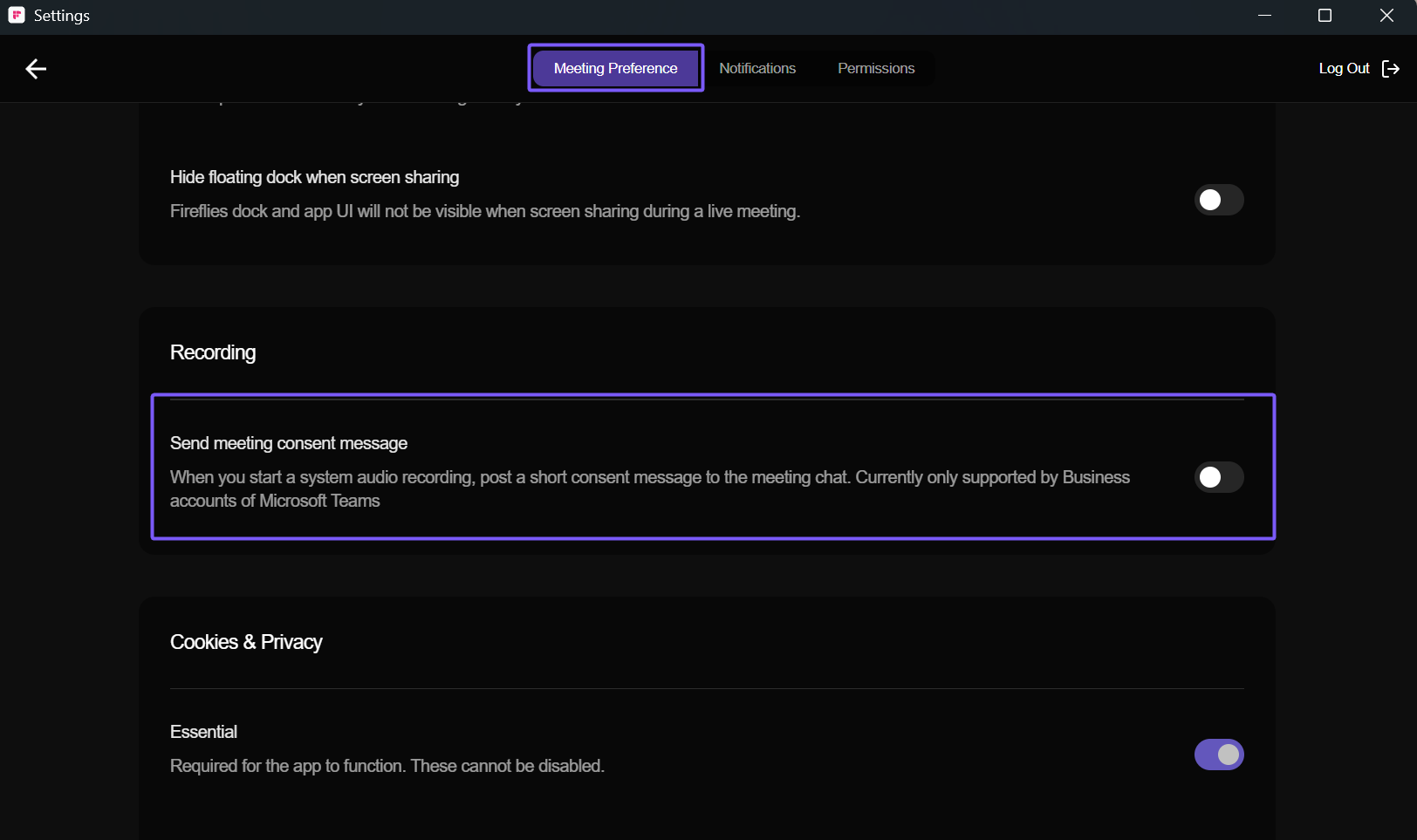
Once enabled, Fireflies automatically posts the consent message in the Microsoft Teams meeting chat when a system audio recording starts.
The message appears as: This meeting is being transcribed by Fireflies.ai
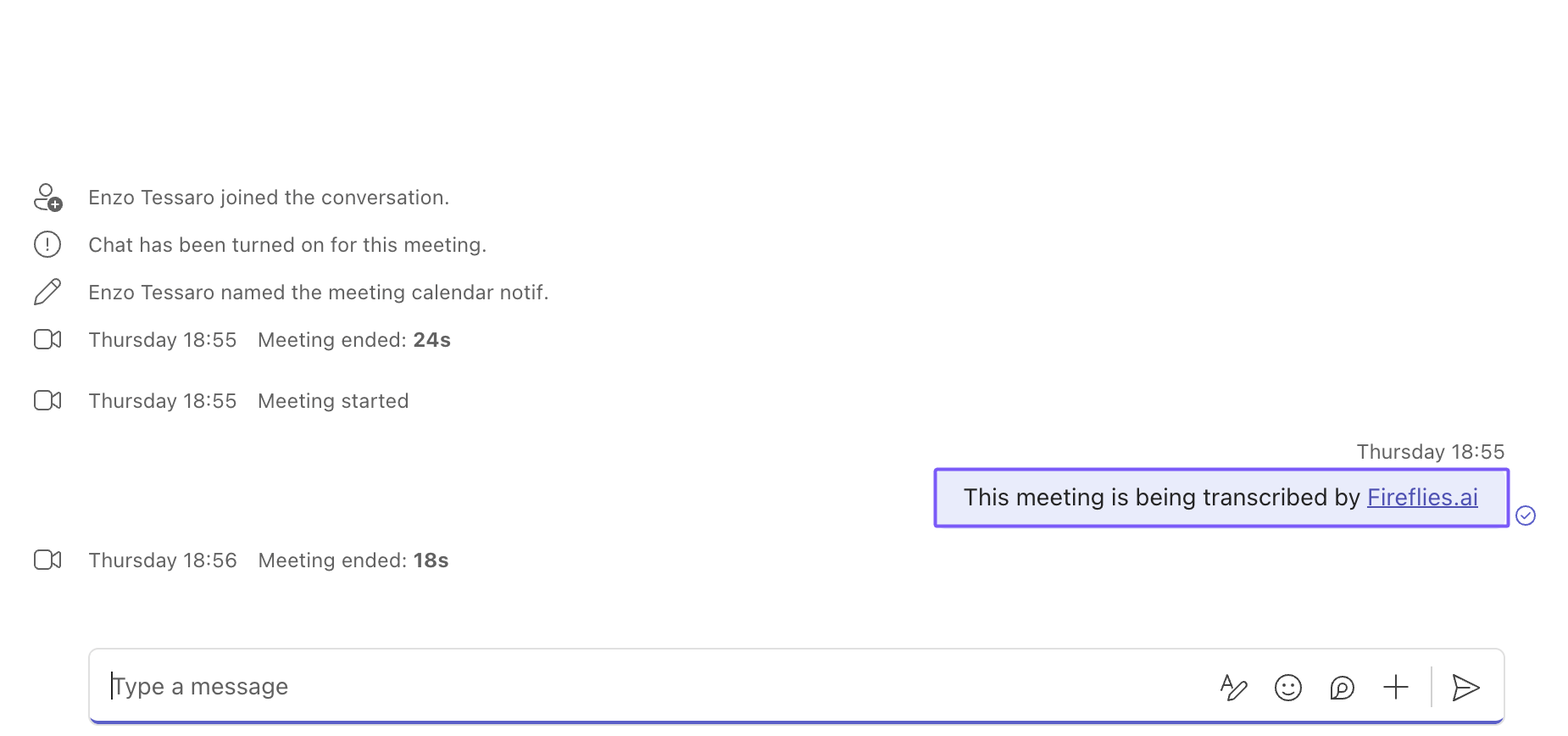
⚙Settings
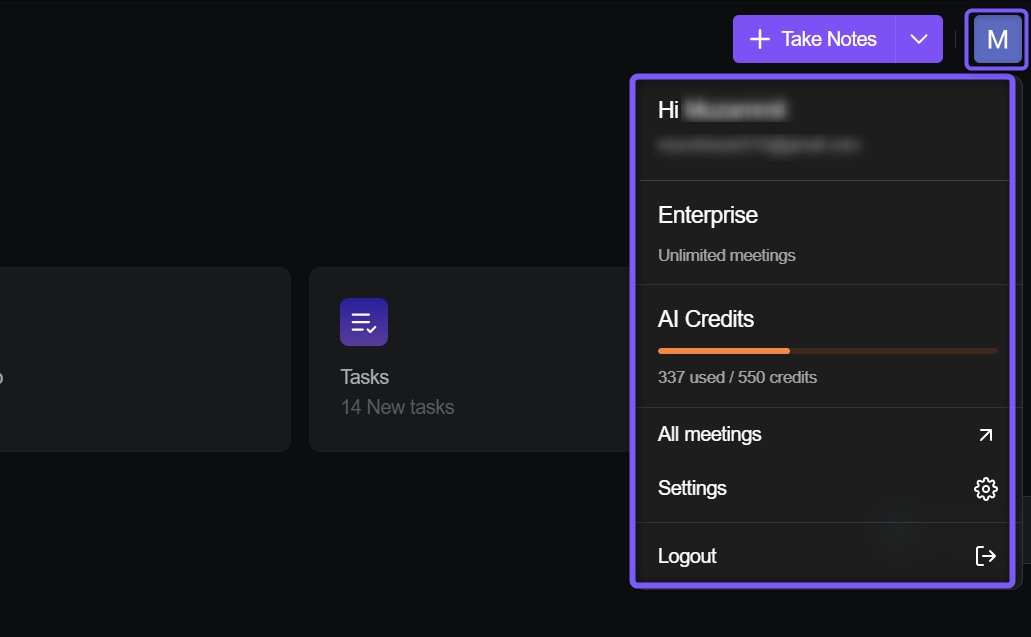
The Settings menu gives acess to your account details, meeting history, and preferences. You can also check your plan and AI credit usage from here.
Setting | What it’s used for |
Profile | Shows your account details and signed-in email. |
Plan | Displays your current plan (for example, Enterprise) and includes limits. |
AI Credits | Shows how many AI credits you’ve used and how many are remaining. |
All Meetings | Opens the full list of your meetings in the Fireflies web app. |
Settings | Takes you to a detailed account and meeting preferences. |
Logout | Signs you out of the Fireflies Desktop app. |
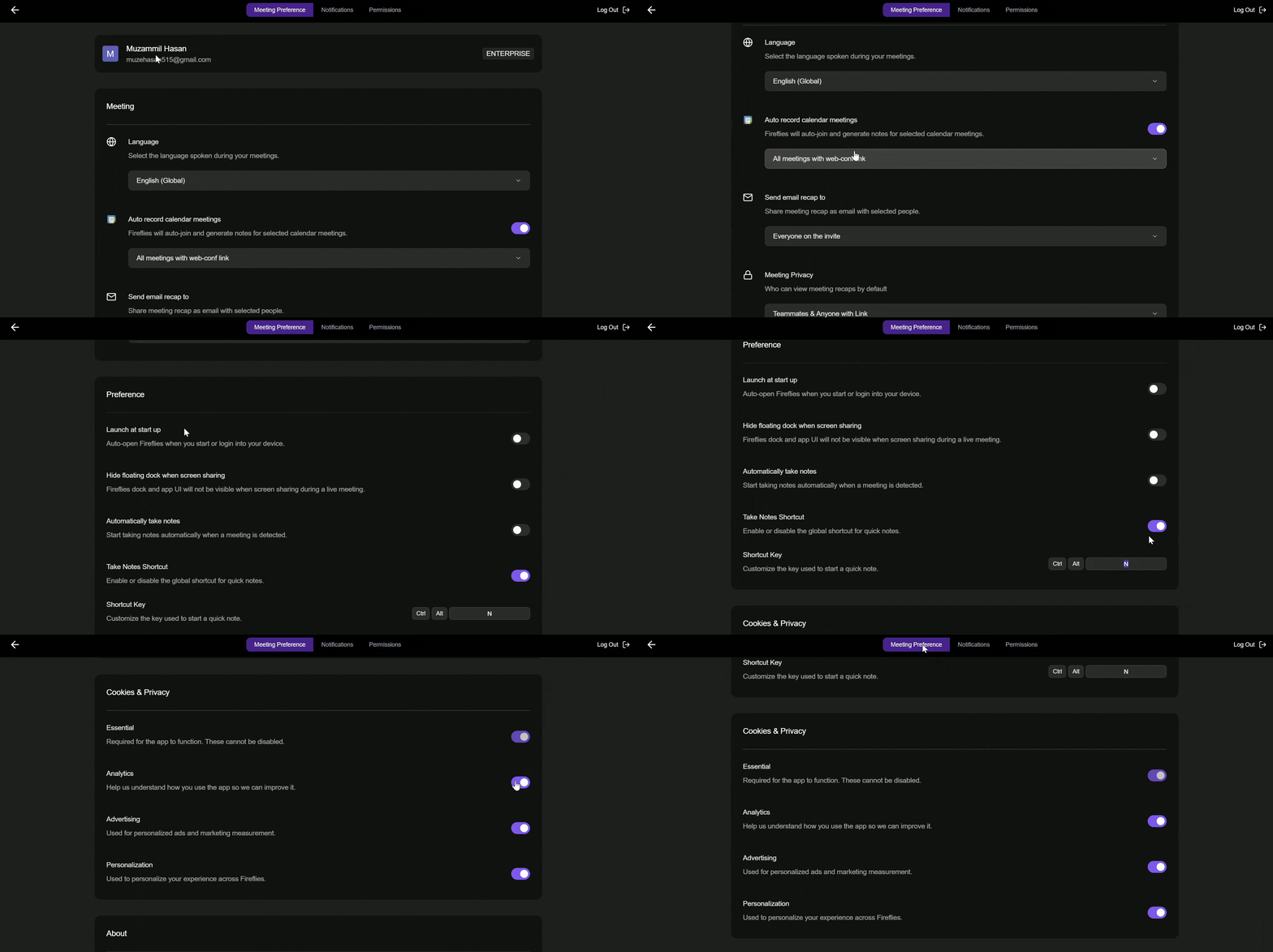
When you click Settings in the Desktop app, a page opens with three tabs: Meeting Preferences, Notifications, and Permissions.
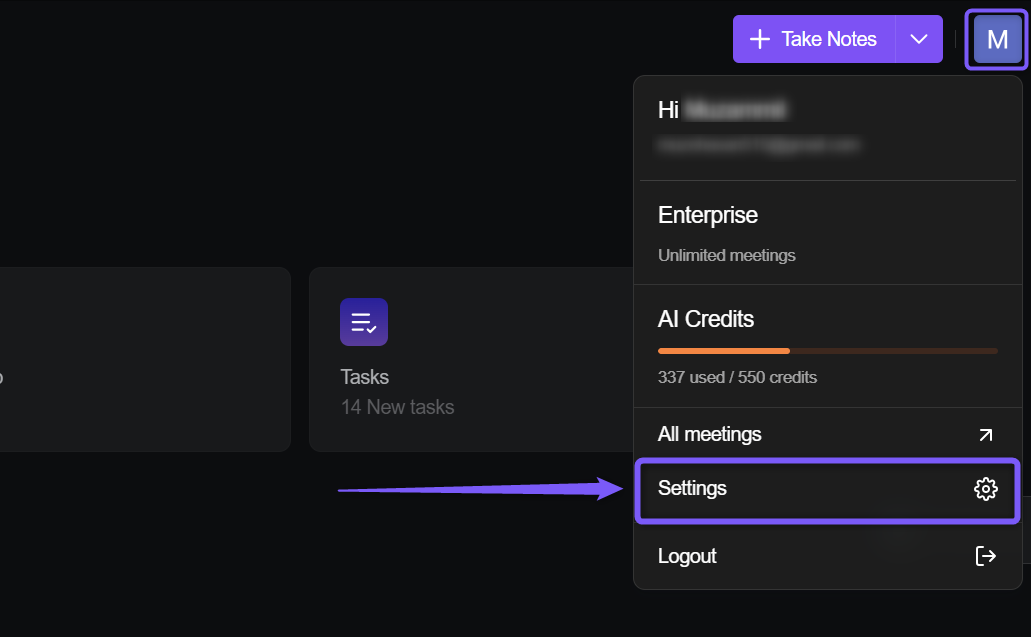
Meeting Preference
These settings control how Fireflies joins meetings, captures conversations, shares recaps, and provides app information.
Setting | What it does |
Language | Select the language spoken during your meetings so Fireflies can transcribe conversations more accurately. |
Auto-record calendar meetings | Automatically joins selected calendar meetings and generates notes and summaries. Use this when: You want Fireflies to automatically join your scheduled meetings without manually inviting the Notetaker. |
Meeting type | Defines which calendar meetings Fireflies should automatically join (for example, all meetings with a web-conference link). |
Send email recap to | Sends meeting recaps by email to selected participants after the meeting ends. |
Meeting Privacy | Controls who can view meeting recaps by default. |
Launch at startup | Automatically launches the Fireflies Desktop app when you start or sign in to your device. Use this when: You want Fireflies Desktop to launch automatically when you start or log in to your device, so it's ready to detect meetings, send notifications, and capture conversations. |
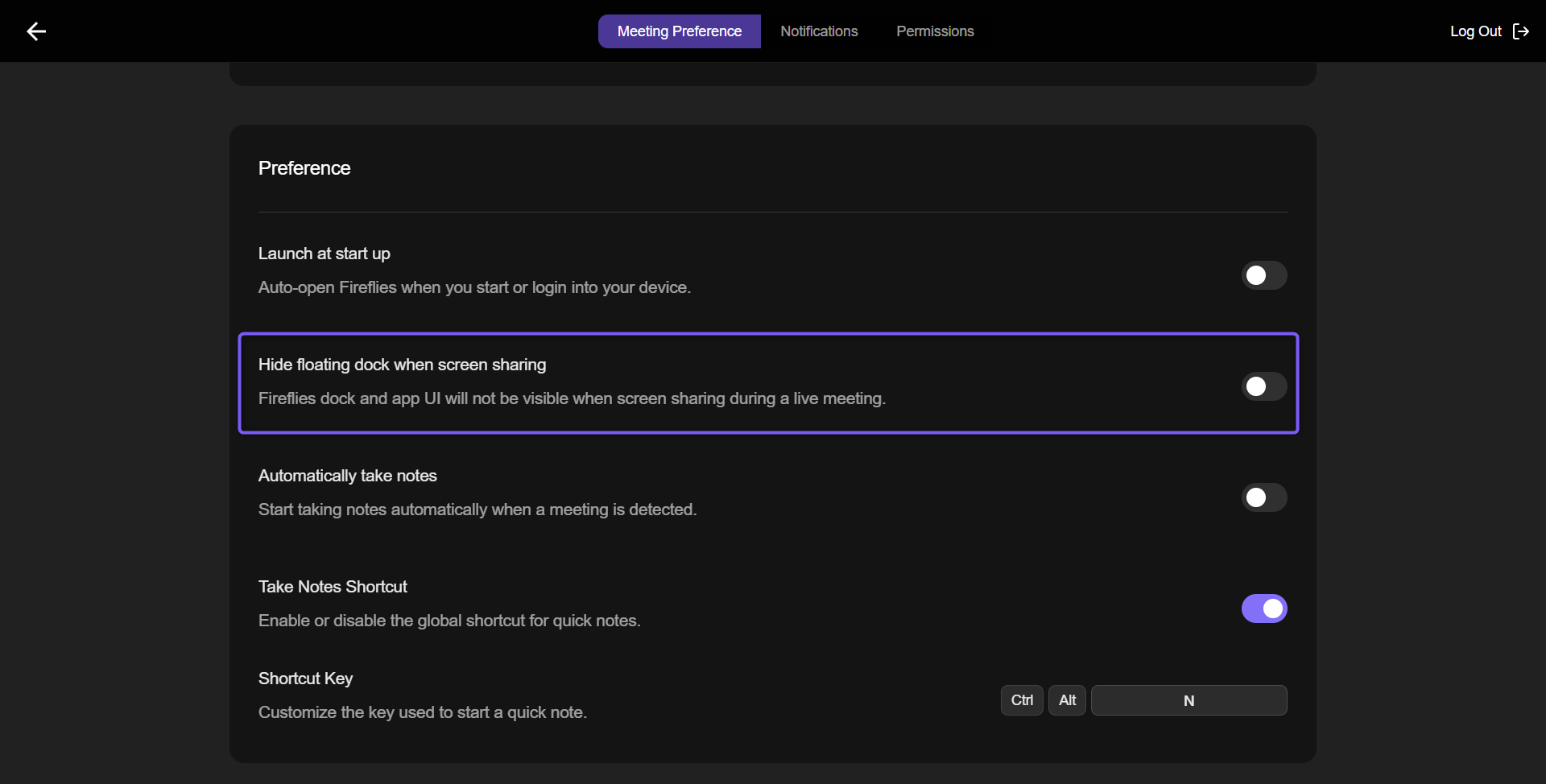
Hide floating dock when screen sharing | Hides the Fireflies floating toolbar, Live Assist panels, and app UI while you're sharing your screen. |
Automatically take notes | Automatically starts system-audio note capture when a meeting is detected. |
Take Notes Shortcut | Customize the keyboard shortcut used to quickly start Take Notes from anywhere on your device. |
Send meeting consent message | Automatically posts a consent message in Microsoft Teams meeting chat when system-audio recording starts. Available for Microsoft Teams Business accounts only. Use this when: You record Microsoft Teams meetings with system audio and want Fireflies to automatically post a consent message in the meeting chat. |
Essential | Required cookies needed for the Desktop app to function. This setting cannot be disabled. |
Analytics | Helps Fireflies understand how the app is used to improve product performance and user experience. |
Advertising | Used for personalized advertising and marketing measurement. |
Personalization | Helps personalize your experience across Fireflies products and services. |
Version | Shows the currently installed Desktop app version. |
Check for Updates | Manually checks for and installs available Desktop app updates. |
Diagnostic | Collects diagnostic information that can help troubleshoot technical issues. |
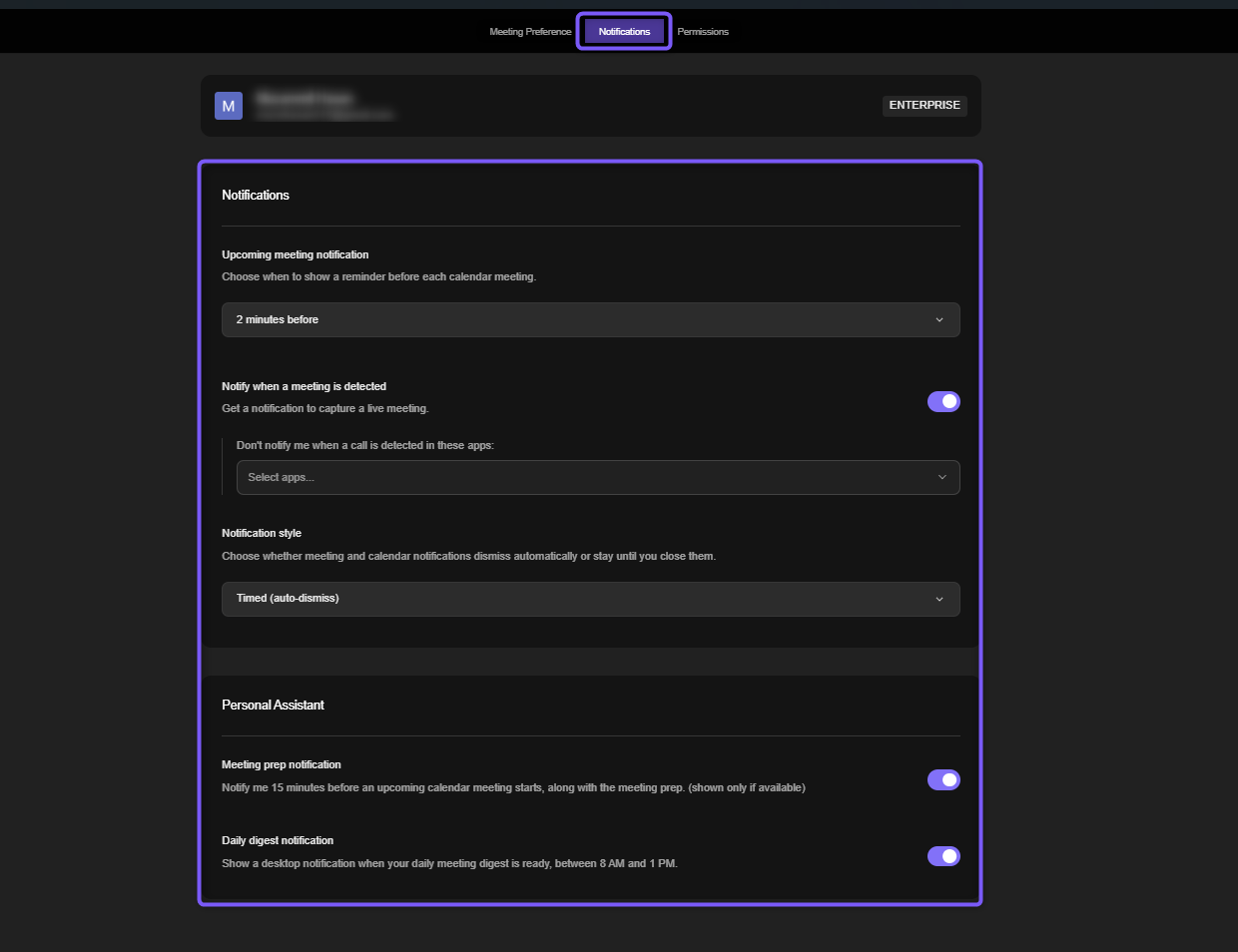
Notifications
The Notifications settings allows you to customize how and when Fireflies displays meeting reminders, meeting detection alerts, Meeting Prep notifications, Daily Digest updates, and other desktop notifications.
Setting | What it does |
Upcoming meeting notification | Choose when Fireflies shows a reminder before scheduled calendar meetings. Available options include 10 minutes before, 5 minutes before, 2 minutes before, On event time, or Never. |
Notify when a meeting is detected | Shows a notification when Fireflies detects an active meeting or call, allowing you to quickly start capturing the conversation. |
Ignored apps | Choose apps where Fireflies should not show meeting-detected notifications. |
Notification style | Controls whether notifications automatically disappear (Timed / auto-dismiss) or remain visible until you manually close them (Persistent / stay until dismissed). |
Meeting prep notification | Sends a notification 15 minutes before an upcoming calendar meeting and includes Meeting Prep insights when available. |
Daily digest notification | Shows a desktop notification when your Daily Digest is ready, typically between 8 AM and 1 PM. |
Permissions
The Permissions tab lets you manage recording permissions and configure shortcuts used by the Fireflies Desktop app. These settings help ensure Fireflies can capture conversations and start note-taking when needed.
Permission | What it does |
Microphone Access | Required to capture audio from meetings and conversations for transcription. The status shows whether microphone access has been granted on your device. |
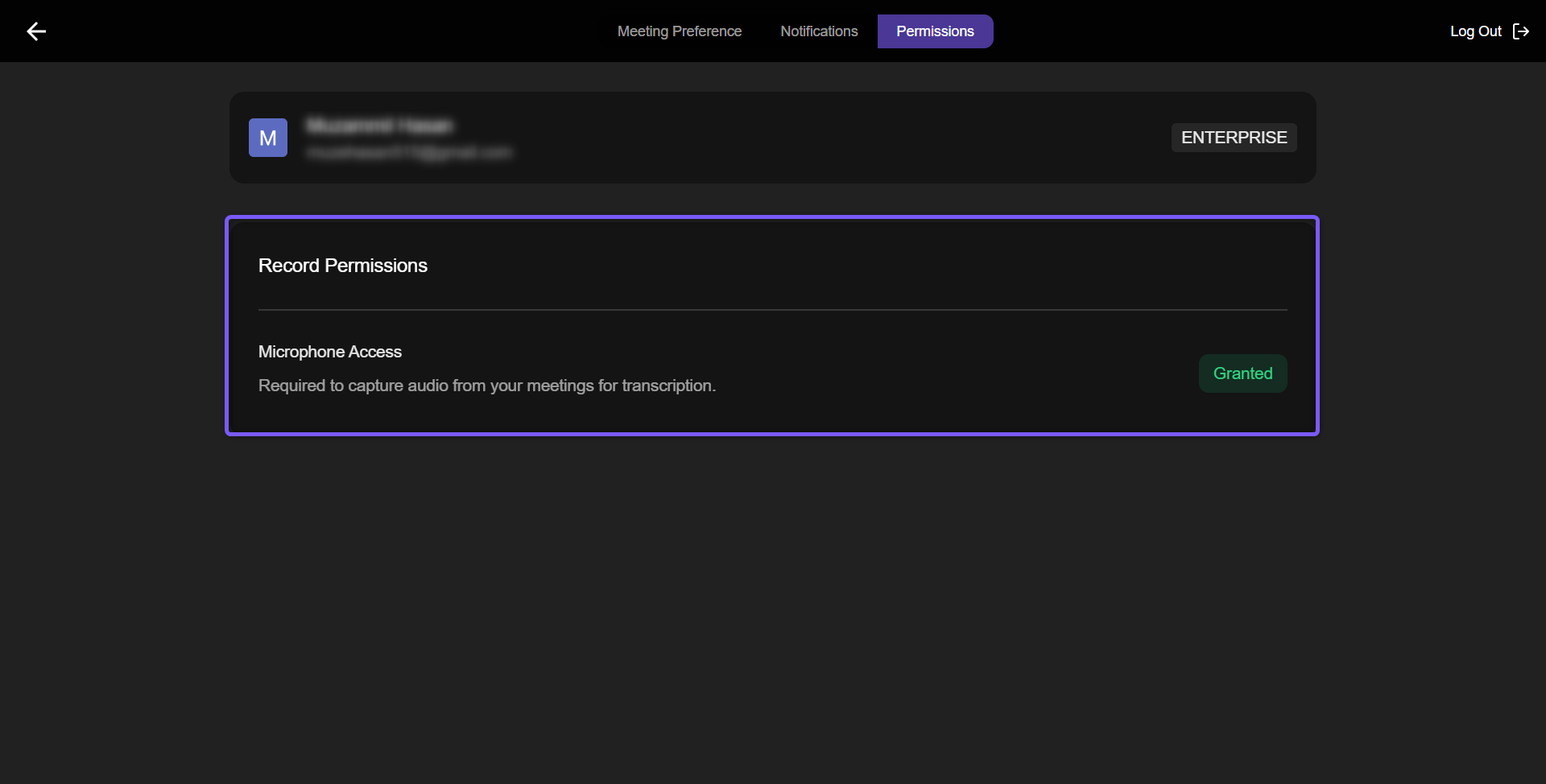
For advanced settings, click Other Settings to open them in the Fireflies web app, where you can manage detailed meeting preferences, integrations, and notification settings.
🪟 Floating Pane
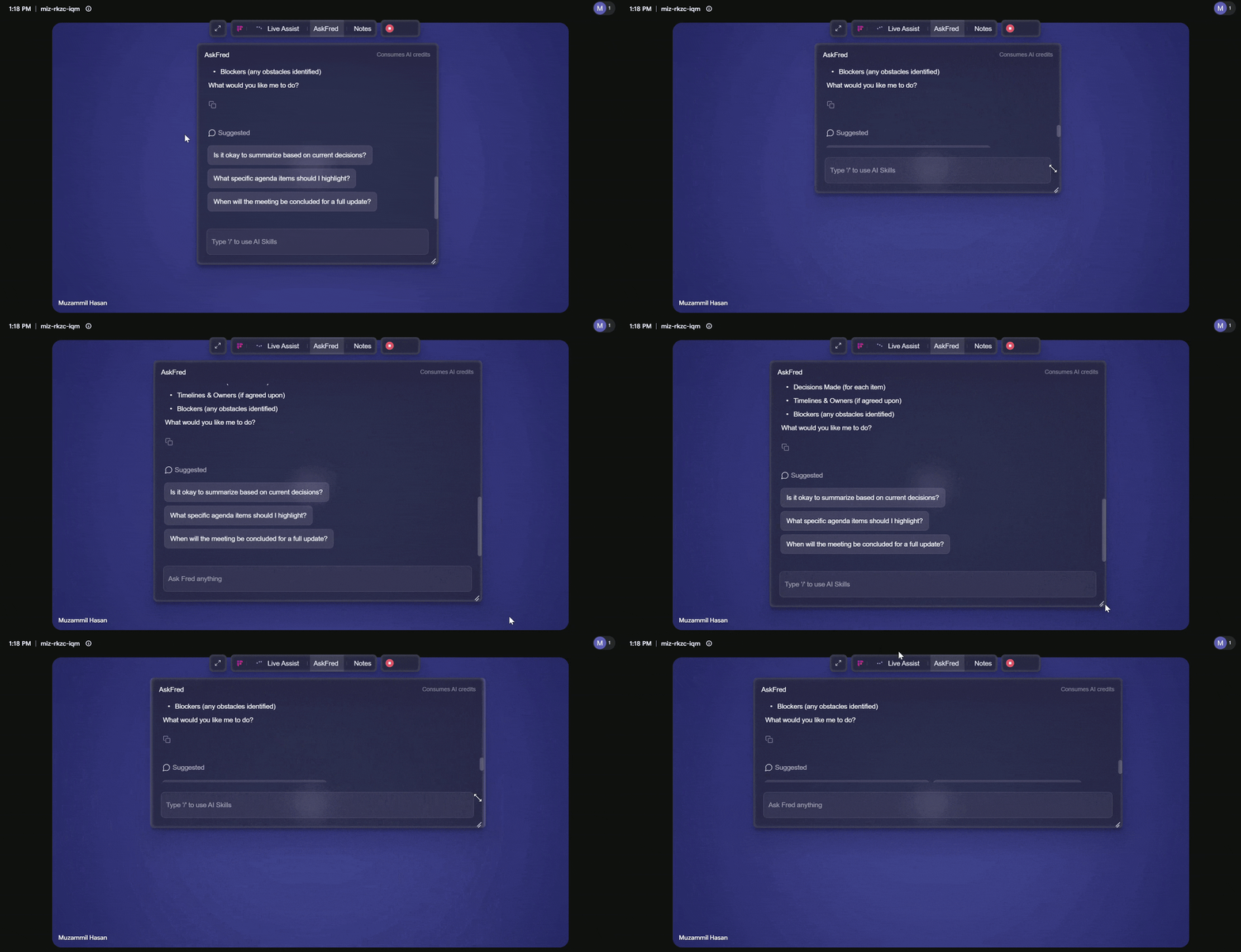
The Floating Pane is a sleek, movable overlay that gives you quick access to Live Assist while you're recording. It stays on top of other windows, allowing you to view live transcripts, ask questions, generate AI insights, and take notes without leaving your meeting.
By default, the Floating Pane auto-opens when Fireflies joins a meeting (as a bot) or captures system audio (without a bot).
Key features:
Drag it anywhere: Click and drag the top toolbar bar to reposition the pane on your screen.
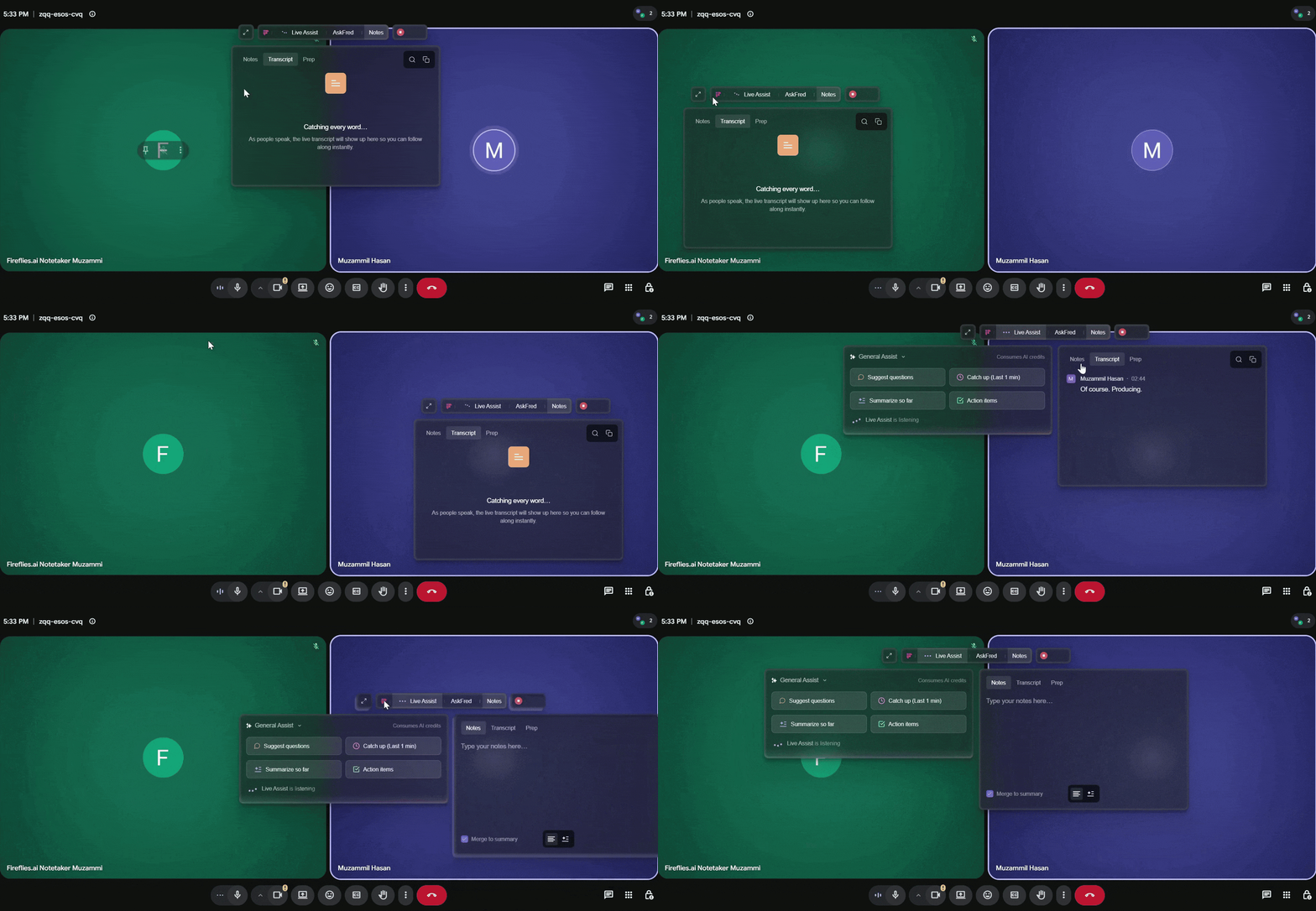
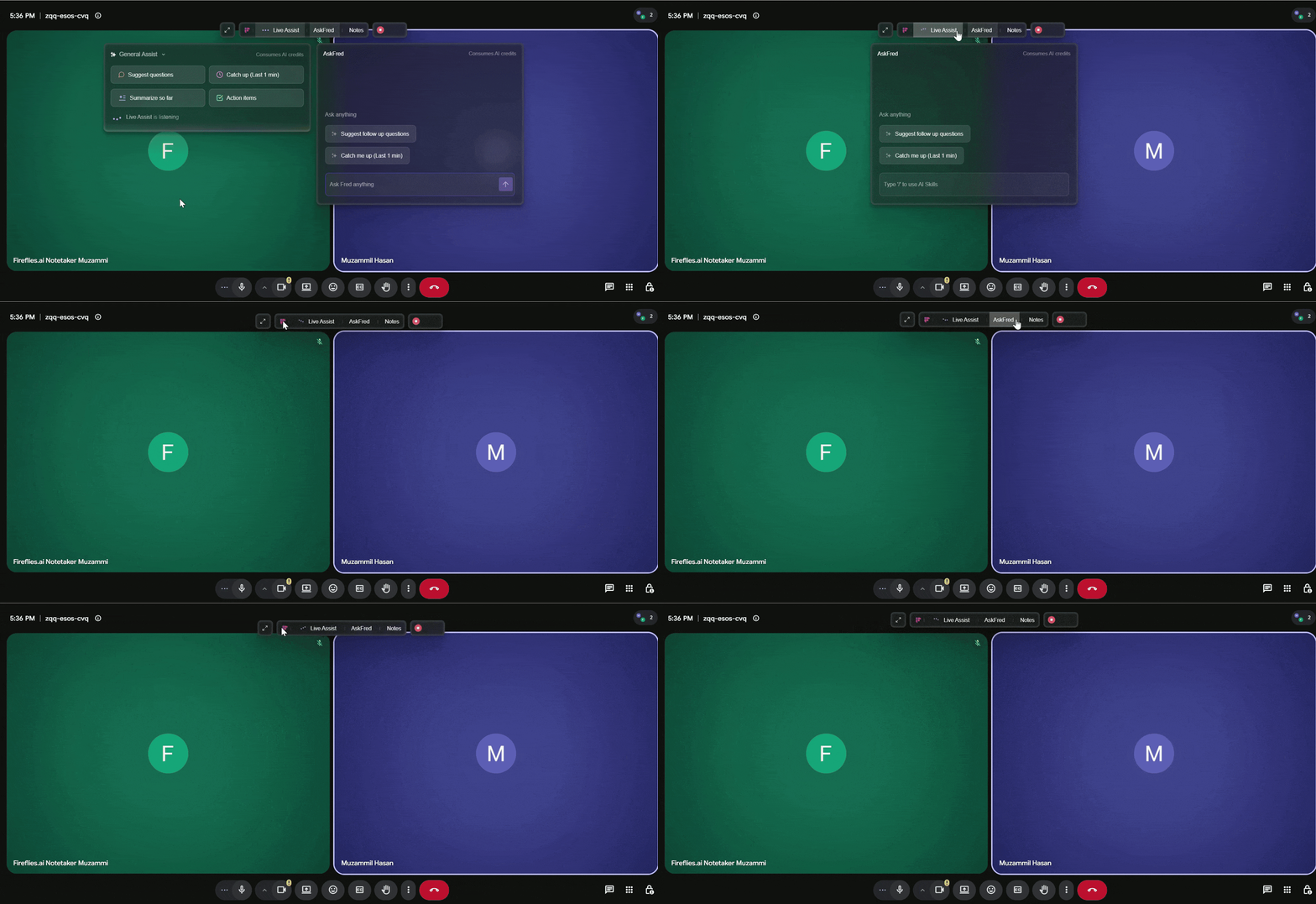
Collapse/Expand: Floating pane can be collapsed into a compact floating toolbar that remains visible on your screen. From the toolbar, you can quickly switch between Live Assist, AskFred, and Notes, and reopen any panel when needed.
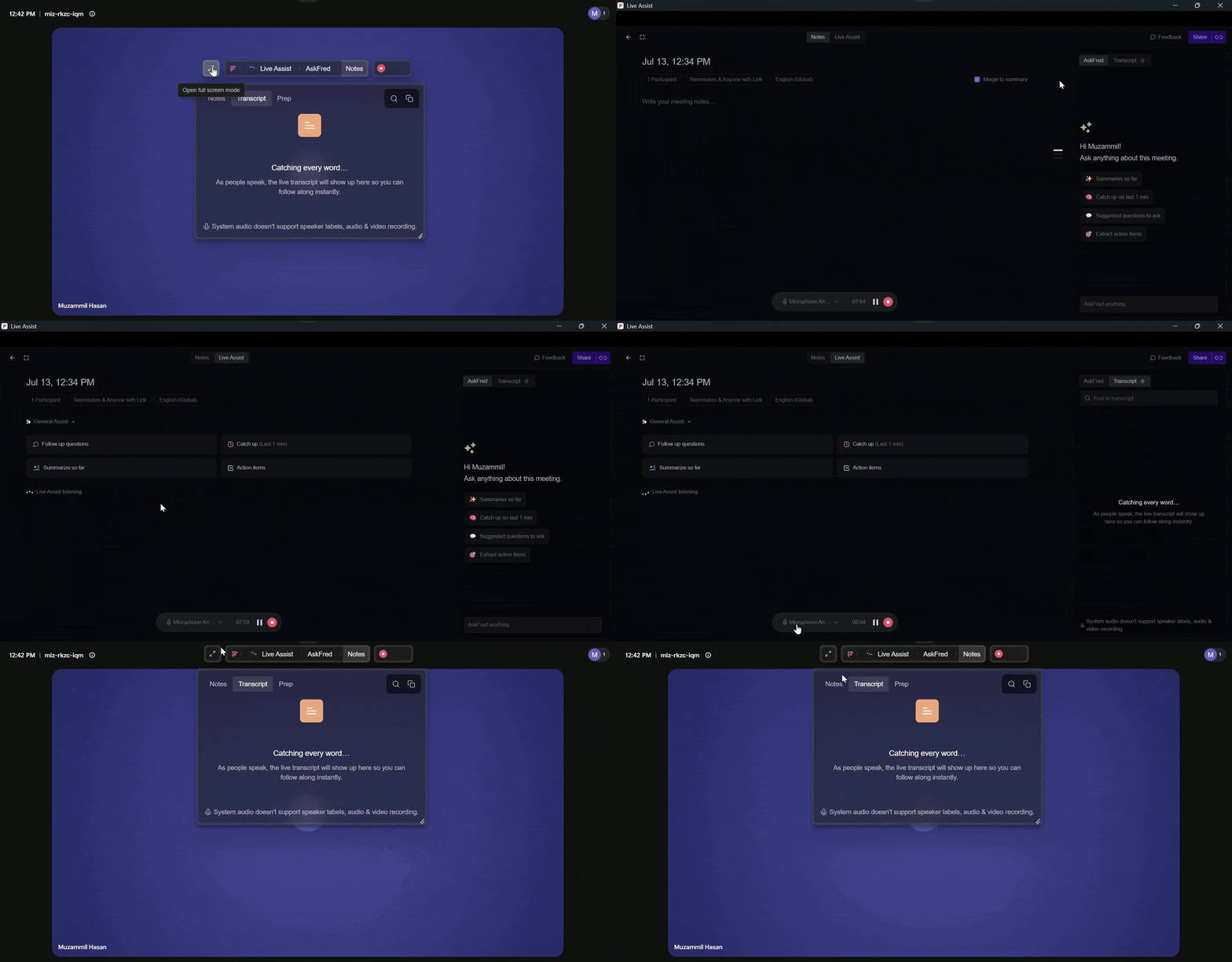
Full screen mode: Click the Expand icon to open the Floating Pane in a larger workspace for easier viewing during long meetings.
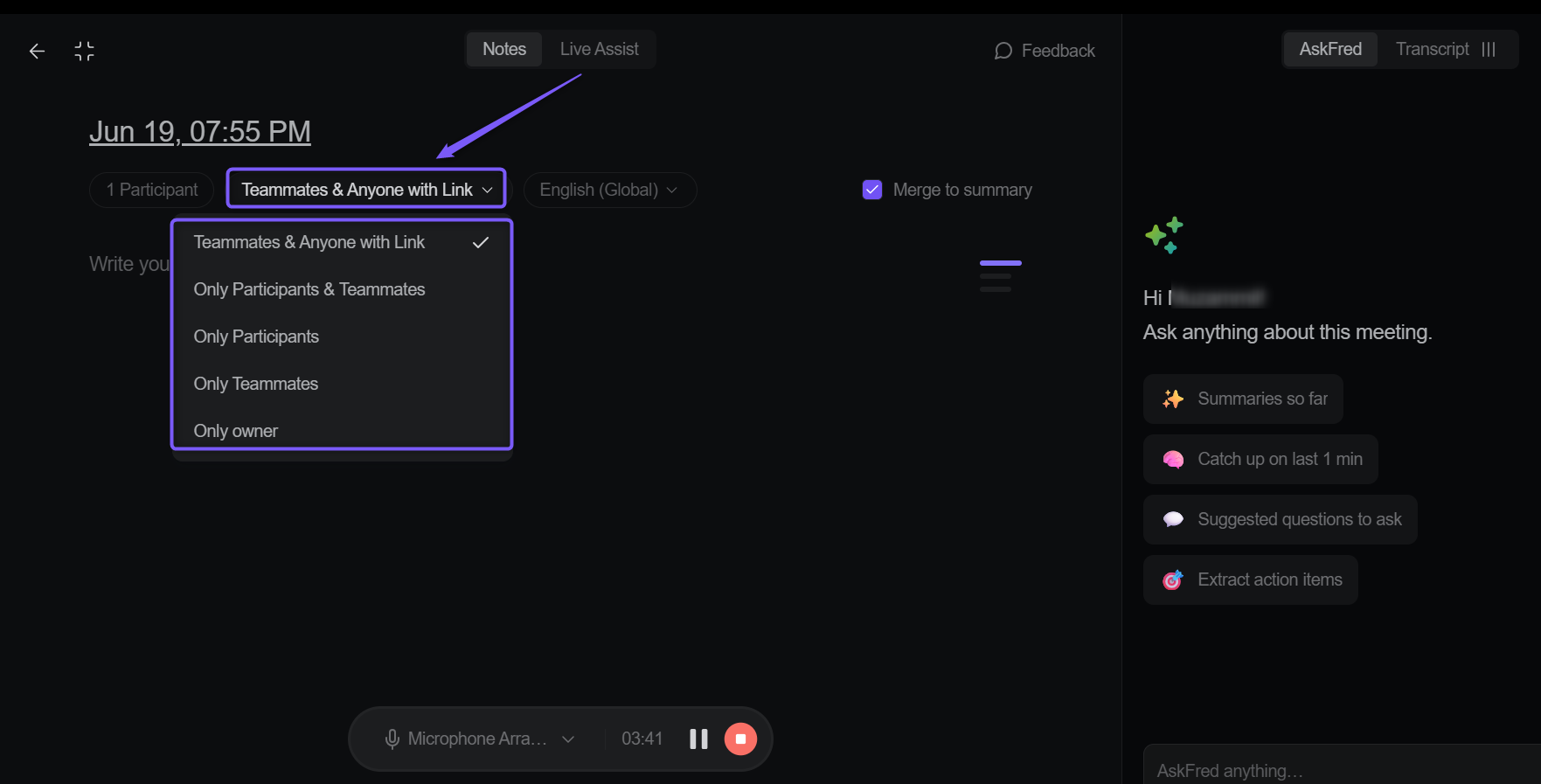
Privacy controls (host only): Control who can access the meeting notes and Live Assist view by choosing whether they're visible to Only Me, Meeting Participants, Teammates, or Anyone with the link.
Live Assist: Follow the live transcript and use built-in AI prompts such as Catch Up, Summarize, Action Items, and Follow-up Questions while your meeting is in progress.
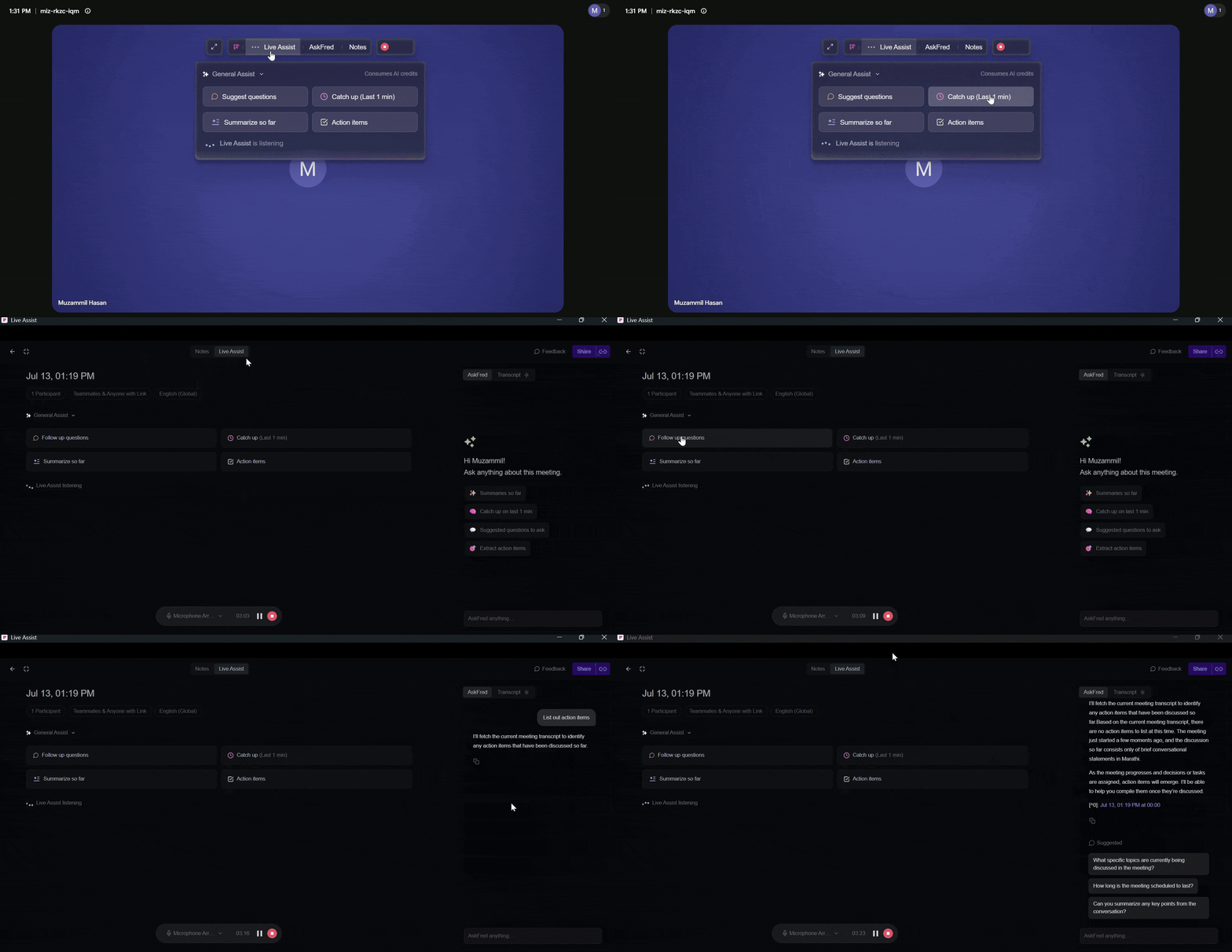
AskFred: Ask questions about the current meeting, generate summaries, extract action items, or access AI Skills by typing / in the AskFred chat to browse and run available skills.
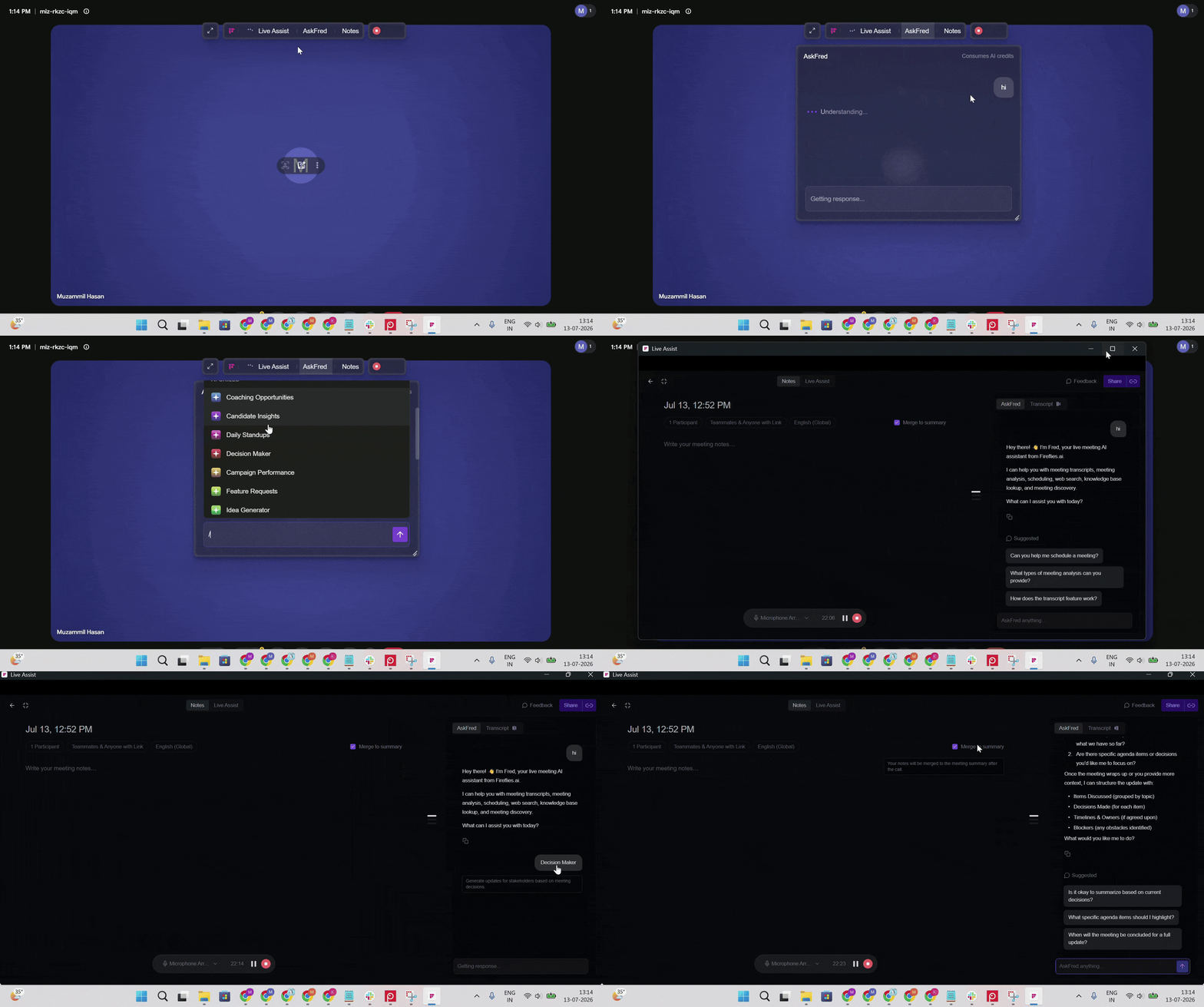
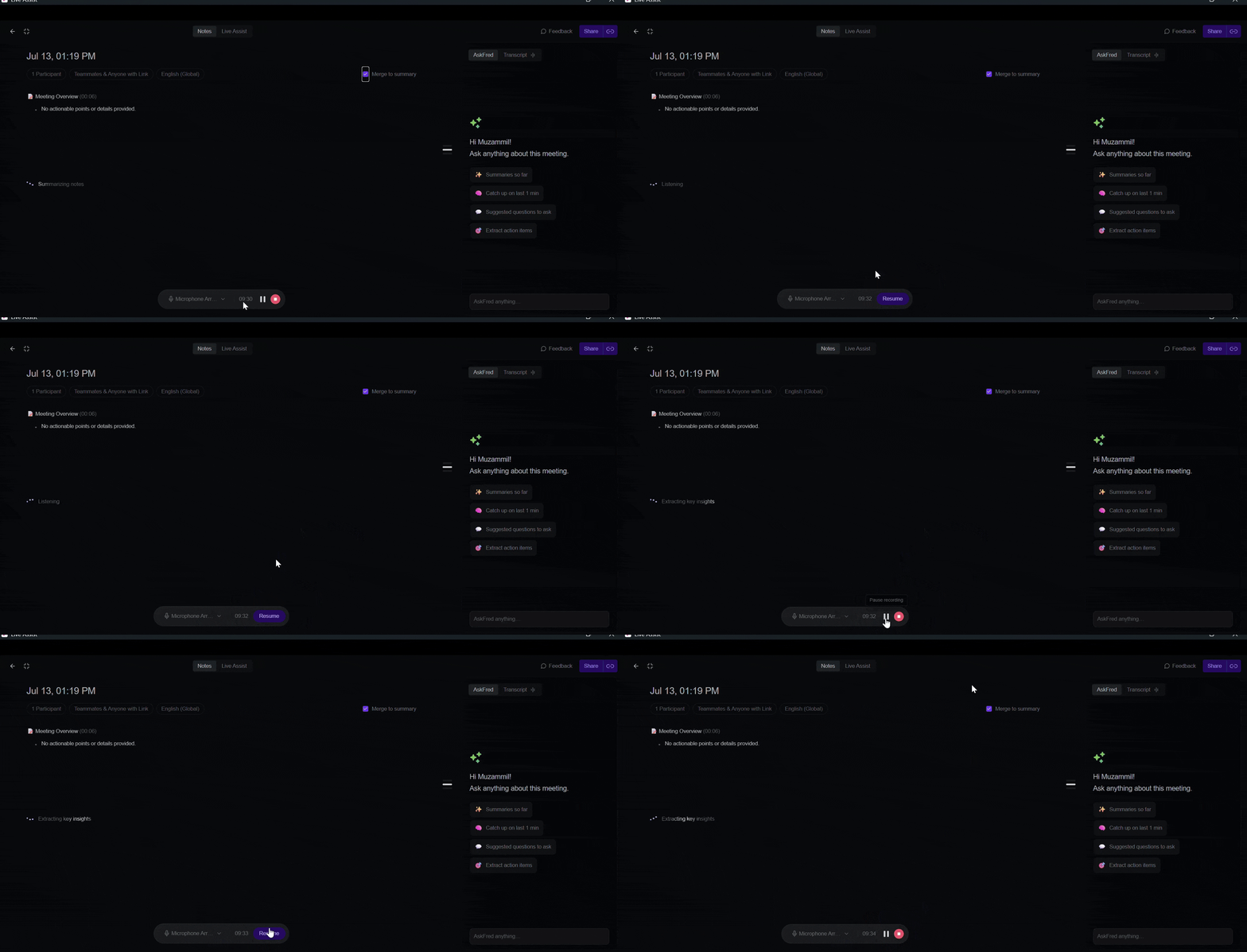
Pause/Resume Recording: Temporarily pause the recording during a meeting, then click Resume to continue recording without starting a new recording.
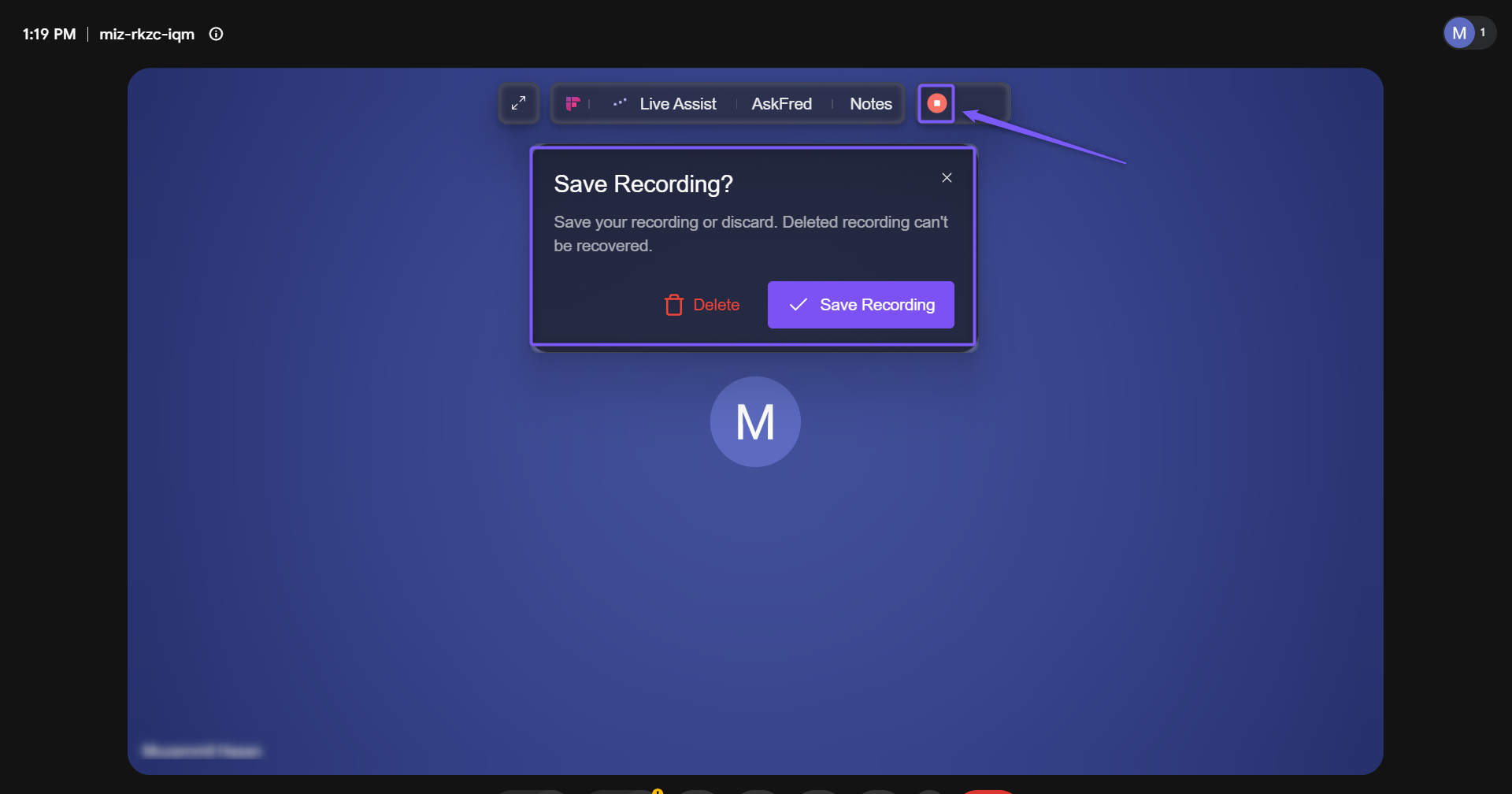
Stop recording: Click Stop to end the recording. You'll be prompted to either Save Recording or Delete it before closing the session.
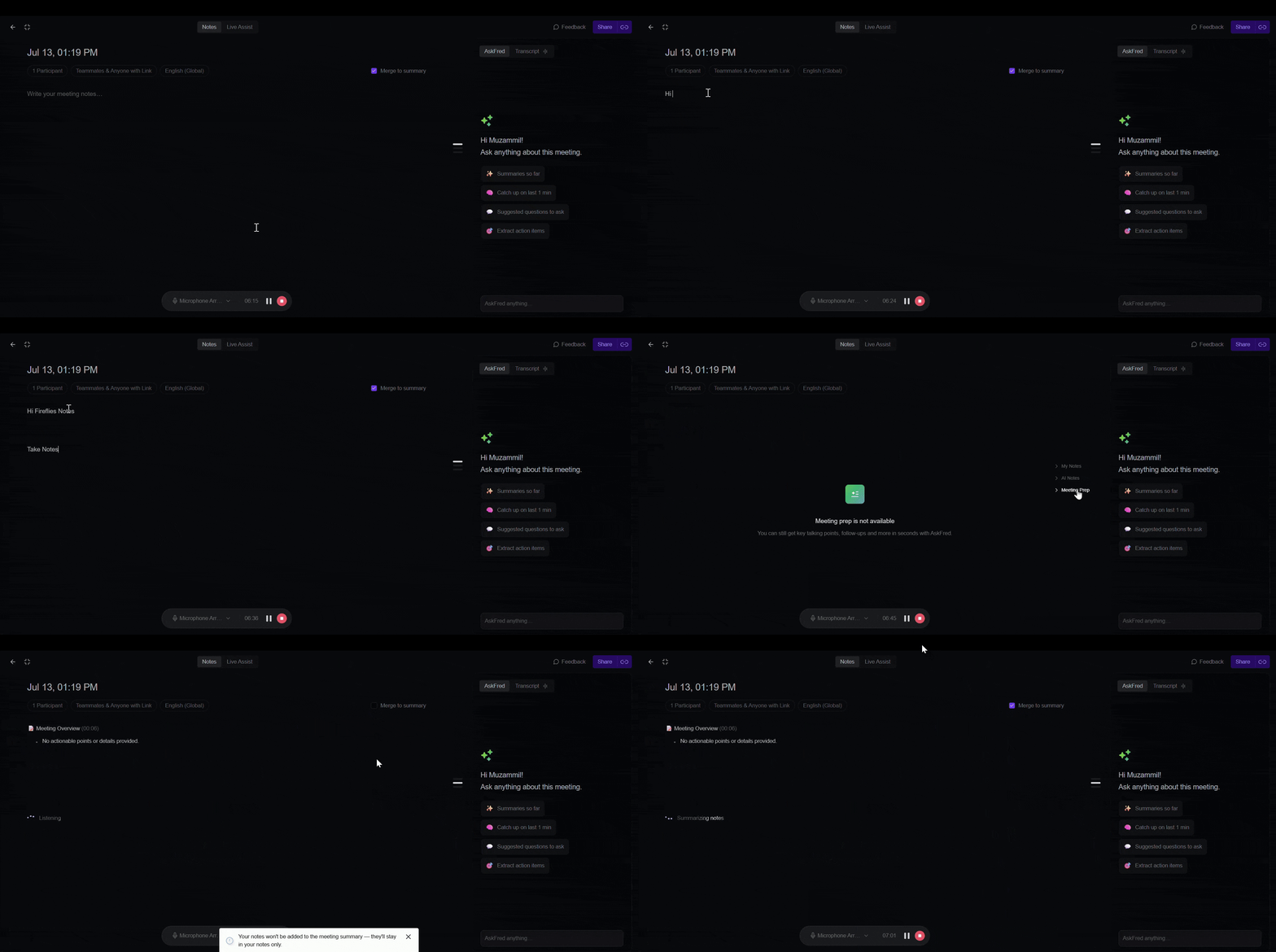
Notes: Create personal meeting notes during the meeting, organize them into My Notes, AI Notes, or Meeting Prep, and choose whether to merge your notes into the final AI meeting summary.
Resize: Drag the bottom-right corner of the Floating Pane to resize it as needed.
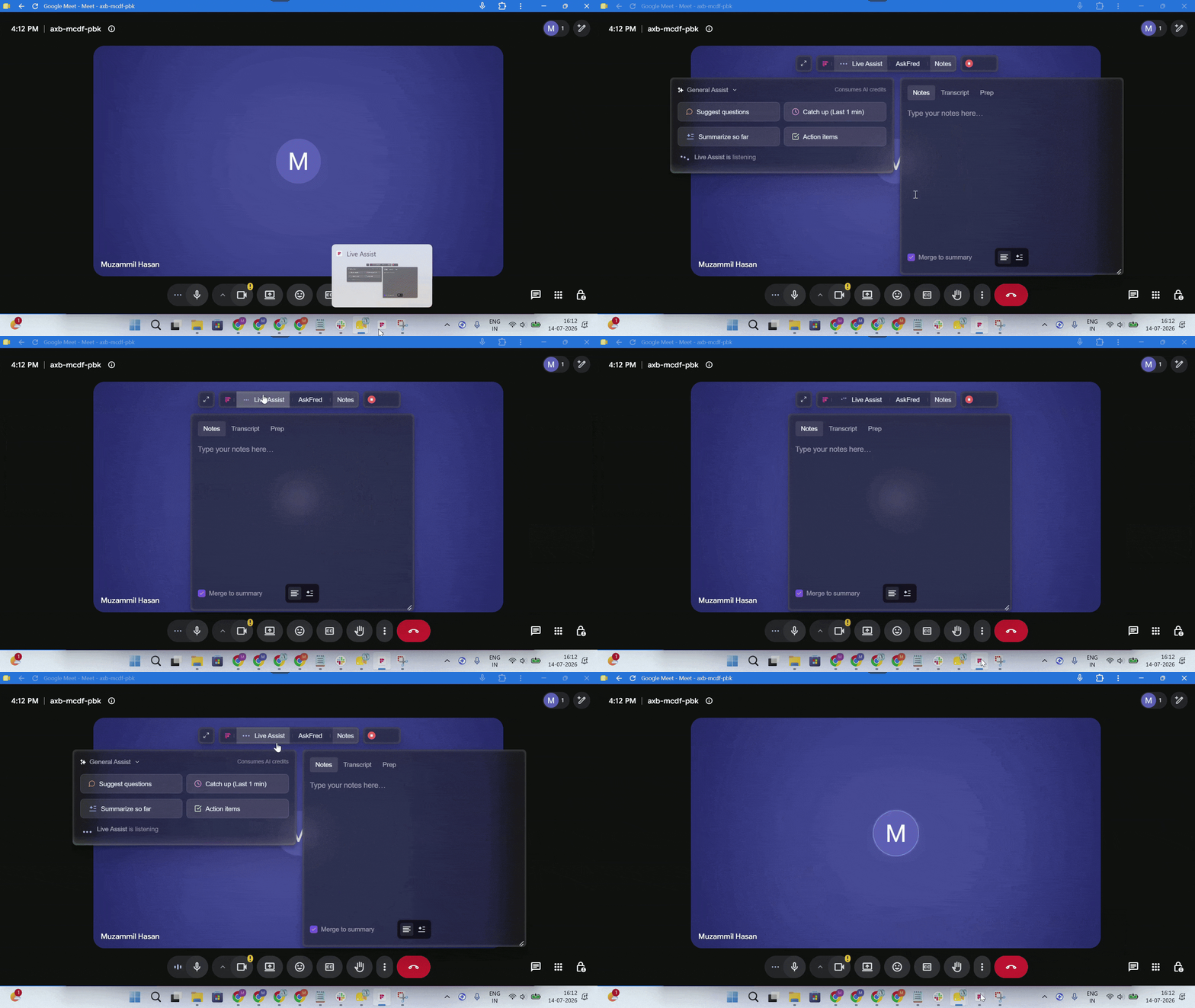
Hide/Reopen the Floating Pane: Click the Fireflies Desktop App icon in your taskbar (Windows) or Dock (macOS) to hide the Floating Pane. Click the icon again to reopen it.
Screenshare privacy: By default, the floating pane is not visible during screen sharing, ensuring your Live Assist panel remains private while presenting. If you want it to appear while screen sharing, you can change this setting in the Desktop app.
⚡ Live Assist (Real-Time Notes & Insights)
Live Assist shows live notes, transcripts, action items, and AskFred answers during meetings, all in a floating panel on your desktop. It helps you follow the conversation without switching apps.
👉 Learn more: See how Live Assist works during meetings on desktop
💼 Sales Assist (Real-Time Suggestions for Customer Calls)
Sales Assist works inside Live Assist and provides knowledge-based answers and follow-ups during customer conversations. It pulls from your uploaded knowledge base and uses AI credits for each suggestion.
👉 Learn more: Learn how to use Sales Assist during customer calls
⚡ Instant Summaries (Post-Call)
When your meeting ends, Fireflies generates a Quick Summary within seconds, giving you an immediate overview of the discussion. The meeting then opens in the post-meeting workspace, where you can review your recording, notes, AI-generated tasks, AskFred, and transcript.
Approximately one minute later, Fireflies automatically refines the Quick Summary into a complete AI-generated meeting summary.
👉 Learn more: Understand how Instant Summaries work after meetings
🔔 Desktop Notifications
The Fireflies Desktop App sends notifications to help you capture meetings at the right time. Depending on how Fireflies detects your meeting, you'll see one of the following notification types.
1. Calendar Meeting Notification
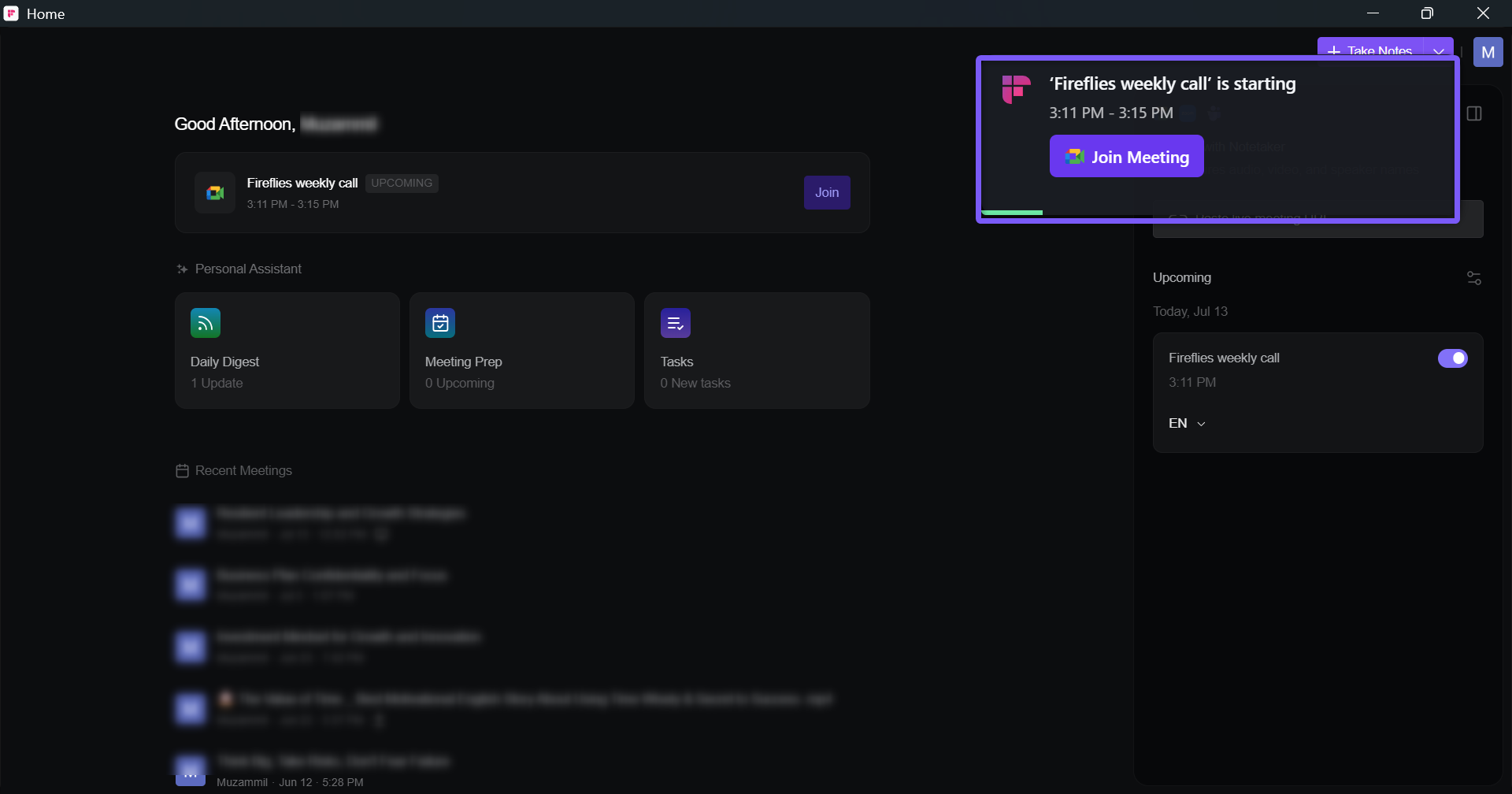
Calendar Meeting Notifications appear before your scheduled meetings based on the reminder time you select in Settings → Notifications → Upcoming meeting notification (for example, 10 minutes before, 5 minutes before, 2 minutes before, or At event time).
These notifications display the meeting name and scheduled time, and provide a quick Join Meeting button so you can join your meeting directly from the Desktop App.
If Fireflies.ai Notetaker is enabled for the meeting, it will automatically join according to your meeting preferences.
2. Meeting Detected Notification
Meeting Detected notifications appear when Fireflies detects an active meeting from a supported app or browser.
From this notification, you can:
Take Notes to immediately start capturing the conversation using system audio.
Invite Notetaker to have Fireflies.ai Notetaker join the meeting.
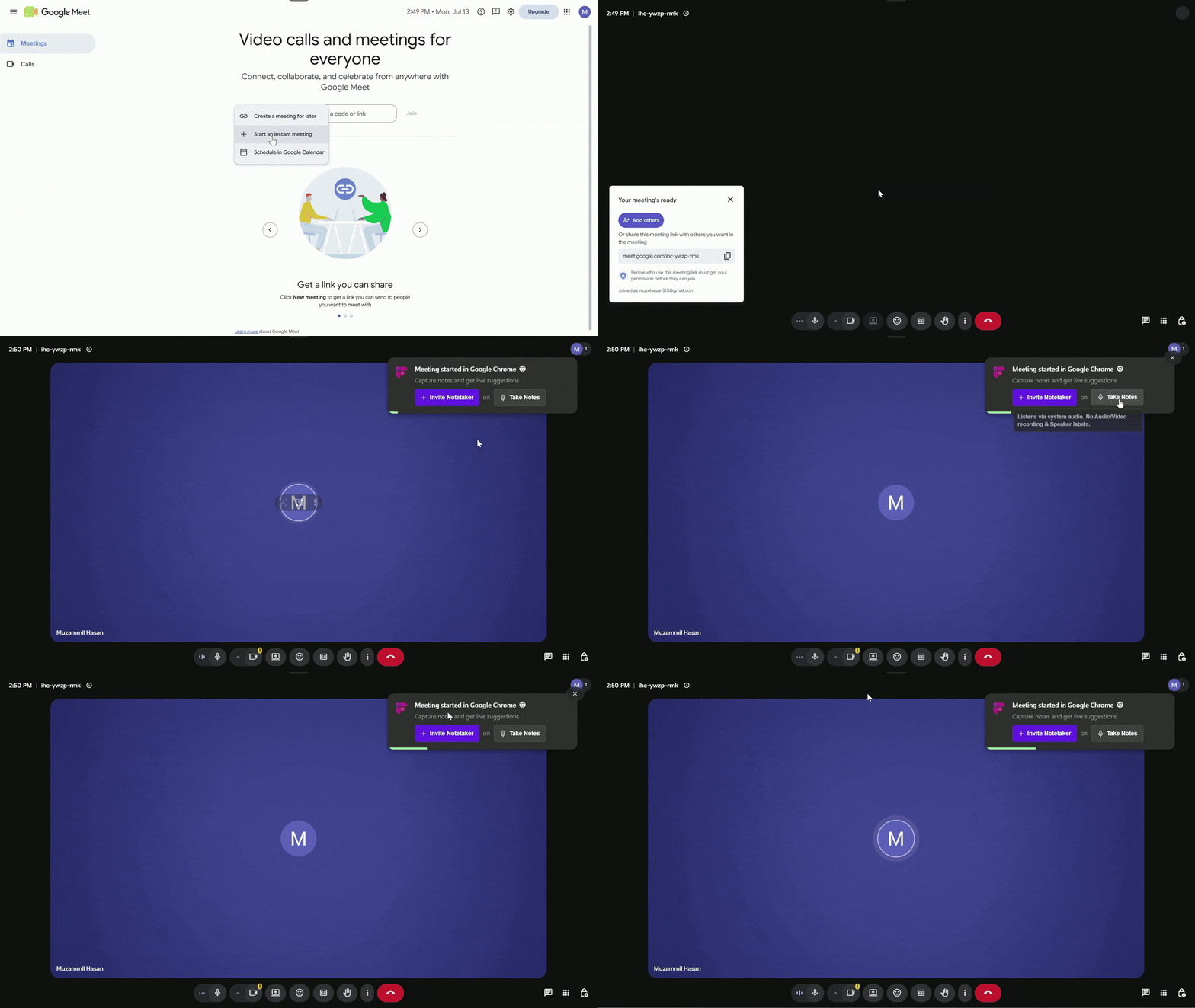
If Fireflies can't automatically detect your meeting, you can manually invite Fireflies.ai Notetaker later from the Add Notetaker to Live Meeting section by entering the meeting URL.
🔄 Recap
The Fireflies Desktop App helps you capture meetings, stay productive during conversations, and review everything you need - all without leaving your desktop.
Record meetings with Fireflies.ai Notetaker (bot) or Take Notes (system audio).
Auto-detect meetings and quickly start capturing conversations.
Use Fireflies Talk to dictate text directly into the apps you use.
Use the Floating Pane to access Live Assist, AskFred, transcripts, and notes during meetings.
After a meeting ends, the meeting opens in the Desktop App's built-in Notepad, where you can review recordings, notes, transcripts, AskFred conversations, and tasks.
Open any meeting from the Meetings page to review recordings, notes, summaries, transcripts, AskFred conversations, and tasks.
Manage meeting preferences, notifications, and recording settings directly from the Desktop App.
Everything you need to capture, review, and follow up on meetings is available in one place, helping you stay focused on the conversation instead of taking notes.