Sales Assist: How to Use Live Assist for Sales Teams during customer calls
Last updated: June 26, 2026
Sales Assist helps you stay ahead during customer calls by providing real-time answers, dynamic suggestions, and instant insights—all in one panel.
It works during your meetings, letting you:
Get context-aware suggestions right inside the Sales Assist pane while the call is happening
See auto-generated answers based on your uploaded knowledge base
Get real-time answers and suggestions based on customer questions
Engage with follow-up questions and dive deeper into the conversation
🔑 Prerequisites
Before you start using Sales Assist, make sure a few things are set up to ensure smooth functionality during your meetings.
The Fireflies.ai Notetaker must join your meeting for Sales Assist to work.
Knowledge Base: Upload your product knowledge base (PDF, DOCX, XLSX, XLS, CSV, TXT, MD, HTML, or a website URL) so Sales Assist can pull real-time suggestions and answers during calls.
Sales Assist is available on:
Web Dashboard
Desktop App (coming soon)
Two or More Participants: Sales Assist requires at least two people in the meeting, and it only shows suggestions when the other person asks a question (you won’t see suggestions for questions you ask yourself).
Once Fireflies joins the meeting, you’ll automatically get a link to open Realtime Notes—no extra install or manual setup required.
Sales Assist works for all users, including those on free plans. AskFred in Sales Assist uses dynamic AI credit pricing — credits are charged per query, so the number of credits used depends on the complexity and effort required to generate the output. Simpler requests may use fewer credits, while more complex query may use more.
👉🏻 When your credits run out, suggestions will stop appearing and you'll be prompted to top up your credits.
🚀 Navigating to Fireflies Sales Assist
You can open Fireflies Sales Assist in two quick ways—choose whichever feels easier for you:
Option 1: From your meeting chat—When Fireflies joins your call, it automatically posts a default message in the meeting chat with a link to View Realtime notes.
Click this link to open the Live Assist pane immediately.
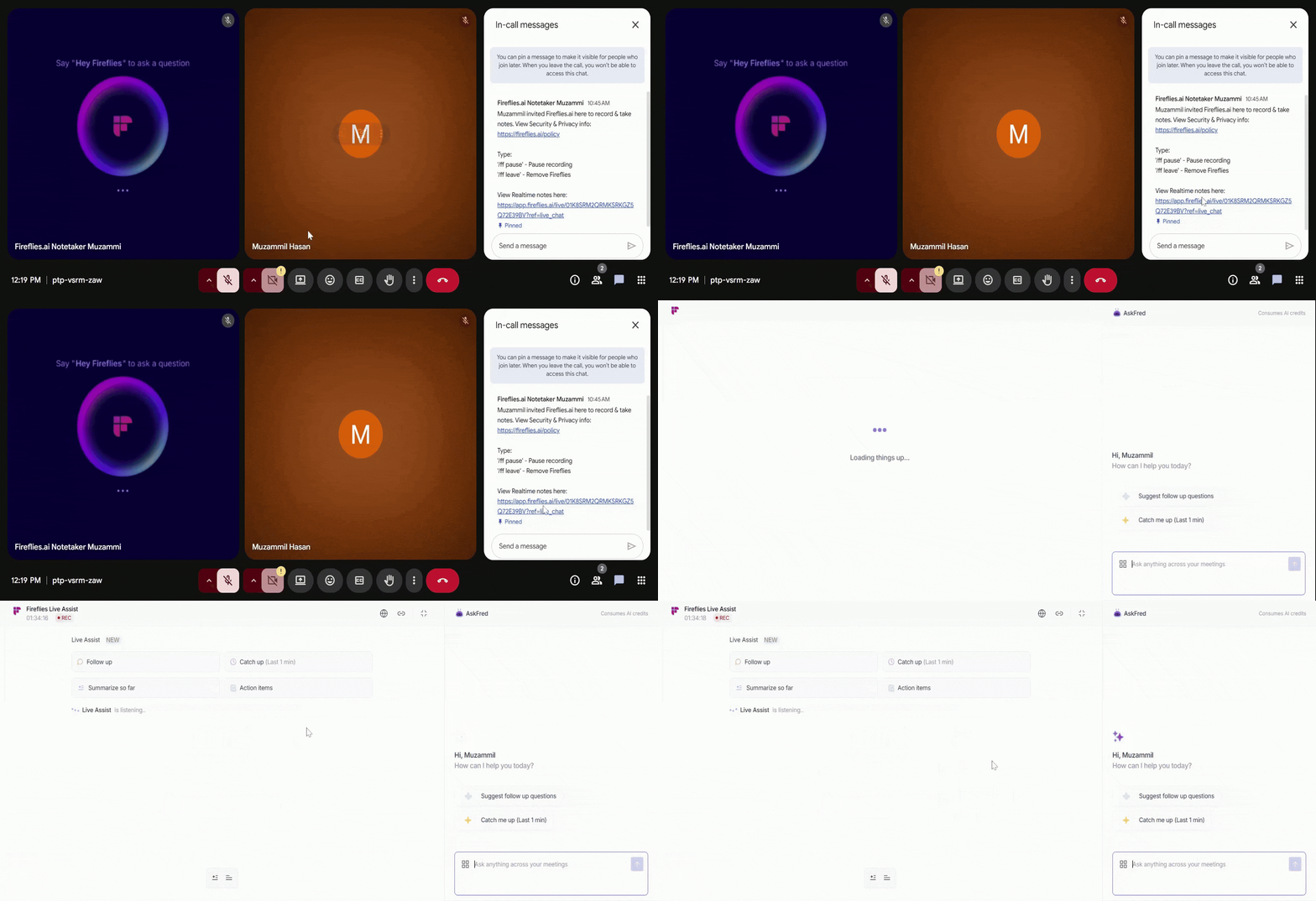
If you don’t see the message right away, wait about 30 seconds—that’s when Fireflies posts the Realtime notes link in the meeting chat. It’s also pinned, so anyone who joins later can easily find it.
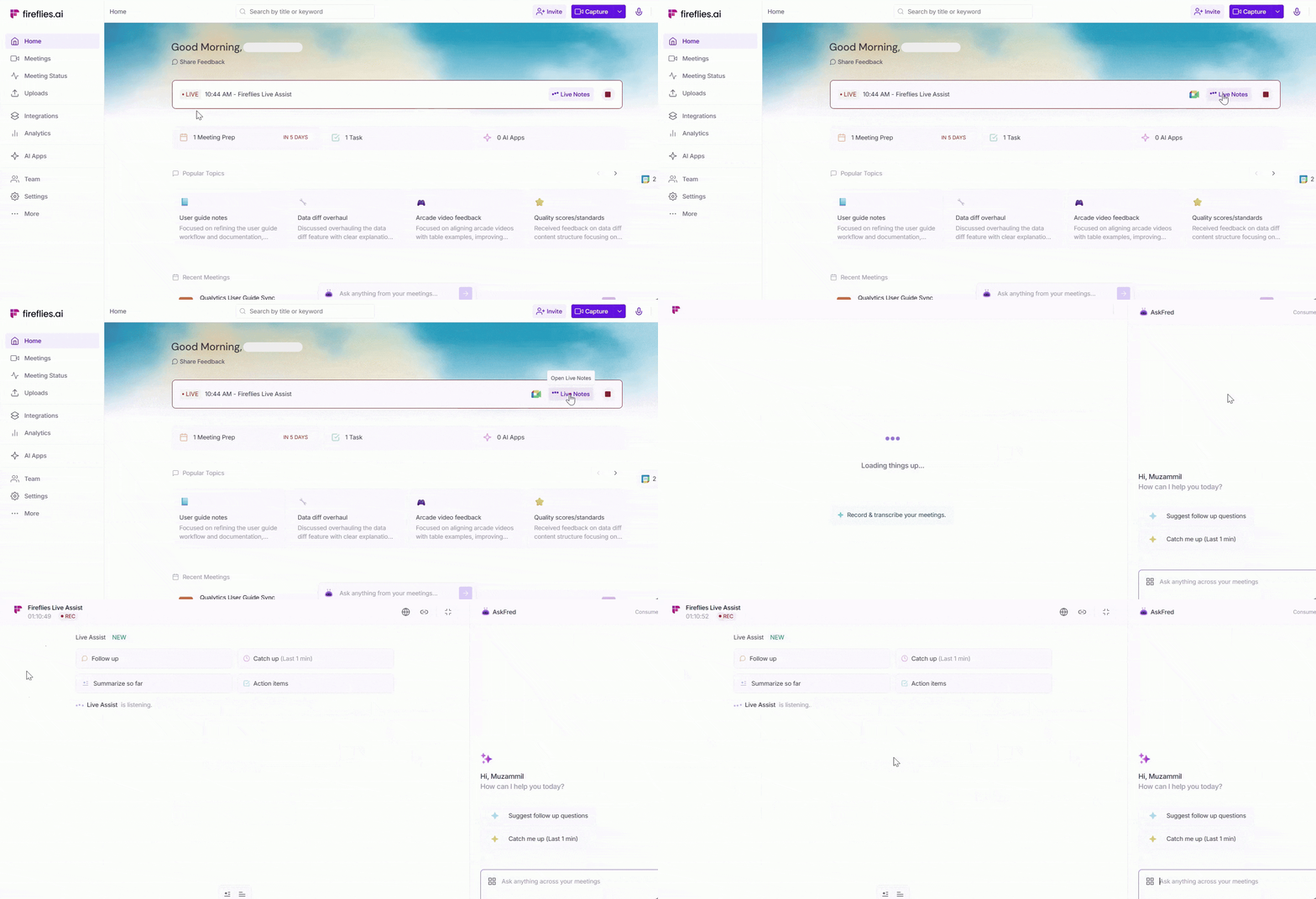
Option 2: From your Fireflies dashboard—You can also open Live Assist directly from the Home Dashboard on the web app. Look for the red LIVE label beside an ongoing meeting, and click Live Notes to open the same Live Assist pane.
🧠 Using Fireflies Sales Assist (Real-Time Suggestions)
Make sure you’re logged in to Fireflies—only logged-in users can access the Sales Assist pane.
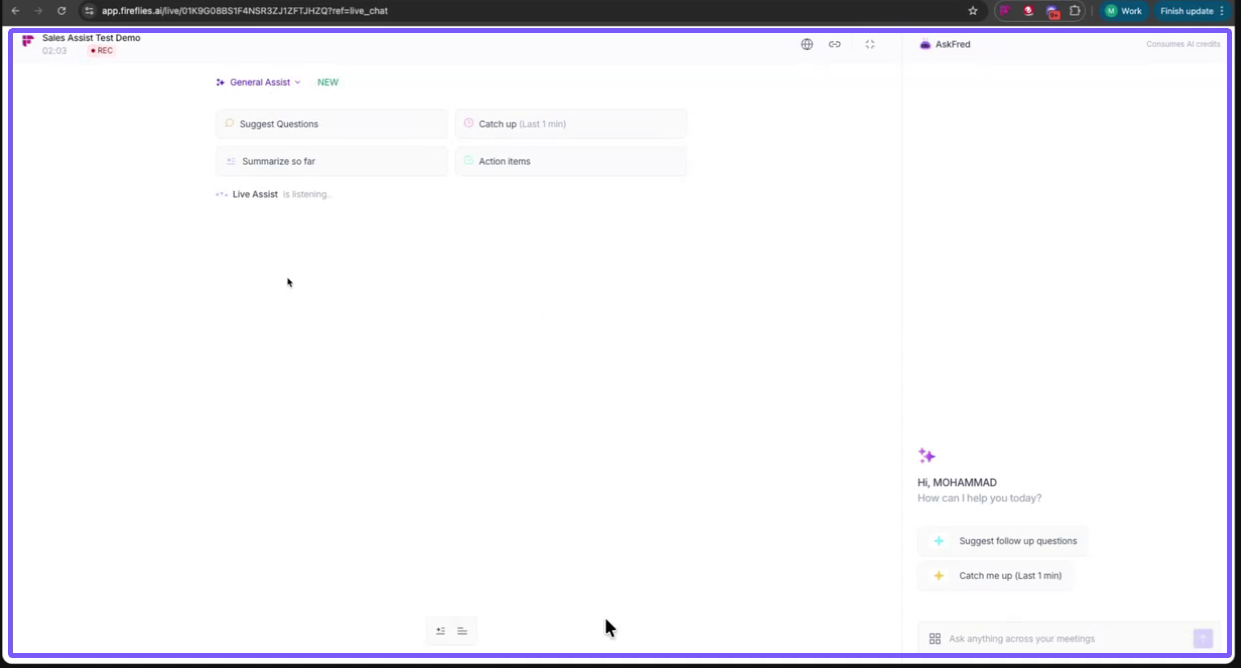
Sales Assist provides real-time suggestions and answers based on your knowledge base. The meeting title and live timer at the top help you track the meeting’s progress.
By default, General Assist (Live Assist) is selected—it works for all meetings without any knowledge base, helping you summarize discussions and identify action items.
1. Upload Your Knowledge Base
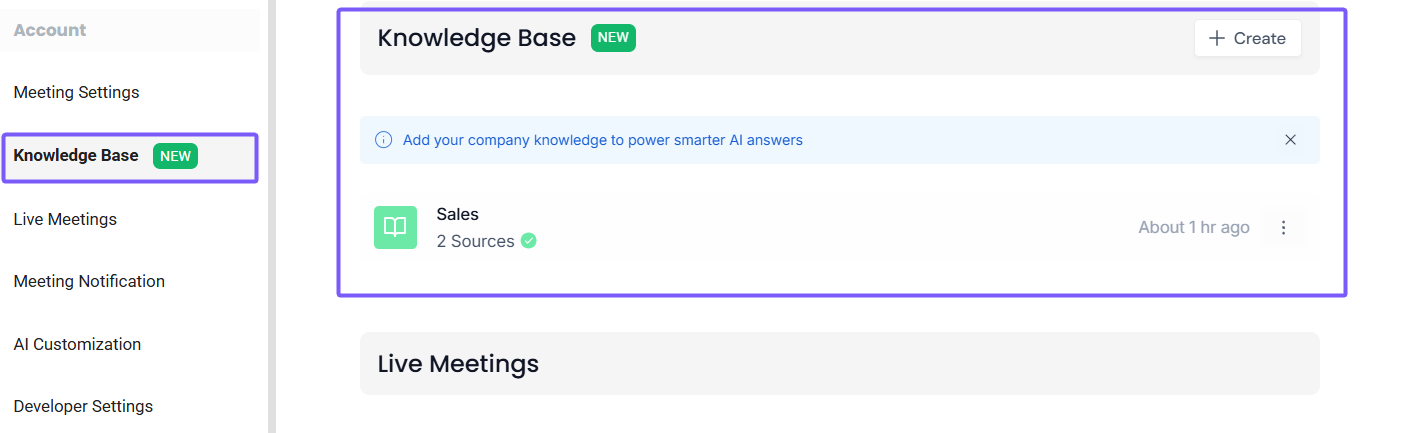
Before using Sales Assist, you need to upload your knowledge base to Fireflies. This ensures real-time, accurate suggestions when customers ask questions during meetings.
Supported Formats: You can upload files such as PDF, DOCX, XLSX, XLS, CSV, TXT, MD, or HTML, or provide a website URL for Fireflies to crawl and extract content.
Once uploaded, Sales Assist can reference this knowledge base to provide dynamic suggestions based on customer queries.
Learn more → [Setting Up Your Knowledge Base for Live Suggestions].
2. Switch to Sales Assist
After uploading your knowledge base, switch to Sales Assist during customer calls for real-time suggestions and answers.
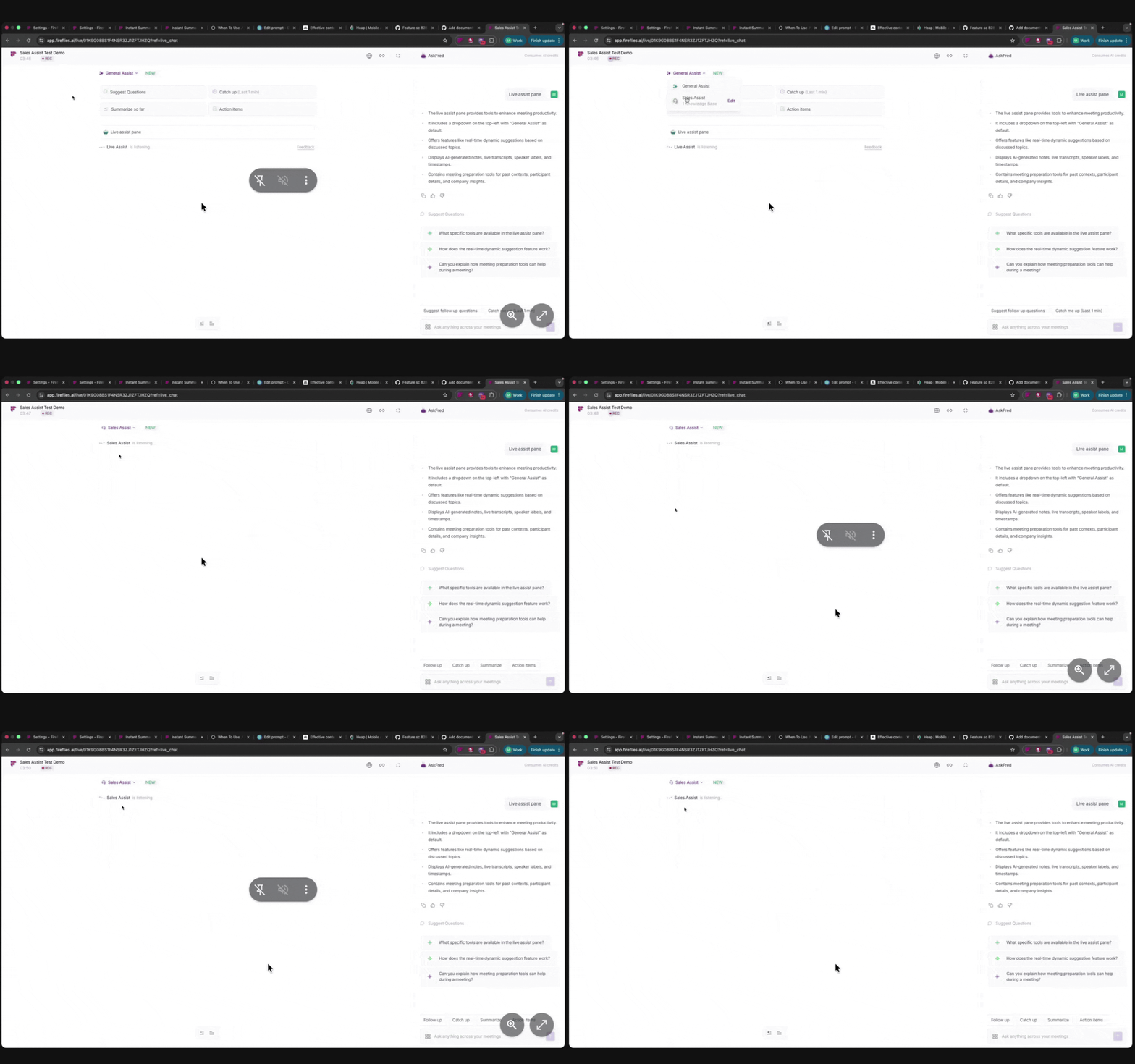
By default, General Assist is selected. To use Sales Assist, simply select it from the dropdown in the Live Assist pane.
3. Select the Knowledge Base in Sales Assist
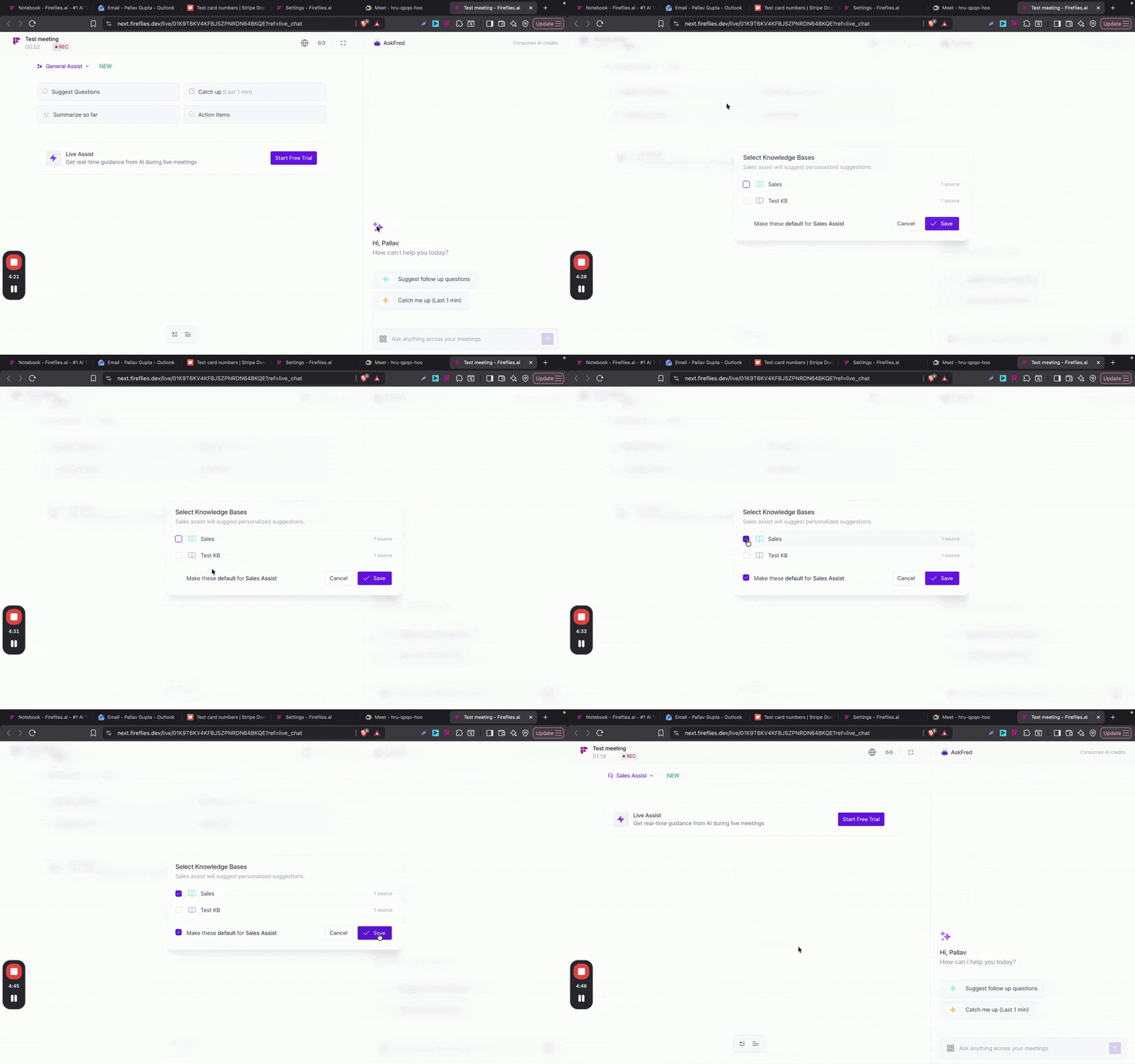
Click the dropdown in the Sales Assist pane and choose Sales Assist.
Select your knowledge base: You’ll see a list of available knowledge bases. Check the box next to the one you want to use.
Make Default (Optional): If you want this knowledge base to be the default for future meetings, check the box labeled “Make these default for Sales Assist.”
Click Save to confirm your selection.
4. Real-Time Suggestions During a Meeting
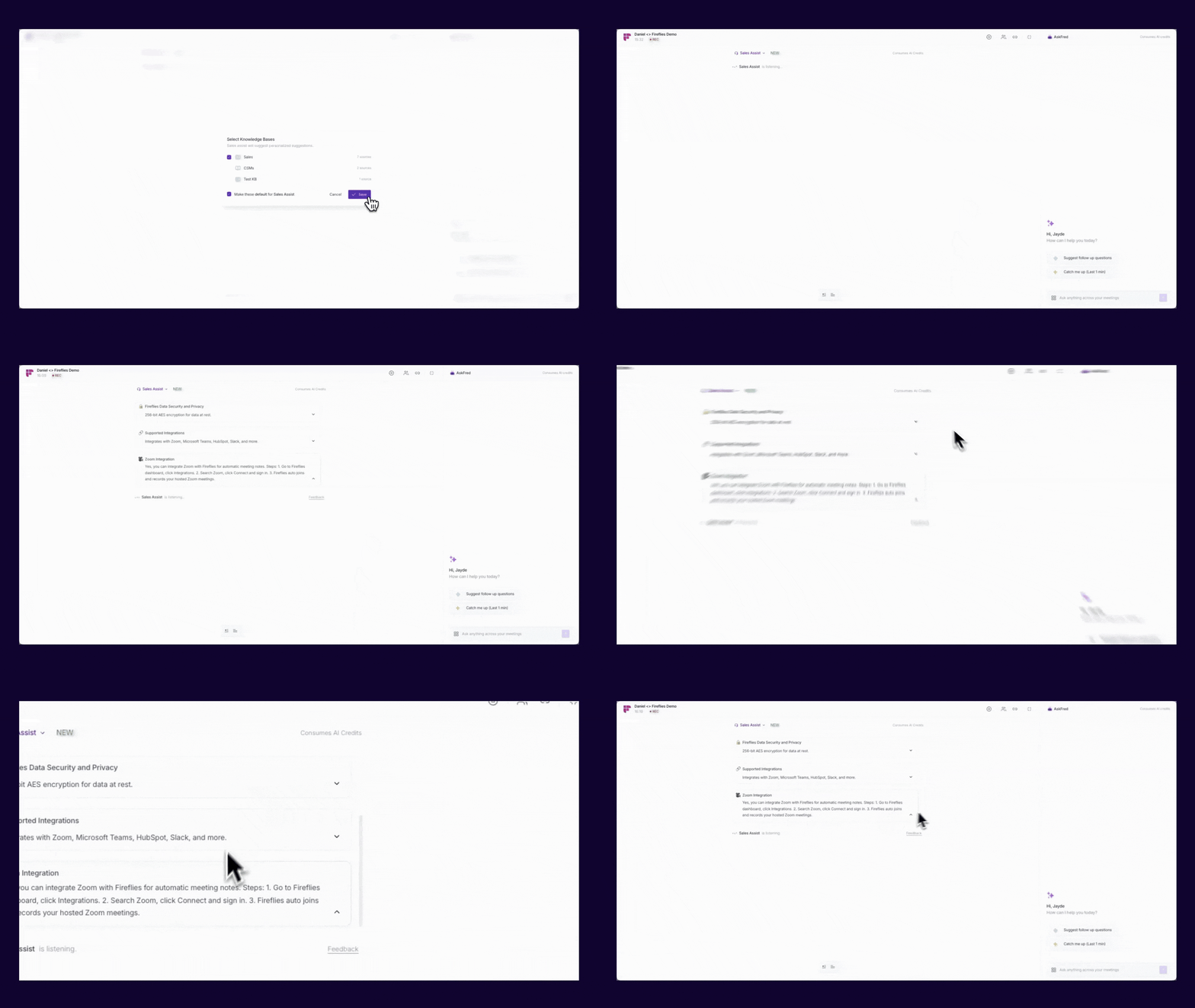
As soon as the prospect asks a question, Sales Assist immediately starts providing auto-generated suggestions based on the knowledge base.
Example:
Customer asks: “What security does Fireflies use for meeting data?”
Sales Assist responds: Displays the answer from your knowledge base, such as “Fireflies uses 256-bit AES encryption for data at rest.”
The suggestions appear automatically as expandable cards in the Sales Assist pane, allowing the salesperson to quickly view the answer and stay on top of the customer’s questions.
Example Follow-up:
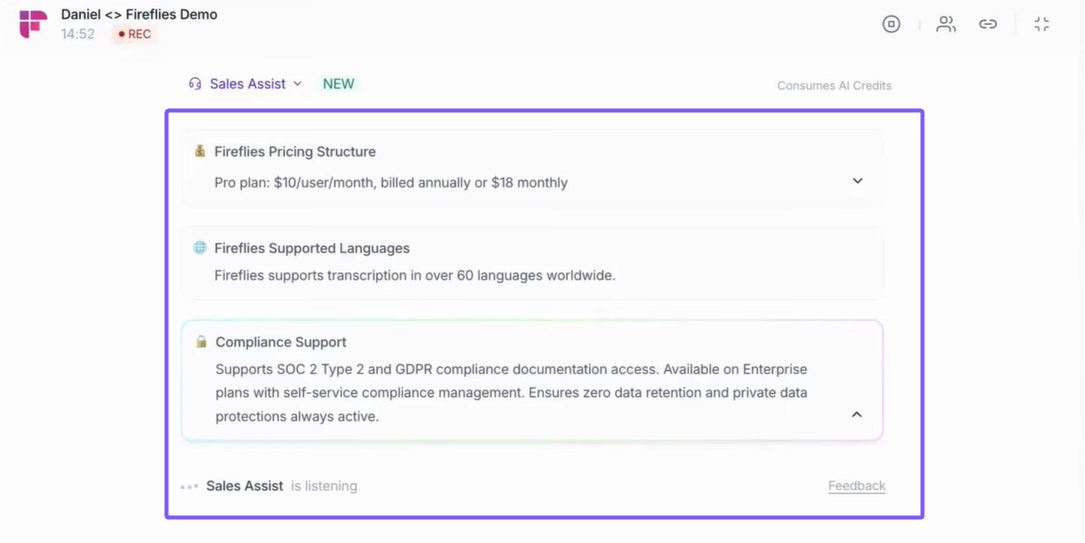
Customer asks: “What is the Fireflies Pricing Plan Structure?”
Sales Assist responds: Displays the answer from your knowledge base, such as “Pro plan: $10/user/month, billed annually or $18 monthly.”
Comprehensive Knowledge Base: To ensure accurate real-time suggestions, upload a comprehensive knowledge base so Sales Assist can pull relevant information during customer calls.
🔍 Troubleshooting & FAQs
1. Sales Assist isn't providing suggestions during my meeting. What should I do?
Make sure Sales Assist is selected in the Live Assist pane.
Confirm that your knowledge base is uploaded and selected.
Sales Assist only shows suggestions when it detects a question AND finds a matching answer in your knowledge base.
If no match exists, no suggestion will appear.
2. Why did suggestions stop appearing during the call?
AskFred in Sales Assist uses dynamic AI credit pricing — credits are charged per request. If your credits run out, suggestions will stop appearing and you'll be prompted to top up your credits.
3. Can I update my knowledge base during a meeting?
No. Knowledge base updates must be done outside the meeting.
After updating, re-select the updated knowledge base in the Sales Assist pane.
4. How do I select the right knowledge base?
In the Live Assist pane, open the dropdown → choose Sales Assist → select your knowledge base.
Fireflies will preselect your most recently used knowledge base by default.
5. What if the suggestions aren’t accurate?
Ensure your knowledge base is comprehensive and up-to-date.
More detailed and structured content improves suggestion accuracy.
6. Can I use Sales Assist for all meetings?
Sales Assist is designed for customer/prospect calls where questions are asked.
For other meetings, use General Assist, which works without any knowledge base.
🔄 Recap
Upload your knowledge base for accurate suggestions.
Switch to Sales Assist in the Live Assist pane.
Get real-time suggestions as soon as the customer asks a question.
AskFred in Sales Assist uses dynamic AI credit pricing based on the complexity of each request.
Keep your knowledge base updated to ensure the best answers.