Fireflies AI Meeting Summaries: View, Customize, Expand, Regenerate
Last updated: July 15, 2026
Want a quick way to capture what happened in a meeting without rewatching the whole recording? Fireflies automatically generates AI-powered meeting summaries after every call, making it easy to review key discussions, decisions, action items, and next steps.
Whether you use Fireflies' built-in summary templates, customize summary sections, or create your own Custom Summary Templates, you can tailor summaries to fit the way your team works.
Workspace Admin?
Looking to keep meeting summaries consistent across your organization? In addition to creating or selecting AI Summary Templates for yourself, you can also set and enforce them for your entire workspace or assign different templates to specific user groups.
Continue reading to learn how to configure workspace-level summary templates.
1. Access your meeting summary
1. Log in to your Fireflies account and open the Meetings tab.
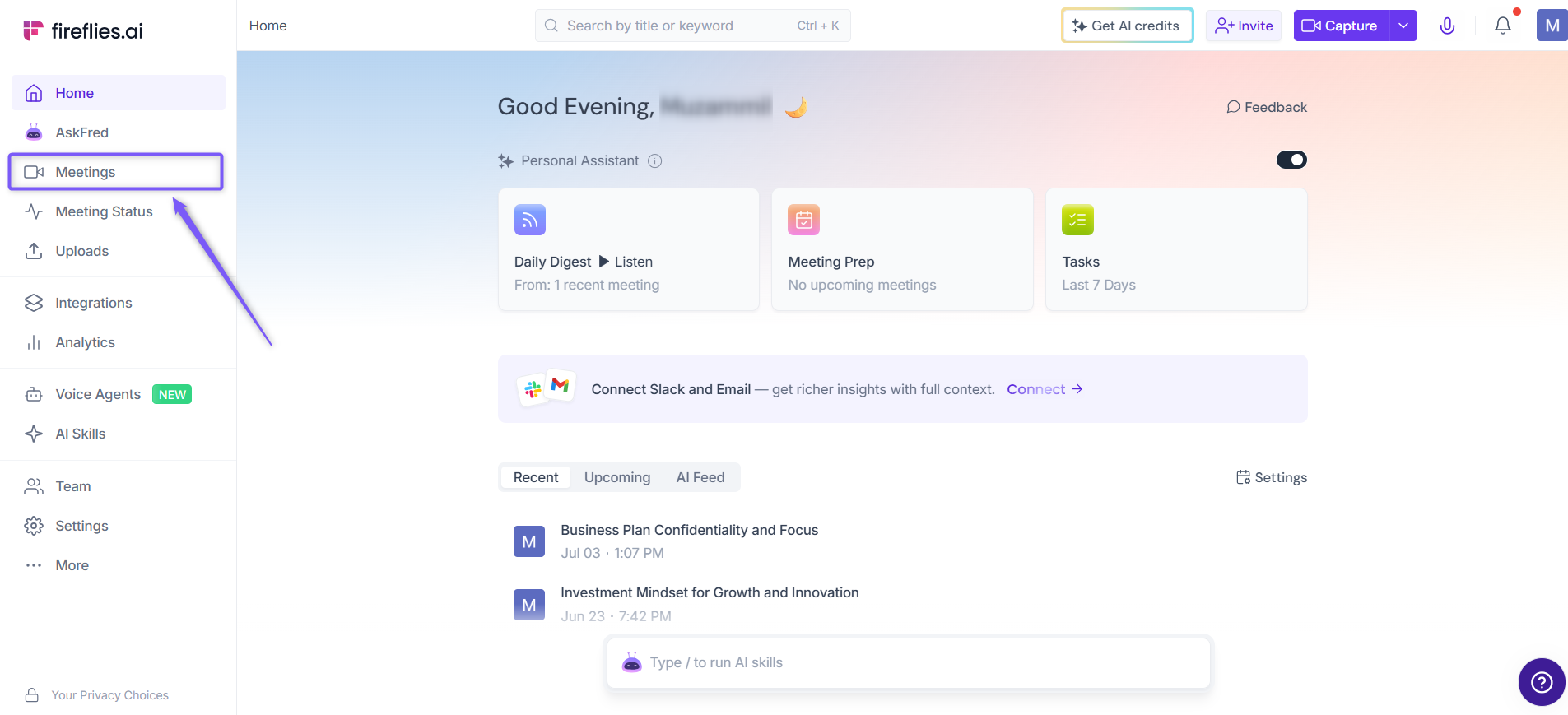
2. Open the meeting where you'd like to create or test your custom summary template.
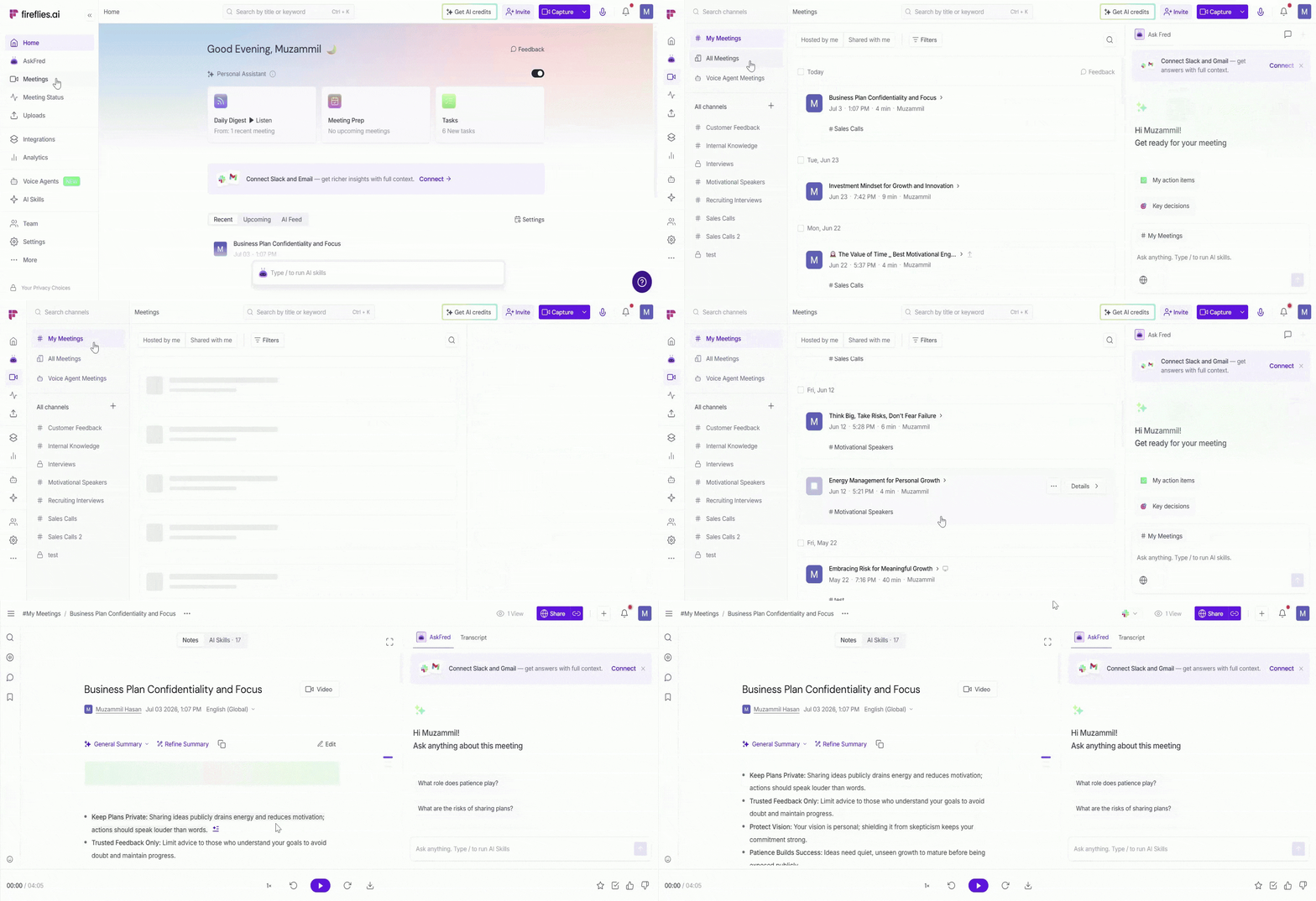
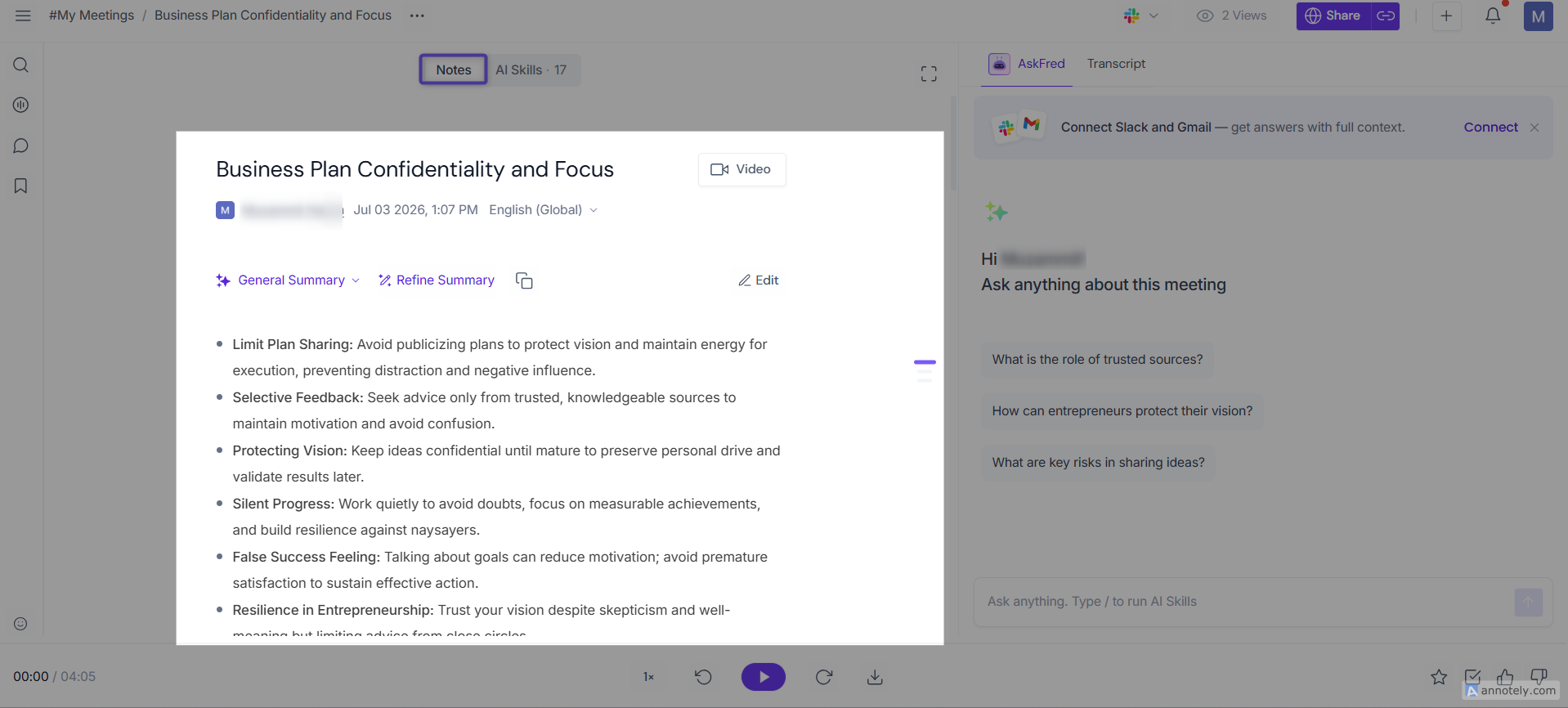
3. Your AI-generated meeting summary appears in the Notes tab in the left panel, where you can review it.
2. What's included in an AI meeting summary?
After every meeting, Fireflies automatically analyzes your conversation and generates a multi-part AI summary to help you quickly understand what was discussed.
The General Summary template includes the following sections by default:
🔎 Meeting Keywords – Highlights the most important keywords from your meeting, helping you quickly identify recurring topics and themes.
📅 Meeting Overview – Provides a high-level overview of the discussion, making it easy to understand the purpose of the meeting at a glance.
📝 Meeting Notes – Organizes the conversation into structured bullet-point notes so you can quickly review the key discussions.
⏱ Time-stamped Notes – Groups meeting notes into timestamped chapters, with each section linked to the transcript so you can quickly jump to the relevant part of the conversation.
✅ Action Items – Automatically identifies follow-up tasks discussed during the meeting and associates them with the relevant speakers for better accountability and follow-ups.
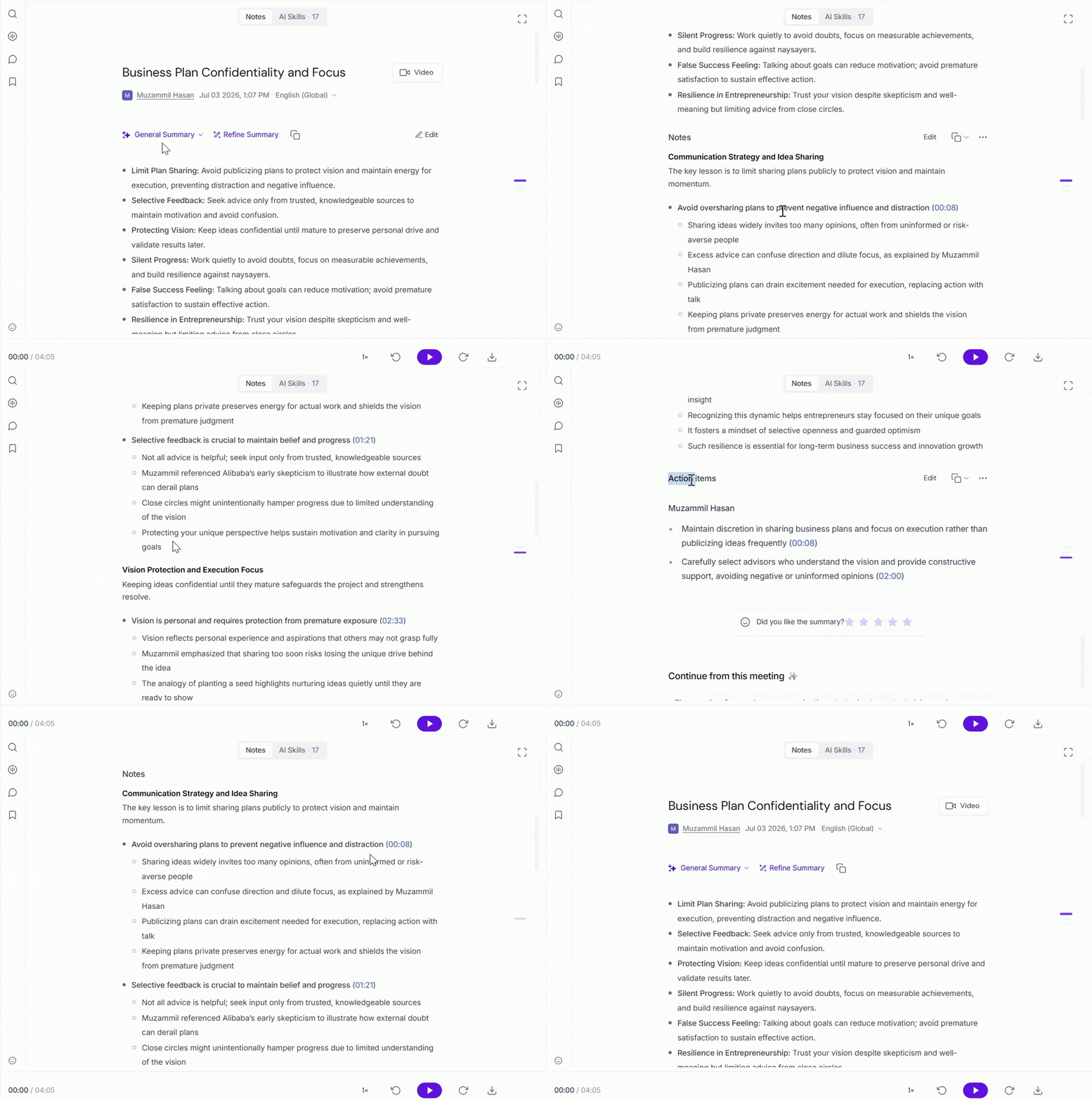
At the end of your summary, you'll see an option to rate the generated summary. Your feedback helps Fireflies continue improving the quality of AI-generated summaries.

🔄 Tip: When you switch to a different summary template (such as Team Meeting, Standup, or a Custom Summary Template), Fireflies regenerates the meeting summary using that template. You can choose to apply the selected template only to the current meeting or make it the default for future meetings.

Want even more insights? You can customize what’s included in your summaries. Keep reading to learn how.
3. Customize your summary templates and sections
Fireflies lets you tailor summaries to match your workflow. This includes choosing from 18+ pre-built templates (like Team Meeting, BANT, Sales Calls)
✔ 1. Pick a summary template
Open a meeting from your Meetings tab.
Click the dropdown next to the summary title (e.g. "General Summary")
Select a template like "Team Meeting," "Sales Calls," or "Interview Summary"
Fireflies will regenerate the summary in a few seconds
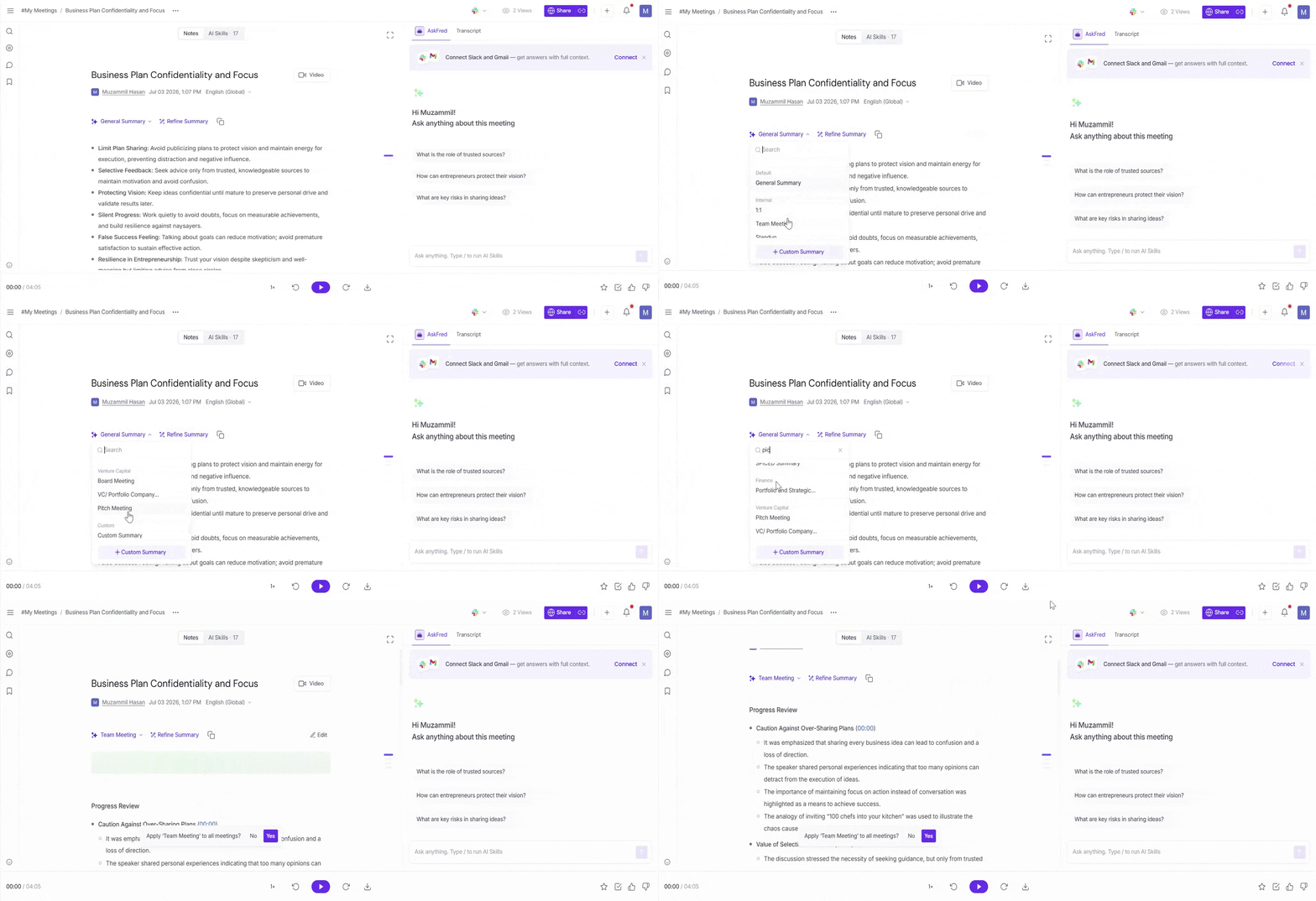
The selected template will auto-populate relevant sections based on the meeting type. Every template you choose—like Team Meeting, BANT, or Sales Call—comes with its own set of default sections. For example, if you pick the “Team Meeting” template, Fireflies automatically includes sections like Progress Review, Challenges, and Upcoming Milestones.
You'll then be asked whether you'd like to apply the selected template only to the current meeting or use it for all future meetings.
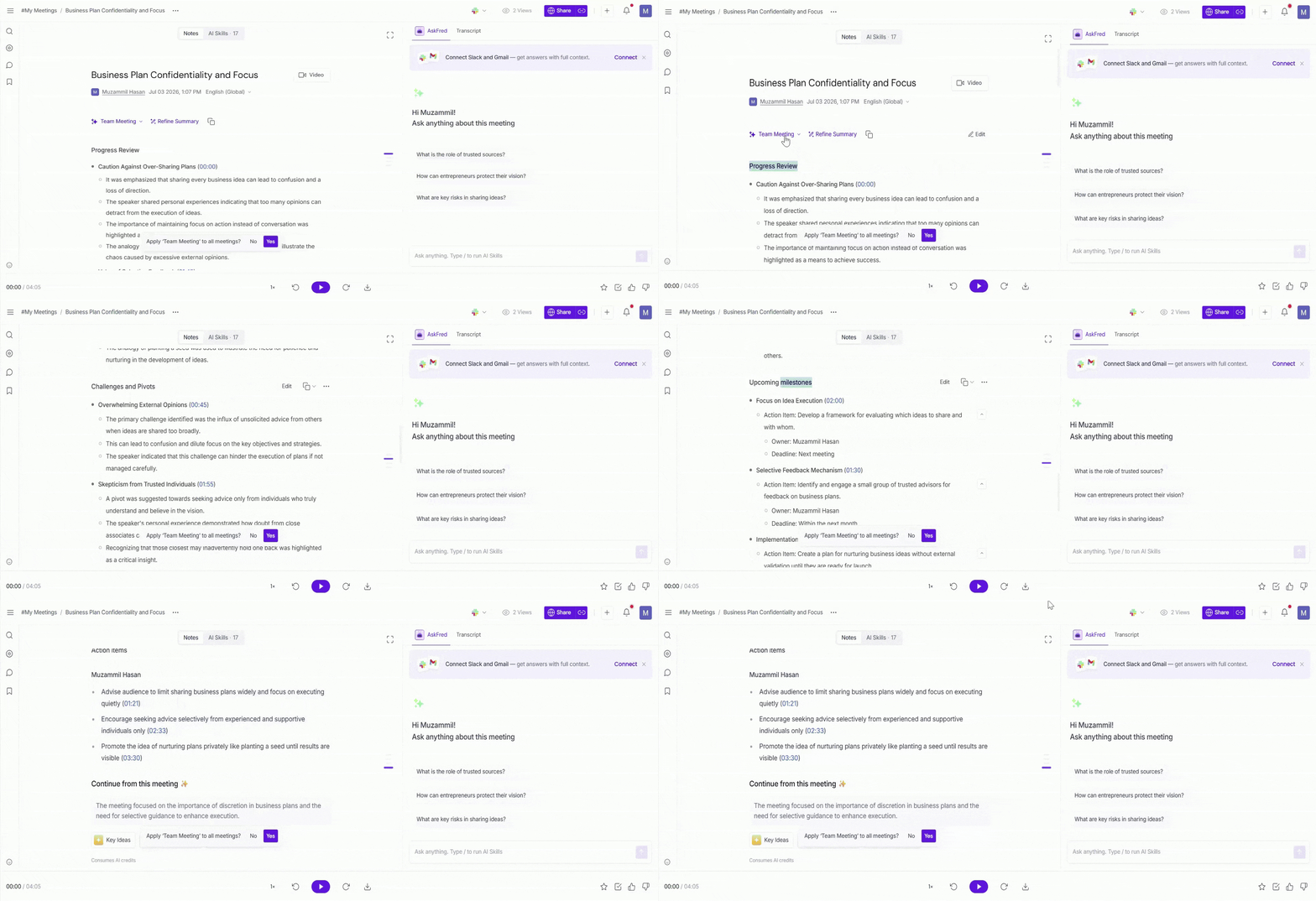
Switching between templates does not consume AI credits
✔ 2. Add or Remove Summary Sections
Need your summary to focus on specific information? Customize the currently selected summary template by adding or removing sections to match your workflow.
Open a meeting and select the summary template you'd like to customize.
Hover over the selected template in the Summary Template dropdown and click the ✏ Edit icon.
In the Meeting Notes Tailored To You window, select or clear the sections you'd like Fireflies to include when generating summaries for that template.
Click Save & Apply.
Your summary gets regenerated in a few seconds.
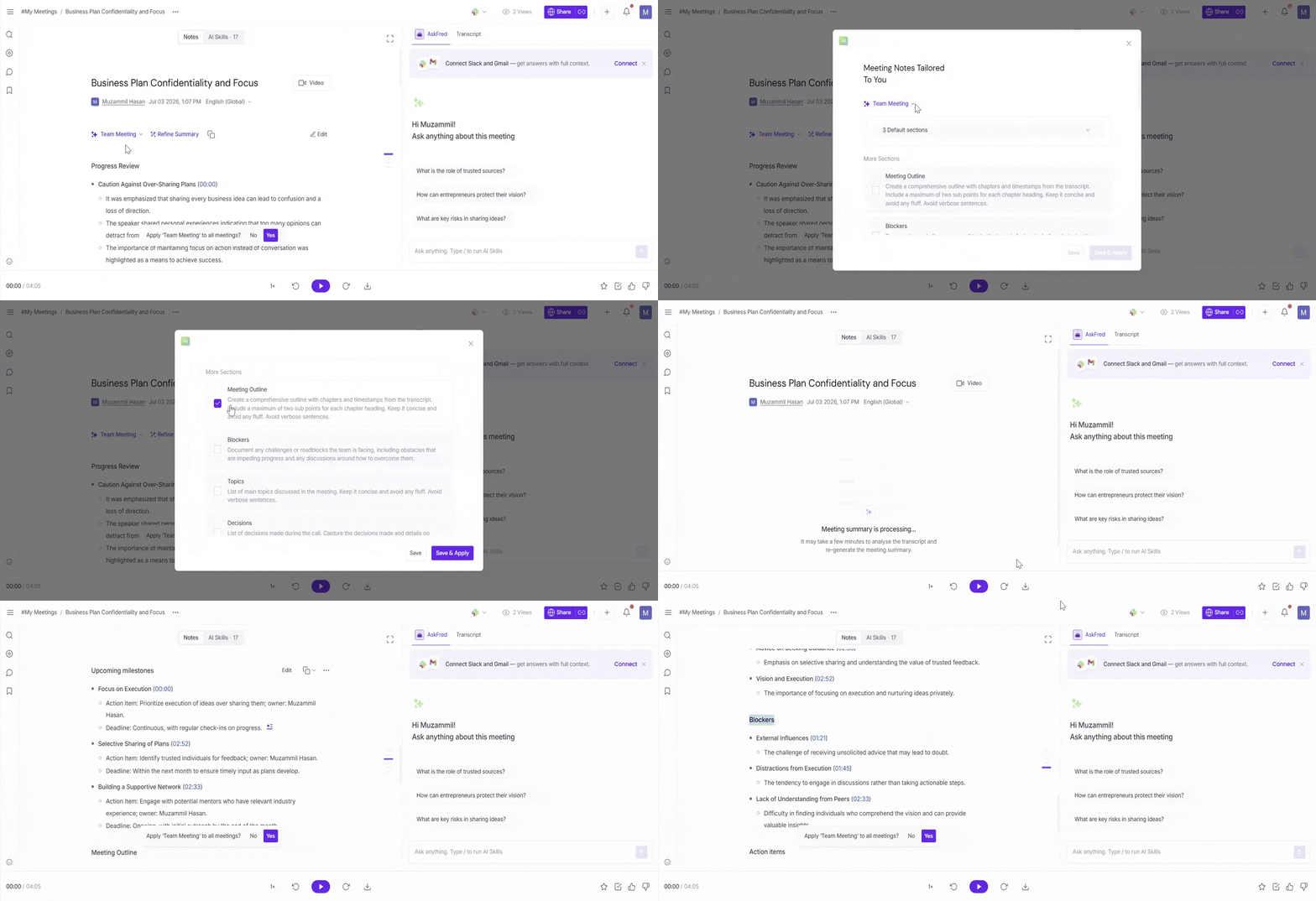
This flexibility means your meeting summaries stay focused, relevant, and actionable—no matter what kind of conversation it was.
Each extra section you add will use 1 AI Credit when a new summary is generated. For example, if you customize your summary with 4 additional sections, Fireflies will use 4 AI Credits for each new meeting processed. Learn more about AI Credits here.
✔ 3. Refine your meeting summary
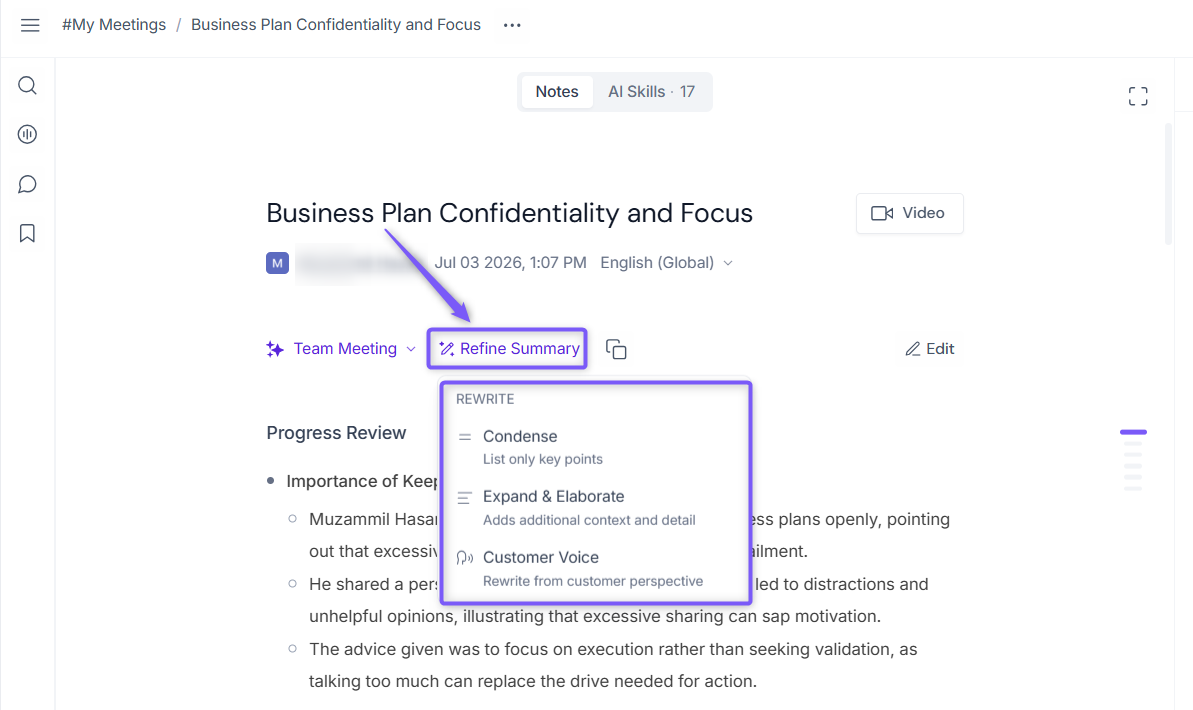
Need to adjust the tone, level of detail, or perspective of your meeting summary? Use Refine Summary to quickly rewrite the current summary without modifying the meeting transcript.
1. Click Refine Summary above the meeting summary.
2. Choose one of the available options:
📝 Condense – Shortens the summary to include only the key points.
📖 Expand & Elaborate – Adds more detail and context to the existing summary.
🎧 Customer Voice – Rewrites the summary from the customer's perspective.
3. Fireflies regenerates the current meeting summary using the selected option while leaving the original transcript unchanged.
4. Create Your Own Custom Summary Templates
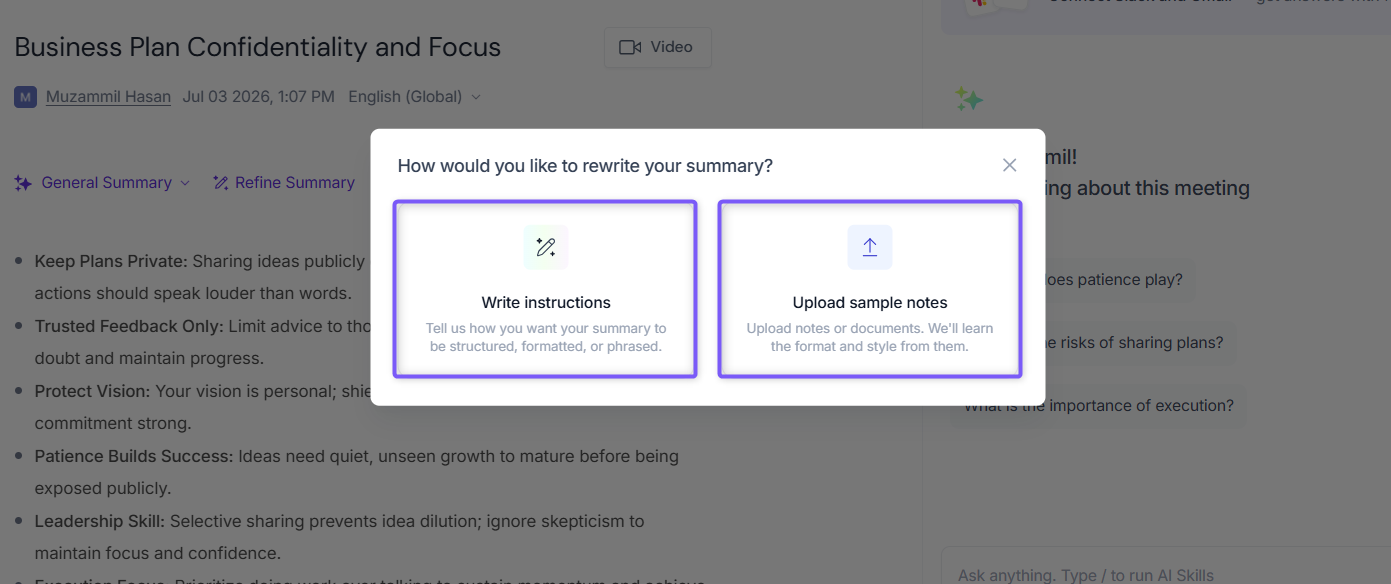
Need a meeting summary that follows your team's unique format or documentation style? In addition to Fireflies' built-in summary templates, you can create your own Custom Summary Templates using custom instructions or sample meeting notes.
With Custom Summary Templates, you can:
✍ Write your own instructions to define how summaries should be structured.
📄 Upload or paste existing meeting notes for Fireflies to learn your preferred style and format.
✨ Use AI Assist to improve your instructions.
👀 Preview the generated summary before saving it.
💾 Save your template and reuse it across future meetings.
Learn more: For step-by-step instructions on creating, previewing, managing, and reusing Custom Summary Templates, see Create and Manage Custom Summary Templates.
5. Expand any part of the summary for deeper context
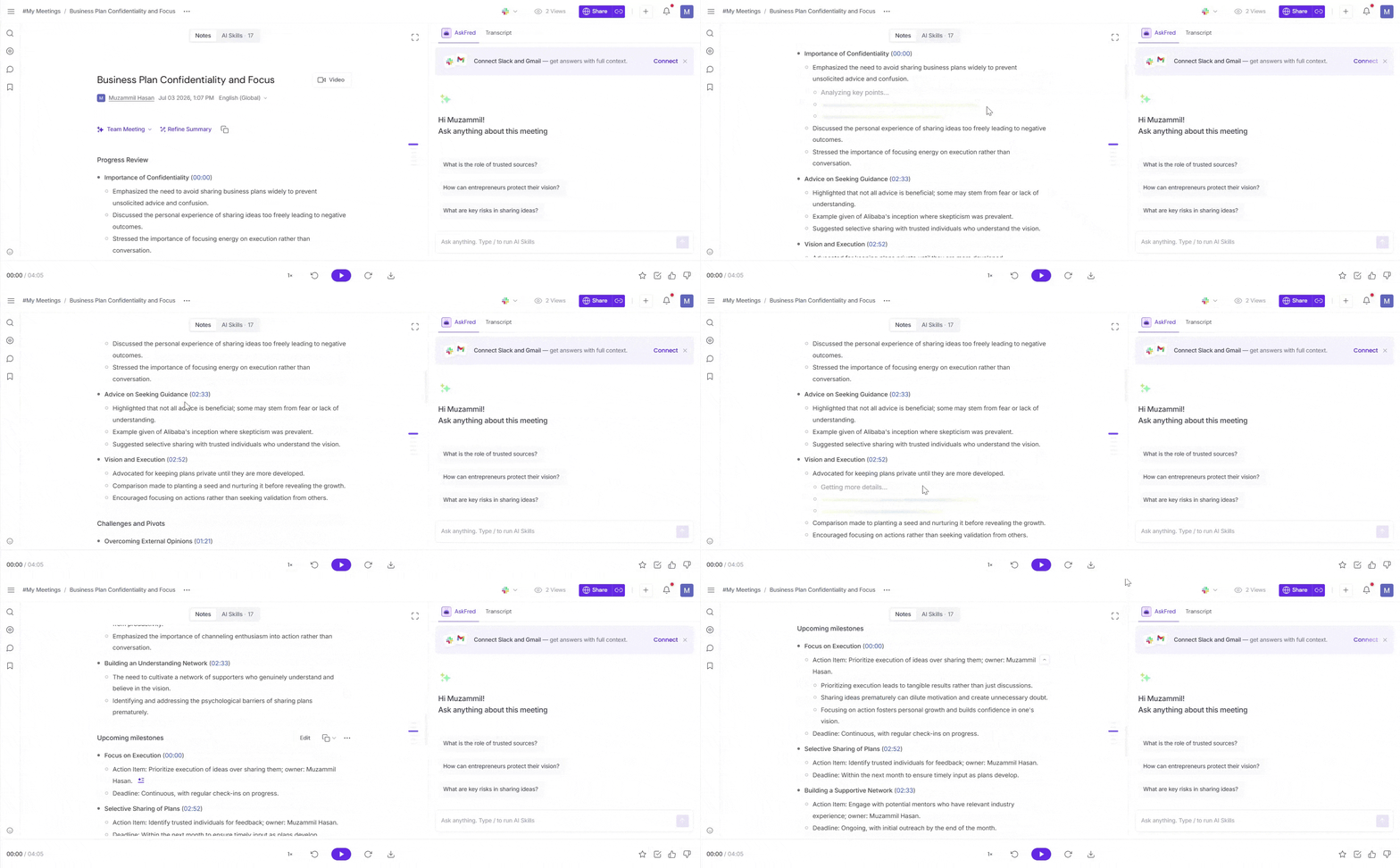
Need more details without opening the full transcript? On the Pro plan and above, you can expand individual summary points to view additional context generated by Fireflies.
To expand:
1. Hover over the summary section (e.g. Action Items or Meeting Notes)
2. Click the expand icon at the end of each point
3. Want to collapse it again? Just click the same icon
6. Regenerate Your Meeting Summary
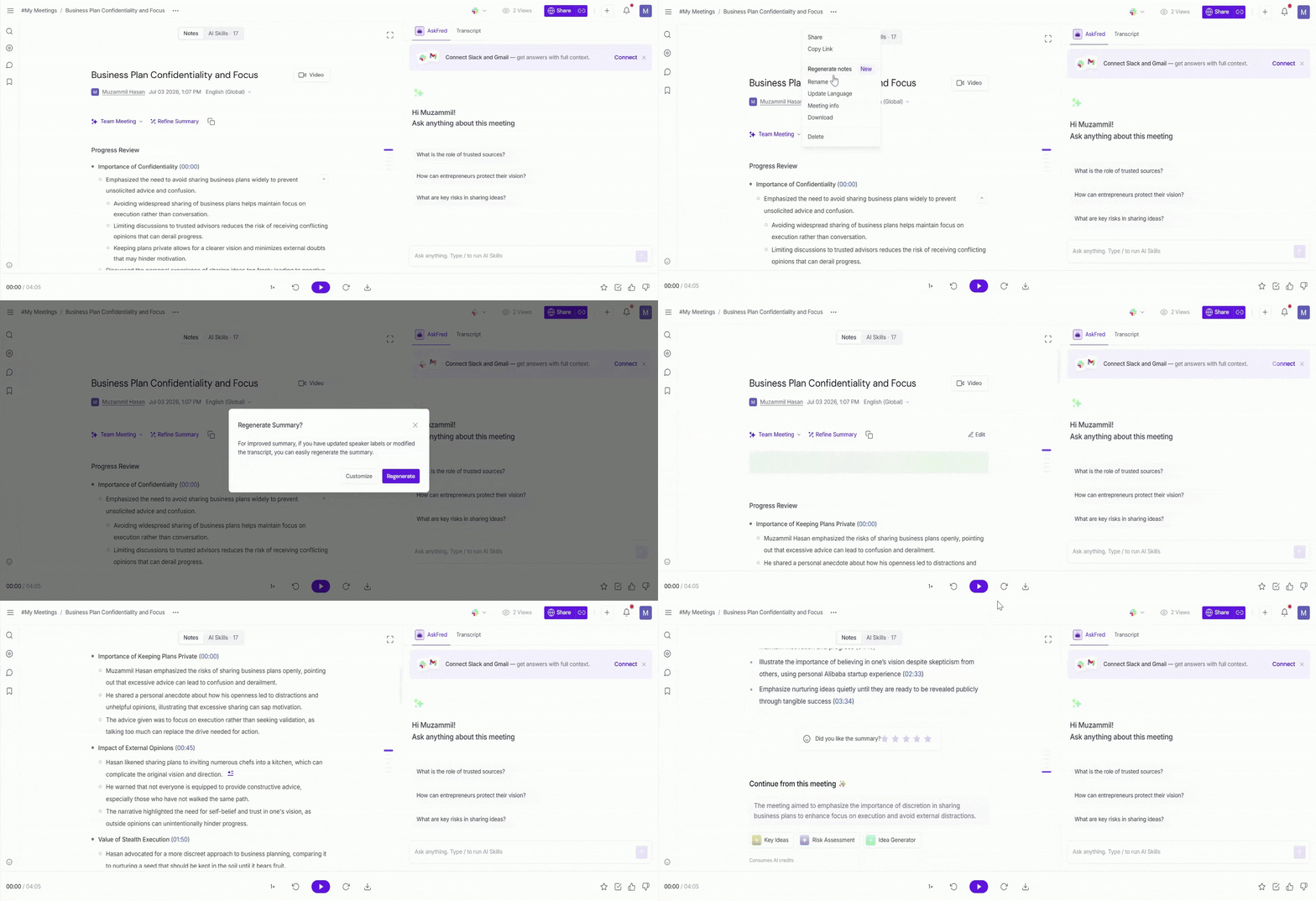
Why this matters: If you've updated your transcript, corrected speaker labels, or changed your summary template, regenerating your meeting summary ensures it reflects the latest changes and generates the most accurate insights.
How to regenerate your meeting summary
1. Make any necessary edits to the transcript, including updating speaker labels if needed.
2. Click the 3-dot (...) menu near the meeting title.
3. Select Regenerate Summary.
4. Fireflies will reprocess the meeting and generate a new summary within a few minutes.
Few things to note:
If AI Skills are enabled, they'll automatically rerun after the meeting summary is regenerated.
Only the meeting owner or host can regenerate meeting summaries.
👥 Set Default Summary Templates for Your Workspace (Admins)
Want every meeting summary in your workspace to follow the same format? As a Workspace Admin, you can enforce a default AI Summary Template for everyone or assign different templates to specific teams using User Group Summary Templates. This helps keep meeting summaries consistent across your organization while giving different teams the flexibility to use templates that best fit their workflows.
To configure workspace summary templates:
Go to Settings.
Open the Team tab.
Select AI Settings.
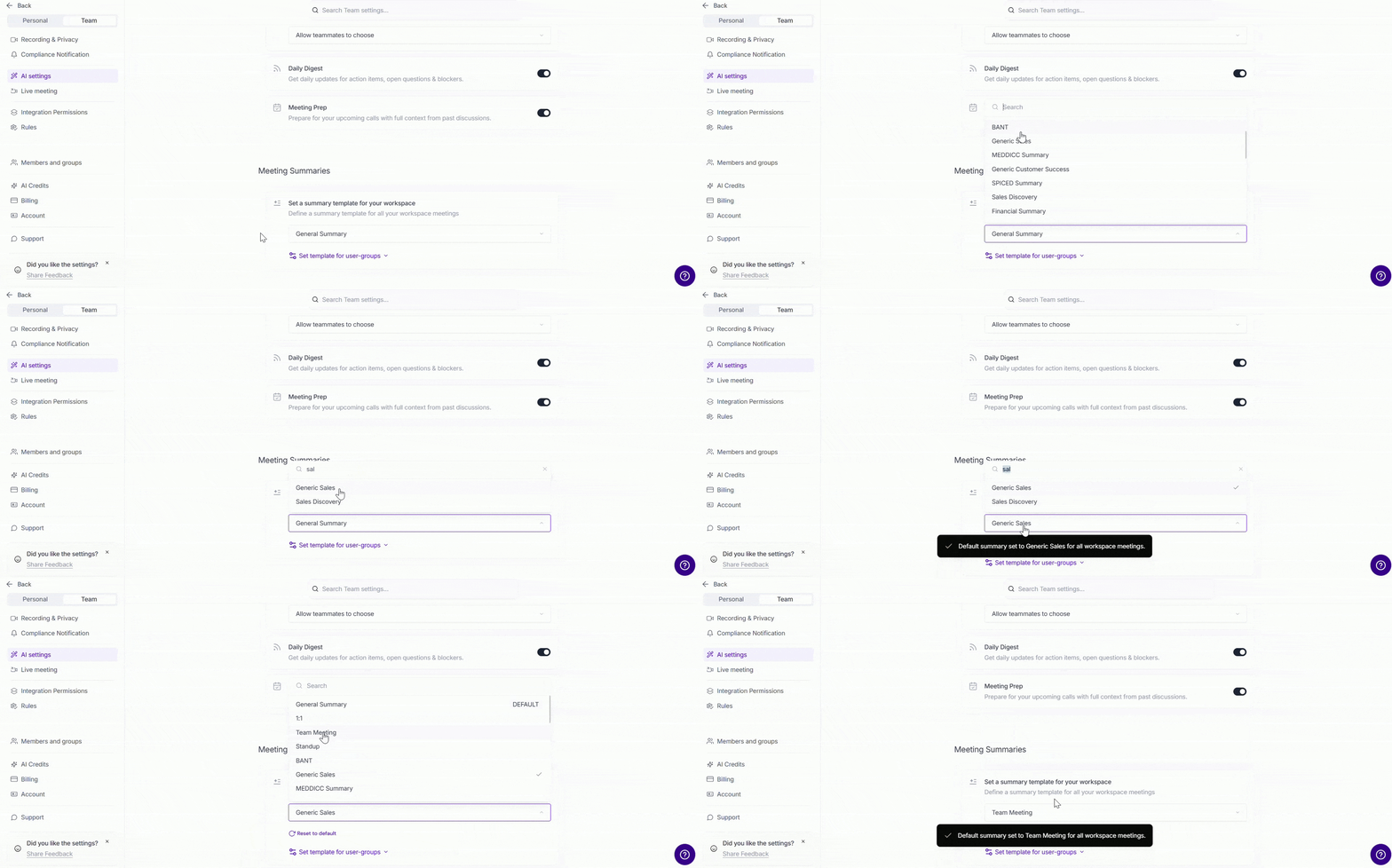
Scroll to the Meeting Summaries section.
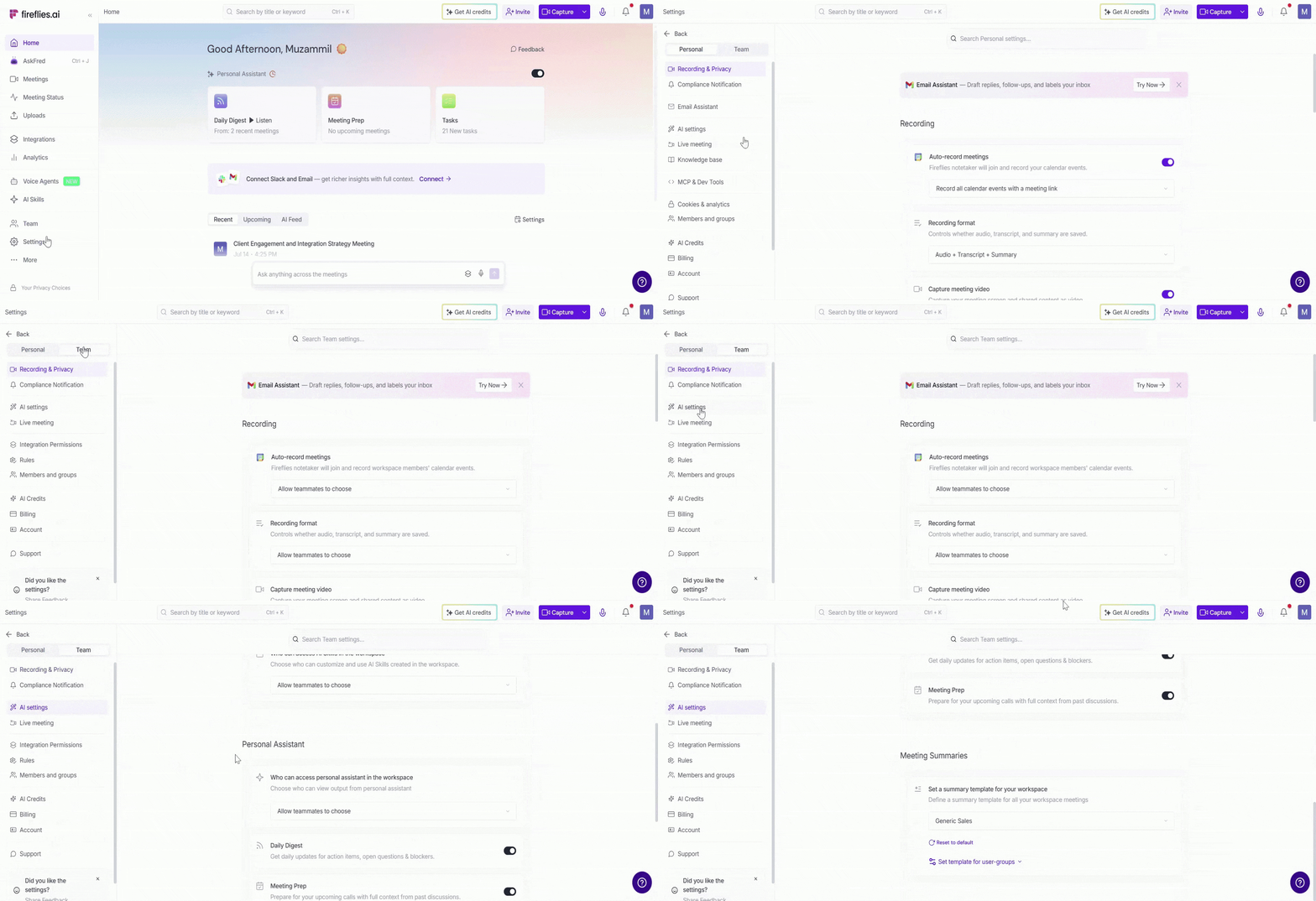
You'll see two configuration options:
🌐 Workspace Summary Template: Use this option if you want everyone in your workspace to follow the same meeting summary format. For example, if your entire organization uses a standard meeting note format, select the AI Summary Template you'd like to apply as the default for all workspace members.
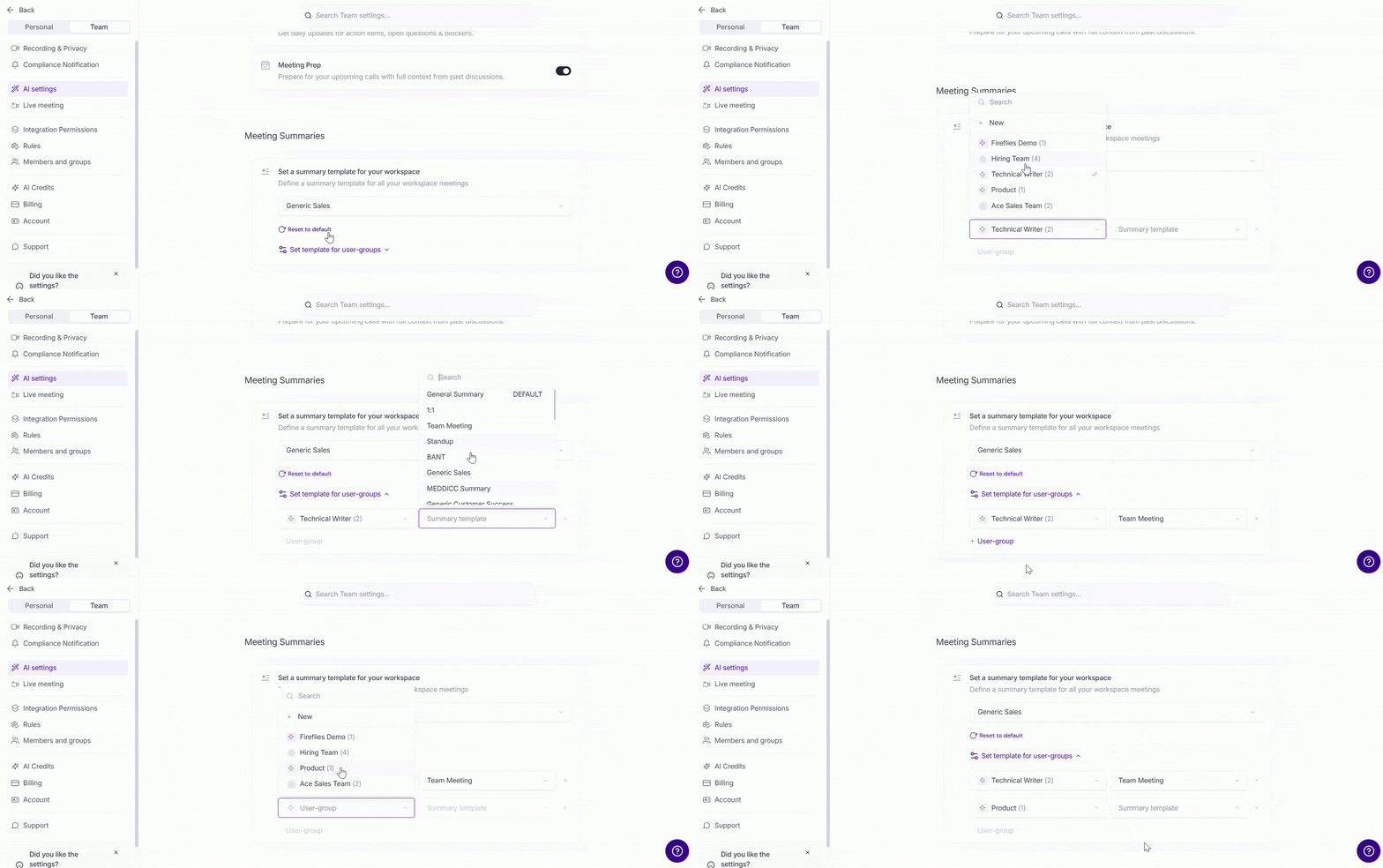
👥 User Group Summary Templates: Use this option if different teams need different meeting summary formats. For example, your Sales team can use a sales call summary template, while HR uses an interview summary template and Customer Success uses a customer meeting template. Select a User Group, then choose the AI Summary Template you'd like to apply to members of that group.
Need more Team admin settings?
See the Team Settings: A Complete Guide for Workspace Admins to learn about other workspace-wide admin settings, including teammates, user groups, recording and privacy controls, AI settings, integrations, and more.