How to Create and Manage Custom Summary Templates
Last updated: July 15, 2026
Need meeting summaries template that match the way your team works? Whether you're documenting sales calls, interview feedback, project updates, or executive reviews, you can create a custom summary template in Fireflies that follows your preferred format -and reuse it across your meetings.
💡 This guide is part of our meeting summaries documentation. For more on how Fireflies AI generates and customizes your meeting summaries, see our Fireflies AI Meeting Summaries guide.
🚀 What you can do
With Custom Summary Templates, you can:
Create your own AI summary template using custom instructions.
Upload or paste existing meeting notes for Fireflies to learn from.
Improve your instructions with AI Assist.
Preview your summary before saving it.
Save and reuse your template for future meetings.
Good to know:
Your first Custom Summary Template is included at no additional cost.
Creating more than one Custom Summary Templates consumes AI Credits.
Custom Summary Templates are personal to your account and don't change summaries for other workspace members.
✏ Create a Custom Summary Template
Ready to create your own summary format? You can build a custom template by writing your own instructions or by providing sample meeting notes that Fireflies can learn from.
Step 1: Log in to your Fireflies account and open the Meetings tab.
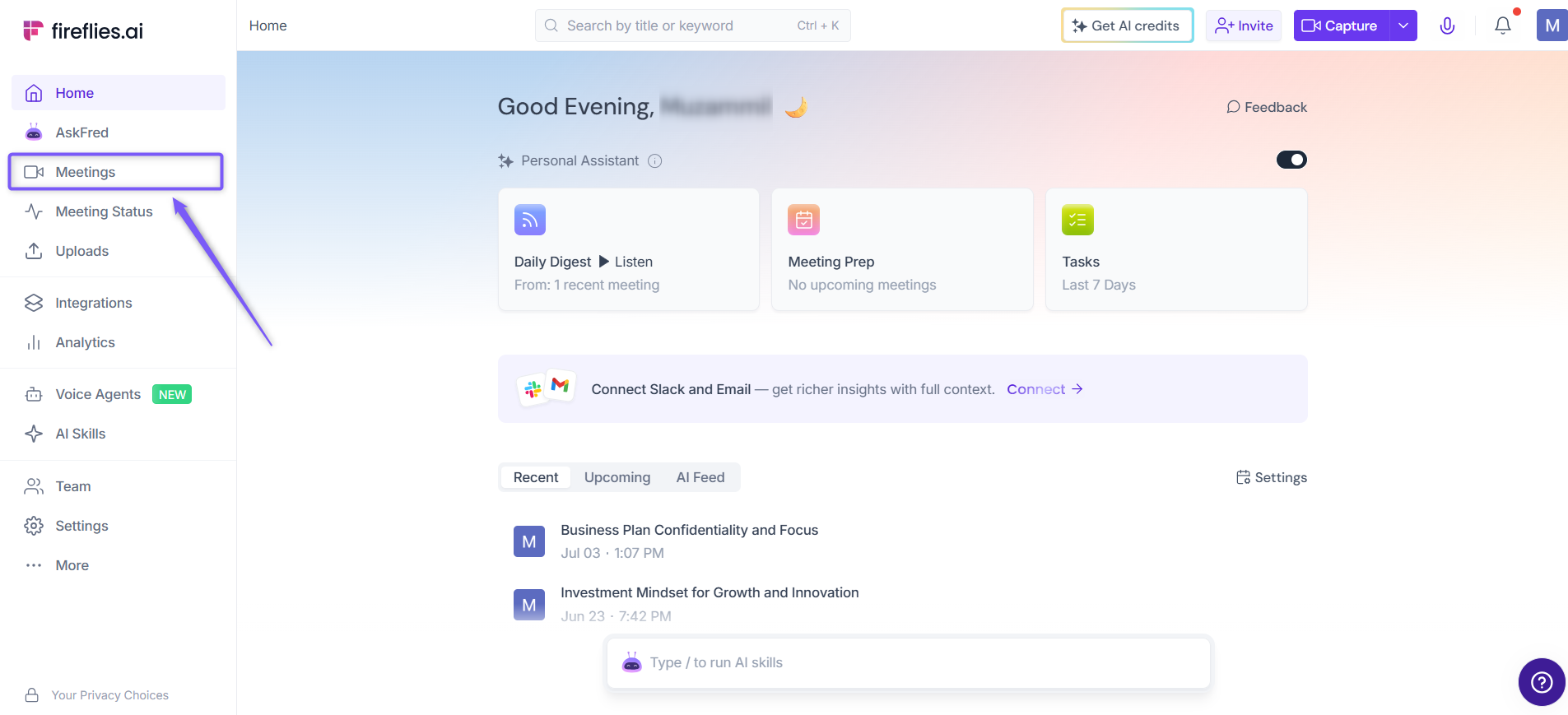
Step 2: Open the meeting where you'd like to create or test your custom summary template.
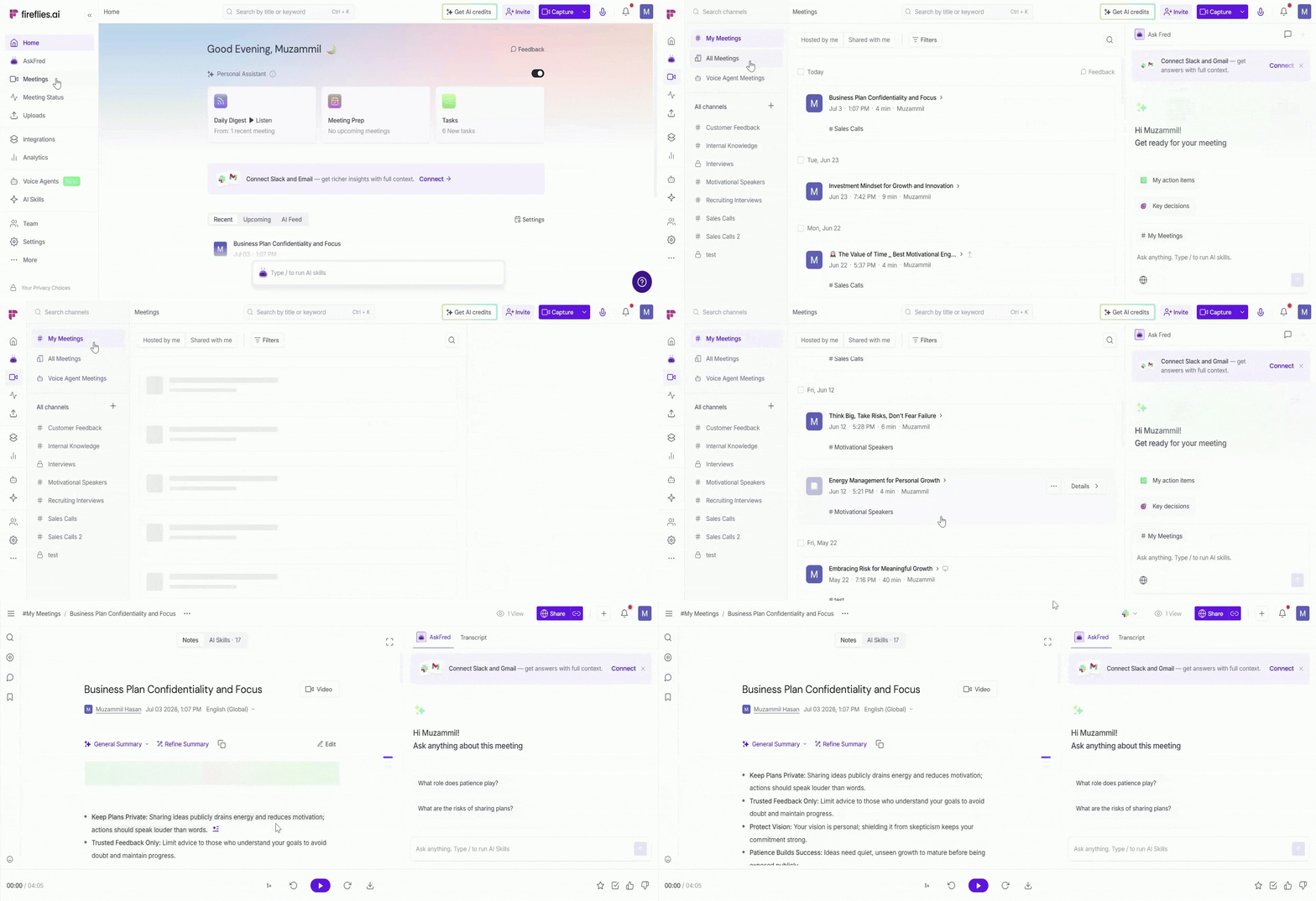
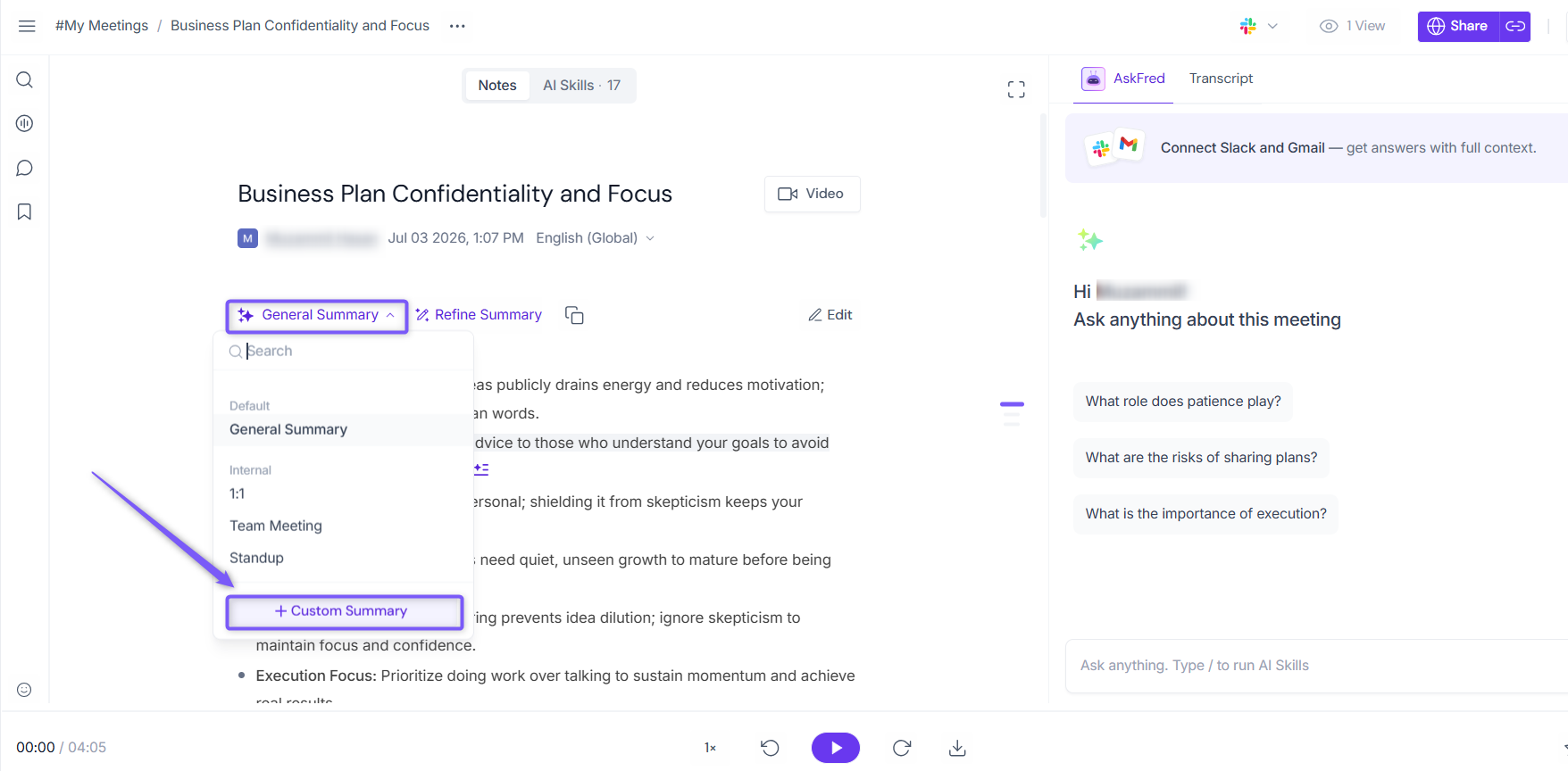
Step 3: Click the Summary Template dropdown above the meeting summary. You'll see a list of Fireflies' built-in summary templates.
To create your own custom template, click + Custom Summary.
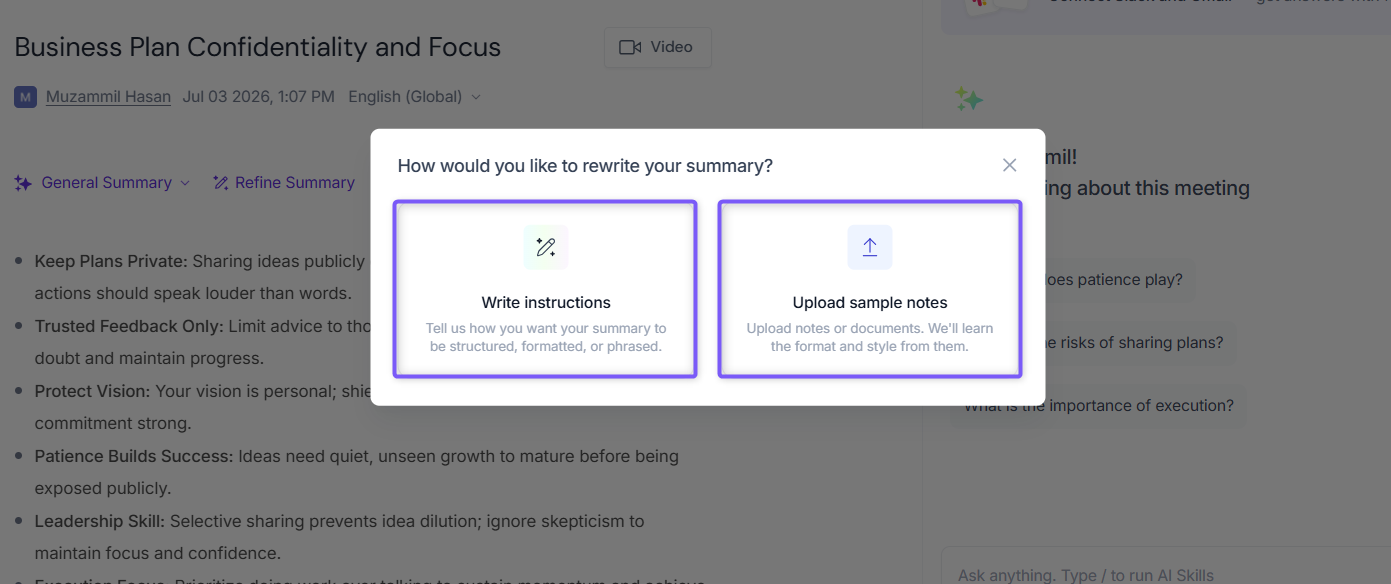
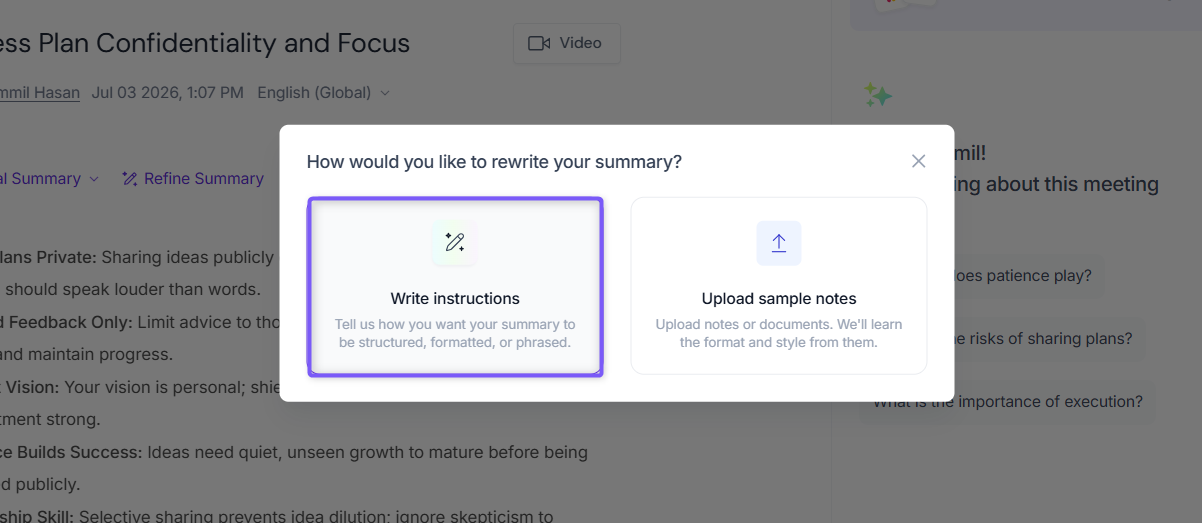
Step 4: A dialog box appears asking "How would you like to rewrite your summary?" Choose one of the following options to create your custom summary template:
Write Instructions – Describe how you'd like Fireflies to structure, format, or phrase your meeting summaries.
Upload Sample Notes – Paste existing meeting notes or upload a document for Fireflies to learn your preferred summary style.
✍ Method 1: Write Instructions
If you already know how you'd like your meeting summaries to look, describe your preferred format in your own words, and Fireflies will generate summaries that follow those instructions.
1. Click Write Instructions block.
2. In the Instruction Prompt field, enter your instructions.
Example: "Create a concise meeting summary for stakeholders. Include an executive summary, key discussion points, decisions made, action items with owners, blockers, and next steps. Use clear headings and bullet points."
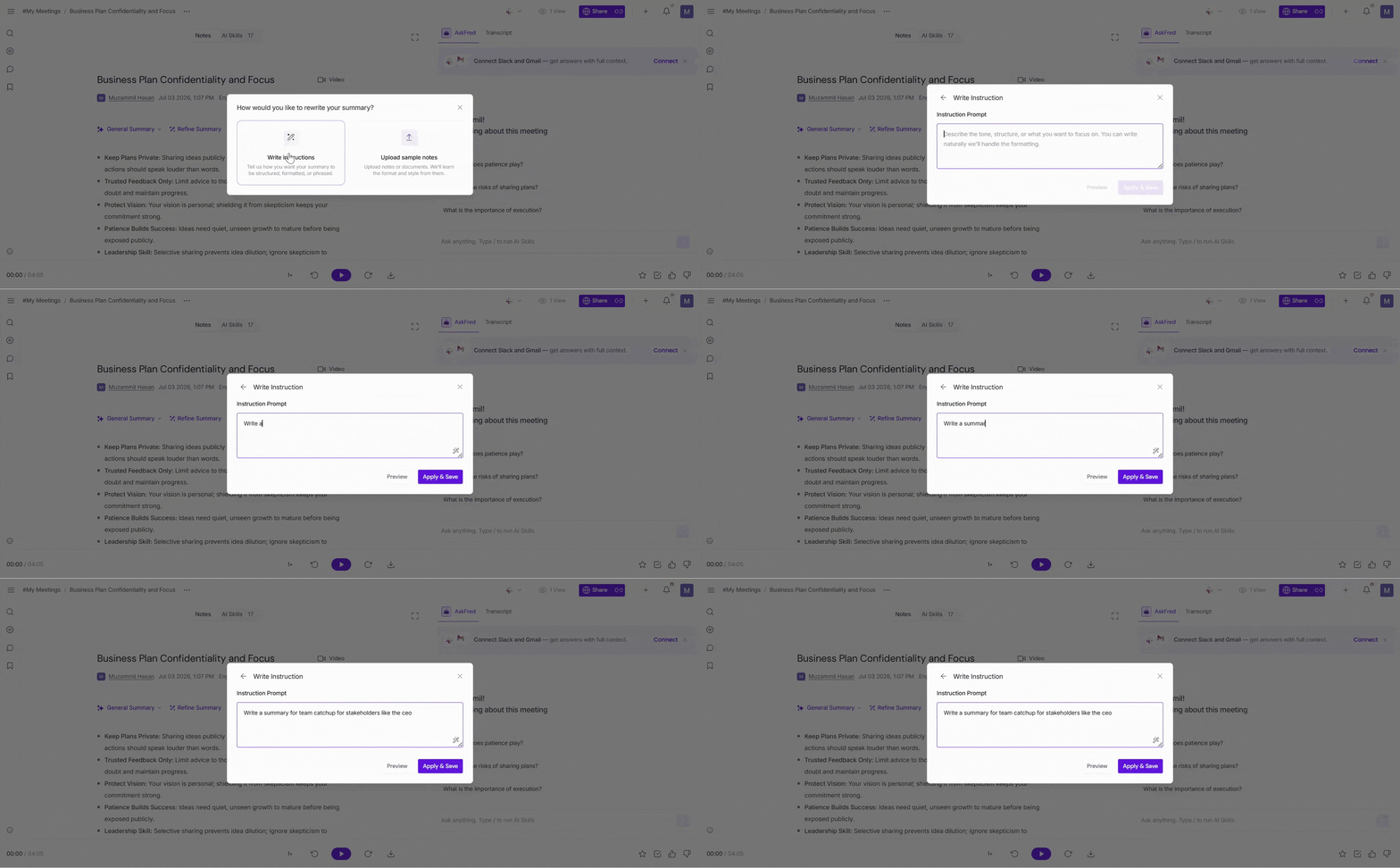
The more specific your instructions are, the better Fireflies can tailor the summary to your preferred format.
✨ AI Assist
Not sure how to write the perfect prompt? Just describe what you want, then click the AI Assist icon in the bottom-right corner of the text field. Fireflies will refine and expand your instructions into a more detailed prompt for better summary results.
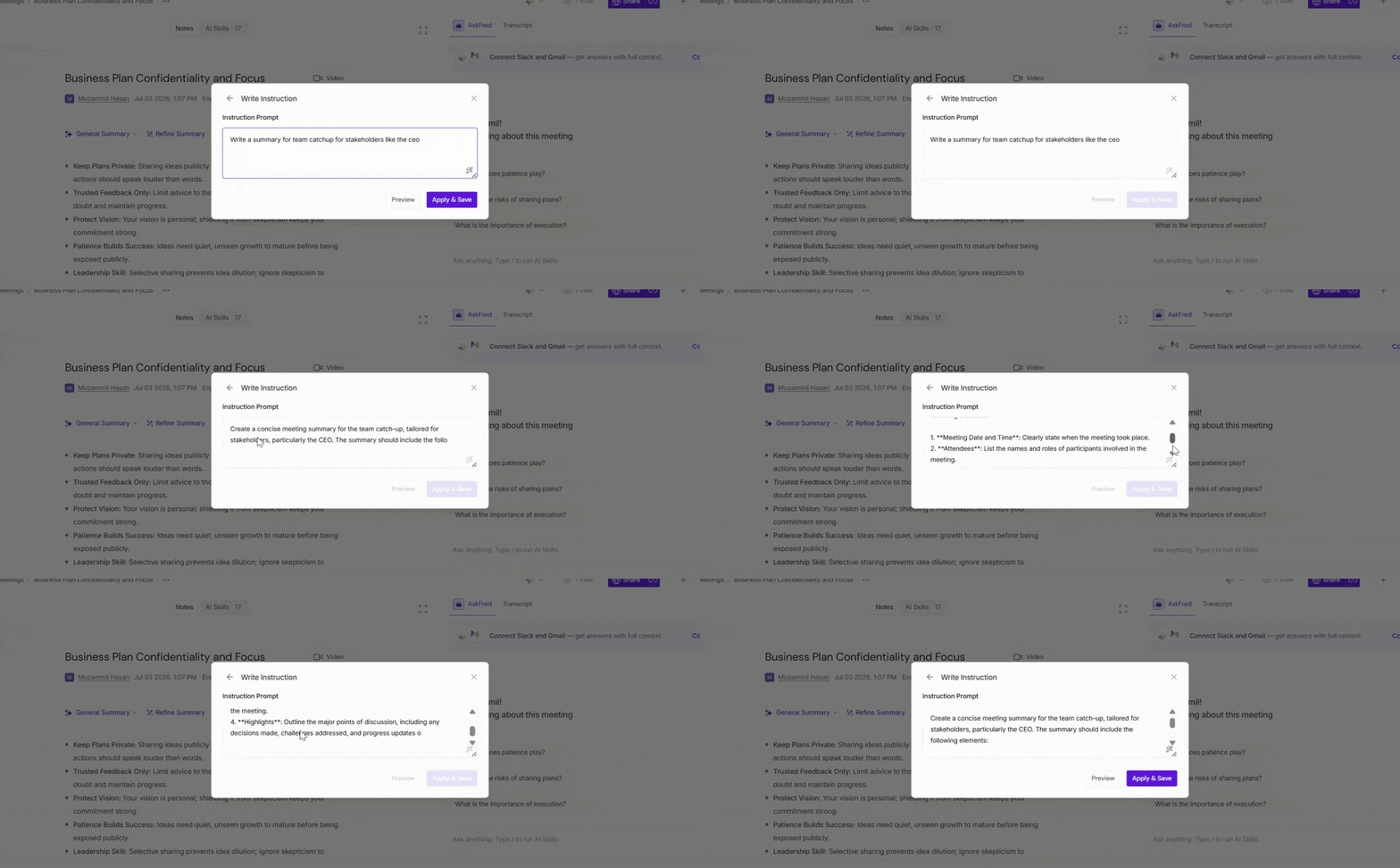
Once you're ready, continue to Step 5: Preview and Apply Your Template.
📄 Option 2: Upload Sample Notes
Already have meeting notes in a format you'd like to reuse? Instead of writing instructions from scratch, you can upload or paste existing notes, and Fireflies will learn their structure, style, and formatting to create a custom summary template.
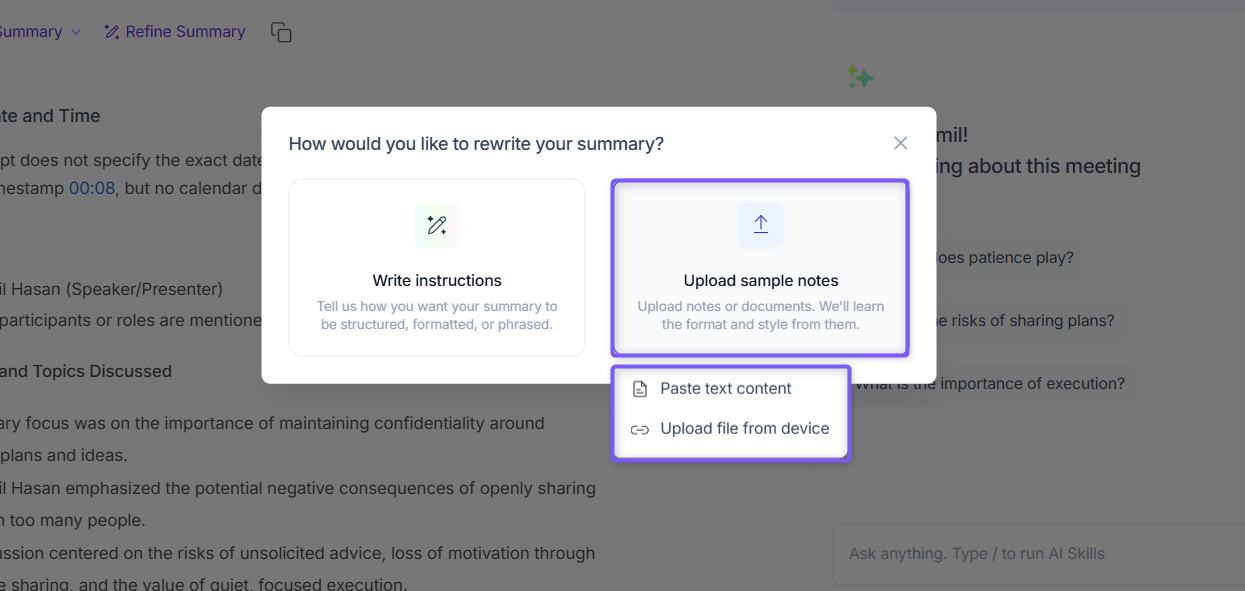
1. Click Upload Sample Notes.
2. Choose how you'd like to provide your notes:
Paste text content to paste existing meeting notes directly into the text field.
Upload file from device to upload a supported document.
Example:Upload or paste meeting notes that include sections such as Executive Summary, Key Discussion Points, Decisions Made, Action Items, and Next Steps. Fireflies uses these notes as a reference to understand how your summaries are organized and written, then generates future meeting summaries in a similar style and format.
3. Fireflies automatically analyzes your sample notes to learn their structure, writing style, tone, and formatting, then generates a custom summary template based on them.
Once you're ready, continue to Step 5: Preview and Apply Your Template.
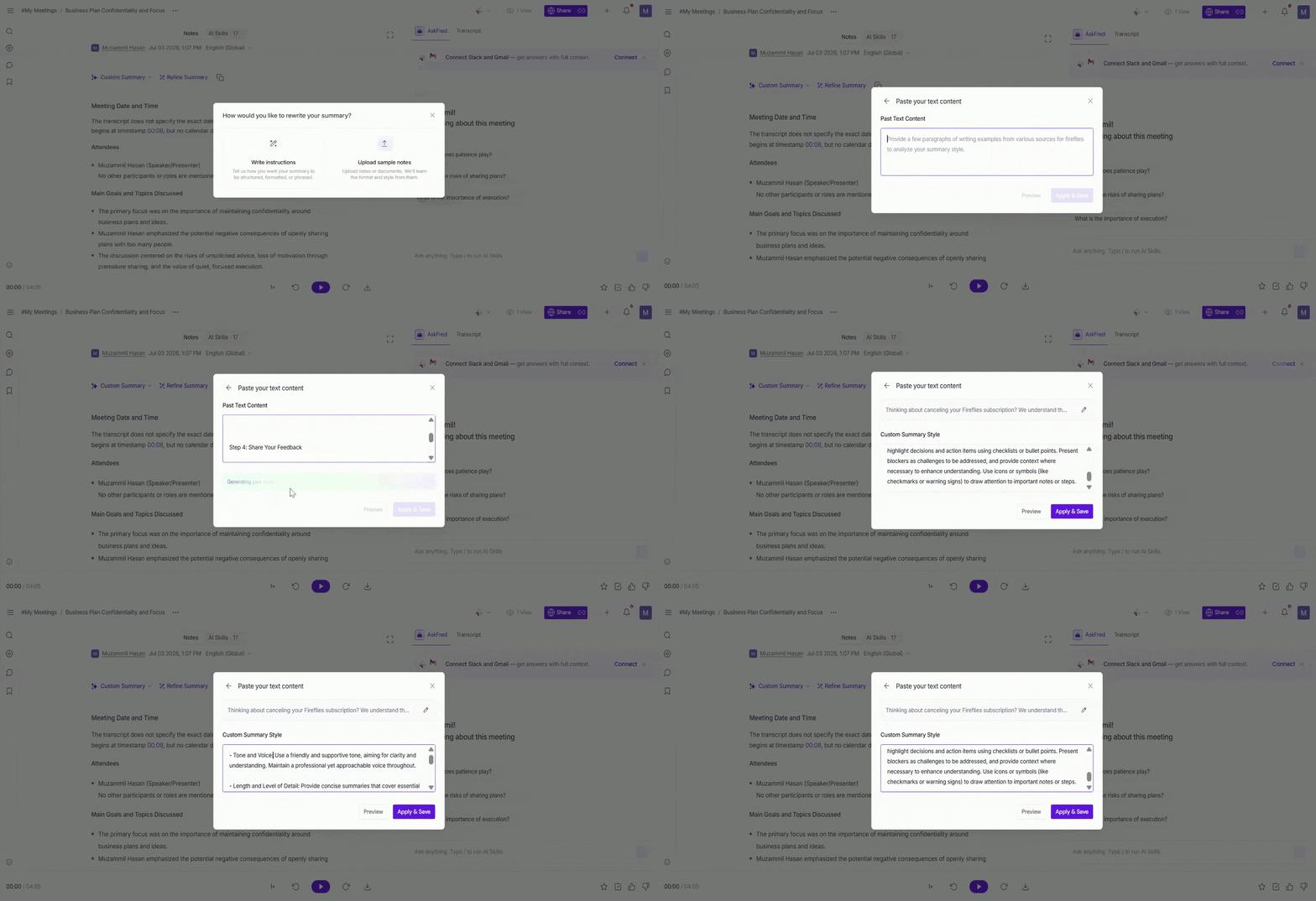
Step 5: Click Preview to review the generated summary, or click Apply & Save to save and start using the template immediately.
Tip: We recommend clicking Preview first to review how your instructions will be applied to the meeting summary. If you're satisfied with the results, click Apply & Save to save the template and use it for the meeting.
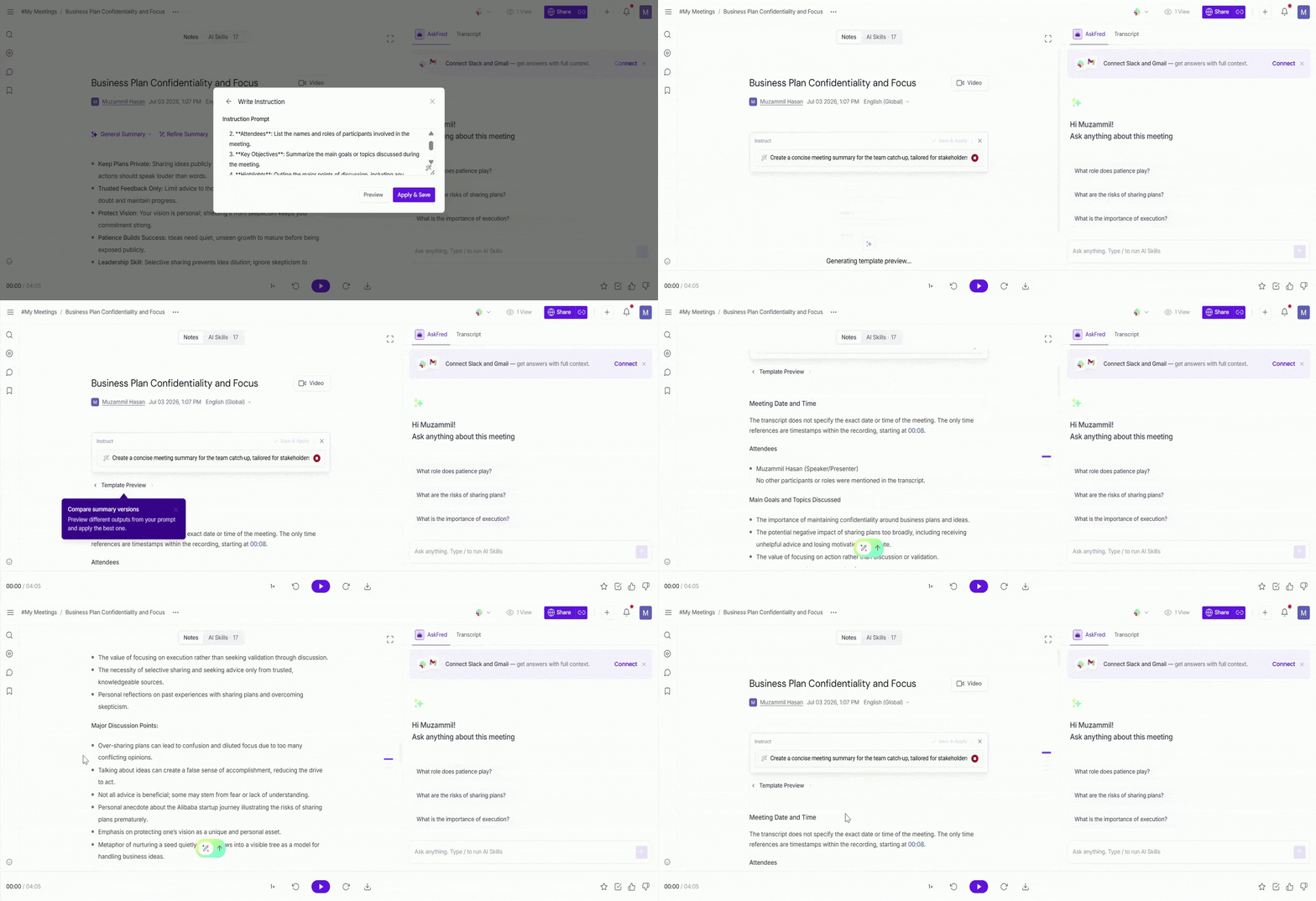
Step 6: Once the preview is generated, review the output to see how your custom template formats the meeting summary. You can:
Compare the Template Preview with your Original Summary to see which format works best.
Edit your instructions directly from the prompt field if you'd like to make changes.
Generate another preview after updating your instructions until you're satisfied with the results.
Click ✕ to discard the preview and continue using the original summary.
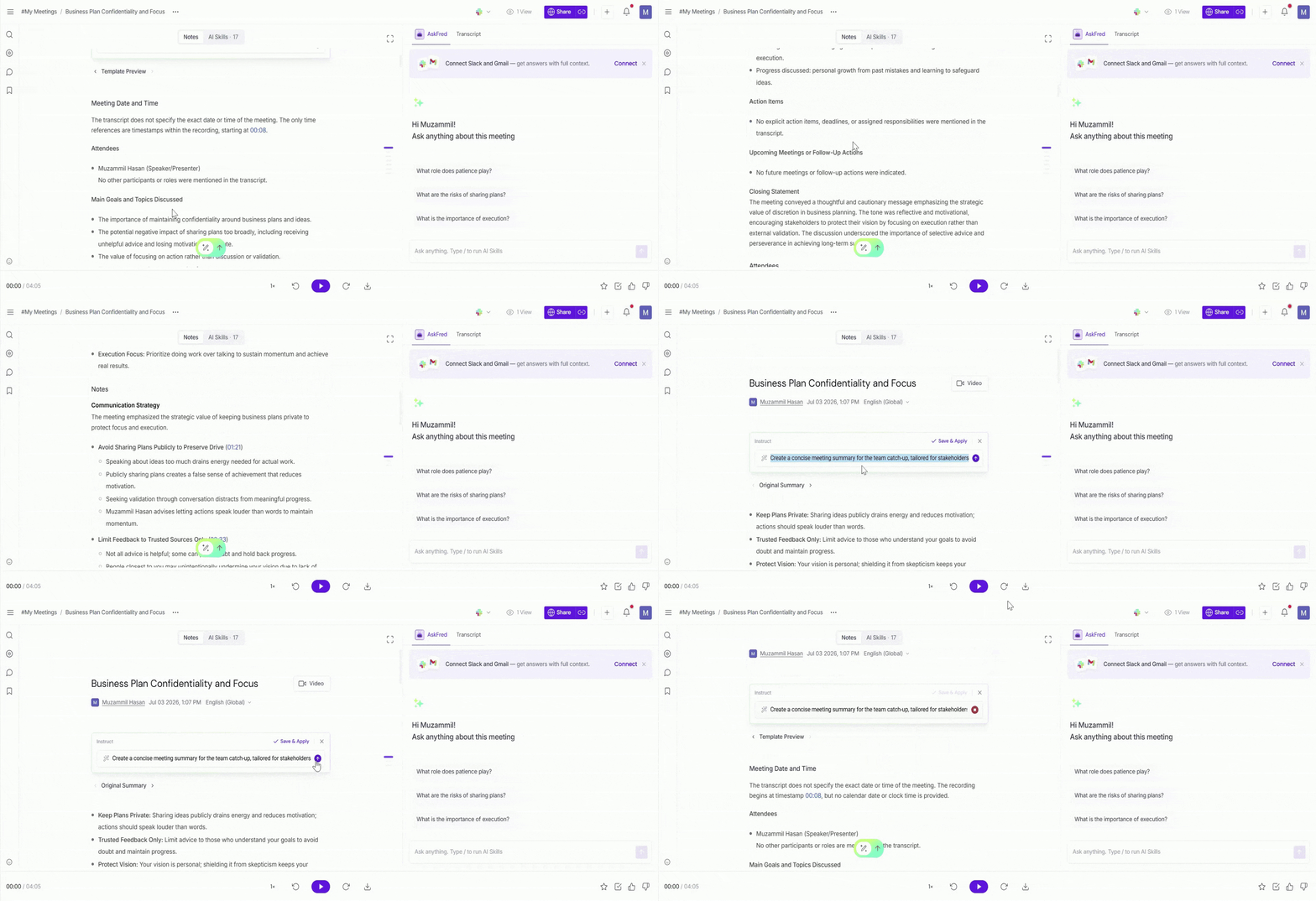
Step 7: Once you're satisfied with the preview, click Save & Apply to save your custom summary template and apply it to the current meeting.
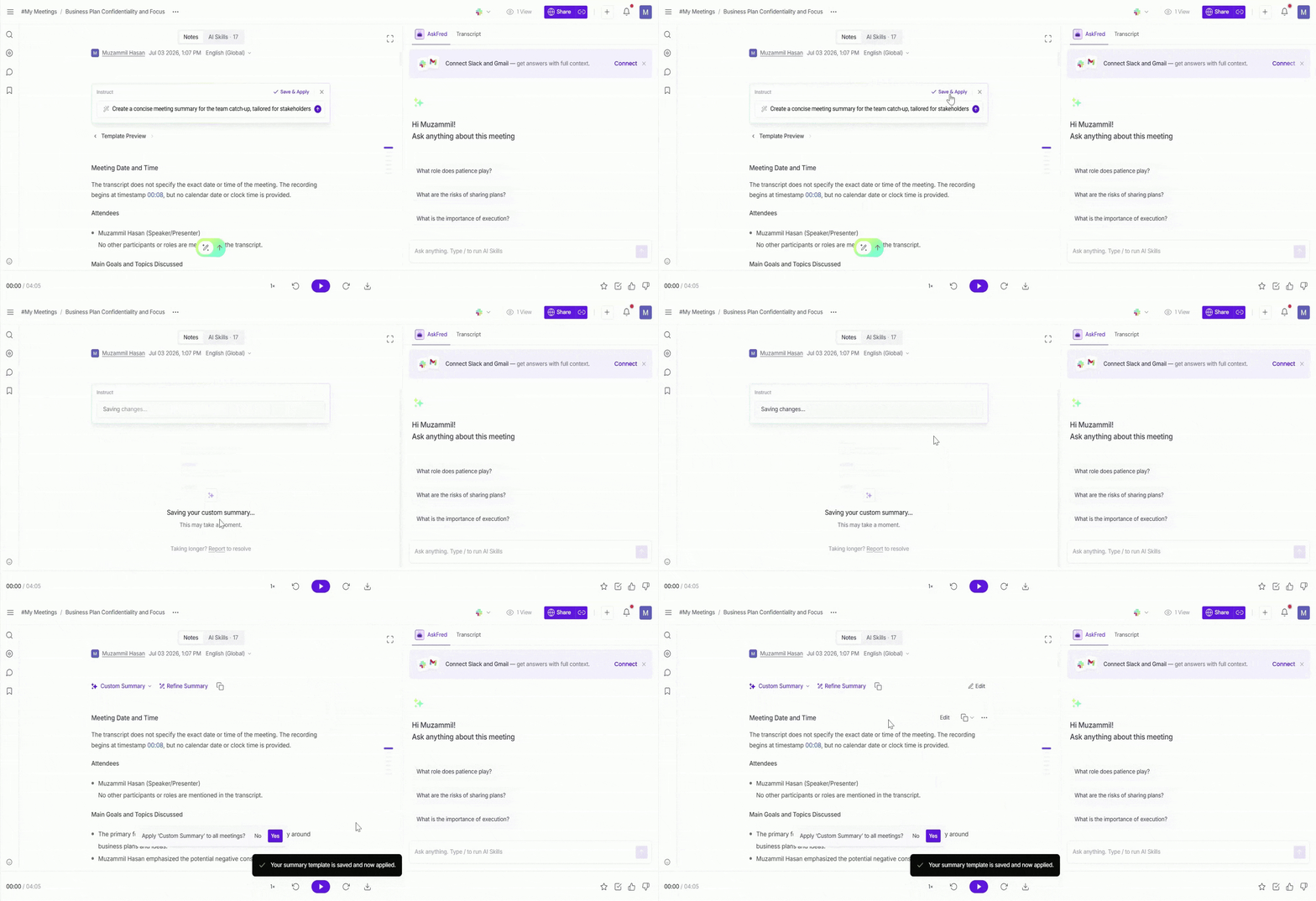
Step 8: After saving, you'll be asked whether you'd like to apply your custom summary template to all meetings.
Click Yes to make it your default summary template for all meetings.
Click No to use it only for the current meeting. You can still select it later from the Summary Template dropdown whenever you need it.
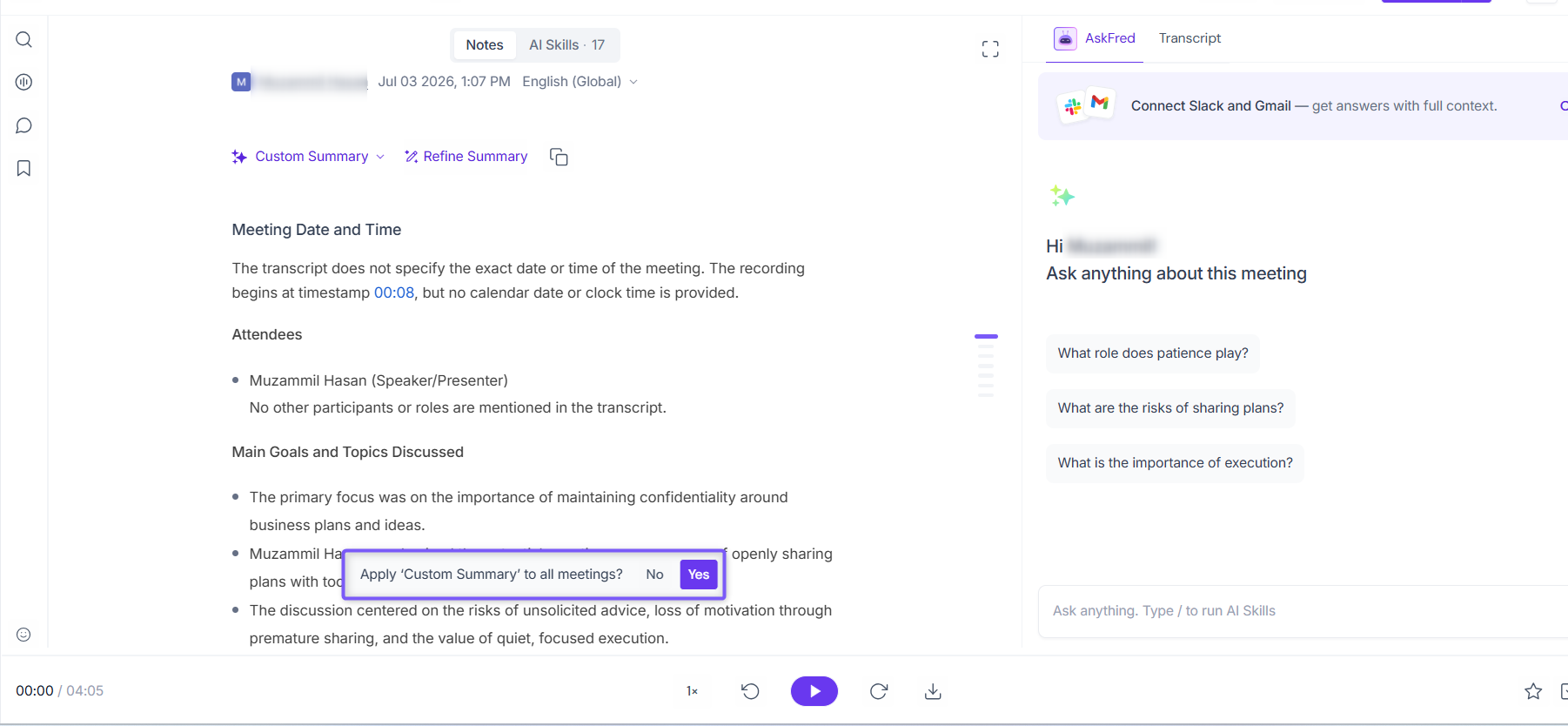
Tip: If you're trying out a new template, choose No first. Once you're confident it generates the summaries you want, you can apply it to all future meetings.
⚙ Manage Custom Summary Templates
Need to make changes later? You can rename, edit, or delete your custom summary templates anytime to keep them up to date with your team's workflow.
You can only edit or delete custom summary templates that you've created. Fireflies' built-in summary templates can't be modified.
1. Open the Summary Template dropdown and select the custom template you'd like to manage.
2. Hover over the template and click the ✏ Edit icon.
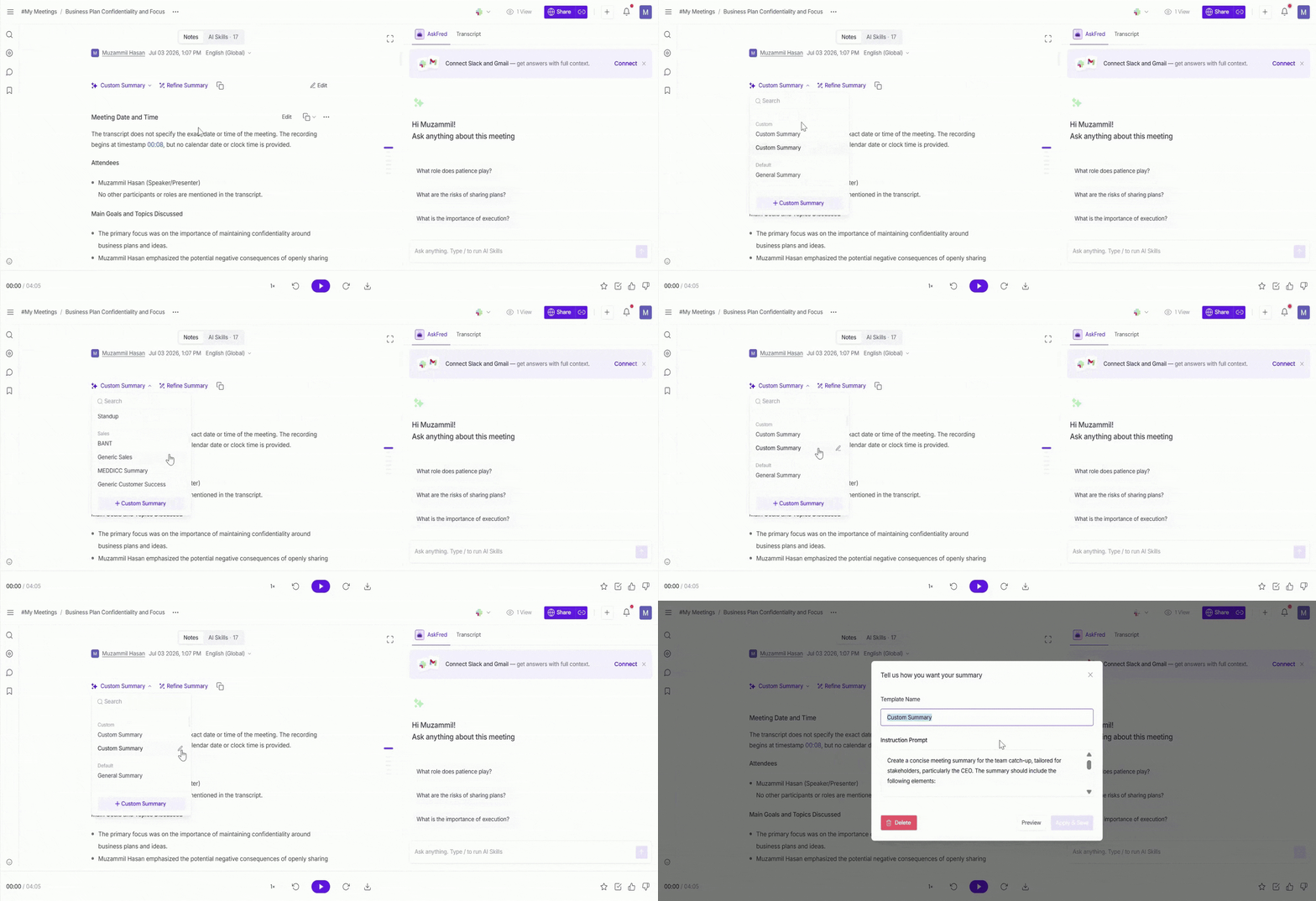
From here, you can:
✏ Rename the template by updating the Template Name field.
📝 Modify the instruction prompt to change how Fireflies generates your summaries.
👀 Preview your changes before saving.
💾 Click Apply & Save to update the template.
🗑 Delete the template if you no longer need it.
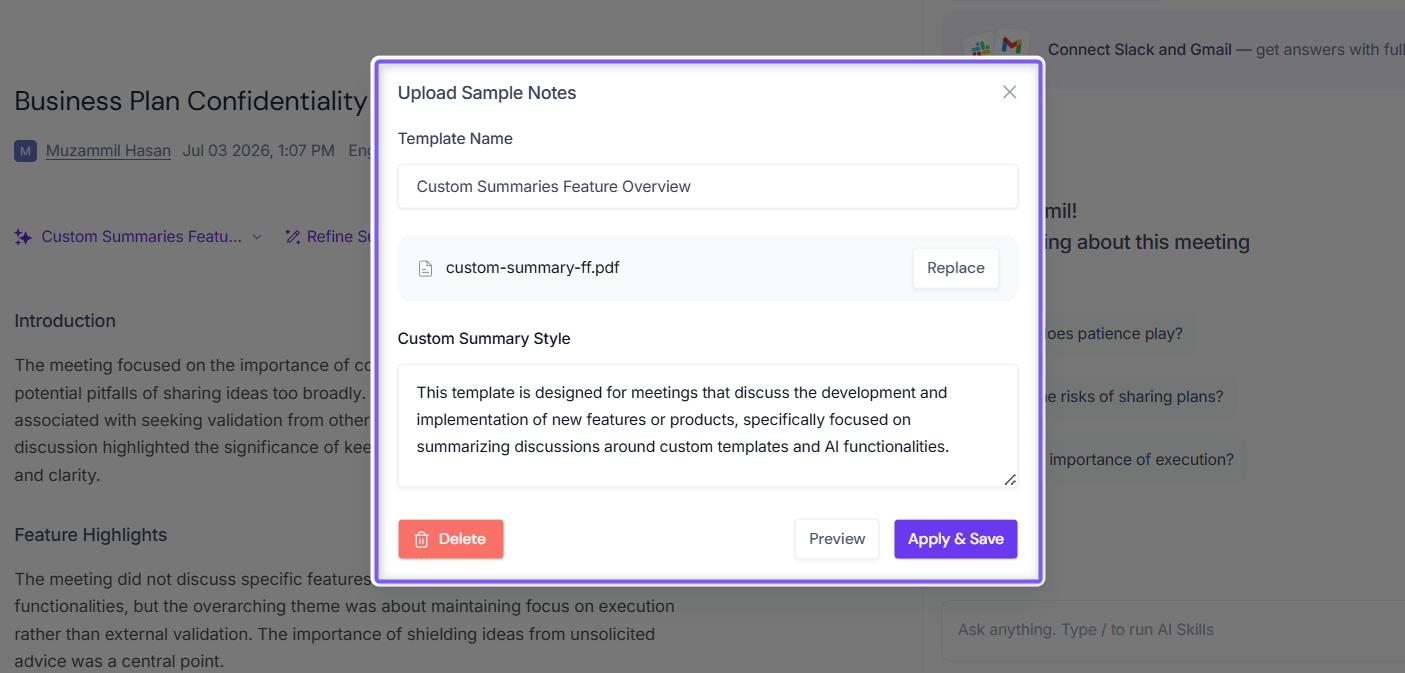
Custom Summary Templates in Fireflies allows you generate meeting summaries that match your preferred structure and workflow, making it easier to capture the information that's most important to you.
Workspace Admin?
If you've created a custom summary template and want your entire organization, or specific teams, to use it by default, continue to the next section to learn how to set and enforce AI Summary Templates across your workspace.
👥 Set Default Summary Templates for Your Workspace (Admins)
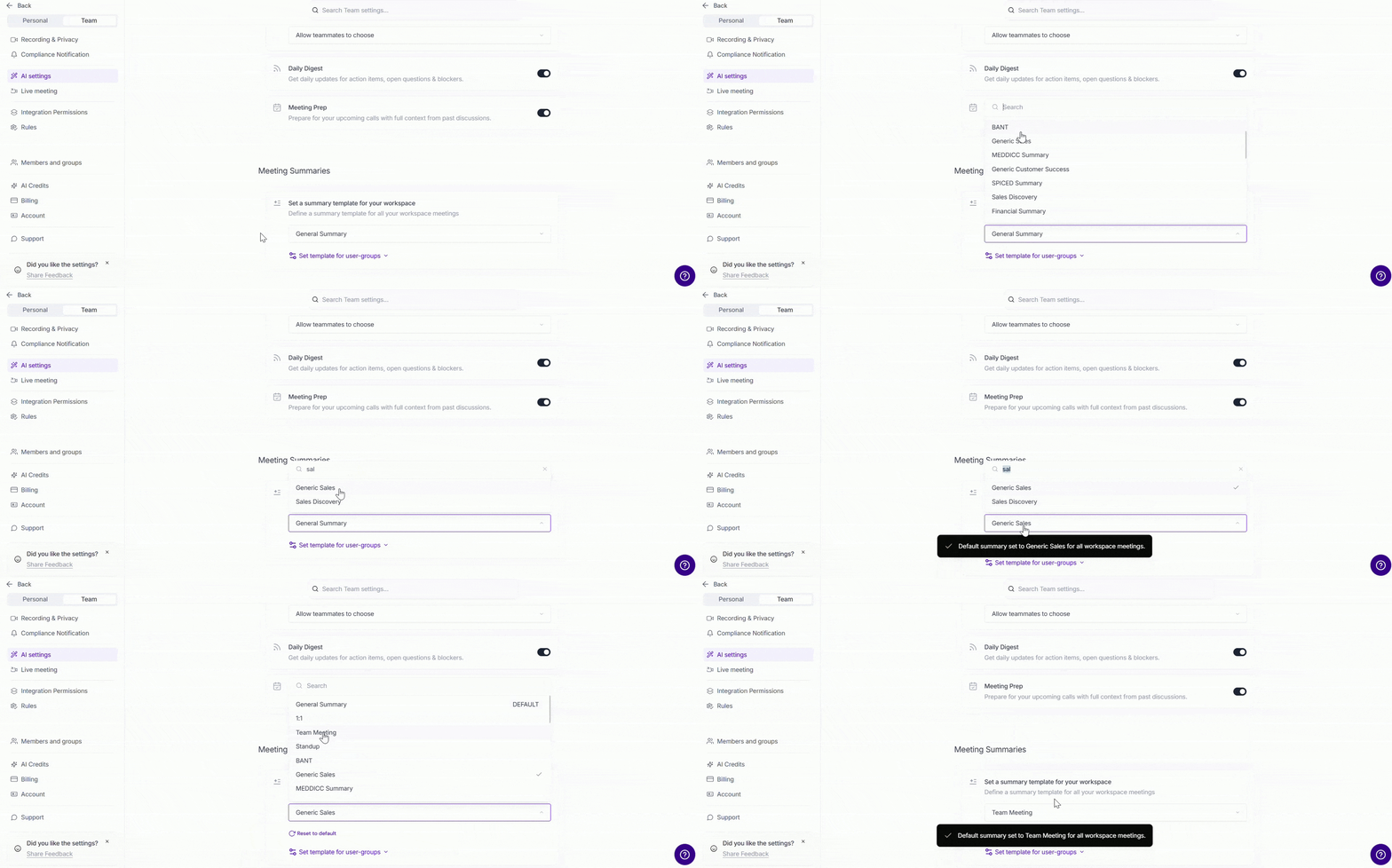
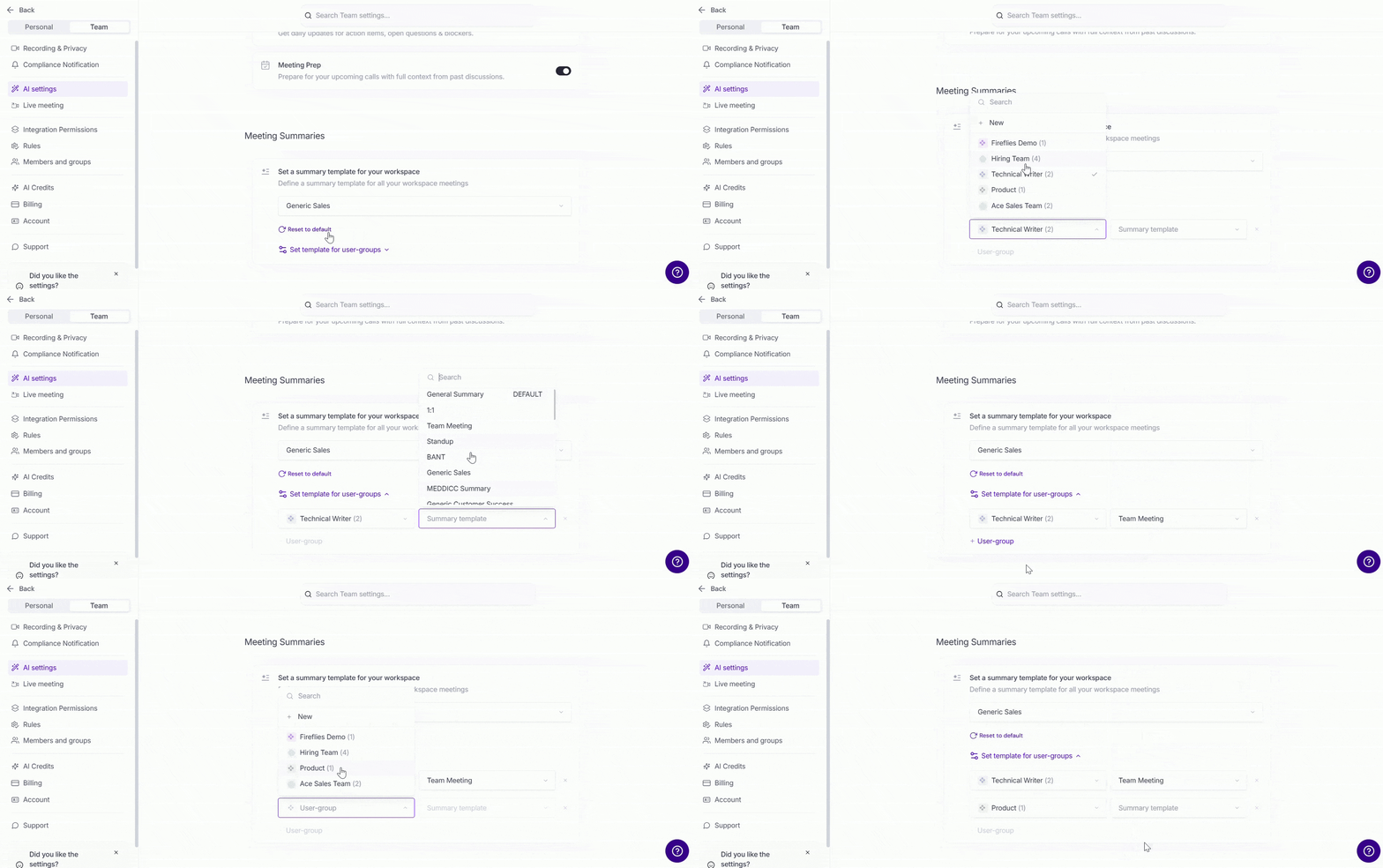
Want every meeting summary in your workspace to follow the same format? As a Workspace Admin, you can enforce a default AI Summary Template for everyone or assign different templates to specific teams using User Group Summary Templates. This helps keep meeting summaries consistent across your organization while giving different teams the flexibility to use templates that best fit their workflows.
To configure workspace summary templates:
Go to Settings.
Open the Team tab.
Select AI Settings.
Scroll to the Meeting Summaries section.
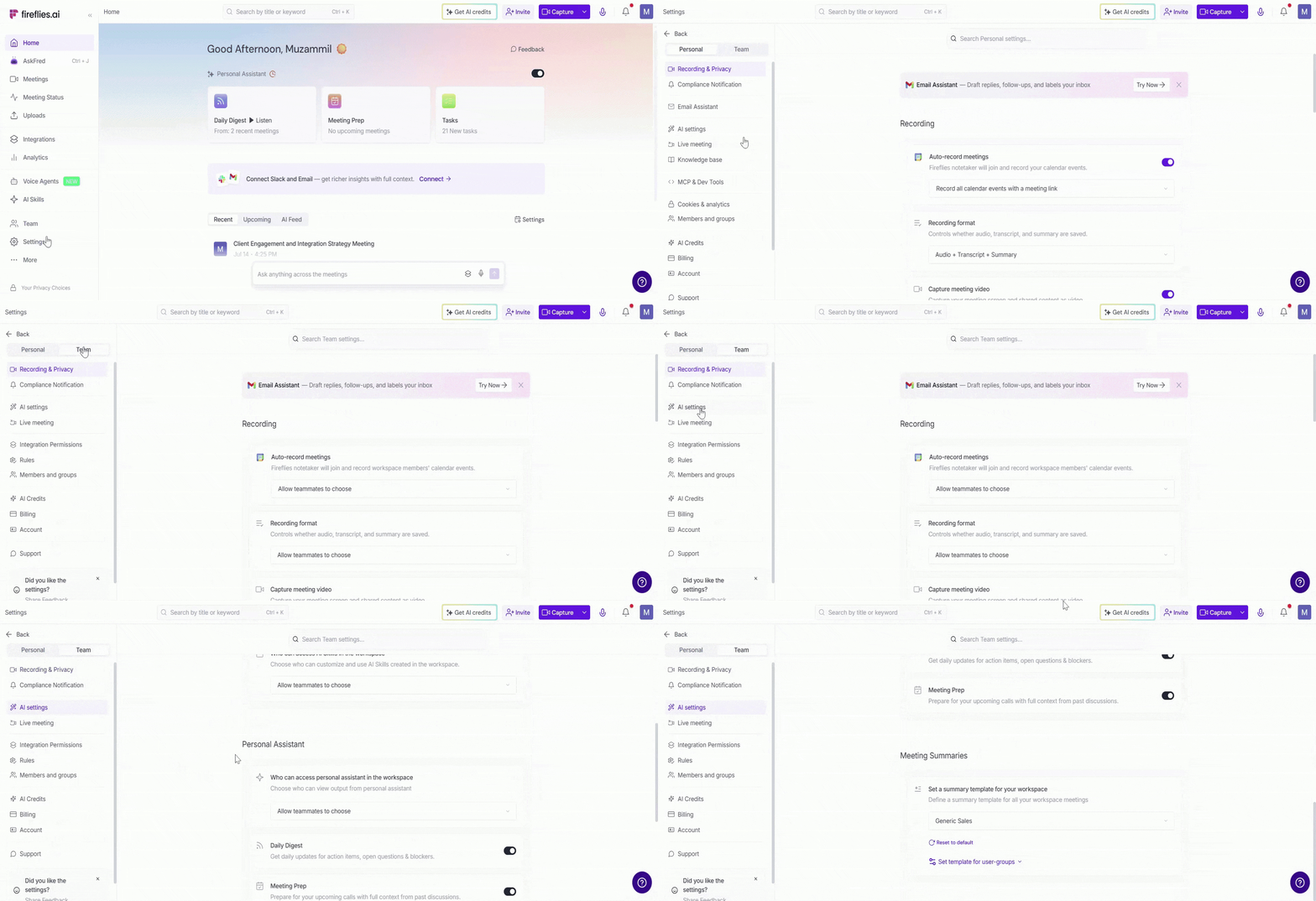
You'll see two configuration options:
🌐 Workspace Summary Template: Use this option if you want everyone in your workspace to follow the same meeting summary format. For example, if your entire organization uses a standard meeting note format, select the AI Summary Template you'd like to apply as the default for all workspace members.
👥 User Group Summary Templates: Use this option if different teams need different meeting summary formats. For example, your Sales team can use a sales call summary template, while HR uses an interview summary template and Customer Success uses a customer meeting template. Select a User Group, then choose the AI Summary Template you'd like to apply to members of that group.
📌 Related Guides
Team Settings: A Complete Guide for Workspace Admins to learn about other workspace-wide admin settings, recording and privacy controls, AI settings, integrations, and more.
Learn about the Fireflies Notepad – Understand how to organize your meeting notes and easily access key moments.
How to Download Transcripts, Summaries, and Meeting Recordings - Download meeting content for offline access or sharing.
How to Share Meeting Recaps with Teammates, Participants, Specific People, User Groups, and Non-Fireflies Users – Learn how to securely share meeting recap.