Setting Up Your Knowledge Base for Live Suggestions and Voice Agents
Last updated: June 22, 2026
The Knowledge Base in Fireflies is a central place where you can upload important product, company, or process information that Fireflies can use across multiple features. It acts as your team's single source of truth, ensuring Fireflies always has accurate and up-to-date content to reference.
Once set up, the same Knowledge Base can power multiple Fireflies features:
Sales Assist - During live customer calls, Sales Assist surfaces relevant answers and suggestions from your Knowledge Base in real time, helping your team respond confidently without leaving the conversation.
Voice Agents - Connects your knowledge base to Fireflies Voice Agents so they can reference your documents, FAQs, or internal content and respond accurately during calls on your behalf.
Uploading your Knowledge Base helps Fireflies:
Provide accurate, context-aware answers based on your own content
Reduce manual searching during meetings and customer conversations
Keep messaging consistent across sales, support, and customer-facing teams
Improve the quality of responses generated by Sales Assist and Voice Agents
Let's get started 🚀
🚀 Steps to Upload Your Knowledge Base
Follow these easy steps to upload and organize your knowledge base for live suggestions during meetings:
1. Navigate to Knowledge Base Settings
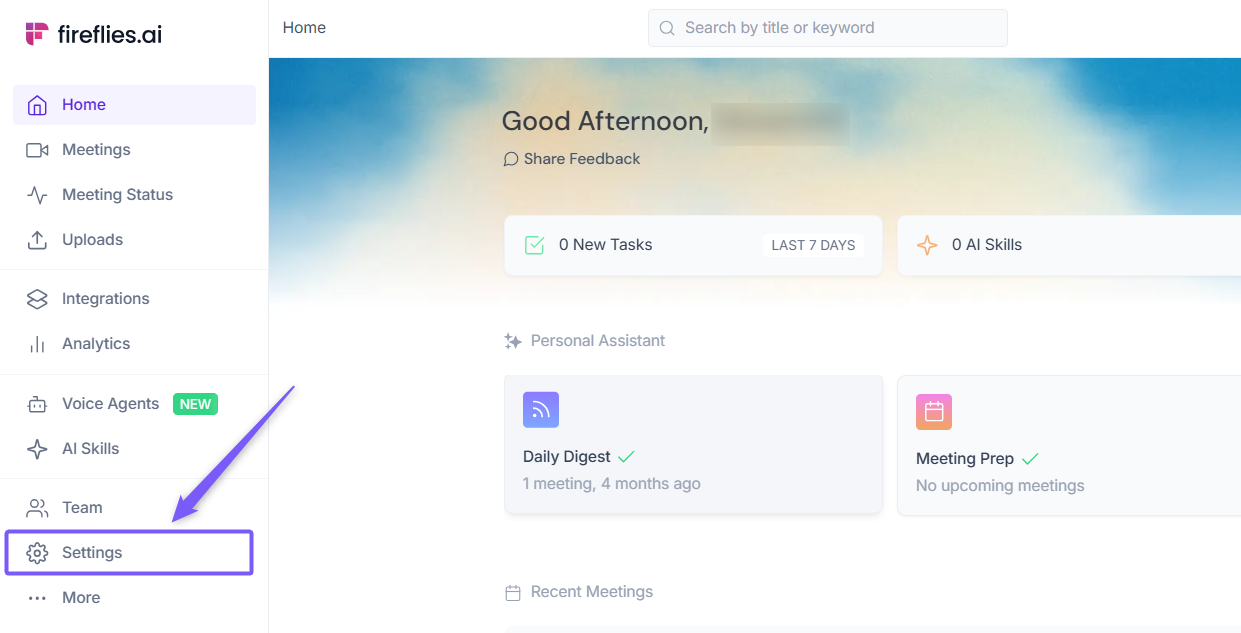
Log in to your Fireflies account and navigate to Settings from the main dashboard.
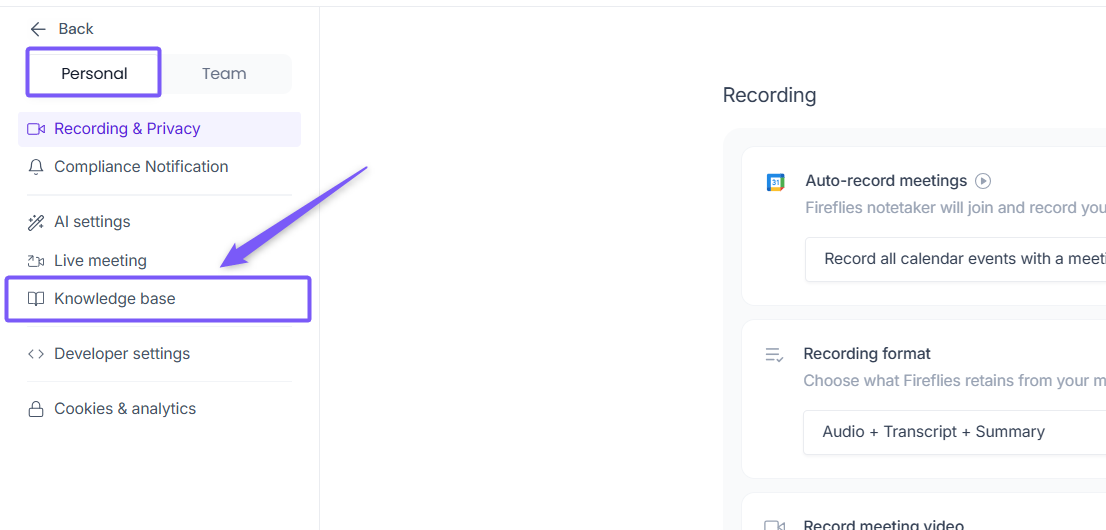
Under the Personal tab, click on the Knowledge Base.
2. Upload Your Knowledge Base Files
Upload Files:
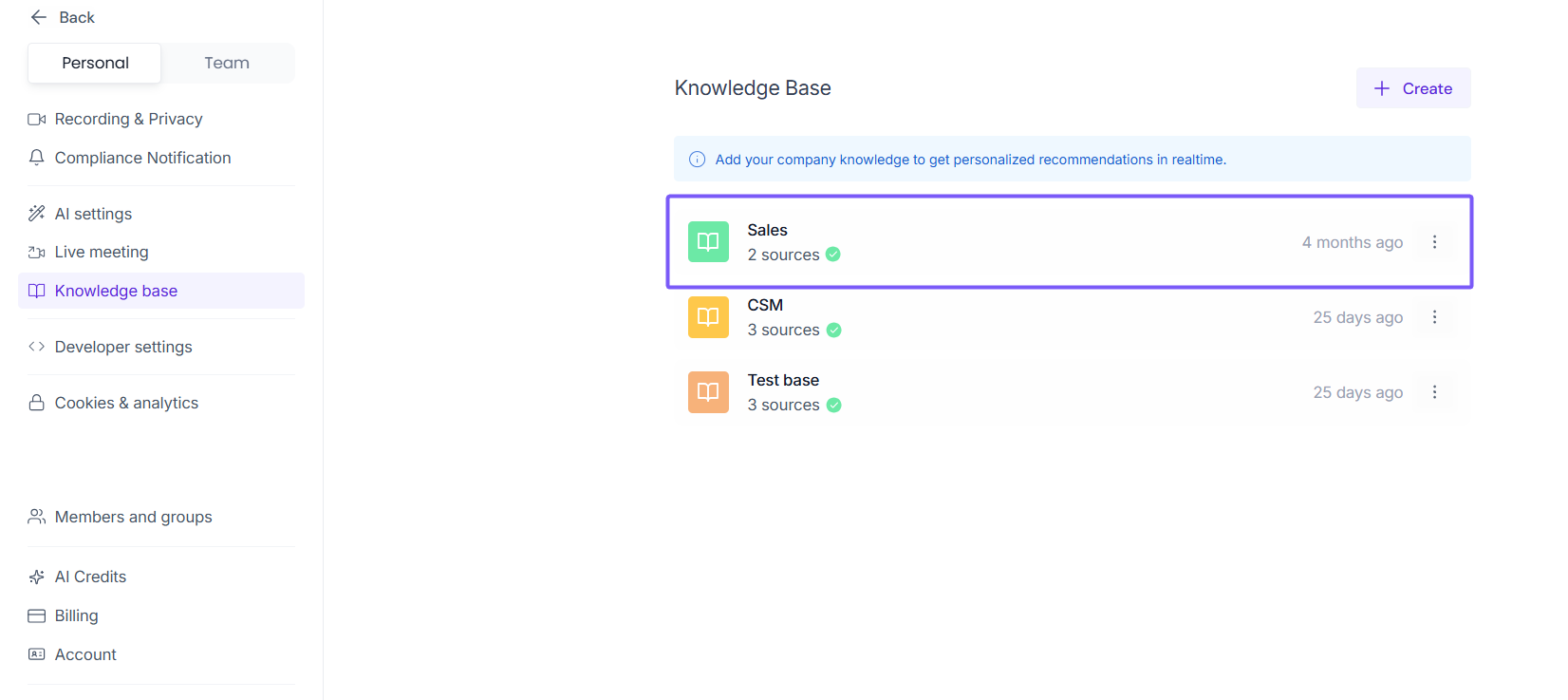
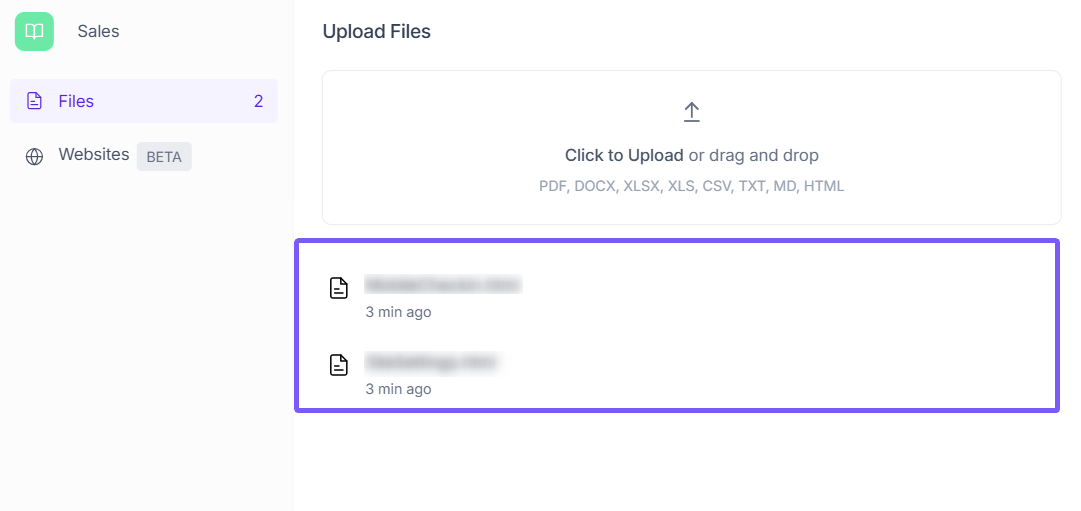
First, click on the Sales Template (the predefined template) to begin.
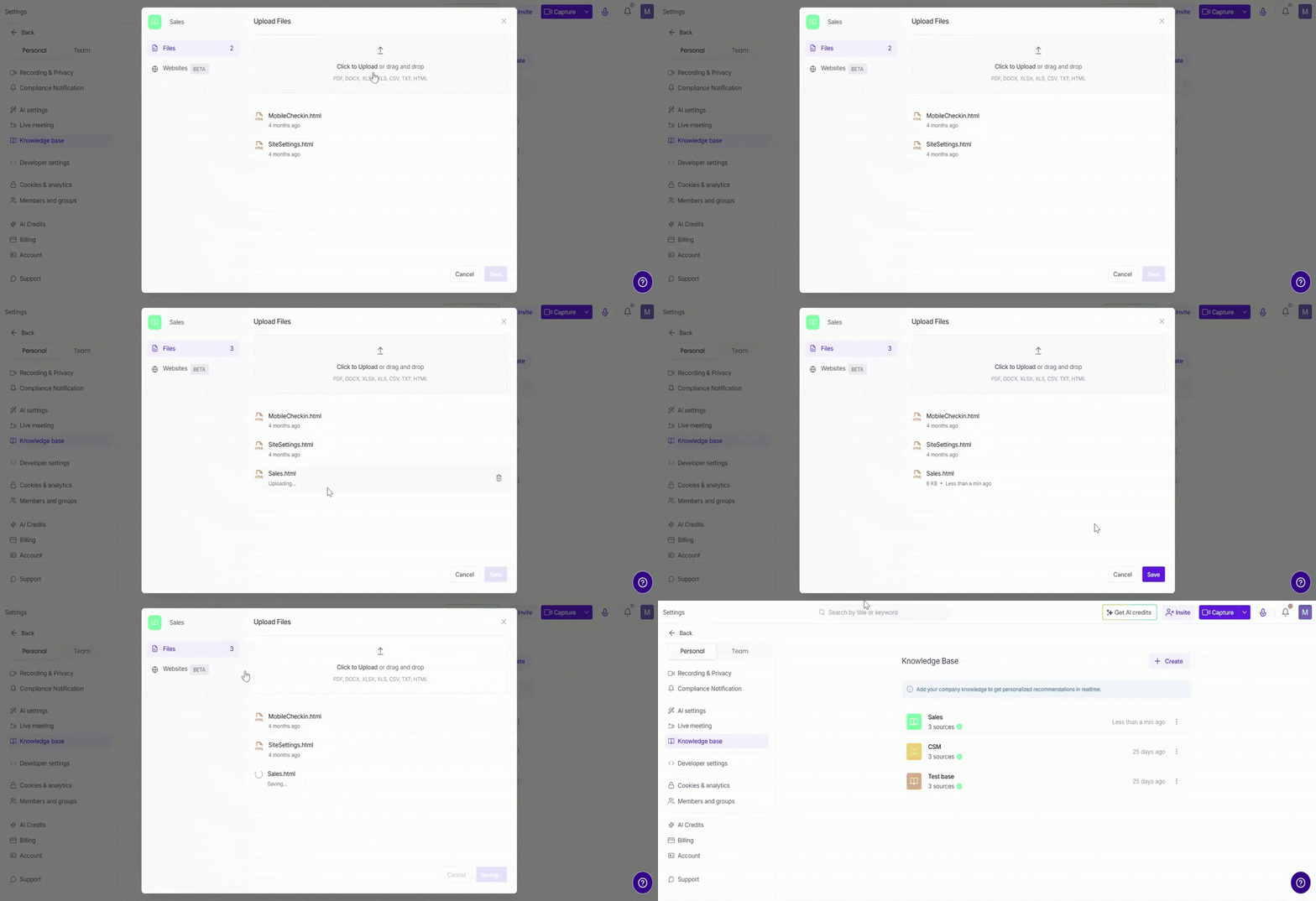
Click on Upload Knowledge Base or simply drag and drop your files.
Supported formats: PDF, DOCX, XLSX, XLS, CSV, TXT, MD, HTML
File size limit: Up to 1 MB per file (you can upload multiple files to build a complete knowledge base)
Add a Website URL:
If you have an online help center or FAQ, you can enter a website URL. Fireflies will crawl the page and extract relevant content for your knowledge base.
You can also choose to crawl sub-pages. Fireflies currently supports crawling up to 10 sub-pages per URL.
Simply provide the URL, and Fireflies will automatically extract the information.
Example: <https://www.acme.com>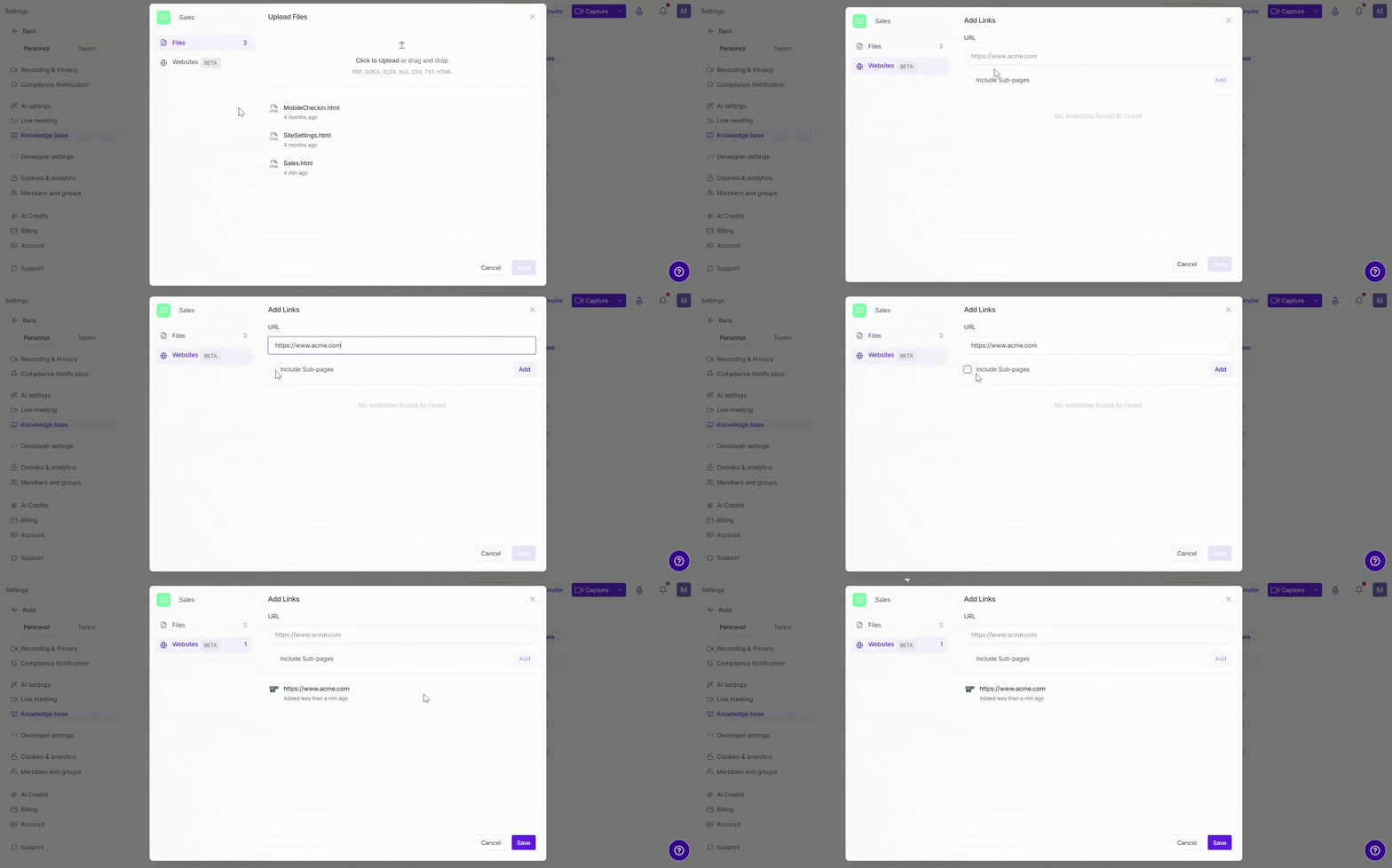
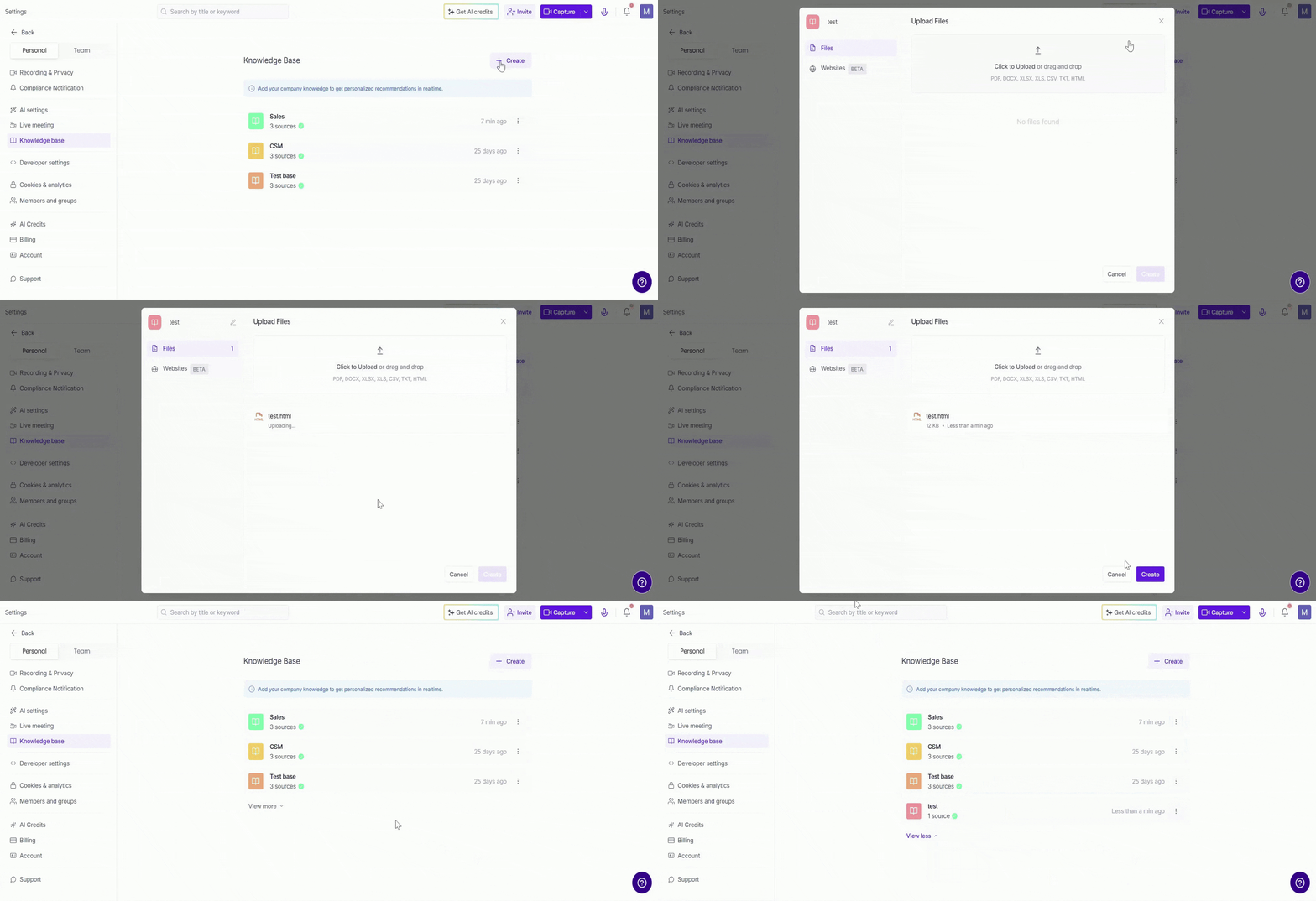
Create Your Own Template:
If you'd like to create your own custom knowledge base template, click Create, name it (e.g., Test KB), and start uploading your files.
3. Save and Organize Your Knowledge Base
After uploading the files, click Create to save your knowledge base.
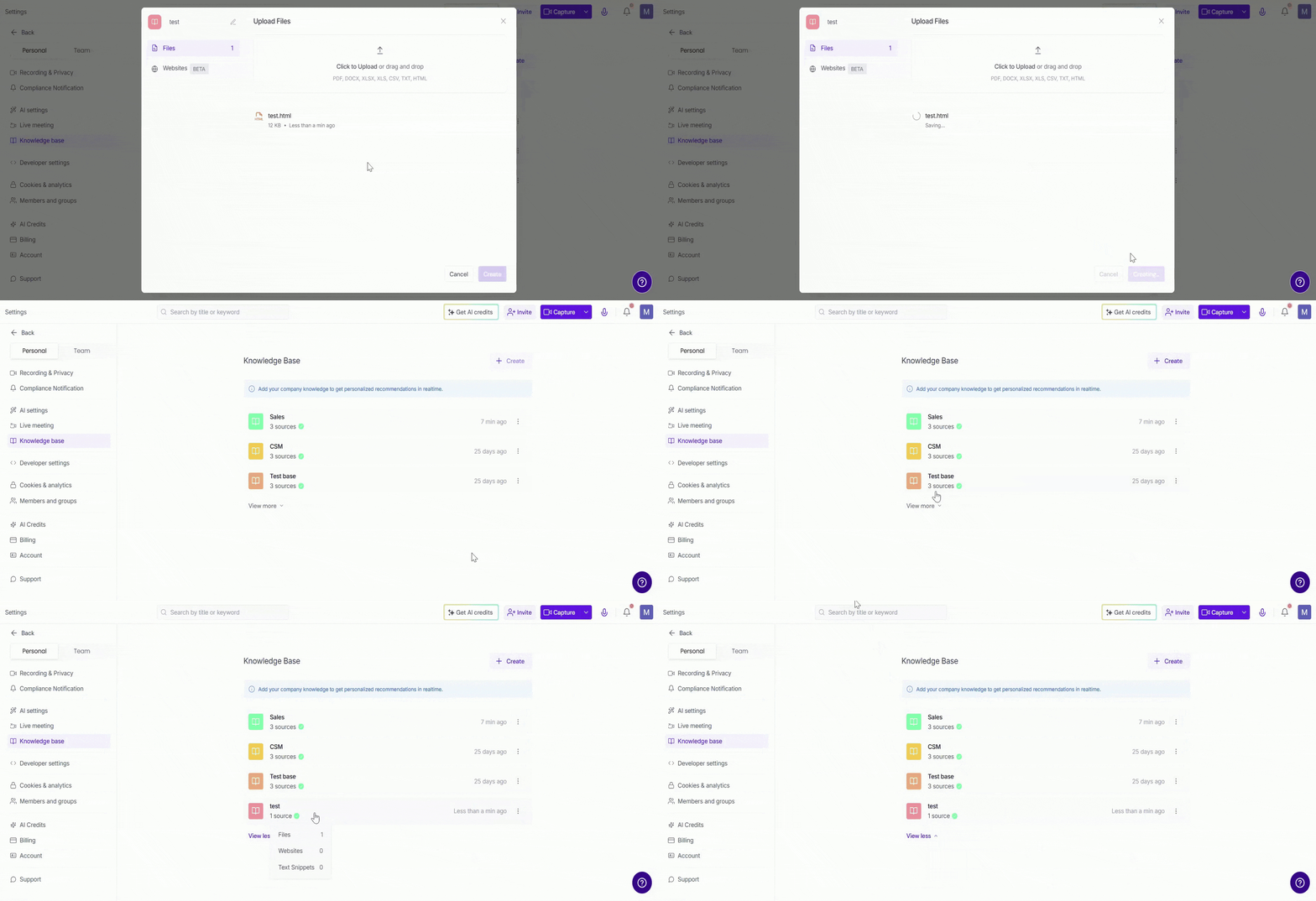
You can upload multiple files or manage them by creating new knowledge bases.
🪒 Manage Your Knowledge Base
Once you've uploaded your knowledge base, you can easily manage and update it with the following options:
Edit Knowledge Base (Template):
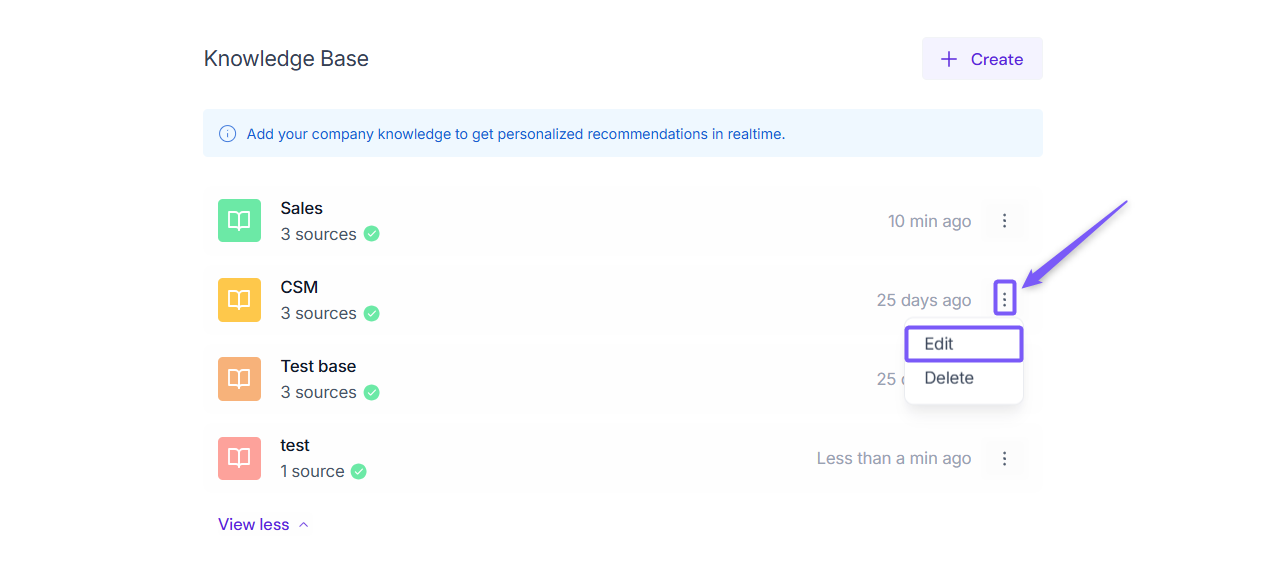
If you want to modify an existing knowledge base template, click the three-dot icon (⋮) next to the template name and select the Edit option.
You can:
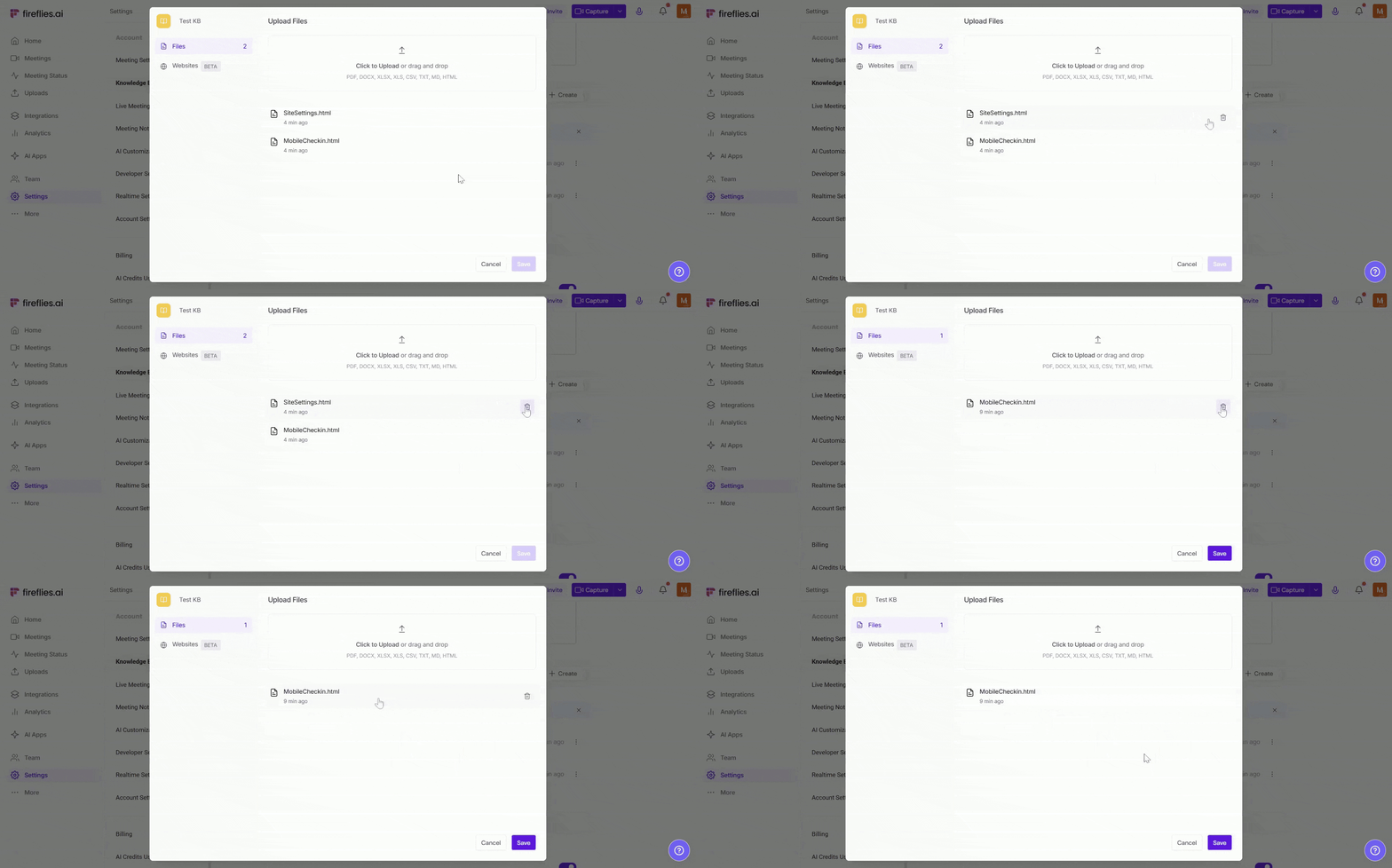
Delete Existing Files: Delete any outdated files that are no longer relevant.
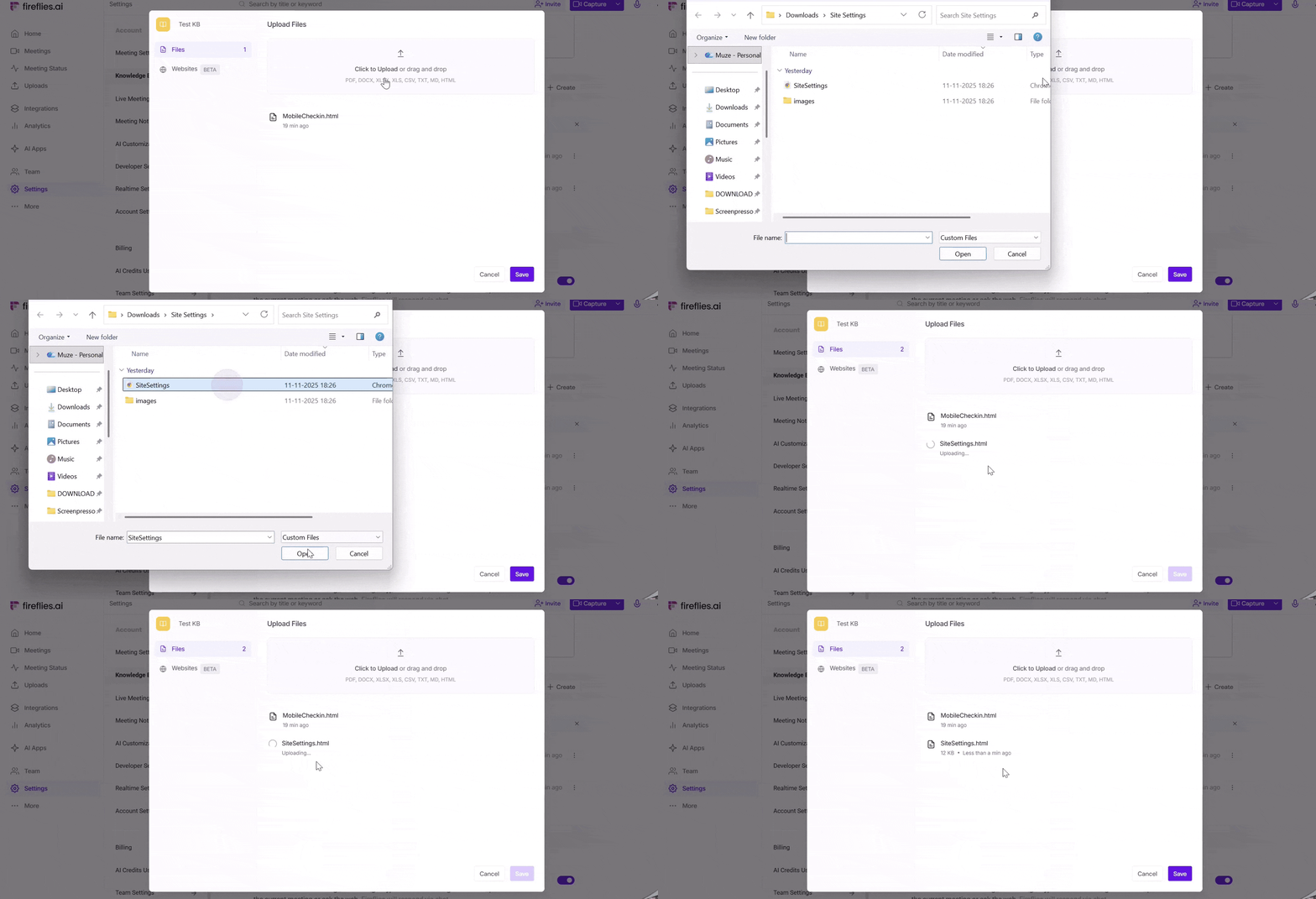
Upload New Files: Add new files in supported formats (PDF, DocX, XLX, HTML, etc.).
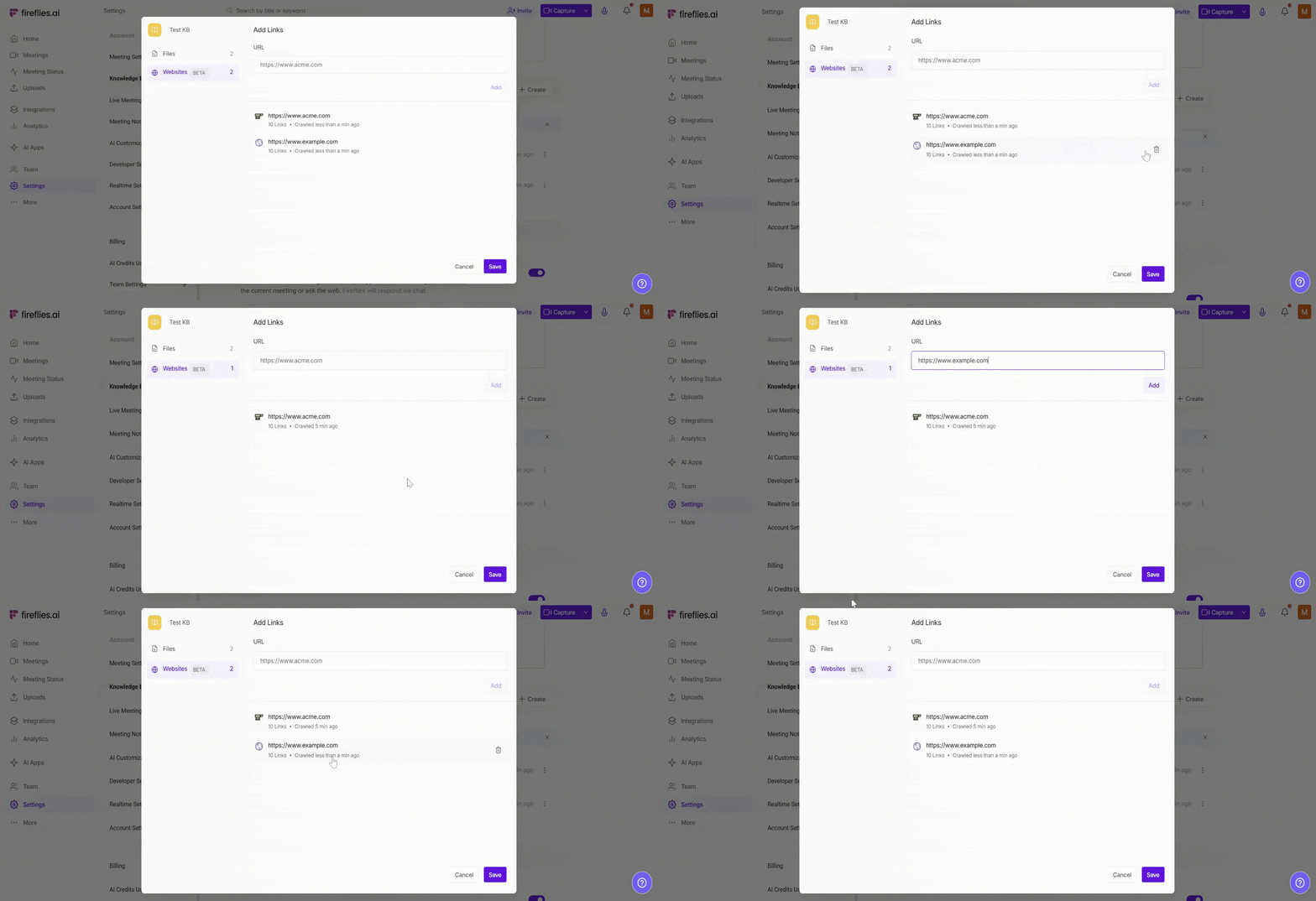
Add or delete website URL: Enter a website URL (e.g., a help center) to have Fireflies crawl the content and update your knowledge base automatically.
The Sales Knowledge Base is a default template and cannot be deleted. If you delete any other knowledge base, it cannot be recovered once deleted.
💼 Using Knowledge Base with Sales Assist
When using Sales Assist, your Knowledge Base helps Fireflies surface relevant information live during meetings.
Sales Assist uses your uploaded documents and URLs to:
Provide real-time suggestions and answers
Reduce manual searching during customer calls
Keep responses consistent across sales conversations
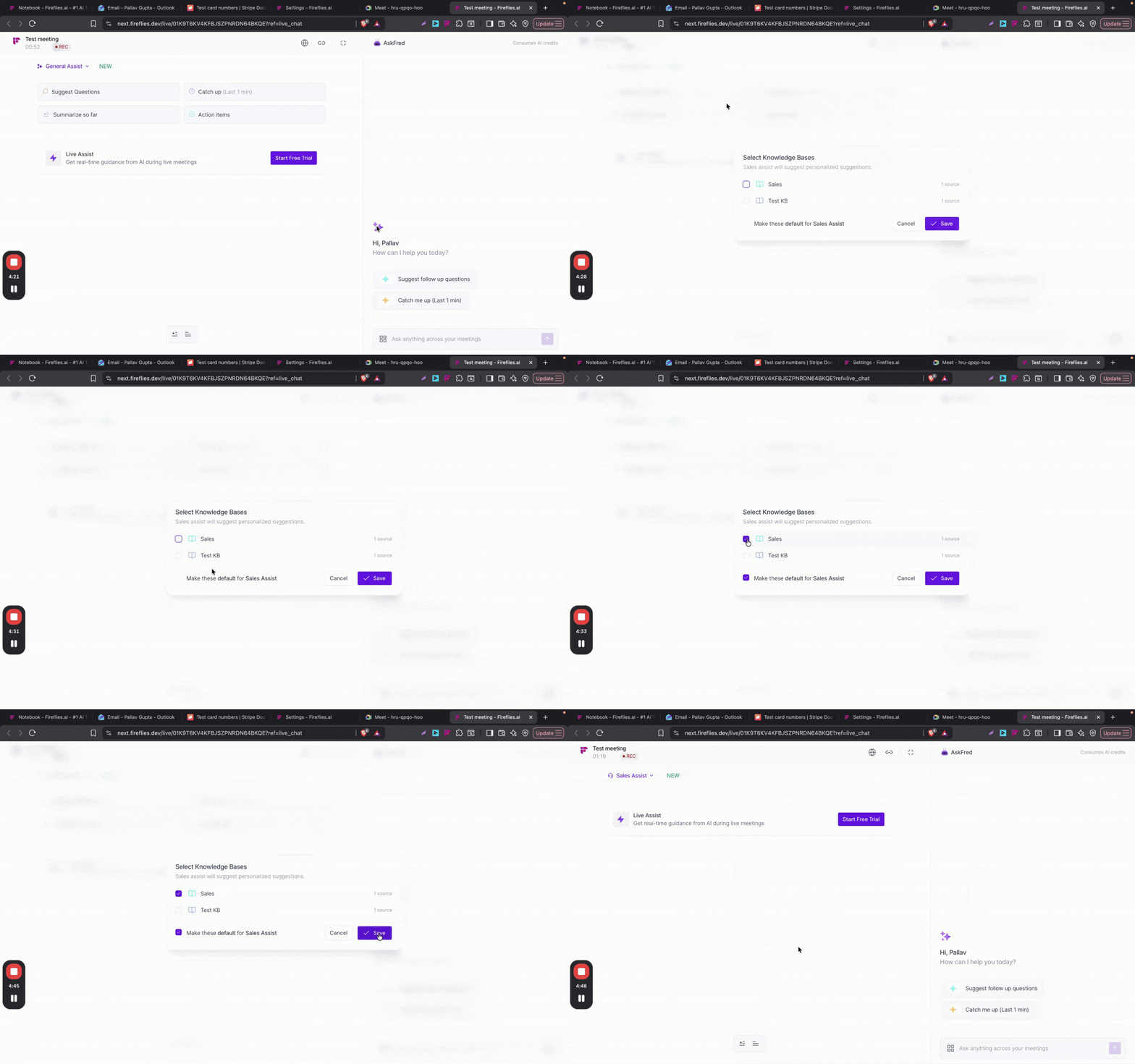
This is ideal for sales teams that want quick access to product details, pricing, FAQs, and playbooks during live calls.
🤖 Using Knowledge Base with Voice Agents
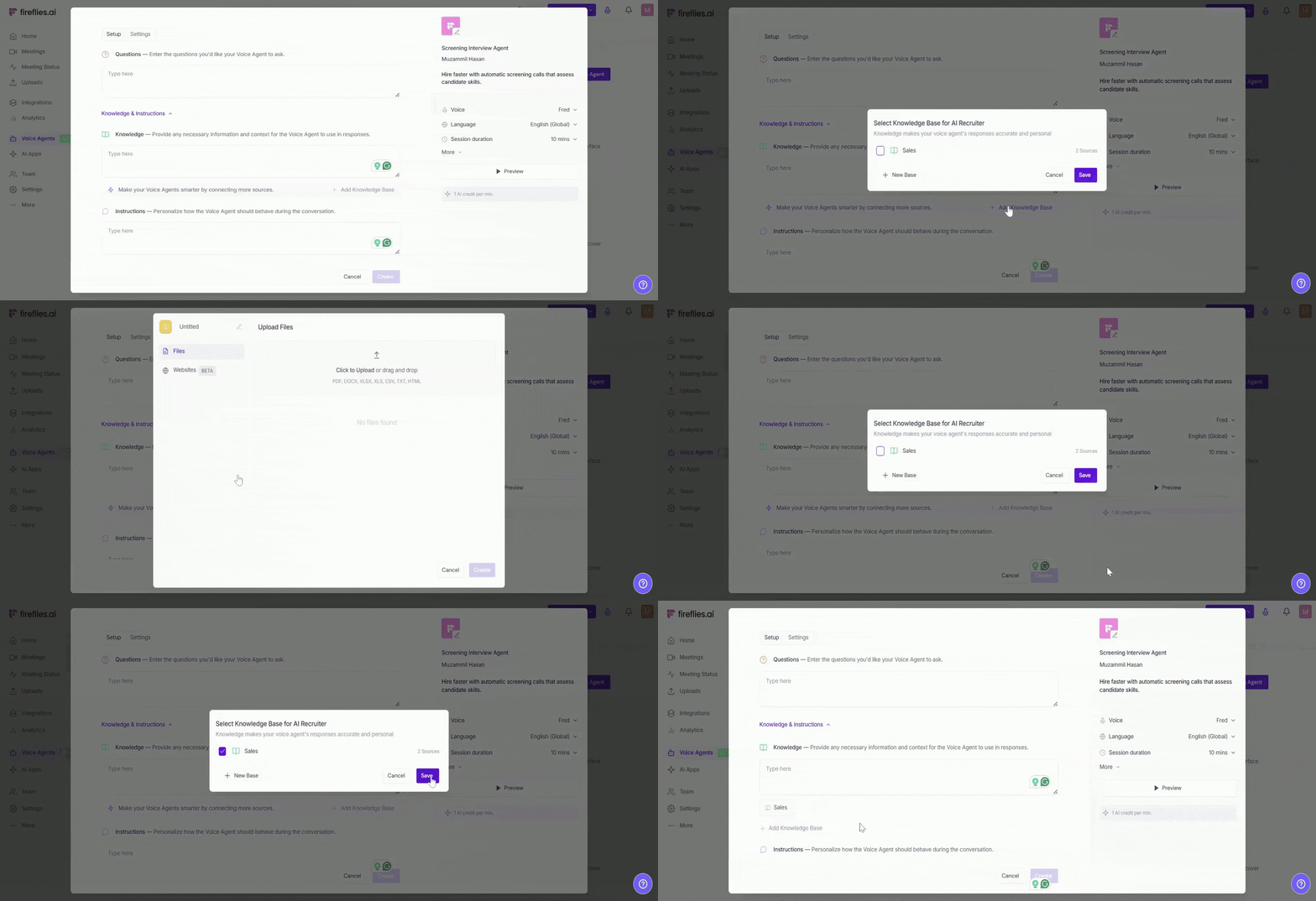
In addition to Live Assist, Knowledge Bases can also be used with Fireflies Voice Agents.
When a Knowledge Base is connected to a Voice Agent, the agent can reference your documents, FAQs, or internal content during the call to answer questions accurately and stay aligned with your business context.
How it works with Voice Agents:
A Voice Agent runs the conversation on your behalf
The agent uses the connected Knowledge Base to respond in real time
The full call is saved as a meeting, where you can review transcripts, summaries, and outputs
This is especially useful for:
Screening Interviews Voice Agent (hiring policies, role details)
Sales Discovery Calls Voice Agent (product docs, pricing FAQs, sales playbooks)
User Research or Support Calls Agent (help articles, internal guidelines)
🔍 Troubleshooting & FAQs
1. My knowledge base isn’t showing up in Sales Assist. What should I do?
Ensure you've uploaded your knowledge base correctly. If you're still facing issues, check if the knowledge base is properly linked to your meeting in the Live Assist pane.
2. I accidentally deleted a knowledge base. Can I recover it?
Once a knowledge base is deleted, it cannot be recovered. Please make sure to back up your knowledge base before deletion to avoid losing important content.
3. How do I upload multiple files to a knowledge base?
When adding content to a knowledge base, you can click the Upload Knowledge Base button and select multiple files (PDF, DocX, XLX, HTML) at once. You can also upload a website URL for automatic crawling.
4. Can I delete the default Sales Assist template?
No, the Sales Assist template is a default template and cannot be deleted. It’s pre-set to ensure you always have a knowledge base available for Sales Assist.
5. How do I add a website to my knowledge base?
In the knowledge base settings, you can enter the URL of your help center or FAQ page. Fireflies will crawl the website and extract relevant content to automatically create your knowledge base.
6. I uploaded a file, but it's not showing up in my knowledge base.
Double-check that the file format is supported (PDF, DOCX, XLSX, CSV, TXT, MD, HTML) and that the upload was successful. If it's still not appearing, try uploading it again or contact our support team.
7. Can I use my Knowledge Base with Voice Agents?
Yes. Knowledge Bases can be connected to Voice Agents so they can reference your content during calls. This works separately from Live Assist and does not require additional uploads if your Knowledge Base already exists.
🔄 Recap
Upload and manage your knowledge base by adding files or website URLs.
The Sales Assist template cannot be deleted, as it’s the default.
Knowledge bases can be edited, but deleted ones cannot be recovered.
Use your knowledge base for live suggestions with Sales Assist and real-time responses during Voice Agent calls.