Talk to Fireflies in Live Meetings
Last updated: September 28, 2026
Looking to dictate text anywhere with your voice? That's a different feature: Fireflies Talk, our desktop dictation feature. Learn more about Fireflies Talk
You're in the right place if you want to interact with AskFred during a live meeting, where you can talk to Fireflies during the meeting.
Talk to Fireflies (in partnership with Perplexity) is your real-time AI teammate built to help you stay focused on the conversation while it handles the rest. This isn’t just about note-taking. It’s about collaboration—in real time. With Fireflies now joining the conversation, you can interact naturally using your voice or in the meeting chat. Ask questions, assign tasks, bookmark key discussions, or even pull up live web info—just like you would with a teammate sitting across the table.
All it takes is a simple “Hey Fireflies…” or a quick /ff in chat to get started. Here's a guide to help you make the most of this feature. Best part? It's free to use!
🔧 Step 1: Enable Talk to Fireflies
Before using Talk to Fireflies, make sure it’s enabled in your account.
A. From Your Personal Settings
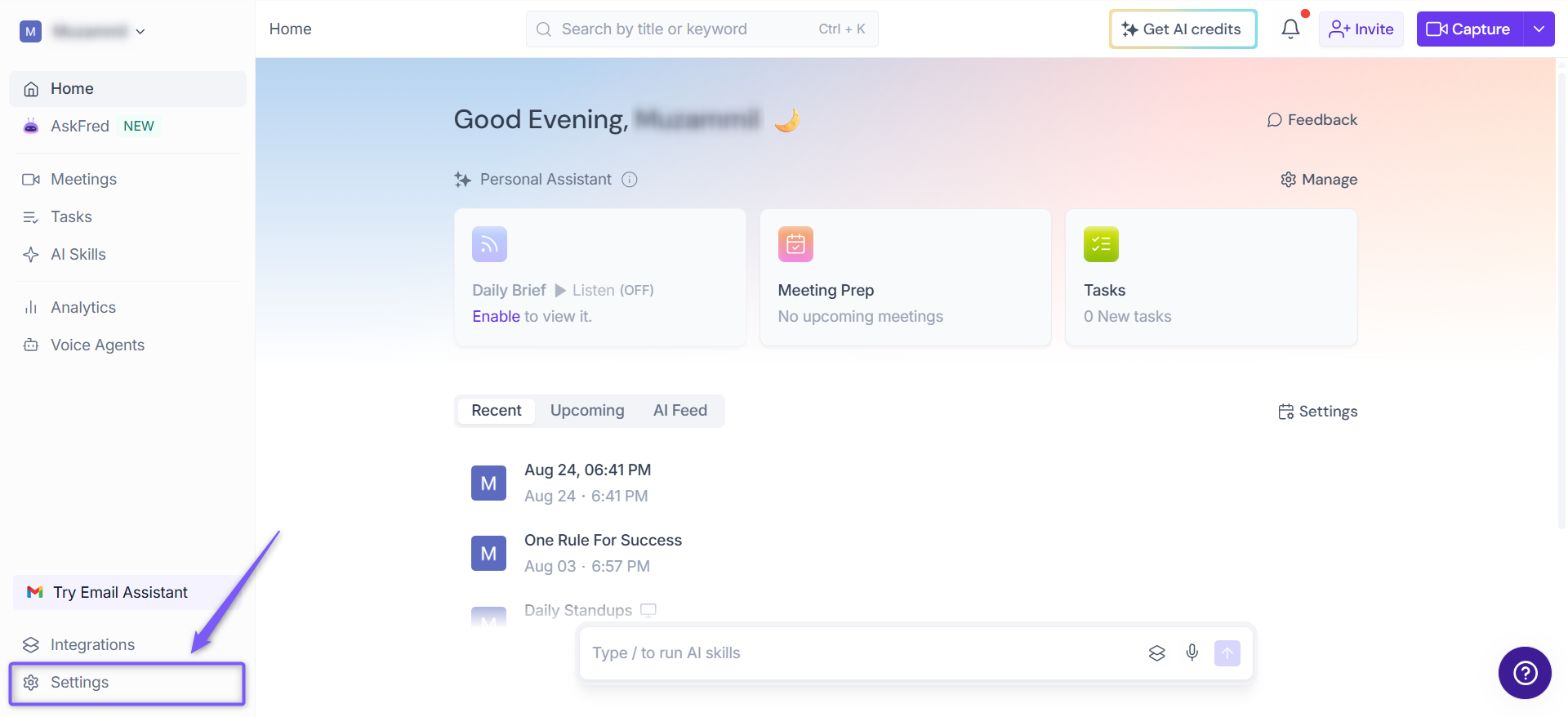
1. Go to the Fireflies web app and click the Settings from left side menu.
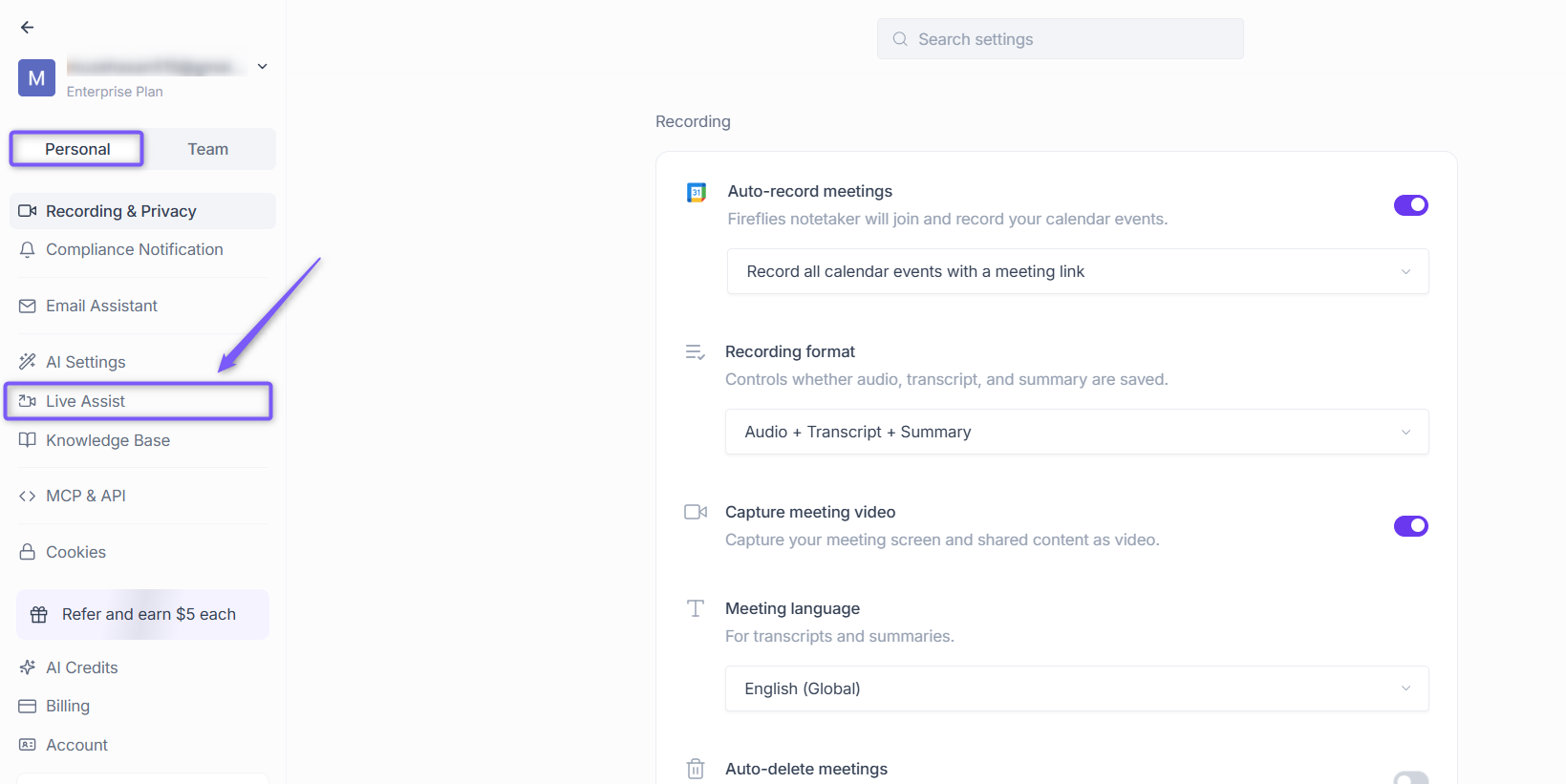
2. Navigate to Live meeting (Personal tab) from the left panel.
3. Under the Live Assist section, scroll down to locate Talk to Fireflies.
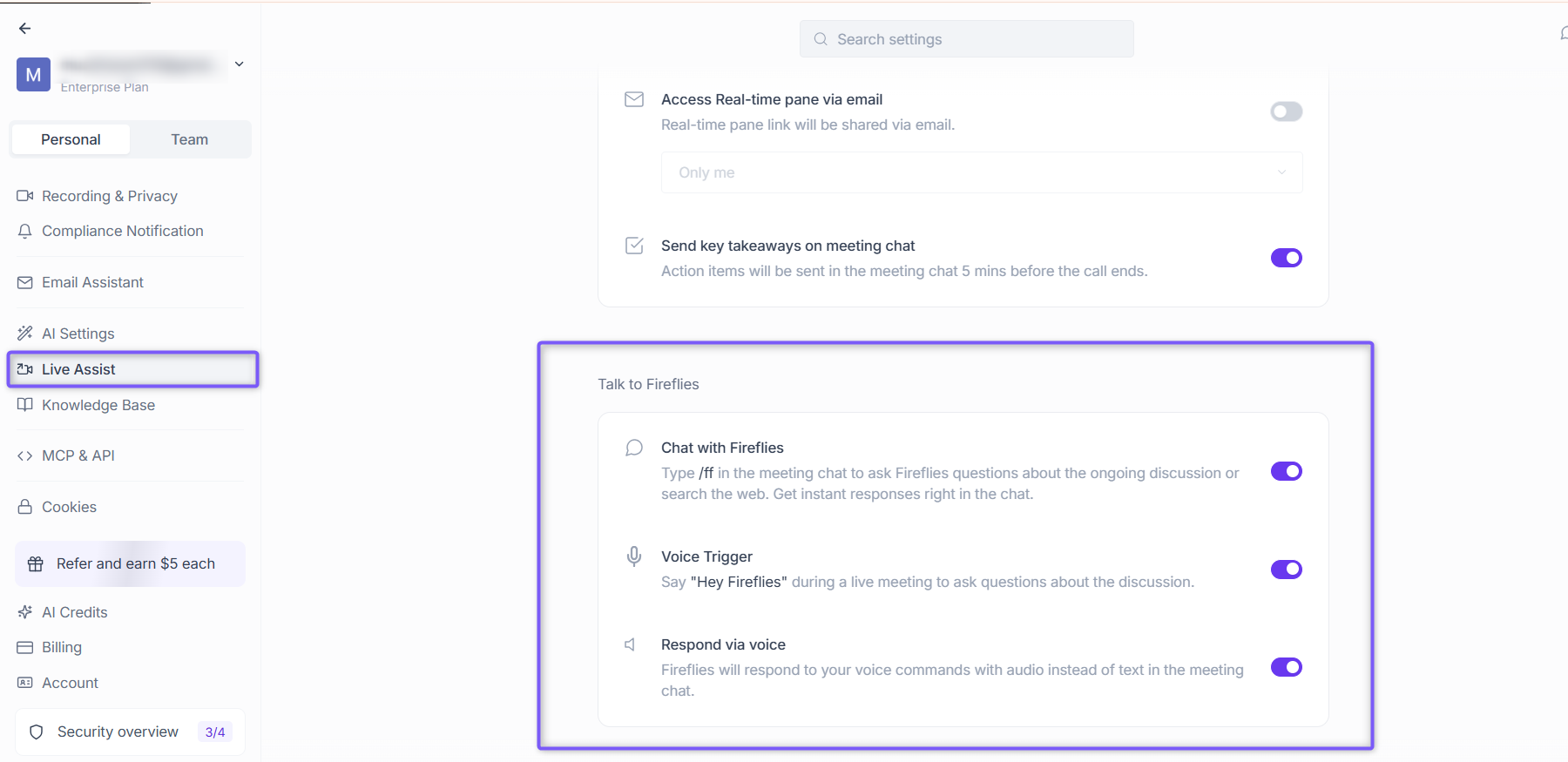
4. Toggle ON Chat with Fireflies (default: ON)
The following settings will also be enabled (unless restricted by admins):
Voice Trigger: Say “Hey Fireflies” during a live meeting to ask questions about the discussion
Respond via voice: Fireflies will respond to your voice commands with audio instead of text in the meeting chat
You can turn either of these off anytime based on your preference.
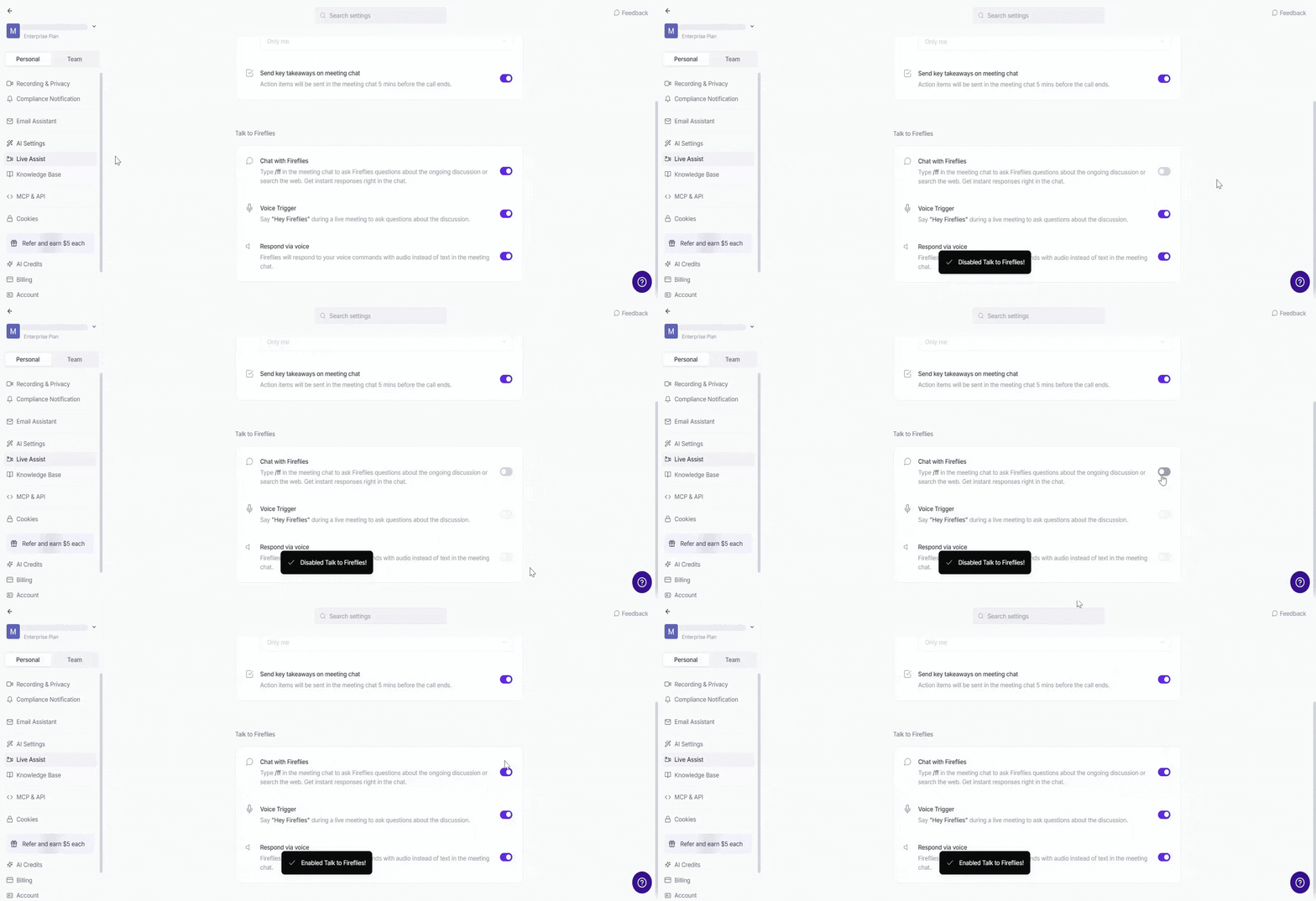
🔔 When enabled, Fireflies sends a message in your meeting chat to let everyone know it’s active.
ℹ Note: This feature is available on Google Meet, Microsoft Teams, and Zoom.
B. For Admins
1. Navigate to Settings and switch to the Team tab.
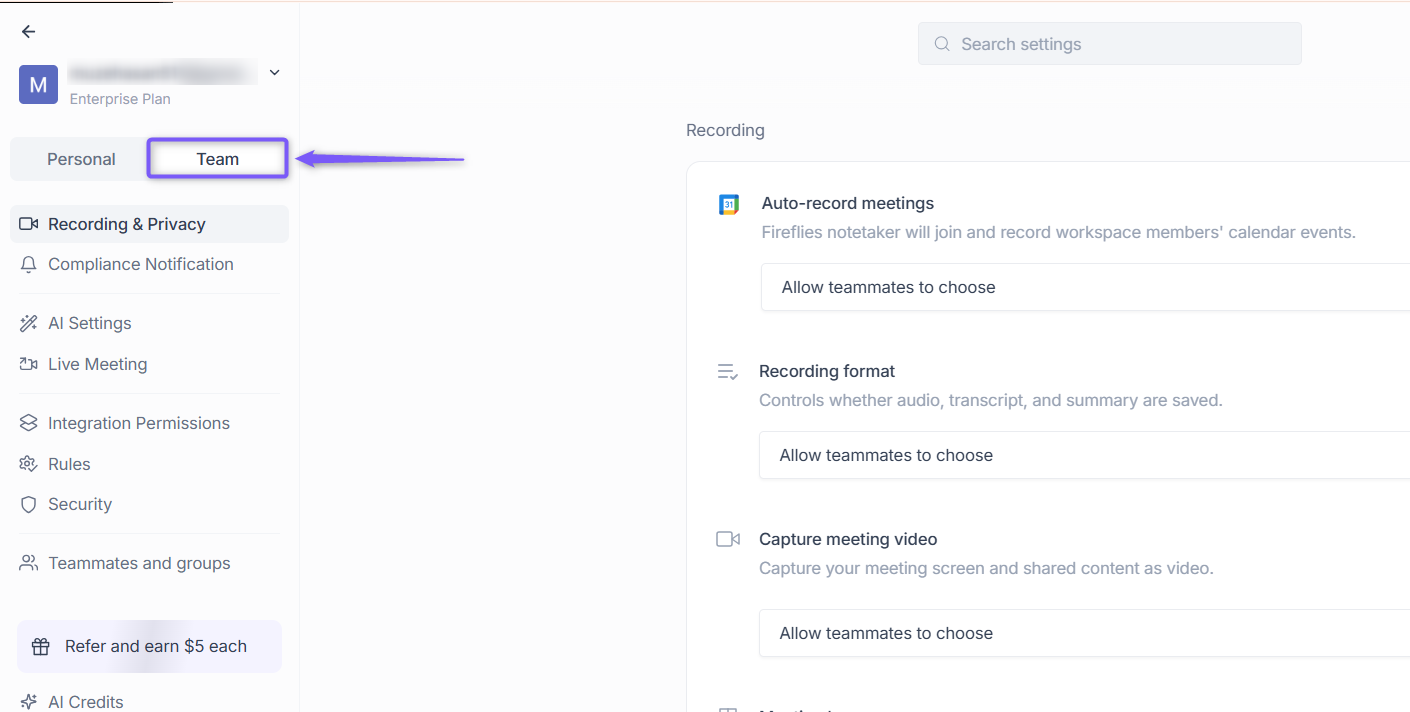
2. Navigate to Live meeting (Team tab) from the left panel.
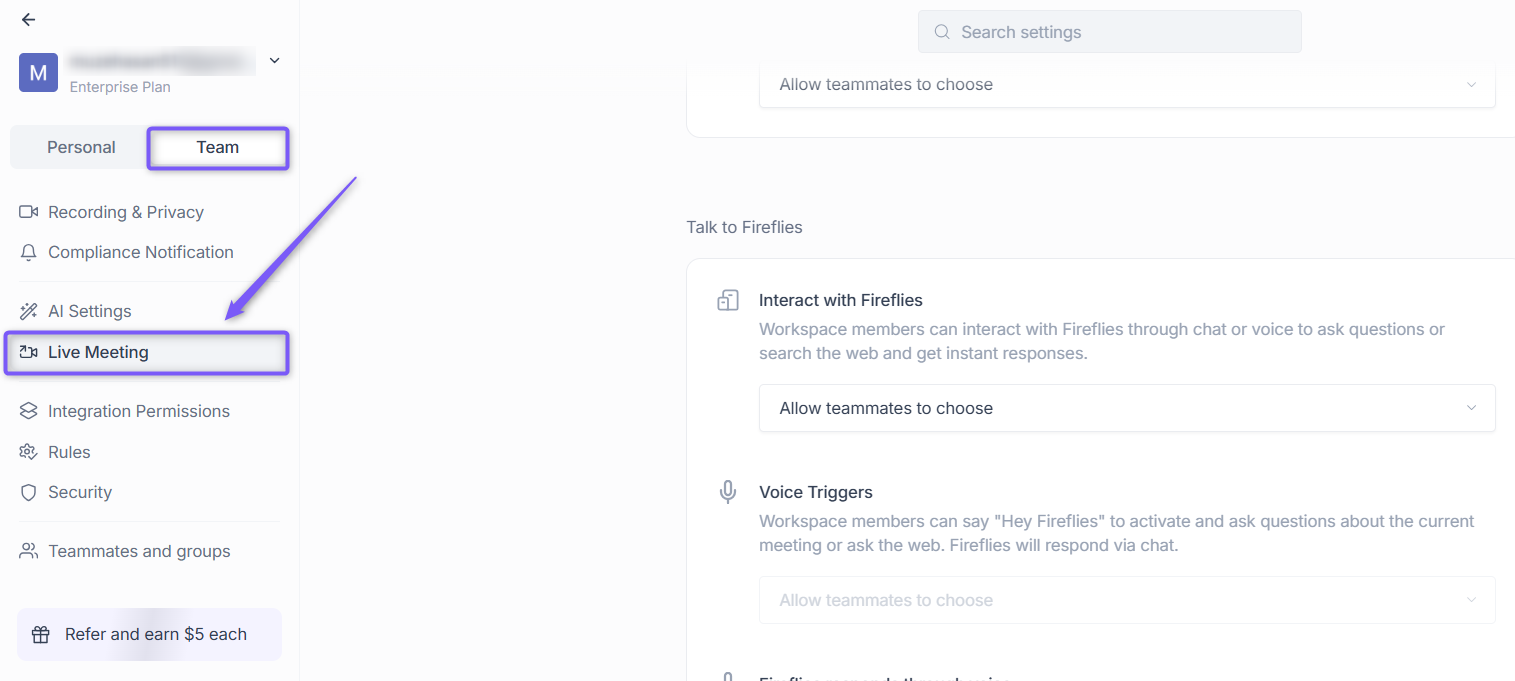
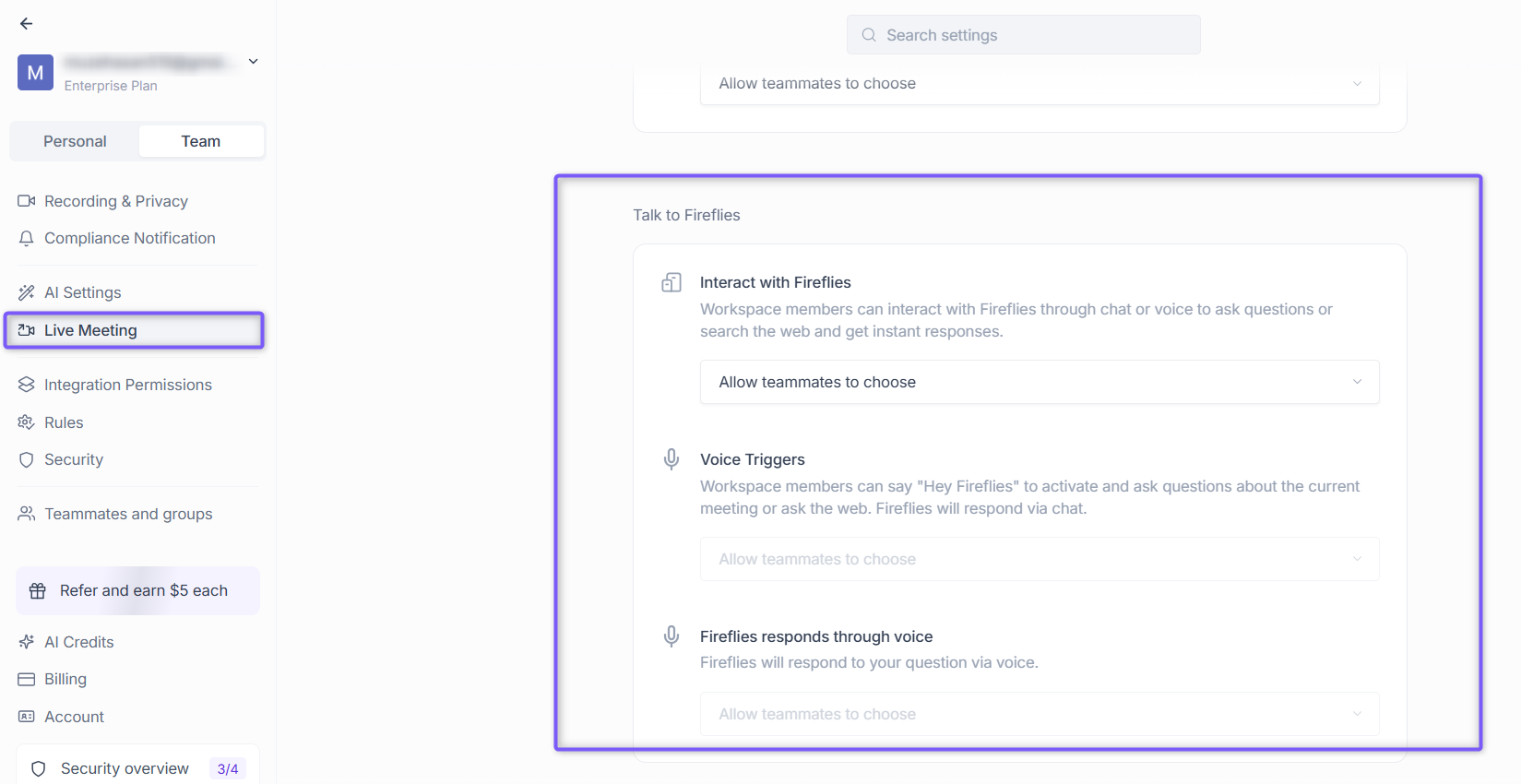
3. Under the Live Meeting section, scroll down to locate Talk to Fireflies.
Here, you’ll see admin-level controls for:
Interact with Fireflies – allows teammates to use chat or voice to ask questions during meetings
Voice Triggers – allows activation using “Hey Fireflies” during meetings
Fireflies responds through voice – allows Fireflies to reply using voice during meetings
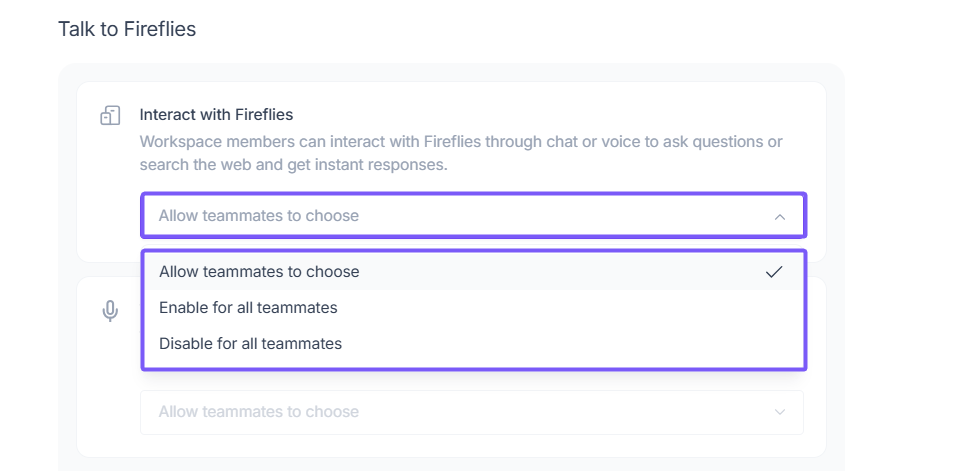
For each setting, you can control how it applies across your workspace:
Allow teammates to choose – lets each user decide their own preference
Enable for all teammates – turns the setting on for everyone in the workspace
Disable for all teammates – turns the setting off for everyone in the workspace
🔧 Use this to maintain consistency across meetings—especially for teams with shared norms around voice interaction.
🎙 Step 2: How to Use Talk to Fireflies in a Meeting
You can use voice or chat, depending on what’s easier and preferable in the moment
Currently, orb animations are only available on Google Meet. MS Teams and Zoom will be rolled out soon.
A. Voice Commands
Fireflies is on mute by default during the meeting unless its triggered by a Voice Command
Orb State:
Idle and on mute— Fireflies is waiting for the wake word
Say: “Hey Fireflies…” and wait for the audio chime and the Listening animation. Ask your question or give a command naturally, just like you would to a teammate.
Example: “Hey Fireflies, catch me up on the meeting so far?”
Orb State:
Listening— Fireflies is now actively listening to your voice
Once you ask your question or share your request, Fireflies will then begin processing your request
Orb State:
Thinking— Fireflies is analyzing what you said
Finally, Fireflies will respond in voice and in chat
Orb State:
Speaking— Fireflies is sharing its response on voice and chat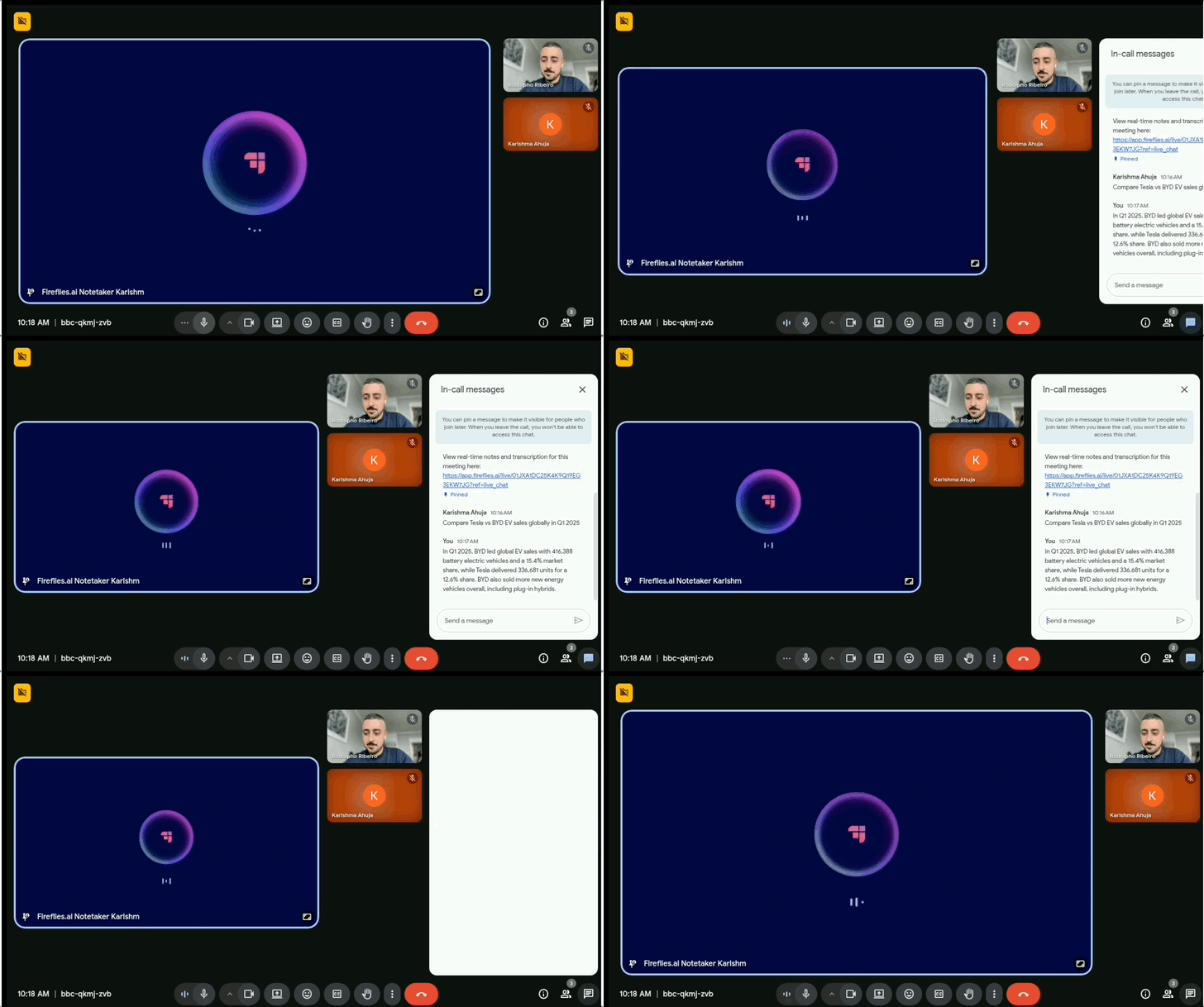
Few important things to note:
If you ask questions or share requests via voice commands, Fireflies will respond via voice and chat both
🚫 Do not speak while Fireflies is speaking, or it will stop processing the current command
🔄 Web search queries may take a few extra seconds to process compared to meeting-related questions, as Fireflies fetches results from external sources in real time
B. Chat Commands
Open your meeting chat
Type:
/fffollowed by your requestExample:
/ff What have we discussed so far today?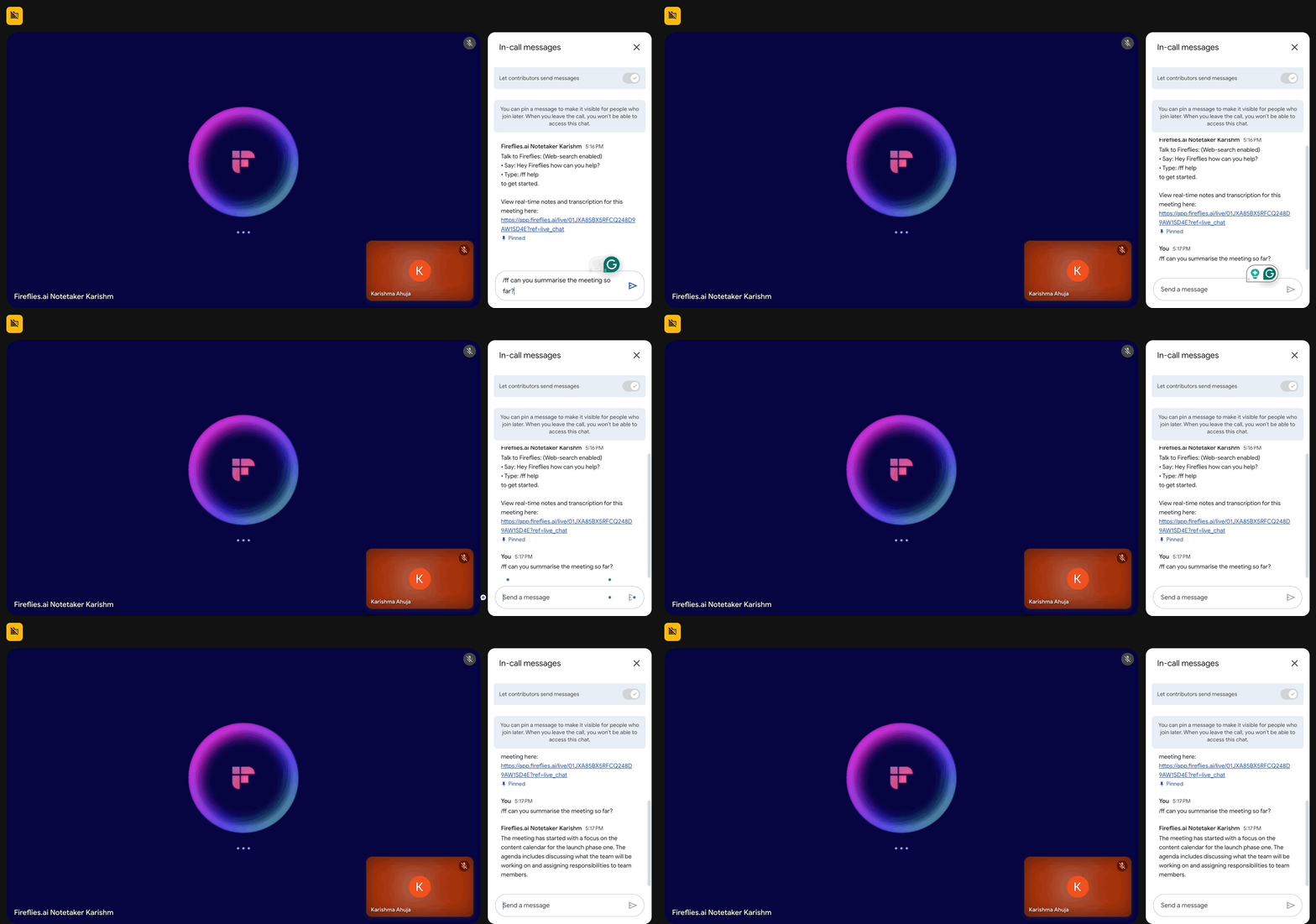
Chat-only prompts will be answered in chat only
💬 What You Can Ask Fireflies To Do (With Real Examples)
1. ⏪ Catch Up Without Asking People to Repeat
Say: “Hey Fireflies, catch me up on what I missed.”
Type: /ff Catch me up on the meeting so far
2. 📌 Bookmark Important Decisions and Capture Action Items
Say: “Hey Fireflies, bookmark this as the new pricing agreement” or “Hey Fireflies, create a task for Jane to follow up with the client after the call”
Type:
/ff Add action item for Jane to follow up with client after call and bookmark this
3. 🧠 Ask Questions About the Ongoing Meeting
Say: “Hey Fireflies, what decisions have we made so far?”
Type:
/ff What did Jane say about the email performance timings?
4. 🌐 Ask Real-Time Questions From the Web
Say: “Hey Fireflies, what’s the current stock price of Nvidia?”
Type:
/ff Compare Tesla vs BYD EV sales globally in Q1 2025.
5. 🔢 Run Quick Calculations or Projections
Say: “Hey Fireflies, if we grow 14% monthly and churn 3%, how many users in 8 months from 20K?”
Type:
/ff What’s the ROI on $1,000 monthly over 4 months at 18% return?
6. 📄 Wrap Up With a Meeting Summary
Say: “Hey Fireflies, summarize the meeting and list all action items.”
Type:
/ff What did we cover today and what are the next steps?
✅ Where & Who Can Use It?
Platforms: Google Meet, Zoom, Microsoft Teams
Languages: Fireflies supports 60+ languages, but will only understand and reply in the one set in your Language Settings
Plans: Available to all users, including Free
Access: Any participant on the call can use Talk to Fireflies
💡 Tips to Make the Most of It
Speak clearly and loud enough for Fireflies to hear you
Make sure your selected language matches what you're speaking; Fireflies will only understand and respond in the selected language accurately
Pause briefly after saying “Hey Fireflies” to give it time to start listening
Minimize background noise so your command is easily picked up
Wait a few seconds after your prompt—Fireflies may take a few seconds to think and respond 🔄 Fireflies shows different orb states:
Idle → Listening → Thinking → SpeakingDon’t interrupt while Fireflies is replying, especially in voice mode
Keep your commands short and specific for better accuracy
Use chat (
/ff) in large meetings or when you don’t want to speak out loud