Live Assist & Sales Assist on the Fireflies Desktop App: Real-Time Notes, Answers, and Suggestions
Last updated: September 7, 2026
Live Assist helps you stay focused during meetings by providing real-time notes, transcripts, AI-powered insights, and meeting assistance in the real-time Floating Pane on the Fireflies Desktop App.
You can keep Live Assist open as you present, screen share, or switch between apps, so key details stay visible without interrupting your flow.
It works during your meetings, letting you:
See live notes and transcripts as people speak
Get context, meeting prep, and AskFred answers in real time
Write your own Manual Notes while viewing AI Notes, transcripts, and Meeting Prep.
Run AI Skills instantly during a meeting using the '/' command
Use Sales Assist for instant, knowledge-based suggestions during customer calls
Get real-time nudges to improve your speaking pace and monologue length
View an Instant Summary immediately after your meeting ends, then review your recording, notes, tasks, AskFred, transcript, and the complete AI meeting summary once it's ready.
Live Assist on Desktop works the same way as on the web, but appears as a floating panel that stays visible on your screen during meetings.
New to Live Assist?
If you’d like a broader overview of how Live Assist works across Fireflies, you can start with the guide here: 👉 Learn about Live Assist on the Web →
🔑 Prerequisites
Before using Live Assist on the Fireflies Desktop app, make sure:
The Fireflies Desktop app is installed on Windows or macOS
A Fireflies account connected to your calendar or conferencing tool (Google Meet, Zoom, or Microsoft Teams).
Live Assist works when:
Fireflies.ai Notetaker joins your meeting (bot meeting), or
You record using Take Notes (system audio, including phone calls and supported apps)
Sales Assist works only when the Fireflies.ai Notetaker (bot) is present in the meeting. It does not work in system audio recordings.
🚀 How to Open Live Assist on the Desktop App
Live Assist is available in the real-time Floating Pane, which opens automatically whenever you start capturing a meeting using Fireflies.ai Notetaker or Take Notes (without bot).
To start capturing a meeting, follow the steps in Getting Started with the Fireflies Desktop App, which explains how to:
Capture meetings with Fireflies.ai Notetaker (bot).
Capture meetings using Take Notes (system audio, without a bot).
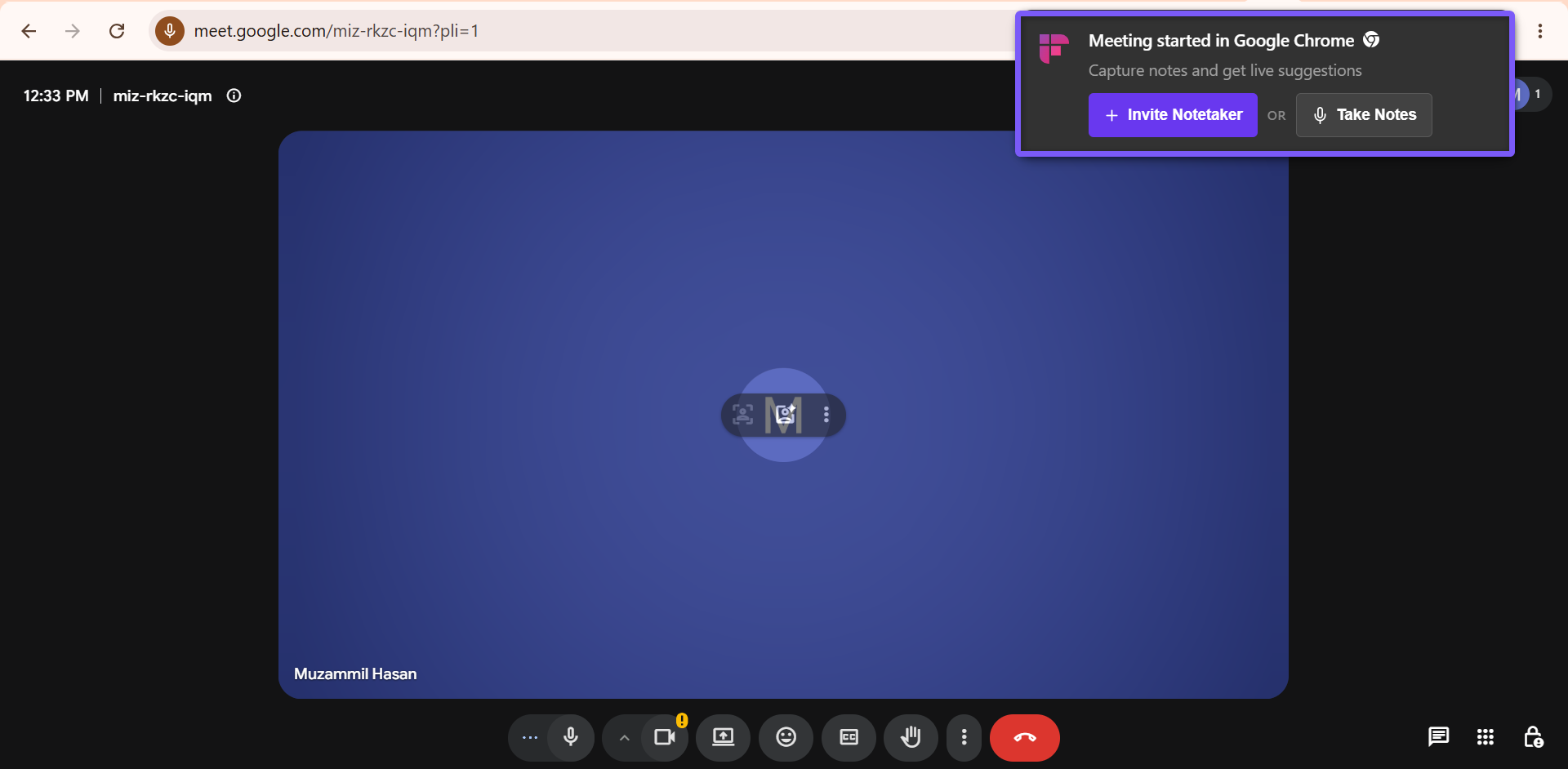
Once meeting capture begins, the real-time Floating Pane opens automatically, giving you access to Live Assist, AskFred, AI Skills, transcripts, notes, and other in-meeting features.
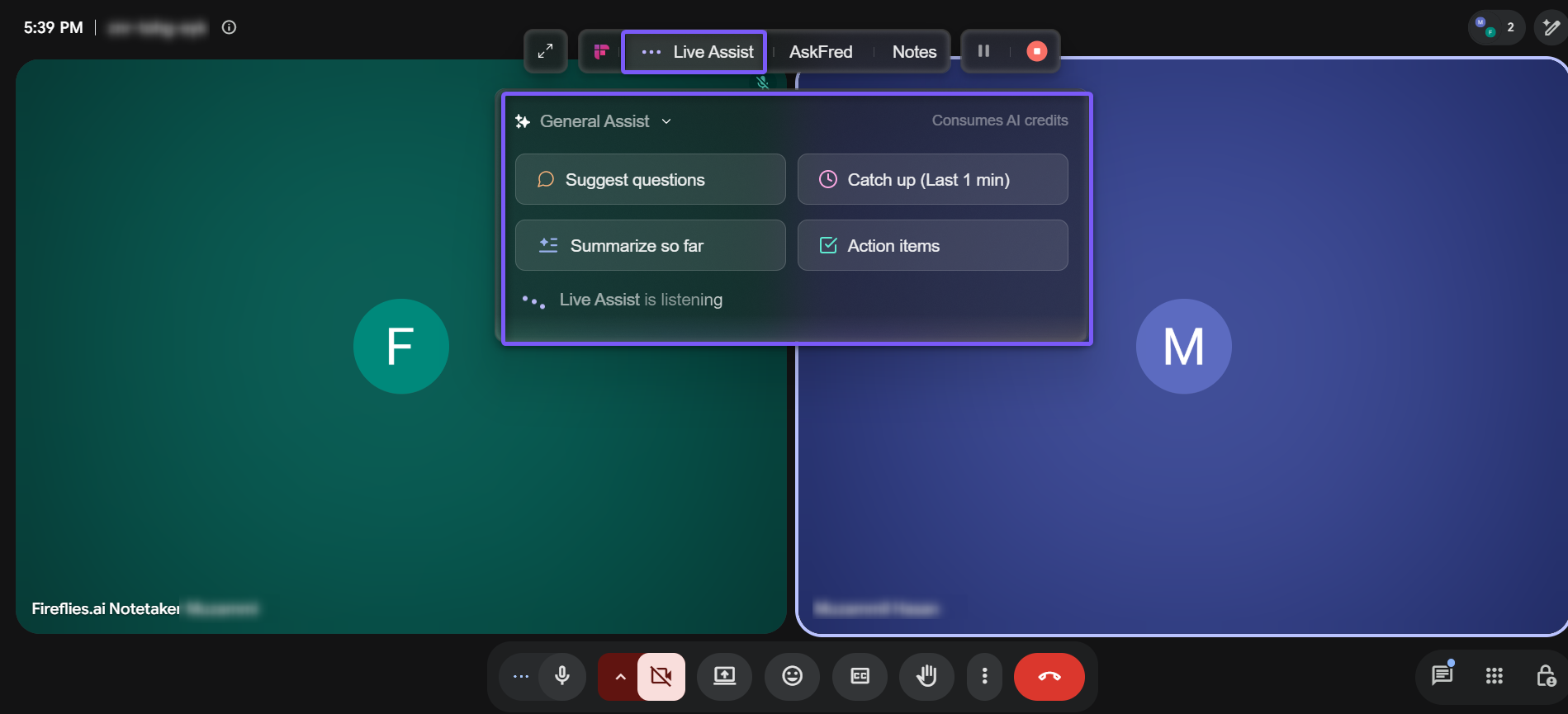
🪟 Floating Pane
The Floating Pane is a sleek, movable overlay that gives you quick access to Live Assist while you're recording. It stays on top of other windows, allowing you to view live transcripts, ask questions, generate AI insights, and take notes without leaving your meeting.
By default, the Floating Pane auto-opens when Fireflies joins a meeting (as a bot) or captures system audio (without a bot).
Key features:
Drag it anywhere: Click and drag the top toolbar bar to reposition the pane on your screen.
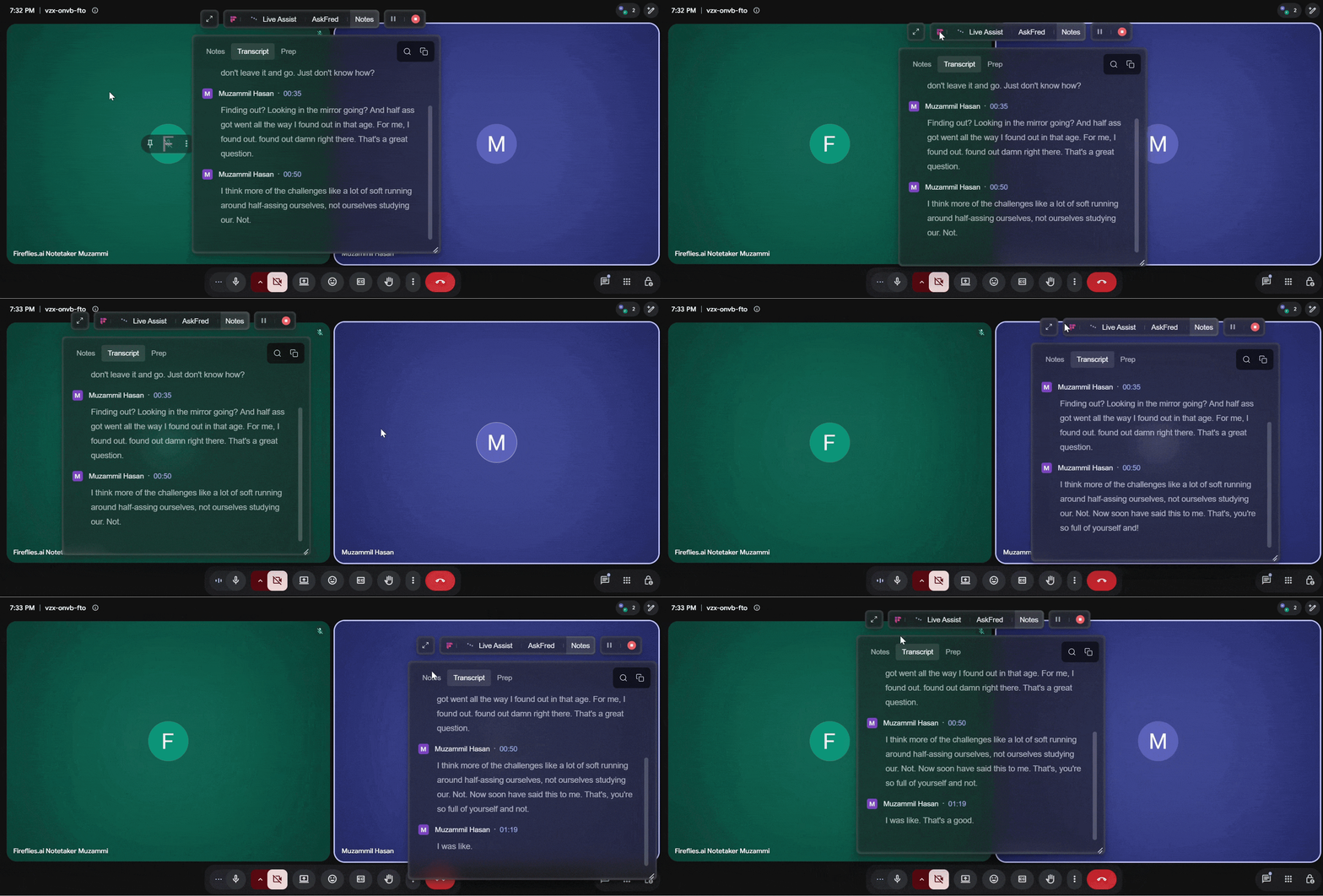
Collapse/Expand: Floating pane can be collapsed into a compact floating toolbar that remains visible on your screen. From the toolbar, you can quickly switch between Live Assist, AskFred, and Notes, and reopen any panel when needed.
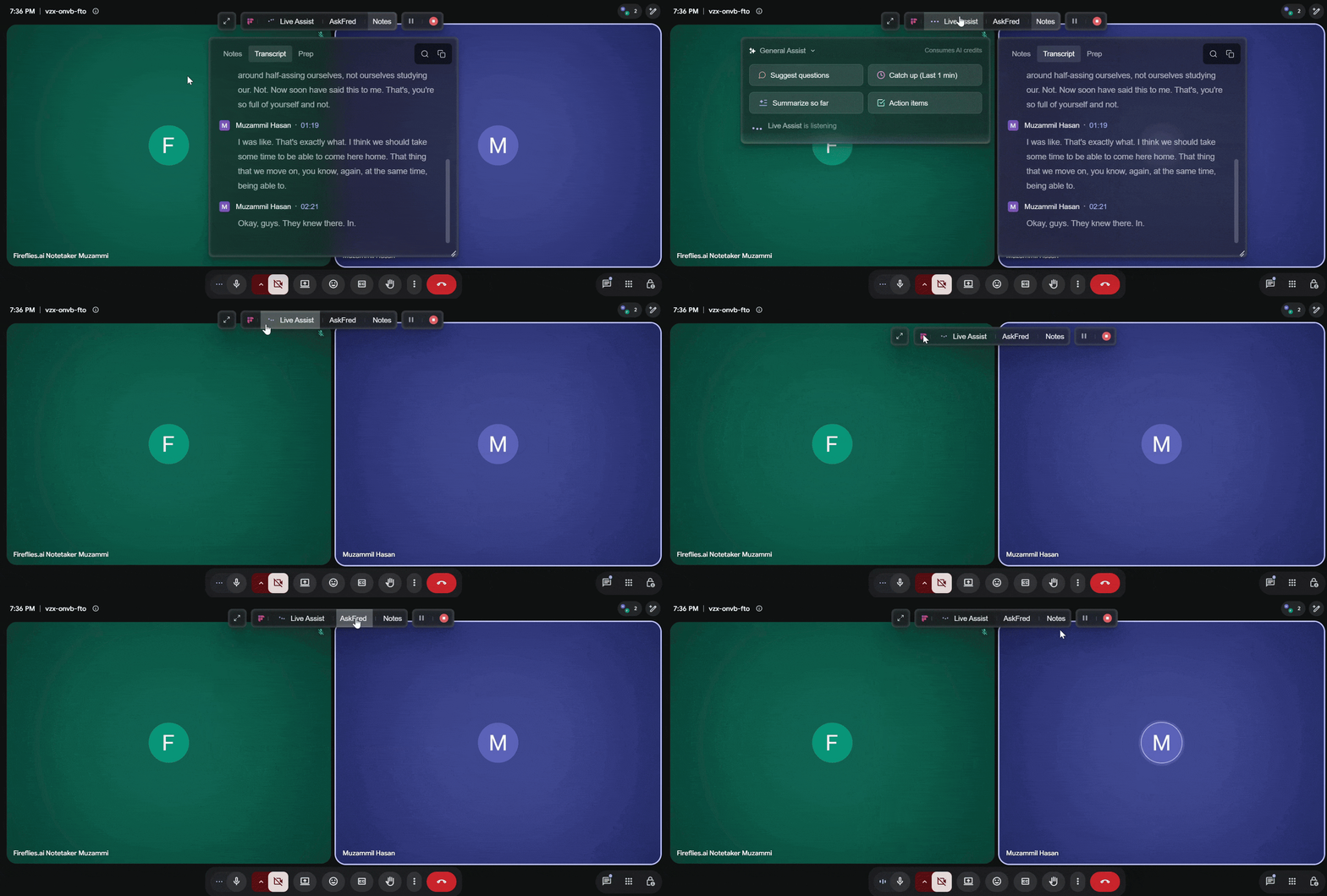
Full screen mode: Click the Expand icon to open the Floating Pane in a larger workspace for easier viewing during long meetings.
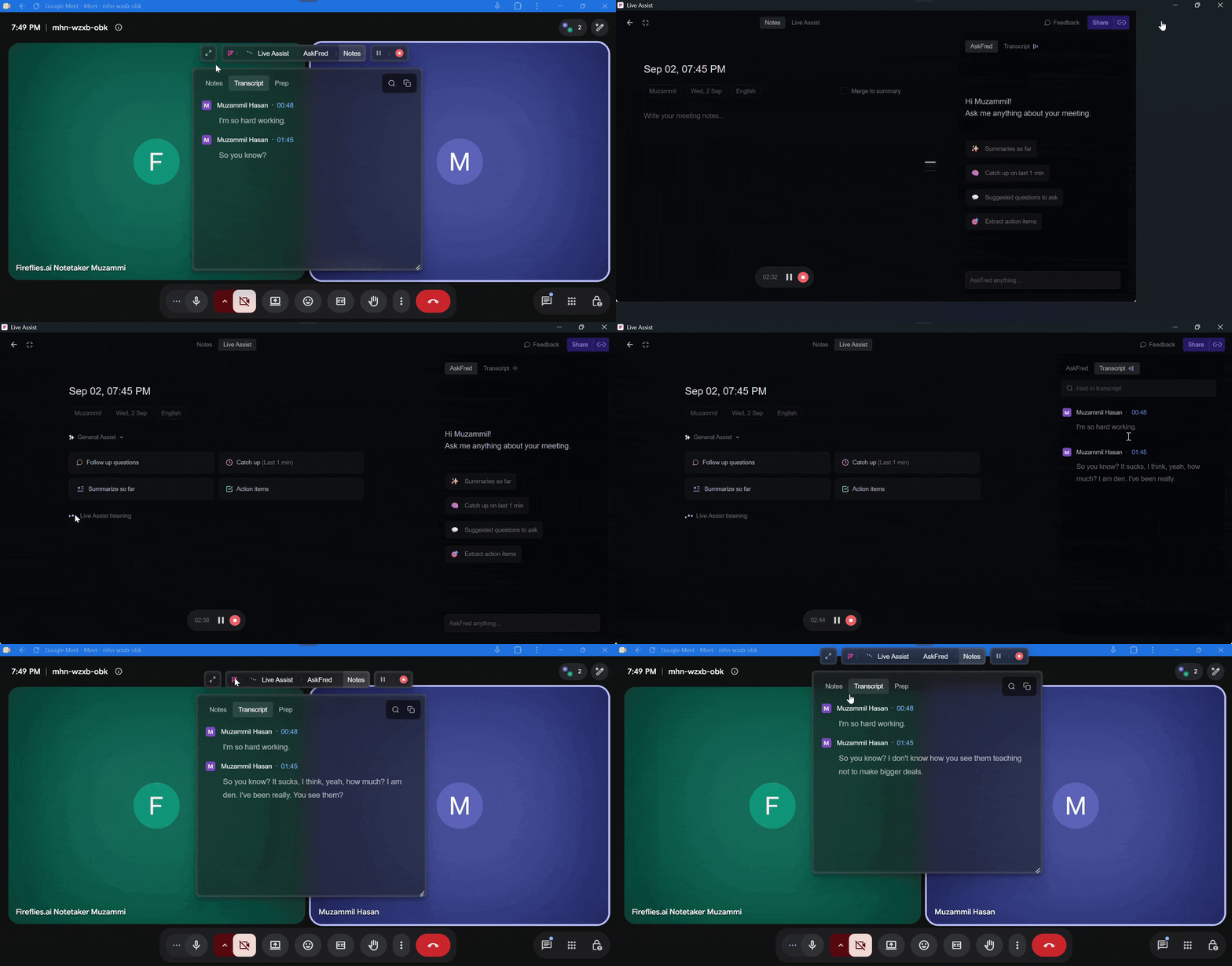
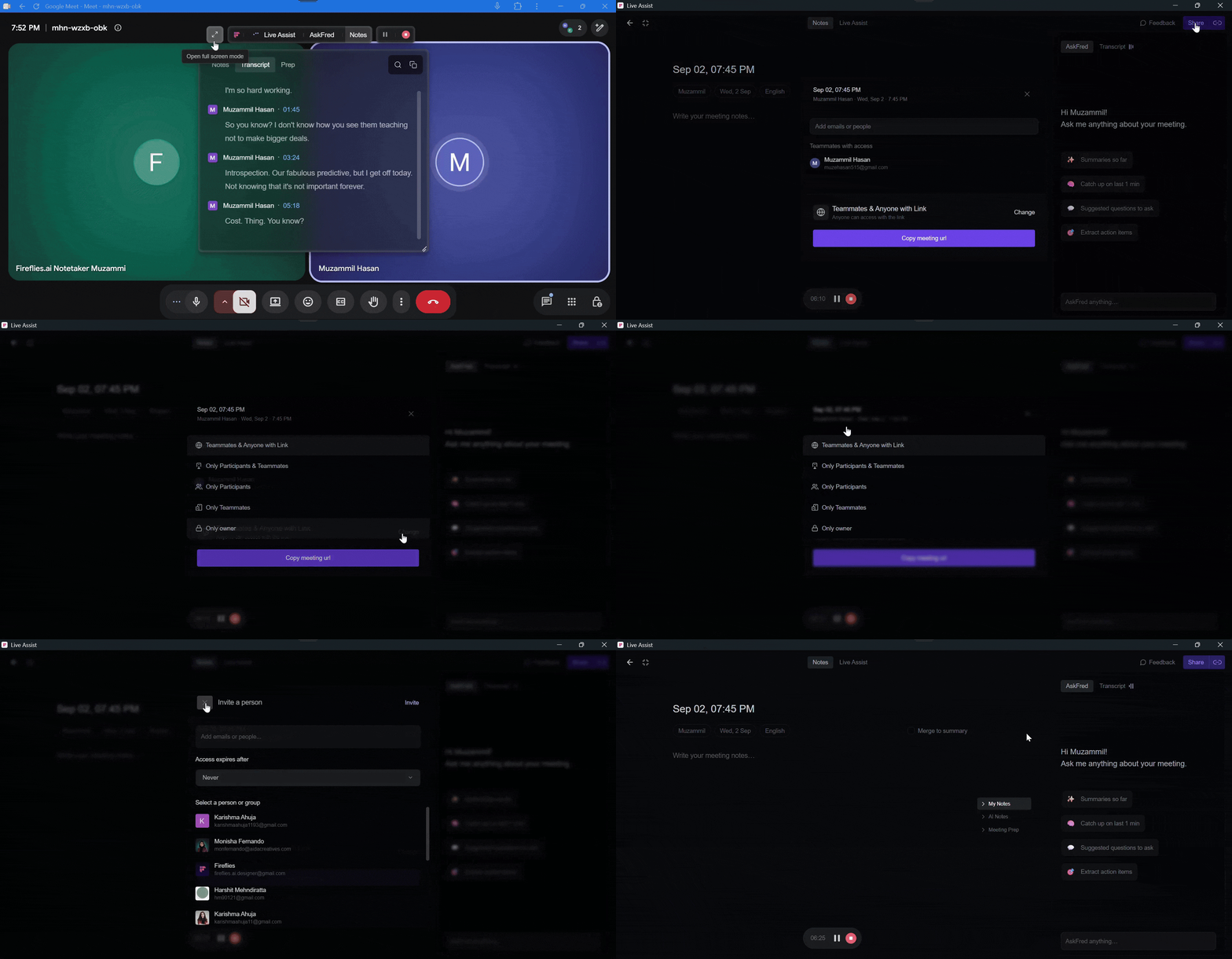
Privacy controls (host only): Open the pane in full-screen mode and click Share in the top-right corner to control who can access the meeting notes and Live Assist view.
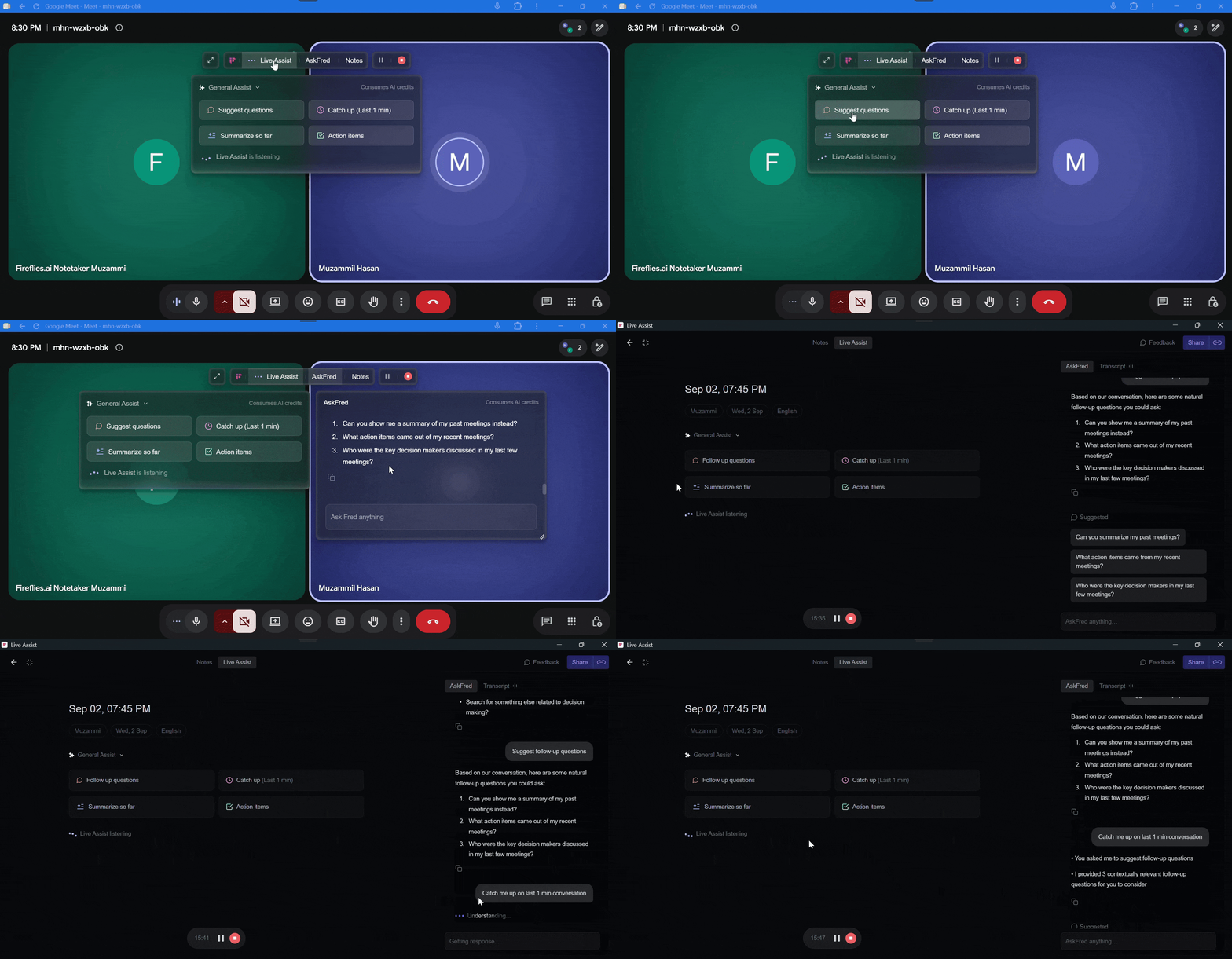
Live Assist: Follow the live transcript and use built-in AI prompts such as Catch Up, Summarize, Action Items, and Follow-up Questions while your meeting is in progress.
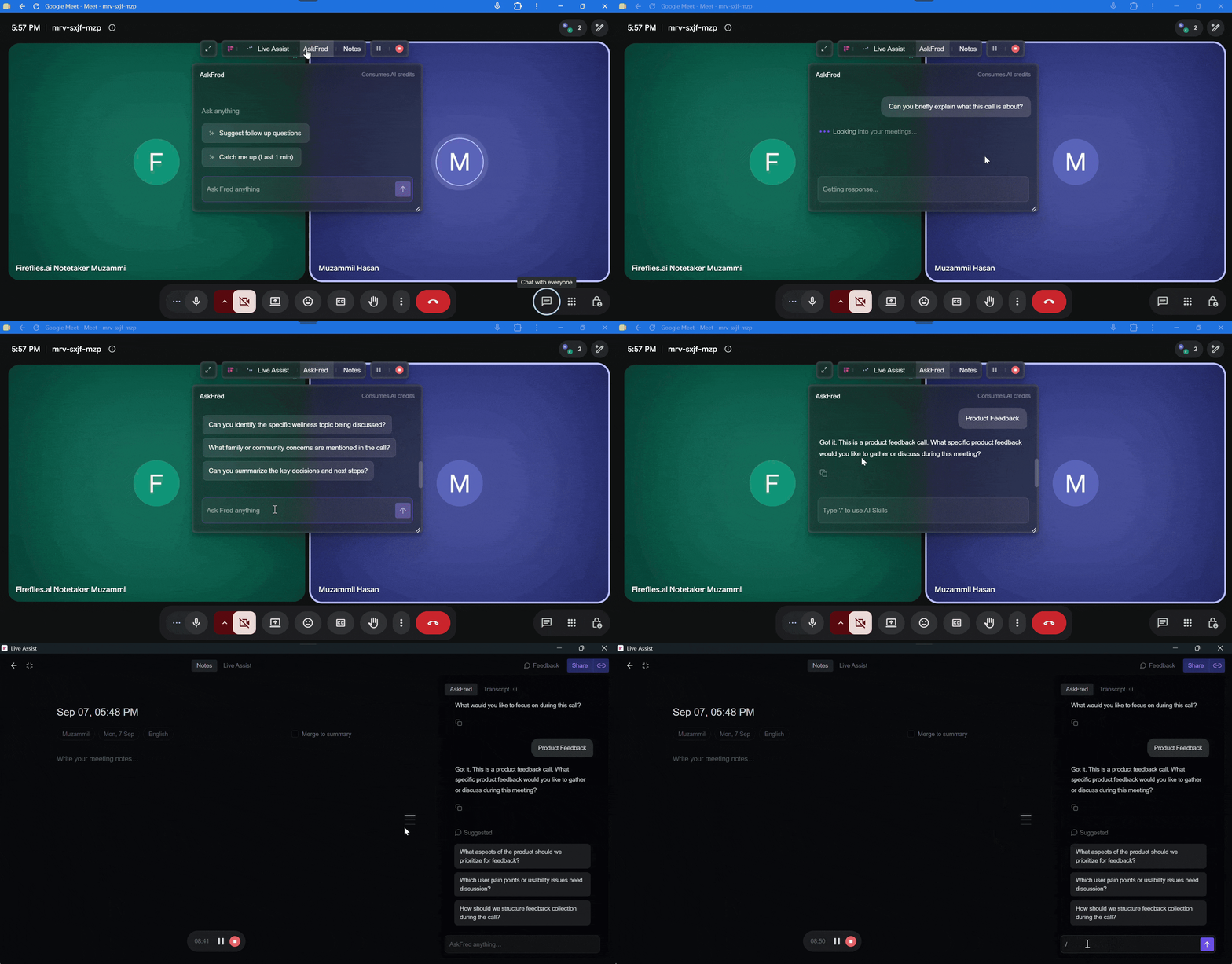
AskFred: Ask questions about the current meeting, generate summaries, extract action items, or access AI Skills by typing / in the AskFred chat to browse and run available skills.
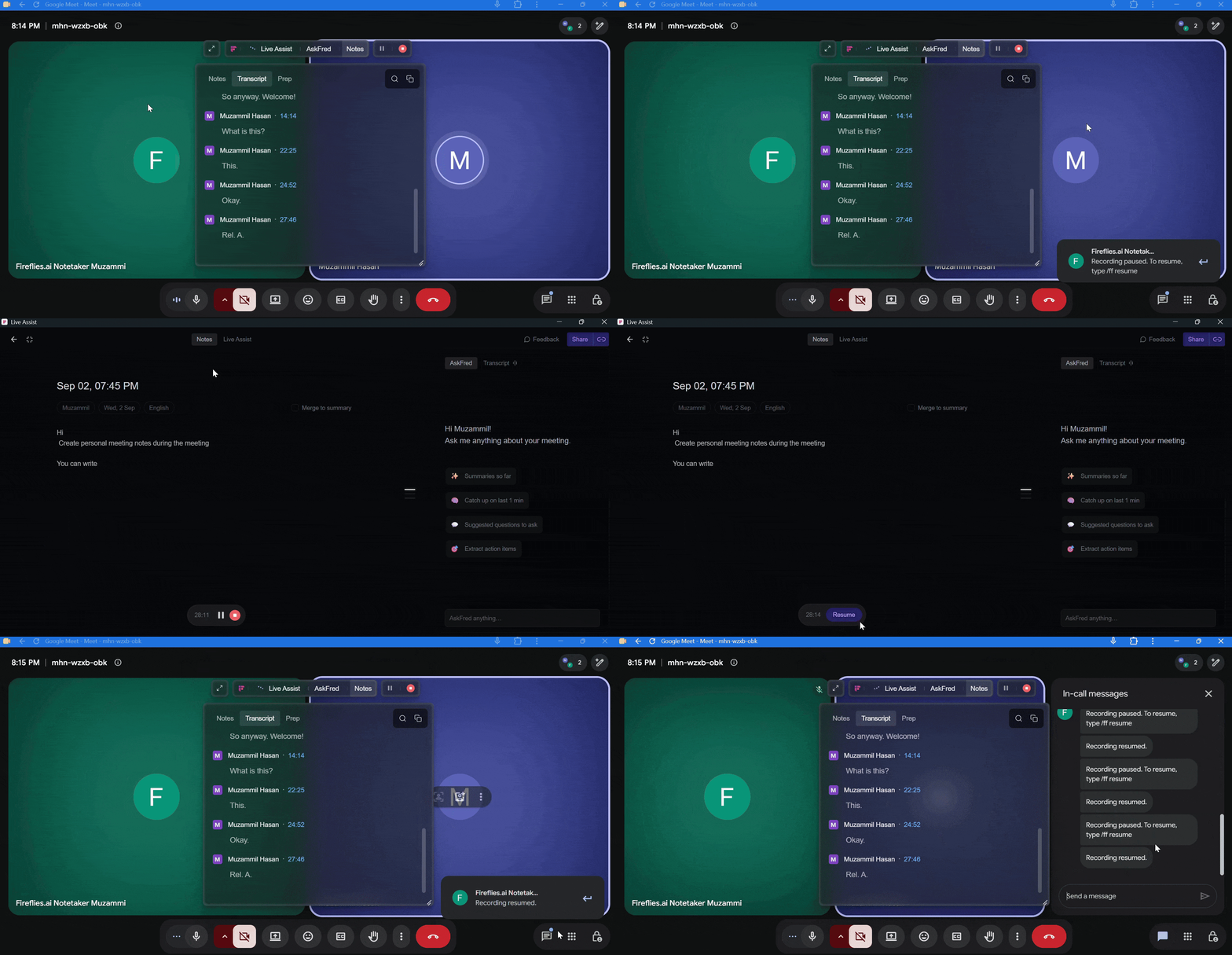
Pause/Resume Recording: Temporarily pause the recording during a meeting, then click Resume to continue recording without starting a new recording.
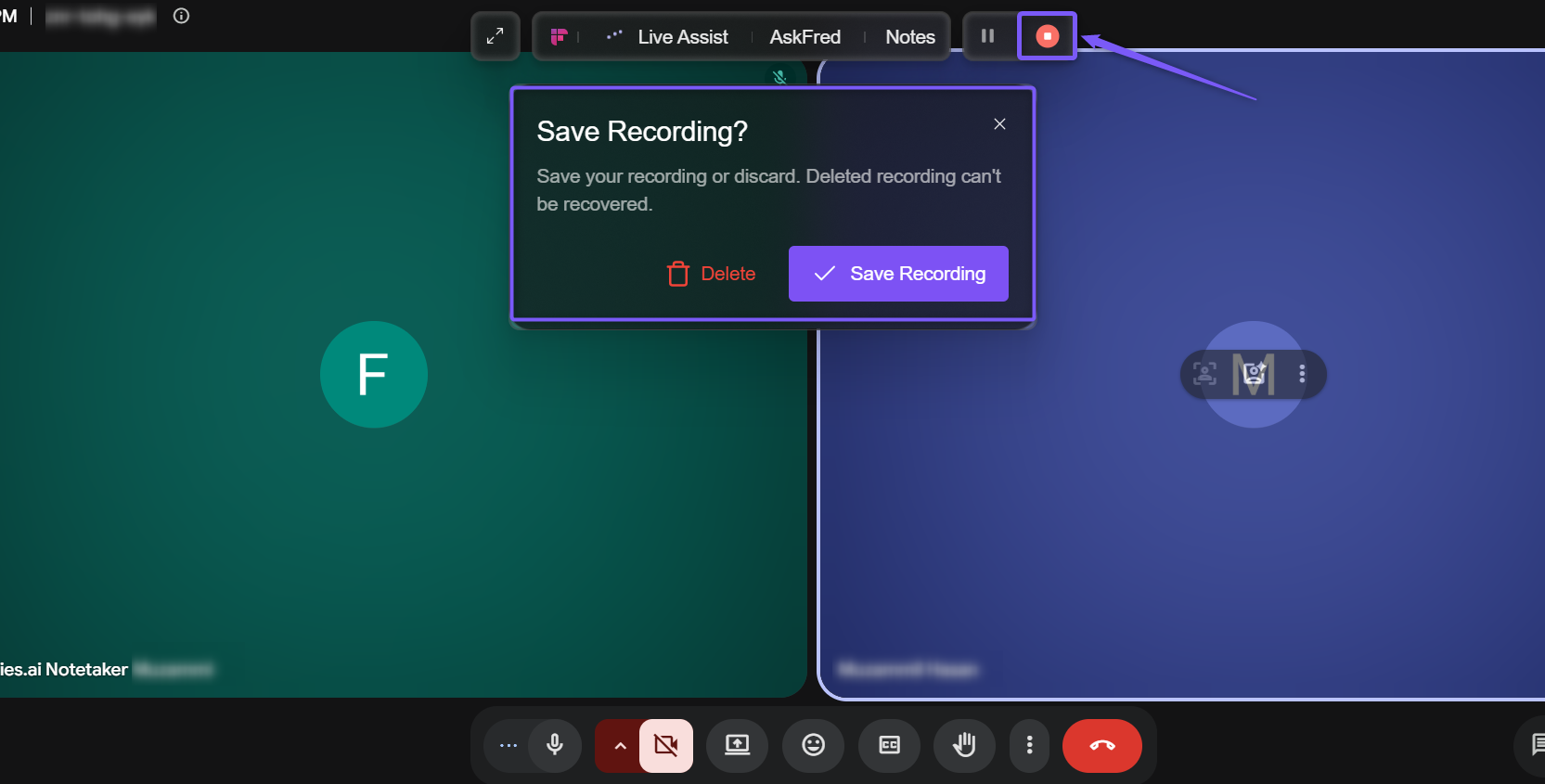
Stop recording: Click Stop to end the recording. You'll be prompted to either Save Recording or Delete it before closing the session.
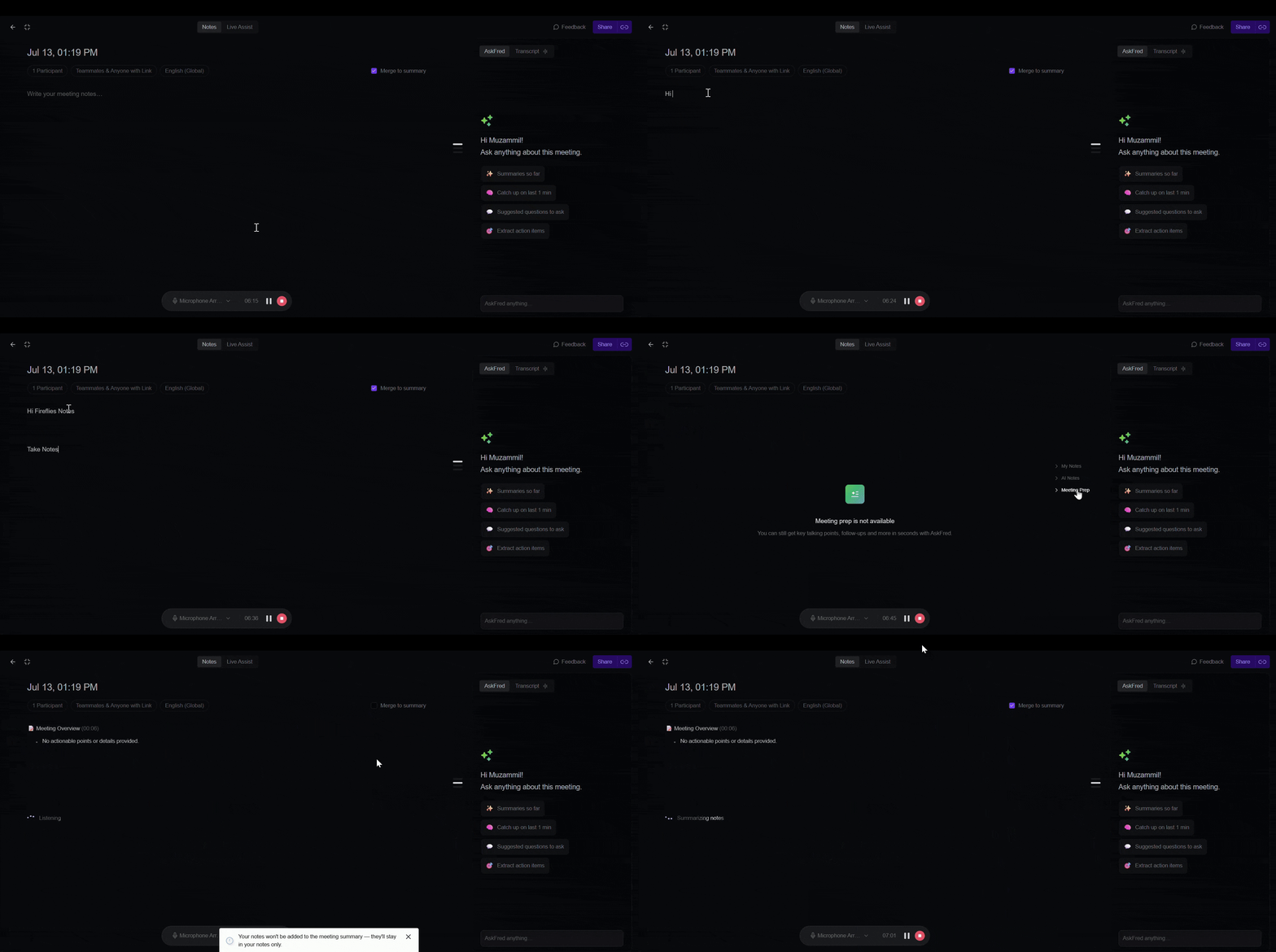
Notes: Create personal meeting notes during the meeting, organize them into My Notes, AI Notes, or Meeting Prep, and choose whether to merge your notes into the final AI meeting summary.
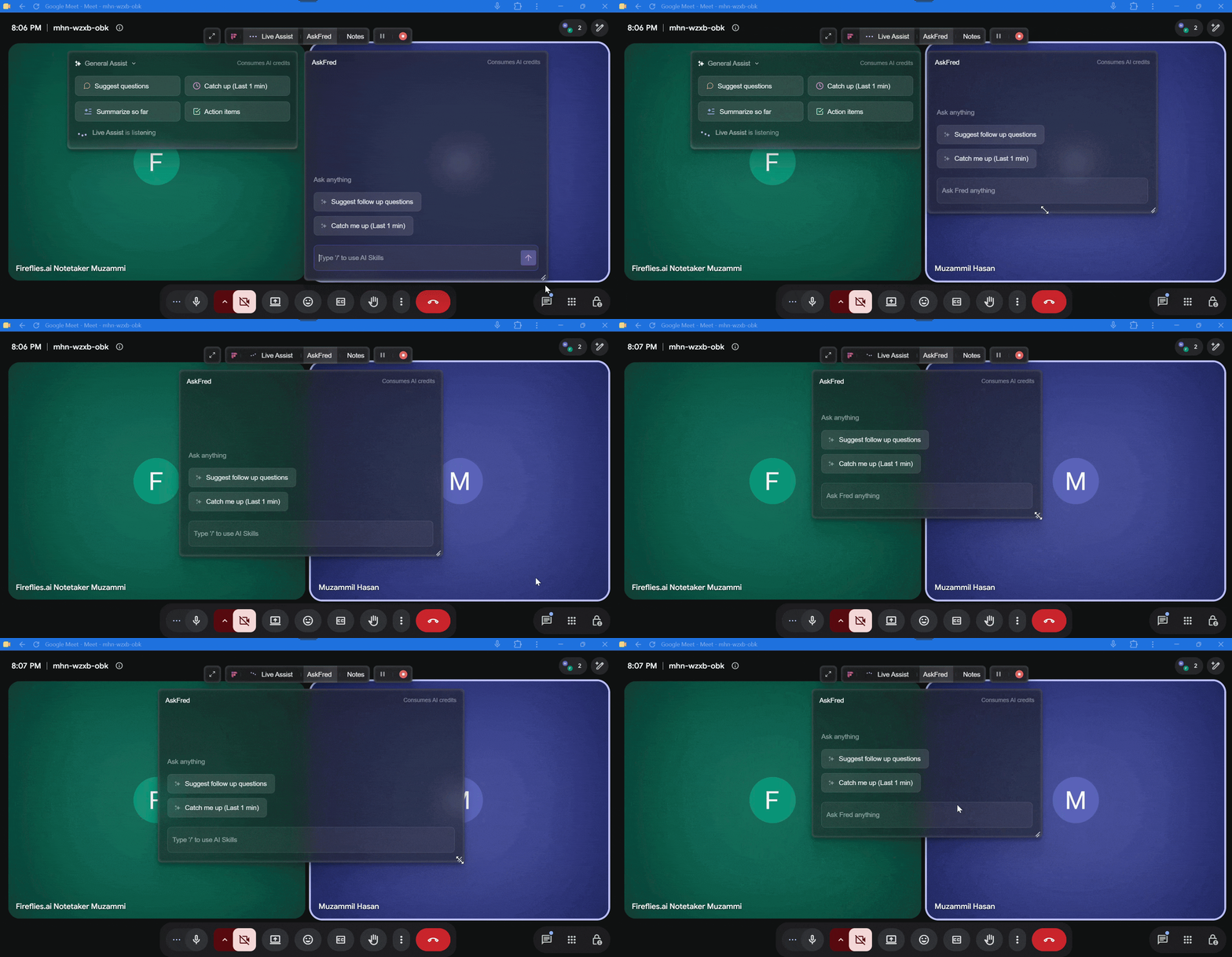
Resize: Drag the bottom-right corner of the Floating Pane to resize it as needed.
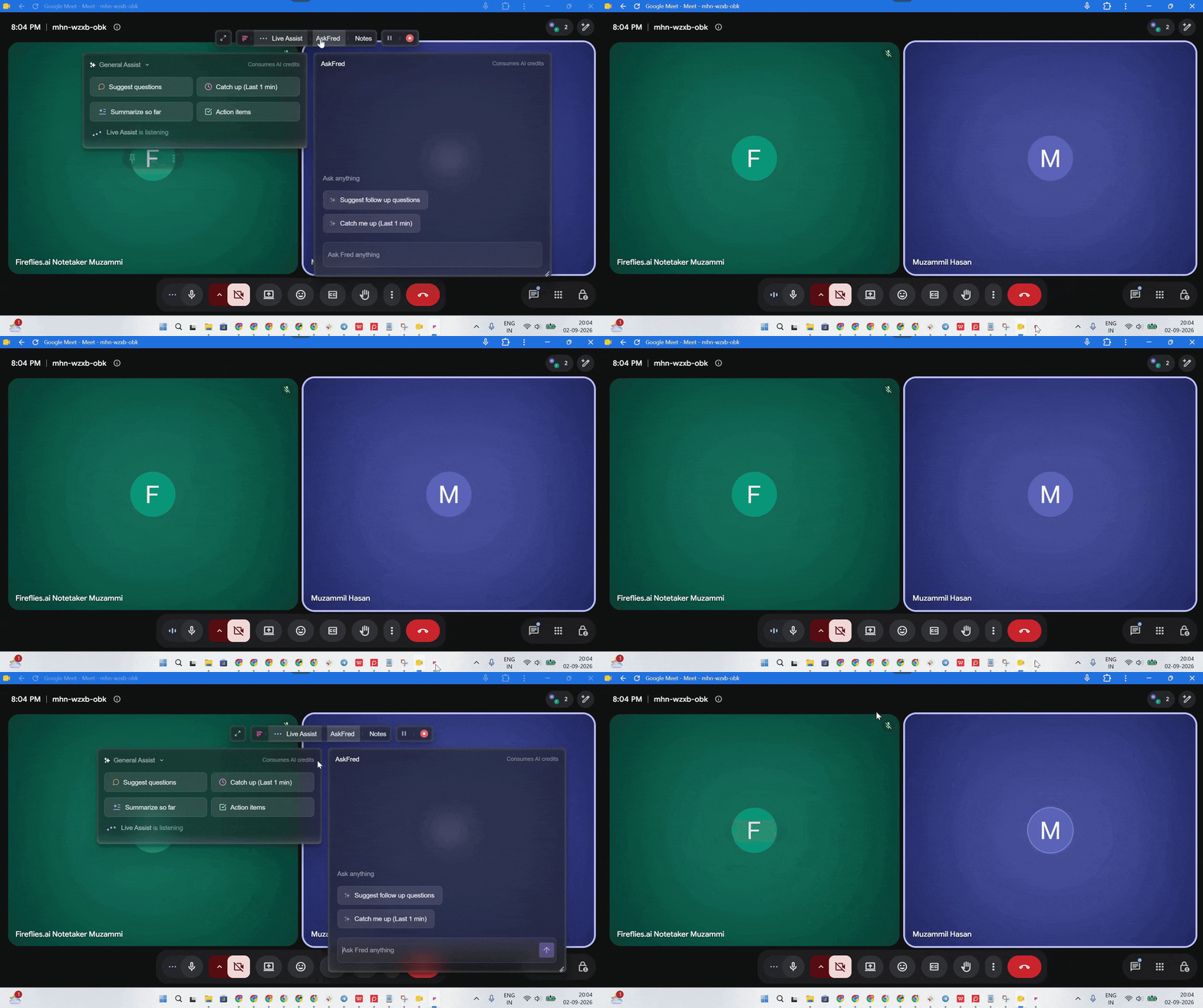
Hide/Reopen the Floating Pane: Click the Fireflies Desktop App icon in your taskbar (Windows) or Dock (macOS) to hide the Floating Pane. Click the icon again to reopen it.
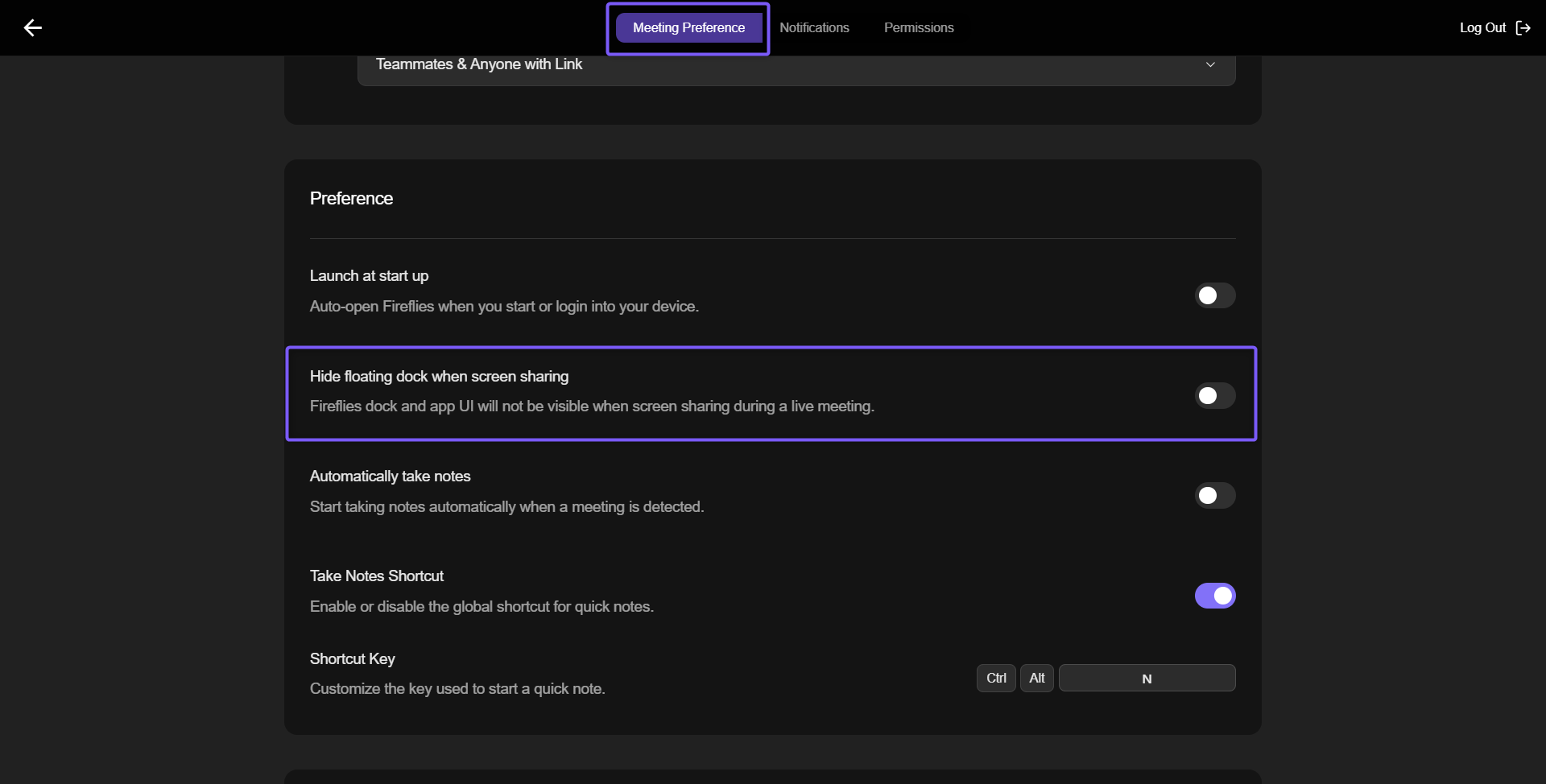
Screenshare privacy: By default, the floating pane is not visible during screen sharing, ensuring your Live Assist panel remains private while presenting. If you want it to appear while screen sharing, you can change this setting in the Desktop app.
If you close/hide the Floating Pane during an active meeting, it doesn't stop the meeting or recording. Simply click the Fireflies Desktop App icon from your taskbar (Windows) or Dock (macOS) to reopen it.
🧠 Using Fireflies Live Assist (Real-Time Notes)
Once Live Assist opens, you’ll see a floating panel on your desktop where Fireflies listens to the meeting and streams real-time notes, transcripts, and insights as the conversation happens.
Live Assist remains visible across apps as a semi-transparent floating panel, so notes and insights stay in view without getting in the way.
1. Real-time Suggestions
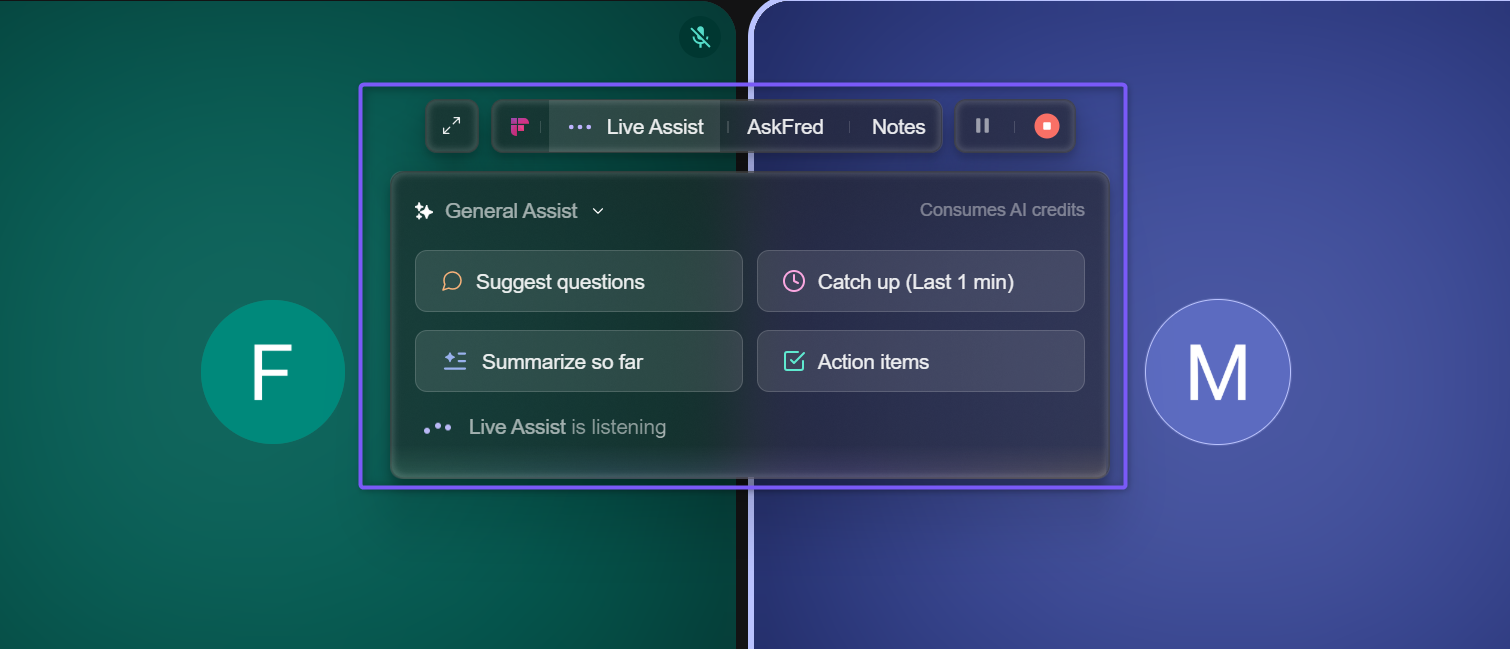
When you’re in a meeting and need a quick overview, Live Assist on Desktop shows smart suggestion buttons at the top of the floating panel.
Follow Up – Instantly suggests follow-up questions or next steps based on the conversation.
Catch Up (Last 1 min) – Summarizes what’s been discussed in the last minute — perfect if you joined late or got distracted.
Summarize So Far – Gives you a short mid-meeting recap of what’s been covered so far.
Action Items – Lists important tasks, next steps, or decisions mentioned in real time.
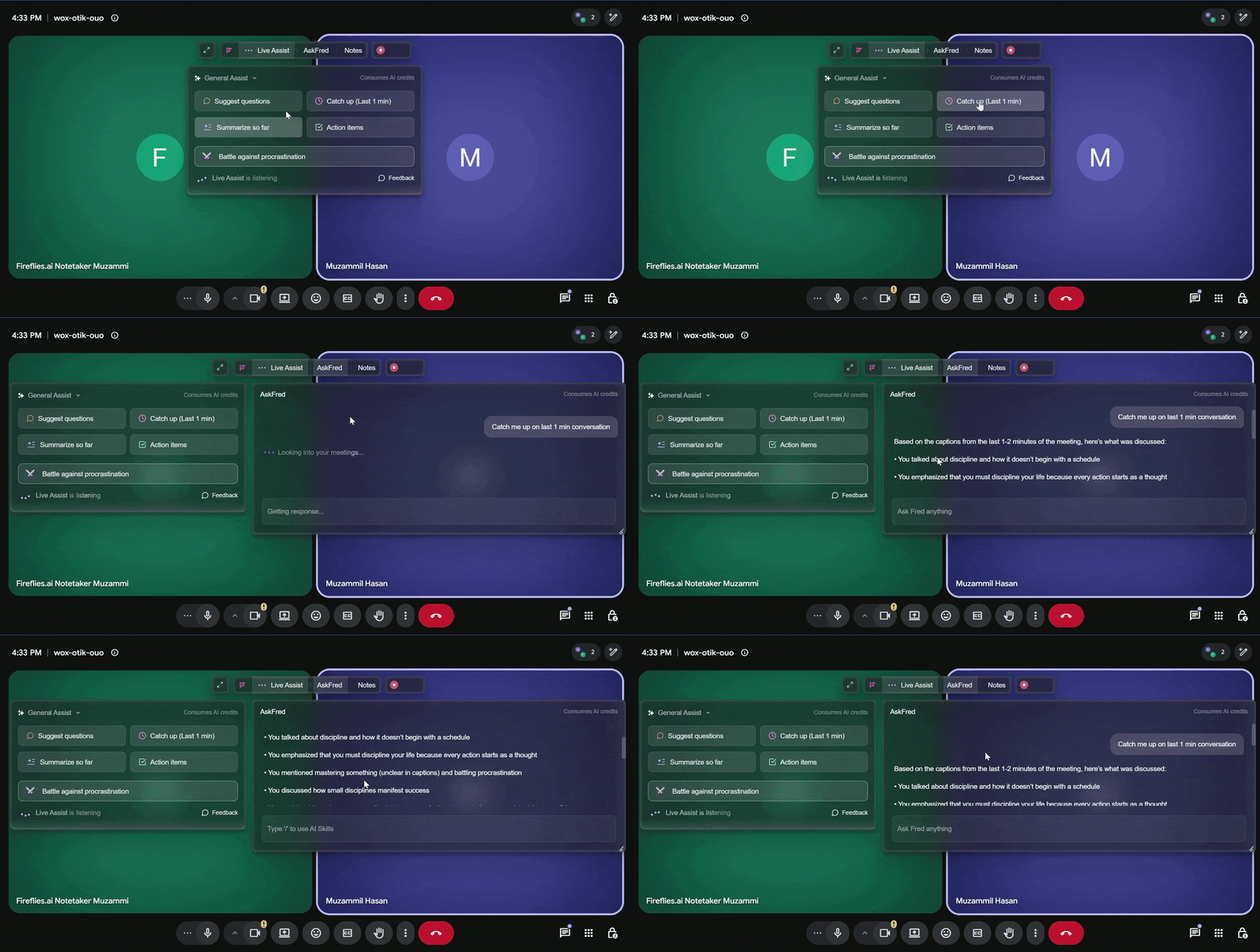
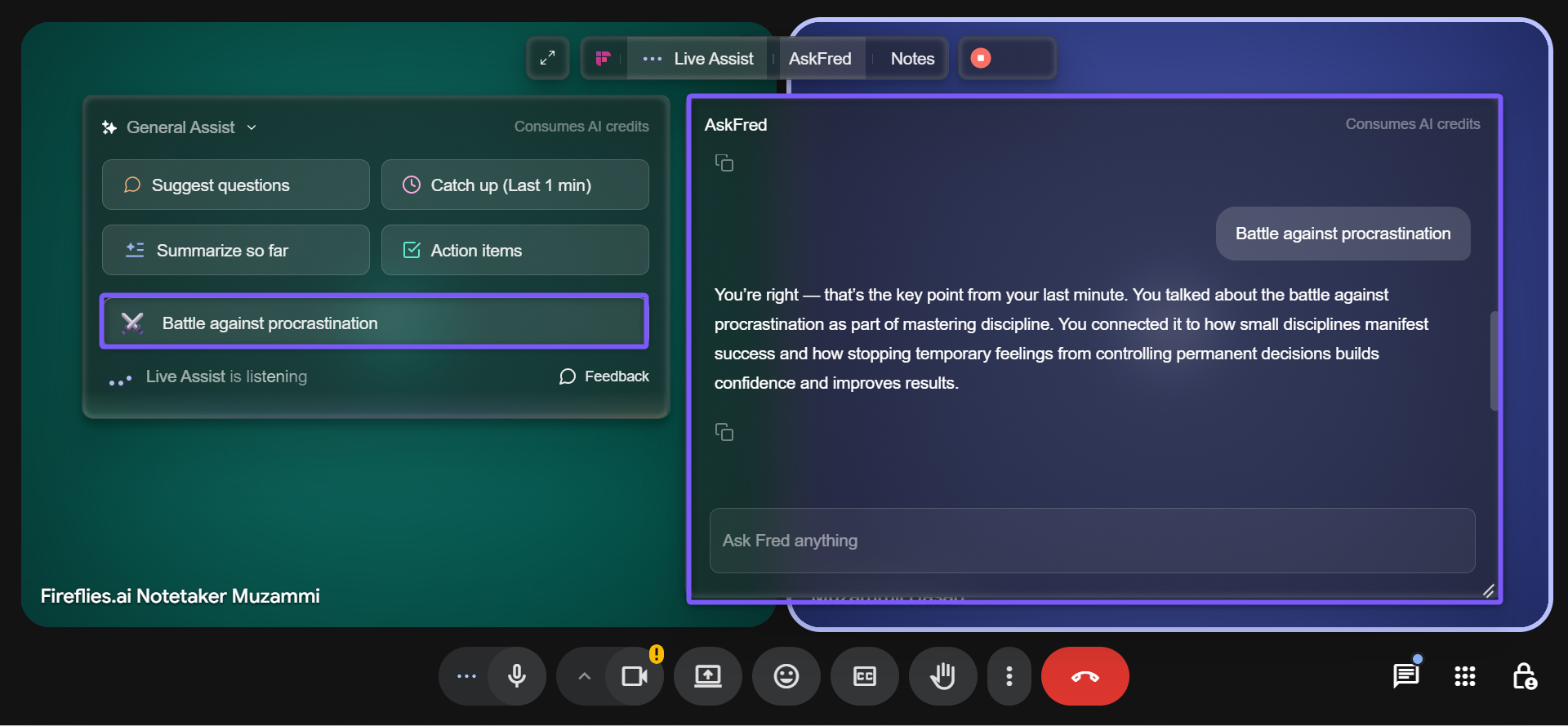
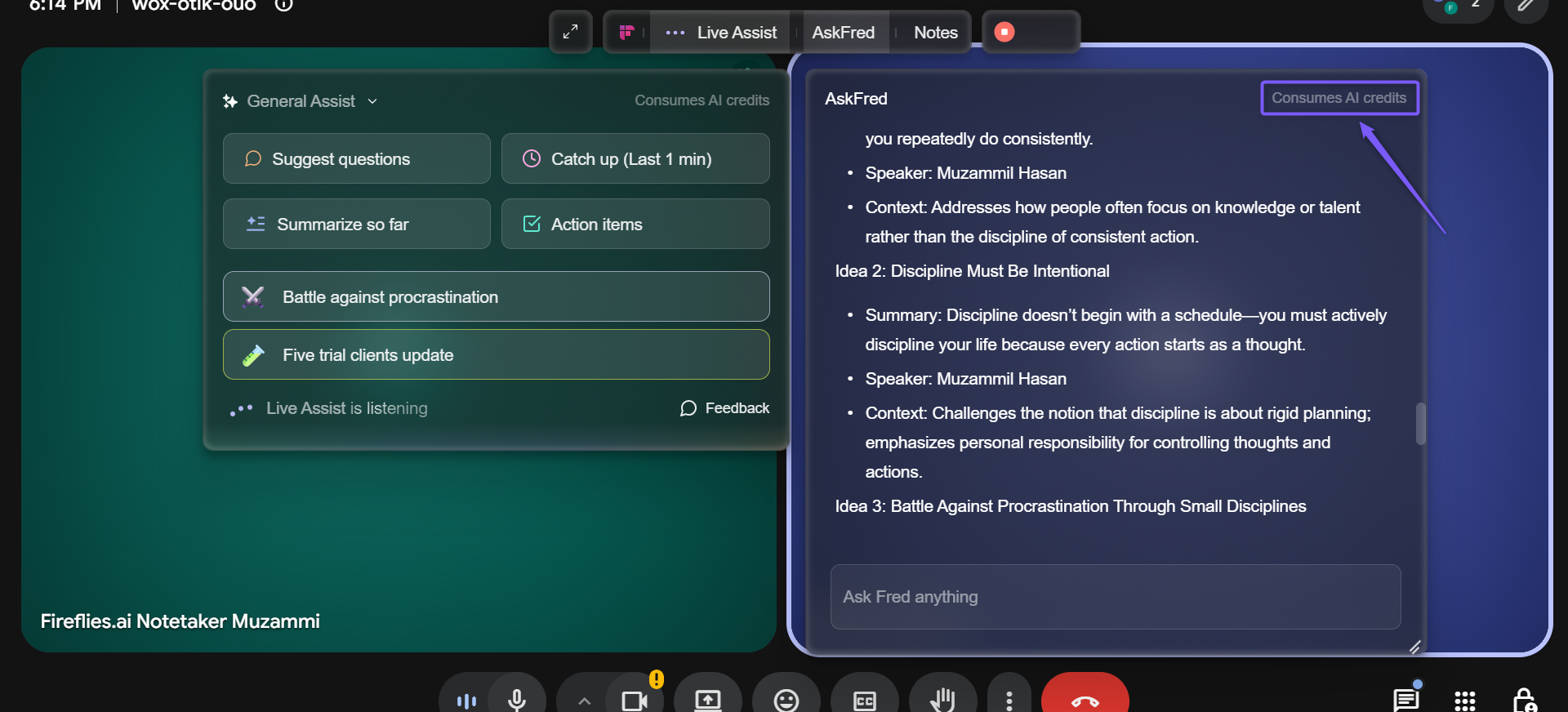
Example Click Catch Up (Last 1 min) to see a short, AI-generated summary appear in the AskFred panel on the right side of the live assist pane.
2. Dynamic Topic Suggestions
As the meeting runs, Live Assist listens to your discussion and automatically creates dynamic topic suggestions based on what’s being talked about.
These appear just below the default options (Follow Up, Catch Up, Summarize So Far, Action Items) and highlight the main themes from your meeting.
For example, you might see topics like “Nine-dot puzzle”, “Battle against procrastination", based on what’s being discussed. Click any card to view a quick summary or insight in AskFred.
The Dynamic Topic Suggestions feature is available only on paid plans. Free users will see just the four default options.
3. Use Notes, Transcript & Meeting Prep
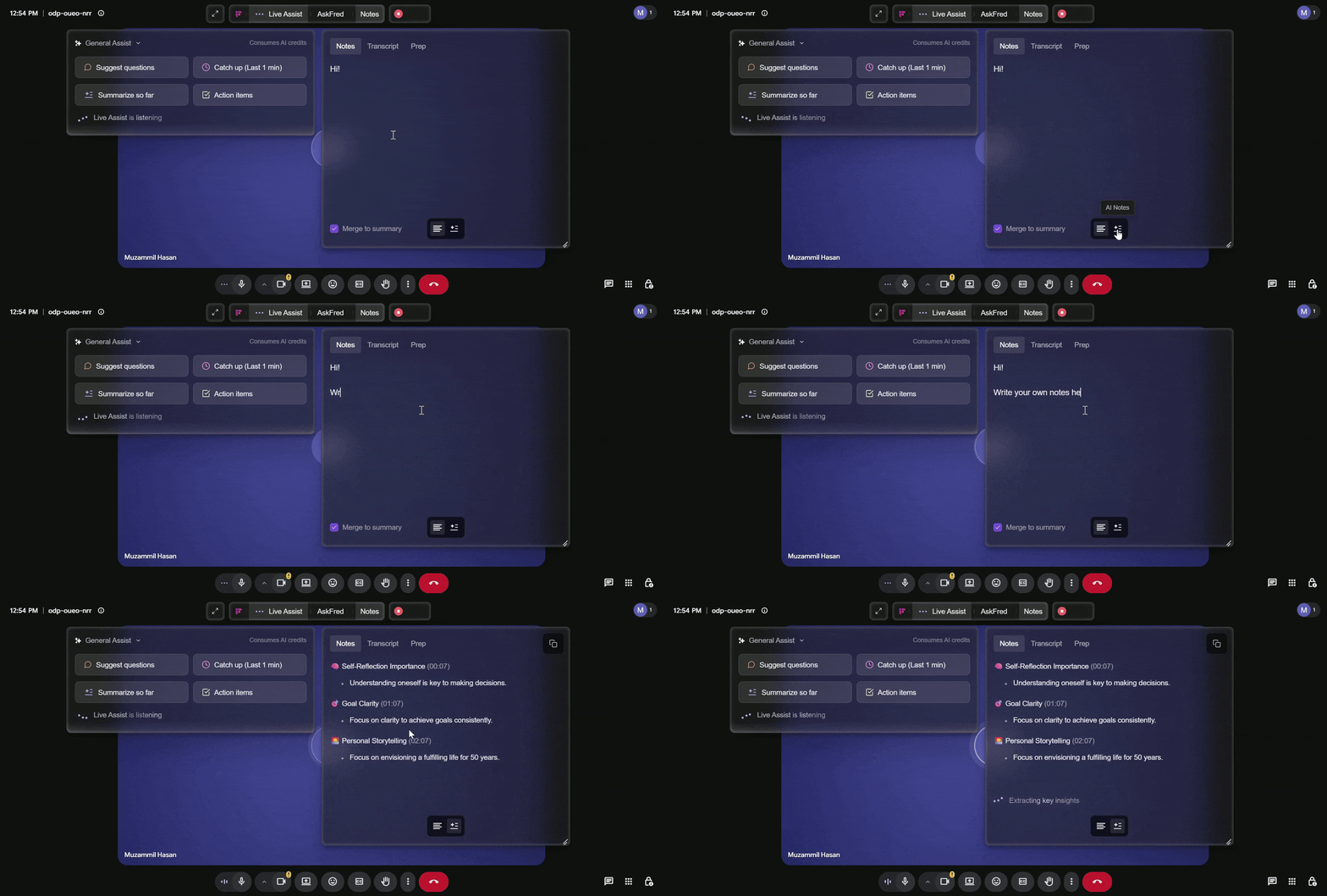
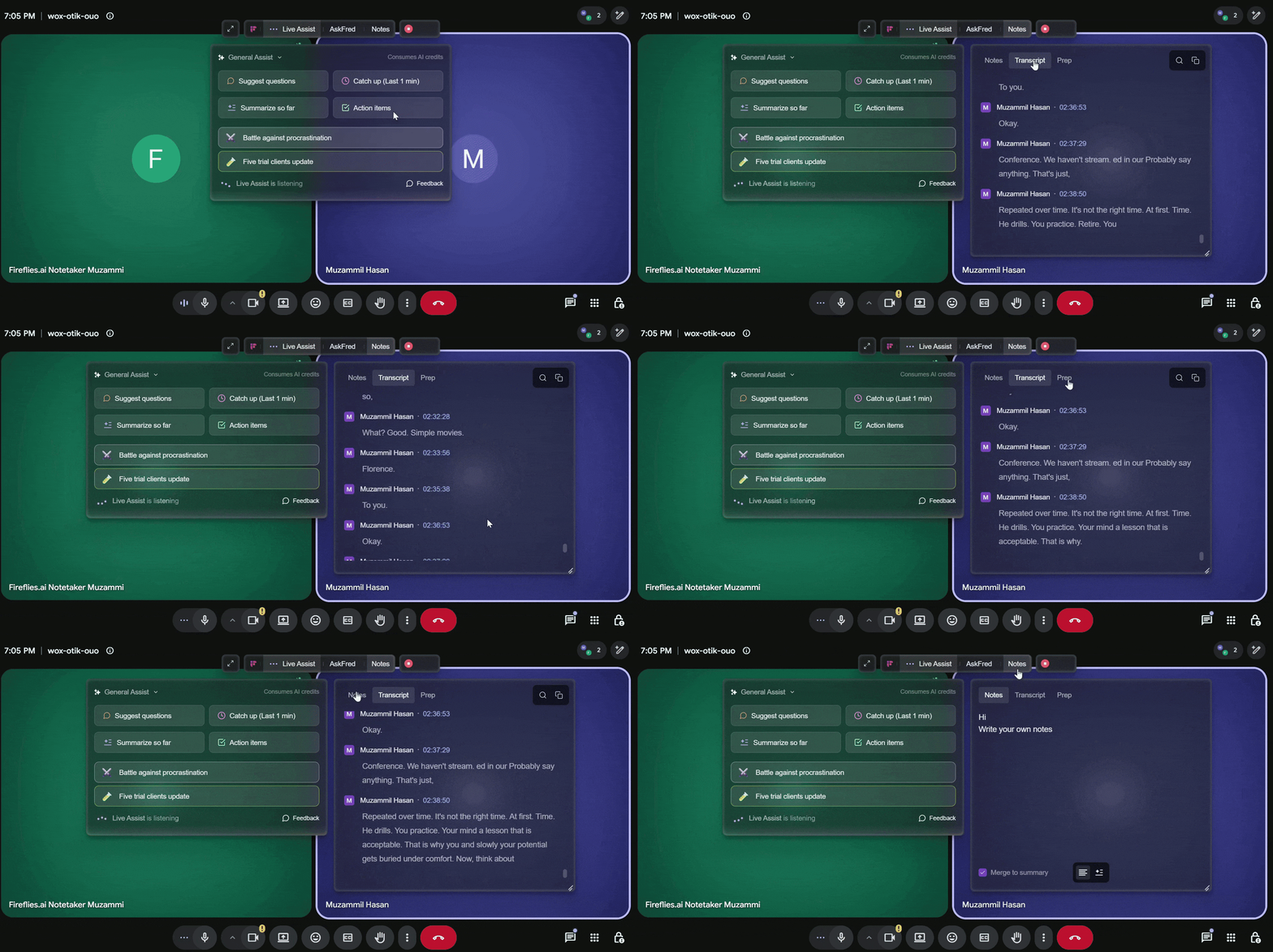
The Notes tab in the real-time Floating Pane keeps everything you need during a meeting in one place—AI-generated notes, your own Manual Notes, live transcripts, and meeting context.
From here, you can access:
Meeting Notes: Use the toggle at the bottom-right corner to switch between:
AI Notes (✦≡): Automatically generates structured meeting notes with headings, timestamps, and key discussion points as the conversation happens.
Manual Notes (≡): Write your own notes, reminders, action items, and discussion points during the meeting. You can also merge your Manual Notes into the AI-generated meeting summary if needed.
💡 Want to learn more about Manual Notes? See Manual Notes on the Fireflies Desktop App: Write and Merge Your Own Notes in Meetings.
Transcript: View the live conversation with speaker labels and timestamps as the meeting progresses.
Meeting Prep: Review meeting context and preparation materials, such as notes from similar past meetings, when available.
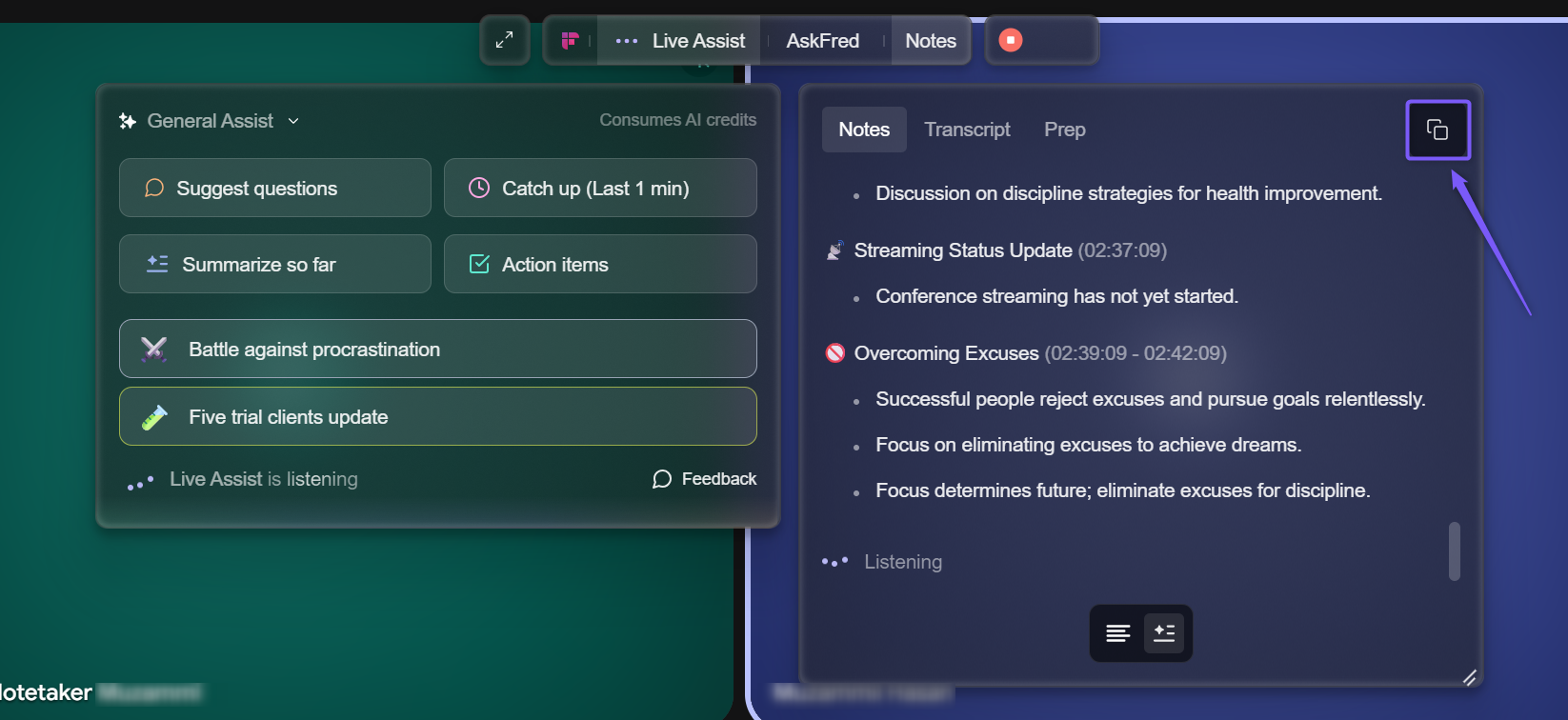
📌 Click the Copy icon to copy the current notes or transcript from the Floating Pane for quick sharing or reuse.
4. AskFred
AskFred lets you interact with AI directly from the Live Assist panel during the meeting. You can ask questions, clarify points, or dig deeper into what’s being discussed.
Here’s what you can do:
Follow up easily – AskFred remembers your previous question, so you can keep asking related follow-ups without rephrasing.
Example“Catch me up last 1 min” → follow up with “Some Practical ways to manage respect and time efficiently?”

Ask manually – Want something specific? Just type your own question.
Example “List all discussion points about suggestions” or “Summarize decisions made so far.”
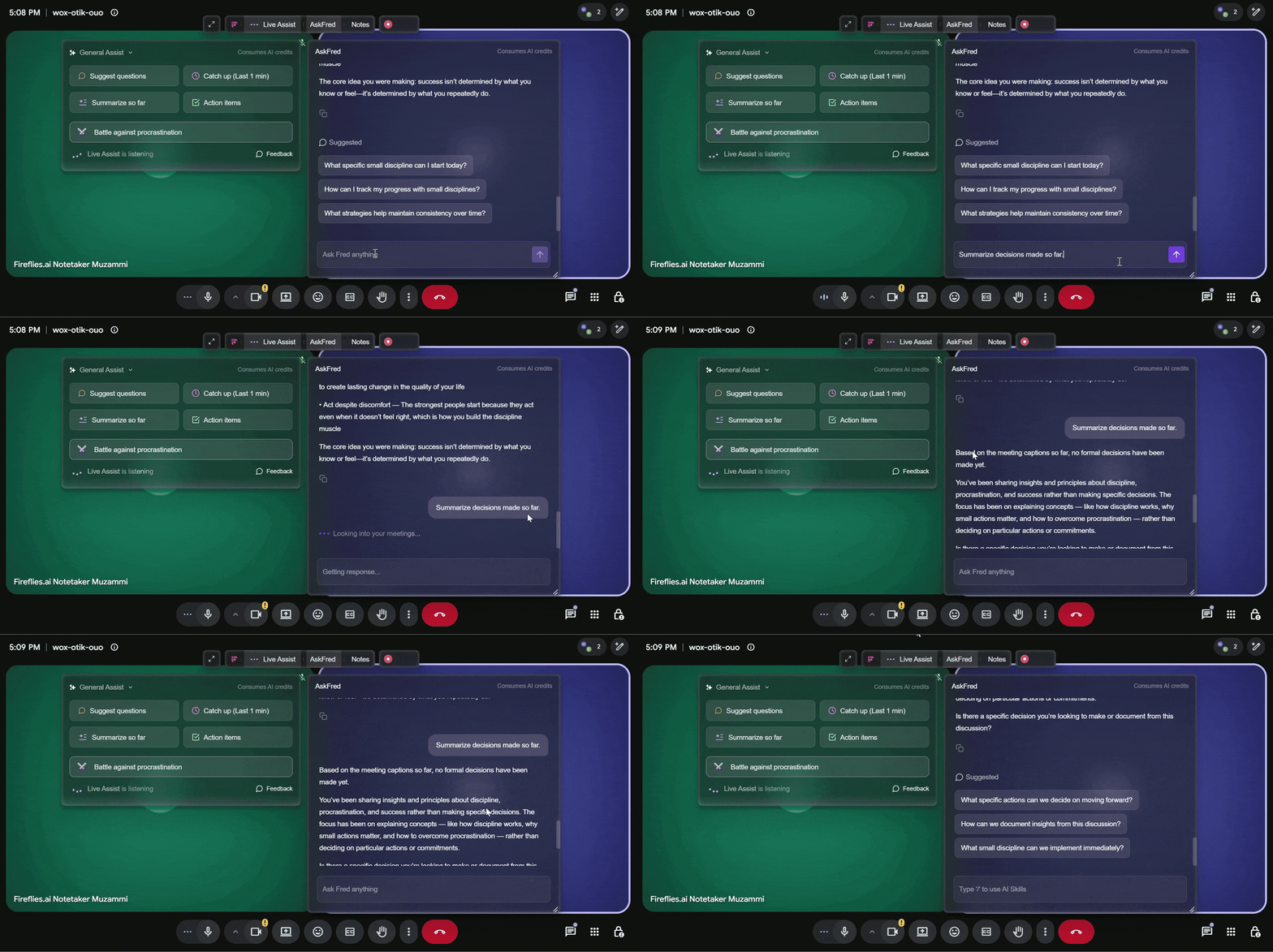
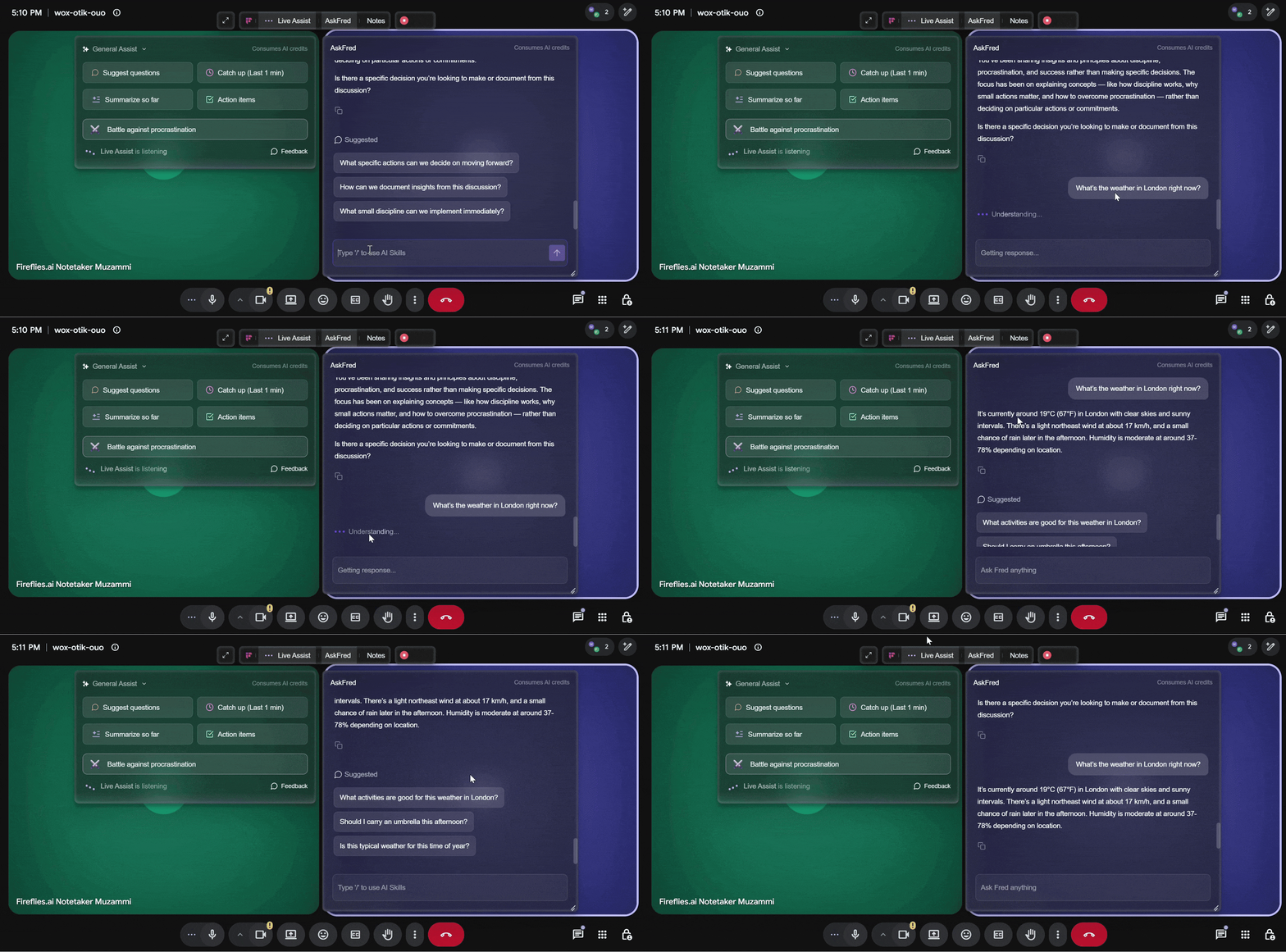
Ask everyday questions (Web Search) – You can ask simple things during your meeting, and AskFred will search the web in real time to show the answer right inside the pane.
Example“What’s the weather in London right now?” → AskFred will fetch from the web directly into the pane.
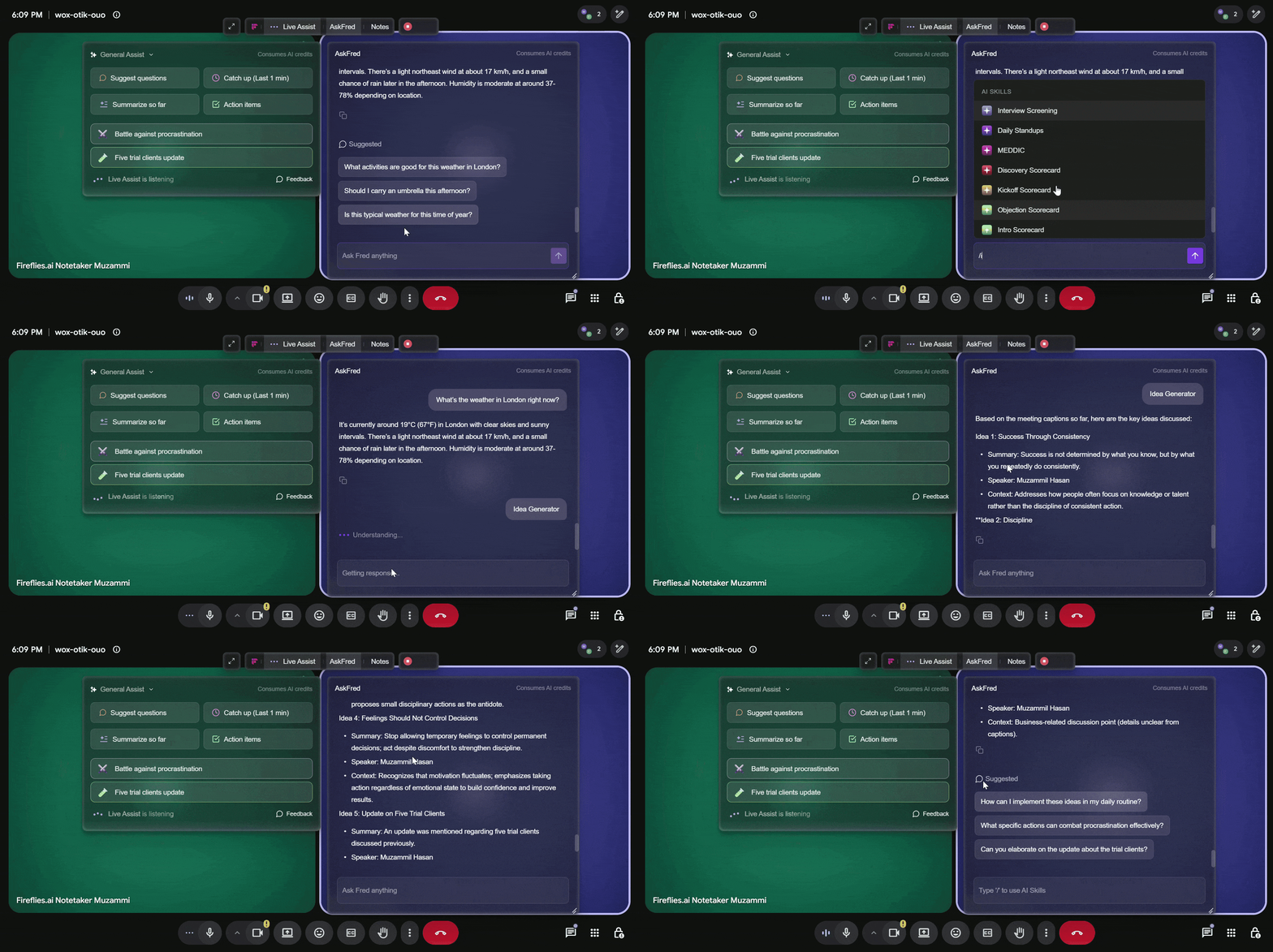
5. AI Skills
AI Skills helps you run pre-built meeting intelligence tools directly from the Live Assist panel using a simple command.
To use an AI Skill, type '/' (forward slash) in the AskFred input field. A list of available AI Skills will appear. Select the app you want to run and it will analyse the current meeting and return a focused response.
AI Skills include:
Idea Generator: Surfaces ideas generated during the conversation.
Sales Coaching: Provides coaching opportunities during a sales call.
1:1 Insights: Surfaces insights from a 1:1 conversation.
Interview Assistant: Helps you capture insights during an interview.
Example Type “/” and select Idea Generator, and it will run based on the current meeting discussion.
Want to explore AI Skills in more detail? Learn how they AI Skills work →
6. Real-Time Nudges
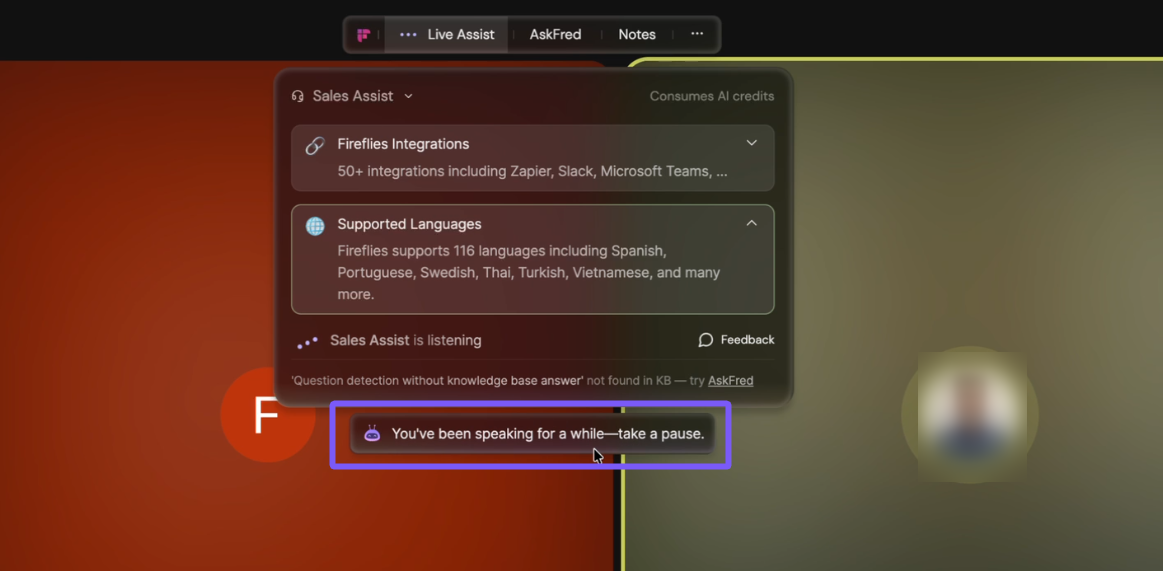
Live Assist monitors your speaking patterns during the meeting and sends you real-time nudges to help improve the quality of your conversation.
There are three types of nudges:
Long monologue: If you have been speaking continuously for a while, Live Assist nudges you to take a pause and give others a chance to respond.
Speaking too fast: If you are speaking too quickly, Live Assist nudges you to slow down.
Speaking too slowly: If your pace is too slow, Live Assist nudges you to pick up the speed.
7. Collaboration & Privacy
Live Assist on Desktop makes it easy to collaborate while keeping control over who can view your notes.
Click the Expand icon to open the Floating Pane in full screen.
Copy Link – Click the link icon to copy and share your Live Assist view in chat or email.
Who can Access - Set the right privacy level before sharing so only the right people can view Live Assist. 📘 Learn more about Privacy Settings.
Share the Meeting – Click Share to invite teammates by email, share the meeting with your workspace, or add User Groups. You can also copy the meeting link to share it with people who have permission to access the meeting.
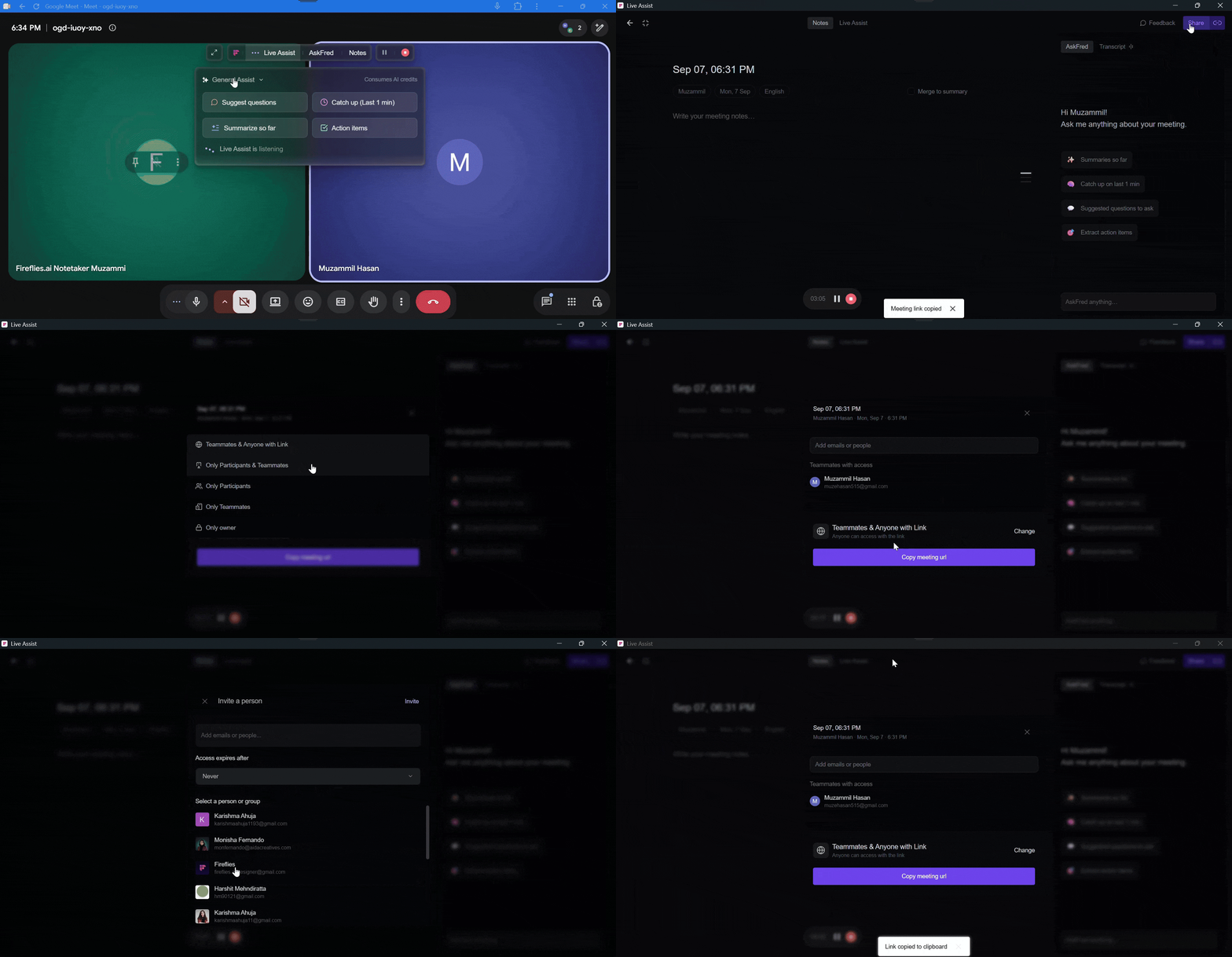
Only users with access (based on your privacy settings) can open the link, and they must be logged in to Fireflies.
8. AI Credits Usage
AskFred in Live Assist uses dynamic AI credit pricing. AI credits are charged per query, so the number of credits used depends on the complexity and effort required to generate the output. Simpler requests may use fewer credits, while more complex requests may use more.
💼 Sales Assist on Desktop
Sales Assist provides real-time answers and suggestions during customer calls, directly inside the Live Assist panel. It pulls responses from your knowledge base as prospects ask questions, helping you stay focused without switching tabs.
Shows instant, context-aware answers
Suggests follow-up questions in real time
Works inside the floating Live Assist panel
How It Works:
When Sales Assist is enabled, you’ll see “Sales Assist is listening” in the panel.
When a customer asks a question:
Sales Assist detects the question. You’ll see “1 Question detected”
Sales Assist searches your knowledge base. If the answer is found it displayed automatically in the panel.
When the Answer Is Not in the Knowledge Base
If a question is detected but not found in your knowledge base, Sales Assist allows you to run a manual query with one click.
It opens the AskFred panel and searches past meetings and the web to find an answer.
ExampleIf a prospect asks, “What are voice agents?”, Sales Assist detects the question, finds no match in the knowledge base, and prompts you to run a manual query. The result is then displayed in the panel.
📌 Important Notes for Sales Assist
Sales Assist only works with bot meetings — it does not work with system audio recording
A knowledge base must be uploaded for automatic answers to appear
AskFred in Sales Assist uses dynamic AI credit pricing. AI credits are charged per query, so the number of AI credits used depends on the effort required to generate the output.
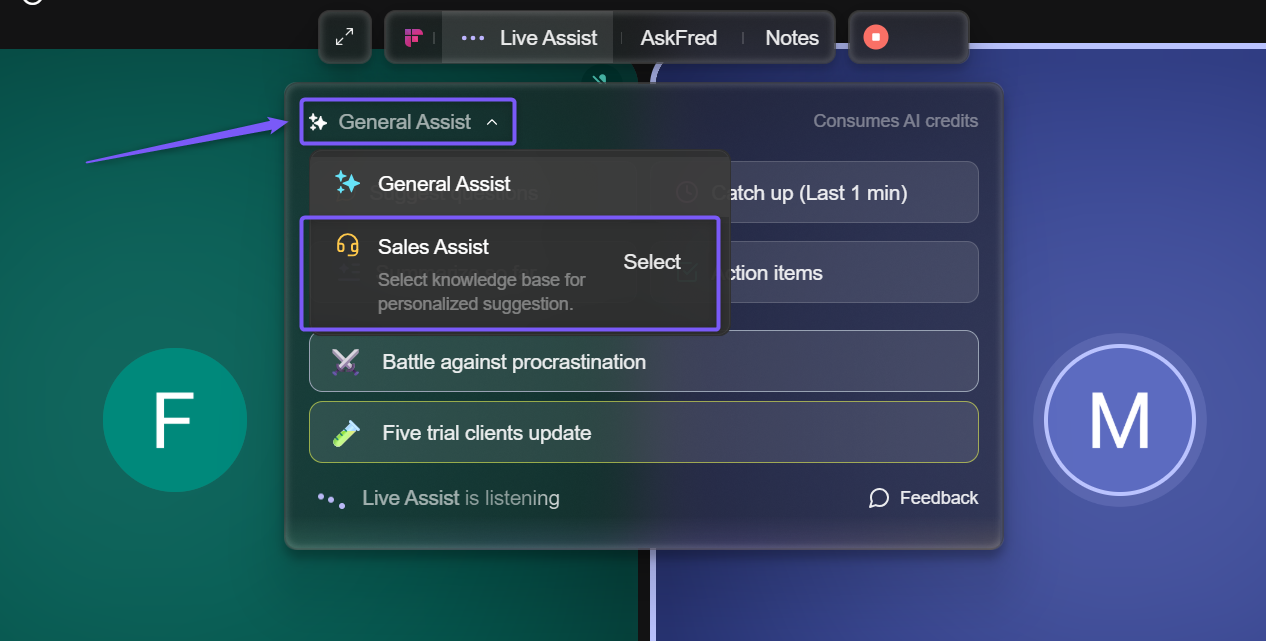
Make sure Sales Assist is selected from the dropdown (not General Assist) to activate it
Learn more about Sales Assist → Explore how Sales Assist delivers real-time answers and suggestions during customer calls.
⚡ Instant Summaries (After the Meeting)
As soon as your meeting ends, Fireflies generates an Instant (Quick) Summary so you can immediately review your meeting. About a minute later, the Instant Summary is automatically refined into a complete AI meeting summary.
After the meeting opens, you can:
Review and edit the AI-generated meeting title to make it easier to find the meeting later.
Review the meeting video and playback controls.
View your Notes and AI-generated Tasks.
Ask questions about the meeting using AskFred.
Search and review the Transcript.
Share the meeting or copy its link.
Click the three-dot (⋯) menu to download or delete the meeting.
Instant Summaries are generated automatically when:
Participants leave the meeting
The host clicks Stop in the Live Assist panel
The meeting ends normally
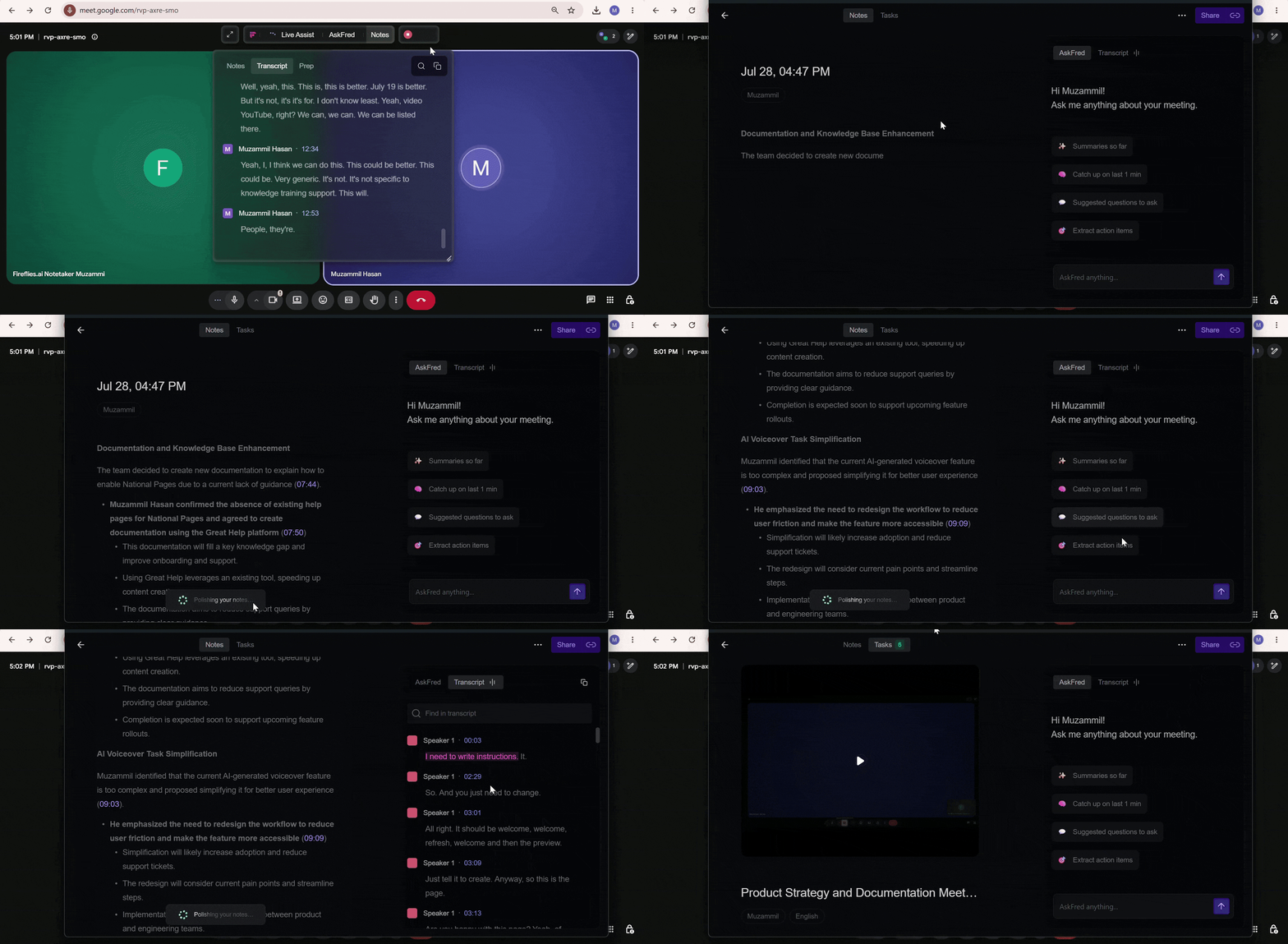
Learn more about Instant Summaries → Get post-meeting summaries instantly.
❓ Troubleshooting & FAQs
1. Live Assist isn’t showing during my meeting. What should I do?
Make sure you’re logged in to the Fireflies Desktop app and that the Fireflies.ai Notetaker has joined the meeting. If Live Assist was closed, reopen it from the Desktop app Home screen.
2. I don’t see live notes or transcripts. Why?
Live Assist must be open during the meeting for notes and transcripts to appear. Give it a few moments after the meeting starts, as updates happen in real time.
3. I closed Live Assist by mistake. How do I reopen it?
Open the Fireflies Desktop app, find your ongoing meeting, and click Live Assist to reopen the floating panel.
4. Sales Assist isn’t showing suggestions. What could be wrong?
Make sure Sales Assist is selected from the dropdown (not General Assist).
Ensure a knowledge base has been uploaded and selected.
AskFred in Sales Assist uses dynamic AI credit pricing. AI credits are charged per query, so the number of AI credits used depends on the effort required to generate the output.
5. Instant Summaries didn’t appear after the meeting. Why?
Live Assist must be open when the meeting ends. Full meeting notes may take a few minutes to process.
6. Can I use Live Assist while screen sharing?
Yes. You can hide the floating Live Assist bar during screen sharing from the Desktop app settings if needed.
7. I'm not seeing nudges during my meeting.
Nudges appear automatically based on your speaking behaviour. They will show if you have been speaking for a long time without a pause, or if your speaking pace is detected as too fast or too slow.
8. Sales Assist detected a question but couldn't find an answer. What now?
Click the manual query prompt that appears. Sales Assist will expand into the AskFred panel and search your past meetings and the web to find an answer for you.
9. Should I use AI Notes or Manual Notes?
AI Notes
Automatically capture key discussion points, decisions, and action items.
Best when you want Fireflies to generate structured meeting notes for you.
Manual Notes
Let you write your own thoughts, reminders, action items, or observations during the meeting.
Remain private unless you enable Merge to summary, which adds them to the AI-generated meeting summary.
If you change your mind later, you can remove merged Manual Notes by regenerating the meeting summary.
Still stuck? Contact support via this link for more help.
🔄 Recap
Live Assist on the Fireflies Desktop app helps you stay focused before, during, and after meetings.
Open Live Assist from the floating notification or the Desktop app
View live transcripts, notes, meeting prep, and AskFred responses in real time
Use Sales Assist for instant, knowledge-based answers during customer calls
Adjust the Live Assist panel with collapse, drag, or full-screen options
View an Instant Summary immediately after your meeting ends, then review your recording, notes, tasks, AskFred, transcript, and the complete AI meeting summary once it's ready.