How to use Live Assist for real-time notes and suggestions on the Fireflies Chrome Extension
Last updated: June 26, 2026
Live Assist on the Fireflies Chrome Extension helps you stay one step ahead during meetings by giving you real-time notes, live transcripts, AI-powered suggestions, and answers — all inside a floating pane.
It works during your meetings, letting you:
See live notes and transcripts right inside the Chrome extension while the meeting is happening
Get instant suggestions and AskFred answers in real time
View context and prep for your meeting directly within the Live Assist pane (if available)
Access summaries and follow-ups in your Fireflies Notebook once the meeting ends
🔑 Prerequisites
Before using Live Assist on the Chrome Extension, make sure:
You’ve installed and enabled the Fireflies Chrome Extension from the Chrome Web Store.
Log in to the Chrome Extension with the same email ID as your Fireflies account.
The Fireflies.ai Notetaker (bot) isn’t required — Live Assist is a bot-free Chrome Extension experience that works without the bot joining your meeting.
You’re using Google Meet on Chrome and have granted the necessary permissions (such as enabling pop-ups and microphone access) — Live Assist doesn’t work on other platforms.
🚀 How to Set Up Live Assist on Chrome Extension
Before using Live Assist, make sure your Fireflies Chrome Extension is installed and linked to your account.
📘 Learn how to add and enable the Fireflies Chrome Extension →
The Chrome Extension version of Live Assist works without the Fireflies bot, letting you access transcripts and insights directly from your browser.
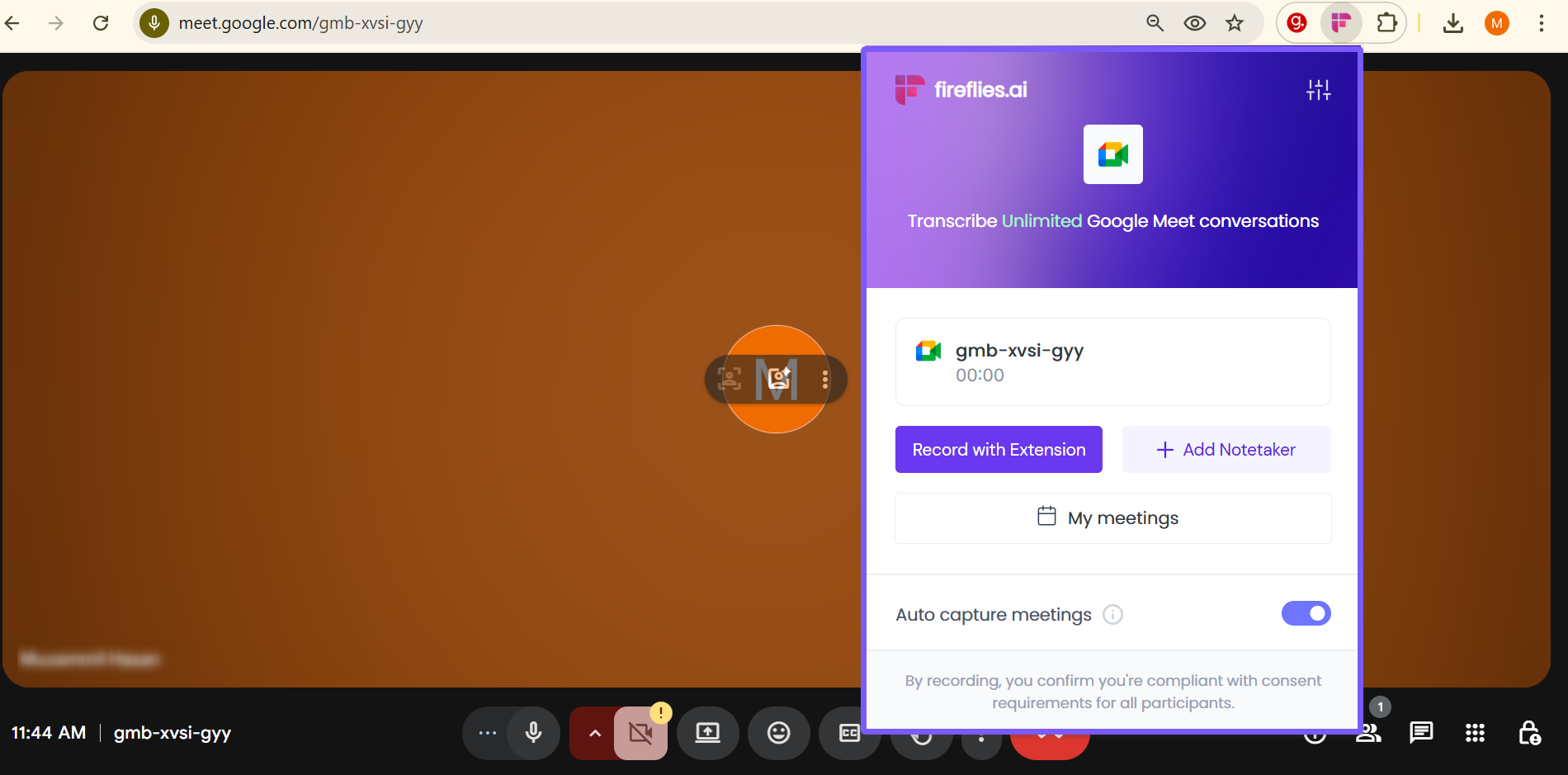
Step 1: Open Your Fireflies Chrome Extension
Click the Fireflies icon pinned to your Chrome toolbar and confirm you’re signed in to your Fireflies account. This ensures Live Assist connects automatically when your meeting begins.
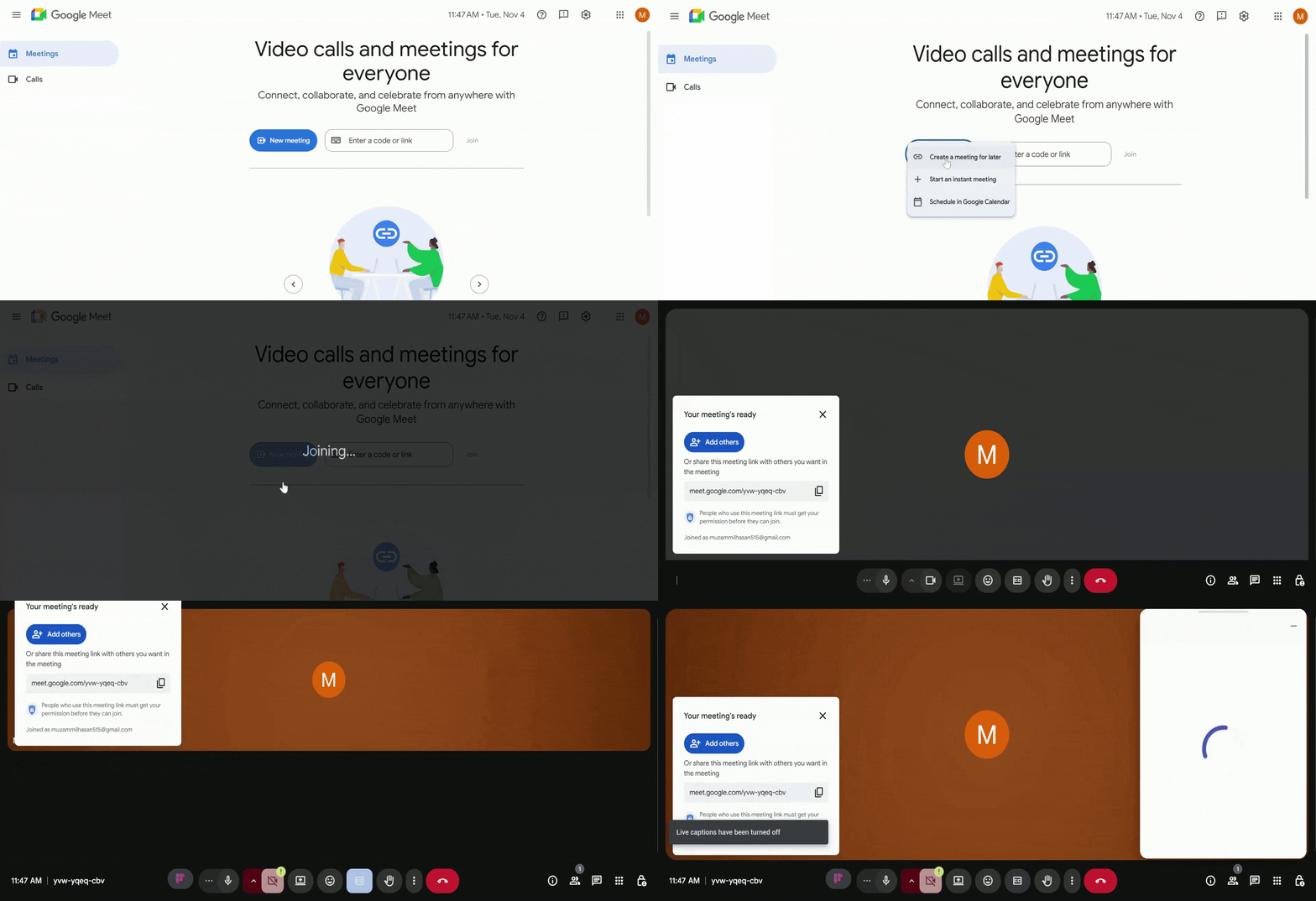
Step 2: Create a Meeting
Start a meeting (or join any live call) to see Live Assist in action. Once the meeting starts, the extension activates automatically — no manual setup needed.
Step 3: Navigating Live Assist on the Chrome Extension
Within about 10 seconds, the Fireflies Live Assist pane will appear on the right side of your screen after the meeting starts.
You can also click the Fireflies logo button (next to the mic icon) if you want to open or close it manually.
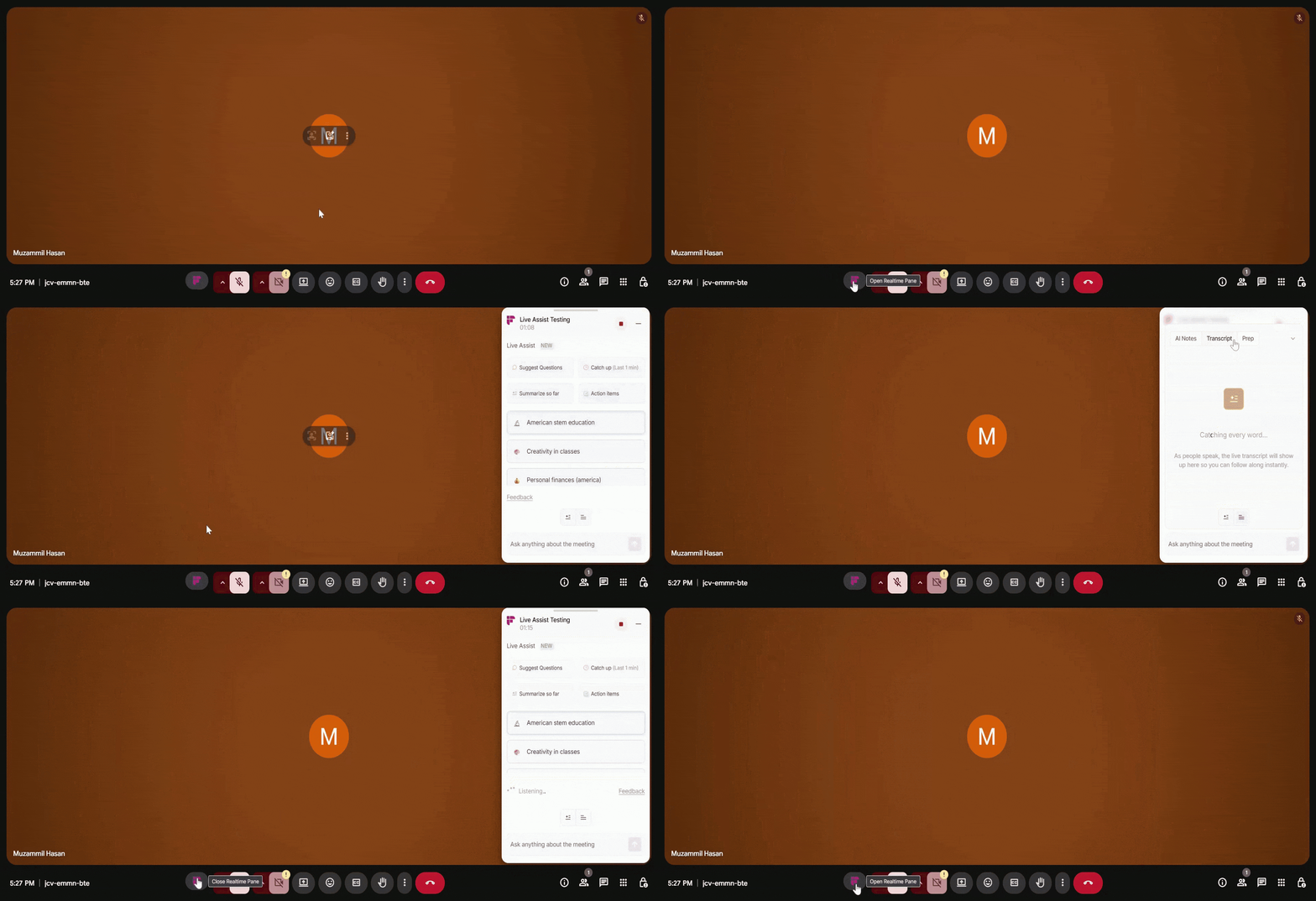
It includes:
The meeting title and live timer at the top
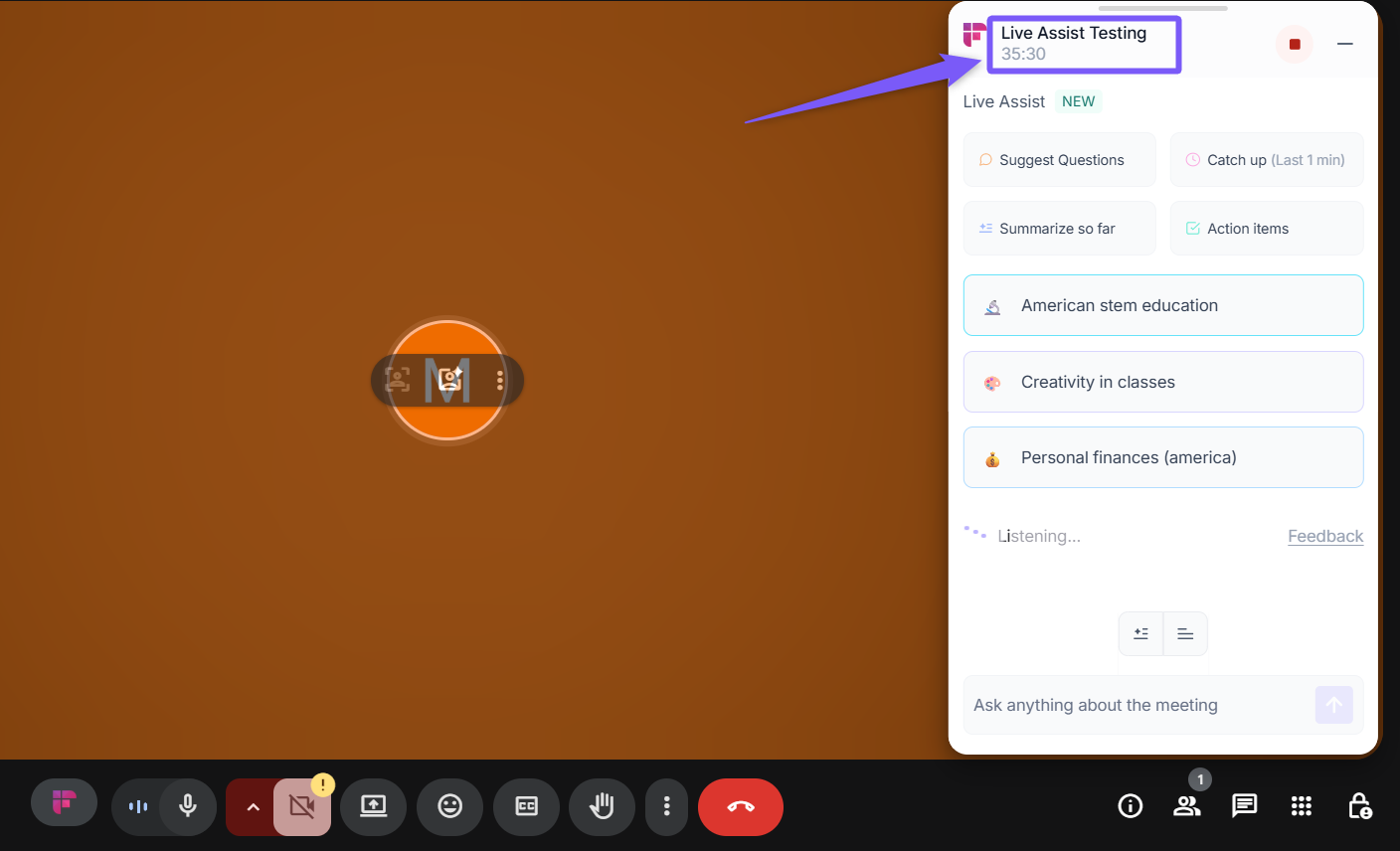
A close (-) icon to hide the pane anytime
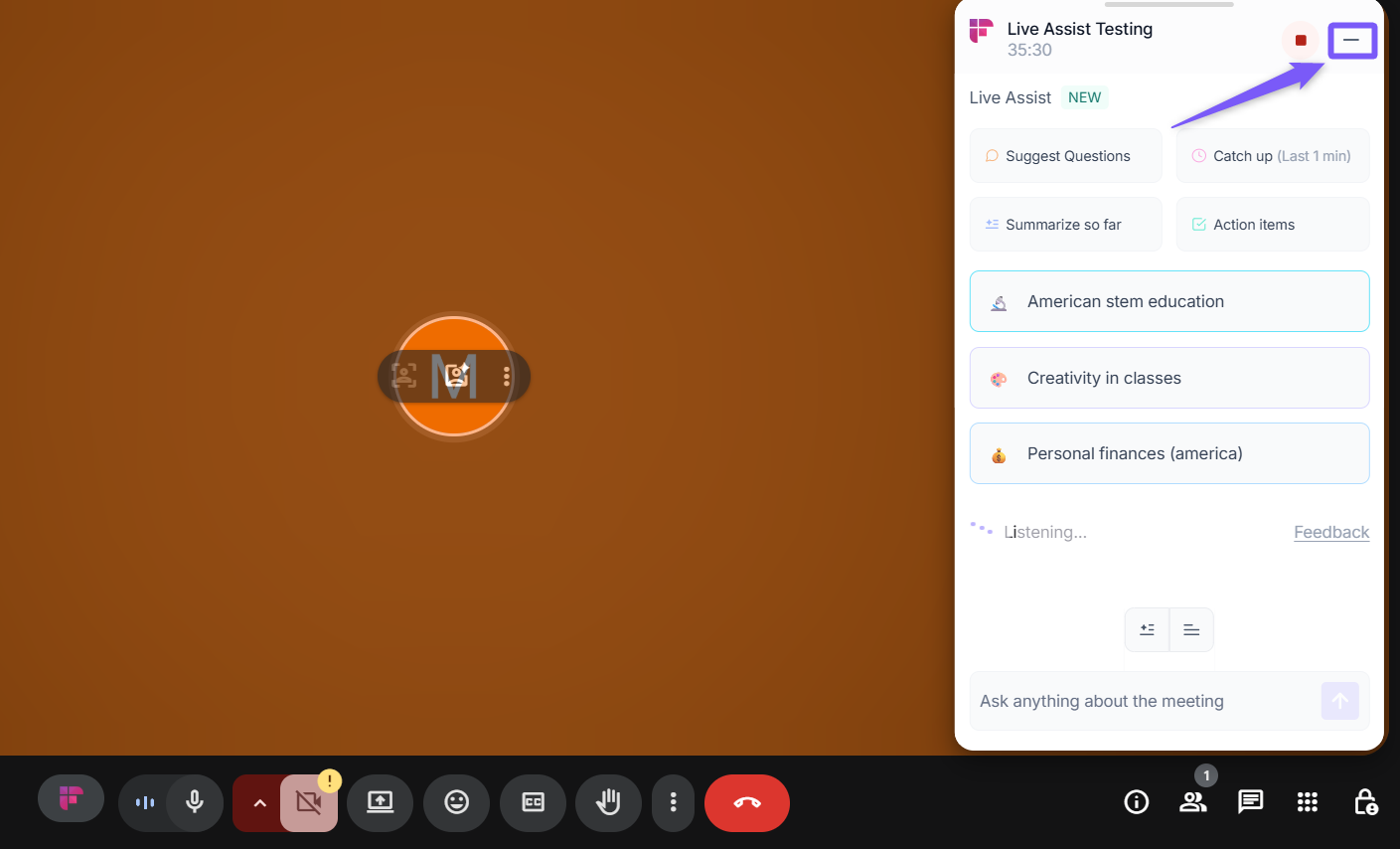
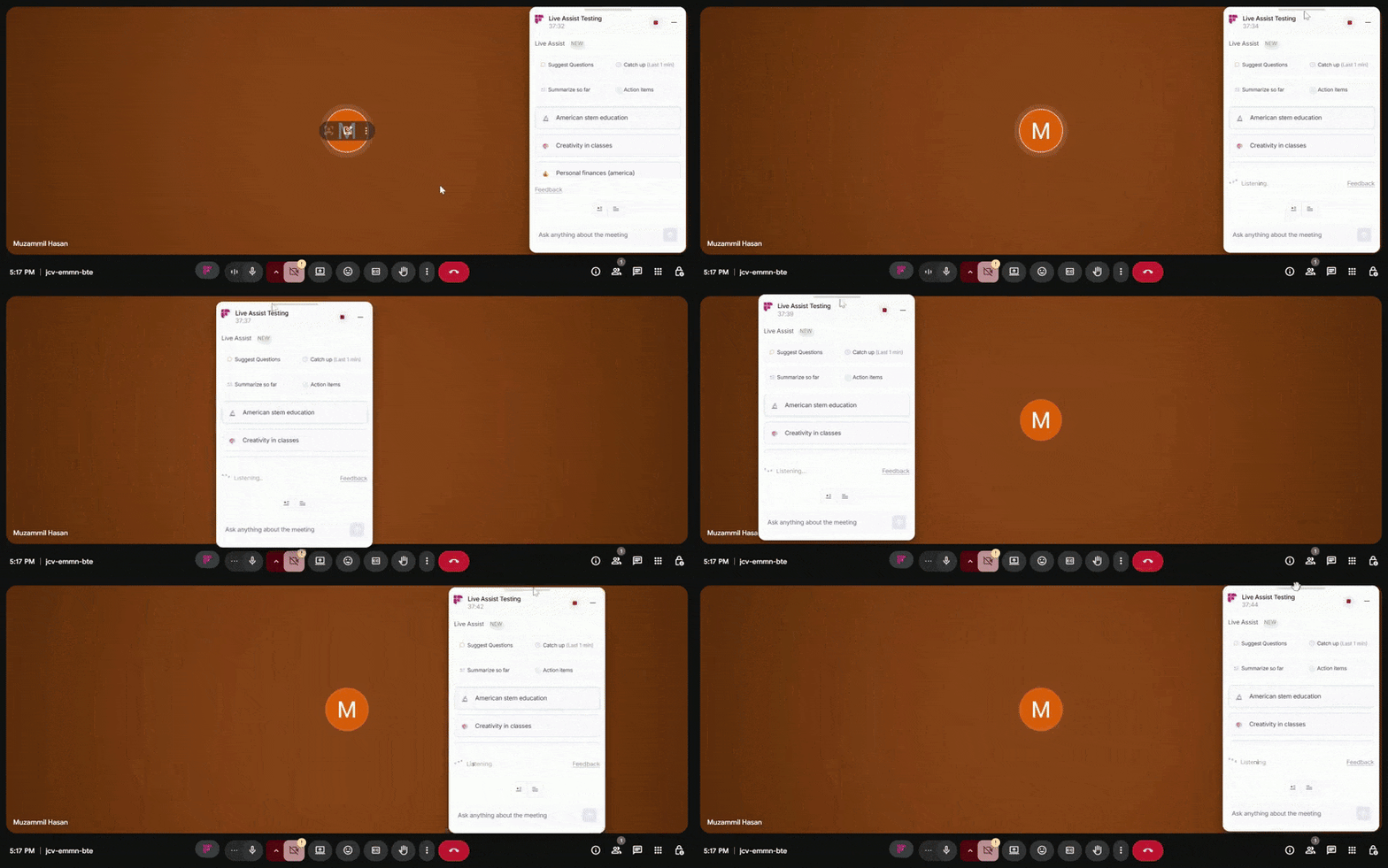
A drag bar above the pane to move it anywhere on your screen
A stop button to end and save your meeting whenever you’re done
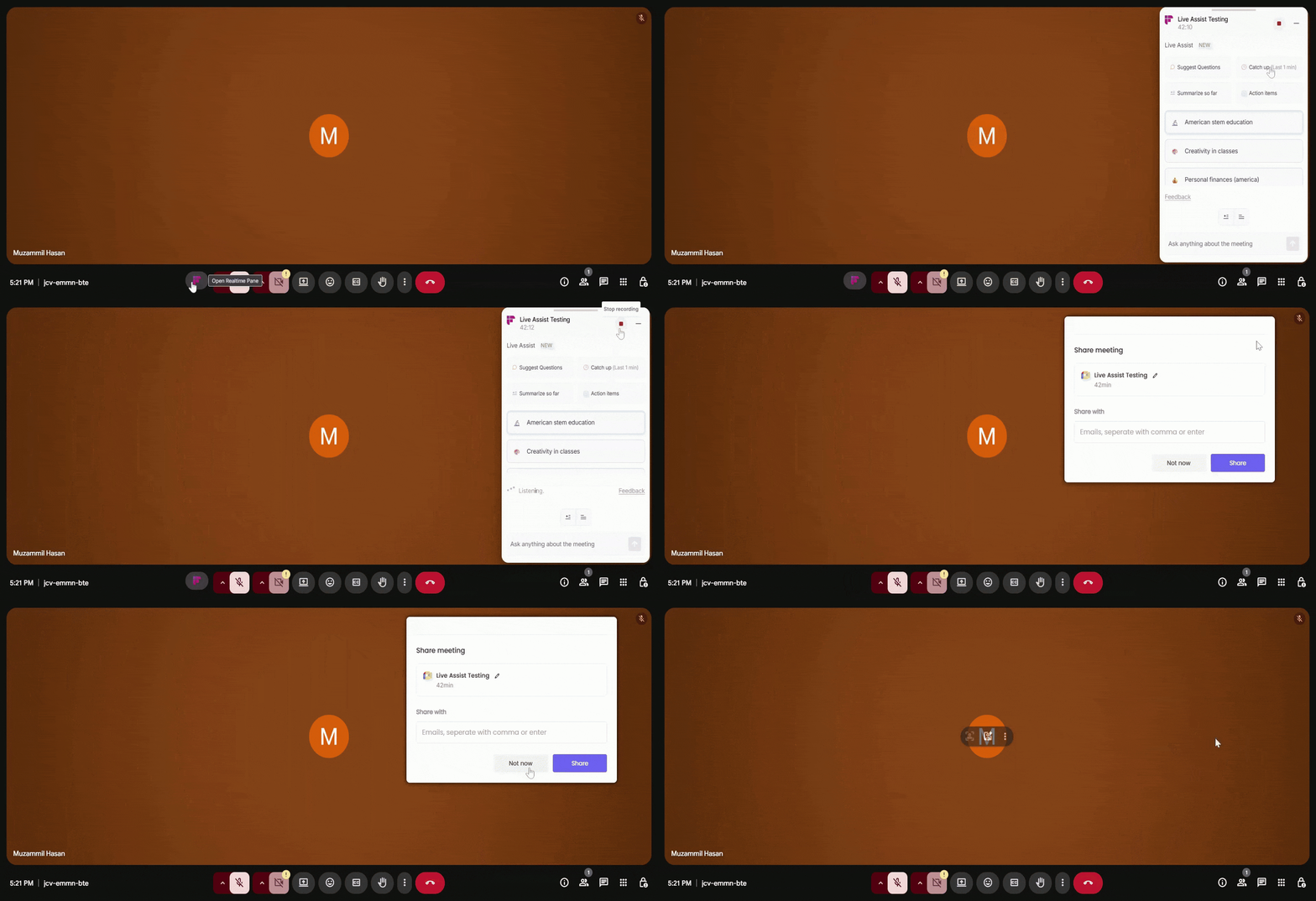
Earlier, Fireflies didn’t save meetings that were under 3 minutes.
Now, even if your meeting is shorter than 3 minutes, Fireflies will still capture it. Once you stop the meeting, it automatically processes the recording and sends the notes to your email and Fireflies Notebook
🧠 Using Live Assist on the Chrome Extension
Once the Live Assist pane opens, you’ll see real-time notes, transcripts, and smart AI suggestions updating as the meeting progresses.
It’s designed to help you stay focused on the conversation while Fireflies captures everything in the background.
1. Real-time Suggestions
When you’re in a meeting, it’s easy to miss a point or forget to follow up — and that’s exactly where Real-time Suggestions help.
Some pre-suggested questions/prompts include:
Suggest Questions – Fireflies listens to what’s being said and recommends thoughtful follow-up questions you can ask right away.
Catch Up (Last 1 min) – Missed something? Get a quick recap of the last 60 seconds so you’re always up to speed.
Summarize So Far – Need a quick mid-meeting overview? This gives you an instant summary of what’s been discussed so far.
Action Items – Automatically identifies and lists key decisions or next steps mentioned during the call.
Example Click Catch Up (Last 1 min) to see a short, AI-generated summary appear in the AskFred panel on the right side of the Live Assist pane.
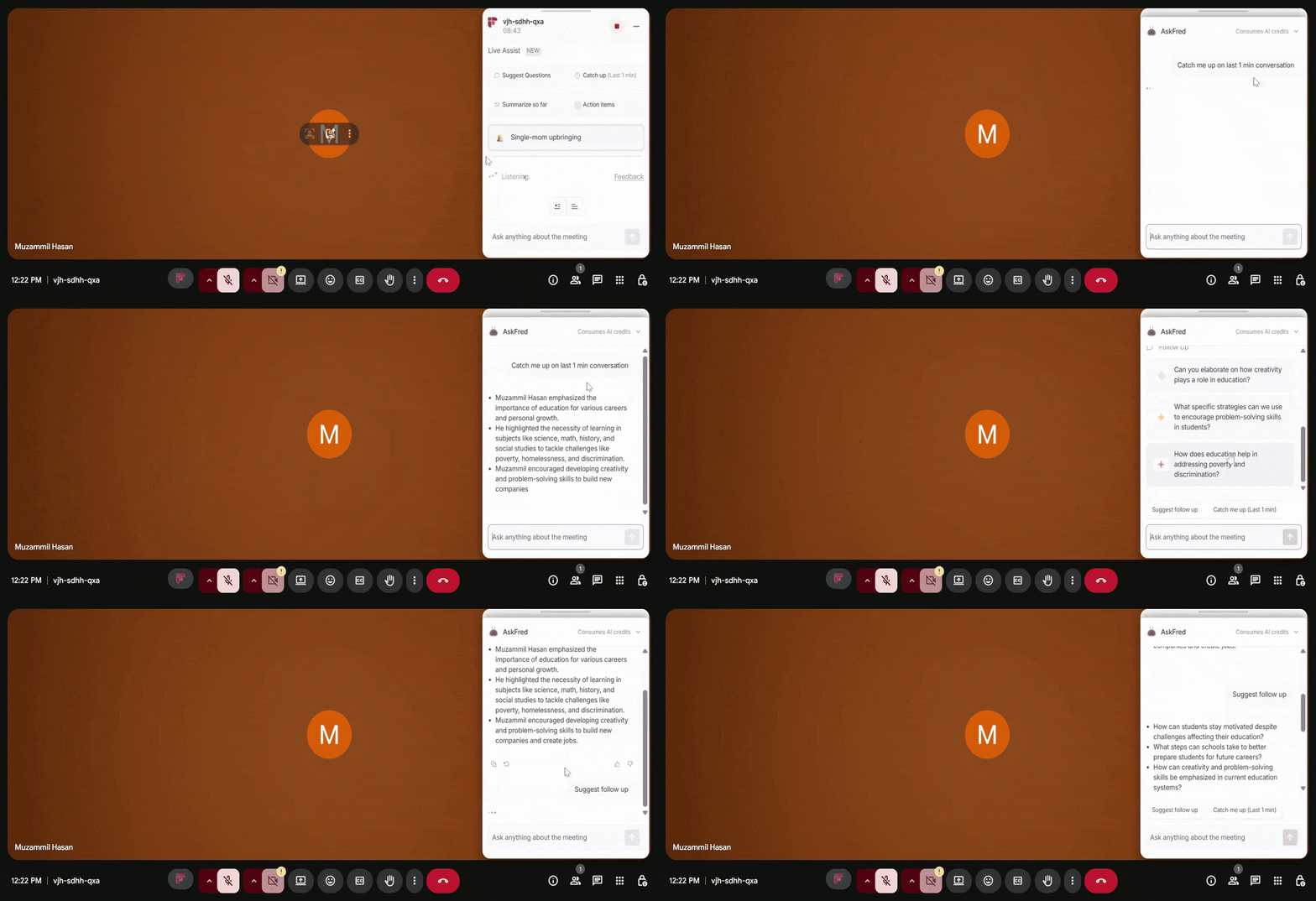
2. AskFred
The AskFred panel lets you chat with Fireflies’ AI during the meeting, helping you clarify points, get answers, and search the web — all within the Chrome Extension. It also remembers your previous questions for smooth follow-ups.
Here’s what you can do:
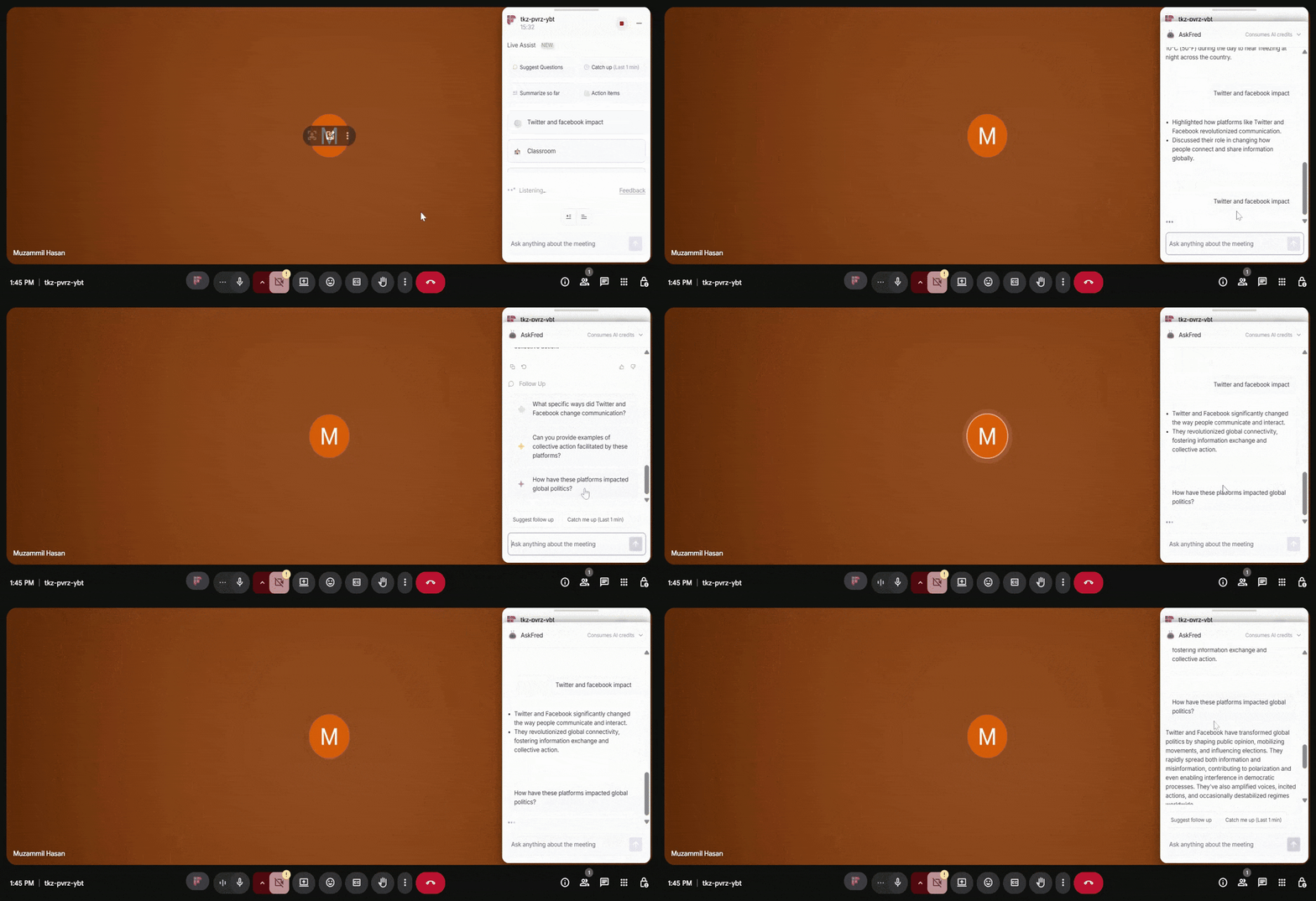
Follow up easily – AskFred remembers your previous question, so you can keep asking related follow-ups without rephrasing.
Example“Twitter and Facebook impact” → follow up with “How have these platforms impacted global politics?”
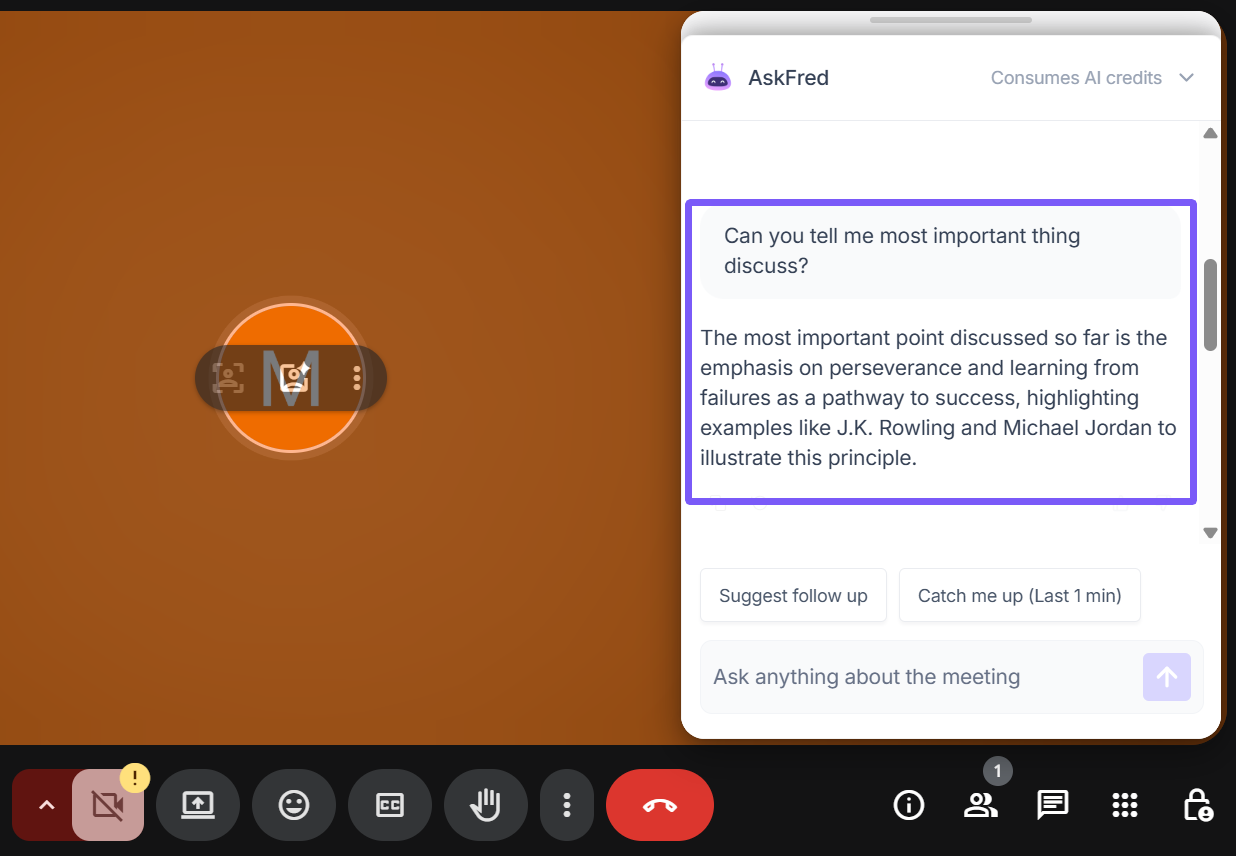
Ask manually – Want to clarify or summarize something specific? Just type your question.
Example “Can you tell me most important thing discuss?” or “Summarize decisions made so far.”
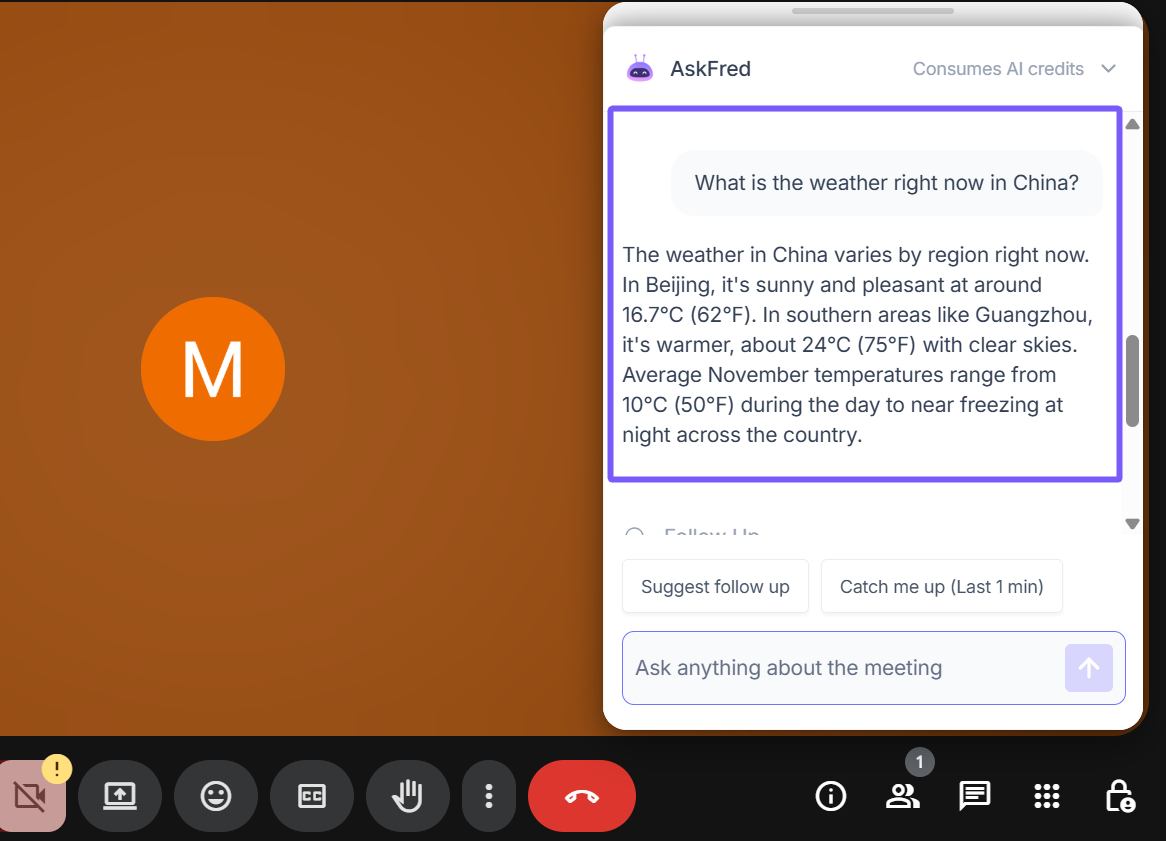
Ask everyday questions (Web Search) – You can also ask general queries, and AskFred will search the web in real time to show answers right inside the pane.
Example“What’s the weather in China right now?”* → AskFred will fetch from the web directly into the pane
Learn more about AskFred — Ask questions and get instant AI answers.
3. Dynamic Topic Suggestions
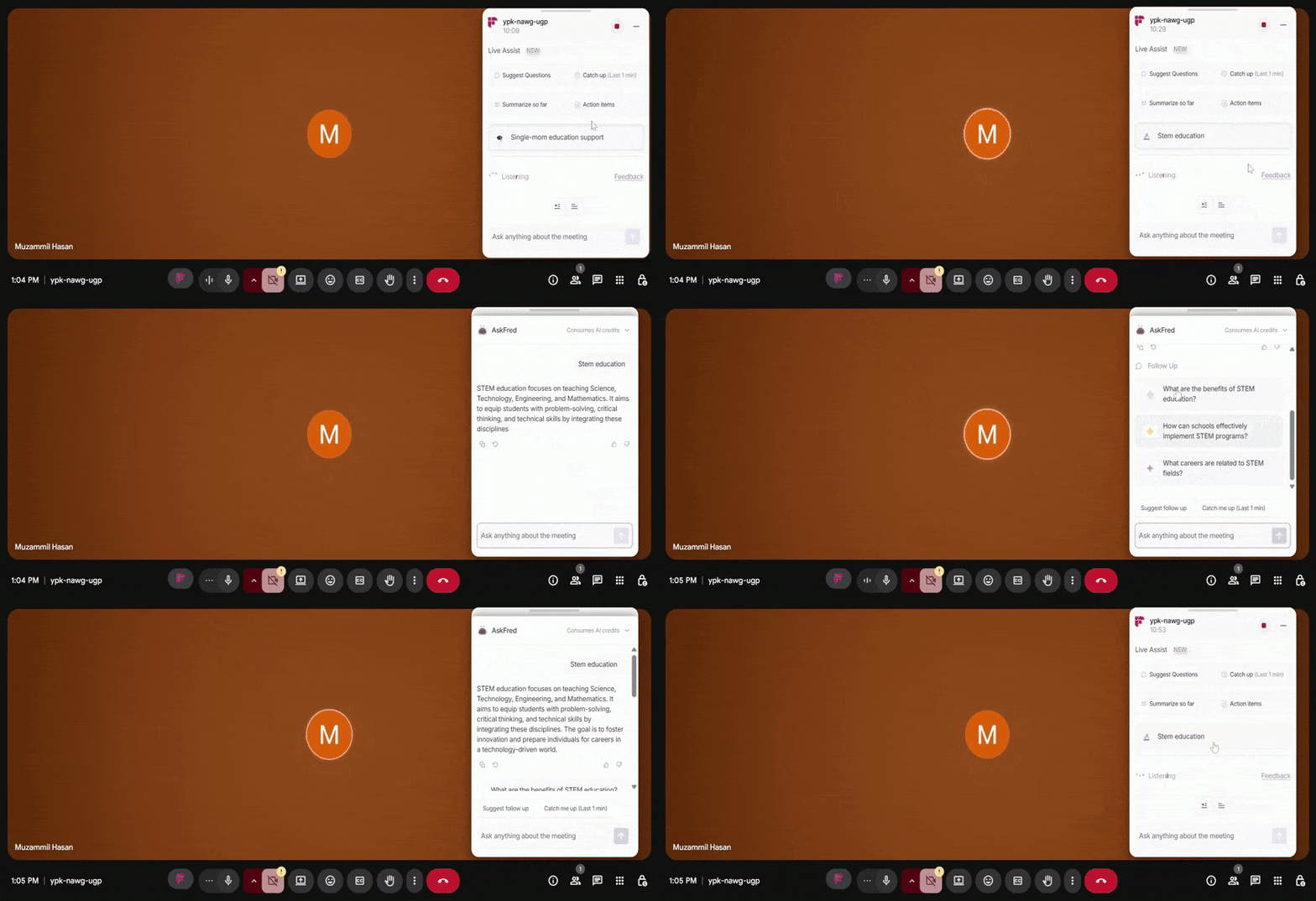
Live Assist automatically detects key themes from your meeting and shows them as clickable topic cards below the default options.
Here’s how they work:
Dynamic cards appear based on the live discussion (for example, “Pricing updates” or “Next sprint”).
Click a card to see a quick AI summary in AskFred on the right.
Auto follow-ups – Once you ask something, Live Assist suggests relevant follow-up questions automatically.
Cards refresh automatically to match the flow of your ongoing meeting.
Example:
If your team starts discussing pricing, a “Pricing discussion” card will appear — click it to view a summary instantly.
The Dynamic Topic Suggestions feature is available only on paid plans. Free users will see just the four default options.
4. Live Notes, Transcript & Meeting Prep
It can be hard to catch everything when multiple people are talking — that’s why the Notes tab in Live Assist keeps everything organized for you in real time. Just open the Notes tab on the Live Assist pane. You’ll find three handy sections:
AI Notes – Live Assist automatically creates structured notes with headings, timestamps, and bullet points while you focus on the discussion.
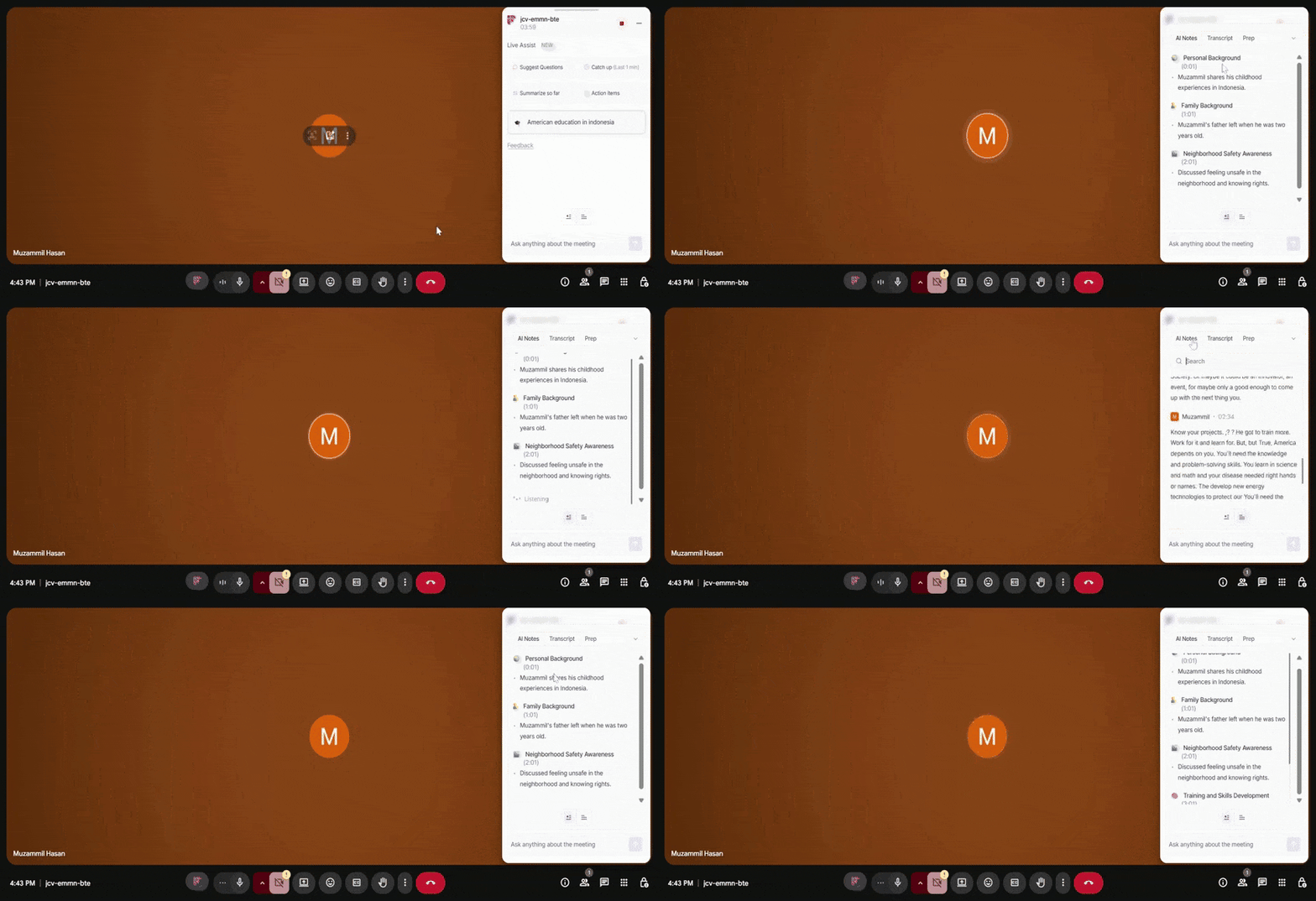
Transcript – Watch the live transcript appear line by line, complete with speaker names and timestamps. Perfect for double-checking details or quoting someone accurately.

Meeting Prep – If prep material is available, you’ll see it here — helping you understand the background or context of the current meeting.
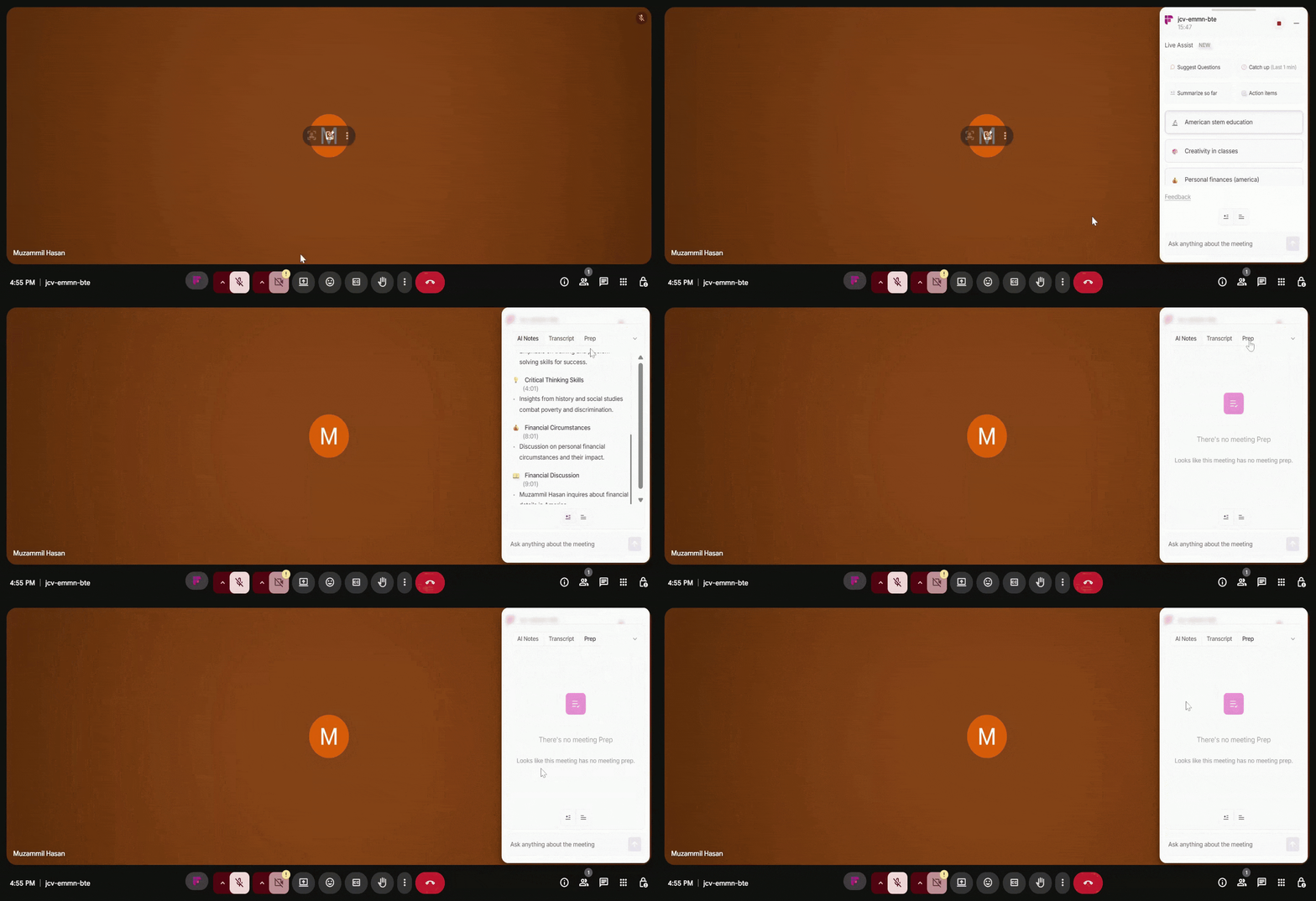
Everything you need — notes, transcript, and prep — stays in one place, updating in real time while you stay fully present in the conversation.
5. AI Credits Usage
AskFred in Live Assist uses dynamic AI credit pricing. AI credits are charged per query, so the number of AI credits used depends on the effort required to generate the output. Simpler requests may use fewer credits, while more complex requests may use more.
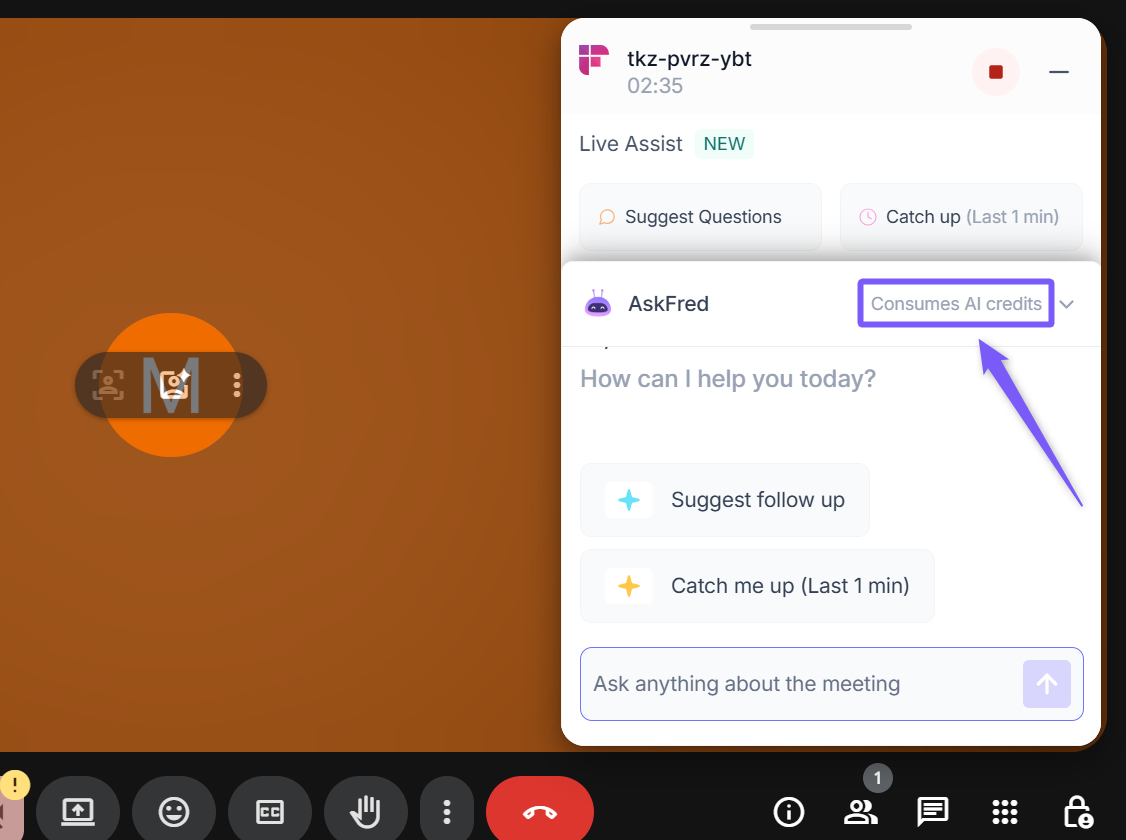
To view your team’s AI credit usage:
From your Fireflies dashboard, click Settings on the left navigation bar.
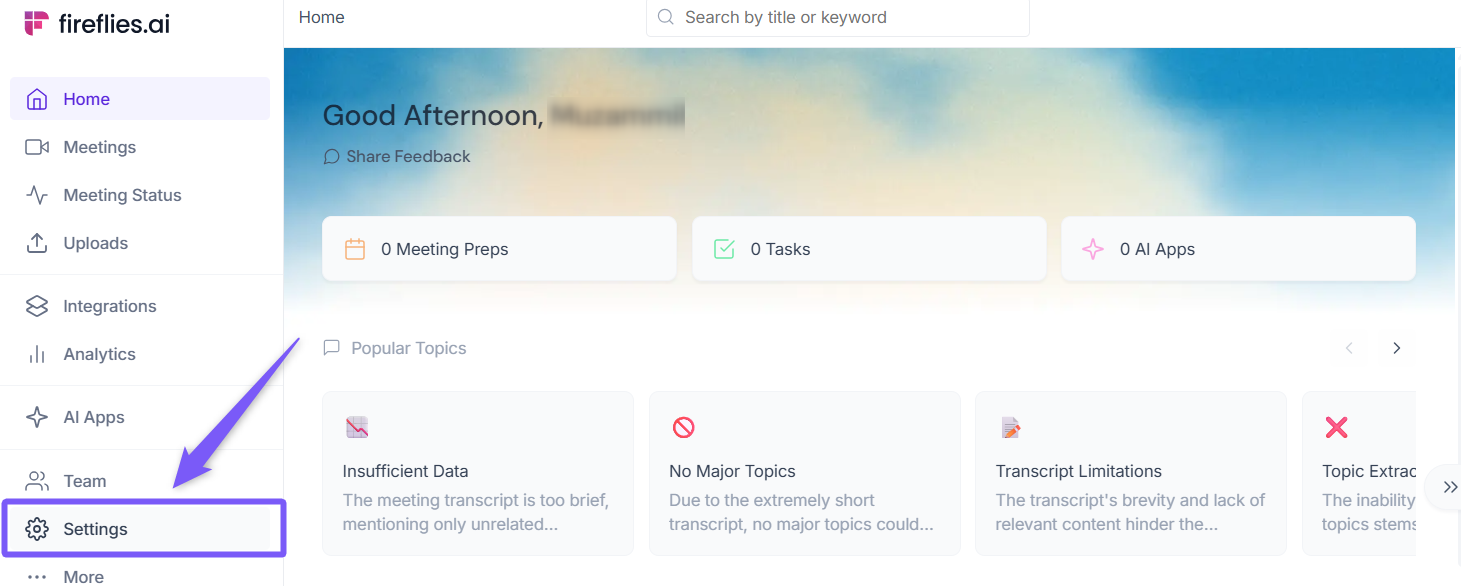
Select Billing → AI Credits Usage to see a detailed breakdown of credits consumed by the Realtime Pane.
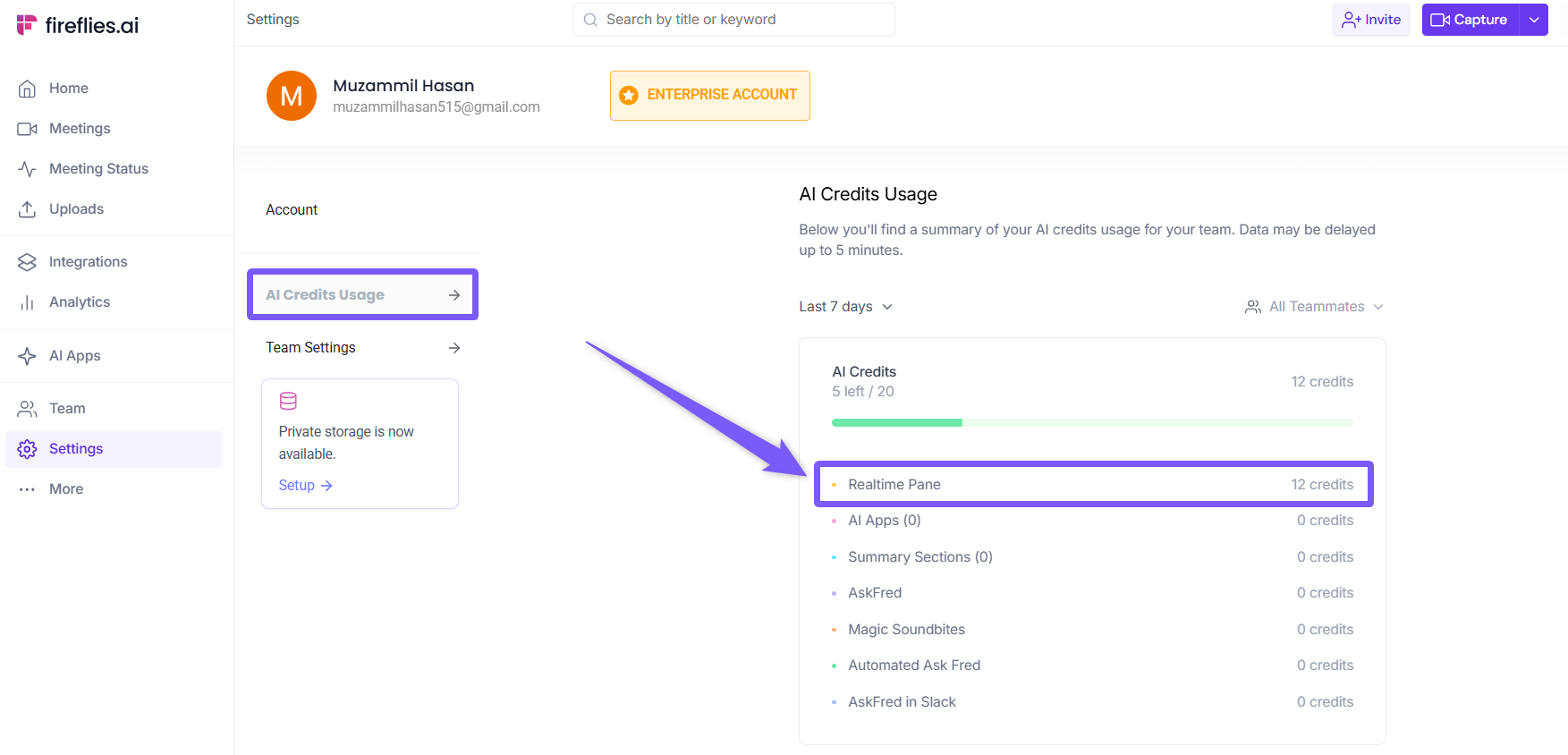
AskFred in Live Assist uses dynamic AI credit pricing. AI credits are charged per query and vary based on query complexity.
📝 View Your Meeting Notes
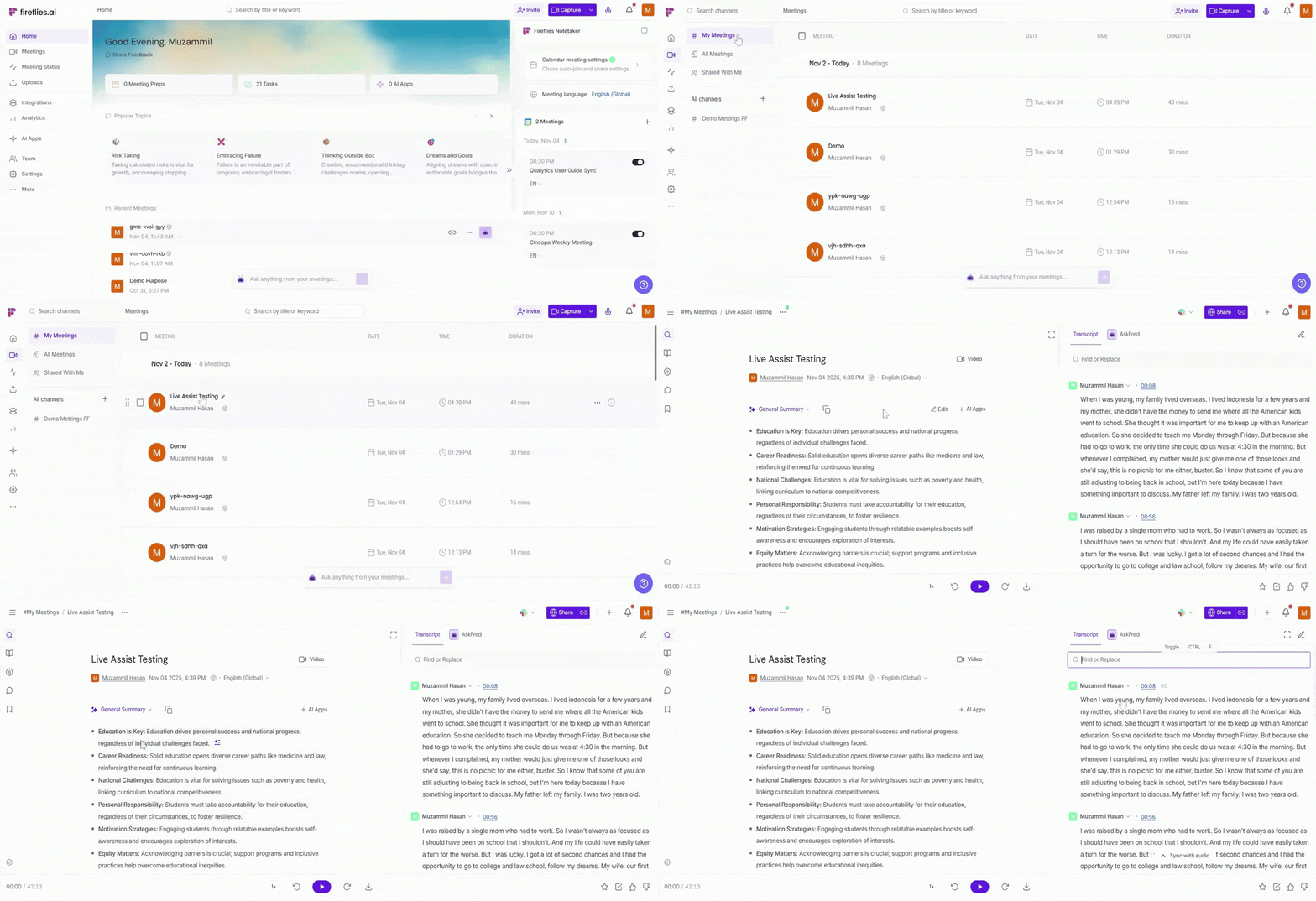
Fireflies automatically processes your recording once the meeting ends.
Access your meeting recap anytime from your Meeting Dashboard in the Fireflies app.
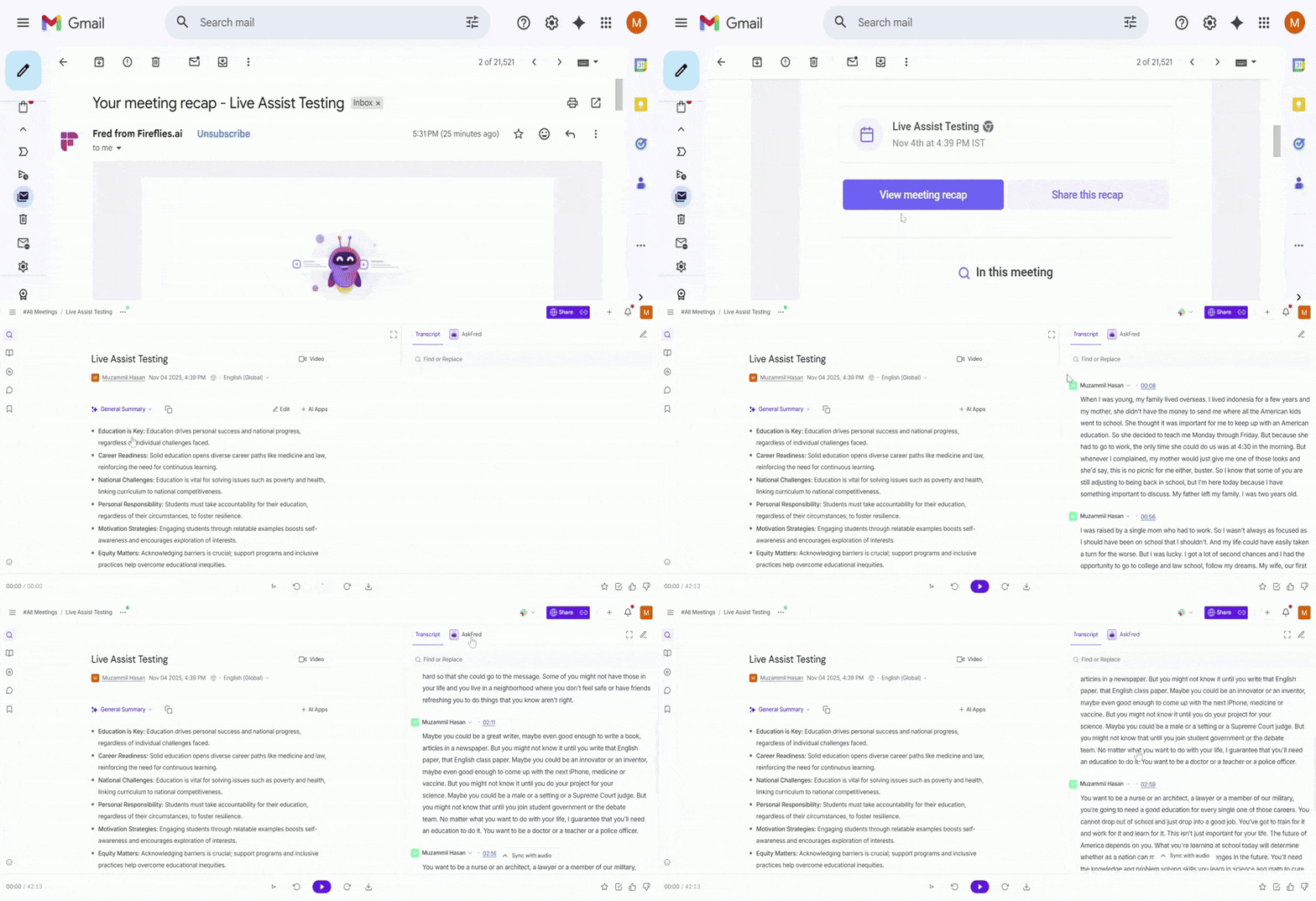
Also, you will receive an email with a View meeting recap button — click it to open your meeting recap in the Fireflies Notebook.
🔍 Troubleshooting & FAQs
1. Live Assist isn’t showing up during my Google meeting.
Make sure the Fireflies Chrome Extension is installed, enabled, and you’re signed in with your Fireflies account. If it’s still not visible, refresh your browser or rejoin the meeting.
2. The Live Assist pane isn’t loading properly.
It can take up to 10 seconds to appear after the meeting starts. If you’re using a browser with pop-up blockers, allow pop-ups from Fireflies so it loads correctly.
3. My meeting ended early — will notes still be saved?
Yes. Even short meetings (under 3 minutes) are now saved automatically once you stop recording.
4. I’m not seeing dynamic topic suggestions.
Dynamic suggestions are only available for paid users. Free users will still see the four standard suggestions: Follow Up, Catch Up, Summarize So Far, and Action Items.
5. Can I use Live Assist without the Fireflies Notetaker bot?
Yes — the Chrome Extension version works without the bot and directly captures live notes from your browser.
6. Can I use Live Assist on platforms other than Google Meet?
No — Live Assist currently works only on Google Meet when using the Chrome Extension. It is not available on other meeting platforms.
Still stuck? Contact support via this link for more help.
🔄 Quick Recap
The Fireflies Chrome Extension lets you access Live Assist directly from your meeting — no bot required.
You can see real-time notes, transcripts, and AI-powered suggestions right inside the pane.
Paid users also get dynamic topic suggestions, while free users can use the four default ones.
AskFred in Live Assist uses dynamic AI credit pricing based on the complexity of each request.
Short meetings (even under 3 minutes) are now automatically saved when you stop recording.
Pinned the Fireflies extension to your Chrome toolbar for easy access before your next meeting.
📚 Related Guides
Learn about Fireflies Live Assist (Web) → — For using Live Assist in the web app.
Learn about Fireflies Notebook → — How meeting notes & recordings are saved and accessed afterward.
How to share meeting transcripts and summaries → — Share or export your meeting data easily.
Learn about the Fireflies Chrome Extension → — Understand all features available on the Chrome extension.
How to invite Fireflies AI Notetaker using the Chrome Extension → — Step-by-step to add the Notetaker via your Chrome extension.