How to Record, Transcribe & Share Loom Videos Using the Fireflies Chrome Extension
Last updated: December 8, 2025
The Fireflies Chrome Extension lets you capture your Loom videos and instantly generate transcripts, notes, and summaries with a single click. Fireflies saves the Loom video itself, along with the transcript and notes, directly to your Fireflies Notebook.
Let’s get started 🚀
🎥 Record & Transcribe Your Loom Video
Step 1: Ensure the Fireflies Chrome extension is active
Before capturing a Loom video, make sure the Fireflies Chrome Extension is installed, pinned, and you're signed in so the floating Fireflies icon can appear.
Learn how to set it up → Fireflies Chrome Extension Guide.
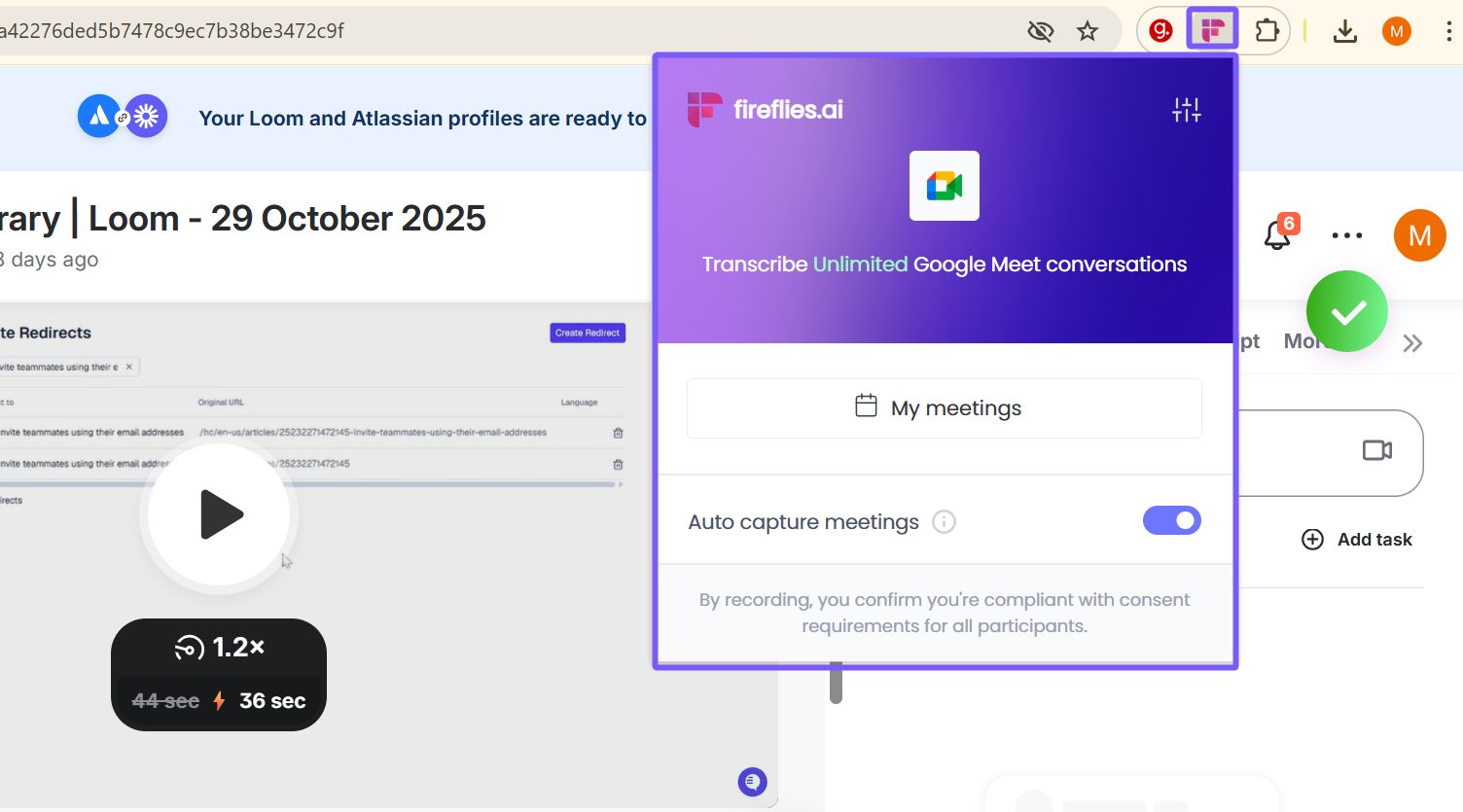
Step 2: Open your Loom video in Chrome
Open the Loom video you want to capture—either from your Loom dashboard or any shared Loom link.
This works only in the Chrome browser, not the Loom desktop app.
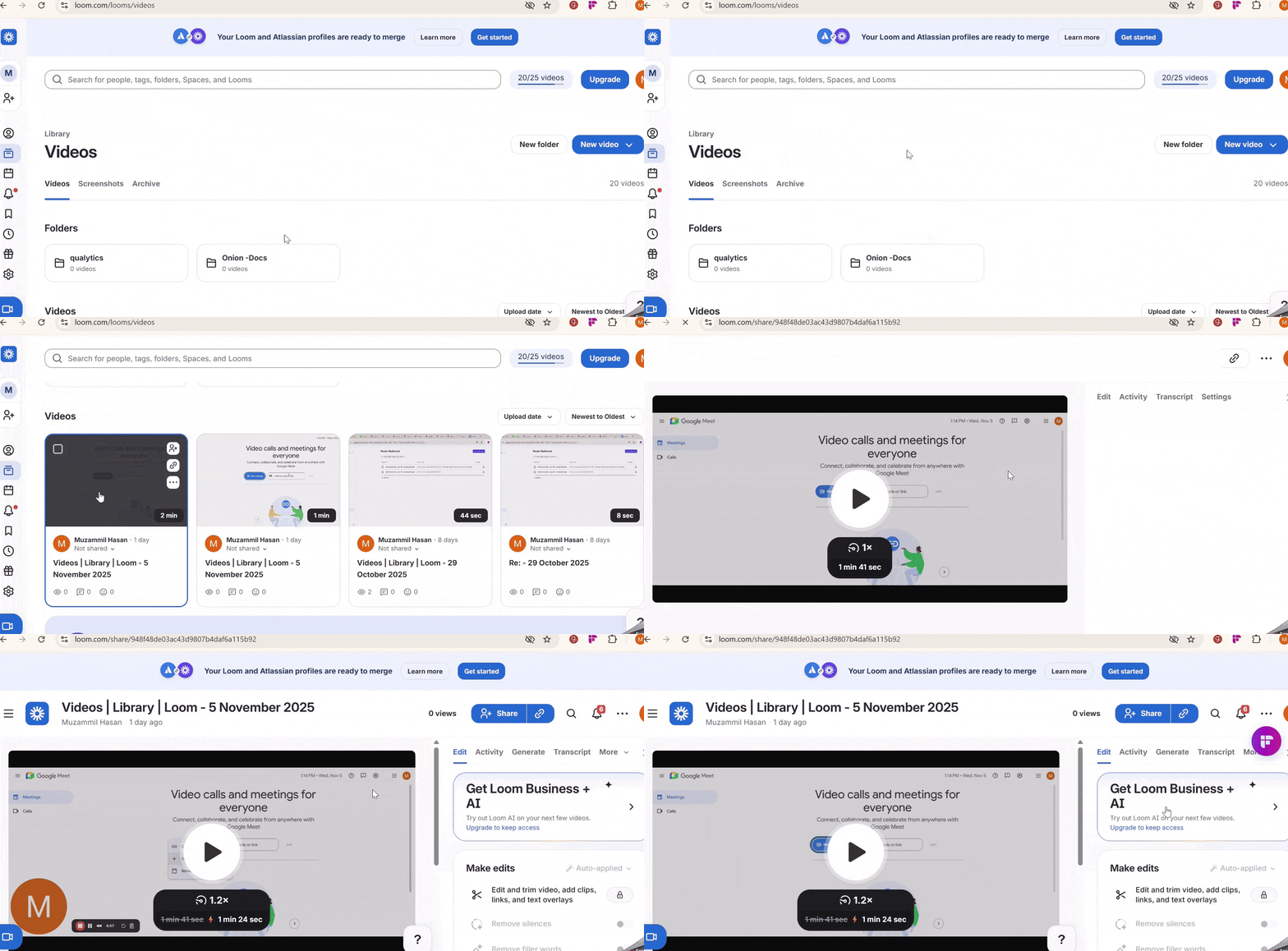
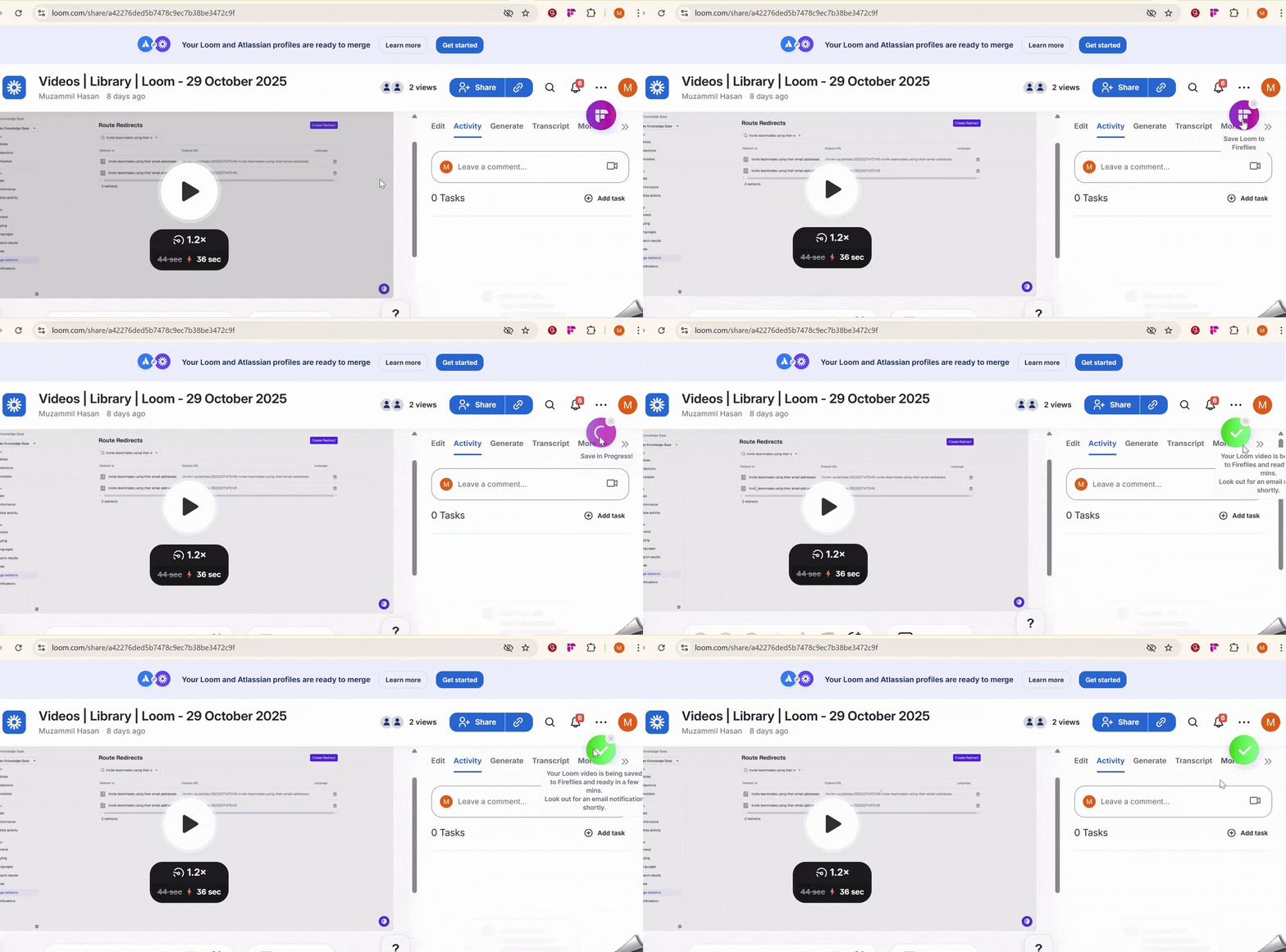
Step 3: Click the floating Fireflies icon
When the Loom video loads, you’ll see a small Fireflies icon on the right side of your screen. Click it once to instantly save and send the video to Fireflies for transcription.
How to access and share the recorded Loom videos
📁 Access Your Loom Video
Fireflies automatically saves your captured Loom videos to your Fireflies Notebook. You can access them in two ways:
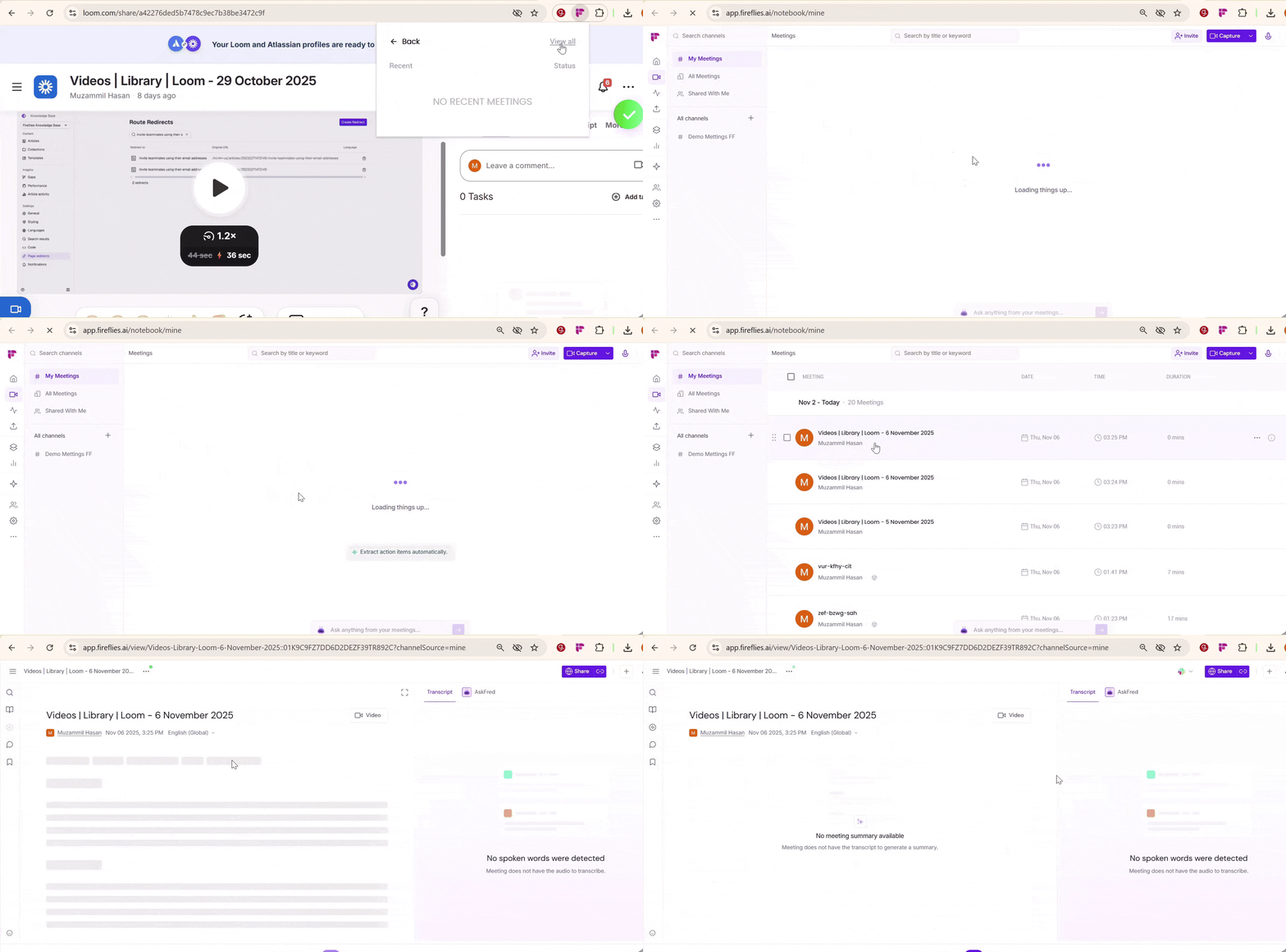
Option 1: From the Chrome Extension
Click the Fireflies extension icon on your toolbar and select My meetings.
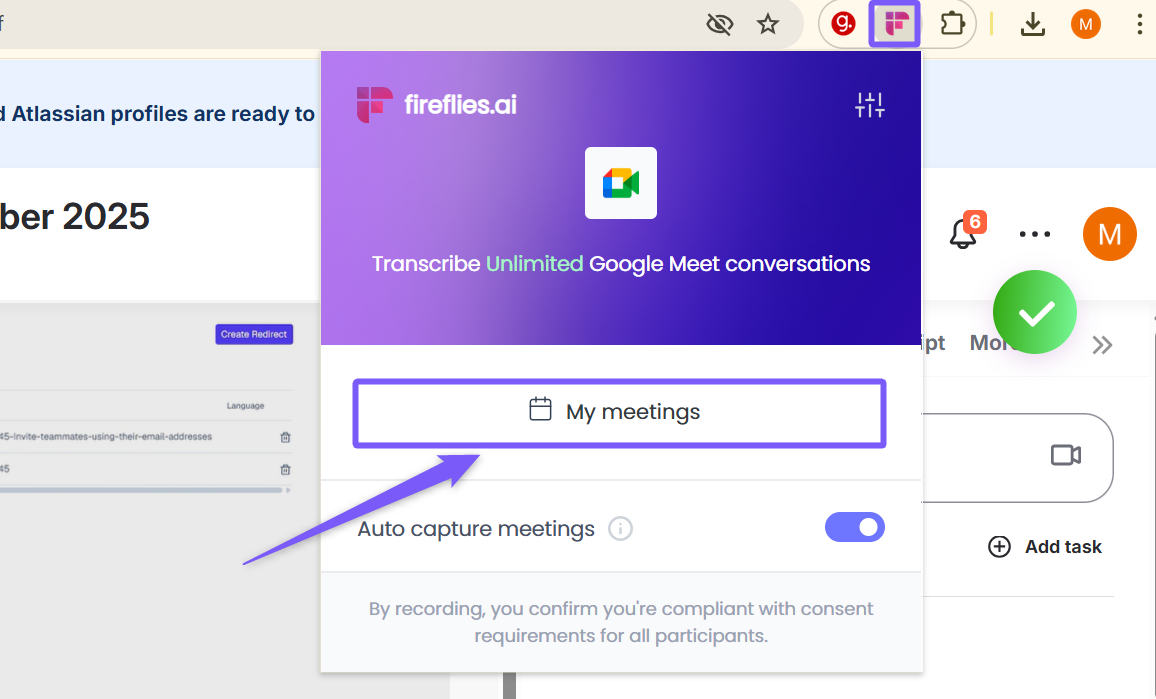
Then click View all to open your full list in the Fireflies Notebook, where you can find and open your Loom video.
Option 2: From the Fireflies Meeting Dashboard
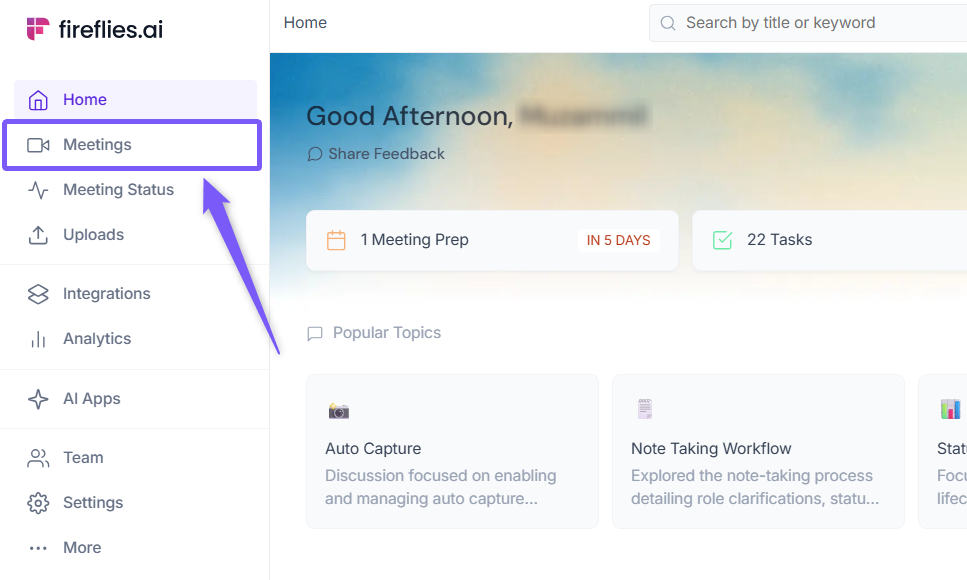
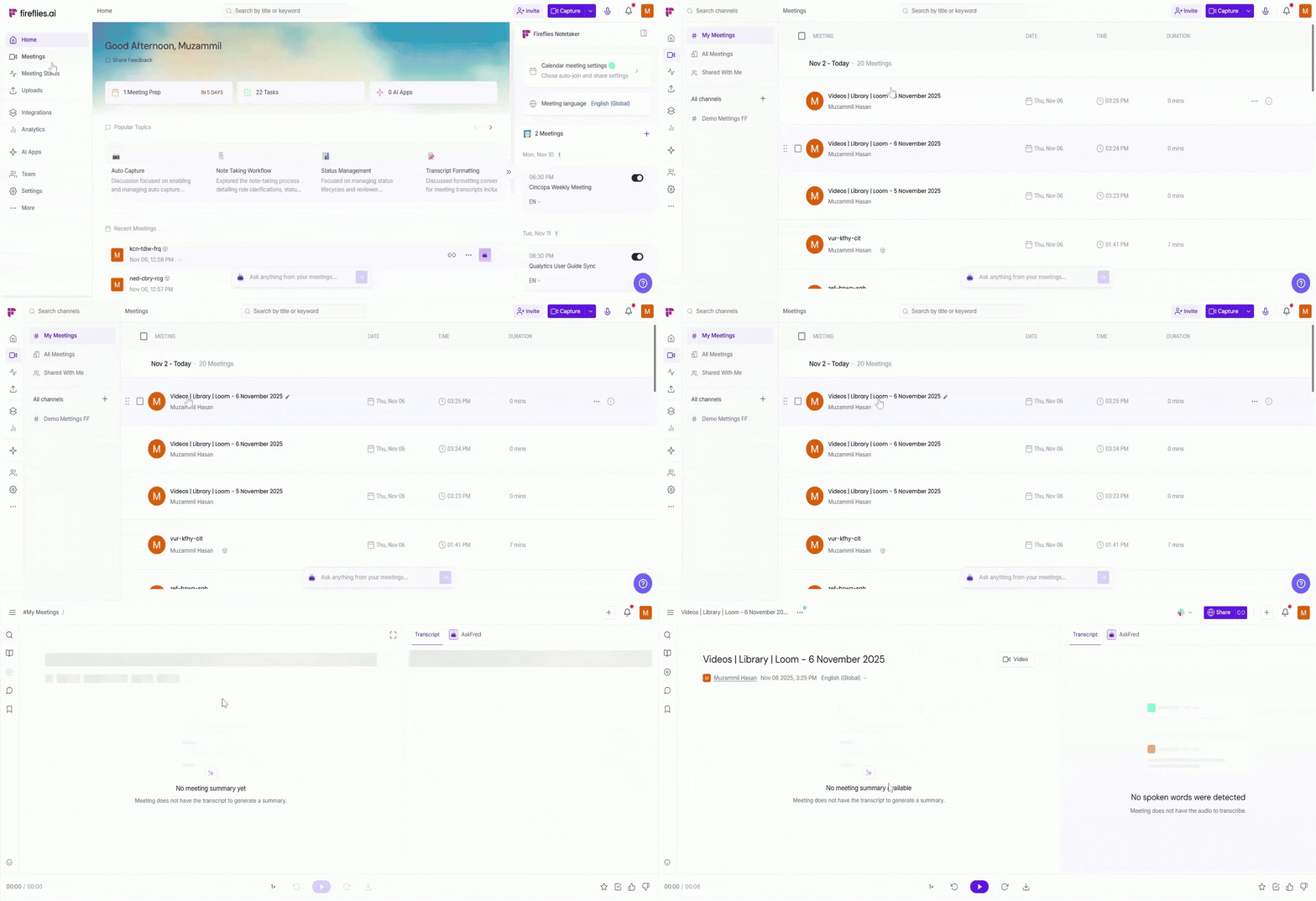
Open your Fireflies app and click the Meetings tab in the left sidebar.
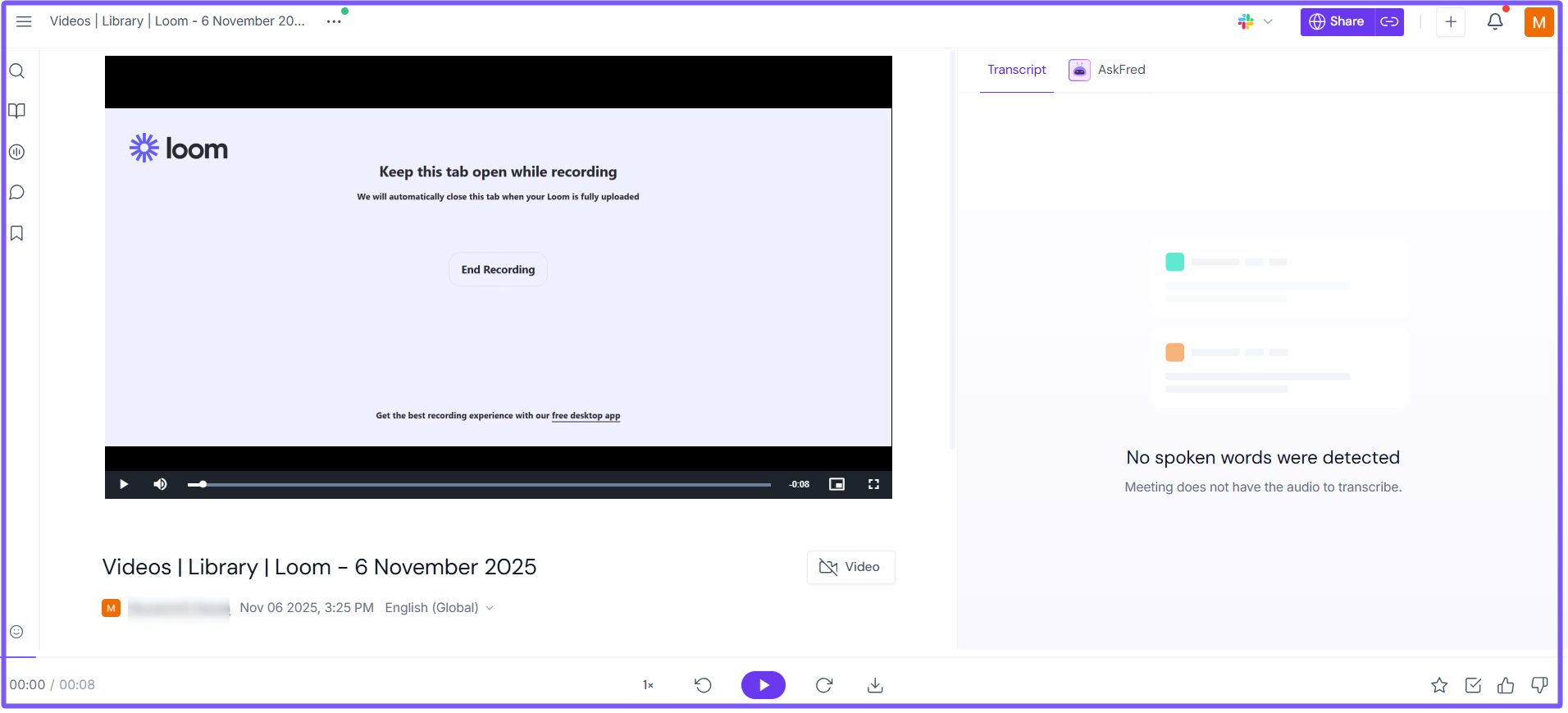
Look for your Loom entry—it will appear alongside your other recordings. Click it to open the Notepad view.
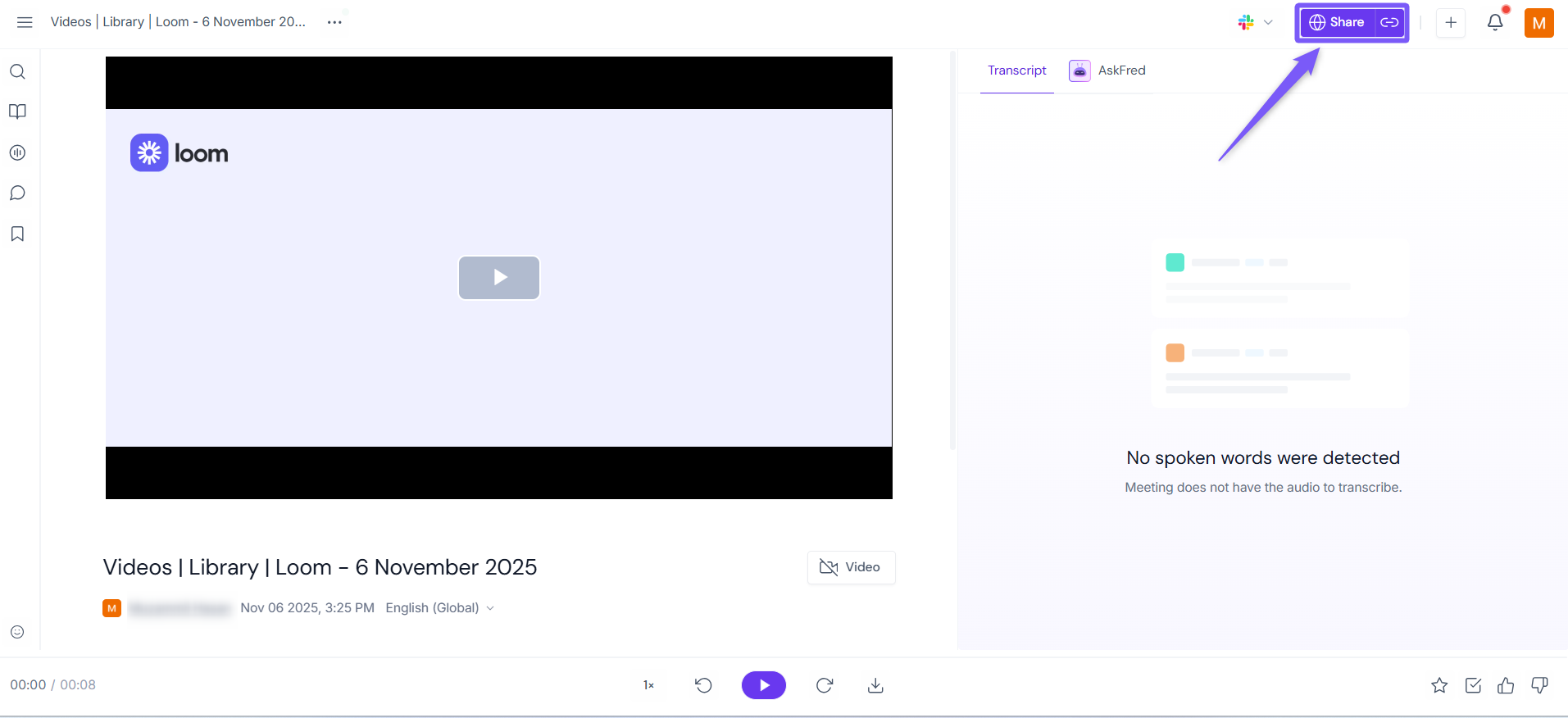
Here, you can view your Loom video, check its transcript (if spoken words are detected), and use AskFred to get instant answers or summaries from the content.
🔗 Share Your Loom Video
Open the Loom video in your Fireflies Notebook and click Share at the top-right corner.
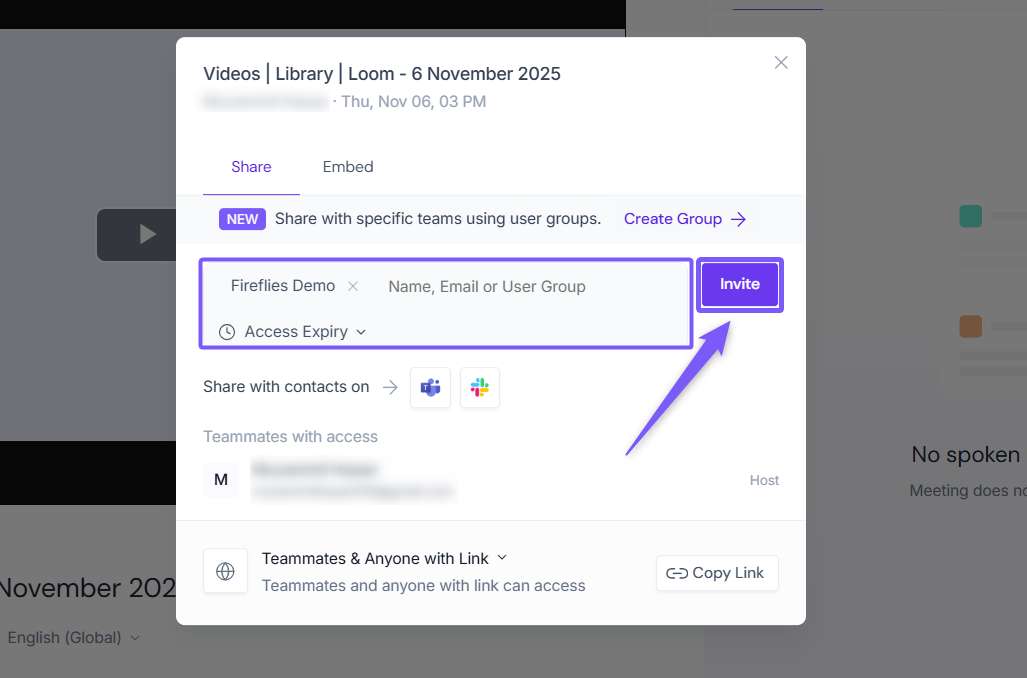
Enter the email addresses or user groups you want to share with, then click Invite to send access.
Want more sharing options?
Learn how to share transcripts, summaries, and meeting notes in detail →
🔁 Recap
Open your Loom video in Chrome.
Click the Fireflies icon to save and transcribe it.
View and share the video and transcript from your Fireflies Notebook.