How to invite Fireflies AI notetaker using the Chrome Extension
Last updated: December 8, 2025
Meetings on Google Meet just got simpler—you can now invite the Fireflies AI Notetaker directly from the Chrome Extension without switching tabs or setups.
This guide walks you through how to quickly add the Fireflies Notetaker so it can capture, record, and save your meeting notes automatically.
The Chrome Extension also includes Live Assist, which shows real-time notes and AI suggestions during your meeting—even without the bot.
To learn more, check out Learn about Fireflies Live Assist on Chrome extension →
🔑 Prerequisites
Before inviting the Notetaker bot from the Chrome Extension, make sure:
You’ve installed and enabled the Fireflies Chrome Extension from the Chrome Web Store.
Log in to the Chrome Extension with the same email ID as your Fireflies account.
You’re using Google Meet on Chrome and have granted the necessary permissions (such as enabling pop-ups and microphone access).
🚀 Steps to Invite the Fireflies AI Notetaker
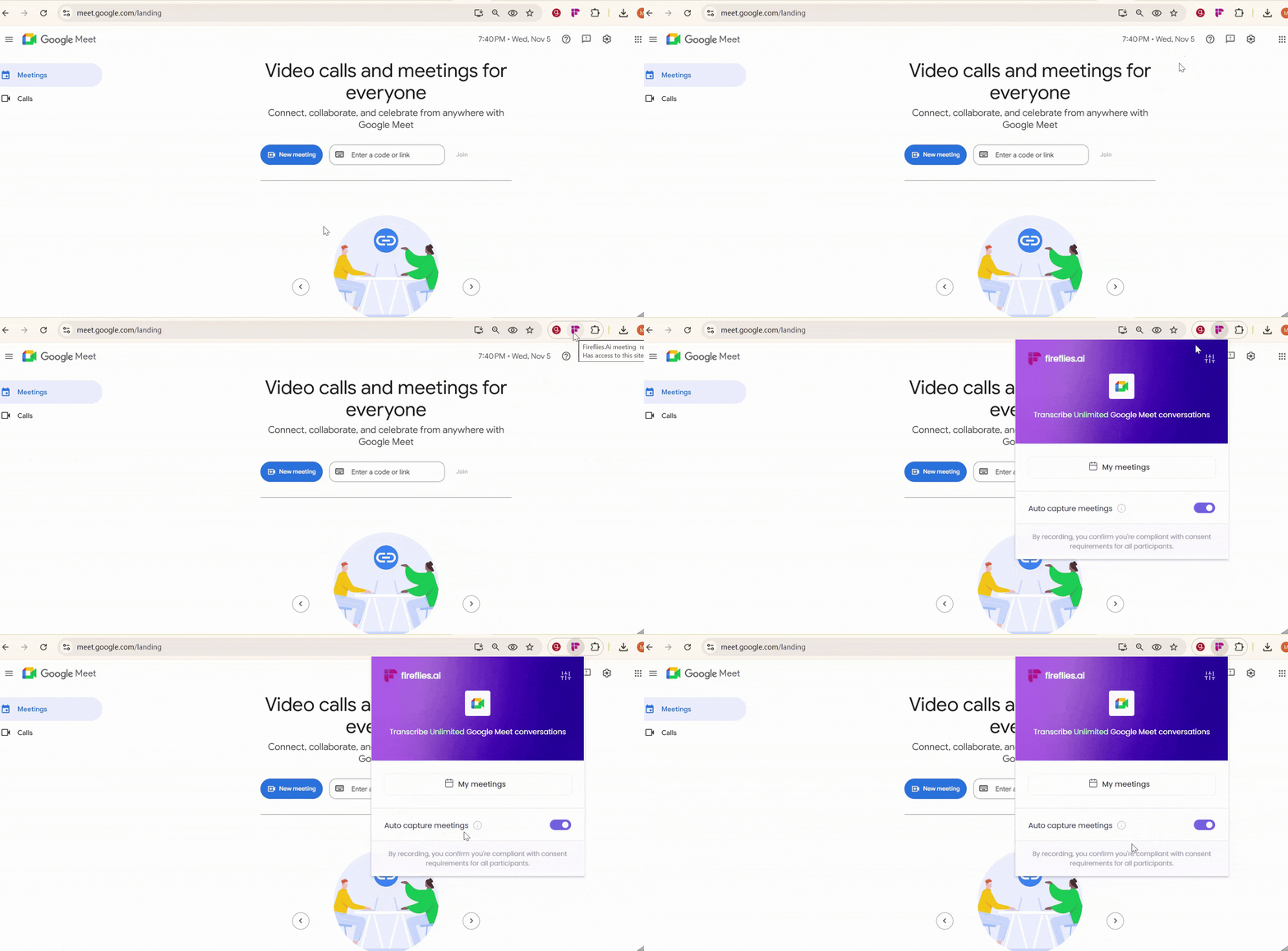
Step 1: Open the Fireflies Chrome Extension
Before you start your meeting, open the Fireflies Chrome Extension from your browser toolbar.
This is where you can check whether Auto-Capture Meeting is ON or OFF—it decides if Fireflies should automatically detect and record your meeting.
Step 2: Start or Join a Google Meet
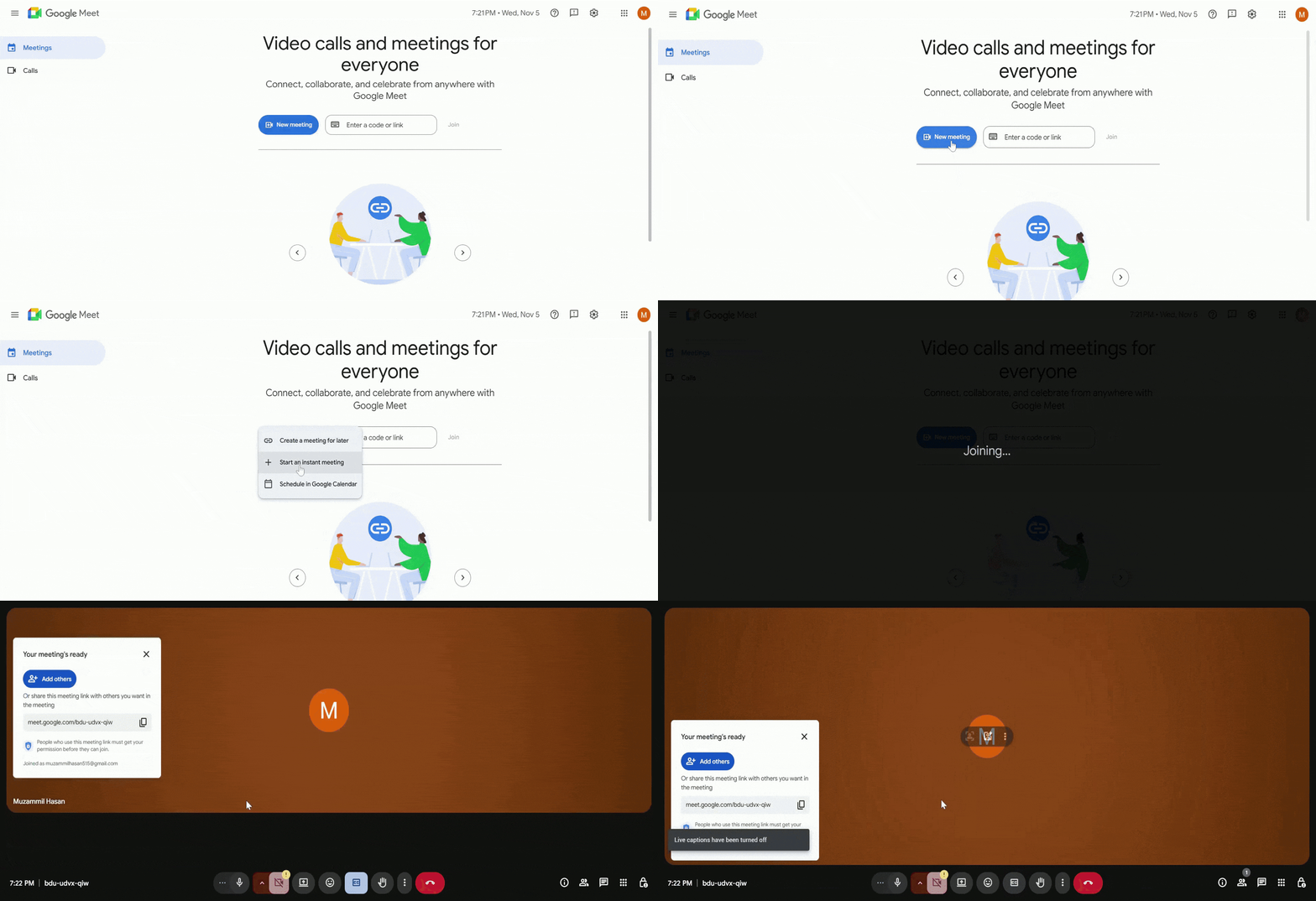
Start or join your Google Meet directly from your calendar, or create a new meeting manually.
Step 3: Invite the Notetaker
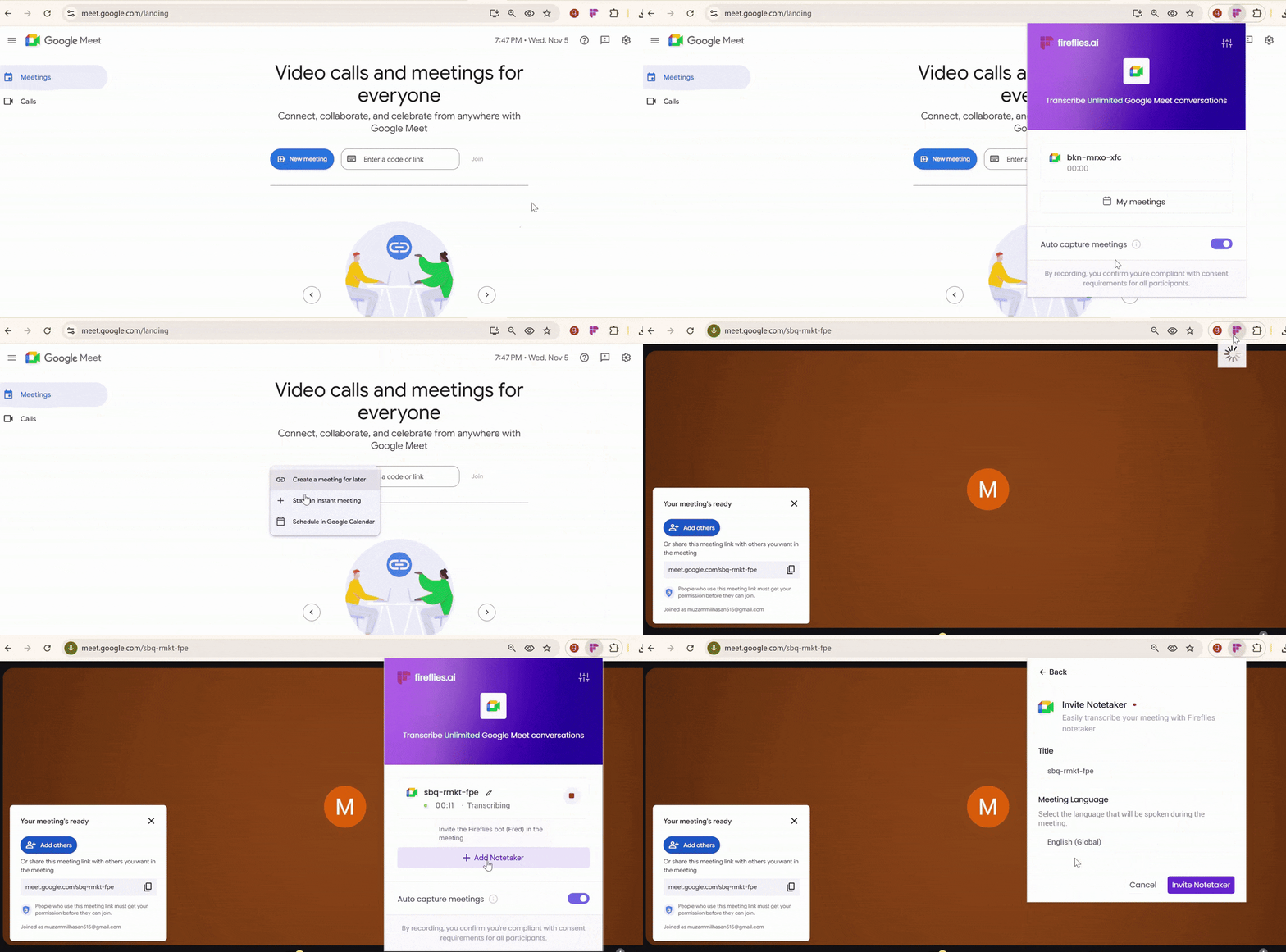
If Auto-Capture Meetings is ON → Fireflies automatically detects your meeting. To invite the Notetaker manually, open the Fireflies Chrome Extension and click Add Notetaker.
If Auto-Capture Meetings is OFF → a pop-up window appears in Google Meet once your meeting starts. Click Add Notetaker from the pop-up to invite the Fireflies bot.
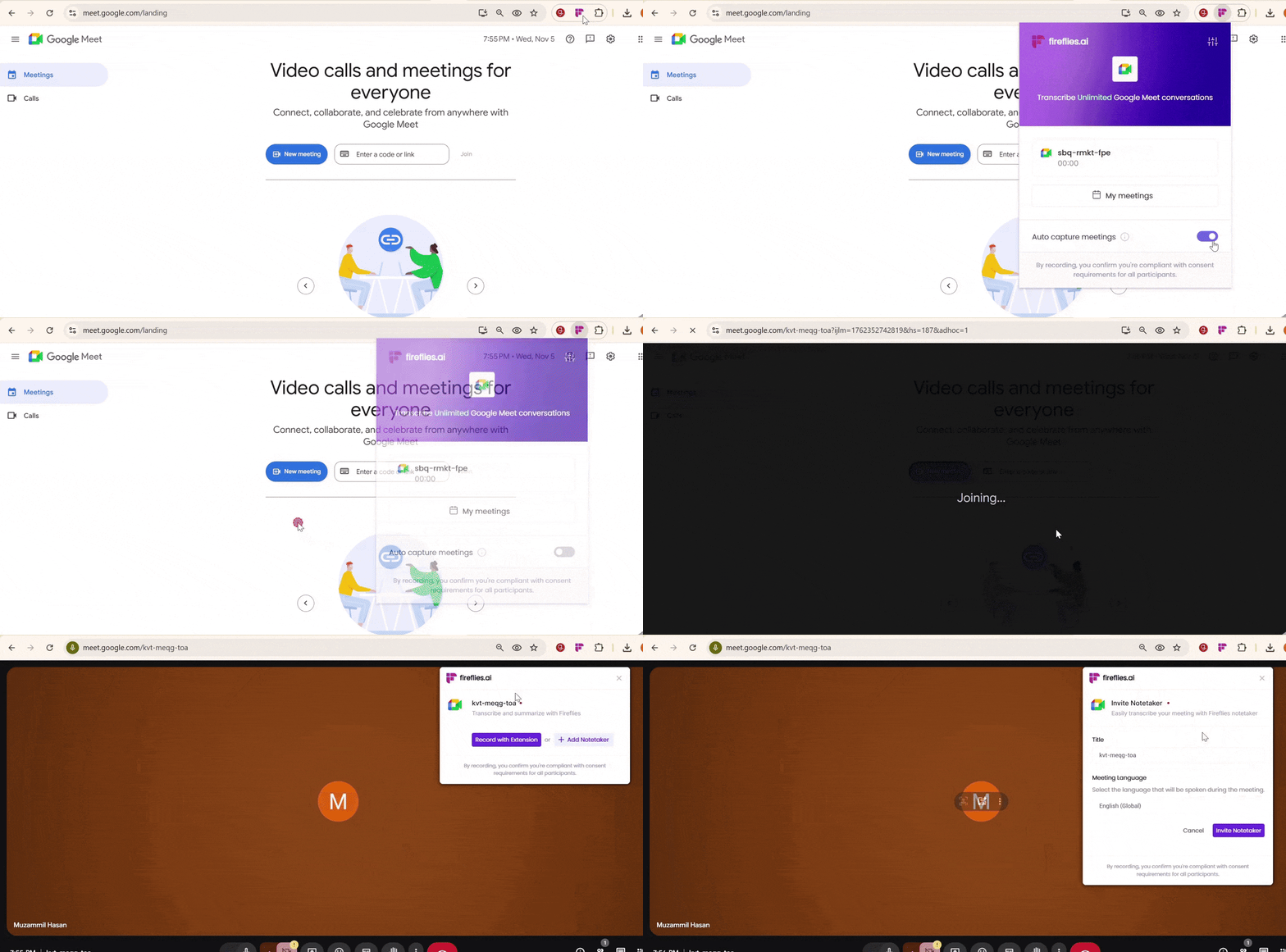
Step 4: Invite the Notetaker
Add a meeting title and select the language that will be spoken during the call. Then click Invite Notetaker to send the invite.
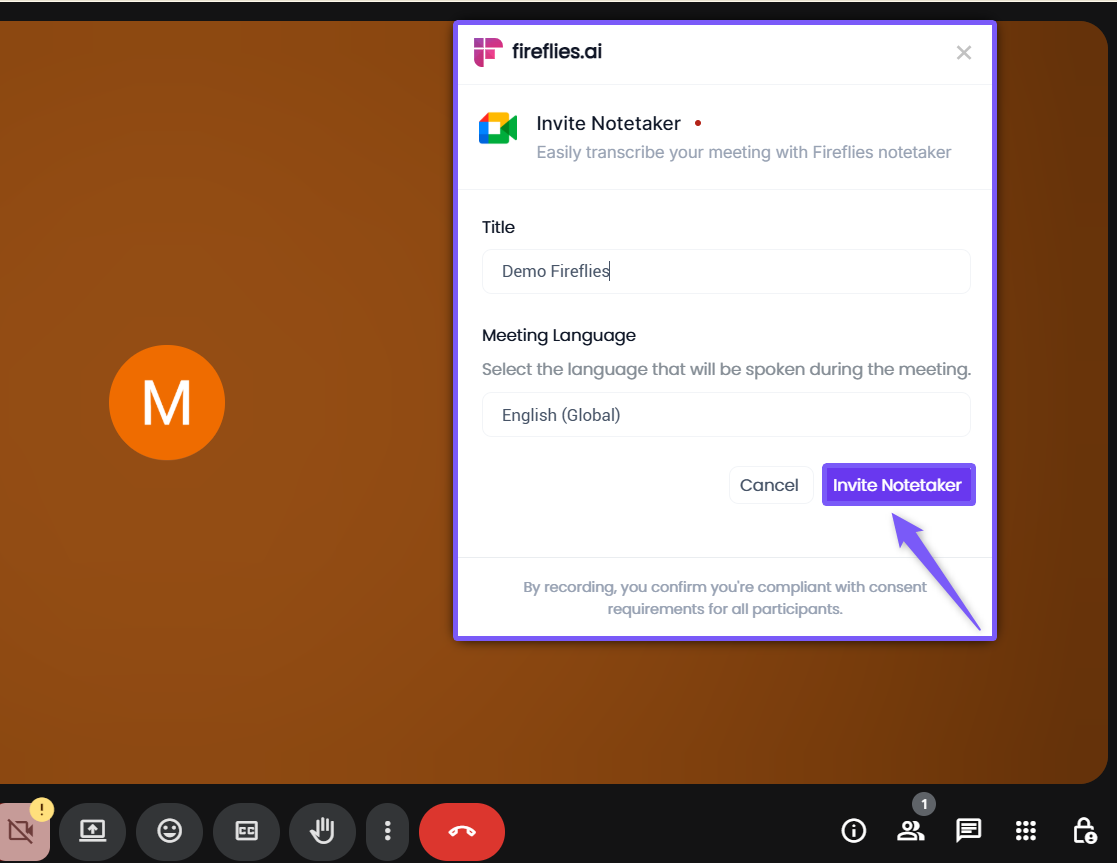
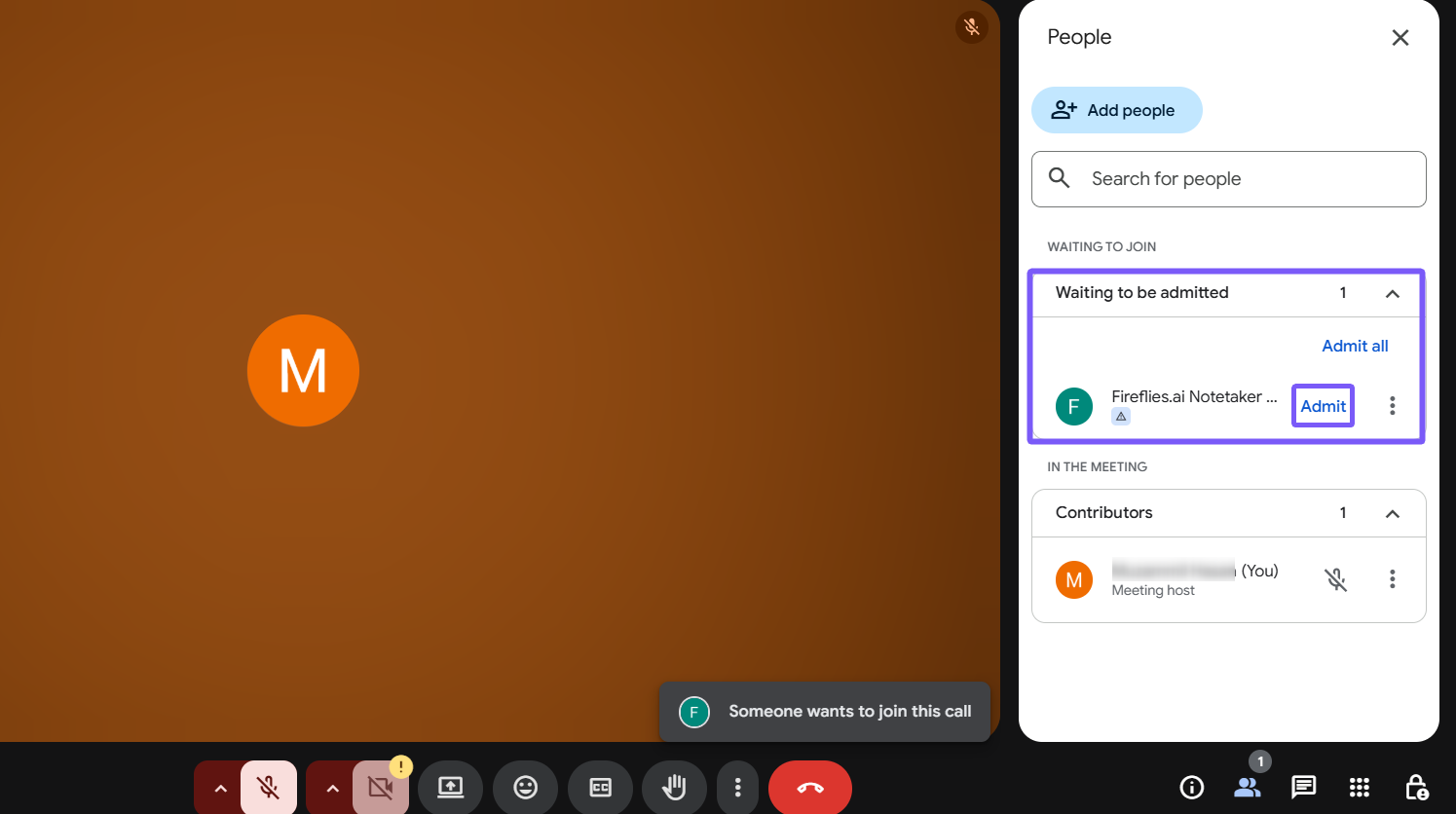
Step 5: Admit the Fireflies.ai Notetaker
Click Admit to allow the Fireflies AI Notetaker to join your meeting.
Once admitted, the Fireflies Notetaker bot will appear in the meeting.
And that’s it — Fireflies will start capturing and transcribing your meeting automatically.
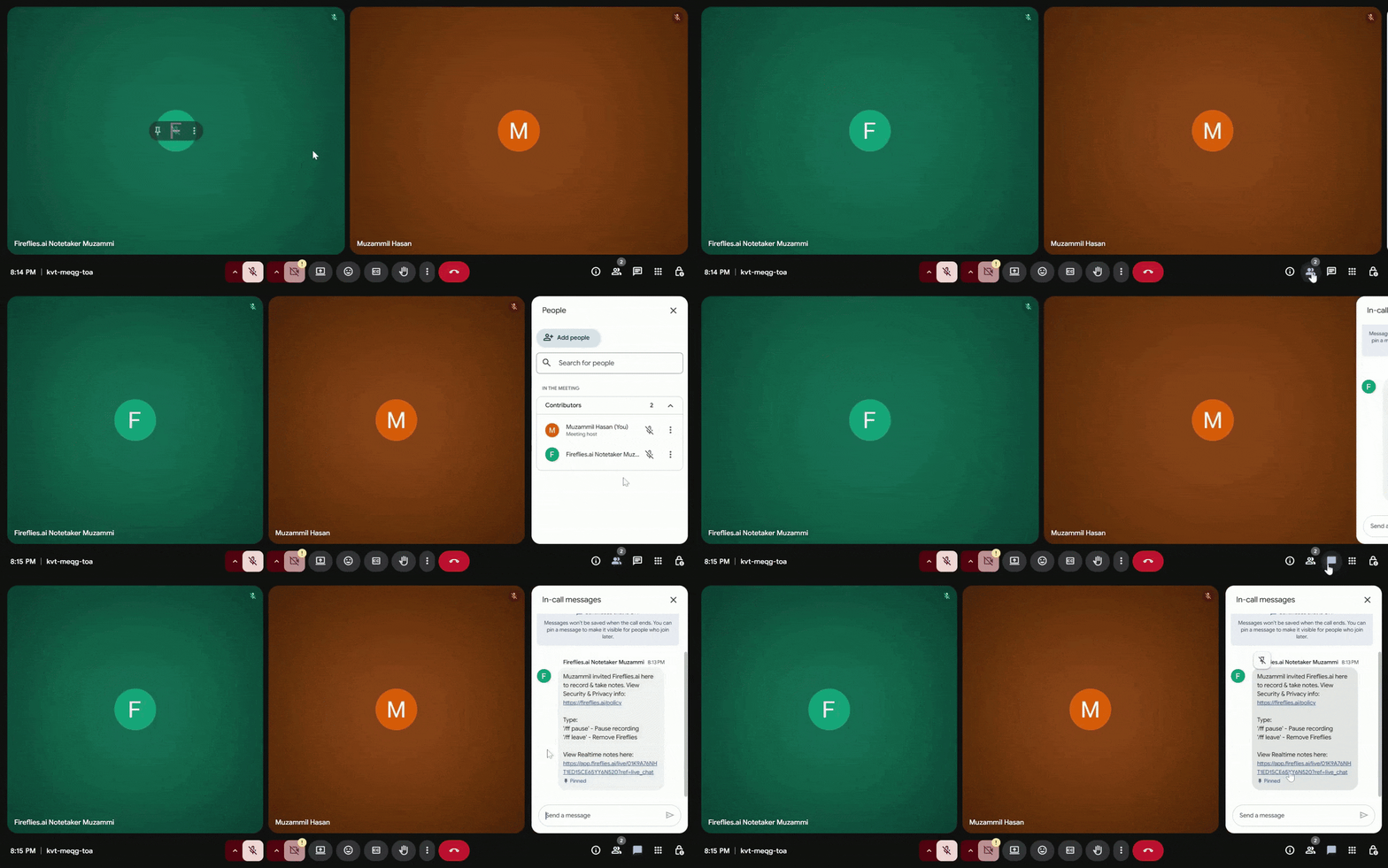
While the bot records your meeting, you can also view real-time notes and AI suggestions inside the Live Assist pane.
📘 Learn how to use Live Assist for real-time notes and suggestions →
🔍 Troubleshooting & FAQs
1. I don’t see the “Add Notetaker” pop-up.
Make sure you’re using Google Meet on Chrome and that the Fireflies Chrome Extension is installed and enabled.
If the Auto-Capture Meeting toggle is OFF, you’ll need to manually open the extension and click Add Notetaker.
2. The Notetaker didn’t join my meeting.
If the bot doesn’t appear after clicking Invite Notetaker, refresh the meeting page or rejoin.
You can also reopen the Chrome Extension and send the invite again.
3. The extension isn’t loading or responding.
Try reloading your Chrome browser and ensure you’re signed in with the same email ID linked to your Fireflies account.
4. Can I use this on Zoom or other platforms?
No — the Chrome Extension and bot-invite feature currently work only for Google Meet.
5. What’s the difference between using the Notetaker and Live Assist?
Notetaker Bot joins your meeting to record and process transcripts after the call.
Live Assist works directly in your browser, showing live notes and suggestions without the bot.
🔁 Recap
You can invite the Fireflies AI Notetaker directly from the Chrome Extension without switching tabs.
If Auto-Capture Meeting is ON, Fireflies automatically joins your Google Meet to record and transcribe.
If it’s OFF, simply click Add Notetaker from the extension or the in-meeting pop-up.
Once invited, admit the bot, and Fireflies will start recording and transcribing your meeting.
After the call ends, you’ll receive your meeting recap and transcript in the Fireflies Notebook and via email.
📚 Related Guides
Learn about Fireflies Chrome Extension → — Set up and explore all features of the Chrome Extension.
Learn about Fireflies Notebook → — Access, search, and organize all your recorded meetings in one place.
How to share meeting transcripts and summaries → — Share or export meeting notes easily with teammates.
How to change the name of the Fireflies Notetaker bot → — Rename your Fireflies Notetaker bot to personalize or differentiate it for your meetings.