How Consent & Notifications Work on the Fireflies Desktop App
Last updated: August 28, 2026
When you capture a meeting using the Fireflies Desktop App, participants have a right to know that the session is being recorded. The Desktop App provides built-in ways to keep participants informed and support responsible recording.
With Take Notes, Fireflies provides three notification signals. The options available to you depend on your operating system:
Meeting chat message - sends a notification in the meeting chat.
Audio consent message - plays a notification that participants can hear.
Fireflies Watermark - displays a recording notice on your camera.
This guide explains how each notification works, when it appears, and how to manage your preferences.
🤖 Choose Your Capture Method First
Before looking at the notification settings, check how you are capturing the meeting. Take Notes and Fireflies Notetaker use different capture and consent experiences.
# | Take Notes (No Bot) | Fireflies Notetaker (Bot) |
|---|---|---|
How the meeting is captured | Captures the meeting from your device | Notetaker joins the meeting as a participant |
Fireflies joins the meeting | ❌ No | ✅ Yes |
Audio consent message | ✅ Desktop App option | ❌ Not part of the bot flow |
Meeting chat notification | ✅ Available where supported | Uses the Notetaker's consent flow |
Fireflies Watermark badge on camera | ✅ Desktop App option | ❌ Not part of the bot flow |
Desktop consent modal | ✅ Yes | ❌ Not part of the Take Notes flow |
💡 Which guide should I follow?
Using Take Notes? Continue with this guide to learn how the Desktop App notifies participants.
Using Fireflies Notetaker? See Recording Consent and Meeting Compliance in Fireflies for the bot's consent and notification flow.
🛡 The First Time You Use Take Notes — The Consent Modal
What Is the Consent Modal?
The first time you click Take Notes — or the first time you use it after a Desktop App update — a modal called Get consent while taking notes appears before your session starts. It lets you set your notification preferences so participants can be informed from the beginning.
The consent modal appears:
The first time you click Take Notes after installing the Desktop App.
The first time you click Take Notes after a Desktop App update.
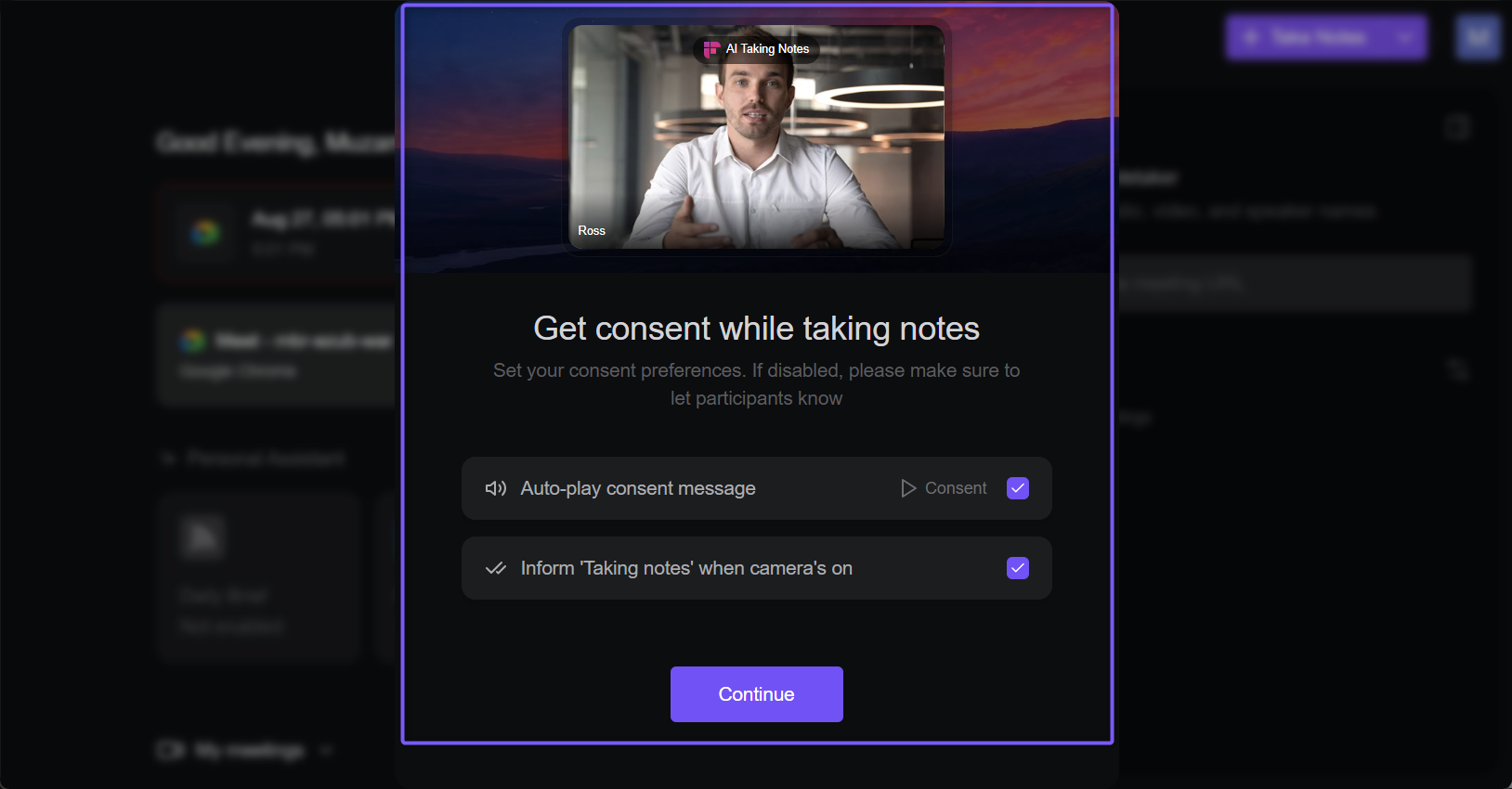
Choose Your Consent Options
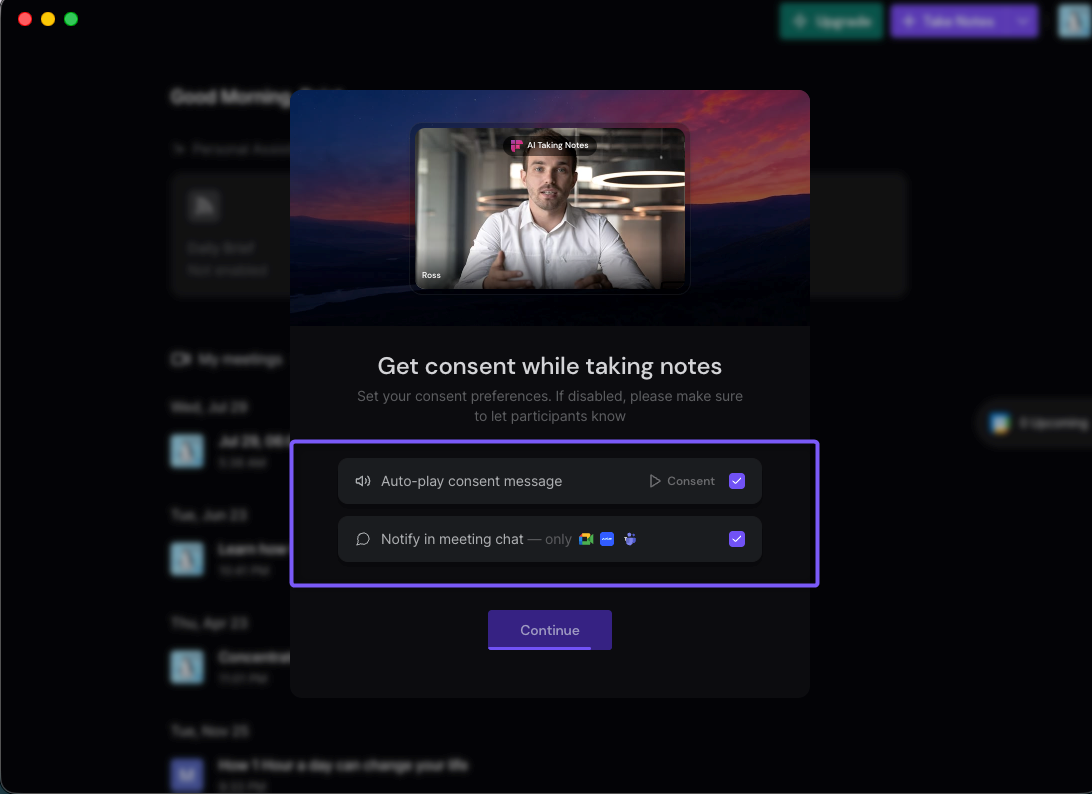
The Get consent while taking notes modal appears when you use Take Notes (no-bot capture). The options shown depend on your device.
If You're Using macOS
Auto-play consent message — plays an audio message through your speakers to let participants know that the meeting is being captured.
Notify in meeting chat — sends a message in the meeting chat to let participants know that Fireflies is transcribing the meeting.
If You're Using Windows
Auto-play consent message — plays an audio message through your speakers to let participants know that the meeting is being captured.
Inform "Taking notes" when camera's on — lets participants know that Fireflies is taking notes when your camera is on.
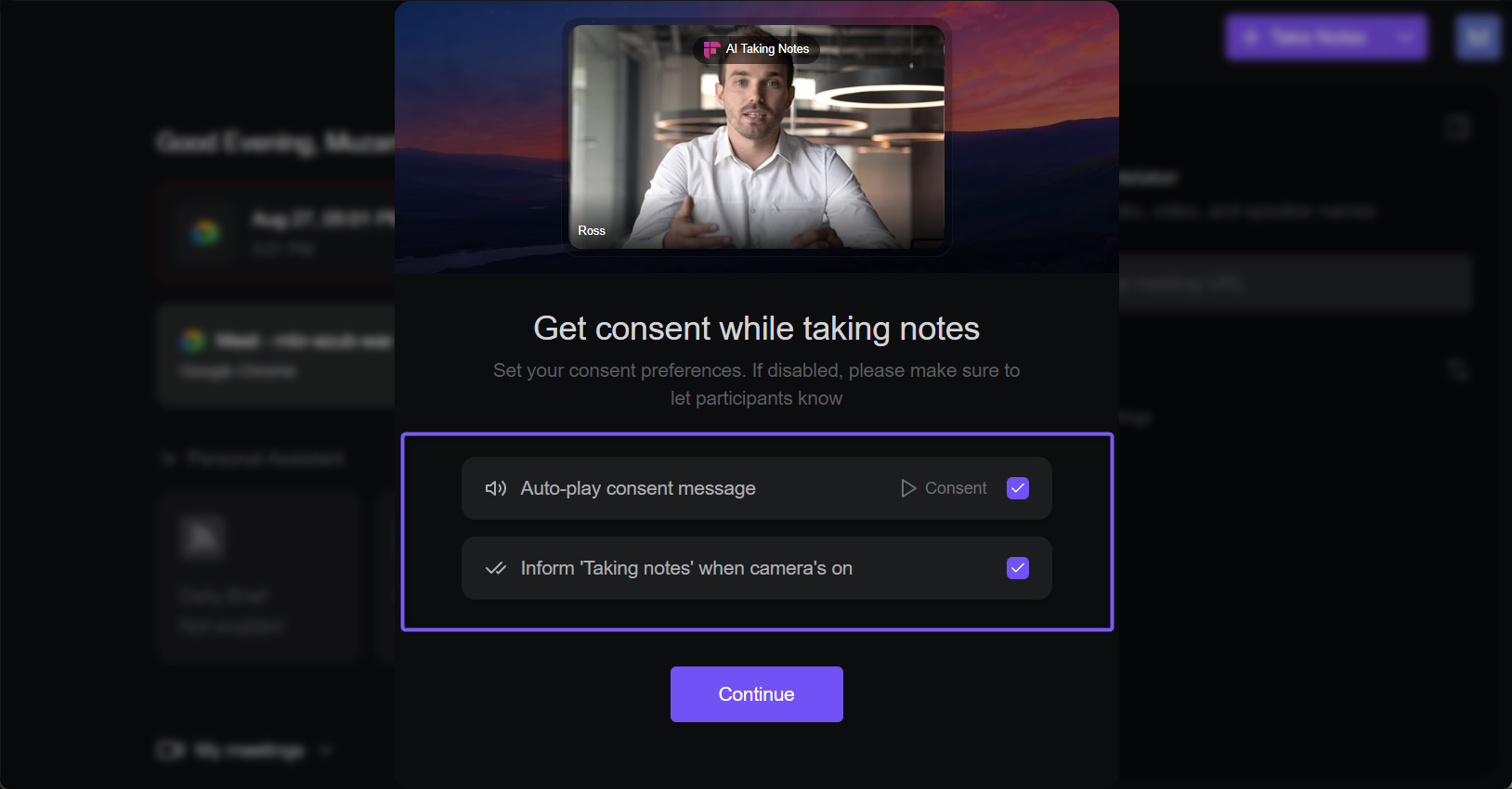
💡 By default, the consent options are enabled. You can enable one, both, or neither option. Your choices are saved as your default preferences and can be changed anytime from Settings → Meeting Preference.
Your responsibility: If you disable a consent or notification option, you are responsible for informing participants that the meeting is being captured and for complying with applicable recording laws.
🔔 How Participants Are Notified
With Take Notes (no-bot capture), Fireflies provides three ways to let participants know that the meeting is being captured. Each option gives participants a clear way to recognize that Fireflies is taking notes.
The available Desktop App consent settings are not identical on Mac and Windows.
Consent Message settings | Mac | Windows |
|---|---|---|
Play audio consent message | ✅ | ✅ |
Send meeting consent message | ✅ | Not Available |
Fireflies watermark badge on camera recordings | ✅ | ✅ |
1. Meeting Chat Message
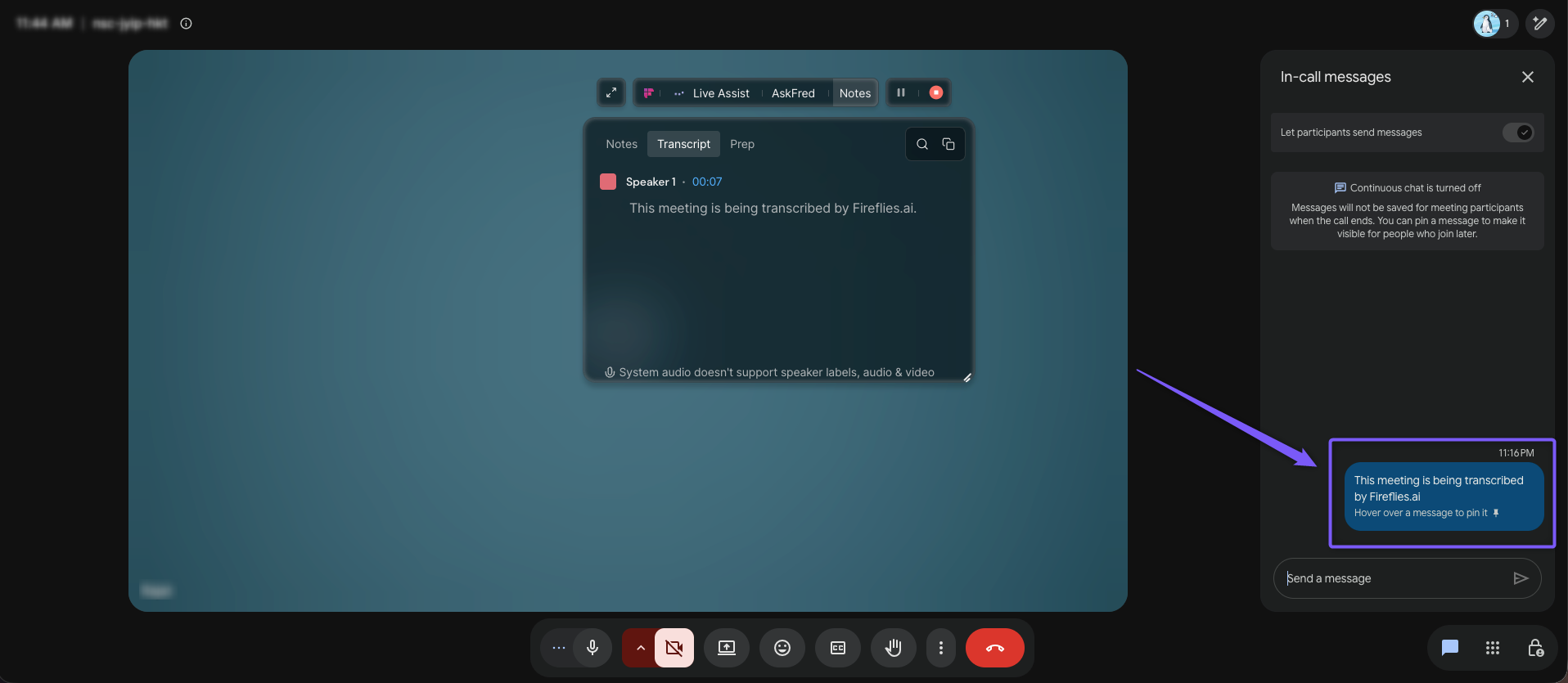
A message is sent to the meeting chat when you start Take Notes. It lets participants see that Fireflies is capturing the meeting and creating a transcript.
This is useful when participants are already following the meeting chat and can easily see the notification.
What to know:
The message is sent when Take Notes starts.
Participants can see it directly in the meeting chat.
The message says:
“This meeting is being transcribed by Fireflies.ai.”
📌 Note: The meeting chat option is available on Mac. It is not available on Windows.
2. Audio Consent Message
An audio notification plays through the meeting approximately 10 seconds after you start Take Notes. Participants hear the message through your microphone, letting them know that the meeting is being captured.
This is useful when participants may not be looking at the meeting chat and need an audible notification.
What to know:
The message plays automatically when Auto-play consent message is enabled.
The spoken message uses the same consent wording shown in the meeting chat.
If you don't hear it, check that your computer and speakers are not muted.
If the setting is enabled and the message still doesn't play, contact Fireflies Support.
3. Fireflies Watermark
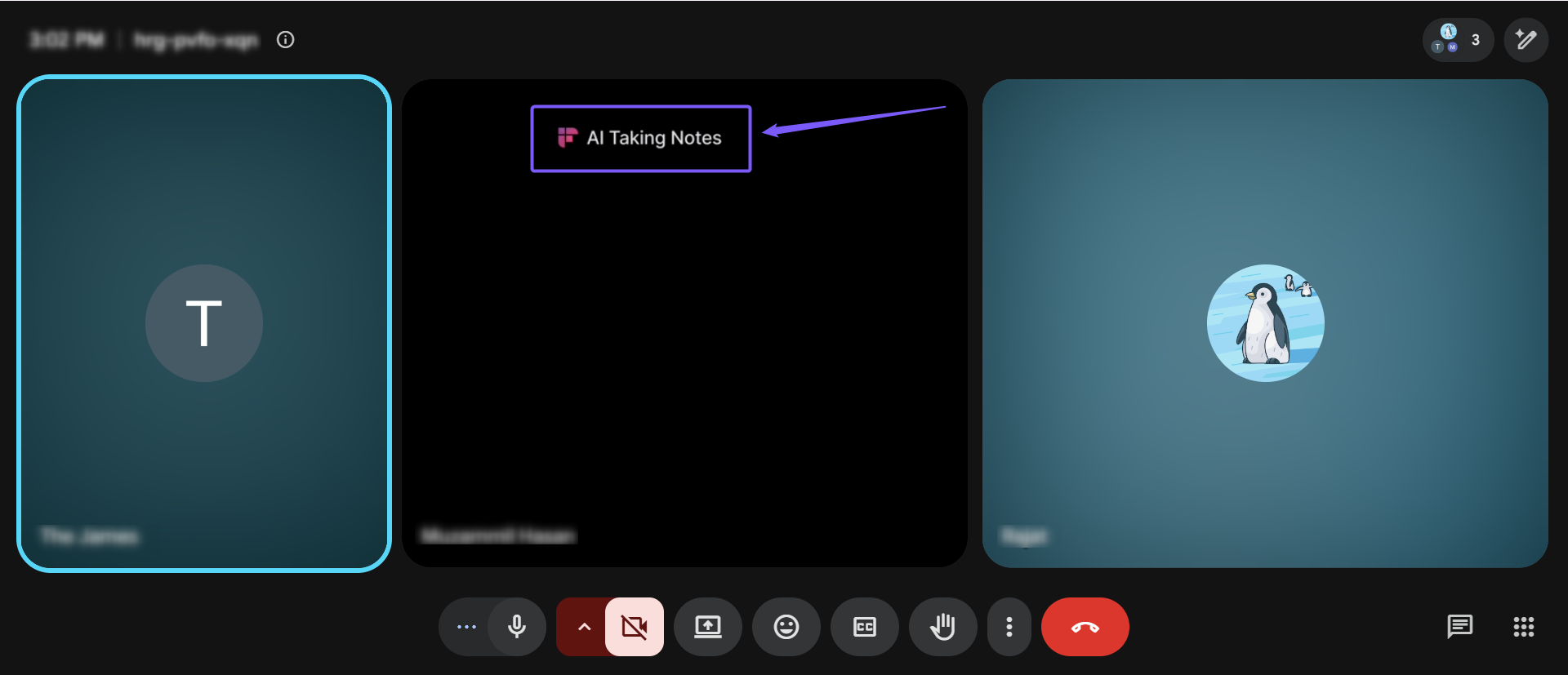
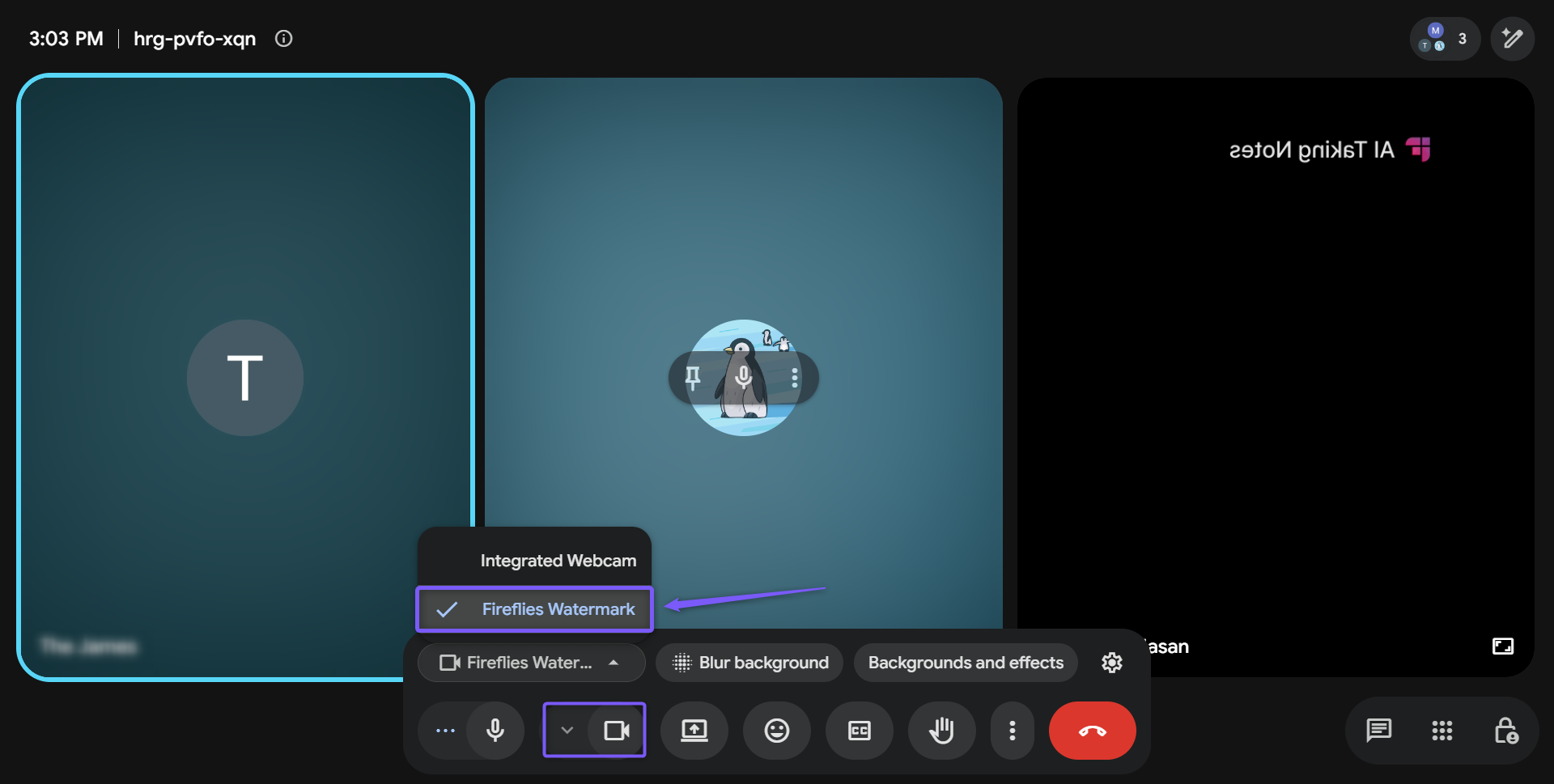
The Fireflies Watermark adds a visible “AI Taking Notes” notice to your camera when you use Take Notes. Participants can see the notice on your video, making it clear that Fireflies is taking notes.
The notice appears at the top of your video so it does not interfere with participant names or the meeting layout.
What to know:
The Fireflies Watermark is a camera option in your meeting app.
The watermark appears while Take Notes is active.
When you stop taking notes, the watermark disappears.
If you switch back to your regular webcam, the Fireflies Watermark will no longer appear.
⚙ How to Enable or Disable Consent Notifications
All three notification settings are managed from the same place in the Desktop App.
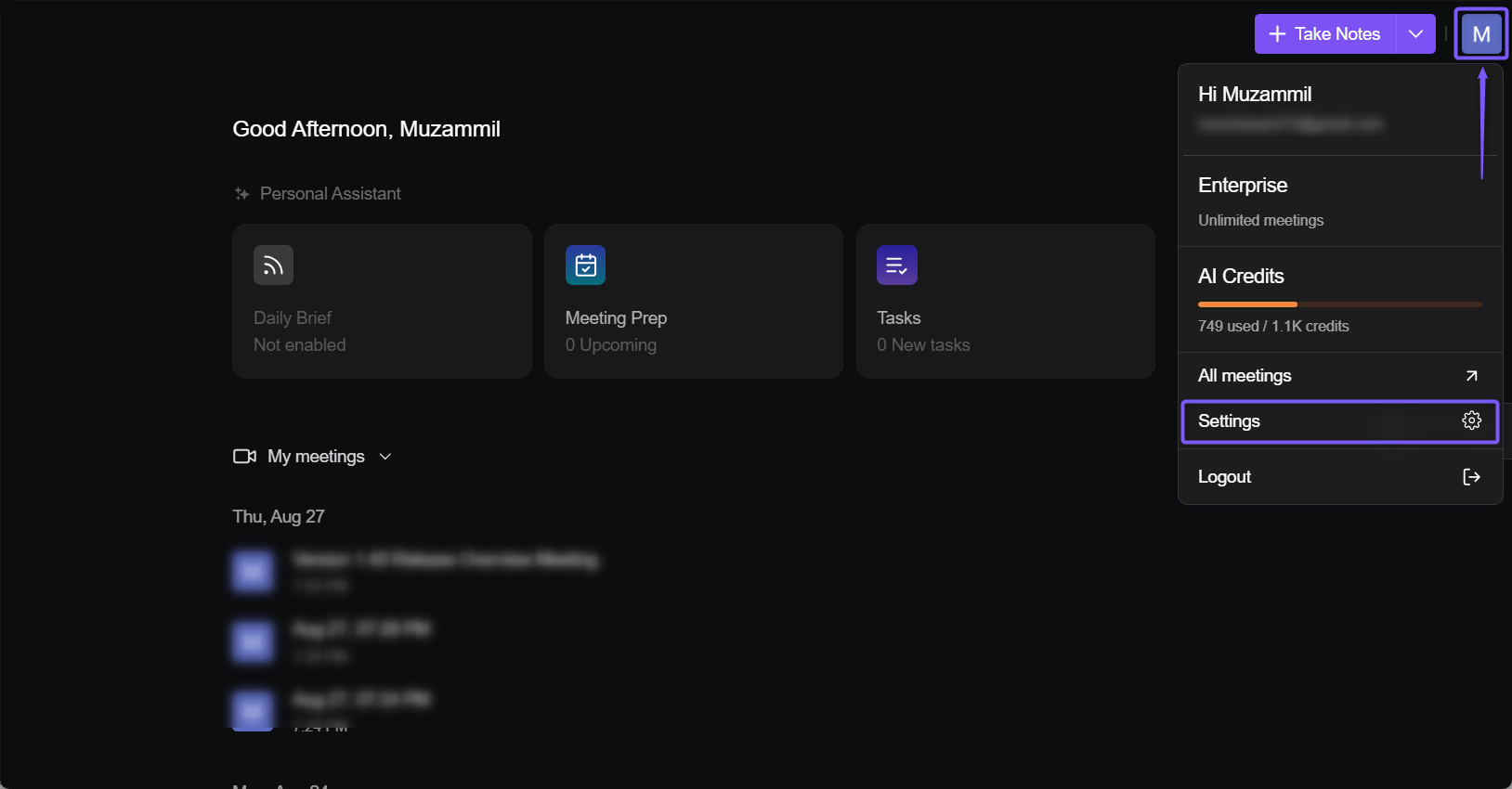
Step1: Click your Profile icon in the top-right corner, then select Settings.
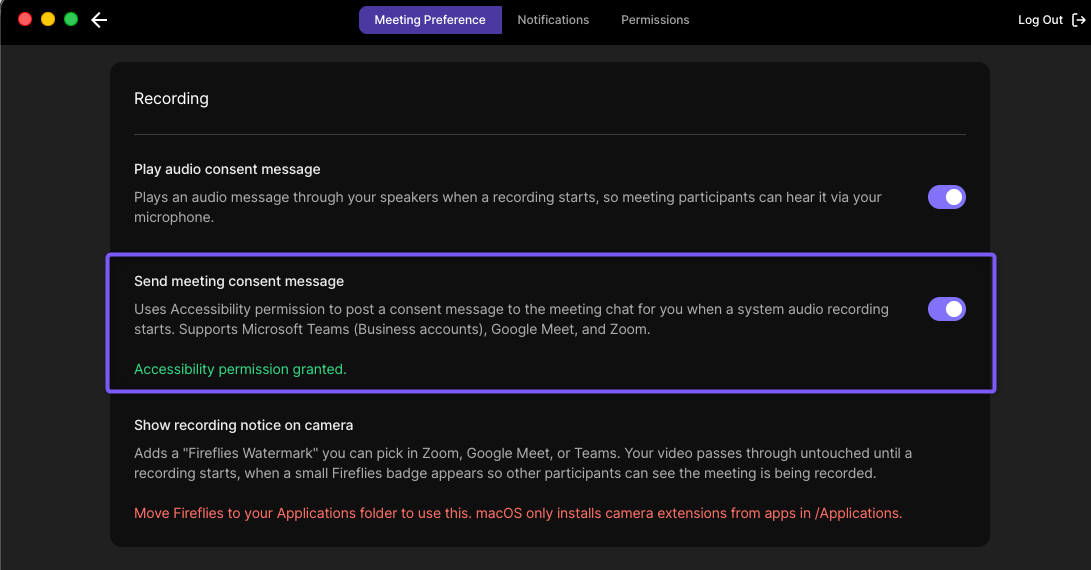
Step2: Select Meeting Preference, then scroll down to find the Recording section.
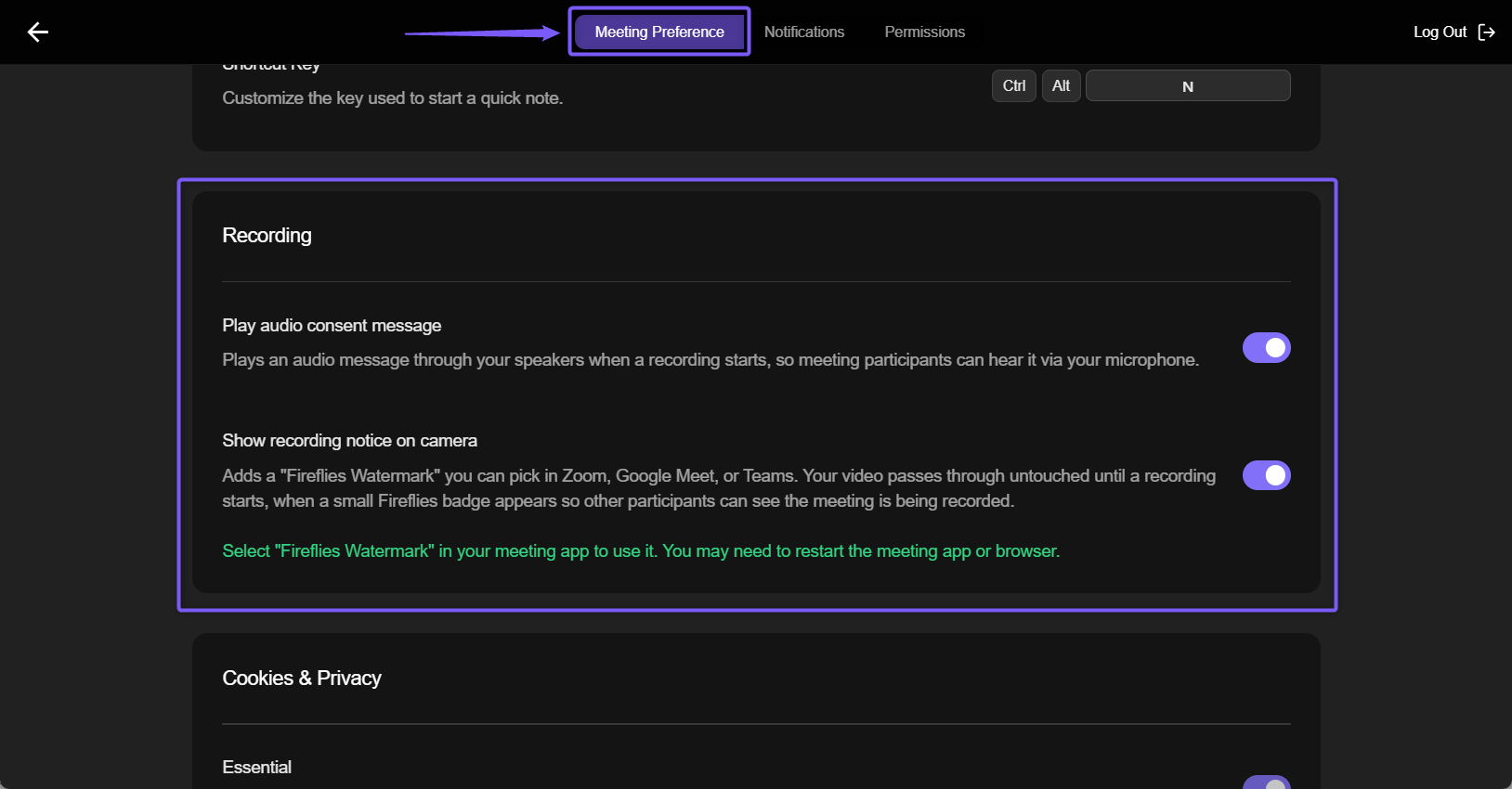
Step3: In the Recording section, use the available toggles to enable or disable your notification settings.
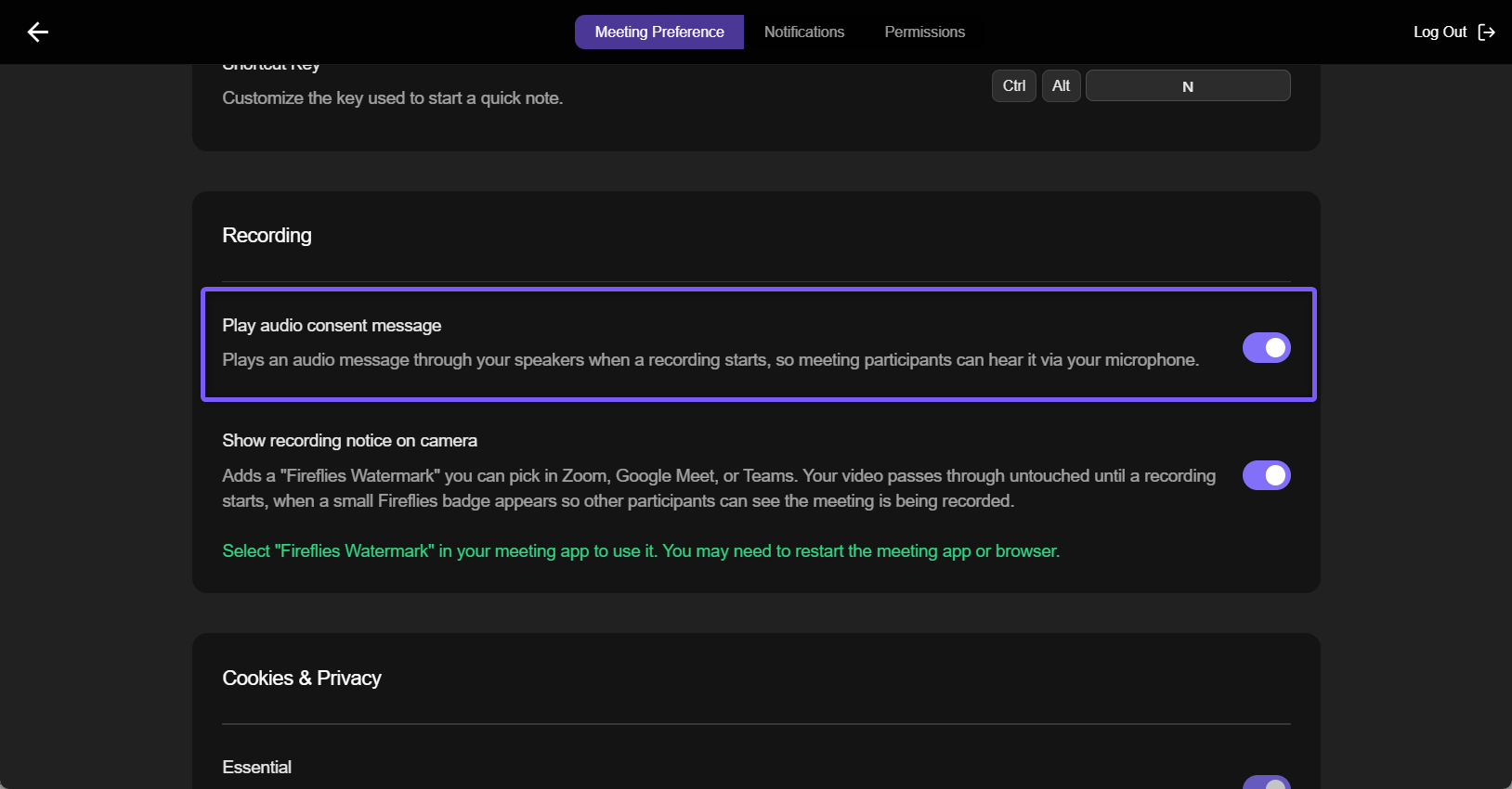
1. Enable or Disable the Audio Consent Message
Use the toggle to turn the audio consent notification on or off.
When enabled, the message plays through your speakers and participants hear it through your microphone.
2. Enable or Disable the Meeting Chat Notification
Use the toggle to turn the meeting chat notification on or off. When enabled, Fireflies uses Accessibility permission to post a consent message to the meeting chat when system audio recording starts.
macOS only: This setting is available in the Desktop App on macOS and is not available on Windows. Accessibility permission is required for Google Meet and Zoom.
The setting supports Microsoft Teams (Business accounts), Google Meet, and Zoom.
3. Enable or Disable the Fireflies Watermark
Use the toggle to turn the camera recording notice on or off. When enabled, Fireflies adds a Fireflies Watermark that you can select as your camera in Zoom, Google Meet, or Microsoft Teams (Business accounts).
Your video remains unchanged until recording starts. Once recording begins, a small Fireflies badge appears on your video so participants can see that the meeting is being recorded.
💡 Tip: Select Fireflies Watermark as your camera in your meeting app. You may need to restart the meeting app or browser for the watermark to appear.
⚠ Record Responsibly
Fireflies provides built-in notification and consent options to help keep participants informed when a meeting is being captured. You are responsible for complying with applicable recording laws and notifying participants as required.
For more information about recording consent and compliance, see Recording Consent and Meeting Compliance in Fireflies.
You can also visit trust.fireflies.ai for Fireflies' security and compliance information.