Responsible and secure meeting notetaking with Fireflies
Last updated: August 31, 2026
Fireflies makes it easy to capture, store, and share your meeting notes — all while keeping your data secure and compliant. This guide explains how we ensure responsible AI notetaking and how you stay in control of what’s recorded, saved, or shared.
What is responsible meeting notetaking?
Responsible meeting notetaking is about ensuring that your meeting data is captured and stored securely, and that the right people have access to it. Fireflies helps you capture meeting minutes, transcribe recordings, and generate summaries while giving you full control over how that data is handled.
Meeting Compliance: Fireflies supports compliance with GDPR, HIPAA (for safeguarding healthcare information), FERPA (for safeguarding student education records), and CCPA by offering customizable retention and storage options, keeping you aligned with industry regulations.
Compliance Notification Settings: You can set up automatic notifications to inform meeting participants when a meeting is being recorded, helping maintain transparency and compliance.
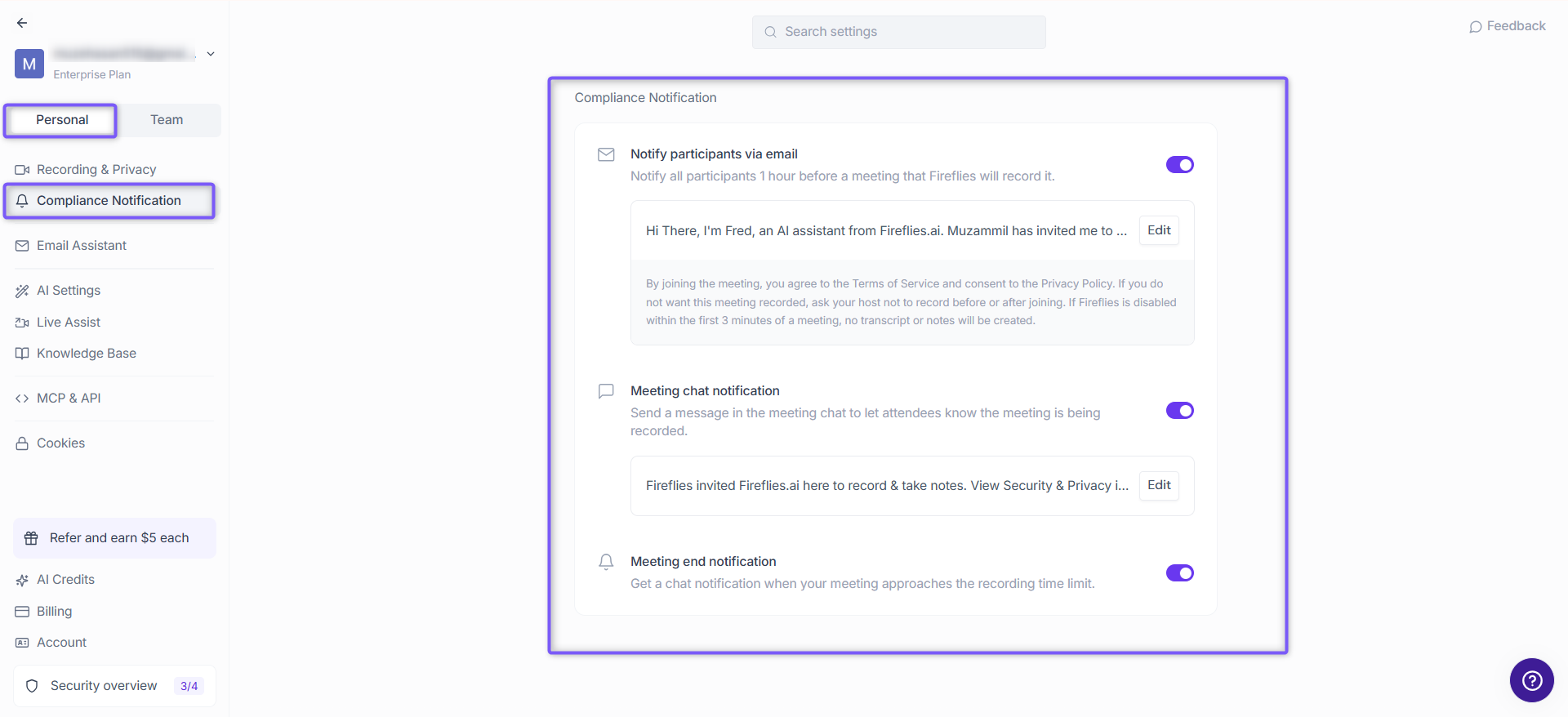
Opt-out Options: Participants can opt-out, and if even one participant opts out, Fireflies will not join the meeting.
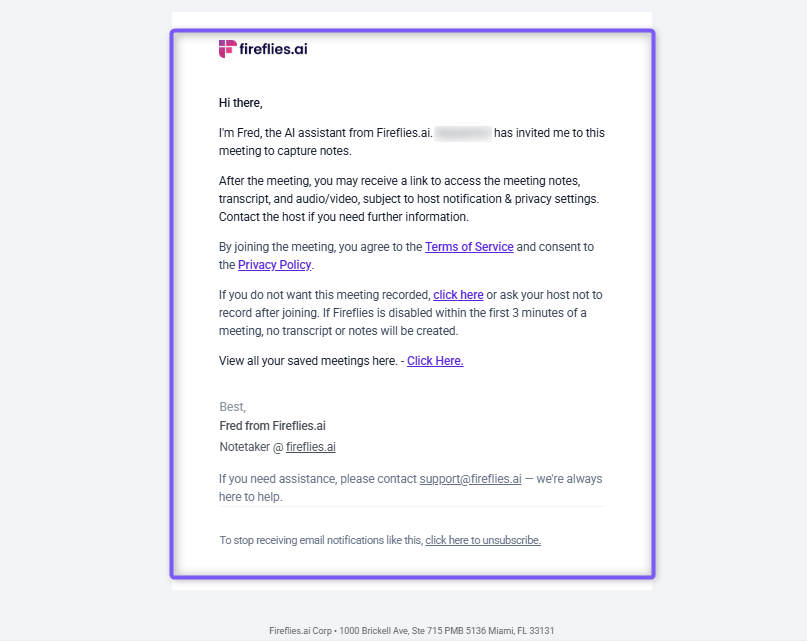
Control what Fireflies captures
You decide which meetings get recorded and what gets transcribed.
To configure your preferences:
Go to Settings > Recording & Privacy
Choose how Fireflies joins meetings:
Automatically joins all meetings with a calendar link
Only joins when invited
Let each teammate choose
🫴 Setting Fireflies to automatically join your meetings? Learn about the Fireflies Auto-join and Email Recap settings
You can also use Recording Rules to include or skip meetings based on keywords in the title.
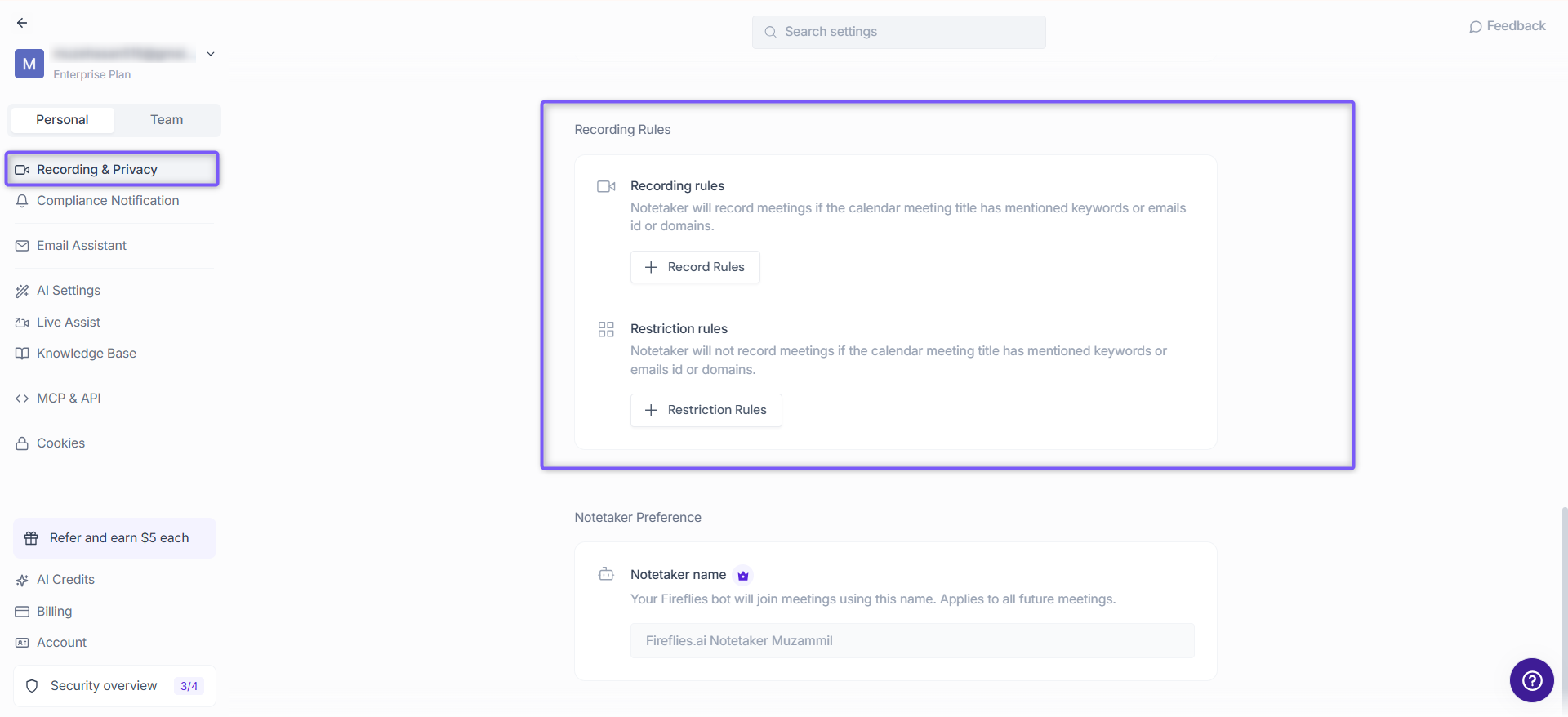
👉 Want to filter meetings Fireflies joins based on your preferences? Learn about setting up Meeting Rules
Set privacy defaults for your workspace
Admins can set team-wide visibility rules for recaps and recordings:
Go to Team Settings
Scroll to Privacy Settings
Choose the default access level:
Allow teammates to choose
Teammates & Anyone with the link
Only Participants & Teammates
Only Participants
Only Teammates
Only me (you)
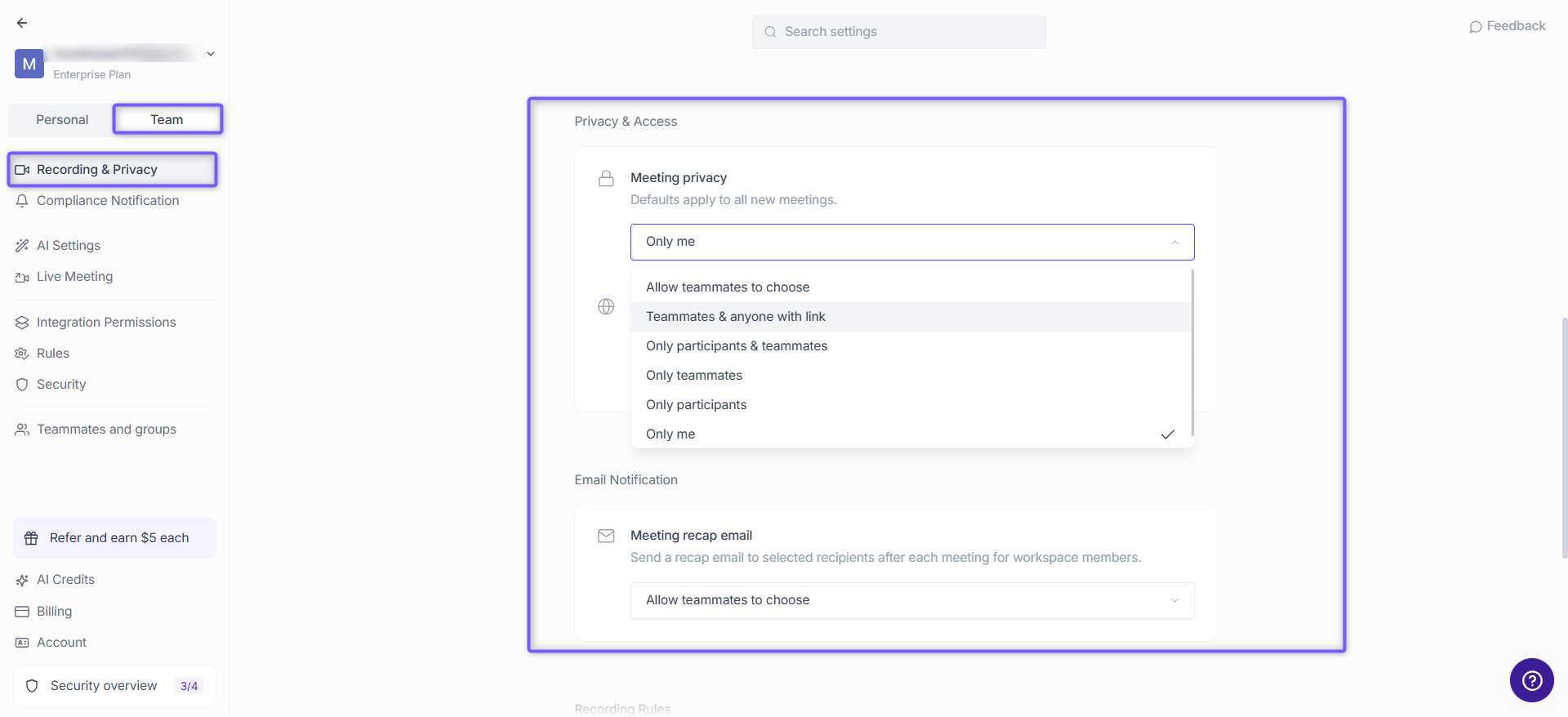
🔎 Need to fine-tune who sees what? Here's how to Control Who Can View Your Fireflies Meeting Recaps
Share responsibly with public meeting links
Want to share notes with guests outside your team? You can make a meeting recap public.
Open the meeting in your Fireflies Notebook
Click the Share icon
Choose one of the following options:
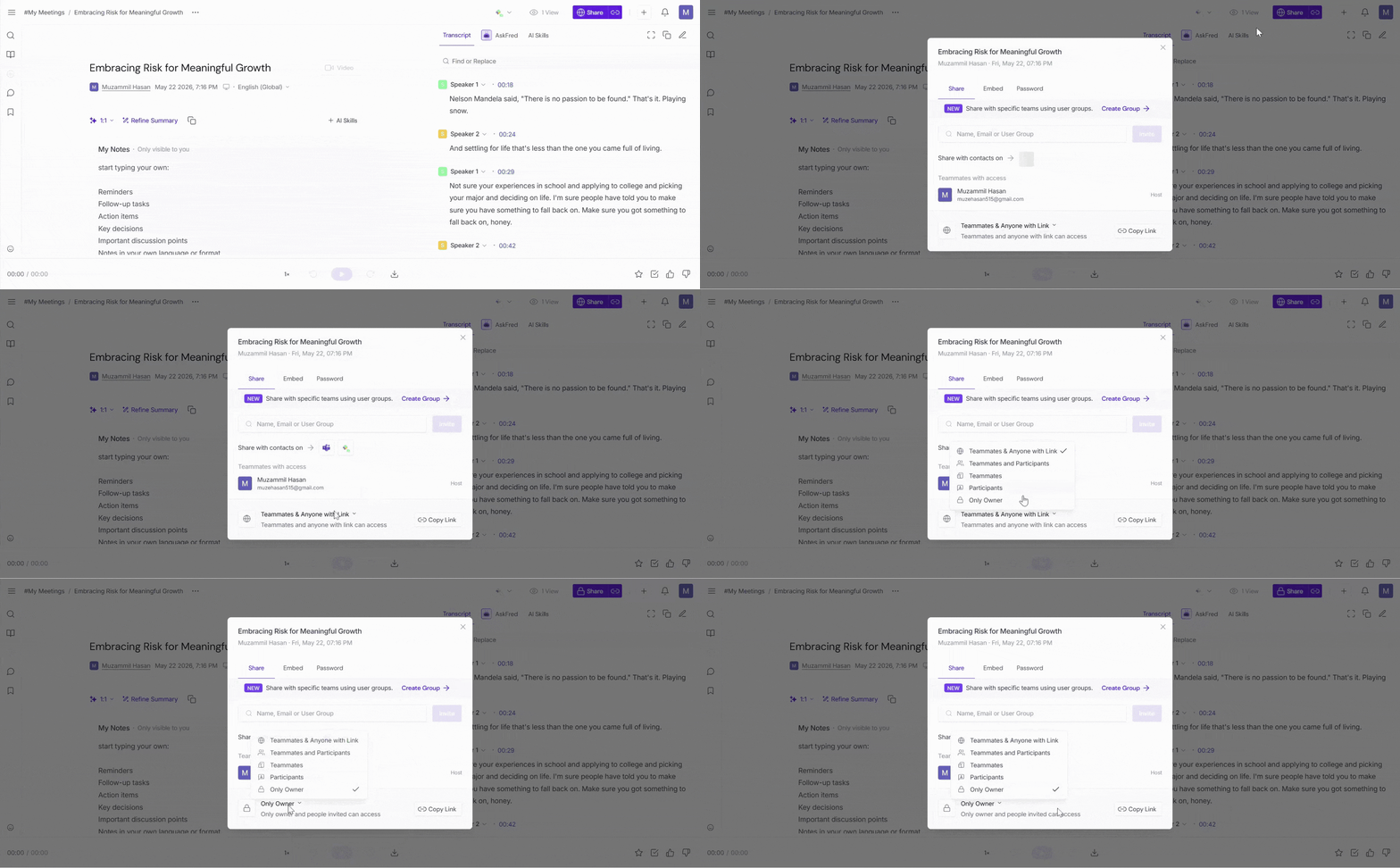
Admins can control whether teammates are allowed to create public links.
Share meetings securely with external users
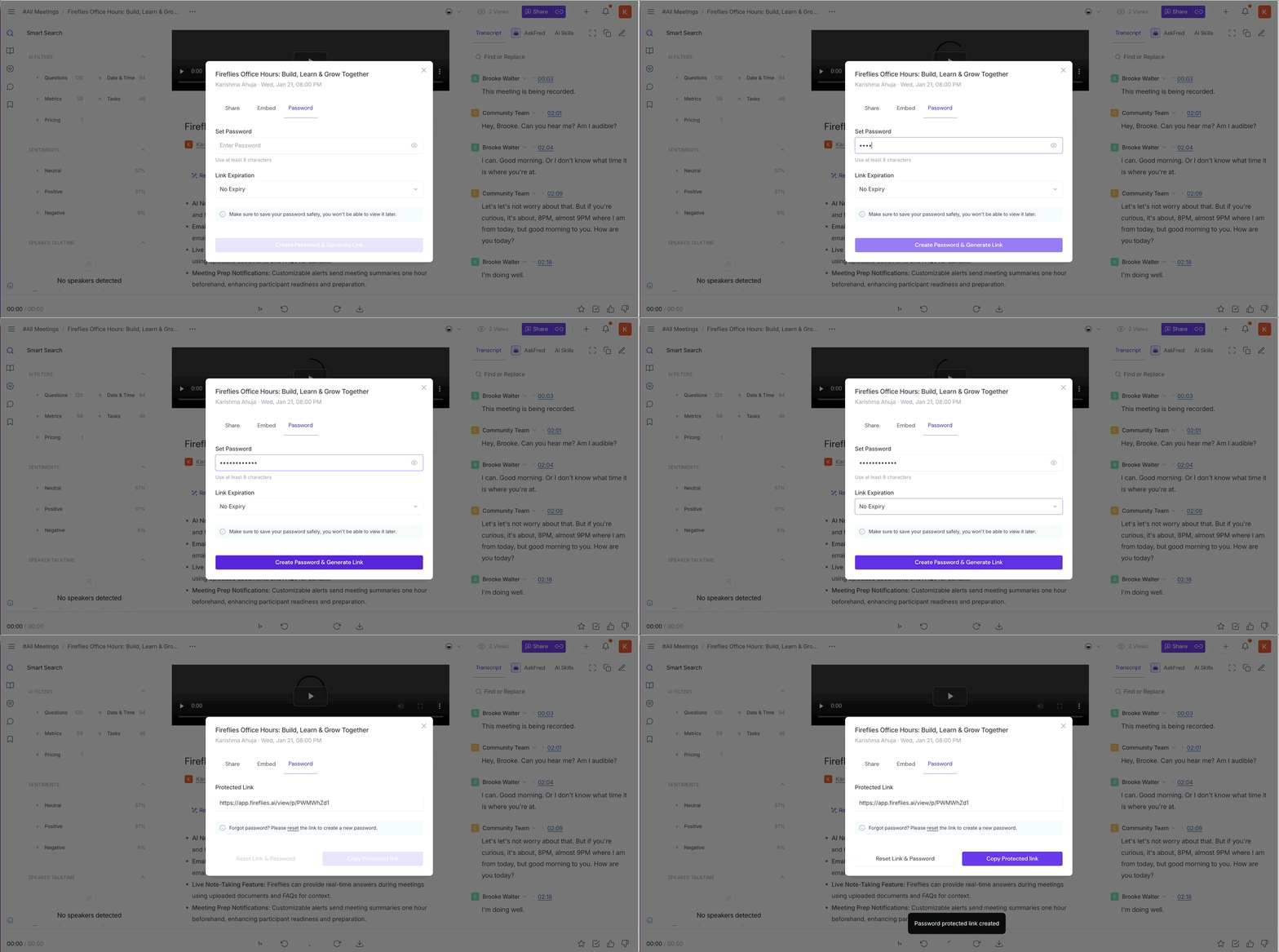
If you need to share meeting notes with people outside your team without making the meeting public, Business and Enterprise users can create password-protected links. Recipients do not need a Fireflies account to access the notes, transcript, or recording, and you can control how long the link remains active.
👉🏻 Related: How to Share a Fireflies Meeting with a Password-Protected Link →
🔔 Notifying participants on the Desktop App
When you use Take Notes on the Fireflies Desktop App, the Fireflies Notetaker does not join the meeting as a participant. Fireflies provides built-in notification options to help keep participants informed that the meeting is being captured.
The available notification signals include:
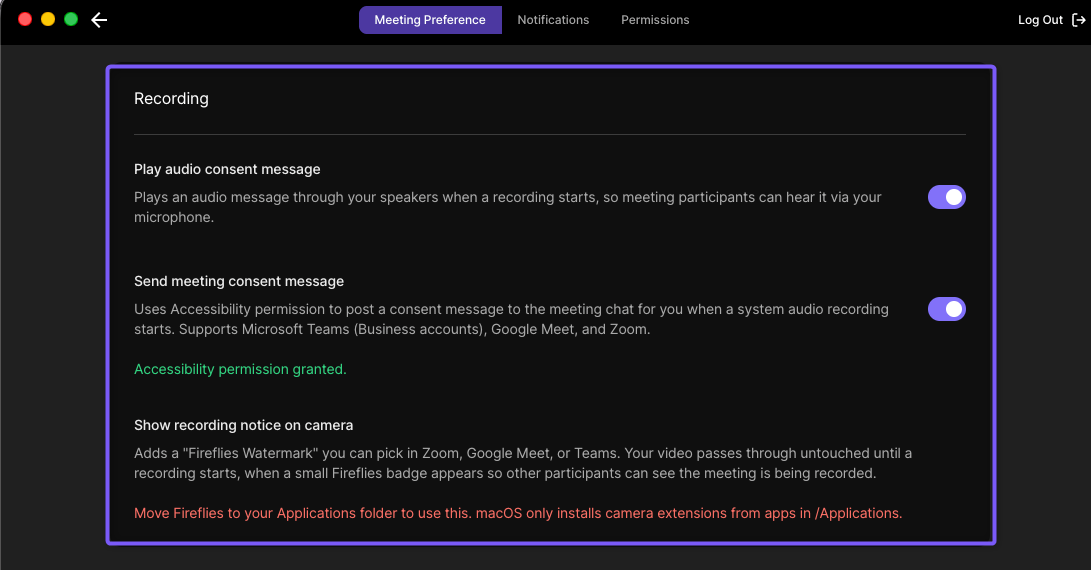
Meeting chat message — posts a notification in the meeting chat (available on macOS).
Audio consent message — plays an audio notification that participants can hear when recording starts.
Fireflies Watermark — displays an “AI Taking Notes” notice on your camera when enabled.
You can manage the available notification settings. In the Fireflies Desktop App, go to Settings → Meeting Preference → Recording section.
The Desktop App also provides a consent modal when you start Take Notes. The available notification options are enabled by default, and you can choose which available notifications to use.
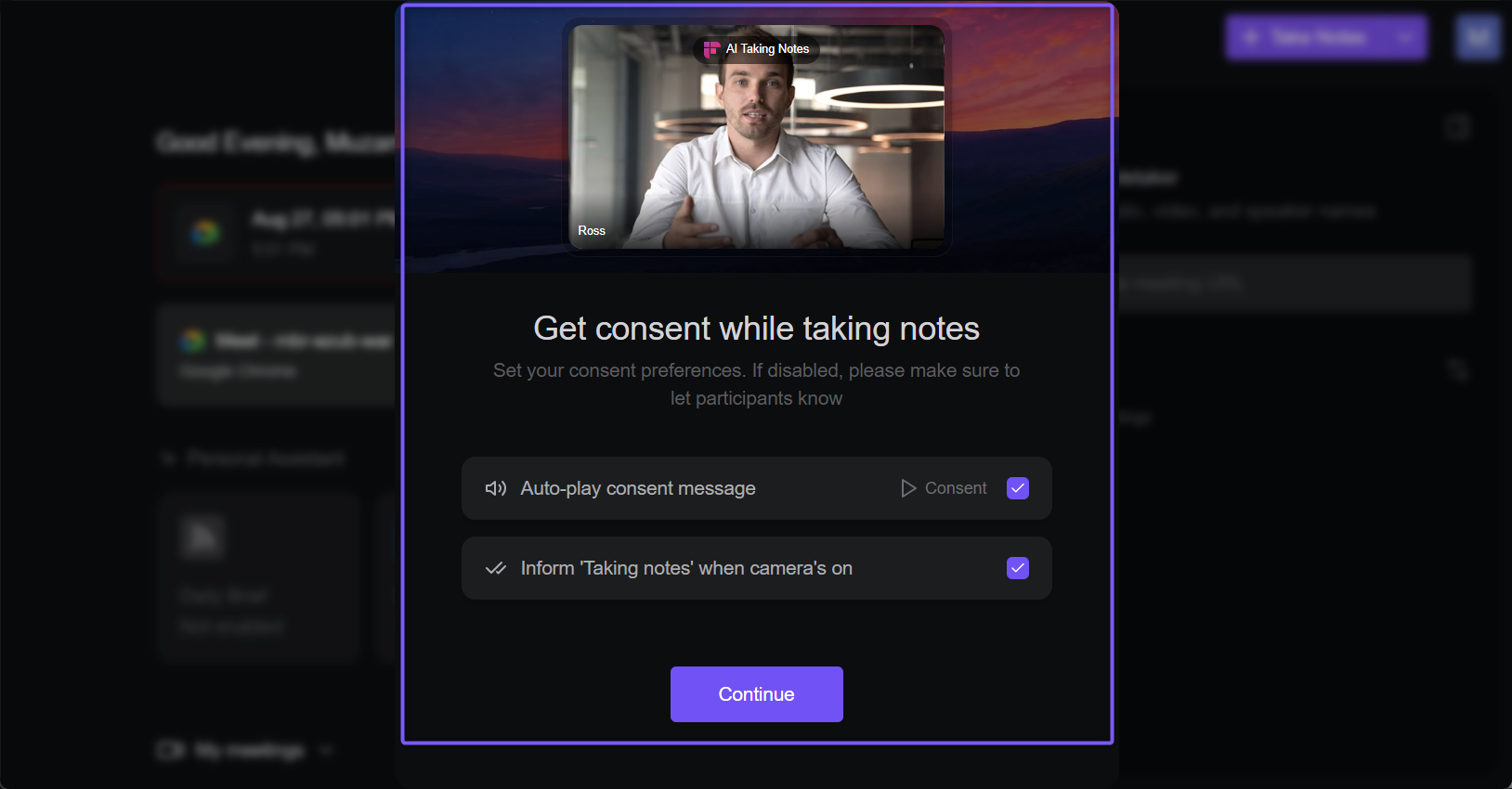
Your responsibility: Use the available consent and notification options to keep participants informed when capturing a meeting. You are responsible for following applicable recording and consent requirements.
👉🏻 For more details on how these notifications work and how to manage them, see How Consent & Notifications Work on the Fireflies Desktop App.
🔒 AI that respects your data
Fireflies is designed to protect your information:
Your customer data is never used to train AI models (internally or externally).
Third-party vendors process data with Zero Data Retention
You retain full ownership of your recordings and transcripts
Fireflies acts as a data custodian — not a data owner
Keep your data organized and clean
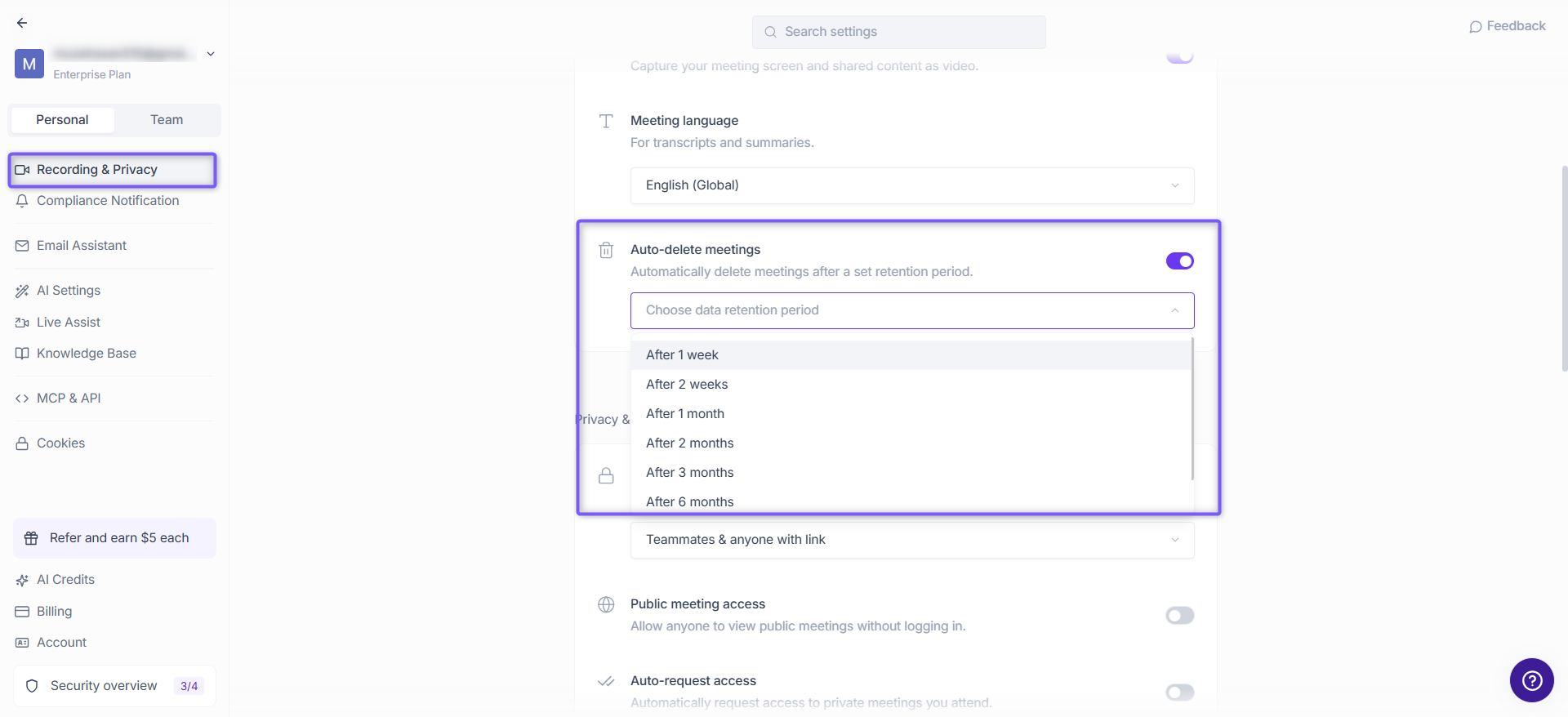
You can always delete meetings manually or set up automatic data deletion.
Fireflies allows you to automatically delete meeting recordings, transcripts, and notes after a defined retention period (e.g., delete after 1 month) to support your organization's data retention requirements.
Need a more secure setup for compliance? Enterprise users can store data in their own region using Private Storage
Trusting your data with encryption and secure login
Fireflies employs robust encryption to protect your data both at rest and in transit, ensuring it is safe during processing.
We use 256-bit AES encryption for data at rest and TLS 1.2+ encryption for data in transit.
Additionally, we support secure authentication methods such as SSO (Single Sign-On) to ensure that only authorized users can access your Fireflies workspace.
👉 Want to store meeting data in your own cloud? Learn how Private Storage works
🔒 Trying to use SSO to login? See how to Log in to Fireflies using Google or Microsoft SSO
Making sense of it all
You control what’s recorded, what’s shared, and what’s stored
Privacy settings let you manage who sees what in your workspace
Your data is never used to train AI models, keeping it private
Admins can enforce security settings across the team
With Enterprise options, you can control where your data is stored
Securing your settings is a shared responsibility for your team’s privacy