Log in to Fireflies using Google or Microsoft SSO
Last updated: March 17, 2026
You can quickly log in to Fireflies using your Google or Microsoft account. Single Sign-On (SSO) makes it easier to access Fireflies – without a password, and keeps your login secure.
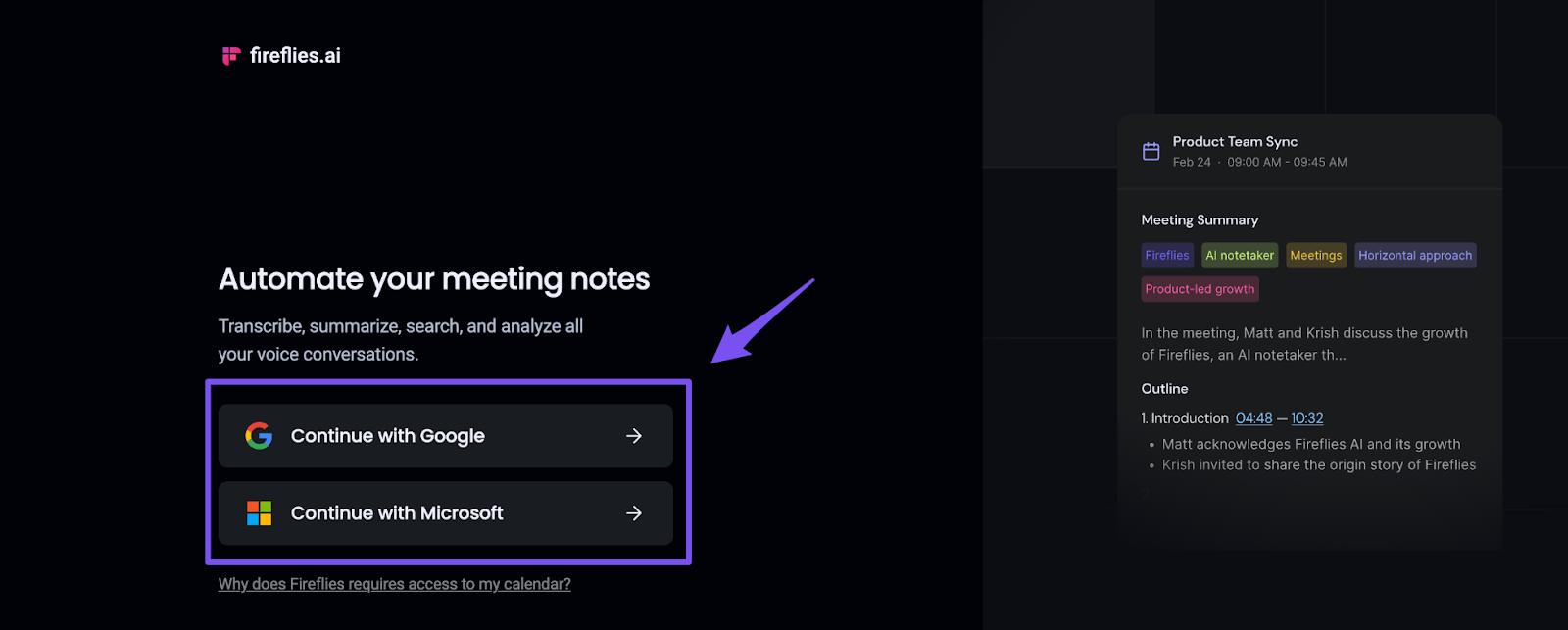
Sign in with Google
Go to app.fireflies.ai
Click Continue with Google
Enter your Google email and password
Click Allow to give Fireflies access to your Google account
Fireflies will sync with your Google Calendar
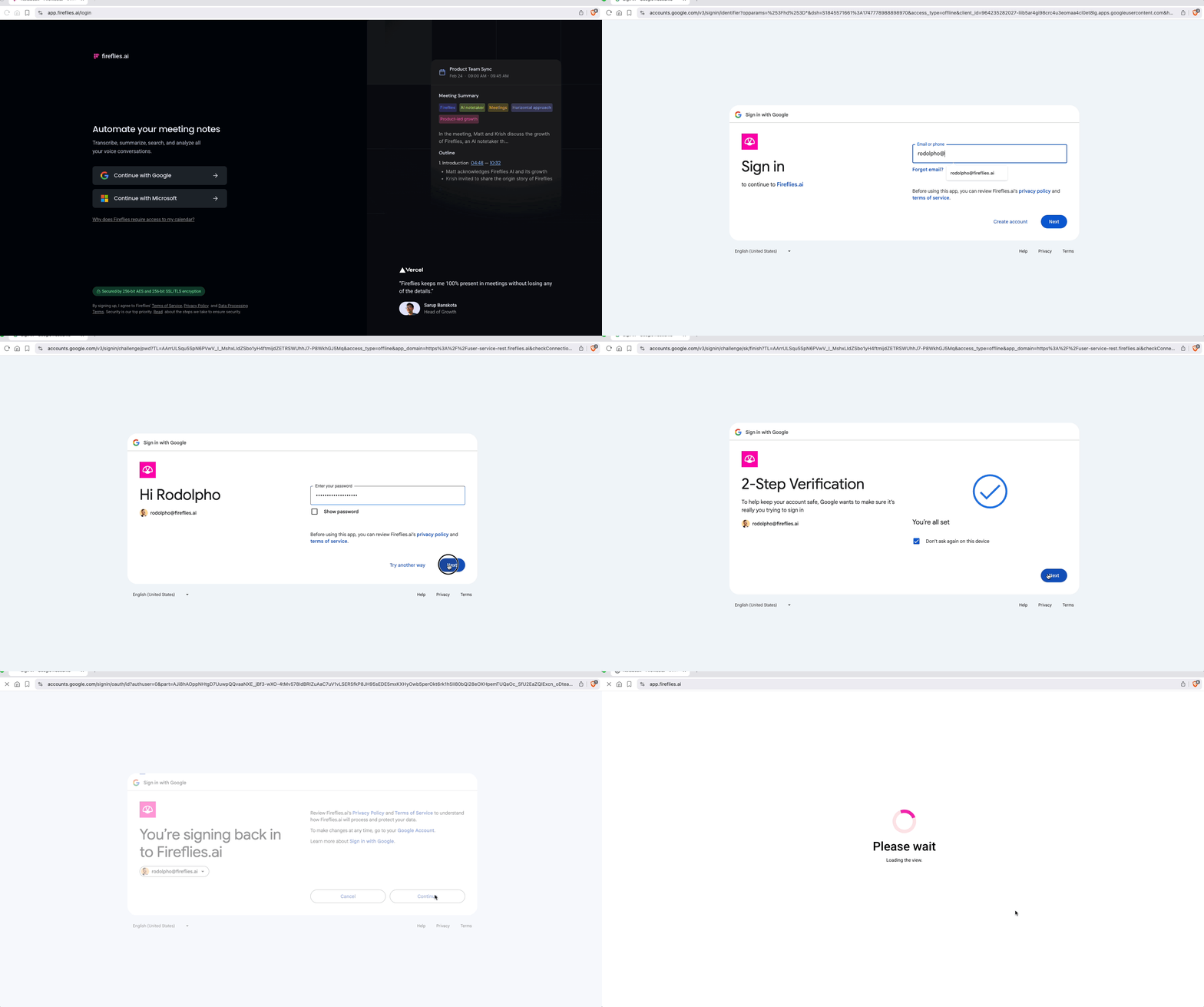
Once synced, Fireflies can auto-join your calendar meetings based on your settings
Sign in with Microsoft
Go to app.fireflies.ai
Click Continue with Microsoft
Enter your Microsoft email and password
Click Accept to grant access to your Microsoft account
Fireflies will sync with your Outlook Calendar
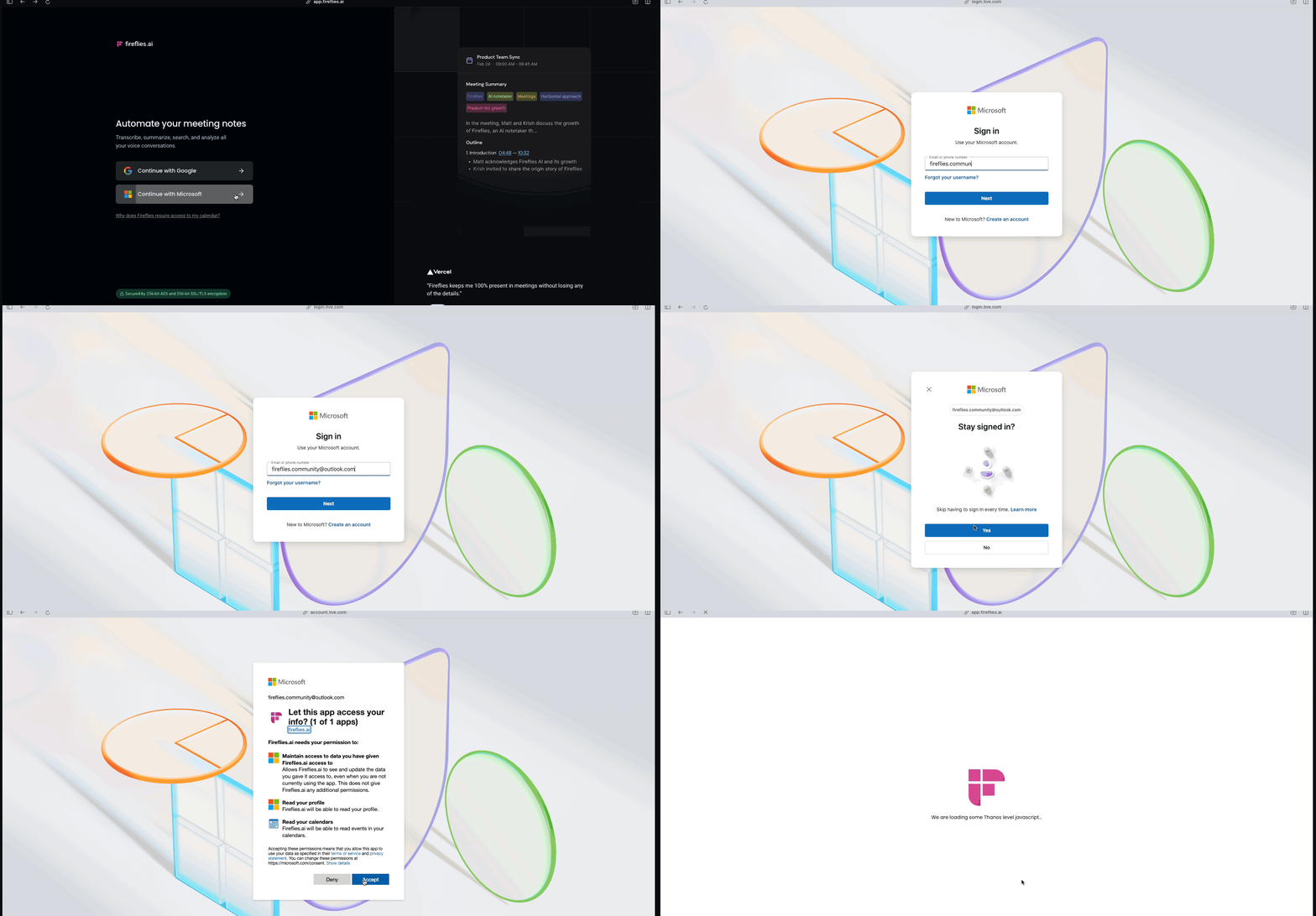
Once synced, Fireflies will auto-join your scheduled meetings per your preferences
📌Enforced SSO Redirect Behavior
When SSO is enforced on your domain:
Users will be automatically redirected to your organization's SSO login link when they attempt to log in via Google or Microsoft OAuth.
This happens after the OAuth authentication succeeds—at which point Fireflies checks if your domain has an enforced SSO configuration and triggers the redirect.
Avoid this behavior
If your users don't want automatic redirects, have them use your unique SSO login link instead of the generic Google or Microsoft login options.