How to Use Recording Rules to Make Fireflies Record or Skip Specific Meetings
Last updated: August 31, 2026
Not every meeting needs to be recorded. Whether you want to protect private conversations or make sure important client calls are always captured, Recording Rules give you precise control over what Fireflies records — without having to manually manage each meeting.
Prefer to see it in action first? Watch this live privacy and data walkthrough, then use the steps below to review how your data is protected and set your own recording and visibility rules in Fireflies.
🚀 Navigation
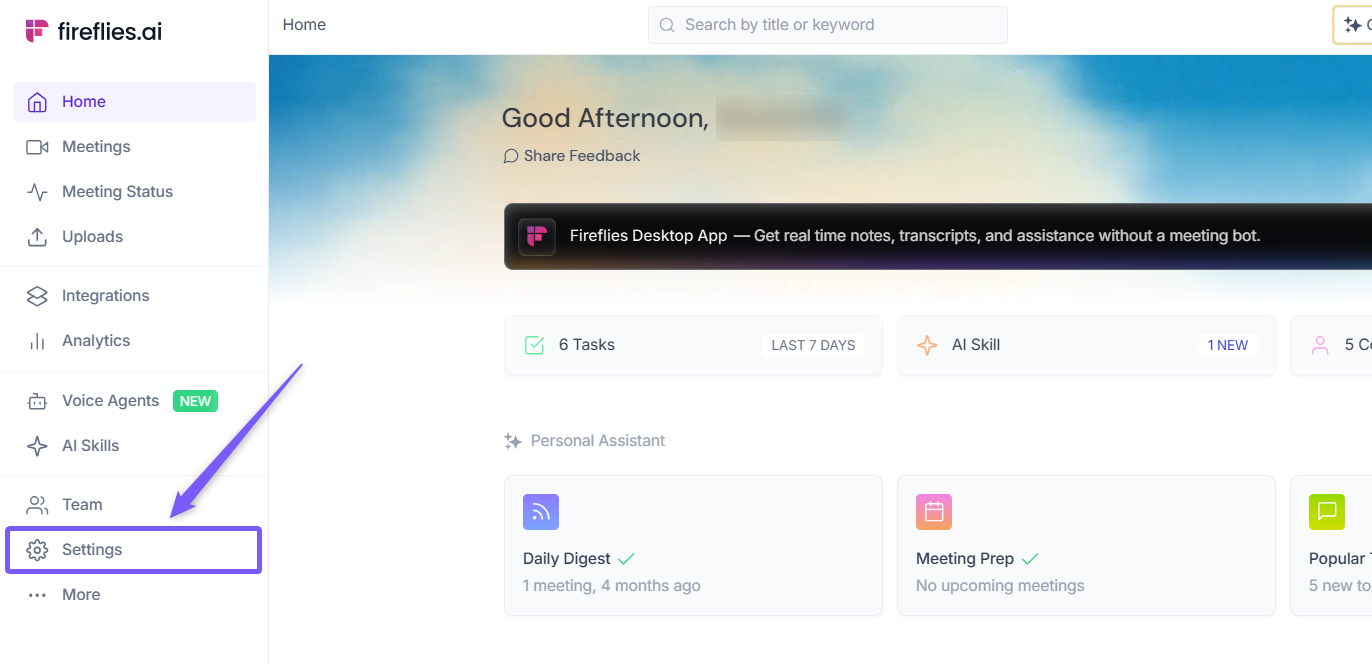
1. Go to the Fireflies web app and click the Settings from left side menu.
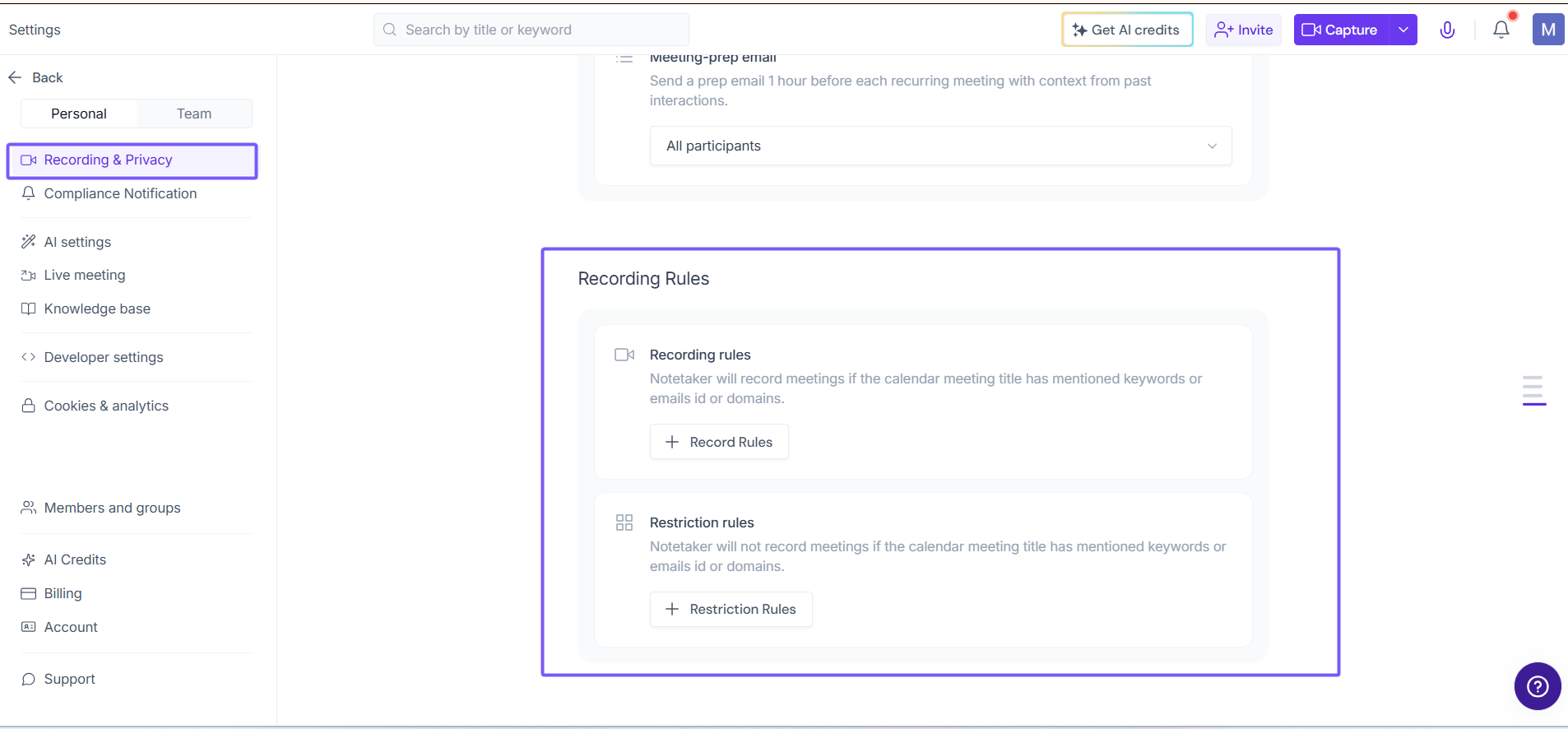
2. Navigate to Recording & Privacy and scroll down to the Recording Rules section.
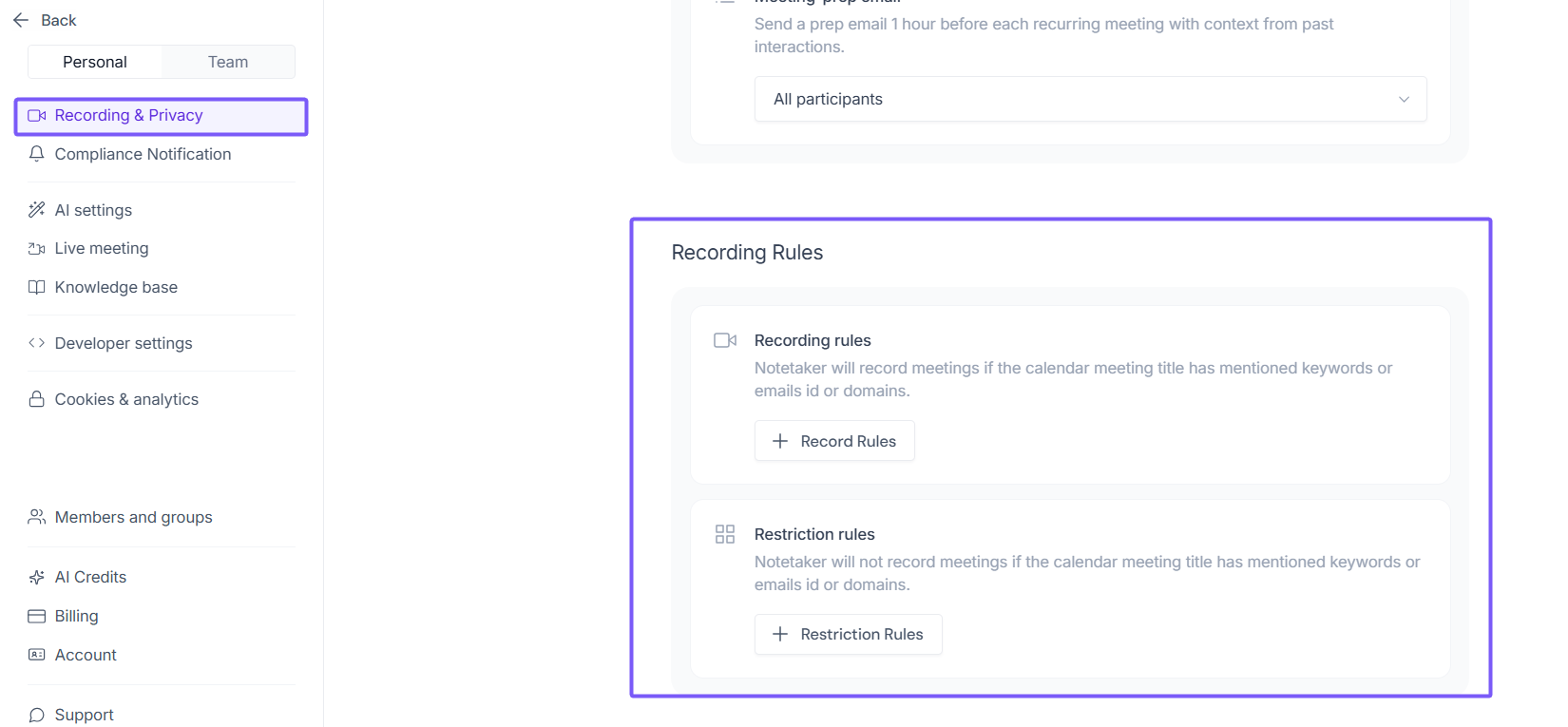
You'll see two sections:
Recording Rules — Meetings you want Fireflies to always record
Restriction Rules — Meetings you want Fireflies to always skip
Recording Rules override Auto-record settings:
Even if your Auto-record is set to record every meeting → Fireflies will skip meetings listed in your Restriction Rules.
Even if your Auto-record is set to manual only → Fireflies will still record meetings that match your Recording Rules.
Think of Recording Rules as a priority filter —hey always take precedence.
A. Set Recording Rules
Recording Rules define conditions under which Fireflies will automatically record your meetings, even overriding general auto-join settings. You can configure Recording rules based on the following criteria:
Meeting titles: Fred will join meetings if the meeting title contains specific keywords or phrases. For example, adding "project update" or "team sync" to your Recording rules will ensure that Fireflies joins any meeting with these phrases in the title.
Email addresses or domains: Fireflies will also join meetings if participants' email addresses or domains match those specified in the Recording Rules. For example, you can add specific email addresses like "manager@company.com" or domains like "@client.com" to apply broadly to all meetings involving contacts from a specific organization.
Examples
Want to capture all sales calls? Add keywords like "demo", "pricing", or "proposal".
Want Fireflies to record any call with your clients? Add their email domain: "@clientcompany.com"
How to set up Recording Rules:
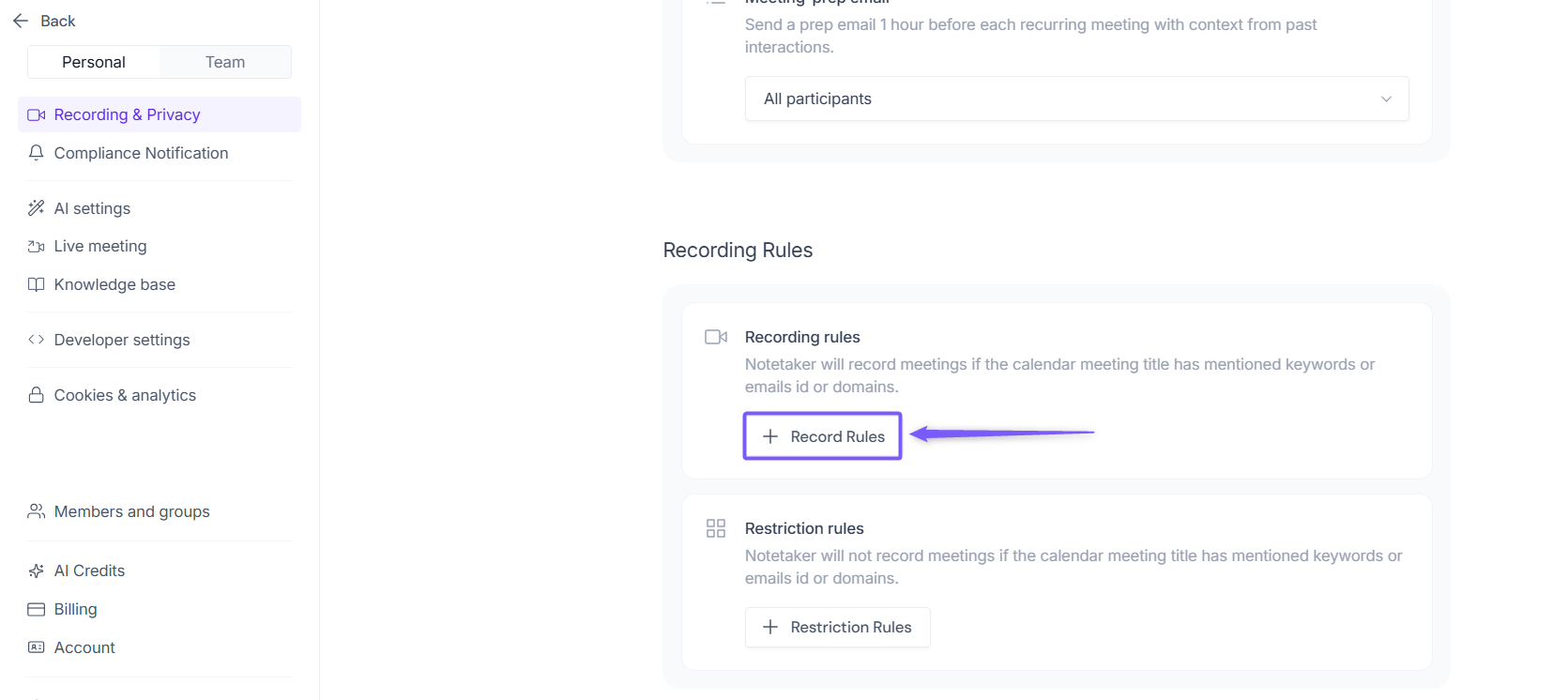
1. Click + Record Rules to open the modal window.
2. Enter the Title keywords and Email id or domains in their respective fields and click Save.
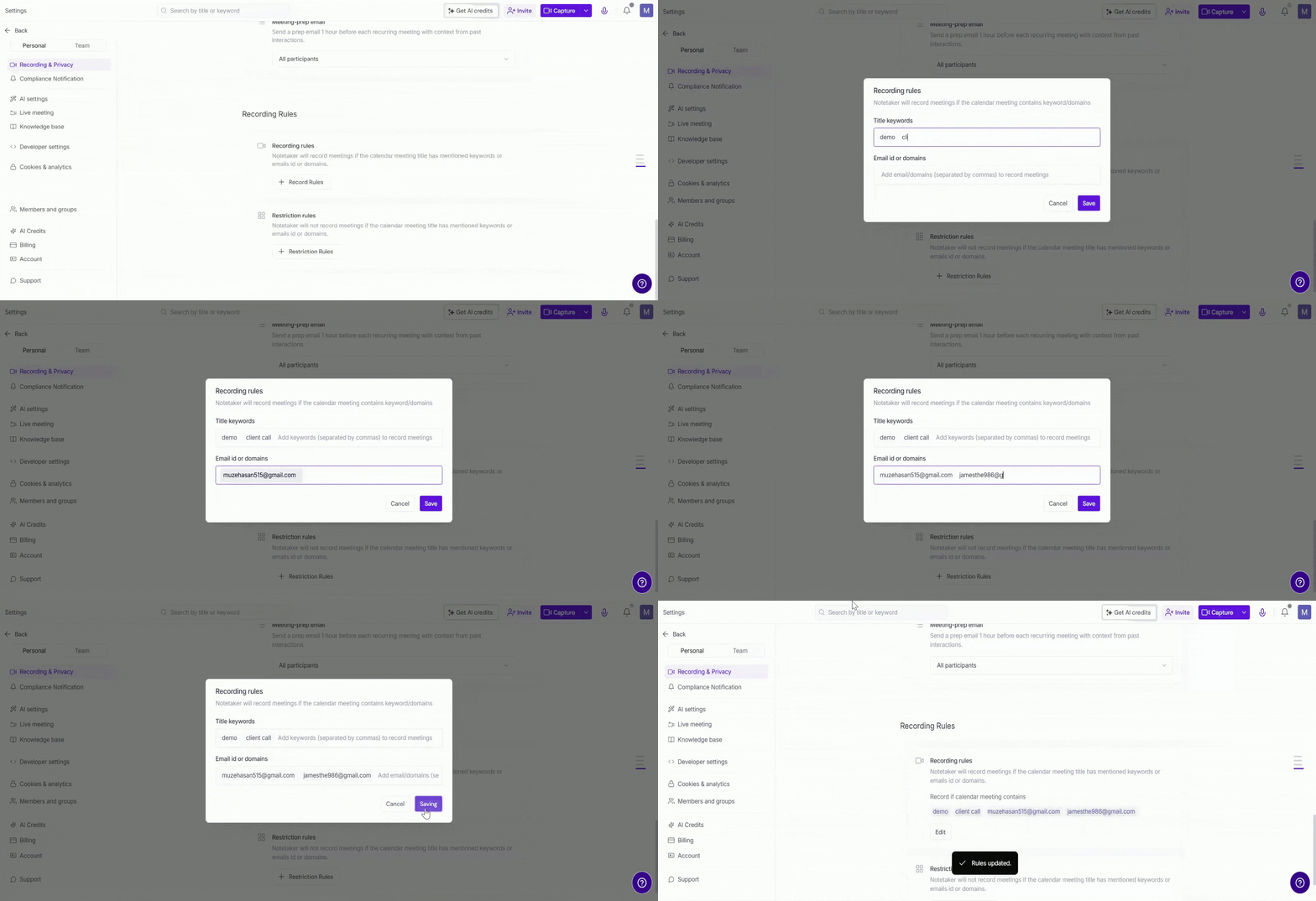
Fireflies will automatically scan your calendar events and apply these rules regardless of your broader Auto-Join setting.
B. Set Restriction Rules
Restriction Rules specify conditions under which Fireflies will not record your meetings. You can configure Bar Rules to skip meetings based on the following criteria:
Meeting titles: Fireflies will not record meetings if the title contains specific keywords or phrases. For example, if you input "personal" or "confidential" as keywords, any meeting with these words in the title will be excluded from recording.
Email addresses or domains: Fireflies will also skip meetings if participants' email addresses or domains match those specified in the Restriction Rules. For instance, you can add specific email addresses like "executive@company.com" or domains like "@partner.com" to ensure Fireflies does not record meetings involving these contacts.
Examples
Want to skip private syncs? Add keywords like "1:1", "catch-up", or "off the record".
Don't want to record internal HR meetings? Add HR emails or internal domains.
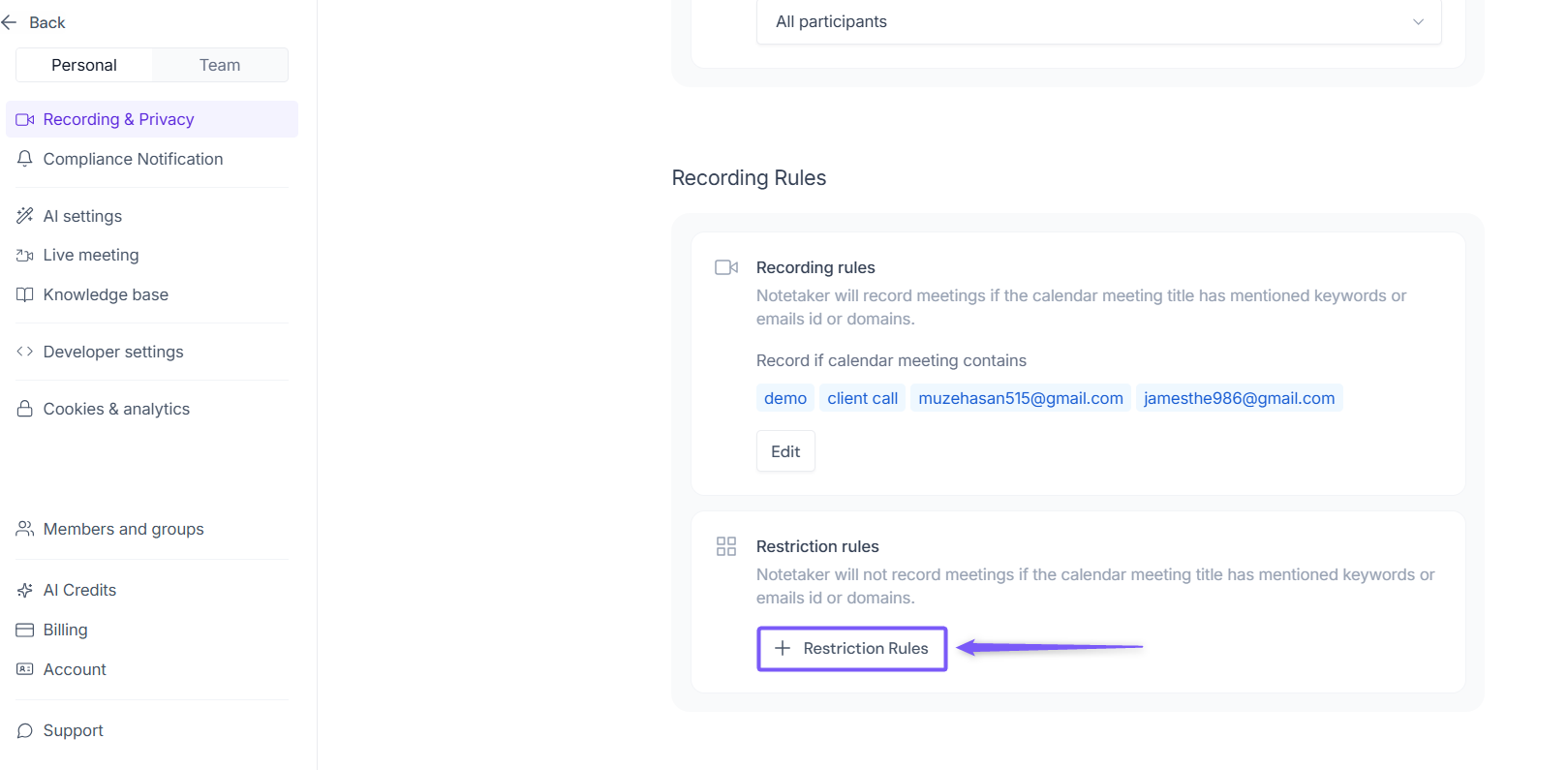
How to access Restriction Rules:
1. Click + Restriction Rules to open the modal window.
2. Enter the Title keywords and Email id or domains in their respective fields and click Save.
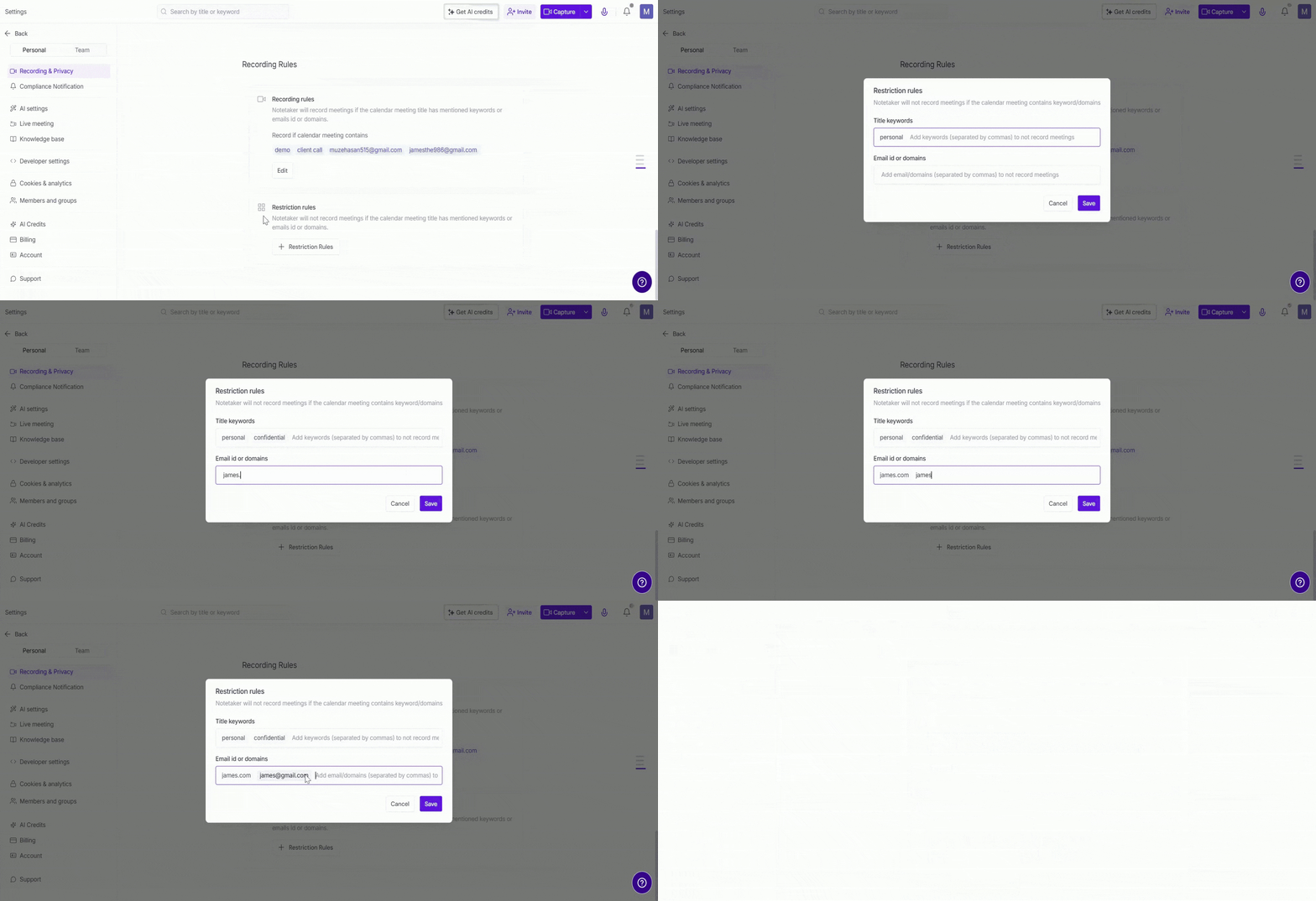
Fireflies will filter these out—even if your auto-join is set to grab every meeting.
🛠 Manage Recording Rules
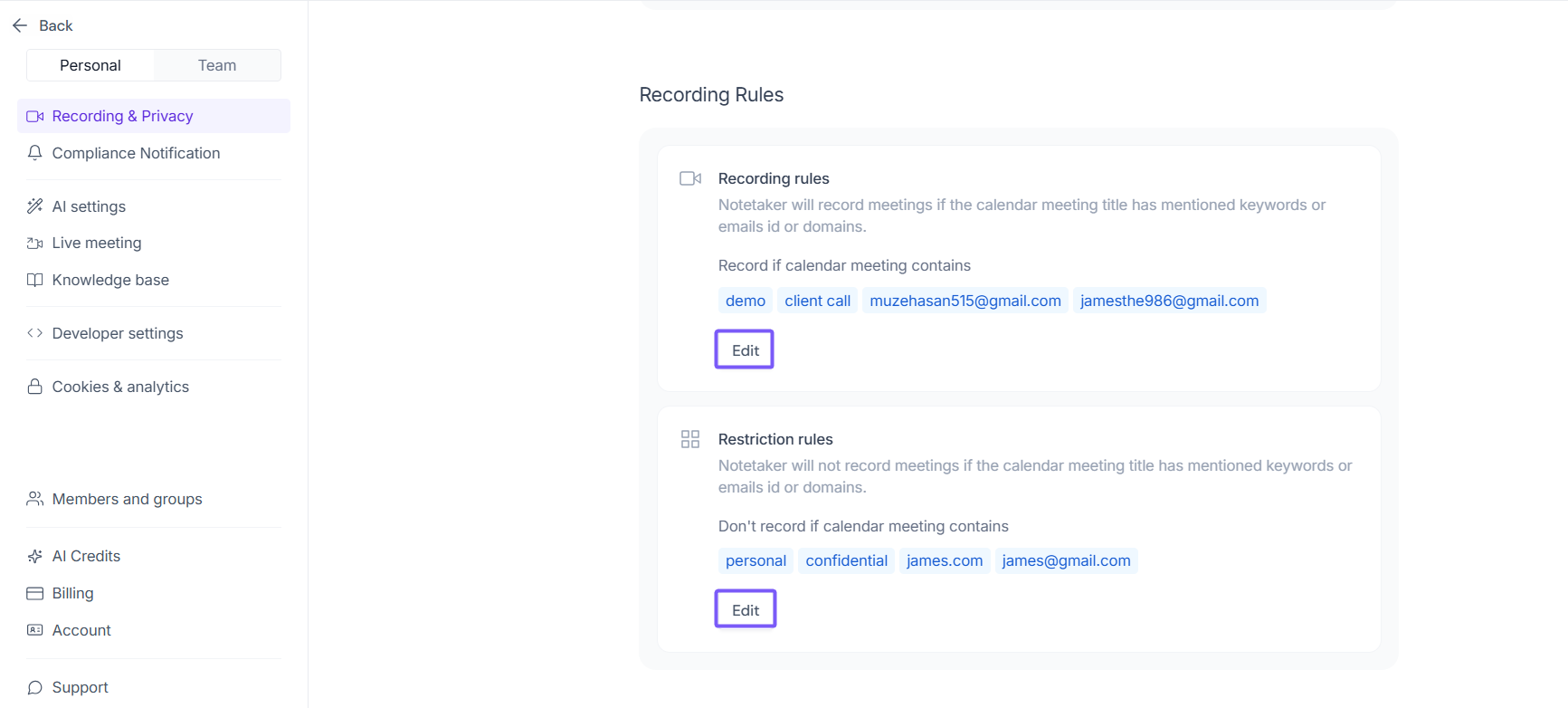
You can edit or update your Recording Rules and Restriction Rules at any time.
1. Navigate to Settings → Recording & Privacy and scroll down to Recording Rules.
2. Click the Edit button next to the rule you want to update and make your changes.
💬 Pro Tips for using Meeting Rules
Be specific: Use relevant keywords to avoid accidental joins/skips.
Combine both rules: Let’s say you want Fireflies to join all external calls but skip internal ones? Add
@company.comto Bar Rules and@client.comto Join Rules.Want total control? Use manual Auto-Join + Meeting Rules: Set Auto-Join to Manual only and add specific Join Rules to let Fireflies join just the ones you care about
🧯 Having issues?
If Fireflies joined (or skipped) a call unexpectedly:
Double-check your Meeting Rules
Check your Auto-Join setting
With Recording Rules and Restriction Rules, you have full control over which meetings Fireflies records — ensuring only the right meetings are captured, every time.