Learn About Post-Meeting Admin Controls for Team Meetings
Last updated: October 8, 2026
As a Fireflies admin, you have full control over how meetings are organized, accessed, shared, and managed across your workspace. This guide walks you through all the post-meeting controls available to you.
1. Organize Meetings
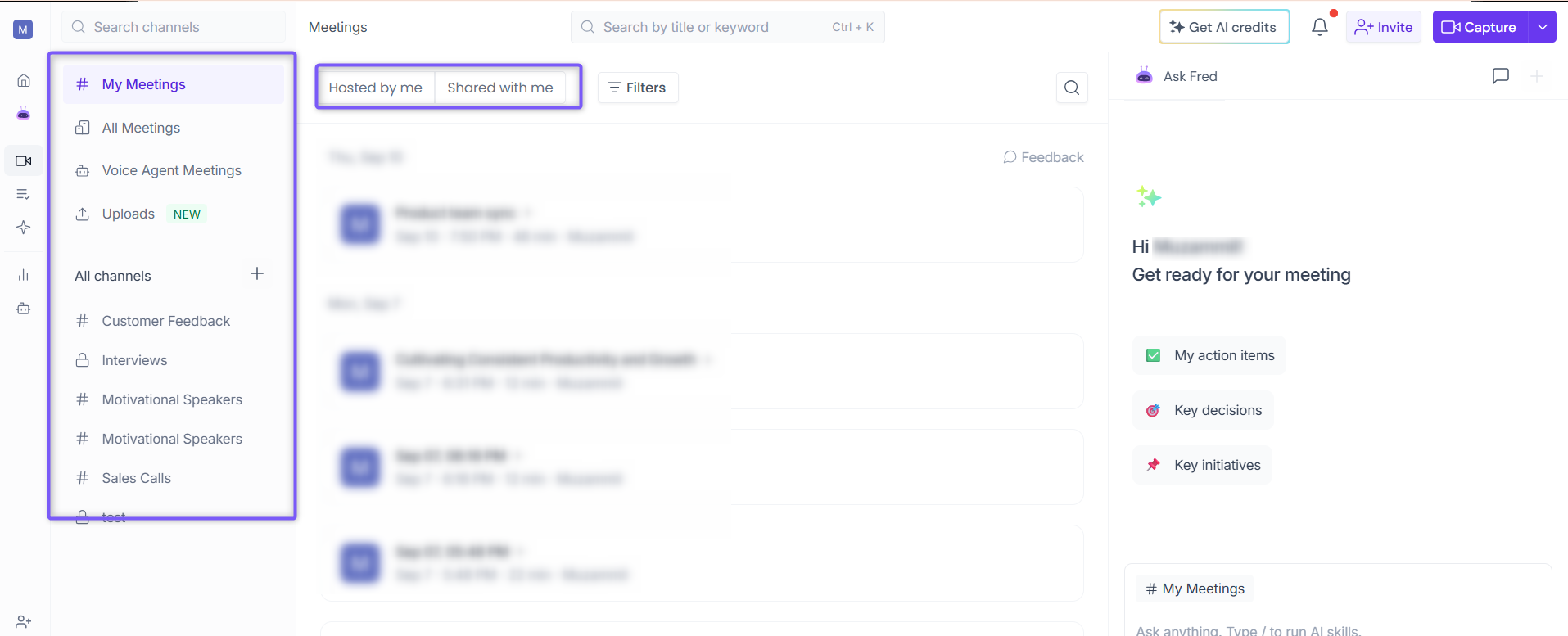
Channels help you organize and access meetings within the Fireflies. In the Meetings section, you can access:
# My Meetings — Meetings you hosted or recorded.
# All Meetings — All publicly accessible meetings in your workspace.
Voice Agent Meetings — Meetings associated with your Voice Agent.
Uploads — Meetings and recordings uploaded to Fireflies.
You can also use the Shared with me tab to view meetings that others have shared with you.
📌 Related: Learn about Channels.
As an admin, you can also create Public or Private channels to organize meetings further, and move any publicly accessible meeting in the workspace to a channel of your choice.
💡 Enterprise admins have access to the Rules Engine, which automatically moves meetings to a specific channel based on rules you configure.
2. Control Meeting Accessibility
Admins can control who can access meetings in two ways:
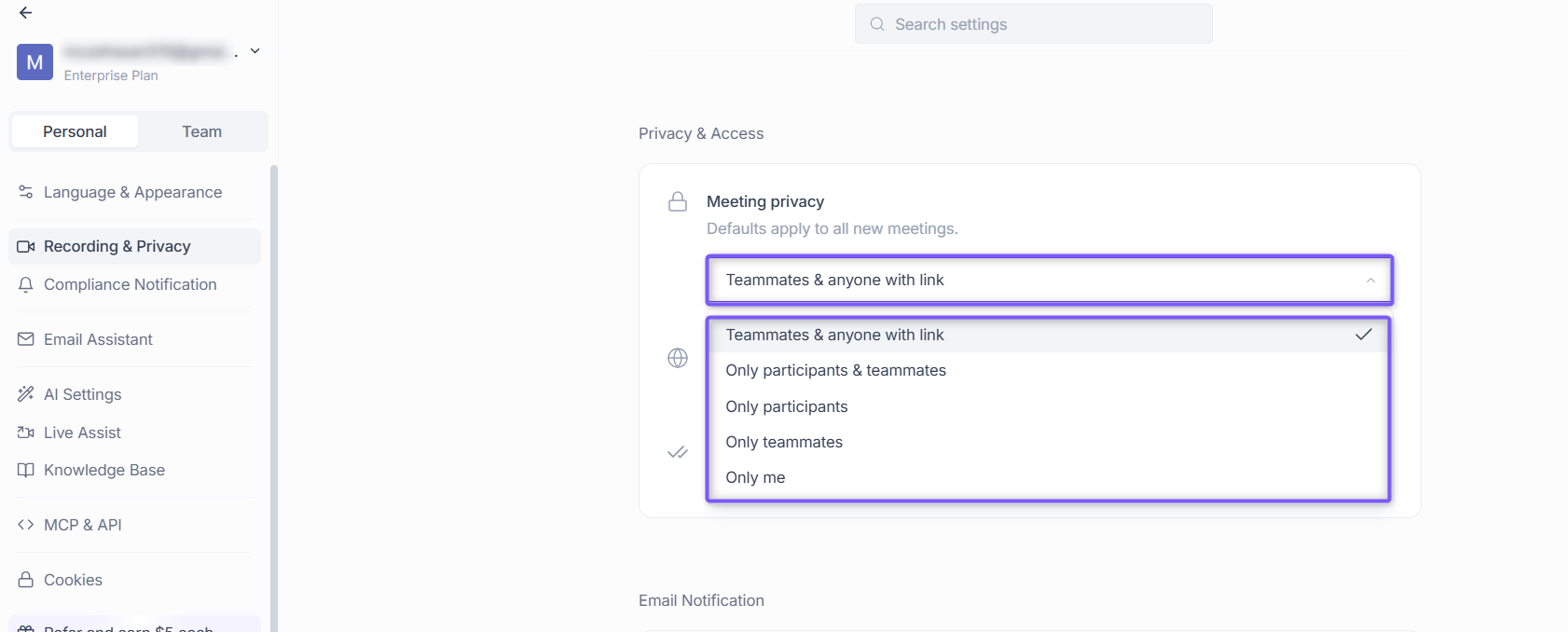
Default privacy — Set a default privacy level for all new meetings in your workspace. Navigate to Settings → Recording & Privacy (Personal tab) and scroll down to Privacy & Access → Meeting privacy.
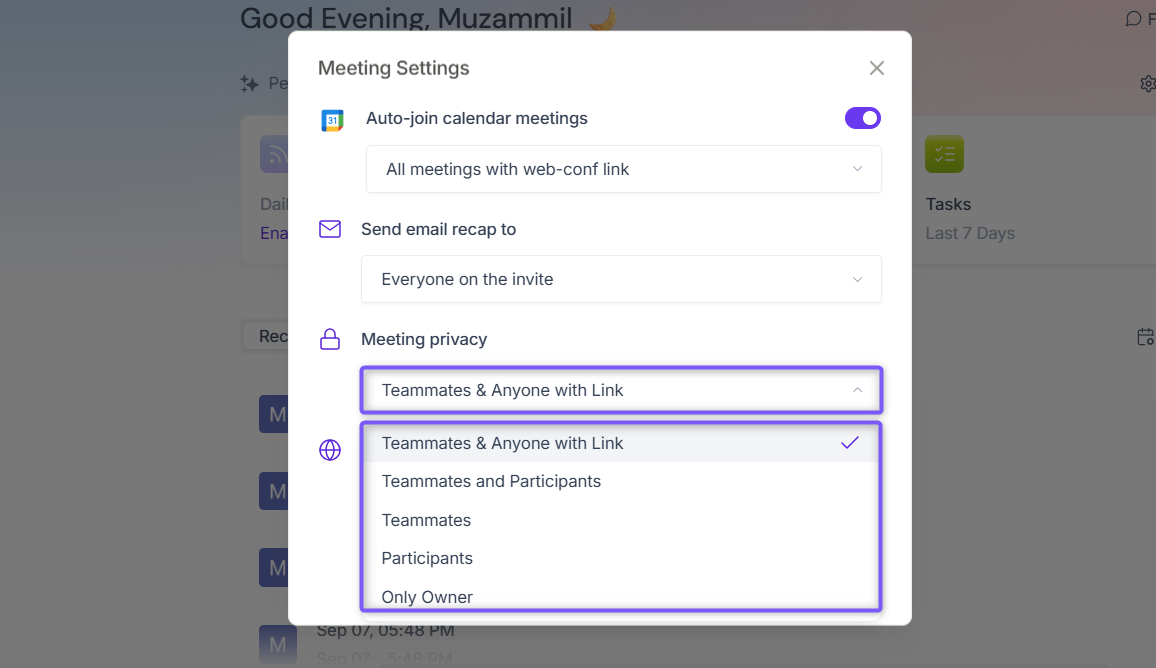
Individual meeting privacy — Adjust the privacy setting for a specific meeting directly from the home dashboard.
📌 Related: How to set viewing permissions for meeting recaps
3. Share Meetings
Admins can control how meetings are shared both within and outside the workspace.
Share with User Groups: Share meetings with specific teams in your workspace using User Groups. Search for a user group from the Share window and invite the entire group at once.
📌 Related: How to Share Meeting Transcripts and Summaries Privately with User Groups
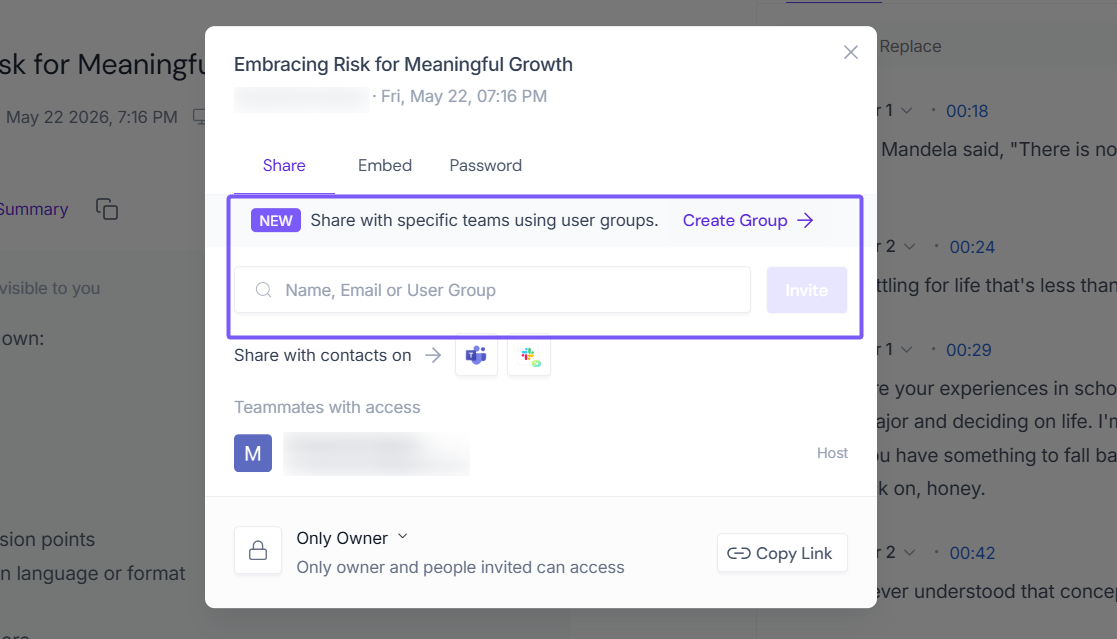
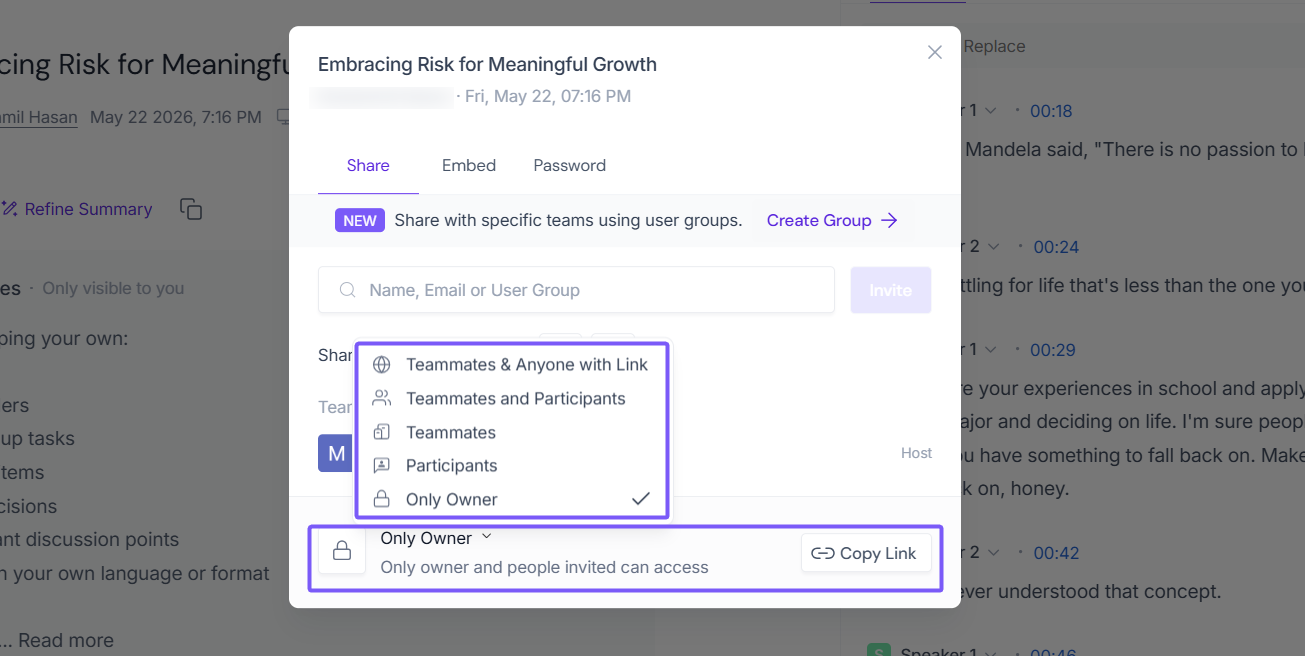
Control Meeting Privacy: Set the meeting's privacy level to control who can access the recording, transcript, and summary. Available options include Only Owner, Participants, Teammates, and Anyone with Link, helping ensure meeting content is shared only with the intended audience.
📌 Related: How to control who gets meeting recaps (Email Settings) and who can view them (Privacy Settings)
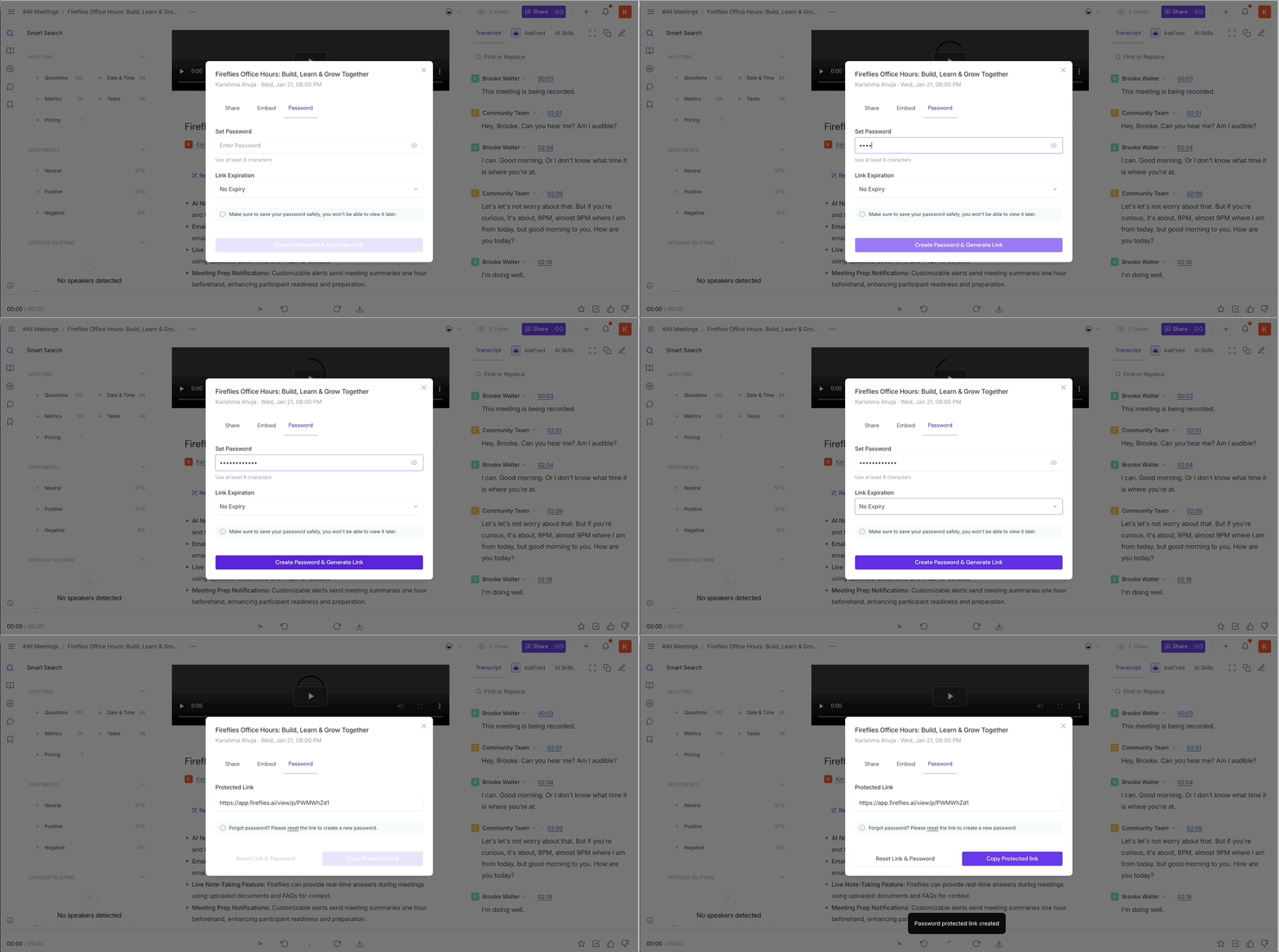
Share with External Users: Business and Enterprise users can create password-protected links to securely share meetings with people outside their workspace. Recipients do not need a Fireflies account to access the notes, transcript, or recording, and you can control how long the link remains activ
📌 Related: How to Share a Fireflies Meeting with a Password-Protected Link
4. Search Meetings
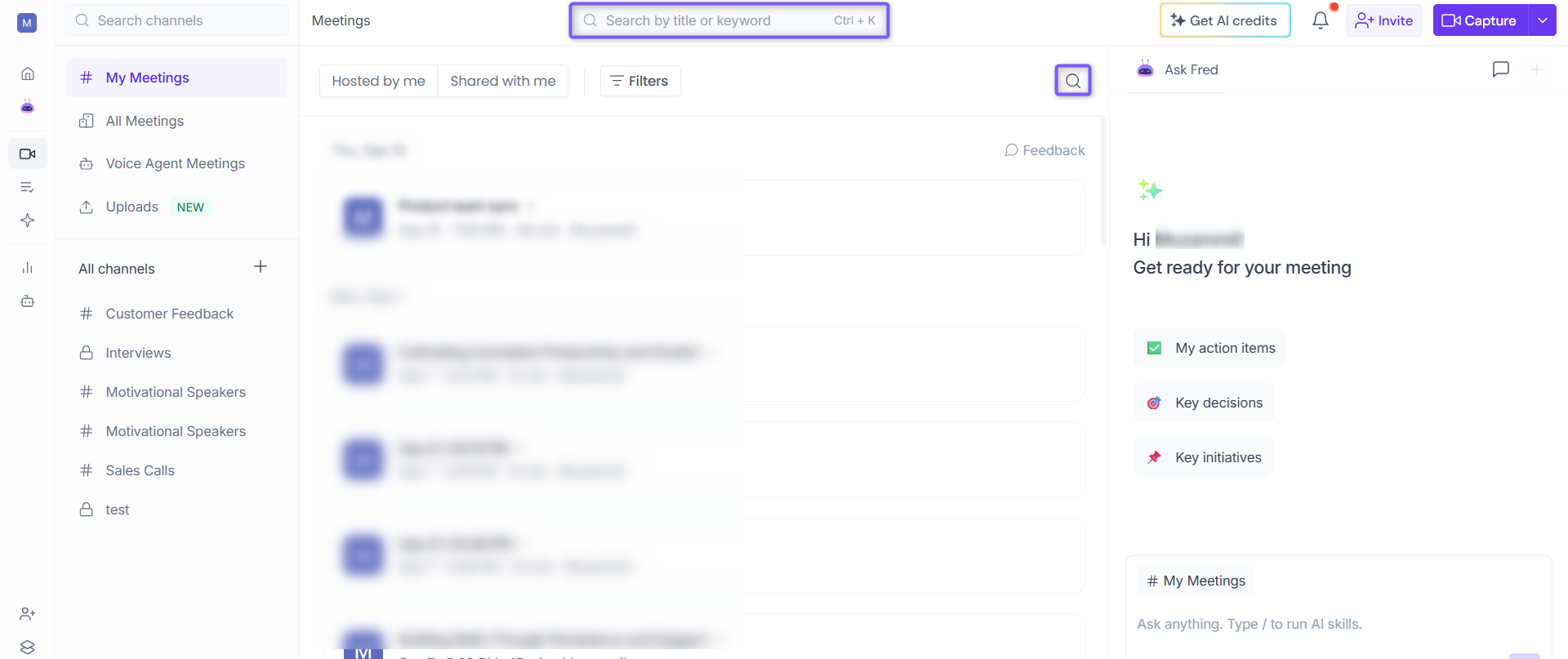
Admins can search for any publicly accessible meeting in the Fireflies workspace. You can also search for private meetings that you were either a participant of or that are present in a private channel you are a member of.
📌 Related: How to search and find your meetings.
5. Edit Meeting Transcripts, Summaries, and Speaker Labels
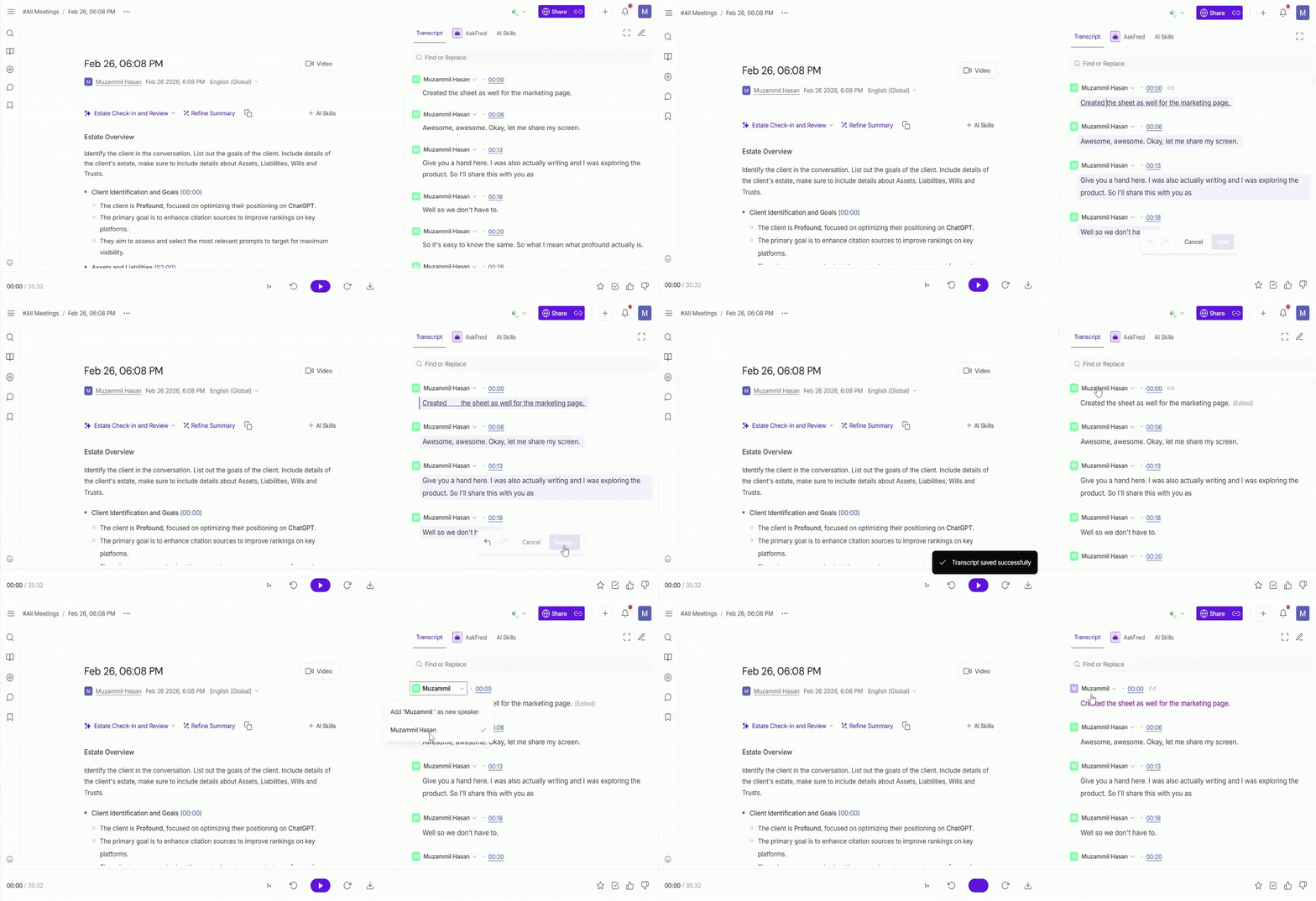
Admins can edit the summaries, transcripts, or speaker labels of all accessible meetings in their workspace directly from the meeting notepad.
📌 Related:
6. Regenerate Meeting Summaries
Admins can regenerate the meeting summary for any recording accessible in their workspace.
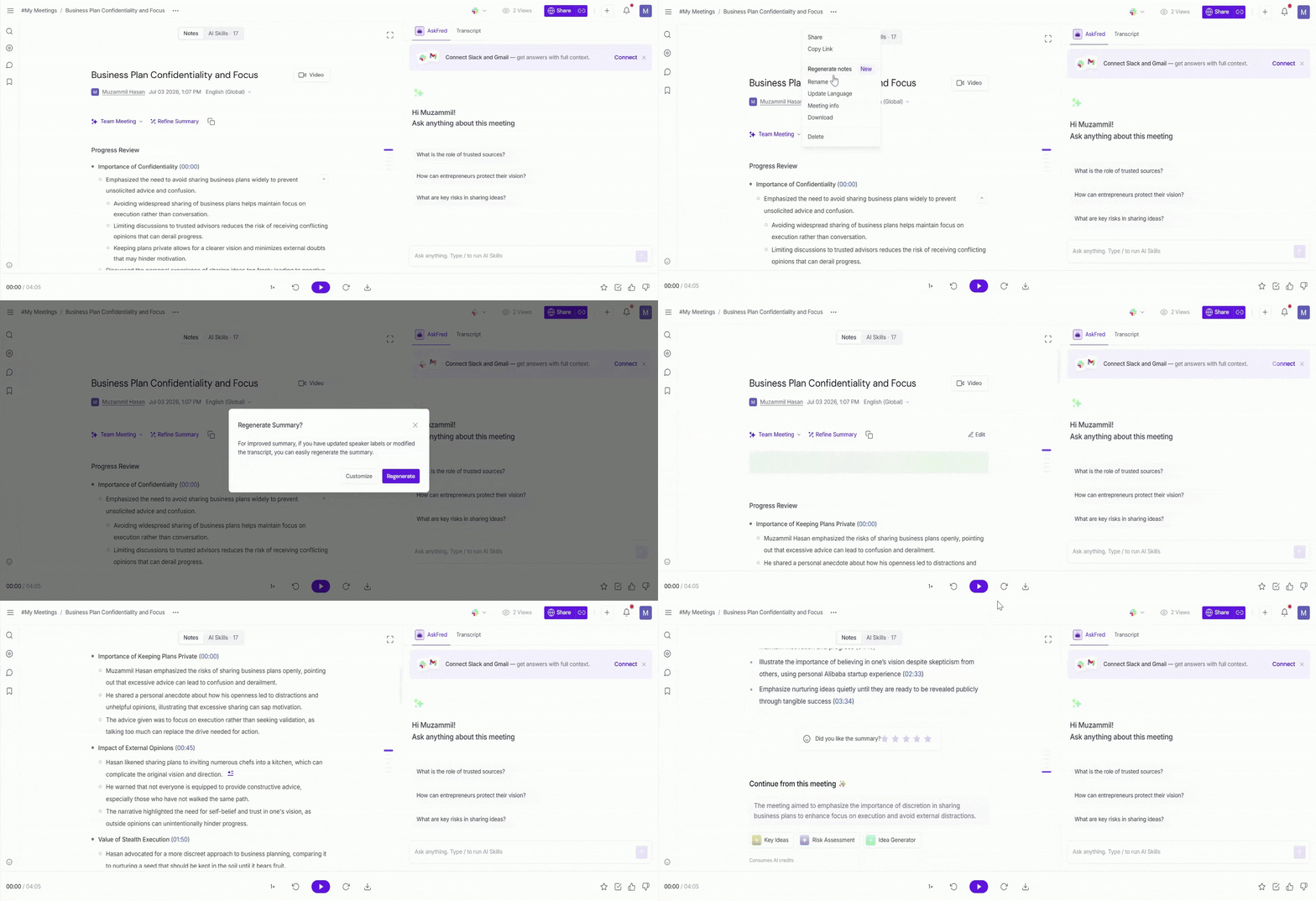
📌 Related: How to regenerate meeting summaries
7. Download Meetings
Admins can download the transcript, summary, audio, and video of any meeting recorded in their workspace directly from the meeting recap.
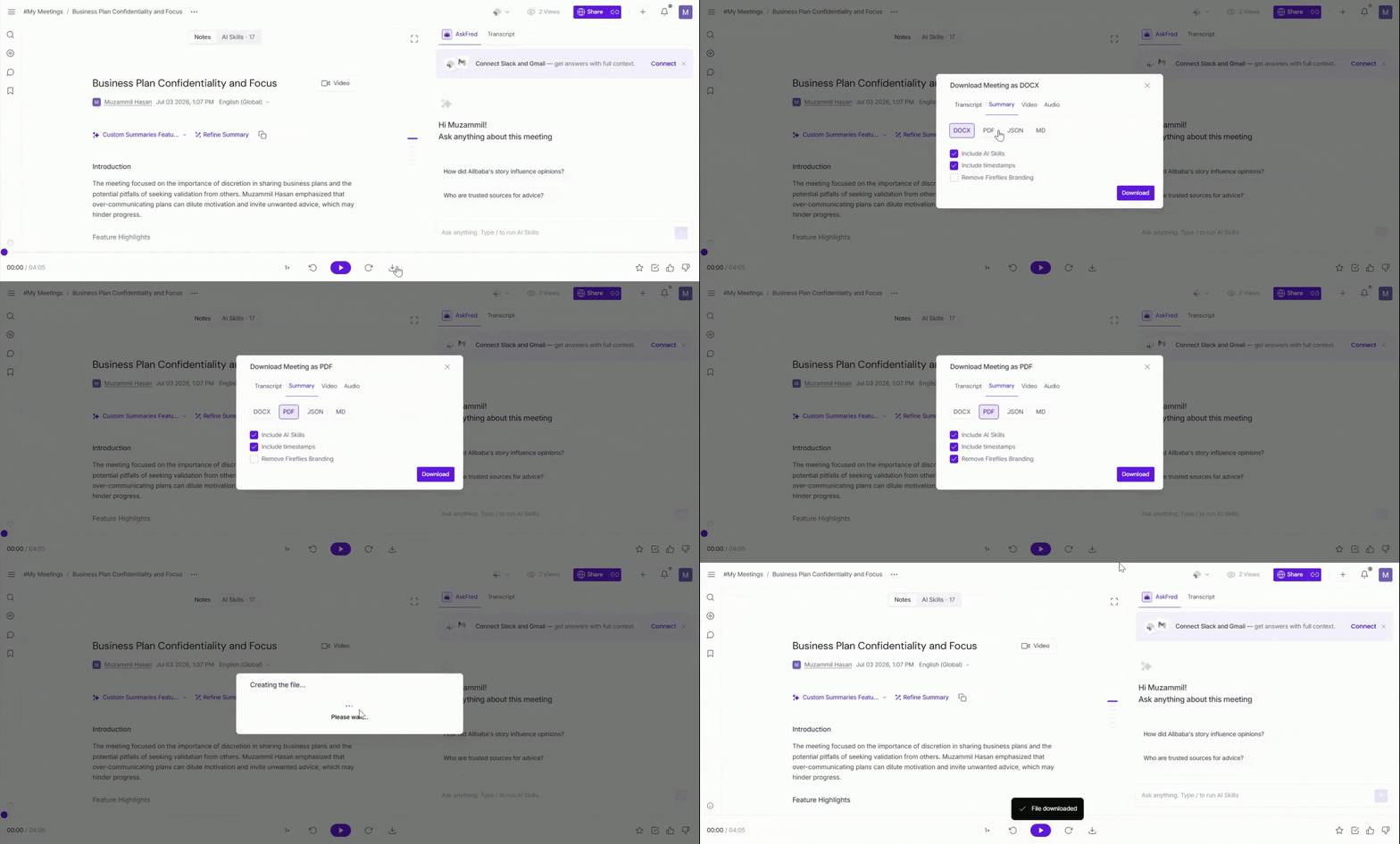
📌 Related: How to download transcripts, summaries, and meeting recordings from Fireflies
8. Delete Meetings, Soundbites, and Playlists
Only the meeting owner has the privilege to delete meetings, Soundbites, or Playlists in the Fireflies workspace. These can be deleted from either the Notebook or the Notepad under My Meetings.
📌 Related: How to delete a meeting
🔍 Recap
Use channels to organize meetings
Use Meeting privacy + Share to control access
Admins can edit, download, and manage meetings
Only owners can delete meetings
With these post-meeting controls, you have everything you need to keep your workspace organized, secure, and running smoothly — so your team can focus on what matters most.