How to edit speaker labels or names in a transcript
Last updated: June 5, 2025
If Fireflies didn’t detect the right speaker names—or didn’t label them at all—don’t worry. You can edit them in just a few clicks from your Fireflies Notepad
🤔 Why You Might Need to Edit Speaker Labels
Here are common situations where you’ll want to correct or add speaker names:
Uploaded an audio file without speaker metadata: Fireflies will label them generically as Speaker 1, 2, etc.
Used mobile transcription: Speakers often aren’t auto-detected on mobile recordings.
Voice recognition issues: Audio overlaps or unclear input may misassign speaker identities.
Post-meeting cleanup: You simply want the transcript to reflect real names for clarity or sharing.
Fixing speaker labels is crucial if you want action items and summaries to show who said what.
🛠 How to Edit Speaker Names
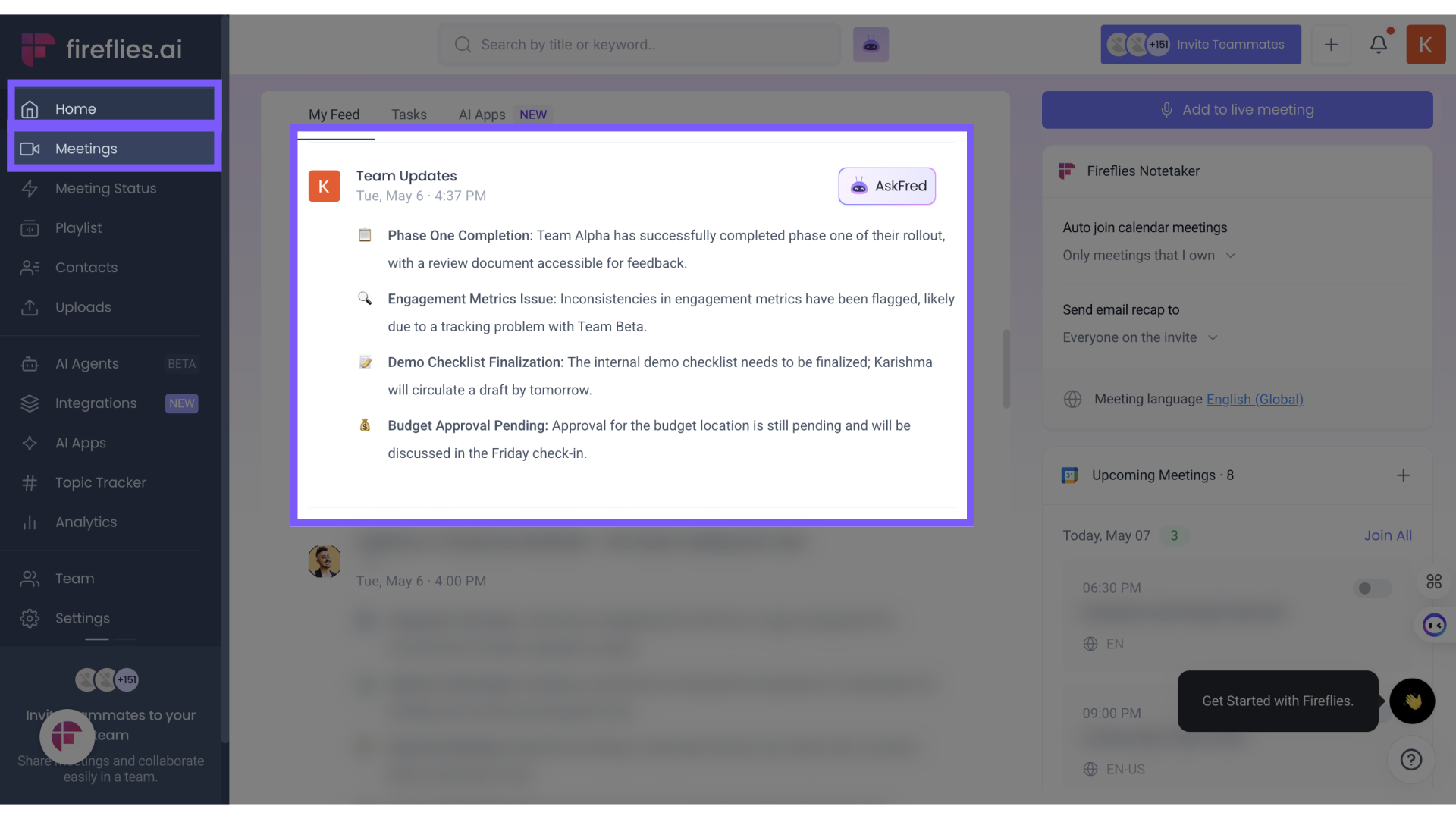
Go to your Fireflies Dashboard
Find the meeting you want to update from the feed or the Meetings Tab and Click to open the transcript
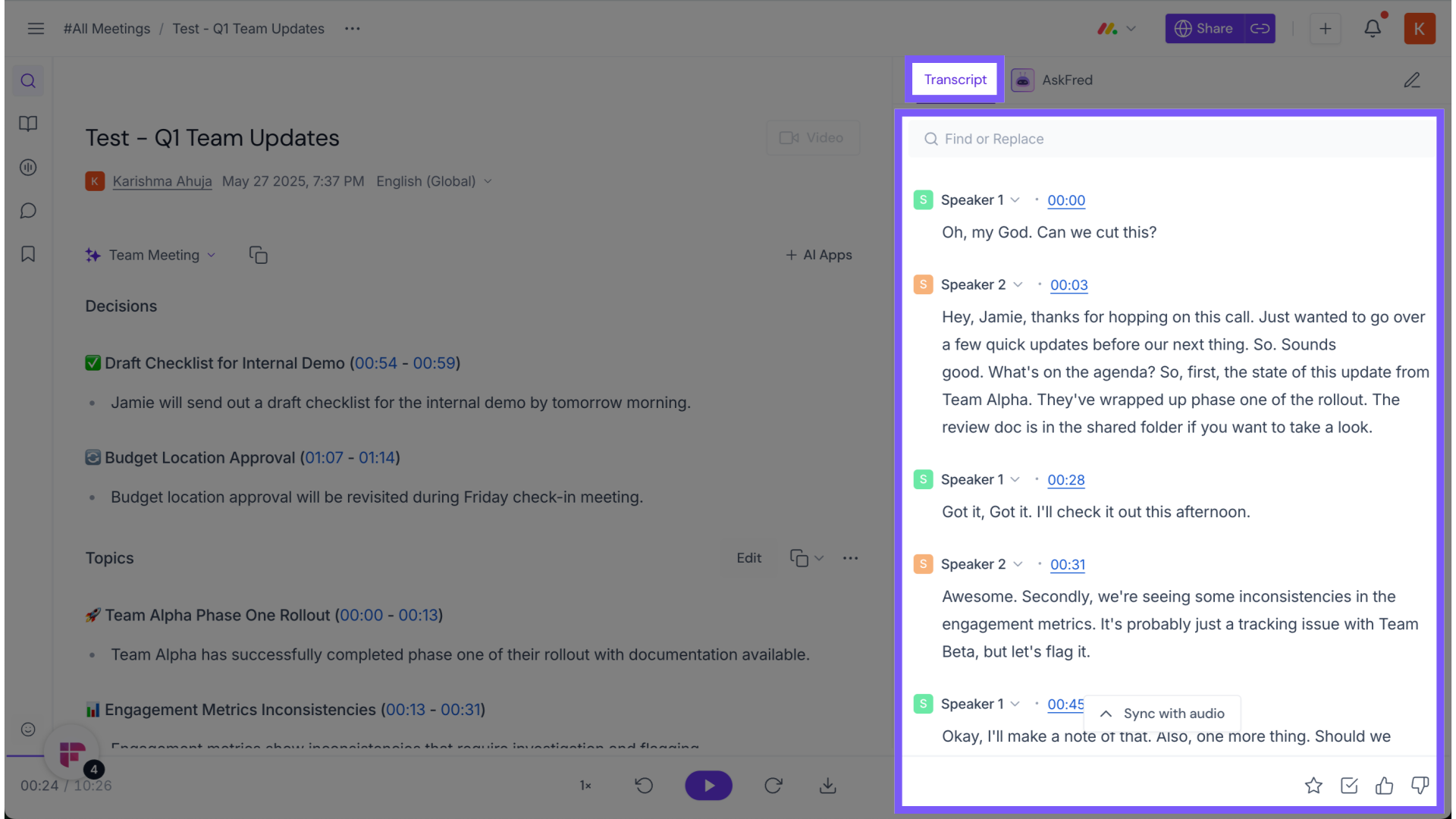
From your Fireflies Notebook, you'll find the transcript on the right Panel
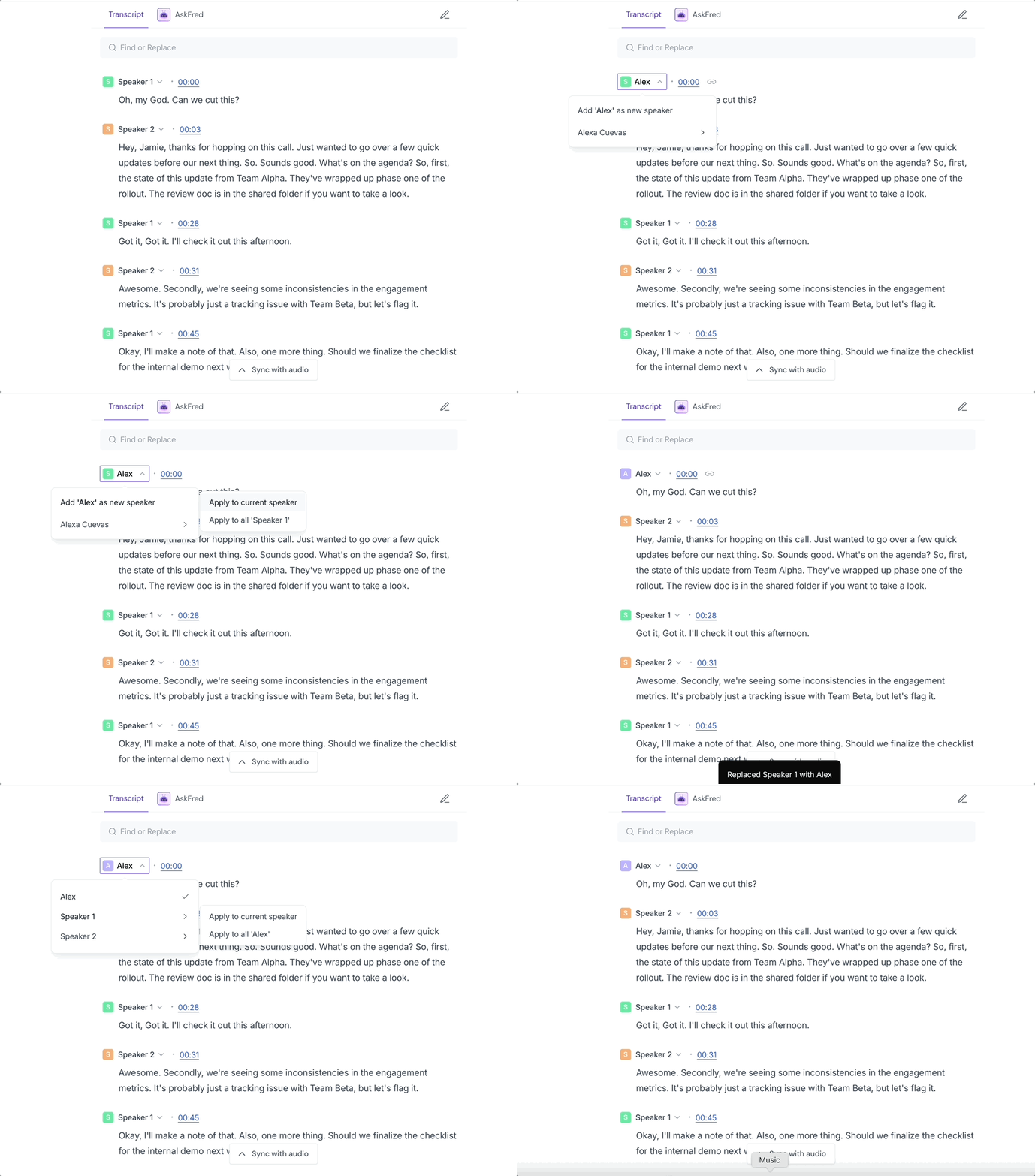
Rename the speaker
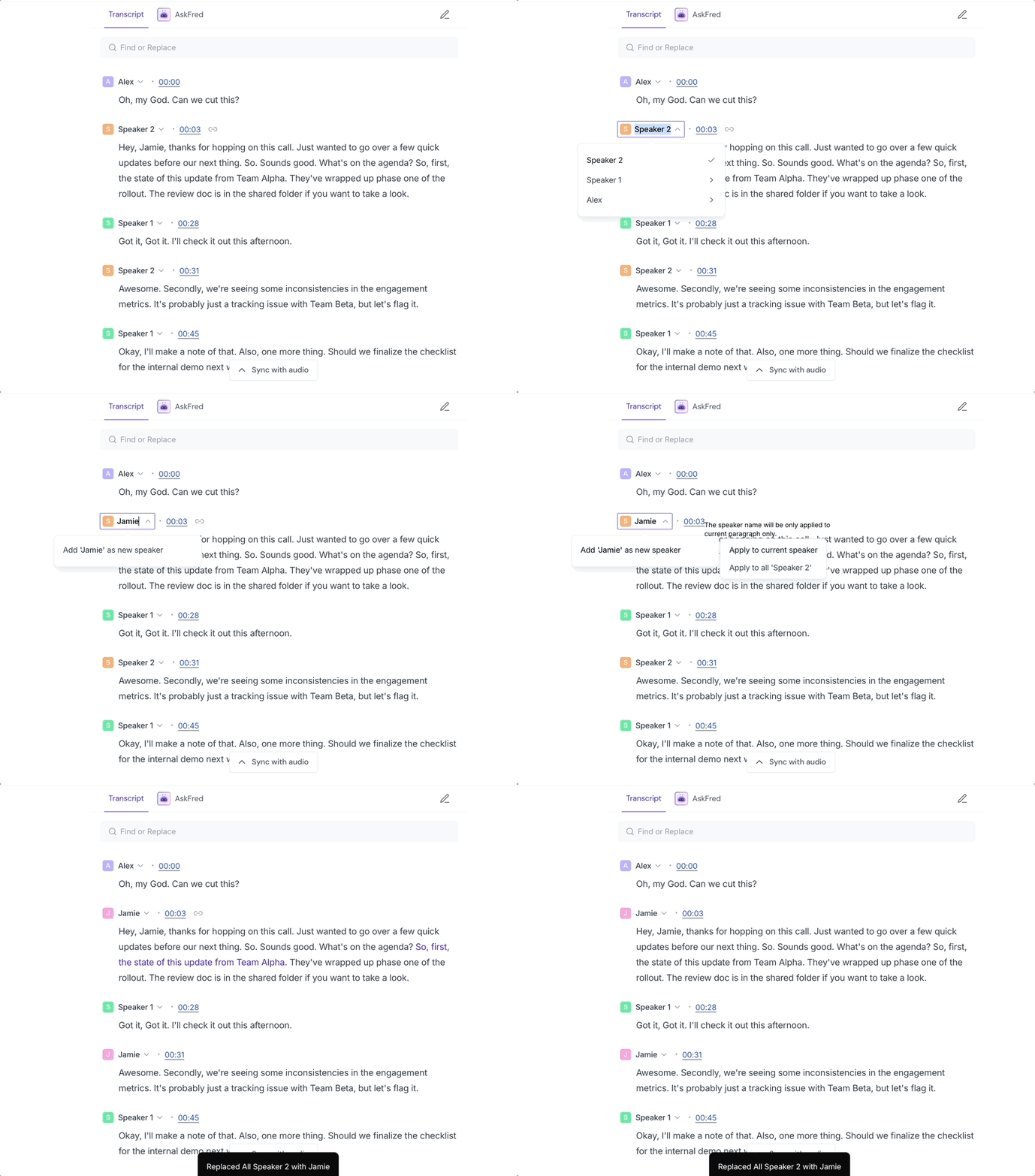
Select the speaker and Type the correct name (e.g., Alex or Jamie)
You have two options. Select the desired one and Save:
✅ Apply to current speaker (only that instance)
🔁 Apply to all “Speaker X” (across the whole transcript)
✂ How to Split a Paragraph Between Multiple Speakers
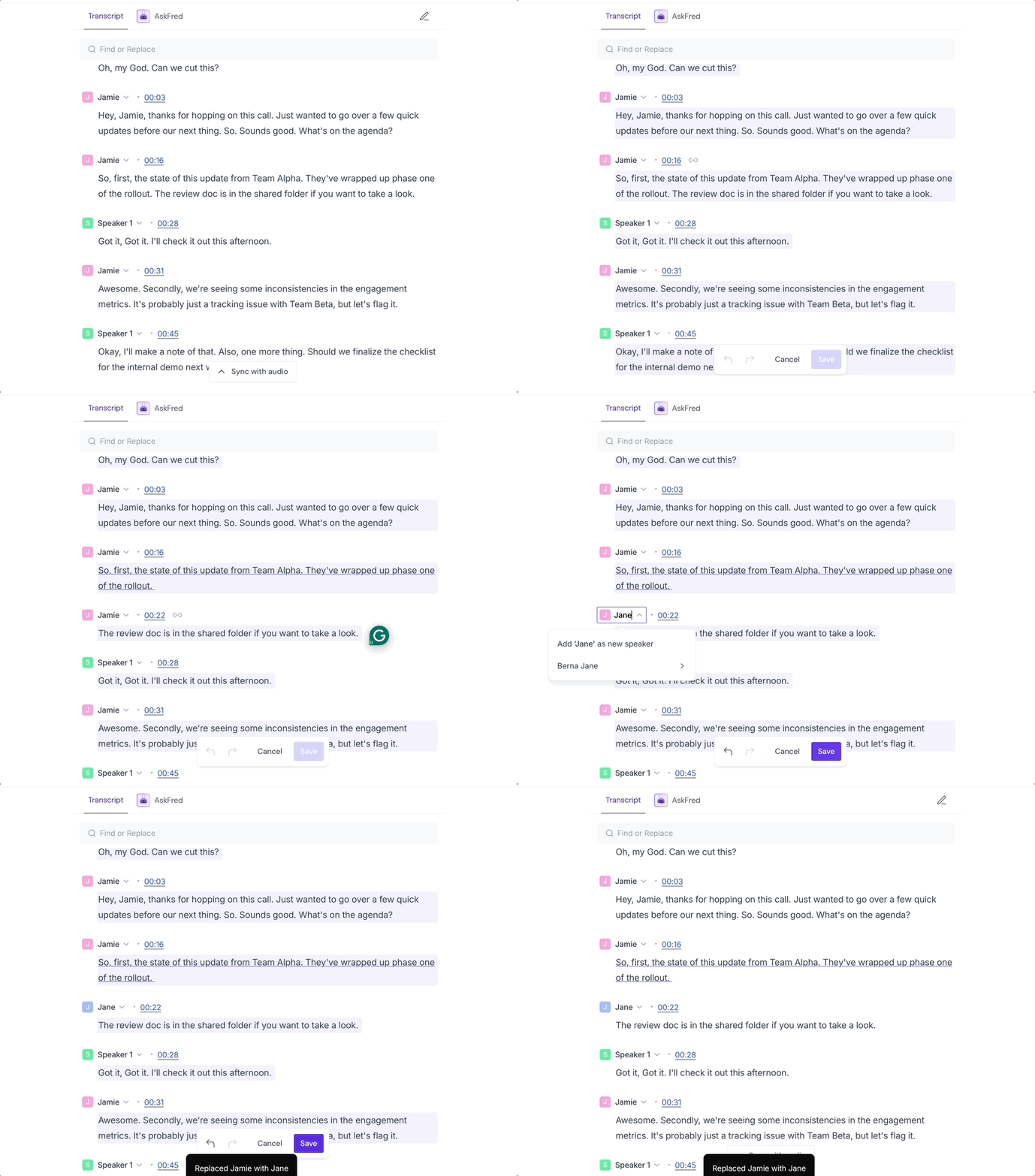
If one paragraph includes lines from two or more people:
Click the ✏ pencil icon to enter edit mode
Press “Enter” where the new speaker’s sentence begins
Click the speaker name beside that new line
Assign the correct name from the dropdown or add a new one
Click Save to confirm your changes
🔁 Regenerate Notes After Editing Speakers
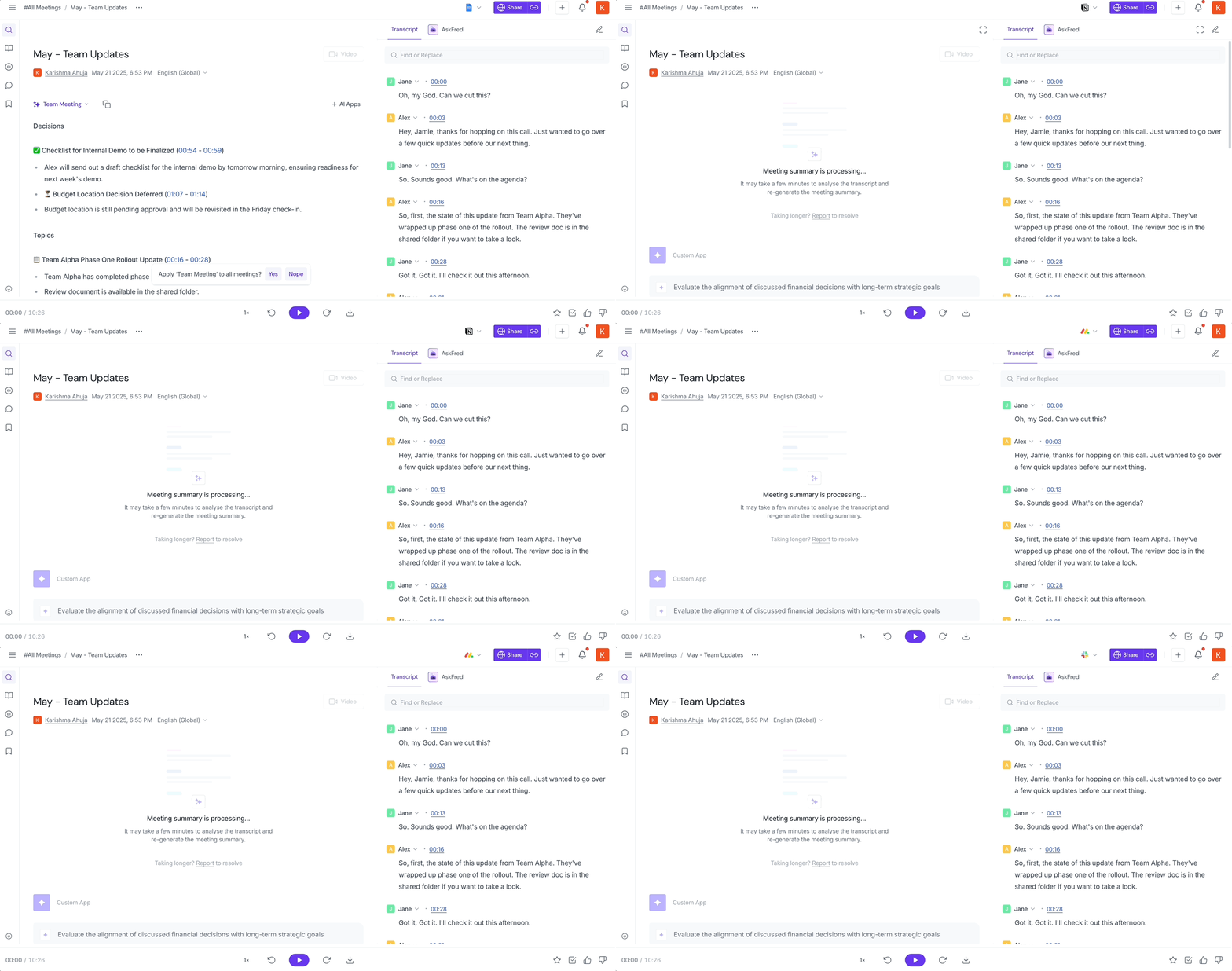
Why this matters: If your meeting has action items or summaries, Fireflies needs the correct speaker labels to assign them properly. To regenerate:
Make your edits to the transcript (click the ✎ icon)
Update speaker labels if needed
Click the ⋮ 3-dot menu > Regenerate. Fireflies will reprocess the summary within minutes.
✅ Pro Tips
Make sure you're the meeting owner to access editing controls
Editing speaker labels does not change the actual audio—it only updates the transcript display
If you’re preparing client-facing notes, cleaning up speaker names makes your summaries more professional