Manual Notes on Fireflies Desktop App: Write and Merge Your Own Notes in Meetings
Last updated: July 28, 2026
While Fireflies already generates AI notes and summaries during meetings, there may still be moments when you want to capture your own thoughts, reminders, or decisions in your own words - right as the conversation happens. Manual Notes give you a personal space to do exactly that alongside AI-generated notes and transcripts.
💡 What is Take Notes?
Take Notes is the one-click meeting capture option on the Fireflies Desktop App. It instantly starts recording using system audio without inviting the Fireflies.ai Notetaker, and automatically opens the real-time Floating Pane so you can view live transcripts, AI notes, and write Manual Notes as the conversation happens.
With Manual Notes, you can:
Write your own notes during live meetings
Add personal reminders or follow-ups
Type notes in your own format or language
Keep notes private for yourself
Merge notes into the AI-generated meeting summary to share with others
🔑 Prerequisites
Before using Manual Notes on the Fireflies Desktop app, make sure:
The Fireflies Desktop app is installed on Windows or macOS
A live meeting or recording is active
The real-time floating pane is open during the meeting
Manual Notes work in:
Bot meetings (Google Meet, Zoom, Microsoft Teams, etc.)
Without-bot recordings using system audio (WhatsApp, phone calls, FaceTime, Discord, etc.)
New to the Fireflies Desktop app? Check out the Getting Started with the Fireflies Desktop App guide to learn how meetings, recordings, and the real-time pane work.
✍ How to Open Manual Notes
Manual Notes become available whenever the real-time pane is open during a meeting or recording.
Option 1: Join a Meeting with a Bot
Join your scheduled calendar meeting:
Start or join your meeting on Google Meet, Zoom, Teams, or any supported platform.
If the meeting is detected automatically, you'll receive a notification - choose to invite Fireflies.ai Notetaker to join.
If prompted, enter the meeting URL and click Invite Notetaker.
Once the Notetaker joins the meeting, the real-time Floating Pane opens automatically.
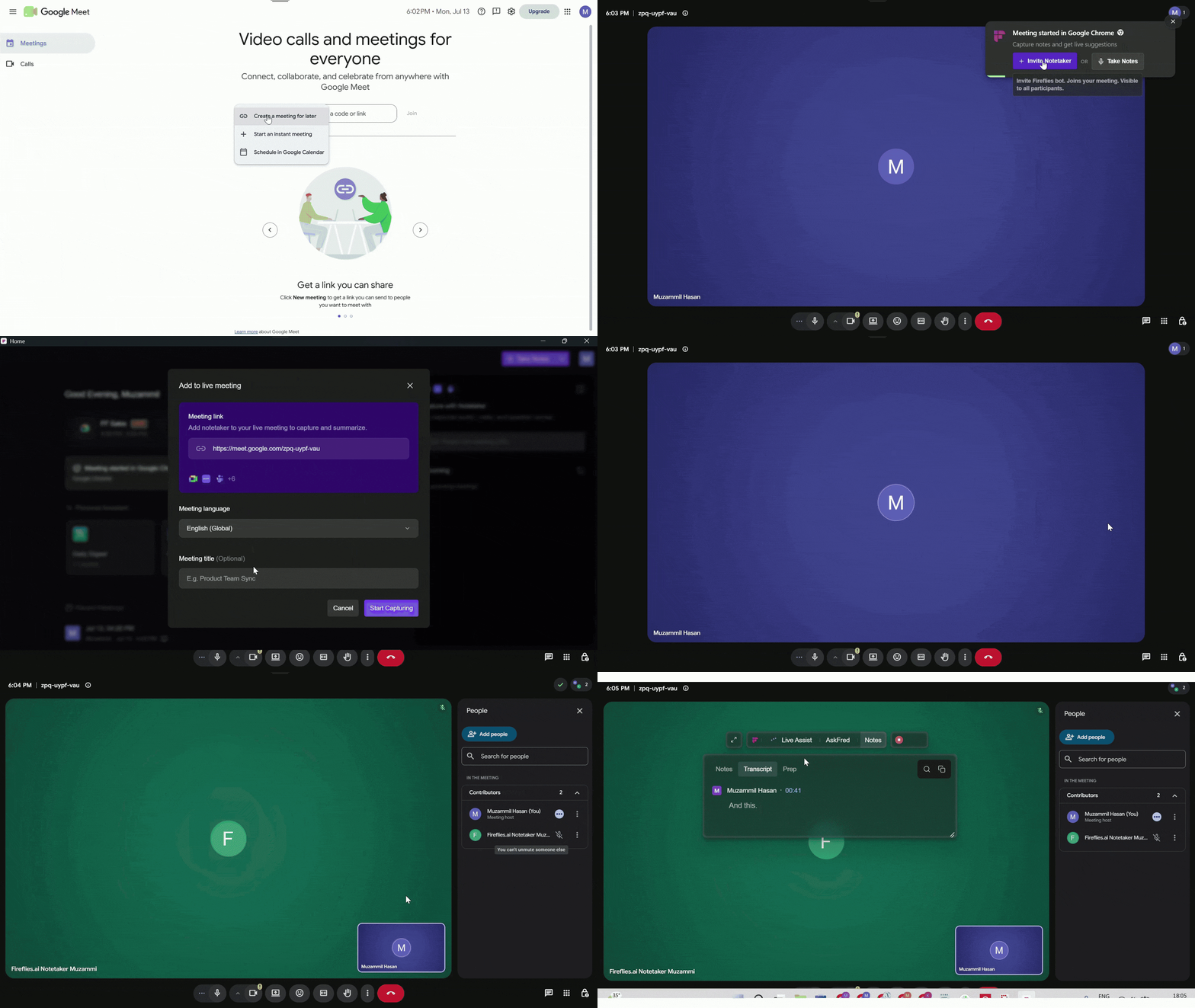
Why am I asked to enter a meeting URL?
When you select Invite Notetaker, Fireflies automatically uses the meeting link if it can detect it from your calendar event or a supported browser.
If it can't identify the meeting link - for example, during an instant meeting without a calendar event, you'll be prompted to enter the meeting URL before the Fireflies.ai Notetaker can join.
Add Fireflies.ai Notetaker to a Live Meeting (Manaully)
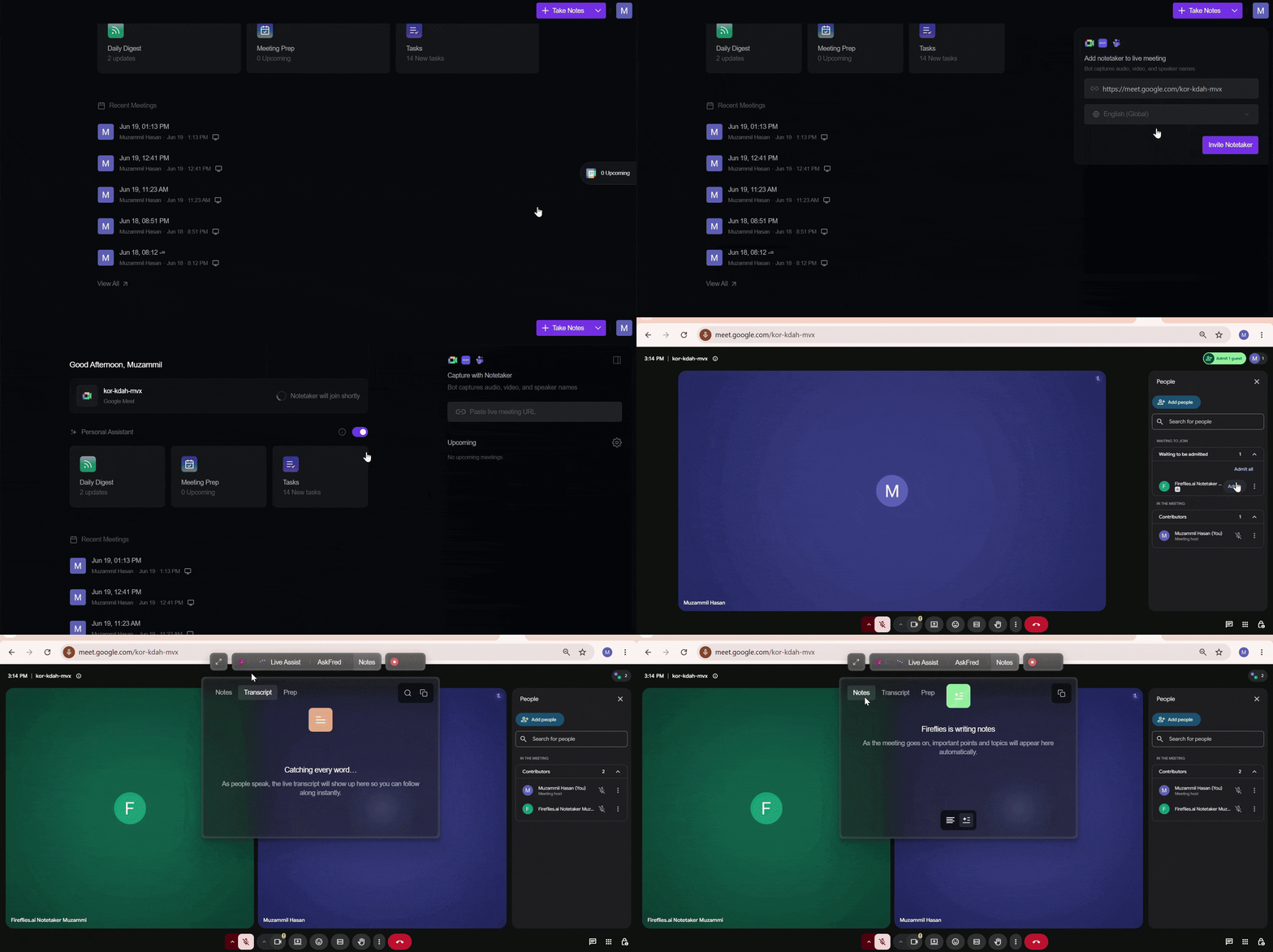
If you're already in a meeting, you can invite Fireflies.ai Notetaker directly from the collapsible panel on the right side of the Desktop App.
Open the right sidebar collapsible panel.
Under Add Notetaker to Live Meeting, paste the meeting URL.
Select the meeting language. By default, Fireflies uses English (Global), but you can choose the language spoken in the meeting to improve transcription accuracy.
Click Invite Notetaker.
Once added, Fireflies captures the conversation and creates a transcript, summary, and key points that you can review later.
Option 2: Record Meetings (System Audio – No Bot Required)
Use system audio recording when you want to capture conversations without inviting the Fireflies.ai Notetaker to the meeting. It records audio directly from your computer, allowing you to capture meetings, audio notes, in-person conversations, and phone calls across a wide range of apps.
When you use Take Notes:
Fireflies captures system audio from your device
Live Assist Floating pane opens automatically
Real-time transcripts and notes are generated
No bot joins the meeting
Audio and video files are not saved
Speaker labels are not available (you’ll see Speaker 1 / Speaker 2)
Multilingual detection is supported
You can do this in two ways:
Manually - Click Take Notes to immediately start capturing system audio from your computer. This works across a wide range of supported apps and browsers - no bot required.
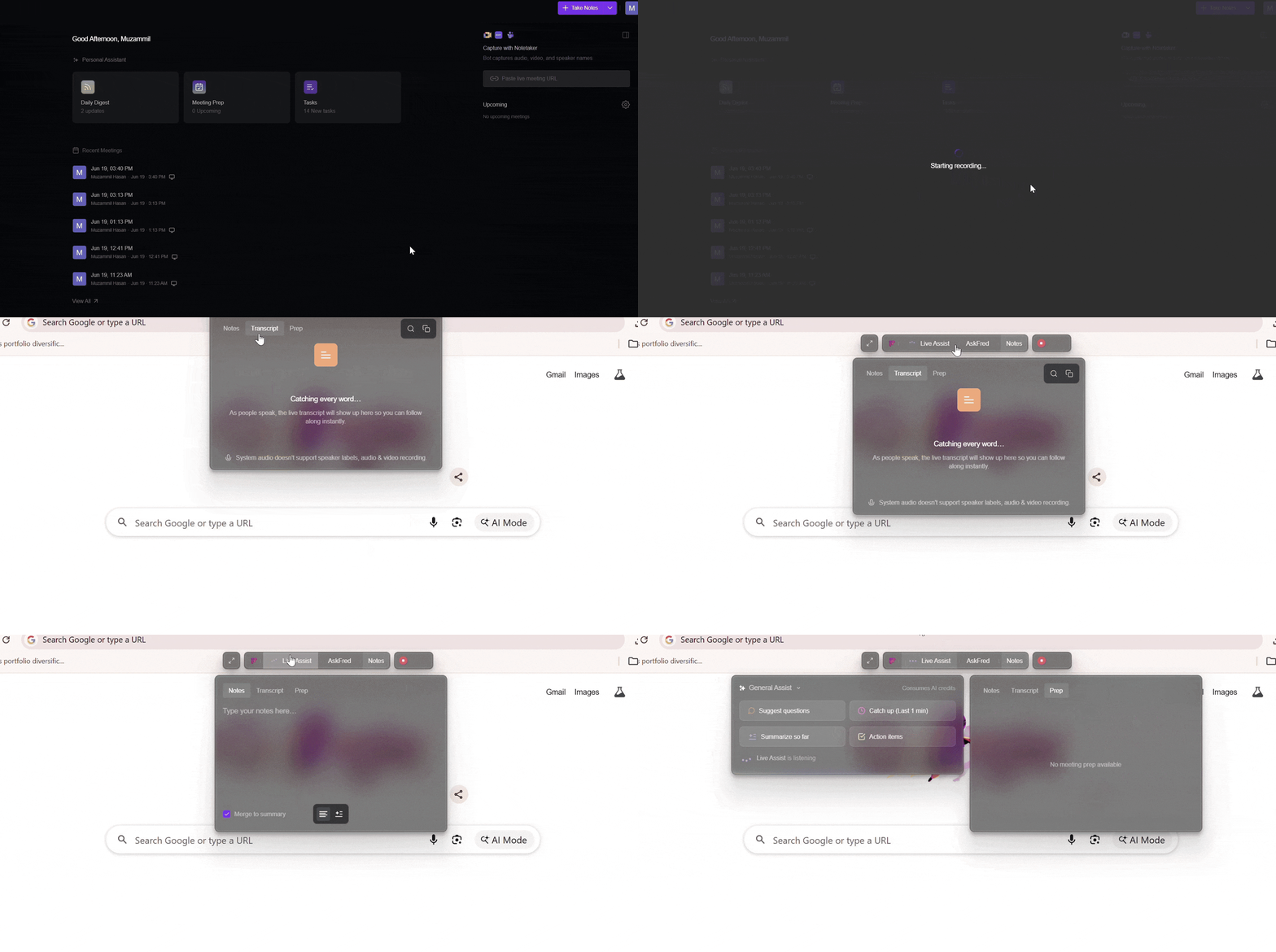
Automatically - Fireflies auto-captures supported apps and notifies you to start recording (without bot) or invite Fireflies.ai Notetaker ( with bot).
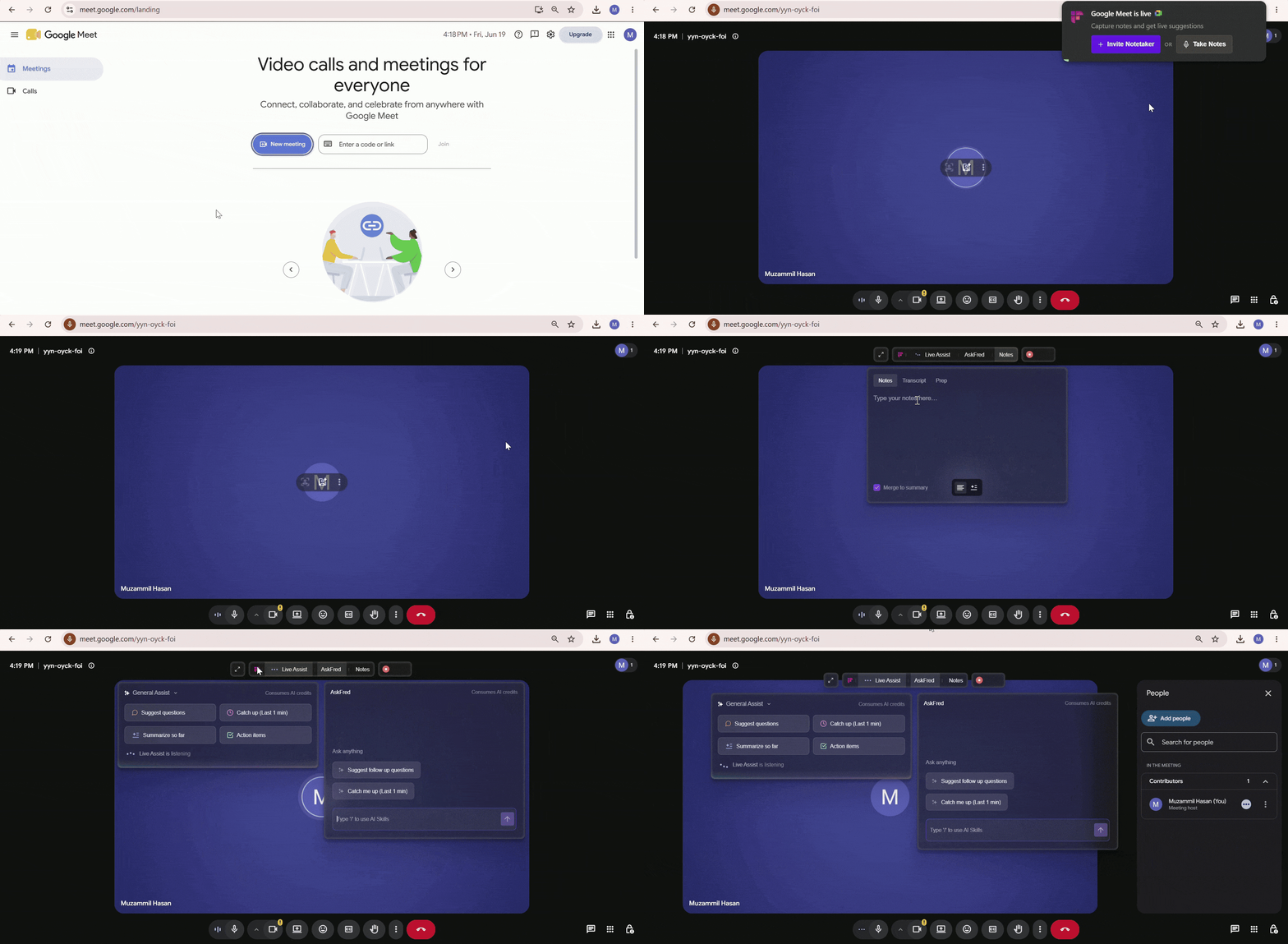
The real-time pane opens automatically as a floating overlay on your screen. To learn more about it, see Getting Started with the Fireflies Desktop App.
📝 Use Manual Notes in the Real-Time Pane
Once the real-time pane opens during your meeting or recording:
1. Click the Notes tab in the floating pane.
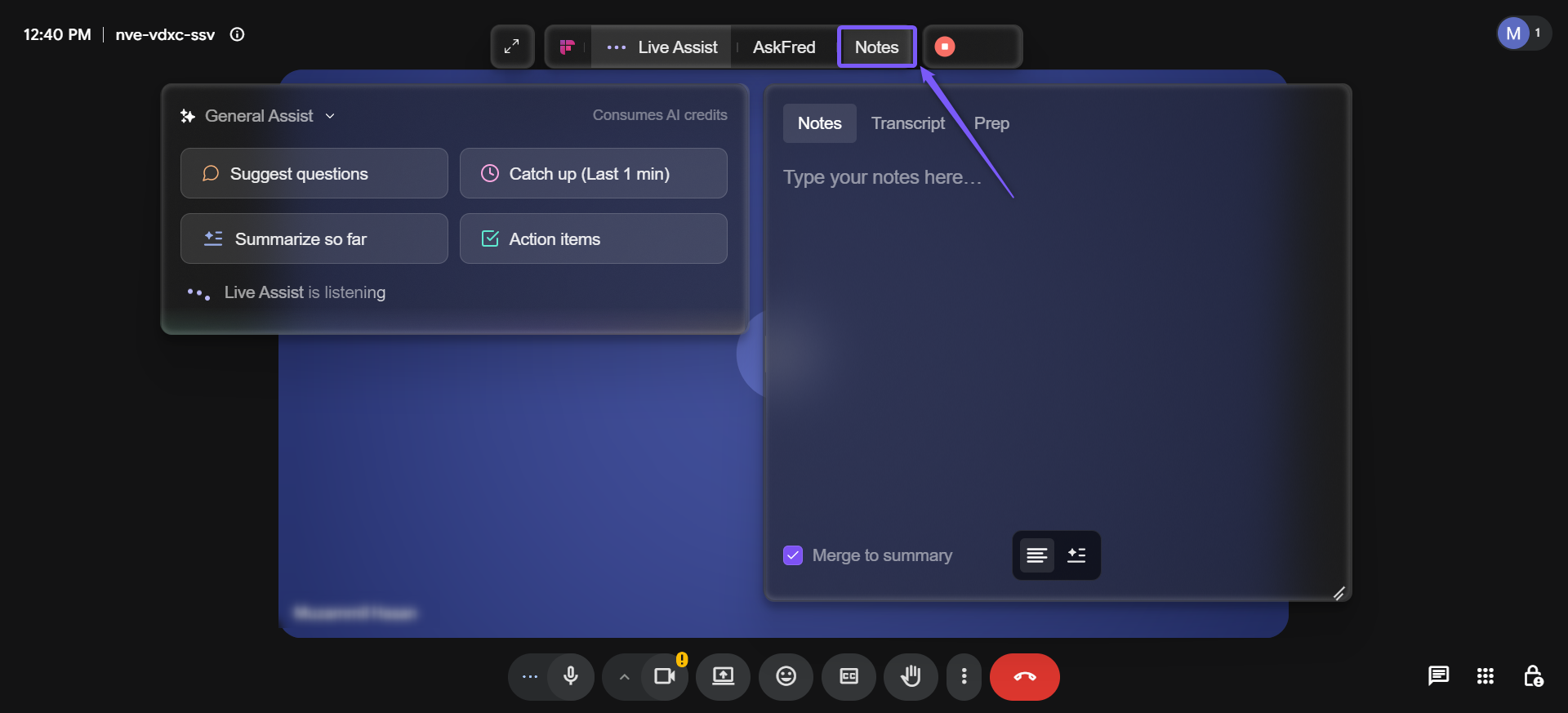
2. Inside the floating pane, you'll see three tabs:
Notes: Contains both AI Notes and Manual Notes
Transcript: Shows the live conversation transcript in real time
Prep: Displays meeting prep and related context when available
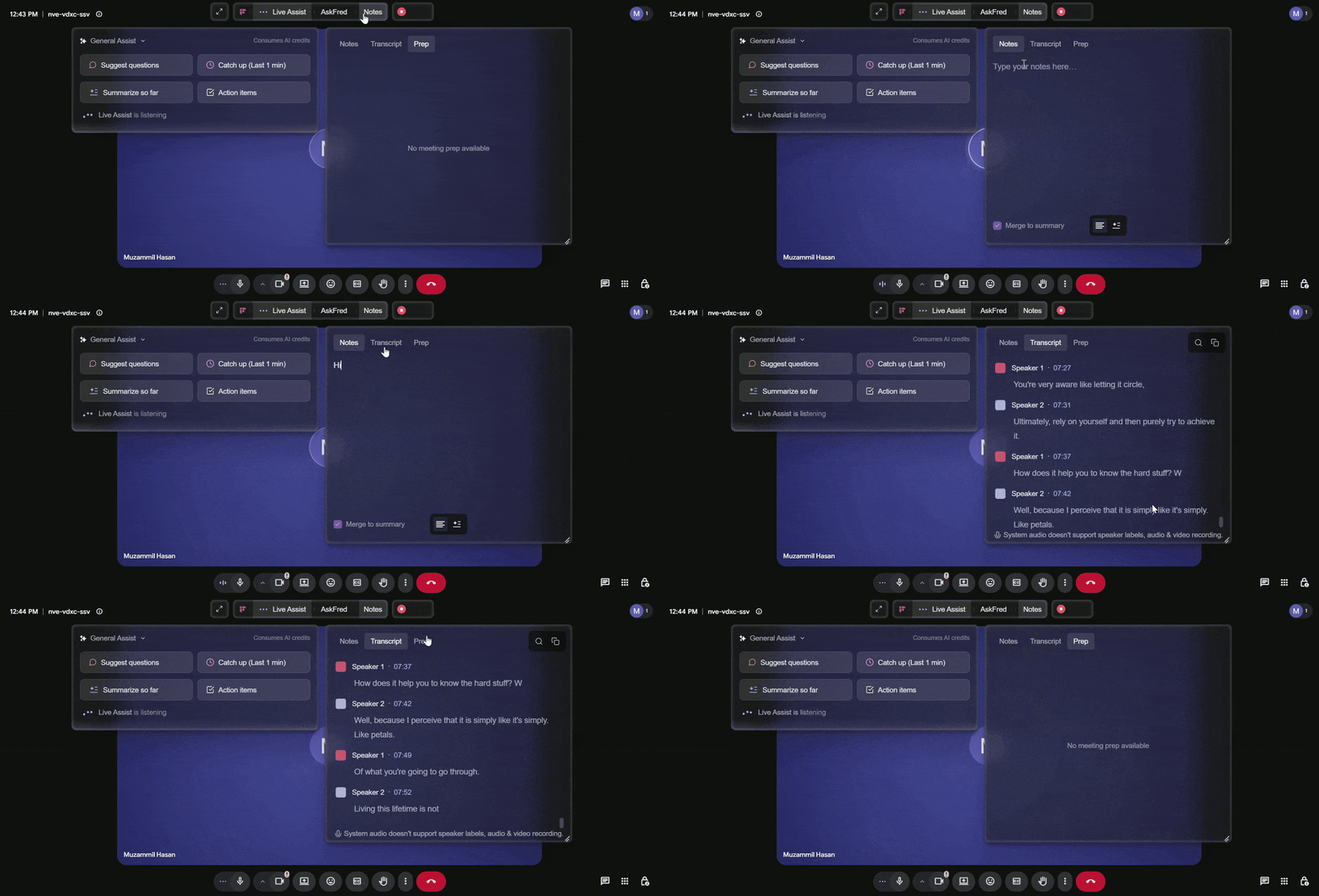
3. In the Notes section, use the toggle at the bottom-right corner to switch between:
Manual Notes (≡): Your own personal notes area
AI Notes (✦≡): AI-generated notes updated during the meeting
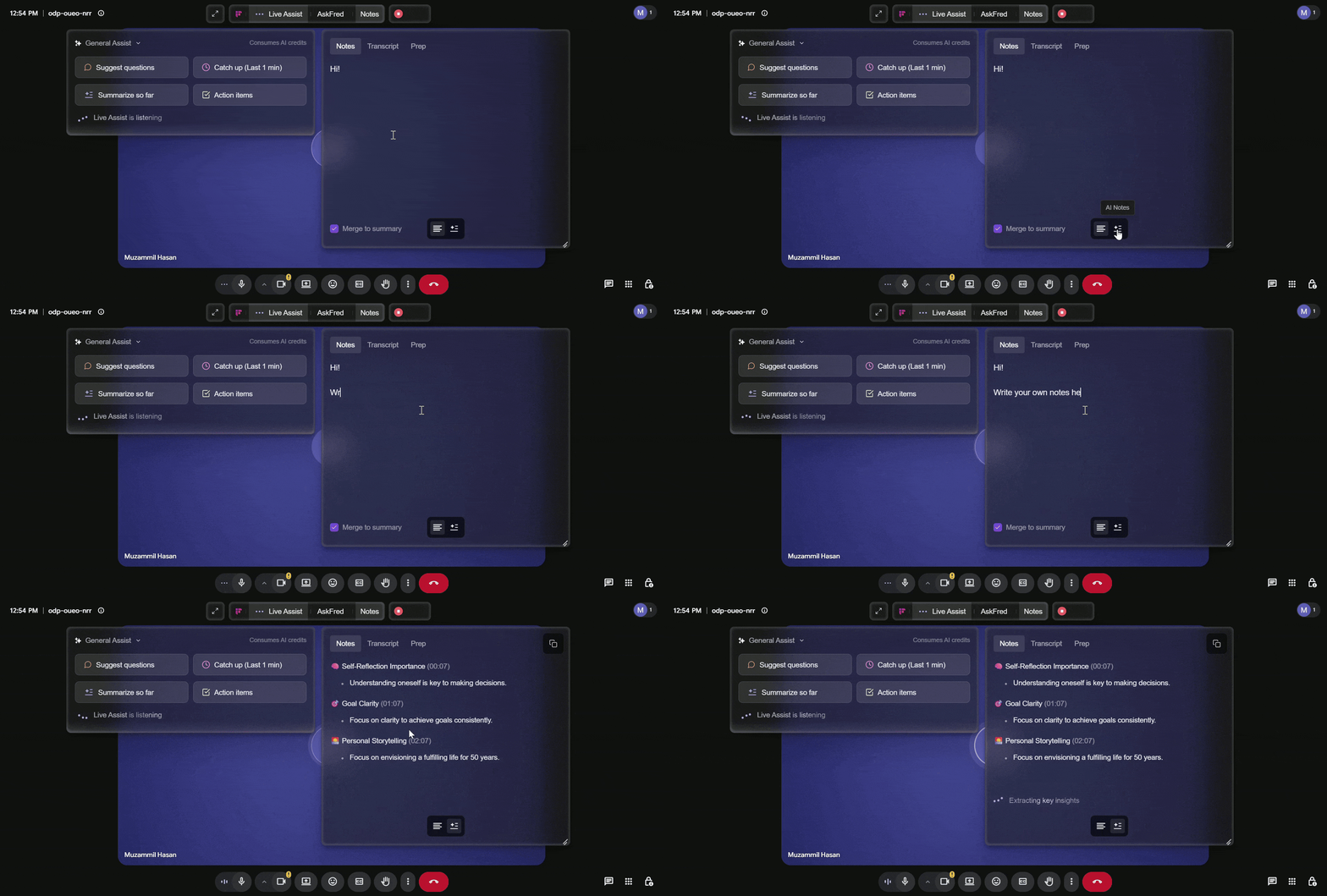
4. Select Manual Notes and start typing your own thoughts, reminders, action items, or discussion points during the meeting.
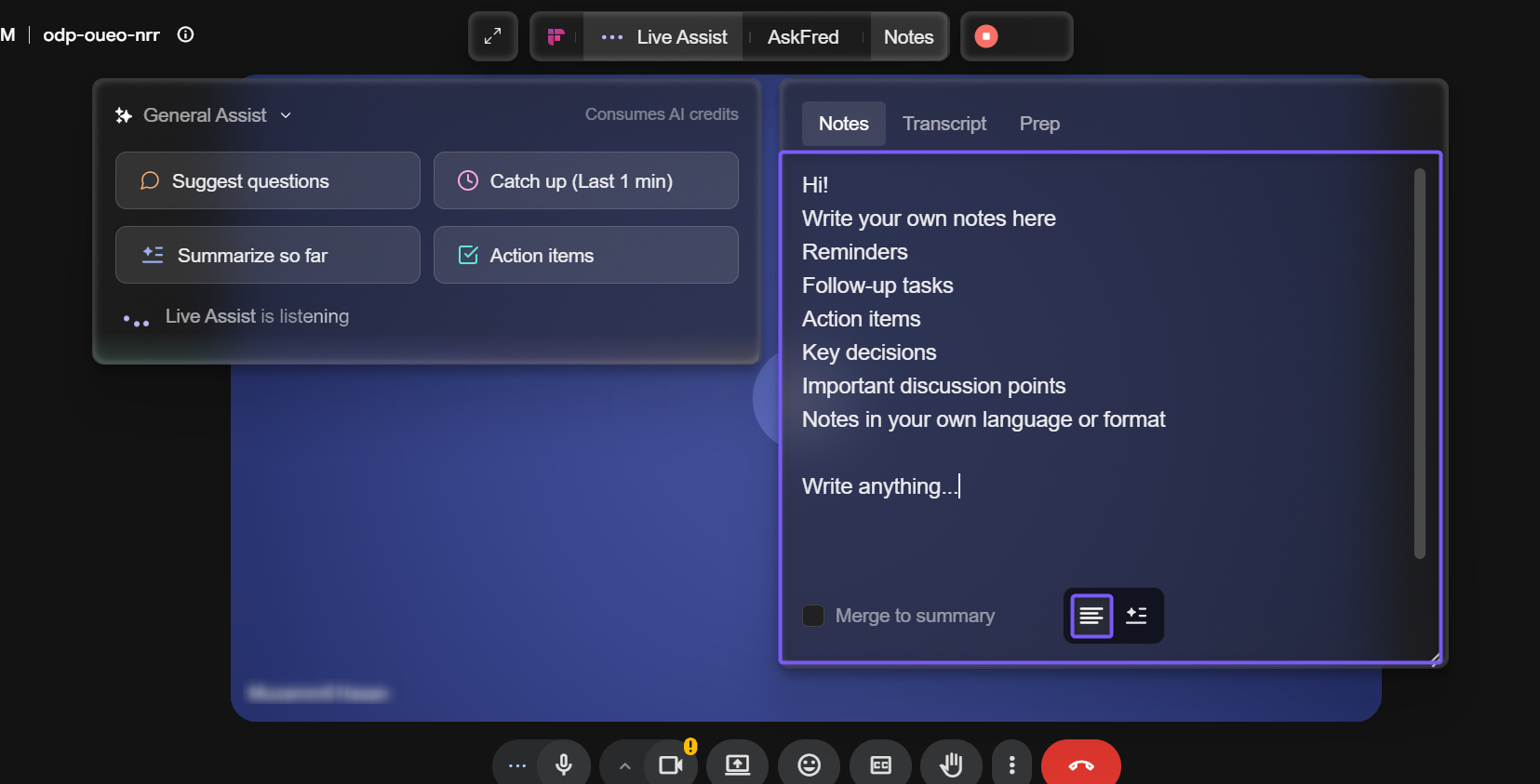
5. If you want to merge your Manual Notes with the AI-generated meeting summary, enable the Merge to summary checkbox at the bottom-left corner of the Notes panel.
Privacy note: If you enable Merge to summary, your Manual Notes become part of the AI-generated meeting summary and are visible to everyone with access to the meeting recap. Leave this option disabled if you want to keep your notes private.
🔄 Changed your mind? Even after the meeting ends, you can remove merged Manual Notes. See Remove Merged Manual Notes from a Summary below for the steps.
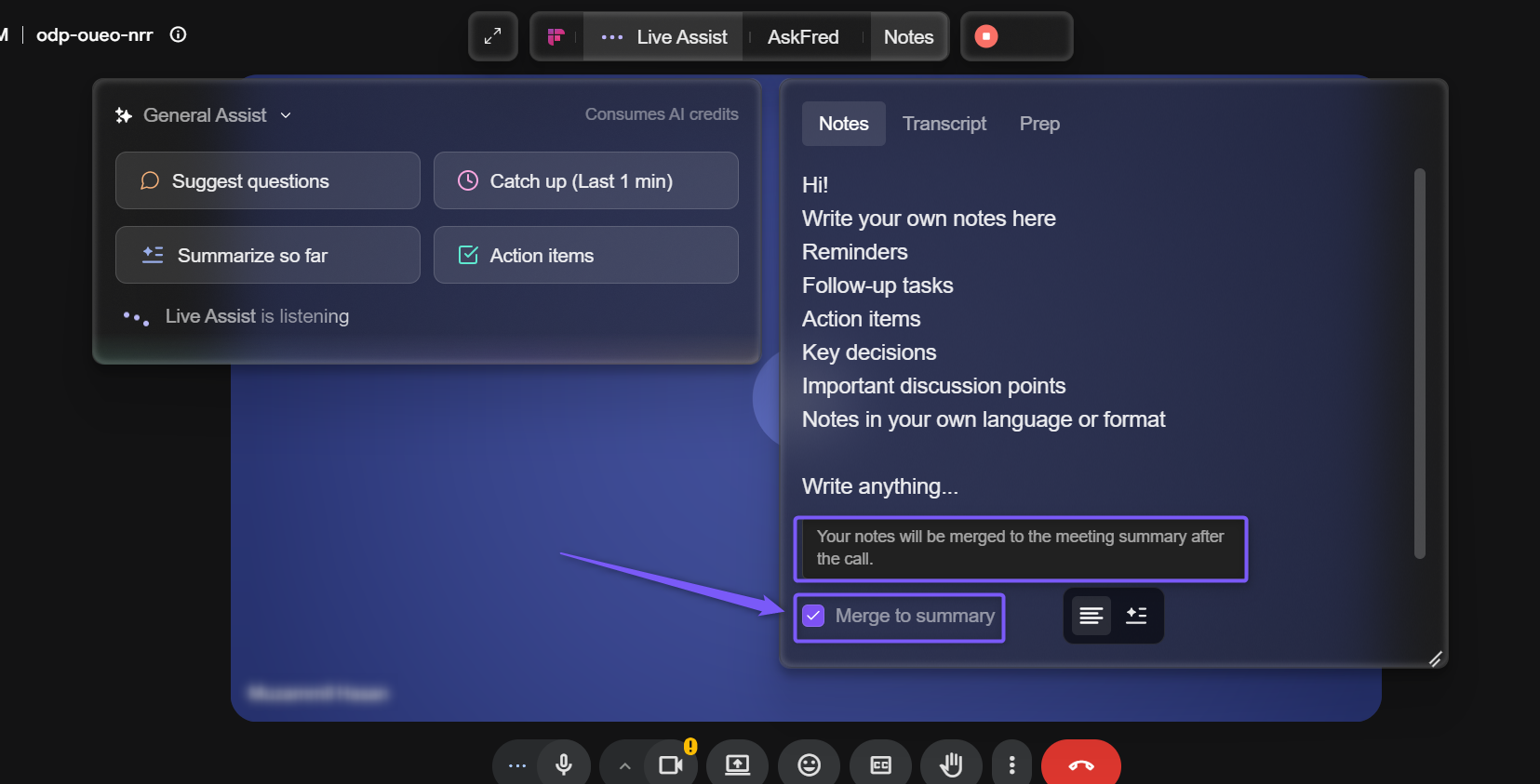
✅ Your Manual Notes are saved automatically, and you can access them later in the meeting notepad after the meeting ends.
📒 View Manual Notes After the Meeting
Once the meeting or recording ends, your Manual Notes are saved in the Fireflies meeting notepad.
Open your meeting recap in Fireflies.
In the meeting notepad, you'll see the My Notes section.
Your Manual Notes remain private unless you enabled Merge to summary during the meeting.
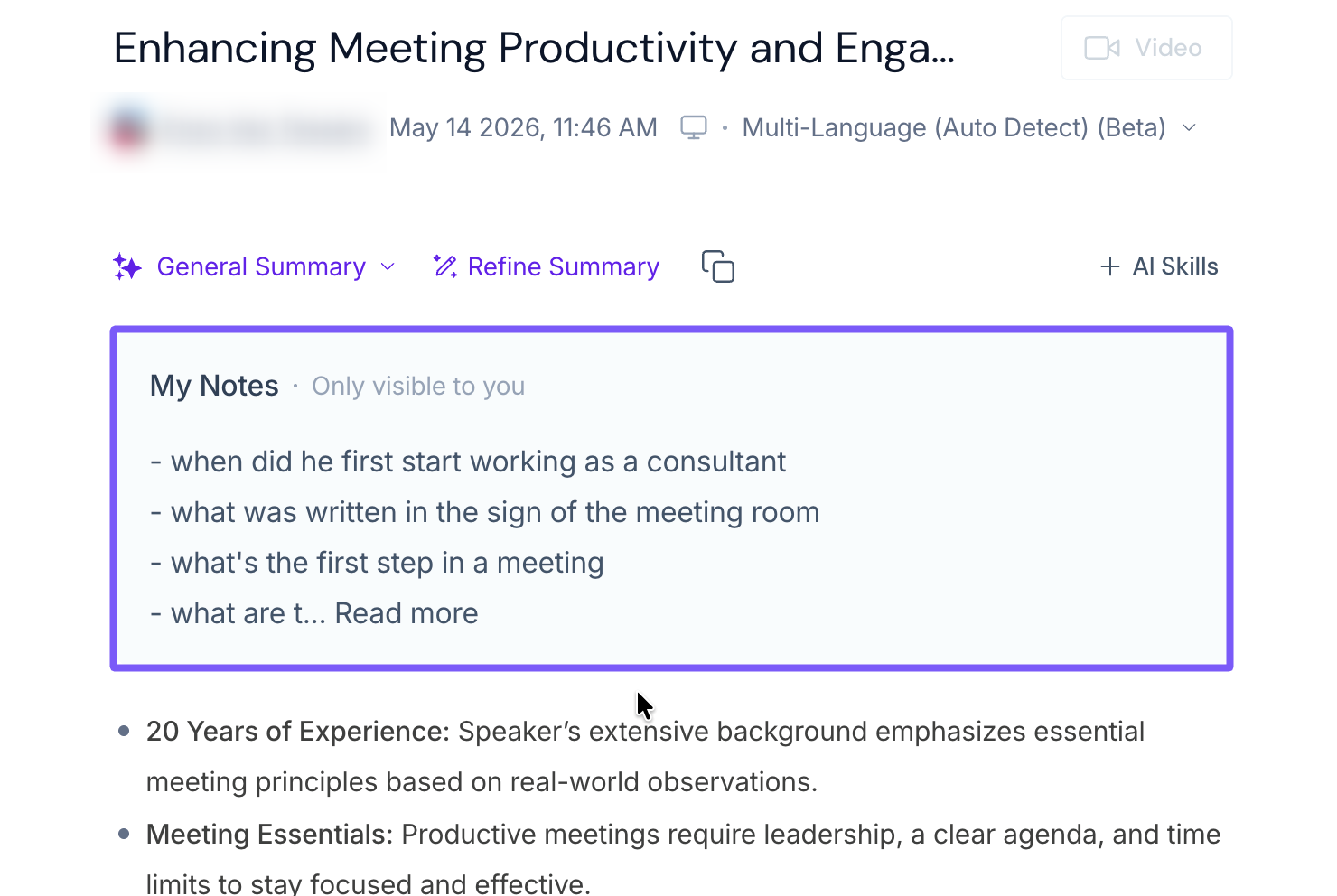
🔄 If You Enabled “Merge to summary”
If you enabled the Merge to summary checkbox during the meeting:
Your Manual Notes are merged into the AI-generated meeting summary
Anyone with access to the meeting recap can also view the merged content
Merged content appears underlined in the summary, making it easy to identify which parts came from your Manual Notes
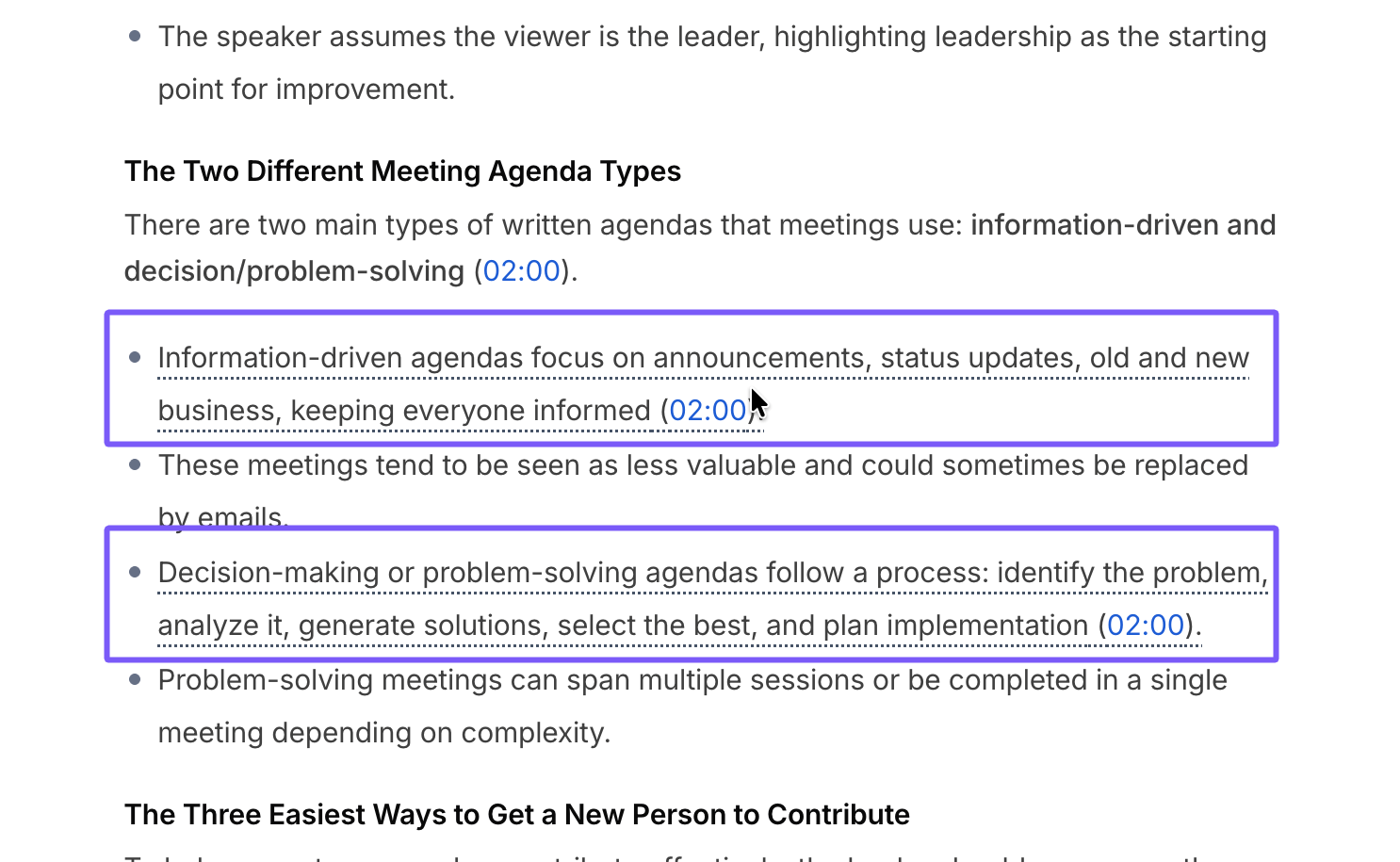
🗑 Remove Merged Manual Notes from a Summary
If you want to remove previously merged Manual Notes from a meeting summary:
Open the meeting recap in Fireflies.
Re-select the meeting note template and regenerate the summary.
This removes the previously merged Manual Notes from the AI-generated summary.
👉 Learn more about regenerating and customizing summaries in the Fireflies AI Meeting Summaries: View, Customise, Expand & Regenerate guide.
📌 Important to Know
When Merge to summary is enabled, your Manual Notes will be merged into the AI-generated meeting summary and visible to everyone with access to the meeting.
Merged notes appear as underlined text inside the summary, so you can identify which parts were influenced by your manual input.
Merging may fail if the meeting is using a custom note template, as it can conflict with the template's fixed structure. If this happens, regenerate the summary and re-select a template to remove the merged notes.
Your Manual Notes are always visible to you in the meeting notepad after the call, regardless of whether you choose to merge them or not.
❓ Frequently Asked Questions
1. Can other participants see my Manual Notes?
No. Manual Notes stay private and are only visible to you in the meeting notepad unless you enable Merge to summary.
2. What happens when I enable “Merge to summary”?
Your Manual Notes are merged into the AI-generated meeting summary and become visible to everyone who has access to the meeting recap.
Merged content appears underlined in the summary, making it easy to identify which parts came from your Manual Notes.
3. Why didn’t my Manual Notes merge into the summary?
First, check whether the Merge to summary checkbox was enabled during the meeting.
If it was enabled and your notes still didn’t merge, the meeting may be using a custom note template. In some cases, custom template structures can conflict with merged Manual Notes.
4. How do I remove merged Manual Notes from a summary?
Open the meeting recap, regenerate the summary, and re-select the meeting note template.
👉 Learn more about regenerating summaries and changing templates in the Fireflies AI Meeting Summaries guide.
5. Do Manual Notes work without a bot?
Yes. Manual Notes work in both:
Meetings where Fireflies.ai Notetaker joins
System audio recordings without a bot
6. Can I use Manual Notes during phone calls or WhatsApp calls?
Yes. Manual Notes work during supported system audio recordings, including phone calls, WhatsApp, FaceTime, Discord, Slack Huddles, and other supported apps.
7. Can I type Manual Notes in my own language?
Yes. You can write Manual Notes in any language or format.
🔄 Recap
Manual Notes on the Fireflies Desktop app help you write your own notes during meetings directly inside the real-time pane.
You can:
Write personal reminders, action items, and discussion points
Keep notes private for yourself
Merge notes into the AI-generated meeting summary
Use Manual Notes in both bot meetings and system audio recordings
Review your notes later from the meeting notepad
🔗 Related Guides
💬 If you feel stuck while using Manual Notes or notice anything that could be improved, we’d really appreciate your feedback. Contact our support team anytime through Fireflies Support.