How to Record Meetings Without a Bot on the Fireflies Desktop App
Last updated: August 28, 2026
Want to capture a meeting without adding a bot to the call? You can still record it.
Recording without a bot captures your meetings and calls using your computer’s system audio. No Fireflies.ai Notetaker joins the call, while built-in consent and notification options can help keep participants informed.
Whether you're on a phone call, a WhatsApp chat, FaceTime, Aircall, Discord, an in-person conversation, or any other supported application — Fireflies records it all for you automatically without a bot.
Here's how it works 🚀
Recording without a Fireflies.ai Notetaker (bot) does not save audio or video files. Fireflies captures system audio and generates a transcript and summary once the meeting ends.
💡 When to Use Recording Without a Bot
Recording without a bot is helpful when you want to capture a conversation without adding the Fireflies.ai Notetaker to the meeting.
You might choose this option if:
You’re in an internal meeting and prefer not to add a visible bot
You’re on a phone call (iPhone or Android)
You’re using apps like WhatsApp, Discord, Aircall, or Slack
You’re having an in-person conversation
You want to capture a meeting without adding the Fireflies Notetaker to the call
This lets you capture and summarize the conversation while using the available consent and notification options to keep participants informed.
🔴 How to Record Without a Bot
You can record without a bot in two ways: manually or using auto-detection.
Option 1: Start Manually
1. Open the Fireflies Desktop app on your Windows or Mac computer.
2. Click the Take Notes button located in the top-right corner.
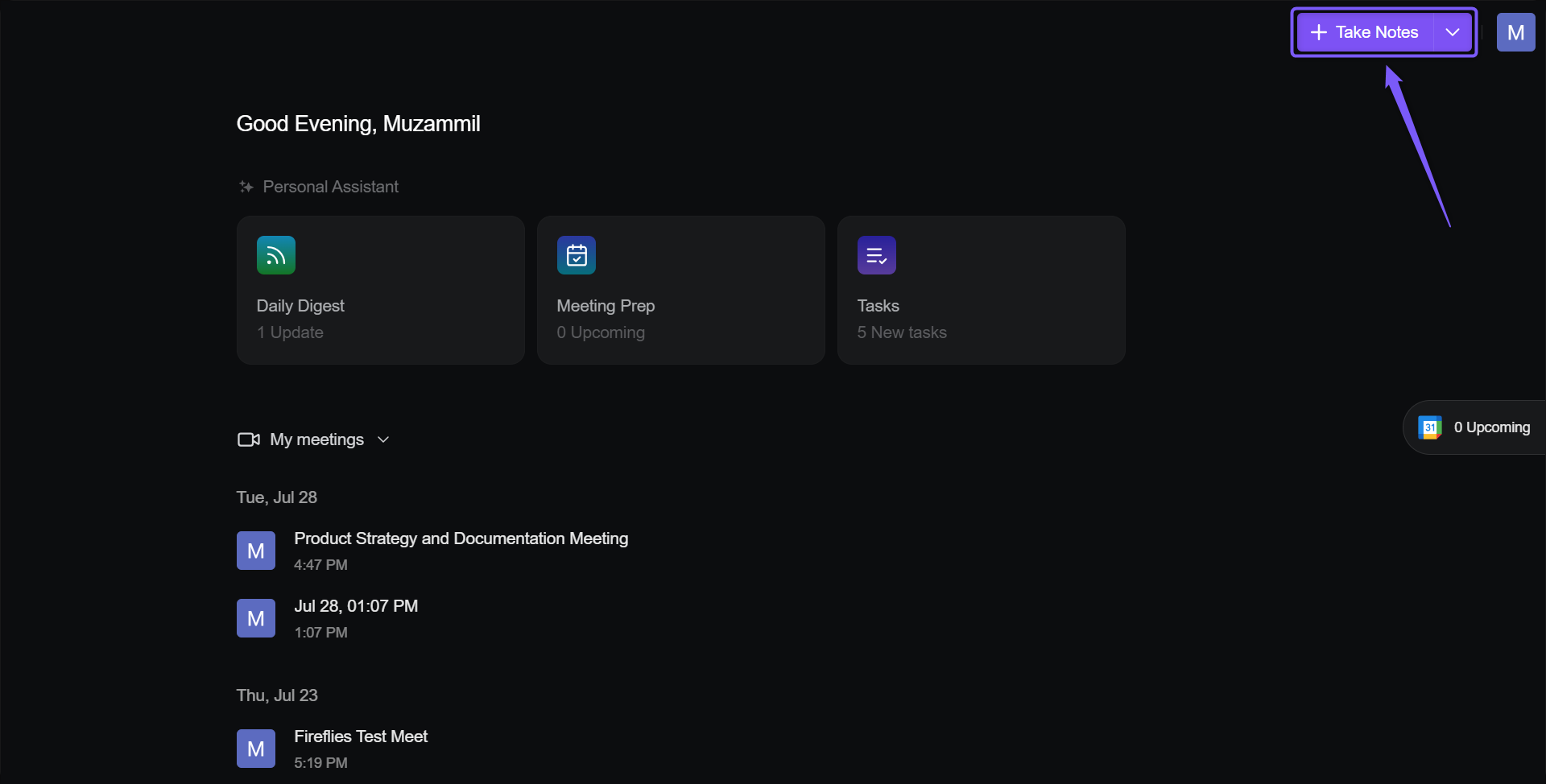
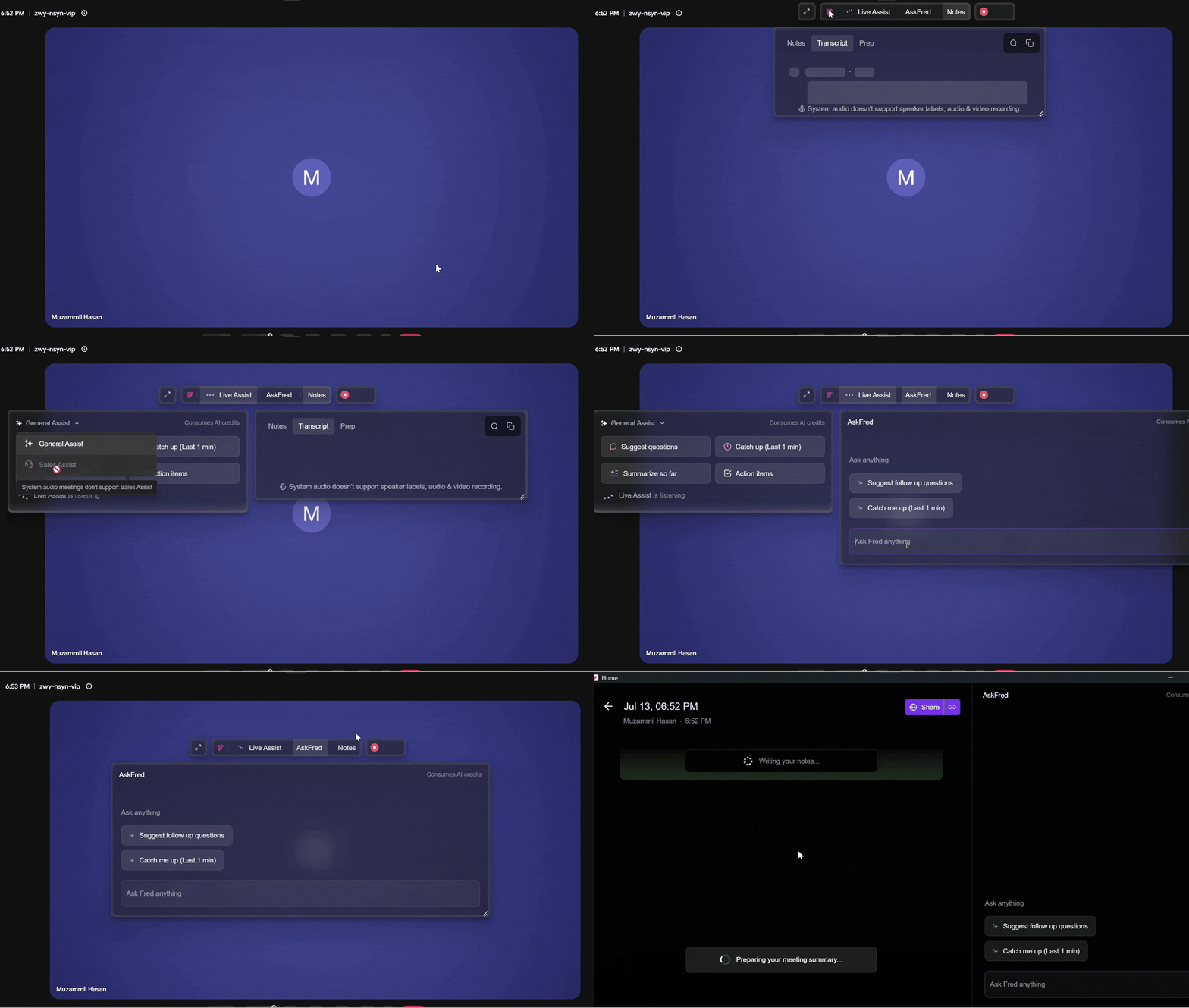
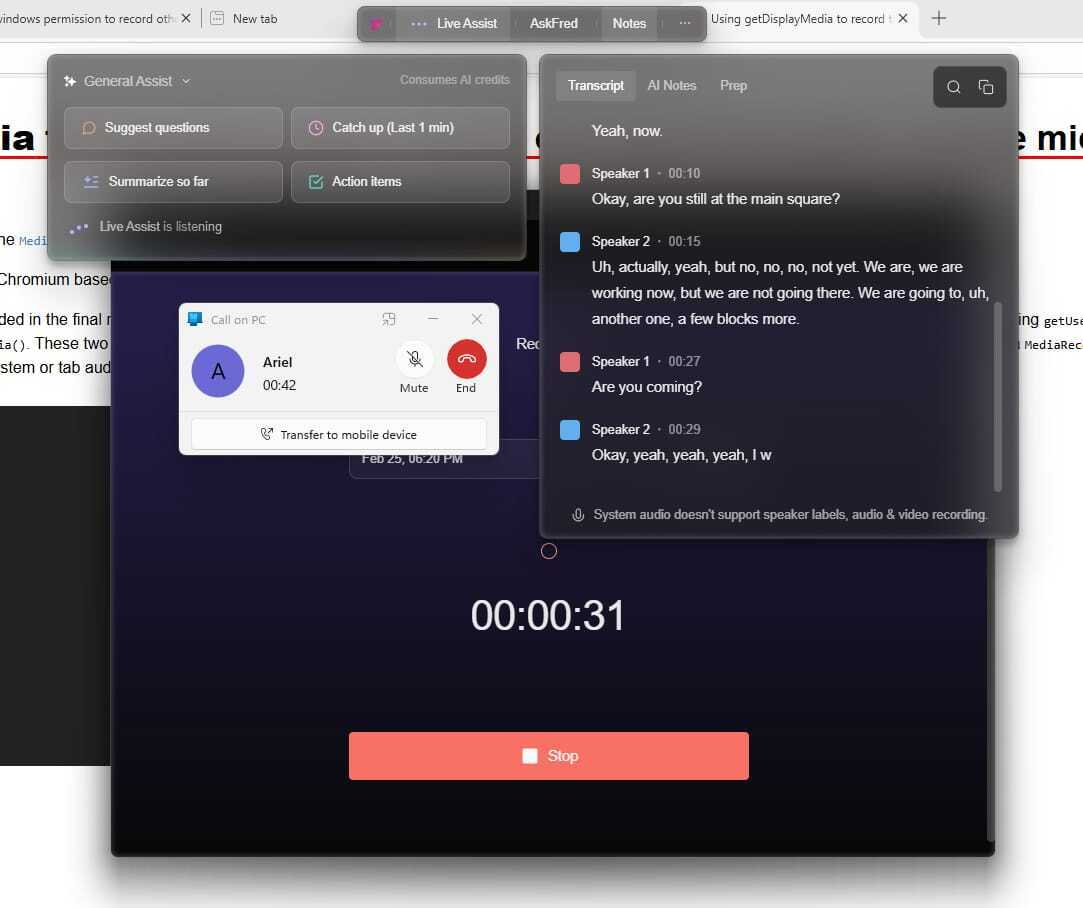
3. Fireflies immediately starts capturing system audio from your device, and the Floating Pane opens automatically. During the meeting, you can:
View live transcripts and notes.
Use AskFred and AI Skills.
Take your own Manual Notes.
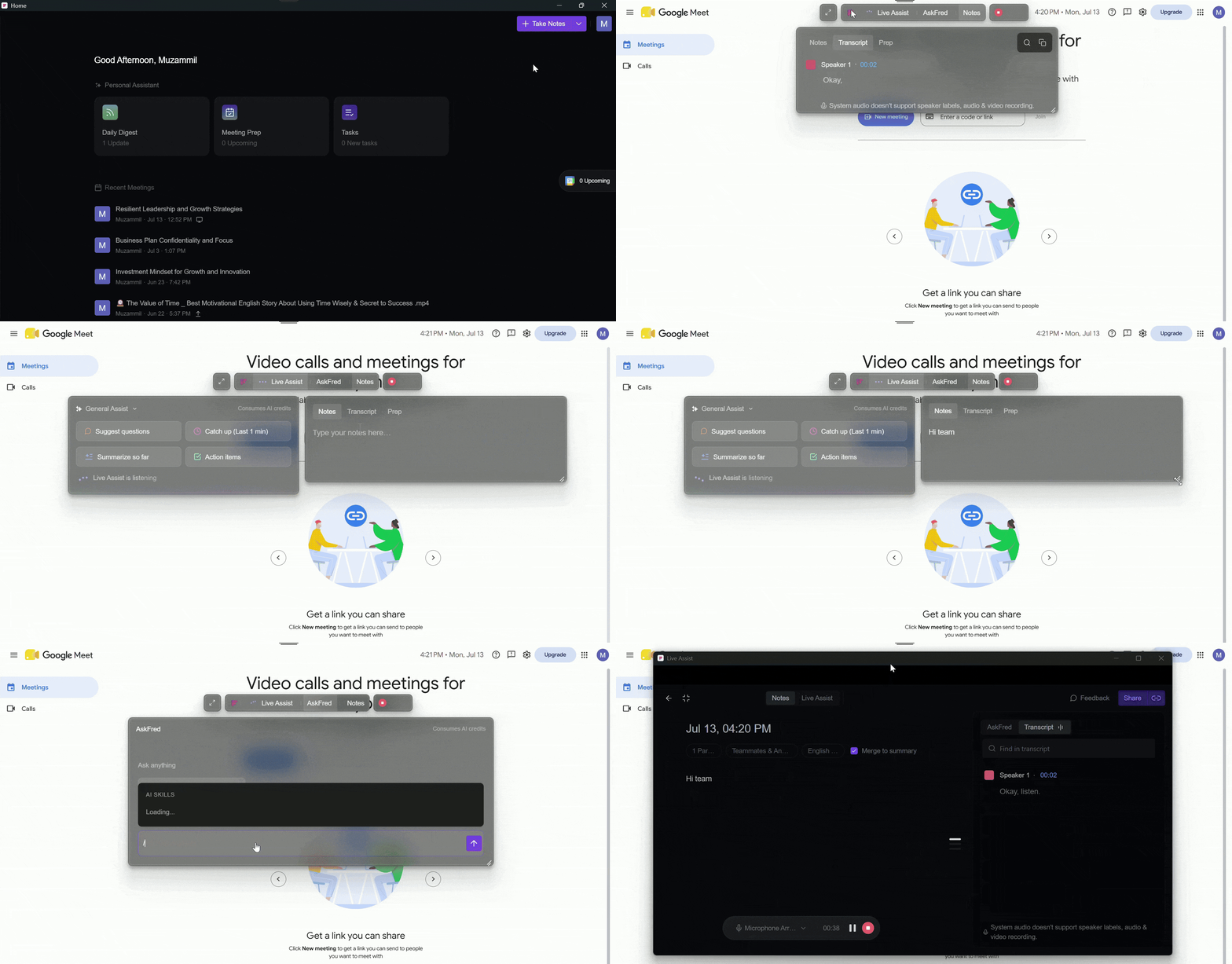
Once the meeting or conversation ends. Fireflies will automatically process the recording and generate the meeting notes and summary.
Option 2: Automatic Meeting Detection
If you’re using a supported app or are on a conferencing platform like Zoom, Google Meet, WhatsApp, Aircall, FaceTime, or Discord, the Desktop app can automatically detect the call.
1. Start or join your call on a supported app or platform.
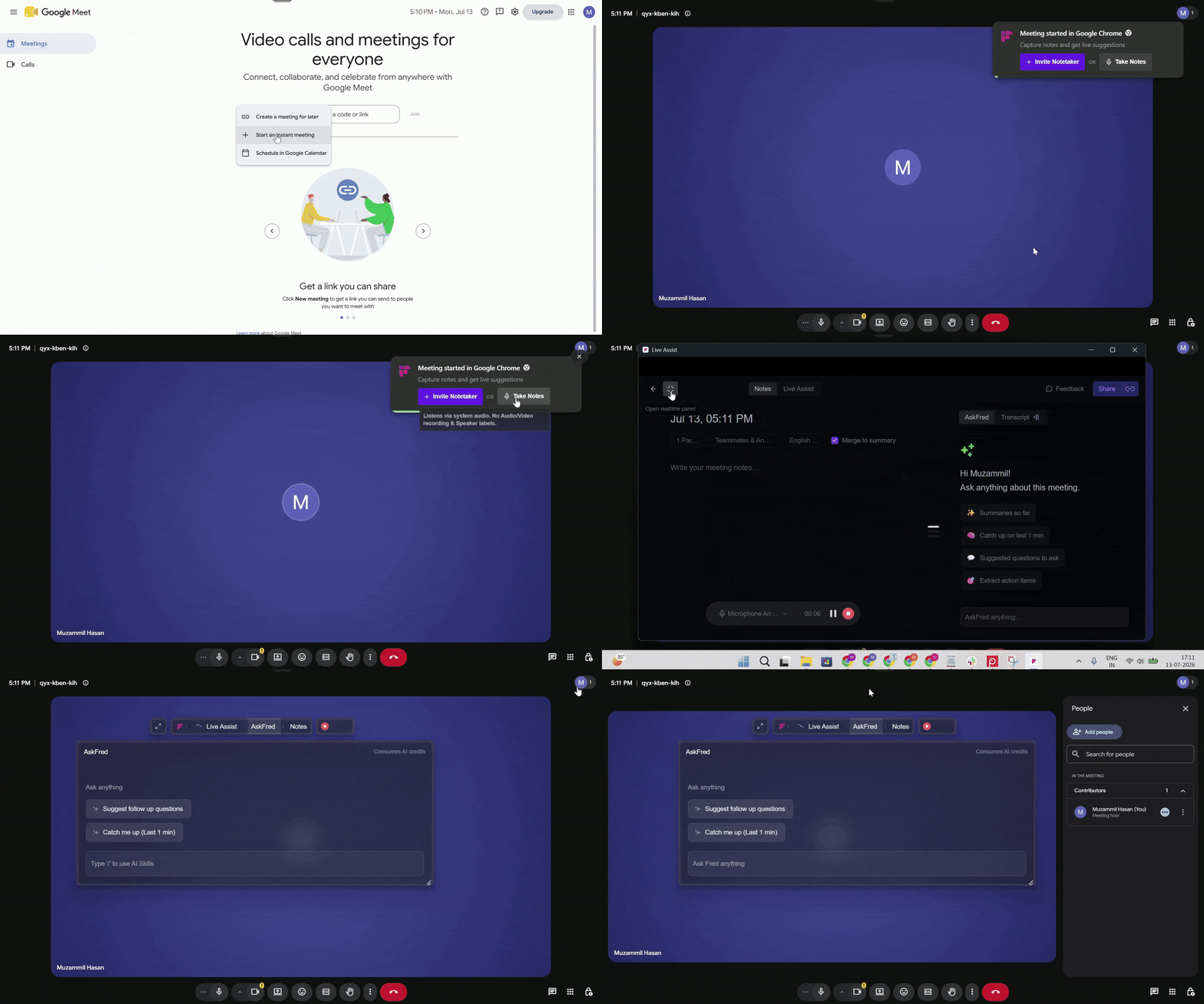
2. When Fireflies detects the meeting, a desktop notification appear in the top-right corner of your screens.
3. Choose one of the following:
Invite Notetaker – Invites Fireflies.ai Notetaker to join the meeting.
If Fireflies detects the meeting link automatically (for example, from your calendar event), the Notetaker is invited immediately. If your meeting platform requires approval, simply admit the Notetaker to join.
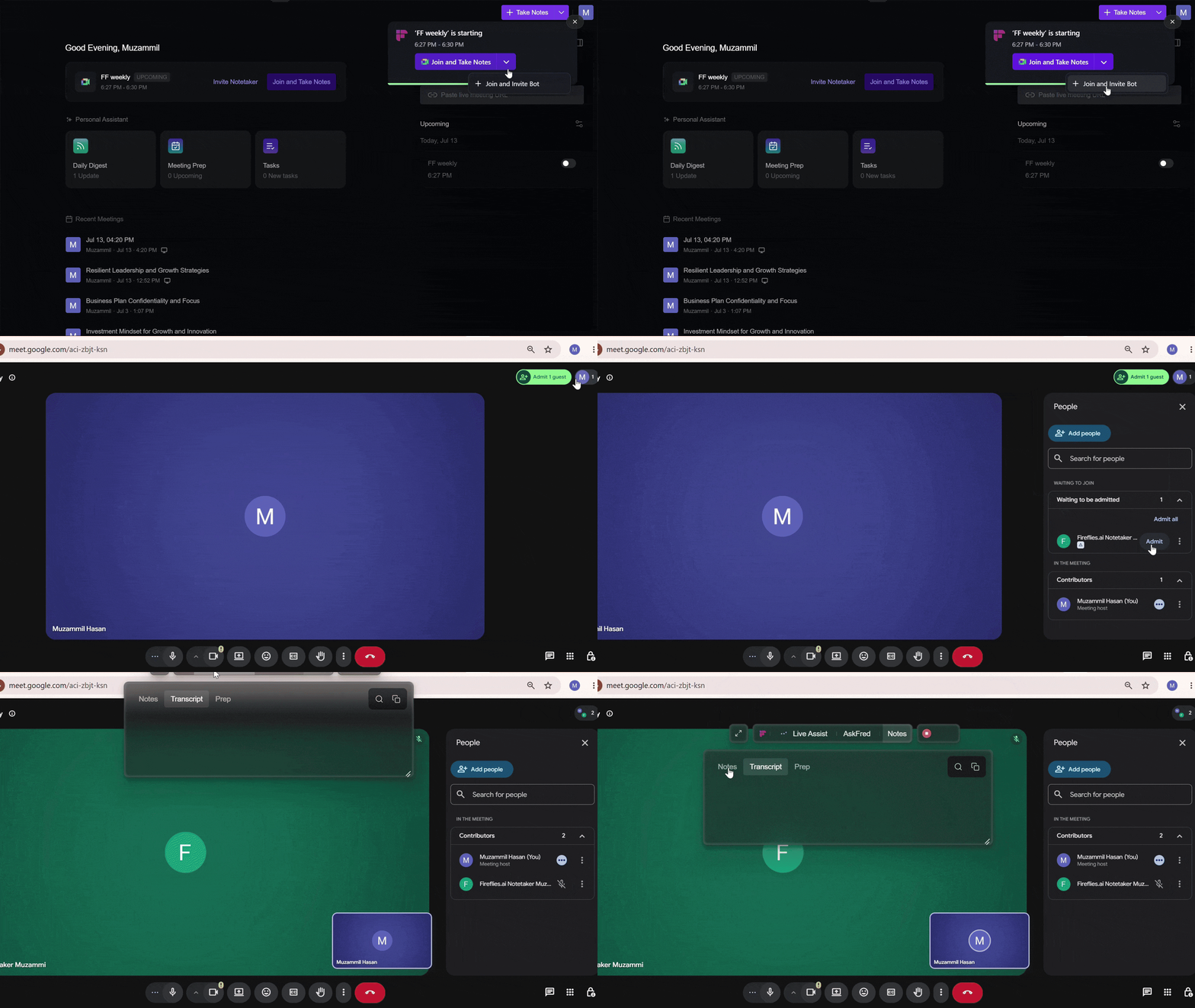
If Fireflies can't detect the meeting link (for example, because the meeting wasn't on your calendar), you'll be prompted to enter the meeting URL before the Notetaker is invited.
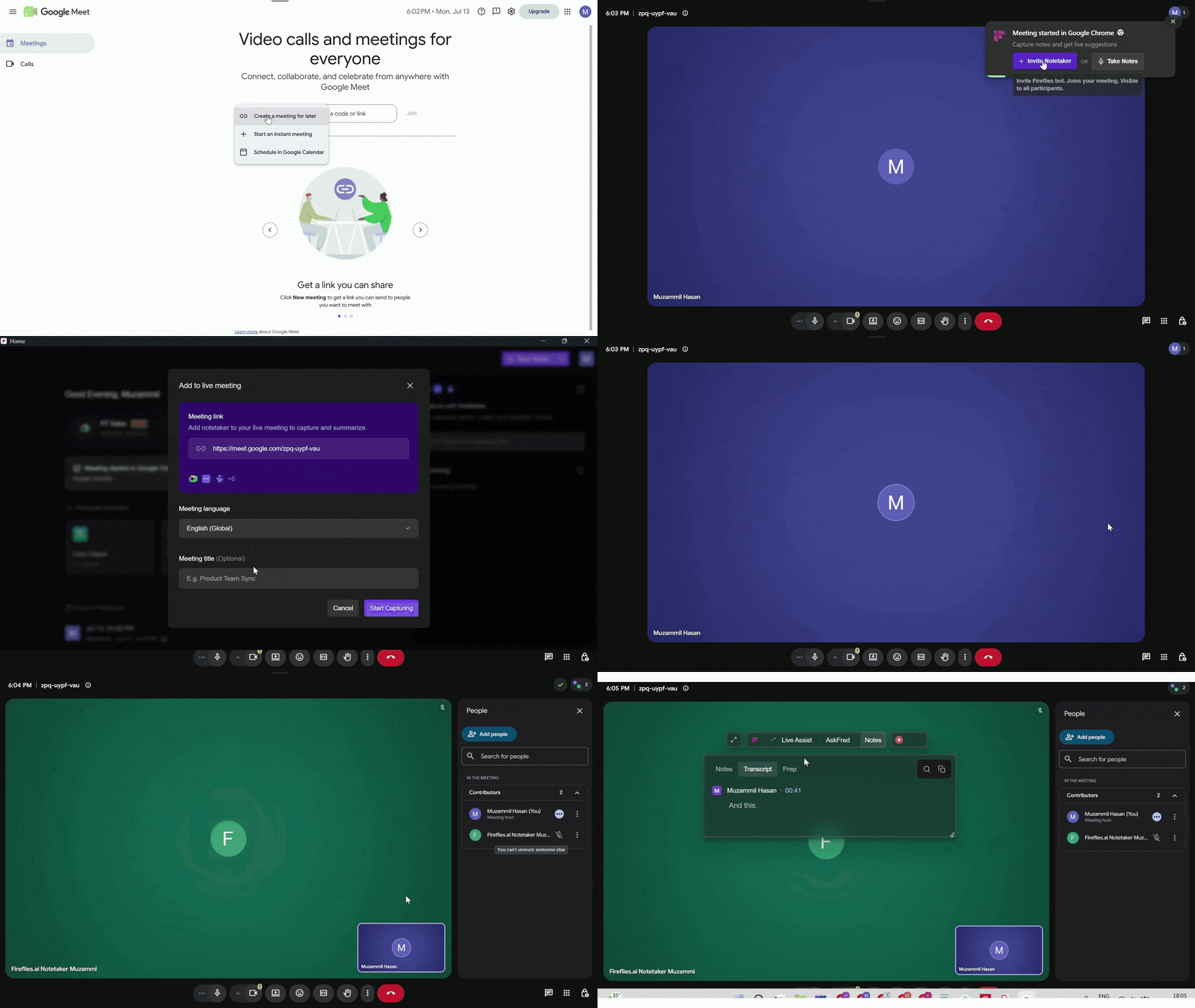
Take Notes: Starts recording using system audio (without a bot). The Floating Pane opens automatically with live transcripts, AskFred, AI Skills, and Manual Notes.
🔔 How Participants Are Notified
When you use Take Notes, Fireflies provides built-in ways to let participants know that the meeting is being captured. The available notification options depend on your operating system.
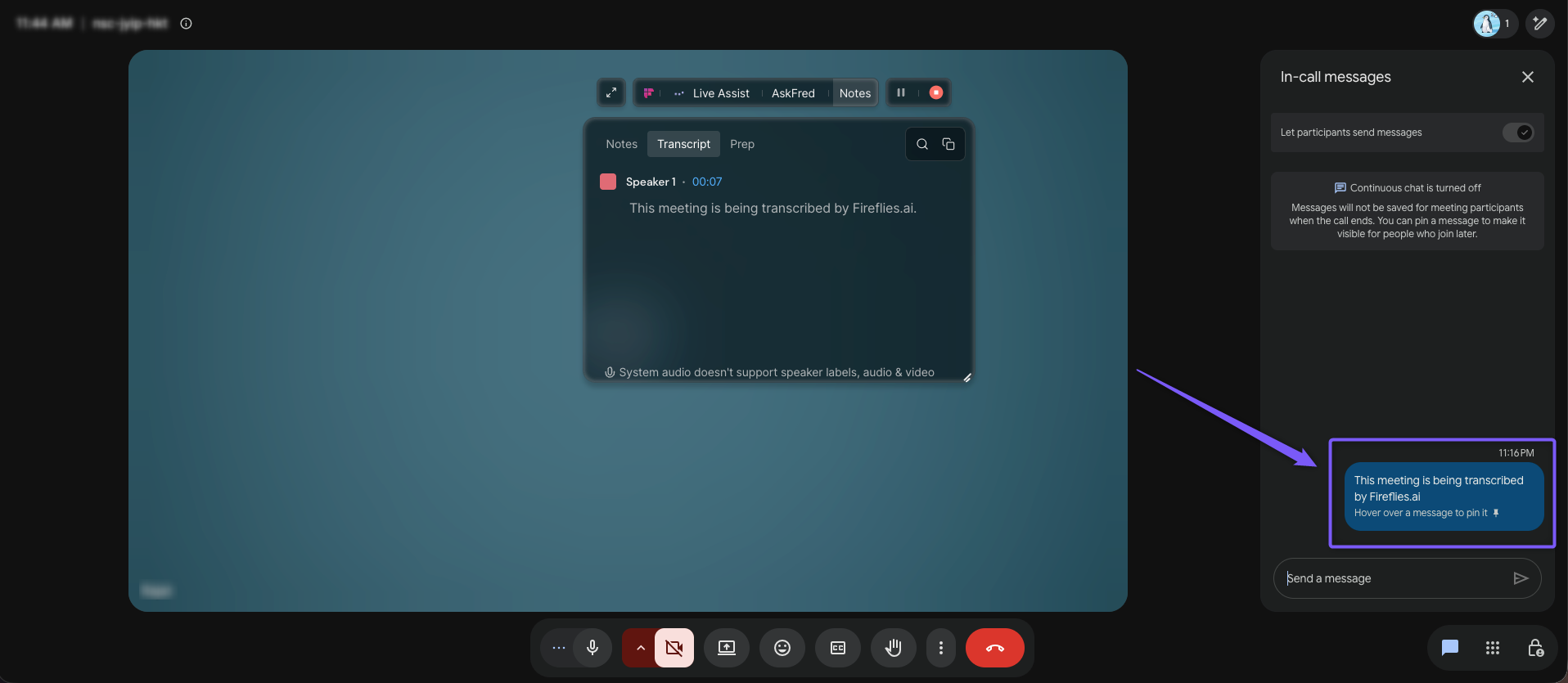
1. Meeting Chat Message
A message can be sent to the meeting chat when you start Take Notes. It gives participants a written notification that Fireflies is transcribing the meeting.
How to turn it on: In the Fireflies Desktop App, go to Settings → Meeting Preference → Recording and enable Send meeting consent message.
📌 Note: The meeting chat option is available on Mac. It is not available on Windows.
2. Audio Consent Message
An audio consent message plays through the meeting approximately 10 seconds after you start Take Notes. Participants hear the spoken message through your microphone, letting them know that the meeting is being captured.
How to turn it on: In the Fireflies Desktop App, go to Settings → Meeting Preference → Recording and enable Play audio consent message.
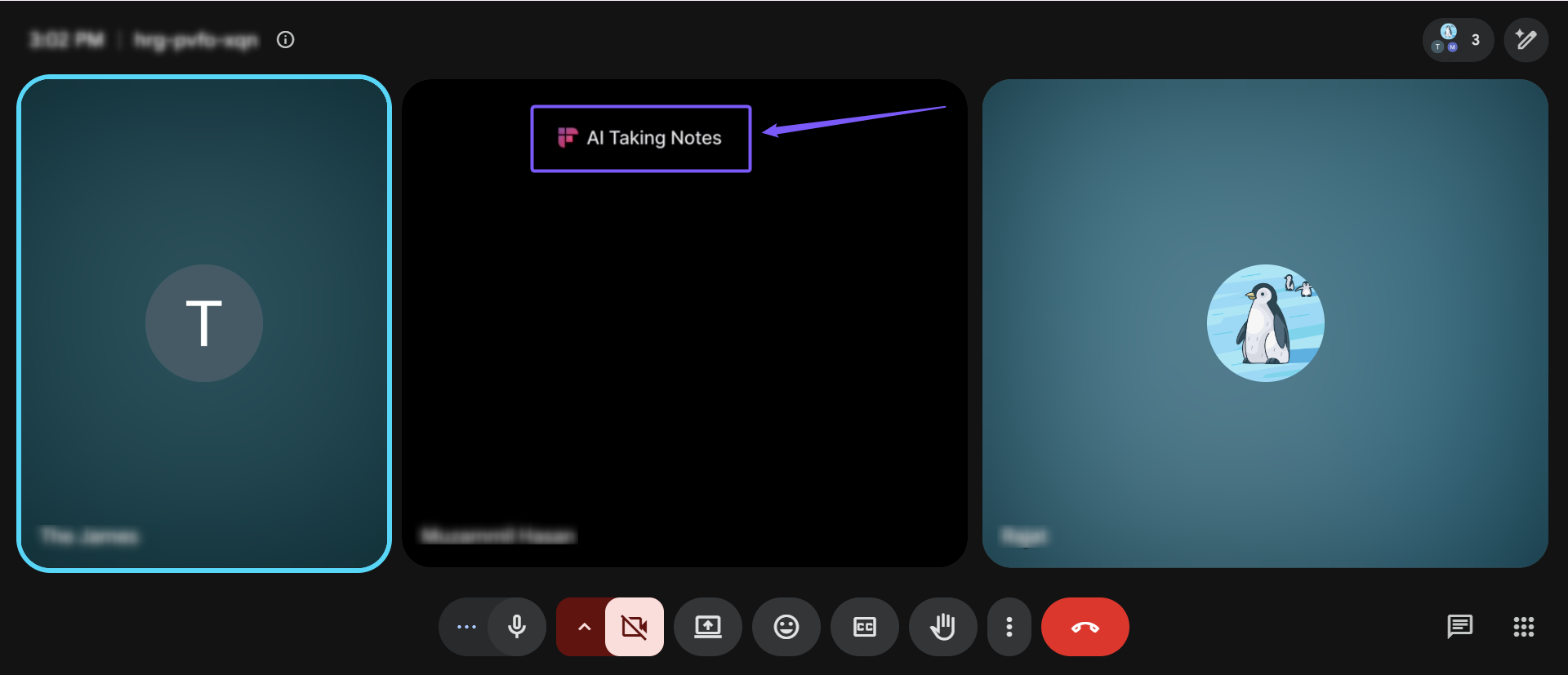
3. Fireflies Watermark
The Fireflies Watermark adds a visible “AI Taking Notes” notice to your camera when you use Take Notes. Participants can see the notice on your video, making it clear that Fireflies is taking notes.
The notice appears at the top of your video so it does not interfere with participant names or the meeting layout.
How to turn it on: In the Fireflies Desktop App, go to Settings → Meeting Preference → Recording and enable Show recording notice on camera. Then select Fireflies Watermark as your camera in your meeting app.
🛡 The Consent Modal
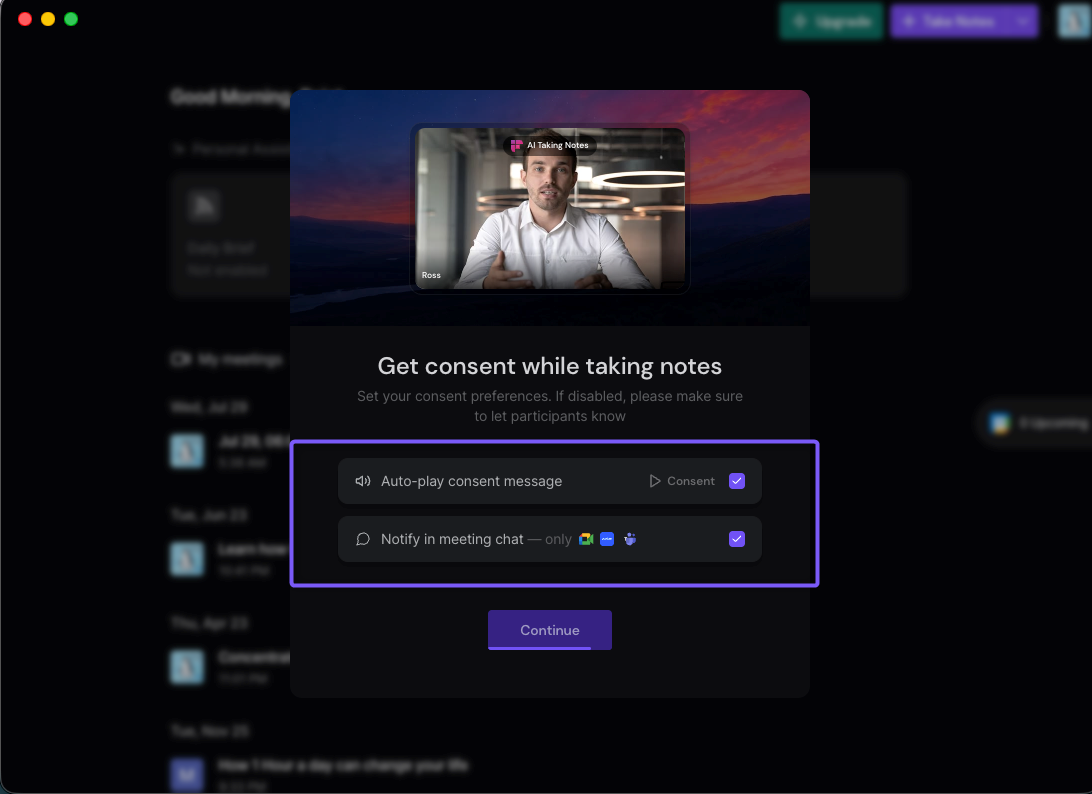
The first time you click Take Notes — or the first time you use it after a Desktop App update — a modal called Get consent while taking notes appears before your session starts. It lets you choose how participants are notified when you capture the meeting.
The consent options are enabled by default. The options shown depend on your operating system.
If You're Using macOS
Auto-play consent message — plays an audio message through your speakers to let participants know that the meeting is being captured.
Notify in meeting chat — sends a message in the meeting chat to let participants know that Fireflies is transcribing the meeting.
If You're Using Windows
Auto-play consent message — plays an audio message through your speakers to let participants know that the meeting is being captured.
Inform "Taking notes" when camera's on — lets participants know that Fireflies is taking notes when your camera is on.
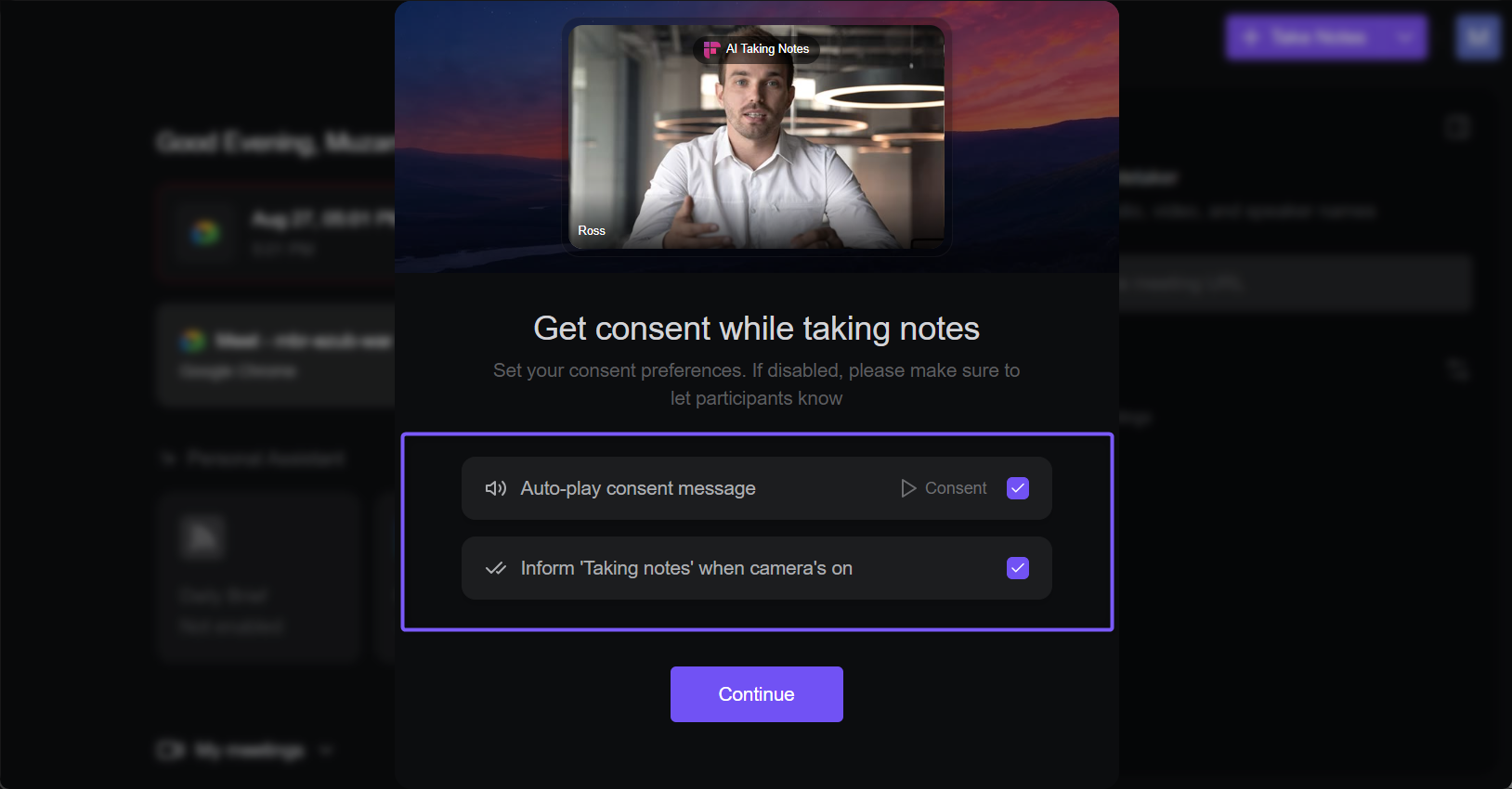
💡 By default, the consent options are enabled. You can enable one, both, or neither option. Your choices are saved as your default preferences and can be changed anytime from Settings → Meeting Preference.
Your responsibility: If you disable a consent or notification option, you are responsible for informing participants that the meeting is being captured and for complying with applicable recording laws.
👉🏻 For a detailed explanation of these notification signals and how to manage them, see How Consent & Notifications Work on the Fireflies Desktop App.
✅ What Works in System Audio Mode
It’s helpful to understand which features are available when recording without a bot.
Works:
Live Assist – Opens automatically and shows notes and suggestions during the meeting.
Real-time transcript – Displays the conversation as it happens.
AI Notes – Generates structured notes based on what’s discussed.
Manual Notes – Write your own notes during the meeting, keep them private, or merge them into the AI-generated meeting summary later.
AskFred – Allows you to ask questions and get answers during the meeting.
Nudges – Shows helpful prompts based on speaking pace or long monologues.
AI Skills – Allows you to run AI-powered insights during the meeting using the “/” command in AskFred.
Instant Summaries – Creates a summary and key takeaways immediately after the meeting ends.
Participant consent notifications — Take Notes supports an audio consent message, meeting chat notification, and Fireflies Watermark to help inform participants when system audio recording starts.
Does not work:
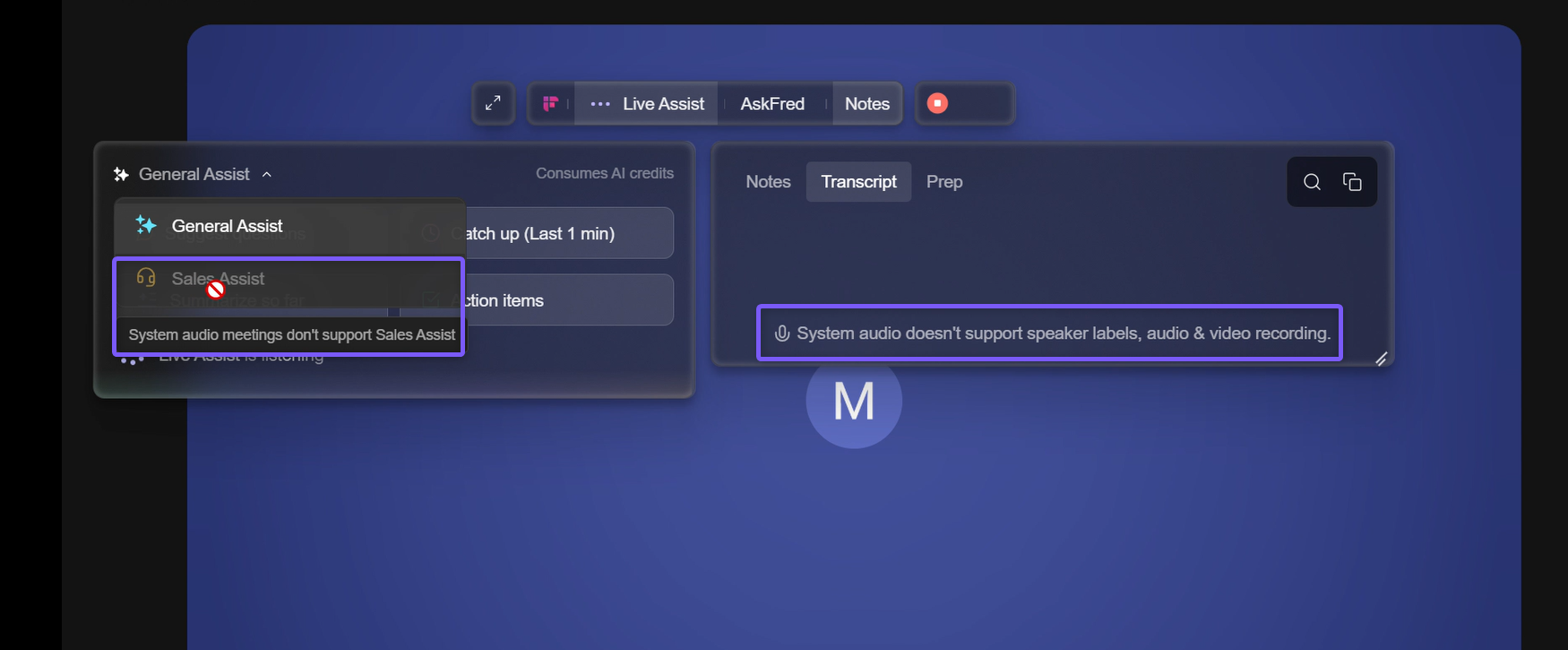
Sales Assist – Requires the Fireflies.ai Notetaker (bot) to be present in the call or meeting.
Speaker labels – Speakers appear as Speaker 1 / Speaker 2 instead of named participants.
Audio or video recording files – System audio mode does not save separate audio or video files.
Live Assist & Sales Assist on the Fireflies Desktop App → Explore real-time notes, AI suggestions, and Sales Assist features during meetings.
🔁 Auto-Capture Supported Apps & Platforms
The Fireflies Desktop app automatically detects and captures audio from supported apps and conferencing platforms. When a supported meeting or call is detected, you’ll receive a notification to start recording.
Supported platforms and apps include:
Conferencing platforms (Google Meet, Zoom, Microsoft Teams)
WhatsApp
Aircall
FaceTime
Discord
Perplexity Comet (browser with URL support)
ChatGPT Atlas (browser with URL support)
Phone calls
Take Notes captures meetings using system audio, so no Fireflies.ai Notetaker joins the meeting.
📱 Phone Call Recording
macOS — Supports iPhone calls. Enable Calls from iPhone on both your Mac FaceTime app and your iPhone FaceTime settings, and Fireflies will capture those calls via system audio.
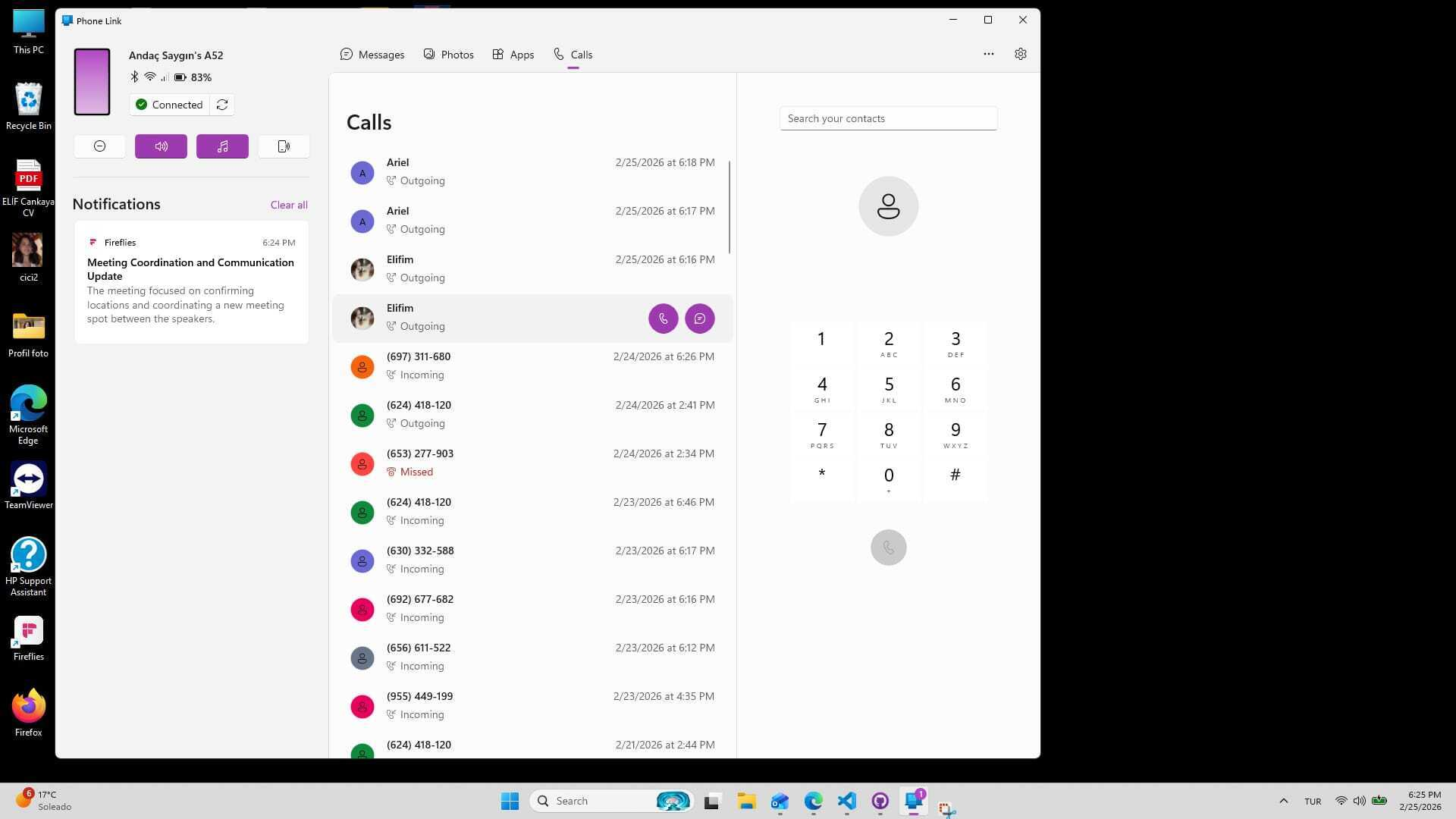
Windows — Supports both Android and iPhone calls. Pair your phone with the Windows Phone Link app and Fireflies will record calls from your computer.
🤖 Bot vs. System Audio: What Works Where
Feature | Fireflies.ai Notetaker (Bot) | System Audio (No Bot) |
|---|---|---|
Live Assist | ✅ | ✅ |
AskFred | ✅ | ✅ |
AI Skills | ✅ | ✅ |
Manual Notes | ✅ | ✅ |
Instant Summaries | ✅ | ✅ |
Speaker labels | ✅ | ❌ |
Sales Assist | ✅ | ❌ |
Audio & video recordings | ✅ | ❌ |
Meeting chat notification | ❌ Uses the Notetaker's consent flow | ✅Available on macOS |
Audio consent message | ❌ | ✅ |
Fireflies Watermark badge on camera | ❌ | ✅ |
Desktop consent modal | ❌ | ✅ |
💡 Not sure which capture method to use? See Bot vs. No Bot: Which Capture Am I Using? for a detailed comparison of the two options.
❓ Frequently Asked Questions
1. When do I need to enter a meeting URL?
When you click Invite Notetaker, Fireflies automatically uses the meeting link if it can detect it from your calendar event or a supported browser.
If Fireflies detects that you're in a meeting but can't identify the meeting URL, you'll be prompted to enter the meeting URL before the Fireflies.ai Notetaker can join.
If you don't want to invite the Notetaker, click Take Notes instead to capture the meeting using system audio without a bot.
2. Will others know I’m recording without a bot?
Yes. Although the Fireflies Notetaker does not join the meeting, Take Notes provides built-in ways to notify participants that the meeting is being captured.
Depending on your operating system and enabled settings, participants may be notified through:
A meeting chat message (Available on macOS)
An audio consent message
The Fireflies Watermark on your camera
You can manage the available notification settings from Settings → Meeting Preference → Recording.
👉🏻 For a detailed explanation of these notification signals and how to manage them, see How Consent & Notifications Work on the Fireflies Desktop App.
3. Does recording without a bot save audio or video files?
No. System audio mode does not save separate audio or video files. It generates a transcript and summary after the meeting ends.
4. Can I switch from system audio recording to bot recording during a meeting?
No. If you want the Fireflies.ai Notetaker to join, you’ll need to stop the current recording and start a new session using the bot option.
5. Will recording without a bot affect meeting performance?
No. System audio recording runs in the background and does not interrupt your meeting.
6. Can I edit the transcript after recording without a bot?
Yes. Once the meeting is processed, you can edit the transcript and meeting notes in the Fireflies web dashboard.
7. Where can I find the recording after the meeting ends?
After the meeting ends, it appears in your Recent Meetings list in the Desktop app and in your Fireflies web dashboard.
8. Does system audio recording support multiple languages?
Yes. Fireflies can detect and transcribe multiple languages during system audio recording.
🔄 Recap
Recording without a bot allows you to capture meetings and calls using system audio on the Fireflies Desktop app.
No Fireflies.ai Notetaker (bot) joins the meeting
Works with supported apps, conferencing platforms, and phone calls
Built-in notification options can help keep participants informed when Take Notes is active
Live Assist opens automatically with real-time transcripts, AskFred, AI Skills, and Manual Notes.
View an Instant Summary immediately after your meeting ends, then review your recording, notes, tasks, AskFred, transcript, and the complete AI meeting summary once it's ready.
If you need Sales Assist or speaker labels, use bot-based recording instead.
📌Related Guides
Getting Started with the Fireflies Desktop App → Learn how to install, set up, and use the Desktop app.
How Consent & Notifications Work on the Fireflies Desktop App → Learn how participants are notified when you use Take Notes and how to manage consent settings.
Learn about Fireflies meetings feature → Understand how meeting notes and recordings are saved and accessed.
How to share meeting transcripts and summaries → Share or export your meeting data easily.
Manual Notes on the Fireflies Desktop App → Learn how to write your own notes during meetings and merge them into AI-generated meeting summaries.