Bot vs. No Bot: Which Capture Am I Using?
Last updated: August 28, 2026
Not sure whether Fireflies is joining your meeting or simply capturing it from your computer? The Fireflies Desktop App gives you two ways to capture a meeting; the Notetaker bot, which joins the call as a participant, or Take Notes, which captures system audio from your device without joining. Both create a transcript and notes — but they're not the same, and knowing which one is running affects what you'll have afterward.
💡 Fireflies supports both bot and no-bot notetaking. Invite the bot, or use the Desktop App to capture notes without adding anything to the call.
🔎 How are the two capture methods different?
What you need | Fireflies.ai Notetaker (Bot) | Take Notes (No Bot / System Audio) |
|---|---|---|
Bot joins the meeting as a participant | ✅ Yes — visible in the participant list | ❌ No — nothing joins the call |
Speaker labels | ✅ Yes | ❌ No — shows as Speaker 1 / Speaker 2 |
Transcript / notes | ✅ Yes | ✅ Yes |
Audio/video saved | ✅ Yes | ❌ No — notes and transcript only |
Live Assist | ✅ Yes | ✅ Yes |
Sales Assist | ✅ Yes | ❌ No |
Works on calls the bot can't join (phone, in-person) | ❌ No | ✅ Yes |
Quick, lightweight capture | ❌ No | ✅ Yes |
Meeting chat notification | Uses the Notetaker's consent flow | ✅ Available on macOS |
Audio consent message | ❌ No | ✅ Yes |
Fireflies Watermark badge on camera | ❌ No | ✅ Yes |
Desktop consent modal | ❌ No | ✅ Yes |
🤝 When to Use Each
Use the Notetaker bot when:
You need speaker labels.
You want audio or video saved for later playback.
You need Sales Assist.
You're using a platform the bot can join, such as Zoom, Google Meet, or Microsoft Teams.
Use Take Notes (no bot) when:
You're on a phone call, in-person conversation, or a platform the bot can't join.
You want a quick, lightweight capture without adding a participant to the call.
You only need notes and a transcript, without speaker labels or a saved recording.
You want to capture a meeting without adding the Fireflies Notetaker to the call while using the available consent and notification options to keep participants informed.
🔎 How to Tell Which Capture Method Is Running
After selecting a capture method, check the meeting participant list to confirm whether Fireflies Notetaker has joined.
1. Fireflies.ai Notetaker (Bot)
If Fireflies.ai Notetaker appears in the participant list, you're using bot capture. Bot capture supports saved audio/video and Sales Assist.
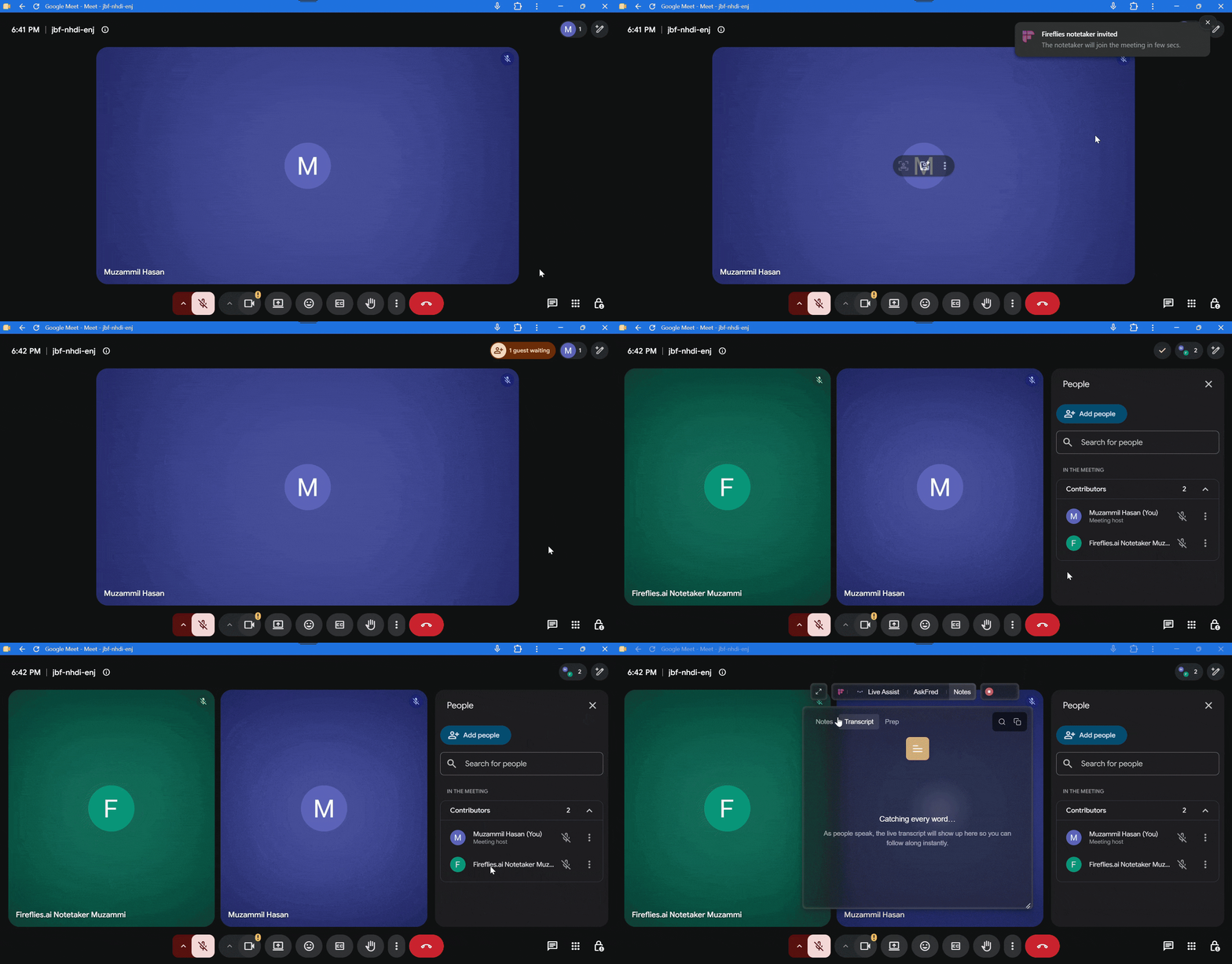
2. Take Notes (No Bot)
If you selected Take Notes and no Fireflies Notetaker is added to the participant list, you're using no-bot capture. Take Notes captures the conversation on your device without adding a bot and doesn't save audio/video or support Sales Assist.
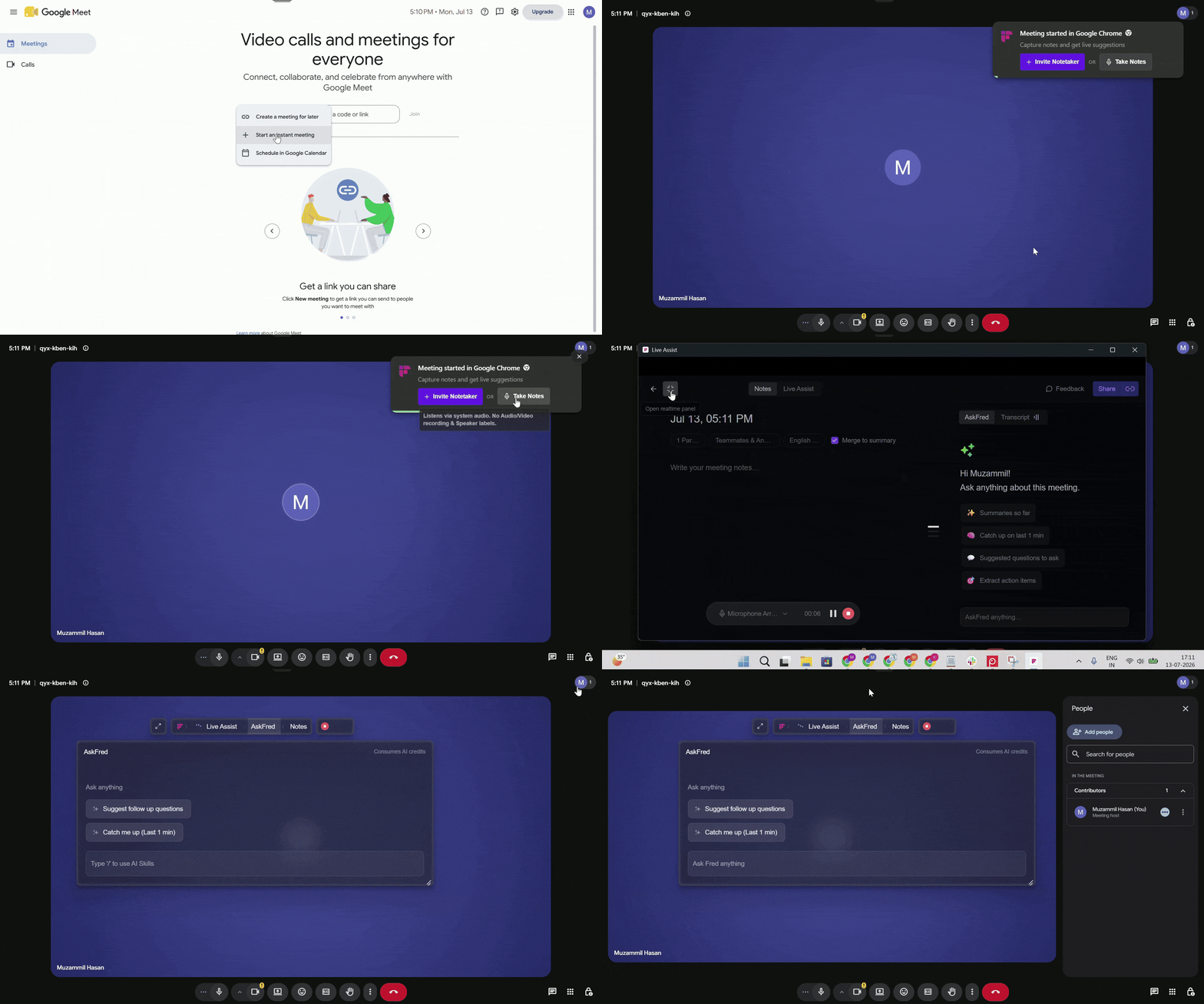
💡 What to know: Participants can still be notified that Fireflies is taking notes through the available consent notifications:
If the Fireflies Watermark is enabled and selected as your camera, participants can see the “AI Taking Notes” notice on your video.
If the audio consent message is enabled, participants hear the consent message when recording starts.
On macOS, if Send meeting consent message is enabled, a consent message is posted in the meeting chat.
👉🏻 For more details on these consent notifications and how to manage them, see How Consent & Notifications Work on the Fireflies Desktop App.
Quick check:
Notetaker appears in the participant list = Bot capture.
Take Notes selected with no Notetaker added = No-bot capture.
Note: The Live Assist floating pane opens for both bot and no-bot capture, so its presence alone doesn't tell you which mode is running — always check the participant list first.
🔗 Related Guides
Getting Started with the Fireflies Desktop App → Learn how to trigger each capture method from the pre-meeting notification.
Does the Desktop App Save an Audio Recording? → Learn what you'll have after a no-bot session.
How to Record Meetings Without a Bot on the Fireflies Desktop App → Get a deeper walkthrough of Take Notes.
How Consent & Notifications Work on the Fireflies Desktop App → Learn how participants are notified when you use Take Notes and how to manage consent settings.