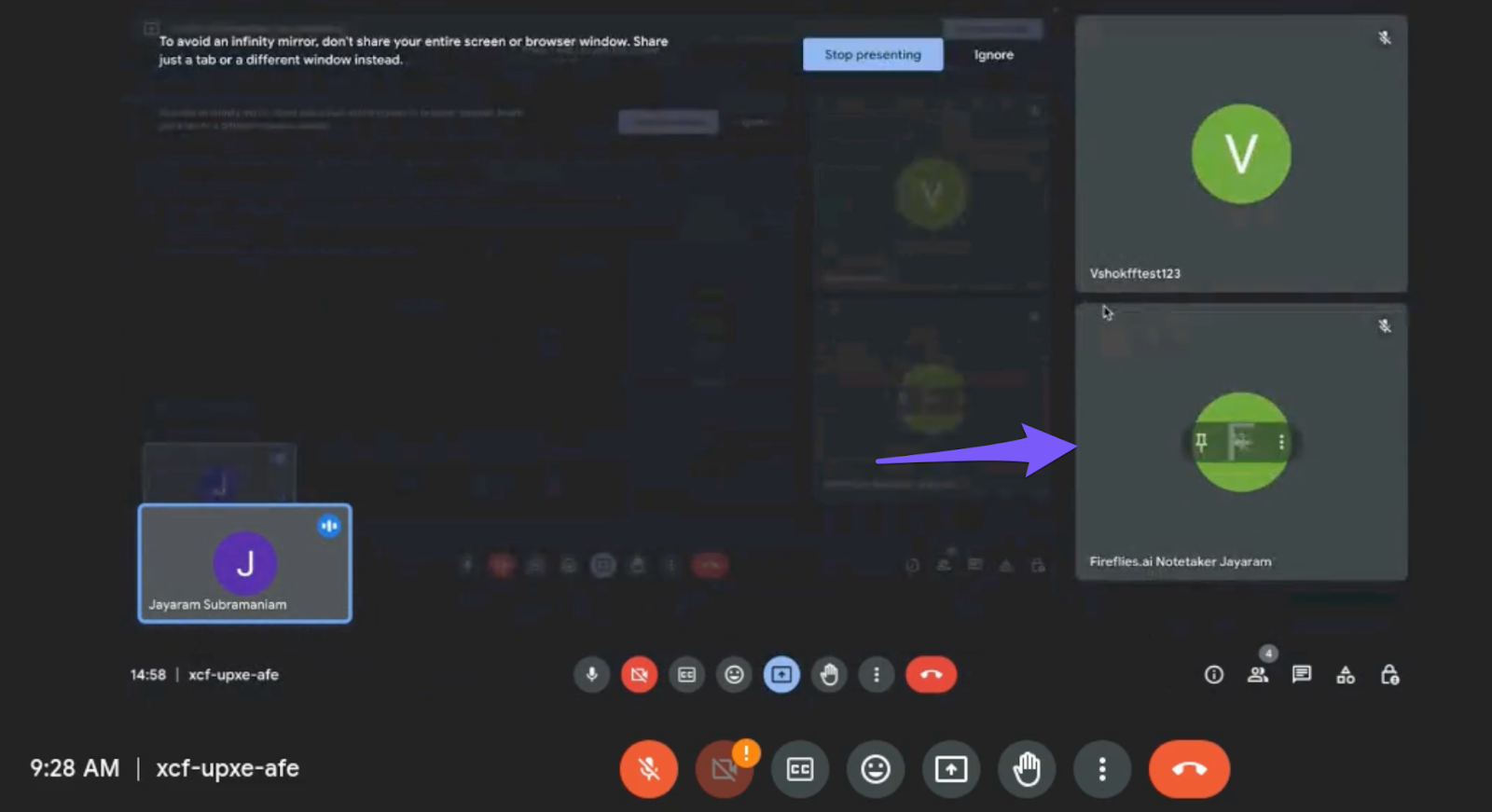
How to invite Fireflies to Google Meet (and set up Google Workspace settings beforehand)
Last updated: April 1, 2026
Want Fireflies (Fred) to automatically join and capture your Google Meet calls? Whether you're inviting it manually or using auto-join, this guide walks you through everything—plus the important Google Admin settings that are often missed.
🔧 Some of these steps require Google Workspace admin access. If you’re not an admin, please share this guide with your IT team.
Which Google Meet version is required?
Fireflies supports the GSuite version of Google Meet. This applies to both personal Google Meet instances and those organizations use to sign up for their company domain.
Related: Which version of Google Meet is supported?
Step 1: Google Meet settings to check (must-do!)
Before inviting Fireflies as a meeting host, make sure your (or the workspace that is hosting the meeting) Google Meet configuration allows external guests and bots to join. Here’s what to do:
Go to your Google Workspace Admin Console and From the left-hand menu, navigate to:
Apps > Google Workspace > Google Meet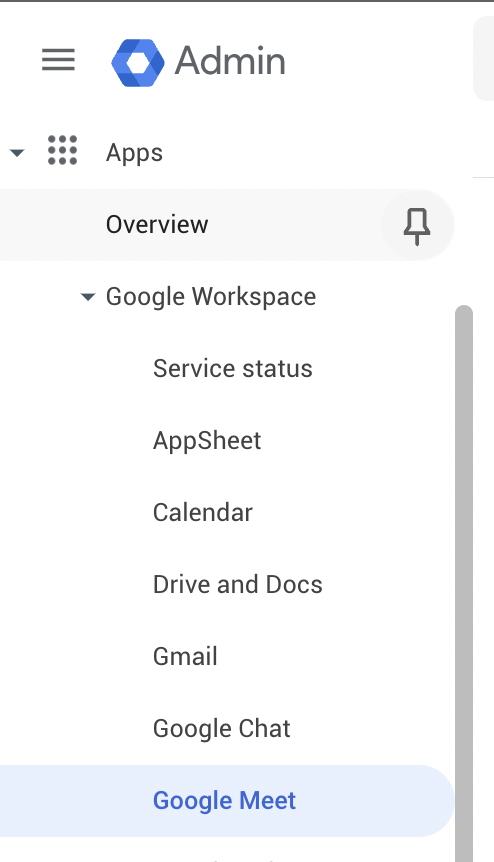
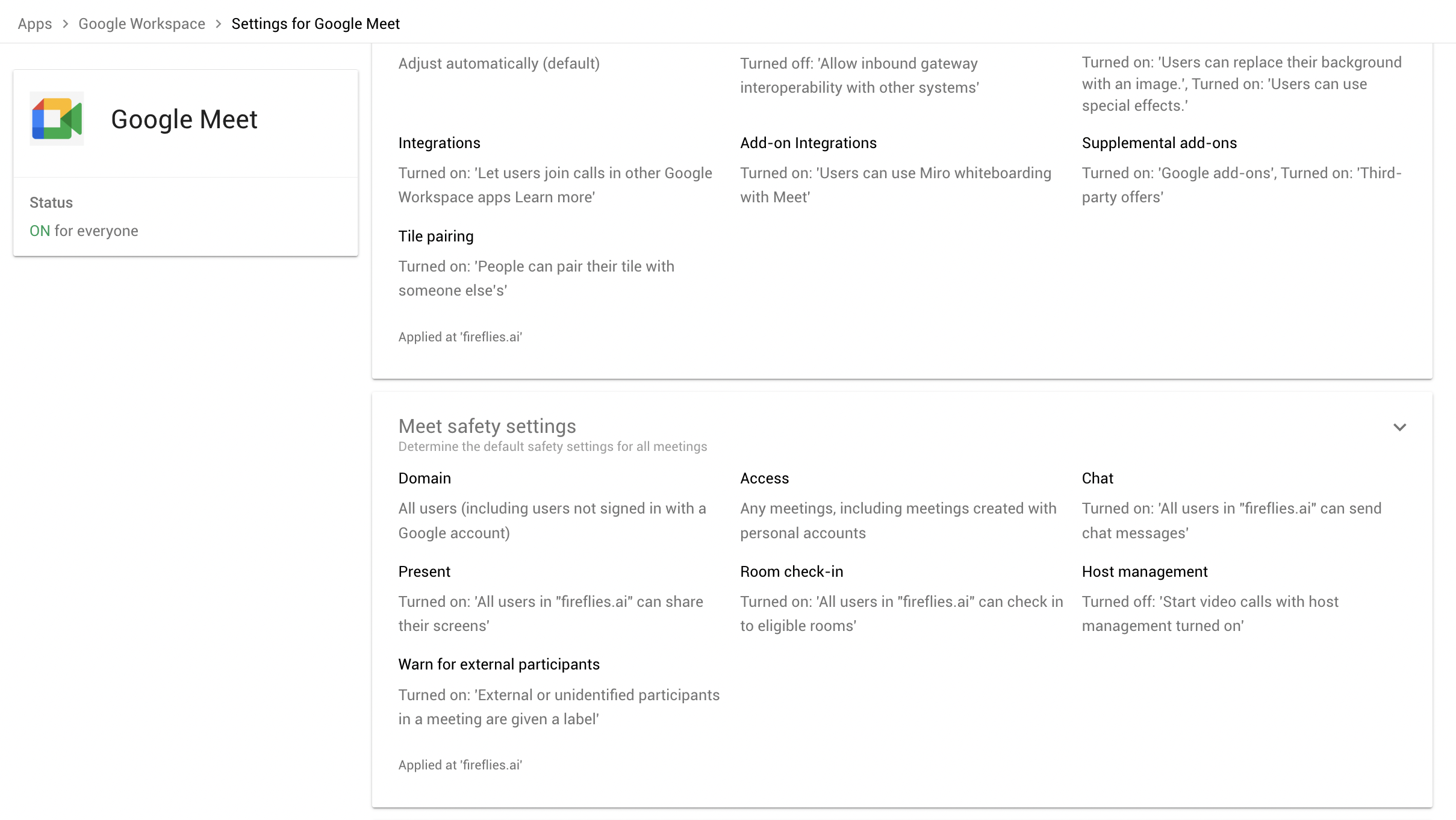
Scroll to Meet Safety Settings and select Domain
Under Access Settings, find the option: ✅ Select: "All users (including users not signed in with a Google account)"
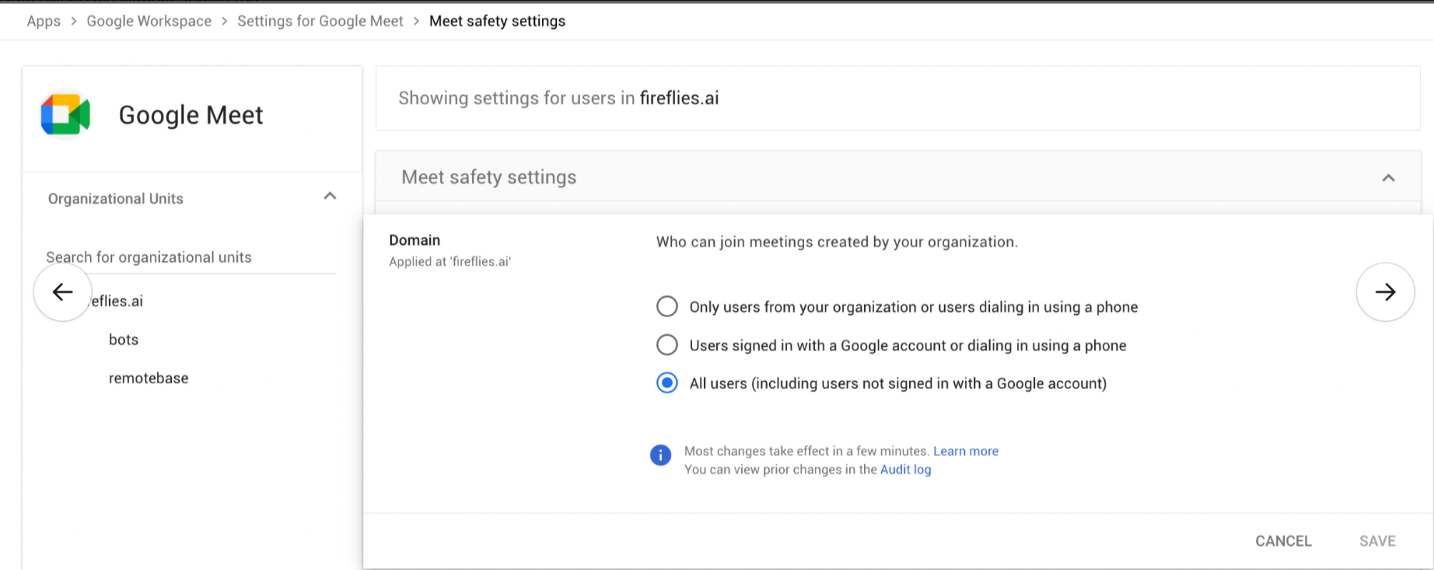
Fireflies joins Google Meet as a guest, so this must be enabled. If not, Fred won’t be able to join the meeting.
📌 Important note if you're NOT hosting the meeting:
If you’re just a participant (not the calendar owner), Fireflies still needs the meeting host’s domain settings to allow guests.
That means even if your Fireflies setup is perfect, Fred won’t be able to join if the host organization’s settings block guests or external bots.
If you're joining a meeting organized by a client, vendor, or another company, you may need to ask their IT admin to allow guest access in Google Meet.
✅ To confirm this: Ask the host to test their meeting link by opening it in Incognito mode without logging into a Google account. If they get blocked, so will Fred.
How to invite Fireflies to Google Meet meetings?
Once the above settings are done, there are multiple ways to invite Fireflies—based on what’s easiest for you.
All invite options are covered in detail here: How to invite Fireflies to meetings
How Fireflies joins my meetings?
When it's time for a meeting Fireflies has been invited to:
1. Fireflies will ask the meeting host for permission to join.
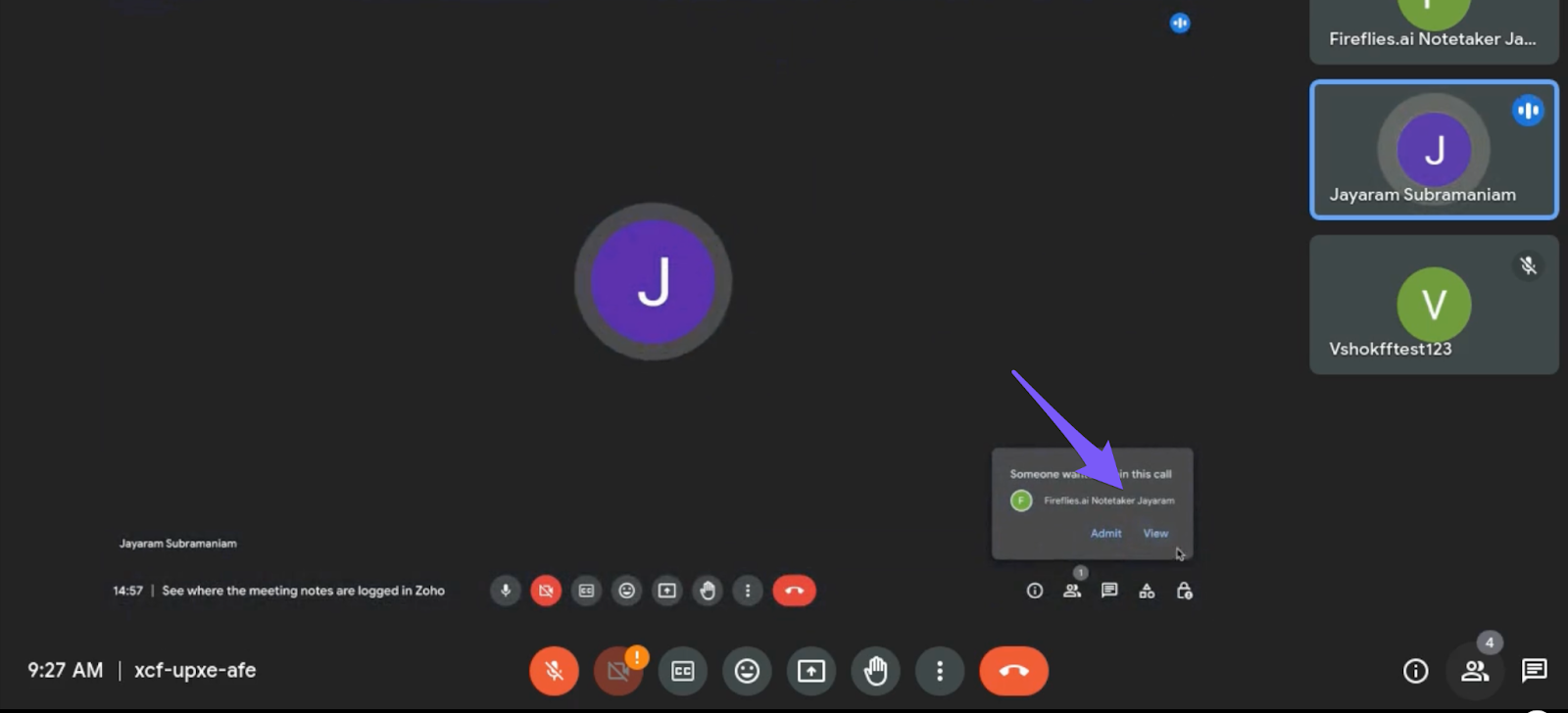
⚠ Heads up: Some Users May See a "Potential Risk" Warning in Google Meet
You may see Fireflies Notetaker labeled as a “potential risk” when it appears in the Google Meet waiting room.
This is part of a Google Meet update that gives hosts more visibility over participants joining a meeting. This is expected behavior and does not indicate any risk. Fireflies is a safe and trusted notetaker that joins only to record and transcribe meetings.
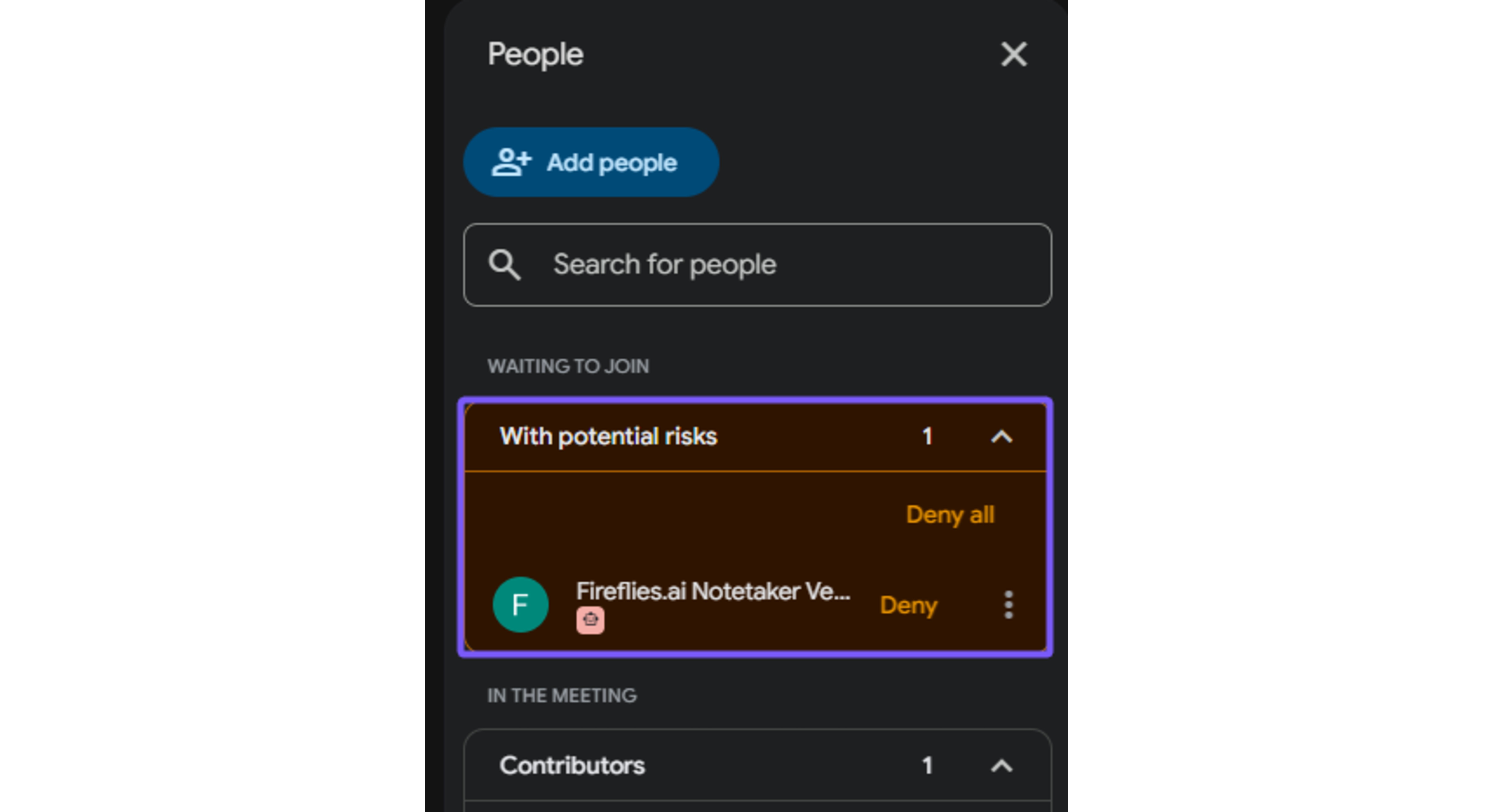
If you see this warning, here’s how to admit Fireflies:
Look for the “With potential risks” section in the participants panel
Click the three dots (⋮) next to Fireflies Notetaker and select Admit entry.
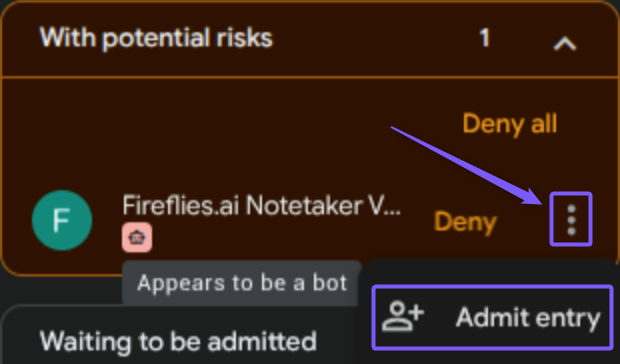
Once admitted, Fireflies Notetaker will join the meeting and appear in the participant list, then begin capturing your notes.