How to invite Fireflies to a Webex meeting
Last updated: May 23, 2025
There are multiple ways to invite Fireflies to a Webex meeting. In this guide, we’ll explain them in detail.
Related: Web-conference platforms supported
Method 1: Invite Fireflies from your calendar
Open your Google or Outlook calendar. Here, we have used Google Calendar.
Schedule a meeting.

In the location, add the Webex meeting link, and in the Add guests text box, add Fred@fireflies.ai.
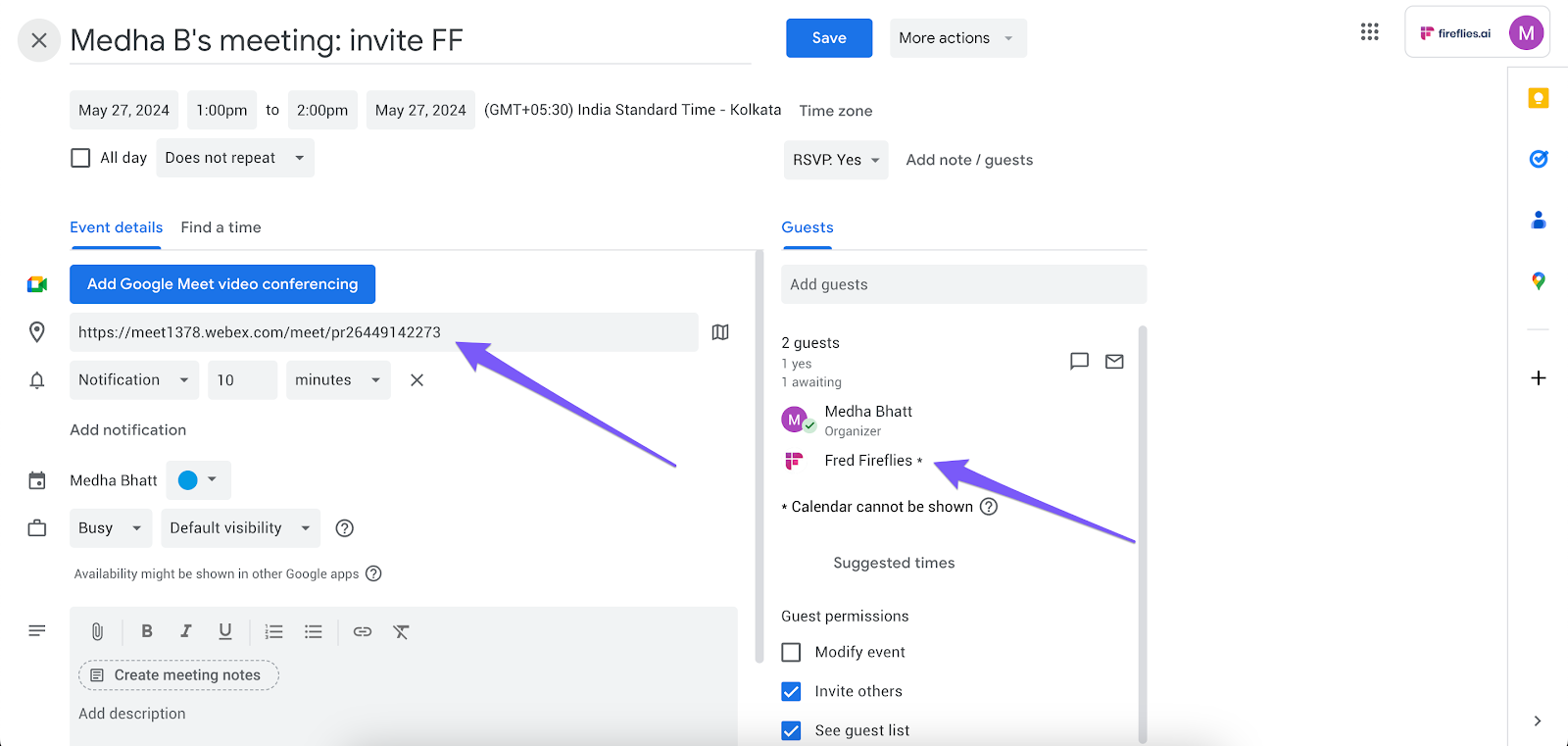
Set the date and time and click Save.
Now, go to the Webex portal and start the meeting. Fireflies will request entry into the meeting.

Admit Fireflies.ai notetaker.
Method 2: Configure your auto-join settings
From your Fireflies dashboard, toggle the Auto join calendar meetings on, and choose All meetings with web-conf link. This configuration will allow Fireflies to automatically join all your meetings.

Fireflies will detect the Webex URL and automatically join your meetings.
Related: How to Configure Your Autojoin Settings
Method 3: Add Fireflies to a live meeting
If you want to capture an ongoing meeting, you can use the Add to Live meeting option.
Click Meeting info and copy the meeting link.

Go to Fireflies dashboard and click Add to live meeting.

Enter the meeting link and click Start Capturing.

Admit the Fireflies.ai notetaker into the meeting.
Fireflies will join the call and take notes as a participant.
