How to Create a Voice Agent from Scratch
Last updated: July 14, 2026
If you find yourself having the same conversations over and over, Voice Agents can help. A Voice Agent is an AI-powered agent that speaks with people on your behalf, asks your questions, listens to their responses, and captures structured outputs like transcripts, summaries, and insights.
In this guide, you will learn how to create a Voice Agent from scratch and configure it to fit your workflow.
Prefer to see it in action first? Watch this live Voice Agent build session, then use the steps below to create your Voice Agent from scratch in Fireflies.
🚀 Follow these steps to create a Voice Agent
1. Go to the Voice Agents section.
From your Fireflies dashboard, click on the Voice Agents tab in the left-hand menu. This is where all your Voice Agents are listed and managed.
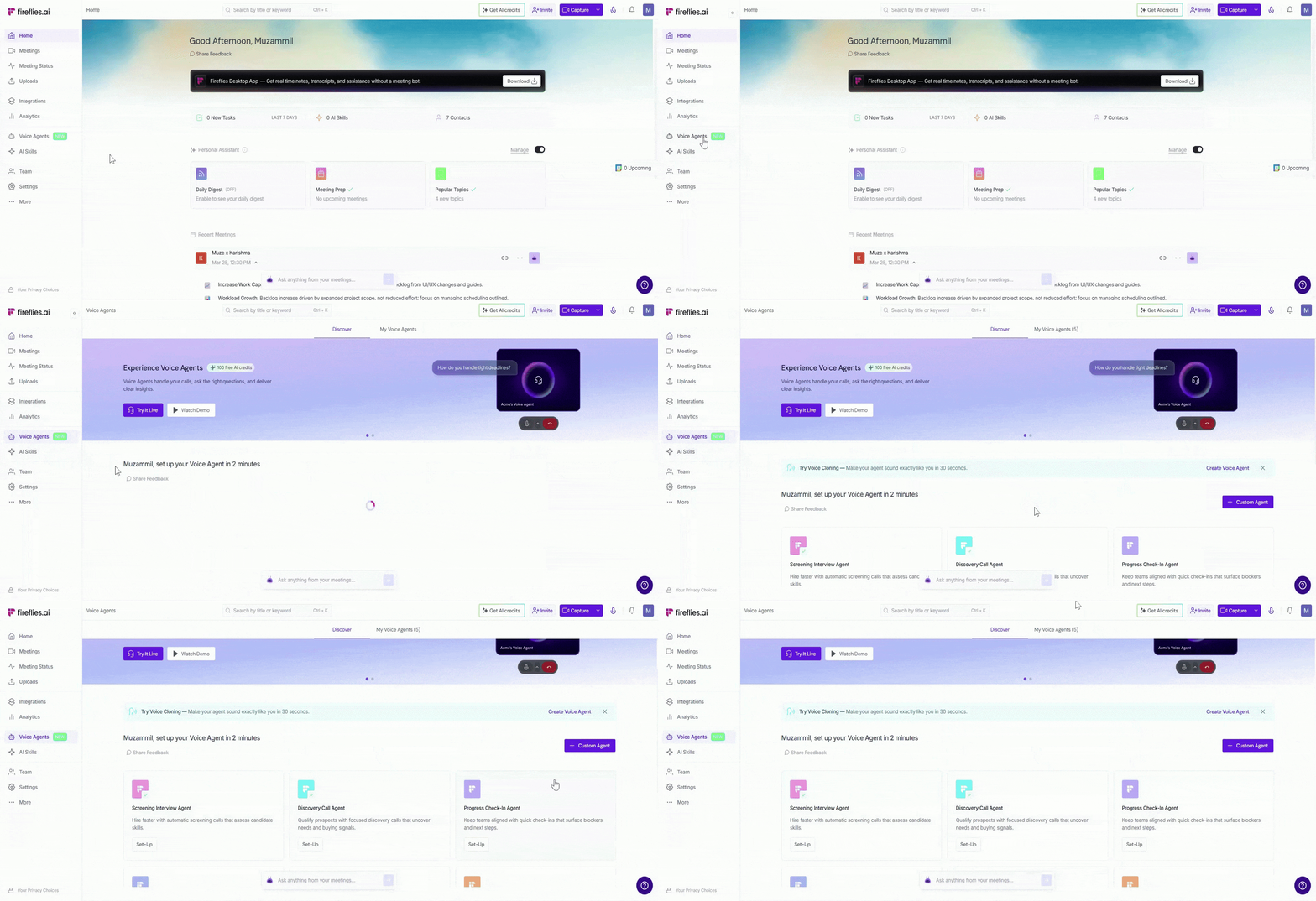
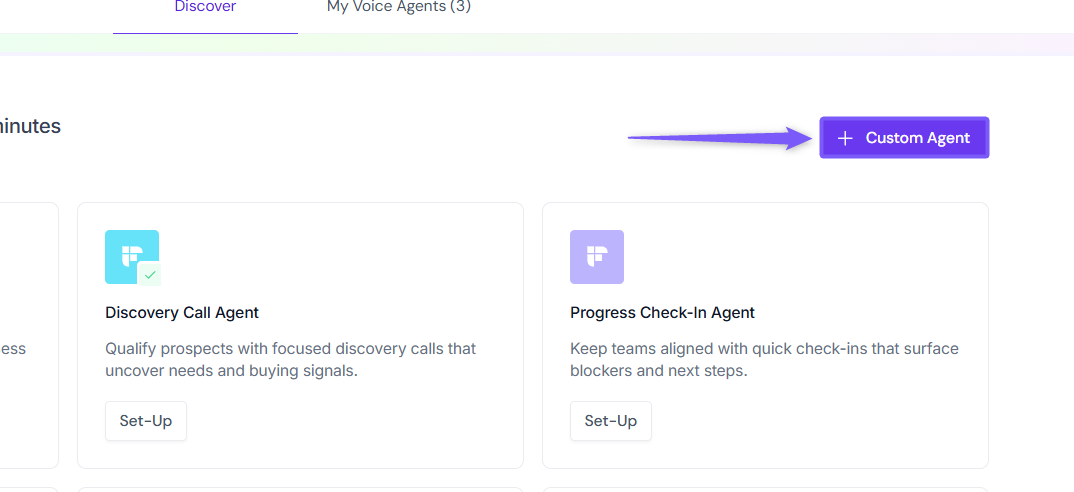
To create a Voice Agent from scratch, click on Custom Agent to start setting up a new Voice Agent.
2. Add questions, knowledge, and instructions
This step is where you shape what your Voice Agent actually does during a call. You’ll define what it asks, what it knows, and how it behaves.
You don’t need to get everything perfect on the first try — you can always edit these later.
Prefer a ready-made template first? Read the Voice Agent Best Practices Playbook, then follow the steps below to set up your Voice Agent from scratch in Fireflies.
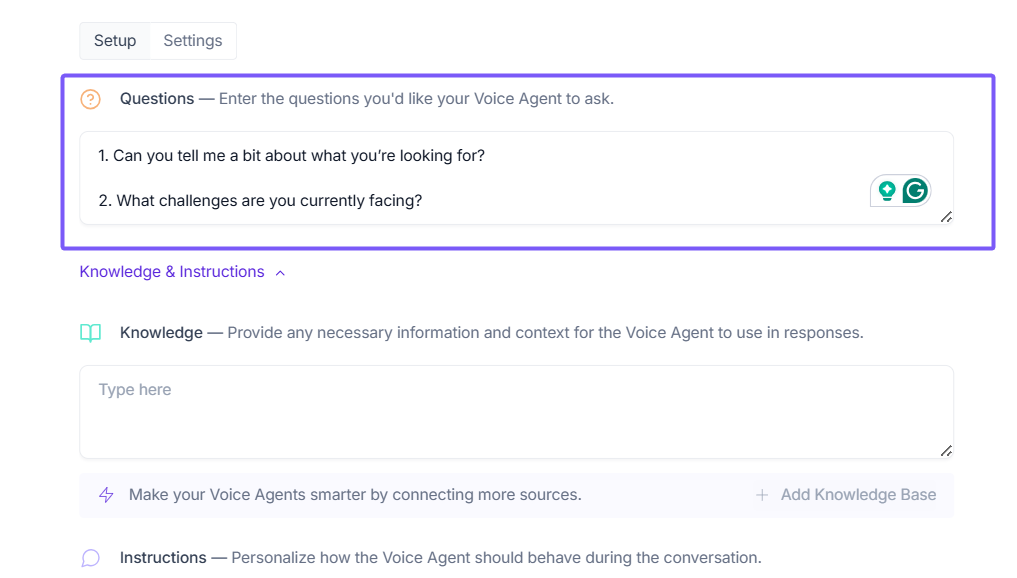
❓Questions — What your Voice Agent will ask
Add the questions you want your Voice Agent to ask during the conversation. These questions guide the flow of the conversation and help your Voice Agent collect important information during the call.
By default, a few sample questions may already appear here, which you can edit, remove, or replace based on your use case.
Examples
“Can you tell me a bit about what you’re looking for?”
“What challenges are you currently facing?”
Write questions the way a person would naturally speak.
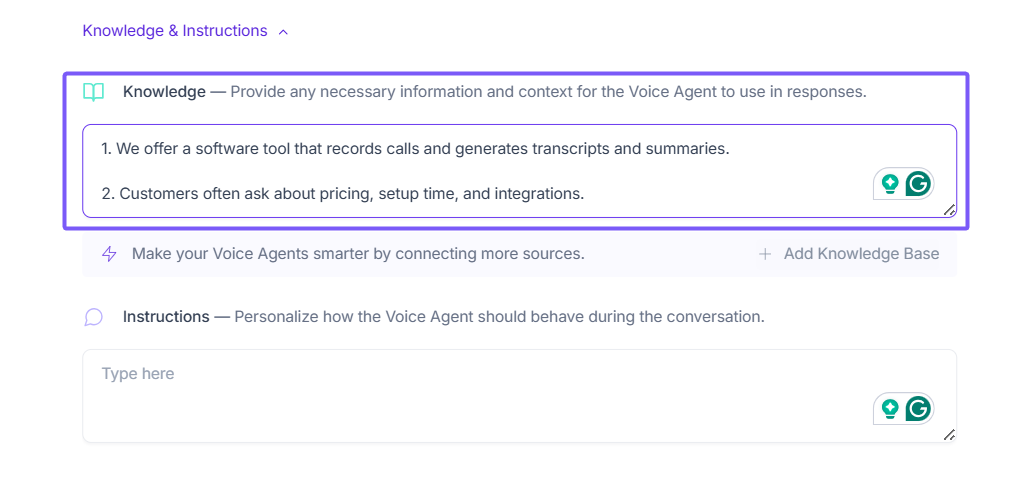
🧠 Knowledge — What your Voice Agent should know
Use Knowledge to give your Voice Agent background information that it can refer to during the conversation. This is helpful for details you don’t want to repeat on every call.
Think of this as the context your Voice Agent can rely on when answering questions.
How to use it:
Add short, clear information
Include facts the agent may need to explain or clarify
Avoid long paragraphs
Example
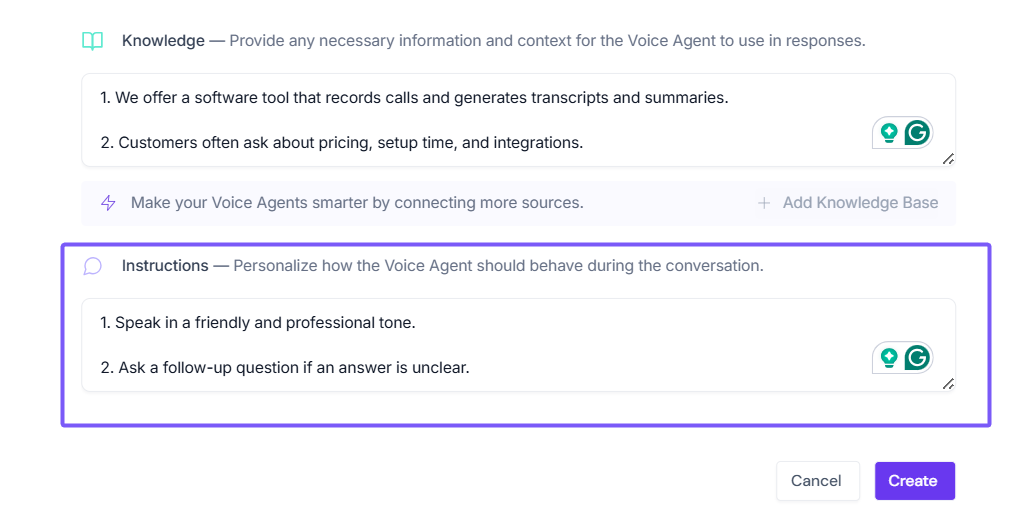
“We offer a software tool that records calls and generates transcripts and summaries.”
“Customers often ask about pricing, setup time, and integrations.”
📚 Add a Knowledge Base to your Voice Agent
You can make your Voice Agent smarter by connecting a Knowledge Base. This allows the agent to reference documents, FAQs, playbooks, or internal content while responding during a call—so answers stay accurate and aligned with your business context.
How it works
In the Knowledge section, you can add written context directly, or
Click Add Knowledge Base to connect an existing Knowledge Base or add a new base directly from here.
The Voice Agent will use this information in real time while responding to participants
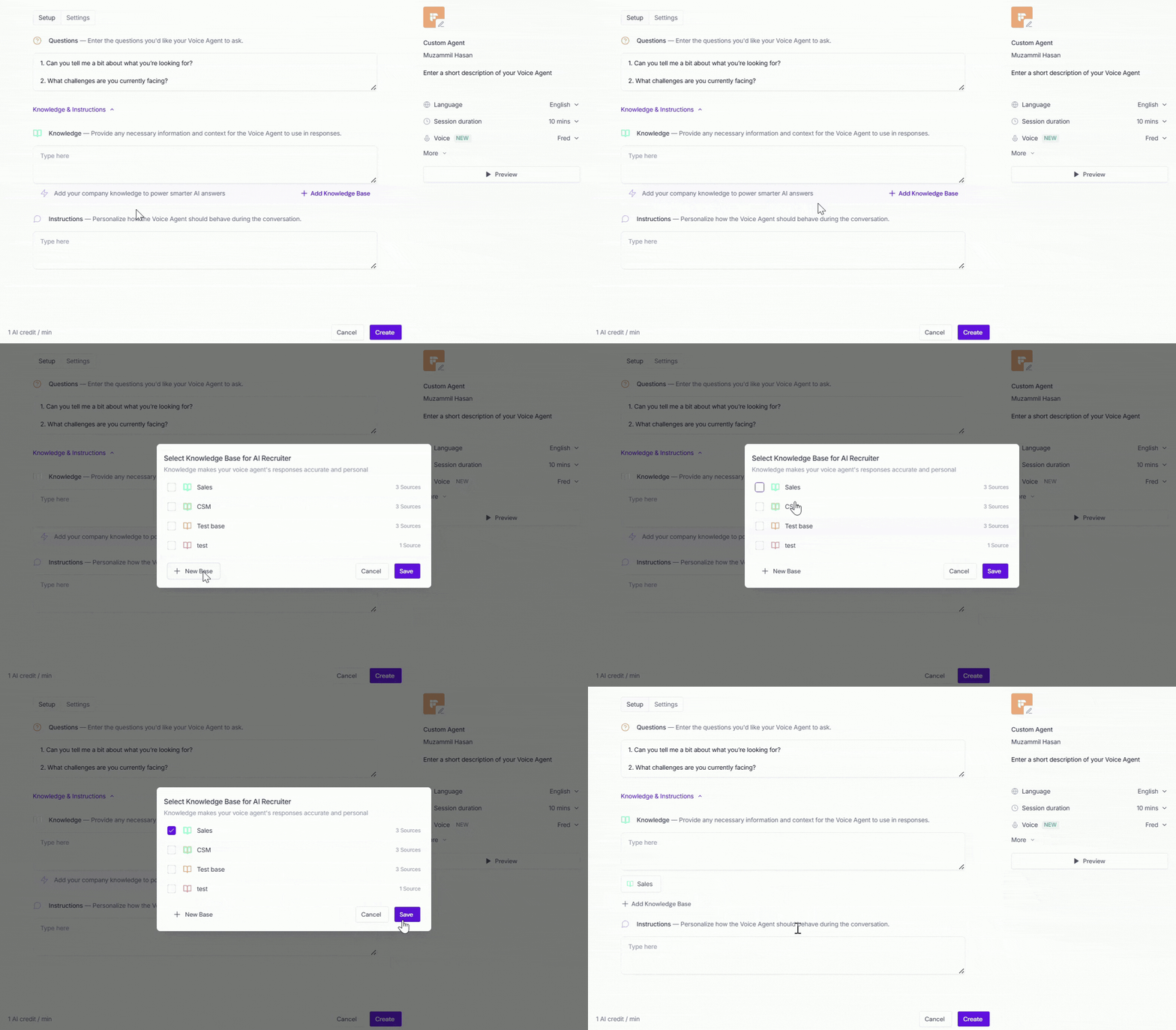
This is especially useful when your Voice Agent needs to answer questions about products, policies, pricing, or internal processes without hardcoding everything into prompts.
Example
A Screening Interview Voice Agent can reference hiring policies, while a Discovery Call Voice Agent can pull from sales FAQs or product documentation.
👉 Learn more about setting up a Knowledge Base for Voice Agents
💬 Instructions — How your Voice Agent should behave
Use Instructions to tell your Voice Agent how to speak and act during the call. This controls the tone and flow of the conversation.
Think of this as guidance for how the conversation should feel.
How to use it:
Keep instructions simple and direct
Focus on tone, pacing, and follow-ups
Write instructions the way you’d explain them to a teammate
Example
“Speak in a friendly and professional tone.”
“Ask a follow-up question if an answer is unclear.”
3. Personalize your Voice Agent
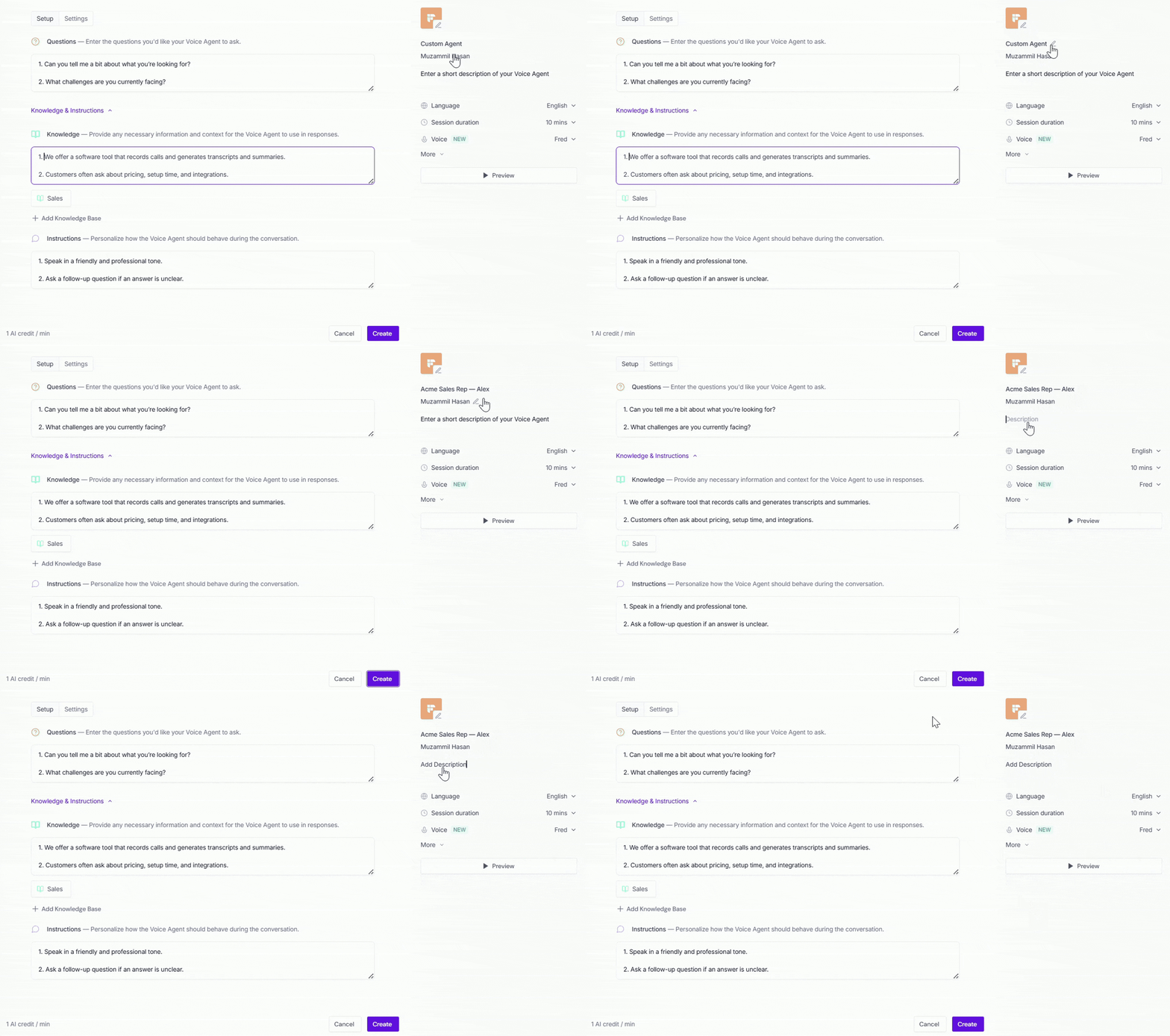
Step 1: Add your company branding
Personalize how your Voice Agent appears to others.
Upload a logo → Add your company logo to represent your brand.
Give your Voice Agent a name → Choose a clear name that explains what the Voice Agent does
(for example, “Acme Sales Rep — Alex” or “Product Demo AI — Nova”).Update the company name → Edit the company name shown during the conversation, if needed.
Add a short description → Write a brief description so others understand the Voice Agent’s purpose.
These details help people recognize who the Voice Agent represents and what the conversation is about. You can update them anytime.
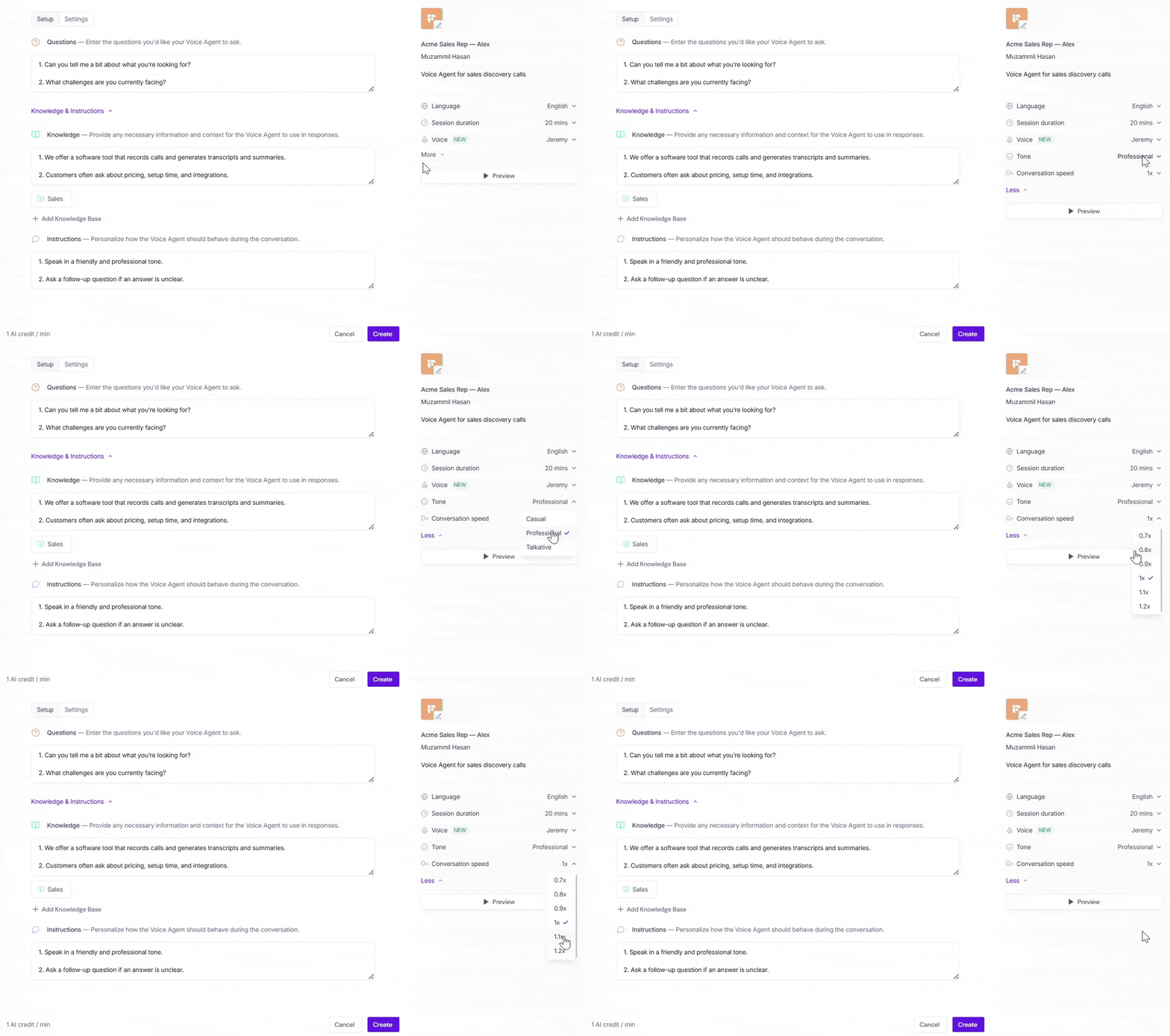
Step 2: Customize how your Voice Agent sounds and behaves
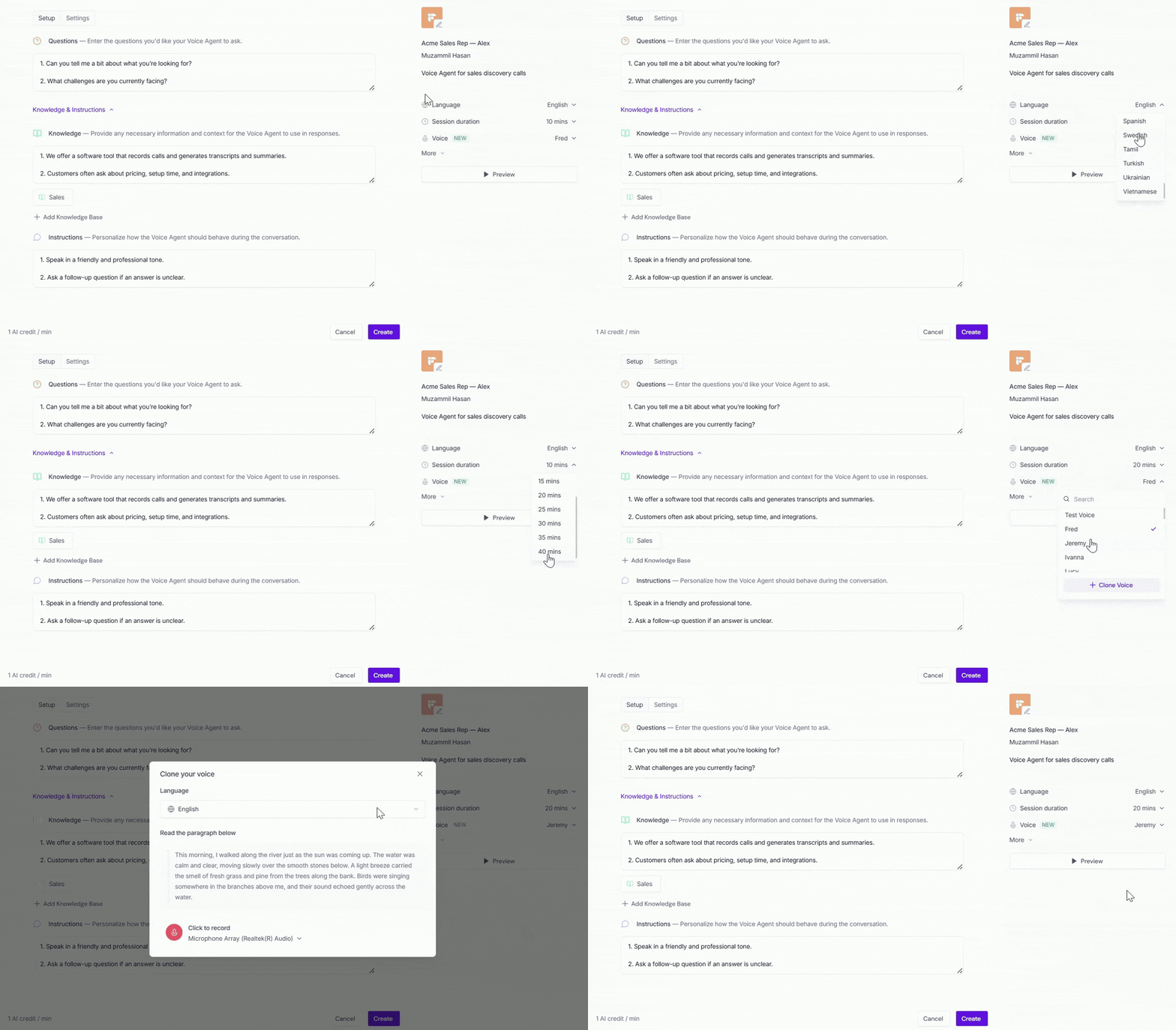
In this step, you decide how your Voice Agent sounds and communicates during a call. These settings affect how natural the conversation feels and how long it can run.
Language → Choose the language your Voice Agent will use while speaking with participants during conversations. Fireflies supports 32+ languages.
Session duration → Choose how long each conversation can run (5–40 minutes).
Voice → Choose how your Voice Agent will sound while speaking with participants during conversations.
Built-in voices: Choose from preset AI voices available in different languages for your Voice Agent conversations.
View available languages with built in voice count ✅
Language
Available Voices
English
25 voices
Hungarian
9 voices
Hindi
8 voices
Chinese
6 voices
Spanish
5 voices
French
5 voices
Turkish
4 voices
Russian
3 voices
German
2 voices
Use your own voice: Use your own recorded voice (voice cloning) instead of a preset AI voice, so your Voice Agent sounds more natural and personalized during conversations.
👉🏻 Check out How to Clone Your Voice for Fireflies Voice Agents to learn how to create and use your own voice.
Tone → Choose how your Voice Agent communicates, such as Casual, Professional, or Talkative.
Conversation speed → Control how quickly the Voice Agent speaks during the conversation (0.7x to 1.2x).
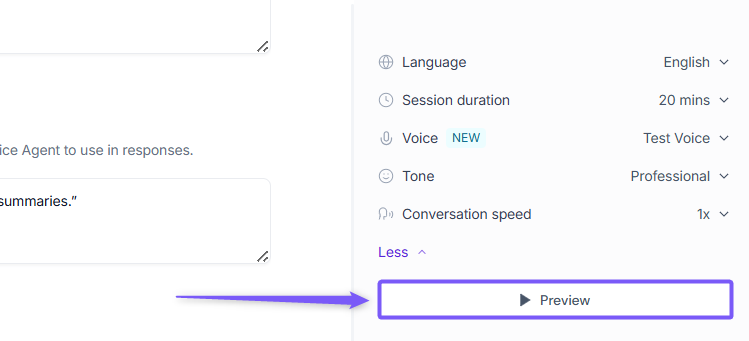
Step 3: Preview before finalizing
Use the Preview button to listen to how your Voice Agent will sound before publishing.
4. Set visibility, privacy, and recap email preferences
Review how meetings and summaries should be shared. The settings below help you control who can find the Voice Agent, who can view meeting details, and who receives updates after each call.
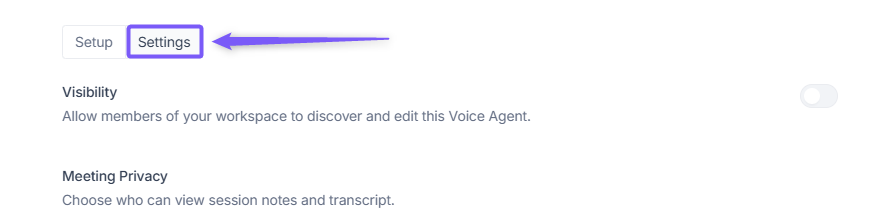
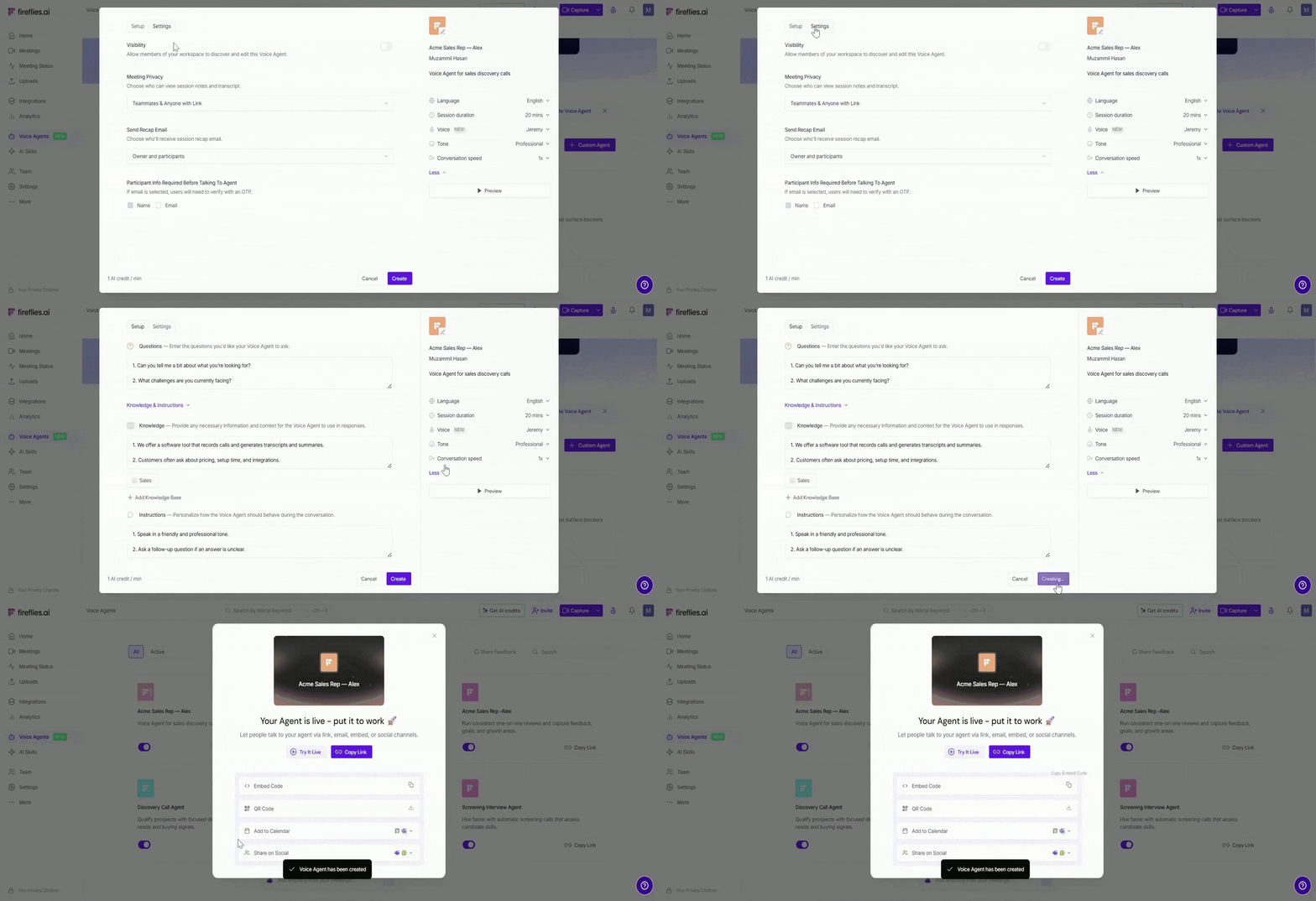
Select the Settings tab on the top left side to continue.
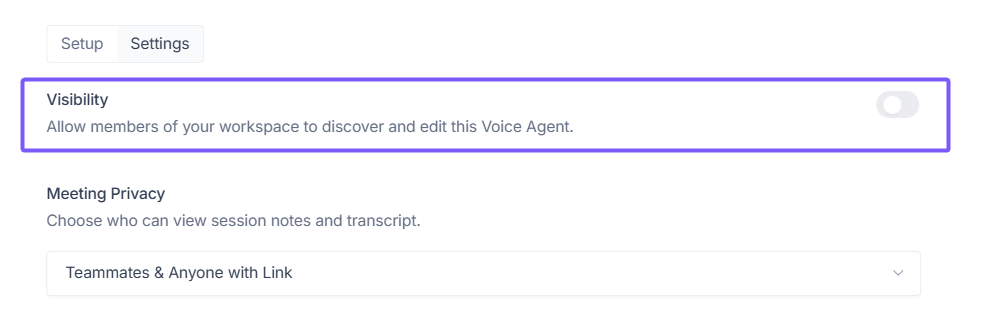
Visibility → Toggle this on if you want other members of your workspace to discover and edit this Voice Agent. Turn it off if you want only yourself (or admins) to manage it.
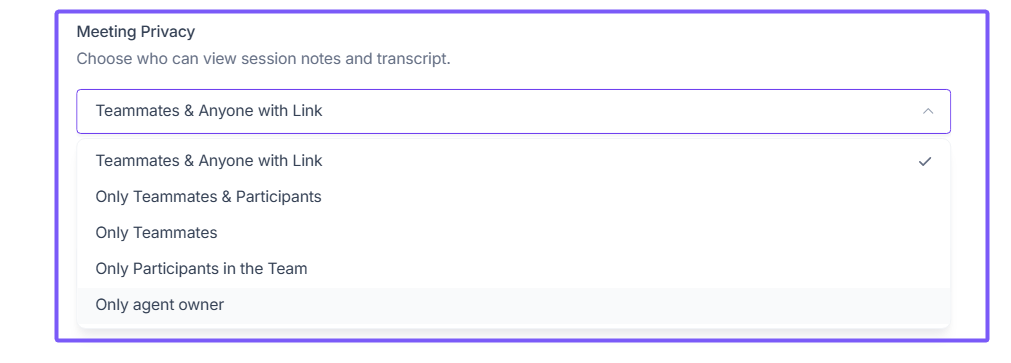
Privacy settings → Choose who can view meeting transcripts and recordings after a call. You can limit access to only yourself, share it with participants, make it available to workspace teammates, or allow access to anyone with the meeting link.
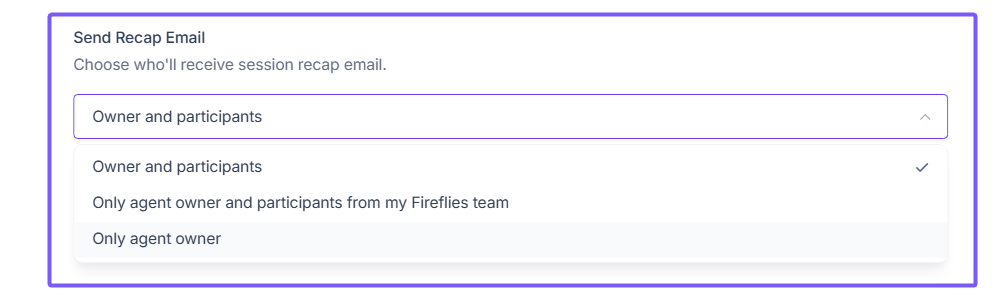
Recap email settings → Decide who should receive the call recap email after each call, such as only agent owner (you), only agent owner and participants from your team, or owner and participants.
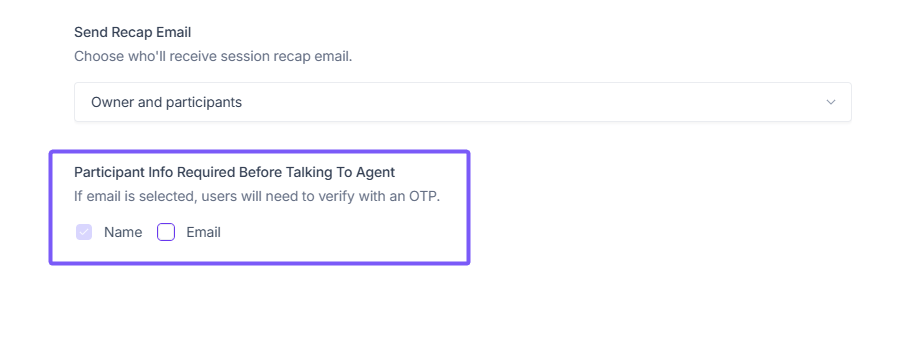
Participant info required before talking to agent → Choose what information participants must provide before starting a conversation. You can require name, email, or both.
If email is selected, participants will need to verify their identity using a one-time password (OTP) before joining the call.
If email is not selected, participants can simply enter their name and start talking right away — no verification required.
This setting is especially useful for demos, inbound conversations, or quick interactions where speed matters.
5. Make Your Voice Agent Live
Once everything looks good, click Create to make your Voice Agent live.
Once your Voice Agent is live, a shareable link is generated automatically. You can also distribute it via embed code, QR code, calendar invite, or messaging and social platforms — no scheduling required.
🔗 Don’t worry — You can return at any time to edit, pause, or unpublish the Voice Agent if needed.
6. Share your Voice Agent
You can share your Voice Agent in multiple ways, such as embedding it on your website, generating a QR code, sending it through messaging apps, or adding it to calendar invites.
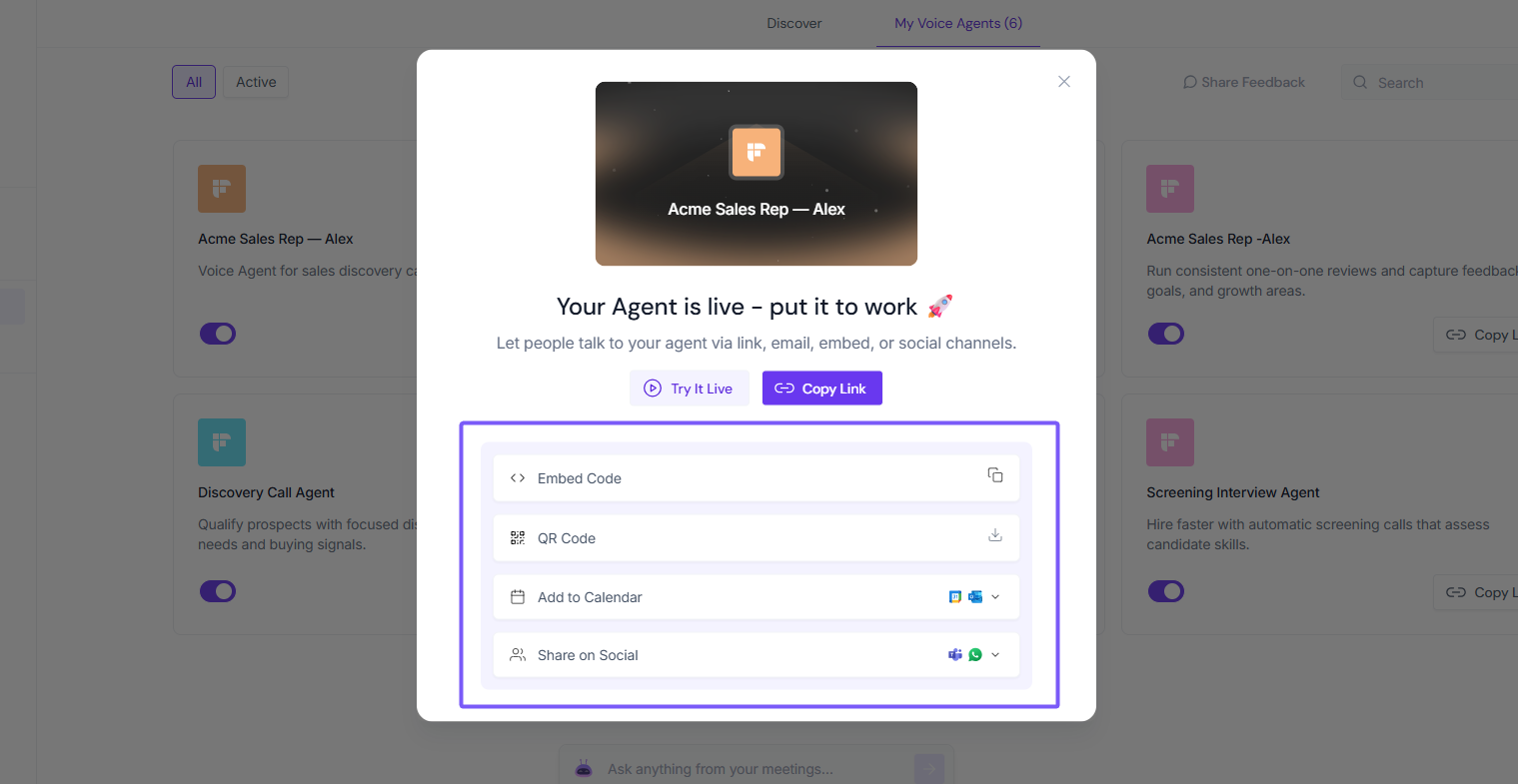
👉 Learn how to share your Voice Agent: Share Your Fireflies Voice Agent in Seconds — Embed, QR Code, Social Media, Calendar & More
👥 How participants join the call
When someone clicks your Voice Agent link, they’re guided through a simple join flow:
If email verification is enabled:
Enter your name and email address.
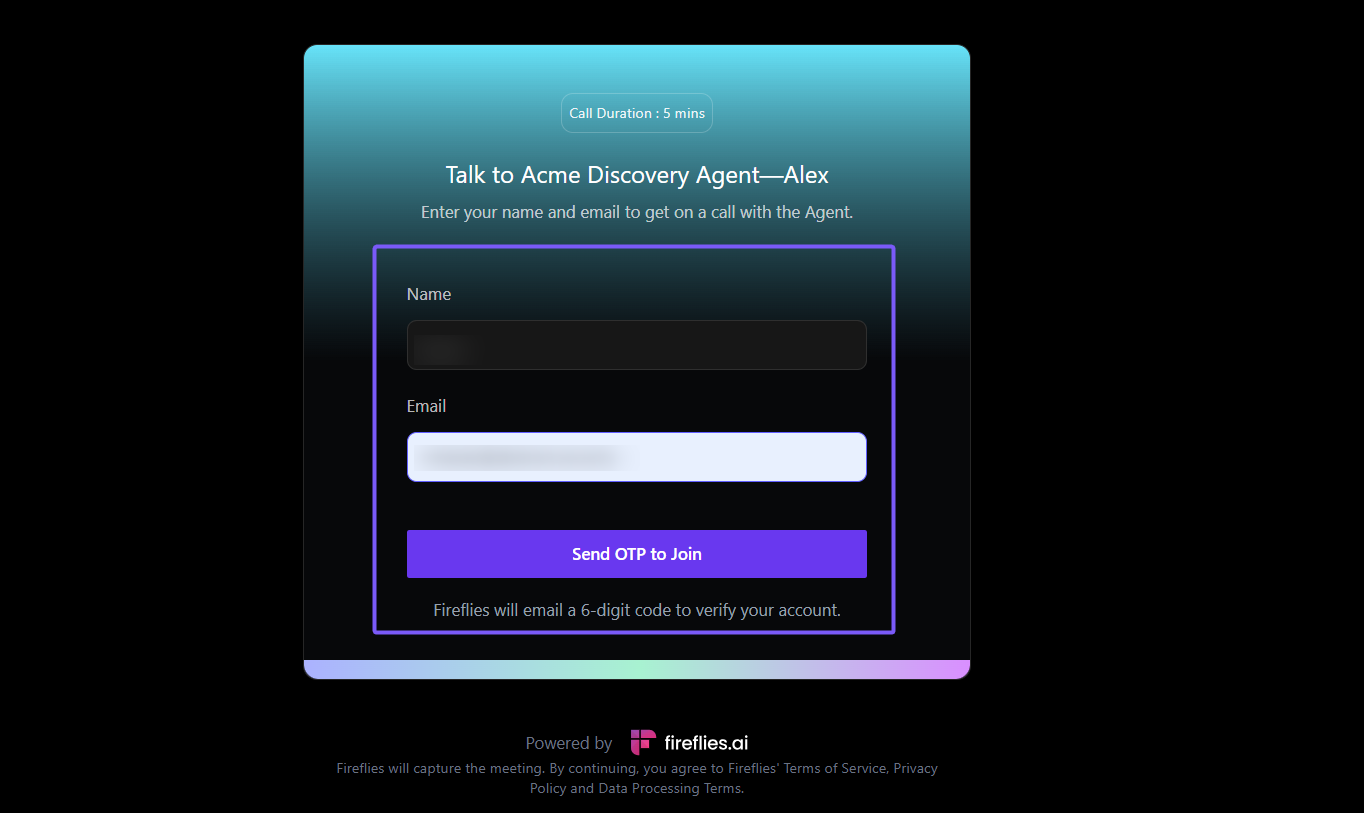
Verify your identity using the one-time password (OTP) sent to your email.
Once verified, click Join Meeting.

If email verification is disabled:
Enter your name and click Continue.
Click Join Meeting.
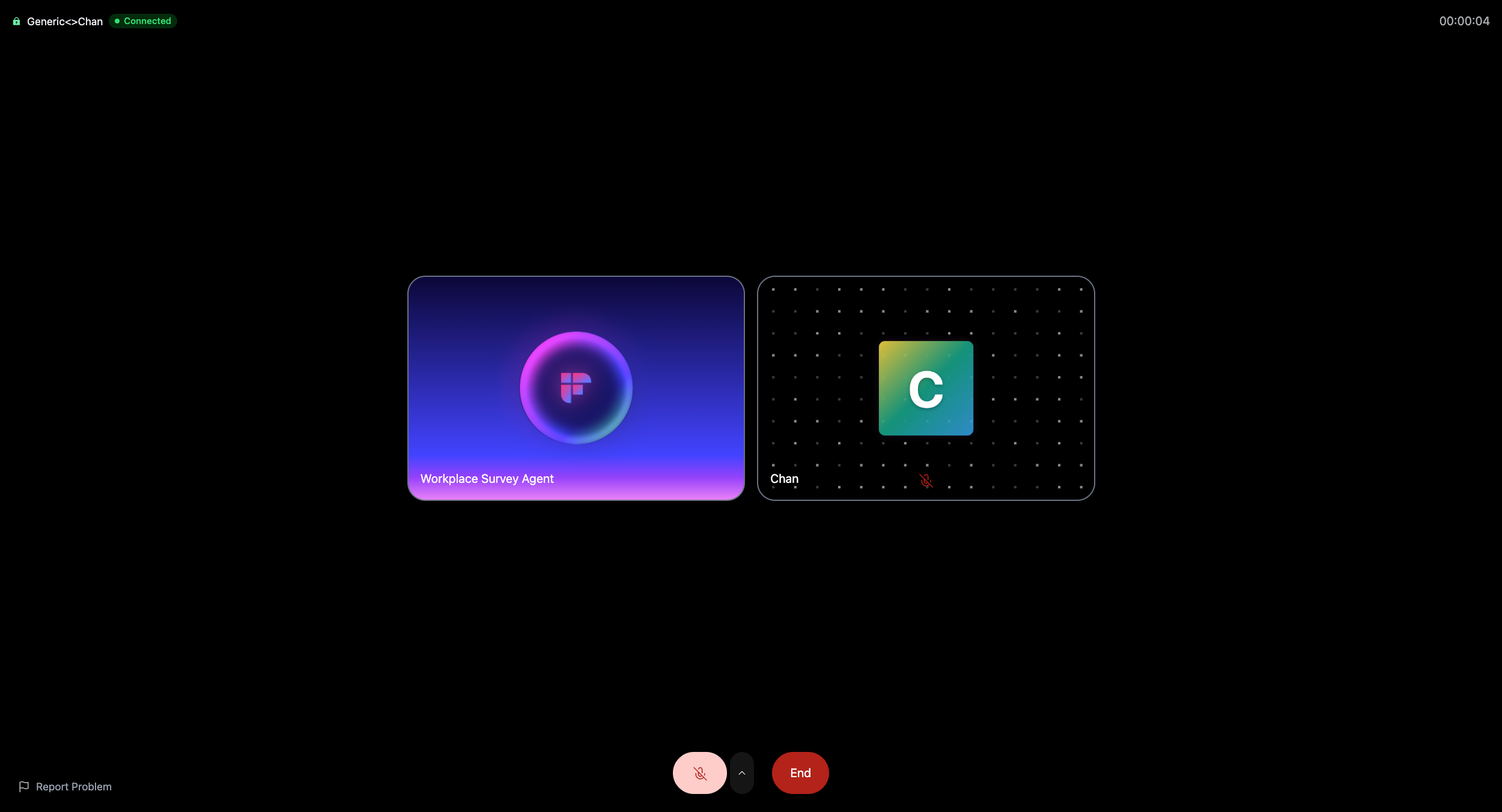
The conversation starts immediately.

🤖 How the Voice Agent runs the conversation
When a participant joins the call, the Voice Agent greets them and guides the conversation based on the questions, knowledge, and instructions you configured.
The Voice Agent can:
Ask questions and follow up naturally
Listen and respond in real time
Collect important information automatically
Keep the conversation structured and on track
This helps you run consistent conversations without needing to attend every call live.
✅ What happens after the call
Once a Voice Agent call ends, Fireflies automatically captures and organizes everything for you, so you can review outcomes and take action without replaying the entire conversation.
How to identify Voice Agent meetings?
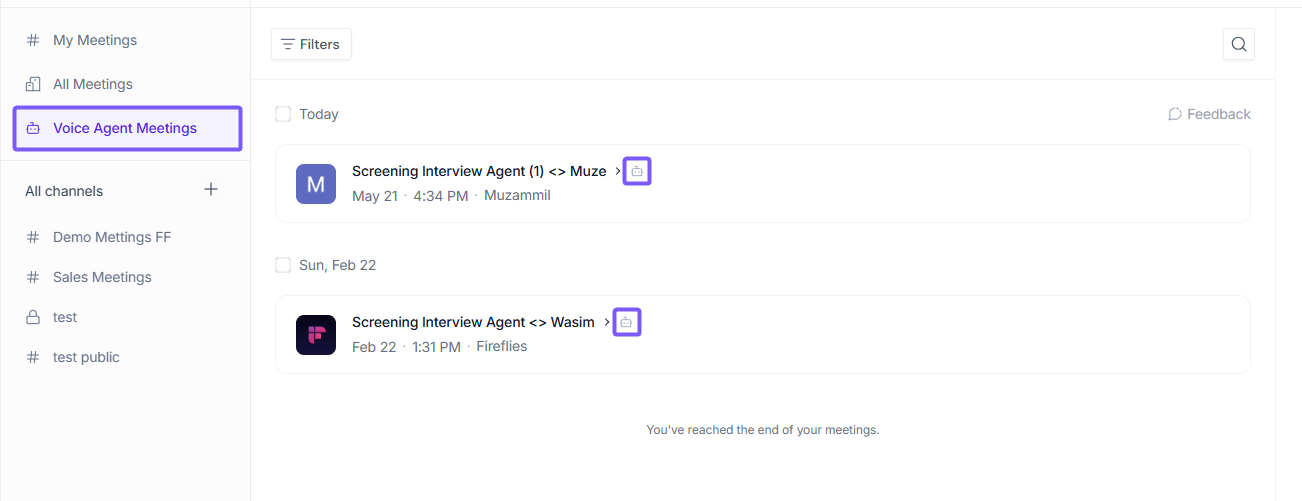
Voice Agent calls are marked with a robot icon (🤖) next to the meeting name. This icon helps you quickly identify which meetings were run by a Voice Agent.
Alternatively, select the Voice Agent Meetings channel from the left sidebar to view all Voice Agent meetings in one place.
After each call, you can:
Review recordings and transcripts
View AI generated summaries and highlights
Review scorecards and evaluations
Use AskFred to get answers from the meeting
Run AI Skills to automate follow ups and workflows
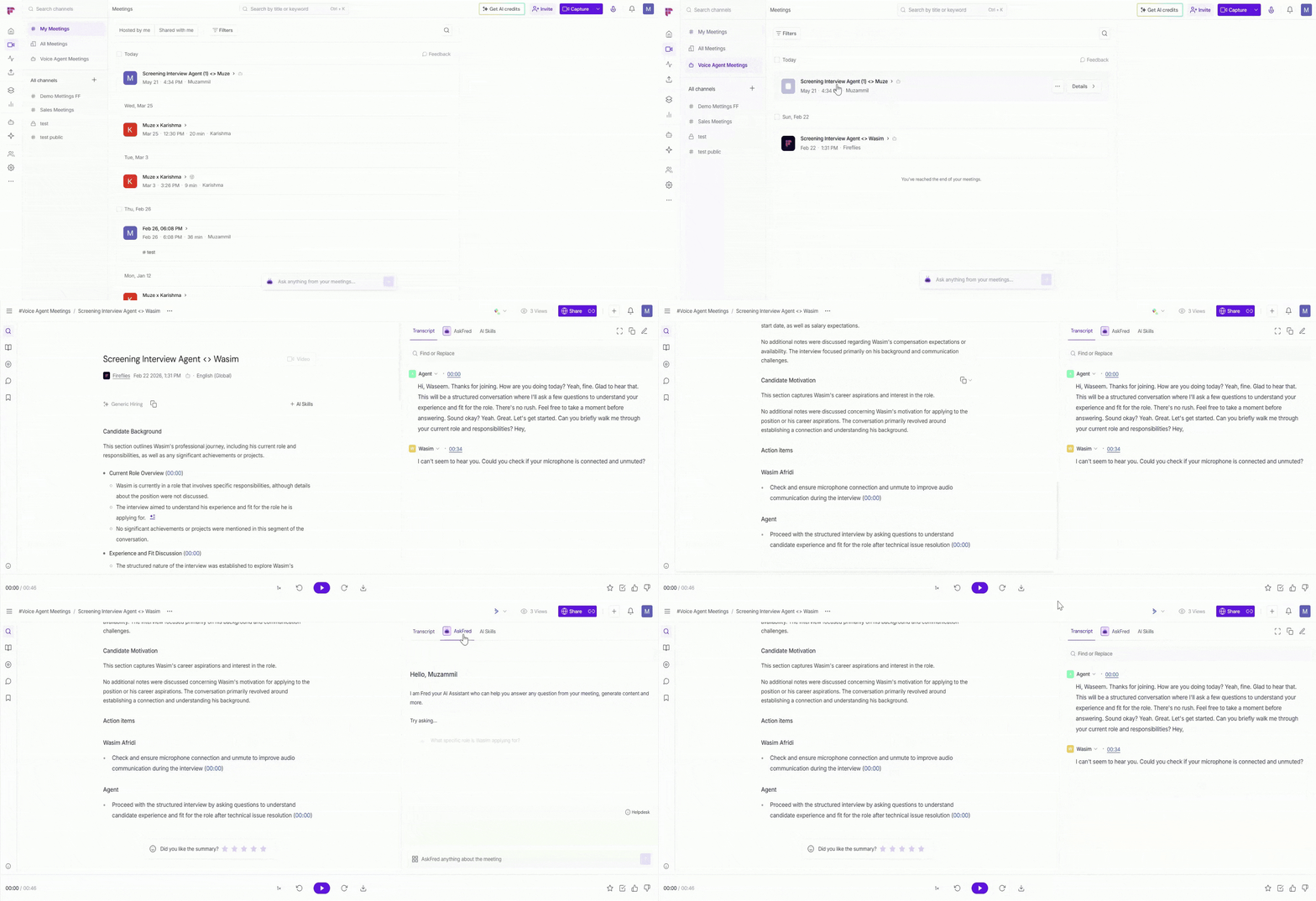
For step-by-step instructions on where to find the voice agent meeting and how to review outputs, see:
👉 Learn how to view and take action on your Voice Agent meetings
✨AI Credits Usage for Voice Agents
Voice Agents use AI credits based on how long each call lasts. Credits are consumed only while the call is active.
1 AI credit = 1 minute of Voice Agent call time
Only the actual duration of the call is counted
No credits are consumed before or after the call
For example, if a call runs for 10 minutes, it uses 10 AI credits
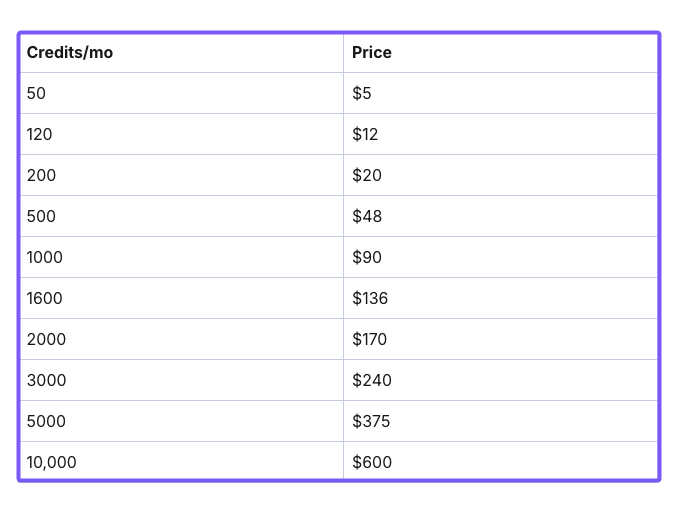
Learn more about purchasing AI credits: How to purchase AI credits
⚙ Manage your Voice Agent
After your Voice Agent is live, you can manage it anytime from the My Voice Agents section.
From there, you can edit the agent’s configuration, pause or unpublish it, clone it for another use case, or delete it when it’s no longer needed.
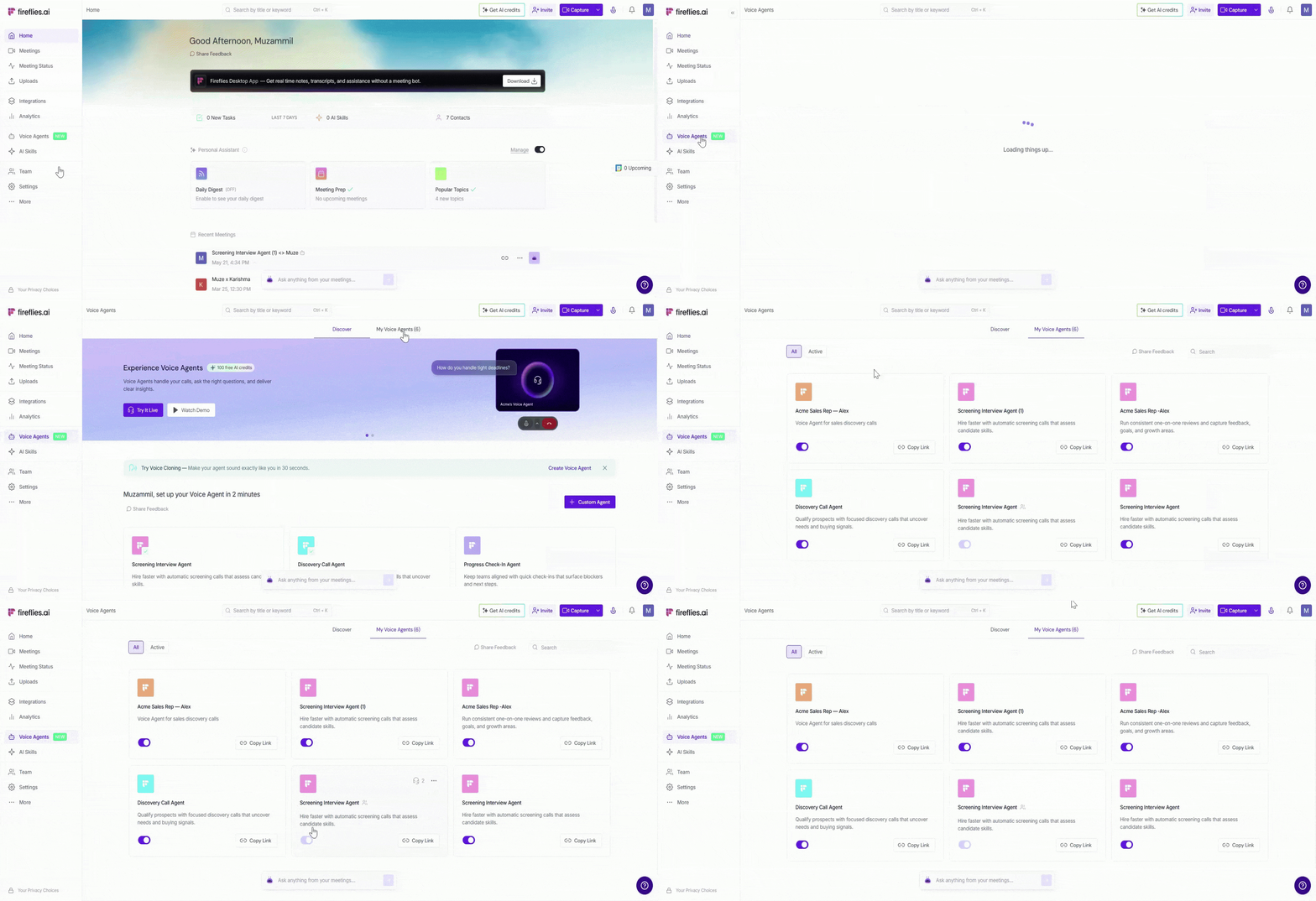
Learn more about how to actively manage your Voice Agents in How to Manage Your Voice Agents.
❓ Troubleshooting & FAQs
1. I can’t find my Voice Agent
Go to Voice Agents → My Voice Agents and make sure the agent is published or not paused.
2. My Voice Agent link isn’t working
Check that the agent is published and try opening the link in an incognito window to test it.
3. Participants can’t join the call
Ask them to confirm their email and complete the one-time password (OTP) verification before starting the meeting.
4. I don’t see the call after it ends
Calls appear once the Voice Agent finishes running. Check Meetings → Voice Agent Meetings or All Meetings.
5. The summary or transcript is missing
It may take a few moments to generate after the call ends. Refresh the meeting page and check again.
6. Who can view Voice Agent calls?
Access depends on the visibility and privacy settings you chose when creating the Voice Agent. If needed, check the agent’s settings or contact your workspace admin.
7. Do Voice Agent calls use Google Meet or another third-party platform?
No. Voice Agent calls run entirely on Fireflies’ own platform. Participants simply open the shared Voice Agent link in any browser—there’s no Google Meet or third-party meeting tool involved.
8. Can I use my own voice for a Voice Agent?
Yes. Fireflies supports Voice Cloning, which allows you to create and use a custom voice clone for your Voice Agents.
📌 Check out How to Clone Your Voice for Fireflies Voice Agents to learn how to create and use your cloned voice.
🔁 Recap
Here’s a quick summary of what you covered:
Set up a Voice Agent with your own questions and instructions
Adjust visibility, privacy, and recap email settings
Publish the agent and share the link
Understand how calls run and what’s captured after each call
Find and manage Voice Agent calls and settings later
🔗 Related guides
How to Create a Discovery Call Voice Agent → Step-by-step instructions for setting up a Discovery Call Voice Agent.
How to Create a Screening Interview Voice Agent → Step-by-step instructions for setting up a Screening Interview Voice Agent.
How to Clone Your Voice for Fireflies Voice Agents → Create and use a custom voice clone for your Voice Agents.