How to Manage Your Voice Agents
Last updated: March 9, 2026
With Voice Agents, Fireflies can run meetings on your behalf, including screening interviews, sales discovery calls, check-ins, and user interviews. This works especially well for repetitive conversations you don’t need to attend live, while still capturing structured notes, summaries, and insights from every call.
Once your Voice Agents are live, you may want to make updates, pause them, reuse them for another purpose, or remove ones you no longer need. Fireflies makes it easy to manage all of this from one place—no additional setup required.
Let's get started 🚀
🚀 Navigation
Step 1: Log in to your Fireflies account and click Voice Agents from the left-hand menu to view all your Voice Agents.
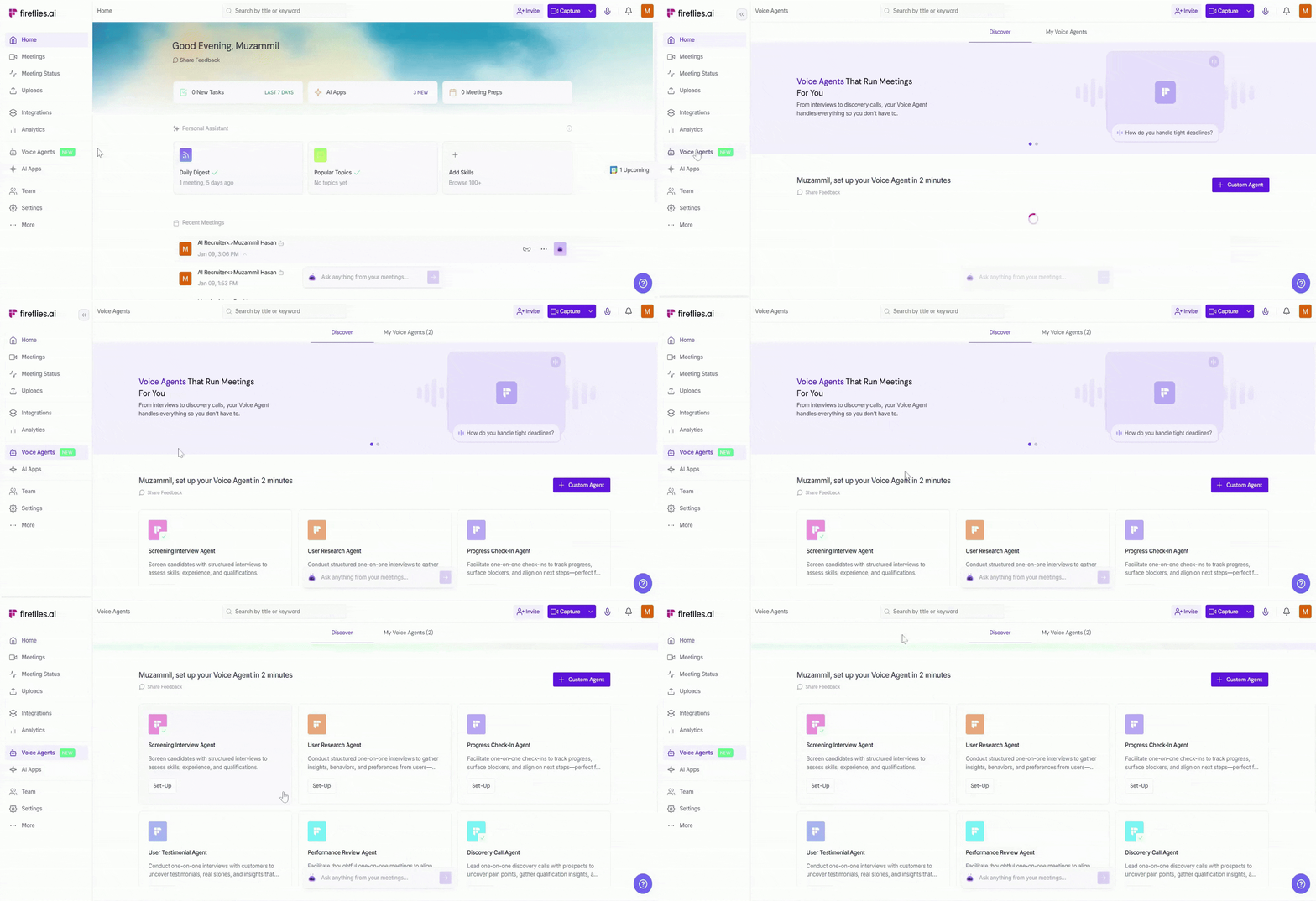
Step 2: Click on the My Voice Agents tab at the top of the page to see all the Voice Agents you’ve created.
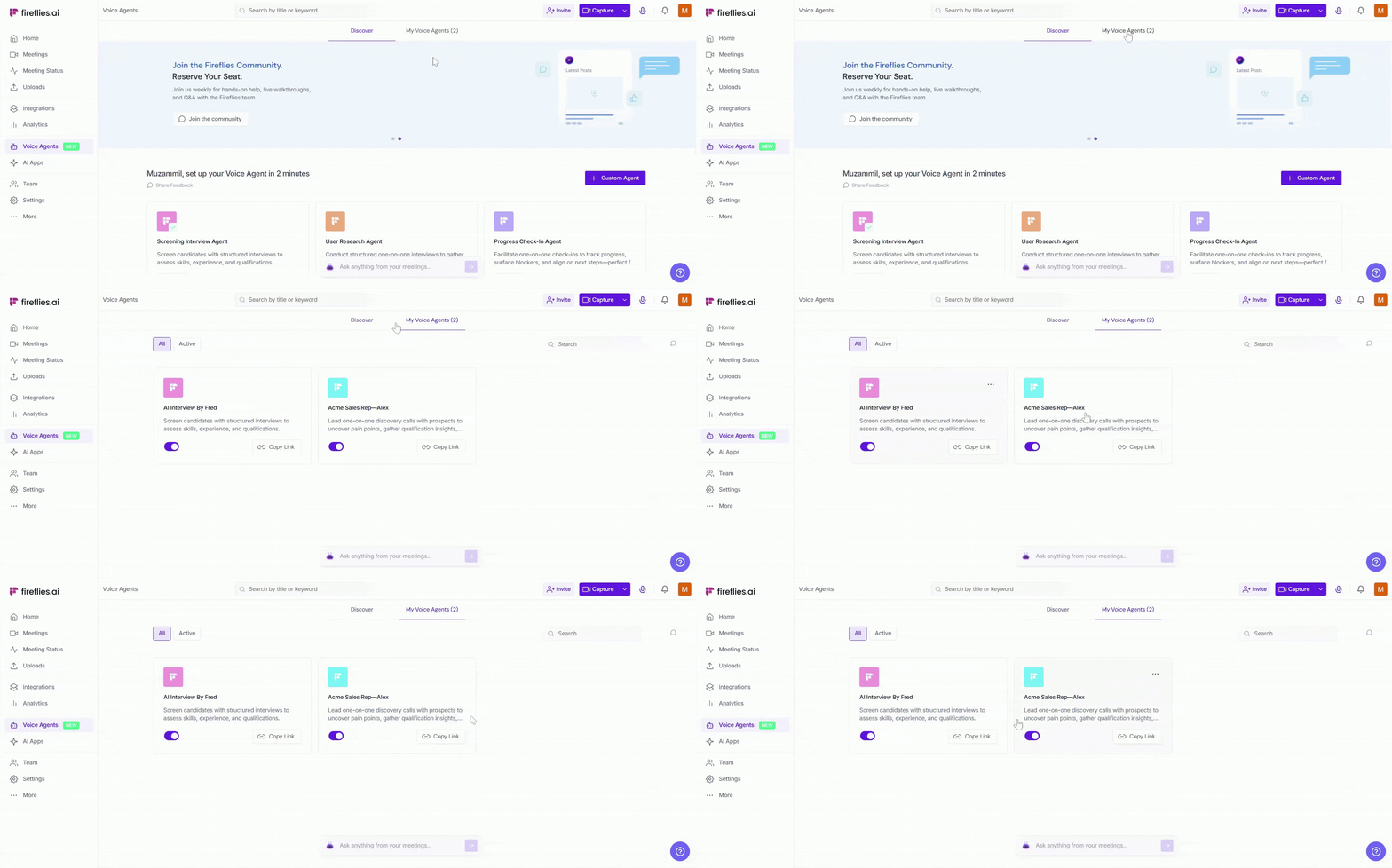
Filter your Voice Agents
On the My Voice Agents page, you can use filters to control what you see:
All — Shows all Voice Agents you’ve created, including both published and unpublished ones.
Active — Shows only Voice Agents that are currently published and live.
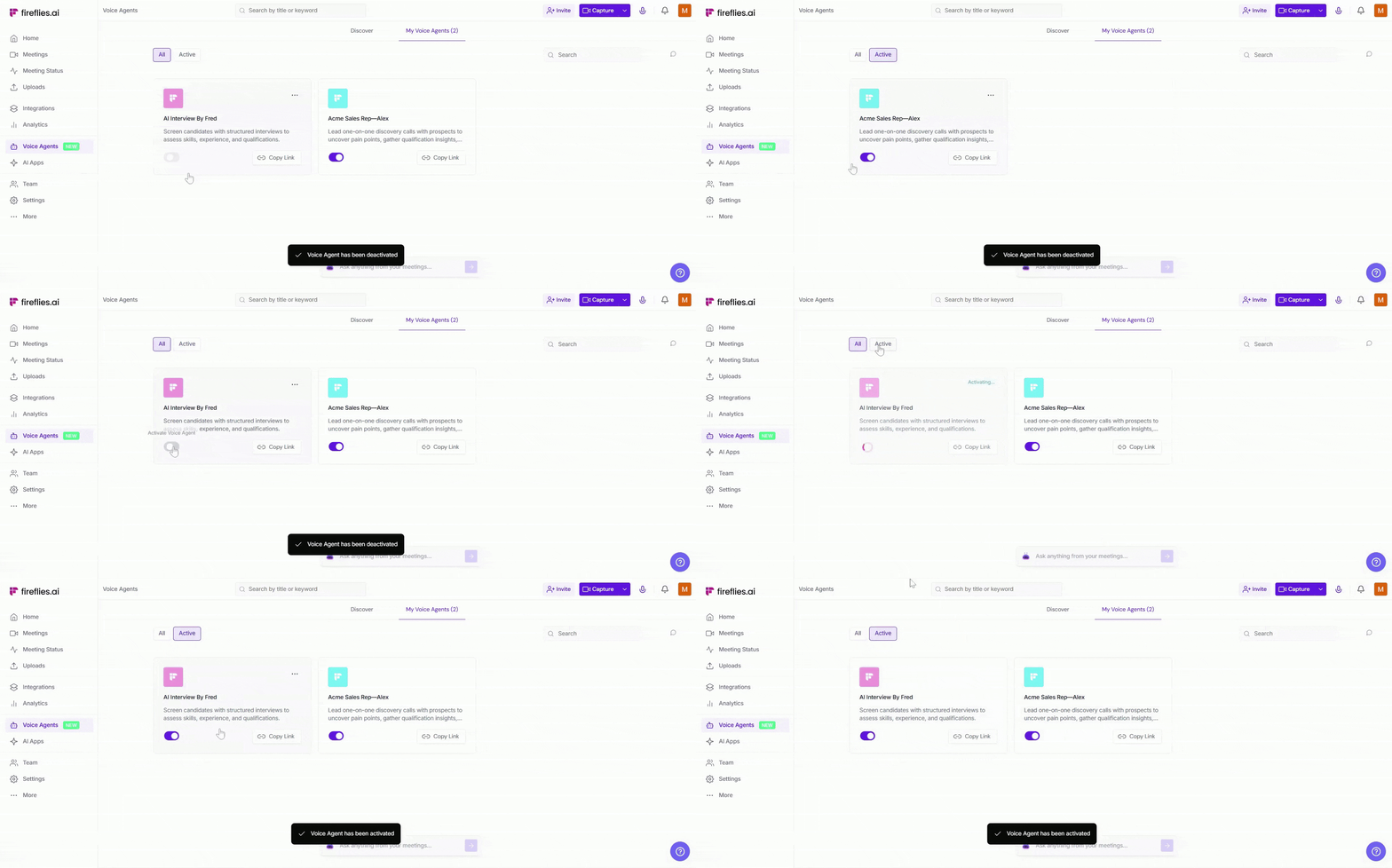
⚙ Manage your Voice Agents
From the My Voice Agents page, you can quickly edit, preview, share, clone, unpublish, or delete any Voice Agent you’ve created.
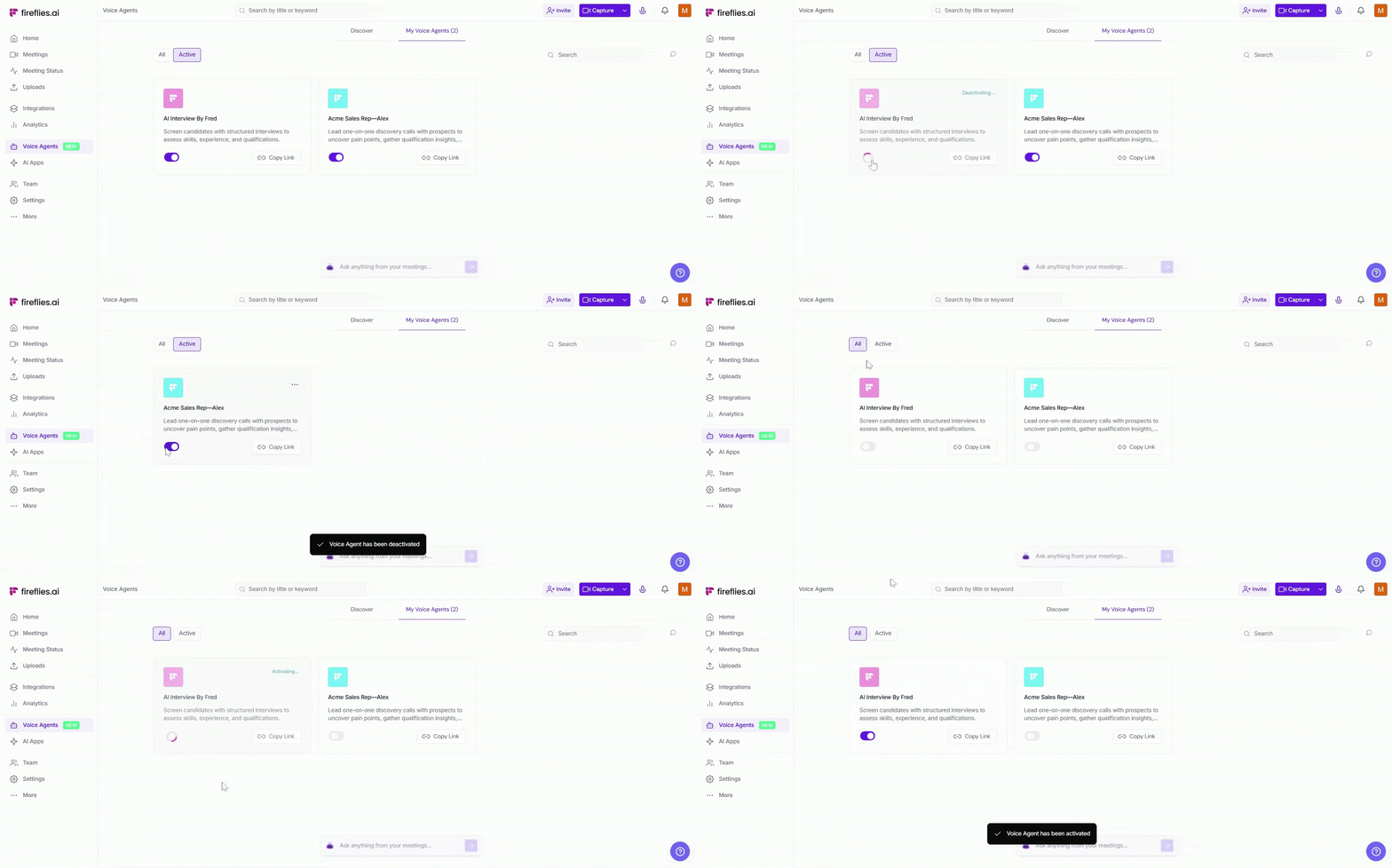
⏸ Publish or unpublish a Voice Agent
Use the toggle to make a Voice Agent live or temporarily pause it without deleting your Voice Agent or its settings.
Turn the toggle ON to publish the Voice Agent and make it live.
Turn the toggle OFF to unpublish the Voice Agent and pause new sessions.
Published (live) Voice Agents appear under the Active tab, while unpublished ones remain saved and can be published again anytime.
🔗 Share your Voice Agents
Use Copy link to quickly share your Voice Agent with others.
Click Copy link to copy the Voice Agent’s meeting link.
Share the link with candidates, prospects, or participants.
Anyone with the link can start a session based on your privacy settings.
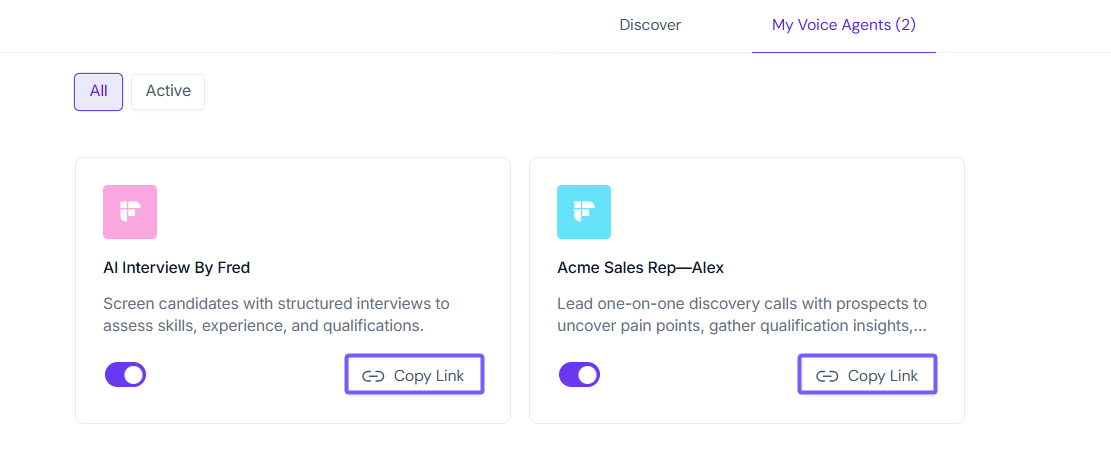
You can also share your Voice Agent with a wider audience using options like QR codes, website embeds, social platforms, or calendar invites.
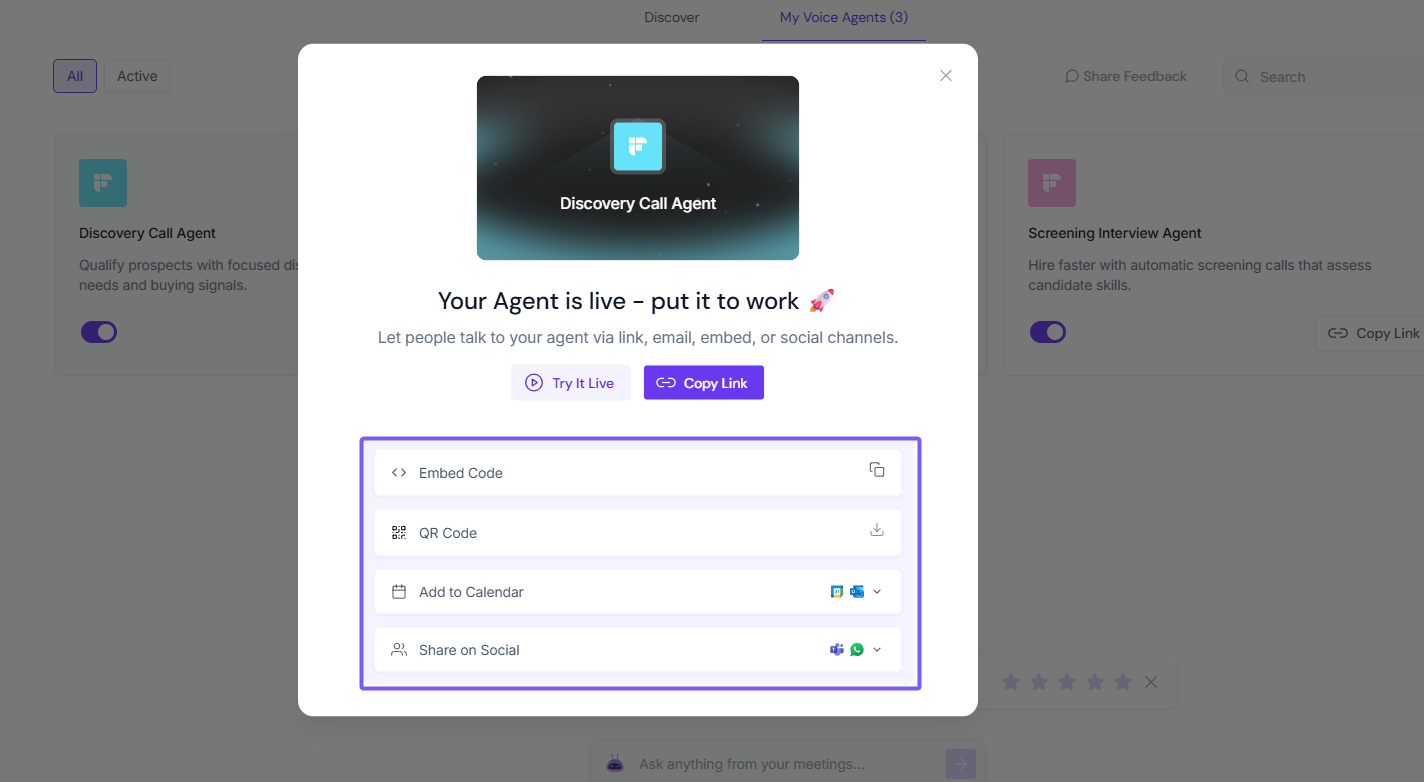
Learn more: Share Your Fireflies Voice Agent in Seconds — Embed, QR Code, Social Media, Calendar & More
📊 Track Your Voice Agent's Activity
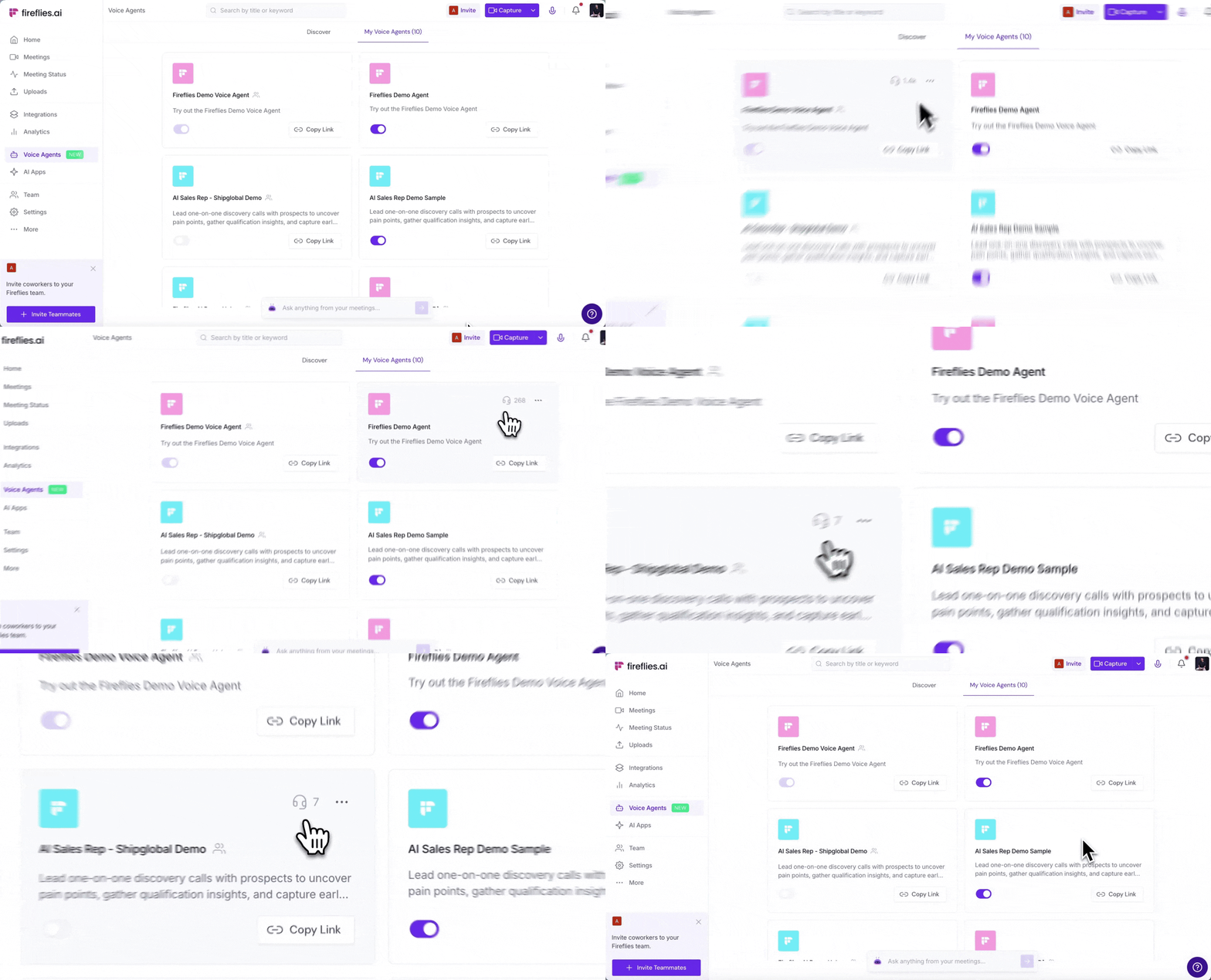
Want to see how many calls your Voice Agent has taken? Head to the My Voice Agents page and hover over any agent tile to see the total call count.
✏ Edit a Voice Agent
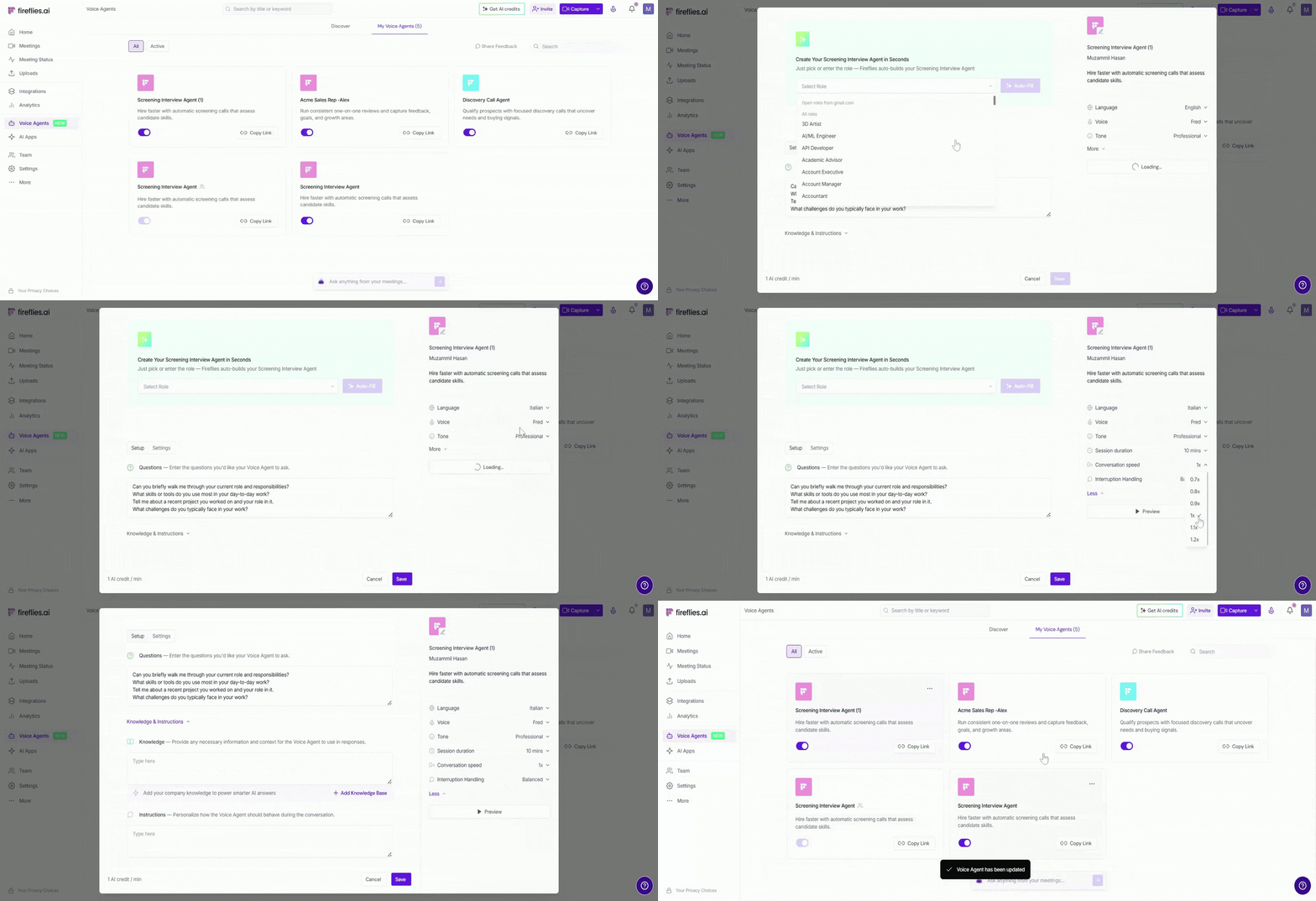
Use Edit when you want to update how your Voice Agent works.
Click on the three-dot (⋯) menu next to the Voice Agent and click Edit.
Change questions, knowledge, or instructions.
Update voice, tone, language, or duration.
Adjust privacy, visibility, or recap settings.
Click the Save button to save and apply your changes for future Voice Agent sessions.
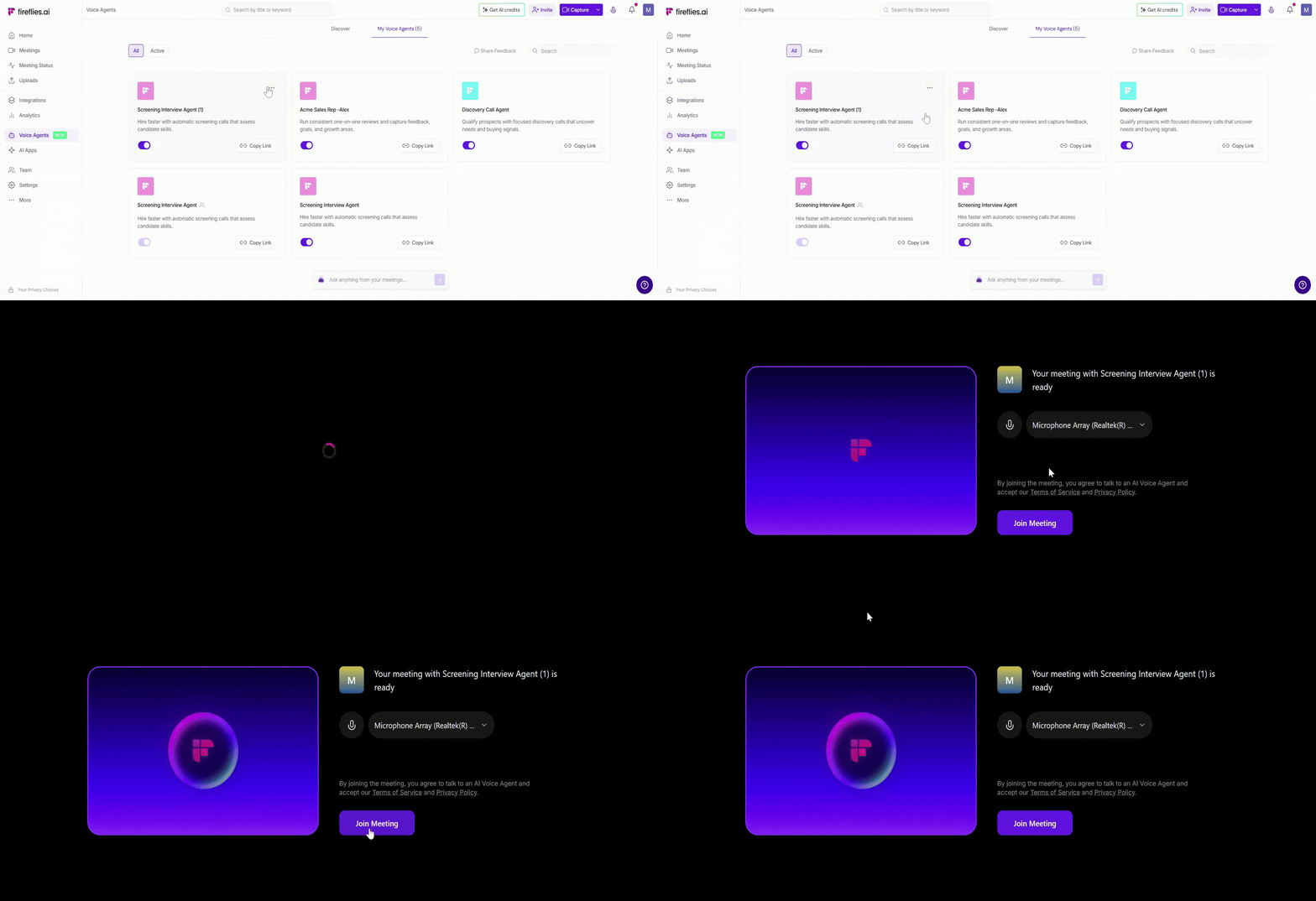
🔊 Preview a Voice Agent
Use Preview to hear how your Voice Agent sounds before sharing or publishing it.
Click the three-dot (⋯) menu next to the Voice Agent and select Preview.
Listen to the selected voice, tone, and language.
Confirm everything sounds right before going live.
📄 Clone a Voice Agent
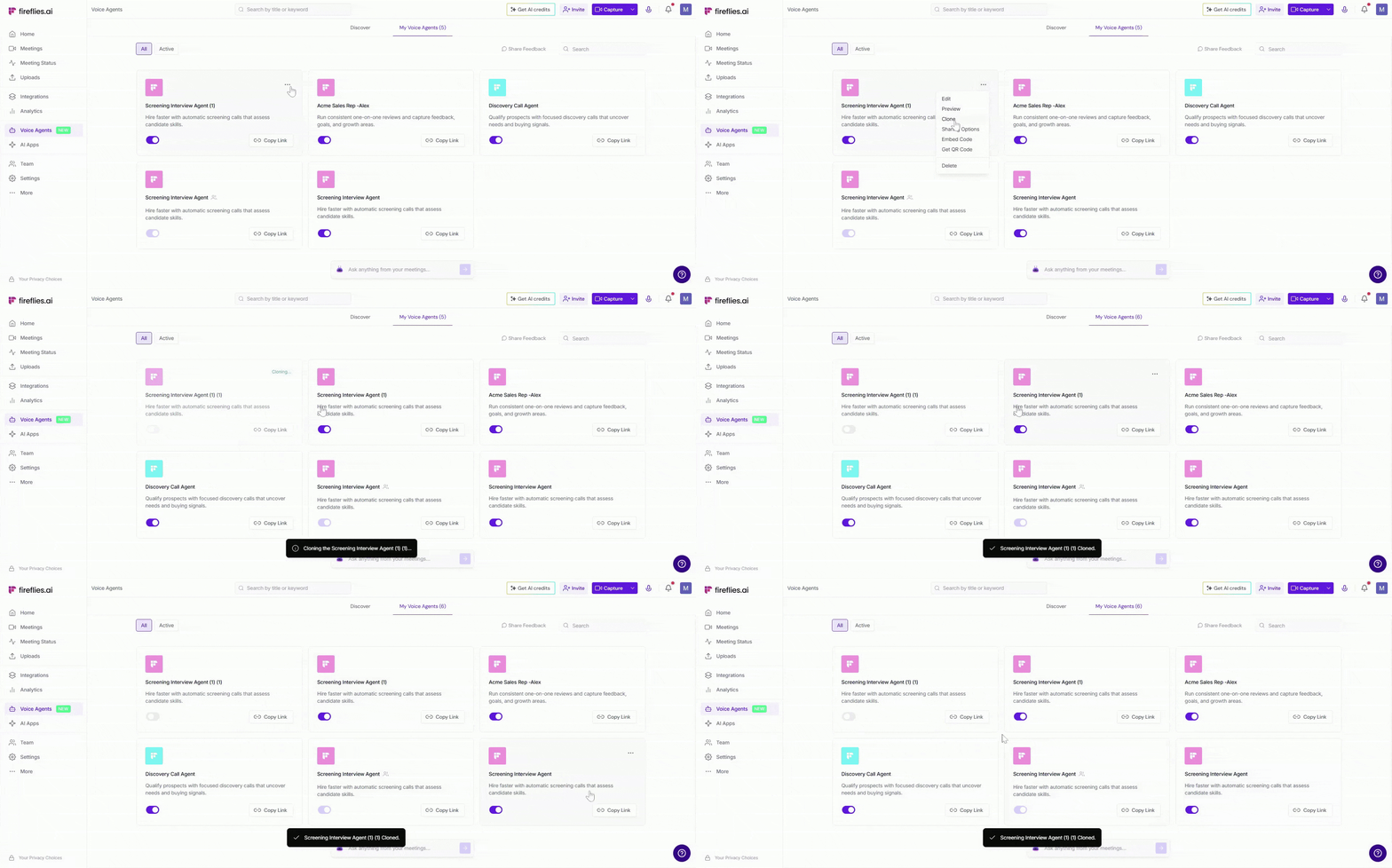
Use Clone to create a copy of an existing Voice Agent. It helps you reuse a setup without starting from scratch.
Click the three-dot (⋯) menu next to the Voice Agent and select Clone.
A duplicate Voice Agent will be created.
Edit the cloned agent and publish it when ready.
🗑 Delete a Voice Agent
Use the Delete option to permanently remove a Voice Agent that you no longer need.
Click the three-dot (⋯) menu next to the Voice Agent and select Delete.
Confirm the deletion when prompted.
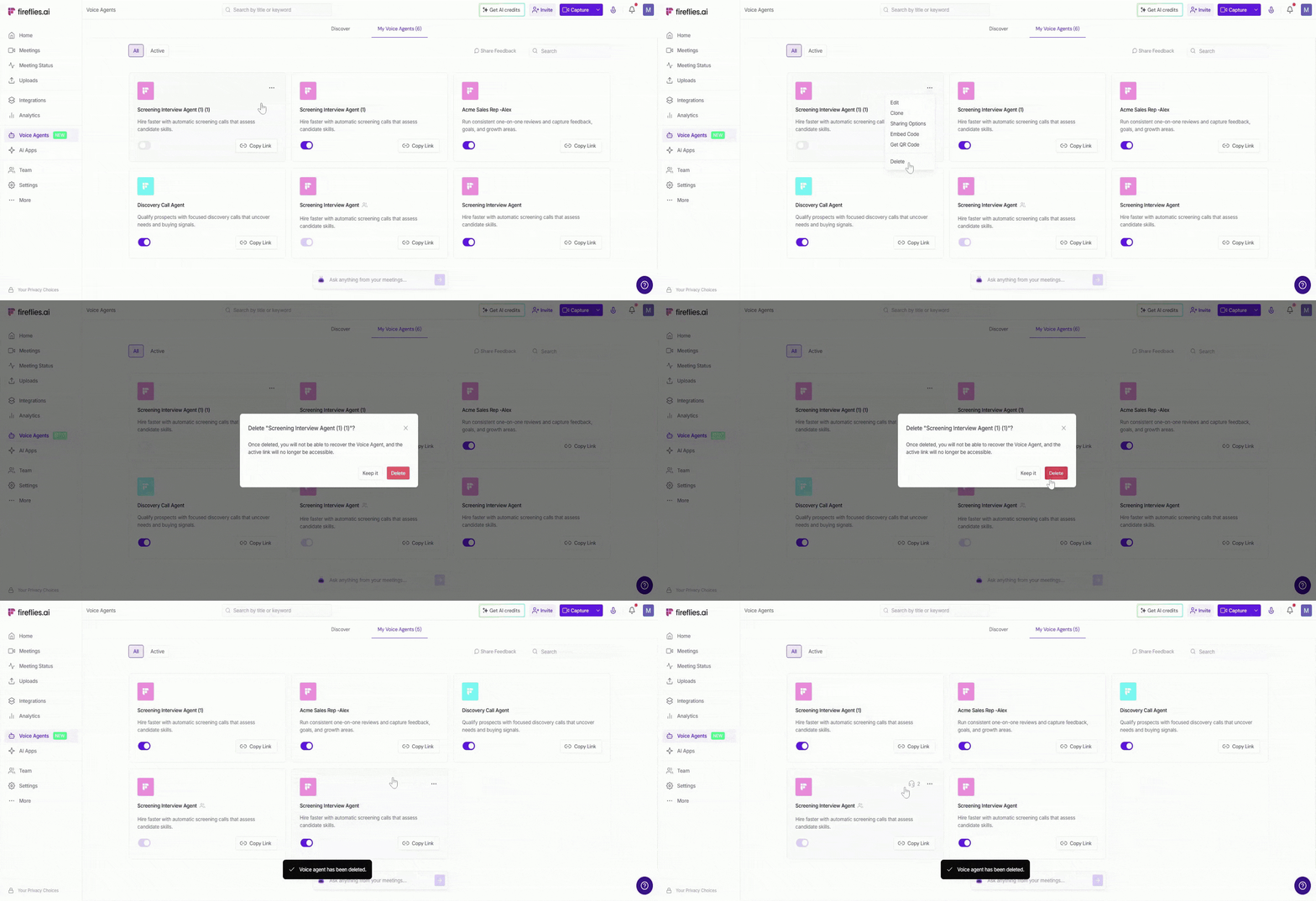
Deleting a Voice Agent is permanent and cannot be undone. Any shared links for this Voice Agent will no longer be accessible.
❓Troubleshooting & FAQs
1. I don’t see my Voice Agent in the list
Make sure you’re on the My Voice Agents tab.
Check the All filter to see both published and unpublished Voice Agents.
If you’re using the Active filter, only published Voice Agents will appear.
2. I can’t publish my Voice Agent
Confirm all required fields are filled in (questions, voice, and instructions).
Try refreshing the page and publishing again.
Make sure you have permission to publish Voice Agents in your workspace.
3. The Preview option is not working
Refresh the page and try again.
Check your browser’s audio settings.
Try switching to another voice and preview again.
4. I accidentally unpublished a Voice Agent
Go to My Voice Agents and turn the toggle ON to publish it again.
5. I can’t find the Voice Agent link
Click the three-dot (⋯) menu next to the Voice Agent.
Select Copy link to get the shareable link.
6. Can I recover a deleted Voice Agent?
No. Deleted Voice Agents cannot be recovered, and any shared links will no longer work.
🔁 Recap
In this guide, you learned how to manage your Voice Agents in Fireflies.
Find all your Voice Agents from the My Voice Agents page
Publish or unpublish a Voice Agent using the toggle
Share a Voice Agent using the copy link option
Edit, preview, clone, or delete a Voice Agent using the three-dot menu
This gives you full control over how your Voice Agents are used, updated, and shared.
🔗 Related guides
How to View Your Voice Agent Meetings — Find and review transcripts, summaries, and insights from Voice Agent calls.
Start quickly with a template — Use a ready-made Voice Agent and customize it as needed.
Build a custom Voice Agent — Create one from scratch with your own questions and flow.