Share Your Fireflies Voice Agent in Seconds — Embed, QR Code, Social Media, Calendar & More
Last updated: March 9, 2026
Your Voice Agent is live — now it’s time to share it.
Fireflies makes it easy to share your Voice Agent across multiple places — whether that’s embedding it on your website, sending it through messaging apps, adding it to calendar invites, or generating a QR code.
You can share your agent right after publishing it, or access the sharing options anytime from the My Voice Agents page.
🔑 Prerequisites
Before sharing your Voice Agent:
A Voice Agent must be created.
You must have access to the Voice Agents in Fireflies
🚀 Navigation
Step 1: Log in to Fireflies
Log in to your Fireflies account, then navigate to Voice Agents from the left sidebar on the home dashboard.
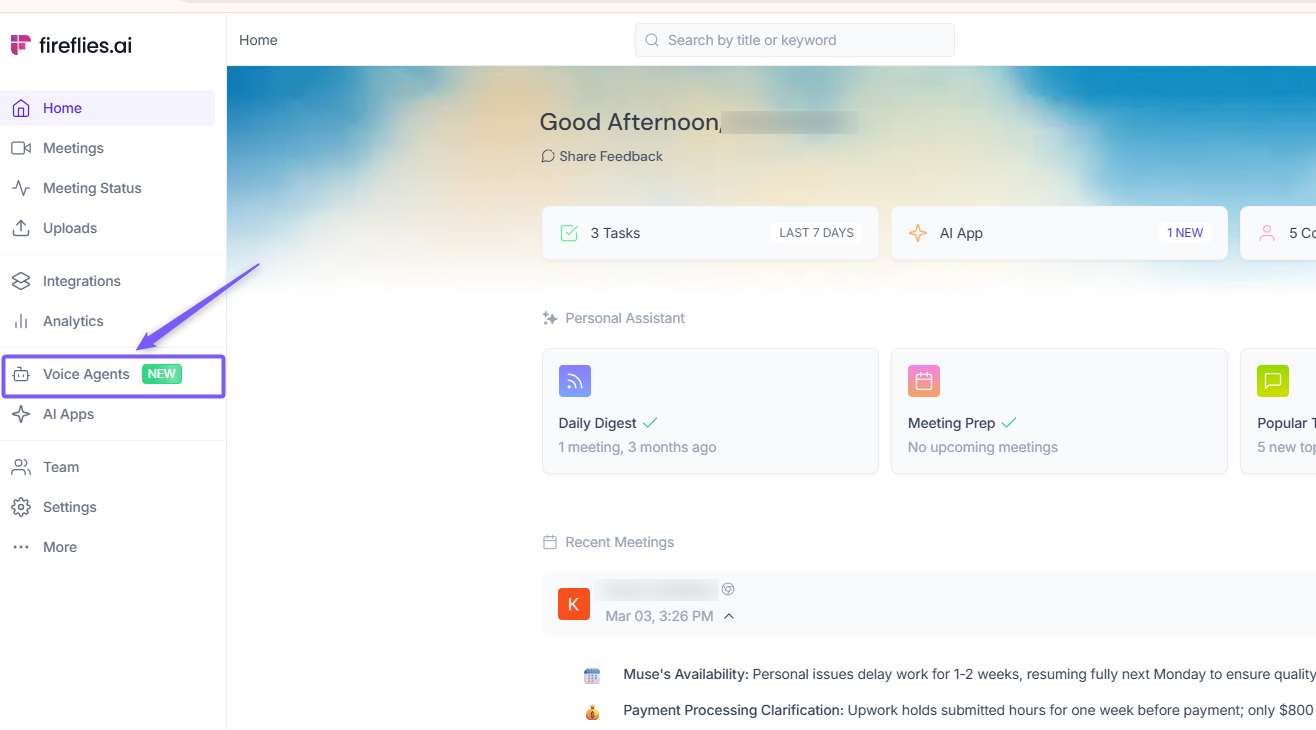
Step 2: Choose the Voice Agents tab
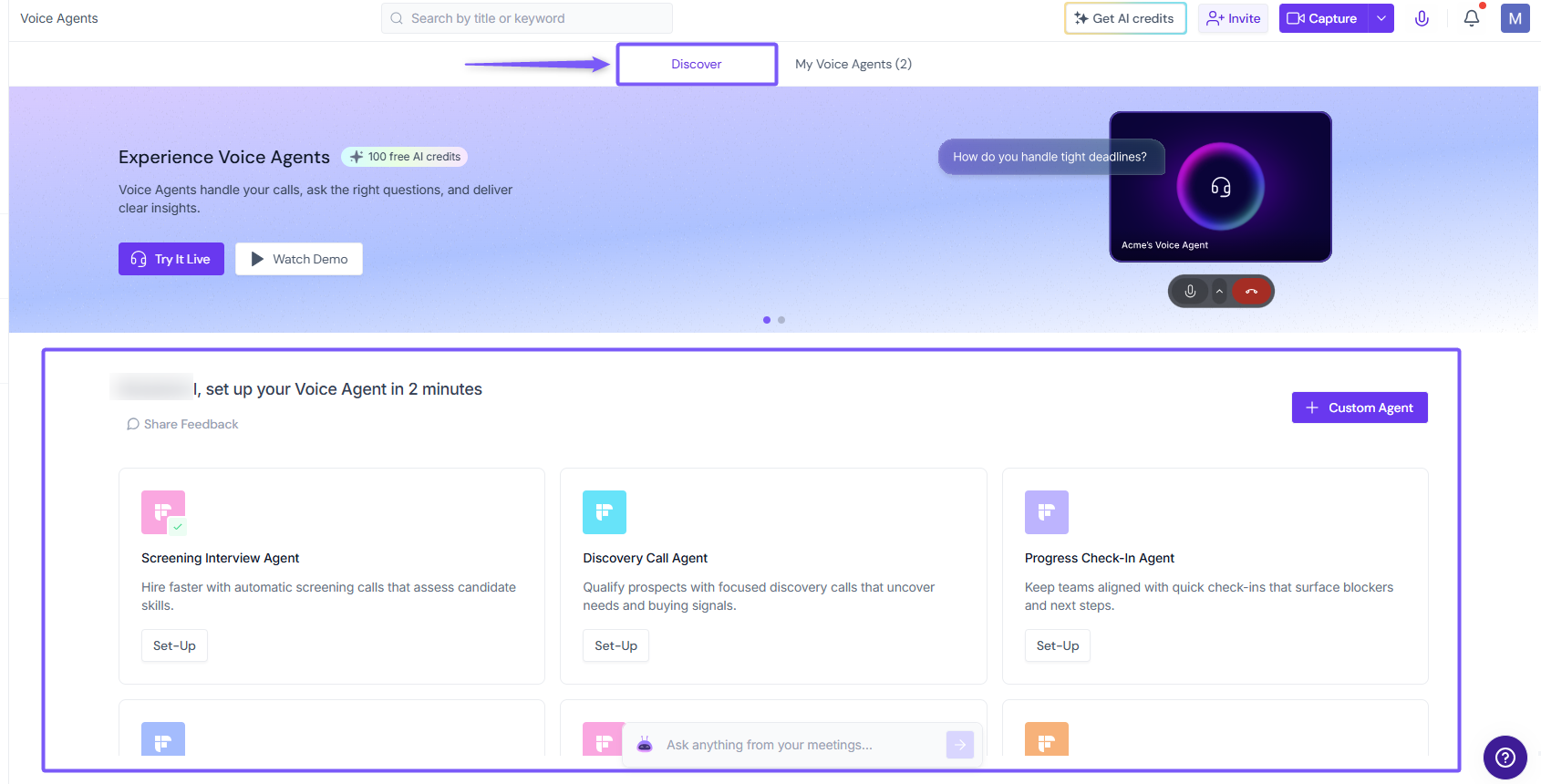
On the Voice Agents page, you will see two tabs:
Discover – Browse and create Voice Agents from templates or create from sratch.
My Voice Agents – View and manage Voice Agents you have already created.
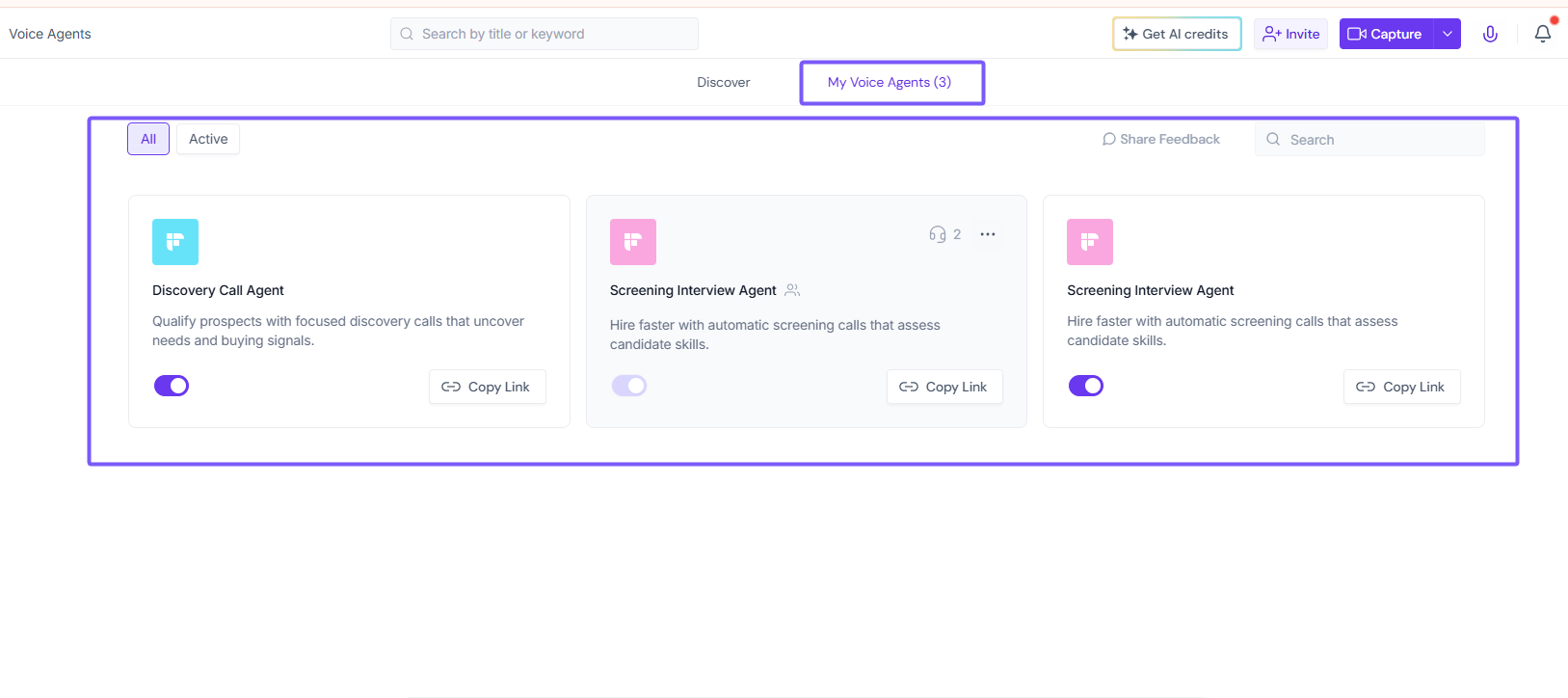
If you're new to Voice Agents and haven't created one yet, you'll need to create an agent first before sharing it.
📌 To get started, see:
What is a Voice Agent?
How to Create a Voice Agent from a Template
Step 3: Open the sharing options
Once you're on the Voice Agents page, there are two ways to open the sharing options.
Option 1 :Share Immediately After Publishing an Agent
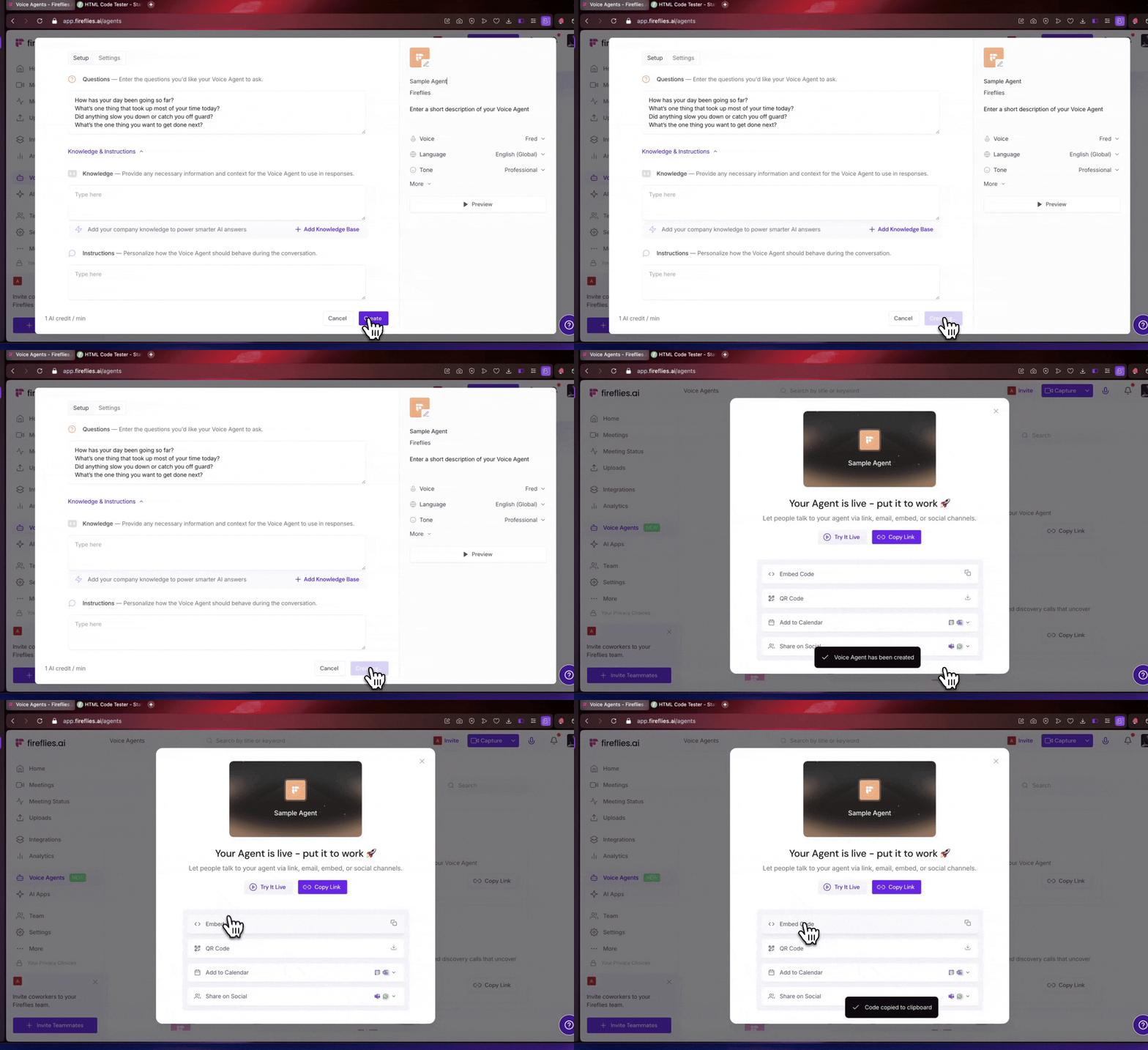
When you create a new Voice Agent and click Publish, a sharing window automatically appears. This panel allows you to instantly share your Voice Agent across different platforms.
From here, you can:
Copy the agent link
Generate an embed code
Download a QR code
Add the agent to a calendar event
Share the agent through messaging or social platforms
Option 2 — Share an Existing Voice Agent
You can also share a Voice Agent anytime after it has been created.
Go to the My Voice Agents tab. Naviage to the Voice Agent you want to share.
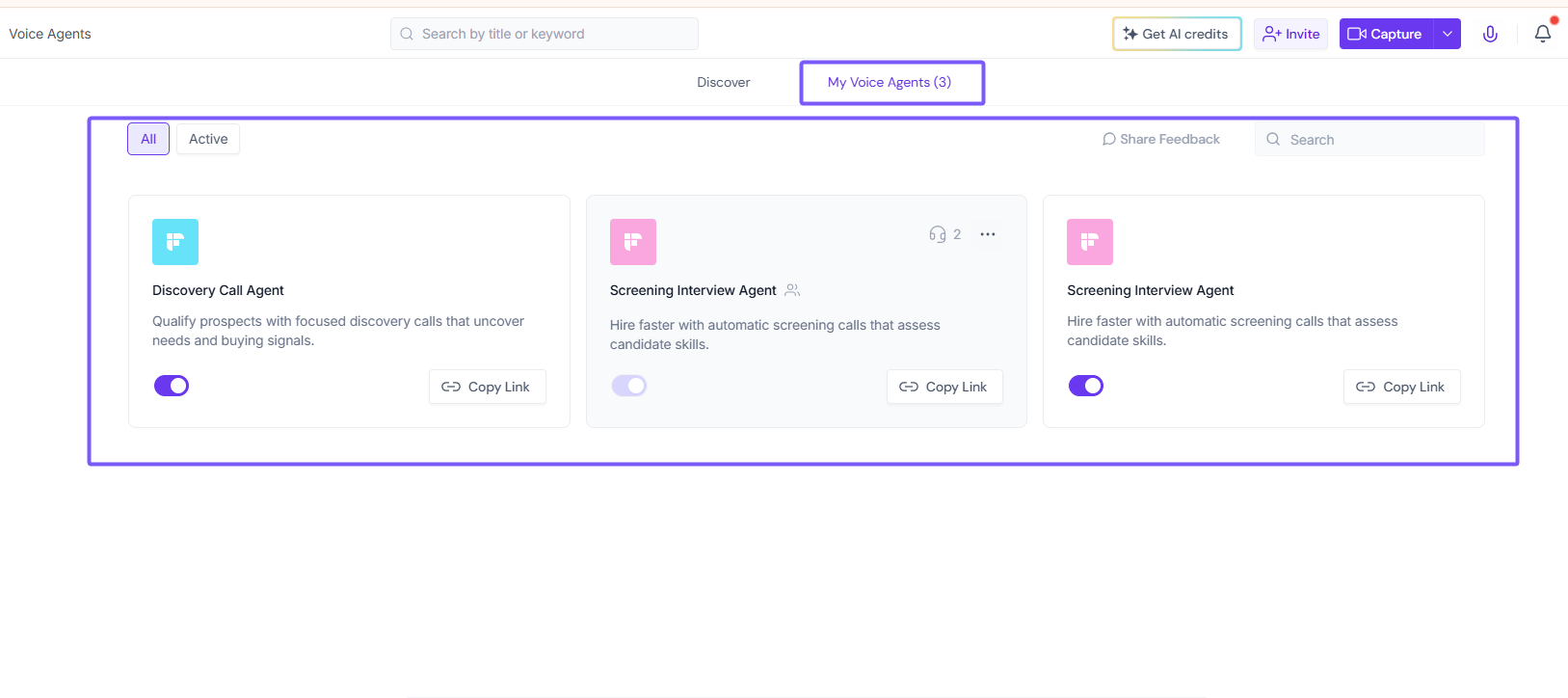
Click the three-dot menu (⋯) next to the agent.
From here you can quickly access sharing options like:
Copy Link
Sharing Options
Embed Code
Get QR Code
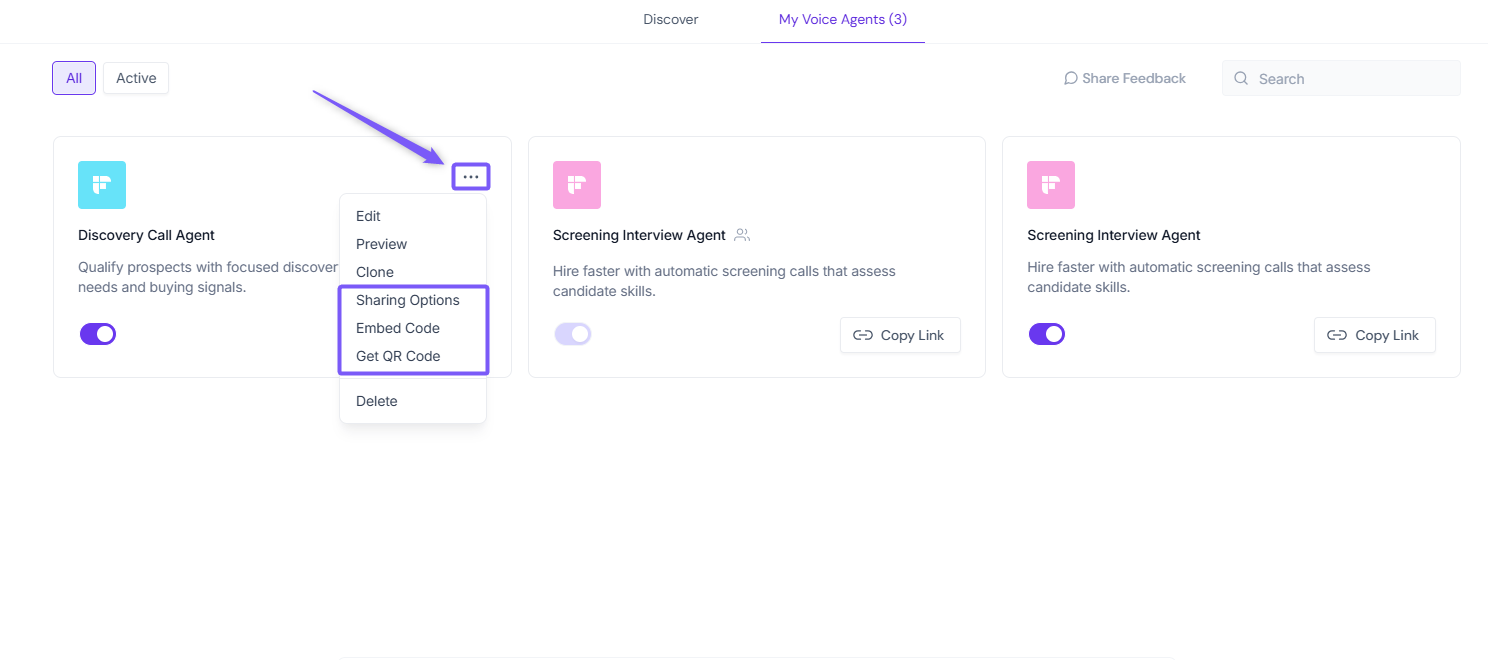
Selecting Sharing Options opens the full sharing panel where you can choose how to share your Voice Agent.
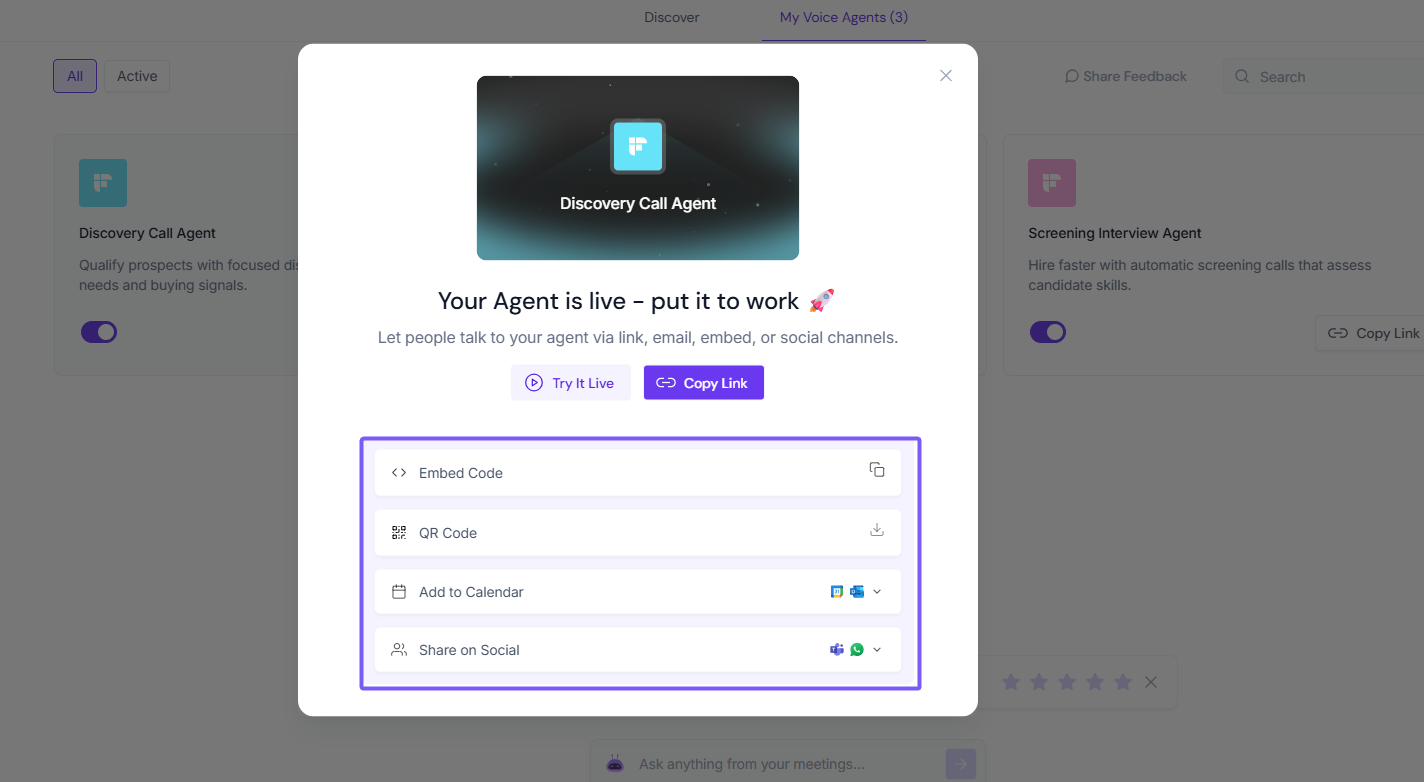
✅ Ways to Share Your Voice Agent
Once you open the sharing panel, you'll find a simple ways to get your Voice Agent in front of the right people. Pick whatever works best for you!
1. Put It on Your Website (Embed code)
Want visitors to start talking to your Voice Agent the moment they land on your page? Embedding makes that happen — no redirects, no extra steps for your users.
This works great if you're running a careers page, a product landing page, or anywhere you want people to get instant help.
Here's how:
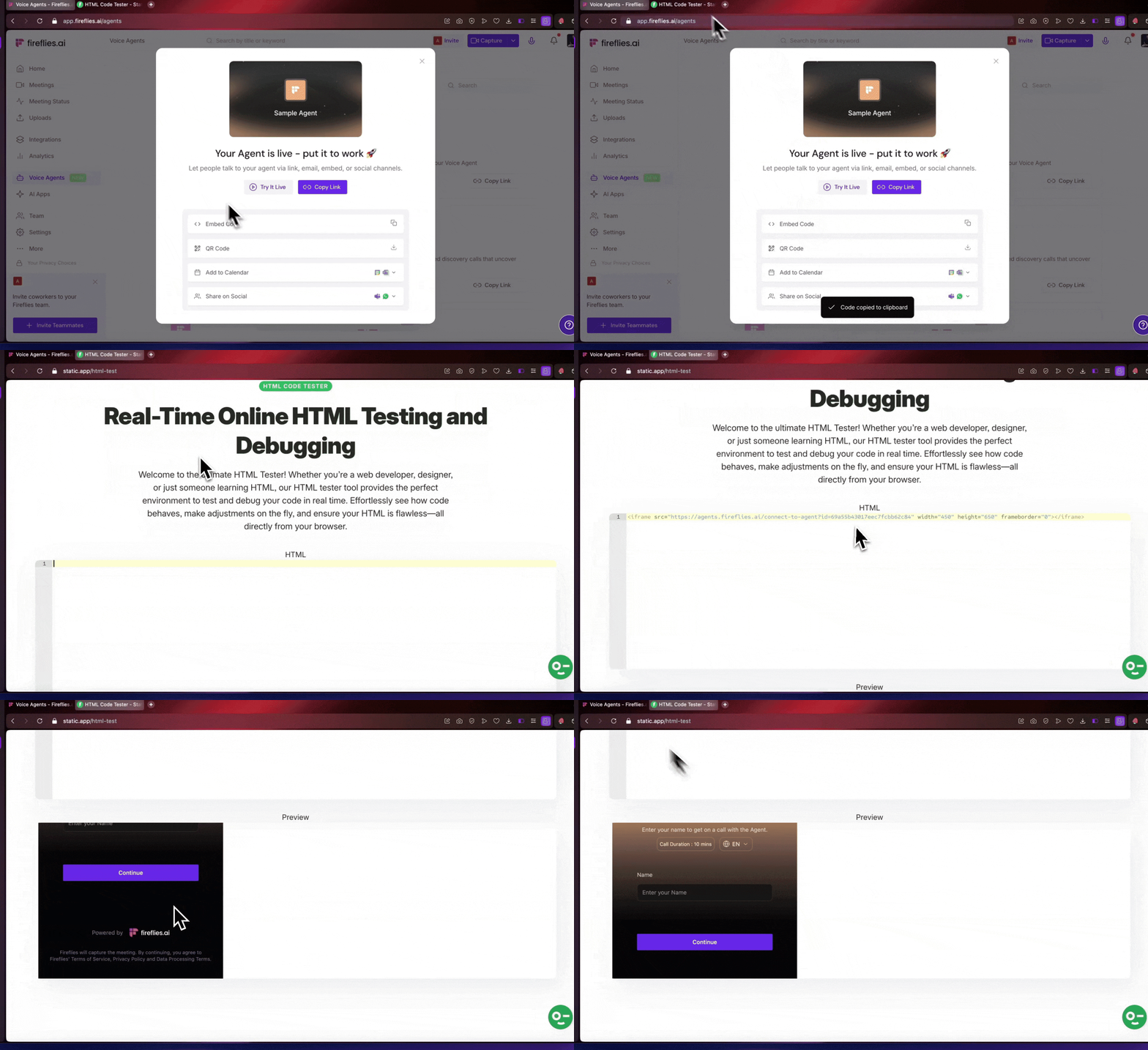
Open the sharing panel.
Click Embed Code.
Copy the code that appears.
Drop it into your website where you'd like the agent to show up.
That's it — visitors can start talking right away.
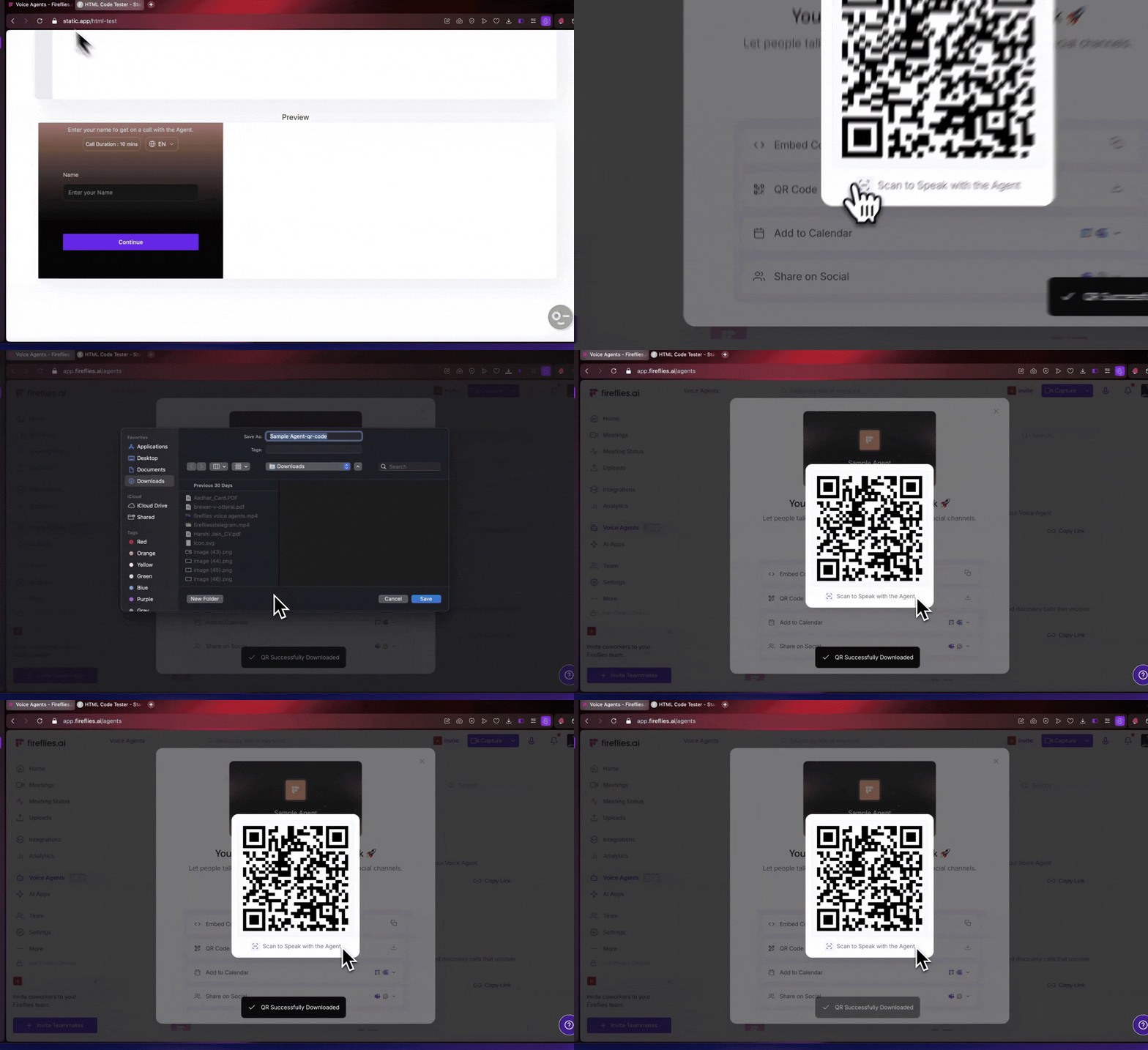
2. Create a QR Code
If you're meeting people in person or sharing printed materials, a QR code lets anyone jump straight into a conversation with your Voice Agent — just by pointing their phone at it.
Here's how:
Open the sharing panel.
Click QR Code.
Scan this QR code with your mobile device to instantly start talking to your agent.
Download the image and use it wherever you need it.
Perfect for events, presentations, or even a flyer on a noticeboard.
3. Send a Calendar Invite
Need to schedule a conversation in advance? You can send people a calendar invite with your Voice Agent link already included — so everything is ready when the time comes.
The title, location, and description are automatically filled in for you, though you can customize them anytime.
Google Calendar
Here's how:
Pick a date and time.
Add your attendees.
Hit send — the title, location, and description are already filled in for you.
Outlook Calendar
Here's how:
Pick a date and time.
Add your attendees.
Hit send — the location and description are already filled in for you.
Great for interviews, discovery calls, or research sessions where timing matters.
4. Share on Messaging & Social
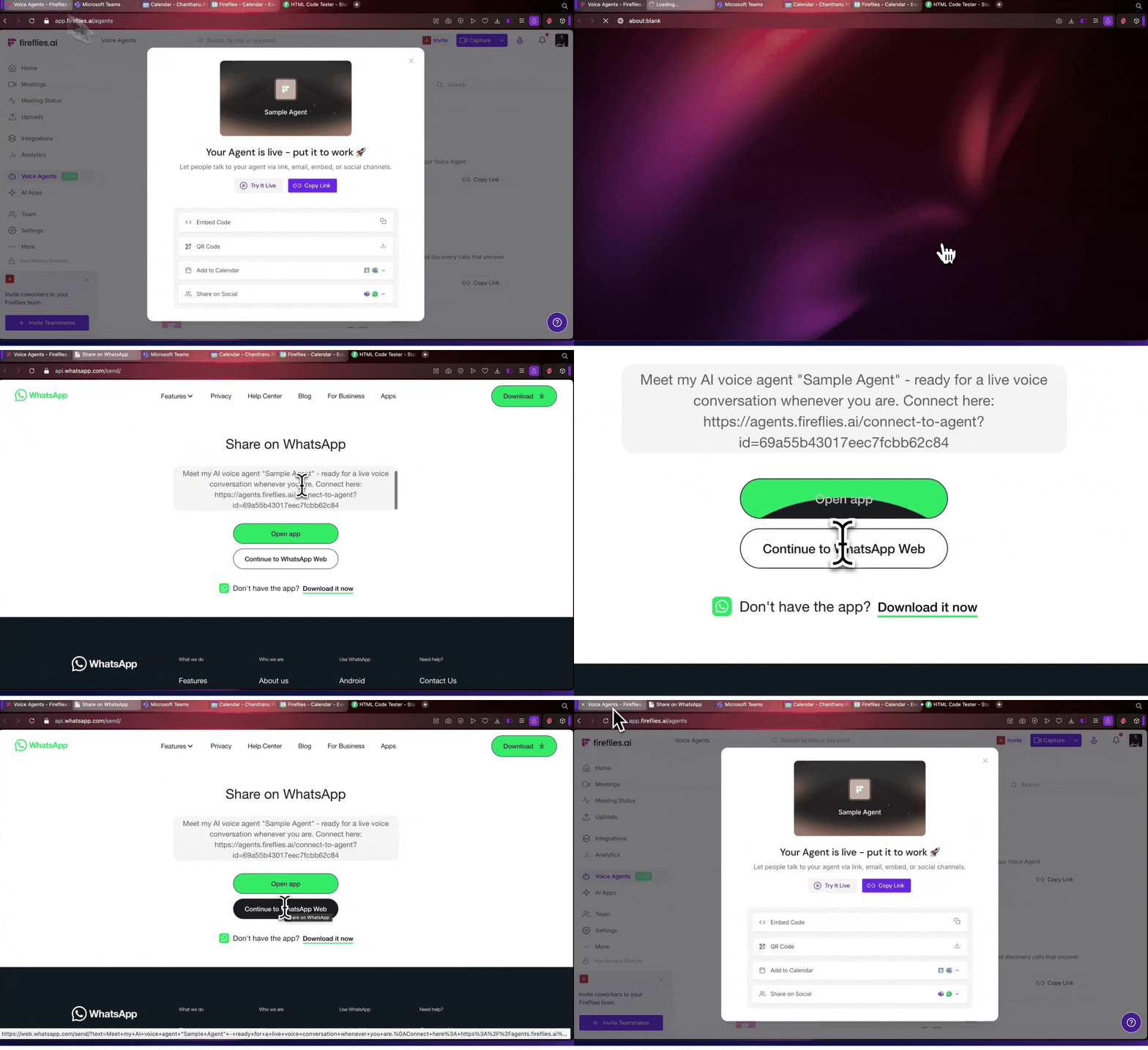
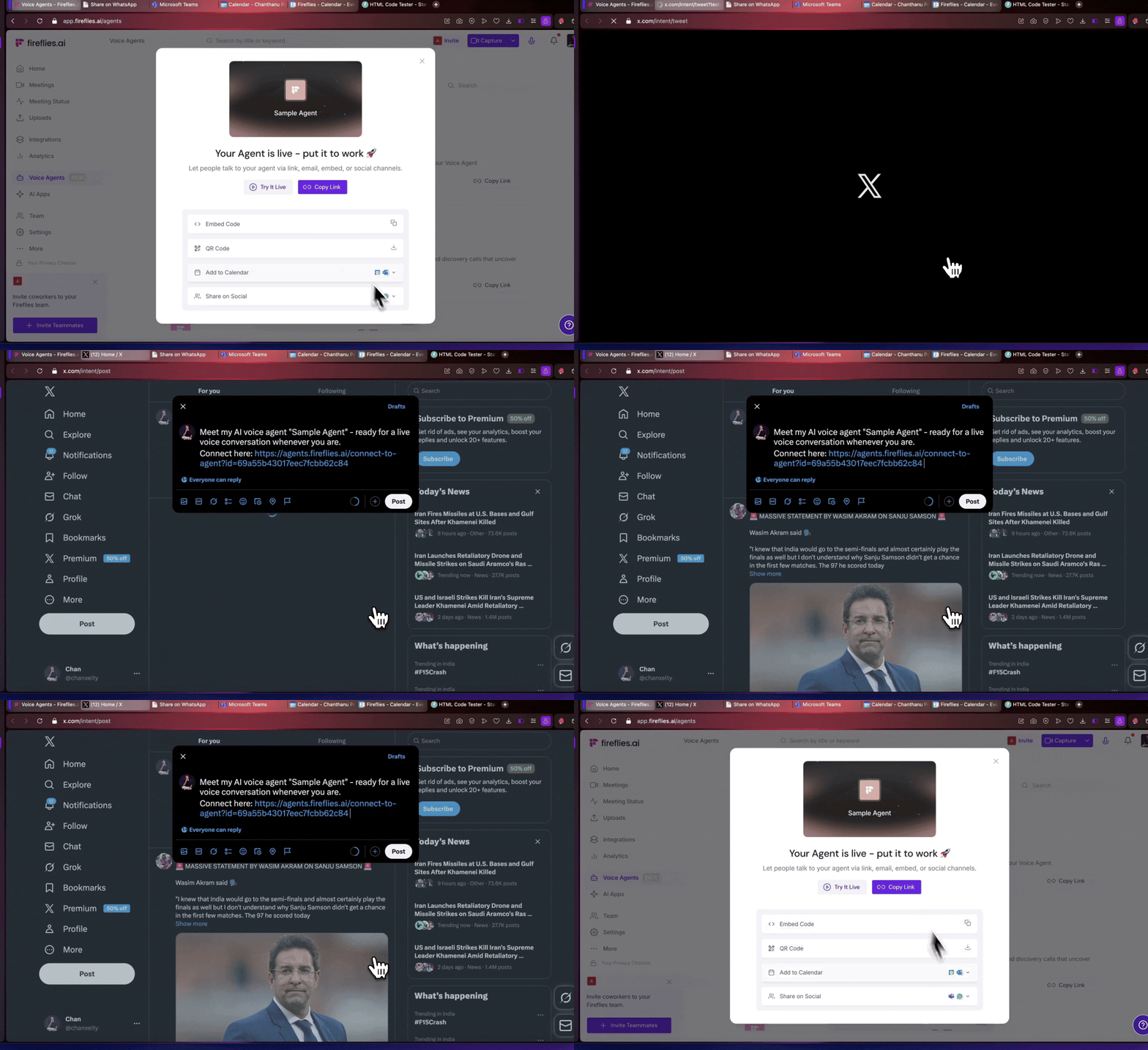
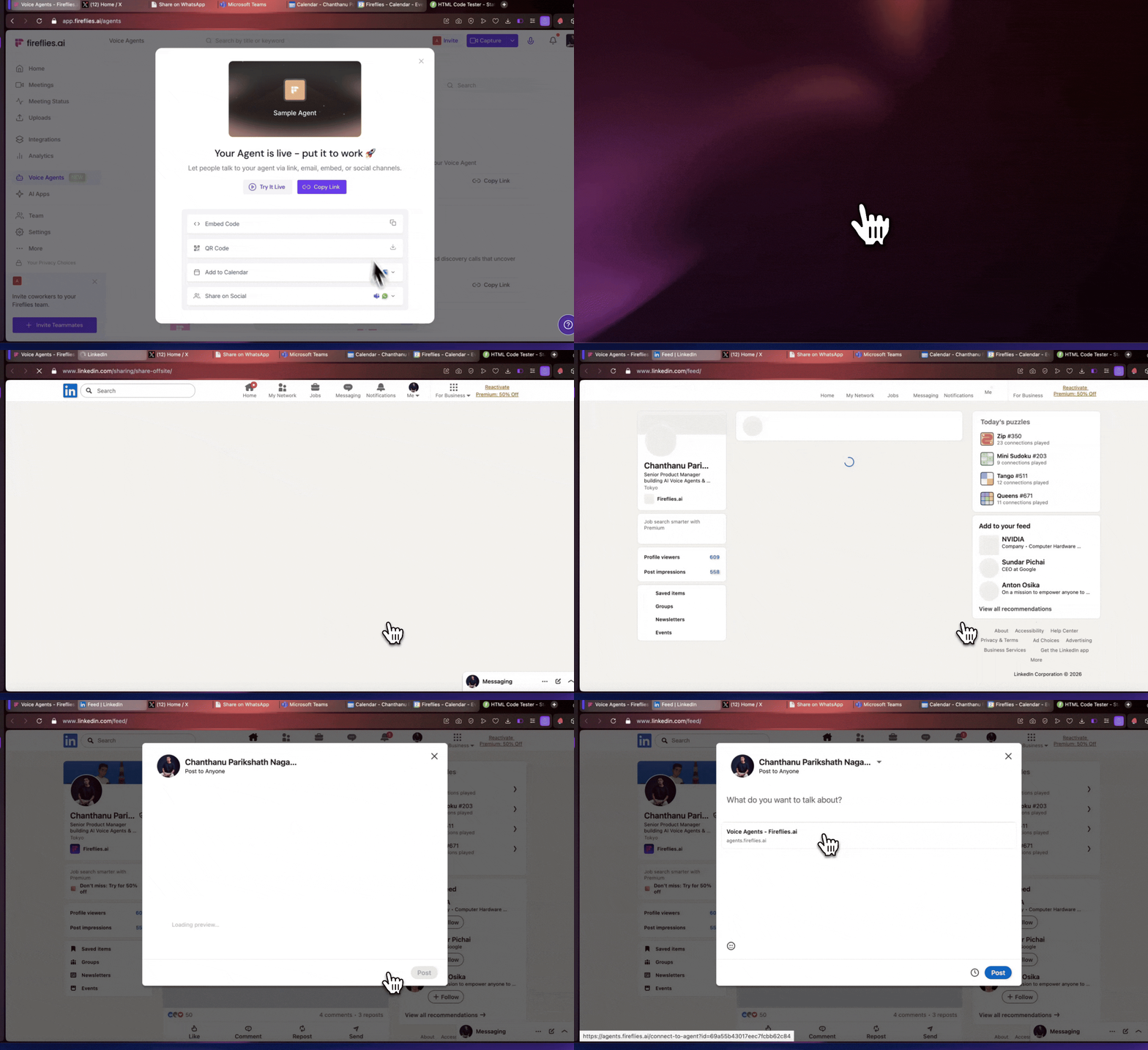
Want to spread the your voice agents quickly? You can share your Voice Agent directly through the apps and platforms you already use. A ready-to-send message or post is drafted for you automatically — just review it and hit send.
Microsoft Teams – Share your Voice Agent directly with teammates or channels inside Microsoft Teams. A message draft opens with the agent link included, so you can quickly send it to the right conversation.
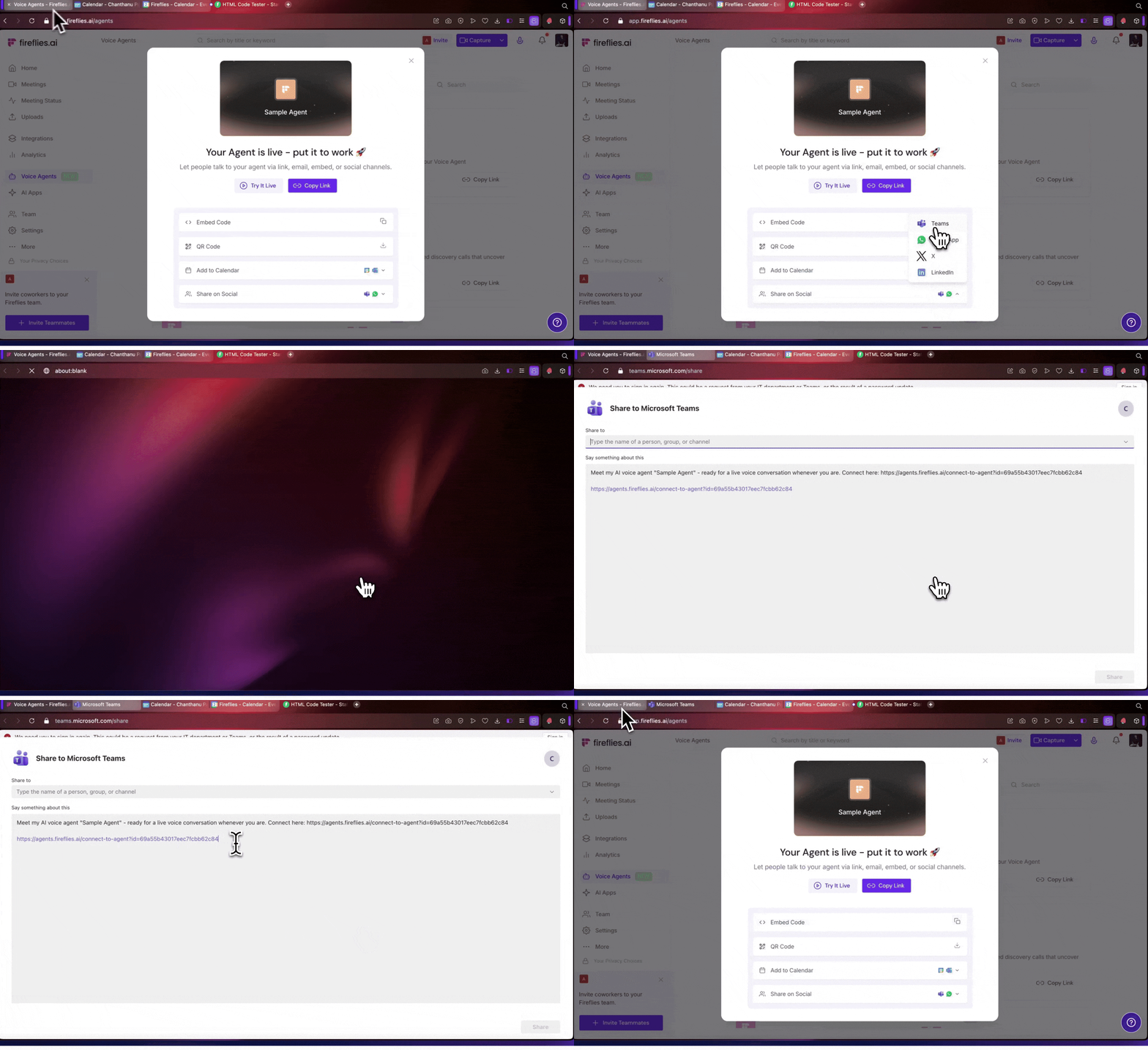
WhatsApp – Send your Voice Agent through WhatsApp to contacts or groups. A pre-filled message with the agent link opens, ready for you to review and send.
X (Twitter) – Share your Voice Agent publicly with your audience on X. A pre-drafted tweet appears with the agent link already included.
LinkedIn – Post your Voice Agent to your professional network on LinkedIn. A draft post opens with the agent link added so you can quickly publish it.
No copying and pasting needed — just choose your platform, tweak the message if you like, and you're done.
❓ Troubleshooting
1. I don’t see the sharing options after publishing the agent
Make sure the Voice Agent is successfully published. The sharing panel appears only after the agent goes live.
2. I closed the sharing window — how do I open it again?
Go to Voice Agents → My Voice Agents, find the agent, and click the three-dot menu (⋯) next to it to access sharing options again.
3. The embed code isn’t working on my website
Check that the embed code is pasted correctly into your website’s HTML section. Some website builders may require using an HTML embed block.
4. The QR code isn’t scanning
Make sure the QR code image is clear and not resized too small. You can also scan it directly from the preview to test it.
🔁 Recap
Once your Voice Agent is published, you can share it in several ways:
Embed it on your website
Generate a QR code
Add it to a calendar invite
Share it through messaging or social platforms
You can access these options right after publishing the agent or anytime from the My Voice Agents page.