User Group Settings: How to Create and Manage Them for Specific User Groups
Last updated: September 10, 2026
User Group Settings let admins fine-tune meeting and privacy controls at the group level, ensuring that each team gets exactly what they need. This allows you to override the default settings to meet the unique needs of different departments.
For example:
Sales may want Fireflies to automatically join every client call to ensure no meeting is missed.
HR might require stricter privacy for interviews, limiting access to key personnel only.
Finance may need to restrict recaps, making them visible only to a select group for compliance reasons.
With User Group Settings, admins can set up custom rules for each team, ensuring Fireflies adapts to your organization’s needs while keeping everything compliant and secure.
Business & Enterprise Only: User Group Settings are available only on Business and Enterprise plans. If you’re on a lower-tier plan, this feature won’t be available in your dashboard.
🔑 Prerequisites
Before you get started, make sure you have:
Admin Access - You’ll need Admin rights, as only Admins can create or edit user groups.
User Group Created - Ensure you’ve created at least one user group. You can manage User Groups under the Team → Members and groups.
🚀 Navigation
1. Log in to your Fireflies account. You can access your Team settings in either of the following ways:
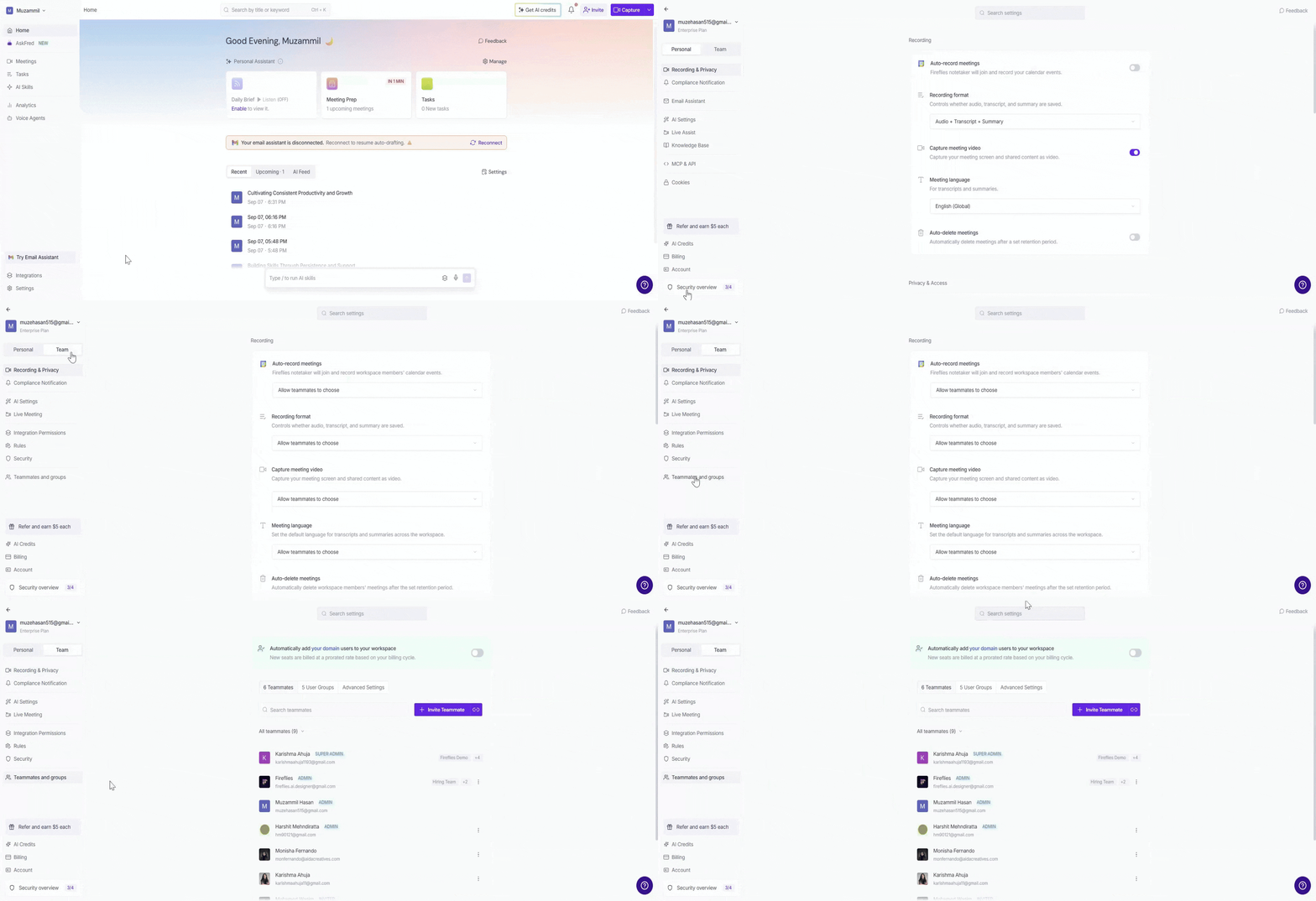
From Settings: Click Settings from the left navigation, select the Team tab, and click Teammates and groups.
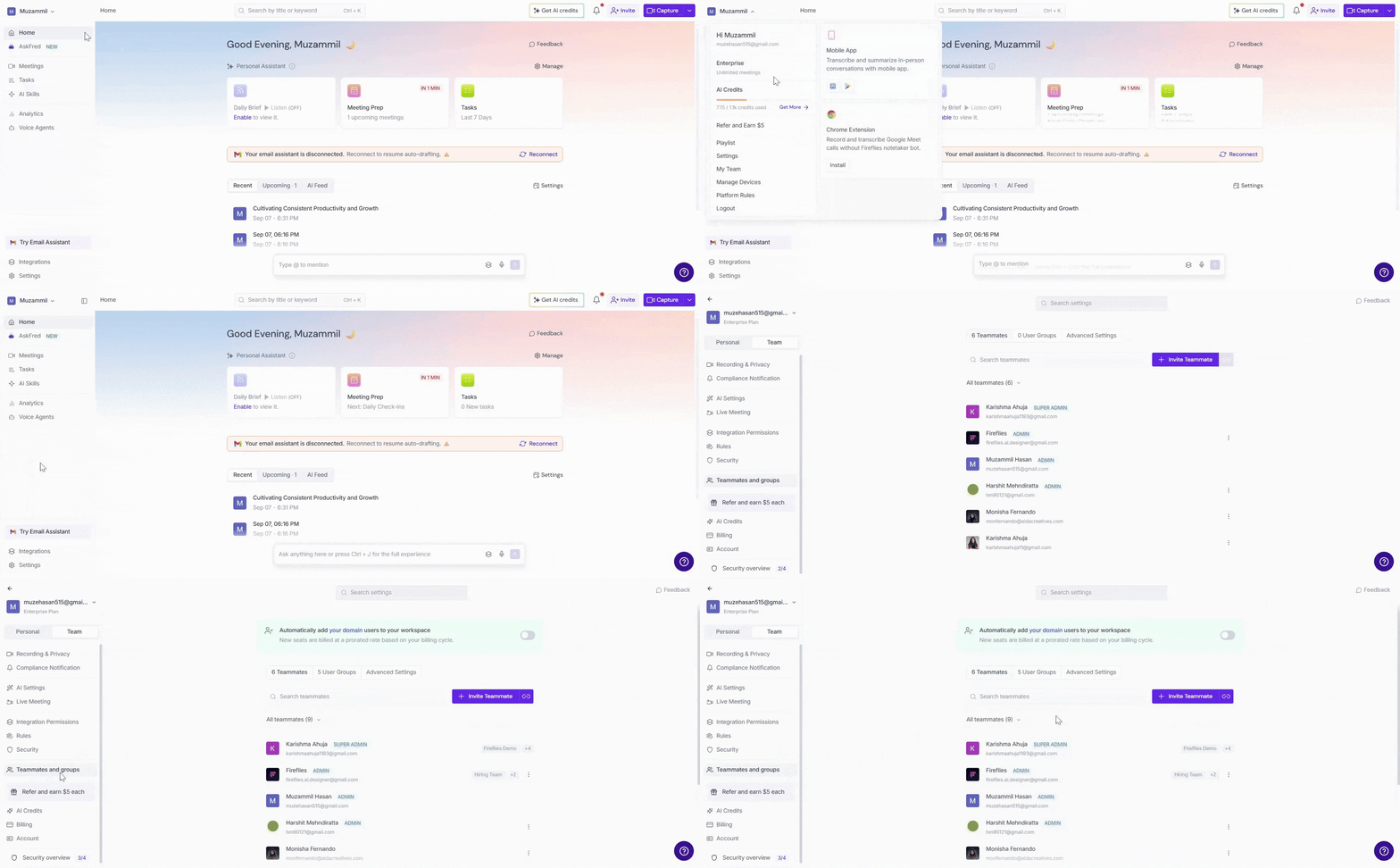
From your profile menu: Click your profile menu in the top-left corner and select My Team.
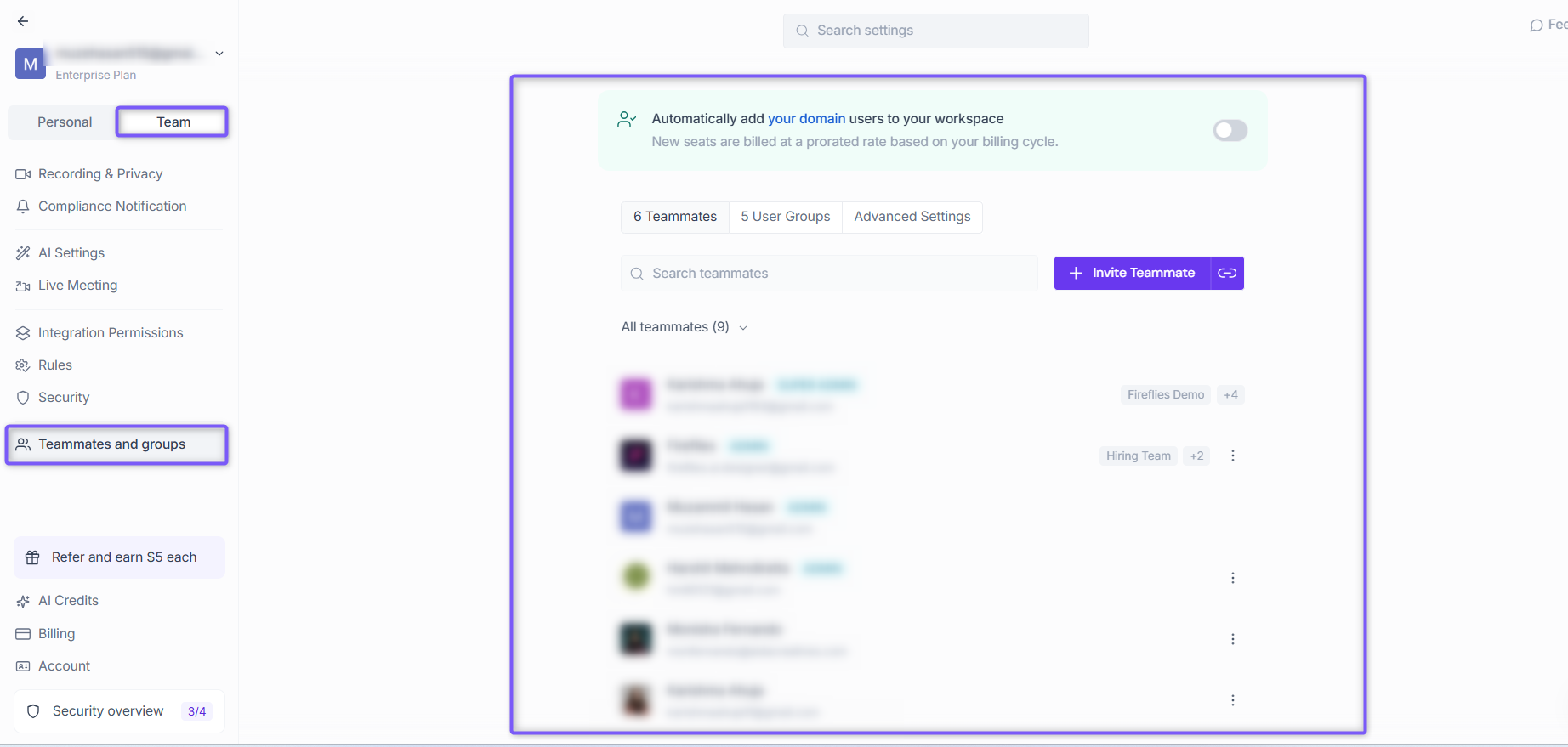
2. Both options take you to the Members and Groups settings, with the Teammates tab selected by default.
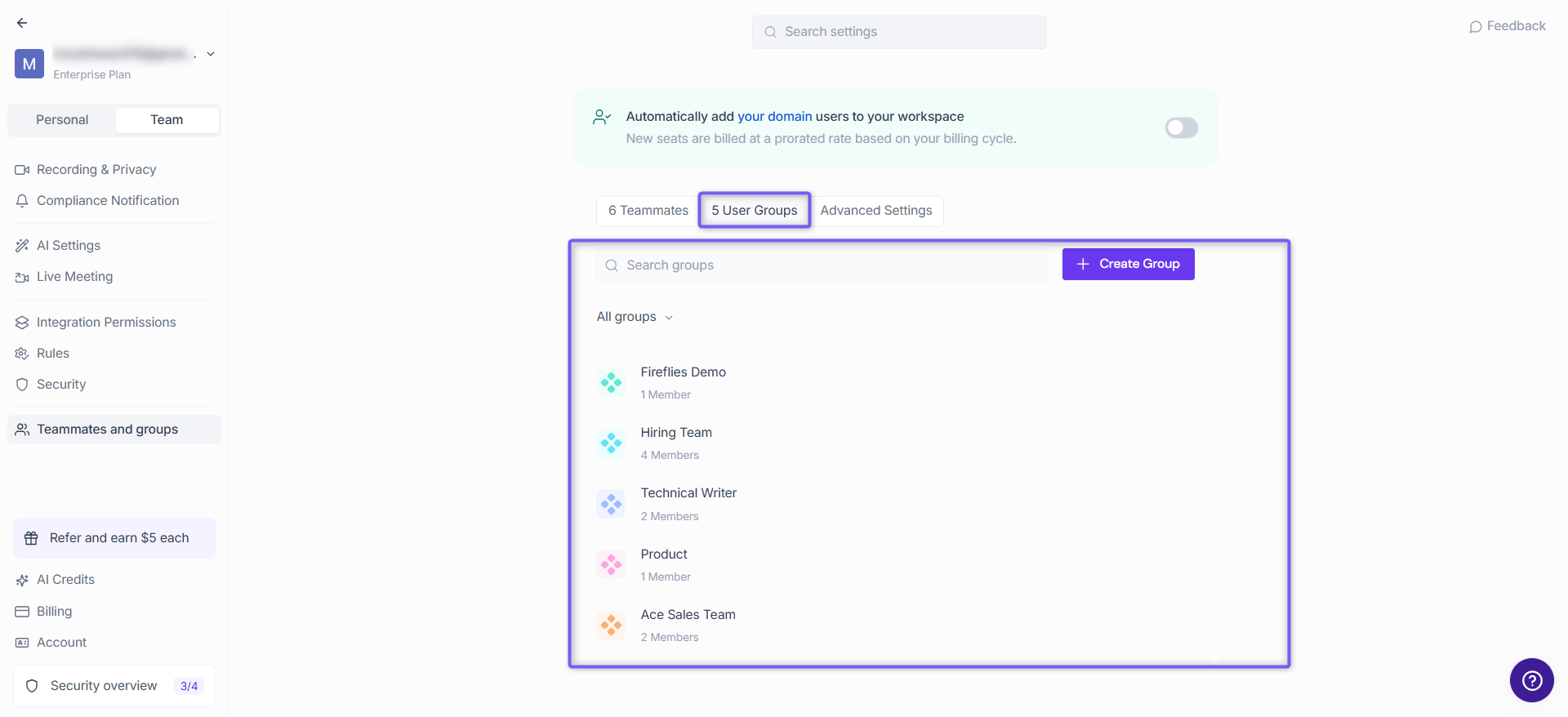
3. Click the User Groups tab. This shows all existing groups in your workspace, where you can view, create, or manage them easily.
⚙ Managing Group Settings
⚠ Important: User Group Settings always override the default workspace (admin) settings you’ve applied to your entire team.
📌 Want to review your overall workspace settings? → [Admin & Workspace Settings]
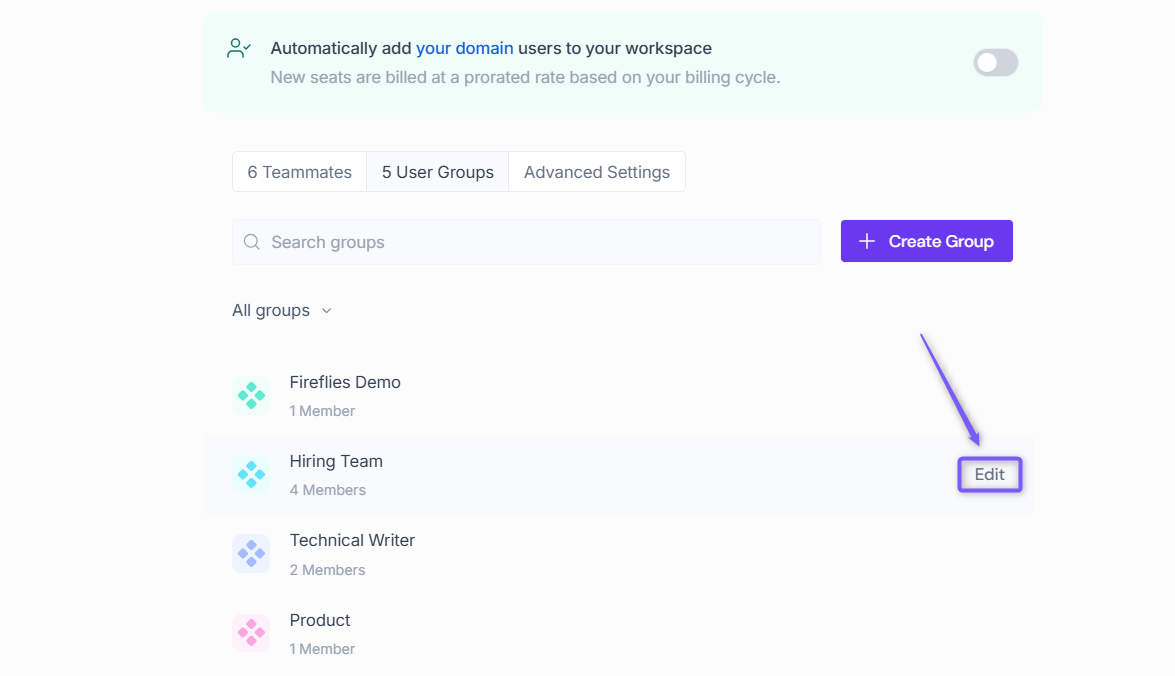
Step 1: Hover over the User Group you want to manage and click Edit to make changes.
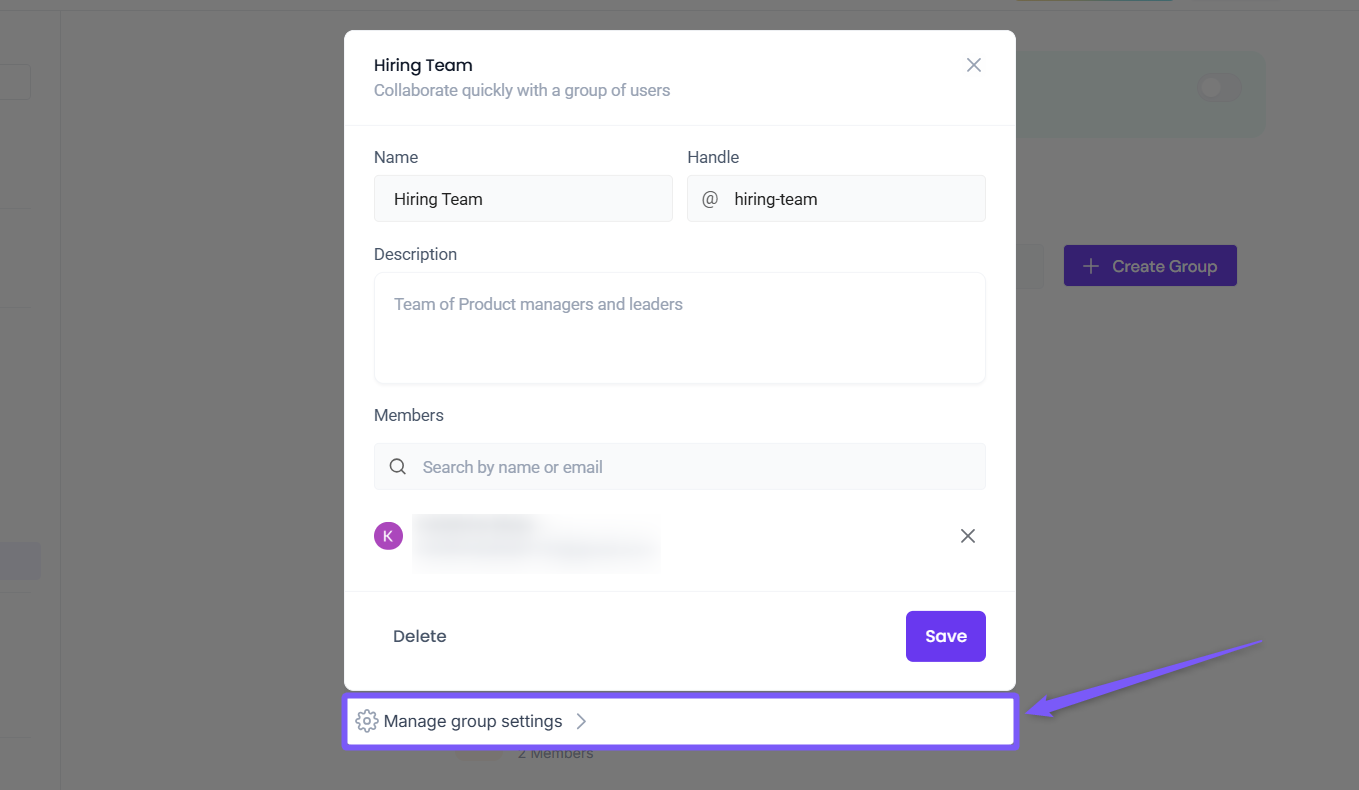
Step 2: A modal window will appear. Click Manage group settings.
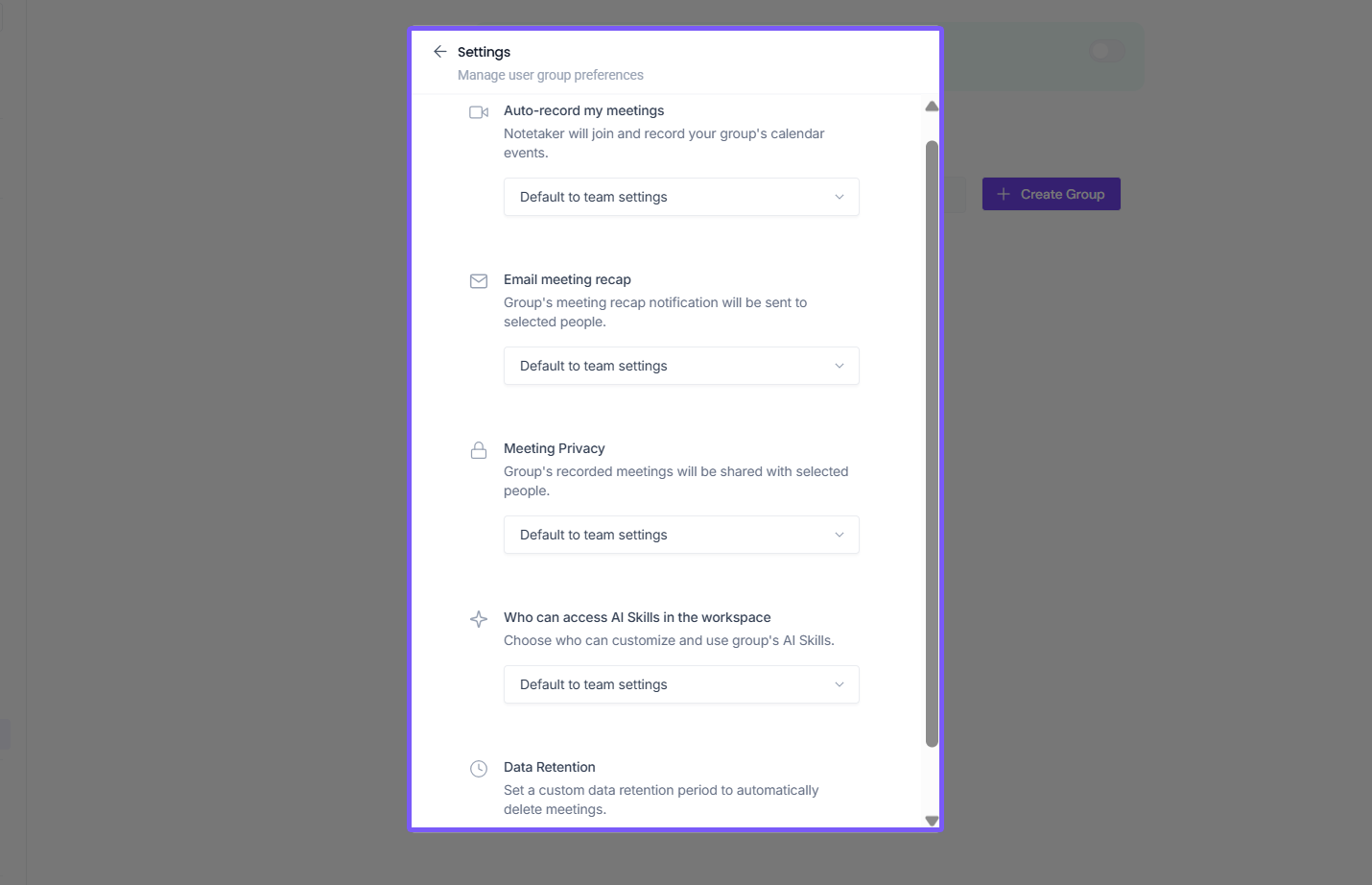
Step 3: You’ll be taken to the full group settings page.
📋 Group-Level Settings Overview
Each user group can be customized across multiple settings. These define how Fireflies behaves for members of the group:
Auto-record my meetings – Control when Fireflies records meetings for the group
Email meeting recap – Decide who receives meeting recaps
Meeting privacy – Manage who can view meeting recaps
AI Skills access – Define who can access and use AI Skills
Data retention – Set how long meetings are stored before automatic deletion
🔄 Auto-record my meetings
The Auto-record settings allows you control exactly when Fireflies should record meetings for members of a specific user group. This helps admins balance coverage—ensuring important meetings are captured—while maintaining privacy by recording only relevant meetings.
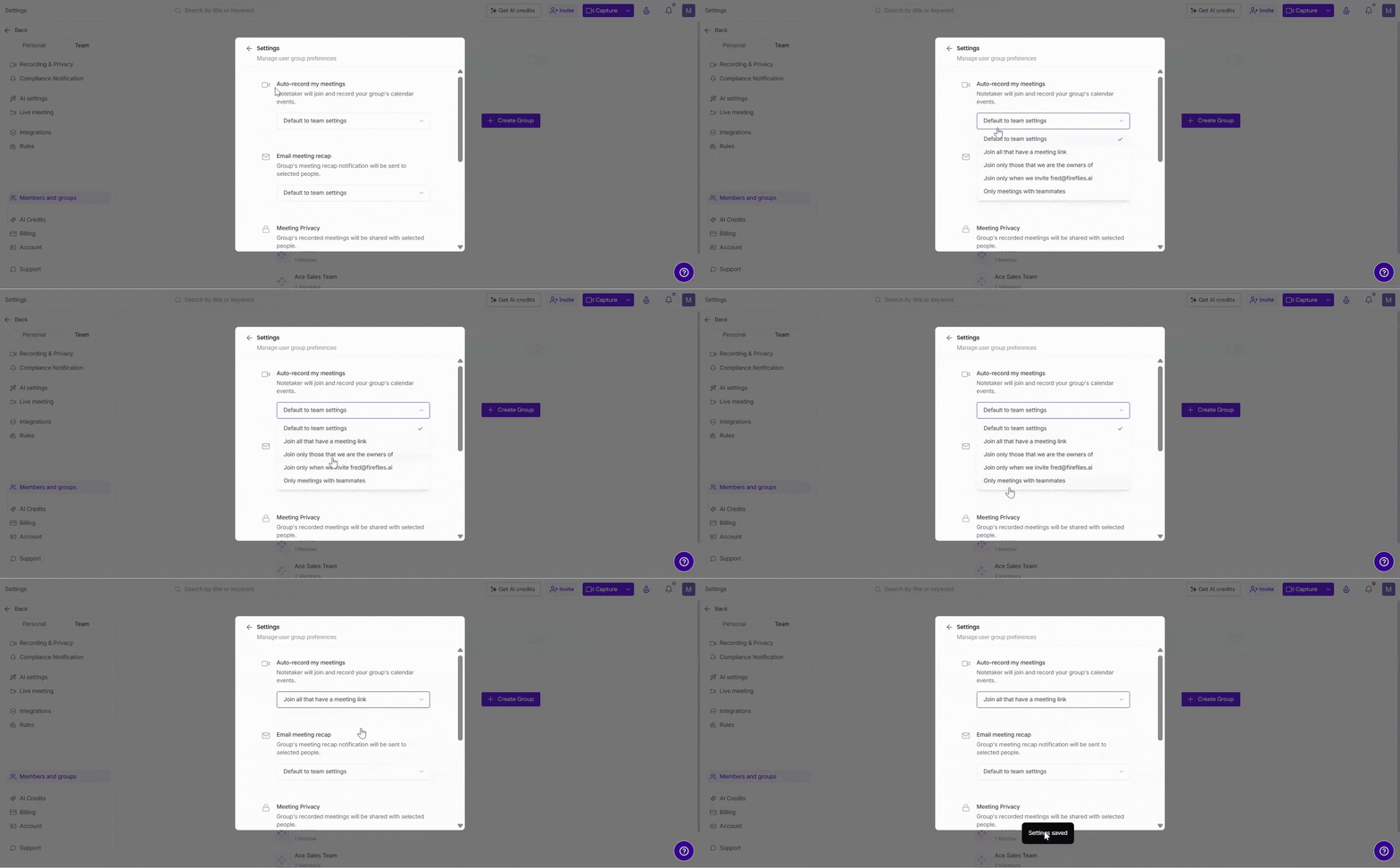
When you open the dropdown under Auto-record my meetings, you’ll see these options:
Default to team settings → Uses the workspace-level auto-record preference
Join all that have a meeting link → Fireflies records all meetings with a valid meeting link
Join only those that we are the owners of → Fireflies records only meetings hosted by your team
Join only when we invite fred@fireflies.ai → Fireflies records meetings only when manually invited
Only meetings with teammates → Fireflies records internal meetings with your teammates only
Want the full breakdown? → [Auto-record Settings explained]
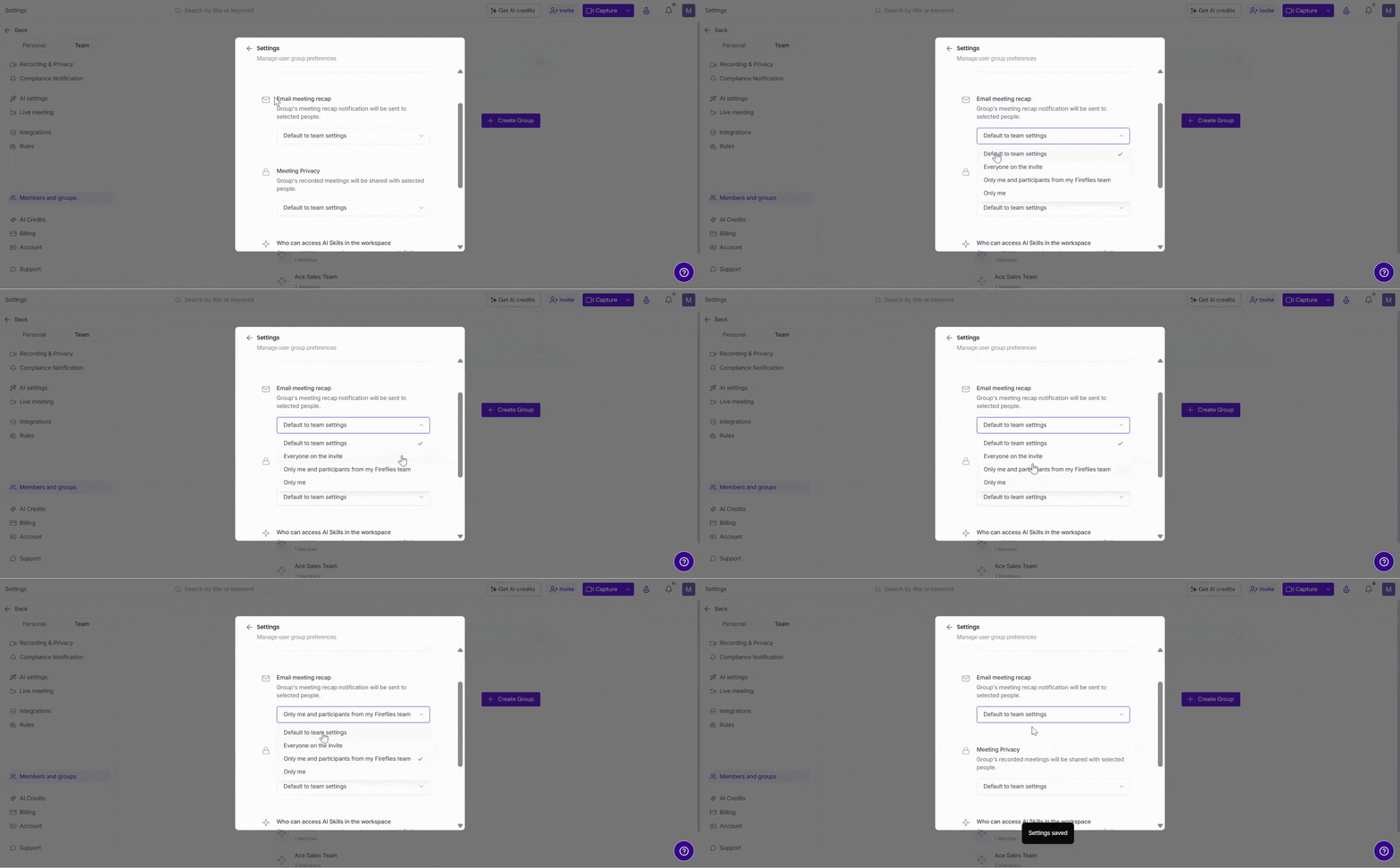
📧 Email meeting recap
The Email meeting recap settings allows you control who receives the notes from your meetings. This helps admins balance transparency—sharing notes with the right people - while keeping them limited when needed.
When you open the dropdown under Email meeting recap, you’ll see these options:
Default to team settings → Uses the workspace-level email settings
Everyone on the invite → All meeting participants receive transcripts and recaps
Only me and participants from my Fireflies team → Notes are shared only with you and your teammates
Only me → Notes are delivered only to you
Learn more → [Email Recap Settings]
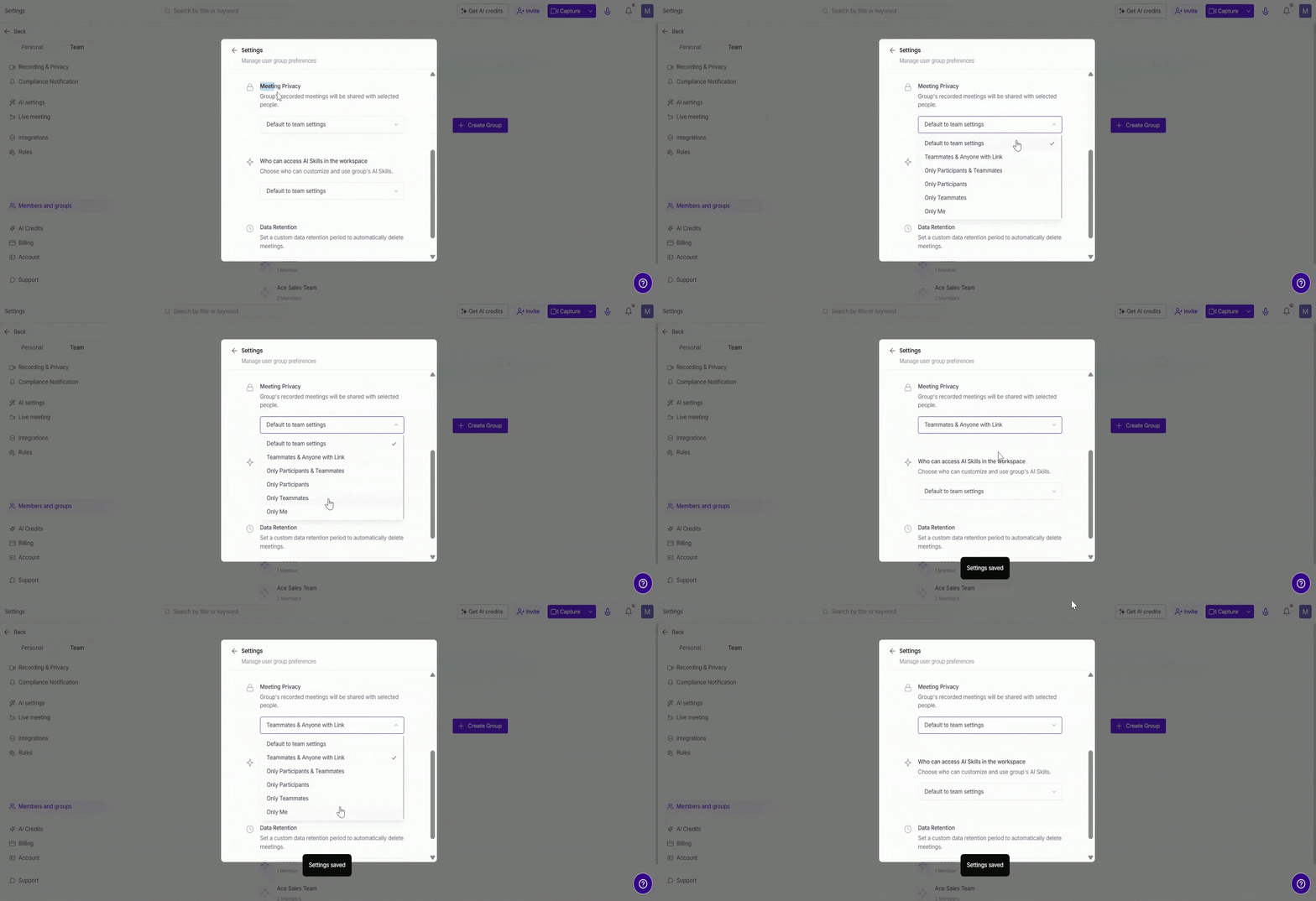
🔒 Meeting Privacy
The Meeting Privacy settings allows you decide exactly who can see recaps for this group. This helps you keep sensitive meetings private or make them more accessible when needed.
When you open the dropdown under Meeting Privacy, you’ll see these options:
Default to team settings → Uses the workspace-level privacy settings
Teammates & Anyone with Link → Recaps are visible to teammates and anyone with the shared link
Only Participants & Teammates → Recaps are limited to teammates and meeting participants
Only Participants → Recaps are available only to meeting participants
Only Teammates → Recaps are shared only within your Fireflies workspace
Only Me → Recaps are visible only to you
Learn more → [Privacy Settings]
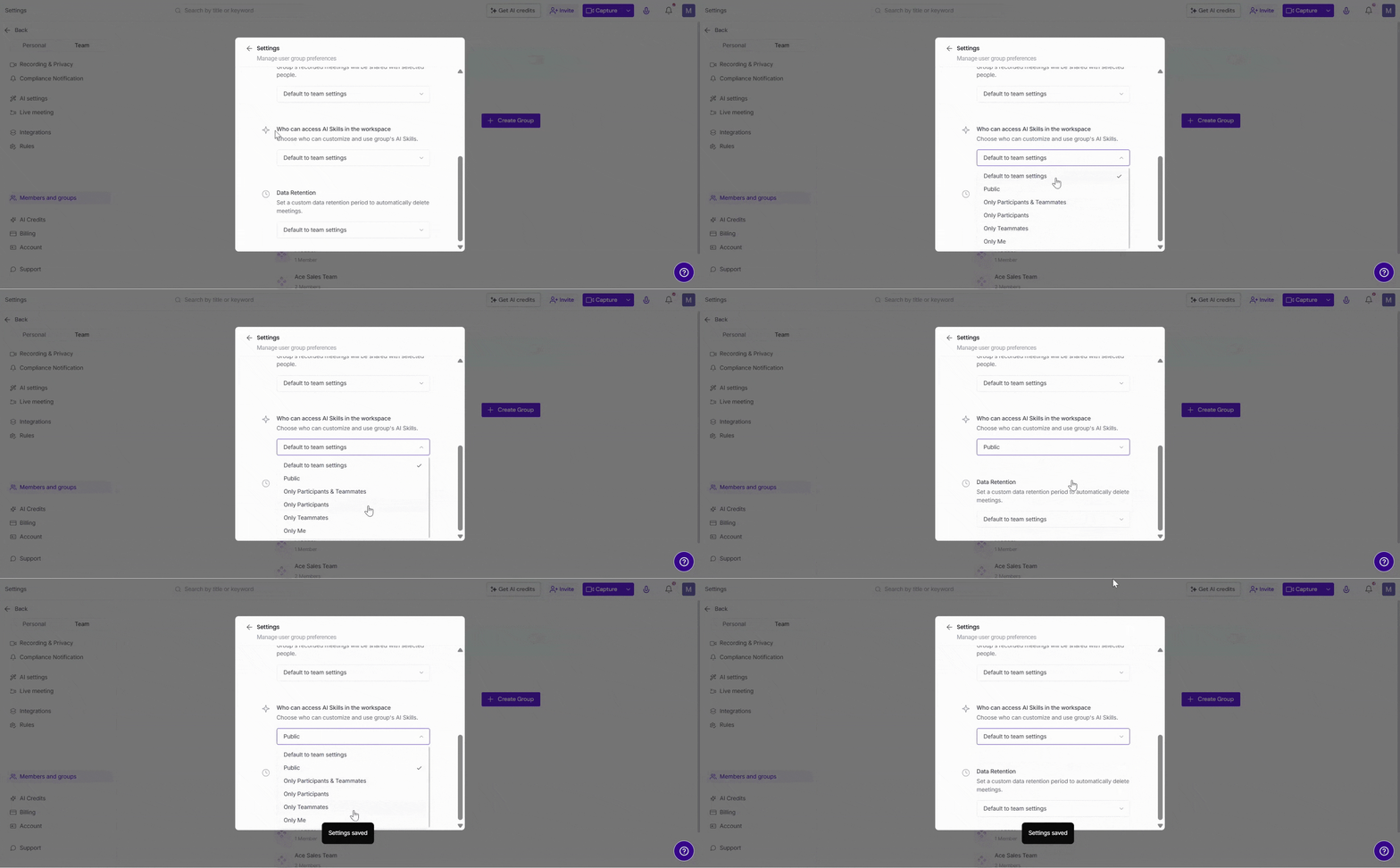
🤖 Who can access AI Skills in the workspace
The AI Skills settings allows you control who can access and use your group’s AI Skills. This helps admins manage visibility, deciding whether outputs should stay private, be shared within the team, or be more broadly accessible.
When you open the dropdown under Who can access AI Skills in the workspace, you’ll see these options:
Default to team settings → Uses the workspace-level AI Skills access settings
Public → AI Skills outputs are visible to anyone with the link
Only Participants & Teammates → Access is limited to teammates and meeting participants
Only Participants → Access is restricted to meeting participants only
Only Teammates → Access is limited to teammates in your workspace
Only Me → Access is restricted to you only
Haven’t tried AI Skills yet? → [Build your first AI Skill]
🗂 Data Retention
The Data Retention settings allows you control how long meetings are stored before they are automatically deleted. This helps manage storage, compliance, and data privacy for your workspace.
When you open the dropdown under Data Retention, you’ll see these options:
Default to team settings → Uses the workspace-level retention policy
Allow teammates to choose → Each teammate can set their own retention preference
Disabled for teammates → Teammates cannot modify retention settings
After 1 week → Meetings are deleted after 1 week
After 2 weeks → Meetings are deleted after 2 weeks
After 1 month → Meetings are deleted after 1 month
After 3 months → Meetings are deleted after 3 months
After 6 months → Meetings are deleted after 6 months
After 1 year → Meetings are deleted after 1 year
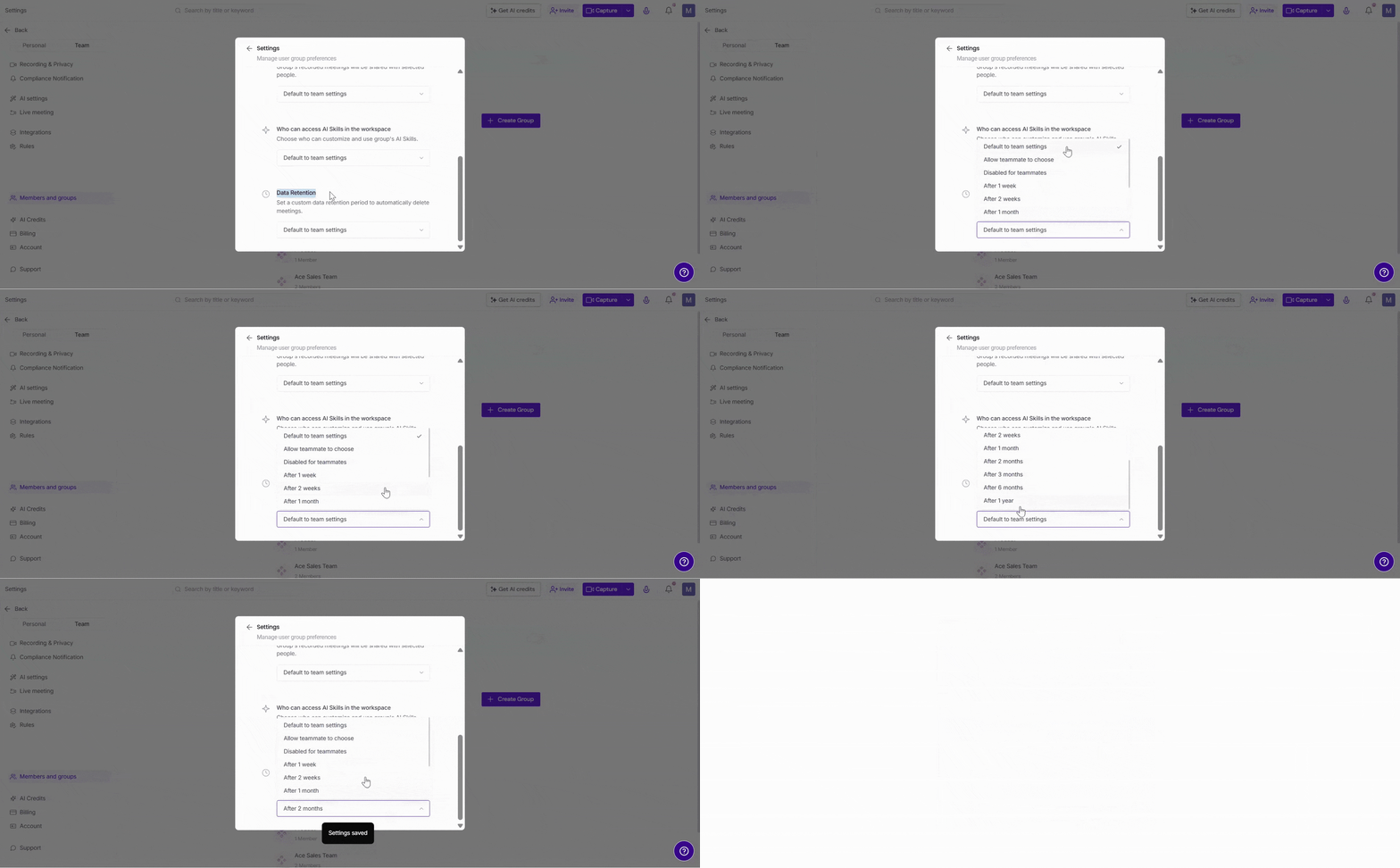
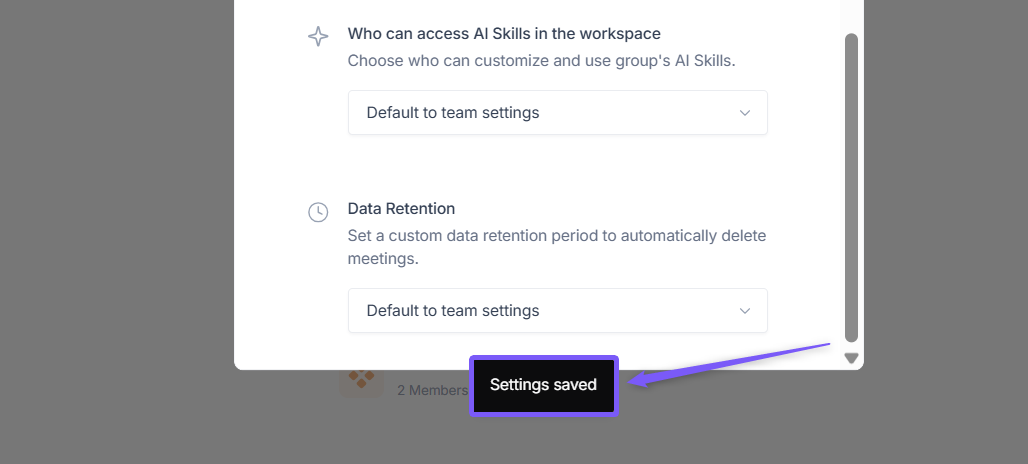
Once you select your preferred settings, changes are saved automatically.
❓Frequently Asked Questions (FAQs)
Q1: Do group settings override team-wide defaults?
Yes. Any settings you apply at the group level will take priority over the default team-wide settings. This allows different teams (e.g., Sales, HR, Finance) to follow their own rules.
Q2: Can individual teammates change their own settings if a group setting is applied?
It depends. If you select “Allow teammates to choose,” members can set their own preferences. Otherwise, the group-level setting will be enforced.
Q3: Will these settings affect past meetings?
No. Group setting changes only apply to future meetings after the settings are saved.
Q4: Who can edit User Group Settings?
Only admins have permission to create and manage user groups. Regular teammates cannot edit these settings.
Q5: How does Data Retention affect meeting data?
Meetings will be automatically deleted after the selected duration. If set to default, the workspace retention policy will apply.
⏪ Recap
With User Group Settings, you can:
Control when Fireflies records meetings for the group
Decide who receives meeting recaps
Manage who can access meeting recaps
Set who can use and access AI Skills
Define how long meeting data is stored
All changes apply only to selected group members, giving admins flexibility to balance coverage, privacy, and data retention.
📌Related Guides:
How to Create User Groups – Learn how to set up and manage user groups for more tailored control.
How to Share Meeting Transcripts and Summaries Privately with User Groups – A guide to sharing meeting recaps securely with specific user groups.
How to Share a Fireflies Meeting with a Password-Protected Link — Securely share meetings with external users using password-protected links and optional link expiration controls.