Soundbites: How to Extract Meeting Clips and Highlights from Fireflies Meetings (Automatic & Manual Methods)
Last updated: February 16, 2026
Meetings are full of valuable insights, but going through long recordings or transcripts can take time. Soundbites and Meeting markers make it easier to highlight key moments—whether by creating short clips or marking important sections for quick access later.
In this guide, you’ll learn how to effectively use both methods to capture, organize, and share critical points from your meetings. By the end, you'll be able to quickly revisit and share key moments, helping your team stay focused on what matters most.
Let’s dive in 🚀
🚀 Navigation to Meetings Notepad
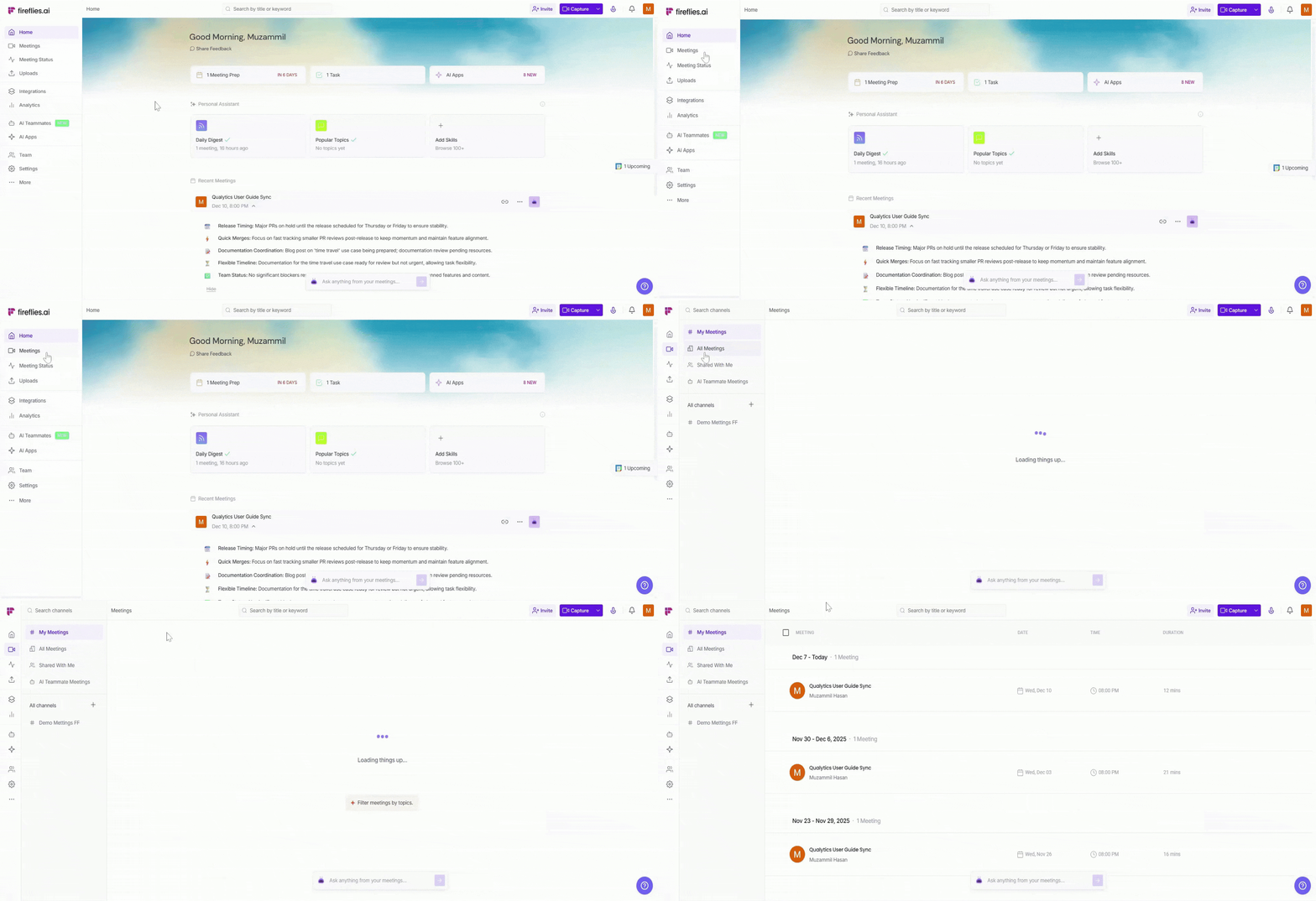
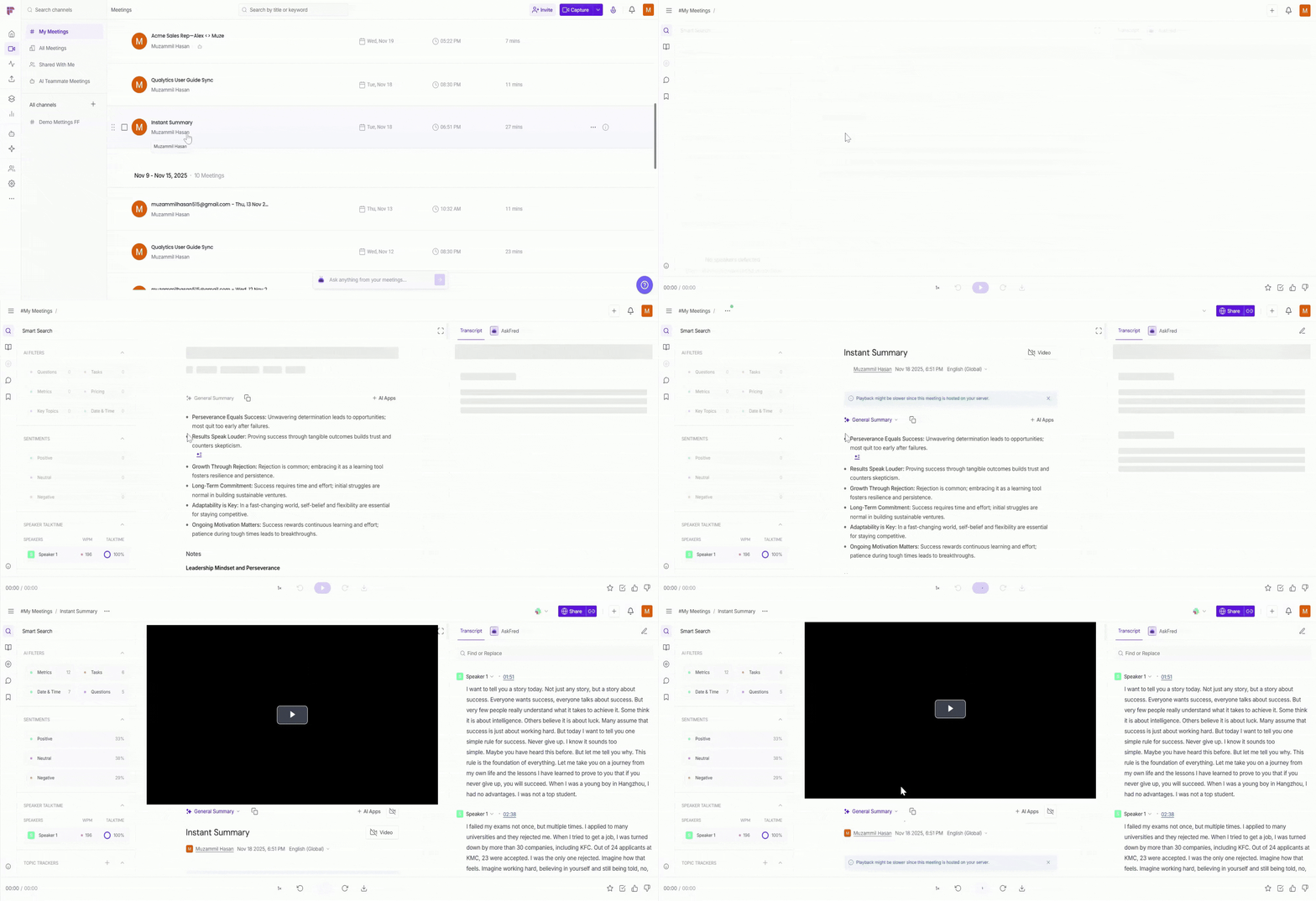
Step 1: Log in to your Fireflies account and click on the Meetings tab from the left-hand menu to open your meeting notebook.
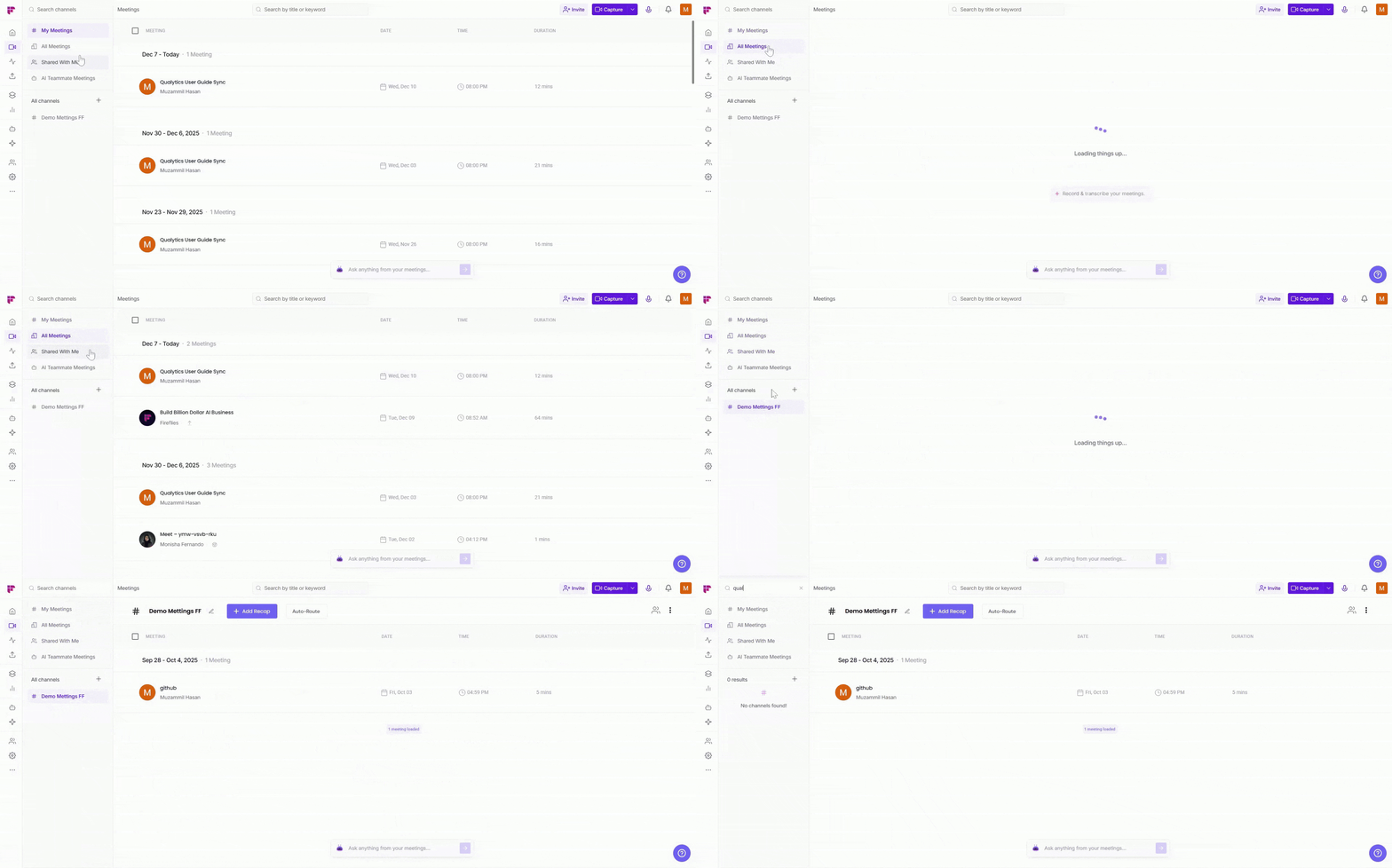
Step 2: Now, search for the meeting you want to use by typing keywords in the search bar or using the category filter (e.g., My Meetings, All Meetings, Channels) to find the relevant meeting.
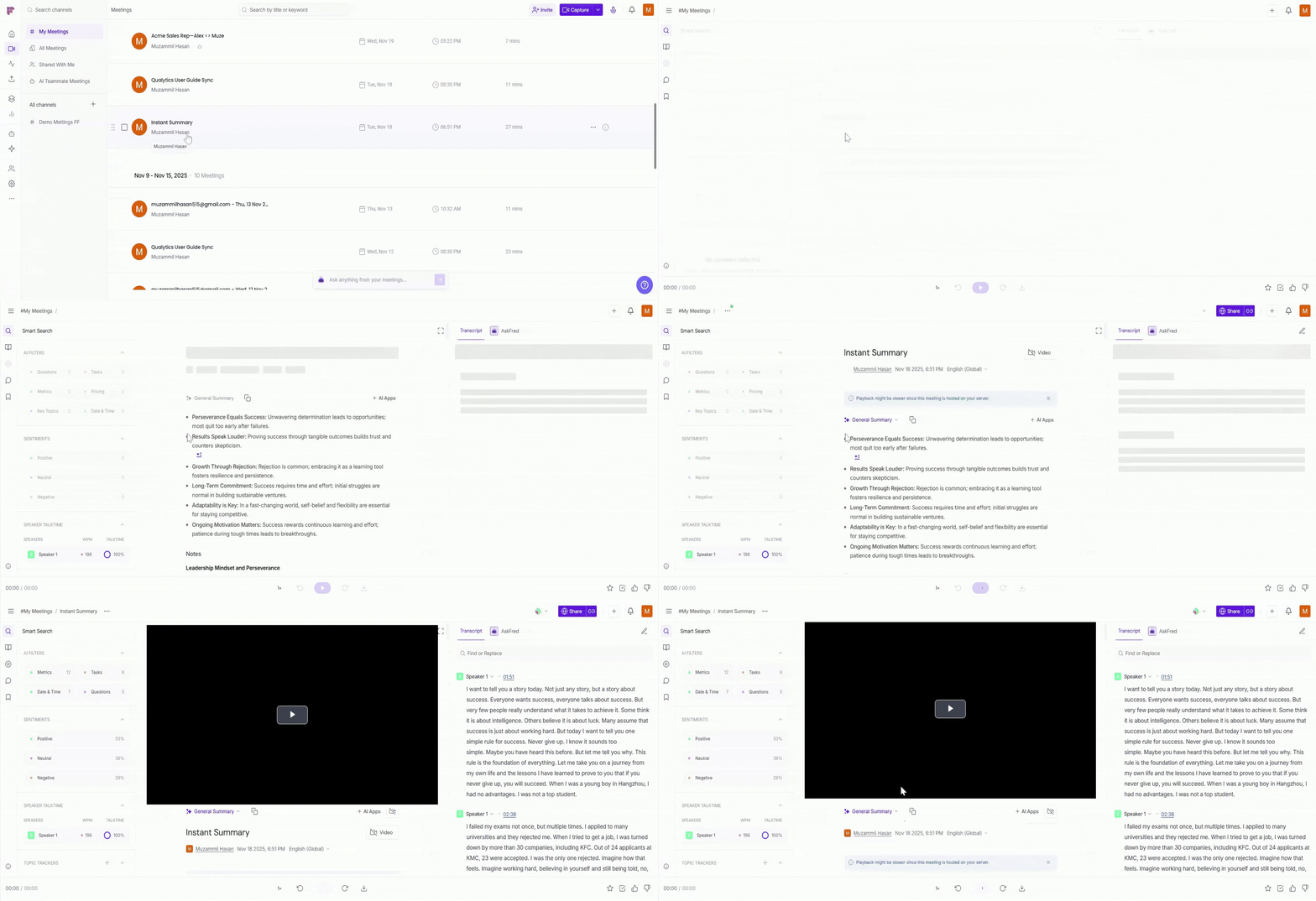
Step 3: Open the meeting you want to highlight a moment from by clicking on it to access the meeting notes.
Step 4: Click on the Soundbite tab from the left menu to open and view your created soundbites.
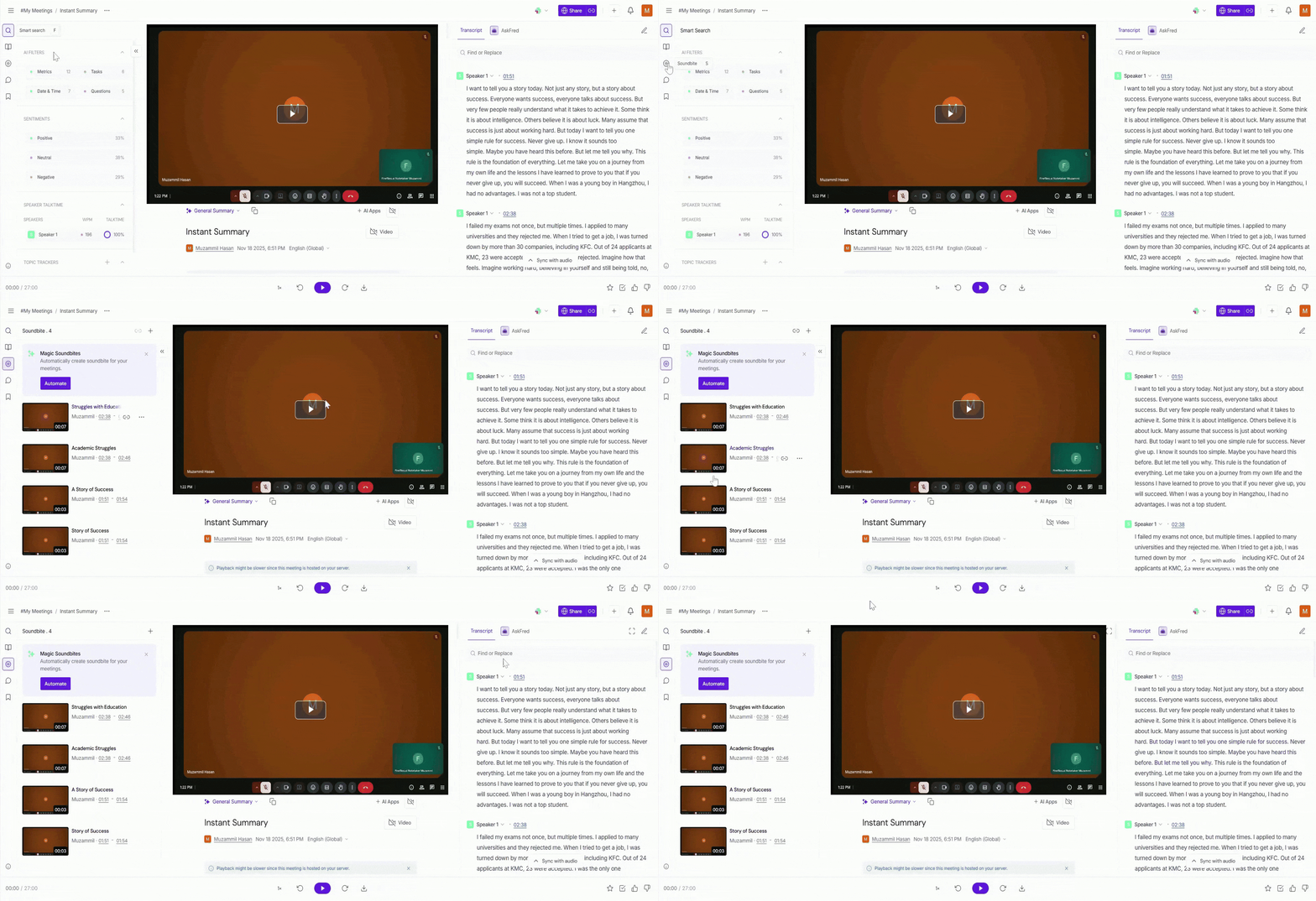
Now you're ready to create soundbites or highlight moments from the transcript!
🔑 Highlighting Key Moments After a Meeting
Highlight key moments from your meeting by creating soundbites or using meeting markers to easily flag and revisit important insights.
Use Soundbites: Create short clips of key moments to save, edit, and share.
Use Meeting Markers: Flag moments with reactions like thumbs-up, bookmarks, or action items for quick reference.
🎥 Highlighting Key Moments Using Soundbites
Soundbites are short clips that allow you to quickly extract and share important moments from your meetings, whether in audio or video form. With soundbites, you can focus on key insights without having to replay the entire meeting.
You can create soundbites using two main methods:
Manual Method: Select and extract key sections of the transcript to create custom soundbites.
Automatic Method: Let Fireflies AI automatically detect and generate soundbites based on the most important moments in the meeting.
🔹 Manual Methods for Creating Soundbites
In the manual method, you select and create soundbites from the meeting transcript yourself. Here are the two ways you can do that:
1. Select the words from the transcript
Highlight the specific part of the transcript you want to turn into a soundbite. This can be a few words, a full line, or even a whole paragraph.
Here’s how you can do it:
Select the words or a line you want to create a soundbite from by highlighting the specific part of the transcript.
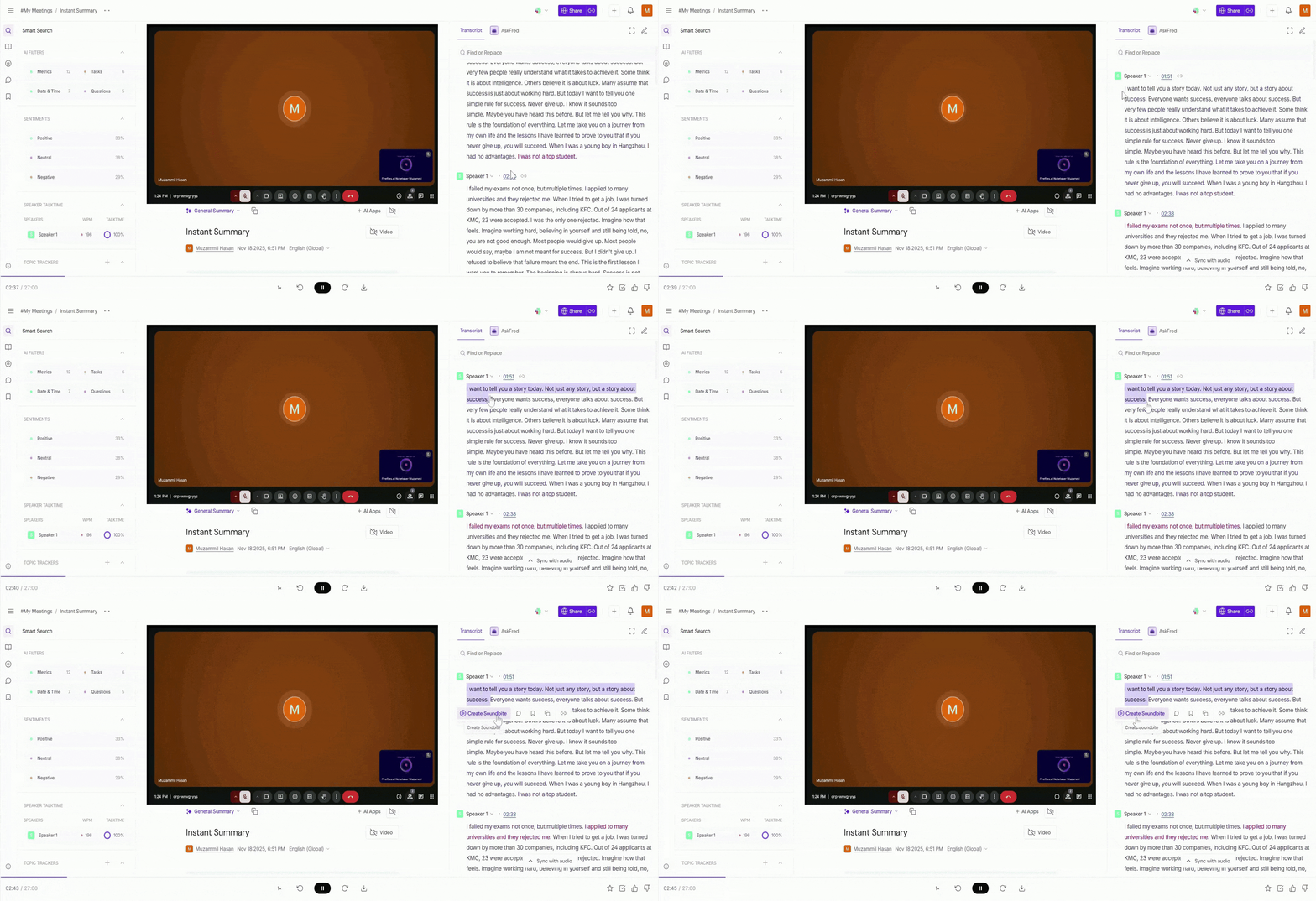
Once you select the text, you will see the Create Soundbite button. Click on it to get your soundbite.
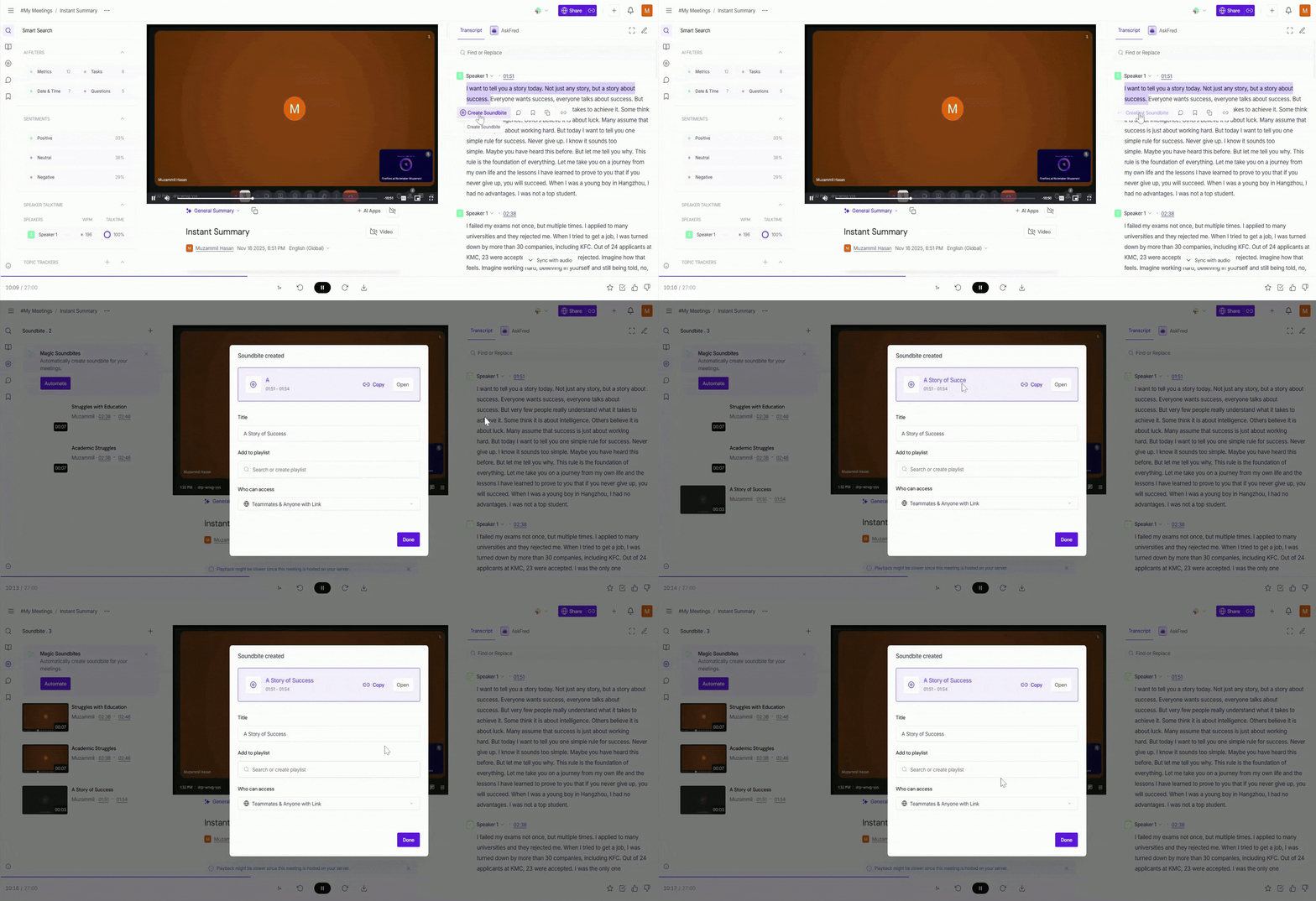
A modal window will appear where you can edit the:
Title: Give your soundbite a descriptive title for easy reference and identification. This helps in organizing your clips.
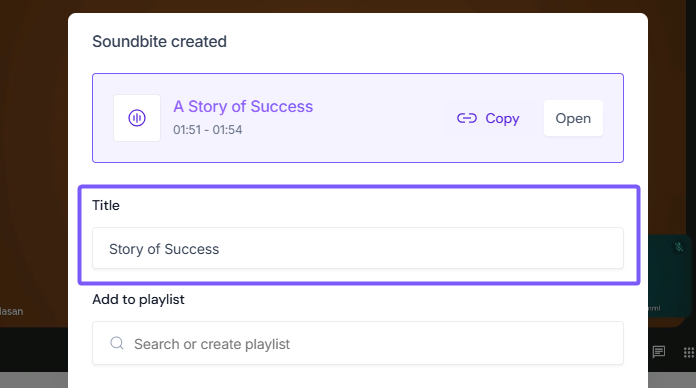
Fireflies will automatically generate a title for the soundbite based on the selected section. You can edit this title if needed.
Add it to a playlist: Choose whether to add the soundbite to an existing playlist for better organization. You can also create a new playlist directly from here.
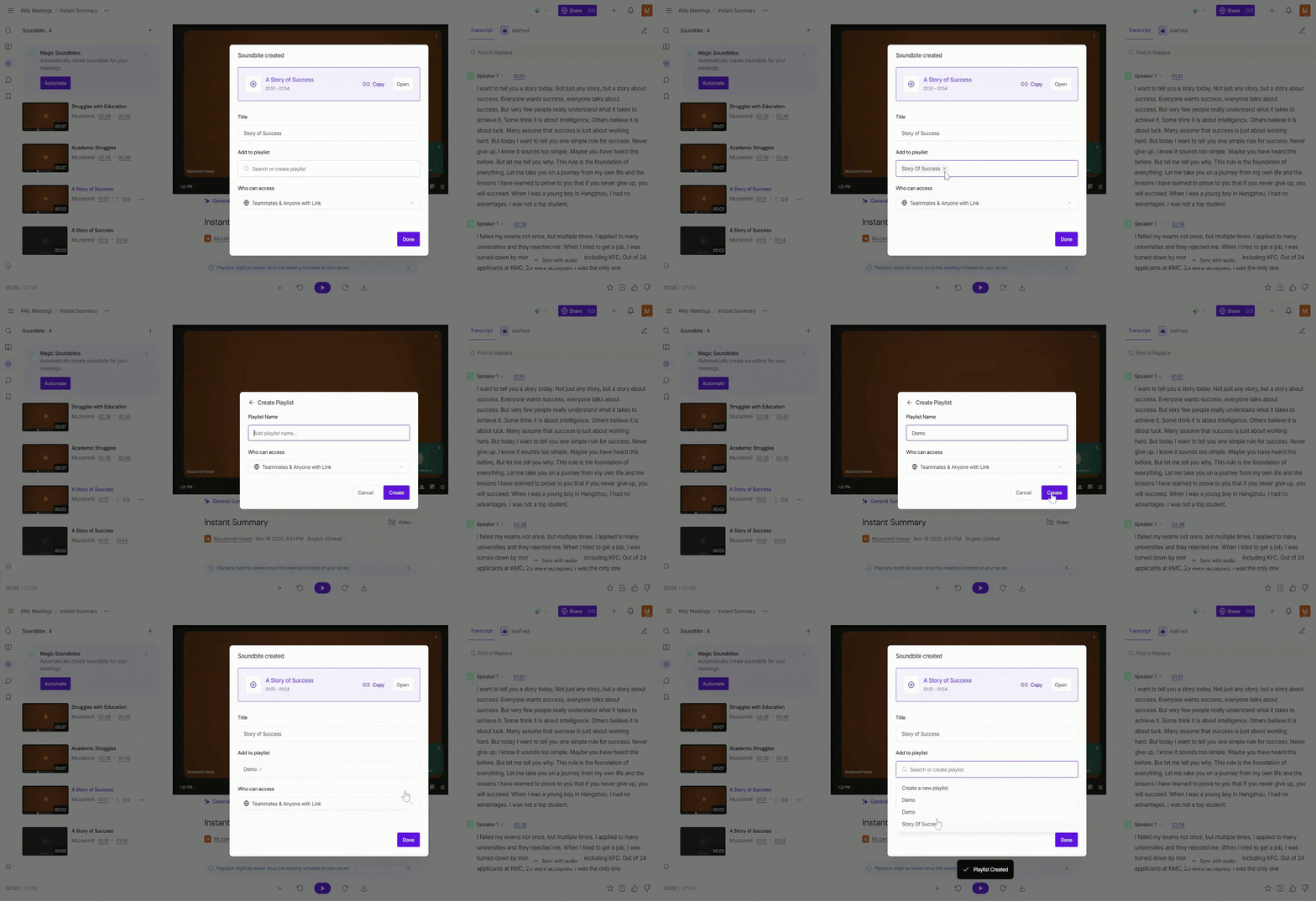
Who can access: Select who can view the soundbite, with options such as Teammates & Anyone with Link, Only Teammates & Participants, Participants only, Teammates only, and Private.
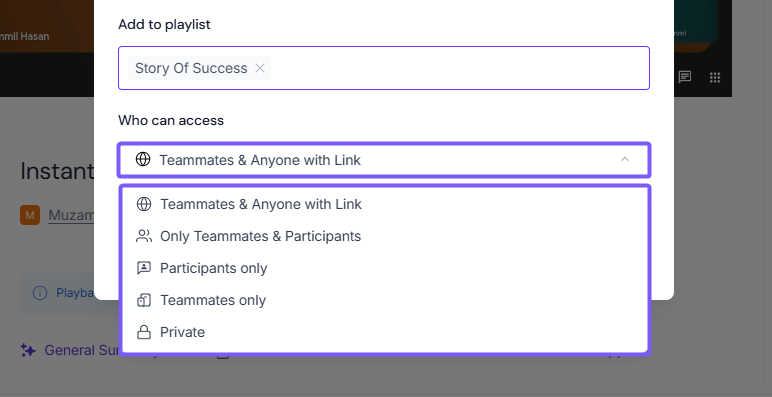
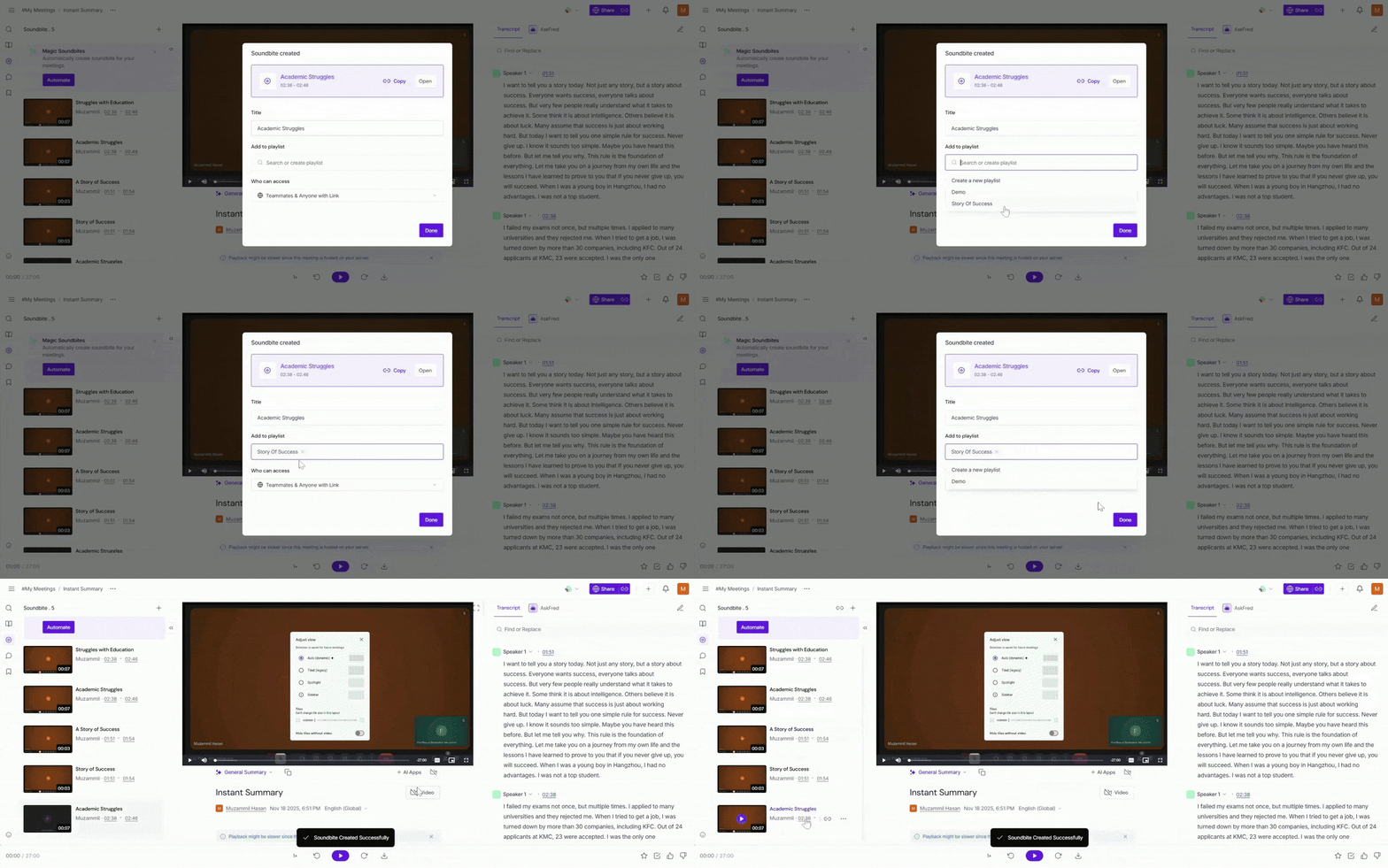
Click on the Done button to create the soundbite. Once saved, you’ll find your soundbite under the Soundbite tab, where you can view, edit, and manage your clips.
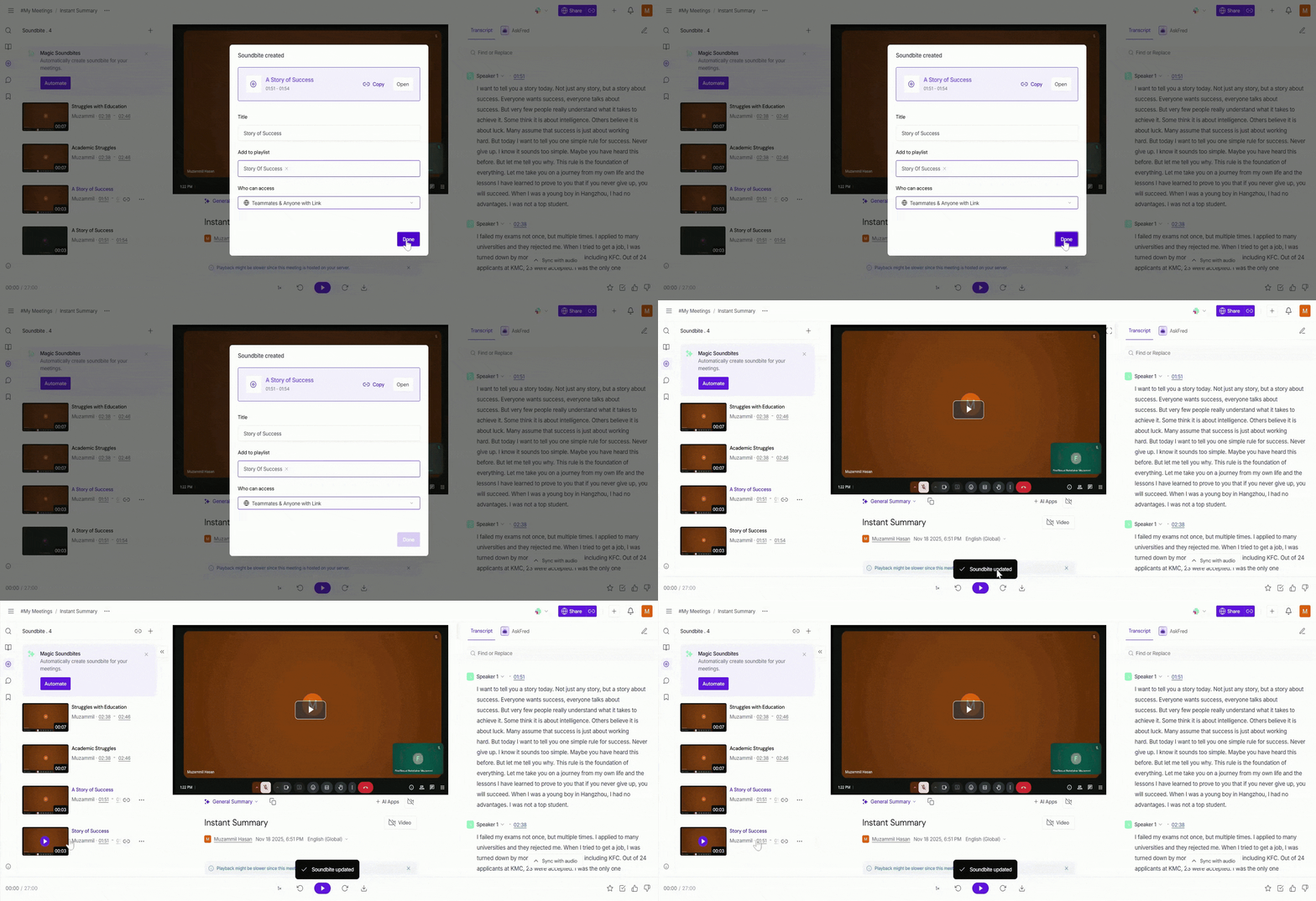
2. Drag and Select Transcript Method
In the Drag and Drop method, you use the audio player to select specific parts of the meeting to create soundbites. Here’s how you do it:
Click on the "+" icon at the top left of the screen to open the soundbite options, then click on the ****Create Drag and select the transcript option.
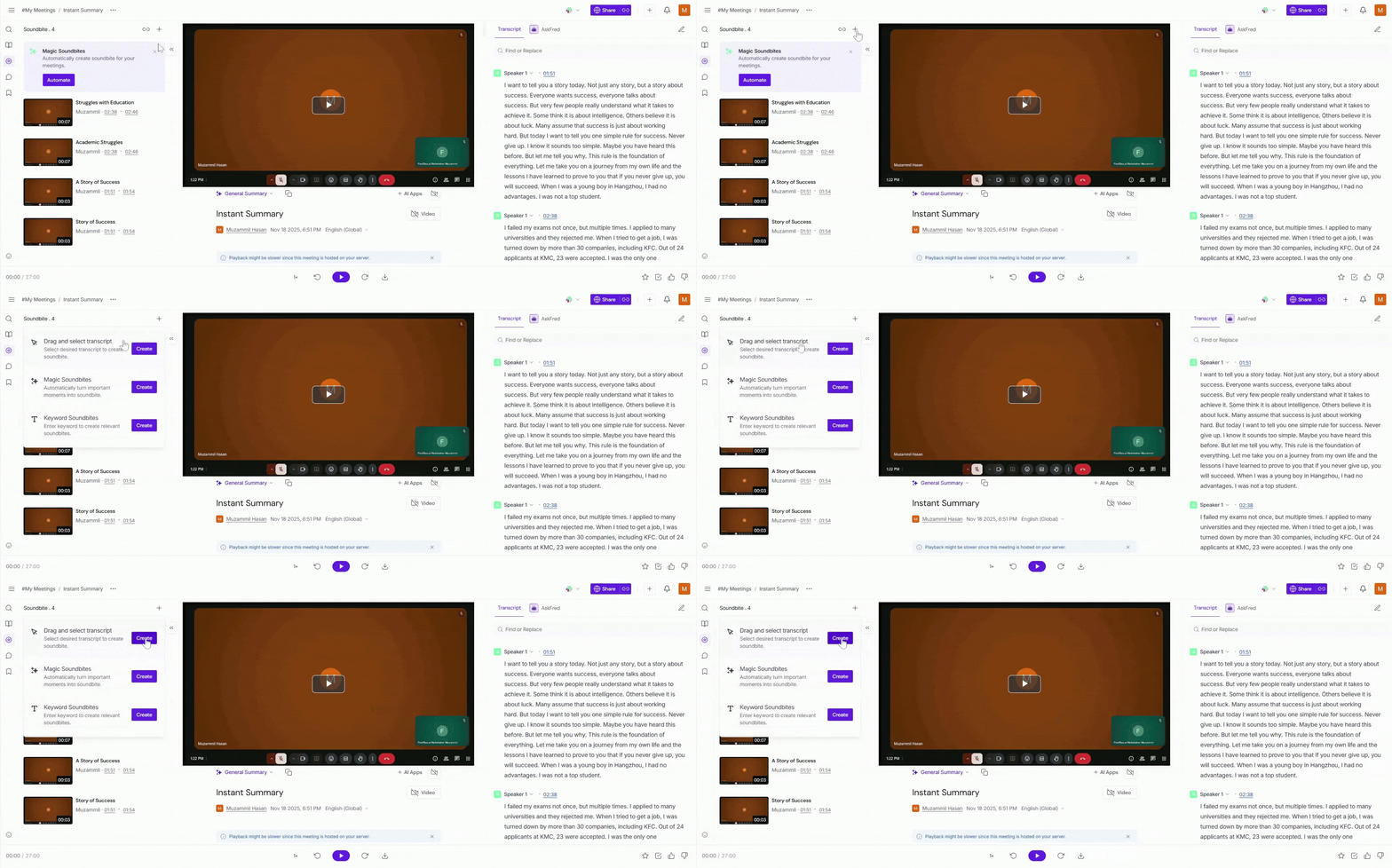
You will create the soundbite using three approaches:
Drag the progress bar left and right to select the transcript section you want based on the audio timing.
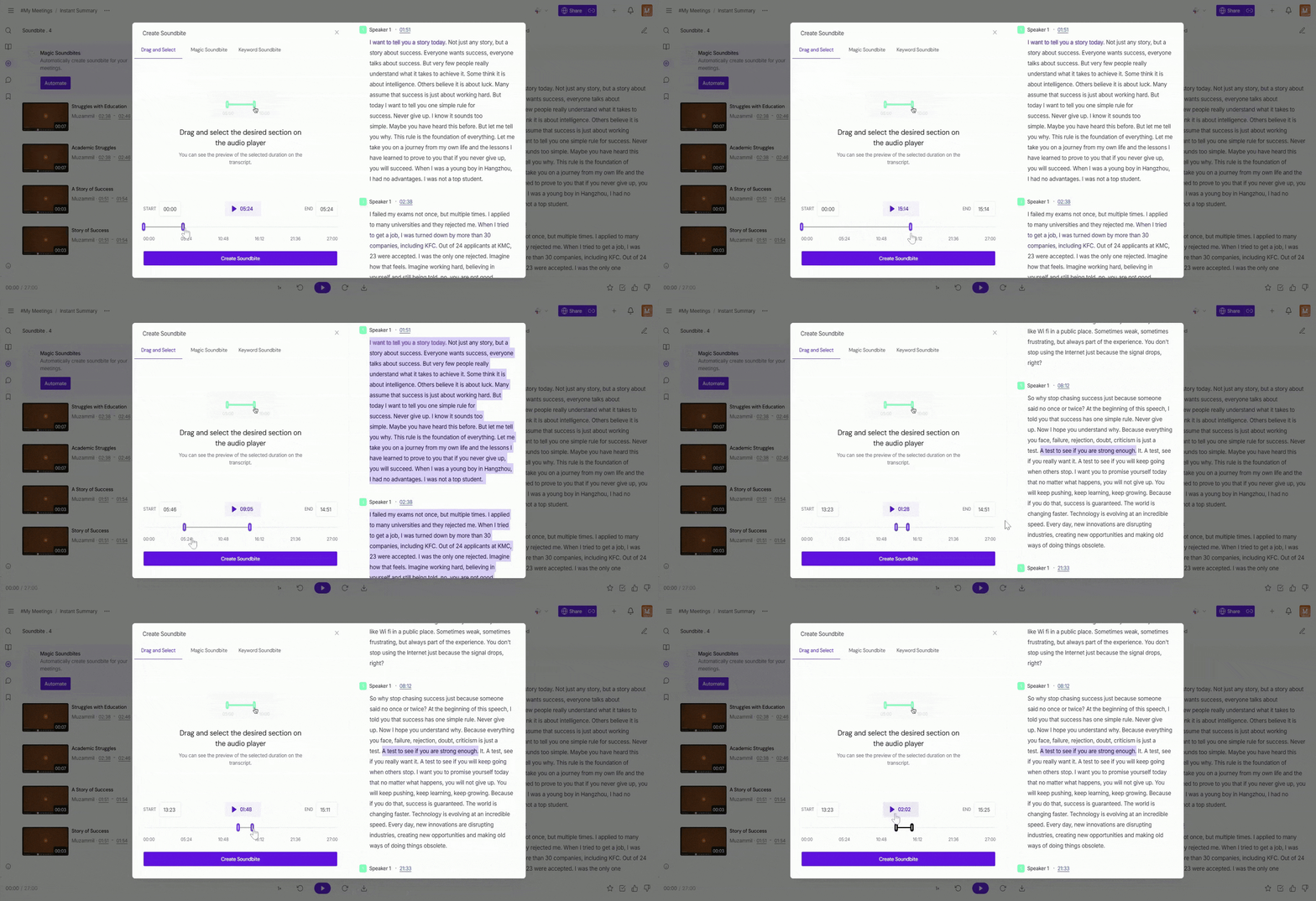
Use the start and end time sliders to define the start and end of the section for the soundbite.
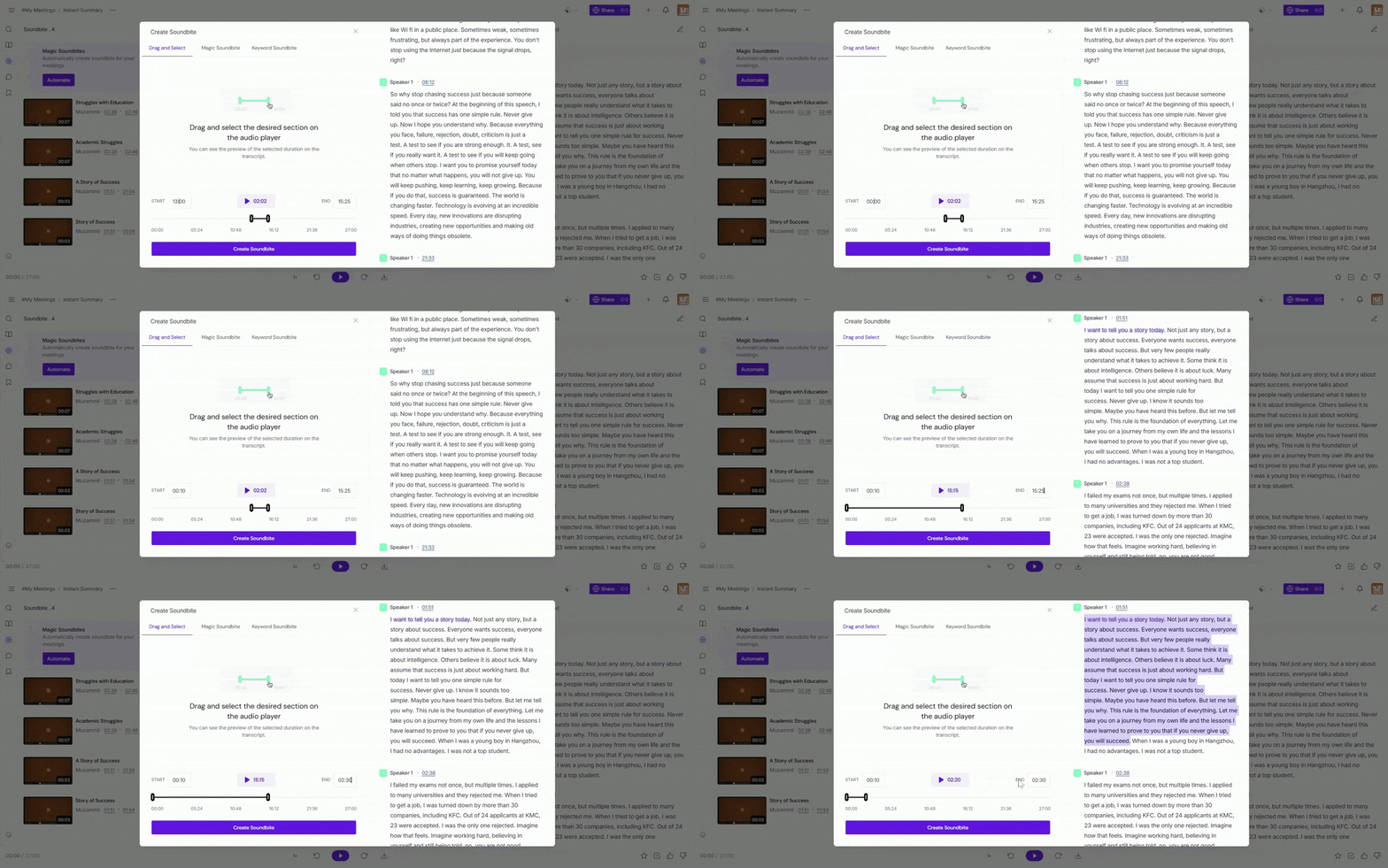
Select the wording or lines from the transcript directly by highlighting the text you want to use for the soundbite.
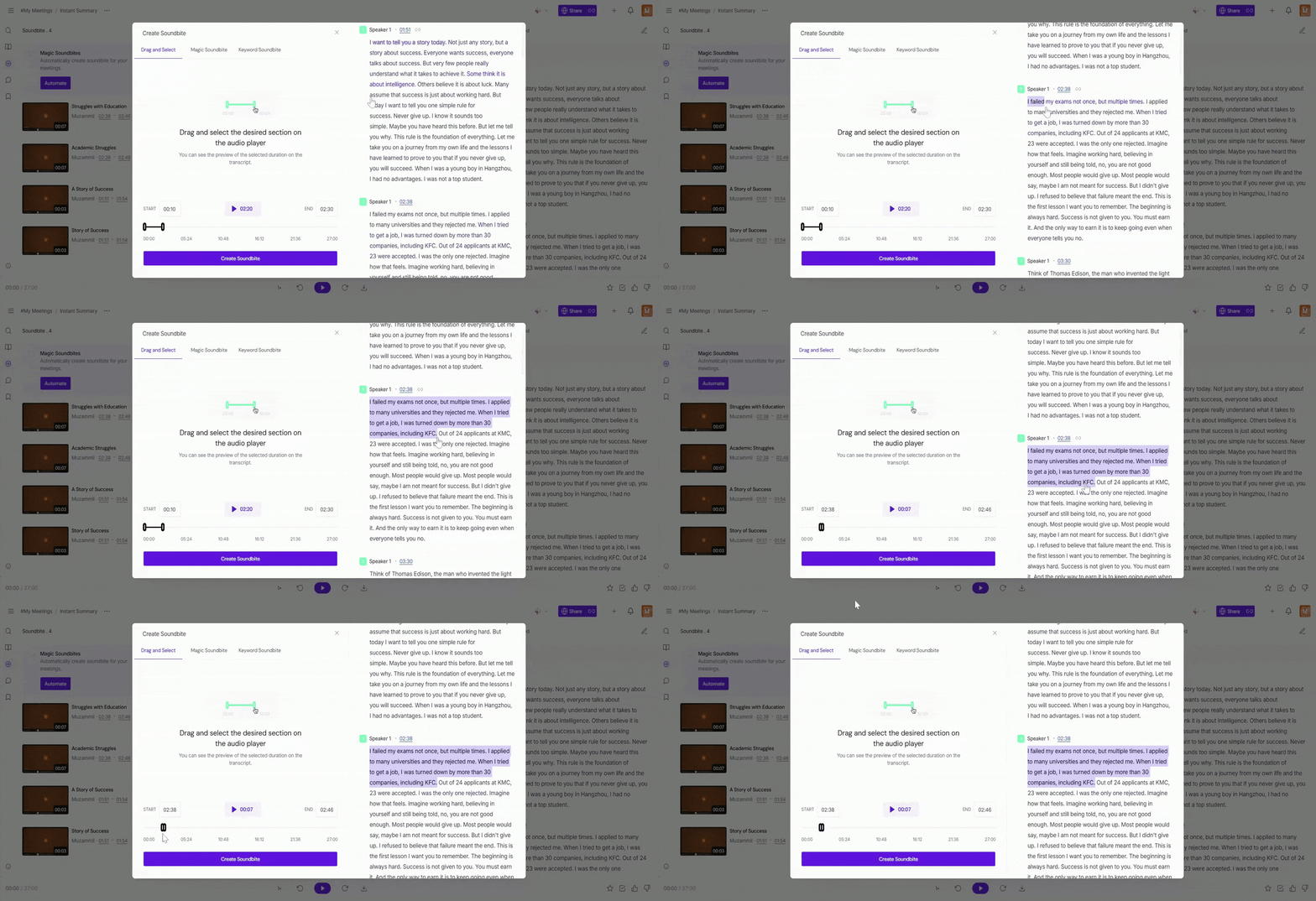
Once you've selected the desired section from the transcript, click the Create Soundbite button.
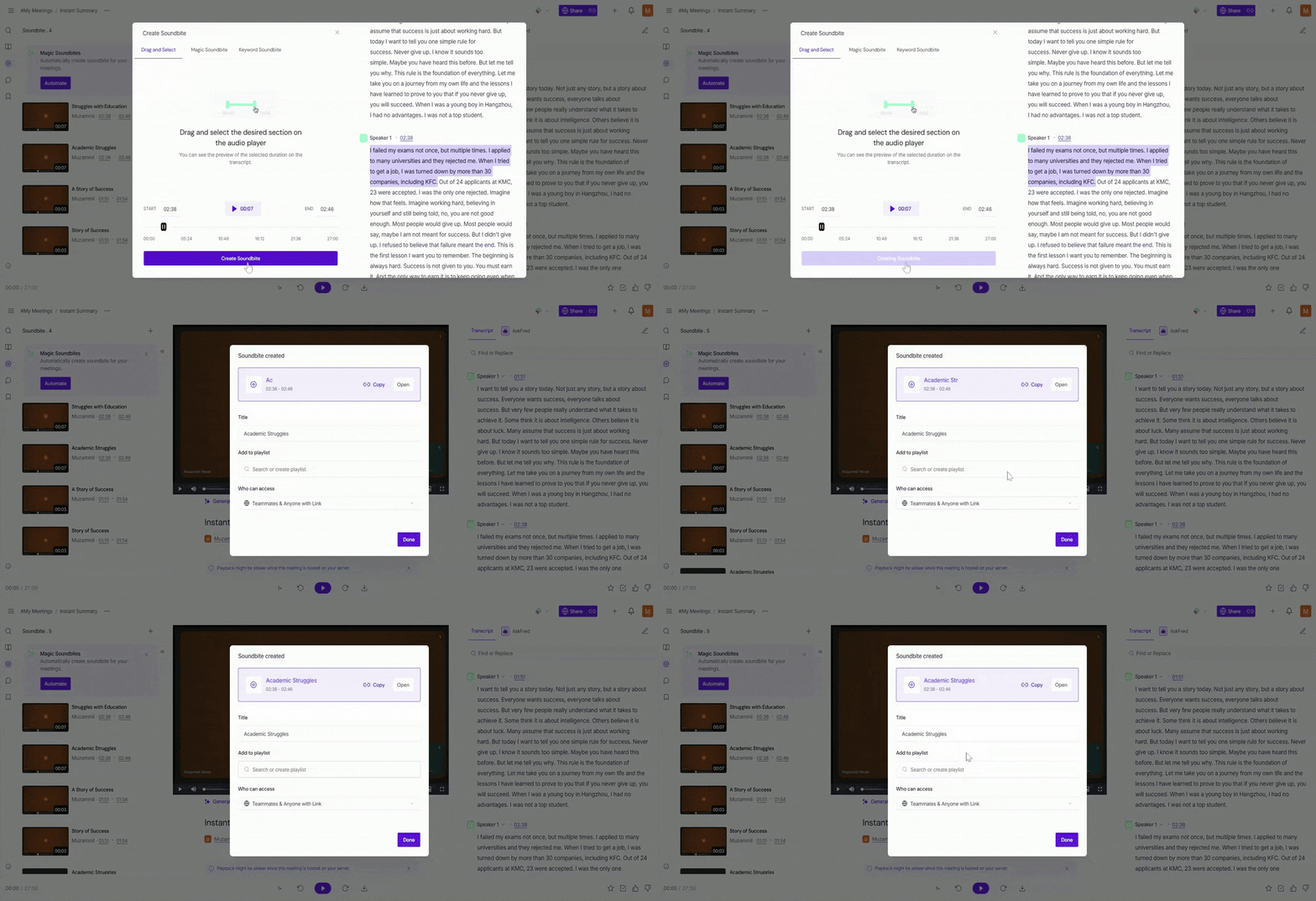
Give the soundbite a title, choose whether to add it to an existing or new playlist, and check who can access the soundbite (e.g., teammates, participants, or private). After that, click on the Done button to create the soundbite.
🔹 Automatic Method for Creating Soundbites
In the automatic method, Fireflies uses AI to analyze your meeting and generate soundbites based on key moments. This is a faster way to create soundbites without manually selecting sections.
Automatic Soundbites (Magic Soundbites & Keyword Soundbites) require AI credits, which are available only on Fireflies paid plans. You’ll need to upgrade your plan to use these AI-powered features.
Here are the two ways you can do that:
1. Magic Soundbites
Magic Soundbites uses Fireflies' AI to automatically detect and generate soundbites based on key moments in your meeting. This is an efficient way to capture important highlights without manually selecting the sections.
Here’s how you can create soundbites with Magic Soundbites:
Click on the "+" icon at the top left of the screen to open the soundbite options, then click on the Create Magic Soundbites option.
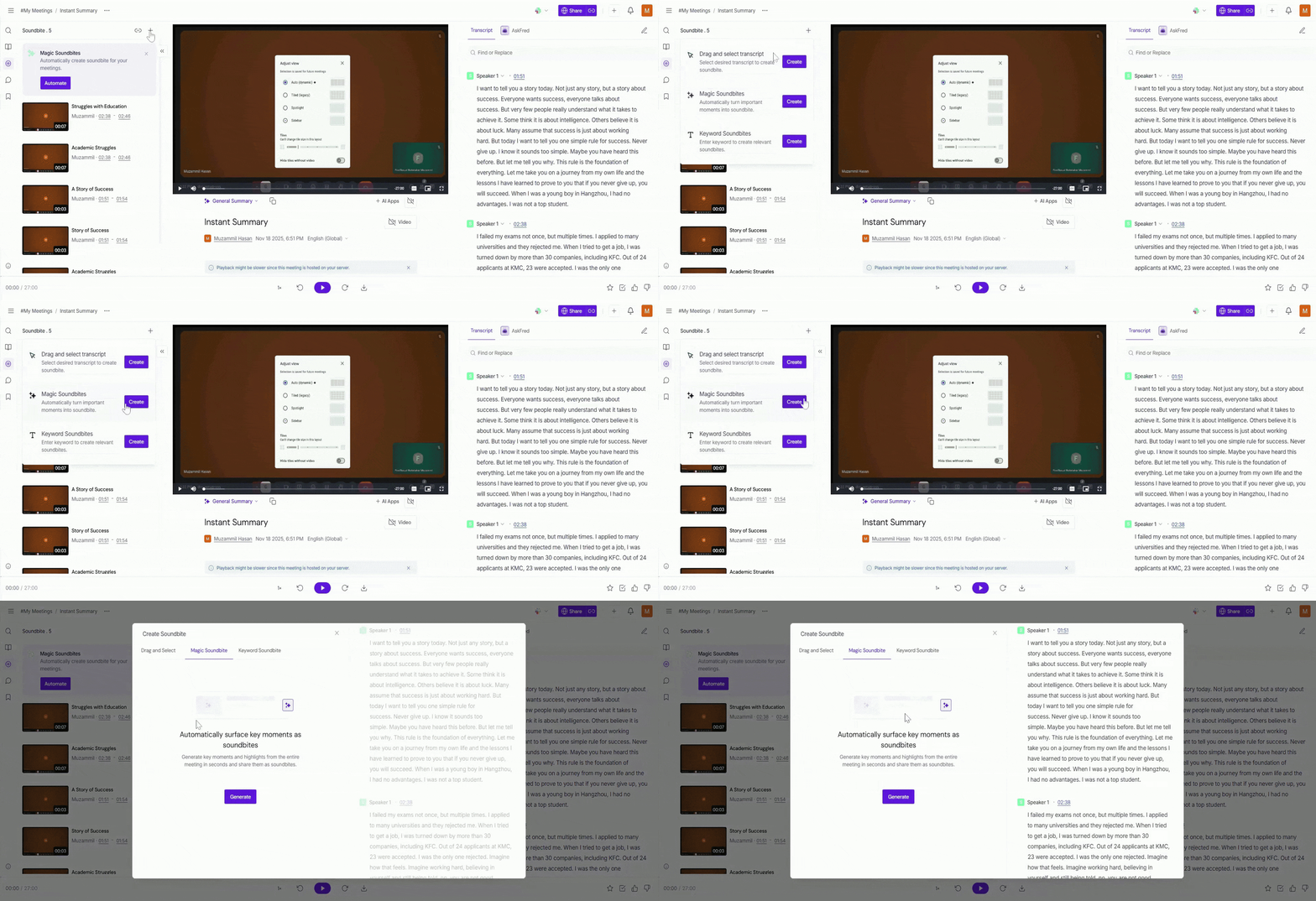
Click on the Generate button to automatically surface key moments and highlights as soundbites.
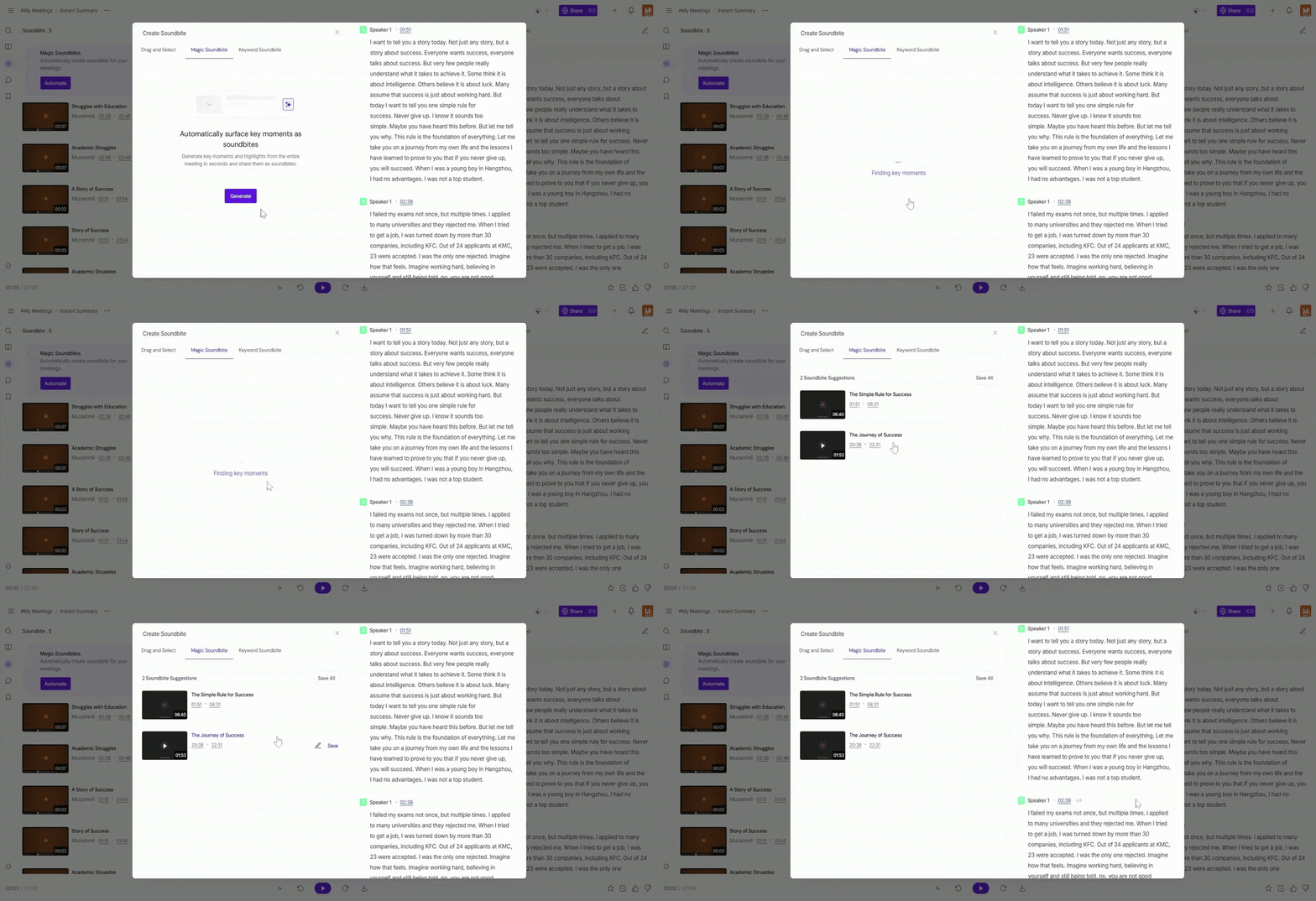
This process may take a little time, depending on the length of your meeting.
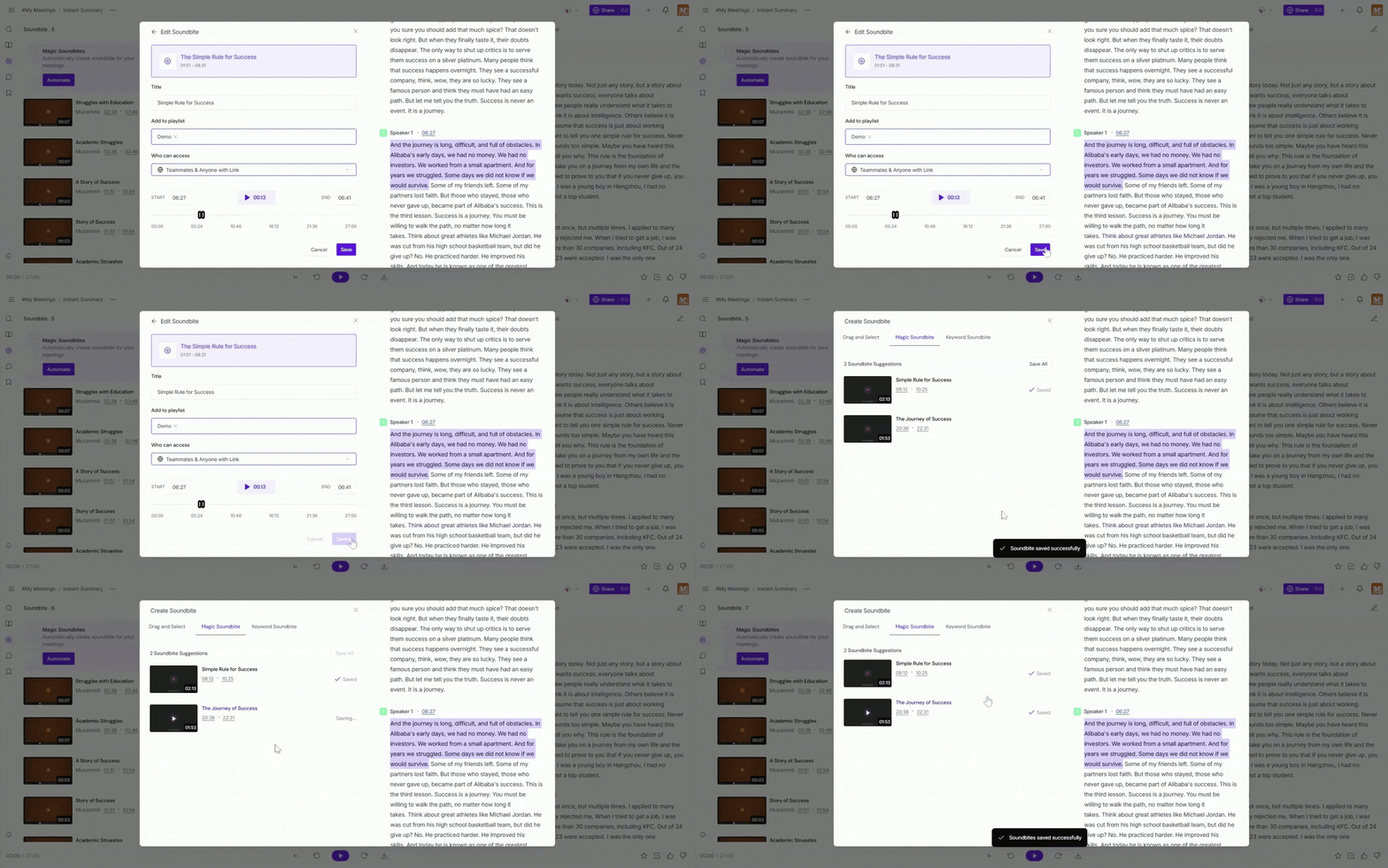
Fireflies will generate soundbite suggestions for you. You can either save each soundbite individually or save all using the Save All option.
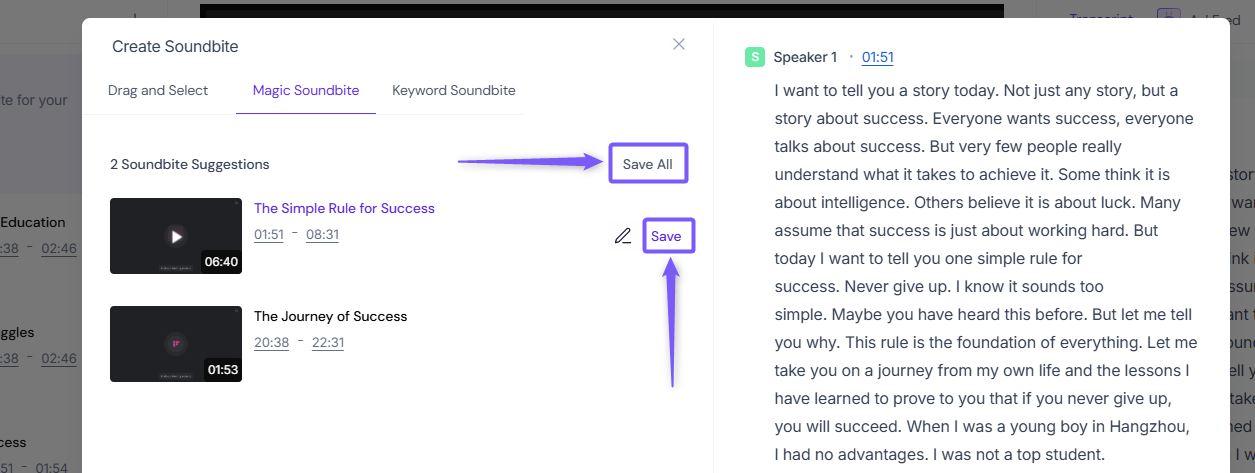
Additionally, you can edit each soundbite by clicking the edit icon to adjust the title, access settings, and add it to a playlist before saving.
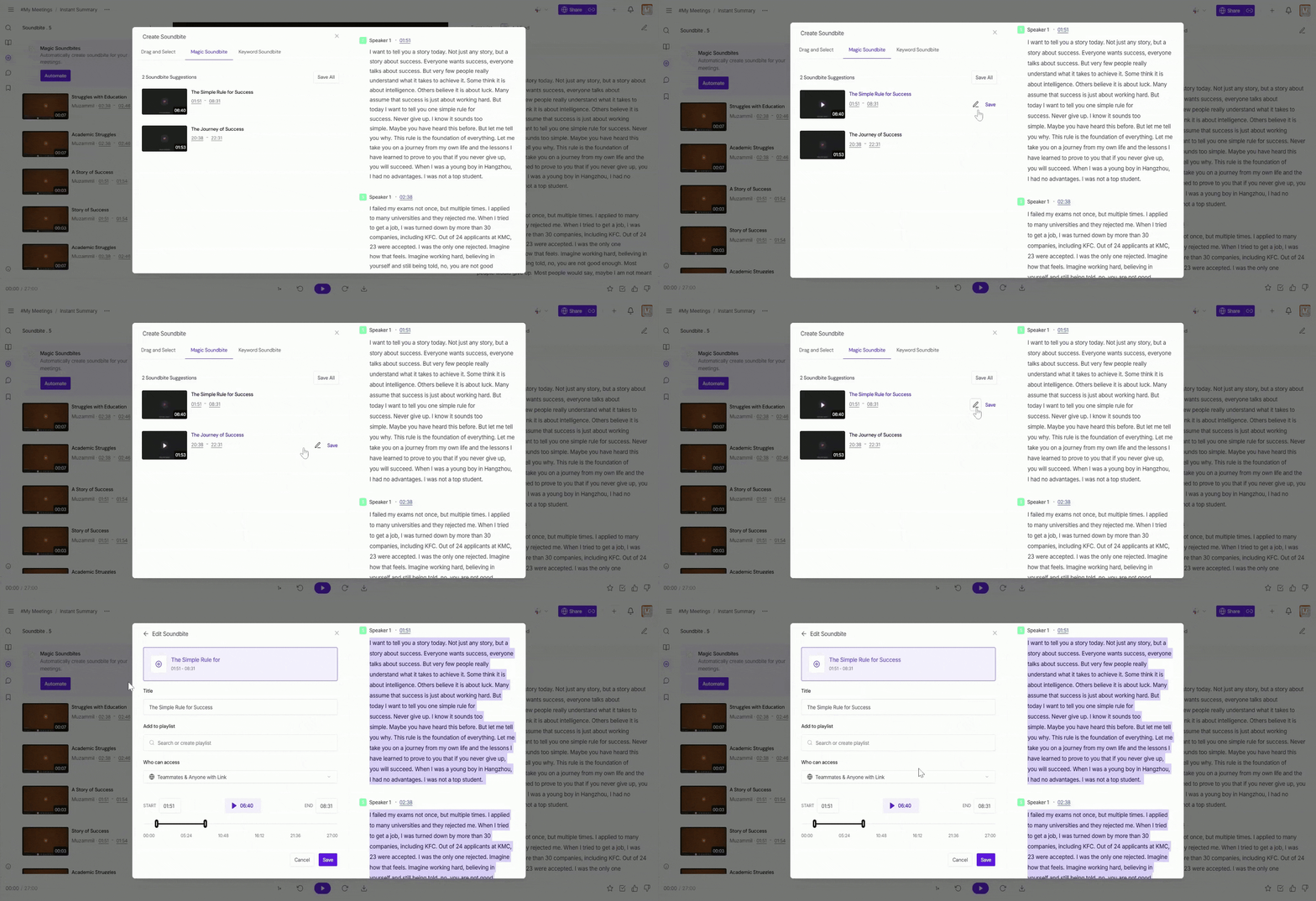
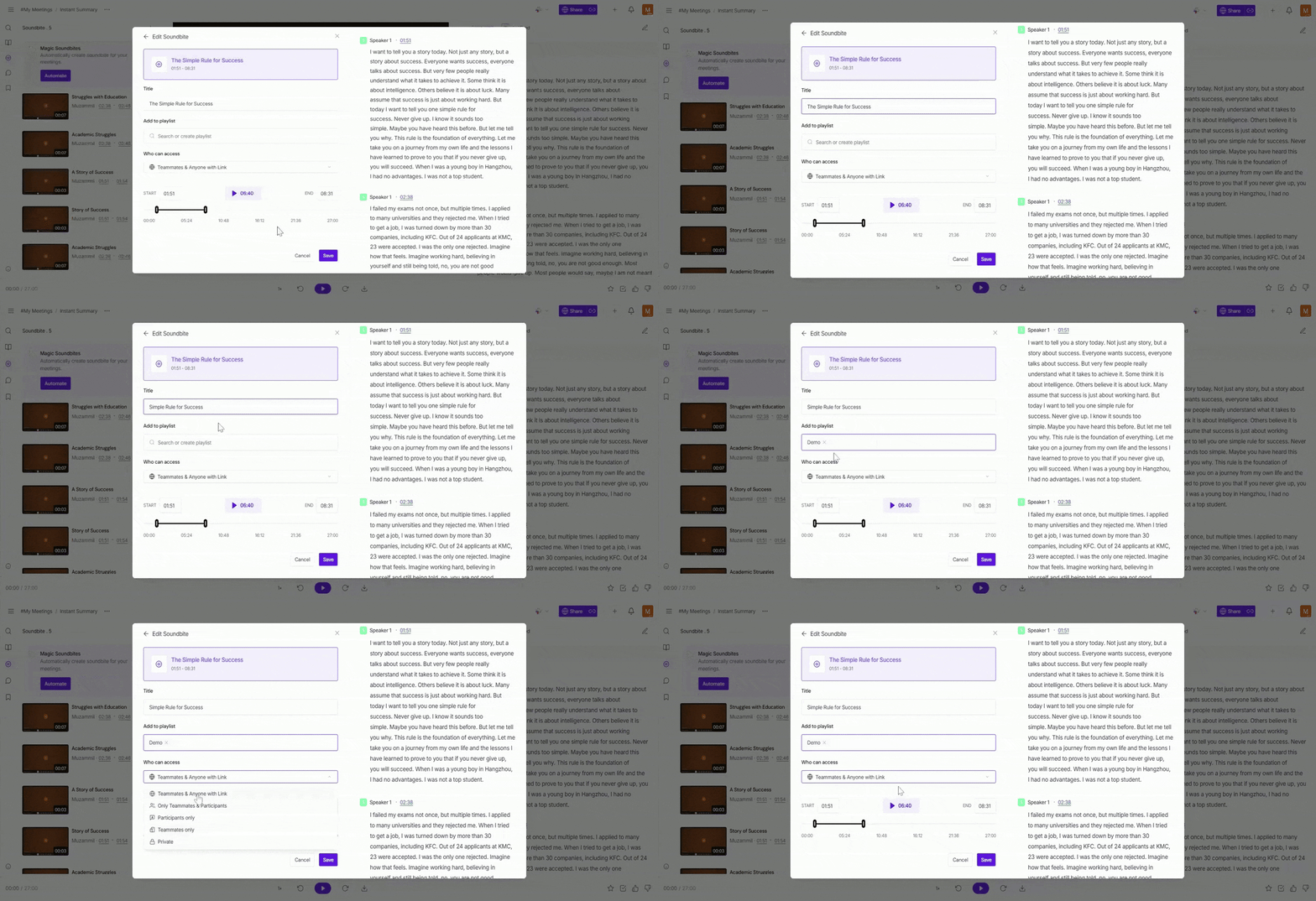
Edit Your Soundbite:
Give the soundbite a title, add it to a playlist, and select the privacy settings for who can access it (e.g., public, teammates only, or private).
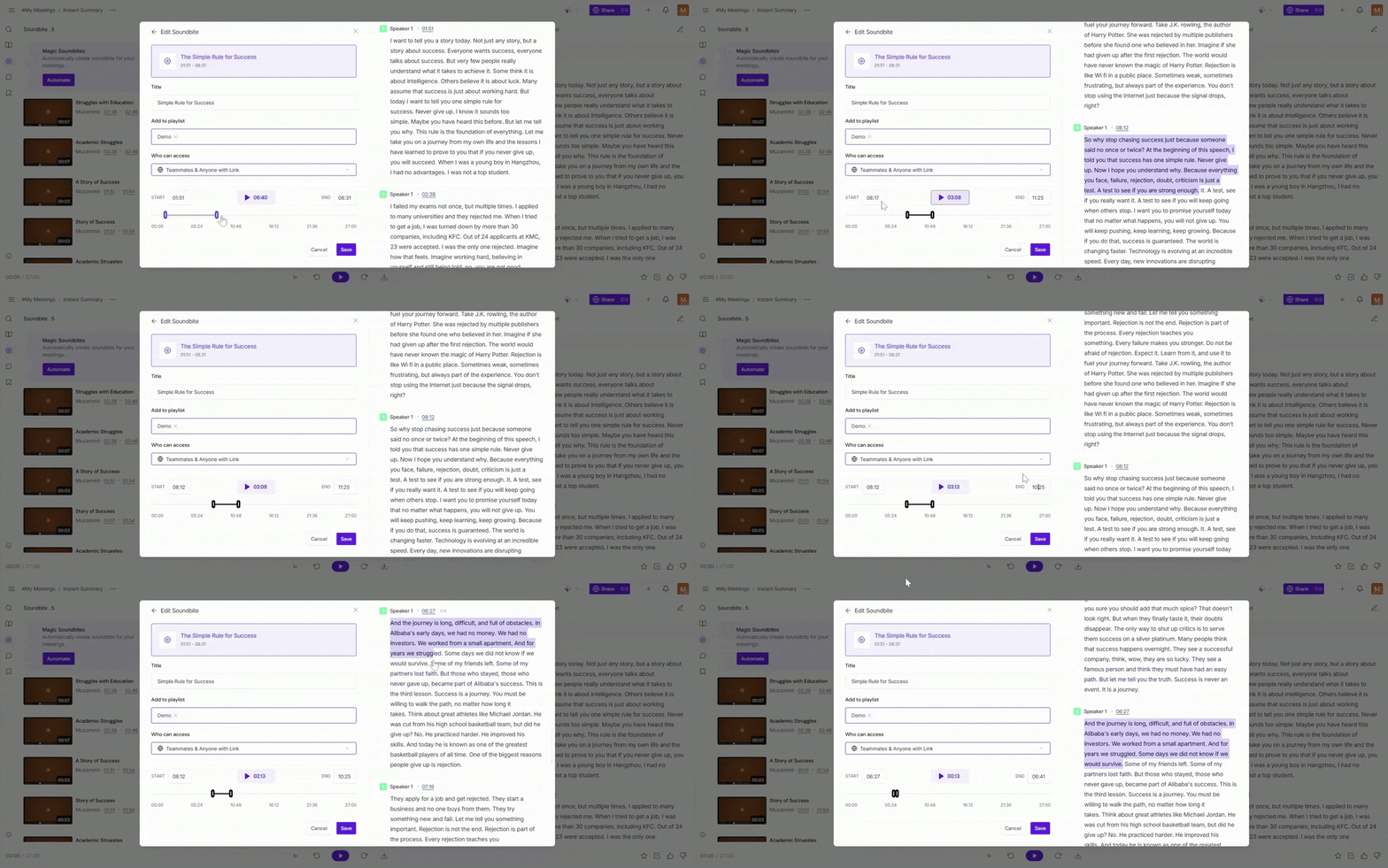
Edit the Soundbite Creation:
You can drag and drop to select the section, adjust the start and end time, or simply highlight the text directly from the transcript to create your soundbite.
Click on the Save button to save the soundbite you created, or you can also save all the soundbites.
✨ Magic Soundbites Automation
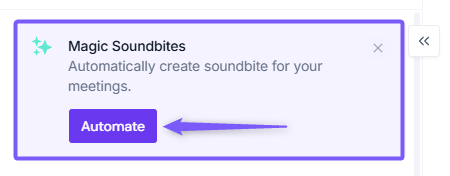
After you’ve used Magic Soundbites once, Fireflies gives you an option to automatically generate soundbites after every meeting—so you don’t need to trigger it manually each time.
You’ll see a small card that says “Automatically create soundbite for your meetings.”
Click the Automate button to enable automatic soundbite generation for all future meetings.
This is useful if you regularly review meeting highlights and want Fireflies to handle the clipping for you without any manual work.
2. Keyword Soundbites
In the Keyword Soundbite method, you can generate soundbites based on specific keywords or phrases that appear in the transcript. This is useful when you want to capture moments related to particular topics or terms.
Here’s how you can create soundbites with Keyword Soundbites:
Click on the "+" icon at the top left of the screen to open the soundbite options, then click on the Create Keyword Soundbites option.
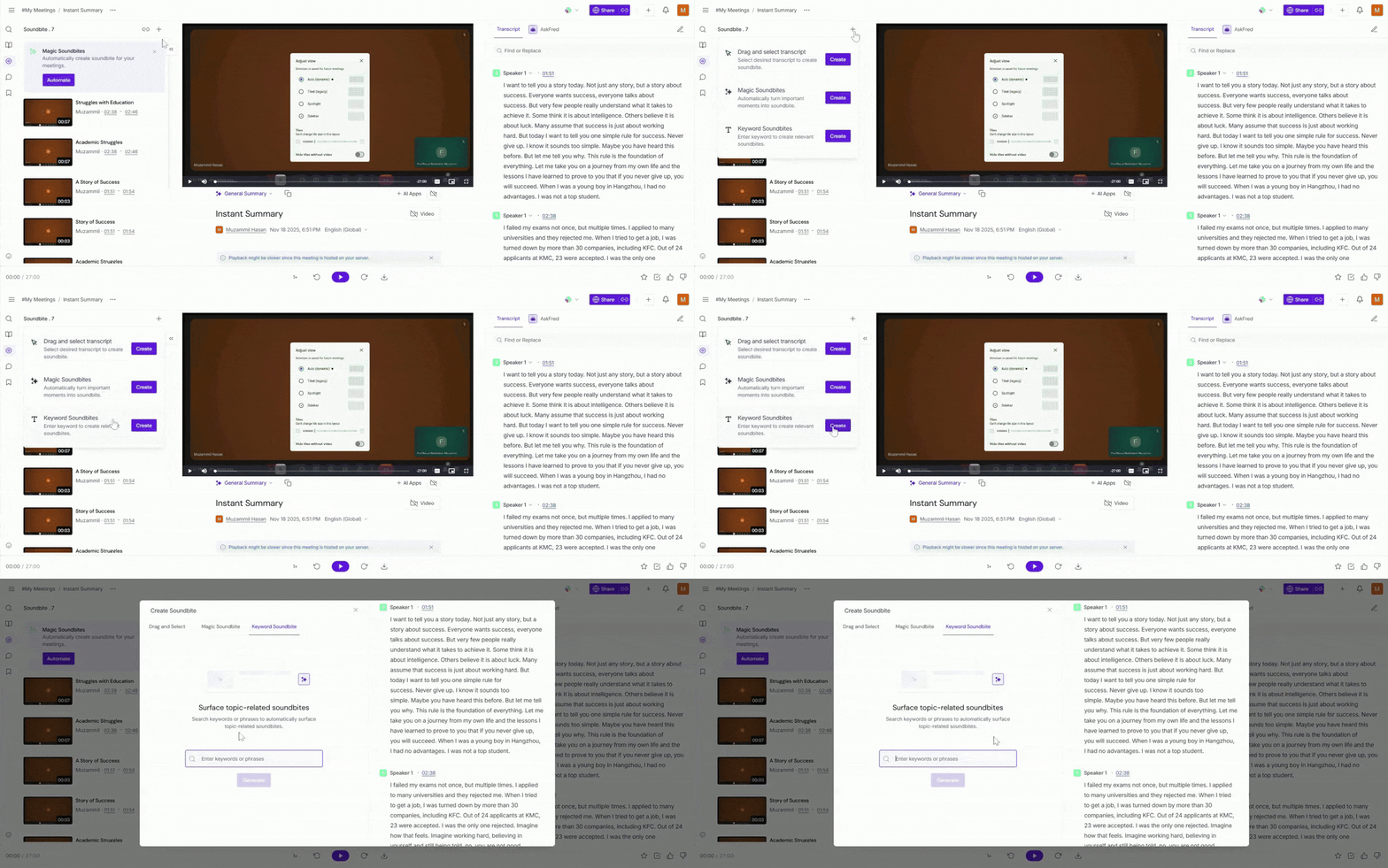
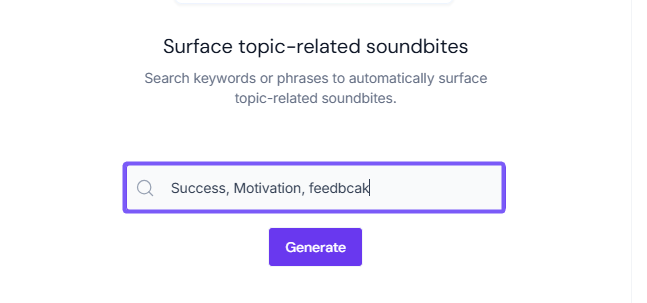
Enter the keywords or phrases you want Fireflies to search for in the transcript. You can input multiple keywords, separated by commas. For example, if you're looking for soundbites related to "Motivation", “Success”, or "feedback",
Click on the Generate button for Fireflies to create soundbites based on the matching sections of the meeting.
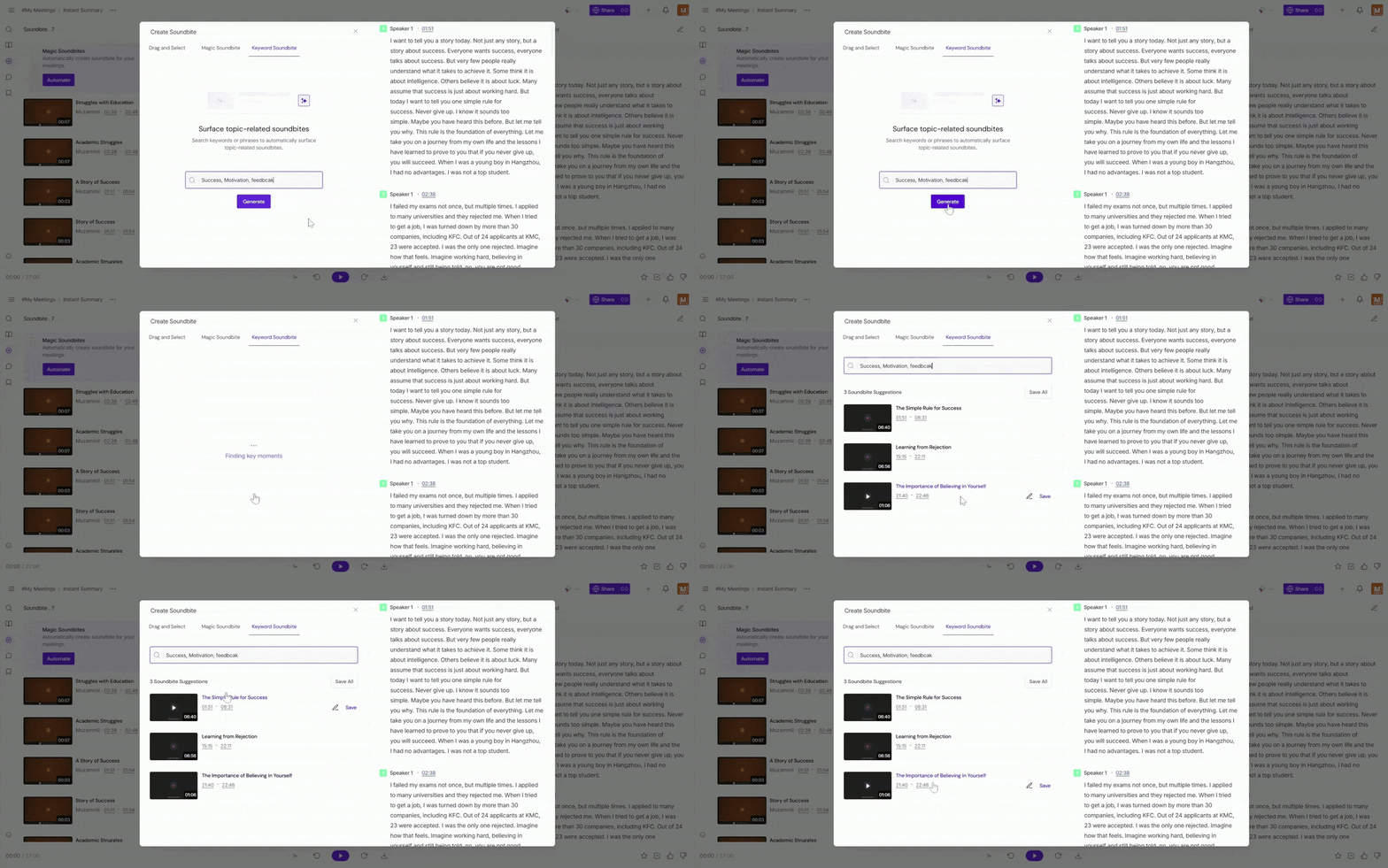
This process may take a little time, depending on the length of your meeting.
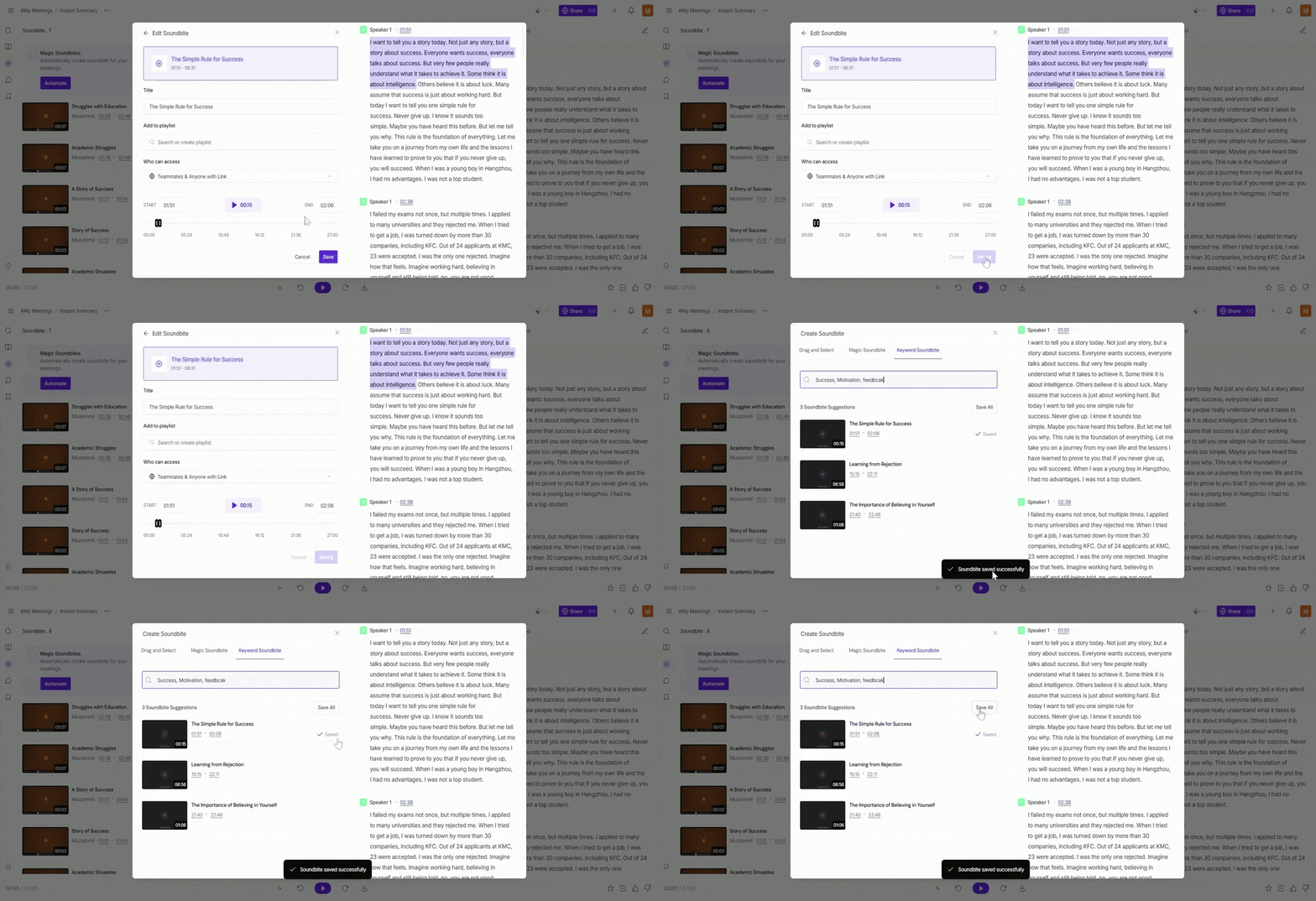
Fireflies will generate soundbite suggestions for you. You can either save each soundbite individually or save all using the Save All option.
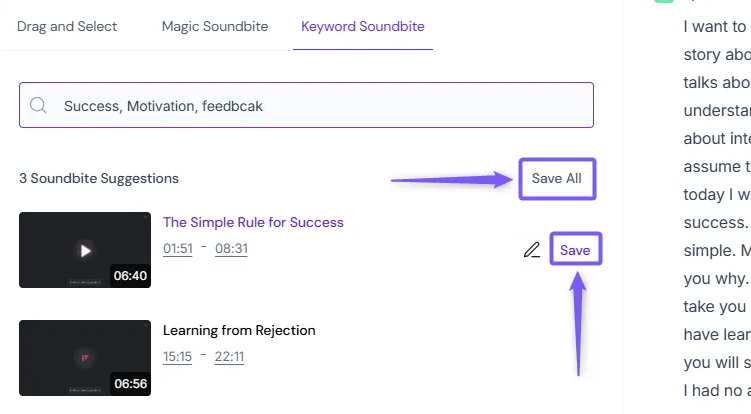
Additionally, you can edit each soundbite by clicking the edit icon to adjust the title, access settings, and add it to a playlist before saving.
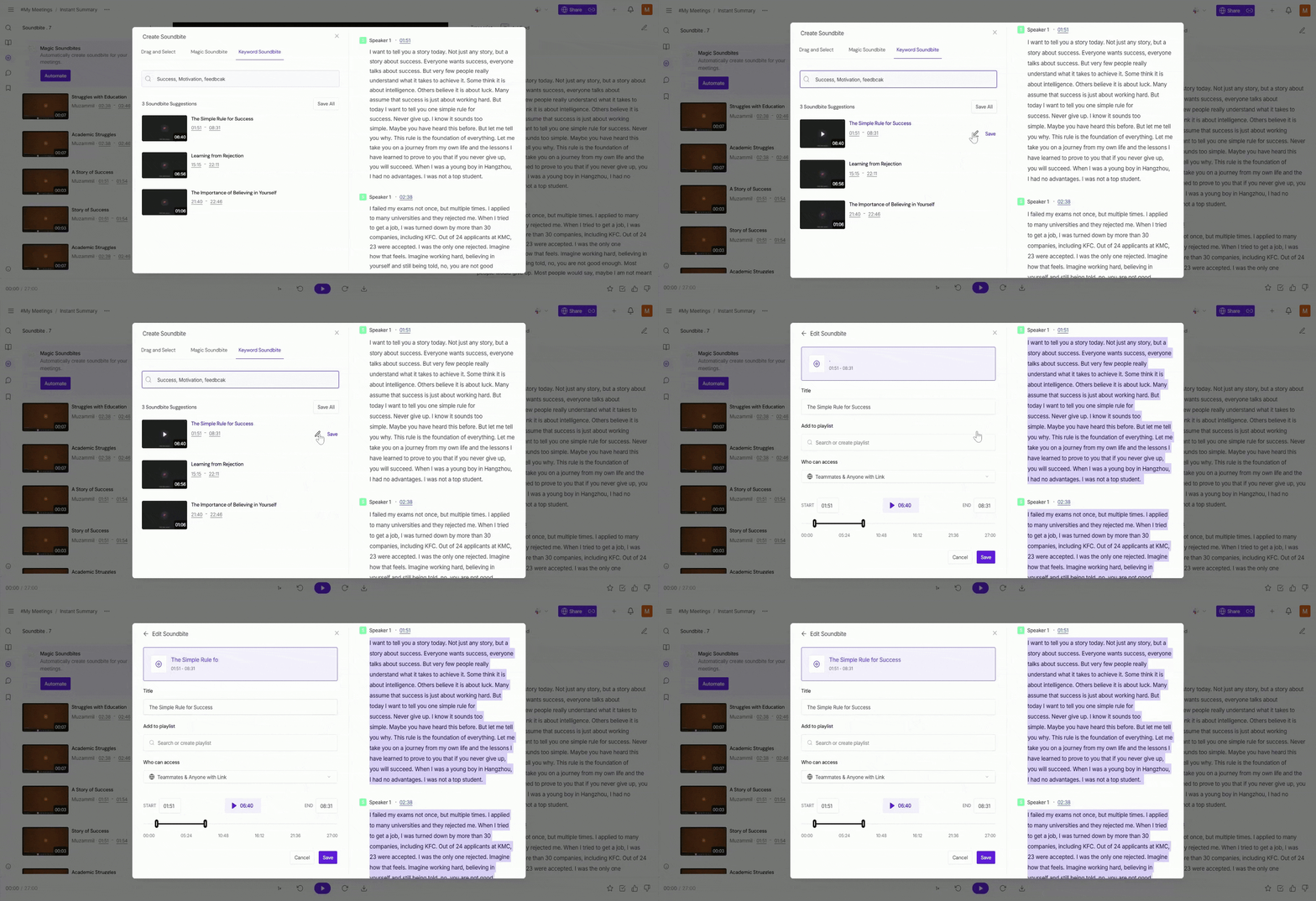
Edit Your Soundbite:
Give the soundbite a title, add it to a playlist, and select the privacy settings for who can access it (e.g., public, teammates only, or private).
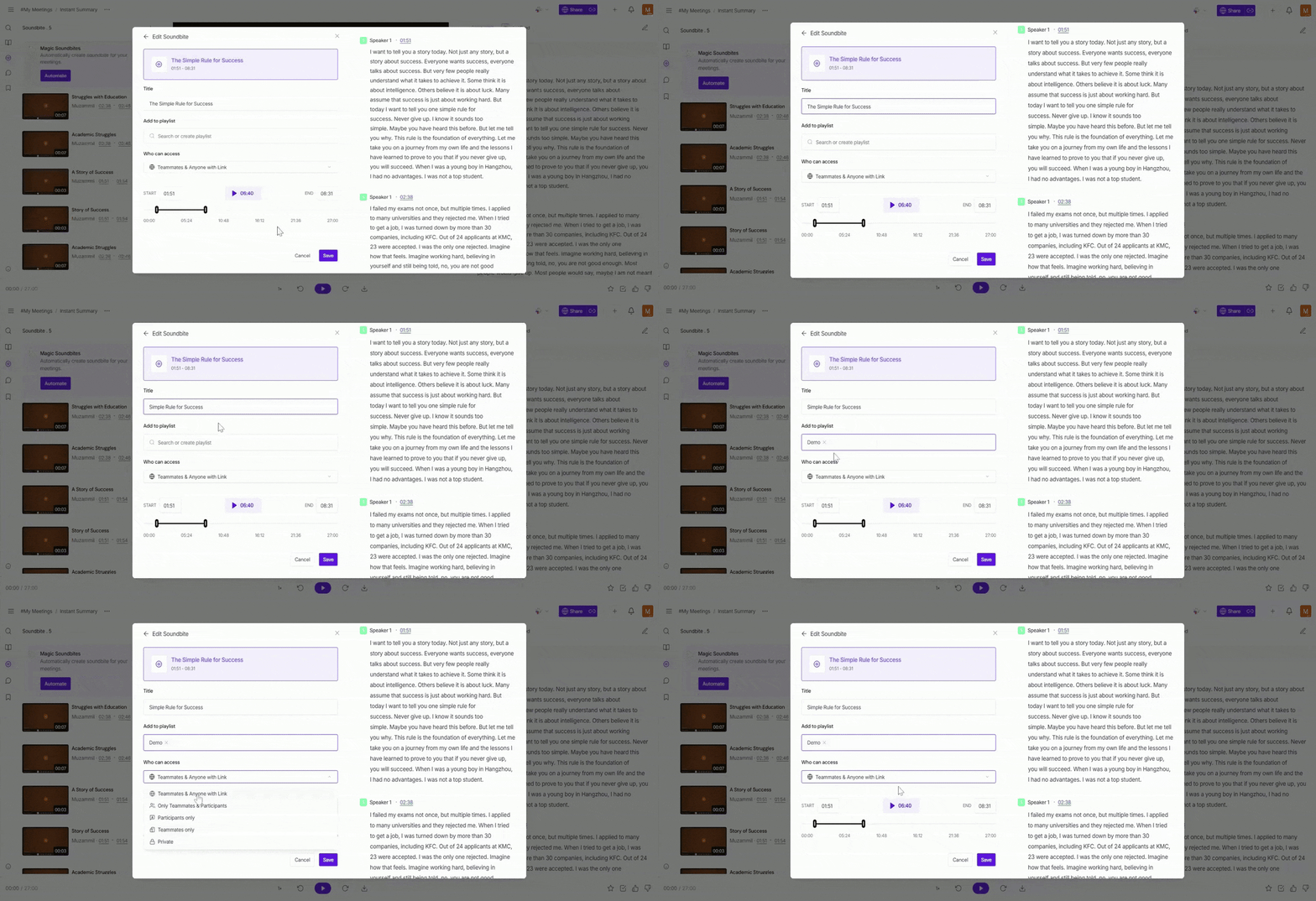
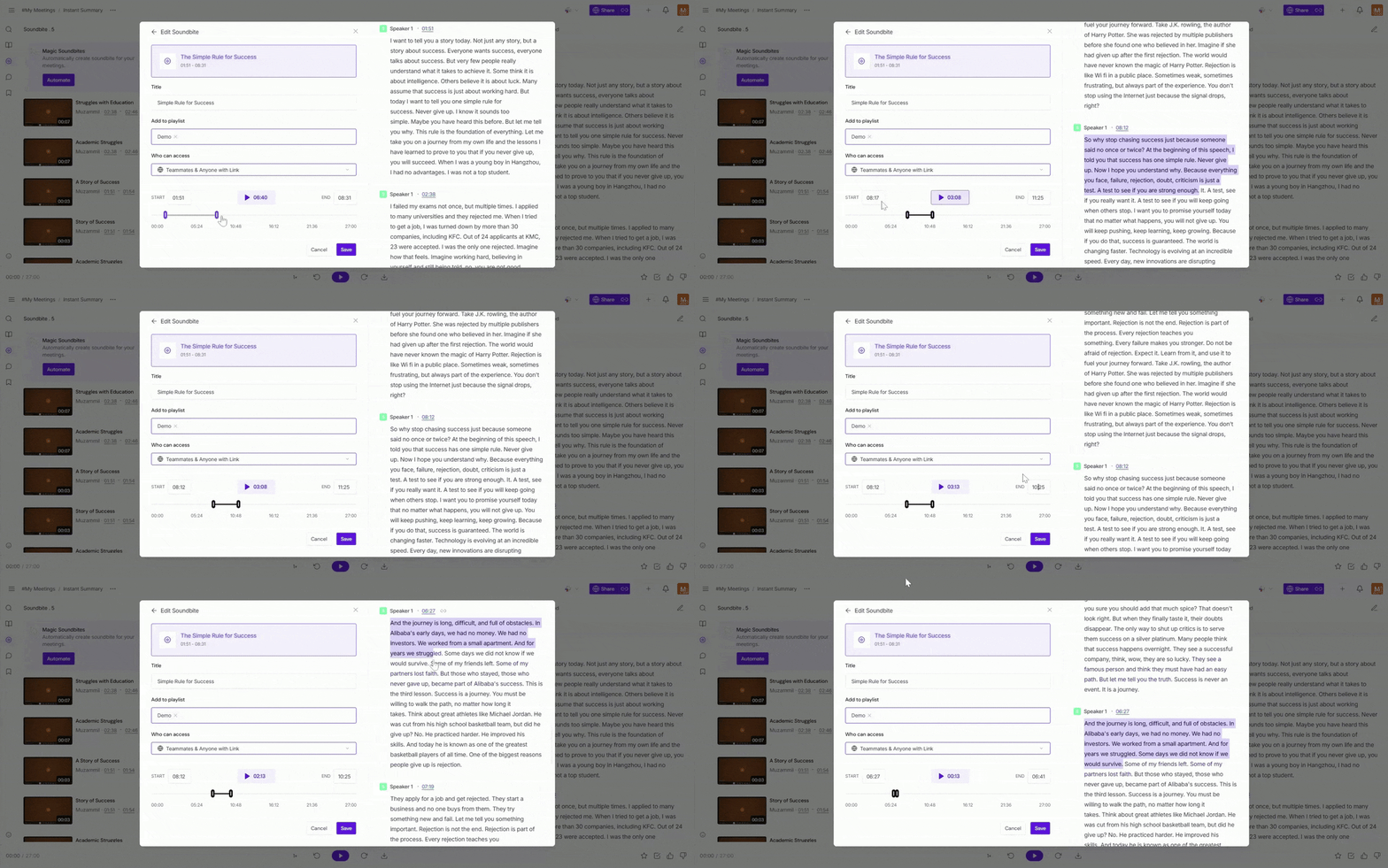
Edit the Soundbite Creation:
You can drag and drop to select the section, adjust the start and end time, or simply highlight the text directly from the transcript to create your soundbite.
Click on the Save button to save the soundbite you created, or you can also save all the soundbites.
🛠 Manage Soundbites
Once your soundbites are created, you can easily manage them from the Soundbites tab in the left menu. This is where you can view, edit, delete, and share all your clips in one place.
View your soundbites: Access all soundbites generated manually or automatically.
Edit a soundbite: Update the title, adjust access permissions, or modify the clip duration.
Delete a soundbite: Remove soundbites you no longer need.
Share a soundbite: Copy the link or adjust access settings to share key moments with teammates.
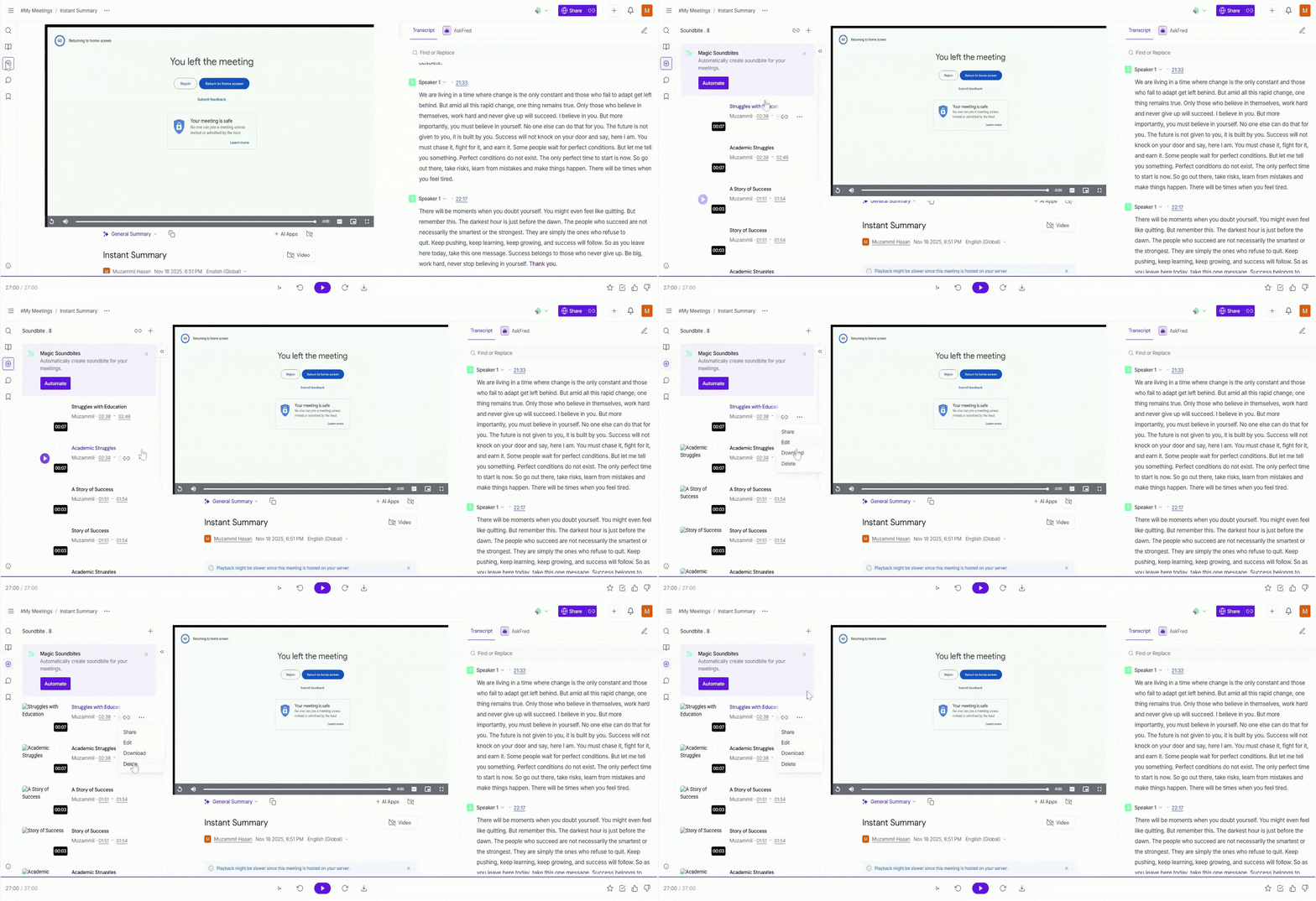
📎 Learn how to manage soundbites → [Add link to Manage Soundbites guide here once live]
🎯 Using Meeting Markers to Highlight Key Moments
Meeting markers allow you to easily flag important sections in your meeting, helping you focus on key moments without the need to create soundbites. You can use markers for various actions, such as noting positive feedback, action items, or concerns.
Here's how you can use them:
Open the Meeting Transcript: Navigate to the meeting you want to highlight and open the transcript.
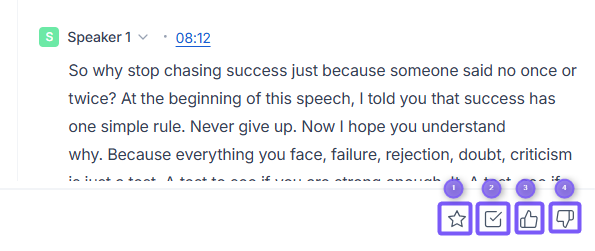
On the bottom right side of the screen, you will see four marker types that you can use to highlight key moments:
Ref. | Marker Type | Description |
1. | Important (Bookmark) | Save sections of the transcript for easy access later. |
2. | Action Items | Flag tasks or follow-up actions for you or your team. |
3. | Thumbs Up (Positive) | Mark positive moments or key points that stood out. |
4. | Thumbs Down (Negative) | Flag moments that may need improvement or concern. |
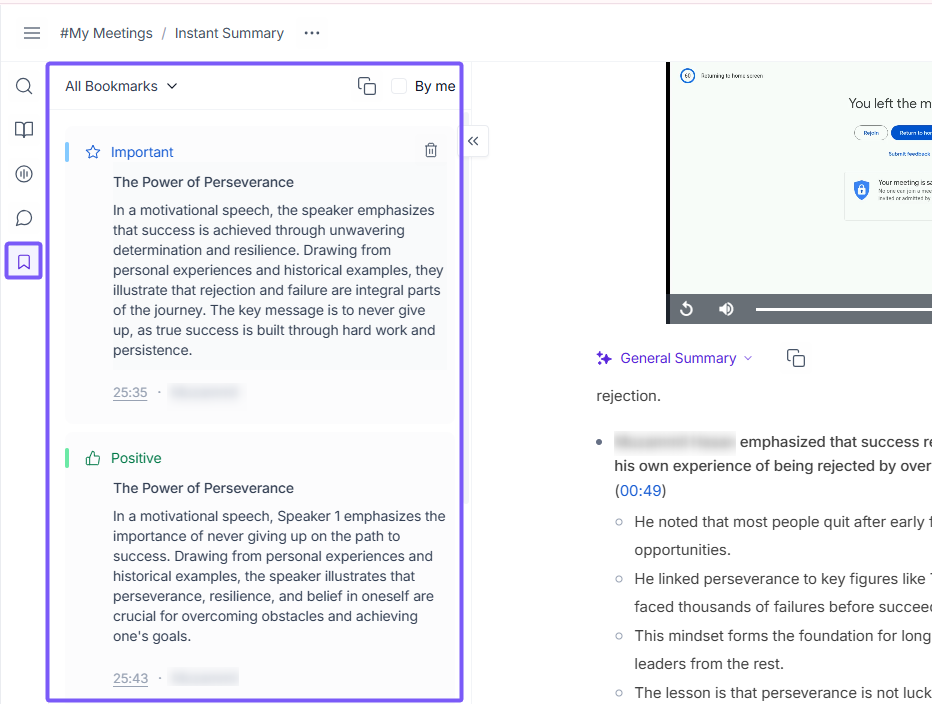
Click on any of the markers, and your important moment — whether positive, negative, an action item, or important will be created.
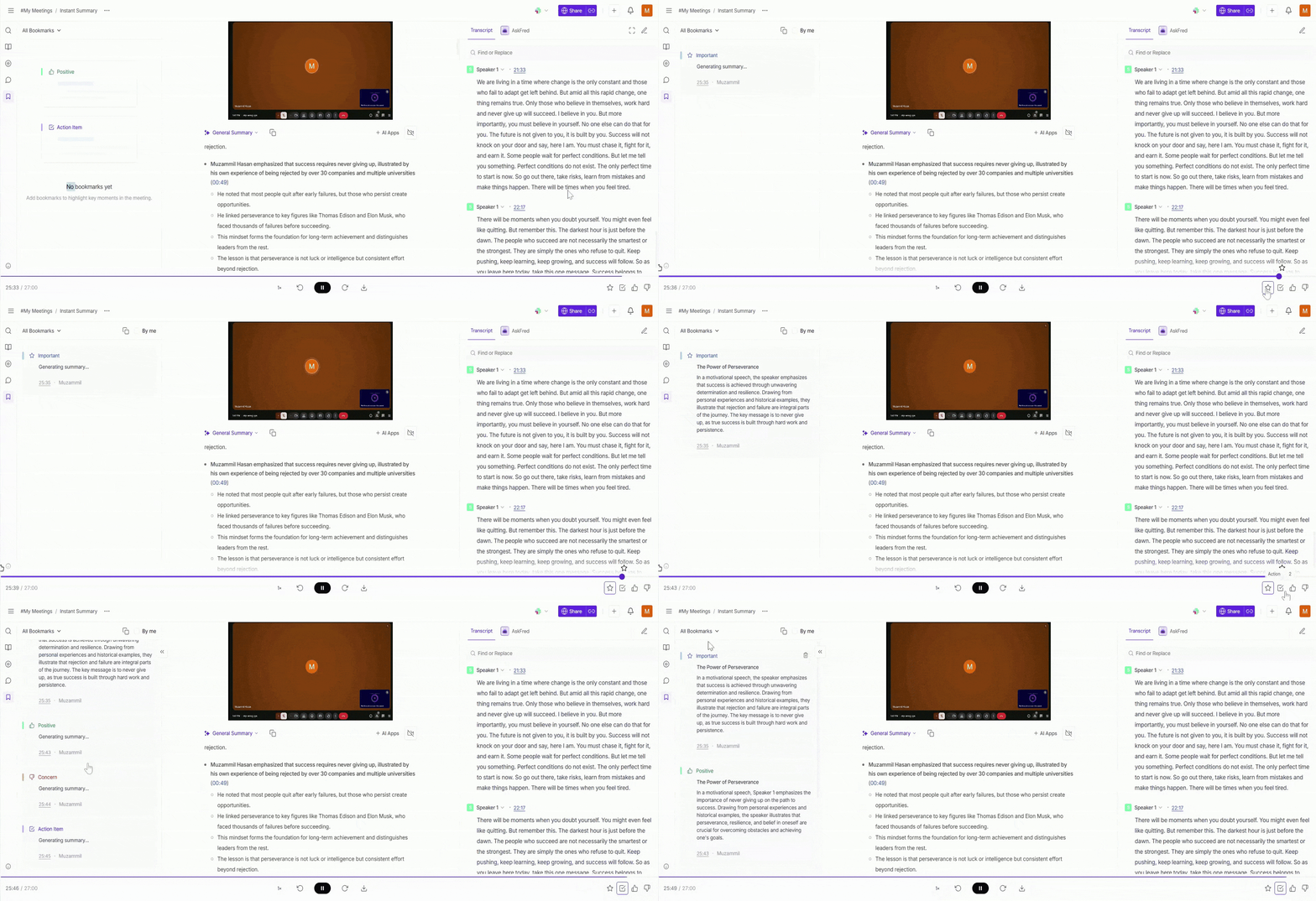
All your important highlights will be saved under the Bookmark tab on the left side for easy access.
🛠 Troubleshooting & FAQs
Q1. I can’t create a soundbite — what should I do?
The Create Soundbite button only appears after you highlight text or use the drag/start–end time selector. Make sure a valid section is selected.
Q2. Magic or Keyword Soundbites aren’t generating — why?
Your meeting may still be processing, or your keywords may be unclear. Wait a moment and try again after entering at least one clear keyword.
Q3. My edited title didn’t save — what happened?
Ensure you clicked Save in the modal before closing it.
Q4. Where can I find my saved soundbites?
All soundbites appear under the Soundbites tab.
Meeting markers (bookmarks, action items, thumbs up/down) are saved under the Bookmark tab on the left.
Q5. Can I edit a soundbite after saving?
Yes — open the soundbite, click the edit icon, and adjust the title, duration, playlist, or access settings.
Q6. Can I share soundbites with people outside my team?
Yes — set the access level to Anyone with the link.
Q7. Do automatic soundbites use AI credits?
Yes, both Magic Soundbites and Keyword Soundbites consume AI credits.
🔄️ Recap
With Soundbites and Meeting Markers, you now have quick and powerful ways to capture the most important parts of any meeting.
Use manual soundbites when you want full control—highlight text or drag to select exact moments.
Use automatic soundbites (Magic or Keyword) when you want Fireflies to instantly surface key moments for you.
And for quick in-meeting highlights, use meeting markers like bookmarks, action items, or positive/negative reactions. Everything you mark is neatly saved under the Bookmark tab for easy access later.
Together, these tools help you revisit, organize, and share important insights without replaying an entire meeting.
📌 Related Guides
If you’d like to explore more ways to organize and work with your meeting insights, check out these guides:
Fireflies Notebook Overview – Understand how to organize and manage your meetings.
Learn about the Fireflies Notepad – Understand how to organize your meeting notes and easily access key moments.
Fireflies AI Meeting Summaries: View, Customize, Expand, Regenerate – Learn how to view, customize, and regenerate AI meeting summaries to highlight key points.